

How to Create an Android Mobile Proxy with Localtonet (HTTP & SOCKS5 Guide)
Learn how to turn your Android phone into a secure mobile proxy server using Localtonet. This guide shows step-by-step how to install the app, connect your device, and create HTTP or SOCKS5 proxies with rotating mobile IP support.
Video Overview
What Is an Android Mobile Proxy?
An Android mobile proxy allows internet traffic to be routed through a real mobile device connected to a cellular network. Instead of using datacenter IP addresses, requests originate from mobile carrier IP space, which is often more trusted and harder to detect.
Developers, marketers, and automation systems commonly use mobile proxies for tasks such as testing geo behavior, managing multiple accounts, validating ads, scraping mobile-targeted content, or simulating real user traffic patterns.
Step 1: Install Localtonet on Android
Start by installing the Localtonet mobile application on your Android device:
The mobile application acts as the proxy gateway running on your phone and connecting your device to the Localtonet infrastructure.
Step 2: Create Your Account and Copy AuthToken
Visit Localtonet.com and create an account if you do not already have one.
After signing in, open the clipboard page and copy your AuthToken. This token links your Android device to your account securely.
Step 3: Connect Your Phone
Open the Localtonet Android app and paste your AuthToken. Once connected, your device will appear inside your dashboard token list.

Step 4: Configure Mobile IP Rotation
One of the main advantages of a phone proxy is dynamic IP rotation. Localtonet provides airplane-mode automation that allows refreshing the mobile IP address without manual interaction.
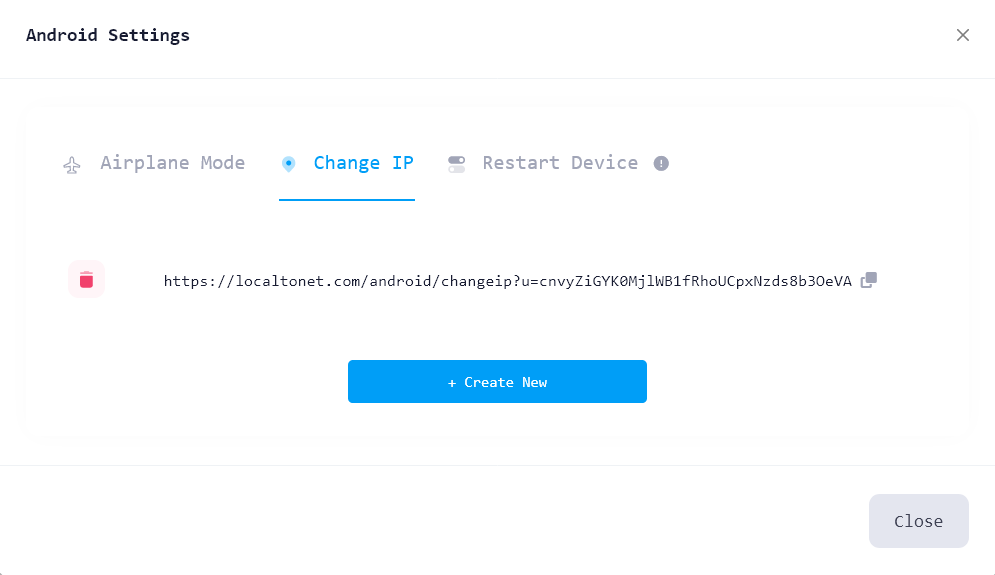
You can control rotation intervals and generate a reset link to trigger network refresh events.
If your phone is not rooted, triggering the reset link will open the default assistant configuration screen. Set Localtonet as the default assistant to allow automated airplane-mode switching.
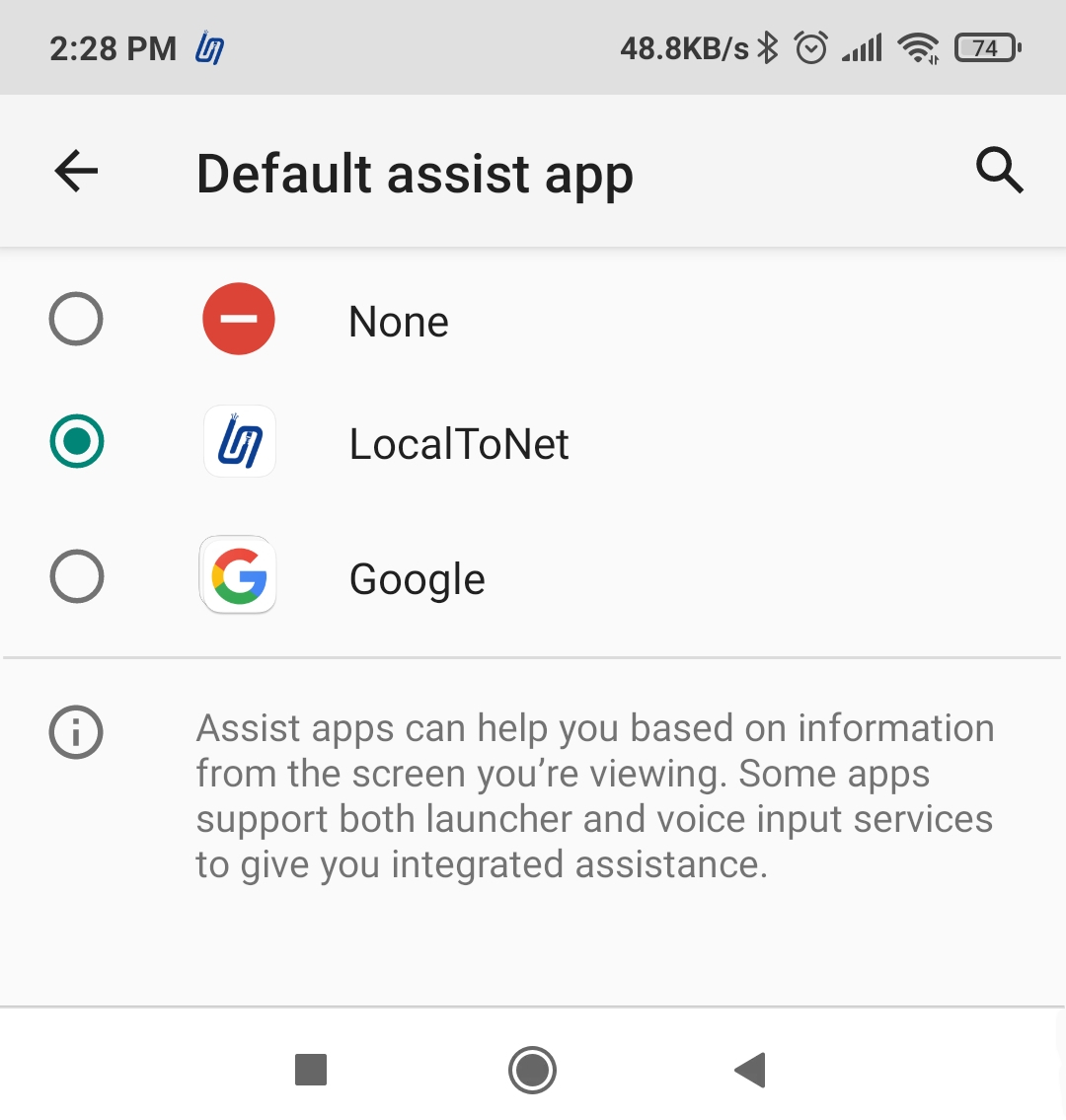
Step 5: Create Your Proxy Server
Now you are ready to create your mobile proxy instance.
Open Proxy Server page
Go to Proxy Server
Choose proxy protocol
Select HTTP or SOCKS5 depending on your workflow.
Create proxy
Click Create Proxy to generate endpoint configuration.
Start proxy
Click Start to activate your mobile proxy server.

How to Connect to Your Mobile Proxy
After creation, you will receive:
- Server hostname or IP
- Port number
- Optional credentials
These values can be used inside browsers, automation tools, scrapers, or network software to route traffic through your Android device.
Localtonet SOCKS5 proxies support both TCP and UDP traffic, enabling broader application compatibility.
Common Mobile Proxy Use Cases
FAQ
Do I need root to create an Android proxy?
No. Localtonet works on non-root devices. Assistant permission enables automated IP rotation.
Can mobile IP addresses rotate?
Yes. Airplane-mode toggling can trigger mobile network reconnection and IP refresh.
What protocols are supported?
Localtonet mobile proxies support HTTP and SOCKS5 protocols.
Start Your Mobile Proxy
Create your Android proxy server and connect real mobile traffic in minutes.
Create Proxy →