

Build a protocol-correct MCP tool server, verify it locally, and connect a remote agent safely
An AI agent can use external services only when its host can discover tools, call them with valid inputs, and handle their results safely. This tutorial builds a Python MCP server with weather and currency tools, tests it through a real MCP client, connects it to a LangChain agent, and makes it reachable through a Localtonet HTTP tunnel. It also explains the MCP host, client, server, and transport boundaries so you can debug the complete path instead of treating MCP as an ordinary REST API.
📋 What's in this guide
How an MCP agent calls an external API
The Model Context Protocol, or MCP, is a protocol for connecting AI applications to servers that provide tools, resources, and prompts. It is useful when you want a host application to discover capabilities at runtime instead of embedding every tool implementation directly into the agent.
MCP compatibility belongs primarily to the host and its MCP client implementation, not directly to the language model. A model may support tool use, but something in the host application still has to maintain the MCP connection, discover the server's tools, present appropriate tool definitions to the model, execute approved calls, and return the results to the reasoning loop.
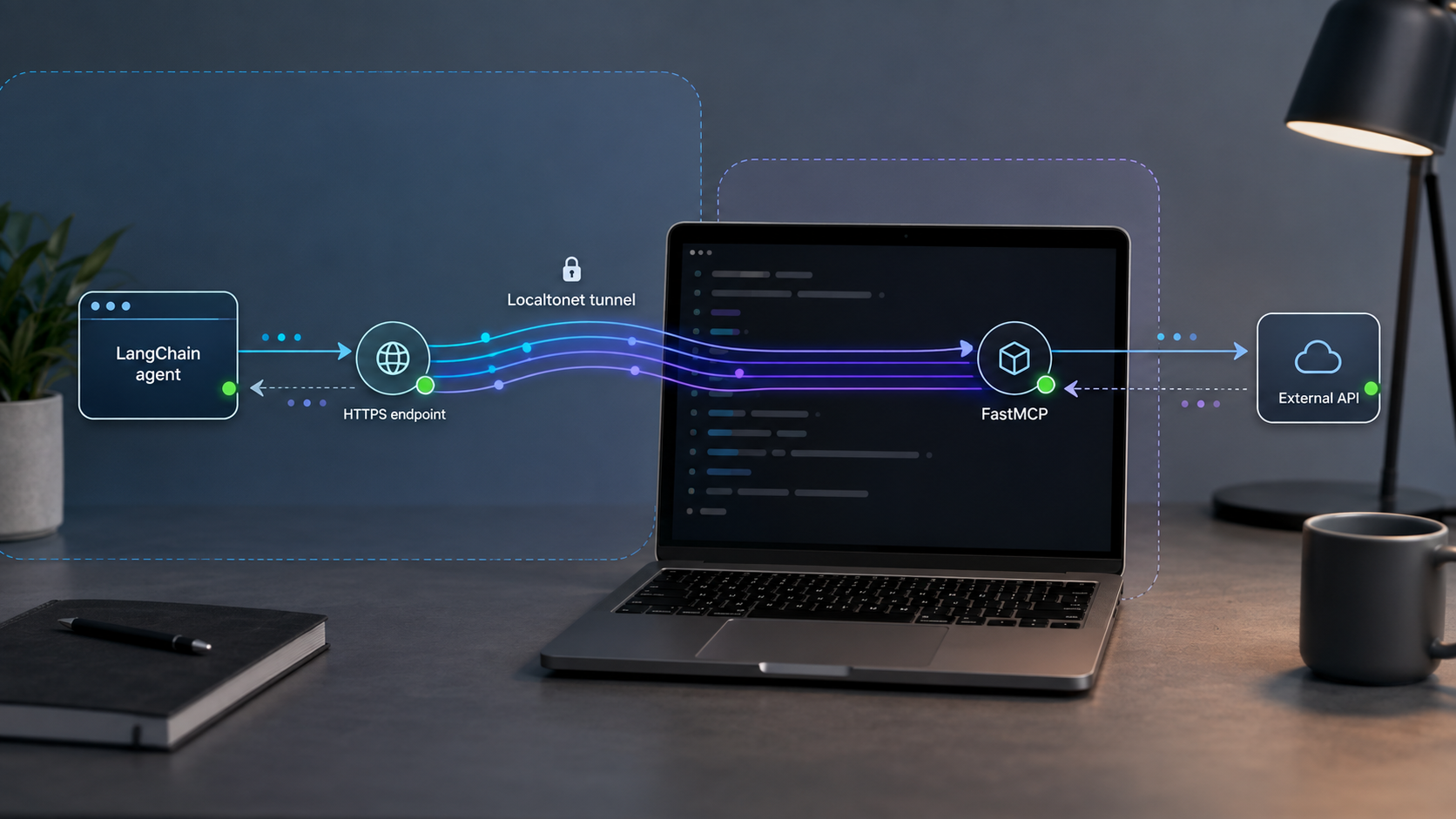
The complete request path in this tutorial looks like this:
User prompt
    |
    v
LangChain agent and MCP host
    |
    | MCP initialization, tools/list, tools/call
    | over Streamable HTTP
    v
Public Localtonet HTTPS endpoint
    |
    | outbound tunnel connection
    v
Local FastMCP server at 127.0.0.1:8000/mcp
    |
    | ordinary outbound HTTPS requests
    v
Weather and exchange-rate REST APIs
The two protocol layers must not be confused. The MCP client does not discover tools by sending an ordinary GET /mcp/tools/list request, and it does not call a tool by posting to /mcp/tools/call. Streamable HTTP carries MCP JSON-RPC messages. A client begins with MCP initialization and capability negotiation, then sends protocol methods such as tool discovery and tool invocation through the negotiated connection.
A basic browser request or improvised curl route does not perform MCP initialization, protocol negotiation, or session handling. It may return an error even when the server is healthy. Use an MCP-aware client or the MCP Inspector for protocol-level verification.
Streamable HTTP and stdio are different transports
With the stdio transport, the MCP host launches the server as a local child process and exchanges protocol messages through standard input and output. This is appropriate when the host and server run on the same machine and the host supports local process configuration.
With Streamable HTTP, the server listens on an HTTP endpoint and the MCP client connects to a URL. This is the relevant transport when the host runs on another machine or in cloud infrastructure. The protocol concepts are consistent across transports, but configuration and lifecycle code are not identical. Stdio requires a command, arguments, environment, and child-process management. Streamable HTTP requires a URL, HTTP behavior, and any applicable authorization or session headers.
| Connection type | Typical use | Important behavior |
|---|---|---|
| stdio | Host and MCP server on the same machine | The host launches and manages a local server process. There is no public network endpoint. |
| Streamable HTTP on localhost | Local development and protocol testing | The server listens on a local URL, but remote systems still cannot reach that localhost address. |
| Streamable HTTP through Localtonet | Remote development, integration testing, or controlled collaboration | A Localtonet HTTP tunnel forwards the public HTTPS endpoint to the local MCP server while the selected client is connected and the tunnel is running. |
Prerequisites and project environment
You need Python, a package installer, outbound internet access for the example APIs, and a Localtonet client for the machine that will run the tunnel. The exact Python versions supported by FastMCP, the MCP Python SDK, LangChain, and the adapter can change. Before adopting this example in an existing project, check the current package metadata and use a Python release supported by all installed packages.
You will also need credentials for the model provider used by the LangChain example. This tutorial uses the langchain-openai integration, so the agent process expects an OpenAI API key and a model identifier. The weather and exchange-rate tools themselves do not read that model-provider credential.
Create and activate a virtual environment
Start in an empty project directory. On macOS or Linux:
python3 -m venv .venv
source .venv/bin/activate
python -m pip install --upgrade pip
On Windows PowerShell:
py -m venv .venv
.venv\Scripts\Activate.ps1
python -m pip install --upgrade pip
Install the server and client dependencies
python -m pip install fastmcp httpx langchain-mcp-adapters langchain langchain-openai python-dotenvPackage interfaces evolve. Once the server, protocol client, and agent pass your tests together, record the exact resolved environment:
python -m pip freeze > requirements.lockA teammate or CI job can then recreate that tested environment with:
python -m pip install -r requirements.lockA command that installs unconstrained latest packages is useful when evaluating the current APIs, but it does not guarantee that a future installation will resolve the same combination. Commit the tested lock file, review dependency updates deliberately, and rerun both local and tunneled protocol tests after upgrading.
Build a FastMCP server with reliable API handling
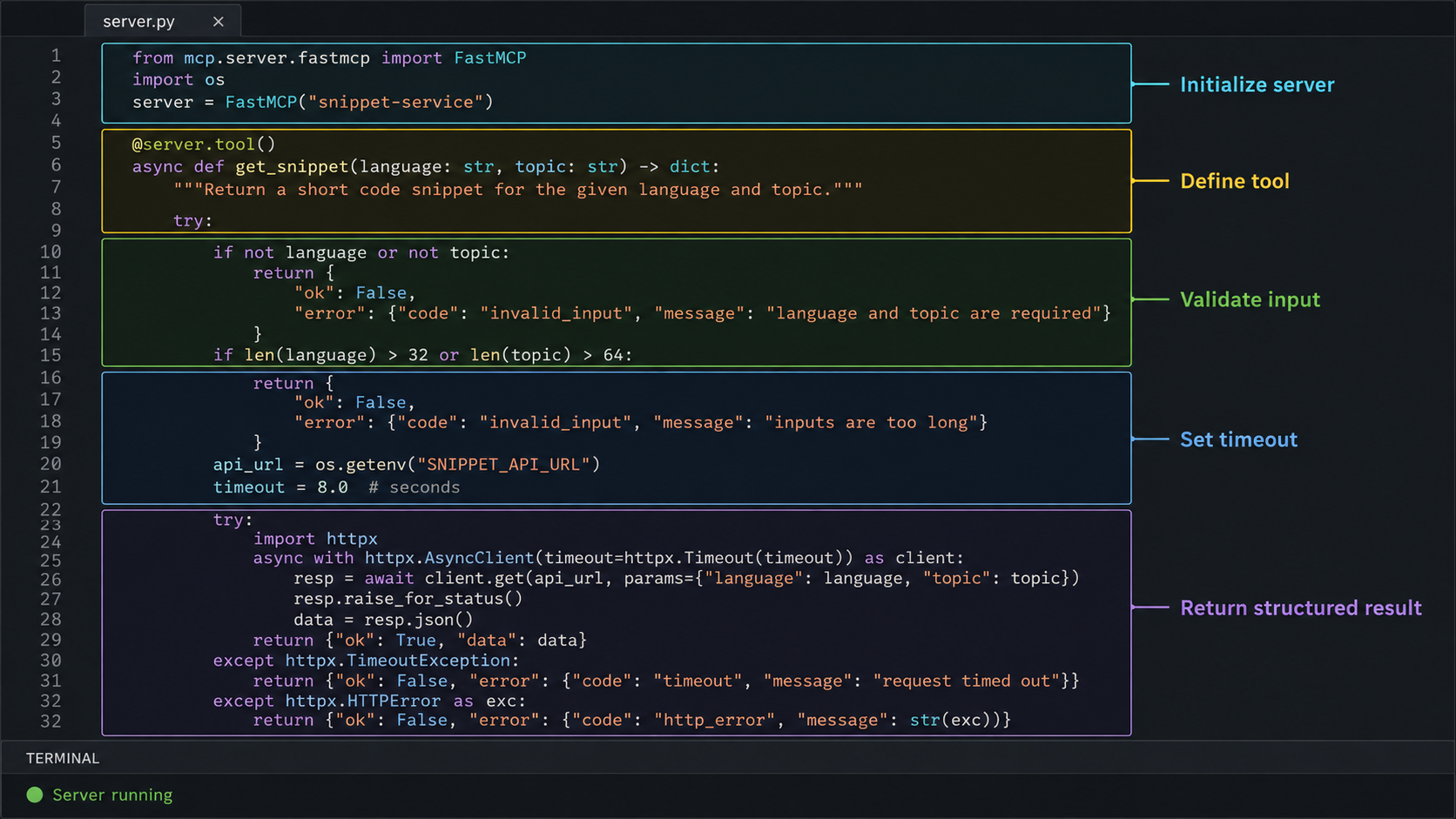
The server below exposes two tools. get_weather accepts explicit latitude and longitude values, while convert_currency accepts an amount and two three-letter currency codes. Requiring coordinates avoids a hidden reliability gap: a city name cannot be passed to a coordinate-only tool unless you also implement a geocoding tool.
The implementation validates tool inputs before making outbound requests. It also sets an HTTP timeout, checks HTTP status codes, validates the expected response structure, and returns useful failures without disclosing an upstream response body.
Create the FastMCP server module
Save the following code as server.py. The server binds to loopback so direct access remains local; the Localtonet client will forward to that local address later.
Start the Streamable HTTP server
Run the module from the activated virtual environment and keep the terminal open. FastMCP's http runtime transport starts its Streamable HTTP server.
Confirm the listening address and MCP path
For this configuration, the target is 127.0.0.1:8000 and the MCP endpoint is /mcp. Check the startup output after package upgrades because framework defaults can change.
# server.py
import math
import re
from typing import Any

import httpx
from fastmcp import FastMCP

mcp = FastMCP("External API Tools")

HTTP_TIMEOUT = httpx.Timeout(10.0, connect=5.0)
CURRENCY_CODE = re.compile(r"^[A-Za-z]{3}$")

async def fetch_json(
    client: httpx.AsyncClient,
    url: str,
    *,
    params: dict[str, Any] | None = None,
) -> dict[str, Any]:
    try:
        response = await client.get(url, params=params)
        response.raise_for_status()
    except httpx.TimeoutException as exc:
        raise RuntimeError("The upstream API timed out.") from exc
    except httpx.HTTPStatusError as exc:
        raise RuntimeError(
            f"The upstream API returned HTTP {exc.response.status_code}."
        ) from exc
    except httpx.RequestError as exc:
        raise RuntimeError("The upstream API could not be reached.") from exc

    try:
        payload = response.json()
    except ValueError as exc:
        raise RuntimeError("The upstream API returned invalid JSON.") from exc

    if not isinstance(payload, dict):
        raise RuntimeError("The upstream API returned an unexpected response.")

    return payload

@mcp.tool()
async def get_weather(latitude: float, longitude: float) -> dict[str, Any]:
    """Get current weather for explicit latitude and longitude coordinates."""
    if not math.isfinite(latitude) or not -90 <= latitude <= 90:
        raise ValueError("latitude must be a finite number from -90 to 90.")

    if not math.isfinite(longitude) or not -180 <= longitude <= 180:
        raise ValueError("longitude must be a finite number from -180 to 180.")

    params = {
        "latitude": latitude,
        "longitude": longitude,
        "current": "temperature_2m,wind_speed_10m,weather_code",
        "temperature_unit": "celsius",
    }

    async with httpx.AsyncClient(timeout=HTTP_TIMEOUT) as client:
        payload = await fetch_json(
            client,
            "https://api.open-meteo.com/v1/forecast",
            params=params,
        )

    current = payload.get("current")
    if not isinstance(current, dict):
        raise RuntimeError("The weather API response has no current conditions.")

    required = ("temperature_2m", "wind_speed_10m", "weather_code")
    if any(name not in current for name in required):
        raise RuntimeError("The weather API response is missing required fields.")

    return {
        "latitude": latitude,
        "longitude": longitude,
        "temperature_celsius": current["temperature_2m"],
        "wind_speed": current["wind_speed_10m"],
        "weather_code": current["weather_code"],
    }

@mcp.tool()
async def convert_currency(
    amount: float,
    from_currency: str,
    to_currency: str,
) -> dict[str, Any]:
    """Convert a non-negative amount using the latest available exchange rate."""
    if not math.isfinite(amount) or amount < 0:
        raise ValueError("amount must be a finite, non-negative number.")

    if not CURRENCY_CODE.fullmatch(from_currency):
        raise ValueError("from_currency must be a three-letter currency code.")

    if not CURRENCY_CODE.fullmatch(to_currency):
        raise ValueError("to_currency must be a three-letter currency code.")

    source = from_currency.upper()
    target = to_currency.upper()

    async with httpx.AsyncClient(timeout=HTTP_TIMEOUT) as client:
        payload = await fetch_json(
            client,
            f"https://open.er-api.com/v6/latest/{source}",
        )

    if payload.get("result") != "success":
        raise RuntimeError("The exchange-rate API rejected the request.")

    rates = payload.get("rates")
    if not isinstance(rates, dict):
        raise RuntimeError("The exchange-rate response has no rates object.")

    rate = rates.get(target)
    if not isinstance(rate, (int, float)) or not math.isfinite(rate) or rate <= 0:
        raise ValueError(f"No valid exchange rate was returned for {target}.")

    return {
        "from": source,
        "to": target,
        "amount": amount,
        "rate": rate,
        "converted": round(amount * rate, 4),
    }

if __name__ == "__main__":
    mcp.run(transport="http", host="127.0.0.1", port=8000)
Start the server:
python server.py
Leave this process running. Stop it cleanly with Ctrl+C when testing is complete. If the process exits, the local MCP endpoint stops immediately, even if a tunnel configuration still exists.
Weather observations and exchange-rate feeds may be delayed, unavailable, rate-limited, or unsuitable for consequential decisions. Treat these tools as a development example. Production tools should document freshness, source limitations, retry policy, and the decisions for which their output is appropriate.
Verify the server with an initialized MCP client
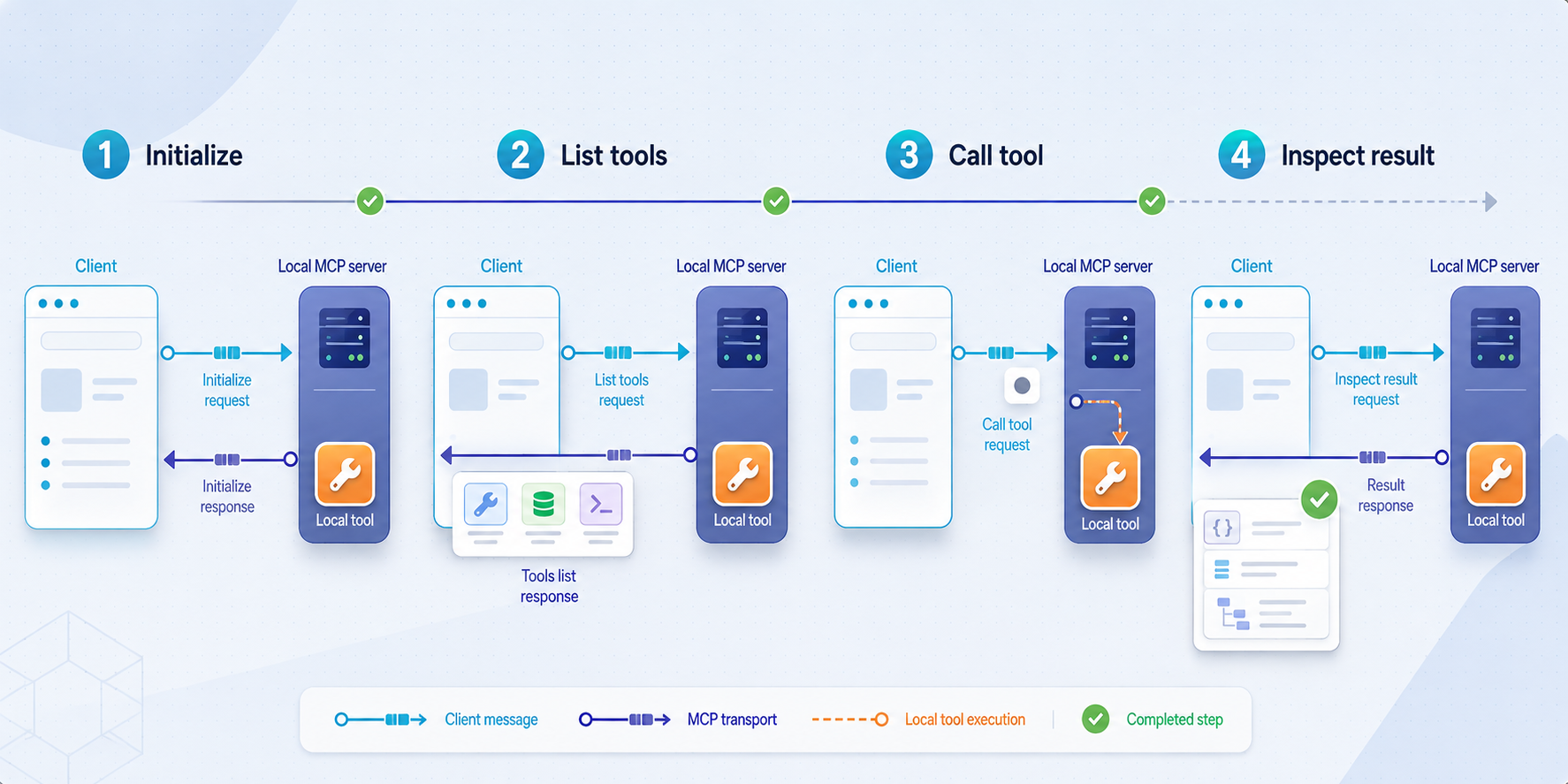
Test the MCP layer before adding an agent or a public tunnel. This isolates protocol and tool failures from model behavior and network forwarding. A successful test should initialize the session, list both tools, and invoke them with known valid arguments.
Option 1: Use a small Python MCP client
Save the following as verify_mcp.py. It uses the MCP SDK's Streamable HTTP client rather than constructing REST-like requests.
# verify_mcp.py
import asyncio

from mcp import ClientSession
from mcp.client.streamable_http import streamablehttp_client

MCP_URL = "http://127.0.0.1:8000/mcp"

async def main() -> None:
    async with streamablehttp_client(MCP_URL) as (
        read_stream,
        write_stream,
        _,
    ):
        async with ClientSession(read_stream, write_stream) as session:
            await session.initialize()

            tools = await session.list_tools()
            print("Available tools:")
            for tool in tools.tools:
                print(f"- {tool.name}: {tool.description}")

            weather = await session.call_tool(
                "get_weather",
                arguments={
                    "latitude": 41.0082,
                    "longitude": 28.9784,
                },
            )
            print("\nWeather result:")
            print(weather.content)

            conversion = await session.call_tool(
                "convert_currency",
                arguments={
                    "amount": 100,
                    "from_currency": "USD",
                    "to_currency": "EUR",
                },
            )
            print("\nCurrency result:")
            print(conversion.content)

if __name__ == "__main__":
    asyncio.run(main())
With server.py still running in another terminal, execute:
python verify_mcp.py
Confirm that the client discovers get_weather and convert_currency, then inspect both tool results. Live values will vary. A protocol exception at initialization usually indicates a wrong path, incompatible transport, server startup failure, or package-version mismatch. A tool exception after successful discovery usually points to invalid arguments or an upstream API problem.
Option 2: Use the MCP Inspector
The MCP Inspector is useful when you want an interactive protocol-aware interface. Launch the current Inspector according to its package instructions, choose Streamable HTTP, and connect to http://127.0.0.1:8000/mcp. Initialize the connection before listing or calling tools.
Inspector startup commands and browser behavior can change between releases, so use the command documented by the installed Inspector version rather than copying an old global-install command. The important requirement is that the tool performs MCP initialization and sends proper MCP messages, not plain REST requests.
Test invalid and failure cases deliberately
Successful calls are not enough. Try a latitude outside -90 to 90, a malformed currency code such as US, and a negative conversion amount. The server should reject each input before contacting an upstream service. You should also understand how the client displays tool errors so an agent cannot mistake an error string for valid data.
Secure the MCP server before public exposure
The example server does not implement application-level authentication. Once an HTTP tunnel is started, its public endpoint can receive traffic from outside your machine. A hard-to-guess URL is not a substitute for authorization, and sharing the URL broadly expands the audience that can attempt tool calls.
Do not expose confidential data, privileged business actions, shell execution, filesystem mutation, administrative APIs, or costly operations through this tutorial server. For broader or longer-lived access, implement an authorization method supported by both your MCP server and client, verify it before exposure, and grant only the permissions required for the test.
Prompt injection does not stop at the prompt
An agent may retrieve text from an external API and feed it back into the model. That content can contain instructions designed to alter the agent's behavior. Keep data and instructions conceptually separate, restrict which tools the agent can call, require confirmation for consequential actions, and enforce permissions in code rather than trusting the model to obey a policy described only in a prompt.
Keep secrets out of tools and logs
Model-provider keys belong in the agent environment, while credentials needed by a tool belong in the server environment. Do not return those values from a tool. Do not include them in exception messages, tunnel URLs, screenshots, source control, or debug output. If a credential is accidentally exposed, revoke and replace it rather than merely deleting it from the latest commit.
Expose the MCP endpoint with a Localtonet HTTP tunnel
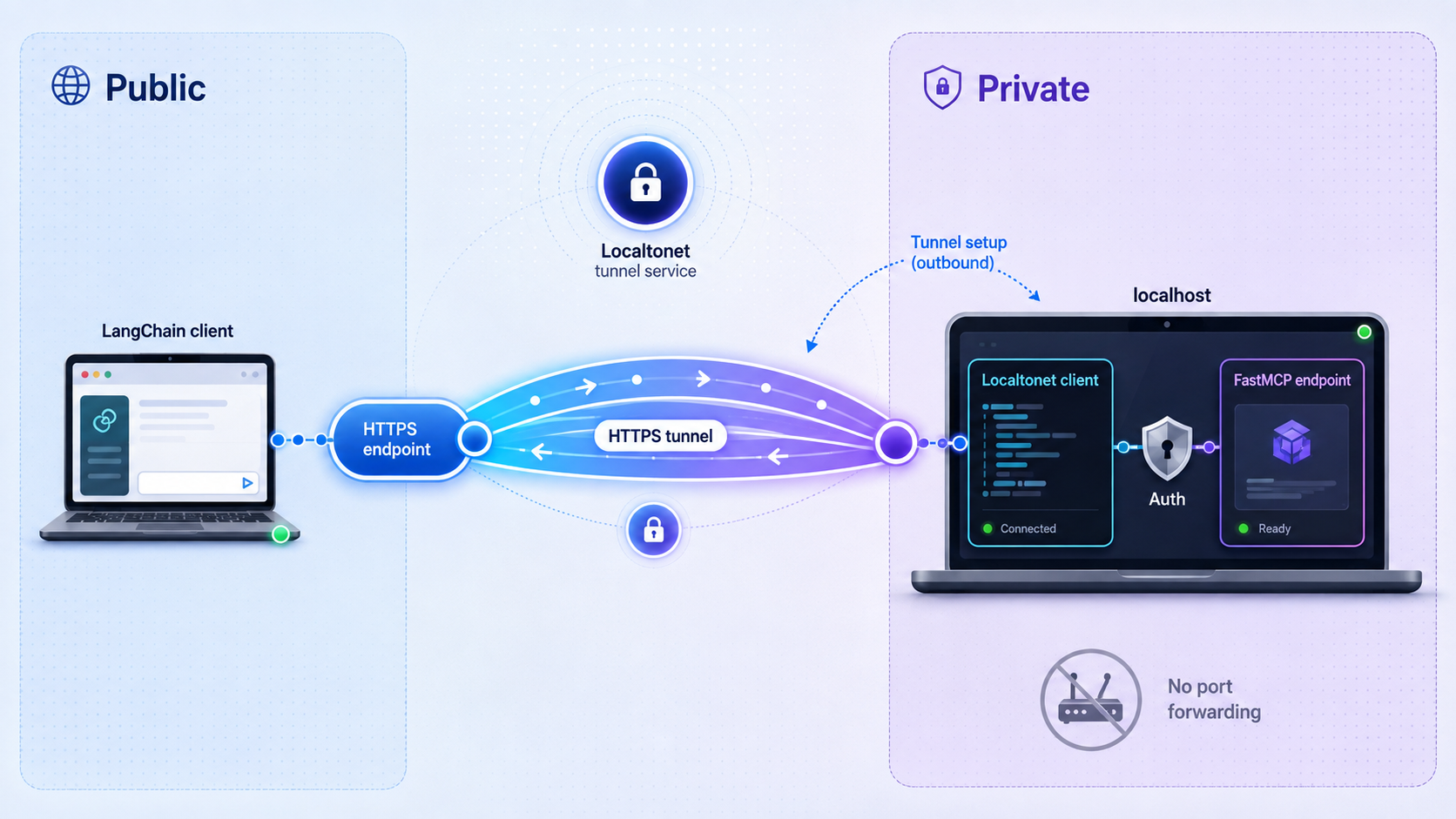
After local protocol verification succeeds, an ordinary Localtonet HTTP tunnel can forward the public HTTPS path to the Streamable HTTP server on 127.0.0.1:8000. The Localtonet client establishes an outbound connection to our relay, so this workflow does not require inbound router port forwarding, a public IP address, firewall changes, or VPN setup.
Creating a tunnel configuration does not start it. The selected Localtonet client must be connected and the tunnel must be running. If the local server, Localtonet client, or tunnel stops, the public MCP endpoint becomes unavailable.
Install and run the Localtonet client
Install the Localtonet application for the operating system on the machine running server.py, then keep the client connected. Use the current installation path presented by Localtonet rather than an unverified command copied from an older tutorial.
Open the HTTP tunnel configuration
Follow the public Localtonet HTTP tunnel documentation and begin a new HTTP tunnel configuration.
Select the connected device token
Select the device-specific authentication token for the client running beside the MCP server. Treat this token as a credential and never place it in code, screenshots, logs, or shared instructions.
Select a currently available relay server
Choose from the relay servers or regions currently shown in the product. Available values can vary, so do not rely on a hardcoded server code from another environment.
Configure the local target
Set the local IP address to 127.0.0.1 and the local port to 8000. Select the appropriate HTTP process type for the public address you intend to use.
Create the HTTP tunnel
Create the tunnel configuration. At this point it exists in the dashboard, but it is not necessarily accepting traffic yet.
Start the tunnel
Use the Start button and wait for the tunnel to show as running. Copy the assigned public HTTPS URL without publishing any private device information.
Verify through the public MCP URL
Replace the local base address in your MCP-aware verification client with the assigned public HTTPS address followed by /mcp. Initialize, list tools, and call both tools again.
Stop or delete the tunnel after testing
Stop the tunnel when remote access is no longer required. Delete the configuration if you do not intend to reuse it, and stop the local server separately with Ctrl+C.
If the assigned address were https://your-assigned-host.example, the MCP URL supplied to a Streamable HTTP client would be:
https://your-assigned-host.example/mcpThat hostname is intentionally illustrative, not a real Localtonet endpoint. Always use the exact public address assigned to your running tunnel.
Verify the tunnel without changing the protocol
In verify_mcp.py, change only the URL:
MCP_URL = "https://your-assigned-host.example/mcp"Run the same verification script. This repeats initialization, discovery, and tool calls through the public route. It tests the complete chain from the MCP client to the relay, through the outbound tunnel, into FastMCP, and onward to each external API.
This tutorial uses a standard HTTP tunnel to publish an existing FastMCP Streamable HTTP endpoint. Localtonet also has an MCP Gateway tunnel for exposing a locally running McpNet Gateway, and a separate Localtonet MCP Server that lets supported AI coding assistants create, start, and stop Localtonet tunnels. Those products solve different parts of an MCP workflow.
| Localtonet capability | Purpose | Relationship to this tutorial |
|---|---|---|
| HTTP tunnel | Forwards a public HTTP or HTTPS address to a local IP address and port | Used here to reach the local FastMCP Streamable HTTP server. |
| MCP Gateway tunnel | Exposes a locally running McpNet Gateway | A distinct gateway workflow, not required by the example server in this article. |
| Localtonet MCP Server | Lets supported AI coding assistants manage Localtonet tunnels | It manages tunnel lifecycle from an assistant; it is not the weather and currency tool server built here. |
Connect the remote MCP server to a LangChain agent
Once public protocol verification succeeds, use the LangChain MCP adapter to load the server's tools. The adapter configuration must identify the transport as streamable_http. Using the generic value http in this client configuration can cause a transport mismatch.
The server accepts coordinates, not city names. The test prompt therefore includes explicit coordinates for Istanbul. If you want users to ask for weather by city, add a separately validated geocoding tool or perform geocoding in another trusted application layer.
Store model credentials outside source code
Create a local .env file:
OPENAI_API_KEY=replace_with_your_real_key
OPENAI_MODEL=replace_with_a_tool_capable_model_identifier
MCP_SERVER_URL=https://your-assigned-host.example/mcp
Add .env to .gitignore before entering a real key:
printf "\n.env\n" >> .gitignore
Do not commit, upload, paste, or screenshot the completed .env file. Use your operating system or deployment platform's secret storage for shared and hosted environments. A placeholder file such as .env.example may list variable names, but it must not contain credentials.
Create the agent
Save this as agent.py:
# agent.py
import asyncio
import os

from dotenv import load_dotenv
from langchain.agents import create_agent
from langchain_mcp_adapters.client import MultiServerMCPClient
from langchain_openai import ChatOpenAI

load_dotenv()

def required_environment(name: str) -> str:
    value = os.getenv(name)
    if not value:
        raise RuntimeError(f"Required environment variable {name} is missing.")
    return value

async def main() -> None:
    mcp_url = required_environment("MCP_SERVER_URL")
    model_name = required_environment("OPENAI_MODEL")
    required_environment("OPENAI_API_KEY")

    client = MultiServerMCPClient(
        {
            "external-api-tools": {
                "url": mcp_url,
                "transport": "streamable_http",
            }
        }
    )

    tools = await client.get_tools()
    if not tools:
        raise RuntimeError("The MCP server returned no tools.")

    model = ChatOpenAI(model=model_name)
    agent = create_agent(model=model, tools=tools)

    result = await agent.ainvoke(
        {
            "messages": [
                {
                    "role": "user",
                    "content": (
                        "Get the current weather for latitude 41.0082 "
                        "and longitude 28.9784. Then convert 100 USD "
                        "to EUR. State which coordinates and currencies "
                        "you used, and do not invent missing tool data."
                    ),
                }
            ]
        }
    )

    print(result["messages"][-1].content)

if __name__ == "__main__":
    asyncio.run(main())
Make sure all three processes or services are available in the correct order:
- The FastMCP server is running on
127.0.0.1:8000. - The selected Localtonet client is connected and the HTTP tunnel is running.
- The public MCP URL in
MCP_SERVER_URLincludes the/mcppath.
Then run:
python agent.pyThe adapter initializes an MCP connection and obtains tool definitions. The agent can then decide whether to call the weather and currency tools. The model does not independently connect to Localtonet or speak MCP. The host-side LangChain and adapter code performs those operations.
MCP compatibility and model tool-calling ability are related but separate. The host needs a working MCP client, while the selected model integration must support the tool-use behavior expected by the agent. Check the current documentation for the model provider and LangChain integration you select.
Testing and routine operation
Test each layer independently before relying on an end-to-end agent result. This makes failures attributable. If the direct Python MCP client fails, changing the model prompt is unlikely to help. If direct calls succeed but the agent chooses the wrong tool, investigate tool descriptions, prompt design, model capability, and agent policy.
Development logging
Log tool name, request identifier, duration, outcome category, and sanitized error information. Avoid logging full authorization headers, API keys, user prompts, personal information, or complete third-party payloads by default. Structured logs make it easier to distinguish validation failures from network timeouts and upstream HTTP errors.
Starting a test session
- Activate the tested virtual environment.
- Start
server.pyand verify it locally with the MCP client. - Run the Localtonet client and confirm the selected device is connected.
- Start the existing HTTP tunnel or create one using the documented workflow.
- Verify the public MCP URL with the protocol-aware client.
- Run the LangChain agent only after those checks pass.
Ending a test session
- Stop agent jobs and remote test clients.
- Stop the Localtonet tunnel so the public endpoint is no longer available.
- Delete the tunnel if it is not intended for reuse.
- Stop the local FastMCP process with
Ctrl+C. - Review logs for leaked secrets or unexpected calls and rotate any exposed credential.
Client compatibility and deployment decisions
Do not assume that every application advertising MCP support accepts every MCP transport or remote-server configuration. Some hosts support only locally launched stdio servers. Others support Streamable HTTP but require a specific connector, authorization flow, deployment policy, or user interface.
Before configuring a desktop assistant, editor, automation platform, or hosted agent, verify all of the following in that product's current primary documentation:
- Whether remote Streamable HTTP MCP servers are supported.
- How remote server URLs are registered.
- Whether authentication headers or an authorization flow can be configured.
- How the host handles MCP sessions, redirects, timeouts, and reconnects.
- Whether administrators must enable remote tools.
- How users review and approve consequential tool calls.
A local stdio configuration file cannot automatically be converted into a remote HTTP configuration by replacing a command with a URL. The transport, process lifecycle, credential handling, and host support differ. For that reason, this tutorial does not provide a universal Claude Desktop, editor, or automation-platform configuration.
Localtonet is not categorically limited to development, and this article does not make that claim. The concrete availability condition is that a tunnel remains reachable only while the selected Localtonet client or device is connected and the tunnel is running. Evaluate that lifecycle together with your application's authentication, monitoring, recovery, capacity, data handling, and operational requirements.
Troubleshooting MCP, API, and tunnel failures
| Symptom | Likely cause | What to check |
|---|---|---|
| Connection refused on localhost | The FastMCP process is not running, exited during startup, or listens on a different address or port. | Read the server terminal, confirm 127.0.0.1:8000, and restart python server.py. |
| HTTP 404 or wrong response at the public URL | The MCP path is missing or incorrect. | Use the assigned HTTPS hostname with /mcp, and confirm the path shown by the installed server version. |
| Initialization or transport error | The client is using a REST request, SSE-only configuration, stdio, or the wrong adapter transport. | Use an MCP-aware client and set the LangChain adapter transport to streamable_http. |
| Tool discovery works, but calls fail | Arguments fail validation or an external API is unavailable. | Call each tool directly through the MCP client, inspect sanitized server logs, and verify outbound HTTPS access. |
| The weather request mentions a city but no tool call succeeds | The weather tool accepts coordinates, not city names. | Provide explicit latitude and longitude or implement and test a geocoding tool. |
| The agent reports a missing API key or model | The environment file was not loaded or required variables are absent. | Confirm OPENAI_API_KEY, OPENAI_MODEL, and MCP_SERVER_URL exist in the agent process environment. |
| Local MCP works, but the public endpoint does not | The Localtonet client is disconnected, the wrong device token was selected, the target is wrong, or the tunnel was created but not started. | Confirm the selected client is connected, target is 127.0.0.1:8000, and the tunnel status is running. |
| The public endpoint stopped unexpectedly | The client device disconnected, slept, lost outbound connectivity, or the tunnel stopped. | Restore the Localtonet client connection, confirm the local server is alive, and start the tunnel again. |
| Works on one machine but not after reinstalling | Different package versions resolved. | Recreate the environment from the tested requirements.lock and review package migration notes before upgrading. |
| Intermittent timeout or HTTP status errors | An external API is slow, unavailable, or rate-limiting requests. | Inspect the categorized server error, respect provider limits, and add a deliberate retry policy only where duplicate requests are safe. |
Use layer-by-layer diagnosis
Start with the first failing boundary. Confirm the server process, then local MCP initialization, then local tool calls, then the connected Localtonet client, then the running public tunnel, then public MCP calls, and finally the agent. Skipping directly to prompt changes can hide a basic path or transport error.
Be careful with retries
A weather lookup is naturally read-only, but many real MCP tools create records, send messages, charge accounts, or modify infrastructure. Automatic retries can duplicate those actions. Before adding retry logic, classify the operation, use idempotency controls where the external API supports them, cap attempts, and log the final outcome without leaking sensitive data.
Frequently asked questions
Why can I not list MCP tools with a normal GET request?
Streamable HTTP carries MCP protocol messages rather than exposing an improvised REST route for every operation. A compliant client initializes the session, negotiates capabilities, and then sends MCP methods for discovery and invocation. Use an MCP SDK client or the MCP Inspector instead of requesting /mcp/tools/list.
Is MCP support determined by the language model?
Not by the model alone. The host application needs an MCP client that manages connections, discovery, calls, and results. The selected model integration also needs suitable tool-use behavior, but the host and adapter perform the MCP protocol work.
Can I use the same configuration for stdio and Streamable HTTP?
No. Stdio configuration tells a host how to launch and manage a local process. Streamable HTTP configuration supplies a server URL and may include HTTP authorization or session behavior. The MCP methods are related, but transport setup and lifecycle management differ.
Why does the weather tool require coordinates?
The weather API call in this example is defined around latitude and longitude. Asking it to accept a city without geocoding would leave the agent to invent coordinates or send an invalid schema. Add a dedicated geocoding tool if city-name input is required.
Does a Localtonet HTTP tunnel authenticate MCP callers?
This tutorial does not rely on that assumption. The HTTP tunnel makes the local endpoint reachable through a public address. Protect sensitive or persistent MCP access with an authorization method supported and verified by both the MCP server and client, then enforce least privilege inside each tool.
What happens if the Localtonet client disconnects?
The public tunnel is available only while the selected client or device is connected and the tunnel is running. A sleeping device, stopped client, network interruption, stopped tunnel, or terminated FastMCP process can make the public MCP endpoint unavailable.
Is an HTTP tunnel the same as Localtonet's MCP Gateway or MCP Server?
No. An ordinary HTTP tunnel forwards traffic to the FastMCP endpoint built in this tutorial. An MCP Gateway tunnel exposes a locally running McpNet Gateway. The Localtonet MCP Server is another feature that lets supported coding assistants manage Localtonet tunnels. They have different targets and responsibilities.
Should tool errors be returned as ordinary successful data?
Usually not. Returning a normal-looking object such as {"error": "failed"} can be mistaken for valid tool data. Raise a clear, sanitized tool error so the host can distinguish failure from a successful result. Do not include credentials, full upstream bodies, or internal infrastructure details in that error.
Test your Streamable HTTP MCP server with Localtonet
Verify the server locally, apply the required access controls, then create and start a Localtonet HTTP tunnel to test the same MCP workflow from a remote client. Stop the tunnel as soon as public access is no longer needed.
Get Started Free →

