

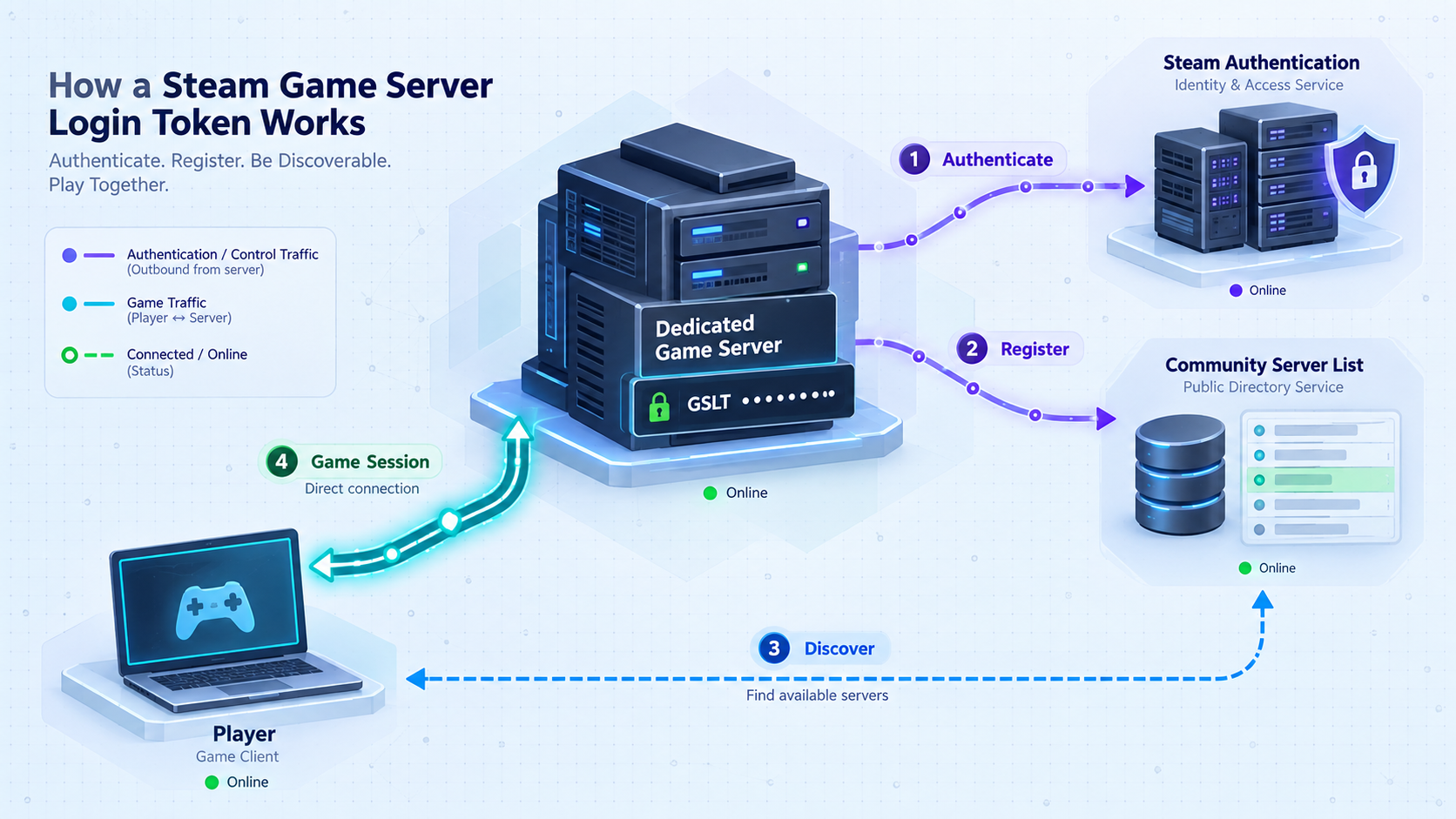
Authenticate the right server, protect its credentials, and test the complete player connection path
A Steam Game Server Login Token identifies a supported dedicated server to Steam, but it does not open firewall ports, bypass NAT, or guarantee public server-browser visibility. Token support, App IDs, configuration fields, ports, and discovery behavior are specific to each game. This guide explains the verified Steam account requirements, safe token creation and rotation, compatibility boundaries, network diagnosis, and the documented Localtonet workflow for games that need publicly reachable UDP or TCP traffic.
📋 What's in this guide
What a Steam Game Server Login Token actually does
A Game Server Login Token, commonly shortened to GSLT, is a credential used by compatible dedicated game servers to log in to Steam under a game server account associated with a Steam user account. Steam provides the Steam Game Server Account Management page for creating and managing these server accounts.
A GSLT handles authentication. The game server presents the token using the mechanism defined by that game's publisher or server documentation. If the title supports GSLTs and the configuration is correct, Steam can associate the server login with the corresponding game server account.
That authentication process is separate from the gameplay data path. Players still need a network route to the server's gameplay and query services. Depending on the game, that route may involve direct public addressing, router port forwarding, a publisher-operated relay, or a UDP or TCP tunnel. A valid token cannot correct an unreachable port, an incorrect bind address, a mismatched public port, or a firewall rule.
Store products, dedicated-server tools, Steam game server accounts, and publisher-specific authentication systems are distinct concepts. Never infer GSLT compatibility merely because a game or dedicated-server package has a Steam App ID.
Compatibility: Steam GSLTs, publisher tokens, and non-GSLT games
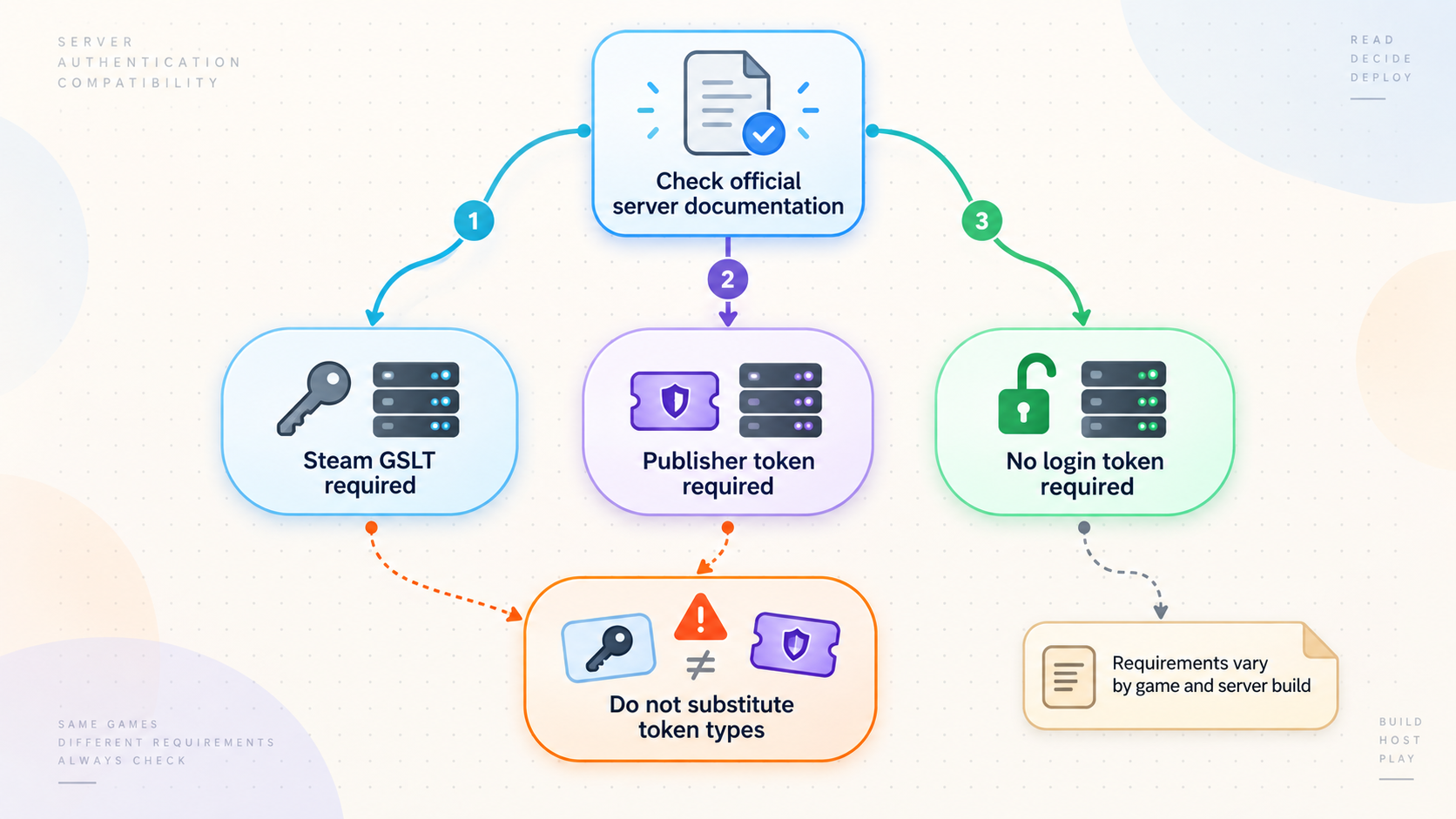
There is no universal GSLT procedure for every Steam game. Before creating a token, determine which authentication system the server actually uses. The authoritative answer should come from current documentation maintained by Valve for a Valve title or by the game's publisher for another title.
This distinction matters because secret strings can look similar while serving unrelated purposes. Putting a publisher token into Steam's GSLT field, or putting a Steam GSLT into a publisher-specific token file, will not convert one authentication mechanism into the other.
| Compatibility category | Credential source | Correct approach |
|---|---|---|
| Game explicitly documented to use Steam GSLT | Steam Game Server Account Management | Create the token using the publisher-documented App ID, then configure it through the exact field or command documented for that game. |
| Game uses a publisher-specific server token | The publisher's account or server-management system | Generate and install that publisher's token. Do not describe it as a GSLT or create a substitute on Steam's management page. |
| Game does not use GSLT | No Steam GSLT is required | Follow the game's documented server registration, relay, session, or direct-connect procedure. |
| Support is unclear or documentation is outdated | Undetermined | Do not guess from App IDs, hosting-panel fields, forum posts, or another game's startup syntax. Confirm against current first-party documentation. |
Don't Starve Together uses a Klei cluster token
A Don't Starve Together cluster token is a Klei authentication credential. It is not a Steam Game Server Login Token. Instructions that tell administrators to place a Steam GSLT into a Don't Starve Together cluster-token file mix two separate systems and should not be followed.
Generate and manage the cluster token through the process currently documented by Klei. Protect it as a secret, assign it only to the intended cluster, and use Klei's documented shard and networking configuration. Steam's GSLT management page is not the source of that credential.
Valheim is a non-GSLT compatibility exception
Valheim dedicated servers do not use Steam GSLTs. Treat Valheim as a separate hosting workflow rather than trying to adapt a Source-server token instruction. Its networking behavior, including the choice of backend and any crossplay mode, must be configured and verified through current Iron Gate documentation.
Crossplay or publisher relay support also should not be generalized into a statement that all ports are unnecessary in every operating mode. Confirm the selected backend, joining method, advertised address, and current port behavior for the server version you are running.
ARK, Palworld, Rust, and Source-family servers require individual verification
This guide does not publish GSLT parameters for ARK: Survival Evolved, ARK: Survival Ascended, Palworld, Rust, Counter-Strike 2, Team Fortress 2, Garry's Mod, or Left 4 Dead 2 without current first-party game documentation supporting each exact value and field. Previous versions of this article mixed base-game IDs, dedicated-server download IDs, unverified token parameters, and broad claims about server-list ranking.
For any of these games, verify all of the following before editing a production configuration:
- Whether the current dedicated server version uses a Steam GSLT at all.
- The App ID specifically required by the Steam game server account workflow, if one is required.
- The supported configuration file, field, startup parameter, or server console command.
- Whether the token is read at startup or can be changed while the server is running.
- The documented log or status indication that confirms successful authentication.
- The gameplay, query, Steam, shard, and administration ports, including protocol and configurable offsets.
A base-game store App ID, a dedicated-server download App ID, and an App ID accepted by Steam's game server account system can differ. Publishing an unverified numerical table would create authentication failures and could direct administrators to generate credentials for the wrong product. Use the value explicitly named by current publisher documentation.
Verified Steam account requirements
Steam currently lists the following requirements on its Game Server Account Management page. These requirements apply to the Steam account creating the game server account. A game publisher may impose additional requirements for its own dedicated server.
| Steam requirement | What it means | Safe action |
|---|---|---|
| Not currently community banned or locked | The Steam account must be in an eligible state. | Resolve account restrictions through Steam's official account and support processes. Do not attempt to evade an account restriction. |
| Not limited | Steam must not classify the account as a limited user account. | Check Steam's current limited-account policy. Do not assume that any arbitrary purchase or wallet action automatically changes the account's status. |
| Qualifying registered phone | Steam requires a phone registration that meets its qualification rules. | Review the status shown by Steam. A phone being merely entered or verified does not by itself prove that it qualifies for this feature. |
| Ownership of the relevant game | The account must own the game for which the game server account is being created. | Confirm ownership and use the App ID identified by the game's current server documentation. |
| Game server account limit | Steam states that one Steam account may create 1,000 game server accounts. | Use descriptive memos and an inventory so each token remains attributable to one server deployment. |
Avoid broad shortcuts such as telling users to buy any game or add any amount to their wallet. Account limitation and phone qualification are Steam policy decisions, and the current status displayed by Steam is what matters.
How to create and assign a Steam GSLT safely
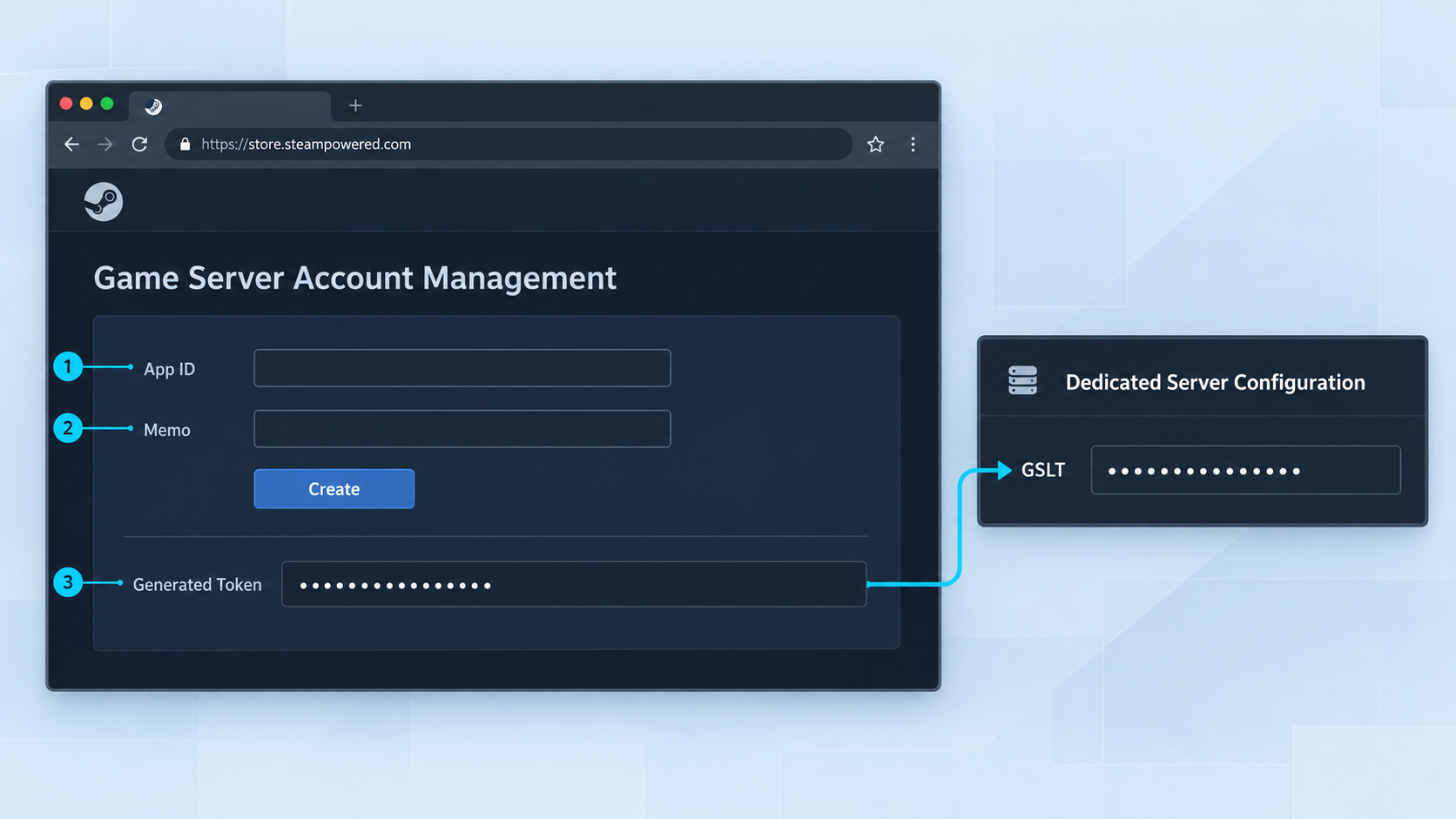
Complete this procedure only after confirming that the game supports GSLTs and identifying the correct App ID from current first-party documentation. Do not use a dedicated-server download ID simply because that is the ID used to install server files.
Confirm the game's authentication mechanism
Check the current publisher documentation for an explicit Steam GSLT requirement. Record the publisher-specified App ID, token configuration location, and documented authentication success indicator.
Open Steam Game Server Account Management
Sign in at Steam Game Server Account Management. Verify that the page accepts the account and does not report an eligibility problem.
Enter the verified App ID and a useful memo
Enter the App ID documented for the game's server-account workflow. Use a memo that identifies the environment and server, such as a private inventory label. Do not put passwords, IP addresses, personal information, or the token itself in the memo.
Create and store the token securely
Create the game server account and transfer the token into an approved secret store or a protected server configuration. Do not paste it into chat, tickets, screenshots, public shell transcripts, or source control.
Assign one token to one running server
Maintain a unique token assignment for each concurrently running server. Record the Steam memo, internal server name, game, environment, and deployment owner without recording the token in an ordinary spreadsheet or documentation page.
Steam tells account holders not to distribute game server login tokens to third parties. Redact the complete value from screenshots and logs. A placeholder such as <STEAM_GSLT_FROM_SECRET_STORE> must remain deliberately nonfunctional.
Token storage, revocation, and rotation
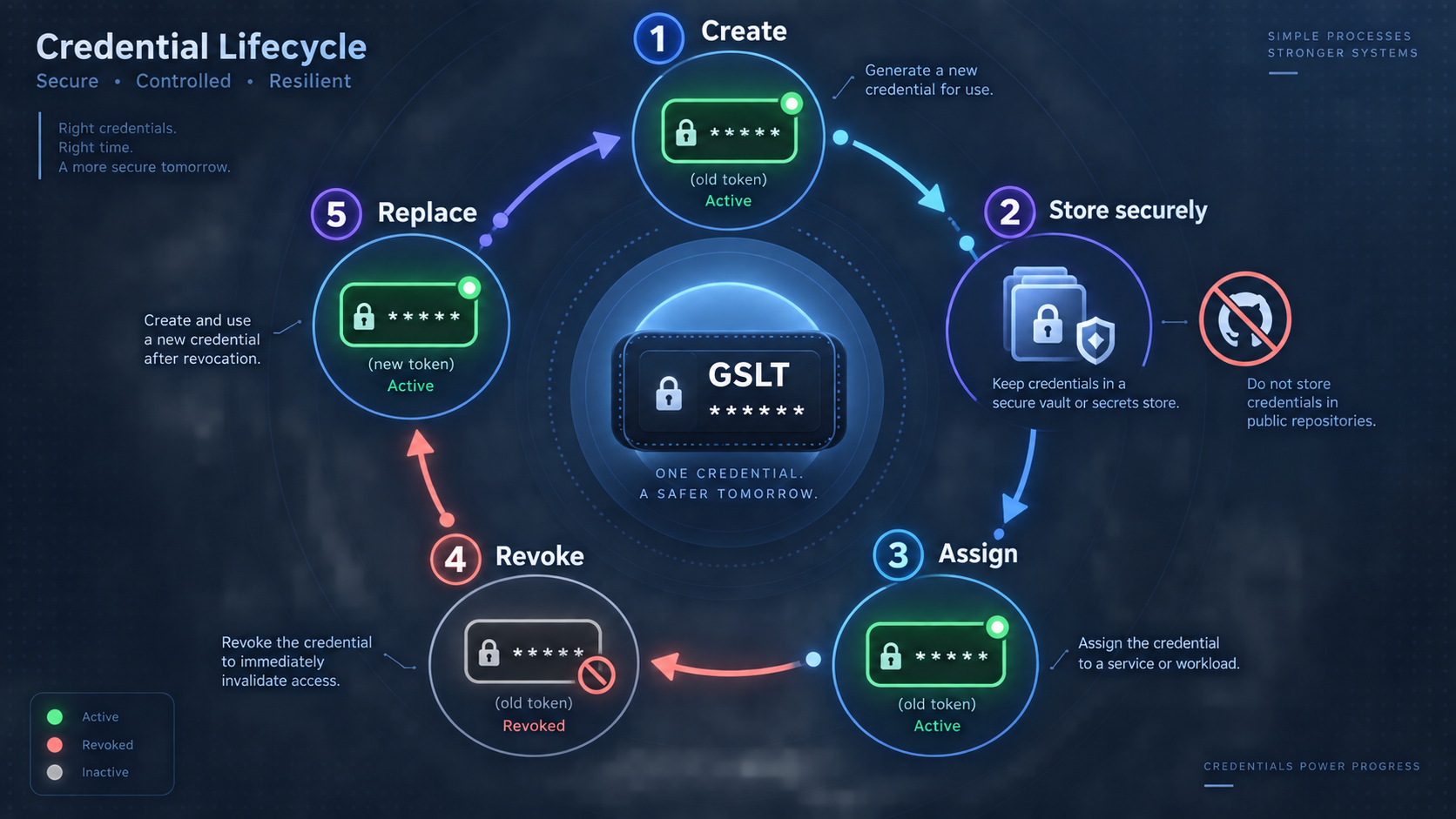
Keep tokens out of common leak paths
A GSLT is a server credential. Treat it with the same care as an API key. The server process may need to read it, but players, moderators, web dashboards, log collectors, and unrelated operating-system users normally do not.
When Steam regenerates or expires a token
Steam's current management page says that a token which goes unused for a long period of time, meaning the game server never logs in, will expire. Steam does not specify an exact 30-day period on that page. An expired token can be regenerated through the management interface.
Steam also states that all GSLTs are regenerated if the account password is reset through the Steam Help website or if Steam Support resets the password. This wording should not be broadened into a claim that every type of password change always invalidates every token.
| Event | Verified behavior | Administrator action |
|---|---|---|
| Token goes unused for a long period | Steam says the unused token will expire. | Regenerate it on the management page, update the protected server configuration, restart as required, and verify authentication again. |
| Password reset through Steam Help | Steam says all GSLTs will be regenerated. | Replace the values on every affected server and verify each deployment before returning it to service. |
| Password reset by Steam Support | Steam says all GSLTs will be regenerated. | Perform a complete token inventory review and update every affected server. |
| Token disclosed to a third party | Steam instructs users who distributed a token to delete it. | Stop the affected server if practical, delete the exposed token, create a replacement, update the server, and review logs and repositories for further exposure. |
Safe rotation procedure
- Identify the exact server using the token and schedule a restart if the game cannot reload credentials safely.
- Create or regenerate the replacement through Steam's management page, depending on the reason for rotation.
- Place the new value in the protected configuration or secret store without printing it to a shared terminal or log.
- Stop the old server instance so the old assignment cannot remain active elsewhere.
- Start the intended server and check the game-specific authentication status.
- Test a local connection and then an external connection through the normal public path.
- Delete a disclosed token and remove old copies from active configuration, backups where operationally appropriate, deployment variables, and support records.
Installation assumptions, startup order, and verification
GSLT creation is not a substitute for installing and configuring the dedicated server. Before adding public connectivity, establish a known-good local deployment using the publisher-supported server package for your operating system.
Prerequisites
- A supported operating system and the current dedicated-server build from the publisher's documented installation channel.
- The correct game files, maps, world data, mods, and dependencies for the intended server version.
- A dedicated operating-system account with only the permissions the server needs.
- A backup of persistent worlds and configuration before changing authentication or networking settings.
- The current first-party port list, including the protocol and purpose of every port.
- A Steam GSLT only if the game explicitly documents one.
- A separate, strong RCON or administration credential if remote administration is enabled.
Recommended startup and test sequence
Install and update the dedicated server
Use the publisher's documented installer or server-distribution process. Confirm the server version matches the client version expected by players.
Configure local files and bind addresses
Configure the world, server name, access rules, and documented local ports. Determine whether the process listens on loopback, one LAN address, or all intended interfaces.
Add the verified authentication credential
If the game uses GSLT, place it in the exact publisher-supported location. If it uses a publisher token or no token, follow that model instead.
Start the server and inspect its status
Review startup output for configuration errors, bind failures, version problems, and the documented authentication result. Do not rely on a guessed success message.
Test from the local network
Connect from another device on the same LAN where possible. This confirms the server is running and helps separate application problems from internet reachability problems.
Create the public network path
Use direct public routing, correctly configured NAT forwarding, a documented publisher relay, or an appropriate UDP or TCP tunnel. Expose only the services players actually need.
Test remotely
Ask a trusted tester outside the LAN to use the assigned public host and port or the game's documented join method. Testing from inside the same network can be misleading because routers handle loopback traffic differently.
RCON and similar administration interfaces are not gameplay services. Publishing them increases the attack surface and is normally unnecessary for players. Keep administration private where possible, use a strong unique credential, and restrict access to trusted operators.
Ports, NAT, double NAT, and CGNAT
Game servers frequently use more than one service. Gameplay may use UDP, discovery may use a separate query port, RCON may use TCP, and clustered games may assign distinct ports to each shard. Some games derive secondary ports from a configurable base port. A single row labeled only “UDP” cannot accurately represent those deployments.
| Service role | Possible transport | Verification required |
|---|---|---|
| Gameplay | Often UDP, but game-specific | Confirm the configured bind address, local port, public port, and whether the game can advertise a different external port. |
| Server query and discovery | Commonly UDP, but game-specific | Confirm whether it shares the gameplay port, uses a separate port, or applies an offset. |
| Steam or backend service | Game-specific | Confirm whether inbound mapping is required or whether the server makes only outbound backend connections. |
| RCON or remote administration | Frequently TCP, but implementation-specific | Keep private unless required. Never classify it as UDP merely because gameplay uses UDP. |
| Shard or cluster traffic | Game-specific | Determine whether communication is local-only, LAN-only, or intentionally public, and assign each shard according to publisher documentation. |
How to investigate CGNAT correctly
Carrier-Grade NAT allows an ISP to place multiple customers behind shared public addressing. If the ISP controls an upstream NAT layer, forwarding a port on the home router may not create an inbound path from the public internet.
Begin by inspecting the WAN or internet address shown by your router. Compare it with the public address observed by an external address-checking service. A mismatch is an indicator, not proof of CGNAT, because an ISP modem, building gateway, or second household router can also create ordinary double NAT.
Private IPv4 address ranges are:
10.0.0.0/8172.16.0.0/12192.168.0.0/16
The shared address range commonly associated with CGNAT is 100.64.0.0/10, which spans 100.64.0.0 through 100.127.255.255. If the router's WAN interface receives one of these addresses, CGNAT is a strong possibility. A private WAN address may instead indicate another router or modem performing NAT upstream.
Traceroute can provide clues by showing private or shared-address hops, but it is not a definitive CGNAT test. Networks can hide hops, use private addressing internally, or respond inconsistently to traceroute probes. Rule out a second local router where possible, inspect the modem or upstream gateway, and ask the ISP whether the connection uses CGNAT and whether a public address is available.
A server may authenticate successfully because it can make outbound connections to Steam while inbound gameplay packets still fail at a firewall, router, ISP NAT layer, or incorrect public-port advertisement. Diagnose authentication and networking as separate systems.
Publishing a game-server port with Localtonet
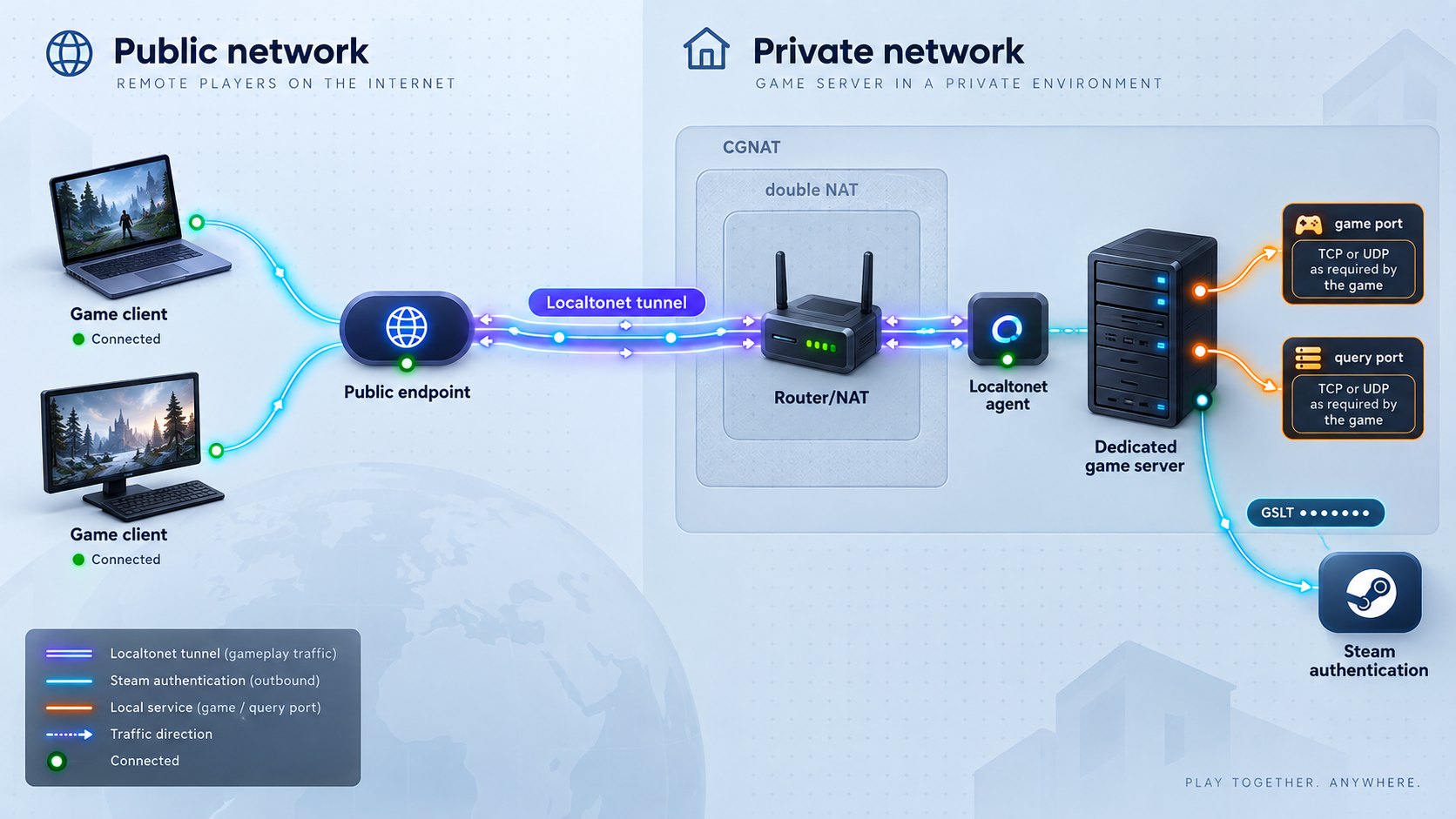
Localtonet can expose a service running on your machine without inbound router port forwarding, firewall changes, VPN setup, or a public IP address. The Localtonet client establishes an outbound connection to our relay, and the tunnel provides a public host and port.
Use a UDP tunnel for a documented UDP service. Use TCP for a documented TCP service. A combined UDP/TCP tunnel can be appropriate when the application requires both transports for the relevant local target, but do not assume it replaces every distinct gameplay, query, RCON, or shard port. Build the tunnel configuration from the current publisher port specification.
Install and run the Localtonet client
Install the Localtonet application for the operating system hosting the server, or on another device that can reach it over the local network. Keep authentication tokens private and do not include them in screenshots or support posts.
Select the device or authentication token
In the Localtonet dashboard, select the connected device that will run the tunnel. The selected device must be able to reach the game server's actual bind address and local port.
Select an available relay server
Choose from the relay servers currently offered in the dashboard. Available servers and regions can vary, so use the current product interface rather than a hardcoded server code from an article.
Configure the correct local target
Select UDP, TCP, or combined UDP/TCP according to the game's verified requirement. Enter the local IP address and port on which the service is listening. Do not automatically use 127.0.0.1 if the server listens on a LAN address or runs on a different device.
Start the tunnel
Creating a tunnel does not start it. Use the Start button, then confirm that the selected Localtonet client remains connected and that the tunnel reports a running state.
Verify the assigned public endpoint
Record the public host and port assigned to the running tunnel. Test from outside the server's LAN using the game's supported direct-connect or discovery method. If the public port differs from the local port, verify that the game can advertise or accept that external mapping.
Stop or delete the tunnel when finished
Stop the tunnel when public access is no longer required, or delete it if the configuration will not be reused. The public endpoint is available only while the selected client is connected and the tunnel is running.
If the game uses separate gameplay and query ports, verify each one individually. If it requires both UDP and TCP services, configure the appropriate tunnel type or targets supported by the current dashboard. Do not expose an RCON port simply because it appears next to gameplay ports in a hosting guide.
Some server browsers depend on the address and query port advertised by the game server. If Localtonet assigns a different public port, the game must support advertising or using that mapping. A working tunnel cannot guarantee compatibility with a game's public discovery system, so test direct connection and server-browser discovery separately.
Symptom-based troubleshooting
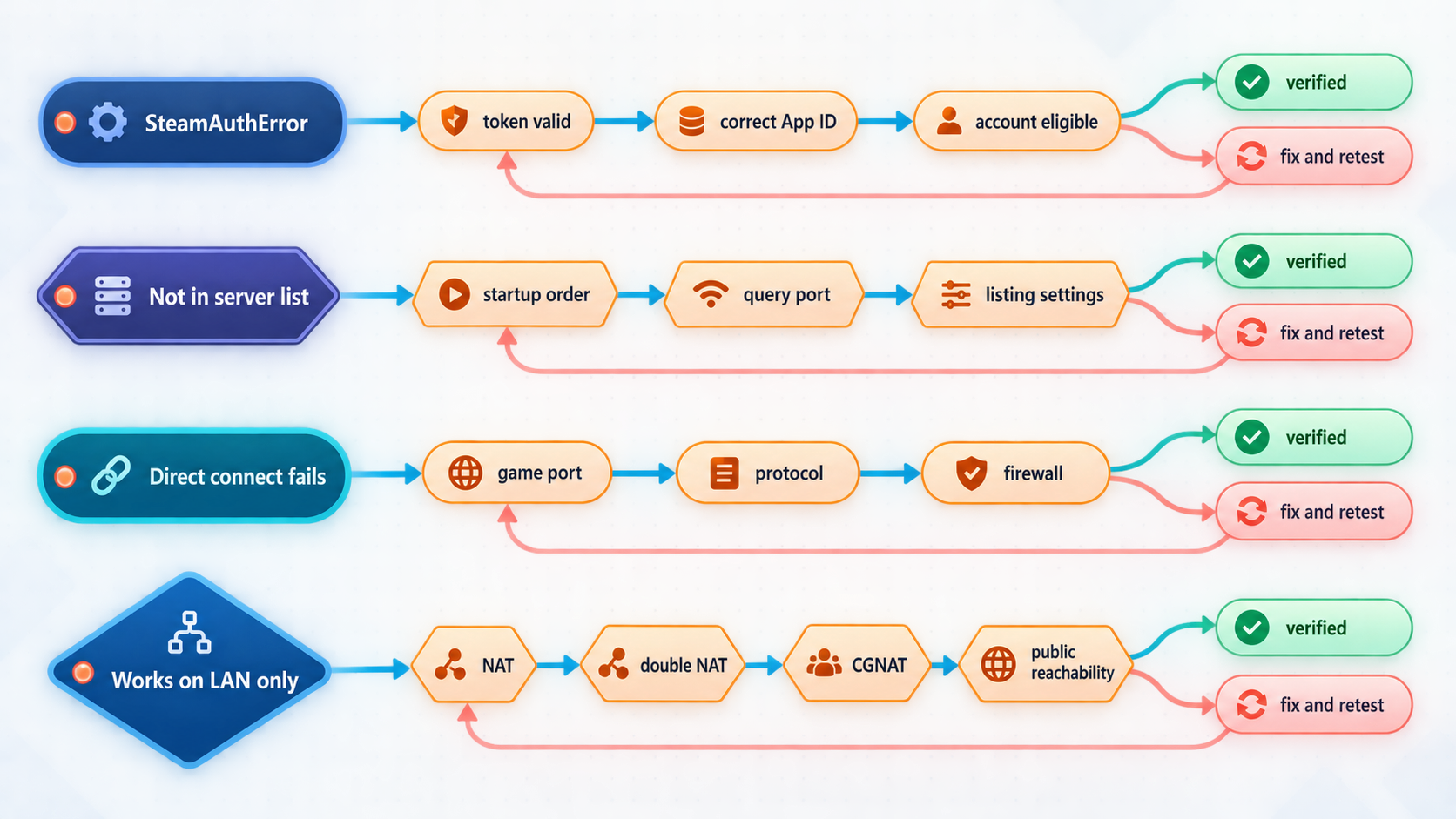
| Symptom | Likely category | What to check |
|---|---|---|
| Steam management page will not create a token | Account eligibility | Check community-ban or lock status, limited-account status, qualifying phone registration, game ownership, and the server-account limit. |
| Server reports an authentication failure | Credential or compatibility | Confirm the game supports GSLT, the App ID came from current publisher documentation, the token was copied correctly, and it has not expired, been deleted, or been regenerated. |
| Authentication stopped after account recovery | Token regeneration | If the password was reset through Steam Help or by Steam Support, replace all regenerated GSLT values on affected servers. |
| Server works locally but not remotely | Firewall, NAT, or tunnel path | Verify the bind address, local firewall, router mapping, ISP NAT status, transport protocol, and public-to-local port mapping. |
| Direct connection works but the server browser does not | Query or advertisement | Check the query service, public address advertisement, public port support, visibility settings, version filters, and normal server-browser propagation behavior documented by the publisher. |
| Server appears but clients time out | Gameplay path | Do not assume the token is at fault. Test the gameplay port and protocol separately from authentication and query traffic. |
| Localtonet tunnel is configured but unreachable | Tunnel lifecycle or local target | Confirm the client is connected, the tunnel was explicitly started, the protocol is correct, and the selected device can reach the configured local IP and port. |
| Players reach the wrong service after a port change | Public-port advertisement | Compare the assigned public port with the game configuration. Verify whether the game supports a public port that differs from its local listening port. |
| Clients are rejected after an update | Version or mod mismatch | Update the dedicated server and verify game, mod, map, and protocol compatibility before changing tokens or network rules. |
A practical diagnostic order
- Confirm that the dedicated-server process remains running.
- Confirm that it is listening on the expected local IP, ports, and protocols.
- Test from another device on the LAN.
- Check the game's documented authentication status separately.
- Verify the current token assignment and App ID only if the game uses GSLT.
- Check version and mod compatibility.
- Test the public gameplay endpoint from outside the LAN.
- Test query and server-browser discovery separately from gameplay.
- Review NAT, CGNAT, firewall, tunnel state, and public-port advertisement.
This order prevents unnecessary token rotation when the real problem is a stopped process or blocked UDP path. It also prevents repeated router changes when the server has never authenticated or is listening only on an unexpected interface.
Frequently asked questions
Does every Steam dedicated server need a GSLT?
No. GSLT support is game-specific. Some games use Steam GSLTs, some use publisher-specific credentials, and others use no GSLT. Confirm the mechanism in current first-party documentation before generating or configuring a token.
Is a Don't Starve Together cluster token a GSLT?
No. It is a Klei cluster authentication credential. Generate and configure it through Klei's documented process rather than Steam Game Server Account Management.
Does Valheim use a Steam GSLT?
No. Valheim should be configured through its own documented dedicated-server and backend options. Do not create a GSLT merely because the server is distributed through Steam.
Do unused Steam GSLTs expire after exactly 30 days?
Steam's current management page does not specify 30 days. It says that a token which goes unused for a long period of time, meaning the game server never logs in, will expire. An expired token can be regenerated on that page.
Does every Steam password change invalidate all GSLTs?
The verified Steam wording is narrower. Steam says all GSLTs are regenerated when the password is reset through the Steam Help website or when Steam Support resets it. After either event, update and verify every affected server.
Can a valid GSLT make a server reachable through CGNAT?
No. A GSLT authenticates a compatible server. It does not open inbound ports or create a gameplay route. If direct inbound access is unavailable, use a publisher-supported relay, obtain suitable public connectivity from the ISP, or configure an appropriate UDP or TCP tunnel after verifying the game's networking requirements.
Does an address mismatch prove that my ISP uses CGNAT?
No. A mismatch between the router WAN address and the observed public address is an indicator. It can also result from a second router, ISP modem, apartment gateway, or another upstream NAT device. Inspect the full local topology and confirm CGNAT with the ISP.
Should I expose the RCON port with the gameplay port?
Normally, no. Players do not need public access to RCON. Keep administration interfaces private where possible. If remote administration is necessary, use the game's supported security controls, a strong unique password, and access restrictions appropriate to the deployment.
When is a Localtonet game-server tunnel available?
The public endpoint is available while the selected Localtonet client is connected and the tunnel is running. Creating the tunnel is not enough. It must be explicitly started, and the local game service must remain reachable from that client device.
Publish a verified game-server port with Localtonet
Once the server works locally and you have confirmed its actual UDP or TCP requirements, use Localtonet to create the appropriate public tunnel without relying on inbound router port forwarding.
Get Started Free →

