

Build a staged, supportable path from an RS-485 meter to a protected energy dashboard
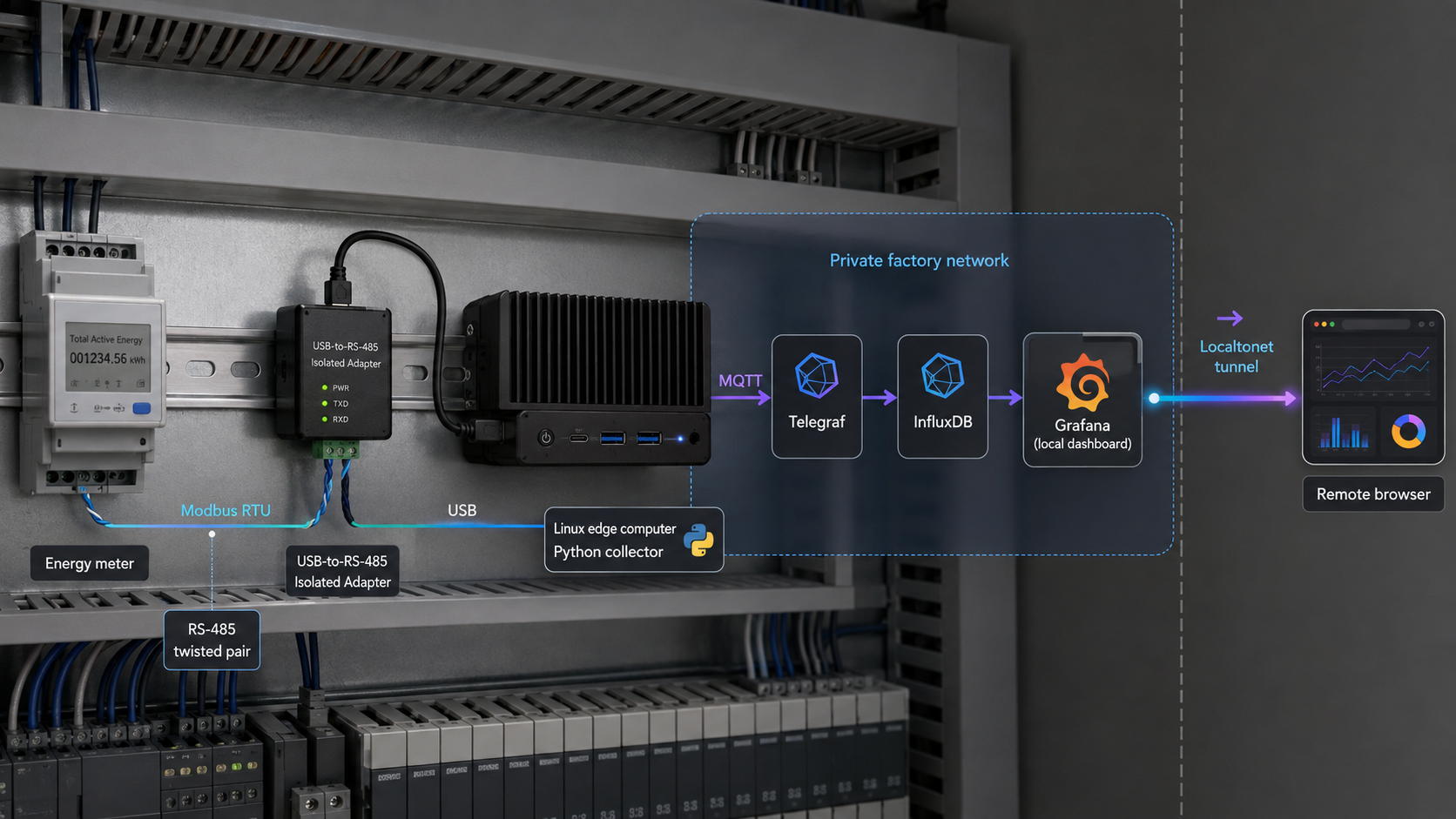
Factory energy meters commonly expose measurements through Modbus RTU over an RS-485 bus, but turning those registers into useful operational data requires more than connecting a USB adapter. This guide builds a Raspberry Pi edge collector that validates the meter map, publishes readings through a loopback-only MQTT broker, stores them in InfluxDB, and visualizes them in Grafana. It also covers service deployment, counter resets, retention, backups, troubleshooting, and controlled remote access through Localtonet. Electrical work and changes inside energized panels must remain with qualified personnel following site procedures and applicable regulations.
📋 What's in this guide
Prerequisites and deployment boundaries
Start by treating this as an operational technology integration rather than a hobby sensor project. A monitoring collector can be read-only at the Modbus application layer and still affect a shared serial bus through excessive polling, duplicate addresses, incorrect communication settings, wiring faults, or termination mistakes. The project should therefore have an identified owner, an approved maintenance window, a documented rollback plan, and permission from the people responsible for the electrical installation and OT network.
Do not open, modify, probe, or wire an energized electrical panel unless you are qualified and authorized to do so. Follow the meter manufacturer's instructions, local electrical rules, site lockout/tagout procedures, arc-flash boundaries, and required personal protective equipment. This tutorial covers data collection software and general bus concepts. It is not an electrical installation procedure.
Hardware and documentation
- A supported Raspberry Pi or another Linux edge computer with reliable storage and power.
- A USB-to-RS-485 adapter suitable for the installation. Galvanic isolation is strongly preferred where ground-potential differences, electrical noise, or industrial panel conditions make it appropriate.
- The exact manufacturer communication manual for the meter model and firmware revision.
- The configured Modbus unit address, baud rate, parity, stop bits, function codes, register addresses, data types, scaling, byte order, and word order.
- An approved RS-485 cable and topology designed according to the equipment manufacturers' instructions.
- A management workstation that can reach the Raspberry Pi during local setup.
- A backup destination that is separate from the Raspberry Pi's system disk.
Record the title, revision, publication date, and manufacturer location of every communication manual used. Do not rely on a register table copied from a blog post or a different meter in the same product family. Manufacturers can change maps between models and firmware revisions, and similarly named values may use different register types or scaling.
Software assumptions
Use a currently supported 64-bit Raspberry Pi OS or another supported Debian-based distribution. Before installing InfluxDB or Grafana, verify that the exact release and CPU architecture appear in those products' current compatibility information. Package availability differs between ARM architectures and operating-system releases. The Influx command-line client may also be distributed separately from the database server, so this guide uses the InfluxDB web interface for initial organization, bucket, and token creation.
The collector example targets Python 3 and pins its Python dependencies to pymodbus==3.11.3, paho-mqtt==2.1.0, and pyserial==3.5. Keep those versions together when following the example because PyModbus client construction and the device_id argument have changed between release families. If your supported repository cannot provide this combination, adapt and retest the collector in a staging environment rather than silently installing a different API version.
Architecture and trust boundaries
The Raspberry Pi acts as an edge gateway between the serial meter network and an IP-based monitoring stack. The collector is the only component that needs access to the serial device. Mosquitto accepts local MQTT connections, Telegraf transforms MQTT JSON into time-series points, InfluxDB stores those points, and Grafana queries InfluxDB.
For a compact installation, all components can run on one device. A larger deployment may place InfluxDB and Grafana on managed servers, but that changes firewall rules, certificates, service credentials, backup procedures, and capacity planning. Do not move components across an OT boundary without a reviewed network design.
Meter 1          Meter 2          Meter N
 unit ID 1        unit ID 2        unique ID
    |                |                |
    +-------- RS-485 multidrop bus ---+
                     |
          isolated USB/RS-485 adapter
                     |
              Raspberry Pi edge node
                     |
             Python Modbus reader
                     |
          MQTT on 127.0.0.1:1883
                     |
                  Telegraf
                     |
        InfluxDB on a protected interface
                     |
          Grafana on 127.0.0.1:3000
                     |
       Localtonet client outbound connection
                     |
             Localtonet relay and SSO
                     |
authenticated remote browser| Component | Responsibility | Recommended exposure |
|---|---|---|
| Python collector | Poll approved Modbus registers and validate values | No network listener |
| Mosquitto | Receive authenticated MQTT messages | Loopback only for a single-node deployment |
| Telegraf | Subscribe to MQTT and write normalized points | No public listener required |
| InfluxDB | Store time-series data with retention controls | Loopback or restricted management network |
| Grafana | Dashboards, queries, users, and alert rules | Loopback when accessed through Localtonet |
| Localtonet client | Connect the local Grafana service to a relay | Outbound connection; no router forwarding |
Do not expose the serial adapter, MQTT broker, or InfluxDB API directly to the public internet for this workflow. Grafana provides the intended presentation and access-control layer. Administrative access to the operating system, broker, and database should remain on an approved management path.
RS-485 safety, topology, and register interpretation
Do not assume A and B labels match
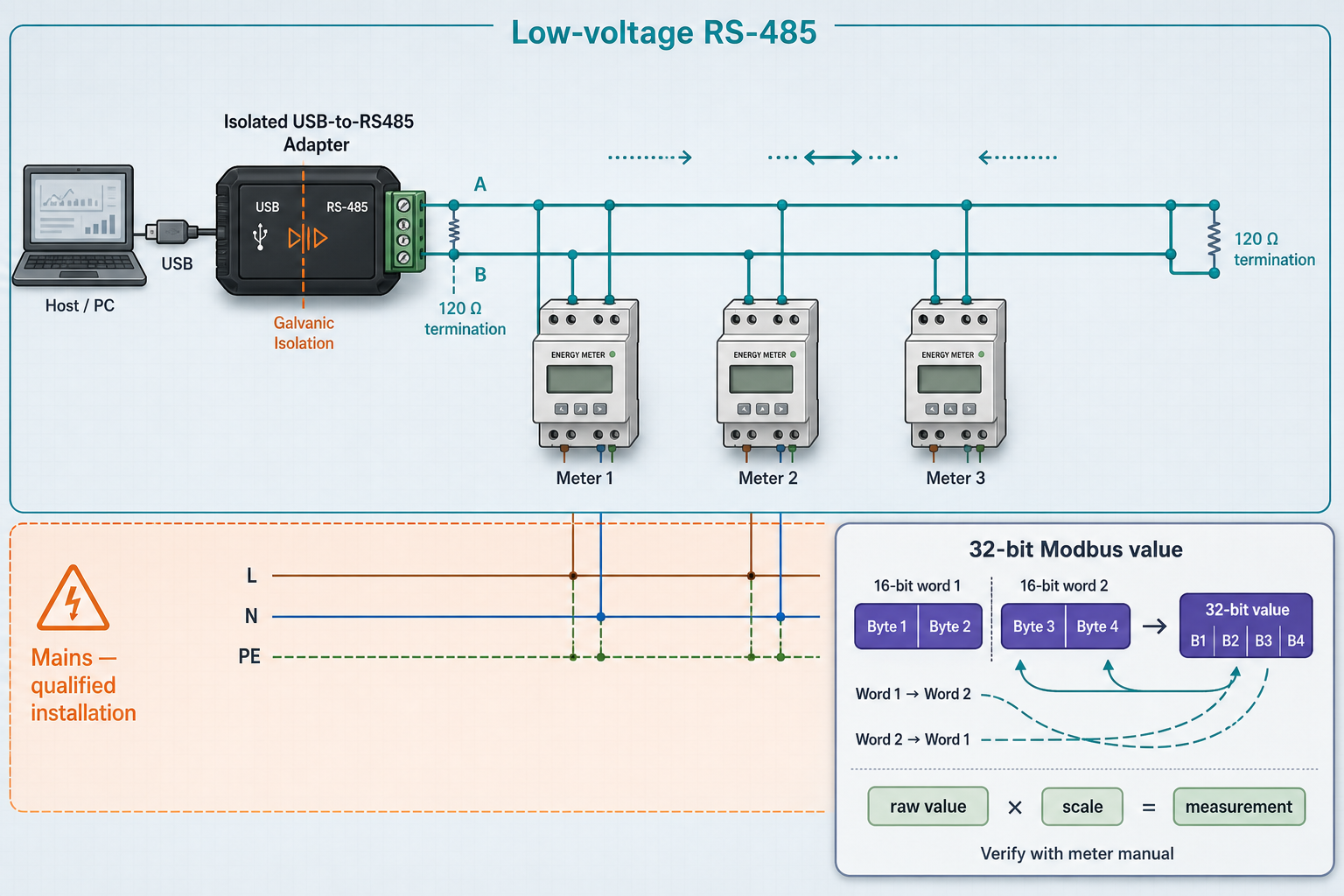
RS-485 uses a differential pair, but terminal names are not consistently defined across manufacturers. One vendor's A terminal can correspond to another vendor's B, D+, D-, non-inverting, or inverting notation. Confirm the signal definitions in both the meter manual and adapter manual before wiring. Do not use wire color or a generic internet diagram as the authority.
A typical multidrop installation uses a bus or daisy-chain topology with short device stubs. Avoid an uncontrolled star topology unless the equipment documentation explicitly supports it. Every Modbus device on a bus needs a unique unit address, and all participants must use compatible serial settings.
[Termination if required]                         [Termination if required]
          |                                                   |
      Main bus ============================================= Main bus
                   |                    |                    |
                short stub           short stub           short stub
                   |                    |                    |
              Meter ID 1           Meter ID 2           Meter ID 3

Verify with manufacturer documentation:
* Which terminals are the differential pair
* Whether and where termination is installed
* Whether biasing is built in or externally required
* Shield bonding and protective-earth practice
* Reference or signal-ground requirements
* Maximum cable length, baud rate, stub length, and node loadingThere is no universal cable-length threshold at which a 120-ohm resistor should automatically be added. Termination is based on transmission-line behavior and the actual bus design. Similarly, RS-485 does not universally mean exactly 32 devices. Traditional unit-load transceivers led to that familiar figure, but modern devices can present fractional unit loads. Protocol limits, repeater design, cable conditions, and manufacturer specifications can impose different practical limits.
Bias resistors, signal reference conductors, shield bonding, and grounding require the same care. Duplicate or excessive bias networks can distort the bus. Incorrect shield termination can create unwanted current paths. Follow the meter, adapter, and site electrical design rather than applying a universal recipe.
Confirm the serial device and permissions
Connect the adapter only after the physical installation has been approved. Linux commonly assigns USB serial devices names such as /dev/ttyUSB0 or /dev/ttyACM0, but the name can change when USB devices are rearranged.
ls -l /dev/ttyUSB* /dev/ttyACM* 2>/dev/null
dmesg | tail -n 30
For a permanent deployment, use a stable device path from /dev/serial/by-id/ when the adapter exposes a unique identifier:
ls -l /dev/serial/by-id/Translate the register map deliberately
A documentation table may label its first register as 1, 30001, 300001, or a hexadecimal value, while a software library may expect a zero-based protocol offset. Never subtract one automatically without confirming the manual's convention. Record both the printed register reference and the zero-based address passed to PyModbus.
| Property | What to verify | Failure symptom |
|---|---|---|
| Function code | Input registers, commonly function 04, or holding registers, commonly function 03 | Illegal function or illegal address response |
| Address base | Whether the documentation is one-based or already gives protocol offsets | Valid but incorrect adjacent value |
| Data type | Unsigned integer, signed integer, IEEE 754 float, or another documented representation | Implausibly large, tiny, or negative values |
| Word order | Order of the two 16-bit words in a 32-bit value | Nonsensical floating-point result |
| Byte order | Order of bytes within each register | Stable but incorrect decoded value |
| Scaling | Whether the decoded number must be multiplied or divided | Value consistently off by a factor such as 10 or 100 |
Read a single documented register and compare it with the meter display or another approved reference. Do not start a ten-second polling loop until the function code, address, encoding, and engineering unit have been confirmed. Use read functions only unless a separately reviewed procedure explicitly authorizes writes.
Create a pinned Python collector
Create a dedicated account and virtual environment
Avoid installing packages into the system Python and do not use --break-system-packages. A dedicated service account limits filesystem access, while a virtual environment keeps application dependencies separate from operating-system packages.
sudo apt update
sudo apt install -y python3 python3-venv python3-pip

sudo useradd --system \
  --home-dir /opt/energy-reader \
  --create-home \
  --shell /usr/sbin/nologin \
  energyreader

sudo usermod -aG dialout energyreader
sudo -u energyreader python3 -m venv /opt/energy-reader/venv

sudo -u energyreader /opt/energy-reader/venv/bin/pip install \
  pymodbus==3.11.3 \
  paho-mqtt==2.1.0 \
  pyserial==3.5
Group changes take effect for newly started processes. Restart the service after adding the account to dialout. If your distribution uses a different serial-device group, follow its documented permission model rather than making the device world-writable.
Create an explicit register configuration
The following file is intentionally disabled. Replace its address and encoding only after checking the manufacturer manual. Setting enabled to true is the final commissioning action.
{
  "voltage_v": {
    "enabled": false,
    "function": 4,
    "address": 0,
    "type": "float32",
    "byte_order": "big",
    "word_order": "big",
    "scale": 1.0,
    "minimum": 0.0,
    "maximum": 1000.0
  }
}
Save it as /opt/energy-reader/registers.json. The address shown is not asserted to match any particular meter. Add other measurements only after independently validating each one.
Store credentials outside the source code
sudo tee /etc/energy-reader.env >/dev/null <<'EOF'
SERIAL_PORT=/dev/serial/by-id/REPLACE_WITH_YOUR_ADAPTER
MODBUS_DEVICE_ID=1
MODBUS_BAUDRATE=9600
MODBUS_PARITY=N
MODBUS_STOPBITS=1
MQTT_HOST=127.0.0.1
MQTT_PORT=1883
MQTT_USERNAME=energy-publisher
MQTT_PASSWORD=REPLACE_WITH_A_LONG_UNIQUE_PASSWORD
MQTT_TOPIC=factory/energy/panel_a/meter_01
METER_ID=meter_01
PANEL_ID=panel_a
POLL_INTERVAL=10
EOF

sudo chown root:energyreader /etc/energy-reader.env
sudo chmod 640 /etc/energy-reader.env
Replace every placeholder before testing. Do not paste real passwords into tickets, screenshots, source-control commits, or process command lines.
Collector example
#!/usr/bin/env python3
import json
import logging
import math
import os
import signal
import struct
import time
from datetime import datetime, timezone
from pathlib import Path

import paho.mqtt.client as mqtt
from pymodbus import FramerType
from pymodbus.client import ModbusSerialClient

logging.basicConfig(
    level=logging.INFO,
    format="%(asctime)s %(levelname)s %(message)s"
)
log = logging.getLogger("energy-reader")
running = True

SERIAL_PORT = os.environ["SERIAL_PORT"]
DEVICE_ID = int(os.environ["MODBUS_DEVICE_ID"])
BAUDRATE = int(os.environ.get("MODBUS_BAUDRATE", "9600"))
PARITY = os.environ.get("MODBUS_PARITY", "N")
STOPBITS = int(os.environ.get("MODBUS_STOPBITS", "1"))

MQTT_HOST = os.environ.get("MQTT_HOST", "127.0.0.1")
MQTT_PORT = int(os.environ.get("MQTT_PORT", "1883"))
MQTT_USERNAME = os.environ["MQTT_USERNAME"]
MQTT_PASSWORD = os.environ["MQTT_PASSWORD"]
MQTT_TOPIC = os.environ["MQTT_TOPIC"]

METER_ID = os.environ["METER_ID"]
PANEL_ID = os.environ["PANEL_ID"]
POLL_INTERVAL = float(os.environ.get("POLL_INTERVAL", "10"))
REGISTER_FILE = Path("/opt/energy-reader/registers.json")

def stop(_signum, _frame):
    global running
    running = False

signal.signal(signal.SIGTERM, stop)
signal.signal(signal.SIGINT, stop)

def load_registers():
    with REGISTER_FILE.open("r", encoding="utf-8") as handle:
        configuration = json.load(handle)

    enabled = {
        name: spec
        for name, spec in configuration.items()
        if spec.get("enabled") is True
    }
    if not enabled:
        raise RuntimeError(
            "No registers are enabled. Validate the manufacturer map first."
        )
    return enabled

def decode_float32(registers, byte_order, word_order):
    words = list(registers)
    if word_order == "little":
        words.reverse()

    raw = b""
    for word in words:
        part = struct.pack(">H", word)
        if byte_order == "little":
            part = part[::-1]
        raw += part

    return struct.unpack(">f", raw)[0]

def read_value(client, name, spec):
    function = int(spec["function"])
    address = int(spec["address"])

    if function == 4:
        response = client.read_input_registers(
            address=address,
            count=2,
            device_id=DEVICE_ID
        )
    elif function == 3:
        response = client.read_holding_registers(
            address=address,
            count=2,
            device_id=DEVICE_ID
        )
    else:
        raise ValueError(f"{name}: only function 03 or 04 is configured")

    if response.isError():
        raise RuntimeError(f"{name}: Modbus response error: {response}")

    if spec["type"] != "float32":
        raise ValueError(f"{name}: unsupported type {spec['type']}")

    value = decode_float32(
        response.registers,
        spec.get("byte_order", "big"),
        spec.get("word_order", "big")
    )
    value *= float(spec.get("scale", 1.0))

    if not math.isfinite(value):
        raise ValueError(f"{name}: non-finite value")

    minimum = spec.get("minimum")
    maximum = spec.get("maximum")
    if minimum is not None and value < float(minimum):
        raise ValueError(f"{name}: value below configured minimum")
    if maximum is not None and value > float(maximum):
        raise ValueError(f"{name}: value above configured maximum")

    return round(value, 6)

def connect_modbus():
    client = ModbusSerialClient(
        port=SERIAL_PORT,
        framer=FramerType.RTU,
        baudrate=BAUDRATE,
        parity=PARITY,
        stopbits=STOPBITS,
        bytesize=8,
        timeout=1.5
    )
    if not client.connect():
        client.close()
        return None
    return client

def connect_mqtt():
    client = mqtt.Client(
        mqtt.CallbackAPIVersion.VERSION2,
        client_id=f"energy-reader-{METER_ID}"
    )
    client.username_pw_set(MQTT_USERNAME, MQTT_PASSWORD)
    client.connect(MQTT_HOST, MQTT_PORT, keepalive=60)
    client.loop_start()
    return client

def main():
    register_map = load_registers()
    mqtt_client = connect_mqtt()
    modbus_client = None
    reconnect_delay = 2

    try:
        while running:
            if modbus_client is None or not modbus_client.connected:
                if modbus_client is not None:
                    modbus_client.close()
                modbus_client = connect_modbus()
                if modbus_client is None:
                    log.error(
                        "Serial connection failed; retrying in %s seconds",
                        reconnect_delay
                    )
                    time.sleep(reconnect_delay)
                    reconnect_delay = min(reconnect_delay * 2, 60)
                    continue
                reconnect_delay = 2
                log.info("Connected to %s, device ID %s", SERIAL_PORT, DEVICE_ID)

            fields = {}
            for name, spec in register_map.items():
                try:
                    fields[name] = read_value(modbus_client, name, spec)
                except Exception as exc:
                    log.warning("Rejected reading for %s: %s", name, exc)

            if not fields:
                log.error("No valid values read; reconnecting serial client")
                modbus_client.close()
                modbus_client = None
                time.sleep(reconnect_delay)
                continue

            payload = {
                "timestamp": datetime.now(timezone.utc).isoformat(),
                "meter": METER_ID,
                "panel": PANEL_ID,
                **fields
            }

            publication = mqtt_client.publish(
                MQTT_TOPIC,
                json.dumps(payload, separators=(",", ":")),
                qos=1
            )
            publication.wait_for_publish(timeout=5)
            if not publication.is_published():
                raise RuntimeError("MQTT publication was not acknowledged")

            log.info("Published %s valid fields", len(fields))
            time.sleep(POLL_INTERVAL)
    finally:
        if modbus_client is not None:
            modbus_client.close()
        mqtt_client.disconnect()
        mqtt_client.loop_stop()

if __name__ == "__main__":
    main()
sudo tee /opt/energy-reader/energy_reader.py >/dev/null
sudo chown energyreader:energyreader /opt/energy-reader/energy_reader.py
sudo chmod 750 /opt/energy-reader/energy_reader.pyPut the Python content into that file using an editor or your approved deployment process. The collector rejects non-finite and out-of-range values, waits for the MQTT publish result, retries serial connections with bounded exponential delay, and handles termination signals. It does not invent a replacement value when a meter read fails.
Configure MQTT, Telegraf, and InfluxDB in stages
Install and restrict Mosquitto
sudo apt update
sudo apt install -y mosquitto mosquitto-clients

sudo mosquitto_passwd -c /etc/mosquitto/passwd energy-publisher
sudo mosquitto_passwd /etc/mosquitto/passwd telegraf-reader

sudo tee /etc/mosquitto/conf.d/energy.conf >/dev/null <<'EOF'
listener 1883 127.0.0.1
allow_anonymous false
password_file /etc/mosquitto/passwd
EOF

sudo systemctl enable mosquitto
sudo systemctl restart mosquitto
sudo systemctl status mosquitto --no-pager
The password prompts keep credentials out of the command line. Use different passwords for the publishing and consuming identities. For stricter least privilege, add broker access-control rules so the collector can publish only to its assigned topic and Telegraf can subscribe only to the approved energy hierarchy.
Test MQTT independently
Before introducing Modbus or Telegraf, verify the broker with a harmless test message. Enter the password interactively instead of adding -P to the command line, where it may be visible in shell history or process listings.
mosquitto_sub \
  -h 127.0.0.1 \
  -p 1883 \
  -u telegraf-reader \
  -t 'factory/energy/#' \
  -v
In another terminal:
mosquitto_pub \
  -h 127.0.0.1 \
  -p 1883 \
  -u energy-publisher \
  -t 'factory/energy/test' \
  -m '{"timestamp":"2026-01-01T00:00:00+00:00","meter":"test","panel":"test","active_power_w":100.0}'
Initialize InfluxDB with least-privilege tokens
Install an InfluxDB release explicitly supported by your operating system and ARM architecture, then enable its service using the package's documented service name. Open the local InfluxDB setup interface only from the approved management network. Create:
- An organization for the site or monitoring environment.
- An
energybucket with a retention period selected from business, compliance, and storage requirements. - A write-only token for Telegraf, restricted to the energy bucket.
- A separate read-only token for Grafana, restricted to the same bucket.
- A protected administrative identity used only for database administration.
Do not reuse the initial all-access operator token in Telegraf or Grafana. Save each token once in an approved secret store. If a token appears in logs, source control, screenshots, or support material, revoke it and issue a replacement.
Configure Telegraf
Install a Telegraf package supported by the selected operating system. Put its credentials in a root-owned environment file:
sudo install -d -o root -g telegraf -m 750 /etc/telegraf

sudo tee /etc/telegraf/energy.env >/dev/null <<'EOF'
MQTT_USERNAME=telegraf-reader
MQTT_PASSWORD=REPLACE_WITH_TELEGRAF_MQTT_PASSWORD
INFLUX_TOKEN=REPLACE_WITH_WRITE_ONLY_TOKEN
EOF

sudo chown root:telegraf /etc/telegraf/energy.env
sudo chmod 640 /etc/telegraf/energy.env
Add a service override so systemd loads the file without placing secrets in ExecStart:
sudo systemctl edit telegraf[Service]
EnvironmentFile=/etc/telegraf/energy.envCreate a focused Telegraf configuration:
[agent]
  interval = "10s"
  flush_interval = "10s"

[[inputs.mqtt_consumer]]
  servers = ["tcp://127.0.0.1:1883"]
  topics = ["factory/energy/#"]
  username = "${MQTT_USERNAME}"
  password = "${MQTT_PASSWORD}"
  qos = 1
  data_format = "json"
  name_override = "energy_meter"
  json_time_key = "timestamp"
  json_time_format = "2006-01-02T15:04:05.999999Z07:00"
  tag_keys = ["meter", "panel"]

[[outputs.influxdb_v2]]
  urls = ["http://127.0.0.1:8086"]
  token = "${INFLUX_TOKEN}"
  organization = "factory"
  bucket = "energy"
Replace the organization if you selected a different name. Then validate the configuration using the test command documented for your installed Telegraf release. After a successful test:
sudo systemctl daemon-reload
sudo systemctl enable telegraf
sudo systemctl restart telegraf
sudo systemctl status telegraf --no-pager
sudo journalctl -u telegraf -n 50 --no-pager
Build the Grafana energy dashboard
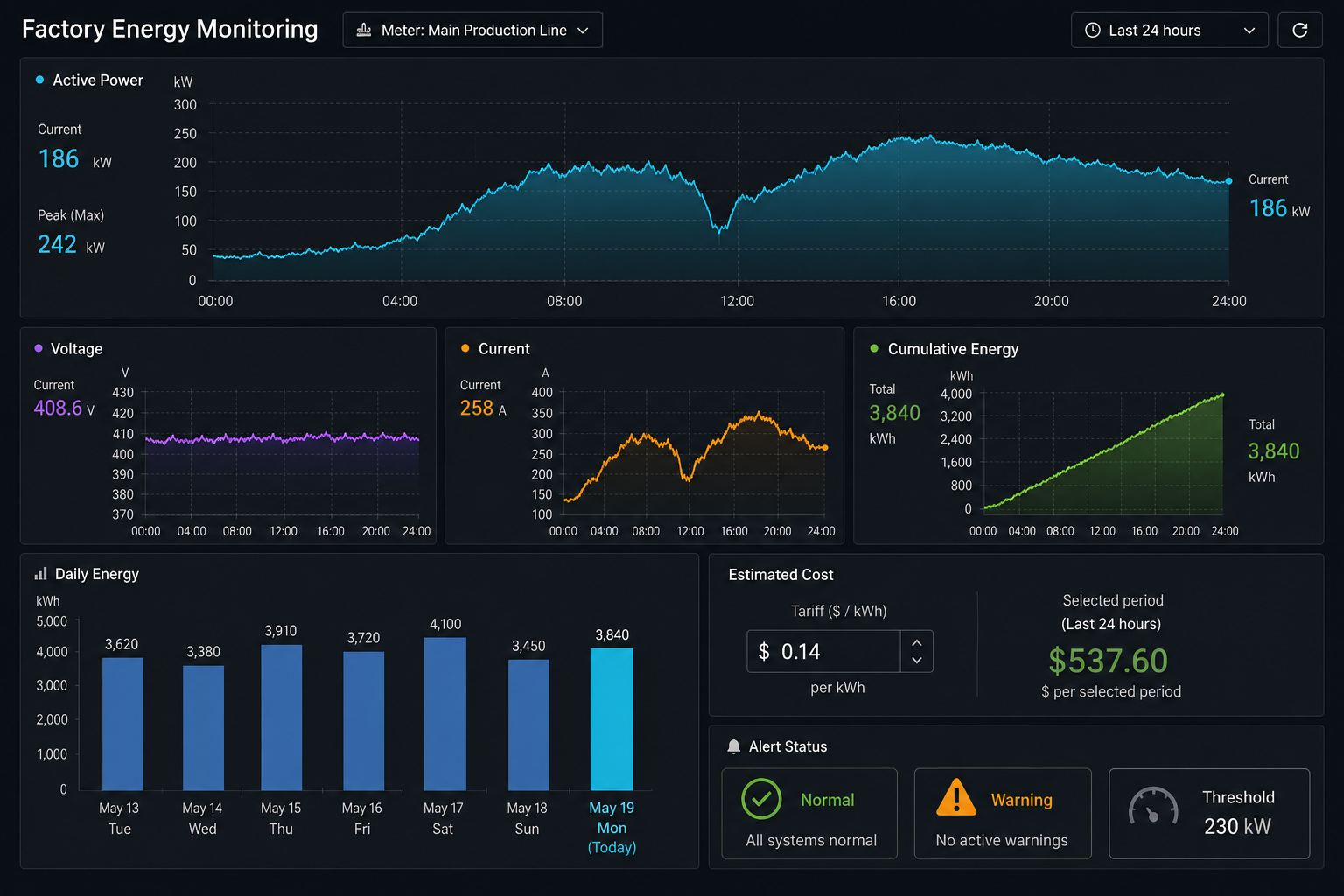
Install a Grafana package supported by the Raspberry Pi's operating-system release and architecture. Configure Grafana to listen on loopback when it will be reached through Localtonet. If local management access is also required, use an approved firewall rule or reverse proxy rather than exposing the service indiscriminately.
Start Grafana, sign in locally, replace any initial administrator credential, and create named accounts. Avoid shared administrator logins. Dashboard viewers should receive a Viewer role, dashboard editors should be limited to the appropriate folder, and administrative access should remain with maintainers.
Add the InfluxDB data source
In Grafana, open Connections, add an InfluxDB data source, and select Flux as the query language. Use these values:
- URL:
http://127.0.0.1:8086for a same-host deployment. - Organization: the organization created during InfluxDB setup.
- Token: the read-only Grafana token, not the Telegraf write token.
- Default bucket:
energy.
Save and test the data source. A failed test should be resolved before creating panels. Typical causes are the wrong organization, an expired or copied-incorrectly token, insufficient bucket permission, or a database service listening on a different interface.
Power and power-factor panels
The collector configuration determines which fields exist. Once active_power_w has been validated and enabled, a time-series query can be:
from(bucket: "energy")
  |> range(start: -8h)
  |> filter(fn: (r) => r._measurement == "energy_meter")
  |> filter(fn: (r) => r.meter == "meter_01")
  |> filter(fn: (r) => r._field == "active_power_w")
  |> aggregateWindow(every: 1m, fn: mean, createEmpty: false)
For power factor, change the field filter to power_factor. Do not copy generic alarm thresholds without an engineering basis. Appropriate thresholds depend on equipment ratings, utility arrangements, process schedules, and the site's approved operating limits.
Calculate energy from a cumulative counter
A meter's imported-energy field is usually a cumulative counter. Daily consumption is the sum of positive differences between successive samples, not the sum of the counter itself. The query must also include a sample before the reporting boundary or the first interval of the day can be omitted.
import "date"

dayStart = date.truncate(t: now(), unit: 1d)

from(bucket: "energy")
  |> range(start: date.sub(d: 15m, from: dayStart))
  |> filter(fn: (r) => r._measurement == "energy_meter")
  |> filter(fn: (r) => r.meter == "meter_01")
  |> filter(fn: (r) => r._field == "import_energy_kwh")
  |> difference(nonNegative: true)
  |> filter(fn: (r) => r._time >= dayStart)
  |> sum()
The 15-minute lookback must be longer than the expected sampling interval and short communication gaps. If no sample exists before the day boundary, the first interval remains unknowable from the stored data. The nonNegative: true setting prevents a meter reset from being counted as large negative consumption, but it cannot reconstruct energy that occurred across the reset. Counter rollover behavior is model-specific and may require a known maximum counter value.
Flux timestamps are stored in UTC. Decide whether “today” means UTC, the factory's local civil day, a production shift, or a tariff settlement period. Configure the dashboard time zone and reporting boundary deliberately, especially around daylight-saving changes.
Apply a documented tariff
Cost is energy multiplied by an applicable tariff. A hardcoded generic price is not a valid factory cost model. Tariffs can vary by time of use, demand band, taxes, contract period, currency, or site. For a single verified flat tariff, apply it only after the energy query:
tariffPerKwh = 0.0

import "date"

dayStart = date.truncate(t: now(), unit: 1d)

from(bucket: "energy")
  |> range(start: date.sub(d: 15m, from: dayStart))
  |> filter(fn: (r) => r._measurement == "energy_meter")
  |> filter(fn: (r) => r.meter == "meter_01")
  |> filter(fn: (r) => r._field == "import_energy_kwh")
  |> difference(nonNegative: true)
  |> filter(fn: (r) => r._time >= dayStart)
  |> sum()
  |> map(fn: (r) => ({r with _value: r._value * tariffPerKwh}))
Replace 0.0 with an approved flat tariff and label the panel with its currency and effective period. Time-varying tariffs should be modeled as data and joined to matching intervals rather than represented by one unexplained constant.
Alert routing
Grafana alerting requires both an alert rule and a notification route. Create a contact point using an approved channel, test it, then route the relevant labels to that contact point. Build alert rules for conditions that operators can act on, such as stale data, sustained demand above an approved limit, or a validated power-factor threshold.
Include a waiting period so one missing sample does not create noise. Define behavior for “no data” and query errors. Document who receives the alert, the expected response, escalation timing, and how maintenance windows are silenced and audited.
Deploy the collector as a durable systemd service
Test the collector interactively before creating a service. First enable only the one validated register in registers.json, then run:
sudo -u energyreader \
  /usr/bin/env \
  $(sudo cat /etc/energy-reader.env | xargs) \
  /opt/energy-reader/venv/bin/python \
/opt/energy-reader/energy_reader.pyEnvironment expansion can expose values in diagnostic output or operator tooling. Do not use this pattern for routine operation. The permanent service loads the protected environment file directly through systemd.
Stop the test with Ctrl+C after confirming a valid reading and acknowledged MQTT publication. Then create the service:
[Unit]
Description=Factory energy meter collector
After=network-online.target mosquitto.service
Wants=network-online.target

[Service]
Type=simple
User=energyreader
Group=energyreader
SupplementaryGroups=dialout
EnvironmentFile=/etc/energy-reader.env
WorkingDirectory=/opt/energy-reader
ExecStart=/opt/energy-reader/venv/bin/python /opt/energy-reader/energy_reader.py
Restart=on-failure
RestartSec=10
NoNewPrivileges=true
PrivateTmp=true
ProtectSystem=strict
ProtectHome=true
ReadOnlyPaths=/opt/energy-reader
UMask=027

[Install]
WantedBy=multi-user.target
Save it as /etc/systemd/system/energy-reader.service, then enable and start it:
sudo systemctl daemon-reload
sudo systemctl enable energy-reader
sudo systemctl start energy-reader
sudo systemctl status energy-reader --no-pager
sudo journalctl -u energy-reader -n 50 --no-pager
Test a graceful restart and confirm that the serial port is released cleanly:
sudo systemctl restart energy-reader
sudo journalctl -u energy-reader --since "2 minutes ago" --no-pager
Verify the complete data path
Verification should proceed one boundary at a time. If the dashboard is blank, jumping directly to Grafana makes it difficult to distinguish a wiring problem from a token problem.
Verify the serial adapter
Confirm the stable device path exists, the service account can open it, and no other process is holding the port.
Verify one meter register
Compare one decoded value with the meter display or an approved reference. Resolve addressing, function-code, byte-order, word-order, and scaling differences before proceeding.
Verify MQTT publication
Subscribe locally with the read-only MQTT identity and confirm the expected topic, timestamp, meter tag, panel tag, and numeric field.
Verify Telegraf ingestion
Check the Telegraf journal for authentication, JSON parsing, timestamp, and InfluxDB write errors.
Verify InfluxDB fields and tags
Confirm the energy_meter measurement contains the expected field and that meter and panel are tags rather than repeatedly changing field names.
Verify Grafana locally
Open Grafana through the approved local path, test the data source, and compare the latest panel value with the underlying InfluxDB point.
Verify restart behavior
Restart the collector and, during an approved test window, reboot the edge node. Confirm services recover, the serial client reconnects, and the gap is visible rather than silently filled.
Provide controlled remote access with Localtonet
Localtonet can expose the local Grafana web service without inbound router port forwarding, firewall changes, VPN setup, or a public IP address. The Localtonet client on the Raspberry Pi establishes an outbound connection to a Localtonet relay. For this design, create an HTTP tunnel targeting 127.0.0.1:3000.
Do not publish the device authentication token in commands, screenshots, service files shown in tickets, or documentation. The token identifies the client device that runs the tunnel and must be handled as a secret.
Install and run the supported Localtonet client
Use the current Localtonet download and installation workflow for the Raspberry Pi's supported operating system and architecture. Do not copy unverified shell installers or service flags from older articles.
Authenticate the edge device
Associate the running client with its device-specific authentication token through the supported client workflow. Keep the token out of source control and public output.
Create an HTTP tunnel
In the Localtonet dashboard, create an HTTP tunnel and select the authenticated Raspberry Pi device.
Choose the current relay server
Select an available relay server or region shown in the current dashboard. Available values can vary, so do not hardcode a server code from an old tutorial.
Set the local Grafana target
Enter 127.0.0.1 as the local IP address and 3000 as the local port. Choose the applicable HTTP Process Type: Random Sub Domain, Custom Sub Domain, or Custom Domain.
Start the tunnel separately
Creating a tunnel does not start it. Use the Start control after reviewing its target and access policy.
Verify the assigned HTTPS address
Open the assigned public HTTPS URL from an authorized test browser and confirm that the configured identity gate and Grafana login both work.
The public address is available only while the selected Localtonet client is connected and the tunnel is running. Stop the tunnel when remote access is no longer required, and delete it when the access path is permanently retired.
Add identity controls in front of Grafana
Localtonet SSO can protect an HTTP tunnel before traffic reaches Grafana. Current documented providers include Google, GitHub, Microsoft, OpenID Connect, and Basic username/password authentication. Providers are configured at account level and then enabled for the individual tunnel. Optional domain or email restrictions can further limit access.
See the Localtonet SSO documentation for the current configuration workflow. Tunnel-level SSO complements rather than replaces Grafana authentication. Keep named Grafana accounts, least-privilege roles, and an auditable offboarding process.
Security, retention, backups, and routine operations
Segment OT and management traffic
Place the edge collector according to the site's OT and IT segmentation policy. Permit only the flows needed for meter polling, local service communication, approved administration, software updates, backups, alert delivery, and the Localtonet client's outbound connection. Do not flatten the meter network into a general office or guest network.
Keep Mosquitto and Grafana on loopback for the single-node design. Restrict InfluxDB with local binding or host firewall rules. Review listening sockets regularly:
sudo ss -lntupPatch deliberately
Track operating-system, Python dependency, Mosquitto, Telegraf, InfluxDB, Grafana, and Localtonet client updates. Test upgrades on representative hardware because changes to PyModbus APIs, serial behavior, database migrations, or dashboard queries can interrupt collection. Pinning the collector dependencies makes upgrades deliberate, but it does not remove the need to monitor security advisories.
Rotate credentials
Maintain separate rotation procedures for MQTT passwords, InfluxDB tokens, Grafana accounts, and the Localtonet device token. Rotate one boundary at a time, verify service recovery, then revoke the old credential. Restrict secret files to their service accounts and redact secrets from backup reports, logs, and configuration reviews.
Size retention from measured use
Storage cannot be predicted reliably from sample interval alone. Field count, tag cardinality, database-engine overhead, compaction, retention, logs, indexes, filesystem behavior, and operating-system usage all matter. Measure actual disk growth during a representative pilot, include free-space alarms, and leave room for upgrades and compaction.
Tags such as meter and panel should come from controlled values. Do not turn timestamps, random identifiers, or continuously changing values into tags because that can create excessive series cardinality. If long-term detail is unnecessary, validate a downsampling strategy before shortening raw-data retention.
Back up and test recovery
A power interruption can lose buffered data, interrupt writes, damage a filesystem, or expose worn storage. Database durability mechanisms reduce risk but do not replace backups. Use a reliable power supply, consider an appropriately managed UPS, monitor storage health, and shut down cleanly during extended outages.
Back up InfluxDB using the supported backup procedure for the exact deployed version. Also protect:
- Grafana dashboards, data-source provisioning, alert rules, and contact-point configuration.
- The collector script, pinned dependency list, register configuration, and systemd unit.
- Mosquitto configuration and access-control rules.
- A secure credential inventory or documented token-recreation procedure.
- Operating notes containing meter models, firmware, unit IDs, serial settings, and manual revisions.
Store backups on a separate system or medium, encrypt them according to site policy, apply retention controls, and test a restore on an isolated host. A backup job that has never produced a verified restore is not a complete recovery plan.
Operational checks
- Watch for missing samples, repeated reconnects, rejected values, and unexpected counter decreases.
- Compare selected dashboard values with meter displays on an approved schedule.
- Review Grafana users, Localtonet SSO rules, and tunnel status after staffing changes.
- Track disk usage, database growth, backup success, service restarts, and system clock synchronization.
- Document planned meter resets and configuration changes so discontinuities can be explained.
- Stop the Localtonet tunnel when the remote-access window closes if continuous access is unnecessary.
Troubleshooting the complete pipeline
No serial device appears
Check the USB adapter on a known-good port, inspect kernel messages, and confirm that the adapter is supported by the operating system. A power-only USB cable, insufficient power supply, failed adapter, or missing kernel driver can prevent enumeration. If the device name changes, update the configuration to use its stable /dev/serial/by-id/ path.
Permission denied opening the serial port
Inspect the device ownership with ls -l, confirm the service account belongs to the correct serial group, and restart the service after changing membership. Do not solve this by applying chmod 777 to the serial device. Also check whether another process has claimed the port:
sudo lsof /dev/ttyUSB0
sudo systemctl status energy-reader --no-pager
The meter does not respond
Stop continuous polling and check the physical and protocol layers in order. Confirm the approved wiring, terminal definitions, unit address, baud rate, parity, stop bits, and function code. Check for duplicate unit addresses and another Modbus master already using the bus. Review termination, biasing, grounding, shielding, stub lengths, and node loading against manufacturer documentation.
Do not assume swapping A and B is always a harmless diagnostic step inside an installed panel. Have qualified personnel verify the terminal conventions and perform any physical change under the site's electrical procedure.
Values are present but implausible
Recheck zero-based versus documentation-style addressing. Confirm whether the value is input or holding data, how many registers it occupies, and whether it is a float, signed integer, unsigned integer, or scaled value. Test all documented byte-order and word-order requirements against a known displayed value. Keep invalid-value limits broad enough for legitimate operation but narrow enough to reject clearly corrupt decoding.
Polling becomes unreliable as meters are added
More devices and fields increase bus occupancy. Increase the polling interval, group contiguous registers when the manual permits it, and avoid repeatedly reading unused fields. Check response-time requirements and inter-request timing in the meter documentation. Adding nodes may also reveal topology, loading, termination, or noise problems that did not appear with one device.
MQTT authentication fails
Confirm that the broker is listening on loopback, the username exists, the correct password is in the protected environment file, and any topic access-control rule permits the requested operation. Review Mosquitto logs without printing passwords. After rotating a password, update both ends before revoking the old credential.
Telegraf receives messages but InfluxDB stays empty
Inspect the Telegraf journal for JSON parse errors, timestamp mismatches, authorization failures, or an incorrect organization and bucket. Confirm that numeric readings are emitted as JSON numbers, not quoted strings. Test the InfluxDB token's write permission only against the intended bucket.
InfluxDB has data but Grafana is blank
Test the data source, verify the bucket and organization, and temporarily broaden the query time range. Check the measurement name, field name, and meter tag exactly as stored. A local-time expectation can also hide data when timestamps are UTC. Use Grafana's query inspector to distinguish an empty result from a data-source error.
Daily energy drops to zero or becomes negative
Inspect the raw cumulative counter around the event. A meter reset, replacement, rollover, register-map error, or decoded invalid value can produce a decrease. Use non-negative differences for ordinary reporting, but preserve the raw counter and annotate known resets. If the meter documents a rollover maximum, handle that event explicitly rather than treating every negative difference identically.
Grafana works locally but not through Localtonet
Confirm Grafana is listening on 127.0.0.1:3000, the selected Localtonet device is connected, the HTTP tunnel targets the same IP and port, and the tunnel has been started. Creating the configuration alone does not make it active. Then verify SSO policy and Grafana authentication separately. Stop and review the tunnel if it points to an unexpected service.
Data is missing after a reboot or outage
Check service start order, system clock synchronization, filesystem health, database logs, and whether the serial adapter returned under the expected stable path. A gap during the outage is normal when the meter does not buffer interval history for later retrieval. Do not synthesize missing readings as though they were measured. Restore from backup only when corruption or data loss requires it, and preserve logs for root-cause analysis.
Frequently asked questions
Can multiple meters share one RS-485 bus?
Yes, when the meter and transceiver documentation supports multidrop operation. Each meter needs a unique Modbus unit address and compatible serial settings. The actual node limit depends on electrical loading, topology, cable, repeaters, protocol behavior, and manufacturer requirements. It should not be assumed to be exactly 32 devices.
Can I copy the register addresses from another meter model?
No. Use the manufacturer communication manual for the exact model and firmware. Confirm the function code, address base, data type, number of registers, scaling, byte order, and word order. Validate one value against the meter display before enabling continuous collection.
Does a read-only Modbus collector have no effect on factory processes?
Read functions avoid intentional register changes, but polling still consumes serial-bus capacity and a wiring or configuration mistake can disrupt communications. Use approved polling intervals, validate the topology, avoid duplicate masters, and commission the collector under the site's change-control process.
How much storage does one year of energy data require?
There is no reliable universal estimate. Storage depends on sample interval, fields, tags, series cardinality, database overhead, compaction, logs, retention, and filesystem behavior. Measure growth during a representative pilot, monitor free space, and validate retention and downsampling against reporting requirements.
Is previously collected data guaranteed to survive a power failure?
No. Database durability mechanisms reduce risk, but buffered writes, filesystem damage, storage wear, and abrupt shutdowns can still cause loss or corruption. Use reliable power, consider a managed UPS, monitor storage, maintain separate backups, and test restores.
Why does the daily energy query read data before midnight?
A cumulative counter needs a baseline sample before the reporting boundary. Without it, the first interval after midnight can be omitted. The lookback should exceed the expected sample interval, and the reporting time zone must be chosen explicitly.
Does Localtonet expose MQTT or InfluxDB in this design?
No. The HTTP tunnel targets only Grafana at 127.0.0.1:3000. Mosquitto and InfluxDB remain local or restricted to an approved management network. The public Grafana address works only while the selected Localtonet client is connected and the tunnel is running.
Which Localtonet authentication providers can protect the dashboard?
Current Localtonet SSO documentation identifies Google, GitHub, Microsoft, OpenID Connect, and Basic username/password authentication. Configure providers at account level, enable the selected providers for the HTTP tunnel, and keep Grafana's own authentication enabled as a second access-control layer.
Publish the dashboard only after the local pipeline is verified
Validate the meter map, secure the local services, test backups, and confirm Grafana authentication first. Then create a Localtonet HTTP tunnel to 127.0.0.1:3000, apply the appropriate identity restrictions, and keep the tunnel running only for the required access period.


