

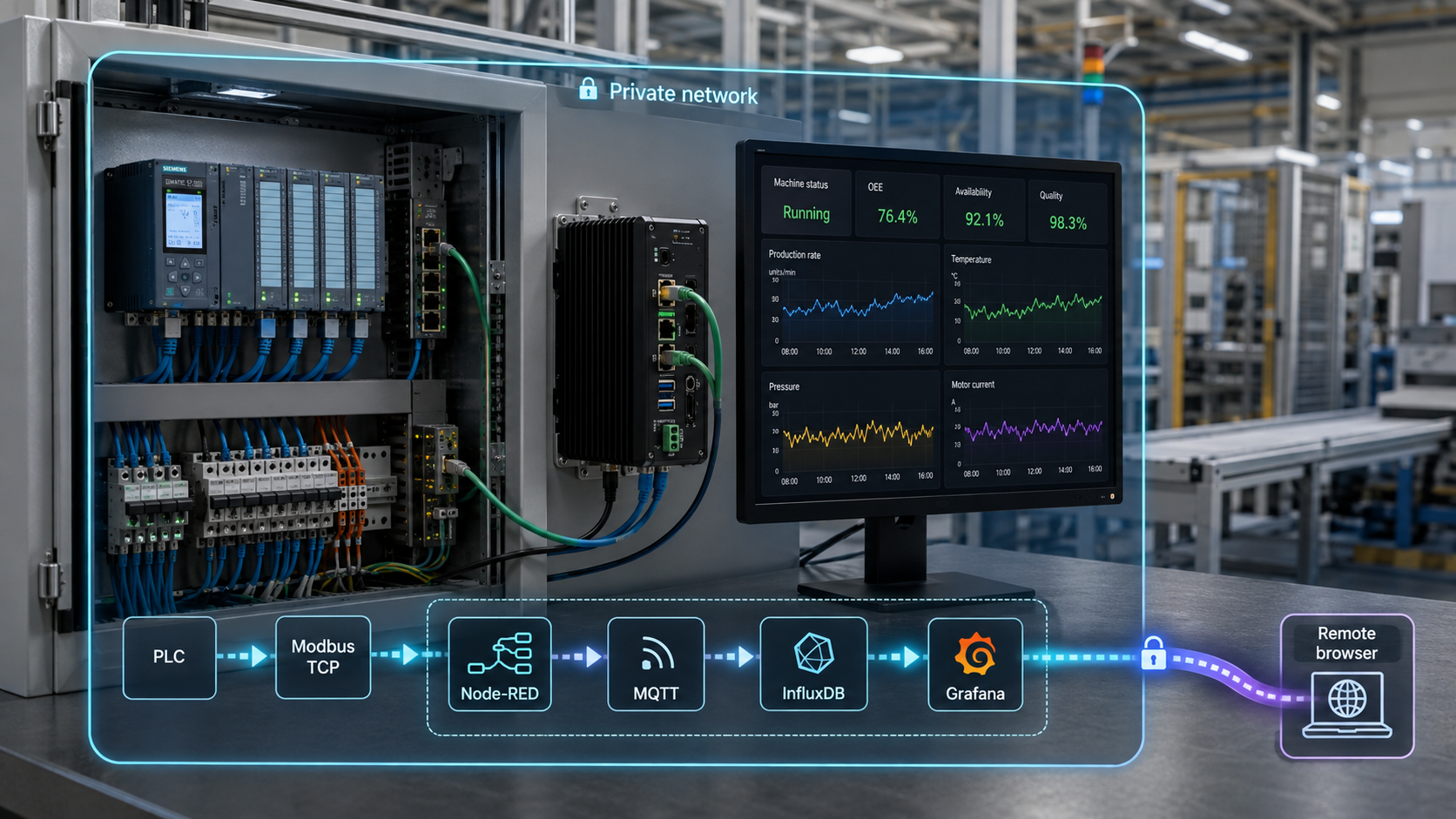
Build a measured, read-only telemetry path from factory equipment to an authenticated remote dashboard
This guide explains how to poll an authorized Modbus endpoint with Node-RED, publish validated telemetry through a loopback-bound Mosquitto broker, store it in InfluxDB with Telegraf, and visualize it in Grafana. It also shows how to provide remote HTTPS access to Grafana through Localtonet without opening inbound router ports. The result is a near-real-time monitoring system whose latency depends on polling, buffering, database writes, queries, and dashboard refresh intervals. It is not a deterministic control, interlock, emergency-stop, or safety system.
📋 What's in this guide
What this monitoring system can and cannot do
The objective is to collect operational measurements without placing browser users, databases, or public-facing services on the machine network. Node-RED reads selected Modbus data, converts raw register values into explicit engineering values, and publishes telemetry to MQTT. Telegraf consumes those messages and writes them to InfluxDB. Grafana queries the stored series and presents them to authorized viewers.
Calling this architecture “real time” without qualification would be misleading. If a PLC is polled every two seconds, Telegraf flushes every ten seconds, and Grafana refreshes periodically, the displayed value can be several stages behind the physical process. Network retries, broker queues, database load, query time, clock error, and browser refresh behavior can increase that delay. Measure actual source-to-screen latency under normal and degraded conditions instead of assuming a fixed result.
Do not use this stack to implement machine control, safety interlocks, emergency stops, protective trips, or any function whose delayed or missing execution could injure people or damage equipment. Keep certified control and safety functions in their approved systems. Changes to an operational technology environment require authorization from the asset owner and must follow the site's engineering, cybersecurity, safety, and change-management procedures.
This guide deliberately uses a read-only acquisition path. It does not include Modbus writes, remote setpoint changes, PLC programming, or Node-RED control outputs. If an organization later considers a write path, treat it as a separate engineering project with a formal risk assessment, independent authorization, fail-safe behavior, testing, and audit controls.
Architecture and trust boundaries
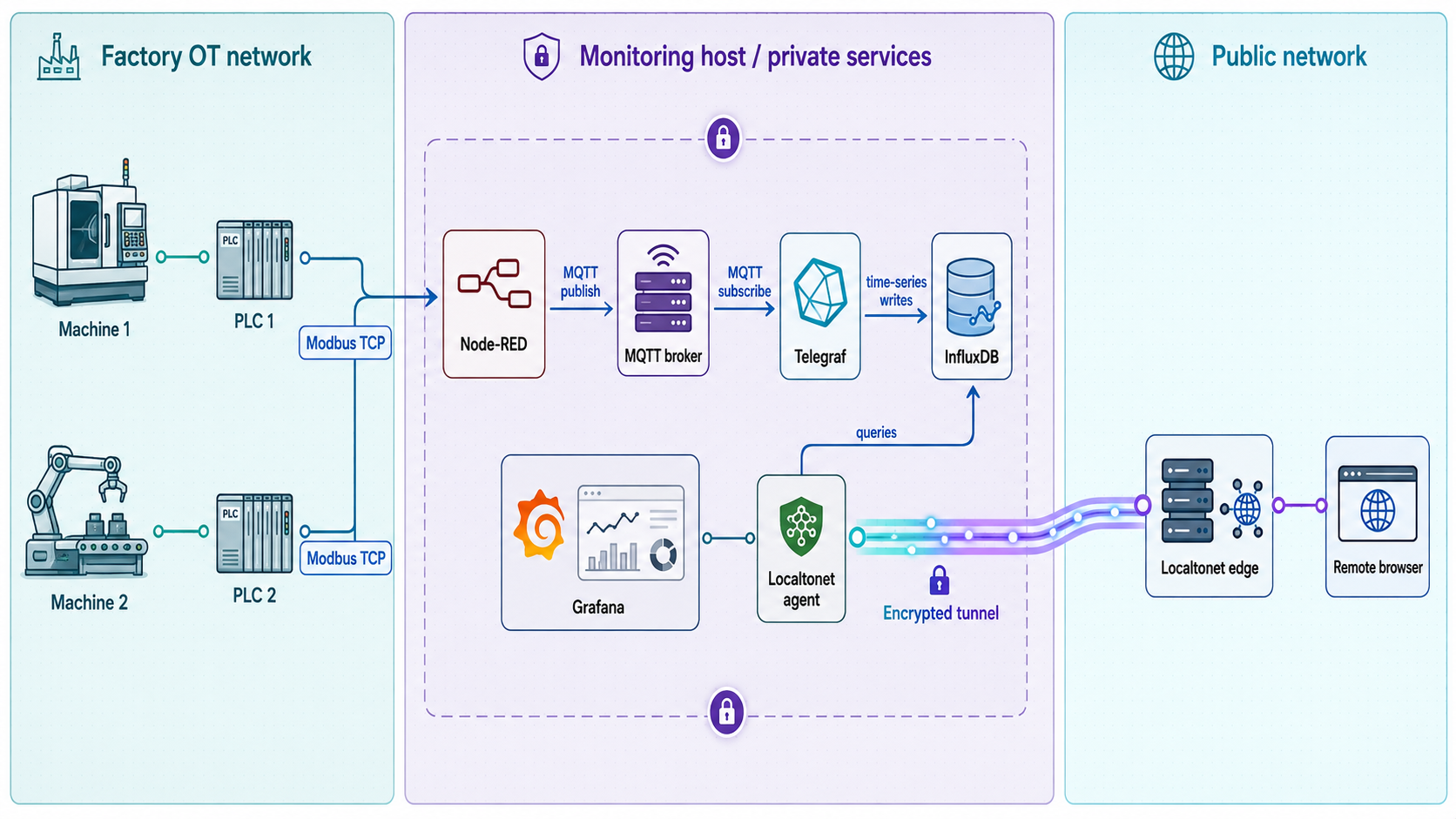
A production deployment should place the acquisition gateway in an OT DMZ or another segmented network zone approved by the site. The gateway needs only the minimum connectivity required to read the approved Modbus devices, communicate with its local services, obtain time and name resolution from approved infrastructure, retrieve controlled updates, and establish Localtonet's outbound connection.
| Connection | Direction | Recommended restriction |
|---|---|---|
| Gateway to Modbus endpoint | Gateway initiates toward the approved OT device | Permit only required hosts, ports, unit IDs, read operations, and polling rates. |
| Node-RED to Mosquitto | Local publisher connection | Bind the broker to loopback and grant the account write access only to telemetry topics. |
| Telegraf to Mosquitto | Local subscriber connection | Grant read access only to the required telemetry topic tree. |
| Telegraf to InfluxDB | Local database write | Use a scoped token that can write only to the intended organization and bucket. |
| Grafana to InfluxDB | Local database query | Use a separate read-only token rather than reusing Telegraf's write credential. |
| Localtonet client to relay | Outbound from the gateway | Allow the client only through approved outbound firewall and proxy policy. |
| Remote browser to Grafana | HTTPS through the Localtonet tunnel | Require tunnel authentication where available and retain Grafana authentication. |
Do not expose Mosquitto, Node-RED, InfluxDB, the PLC interface, or gateway management services through public tunnels. In this design, only the Grafana HTTP service is the Localtonet tunnel target. Administrative access should use a separately approved management path.
Prerequisites and tested-environment record
Package repositories, signing procedures, supported CPU architectures, menu names, and service definitions change between releases. The supplied evidence does not include a current editor-tested operating-system and component version matrix, so this revision does not claim that unverified repository commands are current. Before production deployment, follow each project's current upstream installation instructions for your exact platform, then record the versions and installation method in the site's change record.
Document the Debian or Ubuntu release, CPU architecture, Node.js and npm versions, Mosquitto version, Node-RED version, Modbus node version, Telegraf version, InfluxDB major version, Grafana version, Localtonet client version, repository URL, signing-key fingerprint, package source, and test date. Pin or otherwise control upgrades according to site policy. Revalidate configuration syntax and dashboard behavior before promoting any update.
You need all of the following:
- A currently supported Debian or Ubuntu release on an architecture supported by every selected component. Confirm whether the host is x86-64, ARM64, or another architecture before downloading repositories or binaries.
- Administrative access to the gateway and an approved maintenance window.
- A supported Node.js and npm combination for the selected Node-RED release. Do not assume the distribution's default Node.js package satisfies Node-RED's current requirements.
- An authorized Modbus TCP endpoint, or an appropriate serial integration method, with explicit permission for read-only polling.
- The vendor register map, including address notation, data type, scaling, units, byte order, word order, unit ID, and supported function codes.
- Network reachability from the gateway to the approved Modbus endpoint, without giving remote viewers direct OT-network access.
- Approved DNS and NTP or another reliable time-synchronization source. The gateway, database, and any timestamp-producing devices should agree closely enough for your monitoring and incident-analysis requirements.
- Disk capacity sized from measured ingestion and retention behavior, plus space for logs, package updates, temporary files, backups, and database maintenance.
- A Localtonet account and a Localtonet client device or authentication token for remote access. The dashboard, broker, and database remain self-hosted, but the remote path in this design depends on the Localtonet account, connected client, and relay service.
- Separate service credentials for Node-RED, Telegraf, Grafana, InfluxDB, and Localtonet where applicable. Do not reuse a common factory password.
- A backup destination outside the gateway's primary disk and a documented restore test.
Install and verify components without copying stale commands
Use the current official installation documentation for Mosquitto, InfluxDB, Node-RED, Telegraf, and Grafana. Verify repository signatures and package origins before installation. If a vendor repository requires GPG tooling, keyring directories, HTTPS transport support, or a distribution-specific repository entry, install and configure those prerequisites exactly as the current upstream documentation specifies.
After installation, configure Mosquitto, InfluxDB, Telegraf, and Grafana as managed services using the service units supplied by their verified packages. Node-RED must also have an approved startup method. Depending on the supported Node-RED installation path, that might be an upstream-provided service or a locally reviewed service definition. Do not launch it from an interactive shell and then assume it will restart after a reboot.
systemctl status mosquitto
systemctl status influxdb
systemctl status telegraf
systemctl status grafana-server

# Use the actual Node-RED unit name created by the approved installation method.
systemctl status <node-red-service-unit>
Enable services at boot only after configuration validation and local functional testing. Reboot during a maintenance window and prove that each required service returns, rather than relying solely on an “enabled” status.
Measure capacity instead of estimating from a device label
A gateway cannot be sized from RAM capacity or device count alone. Polling frequency, registers per request, response latency, number of devices, JSON size, MQTT delivery behavior, Telegraf batching, field cardinality, dashboard queries, retention, storage media, and backup activity all affect performance.
Begin with a representative pilot. Measure CPU, memory, disk write rate, database growth, I/O latency, MQTT queue behavior, Modbus timeout rate, and dashboard query duration during normal operation and a credible peak. Extrapolate storage from measured bytes written per day, apply the intended retention period, add backup and operational headroom, and validate the estimate with a sustained load test. Avoid unsupported claims about how many PLCs a particular Raspberry Pi or industrial PC can handle.
Understand the Modbus data before building the flow
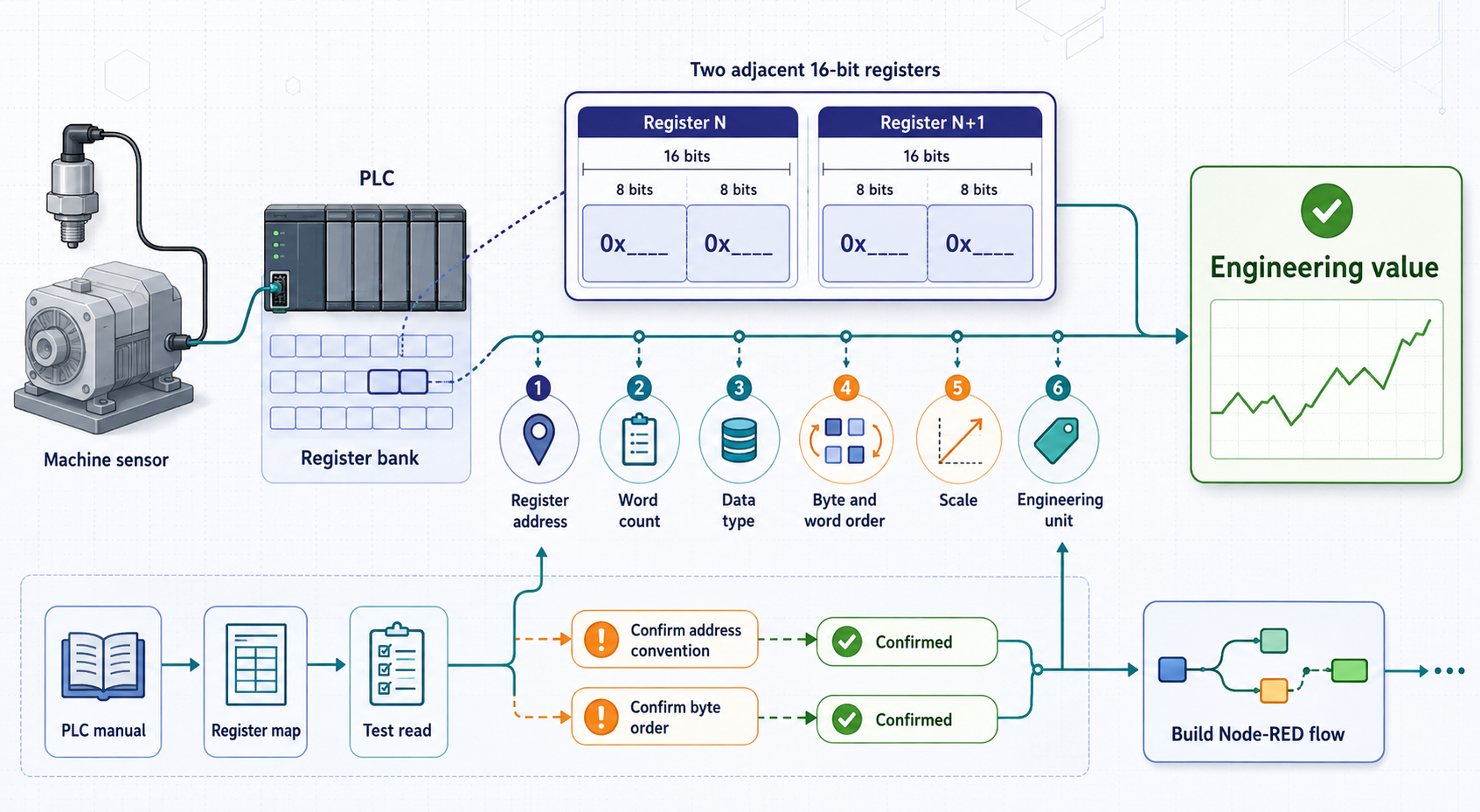
Modbus registers are 16-bit storage locations at the protocol level, but that does not mean every value is an unsigned 16-bit integer. A device can encode a signed integer in one register, combine two registers into a 32-bit integer or IEEE 754 floating-point number, combine four registers into a 64-bit value, use bit fields, or apply a vendor-defined representation. Multi-register values also require the correct word order and byte order.
| Register-map detail | Why it matters | Required action |
|---|---|---|
| Address notation | A manual may label the first holding register as 40001 while a client expects offset 0. | Confirm whether the Node-RED node expects a zero-based protocol offset or the vendor's reference notation. |
| Function code | Holding registers and input registers use different read functions. | Select the documented read type rather than inferring it from the numeric address. |
| Unit ID | A TCP endpoint may route requests to one of several downstream devices. | Use the unit ID specified for the exact device and route. |
| Signedness and width | The same 16 bits produce different values when interpreted as signed or unsigned. | Decode the documented type and combine the documented number of registers. |
| Word and byte order | Two-register integers and floats can be swapped into several possible orders. | Validate decoding against a known value or the vendor's diagnostic tool. |
| Scale and engineering unit | A raw value might represent tenths, hundredths, or a nonlinear conversion. | Apply only the vendor-documented scale and preserve the unit in the schema or dashboard. |
| Invalid-value sentinel | Devices may reserve values for sensor failure, under-range, or unavailable data. | Reject or mark invalid values instead of graphing them as genuine measurements. |
Polling also creates load. Group contiguous values only when the device supports the requested range, set realistic connection and response timeouts, avoid overlapping requests, and add backoff after repeated failures. Log Modbus exception codes and timeouts with the device identity and requested address range. A communication failure should produce an explicit stale or unavailable state, not a fabricated zero.
Modbus RTU integration choices
A protocol-converting Modbus RTU-to-TCP gateway accepts Modbus TCP requests and generates corresponding RTU transactions on an RS-485 network. A transparent serial device server transports serial bytes over a network but may not perform Modbus TCP protocol conversion. A USB-to-RS485 adapter merely gives the local gateway a physical serial interface. It does not, by itself, expose a Modbus TCP server.
Choose the Node-RED connection method that matches the actual hardware. A protocol gateway may be addressed as Modbus TCP. A local USB adapter normally requires a Modbus serial client configuration, correct device permissions, baud rate, parity, stop bits, unit address, and RS-485 wiring. Do not treat these three integration methods as interchangeable.
Design and secure the MQTT layer
Use a predictable topic hierarchy that identifies the source without embedding secrets or uncontrolled user input. One suitable pattern is:
factory/<site>/<line>/<machine>/telemetryKeep high-cardinality details such as event IDs in payload fields rather than creating an unbounded number of topics. Define topic ownership, payload schema, units, timestamp format, quality indicators, and compatibility rules before connecting multiple machines.
Create separate accounts and access-control rules
If every MQTT client is on the same gateway, bind Mosquitto to loopback so port 1883 is not reachable from the LAN. Disable anonymous access. Create a dedicated publisher account for Node-RED and a dedicated subscriber account for Telegraf. Enter passwords interactively with the current Mosquitto password utility so they are not exposed as command arguments or saved in shell history.
listener 1883 127.0.0.1
allow_anonymous false
password_file /etc/mosquitto/passwd
acl_file /etc/mosquitto/acl
An illustrative ACL for one normalized topic tree is:
user nodered_pub
topic write factory/+/+/+/telemetry

user telegraf_sub
topic read factory/+/+/+/telemetry
Validate wildcard behavior against the topic structure you actually deploy. Restrict the broker configuration, password file, and ACL file to the broker service account and administrative users. Do not make credential files world-readable. Test configuration syntax before restarting Mosquitto, then inspect its service logs for listener, authentication, and ACL errors.
Do not pass MQTT or InfluxDB passwords directly on a shell command line. Command arguments can be visible to other processes and can remain in shell history. Use protected service credential files, environment files, or the supported secret mechanism for the installed component. Remove credentials before exporting Node-RED flows or sharing diagnostic bundles.
Choose QoS and retained-message behavior deliberately
MQTT QoS 0 provides best-effort delivery and can lose messages during a disconnect. QoS 1 provides at-least-once delivery, which improves delivery assurance but permits duplicates. A consumer and storage path must therefore tolerate repeated events. QoS 2 adds protocol overhead and should be selected only after confirming that its guarantees and costs match the requirement.
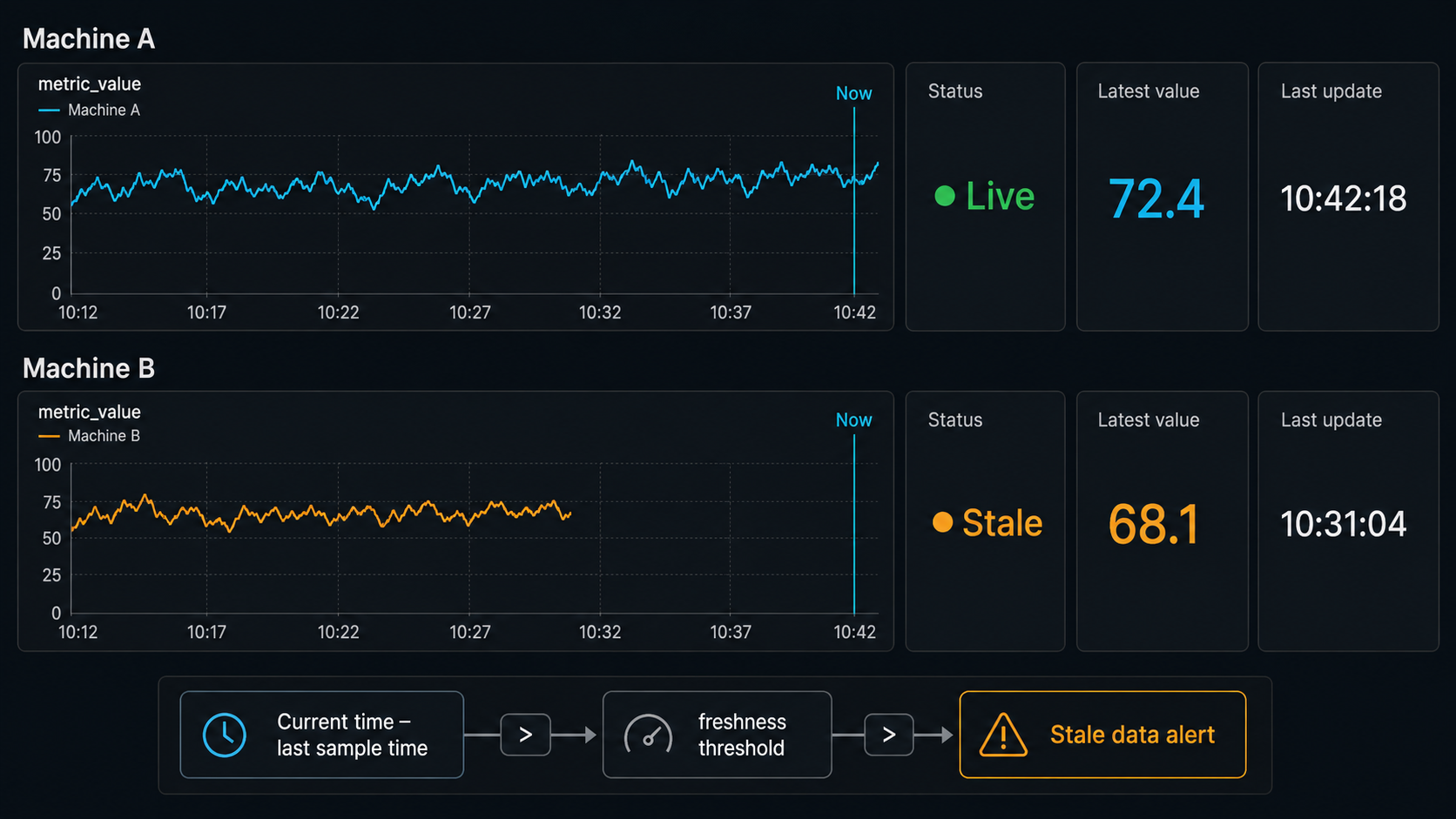
A retained telemetry message lets a newly connected subscriber receive the most recently published value immediately. That is convenient, but the value may be old. Include a source timestamp and quality state, and configure dashboards to mark data stale after a defined interval. If retained messages are used, establish how they are cleared when a machine is decommissioned or a topic changes.
MQTT persistence and queue limits determine what happens during a consumer outage. Node-RED, Mosquitto, Telegraf, and InfluxDB do not create an unlimited lossless pipeline automatically. Document the expected behavior for broker restart, subscriber disconnect, database outage, full disk, and gateway reboot. If telemetry must survive those events, test the selected persistence and queue settings under realistic outage durations.
Build the Node-RED, MQTT, Telegraf, and InfluxDB pipeline
Install the Modbus nodes through Node-RED's supported palette-management process for the tested Node-RED and Node.js versions. Protect the Node-RED editor with authentication and keep it unavailable from public networks. Configure Node-RED to start through the approved managed-service method before relying on it operationally.
Configure one authorized Modbus read
Enter the approved endpoint, port or serial interface, unit ID, read function, zero-based offset expected by the node, quantity, polling interval, and timeout. Begin with a small request and confirm it against the vendor register map before expanding the flow.
Validate and decode the response
Check that the response contains the expected register count. Decode signedness, width, byte order, and word order exactly as documented. Reject Modbus exceptions, incomplete responses, impossible values, and device-specific invalid sentinels.
Normalize the telemetry event
Apply documented scaling and create stable field names. Add site, line, and machine identifiers, an RFC 3339 timestamp, and a quality field. Distinguish a source timestamp from a gateway receipt timestamp if both are available.
Publish with the least-privilege MQTT account
Connect to the loopback broker as the Node-RED publisher and publish only to the allowed telemetry topic. Select QoS and retained-message behavior according to the tested outage and stale-data policy.
Add error and status paths
Route connection failures, timeouts, decode errors, and rejected values to logs and health indicators. Do not convert failures into zero-valued process data. Expose the last successful poll time so stale acquisition is visible.
The transformation logic must be adapted to the verified register map. The following structure is an example for three already-decoded values, not a universal Modbus decoder:
const values = msg.payload;

if (!Array.isArray(values) || values.length < 3) {
    node.error("Incomplete Modbus response", msg);
    return null;
}

const temperature = values[0] / 100;
const pressure = values[1] / 10;
const motorSpeed = values[2];

if (!Number.isFinite(temperature) ||
    !Number.isFinite(pressure) ||
    !Number.isFinite(motorSpeed)) {
    node.error("Invalid decoded telemetry", msg);
    return null;
}

msg.topic = "factory/site1/line1/press_01/telemetry";
msg.payload = {
    temperature_c: temperature,
    pressure_bar: pressure,
    motor_speed_rpm: motorSpeed,
    quality: "good",
    source_time: new Date().toISOString(),
    site: "site1",
    line: "line1",
    machine: "press_01"
};

return msg;
Replace the divisions, field types, ranges, units, and decoding logic with values confirmed by the equipment documentation. For 32-bit or floating-point values, decode bytes and words explicitly rather than indexing each register as an independent measurement.
Configure Telegraf with an explicit schema
Telegraf should subscribe with its read-only MQTT account and write to InfluxDB with a separate bucket-scoped token. Use a deliberate measurement name such as machine_telemetry. Treat machine identity as tags only when the set of values is bounded and controlled. Store numeric process values as fields. Changing a field from a number to a string later can create type conflicts.
[[inputs.mqtt_consumer]]
  servers = ["tcp://127.0.0.1:1883"]
  topics = ["factory/+/+/+/telemetry"]
  username = "telegraf_sub"
  password = "REPLACE_THROUGH_A_PROTECTED_SECRET_MECHANISM"
  qos = 1
  data_format = "json"
  name_override = "machine_telemetry"
  tag_keys = ["site", "line", "machine", "quality"]
  json_time_key = "source_time"
  json_time_format = "2006-01-02T15:04:05.999999999Z07:00"

[[outputs.influxdb_v2]]
  urls = ["http://127.0.0.1:8086"]
  token = "REPLACE_WITH_A_BUCKET_SCOPED_WRITE_TOKEN"
  organization = "factory"
  bucket = "machines"
Confirm each option against the installed Telegraf version before use. Protect the final configuration or referenced secret file with restrictive ownership and permissions. Validate the Telegraf configuration, run a controlled parse test if supported by the installed release, start the managed service, and inspect its journal for authentication, parsing, queue, and write errors.
QoS 1 can deliver duplicate messages. InfluxDB does not automatically know whether two events represent one sample unless their series identity and timestamp align appropriately. If duplicate elimination is a requirement, assign a stable source event identifier and design an idempotency policy. Do not rely on arrival order during reconnects.
Configure InfluxDB retention and access
Create a dedicated organization and bucket for machine telemetry. Set retention from operational and legal requirements rather than accepting an arbitrary default. Use one scoped token for Telegraf writes and a separate read-only token for Grafana queries. Store recovery material according to the site's credential-management policy.
Query recent data in the InfluxDB interface or with the supported CLI for the installed version. Confirm that machine_telemetry exists, tags contain the intended identities, fields are numeric, and timestamps correspond to the source events. A successful MQTT subscription does not prove that Telegraf parsed or wrote the fields correctly.
Configure Grafana, dashboards, and stale-data alerts
Start Grafana through its managed service and open its local address from an approved management workstation. A default installation commonly begins with an administrative login and prompts for an immediate password change. The exact first-login behavior depends on the package and configuration, so do not claim that this tutorial has already set the Grafana password.
Change default credentials immediately, restrict administrative accounts, and create Viewer users or teams for people who only need dashboards. Menu paths vary between Grafana releases. In current interfaces, data sources are generally under Connections, while older releases may place them under Configuration. Use the equivalent path in the tested version.
Add the InfluxDB data source
Select InfluxDB with Flux as the query language when using the InfluxDB v2 configuration described here. Set the local URL, organization, default bucket, and a read-only Grafana token. Save and test the connection.
Verify the stored schema before designing panels
Use the query editor to inspect actual measurement, field, and tag names. Confirm that the schema contains machine_telemetry, the expected machine tag, and fields such as temperature_c.
Create operational panels
Use a Stat panel for the latest valid value, a Time series panel for trends, and a Gauge only when its thresholds are documented engineering limits. Display units explicitly and distinguish no data from a measured zero.
Configure refresh and alert evaluation intervals
Choose intervals based on measured pipeline latency, database load, and operational need. Grafana alert evaluation frequency is configurable and must not be assumed to be one minute.
With the explicit Telegraf measurement above, a temperature query can begin as follows:
from(bucket: "machines")
  |> range(start: -1h)
  |> filter(fn: (r) => r["_measurement"] == "machine_telemetry")
  |> filter(fn: (r) => r["site"] == "site1")
  |> filter(fn: (r) => r["line"] == "line1")
  |> filter(fn: (r) => r["machine"] == "press_01")
  |> filter(fn: (r) => r["_field"] == "temperature_c")
  |> aggregateWindow(every: 30s, fn: mean, createEmpty: false)
Verify this query against the actual Telegraf output before treating it as final. If the measurement is missing, inspect Telegraf parsing rather than changing Grafana filters at random.
A temperature alert alone cannot distinguish a healthy machine from a broken collection pipeline. Add a stale-data rule based on the age of the latest valid sample and define how Grafana handles no-data and query-error states. Set the stale threshold above the normal measured polling, buffering, and refresh delay, then test it by stopping acquisition in a controlled maintenance window.
Expose only Grafana through Localtonet
With Localtonet, the client on the gateway establishes an outbound connection to one of our relay servers. The resulting HTTP tunnel provides a public HTTPS address for Grafana without inbound router port forwarding, firewall changes for unsolicited inbound traffic, VPN setup, or a public IP address. The tunnel does not make the rest of the gateway public unless additional tunnels are deliberately configured.
Install the current Localtonet client using the verified method presented for the gateway's operating system and architecture in the current Localtonet download experience. This article does not reproduce an unverified shell installer or service command. For the current product workflow, use the Localtonet HTTP tunnel documentation.
Install and run the Localtonet client
Use the current supported installation method for the gateway platform. Confirm that the client can establish its required outbound connection through the site's firewall or proxy policy.
Select the correct device or authentication token
In the Localtonet dashboard, select the device-specific authentication token associated with the gateway that can reach Grafana. Treat the token as a secret and never place it in screenshots, documentation, or shared shell history.
Select an available relay server
Choose a server or region from the values currently available in the dashboard. Availability can vary, so do not hardcode a server code from another deployment.
Configure the HTTP tunnel target
Point the HTTP tunnel to Grafana at local IP 127.0.0.1 and port 3000, assuming Grafana is listening there on the same gateway. Select the required HTTP process type from the options available to the account.
Create the tunnel
Save or create the tunnel configuration. Creating a tunnel records the configuration but does not mean that it is running.
Start and verify the tunnel
Press Start, confirm that the selected client is connected, and open the assigned HTTPS address from an authorized external network. Stop or delete the tunnel when remote access is no longer required.
The public endpoint works only while the selected Localtonet client or device is connected and the tunnel is running. Creating the configuration alone does not start it. A gateway reboot, client failure, blocked outbound connection, stopped tunnel, or deleted tunnel will make the assigned endpoint unavailable.
Add authentication in front of Grafana
Localtonet SSO acts as an authentication gateway in front of an HTTP tunnel. Configure one or more providers at the account level, then enable the desired providers for the specific Grafana tunnel. Currently documented provider types are Google, GitHub, Microsoft, OpenID Connect, and Basic username/password authentication. Optional domain or email restrictions can further narrow access.
When someone visits the tunnel address, our authentication layer checks the configured identity before forwarding the request to Grafana. Keep Grafana's own login enabled as defense in depth. Assign remote users the Grafana Viewer role unless they have an approved need to edit dashboards or administer the service. See the Localtonet SSO documentation for the current account-level and tunnel-level workflow.
Do not assume every authentication option, region, or tunnel capability is included in every subscription plan. Confirm current availability for the account before making it part of the operational design.
Verify each component and the complete path
Test one boundary at a time before testing remote access. Record the time, component version, configuration revision, machine identity, expected value, observed value, and result. This makes later troubleshooting far more reliable than changing several services at once.
Local component checks
- Confirm the gateway clock is synchronized and record its current offset from the approved time source.
- Verify the Modbus endpoint is reachable only from the intended gateway path.
- Read a small approved register range and compare the decoded result with the PLC, HMI, vendor utility, or another authoritative source.
- Confirm Node-RED rejects incomplete responses and logs Modbus exception or timeout details.
- Publish one known telemetry event and verify that Mosquitto authorizes the publisher topic.
- Attempt an unauthorized topic operation in a controlled test and confirm the ACL denies it.
- Confirm Telegraf receives the message, parses numeric fields, adds the intended measurement and tags, and reports a successful InfluxDB write.
- Query InfluxDB directly and compare stored field values and timestamps with the published payload.
- Run the Grafana query and verify that the expected series appears without changing names to hide a schema error.
- Stop polling briefly in an approved window and confirm that the dashboard indicates stale or missing data rather than displaying the last value as current indefinitely.
End-to-end remote checklist
- Confirm Grafana works locally before creating the tunnel.
- Confirm the Localtonet client is connected and associated with the intended device token.
- Confirm the HTTP tunnel targets only
127.0.0.1:3000. - Start the tunnel and note the assigned HTTPS address through the dashboard.
- Open the address from an external network that does not have direct plant-network access.
- Verify that Localtonet SSO appears before Grafana when SSO is enabled.
- Sign in as a Grafana Viewer and confirm dashboards are visible but administrative changes are unavailable.
- Compare the displayed value and timestamp with the source to measure source-to-screen latency.
- Stop the tunnel and confirm the remote endpoint becomes unavailable while local Grafana remains operational.
- Restart the gateway during a maintenance test and confirm every required service returns through its approved startup mechanism. Record the actual data gap rather than estimating it.
Secure operation, maintenance, and failure planning
A working demonstration is not yet an operational service. Assign owners for the gateway, Node-RED flows, broker ACLs, database, dashboards, Localtonet tunnel, credentials, backups, and incident response. Store configuration in a controlled repository without secrets and require review for register-map, scaling, topic, retention, firewall, or alert changes.
Document failure behavior explicitly. During a Modbus outage, values should become stale and alarms should indicate data loss. During an MQTT or Telegraf outage, queued data may be limited or lost depending on tested settings. During an InfluxDB outage, dashboard history and writes can fail. During a Localtonet outage, local monitoring can continue while remote access is unavailable. None of these failures should affect the PLC's independent control or safety functions.
Review outbound firewall requirements with the network owner. Permit only what the gateway needs for approved DNS, time synchronization, updates, and Localtonet connectivity. Do not describe an outbound tunnel as bypassing network policy. It must be explicitly authorized and documented.
Symptom-based troubleshooting
| Symptom | Likely checks | Safe next action |
|---|---|---|
| Modbus connection fails | IP route, firewall, port, serial settings, unit ID, device connection limit, timeout, gateway mode | Test one approved read, inspect Node-RED and device logs, and confirm that no unapproved scanner or poller is exhausting connections. |
| Values are plausible but wrong | Zero-based versus 40001 notation, function code, signedness, scale, byte order, word order | Compare raw registers and decoded values with a known operating point and vendor documentation. |
| MQTT authentication fails | Username, protected password source, password-file ownership, broker listener, service reload | Inspect Mosquitto logs and correct the credential source without placing the password on the command line. |
| MQTT connection works but publish or subscribe is denied | ACL username block, topic depth, wildcard pattern, read versus write permission | Compare the exact topic with the ACL and grant only the minimum missing permission. |
| Telegraf receives messages but writes no fields | Invalid JSON, timestamp format, strings where numbers are expected, parser configuration, field type conflict | Capture a sanitized payload, run the supported parse test, and inspect Telegraf logs before changing InfluxDB. |
| InfluxDB contains no recent data | Telegraf output URL, organization, bucket, token scope, clock, write errors, full disk | Check the Telegraf journal, token permissions, gateway time, database health, and storage utilization. |
| Grafana shows no data | Time range, measurement name, field name, tags, data-source token, source clock | Query InfluxDB directly, inspect the actual schema, then align the Flux filters with stored values. |
| Dashboard shows old values as current | Retained MQTT message, missing source timestamp, absent stale rule, stopped polling | Display sample age, configure no-data handling, and verify the last successful acquisition timestamp. |
| A service does not return after reboot | Service enablement, unit name, dependencies, file permissions, startup ordering, invalid configuration | Inspect service status and journal output. Correct the managed startup definition rather than launching the process manually. |
| Localtonet URL is unavailable | Client connection, selected token, outbound firewall, tunnel state, target address, Grafana service | Verify Grafana locally, confirm the selected client is connected, and confirm the tunnel was started after creation. |
| Remote login works but the user can edit dashboards | Grafana role, team membership, organization permissions, shared admin account | Remove excessive privileges and assign a dedicated Viewer identity. Do not share an administrative login. |
Always start with the earliest failing boundary. If the Modbus read is wrong, changing Grafana cannot repair it. If InfluxDB has the correct point but Grafana does not show it, focus on the query and time range. If Grafana works locally but not remotely, focus on the Localtonet client, tunnel state, authentication layer, and target.
Frequently asked questions
Is this a real-time industrial control system?
No. It is a near-real-time monitoring system. Poll intervals, MQTT delivery, Telegraf buffering, database writes, Grafana queries, and browser refreshes all add latency. It must not be used for deterministic control, interlocks, emergency stops, or functional safety.
Can this monitor a Modbus RTU device?
Yes, if the integration method is configured correctly. A protocol-converting RTU-to-TCP gateway can present a Modbus TCP endpoint. A transparent serial server may only transport serial bytes and is not necessarily a protocol converter. A USB-to-RS485 adapter provides a local serial interface and normally requires Node-RED to use a Modbus serial configuration.
Will all components restart automatically after a gateway reboot?
Only if each component has been installed and enabled through a verified managed-service method. Node-RED does not restart automatically merely because it was launched from a terminal. Test a controlled reboot, inspect every service, confirm Localtonet reconnects as intended, and record the actual collection gap.
How many machines can one gateway monitor?
There is no reliable universal device count. Capacity depends on polling intervals, registers per request, response time, device connection limits, transformation complexity, payload size, storage performance, query load, and retention. Run a representative pilot, measure resource use and failure rates, then size the gateway with operational headroom.
How much disk space does InfluxDB require?
Measure it with representative data. Record database growth per day under normal and peak load, multiply by the required retention period, and add space for logs, compaction, backups, upgrades, and recovery operations. Field count, tag cardinality, write frequency, and data shape all affect storage, so a generic monthly estimate is not dependable.
What happens to telemetry during an outage?
Behavior depends on which component failed and on the tested persistence and queue settings. A gateway reboot stops polling. MQTT QoS 0 can lose messages, while QoS 1 can redeliver duplicates. Broker and Telegraf queues are finite. A database outage can exhaust buffers. Define acceptable data loss, test realistic outages, and make stale data visible.
Does remote access require a cloud service?
The MQTT broker, Node-RED flow, InfluxDB database, and Grafana dashboard are self-hosted in this design. Remote access through Localtonet still requires a Localtonet account, a connected Localtonet client, a running tunnel, and our relay service. Local monitoring can continue independently if the remote tunnel is unavailable.
Provide controlled remote access to your self-hosted Grafana dashboard
After validating the read-only telemetry path, service startup, authentication, stale-data behavior, backups, and OT network controls, create a Localtonet HTTP tunnel that targets only Grafana. Keep the tunnel stopped when remote access is not required.
Get Started Free →

