

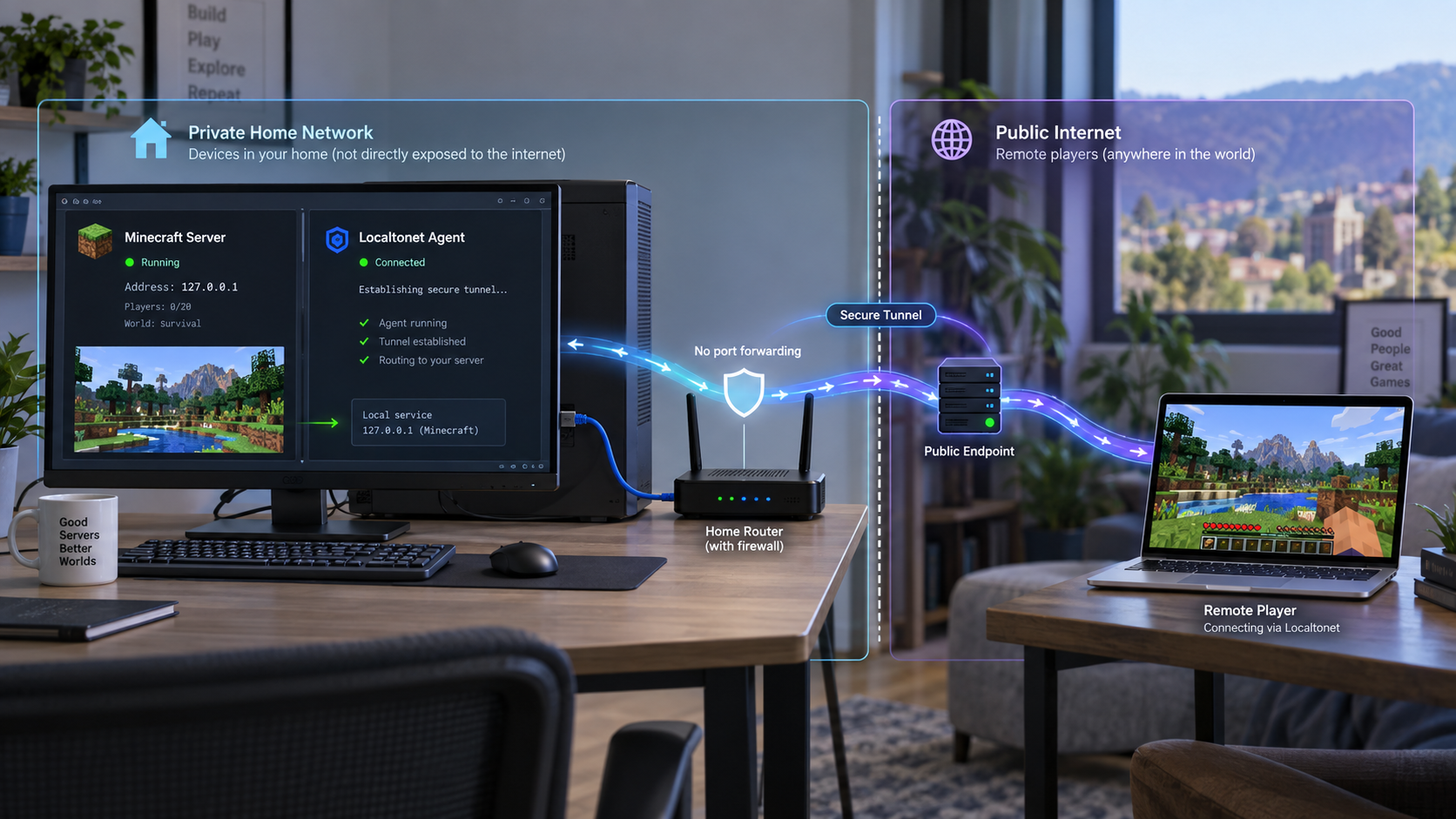
Run the world on your own hardware and publish only the game port
A home Minecraft server can be reachable from outside your network even when router port forwarding is unavailable or your connection is behind carrier-grade NAT. This guide covers the complete workflow for Java Edition and Bedrock Edition: choosing compatible server software, configuring and verifying the server locally, forwarding the correct TCP or UDP port through Localtonet, testing from an external network, and operating the server safely. Localtonet works by maintaining an outbound connection from your device to a relay, so no inbound router rule or public IP address is required.
📋 What's in this guide
How home hosting without port forwarding works
A Minecraft server is an application listening for network traffic on a particular local IP address and port. In a conventional home-hosting setup, the router receives an inbound connection on its public address and forwards that connection to the server. That method depends on the router having a reachable public address, an available forwarding interface, and a correctly configured firewall rule.
Localtonet uses a different connection model. The Localtonet client runs on the computer that hosts Minecraft, or on another device that can reach the Minecraft server over the local network. That client establishes an outbound connection to a selected Localtonet relay server. Players connect to the public host and port assigned to the tunnel, and the relay forwards the corresponding TCP or UDP traffic to the configured local target.
Why CGNAT prevents ordinary inbound forwarding
Carrier-grade NAT, commonly abbreviated as CGNAT, allows a provider to share public IPv4 addresses among multiple customers. RFC 6598 reserves 100.64.0.0/10 as shared address space for this purpose. If your router's internet-facing address is within that range, an upstream provider device may be performing another layer of address translation that you do not control.
A private or shared address on the router is not the only sign of upstream NAT, but it explains why a perfectly configured router rule may still be unreachable. The connection first has to pass through the provider's translation layer, where you cannot create an inbound forwarding rule.
A changing public address can still accept inbound connections while it remains assigned, and a stable address can still be unreachable because of CGNAT, upstream filtering, or firewall policy. Localtonet removes the requirement for an inbound router rule by initiating the relay connection from inside the network. It does not bypass server authentication, host firewall policy, or organizational security controls.
Creating a Localtonet tunnel is not the same as starting it. The Minecraft process must be running, the selected Localtonet device must be connected, and the tunnel must have been started. If any one of those components stops, players can no longer use that path to the server.
Choose the Minecraft edition, server type, and protocol
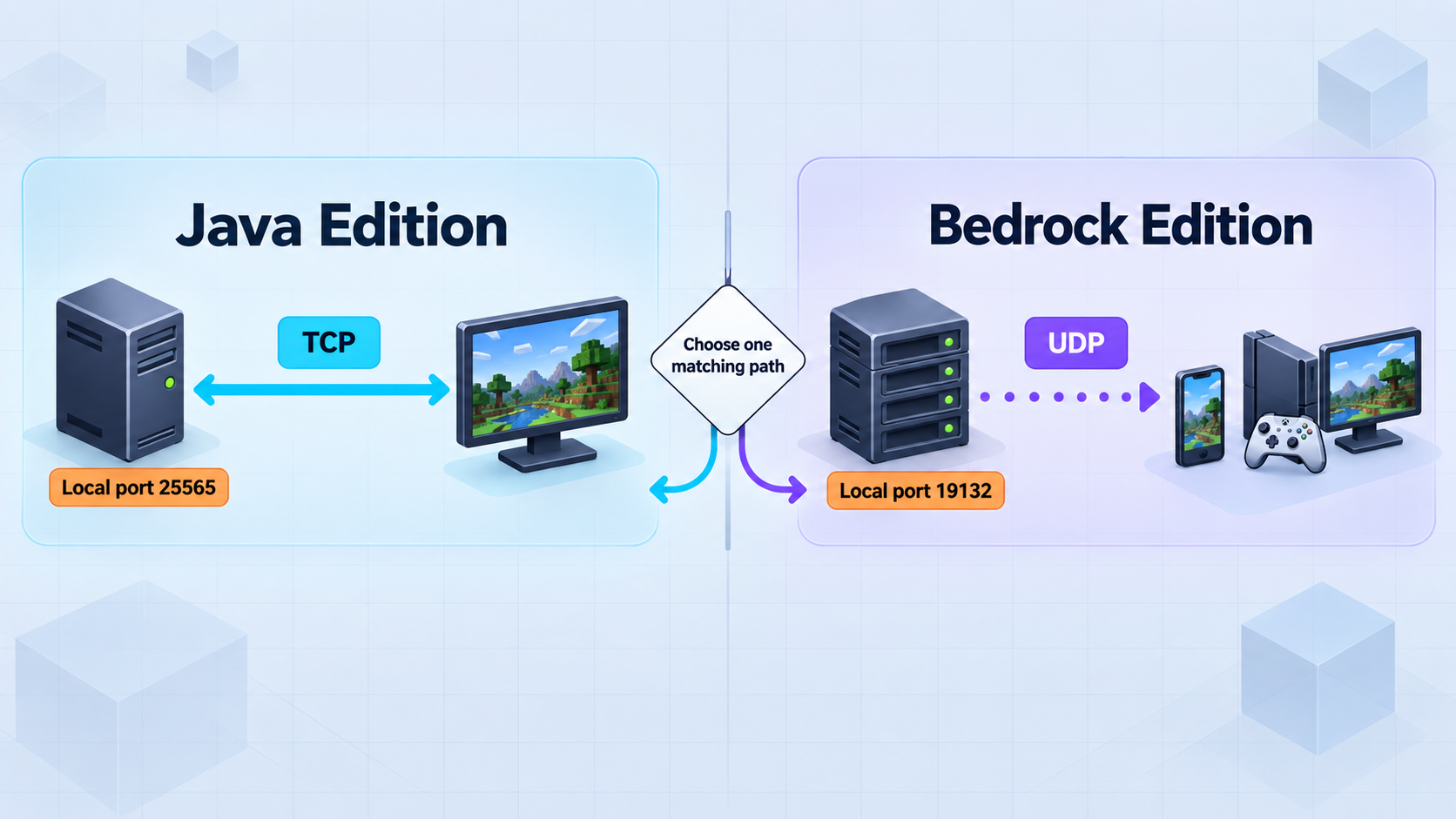
Begin by identifying which Minecraft clients your players use. Java Edition and Bedrock Edition use different server software and network protocols. A tunnel cannot translate one edition into the other. It forwards the traffic produced by the server you configure.
| Server option | Typical clients | Local protocol | Localtonet tunnel |
|---|---|---|---|
| Vanilla Java server | Minecraft Java Edition | TCP, commonly port 25565 |
TCP tunnel |
| Paper server | Minecraft Java Edition | TCP, commonly port 25565 |
TCP tunnel |
| Modded Java server | Compatible Java clients with the required mod set | Usually TCP on the configured server port | TCP tunnel to that verified port |
| Bedrock Dedicated Server | Compatible Bedrock clients | UDP, commonly port 19132 for IPv4 |
UDP tunnel |
Vanilla, Paper, plugins, and mod loaders
The Vanilla server is Mojang's official Java Edition server. It is appropriate when you want behavior close to the official implementation and do not need a Bukkit-style plugin ecosystem.
Paper is community-developed Java server software that provides performance changes, additional configuration, and a plugin API. It can be a practical option for administration or server-side extensions, but its behavior is not identical to Vanilla in every edge case. Before changing an existing world to Paper, read the current migration and compatibility guidance in the Paper documentation and keep a restorable backup.
Plugins run on compatible server software and generally change server-side behavior without requiring every player to install the same client package. Mods are different. Fabric, Forge, NeoForge, and similar projects are mod loaders or modding ecosystems. A modded server often requires a specific loader version and an exact set of client-compatible mods. Follow the chosen modpack or loader's own server instructions rather than substituting a Paper procedure.
A normal Java server cannot accept a native Bedrock connection merely because both ports are public. Geyser is a separate compatibility layer that translates Bedrock traffic for a Java server. It requires its own verified configuration and a reachable UDP listener. If you use it, configure and test Geyser locally before pointing a Localtonet UDP tunnel at its listener.
Bedrock console limitations
Windows and mobile Bedrock clients provide a direct custom-server entry workflow where users can enter a host and port. Xbox, PlayStation, and Nintendo Switch generally do not expose the same official custom-server interface. Do not promise console players that they can use the normal mobile or Windows sequence.
Unofficial console workarounds can depend on DNS redirection, companion software, or another device on the local network. Those methods are outside this tutorial and can change as console platforms are updated. Confirm current platform behavior and applicable terms before relying on one.
Prerequisites and planning
Prepare the server locally before creating a public tunnel. This order is important because it separates Minecraft installation problems from networking problems. If the server cannot accept a local connection, adding a relay cannot make it healthy.
Capacity planning
There is no reliable universal memory-per-player value. A mostly idle survival world, an active exploration server, a redstone-heavy world, and a modpack can have very different requirements with the same player count. Start with the server project's current baseline, leave memory for the operating system and Localtonet client, and observe memory use, CPU saturation, garbage collection, disk latency, and tick health during representative play.
Avoid allocating all system memory to the Java heap. The operating system, file cache, networking stack, backups, monitoring tools, and tunnel client also require resources. If the host begins swapping or paging heavily, increasing the Java heap can make overall behavior worse rather than better.
Download and account checklist
- For Vanilla Java Edition, use the official Minecraft Java server download page.
- For Paper, select the required Minecraft version and a specific available build from the official Paper downloads page.
- For Bedrock, use the official Bedrock Dedicated Server download page and review its current platform requirements.
- For a Java runtime, use a distribution compatible with the selected server version. Eclipse Adoptium provides Temurin OpenJDK binaries for multiple platforms.
- Install and run the Localtonet client using the current instructions available from Localtonet.
Set up a Minecraft Java server
These steps apply to a new Vanilla or Paper server. The exact supported Java version can change between Minecraft releases, so obtain that requirement from the selected Minecraft or Paper release instead of assuming one Java version applies forever.
Install the required Java runtime
Install the Java version required by your chosen Minecraft server release. On Windows, use a trusted installer such as the appropriate Temurin package. On Linux, use a supported package from your distribution or a trusted Java distributor. Then confirm that the expected runtime is first in your command path.
java -versionRead the actual output and compare its major version with the requirement for your selected server. Do not rely on a copied example output because patch versions and build identifiers change.
Create a dedicated server directory
Create an empty directory owned by the account that will run Minecraft. Download the official Vanilla server JAR or a specific Paper build into this directory. Keep the original build information in your maintenance notes. You may rename the downloaded file to server.jar so future launch instructions remain simple.
mkdir minecraft-server
cd minecraft-server
Download through the official project page rather than constructing a guessed API URL containing terms such as latest. A specific build is easier to audit, back up, and roll back.
Run the server once to generate its files
From the server directory, start the selected JAR without a graphical interface. Adjust the file name if you retained the downloaded name.
java -jar server.jar noguiThe first run creates configuration files and normally stops because the Minecraft EULA has not yet been accepted.
Review and accept the Minecraft EULA
Read the EULA referenced by the generated eula.txt file. If you agree to it, change eula=false to eula=true. Do not automate acceptance before reviewing the terms, and do not distribute a preconfigured file that implies another operator has accepted them.
eula=trueReview server.properties
Keep online-mode=true for normal authenticated internet play. For a private server, enable the Java whitelist with white-list=true and add only intended players through the server's supported administration interface. Confirm the listening port and leave server-ip empty unless you have a specific, tested reason to bind one interface.
server-port=25565
server-ip=
online-mode=true
white-list=true
View distance, simulation distance, player limit, difficulty, and gameplay settings should reflect your hardware and community. Change one performance variable at a time and measure the result.
Start the server with an appropriate heap
A simple launch command is easier to diagnose than a large copied flag block. Choose initial and maximum heap values that fit your host and workload, and leave capacity for the operating system. The example values below are placeholders and must be replaced with values appropriate for your machine.
java -Xms<initial-heap> -Xmx<maximum-heap> -jar server.jar noguiIf you use Paper, consult its current JVM guidance before adding garbage-collector flags. Recommendations can vary by Java version and heap size, so an old universal flag list should not be copied into every installation.
Plugins and custom server extensions
Install only plugins explicitly compatible with your exact server version and platform. Obtain them from the project's official repository or a reputable ecosystem repository linked by the developer. Review the maintainer, release history, permissions, dependencies, and open security reports before placing a JAR in the plugins directory.
Add or update plugins during a planned maintenance window. Stop the server gracefully, back up the world and configuration, make one controlled change, restart, and inspect the logs. Never assume that a familiar plugin name guarantees that a particular download is authentic.
Set up a Bedrock Dedicated Server
The official Bedrock Dedicated Server download provides separate packages for supported Windows and Linux environments. Review the current requirements on the download page before proceeding. The official package should not be represented as a general ARM or Raspberry Pi installation path unless Mojang's current package explicitly supports that environment.
Download the correct Bedrock package
Choose the Windows or Linux download from the official Bedrock Dedicated Server page. Extract it into a dedicated directory. Keep the included documentation, configuration files, and executable together.
Review server.properties
Confirm the IPv4 server port and keep online authentication enabled for normal internet play. For a private server, use the current Bedrock allow-list setting and maintain the associated allow list with supported server controls.
server-port=19132
online-mode=true
allow-list=true
tick-distance=4
Bedrock's documented tick-distance range is 4 through 12. Do not configure 2 or 3. A lower valid value can reduce simulated area, but the correct setting depends on your hardware and gameplay requirements.
Start the Windows server
On a supported Windows host, start bedrock_server.exe from the extracted server directory. Keep the console available while performing the first validation so that configuration, authentication, and world-loading errors remain visible.
.\bedrock_server.exeStart the supported Linux package
On Linux, follow the launch requirement supplied with the current archive. The official package commonly needs its included shared libraries available from the working directory.
cd /path/to/bedrock-server
LD_LIBRARY_PATH=. ./bedrock_server
If the current package documentation provides a different command, use that package-specific instruction.
Inspect startup and test on the LAN
Wait for the server to finish loading, review the console for errors, and connect from a compatible Bedrock client on the local network. On mobile or Windows Bedrock, add the host's LAN address and configured UDP port. Resolve local failures before creating the public tunnel.
The mobile and Windows Bedrock workflow does not imply identical support on Xbox, PlayStation, or Nintendo Switch. Those consoles generally do not offer the same official custom-server entry interface. Test with a platform that supports direct host and port entry, or document a separately verified console solution without presenting it as an official universal feature.
Verify Minecraft locally before creating the tunnel
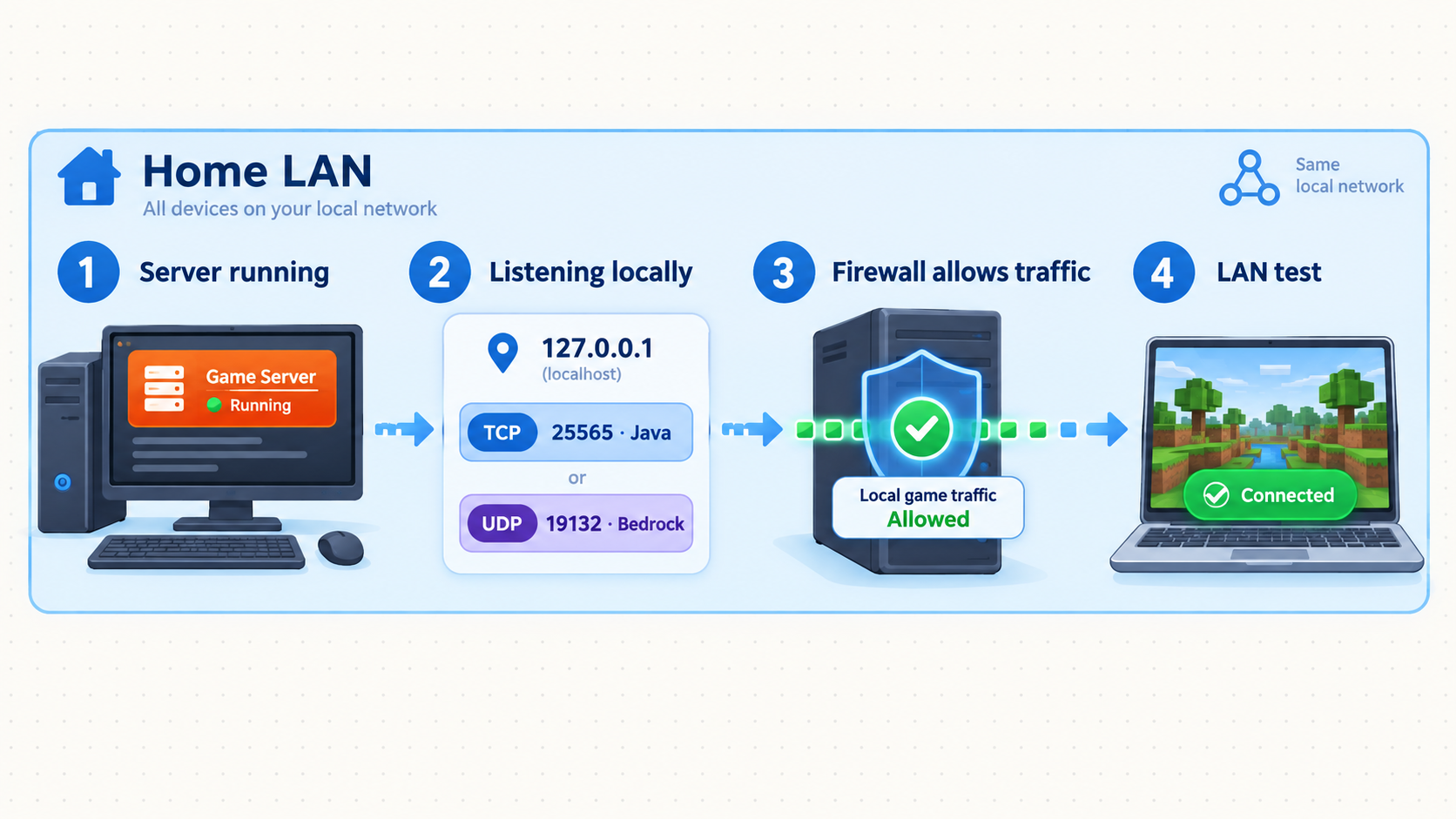
Local verification establishes a known-good baseline. Check the server process, startup completion, port, local firewall, and client compatibility in that order. A successful process launch alone does not prove that the game is accepting traffic.
1. Confirm startup completed
Read the live console and server logs. For Java, confirm that the world has loaded and the server reports that startup is complete. For Bedrock, confirm that the selected world and gameplay port are active. Do not compare the output against a hardcoded sample because message wording and version numbers change.
2. Confirm the expected socket exists
On Linux, use the operating system's socket inspection tool. Java should appear under TCP listeners. Bedrock should appear under UDP sockets.
ss -ltn
ss -lun
On Windows, PowerShell can inspect the corresponding endpoint types:
Get-NetTCPConnection -State Listen
Get-NetUDPEndpoint
Locate the configured local port in the output. A UDP endpoint does not establish a session in the same way as TCP, so seeing it is useful but not a complete gameplay test.
3. Join from an appropriate local client
For Java, a client on the same host can usually test 127.0.0.1:25565. A second computer on the LAN should use the server's LAN address. For Bedrock, a separate supported client on the LAN is generally the clearer test. Enter the server's LAN address and UDP port.
If LAN clients cannot connect, inspect the host firewall and server binding. A tunnel does not override the host operating system's access rules. Permit only the required local game port and scope the rule as narrowly as practical.
4. Record the verified local target
If Localtonet runs on the Minecraft host, the target can normally be 127.0.0.1 with the configured port. If Localtonet runs on another device, 127.0.0.1 would point back to that other device, not to Minecraft. Use the Minecraft host's LAN address instead and confirm that the address remains valid on your network.
The local port is where Minecraft listens, such as TCP 25565 or UDP 19132. The public host and port are assigned to the Localtonet tunnel. Players use the public endpoint, while Localtonet forwards traffic to the verified local target.
Create and start the Localtonet tunnel
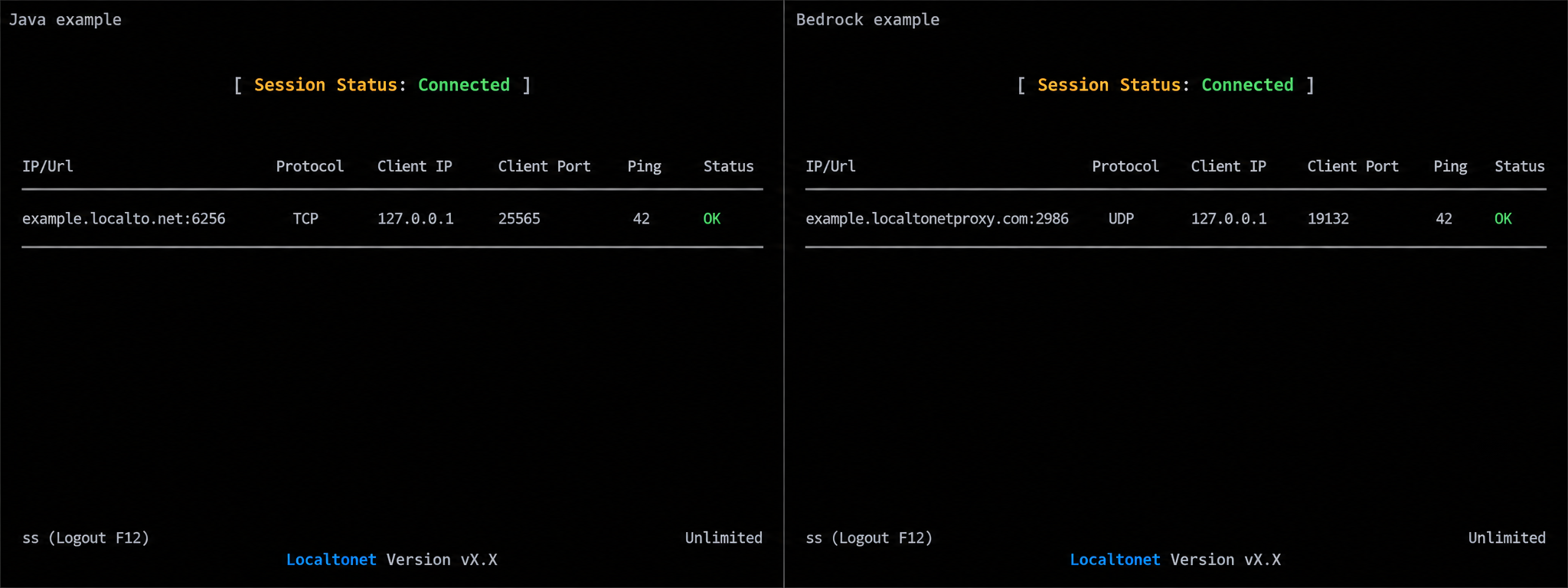
Use the protocol that matches the server: TCP for a normal Java server or UDP for Bedrock Dedicated Server. Available relay servers and regions can vary, so select from the current values shown in your Localtonet dashboard rather than following a hardcoded server code.
Install and run the Localtonet client
Install the current Localtonet application on the Minecraft host or another device that can reach it. Start the client before configuring the tunnel so the intended device can connect to our platform.
Authenticate or select the device
Use the AuthToken associated with that device, or select the already authenticated device in the dashboard. Tokens are device-specific credentials. Never paste one into an article, screenshot, support post, chat message, or Minecraft configuration.
Choose an available relay server
Select a currently available Localtonet relay server or region from the dashboard. Do not copy an old server code from another tutorial because availability can vary.
Create the protocol-specific forwarding configuration
Choose TCP for Java Edition or UDP for Bedrock Edition. Enter the local IP address verified in the previous section. Use 127.0.0.1 only when the Localtonet client and Minecraft process run on the same device.
Enter the verified Minecraft port
For a default Java configuration, the local target is commonly TCP port 25565. For a default Bedrock IPv4 configuration, it is commonly UDP port 19132. If you changed server.properties, use the actual configured port instead.
Create the tunnel, then start it
Save or create the tunnel configuration, then use the separate Start control. Creation alone does not make the tunnel active. Confirm that the selected device remains connected and that the tunnel reports a running or connected state.
Copy the assigned public host and port
Copy the endpoint exactly as shown by the current dashboard. Java players enter the host and TCP port. Supported Bedrock clients enter the host and UDP port. Do not add http:// or https:// because Minecraft game traffic is not a web URL.
Stop or delete access when it is no longer needed
Stop the tunnel when the server should not be publicly reachable. Delete obsolete configurations that will not be reused. A tunnel remains usable only while the selected client is connected, the tunnel is running, and the local Minecraft service is available.
Removing inbound router forwarding does not remove the need for authentication, allowlists, updates, log review, least privilege, and incident response. Publish only the Minecraft port, keep administrative interfaces private, and do not run unrelated services on the same public tunnel.
Test from a genuinely external network
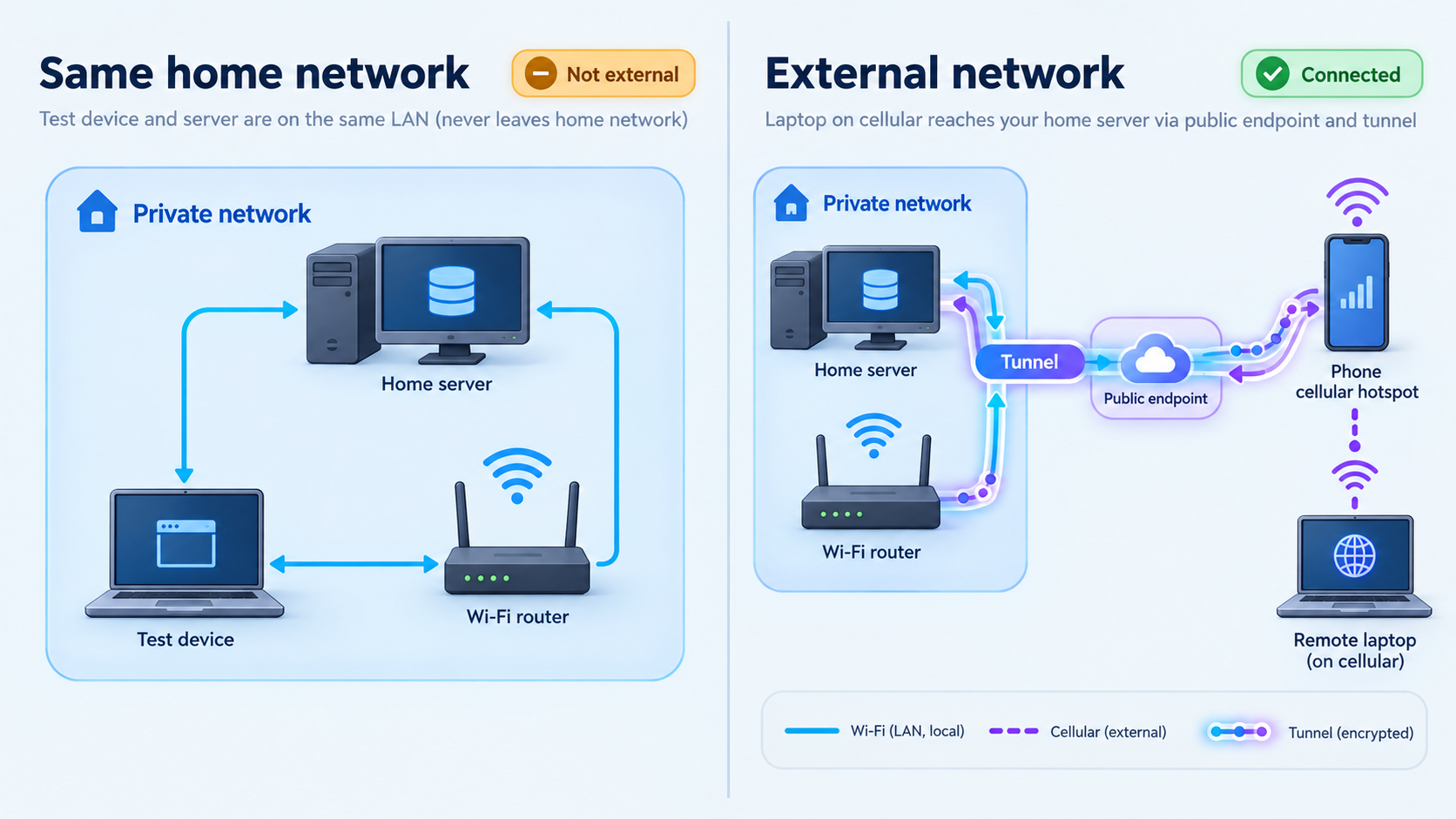
A LAN test does not prove that the public path works. Test from a device that is not using your home Wi-Fi or wired network. A mobile hotspot or a trusted player on another connection can provide an independent test. Avoid relying solely on a connection from inside the same LAN because local routing can conceal public-path mistakes.
Reconfirm the Minecraft server
Check that startup completed, the world is loaded, and the expected TCP or UDP socket still exists.
Reconfirm the Localtonet device
Verify that the intended device is connected. If multiple devices exist in the account, make sure the tunnel references the device that can reach Minecraft.
Reconfirm the tunnel was started
Check the tunnel state rather than assuming it became active when created. Confirm its protocol, local IP, and local port.
Join through the assigned public endpoint
On Java Edition, add the assigned public host and TCP port under Multiplayer. On mobile or Windows Bedrock, use the supported custom-server interface and enter the public host and UDP port.
Check both consoles during the attempt
Watch the Minecraft console or logs and the current Localtonet connection state. A request visible at the server suggests the tunnel path works and the remaining issue may involve edition, version, authentication, allowlisting, or gameplay configuration.
Secure and operate the server responsibly
Home hosting places operational responsibility on the server owner. A private friend server is not automatically low risk. Software vulnerabilities, compromised player accounts, malicious plugins, griefing, exposed administrative controls, data loss, and resource exhaustion remain possible.
Use online authentication and allowlists
Keep Java's online-mode=true and Bedrock's online-mode=true for normal authenticated internet play. Use Java's whitelist or Bedrock's allow list for a private community. Review membership regularly and remove players who no longer require access.
Do not turn off authentication as a quick fix for login problems. Doing so changes the server's identity guarantees and can allow username impersonation. Diagnose account sessions, version compatibility, server logs, and upstream service health instead.
Run with least privilege
Run Minecraft under a dedicated, non-administrative operating-system account with access only to the directories it needs. Do not run the server as root or as a Windows administrator for routine operation. Keep AuthTokens, backup credentials, and management secrets outside the world directory and away from files distributed to players.
Stop gracefully
Use the server console's supported stop command and wait for the process to finish saving before shutting down the machine, updating files, or copying a live world. Forcefully terminating the process can leave partially written data.
Back up and test restoration
Schedule backups based on how much progress you can afford to lose. Coordinate them with a clean save or graceful stop so the copied world is consistent. Include the world, server properties, allowlist or whitelist, permissions, plugin or mod configuration, and any other files required to recreate the service.
Retain multiple recovery points and store at least one copy separately from the server's primary disk. Periodically restore a backup into a separate test directory and launch it without exposing it publicly. A successful file copy does not prove that a usable world can be restored.
Apply updates in a controlled sequence
- Read release and compatibility notes for Minecraft and the chosen server platform.
- Confirm Java runtime requirements for the target Java server release.
- Check plugin, mod loader, mod, and proxy compatibility.
- Stop the live server gracefully and make a restorable backup.
- Test the update in a separate directory or maintenance window.
- Start locally and verify the world before starting the public tunnel.
- Monitor logs and gameplay after reopening access.
Protect the software supply chain
Download server builds and extensions from official project pages. Do not install a plugin merely because a video description, reposting site, or chat message provides a JAR. Verify the project identity and compatibility, and remove abandoned components when they can no longer be maintained safely.
Review logs and prepare for incidents
Learn the normal login, startup, shutdown, warning, and error patterns for your server. If you observe unexpected administrators, unknown plugins, suspicious commands, unexplained file changes, or repeated crashes, stop the tunnel to remove public reachability while you investigate.
Preserve relevant logs, rotate exposed credentials, check server and operating-system accounts, compare files with known-good copies, and restore from a trusted backup when integrity is uncertain. Do not immediately reconnect a potentially compromised server to the public tunnel.
Troubleshoot by layer
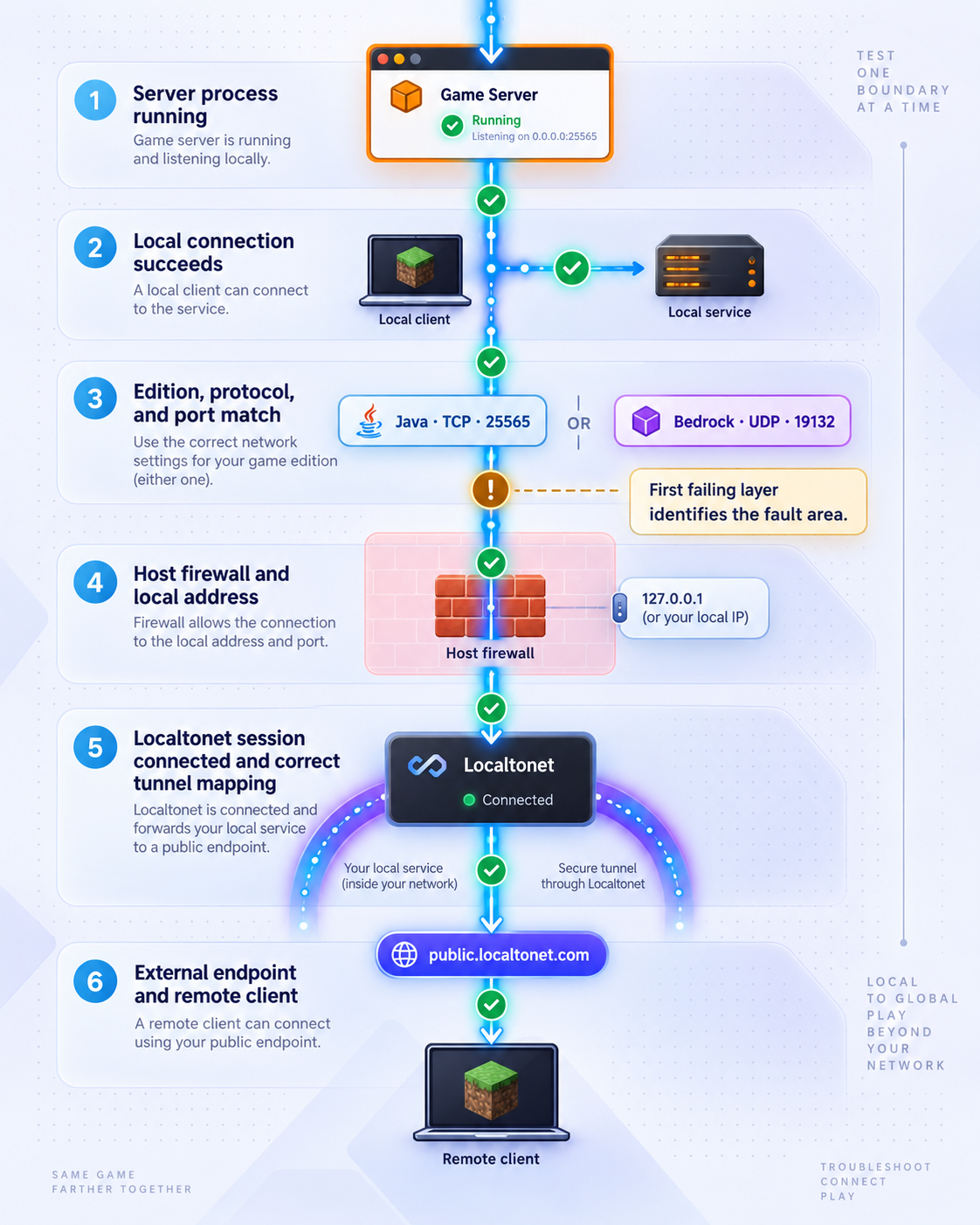
Diagnose failures from the Minecraft process outward. Changing several settings at once makes the root cause harder to identify.
| Symptom | Likely layer | What to check |
|---|---|---|
| The server exits immediately | Runtime or configuration | Read the first relevant error in the console. For Java, confirm the required Java version, EULA acceptance, JAR name, working directory, and available memory. For Bedrock, confirm the supported package and launch requirements. |
| No local TCP listener appears for Java | Minecraft process | Confirm the server finished startup and inspect server-port and server-ip. Check whether another process already occupies the port. |
| No local UDP endpoint appears for Bedrock | Bedrock process | Confirm the server is running, inspect server-port, and review startup logs for package, library, world, or binding errors. |
| Localhost works but another LAN device fails | Binding or host firewall | Check the server binding, operating-system firewall, LAN address, and network isolation. Do not create the tunnel until LAN reachability is understood if the Localtonet client runs on another device. |
| LAN access works but the public endpoint fails | Localtonet configuration | Confirm that the selected device is connected, the tunnel is started, the protocol matches Minecraft, and the local target contains the verified address and port. |
| Java was configured with a UDP tunnel | Protocol mismatch | Create TCP forwarding to the Java listener. UDP forwarding cannot replace the TCP path expected by a normal Java server. |
| Bedrock was configured with a TCP tunnel | Protocol mismatch | Create UDP forwarding to the Bedrock listener. A successful TCP check does not prove that Bedrock's UDP gameplay traffic is reachable. |
The tunnel targets 127.0.0.1 from another LAN device |
Incorrect local target | Replace loopback with the Minecraft host's verified LAN address. On the separate Localtonet device, loopback refers to that device itself. |
| The tunnel exists but nobody can connect | Tunnel lifecycle | Use the Start control and confirm a running or connected state. A saved configuration is not automatically active. |
| A player is rejected by the whitelist or allow list | Authorization | Add the correct account through the server's supported administration process. Remember that Java calls this a whitelist while current Bedrock configuration uses an allow list. |
| A player receives a version or protocol error | Client compatibility | Match the client edition and supported version to the server. For modded Java, also match the loader and required mod set. A tunnel does not translate versions or editions. |
| Bedrock mobile works but a console cannot add the server | Console interface limitation | Do not treat this as a UDP tunnel failure. Xbox, PlayStation, and Nintendo Switch generally lack the same official direct custom-server interface available on mobile and Windows Bedrock. |
| Players disconnect during a host reboot | Service availability | The Minecraft process and Localtonet client must both be running, and the tunnel must be started. Verify each component after the reboot before advertising availability. |
| Gameplay becomes slow under load | Server resources or configuration | Inspect CPU, memory, disk activity, world generation, entity counts, view settings, logs, plugins, and mods. Measure before changing heap or JVM flags, and test one adjustment at a time. |
Separate authentication failures from network failures
If the server logs show the player's connection attempt, the basic tunnel path is probably functioning. Focus next on online authentication, account session state, allowlist membership, bans, edition, game version, mod compatibility, or server policy. If the Minecraft server records nothing during an external attempt, check the public host and port, tunnel state, selected device, protocol, local target, and host firewall.
When everything worked before a change
Identify the most recent change: Minecraft update, Java update, Bedrock package update, plugin replacement, mod change, firewall rule, LAN address change, device selection, or tunnel configuration. Stop public access, restore the last known-good configuration in a safe test location, and compare logs before reopening the server.
Frequently asked questions
Do I need a public or static IP address?
No public IP is required for the Localtonet workflow. The client establishes an outbound connection to a Localtonet relay, and players connect to the public endpoint assigned to the tunnel. A static home IP is therefore not a prerequisite.
Which Localtonet tunnel type does Minecraft use?
A normal Minecraft Java server uses a TCP tunnel to its configured TCP port. Bedrock Dedicated Server uses a UDP tunnel to its configured UDP port. Confirm the actual port in server.properties rather than assuming the defaults were retained.
Do players need the Localtonet client?
Players connect through Minecraft using the assigned public host and port. The Localtonet client runs on the server side, on a device that can reach the Minecraft process. Players still need a compatible Minecraft edition, version, account, and any required Java mods.
Can Java and Bedrock players share one world?
Not through port forwarding or tunneling alone. A compatibility layer such as Geyser can translate Bedrock connections for a Java server, but it is a separate project with its own configuration, compatibility requirements, authentication considerations, and UDP listener. Test it locally and then forward its verified UDP port.
Can every Bedrock console add the public server directly?
No. Mobile and Windows Bedrock clients support direct custom-server entry. Xbox, PlayStation, and Nintendo Switch generally do not expose the same official interface. This limitation is separate from Localtonet and should not be diagnosed as a failed UDP tunnel when mobile or Windows clients can connect.
Will the server stay available if I close Minecraft or Localtonet?
No. The Minecraft server process must be running, the selected Localtonet device must be connected, and the tunnel must be started. Stopping any of those components makes the public game path unavailable.
Does creating a tunnel start it automatically?
No. Creating the configuration and running it are separate lifecycle stages. After selecting the device, relay, protocol, local IP, and local port, use the Start control and confirm the tunnel is running.
How much RAM should I allocate to a Java server?
There is no dependable universal value based only on player count. World generation, view distance, entities, plugins, mods, Java version, and player behavior all affect demand. Start from the chosen server project's current guidance, leave memory for the operating system and other processes, and adjust using measurements from representative gameplay.
Publish your verified Minecraft server with Localtonet
Once Java or Bedrock works locally, install the Localtonet client, select the correct device and relay, forward the verified TCP or UDP target, start the tunnel, and test the assigned endpoint from outside your home network.
Get Started with Localtonet →

