

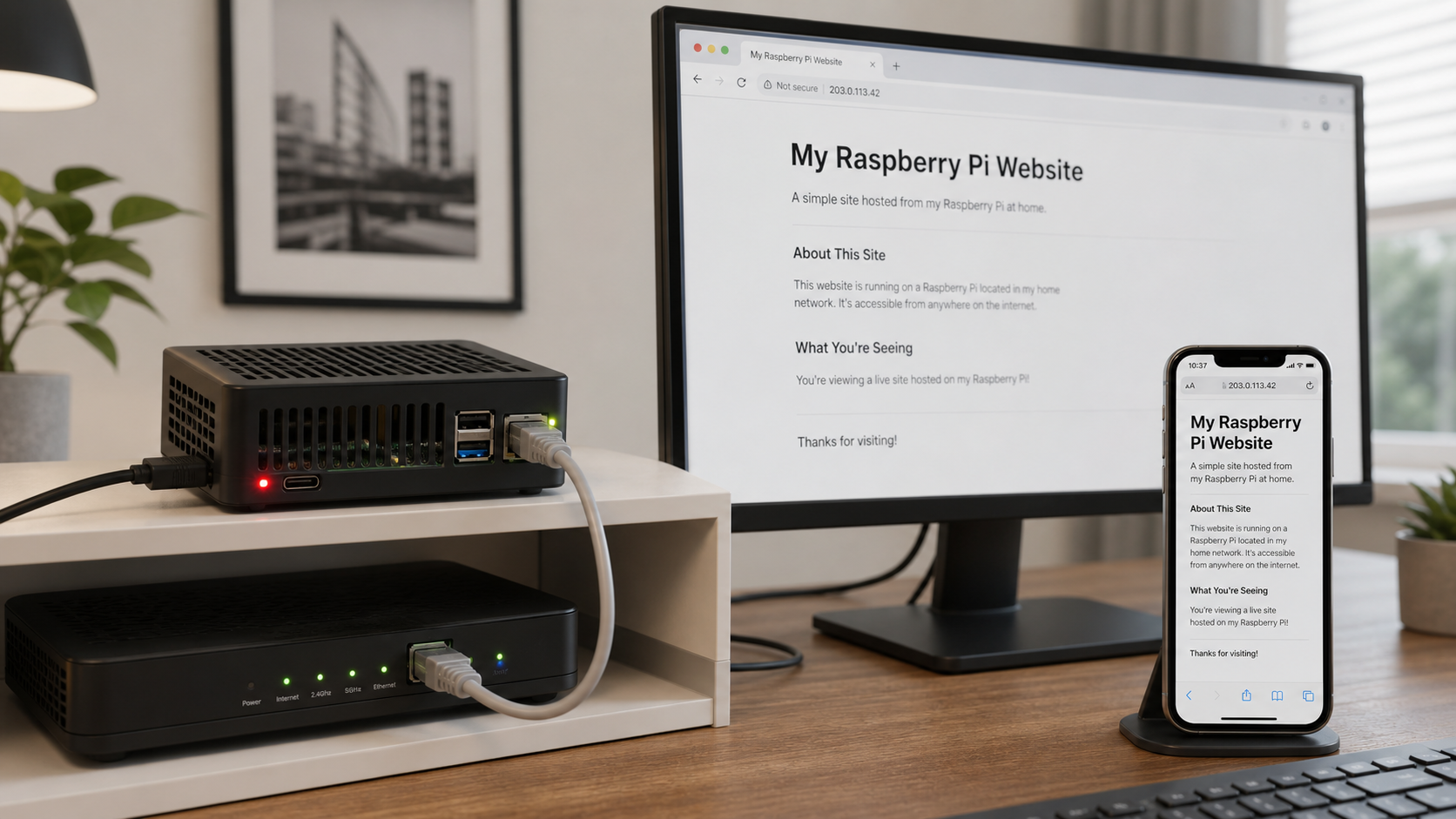
Build a small self-hosted site and publish it without router port forwarding
A Raspberry Pi can serve static pages, PHP applications, APIs, dashboards, and other modest web workloads from your own network. This guide installs a loopback-bound Nginx server, optionally adds PHP-FPM and MariaDB, verifies the site locally, and publishes it through an outbound Localtonet HTTP tunnel. It also covers architecture checks, permissions, authentication, updates, backups, reboot testing, logs, and focused troubleshooting without assuming a particular Raspberry Pi OS or PHP release.
📋 What's in this guide
How the Raspberry Pi web server architecture works
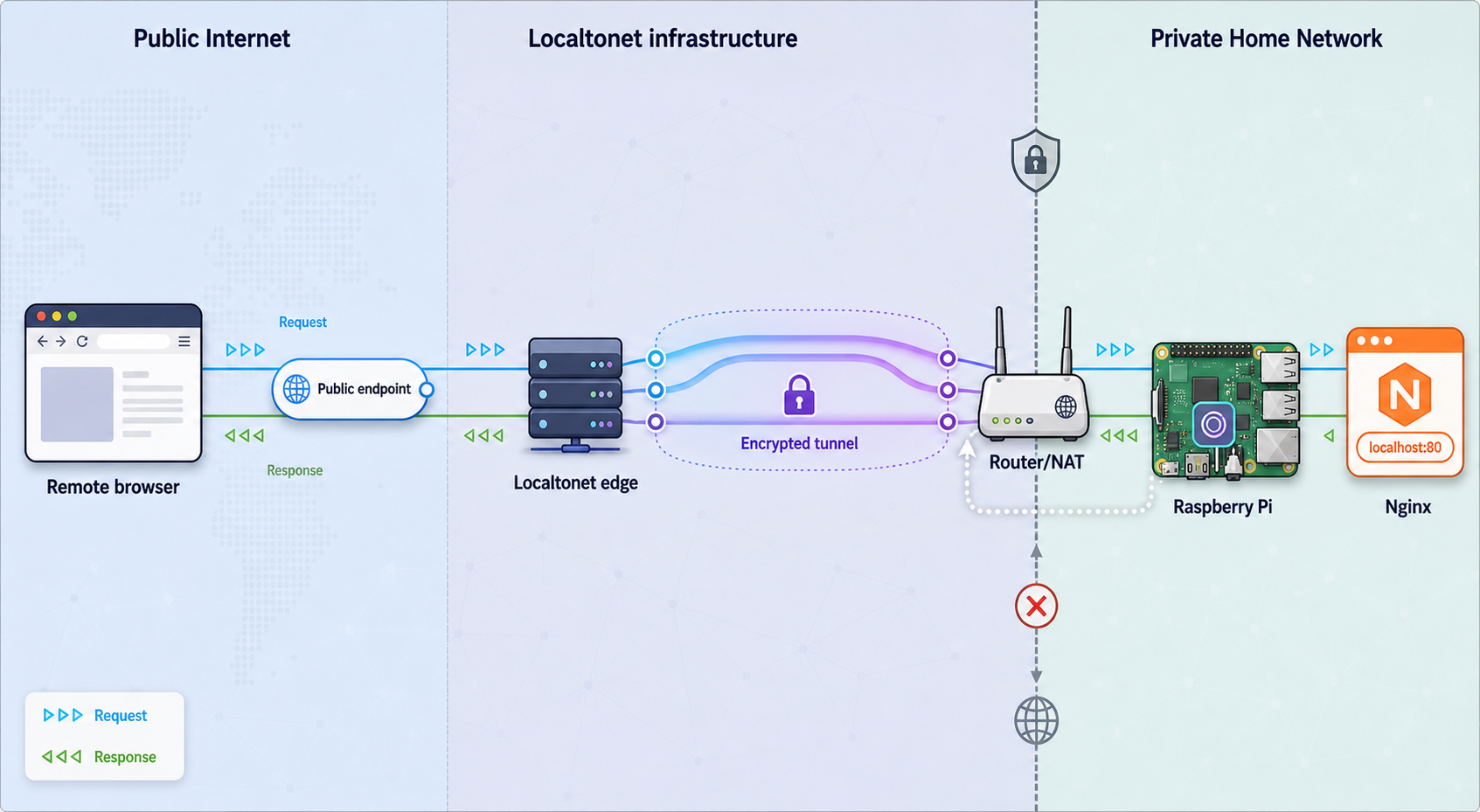
The web server and the public access layer are separate parts of this setup. Nginx listens on the Raspberry Pi and serves files from a document root. PHP-FPM can execute PHP scripts, and MariaDB can store application data if the project needs a database. None of those components, by themselves, make the Pi reachable from the public internet.
With Localtonet, the client running on the Raspberry Pi establishes an outbound connection to a Localtonet relay server. A visitor connects to the public HTTPS address assigned to the HTTP tunnel, and the relay forwards the request through that established connection to the selected local IP address and port. This avoids inbound router port forwarding, firewall changes, VPN setup, and the need for a public IP address.
127.0.0.1:80.
A Localtonet tunnel becomes available only after the selected device is connected and the tunnel has been started. If the client exits, the Pi loses connectivity, or the tunnel is stopped, the public endpoint cannot reach the local server.
What this tutorial builds
The baseline configuration is a static Nginx site bound to the loopback interface. Binding to 127.0.0.1 means the service is available to software running on the Pi, including the Localtonet client, but is not directly listening on the Pi's LAN interfaces. This is a useful least-privilege default when the site is intended to be reached only through the tunnel.
PHP-FPM and MariaDB are optional. Do not install them merely because they are common in web-server tutorials. A static portfolio or documentation page does not need a scripting runtime or database, and every additional service adds updates, configuration, logs, and credentials that must be managed.
Nginx and Apache are both valid choices
Nginx uses an event-driven architecture and delegates PHP execution to PHP-FPM. Apache supports multiple processing models, including the event MPM, so it is not accurate to describe every modern Apache installation as one process per connection. Nginx is used here because its Debian-style server-block configuration and PHP-FPM integration are straightforward for this scope. If an application depends on Apache modules or .htaccess, use the server supported by that application instead.
Prerequisites and compatibility checks
Start with a Raspberry Pi capable of running a currently supported Raspberry Pi OS release, reliable storage, a suitable power supply, and network access. The appropriate model and memory capacity depend on the application. Static files need fewer resources than a database-backed content-management system, image-processing workload, or application with many background jobs.
Prefer a 64-bit operating system when the Pi model and required software support it. Do not select a Localtonet client download based only on the Pi's marketing name. Verify the installed operating system and package architecture first because a board can run either a 32-bit or 64-bit userspace.
| Requirement | Why it matters | How to verify |
|---|---|---|
| Supported Raspberry Pi OS installation | Package names, versions, and security support vary by release. | Read /etc/os-release instead of assuming a release name. |
| Known CPU and package architecture | The kernel architecture and installed userspace architecture can differ. | Run uname -m and dpkg --print-architecture. |
| Administrative access | Installing packages and editing service configuration requires sudo. |
Confirm that your account can run sudo -v. |
| Reliable local networking | The Pi must reach package repositories and a Localtonet relay. | Confirm normal outbound internet access before diagnosing the tunnel. |
| Recoverable storage | Web content, configuration, database data, and credentials need backups. | Plan a separate backup destination and test restoration. |
Install Raspberry Pi OS safely
Use the current Raspberry Pi Imager to write a supported Raspberry Pi OS image to the selected storage device. Raspberry Pi OS Lite is suitable for a headless server because a graphical desktop is not required. During imaging, use the current customization interface to create a user, set regional and network options, and enable SSH only if remote administration is required.
Prefer SSH public-key authentication. Never assume a default username or password. Current imaging workflows allow the administrator to create credentials, and the actual account name must be used when connecting.
After booting, connect with the hostname or local IP address configured for your Pi:
ssh your-admin-user@your-pi-hostnameHostname discovery is network-dependent. If a local hostname does not resolve, find the Pi's address through your router or another trusted network-management method rather than copying an example address.
Inspect the installed system before changing it
cat /etc/os-release
uname -m
dpkg --print-architecture
getconf LONG_BIT
df -h /
free -h
Record the release information and architecture. When downloading any architecture-specific application later, match it to the installed userspace architecture reported by dpkg, not merely to the output of uname.
Update existing packages
Refresh package metadata and review the proposed upgrade before accepting it:
sudo apt update
apt list --upgradable
sudo apt full-upgrade
A kernel, firmware, or core library update may require a reboot. Check whether the system reports one, reboot if appropriate, reconnect, and rerun the system checks. Avoid placing an unreviewed automatic -y on every administrative command, especially on a machine that already hosts services.
Install Nginx and serve a static site
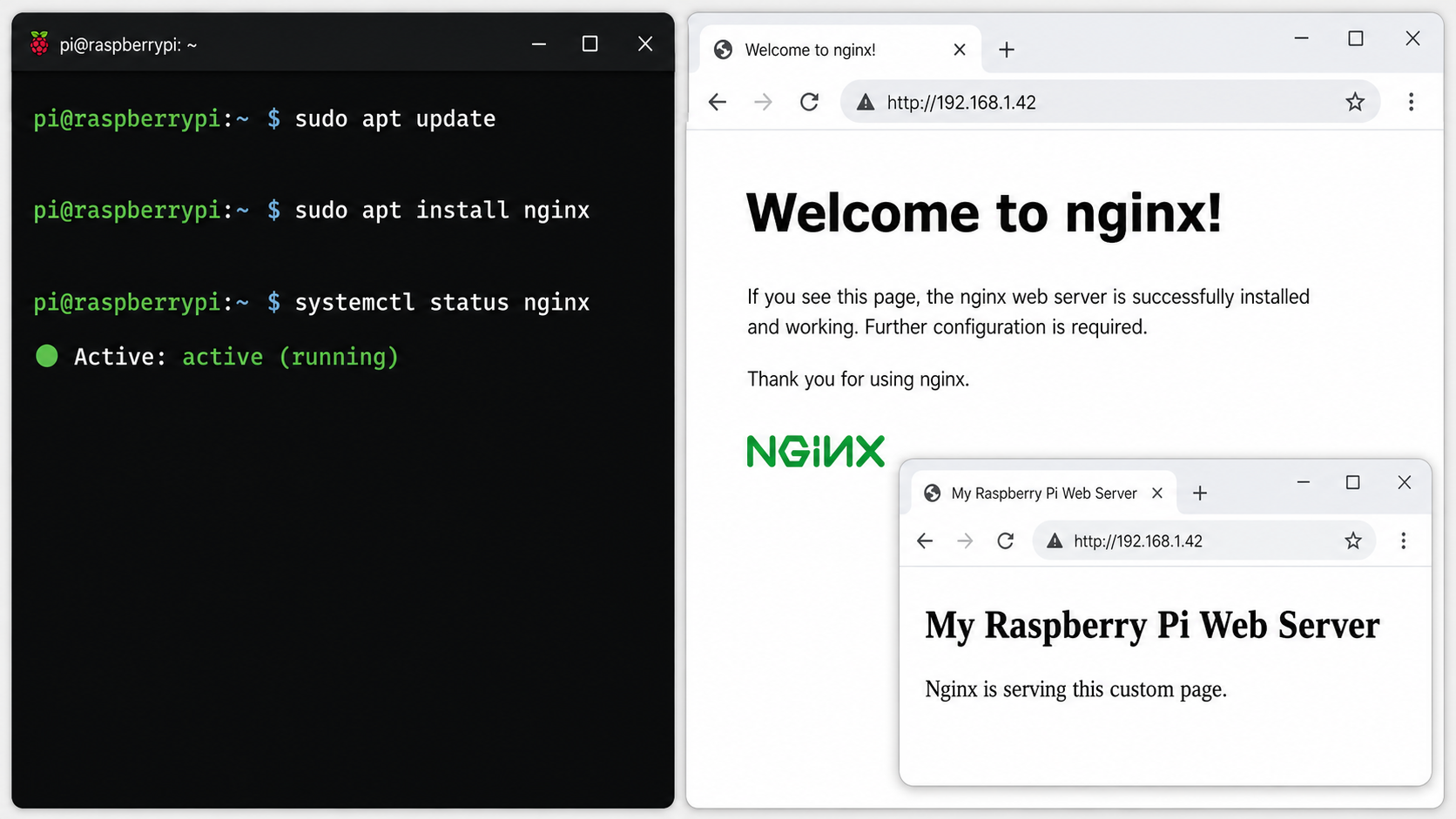
Install and inspect the service
sudo apt install nginx
sudo systemctl status nginx --no-pager
sudo systemctl is-enabled nginx
The status should report that Nginx is active. The number of worker processes and the exact status output can vary with the installed package and configuration, so do not compare it to a fabricated transcript. If installation fails, resolve package-manager or network errors before continuing.
Debian-based Nginx packages commonly use the following paths:
| Path | Purpose |
|---|---|
/etc/nginx/nginx.conf |
Main configuration that includes additional configuration files. |
/etc/nginx/sites-available/ |
Stores site-specific server blocks. |
/etc/nginx/sites-enabled/ |
Usually contains links to the site configurations that Nginx loads. |
/var/www/ |
Common parent directory for document roots. |
/var/log/nginx/access.log |
Default request log, unless a server block specifies another file. |
/var/log/nginx/error.log |
Default error log for configuration, upstream, and permission problems. |
Create the document root with deliberate permissions
Avoid blanket commands such as chmod -R 755 and avoid transferring ownership of an entire application tree to the web-server account. Nginx needs read access to static content, but it normally does not need write access. Keep the administrative user as the owner and use the www-data group for read access:
sudo install -d -o "$USER" -g www-data -m 2750 /var/www/mysiteCreate a correctly escaped HTML test page:
cat <<'EOF' | sudo tee /var/www/mysite/index.html >/dev/null
<!doctype html>
<html lang="en">
<head>
  <meta charset="utf-8">
  <meta name="viewport" content="width=device-width, initial-scale=1">
  <title>Raspberry Pi web server</title>
</head>
<body>
  <main>
    <h1>Hello from the Raspberry Pi</h1>
    <p>Nginx is serving this page locally.</p>
  </main>
</body>
</html>
EOF

sudo chown "$USER":www-data /var/www/mysite/index.html
sudo chmod 0640 /var/www/mysite/index.html
Dynamic applications may require write access to a narrowly defined upload, cache, or runtime directory. Grant access only to that directory according to the application's documentation. Do not make source code, configuration files, or secret-bearing files globally writable.
Create a loopback-only Nginx server block
The following server block listens only on IPv4 loopback. It is suitable when Localtonet runs on the same Pi and forwards to 127.0.0.1:80:
server {
    listen 127.0.0.1:80 default_server;
    server_name _;

    root /var/www/mysite;
    index index.html;

    location / {
        try_files $uri $uri/ =404;
    }

    location ~ /\. {
        deny all;
    }

    access_log /var/log/nginx/mysite-access.log;
    error_log /var/log/nginx/mysite-error.log;
}
Save it as /etc/nginx/sites-available/mysite, then enable it. Remove the default link only if it exists:
sudo nano /etc/nginx/sites-available/mysite
sudo rm -f /etc/nginx/sites-enabled/default
sudo ln -s /etc/nginx/sites-available/mysite /etc/nginx/sites-enabled/mysite
sudo nginx -t
sudo systemctl reload nginx
Always run nginx -t before reloading. If validation fails, do not restart or reload the service. Read the reported filename and line number, correct the configuration, and test again.
Verify the site locally
curl --fail --show-error --verbose http://127.0.0.1/
sudo ss -ltnp | grep ':80'
The response body should contain the test page, and the listening-socket check should show Nginx on 127.0.0.1:80. Because this configuration is loopback-only, opening the Pi's LAN address in another computer's browser is not expected to work.
Change the Nginx listen address only if LAN clients genuinely need direct access. Then apply host-firewall rules that allow the required trusted subnet rather than exposing the service indiscriminately. The exact subnet differs between networks and must not be guessed from examples.
Add PHP-FPM and MariaDB only when needed
Install PHP without assuming a version
Raspberry Pi OS releases can provide different PHP versions. Install the unversioned package names from the configured repository, then detect the service and socket that were actually installed:
sudo apt install php-fpm php-cli
php --version
systemctl list-unit-files 'php*-fpm.service' --no-legend
find /run/php -maxdepth 1 -type s -name 'php*-fpm.sock' -print
Install additional modules only when the application requires them. For example, a database-backed PHP application may need php-mysql, while image processing or XML handling may require other packages. Consult the application's requirements rather than installing a generic collection of modules.
Copy the actual service name from the service listing and inspect it. The following placeholder is not a literal command:
sudo systemctl status REPLACE-WITH-DETECTED-PHP-FPM-SERVICE --no-pagerConnect Nginx to the detected PHP-FPM socket
Update the site configuration. Add index.php to the index directive and add a PHP location block. Replace the socket placeholder with the exact path returned by the find command:
server {
    listen 127.0.0.1:80 default_server;
    server_name _;

    root /var/www/mysite;
    index index.php index.html;

    location / {
        try_files $uri $uri/ =404;
    }

    location ~ \.php$ {
        include snippets/fastcgi-php.conf;
        fastcgi_pass unix:/run/php/REPLACE-WITH-ACTUAL-FPM-SOCKET.sock;
    }

    location ~ /\. {
        deny all;
    }

    access_log /var/log/nginx/mysite-access.log;
    error_log /var/log/nginx/mysite-error.log;
}
Validate and reload Nginx:
sudo nginx -t
sudo systemctl reload nginx
Use a minimal executable PHP test
This test writes real PHP code rather than an HTML comment:
printf '%s\n' '<?php echo "PHP OK\n";' | sudo tee /var/www/mysite/php-test.php >/dev/null
sudo chown "$USER":www-data /var/www/mysite/php-test.php
sudo chmod 0640 /var/www/mysite/php-test.php
curl --fail --show-error http://127.0.0.1/php-test.php
sudo rm /var/www/mysite/php-test.php
The response should be PHP OK. Remove the test immediately. Avoid leaving phpinfo() pages online because they disclose detailed runtime, module, path, and environment information.
Database passwords, API keys, private keys, environment files, backups, repository metadata, and application configuration should not be downloadable web content. Keep secrets outside the document root where the application supports it, restrict their filesystem permissions, and use the application's supported secret-management mechanism.
Install MariaDB for database-backed applications
sudo apt install mariadb-server
sudo systemctl status mariadb --no-pager
sudo mariadb
Current MariaDB packages may use local socket authentication for administrative access. Do not assume the root account requires a database password, and do not blindly answer yes to every prompt from a hardening utility. If mariadb-secure-installation or mysql_secure_installation is available on the installed release, read each prompt in the context of the package's current authentication defaults.
Create a separate database account for the application. Run the following SQL inside the MariaDB prompt, replacing the example password with a unique secret:
CREATE DATABASE myapp CHARACTER SET utf8mb4 COLLATE utf8mb4_unicode_ci;
CREATE USER 'myapp_user'@'localhost'
  IDENTIFIED BY 'REPLACE_WITH_A_UNIQUE_APPLICATION_PASSWORD';
GRANT ALL PRIVILEGES ON myapp.* TO 'myapp_user'@'localhost';
EXIT;
Grant permissions only to the application's database. Do not give the web application administrative privileges across every database. Store the password using the application's supported secret configuration, ensure the configuration is not served by Nginx, and include database dumps in the backup plan.
Harden the Pi before public exposure
A tunnel changes how traffic reaches the application, but it does not make an insecure application safe. Treat the public URL as an internet-facing endpoint. Validate every request, authenticate users, authorize each operation, protect secrets, update dependencies, and minimize the local services that accept connections.
Keep public use cases within a safe scope
| Use case | Minimum protection to plan | Important risk |
|---|---|---|
| Static portfolio | Updates, safe file permissions, no secrets in published files | Accidentally publishing backups, source control data, or private documents |
| API | Authentication, per-object authorization, input validation, rate controls | Data disclosure or unauthorized state changes |
| Webhook receiver | Provider signature verification, replay protection where supported, secret rotation | Forged requests triggering deployments, payments, or automation |
| Private dashboard | Strong login, session protection, least-privilege accounts | Exposure of personal, operational, or sensor data |
| Home automation | Strong authentication and authorization for every control action | Unauthorized control of physical devices |
| File access | Authenticated access, explicit permissions, upload restrictions | Private-file disclosure, malicious uploads, or storage exhaustion |
If the real requirement is browser-based file management rather than a custom website, Localtonet also has a dedicated File Server tunnel. Its Default subtype provides a browser file manager, while SFTP and WebDAV support standard client workflows. Choose a purpose-built file-sharing feature instead of enabling an unauthenticated Nginx directory listing.
Use security headers carefully
Response headers should match the application rather than being copied blindly. X-Content-Type-Options and a referrer policy are often useful. A Content Security Policy can reduce browser-side risk, but an overly strict policy can break scripts, fonts, images, frames, or API connections. Test it against the real application.
add_header X-Content-Type-Options "nosniff" always;
add_header Referrer-Policy "strict-origin-when-cross-origin" always;
add_header Content-Security-Policy "default-src 'self'; frame-ancestors 'self'; base-uri 'self'" always;
The example Content Security Policy suits only a simple same-origin static site. Adapt it before using external assets or dynamic frameworks. The obsolete X-XSS-Protection header is intentionally omitted. Do not add HTTP Strict Transport Security until the complete hostname and HTTPS deployment behavior has been reviewed and tested, because an incorrect long-lived policy can make a hostname inaccessible.
Do not open web ports in UFW for a loopback target
If Nginx listens only on 127.0.0.1 and Localtonet runs on the same Pi, there is no need to open inbound ports 80 or 443 for the tunnel. The client establishes an outbound connection, and the local HTTP target remains on loopback.
Before changing a firewall over SSH, inspect current rules and ensure that the active administrative path will remain allowed:
sudo ufw status verbose
sudo ss -ltnpDo not enable or reset a host firewall during a remote session unless you have verified the correct SSH rule for your trusted management network and have a recovery path such as local console access. A generic rule that exposes SSH to every source is not a substitute for a network-specific access policy.
Harden SSH without losing access
Confirm key authentication in a second terminal before disabling passwords. Keep the original session open while testing. Place local policy in an appropriate SSH server configuration file, then validate the full configuration before reloading:
sudo sshd -t
sudo systemctl reload ssh
Configuration file locations and included fragments can vary. Use sshd -T to inspect the effective settings. Do not assume that editing one line in /etc/ssh/sshd_config overrides every included file, and use the actual service name provided by the installed operating system.
Make the Raspberry Pi web server public with Localtonet
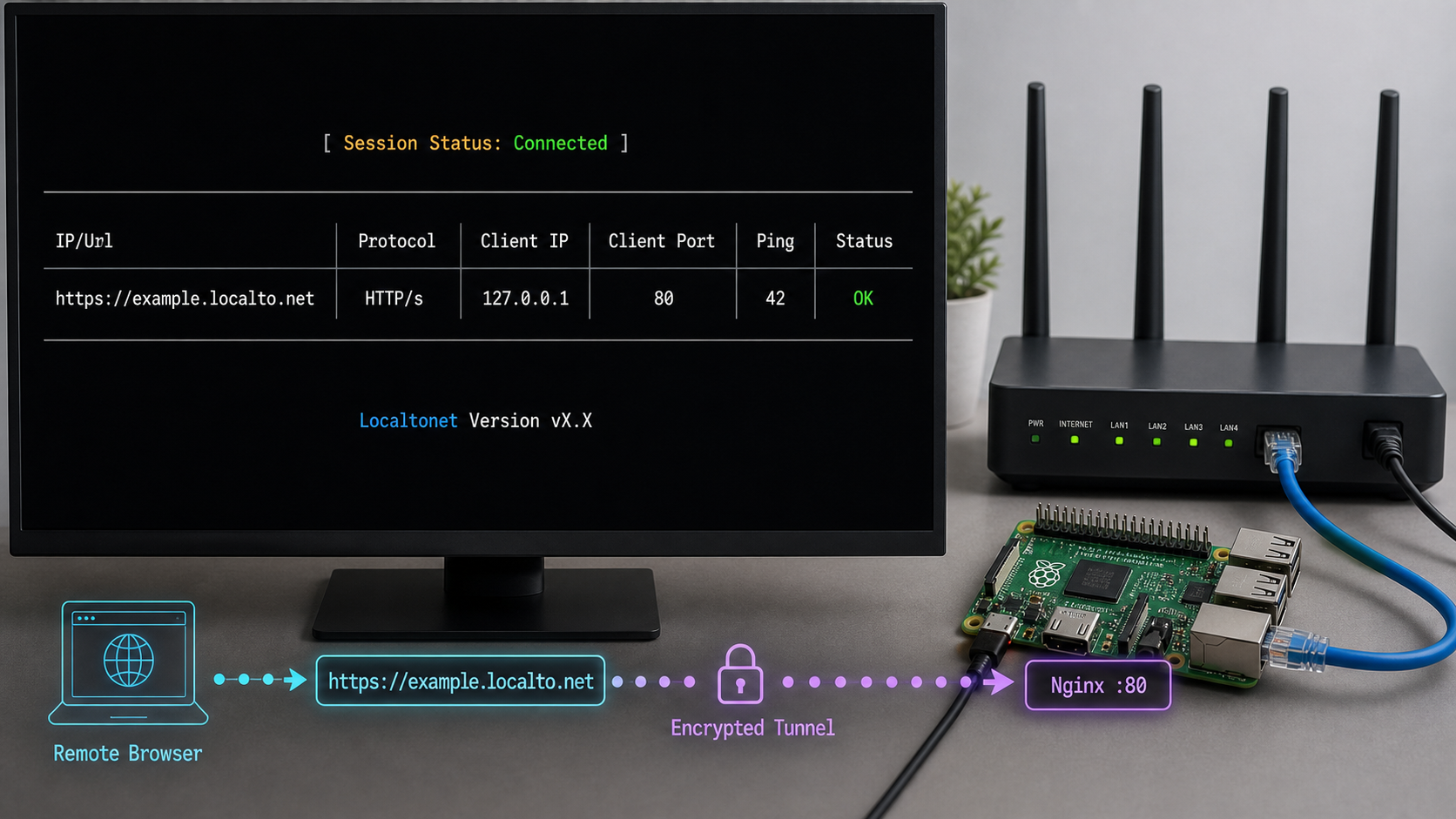
Complete the local curl test before configuring public access. A tunnel cannot repair an Nginx syntax error, an unavailable PHP-FPM socket, incorrect filesystem permissions, or an application that fails locally.
Localtonet supports HTTP tunnels that point to a local IP address and port. HTTP and File Server tunnels offer Process Type choices of Random Sub Domain, Custom Sub Domain, or Custom Domain. These choices serve the configured content at a public HTTPS address. Availability can vary by plan or current dashboard configuration, so use only options shown for your account.
The AuthToken identifies the client device that runs the tunnel. Do not paste it into an article, screenshot, shared shell command, source repository, issue report, or public log. Select or authenticate the device through the current supported Localtonet workflow.
Install and run the supported Localtonet client
Obtain the current client through the official Localtonet download or dashboard workflow and select the build that matches the Pi's installed userspace architecture. Exact package names, download URLs, command-line flags, and persistence methods can change, so this guide does not invent them. Start the supported client on the Raspberry Pi.
Open the HTTP tunnel configuration
Sign in to the Localtonet dashboard and create an HTTP tunnel. Use HTTP for an Nginx web target. Do not configure a TCP, UDP, File Server, proxy, or VPN tunnel for this HTTP tutorial.
Select the HTTP Process Type
Choose Random Sub Domain, Custom Sub Domain, or Custom Domain from the options currently available to you. Do not assume a particular generated hostname, DNS record, or certificate workflow before checking the current dashboard and documentation.
Select the Raspberry Pi device and relay server
Select the device-specific AuthToken associated with the client running on the Pi. Then select an available server or region from the current dashboard. Server codes and available regions must be read from the product rather than copied from a tutorial.
Enter the local target
For the loopback Nginx configuration in this guide, enter 127.0.0.1 as the local IP and 80 as the local port. If the Localtonet client runs on another device, loopback would refer to that other device, so use an address reachable from the actual client instead.
Create the tunnel and press Start
Save or create the configuration using the current dashboard control, then explicitly press Start. Creation alone does not make a tunnel run. Confirm that the selected device is connected and that the tunnel reports a running or connected state.
Open the assigned public address from an external network
Use the public HTTPS address displayed for the running tunnel. Test it from a device that is not relying on the Pi's local network, such as a phone using cellular data. Confirm that the expected page loads and that a request appears in the Nginx access log.
The tunnel is available only while the selected client is connected and the tunnel is running. Exact client startup and operating-system persistence instructions are version-dependent and are not established by the evidence available for this revision. Use only the current persistence method documented for the installed Localtonet client. Do not create an unofficial systemd unit with guessed executable paths, users, token locations, or flags.
Verify each layer separately
curl --fail --show-error http://127.0.0.1/
sudo systemctl status nginx --no-pager
sudo tail -n 50 /var/log/nginx/mysite-access.log
sudo tail -n 50 /var/log/nginx/mysite-error.log
The first command proves that Nginx works locally. The dashboard then proves whether the device and tunnel are connected. Finally, an external-network request proves the complete public path. This layered test makes it much easier to locate a failure.
Stop exposure when it is not needed
Use the dashboard's Stop control to make the tunnel unavailable without removing its configuration. Delete the tunnel when the configuration is no longer required. Stopping Nginx also removes the local target, but stopping the tunnel is the clearer way to withdraw public access while retaining the local site.
Updates, backups, logs, storage, and reboot recovery
Apply routine updates deliberately
Review operating-system and application updates on a schedule. Database-backed frameworks, content-management systems, plugins, and language dependencies need their own update process in addition to APT packages.
sudo apt update
apt list --upgradable
sudo apt full-upgrade
sudo nginx -t
After updates, verify Nginx, PHP-FPM if installed, MariaDB if installed, the local page, the Localtonet client, and the tunnel. Keep a maintenance record so that a regression can be correlated with a specific package or configuration change.
Back up data and configuration
A useful backup includes the website content, Nginx configuration, application configuration, database dumps, and any separately stored secrets required for recovery. Store backups on another device or service. A backup on the same SD card or SSD does not protect against device failure, filesystem corruption, loss, or accidental reimaging.
For a MariaDB application, create a database dump using an account and authentication method appropriate to the installed configuration. Avoid putting passwords directly on a command line because process listings and shell history can expose them. Also preserve the exact package and application requirements needed to rebuild the runtime.
Test restoration. A copied archive is not a proven backup until it can be restored to a clean location and the restored application can be verified.
Watch storage and power health
Web access logs, application logs, database writes, package downloads, uploads, and caches consume storage and create write activity. Check capacity regularly:
df -h
du -sh /var/log /var/www 2>/dev/null
journalctl --disk-usage
Use reliable storage and a suitable power supply. Unexpected power loss during writes can damage filesystems or databases. If the server is important, plan for clean shutdowns, tested backups, and replacement storage. Do not rely on a single device as the only copy of irreplaceable data.
Know the relevant logs
| Component | Inspection command or path | What it helps diagnose |
|---|---|---|
| Nginx service | journalctl -u nginx |
Startup, reload, and service-level failures |
| Nginx site errors | /var/log/nginx/mysite-error.log |
Permissions, missing files, and PHP upstream failures |
| Nginx requests | /var/log/nginx/mysite-access.log |
Whether requests reached the Pi and how Nginx responded |
| PHP-FPM | journalctl -u DETECTED-PHP-FPM-SERVICE |
Worker, pool, startup, and script-processing errors |
| MariaDB | journalctl -u mariadb |
Database startup, storage, and authentication failures |
| Localtonet | Current client status and Localtonet dashboard | Whether the device is connected and the tunnel is running |
Verify behavior after a reboot
Reboot only after saving work and confirming that you have a recovery path:
sudo rebootAfter the Pi returns, verify the layers in order:
sudo systemctl is-active nginx
curl --fail --show-error http://127.0.0.1/
sudo systemctl is-active mariadb
sudo ss -ltnp | grep ':80'
Skip MariaDB if it was not installed. For PHP, use the detected PHP-FPM service name rather than a hardcoded version. Then verify that the supported Localtonet client is running, the device appears connected in the dashboard, and the tunnel itself is running. Finally, repeat the external-network test.
A local service can start correctly while the tunnel remains offline, or the client can connect while Nginx fails. Verify Nginx, optional application services, the Localtonet device, the tunnel state, and the public page as separate checks.
Use a simple recovery order
- Confirm that the Pi has power, storage, and outbound network connectivity.
- Check available disk space and recent system logs.
- Validate Nginx with
sudo nginx -t. - Confirm the local page with
curl http://127.0.0.1/. - Check PHP-FPM or MariaDB only if the application depends on them.
- Confirm that the Localtonet client device is connected.
- Confirm that the HTTP tunnel has been explicitly started.
- Repeat the external-network test and inspect the Nginx access log.
Troubleshooting common Raspberry Pi web-server problems
| Symptom | Likely area | Safe diagnostic path |
|---|---|---|
Local curl cannot connect |
Nginx is stopped, listening elsewhere, or its configuration failed | Run sudo nginx -t, systemctl status nginx, and ss -ltnp. |
| Local test returns 403 | Missing index file or insufficient directory traversal and file-read permissions | Inspect every path component with namei -l /var/www/mysite/index.html. Fix only the incorrect owner, group, or mode. |
| Local test returns 404 | Wrong document root, filename, or request path | Compare the Nginx root directive with the actual file location and read the site error log. |
| PHP page returns 502 | PHP-FPM is stopped or the configured socket is wrong | Detect the installed service and socket again, inspect the PHP-FPM journal, then update fastcgi_pass. |
| PHP source is downloaded or displayed | The PHP location block is absent or not active | Remove public access to the file, inspect the active Nginx configuration with nginx -T, correct it, test, and reload. |
| Static site works but the application fails | Application configuration, dependency, permission, or database problem | Check application logs, PHP-FPM, MariaDB, secret locations, and required writable directories. |
| Device shows disconnected in Localtonet | The client is not running, cannot reach the network, or is associated with a different device token | Check the supported client status, outbound connectivity, architecture compatibility, and selected AuthToken. |
| Device is connected but public address is unavailable | The tunnel was created but not started, or the wrong device was selected | Open the dashboard, confirm the selected device, and explicitly press Start for the tunnel. |
| Tunnel is running but returns an error | Wrong local IP or port, or the local service is unhealthy | Confirm 127.0.0.1:80 locally and compare it with the tunnel target. |
| Site works before reboot but not after | One required service or the supported Localtonet client did not resume | Check each service, device connection, and tunnel state separately. Use only the current documented persistence method. |
| Updates fail or services behave unpredictably | Full storage, interrupted package operation, or filesystem problems | Check df -h, package-manager errors, kernel logs, and storage health before repeatedly restarting services. |
Inspect the effective Nginx configuration
When the file you edited does not appear to affect the result, inspect what Nginx actually loaded:
sudo nginx -T
readlink -f /etc/nginx/sites-enabled/mysite
sudo nginx -t
Look for duplicate default servers, a missing include, a broken symbolic link, or a server block listening on a different address. Do not assume a hostname mismatch is the cause unless the request and active configuration demonstrate it.
Diagnose permissions without broad recursive changes
namei -l /var/www/mysite/index.html
find /var/www/mysite -maxdepth 2 -printf '%M %u %g %p\n'
Directories need traversal permission for the account or group through which Nginx reads them. Files need read permission. Correct the smallest affected path. Making the whole tree owned by www-data can give a compromised web process unnecessary power to modify application code.
Use logs while reproducing the request
sudo tail -f /var/log/nginx/mysite-access.log /var/log/nginx/mysite-error.logMake one test request while watching the logs. If no access-log line appears during an external test, the request probably did not reach this Nginx server. Recheck the Localtonet device, tunnel state, and target. If the request appears with a 4xx or 5xx response, investigate Nginx or the application.
Frequently asked questions
Do I need to forward ports 80 or 443 on my router?
No. The Localtonet client establishes an outbound connection to a relay, so this workflow does not require inbound router port forwarding. With Nginx bound to 127.0.0.1, you also do not need to open inbound web ports in UFW for the tunnel.
Does this work behind CGNAT or without a public IP address?
Yes. Localtonet does not require an inbound connection to the Pi's router. The client initiates the outbound relay connection, which allows the tunnel to work without a public IP address or inbound port forwarding.
Can I use a custom domain?
HTTP tunnels support a Custom Domain Process Type where available. Exact DNS records, validation steps, certificate behavior, and plan availability must be checked against the current Localtonet dashboard and documentation. Do not copy a generic CNAME target or assume automatic certificate behavior from an older tutorial.
Must I install PHP and MariaDB?
No. A static HTML, CSS, and JavaScript site needs only Nginx in this tutorial. Install PHP-FPM only for PHP code and MariaDB only when the application requires a compatible relational database. A smaller software stack is easier to update, back up, and secure.
Which PHP-FPM service and socket should I use?
Use the service and socket installed on your current operating-system release. Detect them with systemctl list-unit-files 'php*-fpm.service' and find /run/php -type s -name 'php*-fpm.sock'. Do not hardcode a PHP version from another Raspberry Pi OS release.
Will the website automatically return after a reboot?
Nginx packages commonly enable the service during installation, but you must verify the actual state with systemctl is-enabled nginx. Public availability also requires the supported Localtonet client to reconnect and the tunnel to be running. Configure persistence only through the current documented client method, then perform a real reboot test.
Can I publish a dashboard, API, webhook receiver, or home automation panel?
Yes, if the application is designed for internet exposure. Require authentication for private users, enforce authorization for every protected action, validate inputs, protect secrets, and apply rate controls. Webhook receivers should verify the sender's documented request signature before processing an event. Home automation controls require especially strict authorization because they can affect physical devices.
How much traffic can a Raspberry Pi handle?
There is no reliable universal number. Capacity depends on the Pi model, cooling, storage, network, response sizes, application code, database queries, concurrent work, and tunnel configuration. Measure the actual application with representative traffic while monitoring CPU, memory, storage latency, errors, and response time. Do not base a production decision on unsupported connection-count claims.
Publish your verified Raspberry Pi site with Localtonet
Once Nginx works on 127.0.0.1:80, create an HTTP tunnel, select the connected Raspberry Pi device and an available relay, enter the local target, and press Start. Keep the application protected and stop or delete the tunnel when public access is no longer required.


