

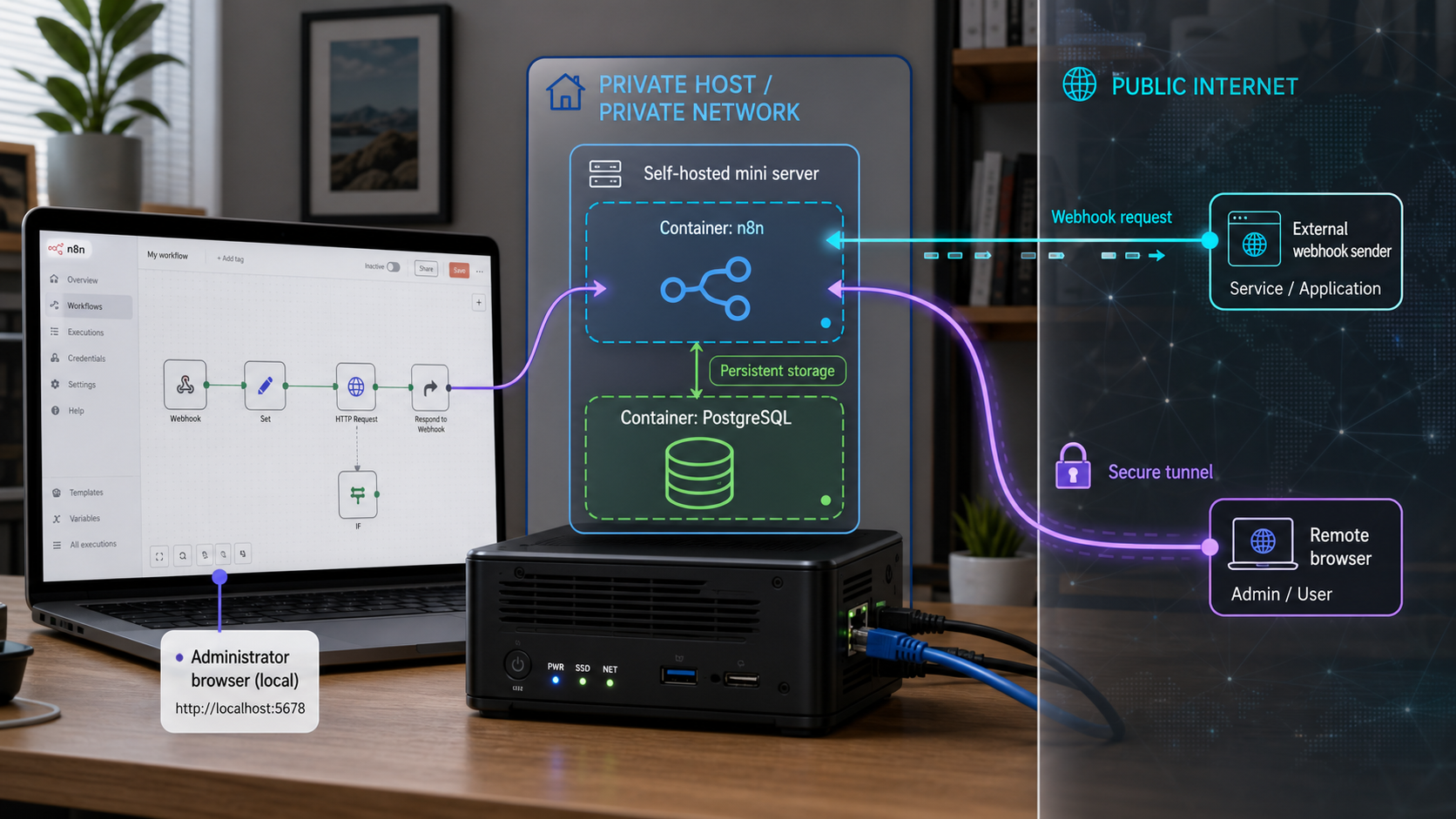
Run workflow automation on infrastructure you control, without weakening the security boundary
Self-hosting n8n gives you operational control over the application, database, encryption key, updates, and backups. It also makes you responsible for authentication, public webhook security, disaster recovery, and safe upgrades. This guide builds a conservative n8n 2.x deployment with Docker Compose and PostgreSQL, verifies it locally, explains test and production webhooks, and shows how to publish it through a Localtonet HTTP tunnel without router port forwarding. It also covers signature validation, tunnel lifecycle, backup restoration, and controlled upgrades.
📋 What's in this guide
Understand the n8n self-hosting architecture
n8n is a workflow automation application with a visual editor, trigger nodes, execution history, credentials, and integrations with external systems. A self-hosted installation moves operation of the n8n application and its database onto infrastructure you administer. That does not mean workflow data always remains on that infrastructure. A workflow can deliberately send records, prompts, files, credentials, or other information to APIs and services configured in its nodes.
A practical single-host deployment has four important parts: the n8n application, a database, persistent application storage, and an encryption key. PostgreSQL stores application state such as workflows and execution records. The n8n data directory contains additional instance data. The encryption key protects stored credentials and must remain consistent for the lifetime of the deployment. Losing either the database or the encryption key can make recovery incomplete.
For remote webhooks, a fifth component is required: a public HTTPS endpoint. With Localtonet, the client on the n8n host establishes an outbound connection to one of our relay servers. Requests arriving at the assigned public URL travel through that running tunnel to the local n8n service. This avoids inbound router port forwarding and does not require a public IP address.
A tunnel targeting n8n on port 5678 can make the complete n8n web application reachable at its public hostname. Do not publish an unfinished first-owner setup screen. Complete owner registration locally first, use a strong unique password, restrict editor access where your architecture allows it, and assume every internet-originated request is untrusted.
Self-hosting responsibilities
Self-hosting is most appropriate when you are prepared to operate the service rather than only install it. You must monitor availability, protect secrets, review workflow permissions, control who can edit workflows, test backups, apply security updates, and investigate failed webhook deliveries. You must also review the current n8n license for your intended use. n8n uses a sustainable-use licensing model, and its permissions should not be summarized as unrestricted commercial use. Internal use and offering n8n functionality to third parties are not necessarily treated the same way.
| Decision | Conservative choice | Reason |
|---|---|---|
| Installation | Docker Compose with versioned images | Separates the application and database while making the deployed versions explicit. |
| Local port | 127.0.0.1:5678:5678 |
Prevents the Docker-published port from listening on every host network interface. |
| Database | PostgreSQL for this tutorial | Provides a conventional database backup and restore path and leaves room for more advanced deployment modes. |
| Public access | Outbound Localtonet HTTP tunnel | Provides a public URL without inbound router port forwarding or a public IP address. |
| Updates | Explicit n8n version with staged upgrades | Avoids silently replacing production with an unreviewed latest image. |
Prerequisites and version choices
This tutorial uses Docker Engine with the Docker Compose plugin, an n8n 2.x container, and PostgreSQL. The supplied evidence identifies n8n 2.36.8 as a stable release dated August 28, 2026. The example therefore pins n8n to 2.36.8 instead of using latest. Before deploying, check the current stable n8n release and its migration notes. If a newer stable release has superseded this one, update the explicit version only after reviewing those notes.
Install Docker using the current procedure published for your operating system. A convenience script piped directly from the internet into a privileged shell is intentionally not included. Such scripts can be useful, but they execute downloaded code immediately. For a production host, review the vendor instructions and packages before installation.
n8n also supports npm-based installation, but its accepted Node.js range changes across releases. Do not reuse the older Node.js compatibility statements or Raspberry Pi service files from n8n 1.x tutorials. Confirm the supported Node.js versions for the exact n8n 2.x release, install Node.js through a maintained operating-system or runtime-manager path, and create a service under your actual account and filesystem paths. This guide uses containers so that an unverified Node.js range, legacy pi account, PM2 command, or systemd unit is not hardcoded.
Host requirements
- A supported 64-bit host operating system capable of running the selected container images.
- Docker Engine and the Docker Compose plugin installed from current vendor instructions.
- Enough CPU, memory, and storage for your workflow concurrency, payload sizes, database, and execution retention. There is no universal hardware minimum for every n8n workload.
- Administrative control of the host and a non-public directory for configuration.
- A password manager or secrets manager for the n8n encryption key and database password.
- A Localtonet account and current client for remote access.
n8n can use SQLite for smaller single-instance deployments. PostgreSQL is not mandatory for every production installation. PostgreSQL is used here because it offers a familiar dump-and-restore workflow and is appropriate when preparing for more demanding deployments. Queue-based or multi-worker architectures have additional database, Redis, worker, and task-runner requirements that are outside this single-host tutorial.
Task runners in n8n 2.x
n8n 2.x uses task runners for Code node execution. Runner behavior and deployment recommendations have changed over time, so treat older n8n 1.x examples as obsolete. The Compose example explicitly enables runners for its single-container scope. For a security-sensitive or scaled production deployment, review the current n8n task-runner documentation and deploy the recommended external runner architecture instead of assuming that an in-process runner offers the same isolation.
Install n8n 2.x with Docker Compose and PostgreSQL
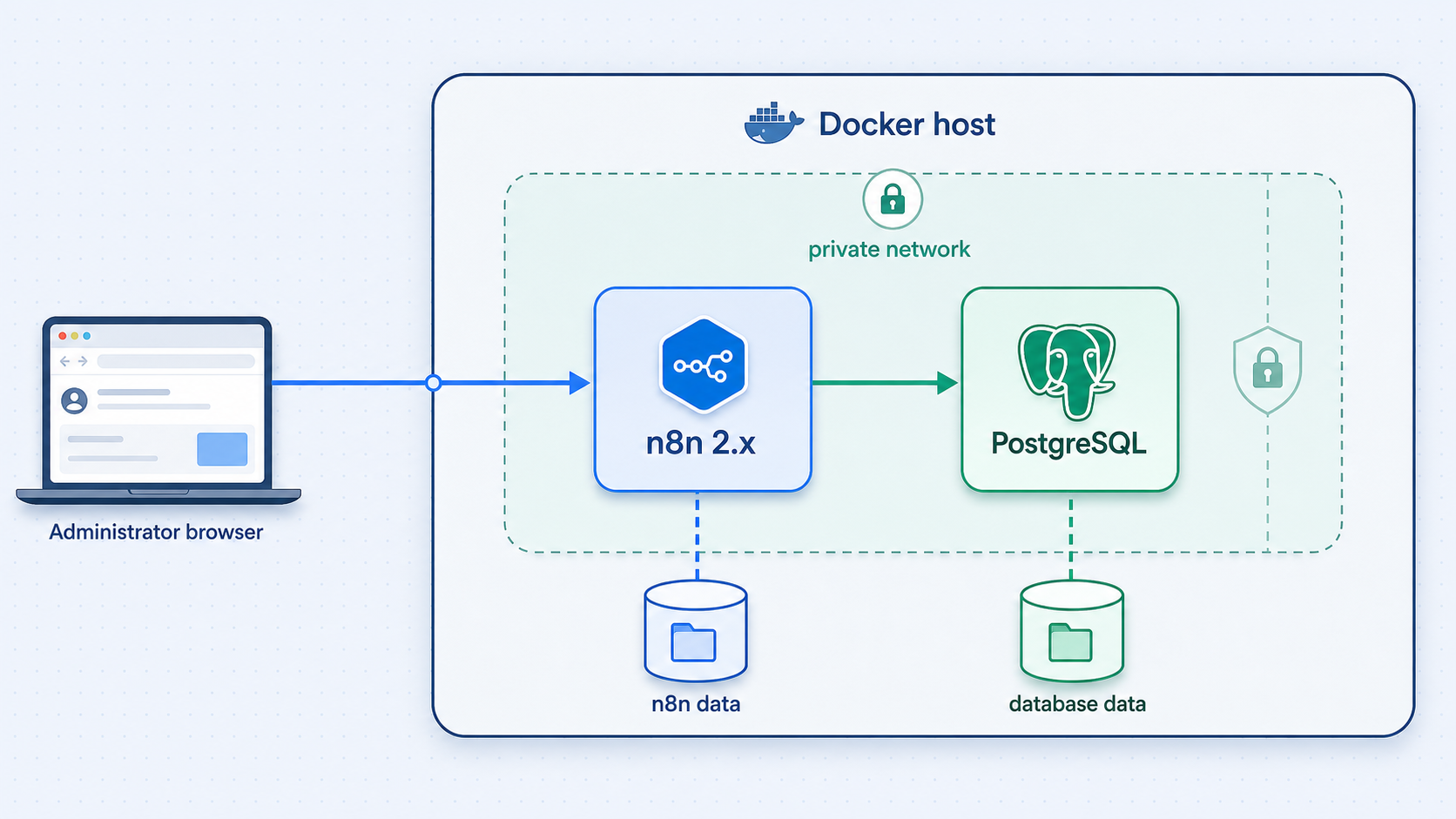
The following installation binds n8n only to host loopback, creates persistent Docker volumes, waits for PostgreSQL health, and uses an explicit n8n version. Run these commands as the account that will administer the deployment.
Create a private project directory
Create the directory, enter it, and restrict access so other local users cannot casually read its configuration.
mkdir -p ~/n8n-self-hosted
cd ~/n8n-self-hosted
chmod 700 ~/n8n-self-hostedGenerate independent secrets
Generate separate high-entropy values for the n8n encryption key and PostgreSQL password. Do not copy the example output into your configuration.
openssl rand -hex 32
openssl rand -base64 36
Store both values in a password manager or secrets manager. The encryption key must be recoverable during disaster recovery, but it should not be stored in an ordinary unencrypted backup directory.
Create the environment file
Replace the placeholder values, choose a valid timezone for your operation, and then restrict file permissions.
cat > .env <<'EOF'
N8N_VERSION=2.36.8
POSTGRES_IMAGE=postgres:16
POSTGRES_USER=n8n
POSTGRES_PASSWORD=REPLACE_WITH_A_UNIQUE_DATABASE_PASSWORD
POSTGRES_DB=n8n
N8N_ENCRYPTION_KEY=REPLACE_WITH_THE_GENERATED_ENCRYPTION_KEY
GENERIC_TIMEZONE=UTC
TZ=UTC
EOF

chmod 600 .env
The PostgreSQL major-version tag remains on the version 16 update channel. For stricter reproducibility, pin the exact tested image digest after validating it in your environment.
Create the Compose configuration
This publishes n8n only on 127.0.0.1. PostgreSQL is not published to the host at all.
services:
  postgres:
    image: ${POSTGRES_IMAGE}
    restart: unless-stopped
    environment:
      POSTGRES_USER: ${POSTGRES_USER}
      POSTGRES_PASSWORD: ${POSTGRES_PASSWORD}
      POSTGRES_DB: ${POSTGRES_DB}
    volumes:
      - postgres_data:/var/lib/postgresql/data
    healthcheck:
      test:
        - CMD-SHELL
        - pg_isready -U ${POSTGRES_USER} -d ${POSTGRES_DB}
      interval: 5s
      timeout: 5s
      retries: 10

  n8n:
    image: docker.n8n.io/n8nio/n8n:${N8N_VERSION}
    restart: unless-stopped
    ports:
      - "127.0.0.1:5678:5678"
    environment:
      DB_TYPE: postgresdb
      DB_POSTGRESDB_HOST: postgres
      DB_POSTGRESDB_PORT: 5432
      DB_POSTGRESDB_DATABASE: ${POSTGRES_DB}
      DB_POSTGRESDB_USER: ${POSTGRES_USER}
      DB_POSTGRESDB_PASSWORD: ${POSTGRES_PASSWORD}
      N8N_ENCRYPTION_KEY: ${N8N_ENCRYPTION_KEY}
      GENERIC_TIMEZONE: ${GENERIC_TIMEZONE}
      TZ: ${TZ}
      N8N_RUNNERS_ENABLED: "true"
    volumes:
      - n8n_data:/home/node/.n8n
    depends_on:
      postgres:
        condition: service_healthy

volumes:
  postgres_data:
n8n_data:Validate and start the deployment
Ask Compose to render and validate the configuration before starting the containers.
docker compose config
docker compose up -d
docker compose ps
docker compose logs --tail=100 n8n
Do not rely on a copied expected log line or version string. Confirm that both services remain running, PostgreSQL becomes healthy, and the n8n logs contain no database or migration failure.
Verify n8n locally and create the owner
On the n8n host, open http://127.0.0.1:5678. Complete the first-owner setup before creating any public tunnel. Use a unique password stored in your password manager.
curl -I http://127.0.0.1:5678/An HTTP response confirms local reachability, but browser login is the meaningful application test. Sign out and back in once to confirm that owner authentication works.
Keep the configured N8N_ENCRYPTION_KEY consistent across restarts, migrations, and restores. A database restored without its matching key may contain credential records that the application cannot decrypt. Protect the key separately from the database and test that your recovery process restores both.
Secure n8n before accepting public traffic
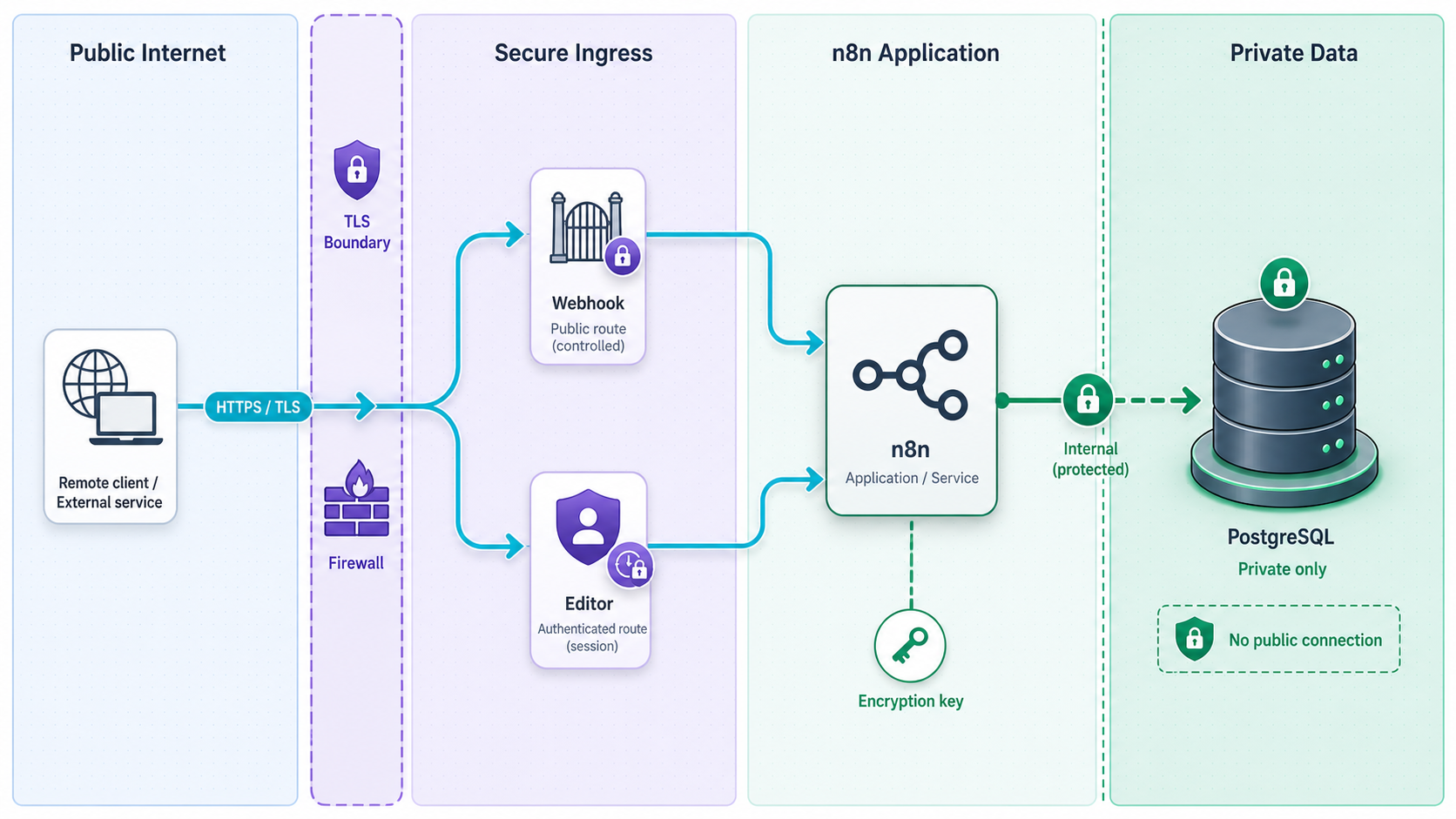
Owner authentication is necessary, but it is not the entire security model. Workflow editors can create credentials, call external APIs, process arbitrary payloads, and sometimes execute code. Limit editor accounts, remove users who no longer need access, and avoid sharing the owner account.
Apply least privilege
- Create dedicated API credentials for each workflow instead of reusing administrator credentials.
- Give each credential only the provider permissions required by its nodes.
- Separate test and production provider accounts when practical.
- Do not place secrets directly in workflow names, expressions, notes, webhook paths, or logs.
- Review community nodes and custom code before installation or execution.
- Restrict who can create, edit, publish, activate, or run workflows according to the controls available in your n8n edition.
- Set execution-retention and pruning behavior deliberately after checking the current n8n 2.x environment-variable documentation. Do not assume an old variable default remains current.
Protect the host and container boundary
Keep the host patched, limit administrative access, and do not expose Docker’s control socket to the n8n container. The Compose configuration does not publish PostgreSQL and binds n8n to loopback. Confirm the result from the host:
docker compose ps
ss -lnt
Port 5678 should be associated with 127.0.0.1, not 0.0.0.0 or an externally reachable host address. If you intentionally need LAN access, make that a separate risk decision and apply host firewall restrictions rather than changing the mapping casually.
Understand editor and webhook access
n8n serves editor and webhook routes from the same application. A standard HTTP tunnel to port 5678 therefore does not by itself create a webhook-only security boundary. Localtonet access controls such as Basic Authentication, IP restrictions, SSO, or other options may be available depending on the current tunnel configuration and plan. Provider webhooks often cannot complete interactive authentication, so placing the same edge login challenge in front of all routes may prevent delivery.
If your threat model requires the editor to remain private while webhook paths stay public, design that separation explicitly with a supported reverse proxy or gateway in front of n8n. Test route filtering, forwarded headers, authentication, and webhook delivery before treating it as a security control. Do not assume that an obscure webhook path is secret.
HTTPS protects the connection to the public endpoint. It does not authenticate the business event inside the request. Verify the provider’s signature or use its dedicated authenticated trigger, reject stale or replayed events where the provider supports timestamps or event identifiers, and never execute irreversible actions before validation succeeds.
Configure n8n test and production webhooks safely
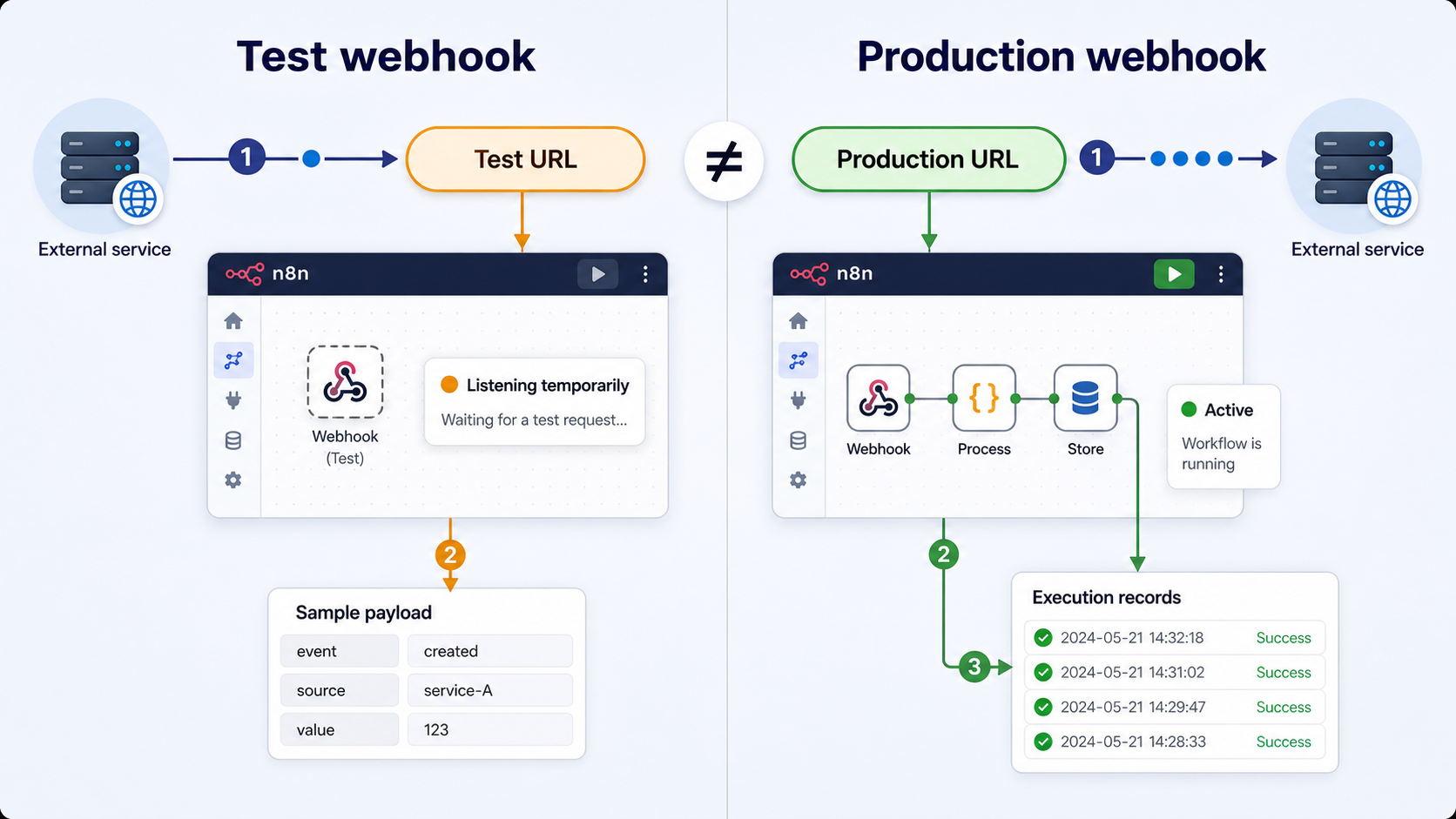
A webhook is an HTTP endpoint that receives events instead of polling for them. n8n distinguishes between a temporary test URL and a production URL. The labels and workflow lifecycle wording may vary across n8n 2.x releases, including activation or publishing terminology, but the operational distinction remains important.
| Endpoint | Typical path | Availability | Use |
|---|---|---|---|
| Test webhook | /webhook-test/... |
While n8n is listening for a test event | Inspecting sample requests during development |
| Production webhook | /webhook/... |
When the workflow’s production version is published or active | Registered provider callbacks and live integrations |
| Editor | Application routes on the same host | While n8n is reachable | Authenticated workflow administration, not webhook delivery |
Choose the provider-specific trigger when available
A dedicated GitHub, Stripe, or other provider trigger can reduce manual configuration and may implement provider-specific authentication. Verify its current n8n documentation and credential requirements. Use the generic Webhook node when you need a custom HTTP contract.
Create a test endpoint
Select the required HTTP method, create a non-sensitive path, and start the test listener. Send only synthetic or non-production data while developing.
Validate before processing
Check the provider signature using the exact raw-body and header rules in that provider’s current documentation. Validate timestamp tolerance or delivery identifiers where supported. Reject invalid requests before branching, writing records, sending messages, or initiating payments.
Make side effects idempotent
Providers can retry deliveries. Store or otherwise check a stable provider event identifier before performing an irreversible action. Return an appropriate success response only after the event has been accepted according to your workflow design.
Publish or activate the reviewed workflow
Use the production lifecycle control shown by your n8n 2.x release. Then copy the production URL, not the temporary test URL, into the provider configuration.
GitHub webhook considerations
Configure a unique webhook secret in GitHub and store it as a protected n8n credential or secret, not in the workflow path. Validate the X-Hub-Signature-256 value according to GitHub’s current instructions before processing the event. Compare signatures in a timing-safe manner when implementing custom verification, and use the unmodified request body required by the provider’s algorithm.
Subscribe only to the repository events the workflow needs. Treat branch names, commit text, actor names, and payload URLs as untrusted input. A push event should not directly become a shell command or deployment parameter without strict validation.
Stripe webhook considerations
Use a dedicated Stripe webhook signing secret for the endpoint. Verify the Stripe signature and timestamp according to Stripe’s current SDK or documentation before reading the event as trusted. Do not confuse an API key with a webhook signing secret. They serve different purposes and should be stored separately.
Payment and subscription events can be duplicated, delayed, or arrive in an unexpected order. Use the Stripe event identifier for deduplication and query authoritative provider state when your business process requires confirmation. Never rely only on a payload field such as an event type before signature validation.
Contact forms and custom senders
A public form endpoint should validate content type, field length, schema, and expected values. Add abuse controls appropriate to the application, avoid reflecting submitted HTML, and never place provider credentials in browser-side code. For a custom sender you control, use a signed request format with a timestamp and unique identifier rather than a static secret in the URL.
Expose n8n through a Localtonet HTTP tunnel
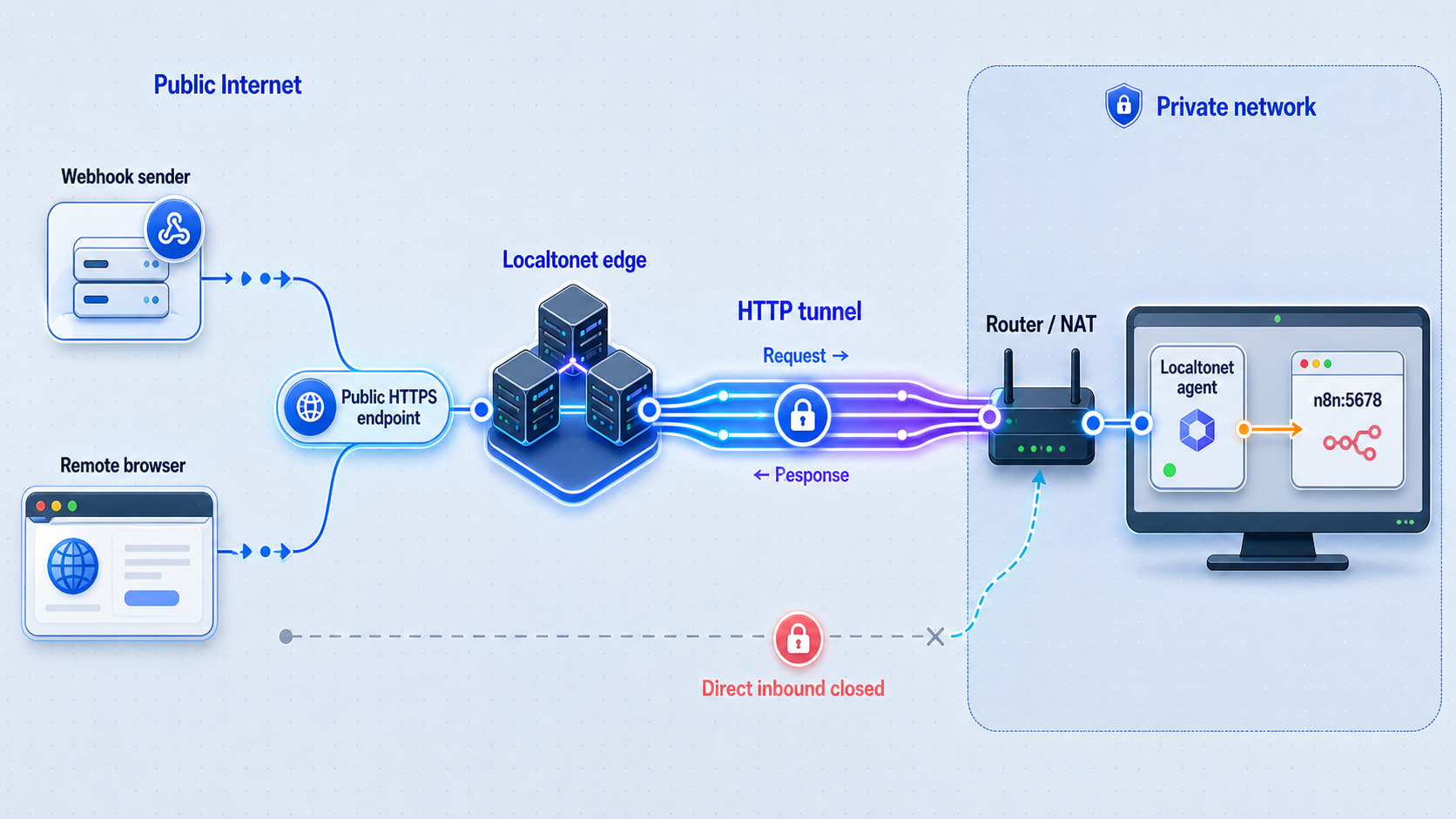
Localtonet exposes a service running on your machine through a public URL without inbound router port forwarding, firewall changes, VPN setup, or a public IP address. The Localtonet client establishes the outbound relay connection. For this deployment, the HTTP tunnel’s local target is 127.0.0.1 on port 5678.
Install the current Localtonet client using the installation option shown for your operating system on the Localtonet website. We do not include an unverified shell installer, authentication command, or service-management command here. Client options can vary by operating system and version.
Install and run the current Localtonet client
Choose the supported Windows, macOS, Linux, Docker, Android, or other current installation path for the device that can reach n8n. Keep the client running while the tunnel is needed.
Select the device AuthToken
In the HTTP tunnel configuration, select the AuthToken associated with the client device running beside n8n. Auth tokens identify devices and must not be copied into articles, logs, screenshots, or workflow data.
Choose an available relay server
Select a currently available server or region from the dashboard. Available values can vary, so do not hardcode a server code from another deployment.
Choose the HTTP Process Type
Select Random Sub Domain, Custom Sub Domain, or Custom Domain according to the options currently available to your account. These process types publish the same local HTTP service at a public HTTPS address. Check current DNS instructions before configuring a custom domain.
Set the local target
Enter 127.0.0.1 as the local IP address and 5678 as the local port. This matches the loopback-only Docker port mapping used earlier.
Create the tunnel, then start it
Save or create the HTTP tunnel configuration. Creation alone does not make the tunnel run. Use the Start button as a separate lifecycle action and wait for the dashboard to show the connected tunnel.
Record and verify the assigned public URL
Open the assigned HTTPS URL in a private browser window and confirm that n8n requires the owner login. Then test a harmless webhook request and inspect the n8n execution. The URL and tunnel remain available only under the current tunnel configuration, plan behavior, connected device, and running state.
Current free-plan information lists a 30-minute tunnel timeout. Plan capabilities and URL options can change. A production webhook depends on the n8n containers, Localtonet client, selected device connection, and tunnel all being available. If a public hostname changes, update WEBHOOK_URL and every provider registration that uses it.
Configure n8n’s public webhook base URL
Once the public URL is known, add n8n’s documented public URL settings to the n8nWEBHOOK_URL.
environment:
  WEBHOOK_URL: https://your-assigned-public-hostname/
  N8N_EDITOR_BASE_URL: https://your-assigned-public-hostname/
  N8N_PROXY_HOPS: "1"
Keep all existing database, timezone, encryption-key, and runner variables in the service. Validate and recreate the n8n container so the new environment is applied:
docker compose config
docker compose up -d n8n
docker compose logs --tail=100 n8n
Proxy-hop values must represent the actual trusted proxy topology. The value 1 applies to the single relay layer described here. If you add another reverse proxy, do not increase the value without reviewing n8n’s current proxy guidance and the headers supplied by every hop.
Verify local and public behavior
- Confirm
http://127.0.0.1:5678still works from the host. - Confirm the public HTTPS URL shows the n8n login, not the owner-creation screen.
- Open a Webhook node and verify that its generated production URL uses the public hostname.
- Start a test listener and send a harmless test event through the public test URL.
- Publish or activate the workflow, send an authenticated event to the production URL, and verify one expected execution.
- Send an invalid signature and verify that the workflow rejects it before any side effect.
- Stop the Localtonet tunnel and verify the public endpoint becomes unavailable while local n8n remains reachable.
- Start the tunnel again and recheck the assigned URL before relying on provider delivery.
Stop the tunnel when public access is no longer required. Delete it when the endpoint should no longer exist. Stopping preserves a configuration for later use, while deletion removes the tunnel configuration. Exact retention of hostnames and plan behavior must be checked in the current dashboard.
Back up and restore n8n completely
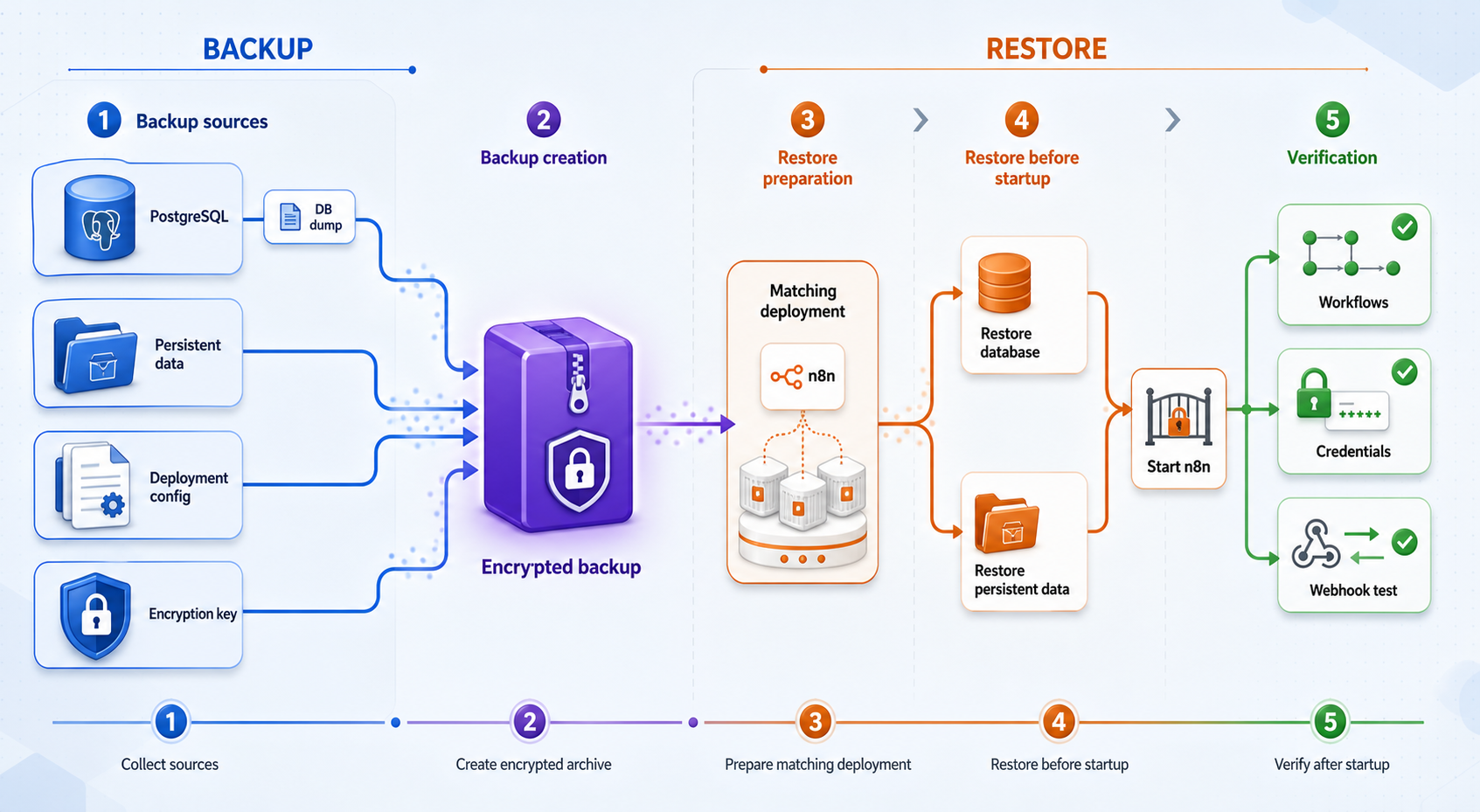
Workflow exports are useful for portability, but they are not a complete disaster-recovery backup. A recoverable deployment needs a consistent PostgreSQL backup, the persistent n8n data directory, the exact deployment configuration, and the matching encryption key. Provider-side webhook registrations and external credentials should also be documented because they are not recreated merely by restoring a container.
| Backup item | Why it matters | Protection requirement |
|---|---|---|
| PostgreSQL dump | Contains workflows, credentials, users, and application state | Encrypt off-device and retain according to recovery policy |
| n8n data volume | Contains persistent instance data outside the database | Capture consistently and restrict access |
| Encryption key | Required to decrypt stored credentials | Store in a password manager or secrets vault, separately from routine backup folders |
| Compose configuration | Records versions, volumes, and deployment topology | Keep a reviewed copy without publishing secrets |
| Provider configuration | Records webhook URLs, event subscriptions, and signing-secret ownership | Keep in protected operational documentation |
Create a protected PostgreSQL backup
Create a private backup directory and produce a PostgreSQL custom-format dump. The command reads database settings from the Compose environment rather than embedding the password in a script.
umask 077
mkdir -p ~/n8n-backups
cd ~/n8n-self-hosted

docker compose exec -T postgres \
  pg_dump -U n8n -d n8n -Fc \
  > ~/n8n-backups/n8n-$(date +%F).dump

chmod 600 ~/n8n-backups/n8n-$(date +%F).dump
Copy the dump to encrypted off-device storage. Define retention based on how far back you may need to recover. Deleting old backups too aggressively can preserve a recent corruption while removing the last known-good recovery point.
Back up the n8n data volume
For the clearest single-host snapshot, schedule a maintenance window, stop n8n, and archive the data volume. PostgreSQL can remain available while the logical dump is produced, but stopping n8n prevents application files from changing during the archive.
cd ~/n8n-self-hosted
docker compose stop n8n

docker run --rm \
  -v n8n-self-hosted_n8n_data:/source:ro \
  -v "$HOME/n8n-backups:/backup" \
  alpine \
  tar -czf /backup/n8n-data-$(date +%F).tar.gz -C /source .

docker compose start n8n
chmod 600 ~/n8n-backups/n8n-data-$(date +%F).tar.gz
Compose volume names can differ when a custom project name is used. Confirm the actual name with docker volume ls before running the archive command. Do not assume the example volume name is correct on every host.
The environment file contains the database password and encryption key. Keep a secure recovery copy in an encrypted secrets system with access logging and restricted permissions. A backup archive and its decryption credentials should not be stored together in the same unprotected location.
Restore PostgreSQL and the n8n data volume
Test restoration on an isolated host or isolated Compose project. Do not point provider webhooks at the restore test, and do not let both the production and restored instance process the same scheduled or queued work.
cd ~/n8n-self-hosted
docker compose down

docker volume create n8n-self-hosted_n8n_data

docker run --rm \
  -v n8n-self-hosted_n8n_data:/restore \
  -v "$HOME/n8n-backups:/backup:ro" \
  alpine \
  tar -xzf /backup/n8n-data-YYYY-MM-DD.tar.gz -C /restore

docker compose up -d postgres

docker compose exec -T postgres \
  dropdb -U n8n --if-exists n8n

docker compose exec -T postgres \
  createdb -U n8n n8n

docker compose exec -T postgres \
  pg_restore -U n8n -d n8n --clean --if-exists \
  < ~/n8n-backups/n8n-YYYY-MM-DD.dump

docker compose up -d n8n
Restore the exact matching encryption key through your secrets process before starting n8n. Then verify owner login, credential decryption, workflow visibility, representative test executions, and webhook signature rejection. A successful archive extraction is not a successful recovery test.
What workflow exports are for
n8n CLI workflow and credential exports can support migration or selective recovery, but command flags and credential-export behavior should be checked against the installed n8n 2.x version before use. Decrypted credential exports create plaintext secrets and should normally be avoided. They are not a substitute for a database dump, data-volume backup, encryption-key recovery, and restore test.
Update n8n with migration and rollback planning
Do not deploy an unpinned latest image directly to production. n8n startup can apply database migrations, and downgrading an application image does not necessarily reverse those migrations. A safe update is a change procedure, not only an image pull.
Choose an explicit stable version
Review the n8n release notes, migration guidance, task-runner changes, deprecations, and security fixes. Record the current and target versions.
Create and test a pre-upgrade backup
Capture PostgreSQL, the n8n data volume, configuration, and the matching encryption key. Restore them in isolation before the production maintenance window when the change is significant.
Validate the target version in staging
Run representative workflows, credential connections, Code nodes, task runners, schedules, and signed webhooks. Confirm that deprecated environment variables and nodes are handled.
Change the pinned version and deploy
Update N8N_VERSION in the protected environment file, pull the selected image, and recreate n8n.
cd ~/n8n-self-hosted
docker compose pull n8n
docker compose up -d n8n
docker compose logs --tail=200 n8n
docker compose exec n8n n8n --versionVerify and preserve rollback options
Check owner login, workflows, credentials, schedules, runners, public URLs, and signed webhook delivery. If rollback is required after a database migration, restore the pre-upgrade database and data volume together before starting the previous image.
Troubleshooting n8n and Localtonet
| Problem | Likely area | Checks and corrective action |
|---|---|---|
| Local page does not open | Container or port binding | Run docker compose ps, inspect docker compose logs n8n, and confirm port 5678 is listening on 127.0.0.1. |
| n8n cannot connect to PostgreSQL | Database health or credentials | Check PostgreSQL health and logs. Confirm the database values supplied to both services match. Changing the initial PostgreSQL password in the environment does not necessarily rewrite an existing database volume. |
| Credential cannot be decrypted | Encryption key mismatch | Stop the application and restore the exact key paired with the database. If the key is irretrievably lost, affected credentials generally must be recreated. |
| Webhook URL shows localhost | Public URL configuration | Set WEBHOOK_URL to the assigned public HTTPS base URL, recreate n8n, and reopen the Webhook node. |
| Test URL works but production does not | Workflow lifecycle | Confirm the workflow is published or active under the terminology used by your n8n 2.x release. Verify that the provider registered the production path. |
| Public URL times out | Tunnel lifecycle | Confirm the Localtonet client is connected, the correct device AuthToken is selected, and the tunnel was started after creation. Check current plan timeout behavior. |
| Public login works but provider delivery fails | Authentication or path | Confirm edge authentication is not challenging the provider, verify the exact webhook path and method, and inspect provider delivery diagnostics without exposing secrets. |
| Valid provider events fail signature verification | Raw body or secret mismatch | Confirm the endpoint uses the correct signing secret and preserves the exact bytes required by the provider. Check timestamp tolerance and avoid parsing or rewriting the body before verification. |
| One event causes duplicate actions | Provider retries | Implement idempotency using the provider event identifier and make the operation safe to retry. |
| Code node behaves differently after upgrade | Task runner or runtime change | Review the target release notes and current runner deployment guidance. Reproduce the issue in staging before changing production isolation settings. |
| Restore starts but credentials fail | Incomplete recovery set | Verify that the database dump, n8n data archive, deployment version, and encryption key belong to the same recovery point. |
Container inspection commands
cd ~/n8n-self-hosted
docker compose ps
docker compose logs --tail=200 n8n
docker compose logs --tail=200 postgres
docker compose exec n8n n8n --version
docker compose config
Remove secrets before sharing logs or rendered Compose output. docker compose config can expand values from the environment file, so treat its output as sensitive.
Frequently asked questions
Is self-hosted n8n free for every commercial use?
Do not assume so. n8n uses a sustainable-use licensing model rather than a standard unrestricted open-source license. Review the current license and n8n’s licensing guidance for your exact use, especially if customers will access n8n itself or if you plan to sell hosted n8n functionality.
Must every production n8n installation use PostgreSQL?
No. SQLite can be suitable for smaller single-instance deployments. PostgreSQL is used in this guide because it provides a conventional logical backup path and supports growth toward more advanced topologies. Queue and multi-worker deployments have additional requirements that should be checked in current n8n documentation.
Does self-hosting guarantee that workflow data never leaves my server?
No. You control the n8n application and database, but workflows can send data and credentials to configured external APIs, AI services, databases, email systems, and other destinations. Review every node, credential, and data path.
Why bind Docker to 127.0.0.1 instead of using 5678:5678?
A mapping such as 5678:5678 commonly publishes the service on all host interfaces. The mapping 127.0.0.1:5678:5678 limits direct host access to loopback, which is a safer default when Localtonet is the intended public entry point.
Does the Localtonet tunnel expose only n8n webhook routes?
No. An HTTP tunnel to n8n’s port can make the complete application available through the public hostname. Complete owner setup first, protect editor accounts, apply compatible Localtonet access controls, and design a separate path-filtering architecture if your security model requires webhook-only publication.
Is a Localtonet public URL permanent?
Do not assume permanence. Availability and hostname behavior depend on the selected Process Type, plan, connected client, and running tunnel. Current free-plan information lists a 30-minute timeout. Check the dashboard before registering an endpoint for production use.
Are workflow JSON exports a complete n8n backup?
No. A complete recovery plan includes the database, n8n data directory, matching encryption key, versioned deployment configuration, and provider-side operational details. Exports are useful for migration and selective recovery, but they do not replace a tested disaster-recovery restore.
Can I run this deployment on a Raspberry Pi?
It may work on supported 64-bit ARM hardware when the selected n8n and PostgreSQL images support that architecture, but suitability depends on workload, storage, memory, and concurrency. Verify current image architecture support and test your workflows instead of relying on an invented hardware minimum or a legacy service file.
Publish your verified n8n endpoint with Localtonet
After owner setup, local validation, signature checks, and backups are complete, use a Localtonet HTTP tunnel to give n8n a public HTTPS endpoint without inbound router port forwarding or a public IP address. Keep the client connected, start the tunnel explicitly, and stop it when public access is no longer needed.
Get Started Free →

