

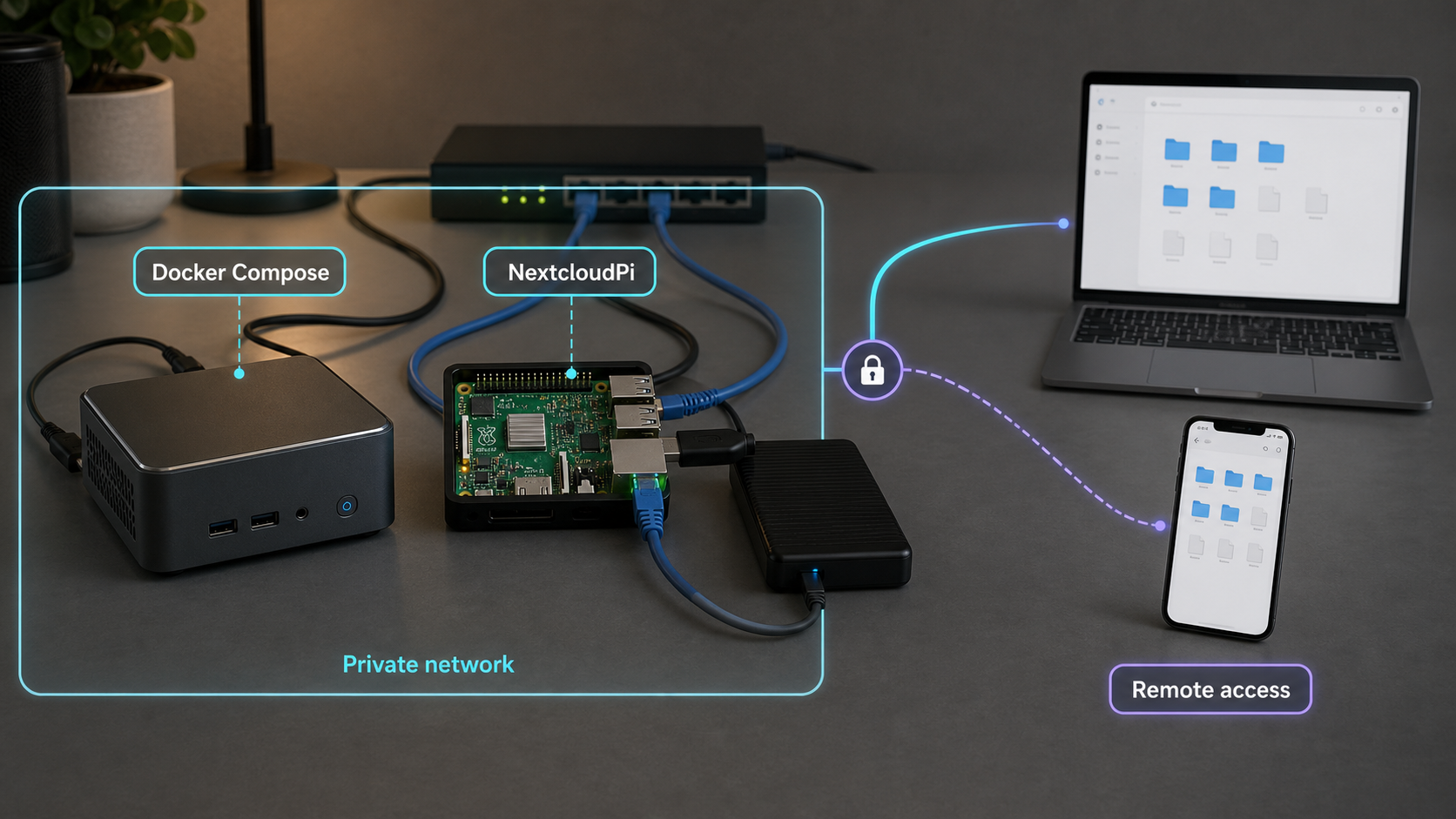
Build a private cloud on your own hardware, then publish it without opening router ports
Nextcloud provides file synchronization, sharing, calendars, contacts, and an extensible collaboration platform that you operate on your own server. This guide builds a controlled Docker Compose deployment with MariaDB, Redis, background jobs, loopback-only local access, backups, updates, and external storage planning. It also explains the current NextcloudPi image situation and shows how to connect the finished service to a public HTTPS endpoint through Localtonet without inbound port forwarding or a public IP address.
📋 What's in this guide
Understand the architecture before installing
Nextcloud is an open-source server application for storing, synchronizing, and sharing files. It can also support calendars, contacts, collaborative applications, and other functions through its app ecosystem. Self-hosting gives you control over the server, accounts, storage, updates, and backup policy, but it does not automatically guarantee privacy, regulatory compliance, availability, or security. Those outcomes depend on how you operate the complete system.
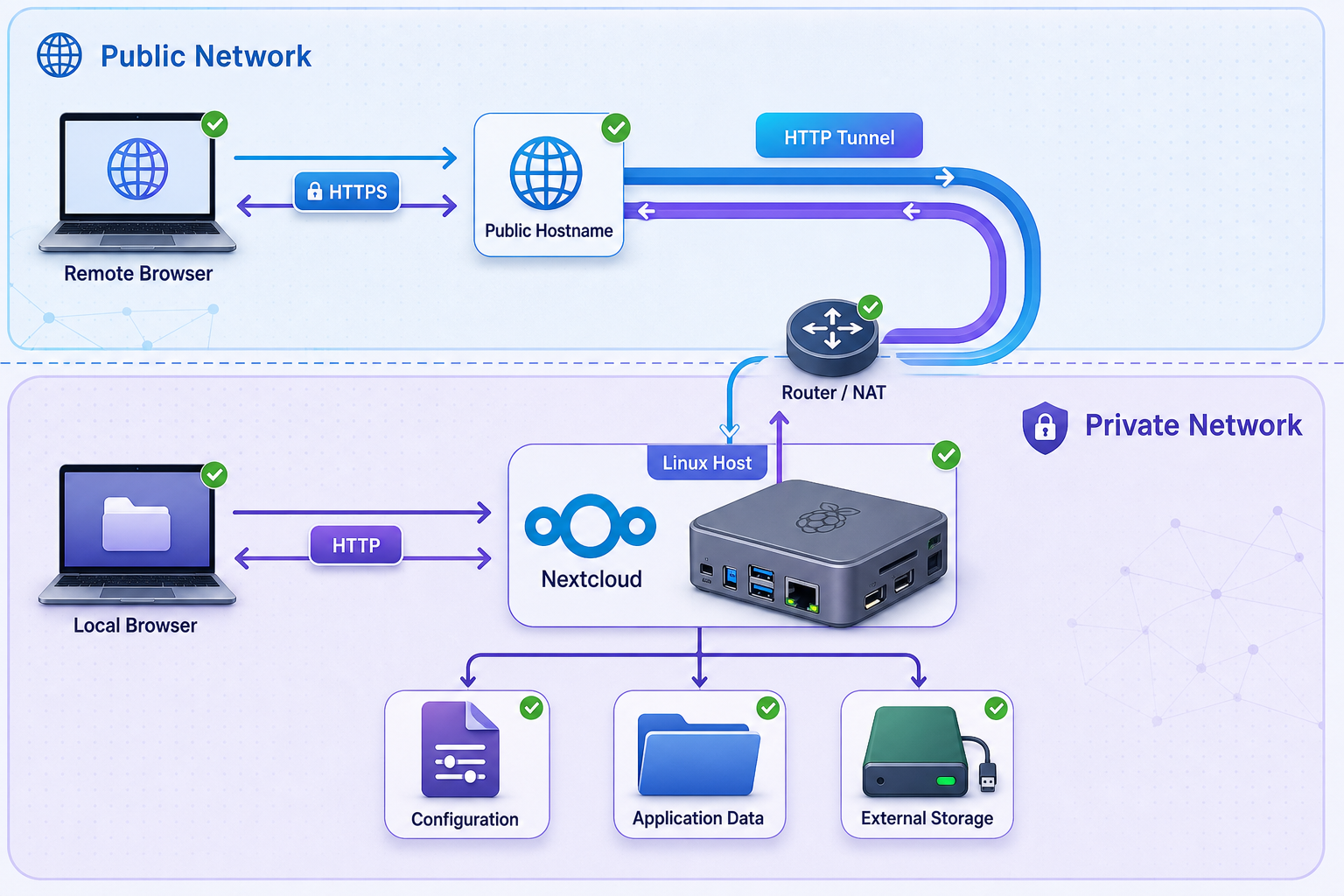
The worked deployment in this guide separates the application into four local components. Nextcloud serves the web interface, MariaDB stores application records, Redis supports caching and file locking, and a cron container runs scheduled Nextcloud background jobs. User files and application state are stored in Docker volumes unless you deliberately configure an external disk.
For remote access, the Localtonet client runs on the host that can reach Nextcloud. It establishes an outbound connection to a Localtonet relay. A remote browser connects to the assigned public HTTPS hostname, the relay forwards the request through that outbound tunnel, and the client sends it to the configured local target.
127.0.0.1:8080 instead of exposing it across the LAN.
| Setting or boundary | What it controls | What it does not control |
|---|---|---|
trusted_domains |
Which hostnames or addresses Nextcloud accepts in incoming requests | It does not authorize forwarding headers or replace user authentication. |
trusted_proxies |
Which specific proxy addresses may provide forwarding headers that Nextcloud trusts | It does not add a public hostname to trusted_domains. |
| Overwrite parameters | How Nextcloud constructs public protocols, hosts, and generated URLs when automatic detection is insufficient | They do not authenticate users and should not be applied globally without checking local access. |
| Localtonet access controls | Additional controls at the tunnel edge where supported by the selected configuration and plan | They do not replace Nextcloud accounts, permissions, strong passwords, or two-factor authentication. |
Choose a supported deployment path and verify prerequisites
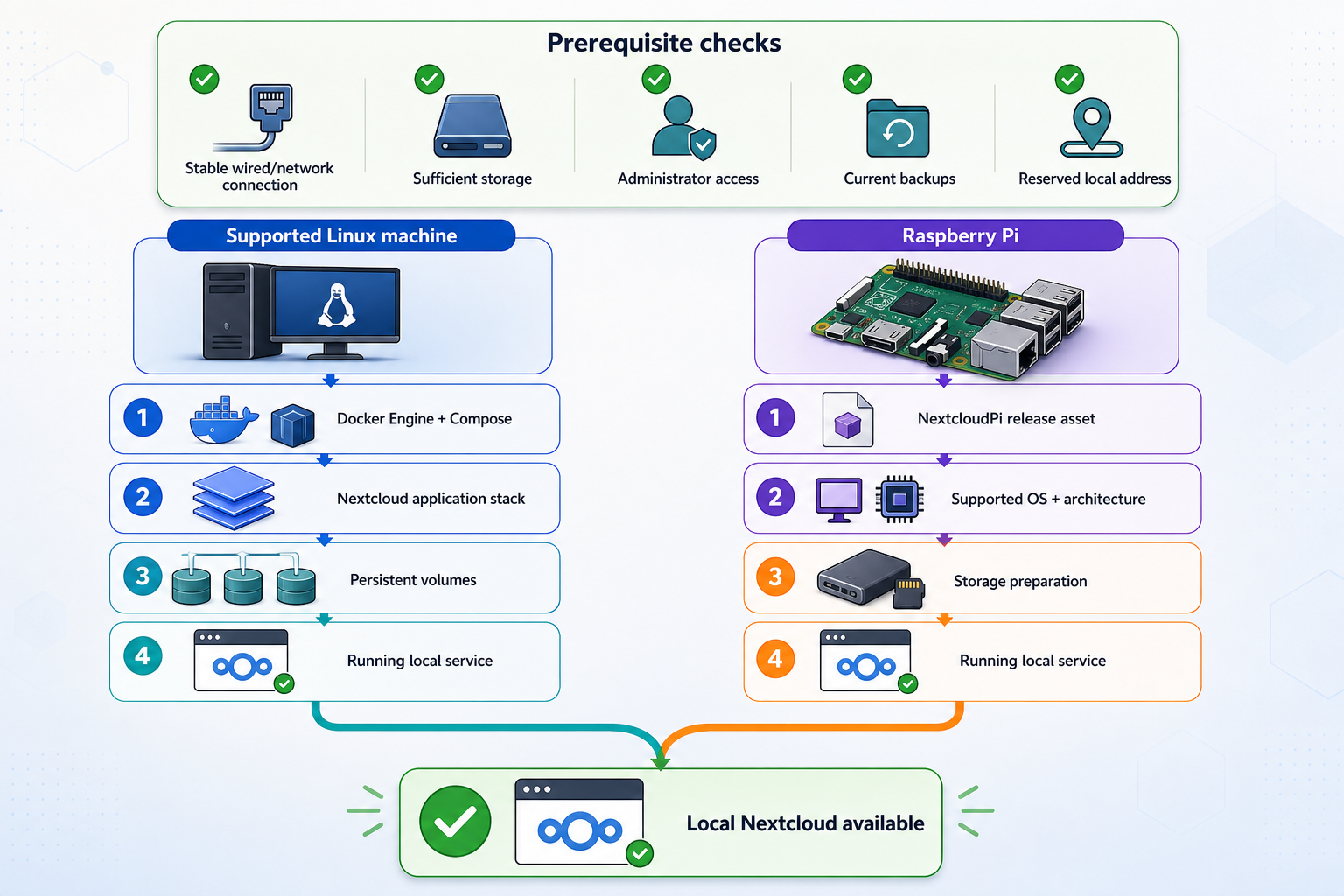
This article provides a complete worked example for Docker Compose on an Ubuntu host supported by Docker Engine. Debian users can use Docker's corresponding Debian repository instructions, but should not mix Ubuntu and Debian repository definitions. Other Linux distributions require their own Docker-supported installation path.
Nextcloud's requirements vary by release and by the applications you enable. Docker Engine requirements vary by host distribution and architecture. MariaDB and Redis have their own supported platforms and resource needs. For that reason, there is no universal two-core, 2 GB, or 64-bit minimum that is authoritative for every Nextcloud installation.
| Requirement | How to determine it | Planning guidance |
|---|---|---|
| Host operating system | Choose a release supported by Docker Engine and still receiving operating-system security updates. | The commands below use Docker's Ubuntu repository. Use Docker's Debian instructions on Debian. |
| CPU architecture | Confirm that every selected container image publishes an image for the host architecture. | Do not assume a Docker image requires 64-bit solely because it runs on a Raspberry Pi. |
| Memory and CPU | Base capacity on concurrent users, preview generation, search, office integration, photo processing, and other enabled apps. | Monitor the real workload and leave capacity for the database, Redis, updates, and backups. |
| Storage | Allow space for user data, versions, deleted files, previews, the database, logs, temporary uploads, and backups. | Backups should be kept separately from the primary host, not on the same disk alone. |
| Network | The host must reach Docker registries, update sources, and the selected Localtonet relay. | A public IP and inbound port forwarding are not required for the Localtonet workflow. |
Before continuing, prepare a maintained Linux host, an administrator account with sudo, sufficient persistent storage, and a separate backup destination. You also need a Localtonet account and a supported Localtonet client for the host. The Localtonet device token is device-specific and must be treated as a secret.
A tunnel avoids opening an inbound router port, but the assigned endpoint can still receive internet traffic. Nextcloud authentication remains mandatory. Use strong unique credentials, create normal non-administrator accounts for routine use, enable two-factor authentication where appropriate, keep all components updated, and apply Localtonet access controls where they are available for your tunnel and plan.
Install Nextcloud with Docker Compose
Install Docker from its supported repository
Docker's convenience script is intended to simplify some installations, but it is not the best default for a maintained production-like server because it reduces visibility into repository and package setup. For Ubuntu, use Docker's official apt repository. The following sequence installs the repository key, adds the repository for the current Ubuntu codename, and installs Docker Engine with the Compose plugin.
sudo apt-get update
sudo apt-get install -y ca-certificates curl
sudo install -m 0755 -d /etc/apt/keyrings

sudo curl -fsSL https://download.docker.com/linux/ubuntu/gpg \
  -o /etc/apt/keyrings/docker.asc
sudo chmod a+r /etc/apt/keyrings/docker.asc

echo \
  "deb [arch=$(dpkg --print-architecture) signed-by=/etc/apt/keyrings/docker.asc] https://download.docker.com/linux/ubuntu \
  $(. /etc/os-release && echo "$VERSION_CODENAME") stable" \
  | sudo tee /etc/apt/sources.list.d/docker.list > /dev/null

sudo apt-get update
sudo apt-get install -y docker-ce docker-ce-cli containerd.io \
  docker-buildx-plugin docker-compose-plugin

sudo docker run --rm hello-world
sudo docker compose version
If the host is Debian, follow the same repository-based model using Docker's Debian repository and key rather than substituting Ubuntu packages. Docker documents both paths in its Docker Engine installation documentation.
Membership in the Docker group generally provides root-equivalent control over the host. This guide retains sudo docker in administrative commands instead of automatically adding an interactive user to that group.
Create the project and secret environment file
The example pins Nextcloud to major release 33 rather than using a floating stable tag. This prevents an ordinary image pull from silently crossing into a later Nextcloud major release. MariaDB and Redis are also assigned explicit release lines. Before deploying, confirm that the selected tags remain available and supported for your host architecture.
sudo install -d -m 0750 -o "$USER" -g "$USER" /opt/nextcloud
cd /opt/nextcloud

openssl rand -base64 36
openssl rand -base64 36
openssl rand -base64 36
Run the random-generation command separately for the database root password, Nextcloud database password, and initial administrator password. Create .env, substitute the generated values, and restrict access to the file:
cat > .env <<'EOF'
MYSQL_ROOT_PASSWORD=replace_with_unique_random_root_password
MYSQL_DATABASE=nextcloud
MYSQL_USER=nextcloud
MYSQL_PASSWORD=replace_with_unique_random_database_password
NEXTCLOUD_ADMIN_USER=ncadmin
NEXTCLOUD_ADMIN_PASSWORD=replace_with_unique_random_admin_password
NEXTCLOUD_TRUSTED_DOMAINS=localhost 127.0.0.1
EOF

chmod 600 .env
Do not commit this file to source control or include it in an unencrypted backup. After installation, create a separate non-administrator account for daily use rather than using the bootstrap administrator account for file synchronization.
Create the Compose configuration
services:
  db:
    image: mariadb:11.4
    restart: unless-stopped
    command:
      - --transaction-isolation=READ-COMMITTED
      - --binlog-format=ROW
    env_file:
      - .env
    volumes:
      - db_data:/var/lib/mysql
    healthcheck:
      test: ["CMD-SHELL", "healthcheck.sh --connect --innodb_initialized"]
      interval: 10s
      timeout: 5s
      retries: 12
      start_period: 30s

  redis:
    image: redis:7.4-alpine
    restart: unless-stopped
    command: redis-server --save 60 1 --loglevel warning
    volumes:
      - redis_data:/data

  app:
    image: nextcloud:33-apache
    restart: unless-stopped
    ports:
      - "127.0.0.1:8080:80"
    env_file:
      - .env
    environment:
      MYSQL_HOST: db
      REDIS_HOST: redis
    depends_on:
      db:
        condition: service_healthy
      redis:
        condition: service_started
    volumes:
      - nextcloud_html:/var/www/html
      - nextcloud_data:/var/www/html/data

  cron:
    image: nextcloud:33-apache
    restart: unless-stopped
    entrypoint: /cron.sh
    env_file:
      - .env
    depends_on:
      app:
        condition: service_started
    volumes:
      - nextcloud_html:/var/www/html
      - nextcloud_data:/var/www/html/data

volumes:
  db_data:
  redis_data:
  nextcloud_html:
  nextcloud_data:
The MariaDB health check verifies database initialization before Compose starts the application container. This is materially different from the short depends_on form, which controls startup order but does not by itself prove that MariaDB is ready to accept application traffic.
The web port is published as 127.0.0.1:8080:80. That means only processes on this host can connect through the published port. This is appropriate when the Localtonet client runs on the same machine. If the client runs on another LAN device, loopback will not be reachable. In that topology, bind deliberately to a suitable LAN interface and protect it with host firewall rules rather than automatically exposing it on every interface.
Start and verify the local installation
Validate the Compose file
Render the configuration and catch syntax or interpolation errors before creating containers.
cd /opt/nextcloud
sudo docker compose configPull the pinned images
Record the selected tags in your change log so the deployed versions can be reproduced.
sudo docker compose pullCreate and start the containers
Compose creates the named volumes and starts MariaDB, Redis, Nextcloud, and the cron worker.
sudo docker compose up -dWatch initialization
Do not rely on a fixed two-minute delay. Follow the application and database logs until initialization finishes or a clear error appears.
sudo docker compose ps
sudo docker compose logs --tail=100 db appTest the loopback service
Verify the HTTP service locally before adding a tunnel. A successful response proves that Docker is publishing the intended target.
curl -I http://127.0.0.1:8080
sudo docker compose exec --user www-data app php occ statusConfirm background-job mode
The separate cron container runs the image's cron entrypoint. Set Nextcloud to cron mode and verify that the worker remains running.
sudo docker compose exec --user www-data app php occ background:cron
sudo docker compose ps cron
Use a Raspberry Pi deployment path that matches a real release asset
A Raspberry Pi can host Nextcloud when its architecture, storage, cooling, power supply, operating system, and expected workload are suitable. Avoid universal claims that a particular Pi model is always fast enough or always unusable. Photo indexing, preview generation, office integration, full-text search, and multiple simultaneous users can change resource demands substantially.
There are two distinct approaches: run the same Docker Compose architecture on a Docker-supported Raspberry Pi operating system, or use a downloadable NextcloudPi image that explicitly supports your board. Do not combine instructions from those paths unless the selected project documentation calls for it.
Current NextcloudPi release asset limitation
The v1.58.0 release notes state that downloadable images were omitted because of unresolved build-system issues. The project instructs image users to download an earlier version and upgrade with ncp-update. Do not search for a nonexistent generic v1.58.0 Raspberry Pi image.
The earlier v1.57.1 release publishes a ZIP asset specifically labeled NextcloudPi_RaspberryPi 4+_v1.57.1.zip. That label supports Raspberry Pi 4 and later models covered by the project's notation. It must not be presented as a generic image for every Raspberry Pi model. The release also publishes a checksum for the asset.
Identify the exact board
Confirm the Raspberry Pi model and do not infer compatibility from another model's image.
Inspect the current release assets
Open the NextcloudPi releases page. If the latest release has no images, use an earlier asset only when its filename explicitly matches the board.
Verify the download
Compare the downloaded file against the checksum published with that exact release before extracting or writing it.
Write the extracted image safely
Use an imaging tool that supports the extracted artifact, confirm the destination device, and remember that writing an image erases the selected destination.
Complete the image's activation workflow
Follow the interface and upgrade instructions included with that release. After activation, run the project-directed update from the older image to the current release.
This article does not reproduce an installation script for placing NextcloudPi over an arbitrary existing Raspberry Pi OS installation because the supplied current release evidence does not confirm that path, its supported operating-system matrix, or a current installer URL. Avoid piping an unverified branch script directly into a privileged shell.
Docker Compose on Raspberry Pi
The Docker path can be used only when Docker Engine supports the installed Raspberry Pi operating system and each image tag supports its architecture. Check the image manifests for Nextcloud, MariaDB, and Redis before deployment. Follow Docker's repository instructions for the exact Raspberry Pi operating system rather than assuming the Ubuntu repository commands apply unchanged.
Once those requirements are confirmed, the Compose structure remains the same: database health checking, explicit image release lines, named volumes, a cron worker, and a loopback-bound web port when Localtonet runs on the same Pi. Monitor memory pressure, storage latency, temperature, and available disk space under the actual workload.
Prepare external storage without risking the data directory
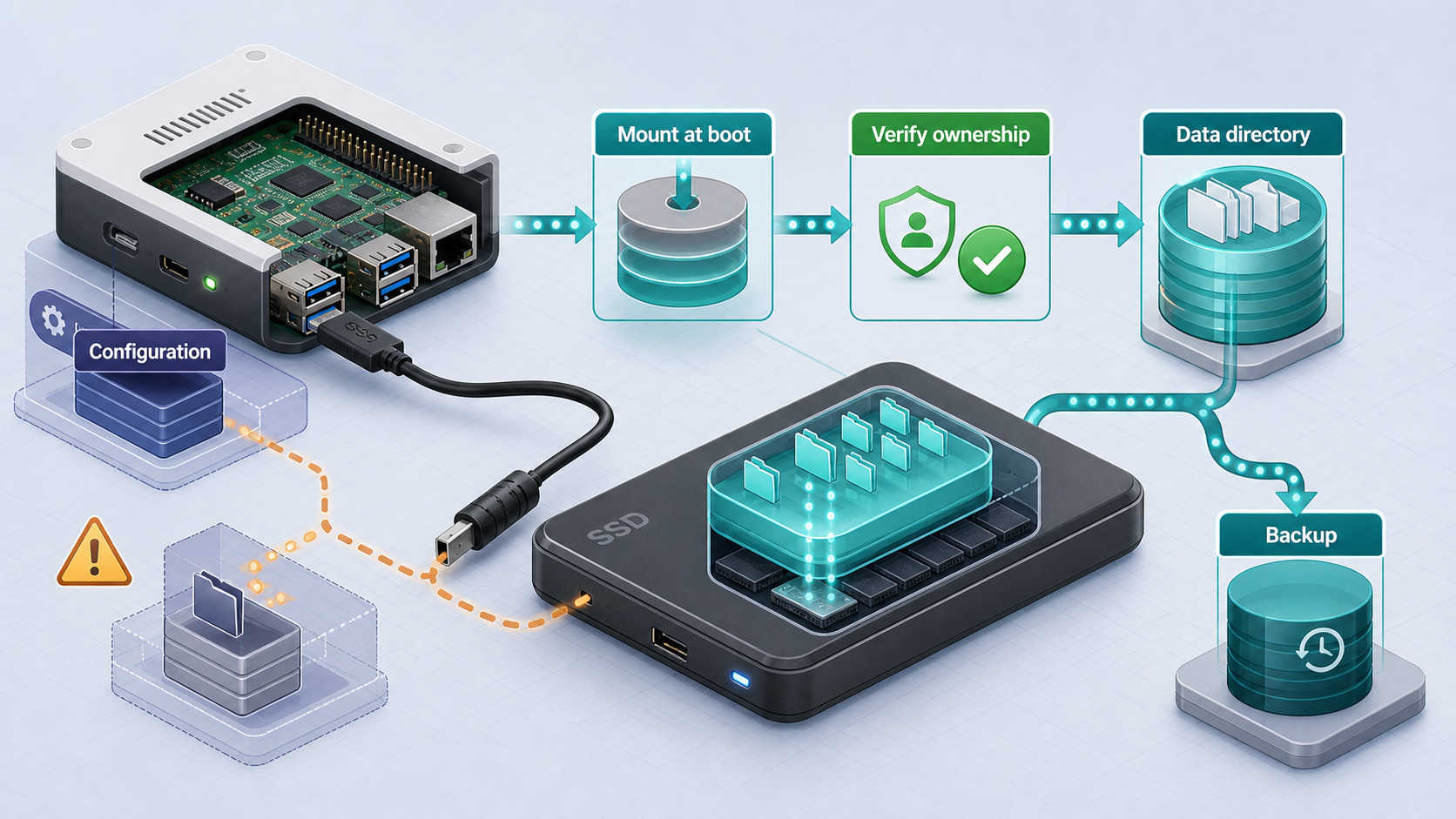
Adding a disk and moving an existing Nextcloud data directory are separate operations. A new installation can start with an empty, correctly mounted directory. An existing installation requires maintenance mode, a consistent copy, ownership preservation, a configuration change, verification, and a rollback plan.
Names such as /dev/sda1 can change and may refer to the wrong disk. Formatting destroys existing data. Identify the filesystem and UUID first, verify backups, and use a stable UUID in /etc/fstab.
Detect and validate the filesystem
lsblk -o NAME,SIZE,FSTYPE,LABEL,UUID,MOUNTPOINTS
sudo blkid
findmnt --verify
If the intended partition has no filesystem, stop and create one only after confirming that the device can be erased. Filesystem selection, encryption, RAID, and recovery design are administrative decisions beyond the tunnel setup. The examples below assume an existing Linux-compatible filesystem whose UUID has already been verified.
sudo install -d -m 0750 /mnt/nextcloud-data
sudoedit /etc/fstab
Add one reviewed entry using the real UUID and filesystem type reported by lsblk. Do not copy this placeholder literally:
UUID=verified-filesystem-uuid /mnt/nextcloud-data ext4 defaults,nofail 0 2Then test the entry before rebooting:
sudo mount -a
findmnt /mnt/nextcloud-data
df -h /mnt/nextcloud-data
sudo touch /mnt/nextcloud-data/.write-test
sudo rm /mnt/nextcloud-data/.write-test
Use the disk for a new installation
Before the first application start, create an empty directory for the bind mount. Determine the numeric identity used by www-data in the selected Nextcloud image rather than assuming it:
cd /opt/nextcloud
sudo mkdir -p /mnt/nextcloud-data/data
sudo docker compose run --rm --no-deps app id www-data
Apply the reported numeric user and group to the new directory, then replace the application's data volume mapping with the verified host path:
volumes:
  - nextcloud_html:/var/www/html
  - /mnt/nextcloud-data/data:/var/www/html/data
The path must be mounted before Nextcloud starts. A missing disk combined with an ordinary local directory at the same mount point can cause the application to write data onto the root filesystem instead.
Migrate an existing Docker data volume
Create and test a full backup first. Then perform a controlled migration during a maintenance window:
cd /opt/nextcloud

sudo docker compose exec --user www-data app \
  php occ maintenance:mode --on

sudo docker compose stop cron app

container_id="$(sudo docker compose ps -aq app)"
sudo mkdir -p /mnt/nextcloud-data/data
sudo docker cp "${container_id}:/var/www/html/data/." \
  /mnt/nextcloud-data/data/

sudo rsync -aHAX --numeric-ids --delete \
  /mnt/nextcloud-data/data/ \
  /mnt/nextcloud-data/data.verify/
The second copy above is an optional verification target, not a replacement for an off-host backup. Compare file counts, sizes, and representative checksums. Apply ownership using the numeric www-data identity reported by the selected image. Change the Compose mapping only after the copy is complete, then start the application and inspect it before removing the original named volume.
sudo docker compose up -d app cron
sudo docker compose exec --user www-data app php occ status
sudo docker compose exec --user www-data app \
  php occ maintenance:mode --off

sudo docker compose logs --tail=100 app
Test uploads, downloads, previews, and an existing user's files. Keep the original volume until the new storage has passed verification and a fresh backup has completed.
Configure hostnames, proxies, and generated URLs correctly
A Localtonet HTTP tunnel does not automatically mean that every private network must be listed in Nextcloud's trusted_proxies. The correct configuration depends on the request path observed by Nextcloud, whether forwarding headers are present, and which address actually supplies them.
Add the assigned public hostname to trusted domains
After Localtonet assigns the real public hostname, add only the hostname, without https:// or a path. First list the current indexed values so you do not overwrite an existing entry:
cd /opt/nextcloud

sudo docker compose exec --user www-data app \
  php occ config:system:get trusted_domains
Choose the next unused numeric index and replace the example with the exact hostname shown by your tunnel:
sudo docker compose exec --user www-data app \
  php occ config:system:set trusted_domains 2 \
  --value="assigned-public-hostname.example"
Keep localhost, 127.0.0.1, or a deliberately configured LAN hostname if you need those access paths. Removing local entries can make local diagnostics unnecessarily difficult.
Trust a proxy only when the observed topology requires it
Inspect the Nextcloud logs and request behavior before setting trusted_proxies. If a proxy supplies forwarding headers that Nextcloud must honor, trust only that proxy's verified address or the narrowest necessary CIDR. Do not trust all of 10.0.0.0/8, 172.16.0.0/12, and 192.168.0.0/16 as a convenience. That authorizes many unrelated private addresses to provide headers that affect client-address and URL interpretation.
Identify the immediate proxy address that Nextcloud sees and confirm which headers arrive. Trusting an unnecessarily broad network can allow another host on that network to spoof proxy-supplied information.
Use overwrite parameters only to correct demonstrated URL problems
Nextcloud can sometimes see the local HTTP side of a tunnel even though the browser used public HTTPS. If generated links, WebDAV endpoints, redirects, or callback URLs incorrectly use HTTP, an overwrite protocol may be required. A global overwritehost can force every generated URL to the public hostname and may disrupt local access.
Test first. If overwrite settings are necessary, preserve local access by applying the narrowest configuration supported by the actual source-address topology. Nextcloud supports conditional overwrite behavior through an address condition. The exact address or expression must come from observed requests, not from a copied private-network range. Record the old configuration before changing it:
sudo docker compose exec --user www-data app \
  php occ config:list system
After any routing change, test the local URL and public URL separately. Confirm that browser redirects, generated share links, WebDAV endpoints, and mobile-client login all use the expected hostname and protocol.
Expose Nextcloud with a Localtonet HTTP tunnel
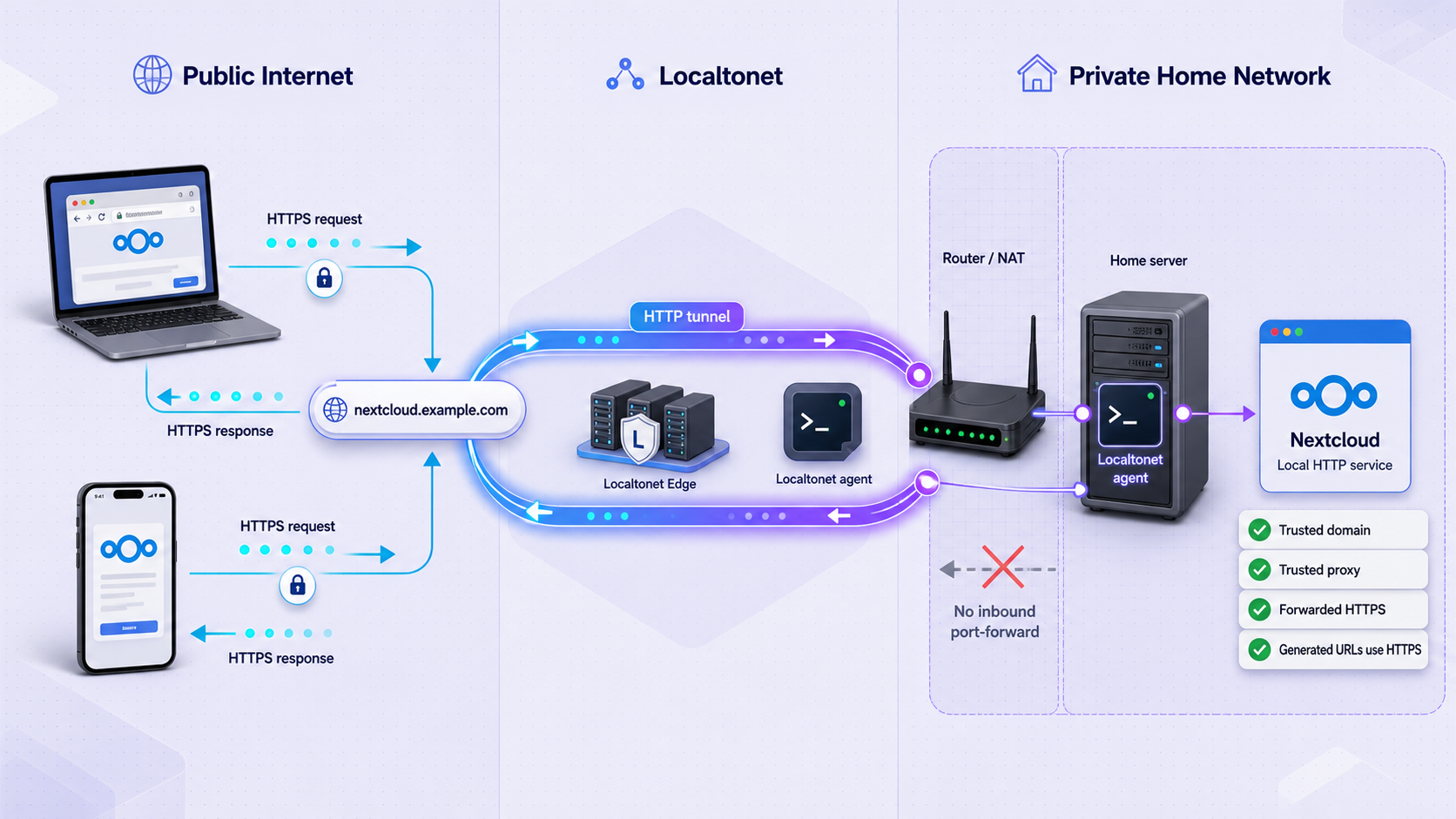
With Localtonet, the client on your device establishes an outbound connection to one of our relay servers. The resulting HTTP tunnel provides a public HTTPS address that forwards to the local Nextcloud service. This avoids inbound router port forwarding, firewall changes, VPN setup, and the need for a public IP address.
Creating a tunnel is not the same as running it. The selected Localtonet client must be connected, and the tunnel must be started. If the client exits, the host loses internet connectivity, or the tunnel is stopped, the public endpoint cannot reach Nextcloud.
Install and run the supported Localtonet client
Use the current Localtonet download or installation path for the host operating system. Run the client on the Nextcloud host when using the loopback-only Docker binding.
Select the device token
In the dashboard, select the device-specific authentication token associated with the connected client. Do not paste the token into documentation, screenshots, shell history, or support messages.
Open the HTTP tunnel configuration
Create an HTTP tunnel for the Nextcloud web application. HTTP is appropriate because the local target is a web service and the public side is presented at an HTTPS address.
Choose Process Type and a relay server
Select Random Sub Domain, Custom Sub Domain, or Custom Domain according to the options currently available to your account. Choose an available relay server from the current dashboard rather than copying a hardcoded server code.
Set the local IP address and port
For the same-host Docker deployment in this guide, use 127.0.0.1 and port 8080. For another installation, use the address and port that you already verified locally from the Localtonet client device.
Create the tunnel
Save the HTTP tunnel configuration. At this point the tunnel exists, but it is not necessarily running.
Start the tunnel and record its hostname
Press Start, confirm that the selected client is connected, and copy the exact assigned public hostname. Add that hostname to Nextcloud's trusted_domains before testing it externally.
You can access the authenticated Localtonet HTTP tunnel page to configure the tunnel. Availability of custom or reserved hostnames, custom domains, continuous operation, timeout behavior, access controls, and other options can vary by plan and current product configuration. Confirm those details in the dashboard rather than assuming that every endpoint is permanently reserved.
Nextcloud can be healthy while its public URL is unavailable because the Localtonet client is disconnected or the tunnel is stopped. Test these as separate layers. Any automatic client startup method must come from the current supported client instructions for your operating system and client version.
Verify local service, public access, and reboot behavior
Verification should prove more than the appearance of the login page. Test the local application first, then the tunnel, then Nextcloud's generated URLs and user workflows.
Verify container and database health
Confirm that all services are running, MariaDB is healthy, and Nextcloud reports an installed version without maintenance mode.
cd /opt/nextcloud
sudo docker compose ps
sudo docker compose exec --user www-data app php occ statusVerify the exact local target
Request the loopback endpoint used by the tunnel and confirm that no unintended all-interface listener exists.
curl -I http://127.0.0.1:8080
sudo ss -lntp | grep 8080Test from an external network
Open the exact public HTTPS hostname from mobile data or another network. This avoids a false positive caused by local DNS or cached sessions.
Inspect administration warnings and logs
Review Nextcloud's Administration Overview and relevant logs for proxy, background-job, database, caching, storage, HTTPS, and security warnings.
sudo docker compose logs --tail=200 app db redis cron
sudo docker compose exec --user www-data app \
php occ log:watchTest generated HTTPS URLs
Create a test share, inspect the generated URL, check WebDAV information, and follow login redirects. They should use the intended public HTTPS hostname without breaking local administration.
Test a normal account or mobile client
Use a non-administrator account to upload, download, rename, and delete a test file. If using a mobile client, confirm login, synchronization, and background upload behavior.
Verify recovery after reboot
Reboot during a planned maintenance window. Confirm that Docker, all Compose services, the Localtonet client, and the selected tunnel return as intended. Do not assume that container restart policies automatically start an unrelated Localtonet client process.
Harden a publicly reachable Nextcloud deployment
A public HTTPS endpoint protects the public transport path, but it does not make weak accounts, outdated applications, excessive permissions, or missing backups safe. Treat Nextcloud as an internet-facing application even though the origin is reached through an outbound tunnel.
Self-hosting can improve control over where data is stored, but compliance depends on governance, access policy, auditability, retention, encryption choices, contracts, incident response, and applicable law. Running Nextcloud on your own hardware does not by itself establish GDPR, HIPAA, or other compliance.
Back up and update Nextcloud safely
Back up all required state
A useful backup set includes the database, Nextcloud configuration, user data, custom applications, themes or other customizations, the Compose file, and a protected copy of the secrets needed for restoration. Store the resulting backup separately from the Nextcloud host. A second directory on the same physical disk is not sufficient protection against disk failure, theft, or host compromise.
The following example uses maintenance mode and an exit trap so an interrupted backup attempts to return Nextcloud to service. It creates a temporary MariaDB option file inside the database container, avoiding a database password in the host command line.
#!/usr/bin/env bash
set -Eeuo pipefail

project="/opt/nextcloud"
destination="/mnt/offhost-backups/nextcloud/$(date -u +%Y%m%dT%H%M%SZ)"
maintenance_enabled=0

cleanup() {
  if [ "$maintenance_enabled" -eq 1 ]; then
    sudo docker compose -f "$project/compose.yaml" \
      --env-file "$project/.env" \
      exec -T --user www-data app \
      php occ maintenance:mode --off || true
  fi
}
trap cleanup EXIT INT TERM

mkdir -p "$destination"
cd "$project"

sudo docker compose exec -T --user www-data app \
  php occ maintenance:mode --on
maintenance_enabled=1

sudo docker compose exec -T db sh -eu -c '
  umask 077
  option_file="$(mktemp)"
  trap "rm -f \"$option_file\"" EXIT
  printf "[client]\nuser=%s\npassword=%s\n" \
    "$MYSQL_USER" "$MYSQL_PASSWORD" > "$option_file"
  mariadb-dump \
    --defaults-extra-file="$option_file" \
    --single-transaction \
    --routines \
    --triggers \
    "$MYSQL_DATABASE"
' > "$destination/nextcloud-database.sql"

sudo docker compose cp app:/var/www/html/config \
  "$destination/config"
sudo docker compose cp app:/var/www/html/data \
  "$destination/data"
sudo docker compose cp app:/var/www/html/custom_apps \
  "$destination/custom_apps"
sudo docker compose cp app:/var/www/html/themes \
  "$destination/themes"

sudo cp compose.yaml "$destination/compose.yaml"
sudo docker compose exec -T --user www-data app \
  php occ status > "$destination/nextcloud-status.txt"

sudo docker compose exec -T --user www-data app \
  php occ maintenance:mode --off
maintenance_enabled=0

printf 'Backup completed: %s\n' "$destination"
If your Compose file is named docker-compose.yml instead of compose.yaml, adjust the script consistently. Protect the backup because Nextcloud configuration and data can contain sensitive information. Back up .env separately using encryption and access controls rather than copying it into an ordinary unencrypted directory.
Perform an explicit restore test
A backup is not proven until it has been restored. Use an isolated host or isolated project name, prevent it from sending notifications to real users, and install the same Nextcloud major release used by the backup.
- Create empty database, HTML, and data volumes using the recorded Compose configuration.
- Restore configuration, custom applications, themes, and data with their original ownership and permissions.
- Import the SQL dump into an empty database using a temporary protected option file.
- Start MariaDB and Redis first, wait for database health, then start Nextcloud.
- Run
occ status, inspect logs, and keep maintenance mode enabled while validating the restored version. - Test representative users, file downloads, shares, previews, installed apps, and background jobs.
- Record the restore duration, missing steps, and recovery point. Correct the backup process before relying on it.
Update one Nextcloud major release at a time
Do not replace nextcloud:33-apache with a floating stable tag. Before an update, confirm the supported upgrade path, application compatibility, database compatibility, available disk space, and current backup status. Prepare rollback by retaining the previous image reference and a restore-tested pre-update backup.
cd /opt/nextcloud

sudo docker compose exec --user www-data app php occ status
sudo docker compose exec --user www-data app php occ app:list
sudo docker compose pull
sudo docker compose up -d
sudo docker compose exec --user www-data app php occ status
sudo docker compose logs --tail=200 app db cron
For a major upgrade, edit both the app and cron image tags to the next supported Nextcloud major only. Do not skip a major release. Follow the version-specific Nextcloud upgrade procedure, confirm that required migrations finish, and test before advancing again.
occ maintenance:repair runs repair steps registered by Nextcloud and installed applications. It should not be described as a generic cache-clearing command. Similarly, occ db:add-missing-indices addresses reported missing database indices and should be used when Nextcloud's administration checks or documented upgrade process calls for it.
| Routine check | Command or location | Purpose |
|---|---|---|
| Application status | sudo docker compose exec --user www-data app php occ status |
Reports installation, version, edition, and maintenance state. |
| Container state | sudo docker compose ps |
Shows running state and database health. |
| Service logs | sudo docker compose logs --tail=200 app db redis cron |
Helps distinguish application, database, cache, and job failures. |
| Configuration review | sudo docker compose exec --user www-data app php occ config:list system |
Displays system configuration for review. Treat the output as potentially sensitive. |
| Administration warnings | Nextcloud Administration Overview | Highlights background jobs, HTTPS, database, caching, and configuration issues. |
| Disk capacity | df -h and docker system df |
Detects pressure on data, database, Docker, and root filesystems. |
Troubleshoot the deployment layer by layer
| Symptom | Likely area | Safe diagnostic path |
|---|---|---|
| Local request to port 8080 fails | Docker service, application initialization, or port binding | Run docker compose ps, inspect app and database logs, and verify the listener with ss -lntp. |
| Database connection errors during startup | MariaDB initialization, credentials, volume state, or compatibility | Check database health and logs. Do not assume ordinary startup ordering proves readiness. |
| Local access works but the public endpoint fails | Disconnected Localtonet client, stopped tunnel, wrong token, relay selection, or wrong target | Confirm the selected client is connected, the tunnel is started, and the local target exactly matches the verified IP and port. |
| “Access through untrusted domain” | Public hostname missing from trusted_domains |
Copy the exact assigned hostname, list existing trusted domains, and add it at an unused index without including the URL scheme. |
| Redirect loop or generated HTTP links | Host, protocol, or proxy-header detection | Inspect the actual request path and headers. Configure only the verified proxy and use conditional overwrite settings where required. |
| Local access redirects to the public hostname | Overly broad global overwritehost |
Remove the unconditional host override or restrict overwrite behavior to the verified proxy source condition. |
| Uploads fail at a particular size | Nextcloud, PHP, web server, tunnel, storage, or client limit | Check Administration Overview, application logs, PHP and Apache settings, free disk space, and current Localtonet plan behavior. Do not change one limit blindly. |
| Permission denied after attaching a disk | Mount ownership, filesystem options, or missing mount | Use findmnt, inspect numeric ownership, confirm the image's www-data identity, and verify that the expected filesystem is mounted. |
| Files copied directly into the data directory do not appear | Unsupported out-of-band file changes or stale file cache | Prefer Nextcloud clients or supported external storage. Use occ files:scan only when the administrative workflow genuinely requires indexing externally added files. |
| Instance remains in maintenance mode | Interrupted backup or upgrade | Review the failed operation and logs first. Disable maintenance mode only after confirming that application and database state are consistent. |
| Public access does not return after reboot | Docker, mount, Localtonet client, or tunnel lifecycle | Verify the external disk mounted, Compose services started, the selected client connected, and the tunnel entered the running state. |
If http://127.0.0.1:8080 fails, fix Nextcloud before changing the tunnel. If local access works but the public hostname fails, investigate the Localtonet client and tunnel. If the login page works but links or redirects are wrong, investigate Nextcloud hostname, proxy, and overwrite settings.
Frequently asked questions
Can I access Nextcloud without a static public IP?
Yes. The Localtonet client creates an outbound connection to a relay and provides a public URL for the tunnel. This workflow does not require an inbound public IP, router port forwarding, or firewall changes. The client must remain connected and the tunnel must remain running.
Is the Localtonet public hostname permanent?
Do not assume permanence. Generated or reserved hostname behavior, custom subdomains, custom domains, timeout behavior, and continuous operation can vary by Process Type, plan, client version, and current product configuration. Confirm the selected hostname and lifecycle behavior in the dashboard.
Does Nextcloud always need trusted_proxies when used with Localtonet?
No. The requirement depends on the observed proxy and header topology. Add a trusted proxy only when a specific verified proxy supplies forwarding headers that Nextcloud must trust. Use the narrowest verified address or CIDR and never trust every private network merely as a precaution.
Why is Nextcloud bound to 127.0.0.1 instead of every interface?
The Localtonet client runs on the same host in this tutorial, so it can reach 127.0.0.1:8080. A loopback binding avoids unnecessarily publishing Nextcloud to the entire LAN. If the Localtonet client runs on another device, use a deliberately selected LAN binding and suitable firewall policy.
Can I use the latest NextcloudPi image on any Raspberry Pi?
No. NextcloudPi v1.58.0 has no downloadable images. The earlier v1.57.1 release includes a ZIP specifically labeled for Raspberry Pi 4 and later. Use only an asset that explicitly matches your board, verify its published checksum, and follow the release's upgrade instructions.
Can I move the Nextcloud data directory by editing Compose?
Not safely for an existing installation without migration. Enter maintenance mode, stop application writers, copy data consistently while preserving ownership, update the volume mapping, verify the mount, restart, test representative files, and retain the original volume until the new storage and backup have been validated.
Does an HTTPS tunnel make Nextcloud secure by itself?
No. HTTPS protects the public transport path, but Nextcloud still needs strong authentication, least-privilege accounts, two-factor authentication where appropriate, brute-force protections, timely updates, careful sharing permissions, monitoring, and a restore-tested off-host backup. Localtonet access controls can add another layer where available, but they do not replace Nextcloud security.
How should I upgrade a pinned Nextcloud container?
Back up and test restoration first. Apply supported minor updates within the current release, then change both application and cron image tags to the next supported major when performing a major upgrade. Never skip a major release. Check application compatibility, run the documented upgrade process, inspect logs, and verify users and files before continuing.
Connect your verified Nextcloud service with Localtonet
Once Nextcloud works on its local IP and port, create an HTTP tunnel, select the connected device and an available relay, start the tunnel, and test the assigned HTTPS hostname from an external network.
Get Started Free →

