

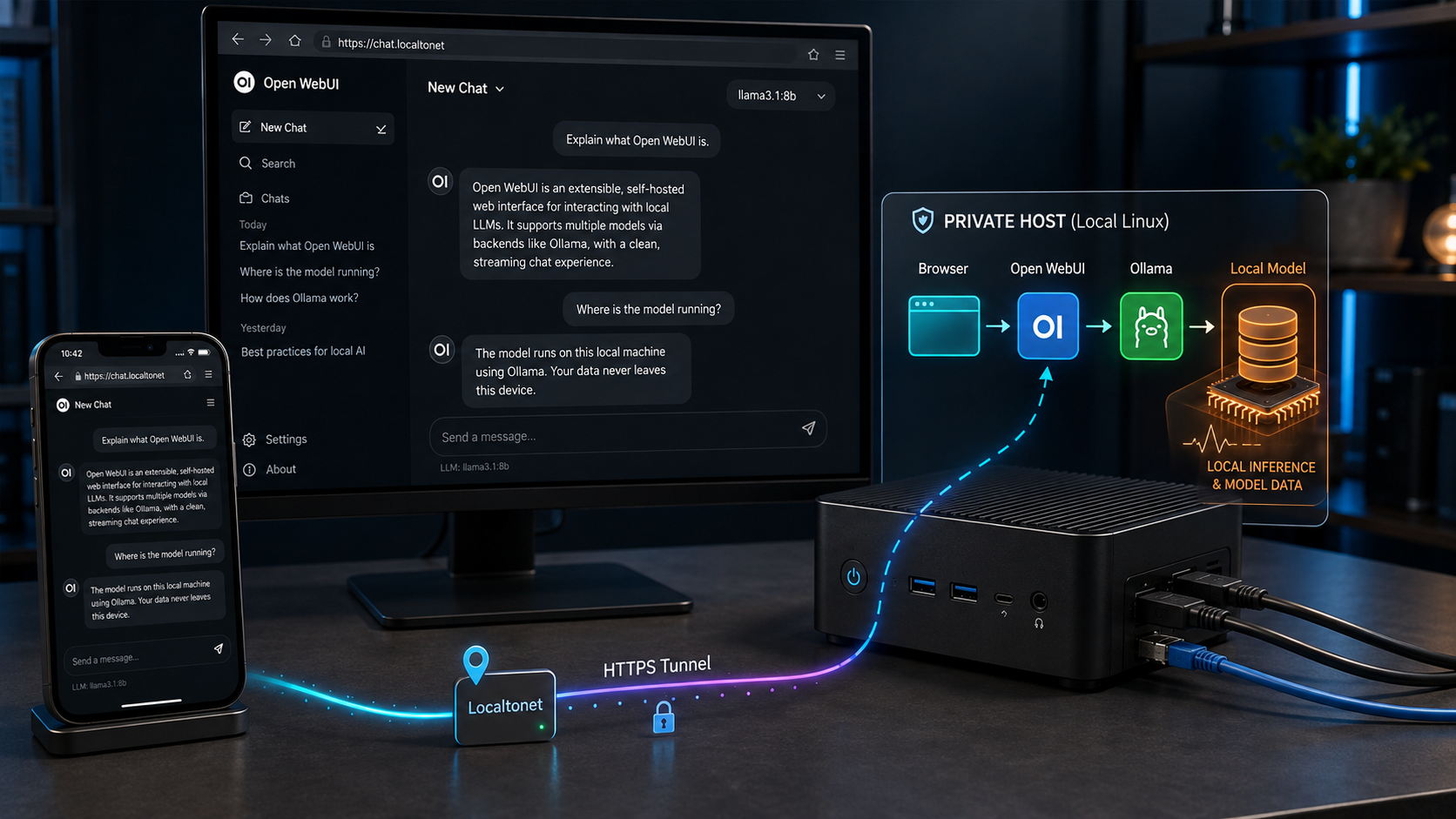
Run a familiar AI chat interface on hardware you control
Open WebUI can provide a browser-based interface for models served by Ollama, while Docker gives the application a repeatable deployment and persistent storage. This guide covers two architectures: host-installed Ollama with Open WebUI in Docker, and a Docker Compose stack containing both services. It also explains local verification, privacy boundaries, backups, updates, security hardening, troubleshooting, and optional remote access through a Localtonet HTTP tunnel.
📋 What's in this guide
Understand the architecture and privacy boundaries
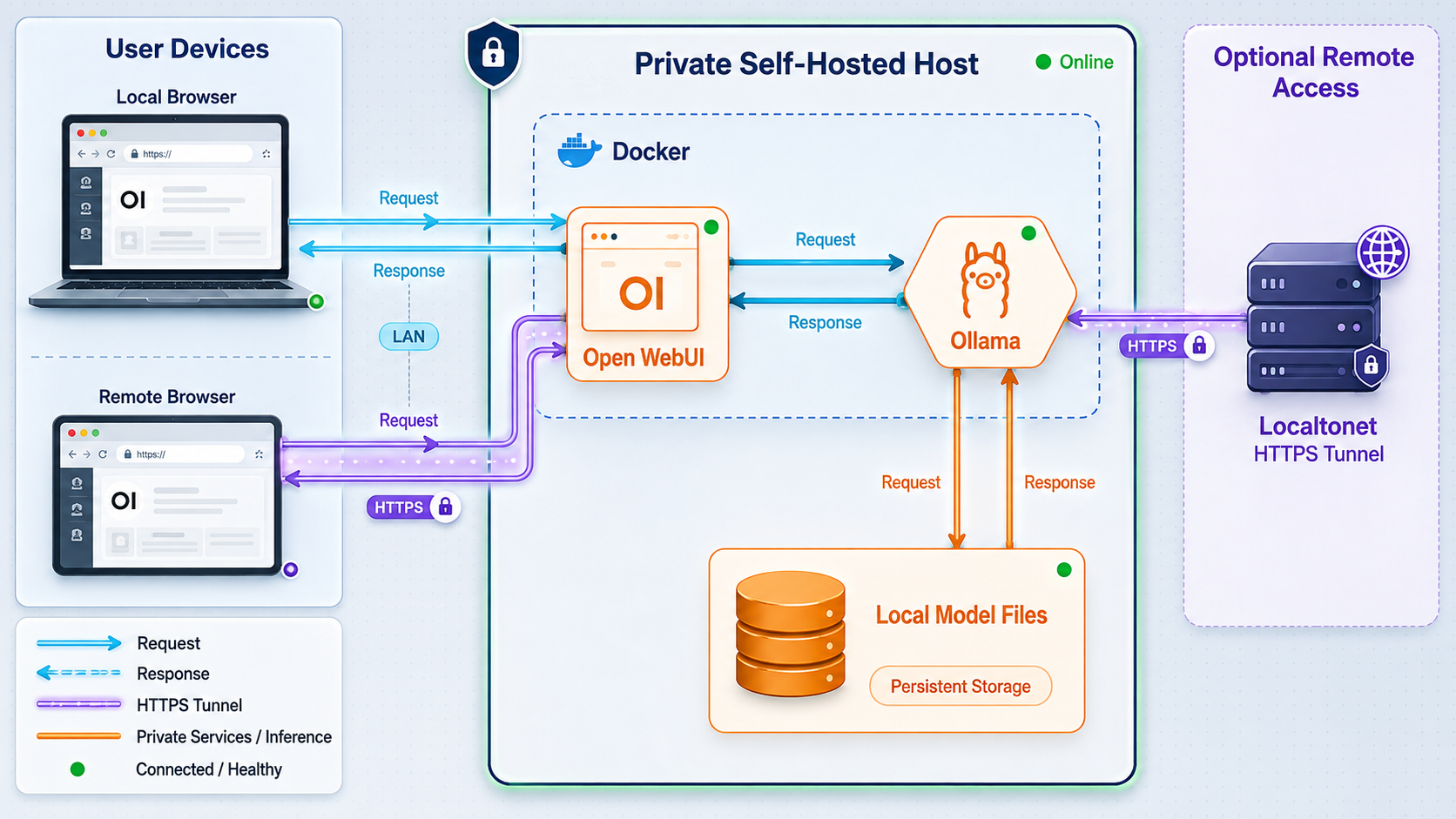
Open WebUI is a self-hosted web application for interacting with language models. Ollama is the model-serving component in this tutorial. Open WebUI provides the browser interface, account and conversation storage, and the connection to the model service. Ollama loads a compatible model and performs inference on the CPU, GPU, or another accelerator supported by the host and the selected Ollama installation.
Self-hosting gives you control over where these components run, but it does not automatically mean every byte remains on the host. The actual data path depends on how you configure the application and how you access it.
127.0.0.1:3000. Open WebUI sends model requests to the local Ollama service.
A useful trust-boundary model is to treat the browser, the Localtonet relay, Open WebUI, Ollama, persistent volumes, and every optional integration as separate components. Remote traffic through Localtonet traverses our relay infrastructure before reaching the outbound client connection. Localtonet provides the public HTTPS address, but using a managed relay is not the same as keeping the complete network data path on one machine.
Review each enabled connection and tool. A local Ollama model can still be given information returned by an external search service, and a cloud model connection necessarily sends requests to that provider. Uploaded documents may also be transmitted if a tool, connector, or cloud model processes them. Do not submit sensitive material until you understand every active data path and the applicable provider policies.
Choose between the two deployment paths
| Path | Best fit | Important networking detail |
|---|---|---|
| Ollama on the host, Open WebUI in Docker | Desktop installations, especially when native Ollama has direct access to supported host acceleration | The container must be able to reach Ollama on the host. Host addressing and Ollama binding behavior vary by operating system. |
| Ollama and Open WebUI in Docker Compose | A contained, repeatable two-service deployment | Open WebUI reaches Ollama over the private Compose network. Ollama does not need a published host port. |
| Ollama on another trusted LAN host | Separating the lightweight interface from a more capable inference machine | The Ollama endpoint must be deliberately exposed on the trusted network and restricted by host firewall policy. |
This guide uses loopback-only publication for Open WebUI. Docker syntax such as -p 3000:8080 normally publishes the port on all host interfaces. That can make the application reachable from the local network and possibly from other routed networks, depending on the host firewall. The safer default used below is -p 127.0.0.1:3000:8080.
Plan the host, storage, model, and network
Complete the following checks before downloading a model. Large model files and container images can consume substantial storage, and a model that does not fit available memory may fail to load or run too slowly for interactive use.
Supported host environment
- Operating system: use a current Linux, macOS, or Windows host that is supported by both your Docker distribution and the Ollama package you intend to install.
- Docker: install Docker Engine with the Compose plugin on a supported Linux host, or a current Docker Desktop release on macOS or Windows.
- Ollama: use the current installer from the official Ollama download page. The current macOS download requires macOS 14 Sonoma or later.
- Browser: use a current browser for first-run setup and local verification.
- Localtonet: remote access requires the Localtonet client running on a device that can reach the loopback-bound Open WebUI port.
Confirm Docker and Docker Compose work before continuing:
docker version
docker compose version
If either command fails, finish the Docker installation first. On Linux, also verify that the current account has permission to use Docker, or run Docker through the administrative method approved for that host. Membership in a Docker administration group is security-sensitive because it can grant broad control over the machine.
Memory and model selection
Model requirements vary according to architecture, parameter count, quantization, context size, and runtime overhead. Do not choose a model from its name alone. Check the model’s published requirements and select a quantization that fits the available system memory or accelerator memory with headroom for the operating system, Ollama, Open WebUI, and the context cache.
- Start with a smaller compatible model to validate the installation.
- Leave memory headroom instead of planning to consume every available gigabyte.
- Expect longer prompts and larger context windows to require additional memory.
- Assume CPU-only inference will have different performance characteristics from supported GPU acceleration.
- Confirm the model is available in a format Ollama can use before downloading it.
Hardware performance cannot be predicted accurately from parameter count alone. Processor generation, memory bandwidth, quantization, context length, accelerator support, thermal limits, and concurrent requests all matter. Test the exact model and workload on your own hardware before relying on it for a shared service.
Disk space and persistence
Reserve space for Docker images, the Open WebUI data volume, Ollama model files, uploaded documents, generated indexes, logs, and backups. Model storage can be much larger than the Open WebUI application itself. Keep backups on a different disk or system so a single storage failure does not destroy both the active data and its backup.
Docker named volumes survive an ordinary container restart and normally remain after the container is removed. Data stored only in a container’s writable layer is at risk when that container is removed or replaced. The volume mounts in this guide preserve application data across container recreation, but they are not substitutes for backups.
Optional GPU support
Native Ollama can use supported host acceleration when the operating system, hardware, drivers, and Ollama release are compatible. Containerized GPU access requires additional runtime configuration. For example, an NVIDIA-based Linux deployment generally requires compatible drivers and the NVIDIA container runtime components before a container can access the GPU.
First prove that Ollama responds, Open WebUI starts, and the model connection works. Then configure container GPU access using the current instructions for your hardware vendor, Docker release, and Ollama version. Do not copy an unverified Compose GPU block because the correct syntax and prerequisites can differ across platforms.
Install Ollama and verify model inference
Use this section if Ollama will run directly on the host. If you want both components in Docker Compose, you can proceed to the containerized Ollama path in the next section.
Install the current Ollama package
Select your operating system on the official Ollama download page and follow its current installation method. On macOS, confirm the machine runs macOS 14 Sonoma or later. On Windows, use the currently offered Windows installer. On Linux, the current download page provides the shell installer shown below.
Confirm the Ollama executable is available
Open a new terminal and ask Ollama for its version. If the shell cannot find the command, complete the platform installation or restart the terminal so it receives the updated environment.
Download a compatible test model
Choose a current model from Ollama’s model catalog that fits the host. Replace MODEL_NAME in the commands below with that model’s exact Ollama name. Model availability and tags change, so this guide does not hardcode a catalog entry.
Run a terminal inference test
Start the model and send a harmless test prompt. Do not install Open WebUI until Ollama can produce a response directly. This separates model or hardware failures from later container networking problems.
Check the local Ollama API
Query Ollama’s local model endpoint from the host. A response listing models confirms that the service is listening locally. Keep this API private unless another trusted host genuinely needs it.
Current Linux installer:
curl -fsSL https://ollama.com/install.sh | shVersion, model, and API checks:
ollama --version
ollama pull MODEL_NAME
ollama run MODEL_NAME
curl http://127.0.0.1:11434/api/tags
Exit the interactive model session using the method shown by the installed Ollama version. Keep Ollama running while configuring Open WebUI.
Open WebUI needs to reach Ollama, but remote browsers do not. Avoid router port forwarding and avoid publishing port 11434 to all host interfaces. If Ollama must listen beyond loopback so a Docker bridge or another trusted machine can reach it, restrict access with the host firewall and verify exactly which networks can connect.
Deploy Open WebUI with Docker
Path A: Host-installed Ollama with Open WebUI in one container
This path keeps Ollama native while placing Open WebUI in Docker. The command publishes Open WebUI only on IPv4 loopback, adds a route to the Docker host, stores application data in a named volume, and explicitly supplies the Ollama endpoint expected from inside the container.
docker run -d \
  -p 127.0.0.1:3000:8080 \
  --add-host=host.docker.internal:host-gateway \
  -e OLLAMA_BASE_URL=http://host.docker.internal:11434 \
  -v open-webui_data:/app/backend/data \
  --name open-webui \
  --restart unless-stopped \
  ghcr.io/open-webui/open-webui:main
Docker Desktop normally provides the host.docker.internal hostname. The host-gateway mapping supports the same name on compatible Docker Engine installations. This route does not guarantee that Ollama will accept a connection from the container. If Ollama listens only on the host loopback interface, a bridge-network container may still be unable to connect.
When that happens, use the troubleshooting section before changing firewall or bind settings. The safest resolution depends on the operating system. You can either configure the host service to accept traffic from the relevant Docker network while blocking untrusted networks, or use the Compose path so Open WebUI and Ollama communicate on an internal container network.
The main tag is convenient for an initial test but is a moving target. For repeatable operation, replace it with a specific release tag or immutable digest published by the Open WebUI project after reviewing that release. Record the selected value with your deployment files. Apply the same policy to the Ollama image if you use Compose.
Path B: Open WebUI and Ollama in Docker Compose
This Compose file places both services on the private default Compose network. Open WebUI can address Ollama by the service name ollama. Ollama has no ports entry, so its API is not published on the host. Only Open WebUI is published, and only on loopback.
services:
  ollama:
    image: ollama/ollama:latest
    container_name: ollama
    restart: unless-stopped
    volumes:
      - ollama_data:/root/.ollama

  open-webui:
    image: ghcr.io/open-webui/open-webui:main
    container_name: open-webui
    restart: unless-stopped
    depends_on:
      - ollama
    ports:
      - "127.0.0.1:3000:8080"
    environment:
      OLLAMA_BASE_URL: http://ollama:11434
    volumes:
      - open-webui_data:/app/backend/data

volumes:
  ollama_data:
    name: ollama_data
  open-webui_data:
    name: open-webui_data
Save the file as compose.yaml in a dedicated deployment directory. Start the services and inspect their state:
docker compose up -d
docker compose ps
docker compose logs --tail=100 ollama
docker compose logs --tail=100 open-webui
Pull a compatible model inside the Ollama container:
docker compose exec ollama ollama pull MODEL_NAME
docker compose exec ollama ollama run MODEL_NAME
Replace MODEL_NAME with a current Ollama model name selected for your hardware. Test it in the terminal before opening the web interface.
Both latest and main can point to newer images over time. They do not update a running container automatically, but the next pull and recreation can change the software. After validating the deployment, pin reviewed release tags or immutable image digests and keep a record of the previously working versions.
Complete first-run setup and verify local operation
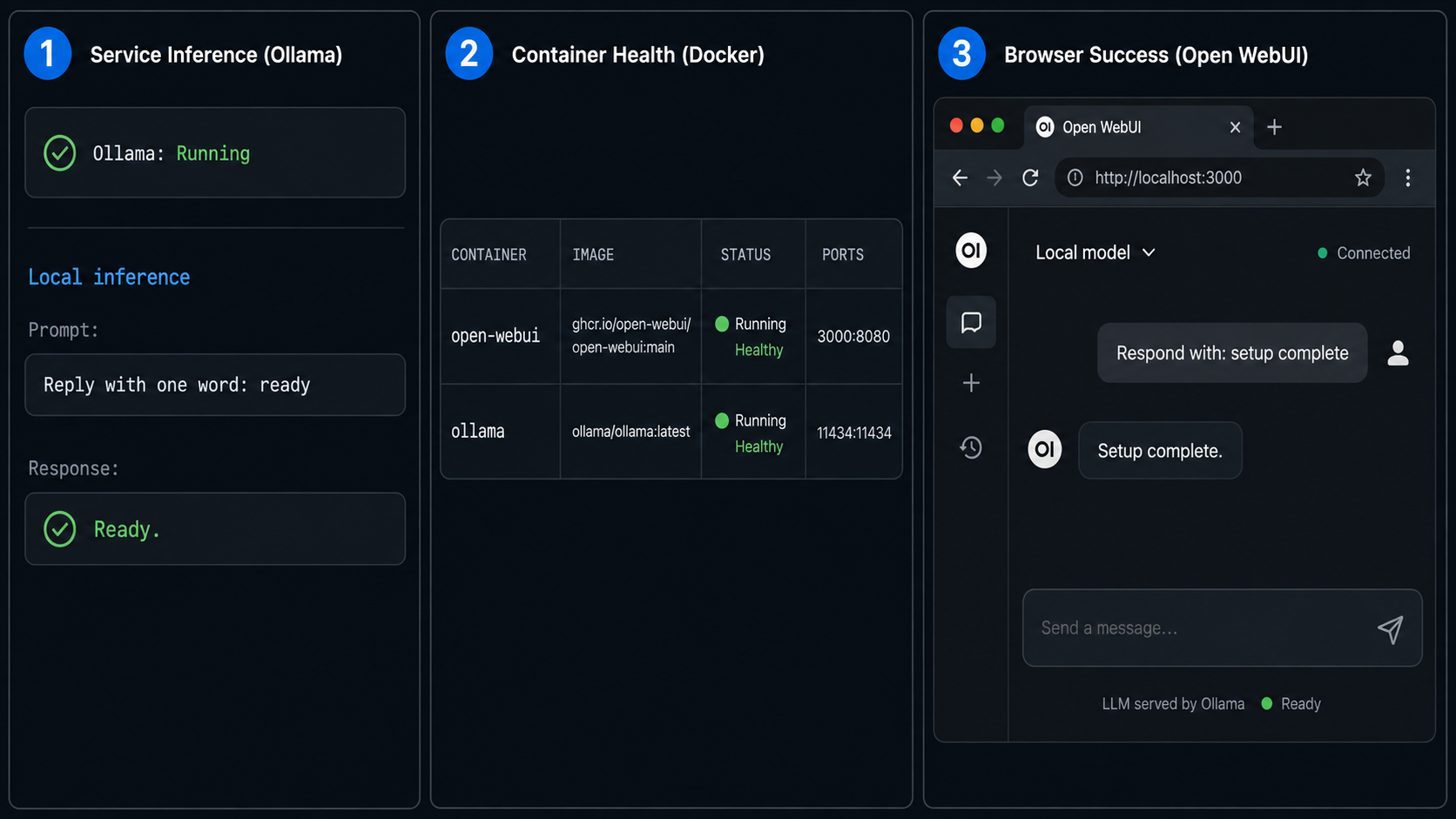
Do not create a public tunnel yet. Finish the initial account setup and prove that the complete local request path works first.
Confirm the port is bound to loopback
Inspect Docker’s published ports. The result for Open WebUI should show 127.0.0.1:3000 mapped to the container’s port 8080, not 0.0.0.0:3000.
Open the local interface
Visit http://127.0.0.1:3000 from a browser on the host. Complete the setup presented by your installed Open WebUI release.
Create and protect the administrator account
Use a unique, strong password and confirm which account has administrative privileges. Finish administrator setup while the service remains local. Do not reuse a cloud API password or a Localtonet credential.
Confirm that the Ollama model is visible
Use the model selector or connection controls displayed by the installed Open WebUI release. Interface labels and paths can change. If no model appears, inspect the configured Ollama base URL and test connectivity from the Open WebUI container.
Send a low-sensitivity test prompt
Select the local model and ask a simple question. Confirm that a response is generated and that Ollama logs show the request. Do not use confidential text for the initial test.
Verify persistence across container recreation
Restart the service and confirm the administrator account and local test conversation remain available. A normal restart does not remove the volume. The purpose of this check is to catch an incorrect or missing volume mount before real data accumulates.
docker port open-webui
curl -I http://127.0.0.1:3000
docker logs --tail=100 open-webui
docker restart open-webui
For Compose, use the equivalent service commands:
docker compose ps
docker compose logs --tail=100 open-webui
docker compose restart open-webui
Harden accounts, integrations, files, and host exposure
Open WebUI becomes an application security boundary as soon as it stores conversations, documents, connection details, or API credentials. Remote publication increases the importance of authentication and lifecycle discipline.
Control account creation
Create the administrator account before enabling remote access. Review the user-registration controls available in the exact Open WebUI release you installed. If that release provides a public signup setting and you do not need open registration, disable it before publishing the service. If you cannot confirm the registration behavior, keep the service local until you can restrict enrollment or otherwise limit who can reach it.
- Use a unique administrator password generated and stored through an approved password manager.
- Do not share one administrator account among several people.
- Give additional users only the privileges they need.
- Remove accounts promptly when access is no longer required.
- Test the logged-out experience from a private browser window before distributing a tunnel address.
Treat integrations as separate trust decisions
Open WebUI releases can support different model connections and optional capabilities. Exact interface paths and provider support can change, so use the documentation that matches your pinned release. An OpenAI-compatible endpoint does not automatically mean every provider’s native API is directly compatible. In particular, do not assume that an Anthropic endpoint can be entered into an OpenAI-compatible connection without an explicitly supported adapter or compatibility layer.
Before enabling cloud models, web search, external image generation, functions, pipelines, or custom tools, document:
- which service receives the request;
- whether prompts, conversation history, uploaded files, or retrieved text are transmitted;
- which credentials are stored by Open WebUI;
- who can invoke the integration;
- what retention and logging rules apply at the external provider;
- how the integration can be disabled and its credentials revoked.
Protect uploaded documents and credentials
Uploaded content and application configuration reside in the Open WebUI data volume or in other storage configured by the application. Protect the host filesystem, Docker socket, backups, and administrator account accordingly. Avoid placing raw API keys in deployment files that are committed to source control. Restrict access to the Compose directory if it contains secrets.
Keep host ports private
Confirm the Open WebUI mapping remains loopback-only. Do not add a host port for the Compose Ollama service unless another host genuinely requires it. If a broader bind is necessary, use host firewall rules to permit only intended source networks and test those rules from both allowed and disallowed machines.
Anyone who obtains the assigned address can attempt to reach the application. Open WebUI authentication remains essential. Do not expose an unconfigured first-run screen, a weak administrator account, or an instance with uncontrolled signup. Stop the tunnel when remote access is no longer required.
Add remote access with a Localtonet HTTP tunnel
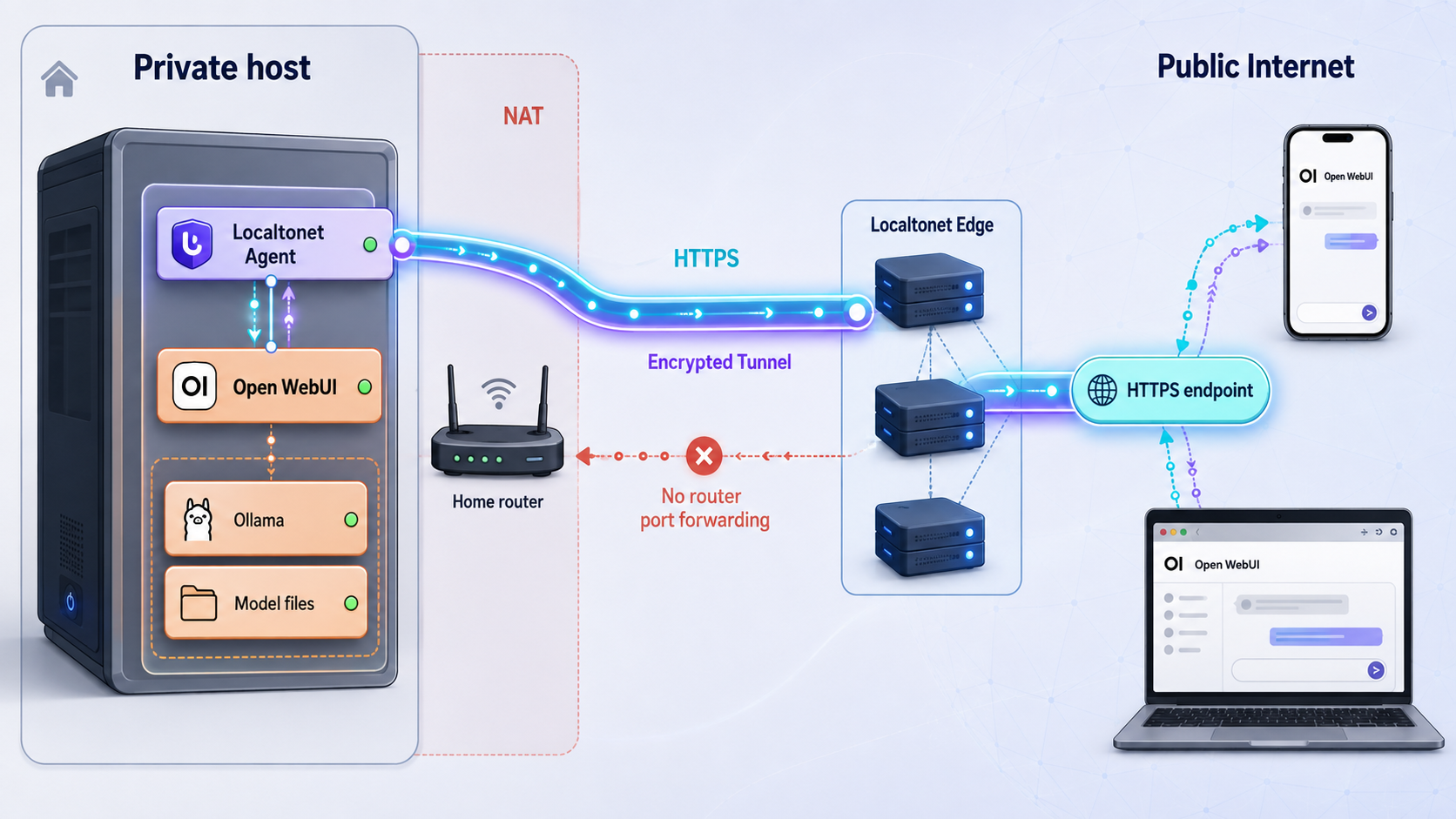
Once local operation and authentication are verified, Localtonet can expose the loopback-bound Open WebUI service without inbound router port forwarding, firewall changes, VPN setup, or a public IP address. The Localtonet client on the host establishes an outbound connection to a Localtonet relay server. The resulting HTTP tunnel provides a public HTTPS address for the local web service.
Creating a tunnel configuration does not start it. The tunnel is available only while the selected client device is connected and the tunnel is running.
Install and run the Localtonet client
Install the current Localtonet application for the operating system that hosts Open WebUI. Run the client on the device that can reach 127.0.0.1:3000. Use the current download and installation instructions presented by Localtonet rather than an unverified shell command or service flag.
Select the correct device AuthToken
In the Localtonet dashboard, select the device-specific AuthToken associated with the running client. Treat the token as a secret. Do not paste it into an article, public command history, screenshot, or shared configuration file.
Create an HTTP tunnel configuration
Open the HTTP tunnel workflow and select a Process Type. HTTP tunnels can use Random Sub Domain, Custom Sub Domain, or Custom Domain. All three serve the application at a public HTTPS address. Availability can vary, and custom-domain DNS requirements should be checked against the current dashboard and documentation.
Select an available relay server
Choose a server or region currently offered in your dashboard. Do not copy a hardcoded server code from another guide because available values can vary by account, plan, client version, region, or deployment.
Enter the local Open WebUI target
Set the local target IP address to 127.0.0.1 and the local port to 3000. This targets the loopback-only Docker publication created earlier. Keep the target protocol consistent with the local HTTP service.
Create and explicitly start the tunnel
Save or create the configuration using the current dashboard workflow, then press Start. A configured tunnel is not active until it has been started and the selected Localtonet client is connected.
Verify the assigned public HTTPS address
Use the exact address displayed by the dashboard. Open it from a device on another network, confirm the Open WebUI login screen appears, and sign in with a non-administrator test account when practical. Do not invent or assume the public hostname.
The Localtonet HTTP tunnel documentation is the appropriate companion for current dashboard details. The authenticated HTTP tunnel page may redirect to sign-in when you are not logged in.
Verify the complete remote path
- Confirm the local address still works before testing the public address.
- Check that the Localtonet client shows as connected.
- Check that the tunnel itself is running, not merely configured.
- Load the assigned HTTPS address from a different network.
- Confirm unauthenticated visitors cannot access conversations or administration.
- Send a harmless prompt and verify the selected local Ollama model responds.
- Stop the tunnel and confirm the public endpoint is no longer available when remote access is not needed.
Docker’s restart policy controls the containers. It does not prove that the Localtonet client is running or that the tunnel has been started. After a reboot, verify Open WebUI, Ollama, the Localtonet device connection, and the tunnel state independently. Do not use undocumented Localtonet service-installation flags.
Operate, back up, update, restore, and remove the stack
Routine health checks
A useful health check covers all layers rather than only the browser page:
docker compose ps
docker compose logs --tail=100 open-webui
docker compose logs --tail=100 ollama
curl -I http://127.0.0.1:3000
docker compose exec ollama ollama list
For the single-container path, replace Compose log commands with docker logs --tail=100 open-webui. Also test a small model request periodically. A working HTML response does not prove that Open WebUI can reach Ollama or that the selected model can load.
Back up persistent volumes
Stop the application before making a filesystem-level archive so changing files are not captured in an inconsistent state. The commands below use a temporary Alpine container to archive each named volume into the current directory. They may download the Alpine image if it is not already present.
docker compose stop

docker run --rm \
  -v open-webui_data:/source:ro \
  -v "$PWD":/backup \
  alpine \
  sh -c 'cd /source && tar czf /backup/open-webui-data.tgz .'

docker run --rm \
  -v ollama_data:/source:ro \
  -v "$PWD":/backup \
  alpine \
  sh -c 'cd /source && tar czf /backup/ollama-data.tgz .'

docker compose start
The Ollama volume can be large because it contains model files. You may choose to back up only Open WebUI data and download models again, but document that decision and retain the exact model names and tags needed to reproduce the deployment. Protect archives because they can contain conversations, uploaded content, account data, and configuration.
Test restoration
A backup is not proven until it has been restored in a controlled test. Before a real restore, stop the stack and preserve the current volumes until the recovered service has been verified. Restoring over a nonempty volume can combine incompatible data, so use a clean replacement volume.
Confirm the archive path and volume names before proceeding. Keep the original volume or a verified copy until the restored application starts, accepts login, and can read expected conversations and settings.
A clean Open WebUI volume can be restored with the following pattern after the stack has been stopped and the original volume has been safely retained or renamed through your normal Docker administration process:
docker volume create open-webui_data

docker run --rm \
  -v open-webui_data:/target \
  -v "$PWD":/backup:ro \
  alpine \
  sh -c 'cd /target && tar xzf /backup/open-webui-data.tgz'
Start the stack, inspect logs, open the local interface, and verify accounts and content. Restore the Ollama volume using the same pattern only if you backed it up. Otherwise, pull the recorded model versions again.
Update safely
Read the release notes for both projects before updating. Back up Open WebUI data, record current image references, pull the intended images, and recreate the containers. Avoid combining an application update, model change, GPU driver update, and remote-access change in one maintenance event because that makes failures harder to isolate.
docker compose images
docker compose pull
docker compose up -d
docker compose ps
docker compose logs --tail=100 open-webui
docker compose logs --tail=100 ollama
Validate local login, model discovery, a test prompt, and persistence before testing the Localtonet address. If you pin release tags, edit the Compose file to the reviewed tags before running docker compose pull.
Rollback considerations
Reverting the image tag does not always reverse data migrations. If a new Open WebUI version changes its persistent data format, an older image may not understand the updated volume. A safe rollback uses both the previously working image reference and the pre-update backup. Keep the tunnel stopped while repairing or restoring the application.
Stop or remove the deployment
Stop the Localtonet tunnel first so maintenance pages or first-run screens are not exposed. Then stop the containers:
docker compose stopRemove containers and the Compose network while preserving named volumes:
docker compose downRemove the single-container deployment while retaining its named volume:
docker stop open-webui
docker rm open-webui
Do not use docker compose down -v or delete the named volumes unless you intentionally want to destroy stored application data and Ollama models. Verify backups before permanent deletion.
Troubleshoot startup, models, networking, and remote access
The Open WebUI container exits or keeps restarting
Inspect its state and logs rather than repeatedly recreating it:
docker ps -a
docker inspect open-webui
docker logs --tail=200 open-webui
Common categories include an unavailable image, invalid environment syntax, a port conflict, insufficient disk space, and volume permission problems. For Compose, run docker compose config to render and validate the effective configuration, then inspect logs for both services.
Port 3000 is already in use
Another process or container may already own the port. Identify the conflict using the host’s normal networking tools or inspect Docker port mappings. You can choose a different loopback host port, such as 127.0.0.1:3001:8080, but then update the browser address and Localtonet target port consistently.
Do not solve the conflict by removing 127.0.0.1 from the mapping. That would broaden network exposure rather than resolve the underlying issue.
Open WebUI loads but shows no Ollama models
First prove the model exists:
ollama listFor containerized Ollama:
docker compose exec ollama ollama list
docker compose logs --tail=200 ollama
Then test the configured path from Open WebUI. In the Compose deployment, service-name resolution should point to http://ollama:11434. In the host-installed deployment, the intended endpoint is http://host.docker.internal:11434. A model installed in host Ollama will not automatically appear in a separate containerized Ollama volume, and the reverse is also true.
The container cannot reach host-installed Ollama
Verify that the special host name resolves inside the container:
docker exec open-webui getent hosts host.docker.internalIf name resolution works but the connection is refused, Ollama may be listening only on the host loopback interface. Review the current Ollama documentation for the supported bind configuration on your operating system. If you broaden the bind address, restrict the resulting network access with the firewall. Alternatively, switch to the Compose architecture so the services communicate privately without exposing the Ollama API on the host.
Volume permission or storage errors appear
Check Docker’s free space, the host filesystem’s free space, and volume details:
docker system df
docker volume inspect open-webui_data
docker volume inspect ollama_data
Do not recursively change ownership inside a volume without identifying the user expected by the image. An incorrect ownership change can make the problem worse or expose sensitive files. Preserve a backup before attempting repairs.
GPU acceleration is unavailable
Confirm that the host can see the GPU and that the installed Ollama build supports the platform. For containerized Ollama, also confirm Docker has access to the accelerator through the current vendor-supported runtime. Review Ollama logs for fallback or initialization messages. CPU inference may still work, which is useful for separating model and networking issues from accelerator configuration.
Local access works but remote login fails
Test the assigned public address in a private browser window. If the page loads but authentication fails, inspect Open WebUI logs and verify the account works through http://127.0.0.1:3000. Avoid changing several authentication settings at once. Confirm browser cookies are accepted for the assigned HTTPS origin and that you are using the exact current address from the dashboard.
The Localtonet address is unavailable
Check the layers in order:
- Open
http://127.0.0.1:3000on the host. - Confirm the Open WebUI container is running.
- Confirm the Localtonet client device is connected.
- Confirm the selected device AuthToken belongs to that client.
- Confirm the HTTP tunnel target is
127.0.0.1:3000. - Confirm an available relay was selected.
- Confirm the tunnel was explicitly started.
- Use the exact HTTPS address displayed by the dashboard.
A tunnel stops being available when the selected client disconnects or the tunnel is stopped. Docker restart settings do not change that lifecycle.
The interface works but responses are slow
Compare a terminal request through Ollama with the same model through Open WebUI. If both are slow, investigate model size, available memory, context length, CPU or GPU utilization, and accelerator support. If only remote access is affected, compare local and remote browser tests and inspect the host’s network connection. Do not assume a fixed tunnel latency or performance level because network paths, relay selection, host load, and response size vary.
Frequently asked questions
Does self-hosting Open WebUI keep every prompt and file on my machine?
Not necessarily. Inference stays on the Ollama host when you select a local model and no external integration processes the request. Cloud model APIs, web search, external image generation, tools, and other connectors can transmit prompts, files, retrieved text, or generated content to third parties. Remote requests through Localtonet also traverse a Localtonet relay on their way to the outbound client connection.
Why bind Open WebUI to 127.0.0.1 instead of publishing port 3000 normally?
A mapping such as 3000:8080 normally publishes the service on all host interfaces. Using 127.0.0.1:3000:8080 restricts the default exposure to the host’s loopback interface. The Localtonet client running on that host can still forward the local service without making port 3000 directly reachable from the LAN.
Should I publish Ollama port 11434 in Docker Compose?
Not for the two-container setup in this guide. Open WebUI reaches Ollama through the private Compose network using http://ollama:11434. Publish Ollama’s API only when another host genuinely needs it, and then restrict access with appropriate firewall rules.
Will restarting the Open WebUI container delete my conversations?
A normal restart does not delete the named volume. Data becomes vulnerable when it exists only in the container’s writable layer and the container is removed or replaced. Mounting /app/backend/data to the named open-webui_data volume preserves that data across container recreation, but you should still create separate backups.
Can Open WebUI use local and cloud models together?
Open WebUI releases can support Ollama and additional model connections, including supported OpenAI-compatible endpoints. Exact provider support and configuration paths depend on the installed release. Do not assume that a provider’s native API, including Anthropic’s native API, is directly interchangeable with an OpenAI-compatible endpoint. Verify the connection type against current Open WebUI documentation, and remember that cloud requests leave the host.
Why does Open WebUI show no models even though Ollama has one installed?
Open WebUI may be connected to a different Ollama instance or may not be able to reach the configured endpoint. Host-installed Ollama and containerized Ollama have separate model stores. Verify the model with ollama list in the correct environment, check OLLAMA_BASE_URL, and inspect both Open WebUI and Ollama logs.
Does a Localtonet tunnel remain available after a reboot?
The tunnel is available only while the selected Localtonet client is connected and the tunnel is running. A Docker restart policy applies only to the containers. After a reboot, verify Open WebUI, Ollama, the Localtonet device connection, and the tunnel state separately. Use only the current Localtonet client startup methods documented for your platform.
Can several people use the same self-hosted instance?
Multi-user behavior and administration options depend on the installed Open WebUI release. Even when multiple accounts are supported, practical concurrency depends on the model, available memory, accelerator resources, and Ollama’s current scheduling behavior. Test simultaneous workloads on your own hardware, use separate accounts, and restrict public signup before remote publication.
Make your locally hosted AI interface available when you need it
Verify Open WebUI and Ollama locally, protect the administrator account, and then create a Localtonet HTTP tunnel to the loopback-bound service. Start the tunnel for remote sessions and stop it when public access is no longer required.
Get Started Free →

