

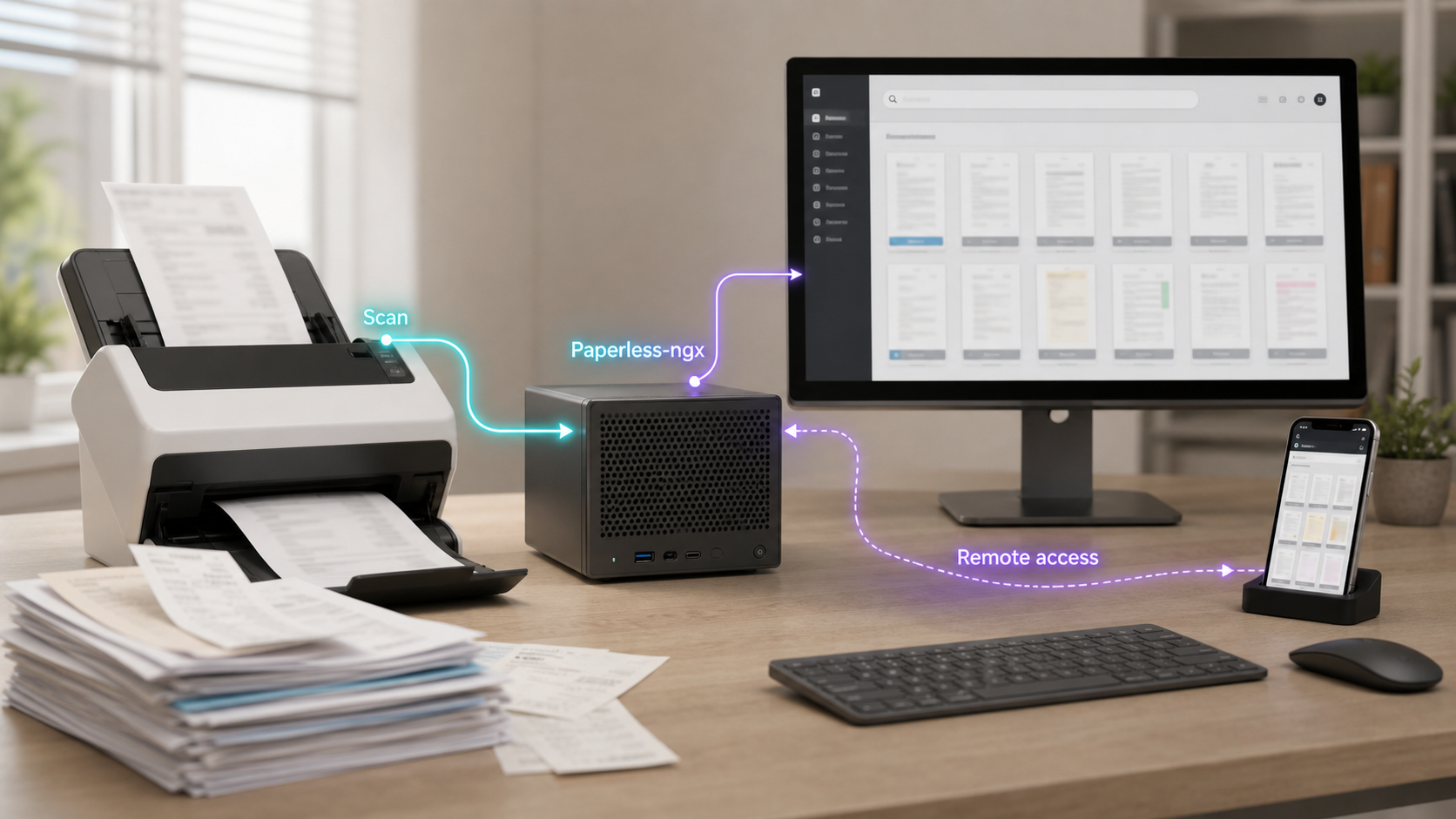
Build a searchable document archive on your own Docker host, then reach it through an outbound tunnel
Paperless-ngx turns scanned paperwork and digital files into an indexed document archive with OCR, metadata, search, workflows, and browser access. This tutorial deploys a five-container PostgreSQL stack with Docker Compose, verifies it locally, creates the administrator account using the documented command, tests document ingestion, and explains backup and update operations. It then connects the localhost-only web service to Localtonet so authorized users can reach it remotely without inbound router port forwarding. Because document archives can contain highly sensitive information, the guide also separates application authentication, tunnel transport, host security, and recovery planning.
📋 What's in this guide
What Paperless-ngx does and how this deployment works
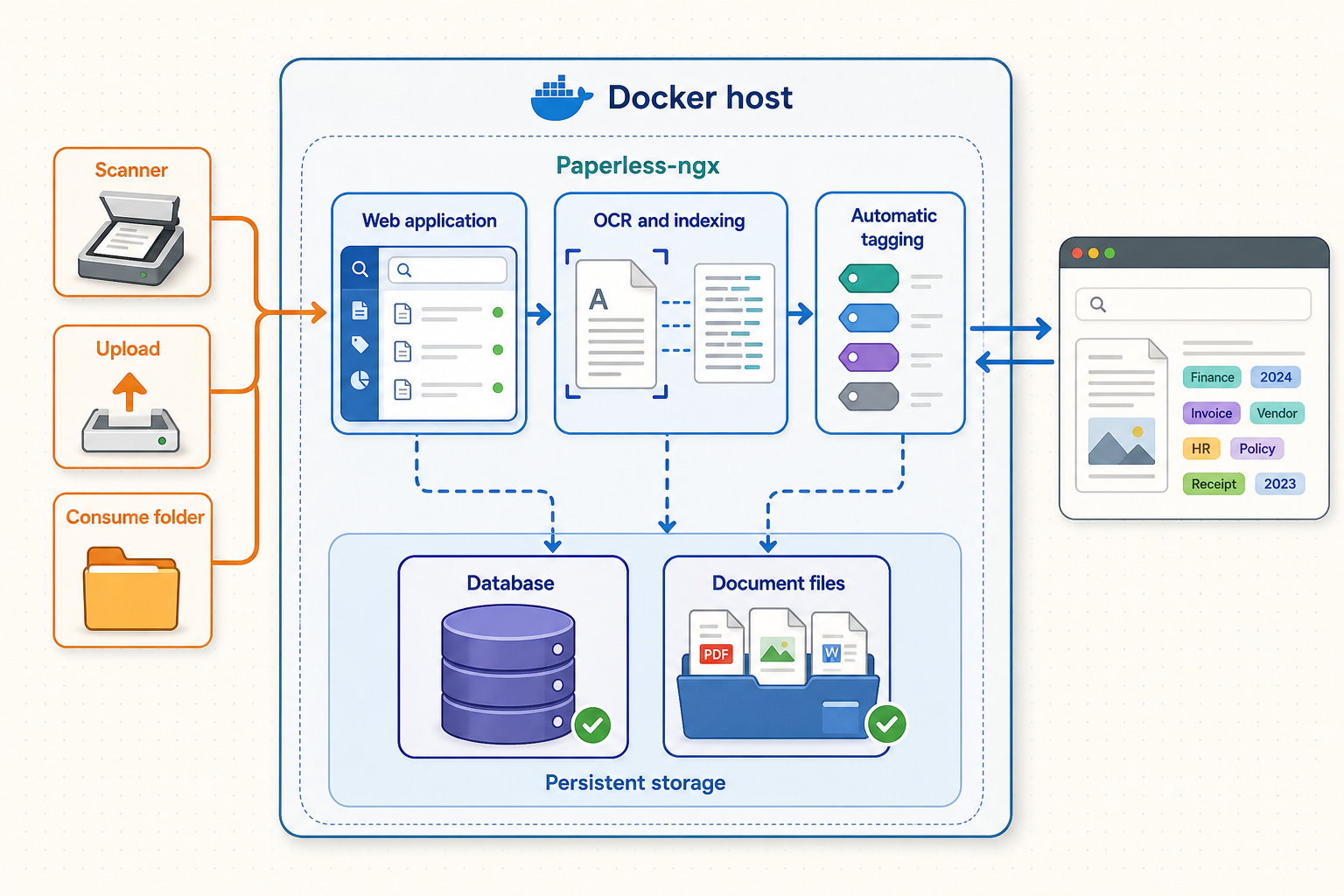
Paperless-ngx is an open-source document management system designed to ingest, organize, search, and retrieve documents. A document can enter the system through the browser, the consume directory, configured email processing, the API, or a compatible community mobile client. During consumption, Paperless-ngx can extract existing text, run optical character recognition where required, generate an archive representation, create thumbnails, and make the resulting content searchable.
The original file remains important. Paperless-ngx stores the original alongside any generated archive file rather than treating OCR output as a replacement for the source. Archive generation and PDF/A behavior depend on the document type and the configured OCR or archive settings, so do not assume that every input is always converted in exactly the same way. Test representative documents before adopting a retention policy.
The five containers in this Compose stack
Paperless-ngx supports more than one installation path. This tutorial selects Docker Compose with PostgreSQL, Redis, Apache Tika, and Gotenberg because it provides a reproducible full-stack deployment and supports conversion of additional document types. It is not a claim that Compose is the only supported installation method.
| Service | Role | Persistent data |
|---|---|---|
| webserver | Runs the Paperless-ngx web interface, API, document consumer, task processing, OCR integration, and application management commands. | The data and media volumes, plus the mounted consume and export directories. |
| broker | Redis coordinates queued background work and communication between application processes. | A Redis volume can preserve broker state, but it is not a substitute for backing up application data and documents. |
| db | PostgreSQL stores application records such as document metadata, users, permissions, tags, correspondents, and configuration held in the database. | The PostgreSQL volume. |
| gotenberg | Provides conversion capabilities used for supported Office documents and other inputs that need conversion before ingestion. | No application archive is stored here persistently in this design. |
| tika | Extracts content and metadata from document formats handled through the Tika integration. | No application archive is stored here persistently in this design. |
The web port is published as 127.0.0.1:8000. That keeps it off the host's external network interfaces. This design works for Localtonet only when the Localtonet client runs on the same Docker host and can reach that host's 127.0.0.1:8000. If the client runs on another device, localhost refers to that other device and the target must be redesigned so the client can reach Paperless-ngx safely.
A remote browser connects to the assigned public HTTPS address at the Localtonet relay. The Localtonet client on the Docker host maintains an outbound connection to the relay and forwards requests to 127.0.0.1:8000. This avoids inbound router port forwarding, but relay infrastructure remains in the remote traffic path. Do not state or assume that remotely accessed document traffic never traverses a third party.
Prerequisites, platform checks, and storage planning
Use a supported 64-bit host operating system and CPU architecture for the current Paperless-ngx container images. Current deployment support must be checked against the Paperless-ngx setup documentation before installation, especially on ARM systems. Do not treat old 32-bit Raspberry Pi instructions or Raspberry Pi 3 recommendations as current platform guidance. For Raspberry Pi deployments, use a 64-bit operating system on hardware supported by the current images and expect OCR throughput to depend heavily on the specific CPU, cooling, scan resolution, and workload.
You also need a working Docker Engine installation and the Docker Compose plugin, invoked as docker compose. Paperless-ngx and Docker update their supported versions over time, so this guide does not invent a universal minimum Docker version. Confirm that the installed versions satisfy the current requirements shown in the official Paperless-ngx setup documentation.
docker --version
docker compose version
uname -m
docker info
The Compose examples below use shell commands available on typical Linux hosts. They assume the operator has permission to use Docker. Membership in the Docker group is effectively privileged host access, so restrict it to trusted administrators.
Plan storage from your own documents
There is no defensible universal storage-per-document estimate. A text PDF, a high-resolution color scan, a large presentation, and a multipage TIFF can differ by orders of magnitude. Build a sample set that reflects your real archive, ingest it, and measure growth in the media, data, database, and backup locations. Include headroom for originals, archive files, thumbnails, search data, temporary conversion work, exports, database growth, and update operations.
df -h
docker system df
du -sh ~/paperless-ngx/consume ~/paperless-ngx/export
Monitor the Docker storage filesystem as well as the project directory. Named volumes usually live outside ~/paperless-ngx, and their exact host paths are Docker-managed implementation details. Do not build a backup procedure around guessed paths such as /var/lib/docker/volumes/paperless-ngx_media.
Record the host user's UID and GID
The mounted consume and export directories should be writable by the mapped Paperless-ngx user. Obtain the numeric user and group identifiers rather than assuming both are 1000.
id -u
id -g
Record the two results. You will use them for USERMAP_UID and USERMAP_GID.
Install Paperless-ngx with Docker Compose
The configuration below follows the five-service PostgreSQL and Tika/Gotenberg design. Image tags and supported component versions change, so compare them with the current official Compose file before deployment. For production operation, record the exact image tags or digests used instead of relying indefinitely on mutable latest tags. Exact version records are essential for controlled updates and rollback preparation.
Create the project and bind-mounted directories
Create a dedicated project directory, then create the consume and export directories before starting Compose.
Create protected secret and environment files
Generate separate random application and database secrets, configure the host UID and GID, and restrict file permissions.
Create the Compose configuration
Define PostgreSQL, Redis, Paperless-ngx, Gotenberg, Tika, and all persistent storage.
Validate and start the stack
Render the Compose configuration, pull the selected images, start the services, and inspect status and logs.
1. Create the directories
mkdir -p ~/paperless-ngx/consume
mkdir -p ~/paperless-ngx/export
cd ~/paperless-ngx
Do not place the export directory on the same disk and call that a backup. It is a staging location. A real backup must be copied to independent storage with an appropriate retention policy.
2. Generate and protect secrets
Generate values locally. Do not paste the example output from an article, store credentials in shell history unnecessarily, commit environment files to Git, or share the rendered Compose configuration.
openssl rand -hex 32
openssl rand -base64 48
Use the hexadecimal value as the database password in a project-level .env file:
PAPERLESS_DB_PASSWORD=replace-with-the-generated-hex-valueCreate docker-compose.env for Paperless-ngx. Replace the UID, GID, secret key, time zone, and OCR language with values appropriate for the host and document collection.
USERMAP_UID=1000
USERMAP_GID=1000
PAPERLESS_SECRET_KEY=replace-with-the-generated-base64-value
PAPERLESS_TIME_ZONE=Etc/UTC
PAPERLESS_OCR_LANGUAGE=eng
Paperless-ngx uses Tesseract language codes for OCR. Confirm the current language package names in the Paperless-ngx configuration documentation. PAPERLESS_OCR_LANGUAGE selects the language used for OCR, while PAPERLESS_OCR_LANGUAGES installs additional language data in supported container workflows. Add languages only after confirming their exact codes and image behavior.
chmod 600 .env docker-compose.env
printf ".env\ndocker-compose.env\nexport/\nconsume/\n" > .gitignoreThe database password and PAPERLESS_SECRET_KEY are sensitive configuration. Restrict access, exclude the files from source control, include protected copies in the recovery plan, and avoid exposing their values through screenshots or support logs. Changing the application secret invalidates existing sessions and may affect signed application data.
3. Create the Compose file
Create docker-compose.yml:
services:
  broker:
    image: docker.io/library/redis:8
    restart: unless-stopped
    volumes:
      - redisdata:/data
    healthcheck:
      test: ["CMD", "redis-cli", "ping"]
      interval: 10s
      timeout: 5s
      retries: 5

  db:
    image: docker.io/library/postgres:18
    restart: unless-stopped
    volumes:
      - pgdata:/var/lib/postgresql
    environment:
      POSTGRES_DB: paperless
      POSTGRES_USER: paperless
      POSTGRES_PASSWORD: ${PAPERLESS_DB_PASSWORD}
    healthcheck:
      test: ["CMD-SHELL", "pg_isready -U paperless -d paperless"]
      interval: 10s
      timeout: 5s
      retries: 5

  webserver:
    image: ghcr.io/paperless-ngx/paperless-ngx:latest
    restart: unless-stopped
    depends_on:
      db:
        condition: service_healthy
      broker:
        condition: service_healthy
      gotenberg:
        condition: service_started
      tika:
        condition: service_started
    ports:
      - "127.0.0.1:8000:8000"
    volumes:
      - data:/usr/src/paperless/data
      - media:/usr/src/paperless/media
      - ./export:/usr/src/paperless/export
      - ./consume:/usr/src/paperless/consume
    env_file:
      - docker-compose.env
    environment:
      PAPERLESS_REDIS: redis://broker:6379
      PAPERLESS_DBHOST: db
      PAPERLESS_DBNAME: paperless
      PAPERLESS_DBUSER: paperless
      PAPERLESS_DBPASS: ${PAPERLESS_DB_PASSWORD}
      PAPERLESS_TIKA_ENABLED: "1"
      PAPERLESS_TIKA_GOTENBERG_ENDPOINT: http://gotenberg:3000
      PAPERLESS_TIKA_ENDPOINT: http://tika:9998

  gotenberg:
    image: docker.io/gotenberg/gotenberg:8.25
    restart: unless-stopped
    command:
      - "gotenberg"
      - "--chromium-disable-javascript=true"
      - "--chromium-allow-list=file:///tmp/.*"

  tika:
    image: docker.io/apache/tika:latest
    restart: unless-stopped

volumes:
  data:
  media:
  pgdata:
redisdata:The official PostgreSQL 18 image changed the recommended volume layout to support version-specific data directories. This Compose file mounts the parent path /var/lib/postgresql. Do not copy an older PostgreSQL example that mounts /var/lib/postgresql/data without checking the image version. Before changing PostgreSQL major versions, follow the database image's documented upgrade procedure. Replacing the image tag is not, by itself, a database major-version migration.
The 127.0.0.1 port binding deliberately makes the browser service reachable only from the Docker host. Keep it if the Localtonet client will run on that same host. If LAN access is also required, design and secure that separately rather than casually replacing the address with 0.0.0.0.
4. Validate and start
docker compose config --quiet
docker compose pull
docker compose up -d
docker compose ps
Do not rely on fabricated sample startup times. Image download, database initialization, migrations, and container startup depend on the host and network. Follow the actual status and logs:
docker compose logs -f --tail=100 webserver
docker compose ps
Exit log following with Ctrl+C. This does not stop the containers. PostgreSQL and Redis should become healthy, and the webserver should remain running. If it repeatedly exits, inspect its logs before changing configuration.
Verify locally, create the administrator, and ingest a test document
Complete local verification before introducing remote access. This separates application problems from tunnel problems and gives you a known-good baseline.
Check the local HTTP service
curl -I http://127.0.0.1:8000/An HTTP response confirms that the host can reach the published port. A redirect to a login route can be normal. You can also open http://127.0.0.1:8000 in a browser running on the Docker host. If the host is headless, use the command-line check and an appropriately secured local administration method.
Create the administrator with the documented management command
Do not assume the first browser visit will display an administrator creation wizard. Create the initial superuser interactively from the running webserver container:
docker compose exec webserver createsuperuserEnter the requested username, email address, and a strong unique password. Paperless-ngx also provides administrator environment variables for automated first-run provisioning, but putting an administrator password in an environment file creates another credential-storage obligation. For an interactive installation, createsuperuser avoids retaining that password in the Compose configuration.
Sign in locally and create separate accounts for routine users. Avoid sharing the administrator account. Use groups, ownership, and object permissions to grant only the required document access and actions.
Run a first ingestion test
Use a non-sensitive sample PDF or image. Upload it through the browser, or copy it to the consume directory:
cp /path/to/non-sensitive-test-document.pdf ~/paperless-ngx/consume/Watch the application logs while it is consumed:
docker compose logs -f --tail=100 webserverThen verify all of the following in the browser:
- The test document appears in the document list.
- The original can be viewed or downloaded.
- Extracted or OCR-generated text is searchable.
- The displayed date and time match the configured time zone.
- A correspondent, document type, and tag can be assigned.
- The consume directory is writable and the task completes without a permission error.
Automatic metadata matching should be evaluated only after you have representative documents with accurate labels. Do not rely on a fixed claim such as “20 documents trains the classifier.” The required examples depend on the categories, document similarity, metadata quality, and current classifier implementation. Rule-based matching can be preferable where a deterministic sender name, account number, or text pattern is available.
Supported inputs and mobile clients
PDF and common image inputs are central Paperless-ngx use cases. Additional formats, including supported Office documents and email inputs, rely on the configured Tika and Gotenberg integration. Because accepted formats and conversion behavior can change, use the current Paperless-ngx usage documentation as the canonical compatibility list and test every format your workflow depends on.
Paperless-ngx exposes an API used by community mobile clients. The official documentation has listed community projects such as Paperless Mobile and Paperparrot. These clients are not automatically first-party Paperless-ngx applications, and availability, operating-system support, authentication behavior, and compatibility can change independently. Follow the current mobile-client links in the official usage documentation, install only from the linked publisher, and test the client against your deployed Paperless-ngx version.
Expose Paperless-ngx through a Localtonet HTTP tunnel
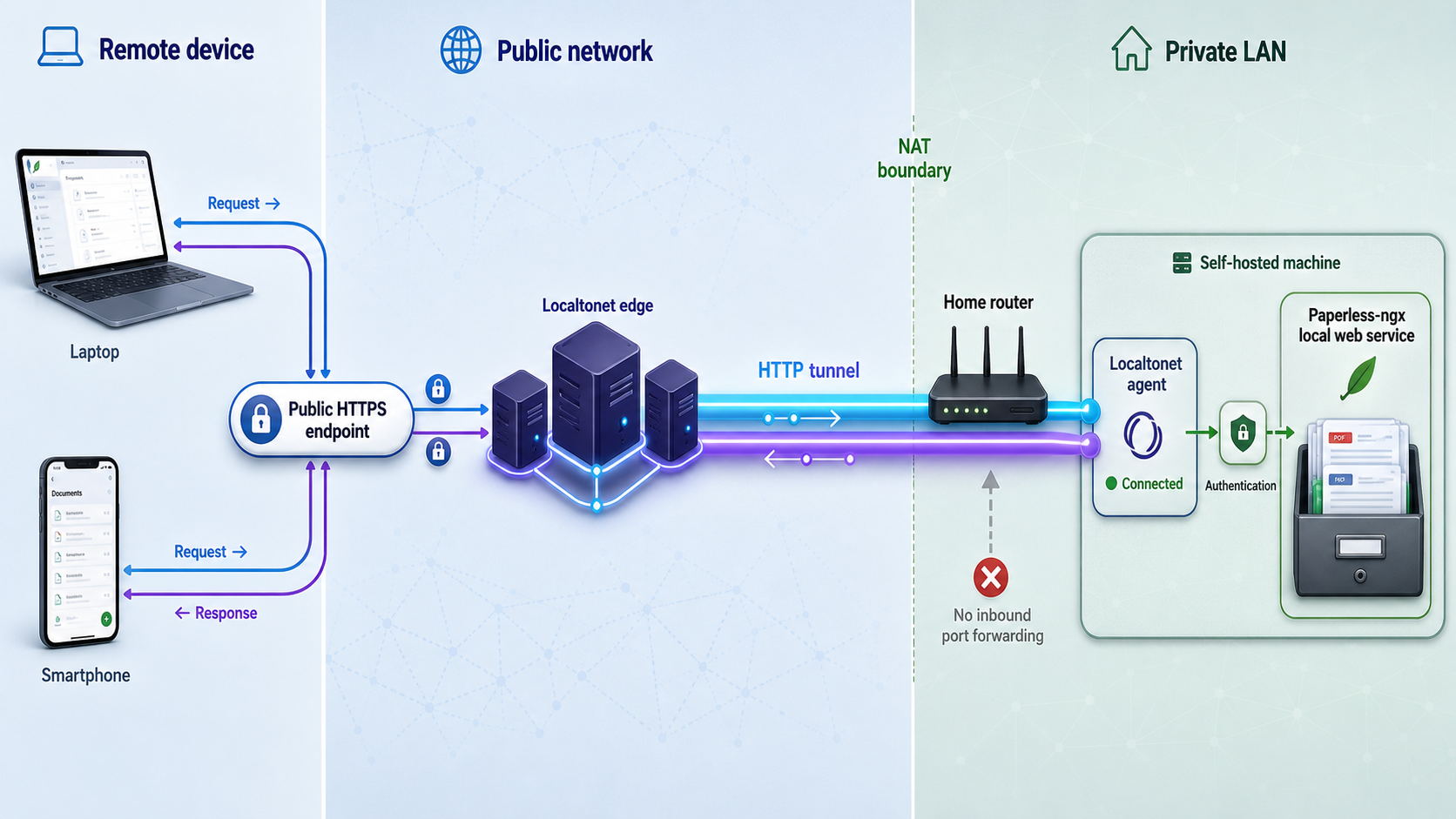
With Localtonet, the client application on your Docker host establishes an outbound connection to a Localtonet relay. The HTTP tunnel supplies a public HTTPS address and forwards requests to the local Paperless-ngx service. No inbound router port forwarding, public IP address, firewall opening, or VPN setup is required for this workflow.
Creating a tunnel does not mean it is running. You must select the client device, configure the tunnel, press Start, and keep both the device and client connected. The public address works only while the selected client is online and the tunnel is running.
Install and run the Localtonet client on the Docker host
Install the current Localtonet application for the host operating system and keep it running on the same machine that can reach 127.0.0.1:8000.
Select the device-specific AuthToken
In the dashboard, select the AuthToken belonging to this client device. Treat the token as a secret and never paste it into an article, screenshot, command example, or public issue.
Select a currently available relay server
Choose from the server or region values currently offered in your dashboard. Availability can vary, so this guide does not hardcode a server code.
Create an HTTP tunnel and choose its Process Type
Select the applicable HTTP Process Type: Random Sub Domain, Custom Sub Domain, or Custom Domain. These options serve the application through a public HTTPS address, but availability and domain requirements can vary. Do not assume that a particular chosen subdomain is available.
Set the local target
Enter local IP 127.0.0.1 and local port 8000. This target is correct only because the client runs on the Docker host.
Start the tunnel
Press Start and wait until the tunnel is running. Record the exact assigned HTTPS address shown by Localtonet.
Configure Paperless-ngx and verify public access
Set PAPERLESS_URL to the exact assigned HTTPS origin, recreate the webserver so the changed environment is applied, and test login and upload through that address.
For the current dashboard workflow, consult the Localtonet HTTP tunnel documentation. The documentation supplements the sequence above but does not replace local verification.
Apply the assigned public URL
Add the exact address to docker-compose.env. The following is a placeholder, not a promised domain or subdomain:
PAPERLESS_URL=https://your-assigned-public-hostAn environment-file change is not applied by merely restarting the existing container. Compose must recreate the webserver container with the updated environment:
docker compose up -d --force-recreate webserver
docker compose logs --tail=100 webserver
Verify the local endpoint again:
curl -I http://127.0.0.1:8000/Then open the assigned HTTPS address from a device outside the host. Sign in with a non-administrator account if possible, search for the test document, and upload another non-sensitive test file. Confirm that processing finishes and the new document appears.
Localtonet transports requests to Paperless-ngx, while Paperless-ngx authenticates users and enforces application permissions. A tunnel alone does not make a sensitive archive safe. Use strong unique passwords, least-privilege accounts, a protected application secret, timely software updates, and a reviewed exposure policy. This article does not claim unverified WAF, credential-stuffing protection, login rate limits, or IP allowlist behavior.
Understand the availability boundary
Remote access stops if any required component is unavailable: the Docker host, its internet connection, Paperless-ngx, the Localtonet client, the selected relay connection, or the tunnel itself. A tunnel that was created but not started is unavailable. Stopping or deleting it also removes access. This is expected lifecycle behavior, not necessarily a Paperless-ngx failure.
Secure a remotely reachable document archive
A document system may contain identity records, financial statements, health information, contracts, or other confidential material. Security must be applied in layers. Application authentication determines who can sign in. Paperless-ngx permissions determine what signed-in users can see and change. The tunnel provides the public transport path. The operating system, Docker daemon, database, persistent volumes, and backup destination protect the underlying data.
Paperless-ngx storage must not be assumed to provide per-document encryption at rest. If the archive requires encryption at rest, use controls appropriate to the host and backup environment, such as encrypted disks or encrypted backup repositories, and manage recovery keys separately. Anyone with sufficient host, Docker, volume, or backup access may be able to read document data.
Remote browser traffic uses the assigned public HTTPS address, but HTTPS does not replace user authorization or protect files after they are stored on the host. It also does not remove the relay from the transport path. Evaluate this architecture against your legal, privacy, contractual, and organizational requirements before placing regulated or highly sensitive documents behind it.
Back up and restore Paperless-ngx safely
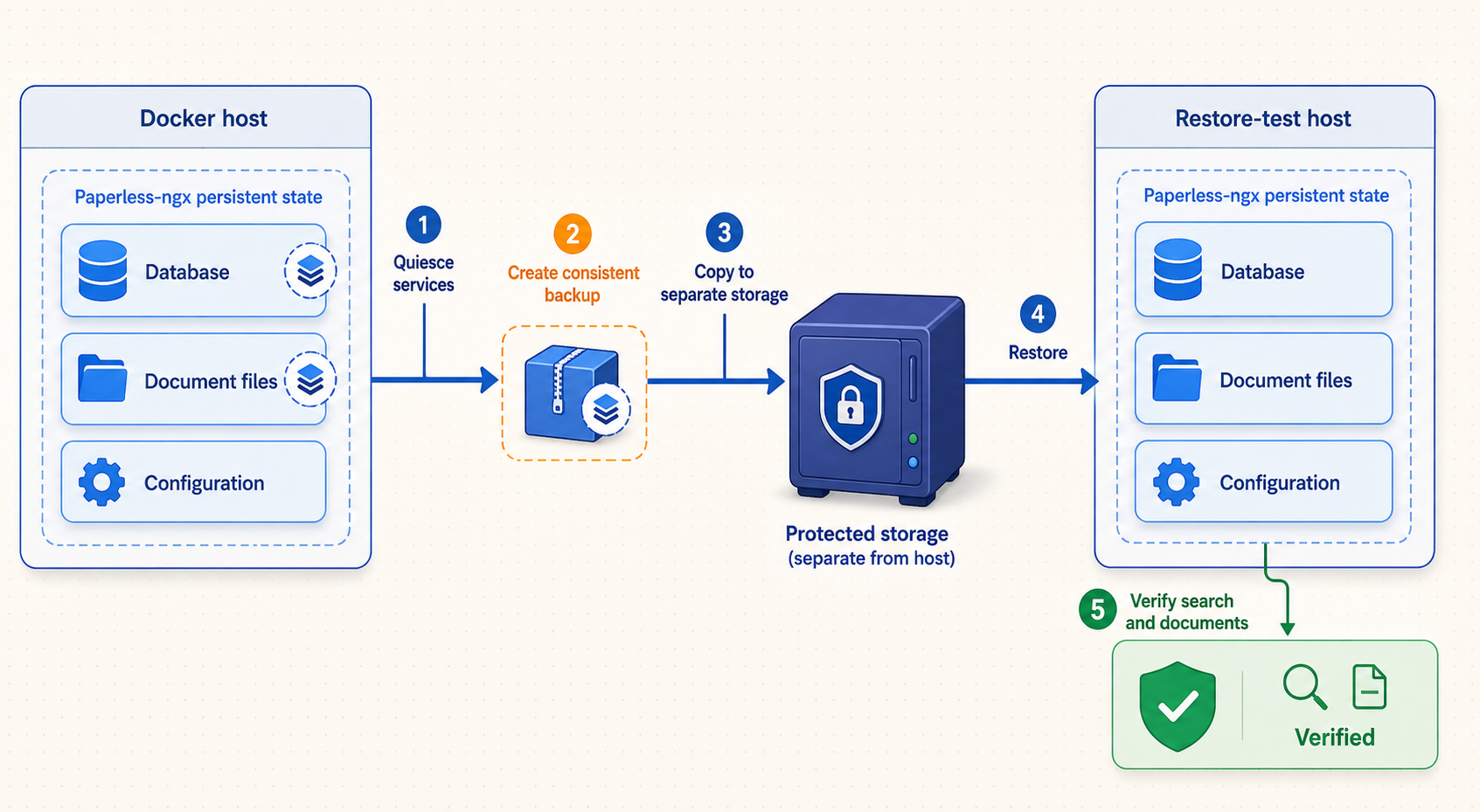
Use more than one recovery method when the archive matters. The Paperless-ngx document exporter provides an application-level, portable export path. A database dump plus protected copies of persistent files provides another recovery layer. Neither approach should be described as complete unless its scope, version assumptions, secrets, and restore procedure have been tested.
| Component | Why it matters | Backup treatment |
|---|---|---|
| Media volume | Contains original documents, archive files, thumbnails, and other managed media. | Protect it with a consistent file or volume backup appropriate to Docker volumes. |
| Data volume | Contains application data outside the media and database layers, including generated application state used by the deployment. | Include it in a full deployment recovery plan. Do not omit it from direct-volume procedures. |
| PostgreSQL database | Contains users, permissions, metadata, document records, tags, correspondents, and other relational application state. | Create a logical PostgreSQL dump or use a database-aware backup method. Do not copy a live raw PostgreSQL volume as if it were a portable dump. |
| Compose and environment files | Describe services, credentials, public URL, UID/GID mapping, time zone, and application secret. | Store encrypted, access-controlled copies. Never place secrets in an unprotected export directory. |
| Version record | Identifies the application, PostgreSQL, Redis, Tika, and Gotenberg versions used by the backup. | Record image tags or digests and the backup date so a compatible restore environment can be built. |
Create an application-level export
cd ~/paperless-ngx
docker compose exec webserver document_exporter ../export
The exporter is designed to transfer Paperless-ngx documents and application metadata through its supported import workflow. It does not preserve your Docker installation files, Localtonet configuration, host configuration, or every external dependency. Review the export directory, protect it as sensitive data, and copy it to independent storage.
Before depending on cross-version import, check the current exporter and importer compatibility guidance. A conservative recovery process records the source version, restores with the corresponding Paperless-ngx release when required, verifies the archive, and upgrades only after that restore is working.
Create a logical PostgreSQL dump
mkdir -p ~/paperless-ngx/database-backup
chmod 700 ~/paperless-ngx/database-backup
docker compose exec -T db pg_dump -U paperless -d paperless -Fc > \
  ~/paperless-ngx/database-backup/paperless.dump
Check that the command succeeded and that the dump is non-empty. Store it with protected copies of the media volume, data volume, Compose file, environment files, and version record. Use a backup tool that understands Docker volumes or mounts them read-only into a controlled backup process. Do not assume a fixed Docker volume name or host path because project names and Docker data roots vary.
Test an exporter-based restore
Test recovery in an isolated project with a different Compose project name, separate volumes, and no public tunnel. Do not import over the only production copy.
- Record the source Paperless-ngx and database versions.
- Build an empty compatible Paperless-ngx stack using separate volumes.
- Copy the protected export into that stack's export directory.
- Run the importer in the isolated webserver container.
- Sign in locally and compare document counts, users, permissions, metadata, originals, archive files, and representative searches.
- Open several documents and download their originals.
- Ingest a new test document to verify that restored background processing works.
- Record the restore date, commands, versions, warnings, and verification results.
docker compose exec webserver document_importer ../exportA mirrored deletion, corrupted file, compromised administrator account, or ransomware event can propagate to synchronized storage. Use independent retention, protected historical copies, and periodic restore tests. Keep at least one recovery copy outside the Docker host's failure boundary.
Routine operation, monitoring, updates, and rollback preparation
The Compose services use restart: unless-stopped. Docker can restart them after a daemon or host restart if the Docker service starts and the containers were not deliberately stopped. Verify behavior after host maintenance rather than assuming the archive returned automatically.
Routine status and logs
cd ~/paperless-ngx
docker compose ps
docker compose logs --tail=100 webserver
docker compose logs --tail=100 db broker
docker compose logs --tail=100 gotenberg tika
curl -I http://127.0.0.1:8000/
df -h
docker system df
Also confirm that the Localtonet client is connected and the tunnel is running. A healthy local application does not prove public access, and a tunnel marked running does not prove the application can complete login and document processing. Use both local and public checks.
Prepare before updating
Read the Paperless-ngx release notes and migration guidance, especially for skipped releases, database requirements, configuration changes, and deprecated options. Record the current images before pulling replacements:
docker compose images
docker compose config > compose-rendered-before-update.txt
The rendered configuration can contain sensitive environment values. Protect it with restrictive permissions or redact it before long-term storage.
Create and verify backups before the update. Database migrations may make simple image rollback unsafe, so rollback planning must include a pre-update database and persistent-data recovery point, not just an old container image.
docker compose exec webserver document_exporter ../export
docker compose exec -T db pg_dump -U paperless -d paperless -Fc > \
  database-backup/pre-update-paperless.dump
docker compose pull
docker compose up -d
docker compose logs -f --tail=100 webserver
After migration and startup, verify local login, search, document viewing, upload, OCR processing, permissions, and the public Localtonet route. Keep the pre-update recovery set until the updated system has operated successfully and a post-update backup has been tested.
If an update fails after a database migration, do not repeatedly switch image versions against the migrated database. Stop, preserve logs, consult the version-specific migration guidance, and restore the matched pre-update database and persistent data into a controlled environment when rollback is required.
Troubleshoot containers, OCR, permissions, and public access
Start with fault isolation. Test 127.0.0.1:8000 on the Docker host first. If local access fails, fix Paperless-ngx or Docker before investigating Localtonet. If local access succeeds but the public address fails, inspect the Localtonet client, selected AuthToken, relay selection, tunnel status, and configured target.
| Symptom | Checks | Corrective direction |
|---|---|---|
| Webserver exits or restarts | Run docker compose ps and docker compose logs webserver db broker. |
Correct the reported database, secret, migration, or environment error. Do not guess from container status alone. |
| Consume directory permission denied | Compare id -u and id -g with USERMAP_UID and USERMAP_GID. Check directory ownership and permissions. |
Update the mapping or directory permissions, then recreate the webserver with docker compose up -d --force-recreate webserver. |
| OCR text is missing or poor | Inspect the task logs, source scan quality, orientation, selected OCR language, and installed language data. | Correct the language configuration and use a clearer test scan. Recreate the container if environment values changed. |
| Office or email conversion fails | Check docker compose ps and logs for gotenberg, tika, and webserver. |
Confirm the endpoints in Compose and verify that the selected input format is supported by the current integration. |
| Local URL works but public URL fails | Confirm the Localtonet client is connected, the correct device AuthToken is selected, the tunnel is started, and the target is 127.0.0.1:8000. |
Restart the stopped component or correct the tunnel target. Remember that localhost works only on the same host. |
| Host or origin validation error | Compare PAPERLESS_URL with the exact assigned HTTPS origin. |
Correct the value and recreate the webserver. A simple docker compose restart does not apply changed environment values. |
| Mobile client cannot connect | Test the same public URL in the phone's browser, verify the tunnel is online, and confirm client compatibility with the deployed Paperless-ngx version. | Correct the server URL, update a compatible client, or isolate an API/authentication issue using the Paperless-ngx logs. |
| Uploads stop unexpectedly | Check free disk space, inode use, volume availability, permissions, and webserver logs. | Restore safe free-space headroom and correct the underlying storage problem before retrying consumption. |
| Public access disappeared after reboot | Check Docker, all five Compose services, the Localtonet client, token connectivity, and tunnel state. | Start the missing component. A created tunnel is available only while the selected client is connected and the tunnel is running. |
When requesting help, remove secrets, tokens, document contents, public private-use endpoints, and personal data from logs. Preserve timestamps and the exact image versions because they help distinguish configuration problems from version-specific behavior.
Frequently asked questions
Does Localtonet make a public Paperless-ngx archive secure by itself?
No. Localtonet provides the public HTTPS address and transport path to the local service. Paperless-ngx still handles user authentication and application permissions, while the host administrator remains responsible for secrets, operating-system security, Docker access, updates, storage, and backups. Use individual least-privilege accounts and strong unique passwords before enabling remote access.
Why is Paperless-ngx bound to 127.0.0.1 instead of every network interface?
The localhost binding prevents Docker from publishing port 8000 on the host's external interfaces. It is suitable when the Localtonet client runs directly on the same Docker host. If the client runs elsewhere, it cannot reach this target because its own 127.0.0.1 refers to a different device.
Why must the webserver be recreated after changing PAPERLESS_URL?
Environment values are assigned when the container is created. Restarting the same container does not rebuild it with changes from docker-compose.env. Run docker compose up -d --force-recreate webserver, then inspect the logs and verify both local and public access.
Can this tutorial be used on a Raspberry Pi?
Only use a Raspberry Pi model and 64-bit operating system supported by the current Paperless-ngx container images and dependencies. Do not rely on obsolete 32-bit ARM or Raspberry Pi 3 guidance. OCR and conversion performance vary with hardware, cooling, source documents, and settings, so test your own representative workload rather than relying on unsupported timing or memory estimates.
Is the document exporter a complete server backup?
No. It is an application-level export for documents and Paperless-ngx metadata handled by the exporter/importer workflow. It does not replace protected copies of Compose configuration, environment secrets, version records, host configuration, Localtonet configuration, and any additional persistent data required by your deployment. Test the importer in an isolated compatible installation.
Can I copy the PostgreSQL Docker volume as a backup?
A copied live PostgreSQL data directory should not be treated as a portable logical backup. Use pg_dump or a database-aware physical backup procedure with the required consistency controls. PostgreSQL physical data also has major-version constraints, which is why recording the database image version is essential.
Can users access Paperless-ngx when the Docker host is offline?
No. The Docker host, Paperless-ngx services, internet connection, Localtonet client, and tunnel must all be available. The assigned public address stops reaching the application when the client disconnects or the tunnel is stopped or deleted.
Connect your verified Paperless-ngx service with Localtonet
Start with a working localhost deployment, protected credentials, least-privilege users, and a tested recovery plan. Then create an HTTP tunnel from the Localtonet client on the Docker host to 127.0.0.1:8000 and verify the assigned HTTPS address with a non-sensitive document.


