

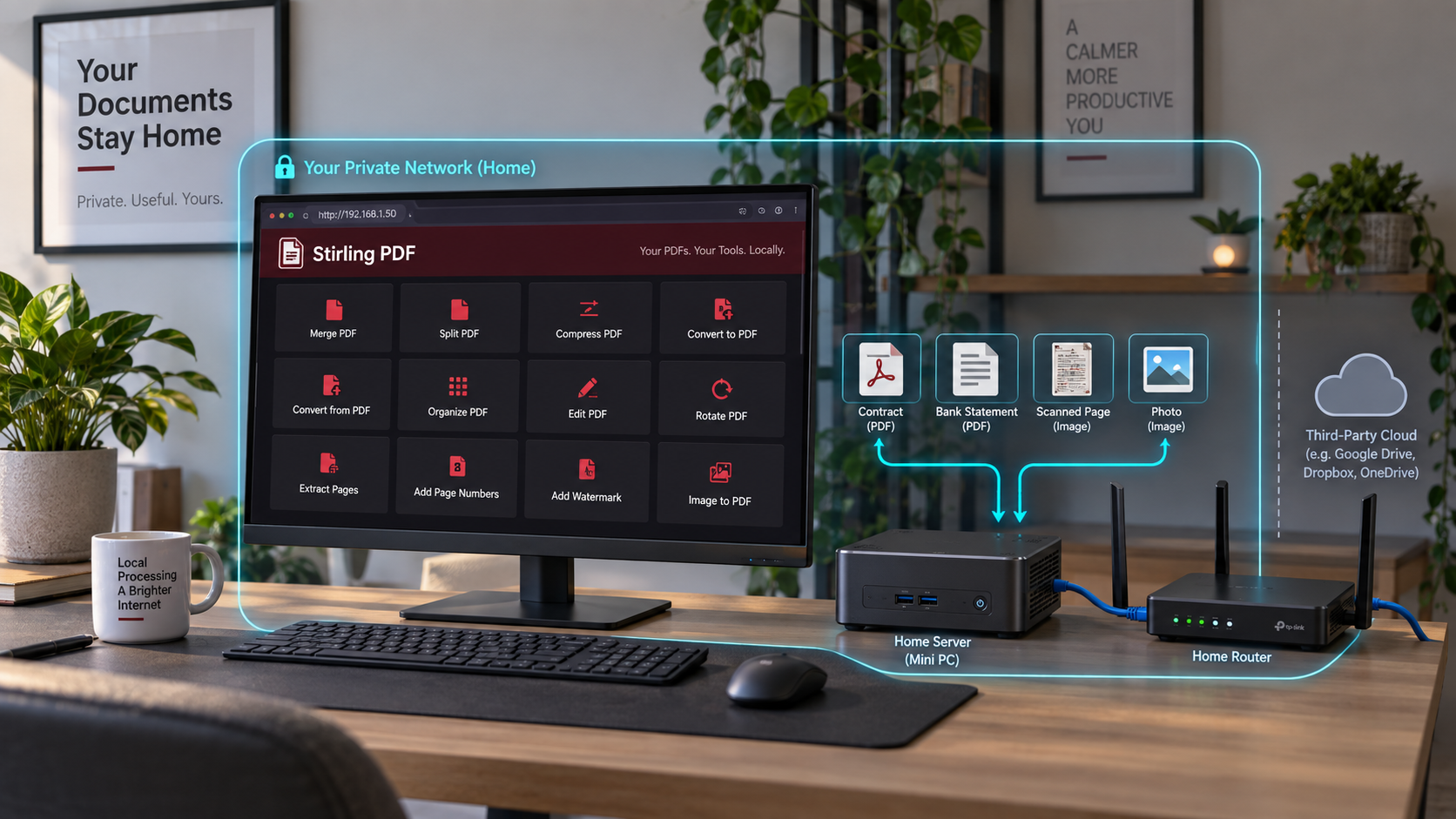
Run a private PDF workspace locally, then publish it only when secure remote access is required
Stirling PDF packages a broad collection of browser-based PDF tools into a self-hosted application. This guide builds a version-pinned Docker Compose deployment, binds it to the host loopback interface by default, verifies it with a real PDF operation, and explains how to protect its persistent data. It then shows how to expose the authenticated application through a Localtonet HTTP tunnel without opening an inbound router port. Because Stirling PDF configuration changes between releases, version-specific authentication, image, OCR, and API settings must always be checked against the documentation for the exact release you deploy.
📋 What's in this guide
What Stirling PDF provides
Stirling PDF is an open-source web application for working with PDF documents from a browser. Its available operations vary by release and image build, but the project includes tools for common jobs such as merging, splitting, rotating, reordering, compressing, converting, adding page numbers or watermarks, managing passwords, and processing scanned documents with OCR when the required components and language data are installed.
Self-hosting changes who controls the processing environment. Instead of uploading a contract, statement, form, or scanned document to an unrelated public website, users send it to a server administered by you. That can reduce third-party exposure, but it does not automatically guarantee that every byte remains only in memory or that nothing is retained. Temporary directories, application logs, configured pipelines, sharing features, authentication data, crash diagnostics, container storage, swap, backups, and administrator choices can all affect retention.
Treat Stirling PDF as a document-processing service, not as a magically stateless page. Review the behavior of the exact version you deploy, inspect its configured persistent paths, limit who can sign in, and establish a retention policy appropriate for the documents being processed.
The project evolves quickly, so this tutorial does not label an undated release as “latest.” Before deployment, select a release from the official Stirling PDF release list, read its release notes, and use an exact image tag supported by that release. Keep that version recorded in the deployment directory.
Architecture and security boundaries
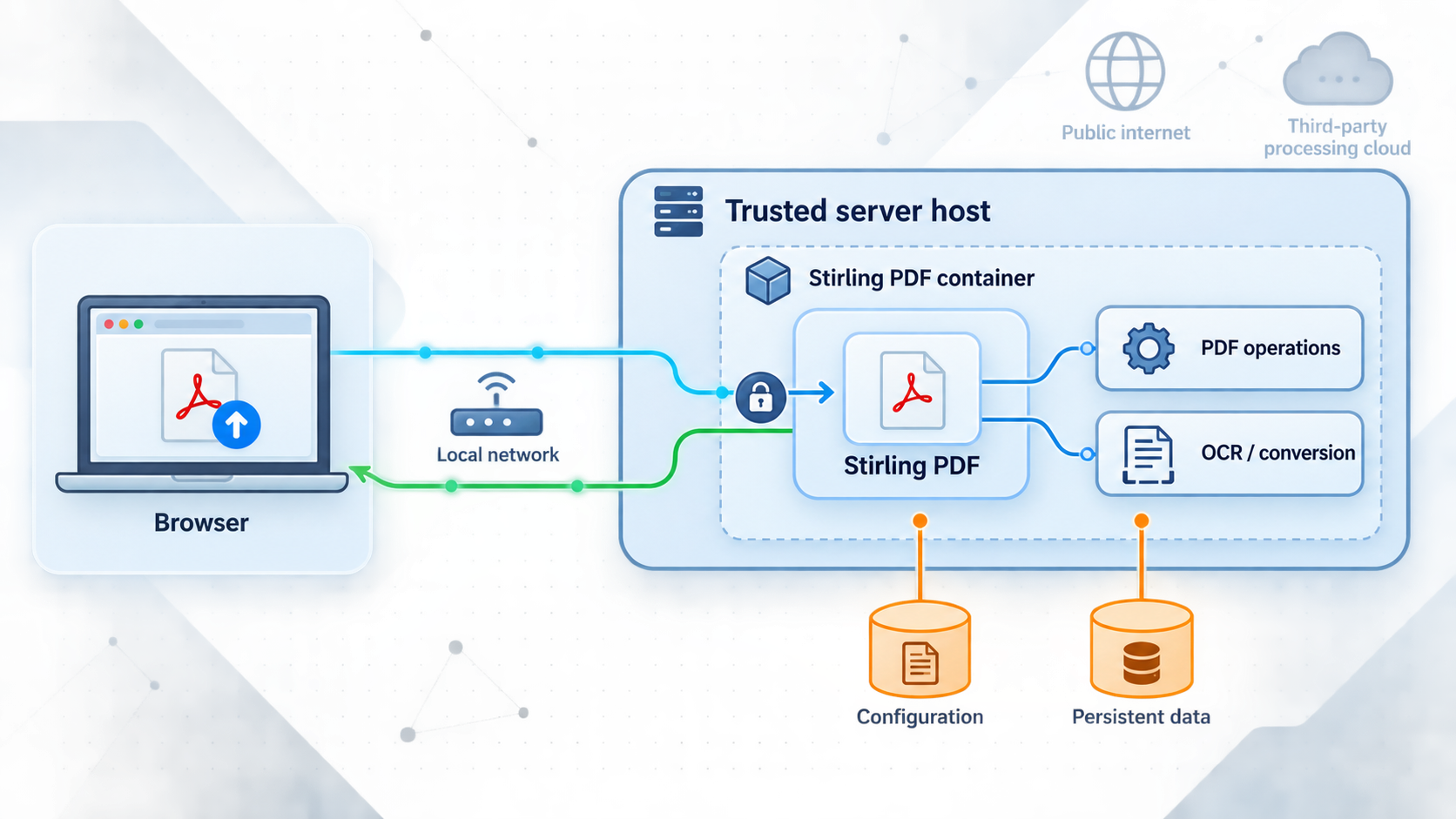
A secure tunnel deployment has several distinct components. A remote browser connects to a public HTTPS address at the Localtonet relay. The Localtonet client on your machine maintains an outbound connection to that relay and forwards requests to Stirling PDF. Stirling PDF runs in a container, while selected configuration, logs, OCR data, and automation data remain on host-mounted storage.
| Boundary | Connection | Administrator responsibility |
|---|---|---|
| Remote browser to Localtonet relay | Public HTTPS URL | Share the URL only with intended users and apply application-level authentication. |
| Localtonet relay to client | Outbound client connection | Protect the device-specific token and keep the selected client connected only when access is needed. |
| Localtonet client to Stirling PDF | Usually local HTTP to port 8080 | Keep this hop local or otherwise protected. Public HTTPS does not automatically make the local hop HTTPS. |
| Container to persistent mounts | Host filesystem | Restrict permissions, back up required data, and define retention for logs and processing artifacts. |
| Stirling PDF login boundary | Application session | Require authentication before exposure and manage users according to least privilege. |
Localtonet can provide a public HTTPS address for an HTTP tunnel, but Stirling PDF must still enforce its own access control. Without a login requirement, anyone who obtains the URL may be able to upload documents and consume CPU, memory, disk, and conversion processes.
Loopback binding is the safest default when both the Localtonet client and Docker run directly on the same host. Publishing
127.0.0.1:8080:8080 means port 8080 is reachable from that host but is not intentionally exposed on every LAN interface. This reduces accidental access from other machines on the local network.
The topology changes if Localtonet runs inside another container. A separate container cannot reach the host container through its own
127.0.0.1. In that arrangement, place both containers on an intentionally created Docker network and target the Stirling PDF service name and container port. Do not publish port 8080 to every host interface merely to make container-to-container communication convenient.
Prerequisites and deployment planning
Complete the following checks before creating the Compose project. They prevent common failures such as unsupported images, occupied ports, unwritable volumes, and updates that cannot be rolled back.
Host and container requirements
- A maintained operating system supported by Docker Engine or Docker Desktop.
- A current Docker installation with the Docker Compose plugin, invoked as
docker compose. - Enough free disk space for the selected container image, persistent data, logs, temporary processing, downloaded OCR data, and backups.
- Enough memory and CPU for the operations your users will run. OCR, compression, and office-document conversion can be considerably more demanding than page rotation or splitting.
- A non-root administrative account with permission to manage Docker and the deployment directory.
- A harmless test PDF that you are authorized to process.
There is no universal memory recommendation that fits every Stirling PDF workload. A one-page text PDF and a large scanned document have very different requirements. Start with conservative user access, monitor actual consumption, and increase resources based on measured workloads. Avoid publishing an instance before testing representative OCR and conversion jobs.
Confirm Docker and Compose
docker version
docker compose version
docker info
Resolve any Docker daemon or permission errors before continuing. Membership in the Docker administration group can effectively grant root-level control of the host, so assign it only to trusted administrators.
Select and record an exact release
Review the official release notes and choose a release tag rather than a moving tag such as latest. Confirm that the corresponding container image exists before changing production. A release tag makes the deployment reproducible and gives you a defined rollback target.
Container registry locations and tag conventions can change. Use the image reference published by the selected Stirling PDF release or its official documentation. The Compose example below uses a variable so the chosen reference is recorded outside the YAML file.
mkdir -p ~/stirling-pdf
cd ~/stirling-pdf
umask 077

cat > .env <<'EOF'
STIRLING_IMAGE=replace-with-the-official-image-reference
STIRLING_VERSION=replace-with-an-exact-release-tag
EOF

chmod 600 .env
Replace both placeholder values before starting the deployment. Do not continue with placeholders and do not substitute a floating
latest tag.
Check architecture support
Do not assume that every image variant supports every processor architecture. This is especially important for ARM hosts and Raspberry Pi systems. Inspect the manifest for the exact image and tag selected from the official release:
docker buildx imagetools inspect \
  "${STIRLING_IMAGE}:${STIRLING_VERSION}"
Confirm that the manifest includes the host architecture reported by:
docker info --format '{{.Architecture}}'If the architecture is absent, choose a documented compatible image or another host. Forcing an incompatible image through emulation can introduce poor performance and unexpected failures.
Check whether port 8080 is available
ss -ltn | grep ':8080 ' || true
On a system without ss, use its native network inspection tool. If another application already owns port 8080, select an unused host port and consistently substitute it in the Compose mapping, local tests, and Localtonet target.
Install Stirling PDF with Docker Compose
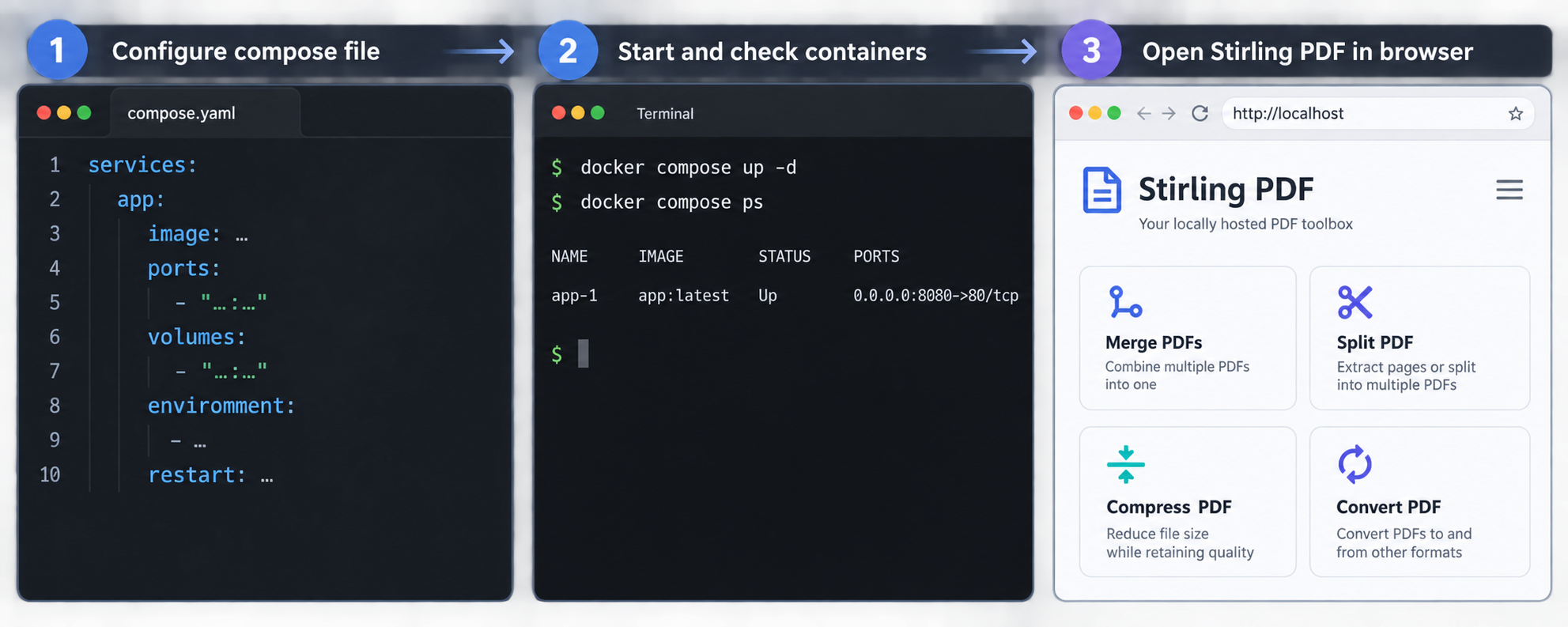
The baseline below deliberately keeps version-specific application settings out of the file. Stirling PDF has changed configuration names and supported image variants over time. Authentication and optional features should be added only after checking the configuration reference for the exact release you selected.
Create persistent directories
Create separate paths for configuration, logs, OCR data, pipelines, and custom files. Separate paths make backups and retention reviews easier.
cd ~/stirling-pdf

mkdir -p \
  data/configs \
  data/logs \
  data/tessdata \
  data/pipeline \
  data/customFiles

chmod 700 data
chmod 700 data/configs data/logs data/tessdata data/pipeline data/customFiles
Do not use chmod 777. If the container reports a permission error, identify the user and group expected by the exact image, then grant only the necessary ownership or access to the affected directory.
Create the Compose file
Bind the service to loopback so it is not automatically exposed to the LAN. Keep the persistent paths explicit.
services:
  stirling-pdf:
    image: "${STIRLING_IMAGE}:${STIRLING_VERSION}"
    container_name: stirling-pdf
    restart: unless-stopped
    ports:
      - "127.0.0.1:8080:8080"
    volumes:
      - ./data/configs:/configs
      - ./data/logs:/logs
      - ./data/tessdata:/usr/share/tessdata
      - ./data/pipeline:/pipeline
      - ./data/customFiles:/customFiles
Save this as compose.yaml. Mount paths can differ between releases or image variants, so compare them with the official Docker example associated with the pinned release before starting.
Validate the resolved configuration
Compose validation catches malformed YAML and shows the final image reference without starting the service.
docker compose config
docker compose config --images
Confirm that the output contains the exact release tag you selected and that the published address begins with 127.0.0.1.
Pull and start the pinned image
Pull the selected version, start the container, and inspect its actual state. Startup time depends on the host and image.
docker compose pull
docker compose up -d
docker compose ps
docker compose logs --tail=200 stirling-pdf
Look for errors involving unsupported settings, missing files, permissions, memory pressure, or address conflicts. Do not rely on fabricated or version-independent startup messages.
Test local HTTP access
Verify the listening socket and application response from the Docker host before configuring authentication or remote access.
curl --fail --show-error --location \
  --output /dev/null \
  --write-out 'HTTP %{http_code}\n' \
  http://127.0.0.1:8080/
A successful HTTP response confirms basic reachability. It does not prove that authentication, OCR, conversion, or document retention behavior is correctly configured.
A moving tag can download different software during a later recreation or recovery. An exact release tag makes backups, testing, incident investigation, and rollback more predictable. For stronger reproducibility, administrators can also record the image digest after validating the release.
Configure authentication and safe exposure
Authentication configuration is version-sensitive. Older examples found in forum posts may use environment variables, bootstrap credentials, role names, or recovery commands that no longer match the release you installed. Do not copy an undocumented password-reset command, and never delete the configuration directory as a casual password-recovery technique. That directory may contain settings, user information, or other state.
Use the security reference for the pinned release
Open the official Stirling PDF documentation and locate the security or login configuration for your exact version. Verify all of the following before adding settings:
- The supported setting that enables login.
- The current bootstrap process for creating the initial administrator.
- Whether credentials can be supplied through a protected file, a supported secret mechanism, or another method that keeps them out of a committed Compose file.
- The roles available in that version and which role can manage users.
- The supported password-change flow.
- The documented recovery procedure and which persistent files must be backed up first.
Store any local secret file with restrictive permissions and exclude it from version control. Do not place a real administrator password in
compose.yaml, shell history, screenshots, support tickets, or a public repository. Environment variables are visible through some container inspection paths, so use a documented secret method if the selected release supports one.
Apply and test authentication
- Stop the Localtonet tunnel if one already exists.
- Add only the authentication settings documented for the pinned release.
- Run
docker compose configand check that secrets have not been unintentionally expanded into output you plan to save or share. - Recreate the container with
docker compose up -d. - Open
http://127.0.0.1:8080from the host or through a local-only browser path. - Confirm that an unauthenticated private window receives a login page rather than access to PDF tools.
- Sign in with the administrator account, change any bootstrap password if the version requires it, and create separate named users where appropriate.
- Sign out and confirm that protected tools cannot be reached through browser history or a copied operation URL.
OCR, conversion, compression, and large-file operations can consume substantial CPU, memory, disk space, and temporary storage. Authentication reduces casual abuse but does not replace resource monitoring, user management, upload limits, host capacity planning, or incident response. Grant access only to people who need it.
Review retention rather than assuming it
Self-hosting keeps the service under your administration, but retention depends on actual operation and configuration. Review:
- The host-mounted log directory and its rotation policy.
- Container writable layers and temporary directories.
- Pipeline input and output directories.
- Any enabled sharing or collaboration feature.
- Operating-system swap, snapshots, crash dumps, and backup destinations.
- Reverse-proxy or tunnel-adjacent access logs.
Avoid logging document names, user identifiers, or request details beyond what operations and security monitoring require. Backups containing authentication or application state should be encrypted and access-controlled.
OCR, image variants, and API automation
Choose an image by capabilities, not an old size estimate
Stirling PDF has offered different image variants, but names, included packages, download sizes, architecture support, and tool availability can change. Container size also varies by platform and release. Check the current installation documentation and image manifest before choosing a standard, expanded, or reduced image.
Validate the exact operations you require. If your workflow needs OCR, confirm that the image contains the required OCR engine. If it needs office-document conversion, confirm that the documented conversion component is present. A smaller image is not useful if it removes a required capability.
Manage OCR language data carefully
OCR language files must be compatible with the Tesseract version in the selected image and placed in the path expected by that release. The Compose example creates a persistent tessdata mount, but that alone does not install a language or prove compatibility.
Use the OCR installation procedure documented for the pinned Stirling PDF image. If language artifacts must be downloaded manually:
- Use the upstream location recommended by the release documentation.
- Pin a compatible artifact revision instead of downloading an unreviewed moving branch.
- Verify a published checksum or another trusted integrity indicator when available.
- Download to a temporary filename and move it into place only after verification succeeds.
- Set read permissions narrowly and avoid making the entire data directory world-writable.
- Restart the container only if the selected release documentation says a restart is required.
- Run a sample OCR job and verify the resulting text rather than relying only on a dropdown entry.
Build API clients from the deployed OpenAPI definition
API routes, multipart field names, authentication requirements, response types, and error codes can change between versions. For that reason, this guide does not publish unverified merge, OCR, or conversion commands. Open the API documentation exposed by your pinned deployment, if that feature is enabled, and compare it with the version's official documentation.
Before automating an endpoint, verify:
- The HTTP method and exact route.
- The required content type and multipart parameter names.
- Whether session authentication, an API key, or another credential is required.
- The success status and returned content type.
- The error response for an invalid PDF, unsupported operation, oversized request, and authentication failure.
- Client-side timeouts and safe handling of partial output files.
Pin the client integration to the server version you tested. Do not assume that every user-interface operation has a stable API contract across releases.
Perform a complete local functional test
A successful container start proves only that the process is running. Complete at least one real PDF workflow before enabling remote access.
Use a safe test document
Create or select a non-confidential PDF containing at least two pages. Record its original page count and file size.
Verify the login boundary
Open the local URL in a private browser window. Confirm that authentication is required, sign in with a non-bootstrap account if your user model supports one, and verify that logout blocks subsequent access.
Run a simple PDF operation
Upload the test PDF and use a basic operation such as extracting one page or rotating a page. Download the result and open it in a separate PDF viewer.
Validate the result
Confirm that the output opens without repair warnings and that the requested page operation occurred. Keep the original and result available for comparison.
Inspect logs and storage
Review recent container logs and the persistent directories for errors, unexpected filenames, or retained artifacts.
docker compose logs --since=10m stirling-pdf
find data -maxdepth 3 -type f -printf '%p\n'Restart and retest
Restart the service, confirm that authentication and configuration remain intact, and repeat local access.
docker compose restart stirling-pdf
docker compose ps
curl --fail --show-error --location \
  --output /dev/null \
  --write-out 'HTTP %{http_code}\n' \
  http://127.0.0.1:8080/
Run additional tests for every feature that matters to your deployment. An OCR deployment should test a representative scan in each required language. A conversion deployment should test representative office documents with the fonts used by your organization.
Expose authenticated Stirling PDF through Localtonet
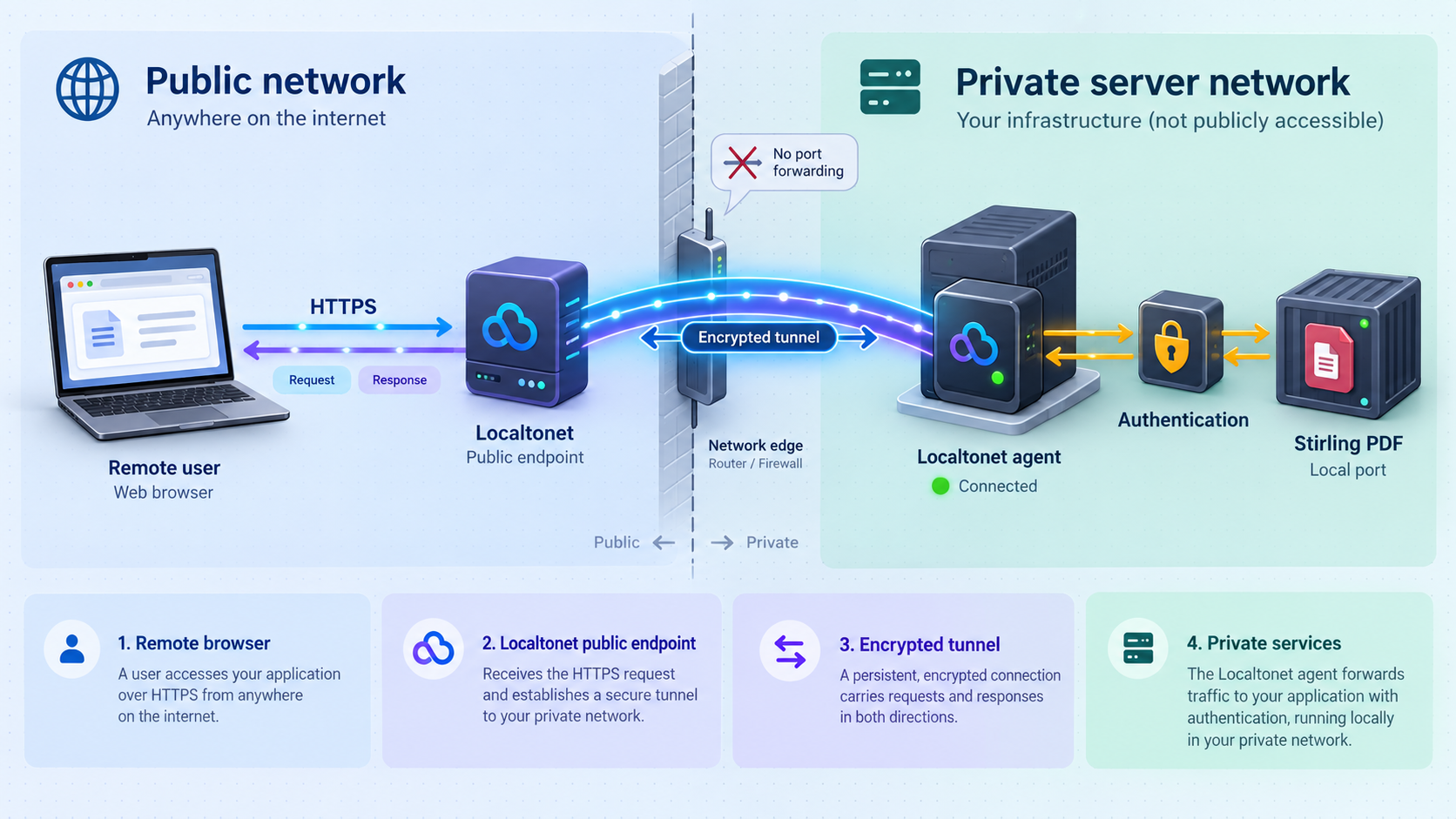
Localtonet exposes a service through an outbound client connection, so you do not need inbound router port forwarding, a public IP address, firewall changes, or a VPN setup. For this deployment, use an HTTP tunnel pointing to the local Stirling PDF address and port.
Complete the authentication and local functional tests first. The public tunnel should be the last step, not the first.
Install and run the Localtonet client
Install the Localtonet application for the operating system on the device that can reach Stirling PDF. Follow the current installation instructions in the Localtonet documentation. Do not paste a device token into an article, shared command history, screenshot, or public repository.
Select the device or AuthToken
In the Localtonet dashboard, select the device-specific token for the client running on the Stirling PDF host. A token identifies the client device that will carry the tunnel and must be protected as a credential.
Select a current relay server
Choose an available relay server or region from the current dashboard. Available server codes and regions can vary, so they should not be hardcoded into a tutorial.
Create the HTTP tunnel
Create an HTTP tunnel with local IP 127.0.0.1 and local port 8080 when the Localtonet client runs directly on the Docker host. Select the appropriate HTTP process type offered by your dashboard. Generated subdomains, selected subdomains, and custom domains all serve content at a public HTTPS address, but availability and domain requirements can vary.
Start the tunnel
Creating a tunnel does not start it. Press Start, then wait for the dashboard to show that the selected device and tunnel are connected.
Verify the public URL safely
Open the assigned HTTPS URL in a private browser window. Confirm that Stirling PDF requires authentication before showing tools. Sign in, repeat the harmless PDF test, download the result, and inspect the server logs for unexpected errors.
Stop access when it is not needed
Stop the tunnel from the Localtonet dashboard when remote access is no longer required. The public tunnel is available only while the selected client is connected and the tunnel is running. Delete the tunnel as well if you do not plan to use the configuration again.
If the Localtonet client runs in a separate container, do not set its target to 127.0.0.1:8080. That address would refer to the Localtonet container itself. Attach both containers to an intentionally managed Docker network and use the Stirling PDF service name as the local target. Keep port 8080 loopback-bound or remove the host publication if it is no longer needed.
Some applications require an externally visible base URL for redirects or generated links. Do not add the previously circulated SYSTEM_FRONTENDURL setting unless the configuration reference for your exact Stirling PDF release documents it. First test login, logout, downloads, and redirects through the public URL. If a base URL is required, use the current documented setting and recreate the container.
Localtonet terminates HTTPS at the public tunnel edge for an HTTP tunnel. The connection from the local client to
http://127.0.0.1:8080 remains local HTTP in this topology. If the local hop crosses a machine, container host, or network you do not fully trust, redesign the deployment so that hop is appropriately protected.
Backups, updates, rollback, and routine operations
This deployment is not entirely stateless. The container can be replaced, but mounted configuration, authentication state, logs, OCR files, pipeline definitions, and custom files may persist. Whether a release uses a database or another persistent format is version-dependent. Treat every mounted directory as potentially important until the release documentation and your own inspection prove otherwise.
Backup checklist
- Record the exact image repository, release tag, and preferably the tested image digest.
- Back up
compose.yamland a redacted copy of deployment settings. - Back up
.envthrough a secure secrets process, not an unencrypted public repository. - Back up configuration and authentication state from
data/configs. - Back up pipeline definitions if they are in use.
- Back up custom files and any manually managed OCR language data.
- Decide whether logs belong in backups according to your retention and incident-response policy.
- Encrypt backups and test restoration to an isolated directory.
For a consistent filesystem backup, schedule a maintenance window and stop the container before copying mutable persistent data:
cd ~/stirling-pdf
docker compose stop stirling-pdf

tar --create --gzip \
  --file "../stirling-pdf-backup-$(date +%Y%m%d-%H%M%S).tar.gz" \
  compose.yaml .env data

docker compose start stirling-pdf
The archive contains sensitive configuration and may contain authentication or log data. Move it to encrypted storage with restrictive access. The example does not replace a tested backup system or application-specific database procedure documented by a release.
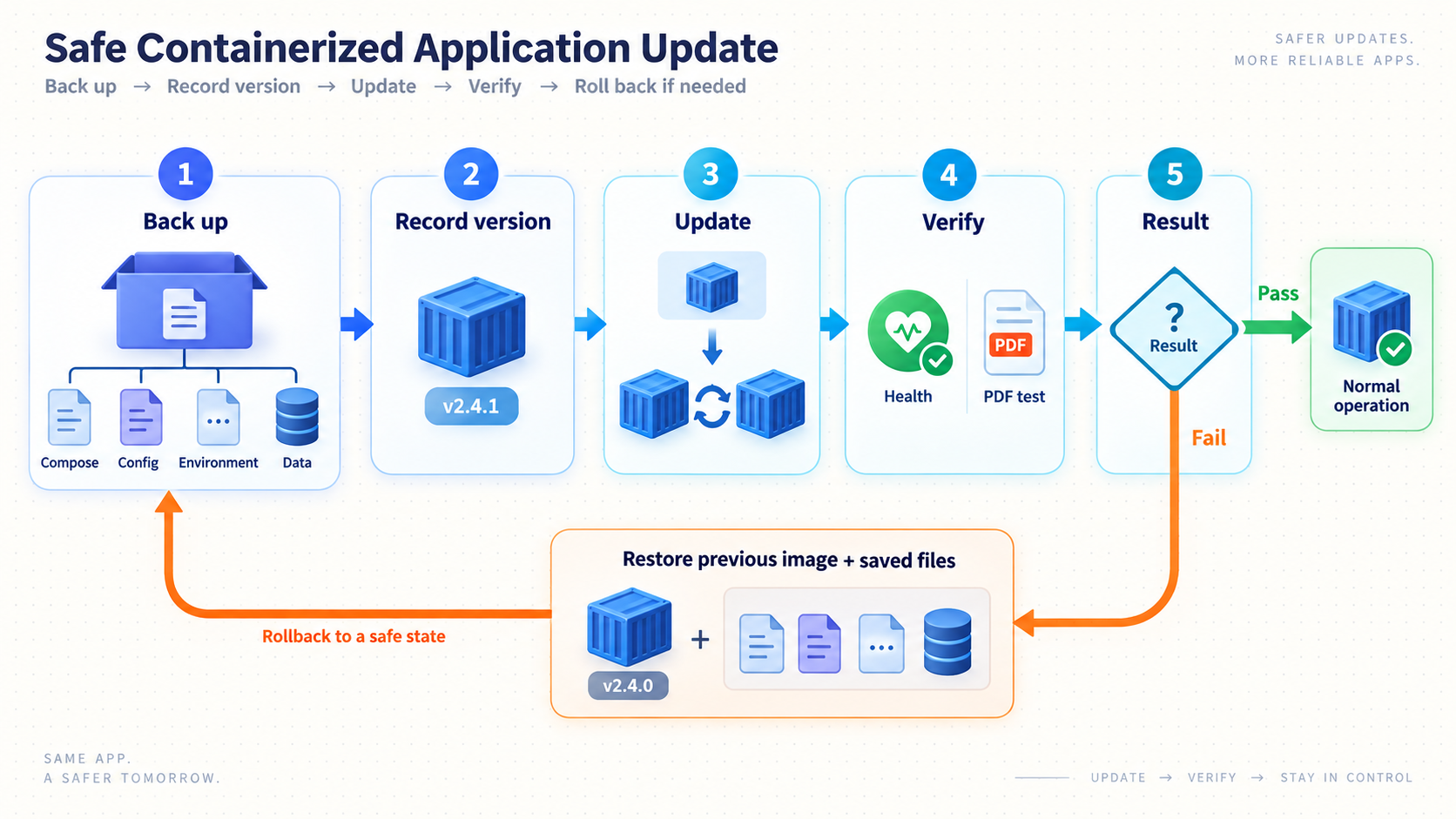
Version-pinned update procedure
- Read the target release notes and identify configuration, image, schema, security, and compatibility changes.
- Confirm the target image supports your host architecture.
- Back up all persistent mounts and record the currently working image tag or digest.
- Test the update on a copy of the persistent data when the deployment is important or multi-user.
- Change only
STIRLING_VERSIONin the protected.envfile. - Pull the target image and validate the resolved Compose configuration.
- Recreate the container, inspect logs, and repeat login and PDF functional tests.
- Start or re-enable the Localtonet tunnel only after local verification succeeds.
docker compose pull
docker compose config
docker compose up -d
docker compose ps
docker compose logs --tail=200 stirling-pdf
Rollback procedure
A container rollback and a data rollback are different actions. If an update changes persistent data, merely restoring the old image may not be sufficient.
- Stop the Localtonet tunnel to prevent user activity during recovery.
- Stop the Stirling PDF container.
- Preserve the failed deployment's logs and data for diagnosis.
- Restore the pre-update persistent-data backup if the release modified incompatible state.
- Restore the previous exact image tag or digest in
.env. - Start the container locally and inspect its logs.
- Repeat authentication, PDF processing, restart, and public tunnel tests.
Routine monitoring
docker compose ps
docker compose logs --since=24h stirling-pdf
docker stats --no-stream stirling-pdf
df -h
du -sh data/*
Review failed logins, processing errors, repeated large jobs, disk growth, container restarts, and memory pressure. Configure host-level log rotation and alerting appropriate to the sensitivity and availability needs of the service.
Troubleshooting common problems
| Problem | What to check | Safe response |
|---|---|---|
| Port 8080 is already allocated | Another process or container is listening on the host port. | Select an unused loopback host port, update the Compose mapping, and use the same port as the Localtonet target. |
| Container exits during startup | Inspect docker compose logs for image, architecture, configuration, permission, or memory errors. |
Correct the specific reported error. Do not repeatedly recreate or delete persistent data without a backup. |
| Mounted directory is not writable | Compare host ownership with the user expected by the pinned image. | Grant the narrow ownership or permissions required by the official image. Do not make the directory world-writable. |
| Login configuration is ignored | The setting may be obsolete, misspelled, or unsupported by the selected release. | Remove undocumented variables and use the security configuration reference for the exact pinned version. |
| Administrator password is lost | Check the documented recovery procedure for the installed version and confirm that a current backup exists. | Follow only the supported recovery procedure. Do not run incomplete Java commands or delete the configuration volume. |
| OCR language does not appear | Confirm the image includes OCR, the language file is compatible, and the mounted path matches the release. | Install a verified compatible artifact using the official procedure, apply required permissions, and restart only if documented. |
| Large operation kills the container | Review host memory, container memory, swap, disk space, and recent logs. | Reduce concurrency or input size, add measured capacity, and test representative jobs before restoring broader access. |
| Local access works but public access does not | Confirm the selected Localtonet client is connected, the correct AuthToken and relay are selected, and the tunnel was started. | Verify the target is 127.0.0.1:8080 for a host client. Use a Docker service name instead when the client is in another container. |
| Public URL opens tools without a login | Authentication is disabled, misconfigured, or not protecting the requested route. | Stop the tunnel immediately, correct authentication locally, test in a private browser window, then start the tunnel again. |
| Redirects point to localhost or another host | The application may need a documented external URL or forwarded-header configuration. | Check the exact release documentation. Do not assume that an older SYSTEM_FRONTENDURL example remains valid. |
Frequently asked questions
Does self-hosting mean uploaded PDFs are never written to disk?
No absolute guarantee should be made without auditing the selected release and configuration. Temporary files, logs, pipelines, sharing features, writable container layers, swap, snapshots, and backups can affect retention. Self-hosting gives you administrative control, but you must verify and enforce the desired policy.
Why bind Stirling PDF to 127.0.0.1 instead of 0.0.0.0?
A loopback binding limits direct host-port access to the Docker host. It avoids unintentionally publishing the service to every LAN interface. It is appropriate when the Localtonet client runs on the same host. A containerized client should normally use an intentional Docker network instead.
Is Localtonet authentication enough to protect Stirling PDF?
The device token authenticates the Localtonet client and must be protected, but it is not a substitute for Stirling PDF user authentication. Require application login before public exposure and grant access according to least privilege.
Will the public tunnel remain available after the client stops?
No. The tunnel is available only while the selected Localtonet client is connected and the tunnel is running. Creating a tunnel does not start it, and stopping the client or tunnel interrupts access.
Can Stirling PDF run on a Raspberry Pi?
Only if the exact image tag includes a compatible ARM manifest and the device has enough resources for the intended workload. Verify architecture support before pulling the image, then test representative PDF, OCR, and conversion jobs. Do not rely on an unsupported fixed memory claim.
Can I use the Stirling PDF REST API through the tunnel?
Potentially, if the pinned release exposes the required endpoint and your authentication configuration permits it. Build clients from that release's OpenAPI definition, test failure handling, protect credentials, and avoid exposing an unauthenticated automation endpoint.
Is it safe to update by pulling a moving latest tag?
A moving tag is not a reproducible update strategy. Pin an exact release, read its notes, back up persistent data, test the update, and retain the previous image and compatible data backup for rollback.
Publish your authenticated PDF workspace only when you need it
After Stirling PDF passes local authentication, backup, and functional tests, create a Localtonet HTTP tunnel to the loopback-bound service. Start the tunnel for authorized remote work and stop it when access is no longer required.
Get Started Free →

