

Build a private monitoring server, verify it locally, and publish only the access you actually need
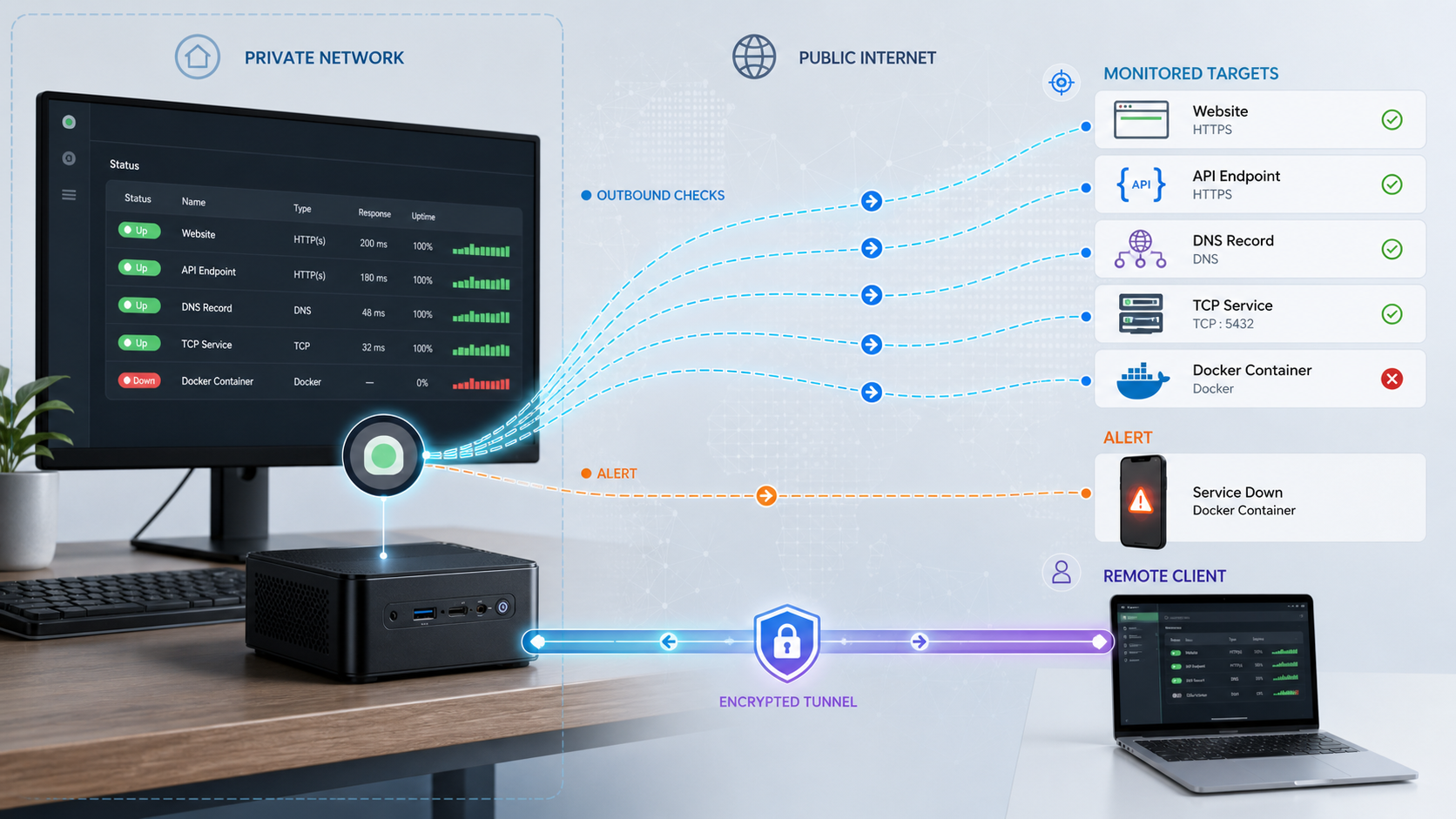
Uptime Kuma is an open-source monitoring application that you can run on your own server. This guide installs the current Uptime Kuma v2 Docker image, creates the first administrator account safely, explains common active and Push monitor workflows, and covers notifications, status pages, backups, updates, Docker monitoring, and troubleshooting. It also shows the documented Localtonet workflow for giving the local service a public HTTPS address without inbound router port forwarding. Remote reachability is not authorization, so the guide treats a public status page, Push heartbeat endpoint, and administrative dashboard as separate security decisions.
📋 What's in this guide
Understand the architecture before exposing anything
Uptime Kuma periodically checks services and records their availability. Because it is self-hosted, you control the machine, application data, update schedule, and network path. You are also responsible for keeping the monitoring server available, protecting its administrator account, and maintaining recoverable backups.
The default web application listens on port 3001. In the Docker Compose configuration below, that port is published only on the host loopback address:
ports:
  - "127.0.0.1:3001:3001"
This prevents other computers from connecting directly to the host's LAN address on port 3001. It does not make the application universally secure. Other processes on the host can still reach it, and any reverse proxy or tunnel connected to 127.0.0.1:3001 can intentionally make it reachable elsewhere. Host firewall rules, account security, software updates, and access policy remain important.
An HTTP tunnel can carry traffic to Uptime Kuma, but it does not turn the Uptime Kuma dashboard into a private service by itself. Create the administrator account before starting a public tunnel, use a unique strong password, keep the device token and Push URLs secret, and expose the service only when there is a defined need. If your policy requires the dashboard to be inaccessible from the public internet while a status page remains public, place a separately configured access-control or reverse-proxy layer in front of Uptime Kuma. Do not assume that an unlisted status-page path hides the login page.
A typical remote request follows this path: the browser connects to the assigned Localtonet public address, the Localtonet relay sends the request through the outbound connection maintained by the Localtonet client, and that client forwards it to Uptime Kuma at 127.0.0.1:3001. The tunnel is available only while the selected device is connected and the tunnel is running.
Prerequisites and deployment assumptions
This tutorial assumes an Ubuntu or Debian-family Linux host with a 64-bit operating system, a user that can run administrative commands, and local storage for Uptime Kuma data. Docker publishes multi-platform images, but compatibility depends on the architecture and operating system supported by the selected image. Check the current Uptime Kuma release notes before deploying on older or unusual hardware.
No universal CPU, memory, storage, or Raspberry Pi monitor-count guarantee is appropriate. Resource consumption depends on monitor types, check intervals, response sizes, retention, database size, notification activity, and other workloads on the host. A Raspberry Pi or another ARM64 computer can be suitable when its operating system and Docker installation are supported, but measure your own workload with docker stats rather than relying on a fixed benchmark.
| Requirement | Why it matters | How to check |
|---|---|---|
| Supported Linux and Docker architecture | The host must be able to run the selected Uptime Kuma image. | uname -m and docker version |
| Docker Engine with Compose plugin | The tutorial uses docker compose to manage the service. |
docker compose version |
| Local persistent storage | The complete /app/data directory must survive container replacement. |
df -h . and findmnt -T . |
| Access to the server shell | Headless installation, verification, backup, and recovery require command-line access. | Confirm a local console or SSH session before starting. |
| A separate backup destination | A backup on the same failing disk is not sufficient for disaster recovery. | Identify another disk, host, or backup system before production use. |
The Compose example uses a bind-mounted local directory. Avoid placing the active SQLite data directory on an arbitrary network share. Filesystem locking and durability behavior differ across NFS, SMB, clustered, and userspace filesystems. If you need network-backed storage or an external database, confirm the exact configuration against the current Uptime Kuma documentation and test recovery before relying on it.
Install Docker using a supported method
For a production host, follow Docker's supported repository installation process for your distribution rather than automatically piping a downloaded script into a privileged shell. The commands below show the Docker apt repository workflow for Debian-family systems. Confirm that your distribution is supported and review Docker's current instructions if package names or repository requirements have changed.
sudo apt-get update
sudo apt-get install -y ca-certificates curl
sudo install -m 0755 -d /etc/apt/keyrings

sudo curl -fsSL https://download.docker.com/linux/ubuntu/gpg \
  -o /etc/apt/keyrings/docker.asc
sudo chmod a+r /etc/apt/keyrings/docker.asc

. /etc/os-release
echo \
  "deb [arch=$(dpkg --print-architecture) signed-by=/etc/apt/keyrings/docker.asc] https://download.docker.com/linux/ubuntu \
  ${UBUNTU_CODENAME:-$VERSION_CODENAME} stable" | \
  sudo tee /etc/apt/sources.list.d/docker.list > /dev/null

sudo apt-get update
sudo apt-get install -y docker-ce docker-ce-cli containerd.io \
  docker-buildx-plugin docker-compose-plugin

sudo docker run --rm hello-world
sudo docker compose version
On Debian, use Docker's Debian repository instructions rather than substituting an Ubuntu repository. Other Linux distributions have different package commands. Docker also publishes a convenience script at get.docker.com, but Docker describes that route as convenient for development and testing scenarios. A script fetched from the network should be inspected before execution, and it is not a substitute for understanding the packages and repository changes being applied to a production server.
The remaining commands use sudo docker. You can grant a user access to the Docker group, but membership in that group effectively grants extensive control over the host. Treat it as privileged access rather than as a harmless convenience.
Install Uptime Kuma with Docker Compose
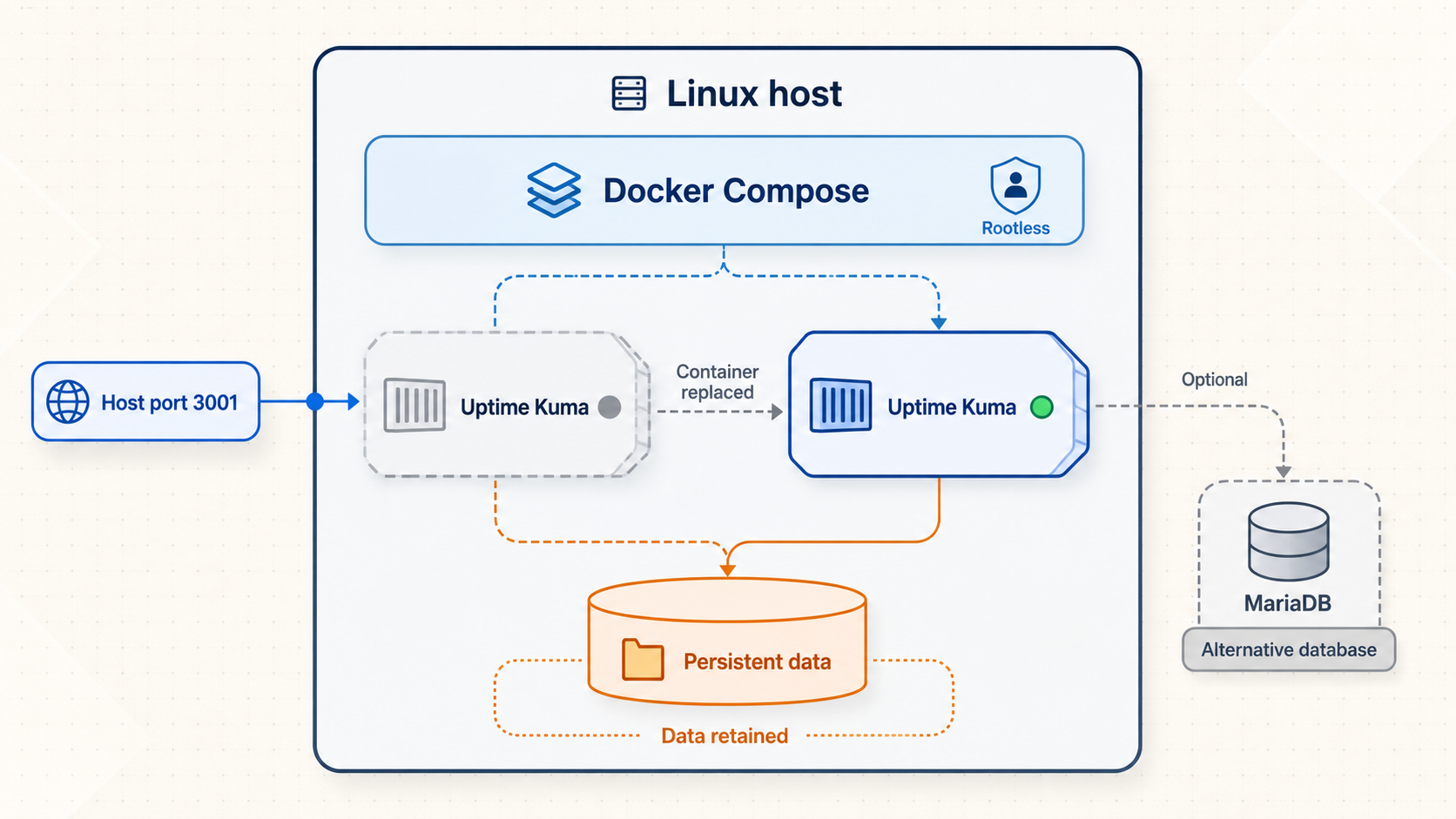
The project publishes versioned container images. This tutorial uses the v2 major tag shown in the current article scope. Before a new deployment or upgrade, compare the image tag with the current project documentation and release notes. Do not assume that a future major release is a drop-in replacement.
Create the project and data directories
Keep the Compose file and persistent data together so that backup and recovery paths are unambiguous.
mkdir -p "$HOME/uptime-kuma/data"
cd "$HOME/uptime-kuma"Create the Compose configuration
The loopback-only port publication is deliberate. Change the time zone to a valid value for your deployment, or remove that environment entry if you do not need it.
services:
  uptime-kuma:
    image: louislam/uptime-kuma:2
    container_name: uptime-kuma
    restart: unless-stopped
    ports:
      - "127.0.0.1:3001:3001"
    volumes:
      - ./data:/app/data
    environment:
      TZ: UTC
Save this content as $HOME/uptime-kuma/compose.yaml. The major tag can receive newer v2 images when you pull again. For stricter change control, pin an explicitly reviewed release tag or image digest and update it deliberately.
Validate and start the service
cd "$HOME/uptime-kuma"
sudo docker compose config
sudo docker compose pull
sudo docker compose up -d
sudo docker compose ps
sudo docker compose logs --tail=100 uptime-kuma
Review the actual output for errors. Container names, versions, timing, and log text can vary, so do not depend on a copied example log as proof of success.
Verify the HTTP service from the host
curl --fail --show-error --silent \
  --output /dev/null \
  http://127.0.0.1:3001/

echo "HTTP request succeeded"
A successful HTTP request confirms that the host can reach the published port. It does not prove that every monitor, notification, or remote route is configured correctly.
Open the first-run page safely
If the server has a local desktop, open http://127.0.0.1:3001 on that server. For a headless server, create an SSH port forward from your workstation:
ssh -L 3001:127.0.0.1:3001 your-user@your-serverKeep the SSH session open, then visit http://127.0.0.1:3001 in the workstation browser. The browser's localhost now reaches the server through SSH. Opening localhost without this forwarding would reach the workstation itself, not the remote server.
Create and protect the administrator account
Complete the first-run screen before creating a public route. Use a unique strong password stored in a password manager. Anyone who reaches an unclaimed first-run instance may be able to create its initial administrator, so do not expose the service before this step.
Test restart behavior
cd "$HOME/uptime-kuma"
sudo docker compose restart uptime-kuma
sudo docker compose ps
curl --retry 12 --retry-delay 5 \
  --retry-connrefused \
  --fail --show-error --silent \
  --output /dev/null \
  http://127.0.0.1:3001/
Log in again and confirm that the account and settings remain present. This checks that the persistent data mount is functioning before you invest time configuring monitors.
The Uptime Kuma project maintains installation and release information in its official GitHub repository. Review the release notes before changing major versions. Database support, migration behavior, Node.js requirements for non-Docker installations, image variants, and removed features are version-specific and should not be inferred from an older tutorial.
Choose and configure monitors
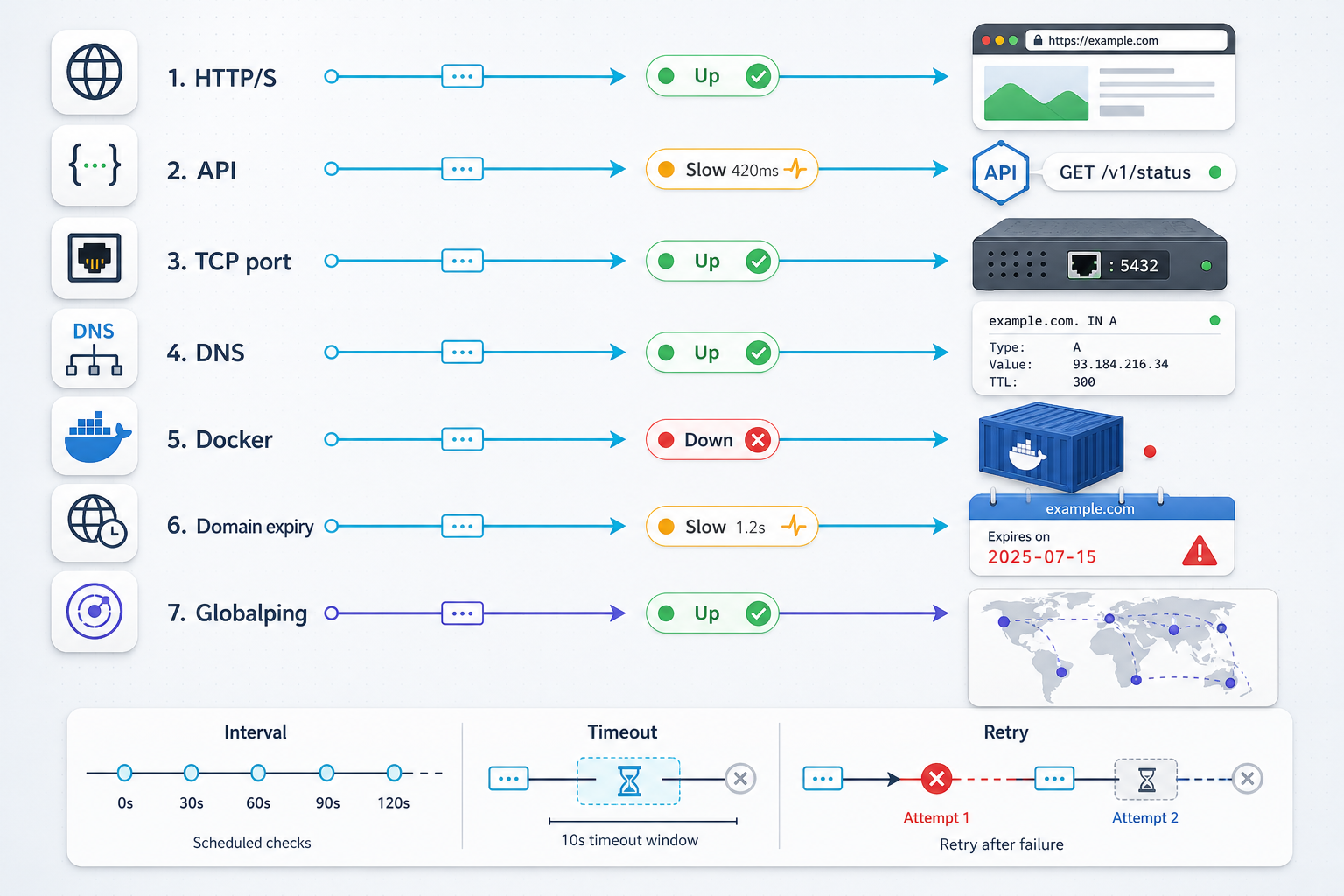
Uptime Kuma offers multiple monitor types, and the available list can change between releases. The table below focuses on common workflows rather than claiming to enumerate every type. Always use the fields and help text shown by your installed version when configuring protocol-specific behavior.
| Monitor | What it tests | Important limitation |
|---|---|---|
| HTTP(s) | Makes an HTTP request and evaluates the configured response conditions. | A successful status code does not necessarily prove that the application is functionally healthy. |
| HTTP keyword or JSON query | Checks content in addition to basic HTTP reachability. | Choose a stable response value and avoid matching content that appears on an error page. |
| TCP port | Attempts a TCP connection to a host and port. | An accepted connection proves only that something is listening, not that the full application works. |
| Ping | Tests ICMP reachability where the host and network allow it. | Many networks block or deprioritize ICMP even while application traffic works. |
| DNS | Queries the selected record through the configured resolver. | Results can differ by resolver, cache state, record type, and geographic location. |
| Push | Waits for a request to a monitor-specific heartbeat URL. | The URL contains a monitor identifier and should be treated as a secret capability URL. |
| Docker container | Reads container state through a configured Docker daemon connection. | Uptime Kuma needs daemon access, which introduces significant host security risk. |
Create a useful HTTP monitor
In the Uptime Kuma dashboard, choose the option to add a monitor, select the HTTP monitor type available in your version, enter the target URL, and configure an interval appropriate for the service. Use a URL that represents meaningful application health. For example, an authenticated application may provide a dedicated health endpoint, while a static website may need a keyword check to distinguish the expected page from a generic proxy error.
Test reachability from the same network context as Uptime Kuma. Remember that 127.0.0.1 inside the Uptime Kuma container refers to that container, not to the Docker host and not to another container. For services in the same Compose project, connect them to a shared Docker network and use their Compose service names. For a service on the host, use an address that is actually available from containers in your Docker configuration.
host.docker.internal is not universal on Linux
Docker Desktop commonly provides this hostname, but it is not automatically available in every standalone Docker Engine configuration. Do not replace a target with host.docker.internal unless you have configured and tested that mapping. A shared Docker network, an explicit host-gateway mapping, or a routable host address may be more appropriate, depending on the deployment.
Configure a Push monitor
A Push monitor reverses the normal check direction. A job or service sends a request to the URL generated for that monitor. This works well for scheduled backups, batch imports, sensor collection, and systems that cannot accept an incoming active check.
Create the Push monitor
Add a monitor, select Push, choose a descriptive name, and configure timing that allows the job to finish under normal conditions. Save it and copy the generated URL from your own instance.
Choose a reachable base address
The sender may use a private address when it can already reach Uptime Kuma through a LAN, private mesh, or other controlled network. A public URL is needed only when the sender has no suitable private route. A Localtonet HTTP tunnel can provide that route without inbound router port forwarding.
Send the heartbeat only after success
#!/usr/bin/env bash
set -Eeuo pipefail

run_the_real_backup
curl --fail --show-error --silent \
  --retry 3 \
  "PASTE_THE_PUSH_URL_FROM_YOUR_OWN_MONITOR"
Do not embed a real Push URL in a public repository, article, shared screenshot, or image. Store it using the secret-management method appropriate for the calling system.
Test failure as well as success
Trigger one successful run and confirm the heartbeat appears. Then temporarily stop sending heartbeats and verify that the monitor changes state after the configured timing and retry rules. Restore the job and confirm recovery.
Configure Docker container monitoring deliberately
The basic Compose file does not give Uptime Kuma access to the Docker daemon. Consequently, installing it does not automatically enable Docker container monitoring. Uptime Kuma must be given a configured Docker host connection before it can inspect container state.
A commonly used local connection mounts the Docker Unix socket into the monitoring container and configures the corresponding Docker host in Uptime Kuma. However, access to /var/run/docker.sock can provide extensive control over the Docker host. A read-only filesystem mount flag does not reliably reduce the Docker API to harmless read operations. An application with daemon access may be able to start privileged containers, mount host paths, or otherwise affect the host.
Only enable Docker daemon access after evaluating the host-level impact. Safer architectural choices include using ordinary HTTP or TCP monitors for containerized services, running monitoring on a dedicated host, or placing a carefully configured authorization proxy between Uptime Kuma and the daemon. A Docker socket proxy must allow only the minimum endpoints required by your tested Uptime Kuma version. Never publish an unauthenticated Docker API over a TCP port.
Docker distinguishes a container's running state from its health state. A container without a Docker HEALTHCHECK can still be running, but it does not produce the same health result as one with a configured check. It is therefore too broad to say that every container without a health check remains in a starting state indefinitely. Confirm how the selected Uptime Kuma monitor evaluates your container, and use an application-level HTTP or TCP monitor when that gives a more meaningful result.
Set up and test notifications
Notification integrations vary by Uptime Kuma release and by provider. Start with one channel, use its Test function, attach it to a noncritical monitor, and deliberately trigger a failure and recovery. A successful configuration test does not always prove that real monitor events will be delivered, so test the full path.
Telegram bot notifications
Create a bot with Telegram's BotFather
Open the verified Telegram BotFather account, use its current bot-creation flow, and store the resulting token as a secret. Never paste the token into public logs or screenshots.
Start the conversation or add the bot to the destination
Telegram bots cannot send to an arbitrary user who has never interacted with them. Send the bot a message or add it to the intended group according to Telegram's current permissions model.
Enter the bot token and destination in Uptime Kuma
Add a Telegram notification using the fields shown by your installed version. Use Uptime Kuma's helper or Telegram's current Bot API process to determine the required chat identifier. Group and direct-message identifiers can have different forms, so do not infer one from an example.
Test and rotate if exposed
Send a test notification. If a bot token appears in shell history, logs, a repository, or a screenshot, revoke or rotate it through Telegram rather than merely deleting the visible copy.
SMTP and Gmail
For SMTP, enter the hostname, port, transport-security mode, username, password, sender, and recipient required by your email provider. Do not assume that port 465 and port 587 use interchangeable security settings. Port 465 commonly uses implicit TLS, while port 587 commonly begins with SMTP and upgrades using STARTTLS, but the provider's current documentation is authoritative.
Google accounts may offer App Passwords when the account meets Google's eligibility and security requirements, including applicable 2-Step Verification settings. Availability can also depend on account type, organization policy, and security configuration. If App Passwords are available, generate one through the Google Account App Passwords page and store it as a secret. Do not use or publish the normal Google account password. If the option is absent, consult the current Google account or Workspace policy rather than weakening account security.
Discord webhooks
For Discord, create an incoming webhook for the intended channel through the server's current integration settings, copy its URL, and paste it into Uptime Kuma's Discord notification form. Menu labels and permissions can change, and the user creating the webhook needs suitable server permissions. Treat the webhook URL as a credential because anyone possessing it may be able to post to the channel. Send a test, then remove the test message if appropriate.
Create a status page without oversharing
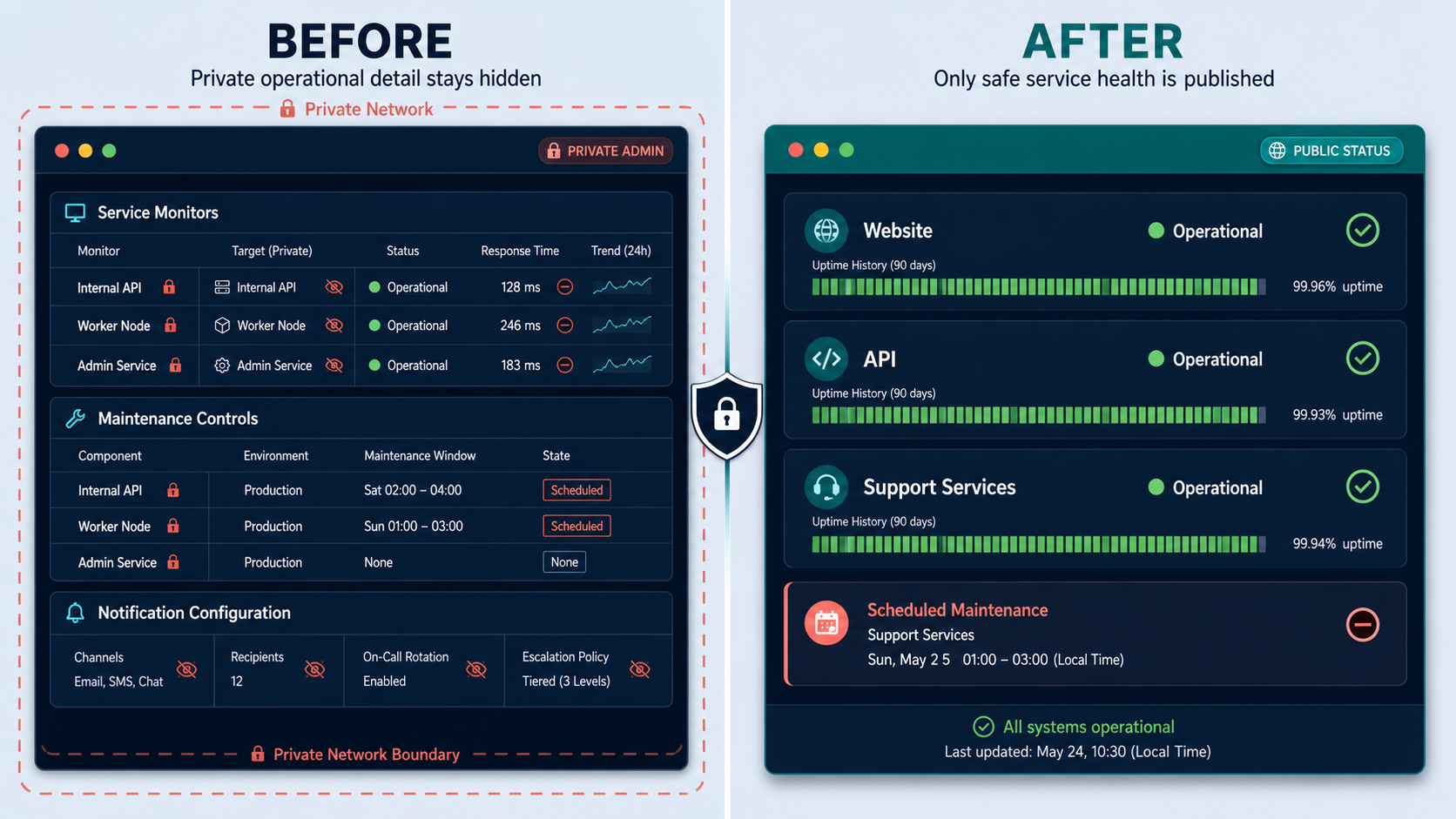
A status page presents selected monitor information to viewers without giving them monitor-editing access. It can be useful for customers, household members, or an internal operations team. The fact that a status page is intended to be public does not mean every monitor name, tag, hostname, incident message, or response detail is safe to publish.
Create the page
Open the status-page area in your installed Uptime Kuma version, create a page, and choose a stable title and slug. Avoid internal project names or customer identifiers in a public slug.
Add only approved monitors
Organize selected monitors into understandable groups. Do not add infrastructure monitors merely because they exist. Review names and descriptions from the perspective of an unauthenticated visitor.
Review privacy and discoverability settings
Configure the options available in your version, then open the page in a private browser window. Search-engine visibility settings can affect indexing, but disabling indexing is not an access-control mechanism.
Test the complete public route
Confirm that the page loads from an external network and updates over time. Also visit the origin's login route so you understand which administrative surface has become reachable through the same tunnel.
DNS records point to hostnames or addresses according to the documented configuration. They do not point to an HTTPS URL or URL path. Localtonet HTTP tunnels support Random Sub Domain, Custom Sub Domain, and Custom Domain process types, but exact custom-domain DNS requirements can change. Use the current dashboard and Localtonet documentation for the required record type and value before changing DNS.
Publish Uptime Kuma through Localtonet
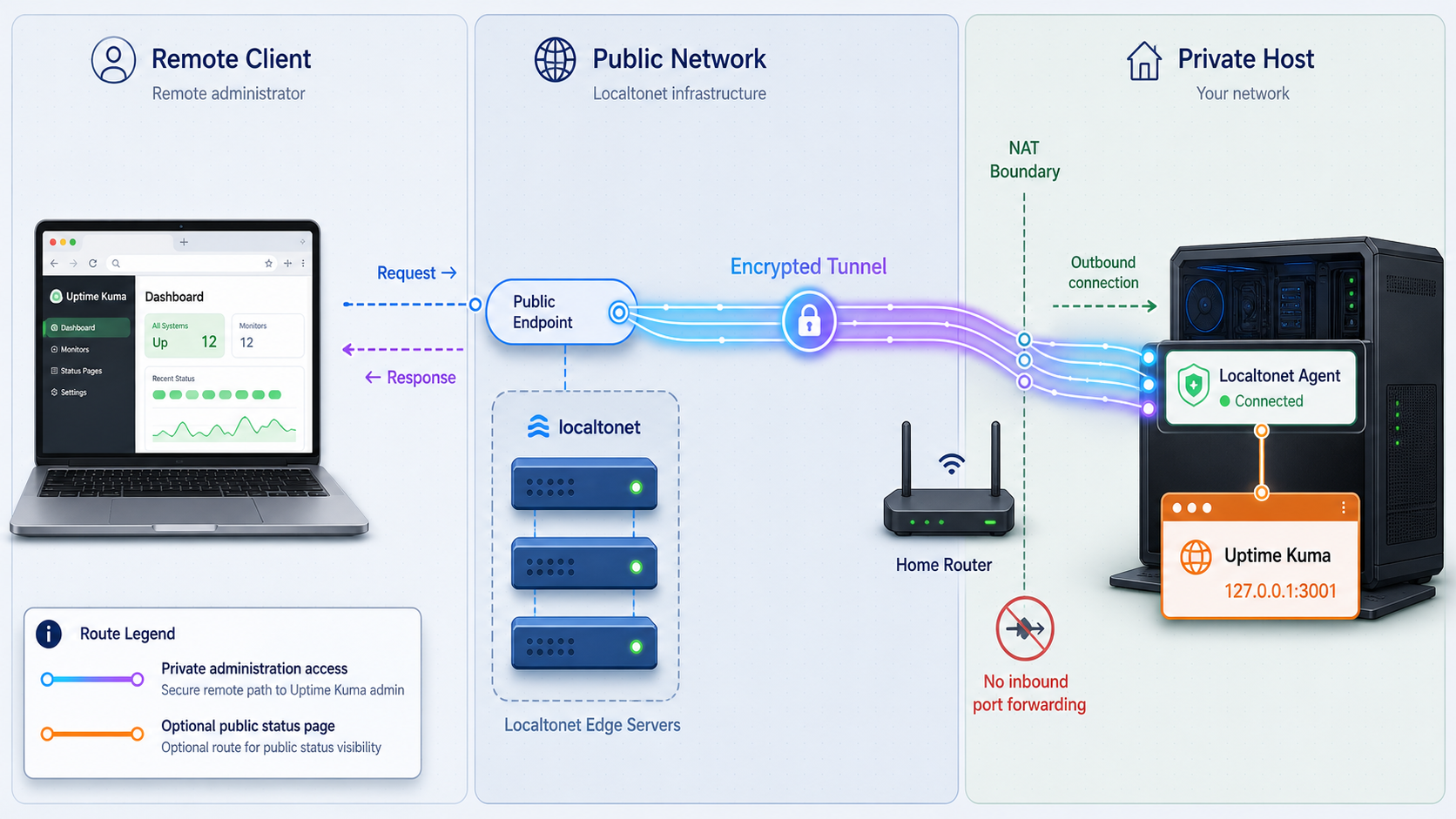
With Localtonet, the client on the Uptime Kuma host establishes an outbound connection to one of our relay servers. You do not need inbound router port forwarding, firewall changes, VPN setup, or a public IP address for this tunnel workflow. The result is a public HTTPS address that forwards to the local Uptime Kuma service.
Use remote access for a specific reason:
- Administrators need to reach the dashboard from outside the local network.
- Approved viewers need a public status page.
- A Push monitor sender needs a reachable heartbeat endpoint and no private route exists.
A single Uptime Kuma origin can serve all three, but their security requirements differ. Publishing only a status-page URL does not necessarily make the rest of the origin unreachable. If the public-status and private-administration requirements cannot coexist safely on one origin, use an additional access-control architecture rather than relying on obscurity.
Install and run the Localtonet client
Install the current Localtonet application for the operating system on the device that can reach 127.0.0.1:3001. Use the current download and installation instructions shown by Localtonet rather than an unverified shell command or service flag.
Select the device authentication token
In the dashboard, select the device-specific AuthToken associated with the client running on this host. Never put a real token in a Compose file, article, screenshot, support ticket, or public command history. Tokens identify client devices and must not be guessed or shared.
Open the HTTP tunnel configuration
Go to the Localtonet HTTP tunnel page. Select the appropriate HTTP Process Type: Random Sub Domain, Custom Sub Domain, or Custom Domain. All three serve the target content through a public HTTPS address. Availability can vary by plan or current dashboard configuration.
Select an available relay server
Choose an available server or region from the current dashboard. Do not copy a server code from an old tutorial because available values can change.
Enter the local Uptime Kuma target and create the tunnel
Set the local IP address to 127.0.0.1 and the local port to 3001, then create the tunnel. Creating it stores the configuration but does not mean that it is running.
Start the tunnel and use its assigned URL
Press Start. Copy the HTTPS URL assigned by the dashboard. Do not invent or hardcode a Localtonet hostname before the dashboard assigns it. The client must remain connected and the tunnel must remain running for the URL to work.
Verify from a genuinely remote network
Open the assigned URL using a phone on mobile data or another network. Confirm that the login page appears, that authentication succeeds when administrative access is intended, and that the approved status-page path works in a private browser window. Exercise the dashboard for several minutes and check browser developer tools for failed requests or disconnected real-time updates rather than assuming protocol behavior.
Stop or delete access when it is no longer needed
Use Stop to make the configured tunnel unavailable without deleting it. Use the dashboard's delete action when the configuration is no longer required. Stopping the Uptime Kuma container or disconnecting the selected Localtonet client also makes the application unavailable through that tunnel.
Configure Push URLs after remote access is working
If a Push sender needs the Localtonet route, configure Uptime Kuma's public or primary base URL field only if that field exists in your installed version and is required for generated links. Enter the exact HTTPS address assigned by the dashboard. Then copy the Push URL again from Uptime Kuma and test it from the sender's network.
The Push URL itself should be treated like a secret. A person who obtains it may be able to submit false heartbeats or status information for that monitor. Do not place it in public source code. If it leaks, replace the monitor or otherwise rotate the generated endpoint using the controls supported by your version.
Back up and restore the complete data directory
A reliable backup procedure must stop on errors, preserve ownership and permissions, avoid deleting unrelated files, restart the service after a failed copy, and be tested through an actual restore. Back up the complete persistent data directory rather than selecting only one database file.
The following script briefly stops Uptime Kuma and archives the complete data directory. It writes the archive to a temporary filename and renames it only after successful completion, so an interrupted run does not look like a valid backup.
#!/usr/bin/env bash
set -Eeuo pipefail
umask 077

PROJECT_DIR="${HOME}/uptime-kuma"
BACKUP_ROOT="${HOME}/uptime-kuma-backups"
STAMP="$(date -u +%Y-%m-%dT%H%M%SZ)"
FINAL="${BACKUP_ROOT}/uptime-kuma-${STAMP}.tar.gz"
TEMP="${FINAL}.partial"
SERVICE_STOPPED=0

restart_if_needed() {
  if [[ "${SERVICE_STOPPED}" -eq 1 ]]; then
    cd "${PROJECT_DIR}"
    sudo docker compose start uptime-kuma
  fi
  rm -f "${TEMP}"
}
trap restart_if_needed EXIT

mkdir -p "${BACKUP_ROOT}"
cd "${PROJECT_DIR}"

sudo docker compose stop uptime-kuma
SERVICE_STOPPED=1

sudo tar \
  --numeric-owner \
  --xattrs \
  --acls \
  -czf "${TEMP}" \
  data compose.yaml

sudo chown "$(id -u):$(id -g)" "${TEMP}"
mv "${TEMP}" "${FINAL}"

sudo docker compose start uptime-kuma
SERVICE_STOPPED=0

curl --retry 12 \
  --retry-delay 5 \
  --retry-connrefused \
  --fail --show-error --silent \
  --output /dev/null \
  http://127.0.0.1:3001/

find "${BACKUP_ROOT}" \
  -maxdepth 1 \
  -type f \
  -name 'uptime-kuma-*.tar.gz' \
  -mtime +14 \
  -print \
  -delete

printf 'Verified backup created: %s\n' "${FINAL}"
Save the script as $HOME/uptime-kuma/backup.sh, review every path, make it executable, and run it manually:
chmod 700 "$HOME/uptime-kuma/backup.sh"
"$HOME/uptime-kuma/backup.sh"
tar -tzf "$HOME"/uptime-kuma-backups/uptime-kuma-*.tar.gz | headThe script deletes only matching archive files older than 14 days, but it still stores backups on the local host by default. Copy verified archives to a separate failure domain using your established backup system. Protect them because they may contain monitor targets, notification credentials, account data, and other sensitive configuration.
Perform a tested restore with rollback
Test the following process on a nonproduction host first. Use a backup created from a compatible Uptime Kuma version. Keep the current data directory until the restored application passes verification.
#!/usr/bin/env bash
set -Eeuo pipefail

PROJECT_DIR="${HOME}/uptime-kuma"
ARCHIVE="${1:?Usage: restore.sh /path/to/uptime-kuma-backup.tar.gz}"
ROLLBACK="${PROJECT_DIR}/data.before-restore.$(date -u +%Y%m%dT%H%M%SZ)"

test -r "${ARCHIVE}"
tar -tzf "${ARCHIVE}" > /dev/null

cd "${PROJECT_DIR}"
sudo docker compose down

test -d data
sudo mv data "${ROLLBACK}"

if ! sudo tar \
  --numeric-owner \
  --xattrs \
  --acls \
  -xzf "${ARCHIVE}" \
  -C "${PROJECT_DIR}"; then
  sudo rm -rf "${PROJECT_DIR}/data"
  sudo mv "${ROLLBACK}" "${PROJECT_DIR}/data"
  sudo docker compose up -d
  exit 1
fi

sudo docker compose up -d

if ! curl --retry 12 \
  --retry-delay 5 \
  --retry-connrefused \
  --fail --show-error --silent \
  --output /dev/null \
  http://127.0.0.1:3001/; then
  sudo docker compose down
  sudo rm -rf "${PROJECT_DIR}/data"
  sudo mv "${ROLLBACK}" "${PROJECT_DIR}/data"
  sudo docker compose up -d
  exit 1
fi

printf 'HTTP verification passed. Keep rollback data until manual checks pass: %s\n' \
  "${ROLLBACK}"
After the HTTP check passes, log in and verify the administrator account, monitor list, status pages, notification configurations, recent history, and a test alert. Trigger one Push monitor from a test sender. Only remove the rollback directory after these manual checks pass and after another valid backup exists.
Update, verify, and roll back safely
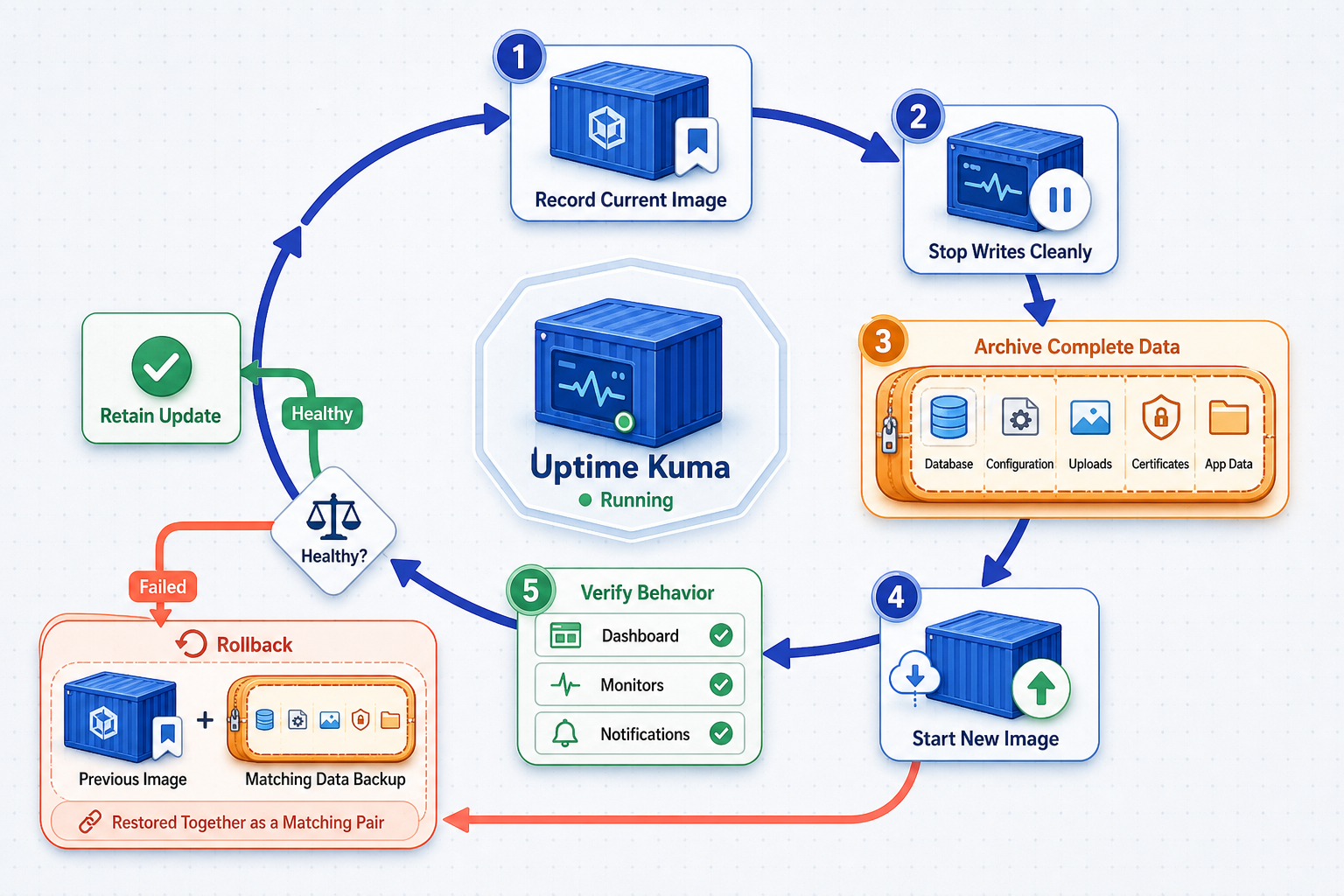
No update should be described as categorically safe. Patch and minor releases can contain migrations, changed defaults, regressions, or integration changes. Major upgrades require particular care. Read the official release notes, verify compatibility, take a tested backup, and schedule enough time to observe startup and application behavior.
Record the current state
cd "$HOME/uptime-kuma"
sudo docker compose ps
sudo docker inspect uptime-kuma \
  --format '{{.Config.Image}} {{.Image}}'
sudo docker compose logs --tail=100 uptime-kumaCreate and copy a verified backup
"$HOME/uptime-kuma/backup.sh"Confirm the archive exists and that an off-host copy is available before a major migration.
Pull the reviewed image and recreate the container
cd "$HOME/uptime-kuma"
sudo docker compose pull uptime-kuma
sudo docker compose up -d uptime-kuma
sudo docker compose logs -f uptime-kuma
Do not interrupt a migration merely because it takes longer than expected. Use the release notes and logs for the installed versions instead of relying on an unsupported timing estimate.
Run post-update checks
curl --fail --show-error --silent \
  --output /dev/null \
  http://127.0.0.1:3001/

sudo docker compose ps
sudo docker compose logs --tail=200 uptime-kuma
Log in, inspect multiple monitors, test one notification, open each important status page, submit a test Push heartbeat, and verify the Localtonet route from another network.
If verification fails, preserve the failed logs and data before attempting recovery. Rollback may require restoring both the previous container image and the pre-update data directory because a database migration can make new data incompatible with an older image. Do not repeatedly start different versions against the same only copy of the data.
Routine operational checks
- Review container state and recent logs after host reboots.
- Watch disk capacity and the growth of the persistent data directory.
- Run backups on a schedule and inspect failed-job notifications.
- Perform periodic restores on another host rather than assuming archives are usable.
- Review administrator access, notification secrets, Push URLs, and Localtonet device tokens.
- Stop unused tunnels and delete obsolete configurations.
- Confirm that the public status page still contains only approved monitor information.
- Monitor Uptime Kuma itself from an independent system when missed alerts would be consequential.
Troubleshooting common failures
| Symptom | Diagnostic check | Safe next action |
|---|---|---|
| The container restarts repeatedly | Run sudo docker compose logs --tail=200 uptime-kuma and inspect the data filesystem and permissions. |
Do not repeatedly delete data. Preserve it, verify the mount, and restore from a tested backup if corruption is confirmed. |
| The browser cannot open localhost on a headless server | Run curl http://127.0.0.1:3001/ on the server. |
Use an SSH local port forward. The workstation browser's localhost is not the remote server without forwarding. |
| A monitor cannot reach a service on the Docker host | Test from the Uptime Kuma container and inspect Docker networks and routes. | Use a shared Docker network, tested host address, or explicitly configured host-gateway mapping. Do not assume host.docker.internal exists. |
| A Docker monitor has no useful health result | Inspect docker inspect for running state and configured health checks. |
Choose a monitor that matches the signal you need. An HTTP health endpoint may be more meaningful than container state. |
| A Push monitor receives no heartbeat | Run the sender's curl manually and inspect its exit status, DNS, and route. |
Use the exact generated URL, confirm the sender can reach it, and verify tunnel and client state when using Localtonet. |
| The Localtonet URL is unavailable | Check that the selected client device is connected and that the tunnel shows as running. | Start the tunnel, verify the local target from the client host, and use the URL assigned by the dashboard. |
| The page loads but live updates fail | Inspect browser developer tools for failed requests and check Uptime Kuma and proxy logs. | Validate the actual route before asserting WebSocket compatibility. If another reverse proxy is present, configure it according to that proxy's current documentation. |
| SMTP tests fail | Review the exact error, provider port, TLS mode, authentication policy, and sender restrictions. | Use provider-specific credentials and current documentation. For eligible Google accounts, use an App Password rather than the account password. |
| An update starts but the application is unusable | Save logs and determine whether a migration completed. | Do not start an old image against migrated data blindly. Restore the pre-update data and matching image as a coordinated rollback. |
Frequently asked questions
Does Uptime Kuma need a public URL?
No. Uptime Kuma can monitor services and receive Push heartbeats entirely through local or private networks. A public URL is useful when administrators, status-page visitors, or Push senders do not have a private route to the server. Publish it only when that access is needed.
Does a Localtonet tunnel protect the Uptime Kuma login page?
The tunnel provides network reachability to the configured local service. Uptime Kuma authentication still controls dashboard login, and any additional authorization requirements must be implemented separately. Use a strong administrator password and least exposure, and do not treat an unguessable URL as access control.
Can Uptime Kuma monitor devices on a home LAN?
Yes, when the Uptime Kuma container has a permitted route to those devices. Use the LAN address for an appropriate active monitor and test from the container's network context. Firewall rules, network segmentation, DNS, and container routing can affect reachability.
Can a Push monitor work behind NAT or CGNAT?
It can work when the sender is allowed to establish the required outbound connection and can resolve and reach the Push endpoint. NAT or CGNAT does not guarantee that every outbound connection will succeed because local firewalls, captive networks, DNS policy, and provider restrictions can still block traffic.
Should I expose the Docker socket to Uptime Kuma?
Only after a deliberate security review. Docker daemon access can amount to host-level control, even when the socket file is mounted read-only. For many services, an HTTP or TCP monitor provides a useful signal without granting daemon access.
Can Uptime Kuma itself fail and miss alerts?
Yes. If its host, storage, network, container, or notification path fails, it may not be able to report the outage. Monitor critical Uptime Kuma deployments from an independent system on a separate failure domain, and test that independent alert path.
Is backing up the SQLite database file enough?
Back up the complete persistent /app/data directory unless the current Uptime Kuma documentation for your exact version specifies another supported procedure. Stop the service for the backup method shown here, preserve permissions, copy the archive off-host, and prove recovery through a test restore.
Can I use a custom domain for the Localtonet HTTP tunnel?
HTTP tunnels support Random Sub Domain, Custom Sub Domain, and Custom Domain process types. Exact availability and DNS requirements must be taken from the current dashboard and Localtonet documentation. Do not point DNS to a URL or copy record values from an unrelated tunnel.
Give your monitoring server a controlled public route
Install Uptime Kuma locally, claim and secure the administrator account, verify backups, and then create a Localtonet HTTP tunnel only for the remote workflow you need. Select the correct device token and relay server, target 127.0.0.1:3001, start the tunnel, and verify the assigned HTTPS address from another network.


