

Build a private password vault with a controlled HTTPS access path
Vaultwarden is an unofficial, community-maintained implementation of the Bitwarden Client API for self-hosted environments. This guide installs it with Docker Compose, binds it to loopback, publishes it through a Localtonet HTTP tunnel, and explains exactly where HTTPS terminates. It also covers account hardening, client configuration, Raspberry Pi storage, encrypted off-host backups, isolated restoration tests, migration, updates, and troubleshooting.
📋 What's in this guide
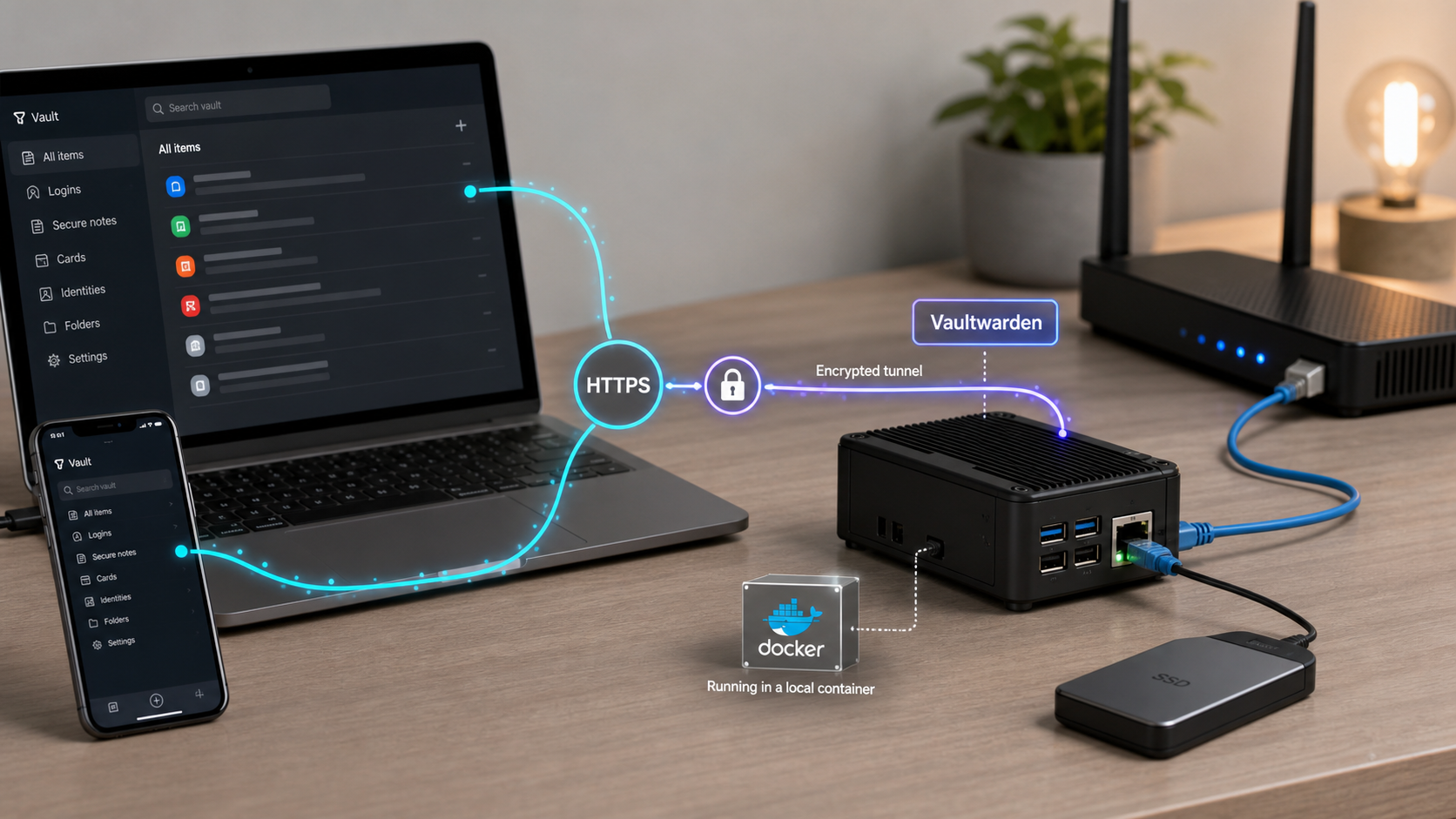
What Vaultwarden is, and what it is not
Vaultwarden, formerly called bitwarden_rs, is an alternative server implementation of the Bitwarden Client API written in Rust. It is not produced by or affiliated with Bitwarden, Inc. The project provides its own server, a modified web vault bundled with its container images, and support for many familiar Bitwarden capabilities.
The Vaultwarden project describes its API implementation as nearly complete. That distinction matters. Official Bitwarden browser extensions, mobile applications, and desktop clients are commonly used with Vaultwarden, but compatibility should not be treated as universal or permanent. A newly released client feature can depend on an API behavior that Vaultwarden has not implemented yet. Test the clients and workflows you need before treating an upgrade as production-ready.
Vaultwarden recommends its published container images for installation. Community packages and source builds are alternatives, but a community package may lag behind current releases or change configuration conventions. This tutorial uses the official Vaultwarden container image with Docker Compose and a persistent host directory.
Do not contact official Bitwarden support about a Vaultwarden server. Report Vaultwarden problems through the Vaultwarden GitHub project, its discussions, or the Vaultwarden community forum. Record the Vaultwarden version, client version, relevant sanitized logs, and whether the same operation works in the bundled web vault.
| Deployment model | Operator responsibility | Support relationship | Recovery responsibility |
|---|---|---|---|
| Vaultwarden self-hosted | You maintain the host, container, storage, HTTPS access path, updates, monitoring, and backups. | Unofficial server with community support. | You preserve the database, attachments, Sends, signing keys, configuration, and required secrets. |
| Official Bitwarden self-hosted | You operate an official deployment using a currently supported Bitwarden installation path. | Official server and client relationship. Support depends on the applicable offering. | You remain responsible for infrastructure and the documented recovery process. |
| Hosted password manager | The provider operates the service infrastructure. You manage accounts, recovery options, and endpoint security. | Provider-controlled server and client release cycle. | Provider resilience does not replace account recovery planning or protected exports. |
Self-hosting gives you operational control, but availability and recovery become your responsibility. A database on hardware you own is not automatically private, secure, or resilient. Host compromise, weak credentials, exposed administration, an untrusted backup destination, or an untested restoration process can still put the vault at risk.
HTTPS, secure contexts, and the trust boundary
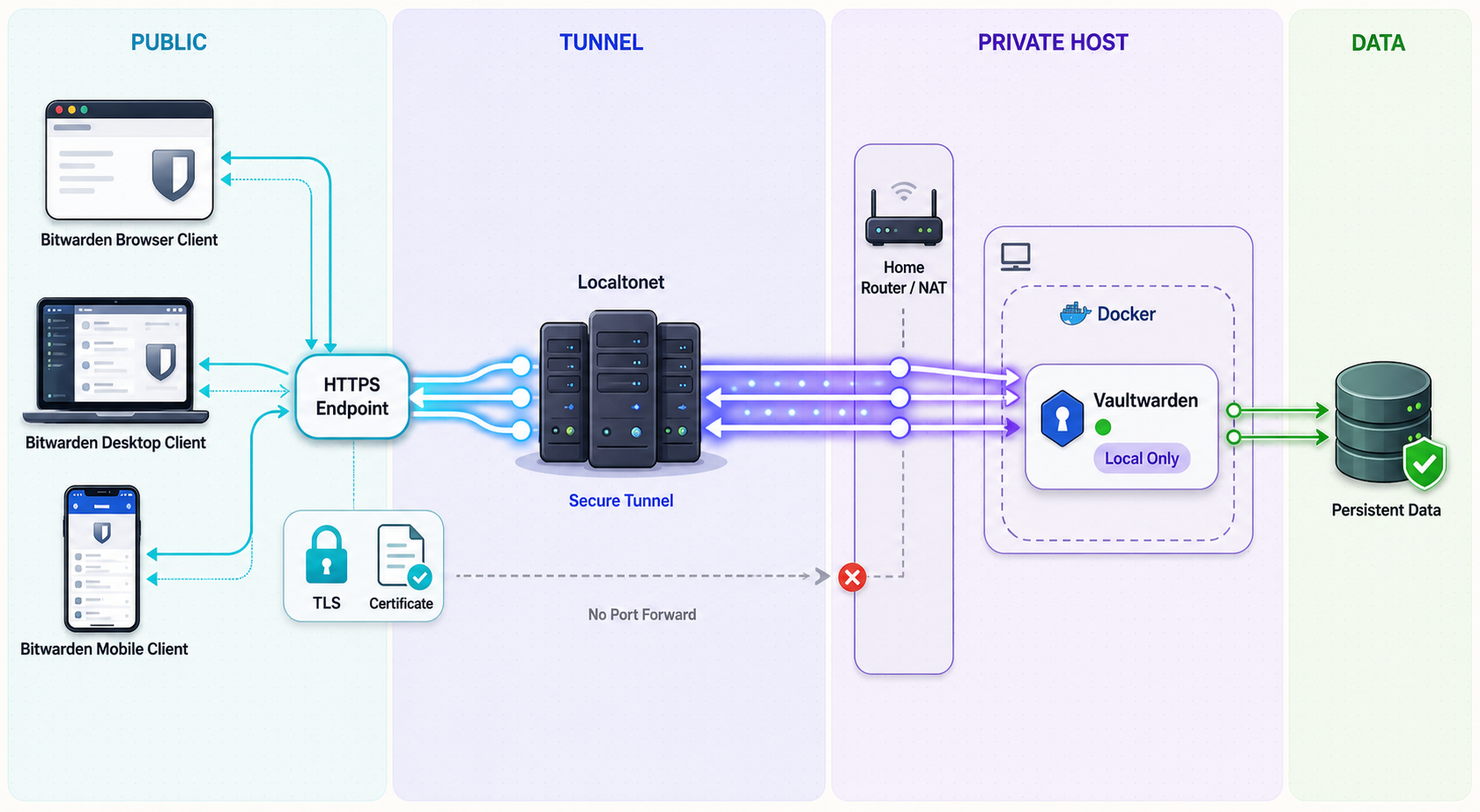
Vaultwarden's web vault uses browser cryptography and requires HTTPS and a secure context. The project calls this out in its installation guidance, and the browser rules are described in the MDN secure-context documentation. Browsers generally treat a valid HTTPS origin as potentially trustworthy. Loopback origins such as http://localhost also receive special secure-context treatment in common browsers, which is useful for same-machine testing.
An ordinary LAN address such as http://192.168.1.20 is not equivalent to localhost. It should not be used as the remote web-vault address. The certificate presented to remote clients must also be valid for the requested hostname and trusted by the device. An expired certificate, hostname mismatch, incomplete certificate chain, or untrusted private certificate authority can produce warnings or prevent native applications from connecting.
http://localhost:8080 can confirm that Vaultwarden responds on the server itself. It is not the remote client address.
HTTPS options
| Method | Certificate model | Inbound network requirement | Operational responsibility |
|---|---|---|---|
| Reverse proxy with a public certificate | A reverse proxy such as Caddy or Nginx presents the certificate. | Depends on routing and certificate validation. DNS-based validation can avoid inbound validation ports. | You maintain DNS, certificate renewal, proxy configuration, and any router or firewall exposure. |
| Private certificate authority | You issue certificates and distribute the trust anchor. | No public certificate validation is required. | Every operating system, browser, and native client must trust the issuing authority correctly. |
| Localtonet HTTP tunnel | The public endpoint presents HTTPS and forwards requests through an outbound tunnel. | No inbound router port forwarding or public IP address is required. | Vaultwarden, the selected Localtonet client, and the tunnel must all remain running. |
Where TLS terminates in this tutorial
This deployment binds Vaultwarden to 127.0.0.1:8080. A remote Bitwarden client connects to the assigned Localtonet HTTPS endpoint. HTTPS is terminated at the tunnel edge, and traffic is carried through the outbound Localtonet tunnel to the Localtonet client. That client connects to http://127.0.0.1:8080 on the same host.
This is not TLS terminating inside Vaultwarden. The trust boundary includes the public endpoint, relay path, Localtonet client process, host operating system, Docker runtime, and Vaultwarden container. Keeping our client and Vaultwarden on the same trusted machine confines the final HTTP connection to loopback. If the Localtonet client forwards to another machine on a LAN, the final hop crosses that LAN in clear HTTP unless you add and validate a separate TLS layer.
A password-manager client should not be trained to accept an expired, mismatched, or untrusted certificate. Correct the hostname, certificate chain, trust configuration, or device clock before signing in.
Prerequisites and installation scope
This tutorial covers a maintained 64-bit Linux host, including a compatible 64-bit Raspberry Pi deployment, with Docker Engine and Docker Compose v2. Install Docker using the supported instructions for your distribution. Package names, repository setup, and architecture support differ between operating systems.
- A maintained Linux distribution supported by Docker Engine.
- Docker Engine and the Docker Compose plugin.
- A non-root administrative account with carefully controlled Docker access.
- A persistent filesystem for the database, attachments, Sends, keys, and configuration.
- A Localtonet account and Localtonet client on the same host for this loopback design.
- Separate storage for the Vaultwarden admin password, user master passwords, recovery codes, device token, SSH backup key, and backup decryption key.
Use Docker's operating-system-specific Engine instructions and Compose installation instructions. Then verify the installation:
docker --version
docker compose version
docker info
All commands should complete without an unexpected connection or permission error. Docker documents that membership in the Docker group grants root-level privileges. Review the Docker non-root access warning before adding users to that group.
The Vaultwarden administration password and each user's vault master password must be unique. Do not reuse either as the host login, Localtonet account password, backup key, SSH key passphrase, or disk-encryption credential. Keep two-factor recovery material outside the vault so it remains available during an outage.
Install Vaultwarden with Docker Compose
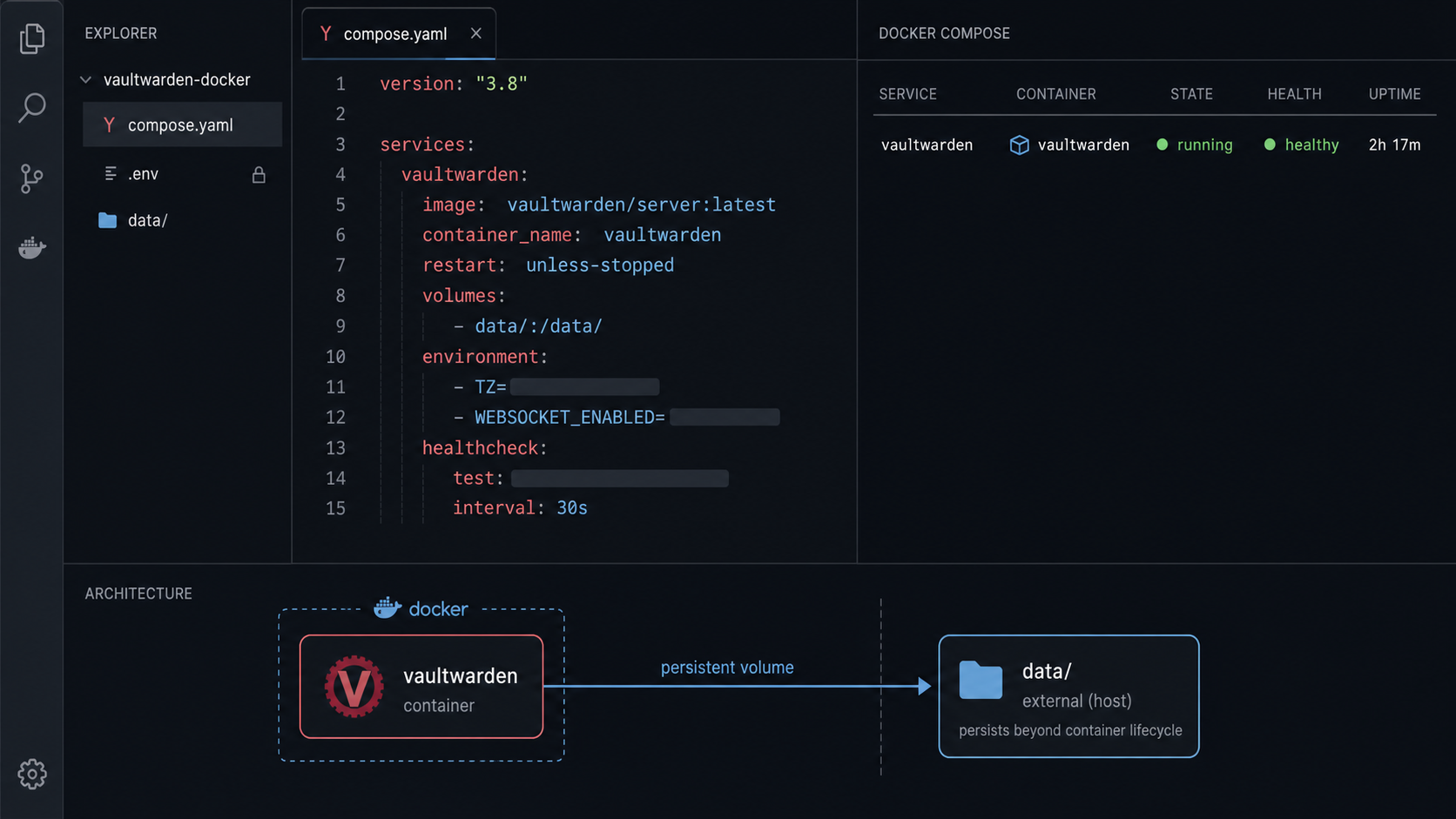
The following deployment follows the container pattern published by Vaultwarden: persistent storage mounted at /data, a loopback-only host port, a public domain setting, and a restart policy. Review the current container-tag guidance and release notes before production use. The moving latest tag is convenient during initial setup, but it should not be pulled automatically without review.
Create a protected project directory
Create the Compose project and persistent data directory under your administrative account.
mkdir -p "$HOME/vaultwarden/vw-data"
cd "$HOME/vaultwarden"
chmod 700 "$HOME/vaultwarden" "$HOME/vaultwarden/vw-data"Generate an Argon2 administration hash
Run Vaultwarden's hash utility and enter an administration password that is different from every user's master password.
docker run --rm -it vaultwarden/server:latest /vaultwarden hashThe command returns an Argon2 PHC string beginning with $argon2. Keep the original password in your credential store. The PHC string itself is not the password entered at /admin.
Create the protected environment file
Place the complete generated PHC value inside single quotes. Replace the example value before starting the container.
umask 077
cat > .env <<'EOF'
ADMIN_TOKEN='$argon2id$v=19$m=65540,t=3,p=4$replace_with_generated_salt$replace_with_generated_hash'
SIGNUPS_ALLOWED=true
TZ=Etc/UTC
EOF
chmod 600 .env
Keep the single quotes in the file. Do not paste real credentials into screenshots, tickets, public repositories, or shell commands that will be retained in shared history.
Create the Compose definition
Save the following file as compose.yaml. The loopback binding prevents direct access through the host's LAN or public interfaces.
services:
  vaultwarden:
    image: vaultwarden/server:latest
    container_name: vaultwarden
    restart: unless-stopped
    env_file:
      - .env
    volumes:
      - ./vw-data:/data
    ports:
      - "127.0.0.1:8080:80"
For controlled production updates, replace the moving image reference with a release tag or digest selected after reviewing current Vaultwarden guidance.
Validate and start Vaultwarden
Validate the Compose file, start the container, and inspect its initial state.
docker compose config --quiet
docker compose up -d
docker compose ps
docker compose logs --tail=100 vaultwarden
Do not publish expanded output from docker compose config. Resolved output can reveal environment values.
Test local reachability
Verify the host can reach the loopback listener before adding remote access.
curl -I http://127.0.0.1:8080/
docker compose ps
docker compose logs --tail=100 vaultwarden
An HTTP response proves the container and published host port are connected. It does not prove public HTTPS, authentication, synchronization, or recovery.
Vaultwarden's configuration overview explains its broader environment and administrative configuration model. Do not add settings copied from old examples without checking whether they still apply to the deployed version.
Create the Localtonet HTTPS access path
Our platform exposes a local service through an outbound connection from the selected client device to a Localtonet relay server. This avoids inbound router port forwarding, firewall changes, VPN setup, and the need for a public IP address. For this deployment, the HTTP tunnel target is 127.0.0.1 on port 8080.
Follow the current Localtonet HTTP tunnel documentation alongside the sequence below. Dashboard labels, available relay servers, operating-system installers, and plan behavior can change, so select current values rather than copying old server codes or screenshots.
Install and run the Localtonet client
Install the current client for the Vaultwarden host and run it on that same machine. Keeping the client local to Vaultwarden preserves the loopback-only target.
Authenticate or select the device
Use the device-specific authentication token for the client that will run the tunnel. Treat that token as a secret and do not place it in the Vaultwarden Compose file.
Open the HTTP tunnel configuration
Create an HTTP tunnel and select the required process type: Random Sub Domain, Custom Sub Domain where supported, or Custom Domain. These process types serve the same local content through a public HTTPS address.
Select the authentication token and relay server
Select the token belonging to the client on the Vaultwarden host, then select an available server or region displayed by the current dashboard. Do not hardcode a server code from another deployment.
Enter the local target
Set the local IP address to 127.0.0.1 and the local port to 8080. These values must match the host port in compose.yaml.
Create and start the tunnel
Create the configuration, then press Start. Creating a tunnel does not mean it is running. Record the exact assigned HTTPS URL after the dashboard shows the tunnel as started.
Set Vaultwarden's public domain idempotently
Replace the placeholder URL below. The command removes every existing DOMAIN assignment before writing exactly one current value.
cd "$HOME/vaultwarden"
PUBLIC_URL='https://your-exact-assigned-hostname'
TMP_FILE="$(mktemp "$PWD/.env.XXXXXX")"

awk '!/^[[:space:]]*DOMAIN=/' .env > "$TMP_FILE"
printf 'DOMAIN=%s\n' "$PUBLIC_URL" >> "$TMP_FILE"
chmod 600 "$TMP_FILE"
mv "$TMP_FILE" .env

docker compose up -d
docker compose logs --tail=100 vaultwarden
Running this procedure again replaces the previous value instead of appending duplicates. Use the exact assigned origin without adding /admin or another path.
Keep the Localtonet client available after reboot
Vaultwarden's restart: unless-stopped policy can restart its container when Docker returns, but that policy does not manage the Localtonet client. Remote access also depends on our client starting, authenticating, connecting, and resuming the selected tunnel after a host reboot.
The supported startup mechanism varies by operating system, installation type, and Localtonet client version. Use the startup or service option supplied by the current client package for your platform. If the package does not provide one, manage the client through the operating system's supported service manager using the exact executable and invocation shown by the installed client. This guide does not invent a universal service command because paths and arguments vary.
Perform a planned reboot test before relying on the service:
- Confirm the Vaultwarden container, Localtonet client, and HTTP tunnel are all running.
- Reboot the host during a maintenance window.
- Confirm the data filesystem is mounted before Vaultwarden starts.
- Confirm the container returns with the original vault data.
- Confirm the selected Localtonet device reconnects.
- Confirm the existing tunnel is started and the assigned URL works from another network.
Vaultwarden must be running, the selected Localtonet client must remain connected, and the tunnel must remain started. Relay availability and plan-specific timeout or availability behavior also apply. Confirm current plan details before treating the endpoint as continuously available.
Outer authentication can break native clients
Where supported by the selected configuration, IP restrictions can reduce exposure. Test every required client network because a home-only allowlist can block a phone after it switches to mobile data.
Be cautious with an additional Basic Authentication, SSO, or interactive login layer in front of Vaultwarden. A browser may display the extra prompt, while a Bitwarden native client may not know how to complete it for API and synchronization requests. Test login, synchronization, attachments, Sends, and every required client before retaining an outer challenge.
First login and security hardening
Create the first account and close registration
Open the assigned HTTPS URL and confirm that the browser reports a valid certificate for the exact hostname. Create the intended initial accounts with unique master passwords. When enrollment is complete, change SIGNUPS_ALLOWED to false and recreate the container:
cd "$HOME/vaultwarden"
sed -i 's/^SIGNUPS_ALLOWED=.*/SIGNUPS_ALLOWED=false/' .env
docker compose up -d
docker compose logs --tail=100 vaultwarden
Use a private browser window to confirm public registration is unavailable. Do not rely only on the environment file. Settings persisted through the administration interface can affect effective behavior, so verify the result from an unauthenticated session.
Protect or disable administration
The administration endpoint controls server settings and user administration. At /admin, enter the original administration password used to generate the Argon2 hash, not the PHC string stored in .env. Review the project's administration-page documentation before changing the token or exposing the endpoint.
If you do not need ongoing web administration, consider disabling it after completing the required configuration. If you retain it, use a unique credential, restrict exposure where compatible with your clients, and review access attempts. Do not assume the administrator can decrypt users' vaults or reveal forgotten master passwords.
Enable two-factor authentication
Vaultwarden implements multiple two-step login methods, including authenticator codes and FIDO2 WebAuthn. Availability and behavior can vary by configuration and client version. Enroll the selected method, preserve its recovery material outside the vault, and test at least two client sessions before declaring the setup complete.
.env, Localtonet device tokens, SMTP credentials, SSH keys, backup keys, and recovery codes out of repositories and logs.
127.0.0.1 unless a documented architecture requires a broader listener.
Why this guide does not add a Fail2Ban sidecar
A reliable Fail2Ban design requires the application log to contain the real client IP, a verified trusted-proxy configuration, and a ban action that can block the actual traffic path. With a relay or reverse proxy in front of Vaultwarden, the observed address may be a proxy address instead of the user.
A filtering container may also require powerful network capabilities such as NET_ADMIN or NET_RAW. Those privileges increase its impact if compromised. Do not deploy a copied Fail2Ban configuration until you have verified client-IP propagation, trusted proxy addresses, the exact log format, the filtering image and version, and the effect of a controlled test ban.
Connect and test Bitwarden clients
Install an official Bitwarden client from its normal distribution channel. Before logging in, choose the self-hosted server option and enter the exact Localtonet HTTPS origin. Menu labels can change between browser, desktop, iOS, and Android releases.
Set the self-hosted server URL
Enter the assigned HTTPS origin without adding /admin, an API route, or another private path. Confirm the client accepts the certificate without a warning.
Log in with the vault account
Use the account email and master password, not the Vaultwarden administration password. Complete the configured second factor.
Test synchronization both ways
Create a harmless test item in one client, synchronize another client, edit it there, and verify the first client receives the change.
Test required advanced features
If you depend on organizations, collections, attachments, Sends, WebAuthn, emergency access, or another advanced workflow, test it with the exact client versions you plan to use.
Verify the complete deployment
A successful container start is only the first check. Complete these acceptance tests before importing production credentials.
| Test | Method | Expected result |
|---|---|---|
| Local service | Request http://127.0.0.1:8080 and inspect Compose state. |
Vaultwarden responds and the container remains running. |
| Public certificate | Open the assigned URL from another network and inspect the certificate. | No trust, expiry, hostname, or chain warning appears. |
| Authentication | Log in through the web vault and at least one native client. | The master password and configured second factor work. |
| Synchronization | Create and edit a harmless item across two clients. | Both clients receive the changes. |
| Registration closure | Open a private session after disabling signups. | An unauthenticated visitor cannot create an unrestricted account. |
| Host reboot | Perform a planned reboot and inspect storage, Docker, our client, and the tunnel. | The original vault returns without an empty data directory. |
| Failure behavior | Separately stop the tunnel, client, and container, restoring each after the test. | Remote access fails when expected and returns after the missing dependency is restored. |
| Recovery | Restore an encrypted backup into an isolated project. | Test records, attachments, Sends, settings, and keys are present without changing production. |
Raspberry Pi and safe external storage
Support for a particular Raspberry Pi depends on the current Vaultwarden image architecture, the installed operating system, Docker support, and reliable storage. Check the host before pulling an image:
uname -m
docker info --format '{{.Architecture}}'
lsblk -f
An ARM64 installation commonly reports aarch64. Verify current image and Docker support rather than relying on old model-specific memory claims.
Move the existing data directory
Never assume an external disk is /dev/sda1, never guess its filesystem type, and never change the Compose mount before copying the existing data. If Docker binds an empty directory, Vaultwarden can appear to contain an empty vault.
- Create and verify a current encrypted backup.
- Identify the destination by filesystem UUID, label, size, and type using
lsblk -f,blkid, andfindmnt. - Stop Vaultwarden with
docker compose down. - Mount the verified filesystem at a stable location such as
/mnt/vault-storage. - Copy the complete data directory with metadata preserved.
- Add an appropriate UUID-based entry to
/etc/fstaband test it withmount -a. - Change the Compose data source only after
findmntconfirms the destination is mounted. - Retain the original directory until the new storage survives a reboot and restoration test.
cd "$HOME/vaultwarden"
docker compose down

sudo mkdir -p /mnt/vault-storage
sudo mount /dev/verified-partition /mnt/vault-storage
findmnt /mnt/vault-storage

sudo mkdir -p /mnt/vault-storage/vw-data
sudo rsync -aHAX --numeric-ids \
  "$HOME/vaultwarden/vw-data/" \
  /mnt/vault-storage/vw-data/

sudo rsync -aHAXn --delete --numeric-ids \
  "$HOME/vaultwarden/vw-data/" \
  /mnt/vault-storage/vw-data/
After testing the persistent mount, change the Compose volume:
volumes:
  - type: bind
    source: /mnt/vault-storage/vw-data
    target: /data
    bind:
      create_host_path: false
The create_host_path: false setting prevents Compose from silently creating a missing source directory. It does not by itself prove that the correct filesystem is mounted. A stale directory could still exist beneath the mount point.
Require the mount before starting Vaultwarden
For an external data disk, the safest startup design is to let systemd start the Compose project only after the mount is ready. Change the Compose restart policy to restart: "no" so Docker does not independently restart an old container before systemd verifies the filesystem.
Create a unit whose paths and user match the deployment:
[Unit]
Description=Vaultwarden Compose service
Requires=docker.service
After=docker.service
RequiresMountsFor=/mnt/vault-storage
ConditionPathIsMountPoint=/mnt/vault-storage

[Service]
Type=oneshot
RemainAfterExit=yes
User=REPLACE_WITH_LINUX_USER
WorkingDirectory=/home/REPLACE_WITH_LINUX_USER/vaultwarden
ExecStart=/usr/bin/docker compose up -d
ExecStop=/usr/bin/docker compose down
TimeoutStartSec=0

[Install]
WantedBy=multi-user.target
Save it as /etc/systemd/system/vaultwarden-compose.service after replacing both user placeholders and confirming the Docker path with command -v docker. Then validate and enable it:
sudo systemd-analyze verify /etc/systemd/system/vaultwarden-compose.service
sudo systemctl daemon-reload
sudo systemctl enable vaultwarden-compose.service
sudo systemctl start vaultwarden-compose.service
sudo systemctl status vaultwarden-compose.service
Perform two controlled tests. First, reboot with the drive available and confirm the original vault returns. Second, during a maintenance window, stop the service, unmount or disconnect the test drive, and confirm the unit refuses to start Vaultwarden. Do not create or edit vault records during the missing-storage test.
Starting successfully against an empty root-filesystem directory is more dangerous than failing to start. Monitor the mount, service state, disk capacity, and known vault records after every storage or boot change.
Create encrypted, off-host Vaultwarden backups
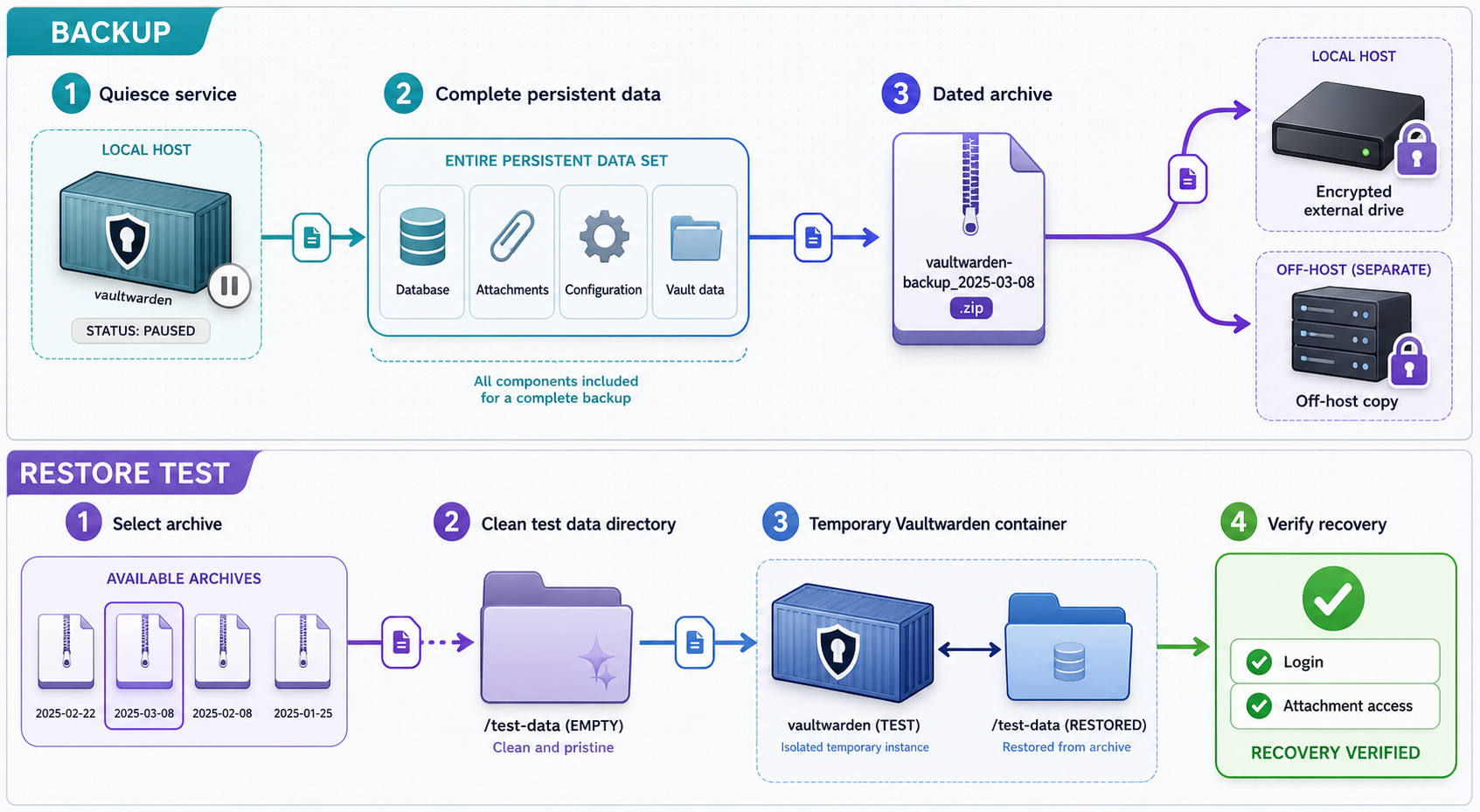
A recoverable set contains more than db.sqlite3. Review the current Vaultwarden backup guidance before changing the workflow for a new release.
| Component | Purpose | Recovery treatment |
|---|---|---|
db.sqlite3 |
Users, vault records, organizations, and application state. | Create a consistent SQLite snapshot. |
attachments/ |
Files attached to vault items. | Copy recursively with the matching database snapshot. |
sends/ |
Files associated with Sends. | Copy recursively when present. |
rsa_key* |
Server signing-key material. | Preserve every matching file and its permissions. |
config.json |
Settings persisted through administration. | Restore deliberately because persisted settings can affect effective configuration. |
.env and compose.yaml |
Deployment settings and the administration hash. | Include only inside the encrypted archive. |
Prepare encryption and off-host storage
This example uses age recipient encryption and OpenSSH transfer. Generate and protect the age identity on a separate trusted recovery system. Store only its public recipient on the Vaultwarden host. If the server never holds the decryption identity, compromise of the host does not automatically provide the backup decryption key.
Also prepare a dedicated SSH account and destination on another system. Pin and verify its host key before automation, restrict the account and key as appropriate for your environment, and ensure the destination is not continuously mounted as a writable local filesystem. Install sqlite3, rsync, age, and an OpenSSH client from your operating system's trusted package source.
sqlite3 --version
rsync --version
age --version
ssh -V
Create the backup configuration
Create $HOME/.config/vaultwarden-backup.env with values for your environment:
AGE_RECIPIENT='age1replace_with_your_public_recipient'
BACKUP_HOST='backup-user@backup-host'
BACKUP_DIR='/srv/backups/vaultwarden'
SSH_KEY='/home/replace-user/.ssh/vaultwarden-backup'
LOCAL_RETENTION_DAYS='14'
REMOTE_RETENTION_DAYS='90'
chmod 600 "$HOME/.config/vaultwarden-backup.env"The age recipient is public, but the SSH key and deployment files are sensitive. Keep the age private identity off the production host and preserve it in at least two protected recovery locations.
Run a complete encrypted backup
The following script briefly stops Vaultwarden so the database, attachments, Sends, keys, and configuration all represent one quiet point in time. It creates a consistent SQLite snapshot, encrypts the complete set, transfers the encrypted archive and checksum off-host, applies retention, and writes a success marker only after transfer completes.
#!/bin/sh
set -eu
umask 077

PROJECT="$HOME/vaultwarden"
DATA="$PROJECT/vw-data"
ROOT="$HOME/vaultwarden-backups"
CONFIG="$HOME/.config/vaultwarden-backup.env"
STAMP="$(date -u +%Y%m%dT%H%M%SZ)"
WORK="$(mktemp -d "$ROOT/.work.XXXXXX")"
SET="$WORK/set"
ARCHIVE="$ROOT/vaultwarden-$STAMP.tar.gz.age"
CHECKSUM="$ARCHIVE.sha256"
STOPPED=0

. "$CONFIG"

cleanup() {
  if [ "$STOPPED" -eq 1 ]; then
    cd "$PROJECT"
    docker compose start vaultwarden >/dev/null 2>&1 || true
  fi
  rm -rf "$WORK"
}
trap cleanup EXIT HUP INT TERM

command -v sqlite3 >/dev/null
command -v rsync >/dev/null
command -v age >/dev/null
command -v ssh >/dev/null
command -v scp >/dev/null

mkdir -p "$ROOT" "$SET/data"
cd "$PROJECT"

docker compose stop vaultwarden
STOPPED=1

sqlite3 "$DATA/db.sqlite3" ".backup '$SET/data/db.sqlite3'"

for directory in attachments sends; do
  if [ -d "$DATA/$directory" ]; then
    mkdir -p "$SET/data/$directory"
    rsync -aH --numeric-ids \
      "$DATA/$directory/" \
      "$SET/data/$directory/"
  fi
done

if [ -f "$DATA/config.json" ]; then
  cp -p "$DATA/config.json" "$SET/data/config.json"
fi

for key in "$DATA"/rsa_key*; do
  if [ -e "$key" ]; then
    cp -p "$key" "$SET/data/"
  fi
done

cp -p "$PROJECT/.env" "$SET/.env"
cp -p "$PROJECT/compose.yaml" "$SET/compose.yaml"

sqlite3 "$SET/data/db.sqlite3" "PRAGMA integrity_check;" |
  grep -qx 'ok'

docker compose start vaultwarden
STOPPED=0

tar -C "$WORK" -czf - set |
  age -r "$AGE_RECIPIENT" -o "$ARCHIVE"

sha256sum "$ARCHIVE" > "$CHECKSUM"

scp -i "$SSH_KEY" "$ARCHIVE" "$CHECKSUM" \
  "$BACKUP_HOST:$BACKUP_DIR/"

ssh -i "$SSH_KEY" "$BACKUP_HOST" \
  "find '$BACKUP_DIR' -type f -name 'vaultwarden-*.tar.gz.age*' -mtime +$REMOTE_RETENTION_DAYS -delete"

find "$ROOT" -type f \
  \( -name 'vaultwarden-*.tar.gz.age' -o -name 'vaultwarden-*.tar.gz.age.sha256' \) \
  -mtime +"$LOCAL_RETENTION_DAYS" -delete

date -u +%Y-%m-%dT%H:%M:%SZ > "$ROOT/last-success"
printf 'Backup completed: %s\n' "$ARCHIVE"
Save it outside the web service directory, for example as $HOME/bin/backup-vaultwarden, then restrict and test it:
chmod 700 "$HOME/bin/backup-vaultwarden"
"$HOME/bin/backup-vaultwarden"
cat "$HOME/vaultwarden-backups/last-success"
Confirm the encrypted archive and checksum exist on the remote destination before scheduling the job. A local encrypted copy is useful for quick recovery, but it is not a substitute for the off-host copy.
Schedule and monitor the backup
A simple user crontab can run the script daily. The following example runs at 02:15 and stores output in a protected log:
crontab -e15 2 * * * /home/replace-user/bin/backup-vaultwarden >> /home/replace-user/vaultwarden-backups/backup.log 2>&1Replace the username with the deployment account. Cron execution alone is not monitoring. Configure your existing monitoring system to alert when the command fails, when the remote destination does not receive a new archive, or when the success marker is older than the expected interval. This check exits unsuccessfully when no successful backup has completed within 25 hours:
MARKER="$HOME/vaultwarden-backups/last-success"
test -f "$MARKER"
test -z "$(find "$MARKER" -mmin +1500 -print)"
Retention values are examples, not universal policy. Choose local and remote retention according to your recovery objectives, storage capacity, legal requirements, and the time it could take to notice delayed corruption or accidental deletion.
A backup can contain account metadata, attachments, Sends, signing keys, administrative settings, and deployment secrets. Encrypted vault records can also become an offline password-guessing target. Protect the archive, transfer credentials, age identity, and backup destination separately.
Perform a truly isolated restore drill
An isolated test must not stop, replace, or reuse the production project. Use a separate directory, container name, bind port, and data directory. Do not attach a Localtonet tunnel to it. The internal Docker network below prevents outbound network access, which blocks accidental mail or other external side effects even if restored configuration contains SMTP settings.
Verify and decrypt one archive
Perform this on a trusted test host that has access to the protected age identity.
mkdir -p "$HOME/vaultwarden-restore-test/source"
cd "$HOME/vaultwarden-restore-test"

sha256sum -c /path/to/vaultwarden-backup.tar.gz.age.sha256

age --decrypt \
  -i /protected/path/to/age-identity.txt \
  -o backup.tar.gz \
  /path/to/vaultwarden-backup.tar.gz.age

tar -xzf backup.tar.gz -C source
sqlite3 source/set/data/db.sqlite3 "PRAGMA integrity_check;"
The integrity check must return ok.
Create a separate restore data directory
Copy required and optional components conditionally so absent attachments, Sends, configuration, or key files do not make the procedure fail.
cd "$HOME/vaultwarden-restore-test"
mkdir -p restore-data
chmod 700 restore-data

cp -p source/set/data/db.sqlite3 restore-data/

for directory in attachments sends; do
  if [ -d "source/set/data/$directory" ]; then
    mkdir -p "restore-data/$directory"
    rsync -aH --numeric-ids \
      "source/set/data/$directory/" \
      "restore-data/$directory/"
  fi
done

if [ -f source/set/data/config.json ]; then
  cp -p source/set/data/config.json restore-data/
fi

for key in source/set/data/rsa_key*; do
  if [ -e "$key" ]; then
    cp -p "$key" restore-data/
  fi
doneCreate an isolated Compose project
Use the Vaultwarden image version recorded for the selected backup whenever possible. Replace the image placeholder before starting.
services:
  vaultwarden-restore:
    image: vaultwarden/server:REPLACE_WITH_RECORDED_TAG
    container_name: vaultwarden-restore-test
    restart: "no"
    environment:
      DOMAIN: "http://localhost:18080"
      SIGNUPS_ALLOWED: "false"
    volumes:
      - ./restore-data:/data
    ports:
      - "127.0.0.1:18080:80"
    networks:
      - restore-only

networks:
  restore-only:
    internal: true
Save it as compose.yaml inside $HOME/vaultwarden-restore-test. Do not use the production .env, container name, port, data directory, or tunnel.
Start and inspect the isolated vault
The test vault is reachable only from the host at the loopback port.
cd "$HOME/vaultwarden-restore-test"
docker compose config --quiet
docker compose up -d
docker compose ps
docker compose logs --tail=200 vaultwarden-restore
curl -I http://127.0.0.1:18080/
Open http://localhost:18080 on that same test host. Localhost receives special secure-context treatment in common browsers.
Validate and destroy the drill
Confirm representative records, account login, attachments, Sends, organizations, and relevant settings. Record the backup date, test date, image version, result, and any manual action. Then remove the test container and securely handle the decrypted working files.
cd "$HOME/vaultwarden-restore-test"
docker compose down
rm -f backup.tar.gz
Retain the written test result, not an unnecessary decrypted copy. Repeat the drill on a recurring schedule and after material changes to storage, encryption, backup scripts, or Vaultwarden versions.
Production recovery is a separate procedure
A production recovery is disruptive and should be performed only after preserving the failed data directory. Stop the production service, verify and decrypt the selected archive, check the database, move the failed data aside, restore each component conditionally, verify ownership against the preserved directory, and start the previously tested image.
cd "$HOME/vaultwarden"
docker compose down

STAMP="$(date -u +%Y%m%dT%H%M%SZ)"
mv vw-data "vw-data.before-restore.$STAMP"
mkdir vw-data
chmod 700 vw-data

SOURCE="/protected/restore-source/set/data"

cp -p "$SOURCE/db.sqlite3" vw-data/

for directory in attachments sends; do
  if [ -d "$SOURCE/$directory" ]; then
    mkdir -p "vw-data/$directory"
    rsync -aH --numeric-ids \
      "$SOURCE/$directory/" \
      "vw-data/$directory/"
  fi
done

if [ -f "$SOURCE/config.json" ]; then
  cp -p "$SOURCE/config.json" vw-data/
fi

for key in "$SOURCE"/rsa_key*; do
  if [ -e "$key" ]; then
    cp -p "$key" vw-data/
  fi
done

sqlite3 vw-data/db.sqlite3 "PRAGMA integrity_check;"
ls -la vw-data
docker compose up -d
docker compose logs --tail=200 vaultwarden
Do not assign a guessed numeric user ID or make the data directory world-writable. Compare ownership and permissions with the preserved pre-restore directory or a known-good deployment. Restore the protected deployment files only when required and only from the encrypted set.
Migrate an existing Bitwarden vault carefully
Review Bitwarden's current export documentation before creating a migration file. Encrypted JSON exports can use different protection models. A password-protected encrypted export is designed to be unlocked with its export password and is appropriate when a portable encrypted file is required. An account-restricted encrypted export is tied to the originating account and should not be assumed portable to another server.
If the target importer does not support the selected encrypted format, a plaintext export may be required. Perform that operation only on a trusted, patched device. Use encrypted local storage, pause unnecessary synchronization or cloud-backup software, import promptly, and securely remove temporary plaintext copies afterward.
Review the current Bitwarden import guidance for the selected client and format. Exports may not contain every service object. Attachments and Sends can require separate handling, and organization data has its own rules.
After import, compare item counts and manually inspect representative logins, secure notes, identities, cards, custom fields, organizations, collections, attachments, and two-factor records. Test synchronization on at least two clients. Do not delete or close the source account until the destination has passed these checks and a new encrypted backup has completed.
Routine operation, updates, and rollback
Recurring checks
- Confirm the Vaultwarden container is running and review new startup or authentication warnings.
- Confirm the selected Localtonet device is connected and the existing tunnel is started.
- Test the public URL and certificate from outside the host.
- Confirm backups completed, were encrypted, reached the off-host destination, and remain within retention policy.
- Monitor the data filesystem, Docker storage, logs, attachments, and backup staging capacity.
- Confirm public registration remains closed.
- Perform recurring isolated restoration tests and record their results.
- Test startup after planned host, Docker, storage, or Localtonet client changes.
Review updates before applying them
A moving image tag changes when pulled. Before an update, read Vaultwarden release notes, review compatibility reports relevant to your clients, create a verified backup, and record the current image reference:
cd "$HOME/vaultwarden"
docker compose images
docker image inspect vaultwarden/server:latest \
  --format '{{index .RepoDigests 0}}'
docker compose logs --tail=100 vaultwarden
During a maintenance window, pull the reviewed image and recreate the service:
docker compose pull vaultwarden
docker compose up -d vaultwarden
docker compose ps
docker compose logs --tail=200 vaultwarden
Repeat certificate, login, synchronization, registration, attachment, and tunnel tests. Do not automate unattended image pulls for a password manager unless you have tested monitoring and rollback.
Plan rollback before updating
Retain the previous image reference and complete pre-update backup. Database migrations can make a simple image downgrade unsafe. A rollback may require stopping the service, restoring the complete pre-update data set and secrets, and starting the previously tested image. Prove that process in an isolated environment before an emergency.
| Stopped component | Observed behavior | Recovery action |
|---|---|---|
| Vaultwarden container | The tunnel may remain present, but the target cannot serve requests. | Inspect Compose state, storage, and application logs before restarting. |
| Localtonet client | The relay cannot reach the local target through that device. | Restore the selected client connection and verify startup persistence. |
| HTTP tunnel | The public endpoint is unavailable even though Vaultwarden may be healthy locally. | Start the existing tunnel and verify its selected device and server. |
| Host or data filesystem | Both services disappear, or Vaultwarden can encounter an absent data path. | Validate the correct filesystem and mount before starting containers. |
Evidence-based troubleshooting
| Symptom | Checks | Safe response |
|---|---|---|
| Public URL is unavailable | Test 127.0.0.1:8080, inspect the container, confirm our selected client is connected, and confirm the tunnel is started. |
Restore the first failed dependency. Do not create a replacement tunnel merely because the existing one stopped. |
| Certificate warning | Inspect the hostname, validity period, chain, device clock, and exact client URL. | Correct the certificate or URL. Never bypass the warning. |
| Administration login fails | Confirm you entered the original password rather than the PHC hash. Inspect logs and persisted configuration. | Correct the effective setting without printing the secret. |
| Argon2 setting is malformed | Check that the entire value is single-quoted in .env and not duplicated in Compose. |
Regenerate the hash if necessary and avoid exposing resolved configuration output. |
| Client login works but sync fails | Verify the self-hosted URL, certificate, access restrictions, outer authentication, and client compatibility. | Test the web vault and remove incompatible outer challenges only after reviewing exposure. |
| Vault appears empty after reboot | Stop Vaultwarden and use findmnt to verify the external filesystem. Compare the old and current data directories. |
Do not create records. Restore the correct mount or revert the Compose path. |
Container cannot write to /data |
Inspect mount state, ownership, permissions, read-only flags, and logs. | Compare with a known-good directory. Do not guess a user ID or grant world-writable permissions. |
| No recent backup | Inspect the protected log, success marker, local encrypted files, SSH transfer, and remote destination. | Correct the failed stage and run the script manually. Do not delete the last known-good copy. |
| Database integrity check fails | Check source storage health, free space, and whether the snapshot used SQLite's backup mechanism. | Preserve the failed set, create another snapshot, and retain the last verified off-host archive. |
| Attachments are absent after restore | Confirm the matching attachments/ directory was included and restored to the active data path. |
Stop the target and restore attachments from the same backup set as the database. |
Frequently asked questions
Is Vaultwarden fully compatible with every Bitwarden client?
No permanent universal guarantee should be assumed. Vaultwarden describes itself as a nearly complete implementation of the Bitwarden Client API. Test the exact browser, desktop, mobile, and feature combinations you require.
Can an administrator recover a forgotten master password?
Do not assume the operator can decrypt a user's vault or reveal a forgotten master password. Recovery depends on features and workflows configured before the loss. Preserve master passwords and two-factor recovery material outside the server.
Are Vaultwarden backups safe because vault records are encrypted?
No. Backups can contain encrypted records, metadata, attachments, Sends, signing keys, administration settings, and deployment secrets. Encrypt them, keep a protected off-host copy, separate the decryption key, and test restoration.
Do I need to own a domain?
No. A Localtonet HTTP tunnel can use a generated subdomain. Custom subdomains and custom domains may also be available depending on current product and plan behavior. Use the exact URL displayed by the dashboard.
Does creating a Localtonet tunnel make Vaultwarden permanently available?
No. Vaultwarden must be running, our selected client must remain connected, and the tunnel must be started. Startup persistence, storage readiness, relay availability, and plan-specific behavior also affect availability.
Is HTTPS used all the way into the Vaultwarden container?
Not in this design. The remote client uses HTTPS to the public endpoint. The Localtonet client then connects to Vaultwarden through local HTTP at 127.0.0.1:8080. Keeping both processes on the same trusted host confines that final connection to loopback.
Can Vaultwarden run on a Raspberry Pi?
It can run on compatible Raspberry Pi hardware when the current container image supports the architecture and the host uses a Docker-supported operating system. Verify architecture support and protect external storage against missing mounts.
How often should I test a restore?
Use a recurring schedule appropriate to the importance and rate of change of the vault. Repeat the test after material changes to Vaultwarden, storage, backup encryption, transfer automation, or the recovery host. Every test should use an isolated directory, container name, port, network, and data path.
Publish your loopback-only Vaultwarden through Localtonet
Install Vaultwarden, verify it locally, then create an HTTP tunnel to 127.0.0.1:8080. Keep the selected device connected, explicitly start the tunnel, verify startup after reboot, validate the public certificate, and complete an isolated restoration test before importing production credentials.


