

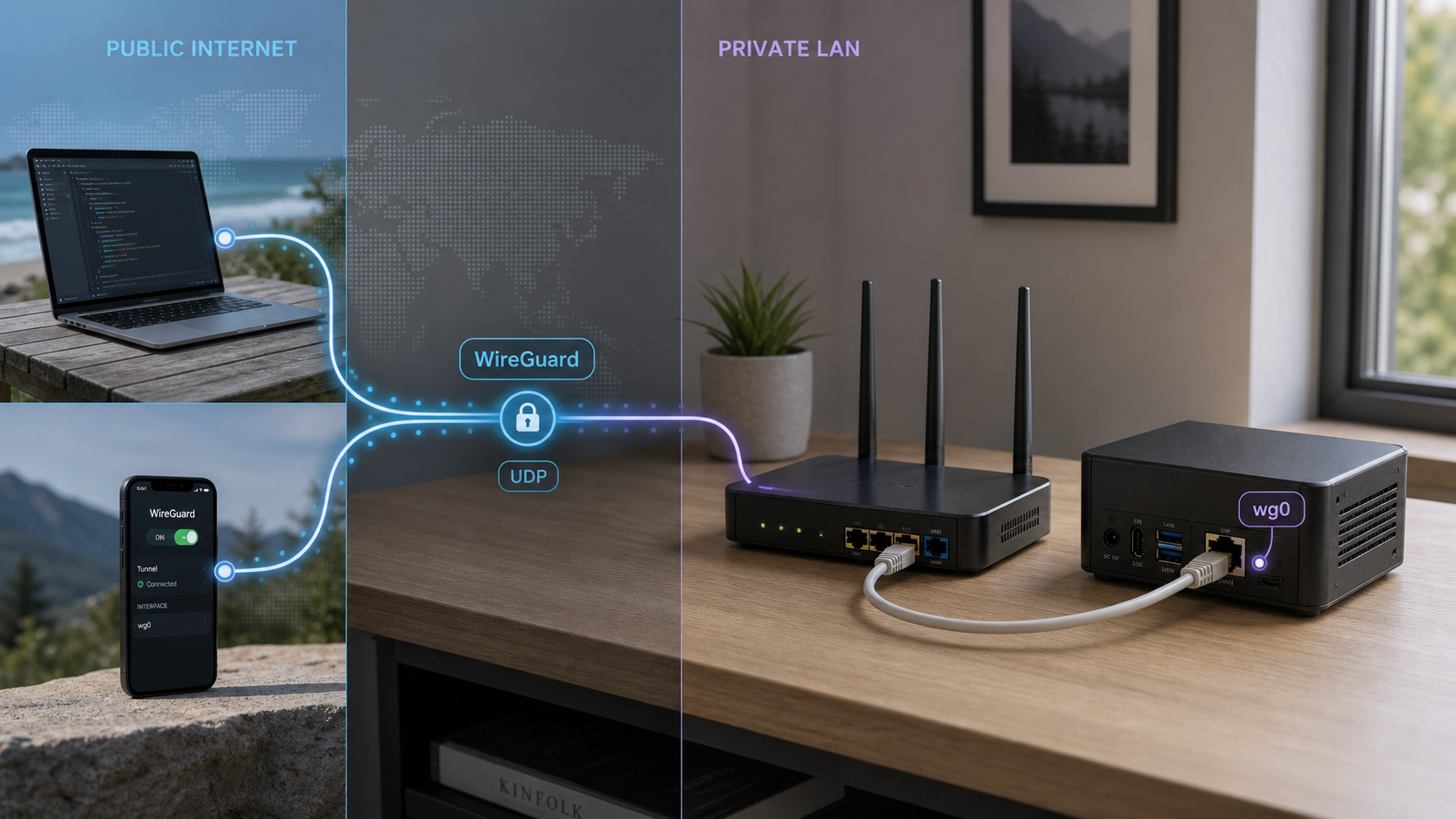
Build a private IPv4 VPN for remote access, full tunneling, or home-LAN connectivity
This tutorial walks through a complete WireGuard deployment on an Ubuntu, Debian, or Raspberry Pi OS server. You will install the official tools, plan a non-conflicting VPN subnet, protect private keys, configure scoped forwarding and NAT rules, add peers, choose a routing model, and verify the result from outside your network. It also explains two ways to publish the UDP listener: direct router port forwarding when you control a public endpoint, or a Localtonet UDP tunnel when inbound forwarding is unavailable. The example is intentionally IPv4-only so its routing and firewall behavior remain internally consistent.
📋 What's in this guide
How a self-hosted WireGuard VPN works
WireGuard creates an encrypted layer-3 network interface between peers. A typical home deployment assigns the server an address such as 10.44.0.1 and gives every client a unique address in the same VPN subnet. A phone might use 10.44.0.2, while a laptop uses 10.44.0.3. These addresses exist inside the tunnel and are separate from the addresses assigned by the home router.
Each peer has a private key and a corresponding public key. The private key remains on the device that owns it. The public key is placed in the configuration of the peer at the other end. There is no shared account password or certificate authority in this basic model, so device enrollment and removal are administrative operations performed by changing peer configuration.
WireGuard transports packets over UDP. Port 51820 is a common listening port and is used throughout this tutorial, but it is not mandatory. The client needs an endpoint that ultimately delivers UDP traffic to the server's listening socket. That endpoint can be a public IP and forwarded router port, a hostname backed by suitable DNS, or an assigned Localtonet public UDP host and port.
AllowedIPs associates IP prefixes with a peer. It participates in route selection for outbound packets and validates which tunnel source addresses belong to that peer.
What an encrypted public Wi-Fi connection hides
When a full-tunnel client is connected, the local Wi-Fi operator cannot read the protected IP payload carried inside WireGuard. The operator can still observe metadata such as the fact that the device is exchanging UDP traffic, the relay or server address, timing, and traffic volume. The VPN also does not replace HTTPS, endpoint security, application authentication, or safe DNS configuration.
WireGuard is not automatically a full-tunnel VPN
WireGuard only carries the destination prefixes configured for a peer. Routing all IPv4 traffic requires AllowedIPs = 0.0.0.0/0 on the client, forwarding on the server, a suitable firewall policy, and usually NAT. Accessing only the VPN subnet or a home LAN requires narrower prefixes. The correct choice depends on what the client should reach.
The server examples enable and NAT only IPv4, so client configurations use IPv4 prefixes only. Do not add ::/0 unless you have separately designed IPv6 addressing, forwarding, firewall policy, DNS behavior, and upstream routing. Advertising an IPv6 default route without a working IPv6 path can break IPv6 connectivity or cause unexpected fallback behavior.
Plan the server, subnet, and security boundaries
Do the network planning before creating keys or firewall rules. Most hard-to-diagnose WireGuard failures come from overlapping address ranges, incorrect interfaces, incomplete return routing, or a mismatch between the intended access policy and AllowedIPs.
| Requirement | What to prepare | Why it matters |
|---|---|---|
| Supported host | A Linux system for which WireGuard tools and a compatible implementation are available | WireGuard supports multiple architectures. A universal 64-bit CPU or fixed RAM minimum is not required. |
| Administrative access | A user that can install packages, create protected files, change sysctl settings, and manage networking | The setup changes kernel forwarding and firewall behavior. |
| VPN subnet | A private IPv4 range that does not overlap the server LAN or networks clients commonly visit | Overlapping prefixes make route selection ambiguous. |
| Outbound interface | The actual interface used by the server's default IPv4 route | NAT and scoped forwarding rules must reference the correct interface. |
| Firewall tooling | Identify whether the host is managed by iptables, nftables, UFW, firewalld, or another policy system | Competing rule managers can overwrite, duplicate, or reorder rules. |
| Public exposure | Either router access and a reachable public UDP path, or a Localtonet account and connected client device | Remote peers must be able to deliver UDP packets to WireGuard. |
| Client software | A WireGuard application or tools on every client | Official installation options cover Windows, macOS, Android, iOS, Linux, BSD, OpenWrt, and other systems. |
This guide uses 10.44.0.0/24 for the VPN and assumes the home LAN is 192.168.1.0/24. Replace both where necessary. Avoid a VPN range that overlaps hotel, office, mobile hotspot, or home networks you expect clients to use. An overlap can send traffic to the wrong local interface instead of through WireGuard.
Find the server's default IPv4 interface before writing the configuration:
ip -o -4 route show to default | awk '{print $5}'An example result is ens3. Raspberry Pi systems may report eth0 or wlan0, but you should always use the value returned on your server rather than assuming a name.
Current Raspberry Pi OS installations can use the same package, key, forwarding, and peer concepts shown below. Capacity depends on the Pi model, traffic mix, packet sizes, internet uplink, thermal conditions, and other workloads. There is no reliable universal peer count or CPU percentage for every deployment.
Choose direct port forwarding or a Localtonet UDP tunnel
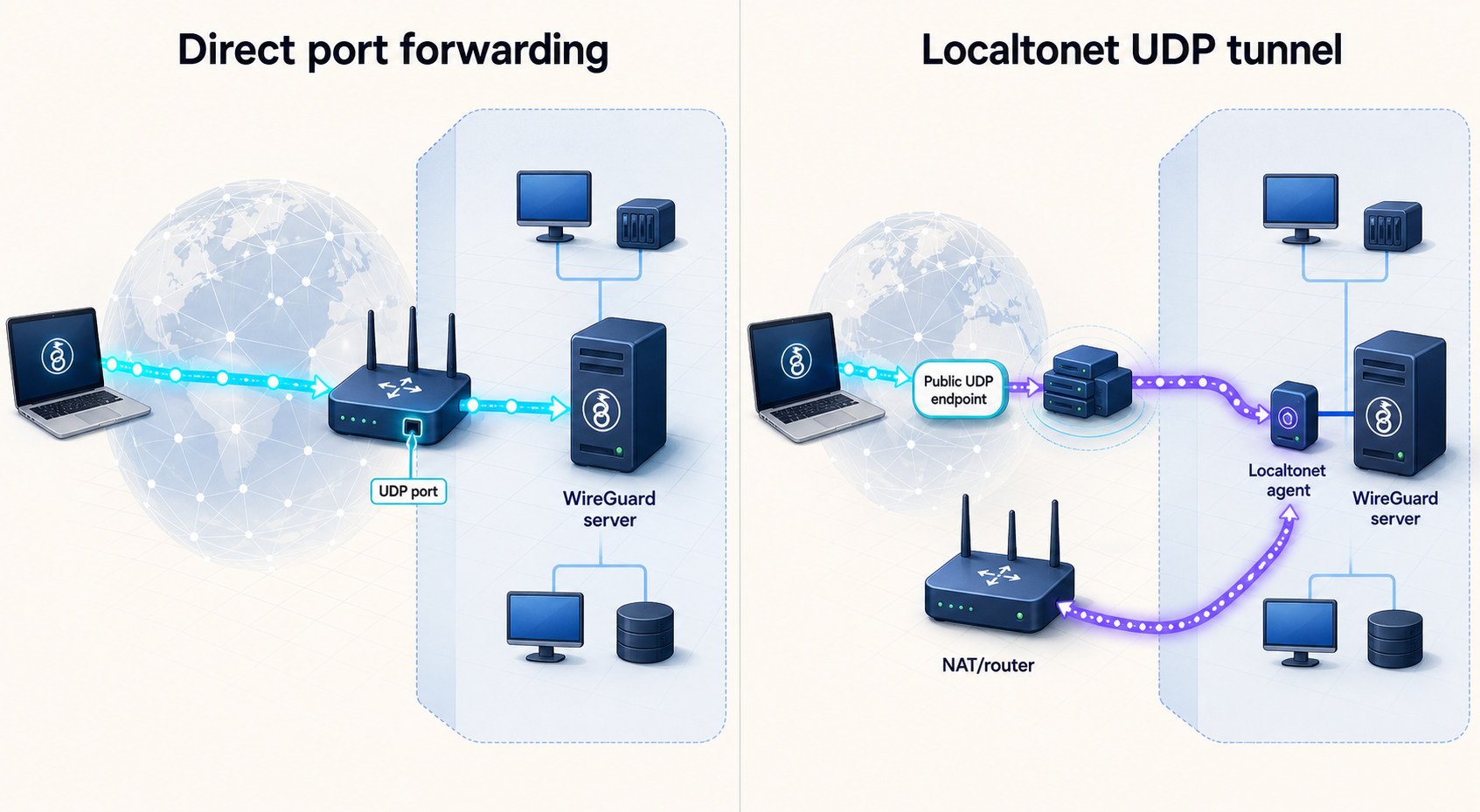
The WireGuard configuration is largely the same for either exposure method. The difference is the public endpoint used by clients and how incoming packets reach 127.0.0.1:51820 or the server's UDP listener.
| Method | Packet path | Operational considerations |
|---|---|---|
| Direct port forwarding | Client to public router address, forwarded to the WireGuard server | Requires control of the router, a reachable inbound UDP path, and appropriate router and host firewall rules. |
| Localtonet UDP tunnel | Client to an assigned Localtonet relay endpoint, then through the outbound Localtonet connection to the local UDP target | No inbound router port forwarding or public IP is required. The selected device and tunnel must remain connected and running. |
| Self-managed relay | Client to a separately operated public server, then onward to the home network | Provides architectural control but adds another server, routing layer, update responsibility, and failure domain. |
Checking for upstream NAT and possible CGNAT
Open the router administration page and note its WAN IPv4 address. Then compare it with the public IPv4 address shown by an IP-checking service. If the addresses differ, another translation layer exists upstream of the router. That observation alone does not prove carrier-grade NAT because a second customer-controlled router, modem-router combination, or other double-NAT arrangement can produce the same result.
An address from 100.64.0.0/10, meaning 100.64.0.0 through 100.127.255.255, on the router WAN side is strong evidence that the provider is using shared address space. Private WAN ranges such as 10.0.0.0/8, 172.16.0.0/12, or 192.168.0.0/16 also show upstream NAT, but may indicate either ISP NAT or another local router.
If the WAN and public addresses differ, inspect the modem or upstream gateway and ask the ISP whether it supplies inbound-capable public IPv4 service. Router port forwarding cannot cross a NAT layer you do not control.
A public UDP endpoint makes the WireGuard listener reachable. WireGuard still authenticates peers using keys, but you should also maintain a least-privilege forwarding policy, remove retired peers, protect configuration backups, and restrict administrative services such as SSH separately.
Install and configure the WireGuard server
The commands below target Ubuntu, Debian, and Raspberry Pi OS systems using APT and systemd. The official WireGuard installation page lists package paths for many other operating systems. Adapt package and service management commands when your distribution differs.
Update packages and install WireGuard
Apply available package metadata and install the distribution-provided WireGuard package. Review your operating system's update policy before applying broader upgrades to a production host.
sudo apt update
sudo apt install wireguard
Confirm that the management tool is available:
wg --versionConfirm the interface and reserve a VPN subnet
Record the interface used by the default IPv4 route. This tutorial assumes the result is ens3 and uses 10.44.0.0/24 as a non-overlapping VPN subnet.
ip -o -4 route show to default
ip -o -4 route show to default | awk '{print $5}'
ip -4 addressGenerate the server key with restrictive permissions
Set umask 077 before creating the private key. This prevents group or world access from the moment the file is created rather than correcting permissions afterward.
sudo -i
umask 077
mkdir -p /etc/wireguard
cd /etc/wireguard
wg genkey | tee server_private.key | wg pubkey > server_public.key
exit
Do not print or copy the private key into chat, email, shell history, tickets, or source control. The public key can be displayed when it is needed by clients:
sudo cat /etc/wireguard/server_public.keyEnable persistent IPv4 forwarding
Forwarding is required when clients must reach the LAN or internet through the server.
echo 'net.ipv4.ip_forward = 1' | sudo tee /etc/sysctl.d/99-wireguard.conf
sudo sysctl --system
sysctl net.ipv4.ip_forward
The final command should report net.ipv4.ip_forward = 1.
Create an IPv4 server configuration
Create /etc/wireguard/wg0.conf. Replace the private-key placeholder and replace ens3 with the interface discovered earlier.
[Interface]
Address = 10.44.0.1/24
ListenPort = 51820
PrivateKey = PASTE_SERVER_PRIVATE_KEY_HERE

PostUp = iptables -A FORWARD -i %i -o ens3 -s 10.44.0.0/24 -j ACCEPT
PostUp = iptables -A FORWARD -i ens3 -o %i -d 10.44.0.0/24 -m conntrack --ctstate ESTABLISHED,RELATED -j ACCEPT
PostUp = iptables -t nat -A POSTROUTING -s 10.44.0.0/24 -o ens3 -j MASQUERADE

PostDown = iptables -D FORWARD -i %i -o ens3 -s 10.44.0.0/24 -j ACCEPT
PostDown = iptables -D FORWARD -i ens3 -o %i -d 10.44.0.0/24 -m conntrack --ctstate ESTABLISHED,RELATED -j ACCEPT
PostDown = iptables -t nat -D POSTROUTING -s 10.44.0.0/24 -o ens3 -j MASQUERADE
sudo chmod 600 /etc/wireguard/wg0.confGenerate each client key on that client where practical
Generating a private key on the device that will use it avoids transferring that private key from the server. On a command-line client, use:
umask 077
wg genkey | tee client_private.key | wg pubkey > client_public.key
Transfer only client_public.key to the server through an authenticated channel. If a mobile application generates its own key pair, copy its public key into the server configuration. If centralized generation is unavoidable, protect the configuration during transfer and securely delete unnecessary copies after import.
Add the client as a server peer
Append one peer block to wg0.conf. Assign every client a unique address. The server-side prefix associates 10.44.0.2 with this public key.
[Peer]
# Alice phone
PublicKey = PASTE_CLIENT_PUBLIC_KEY_HERE
AllowedIPs = 10.44.0.2/32
An optional per-peer preshared key can be generated with wg genpsk and placed on both peers. It adds symmetric key material to the normal WireGuard handshake, but it must be protected like a credential and does not replace either peer's private key.
Create the client configuration
The following is an IPv4 full-tunnel example. Replace the keys and endpoint. Do not add ::/0 to this configuration because the server has not been configured as an IPv6 router.
[Interface]
PrivateKey = PASTE_CLIENT_PRIVATE_KEY_HERE
Address = 10.44.0.2/32
DNS = 1.1.1.1

[Peer]
PublicKey = PASTE_SERVER_PUBLIC_KEY_HERE
AllowedIPs = 0.0.0.0/0
Endpoint = PUBLIC_HOST_OR_IP:PUBLIC_UDP_PORT
PersistentKeepalive = 25
PersistentKeepalive is optional. A value such as 25 seconds is useful when a peer behind NAT must remain reachable after idle periods. It is not universally required, and omitting it avoids periodic keepalive traffic when the client can simply initiate communication as needed.
Start WireGuard and enable it at boot
sudo wg-quick up wg0
sudo systemctl enable wg-quick@wg0
sudo systemctl status wg-quick@wg0
sudo wg show
ip address show wg0
sudo ss -ulnp | grep 51820
A UDP listener confirms that WireGuard is bound locally. It does not confirm router forwarding, host firewall permission, CGNAT traversal, or reachability from the internet.
Publish the UDP endpoint
For direct exposure, forward the chosen public UDP port on the router to UDP 51820
The example scopes forwarding to the VPN subnet, WireGuard interface, and outbound interface. It is still only a starting policy. On systems managed by UFW, firewalld, or native nftables, express equivalent rules in that manager rather than maintaining competing rule sets blindly. Many current distributions provide the iptables command through an nftables backend, so inspect the active ruleset with both the distribution's firewall tool and, where appropriate, sudo nft list ruleset.
LAN access and return routing
The masquerade rule above also translates VPN client traffic sent through ens3, which can simplify access to LAN devices because they return packets to the WireGuard server's LAN address. If you prefer routed access without NAT, remove or narrow masquerading for LAN destinations and add a route on the home router that sends 10.44.0.0/24 to the WireGuard server's LAN address. Routed access preserves client VPN addresses but requires control of LAN routing and firewall policy.
Do not add unrestricted rules such as accepting all forwarding into or out of wg0 unless that is an intentional, reviewed policy. For a server with multiple interfaces or sensitive networks, narrow destination ranges and ports further.
Choose full tunneling or split tunneling with AllowedIPs
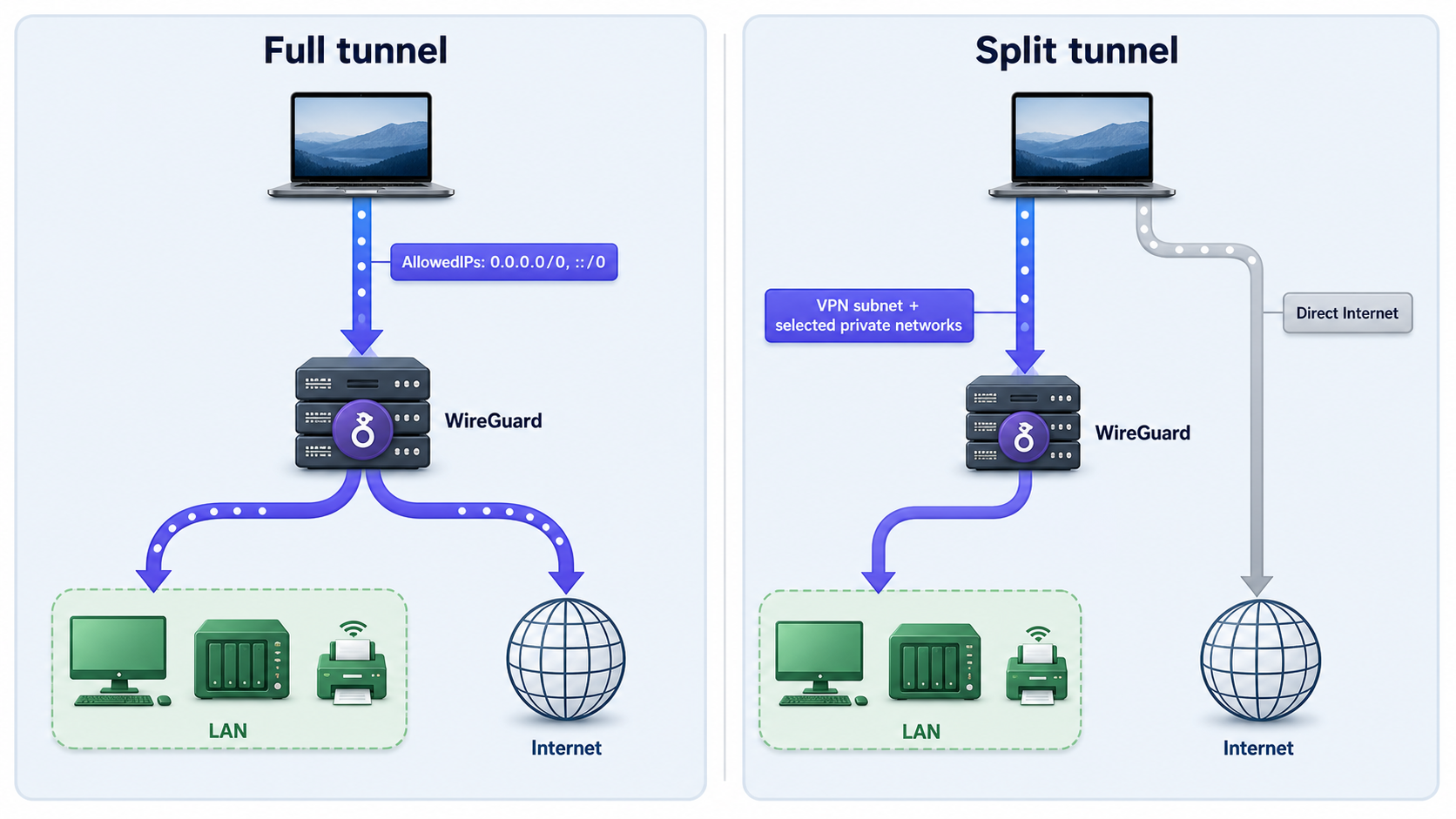
AllowedIPs is both a routing and peer-association mechanism. For outbound traffic, WireGuard selects the peer whose allowed prefix matches the destination, using the most specific matching prefix. For decrypted inbound traffic, WireGuard checks that the packet's source address belongs to the peer that sent it. On a server, giving two road-warrior peers the same client address creates an ambiguous and unsafe configuration.
| Client goal | Client-side AllowedIPs | Result |
|---|---|---|
| IPv4 full tunnel | 0.0.0.0/0 |
All IPv4 destinations use WireGuard. The server must forward and NAT or route the traffic. |
| VPN subnet only | 10.44.0.0/24 |
Only addresses inside the WireGuard subnet use the tunnel. |
| VPN plus home LAN | 10.44.0.0/24, 192.168.1.0/24 |
The VPN and home LAN use WireGuard while ordinary internet traffic remains direct. |
| VPN plus one LAN host | 10.44.0.0/24, 192.168.1.50/32 |
Only the VPN and one selected home host use WireGuard. |
For split tunneling to a home LAN, the LAN prefix must not overlap the network to which the remote client is currently attached. If both networks use 192.168.1.0/24, the client's local route can conflict with the WireGuard route. Renumbering the home LAN to a less common private range is often cleaner than relying on platform-specific routing workarounds.
DNS behavior must match the routing model
The DNS field is interpreted by client software, not by the WireGuard protocol itself, and behavior varies by operating system and client. A public resolver can work for an IPv4 full tunnel, but it does not resolve private home names unless that resolver knows them. If you use a private DNS server such as a resolver on the home LAN, include its address in the client's AllowedIPs and permit it through the relevant firewall.
For split tunneling, verify whether the client replaces all system DNS, applies DNS only while the tunnel is active, or supports domain-specific routing. Do not assume that adding a DNS address guarantees that every query follows the intended path.
Expose WireGuard through a Localtonet UDP tunnel
Use this path when the WireGuard host cannot accept inbound UDP through the router, including deployments behind CGNAT or another upstream firewall you do not control. Our client application on the WireGuard device establishes an outbound connection to a Localtonet relay. The resulting public host and port forwards UDP traffic to the local WireGuard listener.
Localtonet supports UDP tunnels, but available relay servers, options, plan behavior, bandwidth, and timeout behavior can vary. Obtain current values from the dashboard rather than copying a server code or endpoint from an article. The free plan currently shown on our homepage includes a tunnel timeout, so do not treat every tunnel as an always-on service.
Install and run the Localtonet client
Install the current Localtonet application for the WireGuard server's operating system using the options presented on our website or dashboard. Run it on the same device as WireGuard, or on a device that can reliably reach the WireGuard UDP listener. This guide does not provide an installation command because the supported command and package path can vary by platform and client version.
Select the connected device token
In the Localtonet dashboard, select the device-specific authentication token associated with the running client. Treat that token as a credential. Do not paste it into client WireGuard files, documentation, logs, or public issue reports.
Select an available relay server
Choose an available server or region from the current dashboard. Availability can vary by account, plan, region, and product version, so use the values shown for your account rather than a hardcoded server code.
Create the UDP tunnel target
Create a UDP tunnel whose local target is IP address 127.0.0.1 and port 51820. This sends relayed UDP traffic to the WireGuard listener on the same device. If Localtonet runs on another LAN device, use an address reachable from that device and restrict the associated firewall path accordingly.
Start the tunnel and use its assigned endpoint
Creating a tunnel does not start it. Press Start, then copy the public host and port assigned by the dashboard into every WireGuard client's Endpoint field:
[Peer]
PublicKey = PASTE_SERVER_PUBLIC_KEY_HERE
AllowedIPs = 0.0.0.0/0
Endpoint = PASTE_ASSIGNED_LOCALTONET_HOST:PASTE_ASSIGNED_PORT
Do not copy a made-up hostname pattern from another deployment. The endpoint displayed for your tunnel is authoritative.
The UDP endpoint is available only while the selected Localtonet device is connected and the tunnel is running. Stopping WireGuard, stopping the Localtonet client, stopping the tunnel, losing outbound connectivity, or reaching a plan-specific timeout can interrupt new and existing VPN traffic. If the assigned public endpoint changes, update the WireGuard client configurations.
For current client downloads and tunnel controls, use the Localtonet platform and the Localtonet documentation. Localtonet removes the inbound router-forwarding requirement, but it does not replace WireGuard peer authentication, server updates, forwarding policy, DNS planning, or client revocation.
Verify the VPN in stages
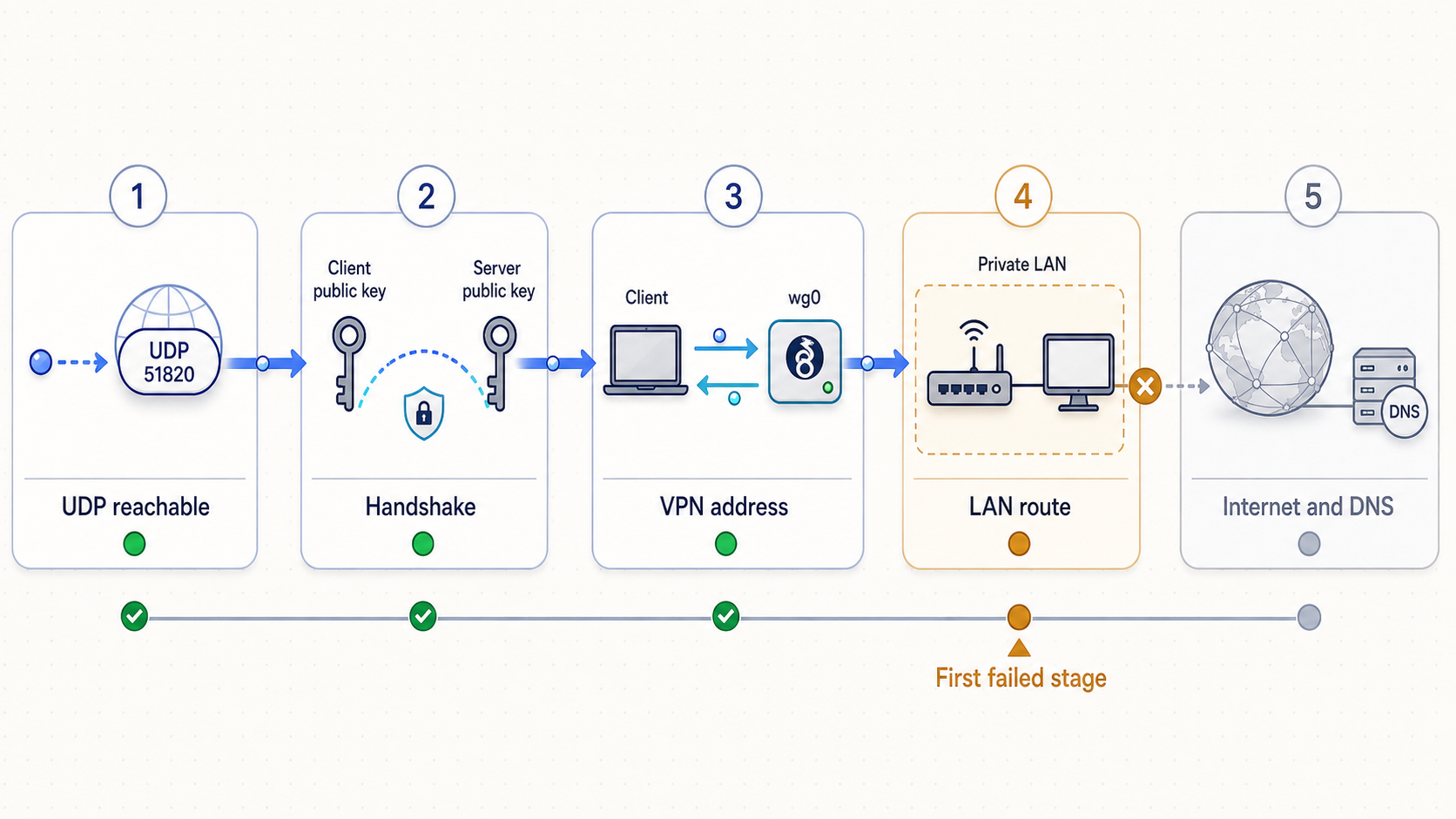
Testing one layer at a time makes failures much easier to locate. Perform remote tests from a genuinely external network, such as mobile data with Wi-Fi disabled. Testing from inside the same LAN can accidentally depend on NAT loopback behavior and does not prove public reachability.
1. Verify the server locally
sudo systemctl status wg-quick@wg0
sudo wg show
ip -4 address show wg0
ip route
sysctl net.ipv4.ip_forward
sudo ss -ulnp | grep 51820
Confirm that wg0 owns 10.44.0.1/24, forwarding is enabled, and UDP port 51820 is listening. Inspect the active firewall policy through the tool that manages it.
2. Verify the publication path
For direct exposure, confirm the router forwards the selected public UDP port to the correct server address and that the server's LAN address is stable. Confirm that the host firewall permits the WireGuard UDP listener.
For Localtonet, confirm that the correct device token reports connected, the UDP tunnel reports running, the local target is 127.0.0.1:51820, and the client uses the exact assigned public host and port.
3. Establish a remote handshake
Activate the client from an external network and generate traffic toward 10.44.0.1. On the server, run:
sudo wg showA successful peer normally shows an endpoint, a latest handshake entry, and transfer counters. Do not use one fixed handshake age as a universal pass or fail threshold. WireGuard can be intentionally quiet, and keepalive configuration affects how often traffic occurs. Judge the output alongside current client activity.
4. Test the VPN address
ping 10.44.0.1A handshake with failed VPN-address reachability points toward client routes, server address assignment, peer AllowedIPs, or host firewall policy. Some systems block ICMP, so also test an explicitly permitted service if ping is intentionally disabled.
5. Test home-LAN access
For a client configured with 192.168.1.0/24, test a known LAN host. If 10.44.0.1 works but the LAN does not, inspect Linux forwarding, the scoped FORWARD rules, LAN host firewalls, NAT behavior, and return routes. A service may also listen only on localhost rather than its LAN address.
6. Test DNS intentionally
Resolve a public hostname and, if applicable, a private home hostname. Confirm which resolver the operating system actually selected. A successful ping to an IP combined with failed hostname access is usually a DNS problem rather than a WireGuard handshake problem.
7. Test the public IP for full tunneling
With an IPv4 full tunnel active, open an IP-checking site and compare the visible IPv4 address with the server's normal public egress address. It should reflect the server-side internet path rather than the client's local network. For split tunneling, ordinary web traffic should continue to use the client's local connection.
8. Check IPv6 behavior
Because this tutorial does not route IPv6, the client must not advertise ::/0 through WireGuard. Use the client's route table and an IPv6 connectivity check to verify that IPv6 is either using the local network as intended or unavailable, rather than being sent into an unconfigured tunnel.
Routine operations, updates, and recovery
Add or change a peer without a full restart
First update /etc/wireguard/wg0.conf so the change survives a reboot. Then synchronize the live interface from the saved configuration:
sudo bash -c 'wg syncconf wg0 <(wg-quick strip wg0)'
sudo wg show
Validate the edited file carefully before applying it. A full wg-quick down and wg-quick up cycle causes an interruption and may also temporarily remove firewall rules.
Remove a peer
Delete the peer's complete [Peer] block from wg0.conf, synchronize the live interface, and verify that its public key no longer appears:
sudo bash -c 'wg syncconf wg0 <(wg-quick strip wg0)'
sudo wg show
Removing a peer is the normal revocation action for a retired, lost, or untrusted client. Reusing one key pair across several devices makes targeted revocation impossible, which is why every device should have a distinct identity.
Respond to a compromised key
If a client private key is exposed, remove its server peer immediately, generate a new key pair on that client, and enroll the new public key under a new or reviewed VPN address. If the server private key is exposed, generate a new server key pair and update the server public key in every authorized client. Review logs and peer transfer data for unexpected activity, while recognizing that WireGuard does not provide application-level user auditing.
Check status and logs
sudo systemctl status wg-quick@wg0
sudo journalctl -u wg-quick@wg0
sudo journalctl -u wg-quick@wg0 --since today
sudo wg show
wg show reports peer state and counters. The systemd journal is more useful for interface startup, configuration parsing, and command failures. Firewall logging, router logs, and Localtonet tunnel status are separate diagnostic layers.
Apply operating system updates
sudo apt update
apt list --upgradable
Review and apply security updates according to the host's maintenance policy. Kernel updates can require a reboot before the updated networking code is active. After maintenance, repeat the local listener, external handshake, route, DNS, and public-IP checks that apply to your deployment.
Back up configuration securely
Back up /etc/wireguard only to encrypted, access-controlled storage. The directory contains private key material and peer authorization data. Test restoration procedures without exposing keys or accidentally bringing up a duplicate server identity. Record the VPN subnet, LAN subnet, outbound interface assumptions, firewall manager, router mapping, and Localtonet device and tunnel dependencies alongside the protected backup.
Shut down safely
sudo wg-quick down wg0With the shown configuration, bringing the interface down removes the matching PostDown firewall and NAT rules. If you use a Localtonet UDP tunnel, stop that tunnel when public reachability is no longer required. Deleting a Localtonet tunnel is separate from stopping it.
Troubleshooting common WireGuard failures
| Symptom | Likely layer | Checks and corrective action |
|---|---|---|
| No UDP listener | WireGuard service or configuration | Check systemctl status wg-quick@wg0, the journal, file permissions, key syntax, and whether another process already uses the port. |
| Listener exists but no handshake | Endpoint, NAT, firewall, or keys | Verify the client endpoint, router forwarding or Localtonet lifecycle, host firewall, server public key, client public key, and external test network. A local listener does not prove internet reachability. |
Handshake works but 10.44.0.1 does not |
VPN addresses or host policy | Check the client's address, server-side AllowedIPs, client route table, wg0 address, and host firewall rules affecting traffic to the server itself. |
| VPN address works but LAN access fails | Forwarding or return path | Check net.ipv4.ip_forward, FORWARD rules, LAN prefix in client AllowedIPs, LAN host firewall, source NAT, or a router route back to 10.44.0.0/24. |
| Full tunnel connects but has no internet | NAT or outbound forwarding | Confirm the real outbound interface, scoped masquerade rule, established return rule, upstream connectivity, and active nftables, UFW, or firewalld policy. |
| IP addresses work but hostnames fail | DNS | Inspect the resolver selected by the client, confirm that the DNS server is reachable through the chosen routes, and test public and private names separately. |
| Some sites work but large transfers stall | Path MTU | Investigate path MTU discovery and blocked ICMP before choosing a smaller MTU. Test changes incrementally on both ends rather than treating one MTU value as universal. |
| IPv4 works but IPv6 fails | Unconfigured IPv6 routing | Remove ::/0 from this IPv4-only deployment. Build a separate IPv6 forwarding and firewall design before routing IPv6 through WireGuard. |
| Rules appear correct in iptables but traffic is blocked | Firewall backend interaction | Inspect UFW, firewalld, and nft list ruleset. Determine whether iptables uses the nftables backend and avoid maintaining contradictory policies. |
| Connection fails after an endpoint change | Client endpoint state | Confirm the current public host and port, update the client configuration, and reactivate the tunnel so the client resolves and uses the current endpoint. |
| Localtonet endpoint stops responding | Localtonet lifecycle | Confirm the selected device is connected, the client is running, the UDP tunnel is started, the local target is reachable, and no plan-specific timeout has stopped availability. |
If ordinary checks do not isolate the problem, a short packet capture on the expected interface can show whether UDP packets arrive and whether forwarded traffic leaves. Captures can contain sensitive metadata and application traffic outside the encrypted WireGuard envelope, so limit their duration, protect the output, and delete it when the investigation is complete.
Frequently asked questions
Can WireGuard run on a 32-bit system?
Yes, supported WireGuard installation paths are not limited universally to 64-bit systems. Availability depends on the operating system, architecture, kernel or userspace implementation, and packages provided for that platform. Consult the official WireGuard installation options for the target system rather than applying a blanket CPU requirement.
Does a different router WAN address prove that I am behind CGNAT?
No. A mismatch between the router WAN address and the address visible to websites proves that another translation layer exists upstream, but it can also be caused by double NAT in equipment you control. A WAN address in 100.64.0.0/10 strongly indicates provider shared address space. Inspect upstream equipment and confirm the service type with the ISP.
What is the difference between server-side and client-side AllowedIPs?
On the client, the server peer's AllowedIPs determines which destination prefixes are routed to that peer. On the server, a road-warrior peer's AllowedIPs normally identifies the VPN source address assigned to that client, such as 10.44.0.2/32. WireGuard uses these associations for outbound peer selection and validation of decrypted packet source addresses.
Is PersistentKeepalive required for every client behind NAT?
No. It is optional and is useful when a peer behind NAT must remain reachable after inactivity. Without it, a client can still recreate a NAT mapping by sending traffic. A value of 25 seconds is commonly used when keepalive behavior is needed, but it creates periodic traffic and should not be added without a reason.
Should I generate client private keys on the server?
Generate each client private key on that client when practical, then send only its public key to the server. This reduces the number of systems and transfer channels that handle the private key. If centralized generation is necessary, use a restrictive umask, an authenticated encrypted transfer path, and remove unnecessary copies after the client imports its configuration.
Can I use both a direct endpoint and Localtonet?
A WireGuard peer configuration uses an endpoint for the remote peer at a given time. You can maintain separately managed client configurations for different publication paths, but avoid activating conflicting configurations with the same VPN addresses and routes. Test revocation, endpoint changes, and failover procedures before relying on them remotely.
Does Localtonet turn WireGuard into a Localtonet VPN?
No. WireGuard remains the VPN in this tutorial. Localtonet provides a public UDP forwarding path to the local WireGuard listener. This standard UDP tunnel is distinct from our VPN Manager feature, which is a separate private mesh VPN product.
Publish your WireGuard UDP listener with Localtonet
If router port forwarding is unavailable, connect the WireGuard host to our platform, create a UDP tunnel to 127.0.0.1:51820, select an available relay server, and start the tunnel. Then use the endpoint assigned in your dashboard while the device and tunnel remain connected.


