

Reach a home-hosted MQTT broker without opening an inbound router port
Home sensors usually live behind private addresses, NAT, and sometimes carrier-grade NAT, so remote clients cannot initiate connections to them directly. This guide builds a safer remote MQTT workflow around Mosquitto on a Raspberry Pi, end-to-end MQTT TLS, per-client authentication, least-privilege topic permissions, and a Localtonet TCP tunnel. It also explains when an HTTP tunnel, our VPN Manager, or a cloud MQTT broker is the better design. The goal is not merely to make a device reachable, but to expose only the intended service with security controls at every layer.
📋 What's in this guide
Understand the remote-access architecture first
An ESP32, Raspberry Pi, or other home IoT device normally receives a private address such as 192.168.1.45. That address is routable inside the home network but not across the public internet. The router translates outbound traffic using NAT and rejects unsolicited inbound connections unless an explicit forwarding rule exists. If the internet provider also uses carrier-grade NAT, configuring a forwarding rule on the home router may still be insufficient because the subscriber does not control the provider's public-facing address.
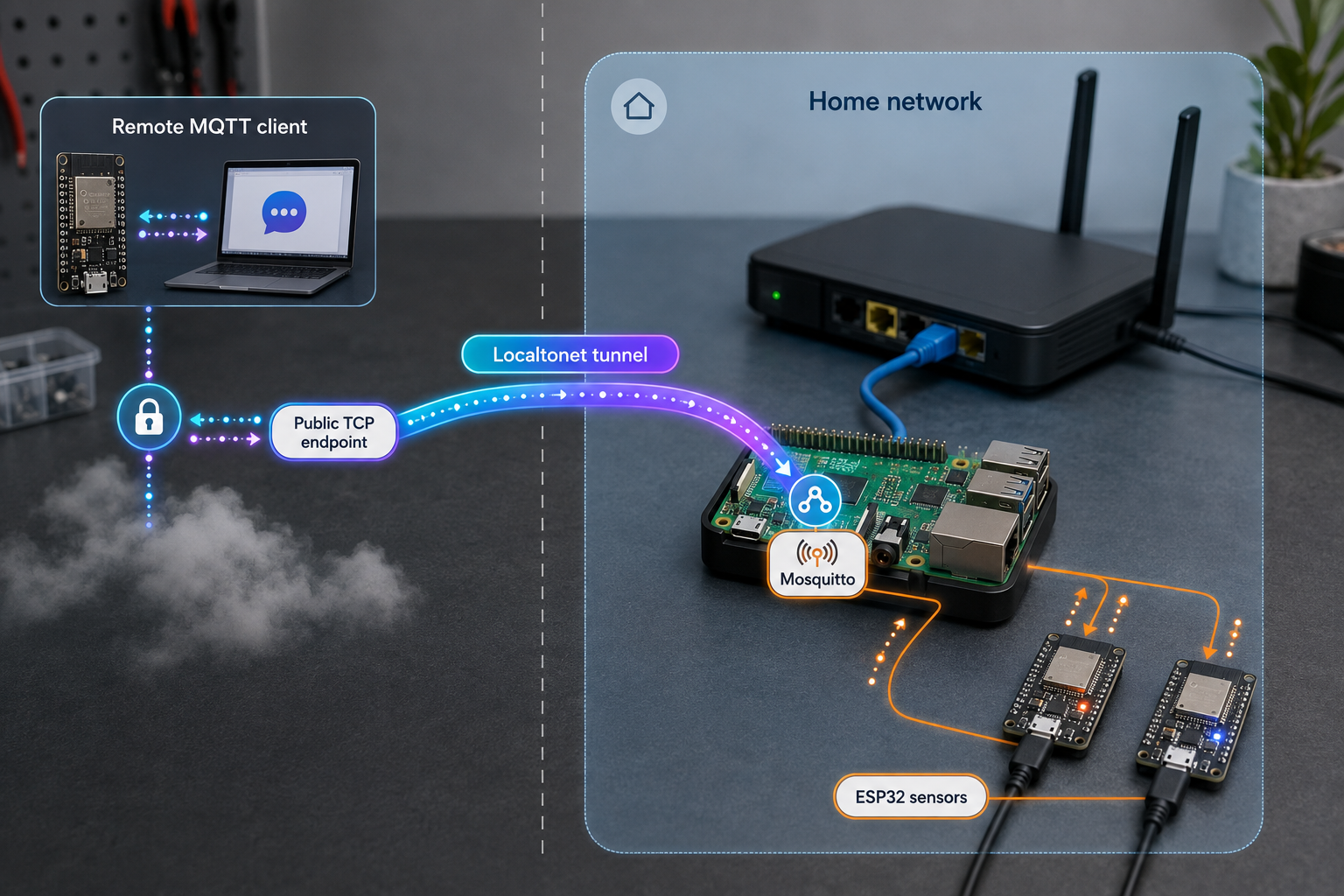
Localtonet approaches this problem from the other direction. The Localtonet client running on the Raspberry Pi, or on another device that can reach the Raspberry Pi, establishes an outbound connection to a Localtonet relay. A TCP tunnel then supplies a public host and port. Remote MQTT clients connect to that endpoint, traffic passes through the relay and the outbound client connection, and the client forwards it to the selected local IP address and port.
Remote MQTT client
    |
    | MQTT over TLS, certificate validated
    v
Public Localtonet host and port
    |
    | Traffic passes through a Localtonet relay
    v
Outbound Localtonet client connection
    |
    | Local forwarding to 127.0.0.1:8883
    v
Mosquitto on Raspberry Pi
    |
    | Username authentication and topic ACLs
    v
Authorized home sensor topics
These layers solve different problems. The tunnel supplies reachability without inbound router port forwarding, but reachability is not authentication. Mosquitto verifies the MQTT username and password, while its access control list decides which topics that identity may read or write. MQTT TLS protects credentials and message payloads between the remote client and Mosquitto and validates that the client reached the expected broker endpoint.
Do not send MQTT credentials or sensitive sensor data over an internet-facing plaintext connection on port 1883. The Localtonet product information available for this tutorial does not establish that a raw TCP tunnel encrypts MQTT from the remote MQTT client all the way to Mosquitto. This guide therefore terminates MQTT TLS at Mosquitto on port 8883 and requires the remote client to validate the broker certificate.
Traffic carried by a public tunnel does not remain entirely inside the home. It necessarily traverses the selected Localtonet relay before returning through the outbound connection. End-to-end MQTT TLS ensures the relay transports encrypted MQTT records rather than readable MQTT credentials and payloads.
How MQTT behaves in a home IoT system
MQTT is a lightweight publish-subscribe messaging protocol commonly used for sensors, automation systems, and constrained devices. Clients do not normally send messages directly to one another. They connect to a broker, publish messages under topic names, and subscribe to topic filters that identify the messages they want to receive.
For example, a living-room sensor could publish {"temp":22.4} to home/living-room/temperature. Home Assistant, Node-RED, and a monitoring process could subscribe to that topic without the sensor knowing which subscribers exist. The broker routes a publication to currently eligible subscribers according to subscriptions, session state, quality of service, retention settings, and authorization rules.
A normal non-retained message is routed to matching subscribers, but it is not automatically preserved as the current value for future subscribers. A publisher must set the retained flag if the broker should keep the latest retained publication for a topic. Persistent sessions and queued messages are separate MQTT behaviors and depend on the protocol version, session settings, quality of service, and broker configuration.
Quality of service levels
| QoS | Delivery model | Practical consideration |
|---|---|---|
| 0 | At most once | The protocol does not retry the publication. A message can be lost if the connection fails. |
| 1 | At least once | The sender retries until acknowledged, so a receiver must tolerate possible duplicates. |
| 2 | Exactly once at the MQTT protocol level | Uses a longer exchange to prevent duplicate delivery at the MQTT layer and adds overhead. |
QoS does not replace application-level validation. A controller receiving a command such as “unlock” or “start pump” should still validate authorization, command age, expected state, and duplicate handling. The risk of exposing a control topic is much higher than exposing a read-only temperature topic.
Retained messages and sessions
A retained publication lets a new subscriber receive the broker's current retained value immediately after subscribing. This is useful for state such as the latest temperature or whether a device reports itself online. It is not a historical database. Publishing a new retained value replaces the previous retained value for that topic, and historical trends require separate storage.
Session behavior determines whether the broker remembers subscriptions and eligible queued QoS messages while a client is disconnected. MQTT 3.1.1 expresses this through the clean-session option. MQTT 5 uses clean start and a session-expiry interval. Those settings are independent of retained messages.
Use unique client identifiers
Each simultaneously connected MQTT client needs a distinct client identifier. If two devices connect to the same broker with the same identifier, the broker normally replaces the older connection with the newer one. This often appears as a repeating connect-disconnect cycle. Derive the identifier from a device-specific value and include a role prefix rather than hardcoding the same text into every ESP32.
Prerequisites and installation assumptions
This tutorial uses a Raspberry Pi running a currently supported, Debian-based Raspberry Pi OS release. Package names, service paths, and commands are written for that environment. If Mosquitto was installed through Docker, Home Assistant add-ons, another Linux distribution, or a manually downloaded package, use the equivalent paths and service controls for that installation.
A Localtonet authentication token identifies the client device and must not be pasted into articles, source repositories, screenshots, or support logs. MQTT passwords, Wi-Fi passwords, private certificate keys, and application credentials also belong outside committed source code. Use restricted files, a secret-management mechanism supported by your deployment, or provisioning-time injection.
Before publishing anything, update Raspberry Pi OS, Mosquitto, ESP32 firmware dependencies, and the IoT device firmware. A tunnel does not correct vulnerabilities in the service behind it. If a broker or device is no longer receiving security updates, do not make it publicly reachable.
Install and secure Mosquitto on the Raspberry Pi
The configuration below uses two explicit loopback listeners. Port 1883 accepts authenticated plaintext MQTT only from software running on the Raspberry Pi itself. Port 8883 accepts MQTT over TLS and becomes the Localtonet tunnel target. Binding both listeners to 127.0.0.1 prevents other LAN hosts from connecting directly.
If Home Assistant runs on the same Raspberry Pi, it can use 127.0.0.1:1883 or the local TLS listener. If Home Assistant runs on a different LAN host, localhost points to the Home Assistant host, not the Raspberry Pi. In that case, create a deliberately secured LAN listener or use a private network design such as Localtonet VPN Manager. Do not change the listener to all interfaces without considering LAN firewall rules, TLS hostname validation, and who can reach the broker.
Install Mosquitto, its client tools, and OpenSSL
Refresh the Raspberry Pi OS package metadata, install the broker and test clients, and enable the packaged system service.
Create separate broker identities interactively
Create a publishing identity for the living-room sensor and a read-only identity for a remote dashboard. The password utility prompts securely instead of placing passwords in shell history or process arguments.
Define least-privilege topic permissions
Permit the sensor to publish only its own reading and status topics. Permit the dashboard to read the home topic hierarchy without granting write access.
Verify authenticated MQTT locally
Start with a loopback-only listener and prove authentication and message routing before adding certificates or a public endpoint.
Create a private CA and hostname-matched server certificate
After the Localtonet tunnel has been created and its assigned hostname is known, issue a broker certificate whose DNS subject alternative name matches that hostname.
Enable the loopback TLS listener and validate it
Configure Mosquitto to read the server certificate and key, restart it, inspect the service logs, and perform an OpenSSL hostname-validation test.
1. Install the packages
sudo apt update
sudo apt install mosquitto mosquitto-clients openssl
sudo systemctl enable --now mosquitto
sudo systemctl status mosquitto
The status output should show the broker as active. If it does not, inspect the journal before continuing:
sudo journalctl -u mosquitto --since "15 minutes ago" --no-pager2. Create password identities
sudo mosquitto_passwd -c /etc/mosquitto/passwd sensor_living
sudo mosquitto_passwd /etc/mosquitto/passwd remote_reader
sudo chown root:mosquitto /etc/mosquitto/passwd
sudo chmod 640 /etc/mosquitto/passwd
Each command prompts for a password. Give every identity a different strong password. The -c option creates a new password file, so use it only for the first identity. Reusing -c later would replace the existing file and remove previous users.
3. Add the ACL file
sudo nano /etc/mosquitto/aclAdd these rules:
user sensor_living
topic write home/living-room/temperature
topic write home/living-room/status

user remote_reader
topic read home/#
Then restrict the file:
sudo chown root:mosquitto /etc/mosquitto/acl
sudo chmod 640 /etc/mosquitto/acl
This is intentionally asymmetric. The sensor can publish only two topics and cannot subscribe to the entire home hierarchy. The remote reader can subscribe but cannot publish control commands. Add identities and exact topic rules as new devices are provisioned. Avoid a shared account with unrestricted access to #.
4. Configure and test the local listener
sudo nano /etc/mosquitto/conf.d/home-iot.confBegin with this configuration:
per_listener_settings false
allow_anonymous false
password_file /etc/mosquitto/passwd
acl_file /etc/mosquitto/acl

persistence true
persistence_location /var/lib/mosquitto/

listener 1883 127.0.0.1
sudo mosquitto -c /etc/mosquitto/mosquitto.conf -t
sudo systemctl restart mosquitto
sudo systemctl status mosquittoCreate a restricted temporary password file for the client tools without placing the password directly in the command:
umask 077
read -r -s -p "MQTT password: " MQTT_PASSWORD
printf '\n'
printf '%s\n' "$MQTT_PASSWORD" > "$HOME/.mqtt-remote-reader.pass"
unset MQTT_PASSWORDIn the first terminal, subscribe as the read-only account:
mosquitto_sub -h 127.0.0.1 -p 1883 \
-u remote_reader \
--pw-file "$HOME/.mqtt-remote-reader.pass" \
-t home/living-room/temperature -v
In a second terminal, create a similarly restricted password file for sensor_living, then publish:
mosquitto_pub -h 127.0.0.1 -p 1883 \
-u sensor_living \
--pw-file "$HOME/.mqtt-sensor-living.pass" \
-t home/living-room/temperature \
-m '{"temp":22.4}' \
-q 1
The subscriber should display the topic and JSON payload. Also test a prohibited operation. A publication from remote_reader should be denied because its ACL grants read access only.
The examples use the Mosquitto client --pw-file option so a password is not exposed directly in shell history or a process argument. Confirm support with mosquitto_sub --help and mosquitto_pub --help. If an older packaged client lacks this option, update to a supported client or use a protected client configuration method documented for that version. Do not fall back to publishing a real password with -P on a shared system.
5. Create the certificate after obtaining the public hostname
Complete the Localtonet tunnel creation steps in the next section far enough to obtain the assigned public host and port, but do not use the endpoint for MQTT credentials until TLS is configured. Replace the example value below with the exact hostname shown for your tunnel. Use the hostname only, without the port.
sudo install -d -m 700 /root/mqtt-pki
sudo -i
cd /root/mqtt-pki
PUBLIC_HOST='replace-with-the-assigned-public-host'
openssl genrsa -out ca.key 4096
chmod 600 ca.key
openssl req -x509 -new -sha256 \
-key ca.key \
-days 3650 \
-out ca.crt \
-subj "/CN=Home IoT MQTT Private CA"
openssl genrsa -out server.key 2048
openssl req -new -sha256 \
-key server.key \
-out server.csr \
-subj "/CN=${PUBLIC_HOST}"
printf 'subjectAltName=DNS:%s\nextendedKeyUsage=serverAuth\n' \
"$PUBLIC_HOST" > server.ext
openssl x509 -req -sha256 \
-in server.csr \
-CA ca.crt \
-CAkey ca.key \
-CAcreateserial \
-days 365 \
-out server.crt \
-extfile server.ext
openssl x509 -in server.crt -noout -subject -issuer -dates -ext subjectAltName
Keep ca.key private and preferably offline after issuing the certificate. A party with that key can issue certificates trusted by clients that import this CA. The public ca.crt file must be transferred to each authorized remote client through a trusted channel.
Install only the broker certificate, broker key, and public CA certificate where Mosquitto can read them:
install -d -o root -g mosquitto -m 750 /etc/mosquitto/certs
install -o root -g mosquitto -m 644 ca.crt /etc/mosquitto/certs/ca.crt
install -o root -g mosquitto -m 644 server.crt /etc/mosquitto/certs/server.crt
install -o root -g mosquitto -m 640 server.key /etc/mosquitto/certs/server.key
exit6. Enable and validate MQTT TLS
Add the TLS listener to the end of /etc/mosquitto/conf.d/home-iot.conf:
listener 8883 127.0.0.1
certfile /etc/mosquitto/certs/server.crt
keyfile /etc/mosquitto/certs/server.key
tls_version tlsv1.2Validate the configuration and restart:
sudo mosquitto -c /etc/mosquitto/mosquitto.conf -t
sudo systemctl restart mosquitto
sudo systemctl status mosquitto
sudo journalctl -u mosquitto --since "5 minutes ago" --no-pager
sudo ss -lntp | grep -E ':(1883|8883)\b'
The listener output should show both ports bound to 127.0.0.1, not 0.0.0.0 or ::. Test the certificate, TLS handshake, private CA, and expected hostname directly against the local TLS port:
openssl s_client \
  -connect 127.0.0.1:8883 \
  -servername "$PUBLIC_HOST" \
  -CAfile /etc/mosquitto/certs/ca.crt \
  -verify_hostname "$PUBLIC_HOST" \
  -verify_return_error < /dev/null
Look for Verify return code: 0 (ok). Do not disable certificate validation to make a failed test pass. A hostname mismatch, untrusted issuer, expired certificate, or invalid system clock must be corrected.
Create and start the Localtonet TCP tunnel
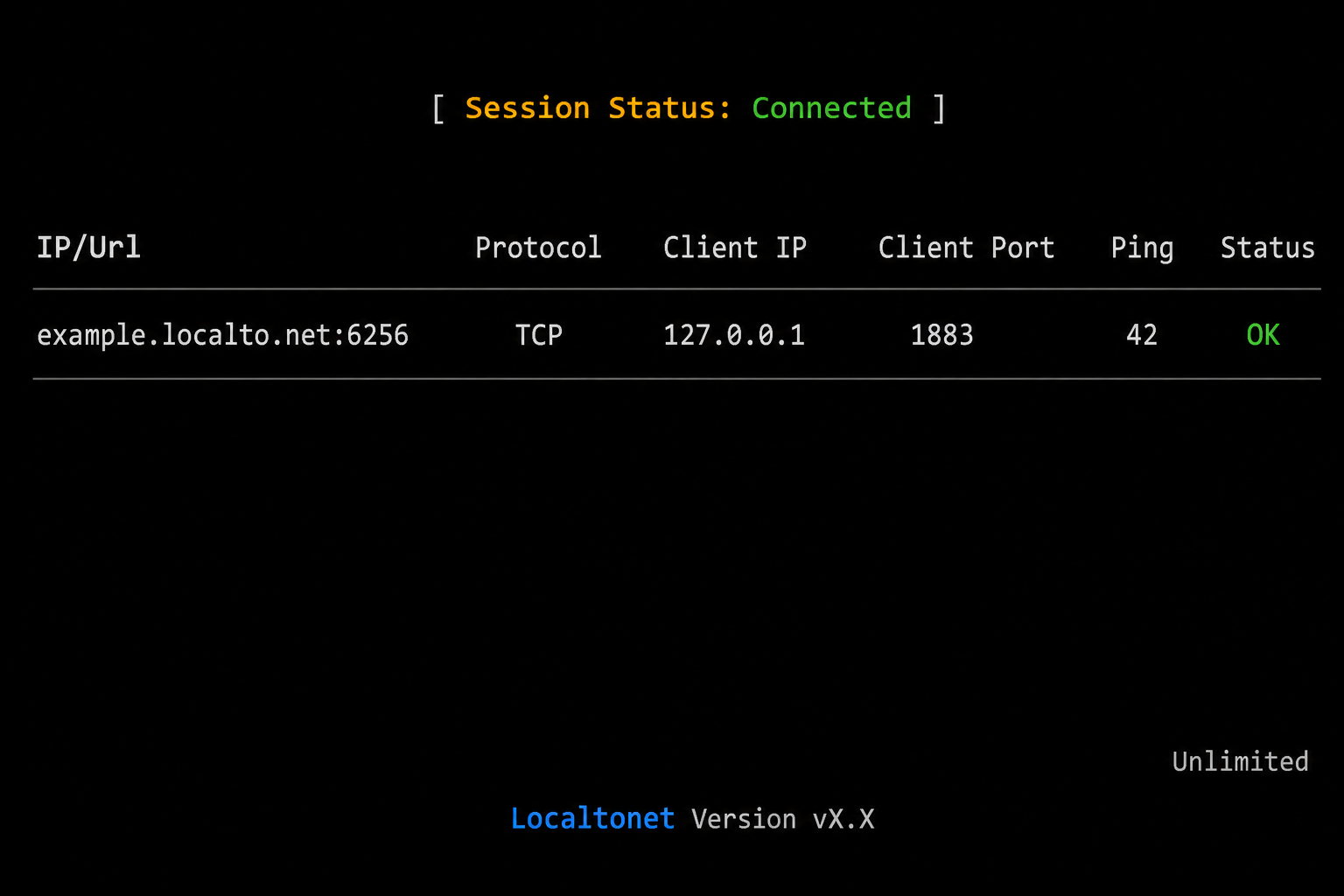
Localtonet supports raw TCP tunnels for services that communicate over TCP. The exact client installation package and interface can vary by operating system and client version, so this tutorial does not use an unverified installation script, CLI authentication flag, or service-management command. Obtain the current client through the Localtonet product interface and follow the installation method presented for your Raspberry Pi environment.
The confirmed product workflow separates tunnel creation from tunnel startup. A saved tunnel is not automatically running, and its public endpoint works only while the selected client is connected and that tunnel is running.
Install and run the current Localtonet client
Install the supported client build for the Raspberry Pi operating system. Run it on the Raspberry Pi itself for the loopback target used in this tutorial. Do not copy the device authentication token into a command example, repository, or screenshot.
Confirm that the intended device is connected
In the Localtonet dashboard, identify the Raspberry Pi through its device-specific authentication token and verify that this client is connected. Selecting a different device would make 127.0.0.1 refer to that other device.
Select a currently available relay server
Choose from the server or region values currently offered in the dashboard. Availability can vary, so do not substitute a hardcoded server code from an old tutorial.
Configure the TCP local target
Select the TCP tunnel type and set the local target to IP address 127.0.0.1 and port 8883. This points the tunnel at Mosquitto's loopback-only TLS listener.
Create the tunnel and record its endpoint
Create the configuration, then record the assigned public hostname and port exactly as shown. Use that hostname when issuing the broker certificate. Endpoint behavior and plan-dependent options must be checked in the current dashboard rather than assumed to be permanent.
Start the tunnel after MQTT TLS is ready
Once Mosquitto is listening on 127.0.0.1:8883 with a matching certificate, press Start. Confirm that both the device and tunnel report a connected or running state.
If the assigned public hostname changes, the existing server certificate may no longer match. Remote clients must not suppress that error. Update their endpoint configuration and issue a new broker certificate containing the new hostname, or use another currently documented endpoint arrangement that gives you an appropriate stable hostname. Do not assume that any port or hostname is permanent across plans or tunnel recreations.
Verify from an external network
Move the test machine off the home LAN. A phone hotspot is a practical choice. Copy ca.crt to that machine through a trusted channel, create a protected password file for remote_reader, and subscribe using the real public host and port:
PUBLIC_HOST='replace-with-the-assigned-public-host'
PUBLIC_PORT='replace-with-the-assigned-public-port'

mosquitto_sub \
  -h "$PUBLIC_HOST" \
  -p "$PUBLIC_PORT" \
  --cafile ./ca.crt \
  -u remote_reader \
  --pw-file "$HOME/.mqtt-remote-reader.pass" \
  -t home/living-room/temperature \
  -q 1 \
  -v
Publish from the Raspberry Pi using the local sensor test account. The off-network subscriber should receive the value. This confirms the broker, ACL, TLS listener, Localtonet target, relay path, and remote subscription as one complete system.
Also perform negative tests. Use an incorrect password and confirm rejection. Use a CA file that does not trust the broker and confirm the TLS connection fails. Attempt to publish as remote_reader and confirm the ACL denies it. A successful positive test without negative tests can hide an accidentally permissive configuration.
Connect an ESP32 with certificate validation and reconnect control
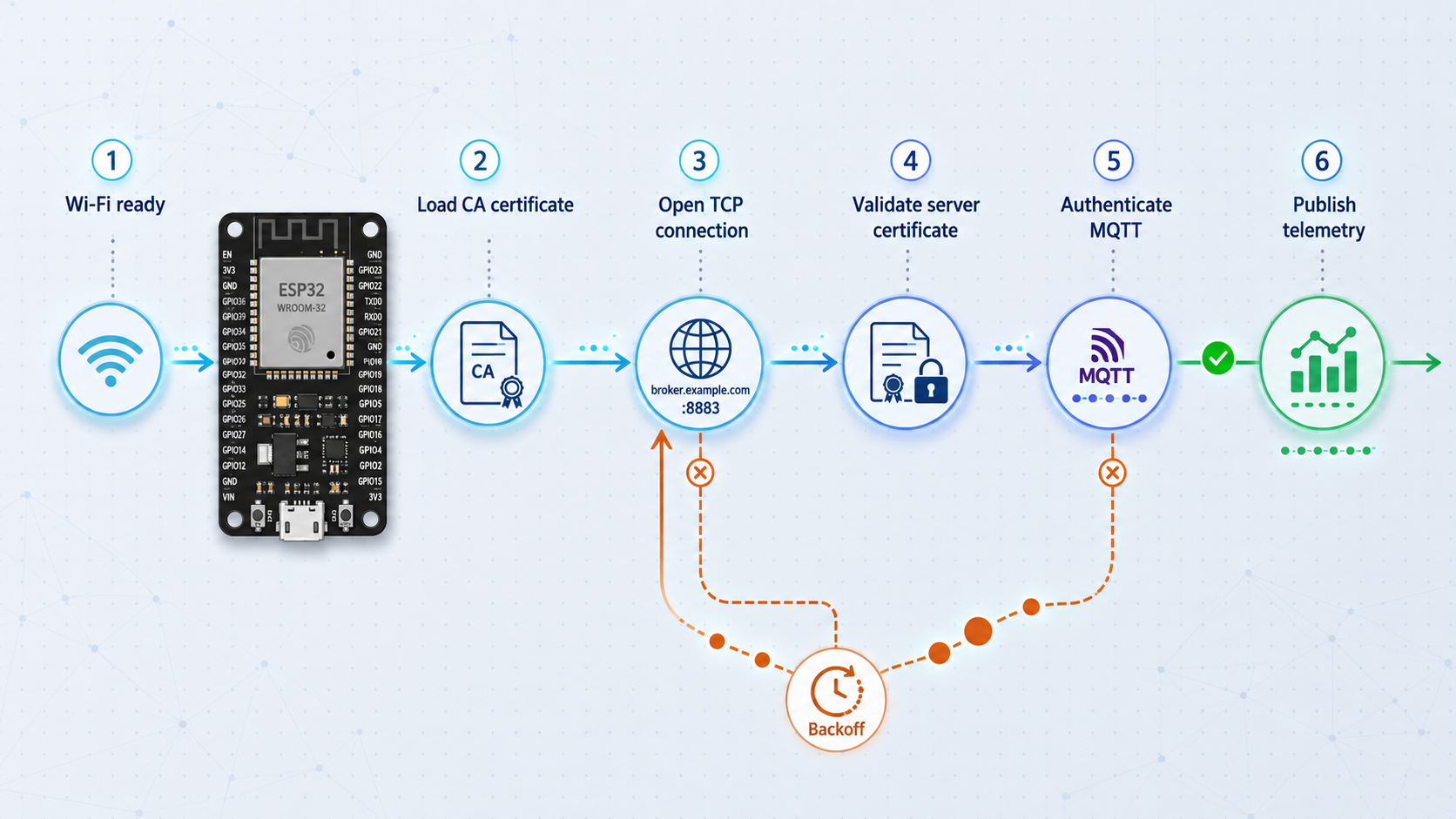
A production ESP32 client should not embed reusable secrets in a public sketch, disable certificate validation, reconnect continuously without delay, or block for the full publishing interval. PubSubClient normally needs regular calls to loop() to process MQTT traffic and maintain the connection. The example below services the client continuously, spaces reconnection attempts, derives a unique client identifier from the ESP32 hardware identifier, checks connection and publication results, and validates Mosquitto's certificate using the private CA.
Create a local secrets.h file that is excluded from version control. Provision its values through your normal device-management process:
#pragma once

const char WIFI_SSID[] = "provision-at-deployment";
const char WIFI_PASSWORD[] = "provision-at-deployment";

const char MQTT_HOST[] = "replace-with-the-assigned-public-host";
const uint16_t MQTT_PORT = 12345;
const char MQTT_USER[] = "sensor_living";
const char MQTT_PASSWORD[] = "provision-at-deployment";

const char MQTT_CA_CERT[] PROGMEM = R"EOF(
-----BEGIN CERTIFICATE-----
Paste the contents of ca.crt here during secure provisioning.
-----END CERTIFICATE-----
)EOF";
Add secrets.h to the project's ignore file and confirm it is absent from repository history. The public CA certificate is not a password, but keeping provisioning material together can still expose infrastructure details. The CA private key must never be copied to the ESP32.
The main sketch can remain separate from the secret values:
#include <WiFi.h>
#include <WiFiClientSecure.h>
#include <PubSubClient.h>
#include <time.h>
#include "secrets.h"

WiFiClientSecure tlsClient;
PubSubClient mqttClient(tlsClient);

const unsigned long WIFI_RETRY_MS = 10000;
const unsigned long MQTT_RETRY_MS = 10000;
const unsigned long PUBLISH_INTERVAL_MS = 30000;

unsigned long lastWiFiAttempt = 0;
unsigned long lastMqttAttempt = 0;
unsigned long lastPublish = 0;

char mqttClientId[40];

bool clockIsReady() {
  return time(nullptr) > 1700000000;
}

void startWiFi() {
  lastWiFiAttempt = millis();
  WiFi.mode(WIFI_STA);
  WiFi.begin(WIFI_SSID, WIFI_PASSWORD);
  Serial.println("Starting Wi-Fi connection");
}

void maintainWiFi() {
  if (WiFi.status() == WL_CONNECTED) {
    return;
  }

  if (millis() - lastWiFiAttempt >= WIFI_RETRY_MS) {
    Serial.println("Wi-Fi disconnected, retrying");
    WiFi.disconnect();
    startWiFi();
  }
}

void maintainMqtt() {
  if (WiFi.status() != WL_CONNECTED || !clockIsReady()) {
    return;
  }

  if (mqttClient.connected()) {
    mqttClient.loop();
    return;
  }

  if (millis() - lastMqttAttempt < MQTT_RETRY_MS) {
    return;
  }

  lastMqttAttempt = millis();
  Serial.printf("Connecting to MQTT as %s\n", mqttClientId);

  if (mqttClient.connect(mqttClientId, MQTT_USER, MQTT_PASSWORD)) {
    Serial.println("MQTT connected");
  } else {
    Serial.printf(
      "MQTT connection failed, state=%d; retry scheduled\n",
      mqttClient.state()
    );
  }
}

float readTemperature() {
  // Replace with a checked read from the actual sensor.
  return 22.4f;
}

void publishReading() {
  if (!mqttClient.connected()) {
    return;
  }

  if (millis() - lastPublish < PUBLISH_INTERVAL_MS) {
    return;
  }

  lastPublish = millis();

  char payload[64];
  float temperature = readTemperature();

  int length = snprintf(
    payload,
    sizeof(payload),
    "{\"temp\":%.1f}",
    temperature
  );

  if (length < 0 || length >= static_cast<int>(sizeof(payload))) {
    Serial.println("Payload formatting failed");
    return;
  }

  bool published = mqttClient.publish(
    "home/living-room/temperature",
    payload,
    false
  );

  if (published) {
    Serial.println("Temperature published");
  } else {
    Serial.println("MQTT publish failed");
  }
}

void setup() {
  Serial.begin(115200);

  uint64_t chipId = ESP.getEfuseMac();
  snprintf(
    mqttClientId,
    sizeof(mqttClientId),
    "living-room-%04X%08X",
    static_cast<uint16_t>(chipId >> 32),
    static_cast<uint32_t>(chipId)
  );

  tlsClient.setCACert(MQTT_CA_CERT);
  mqttClient.setServer(MQTT_HOST, MQTT_PORT);
  mqttClient.setKeepAlive(30);

  startWiFi();

  // A valid clock is needed for certificate date checks.
  configTime(0, 0, "pool.ntp.org", "time.nist.gov");
}

void loop() {
  maintainWiFi();
  maintainMqtt();
  publishReading();

  // Keep this short so MQTT loop processing remains frequent.
  delay(10);
}
Replace the example sensor function with a real read that detects invalid values and hardware errors. The sketch deliberately publishes a non-retained message. If subscribers need the latest known state immediately after connecting, decide whether a retained publication is appropriate and pass true as the retained argument. A retained reading should include a timestamp so consumers can recognize stale data.
Time synchronization matters because the ESP32 must compare the server certificate's validity period with the current time. If DNS or NTP is unavailable, the sketch waits rather than weakening TLS. For unattended installations, log or expose a local diagnostic state that distinguishes Wi-Fi, DNS, time synchronization, TLS, MQTT authentication, and publication failures.
Treat HTTP device APIs as a separate and higher-risk case
Some home devices provide an HTTP API instead of MQTT. With Localtonet, an HTTP tunnel can point to a local IP address and port reachable from the connected client device and supply a public HTTPS address. HTTP and File Server tunnel process types can use a random subdomain, a custom subdomain, or a custom domain where currently supported.
A public HTTPS URL does not automatically make the underlying device administration interface safe. HTTPS at the public edge protects the browser-facing portion of the route, but it does not prove that the IoT application requires authentication, applies authorization, protects the local forwarding segment, prevents cross-site requests, rate-limits login attempts, or receives security updates.
Device dashboards can expose firmware updates, Wi-Fi credentials, relays, door controls, cameras, and factory-reset functions. Prefer an authenticated, read-only API that reveals only the specific sensor fields required. Keep administrative and actuator endpoints private. If the device cannot enforce strong authentication and least privilege, use Localtonet VPN Manager for private network access or place a maintained authenticated application in front of the device.
When an HTTP tunnel targets another LAN device, the Localtonet client must run on a machine that can reach that device's local IP and port. Test the target from the client machine before creating the tunnel. Use a DHCP reservation or another local addressing method so the target does not unexpectedly move, and restrict the device firewall to accepting requests from the intended gateway host where possible.
A safer design is to expose a small authenticated application on the Raspberry Pi. That application reads approved values from MQTT, returns only non-sensitive fields, validates every request, and has no ability to modify device configuration. The public tunnel then points to that application rather than directly to a vendor administration panel.
Operate the system safely after deployment
Check service state and logs
Review Mosquitto's service state and recent journal entries after configuration changes, package upgrades, certificate replacement, and reboot:
sudo systemctl status mosquitto
sudo journalctl -u mosquitto --since "1 hour ago" --no-pager
sudo ss -lntp | grep -E ':(1883|8883)\b'
Look for repeated authentication failures, duplicate client disconnections, malformed packets, certificate-loading errors, and unexpected connection volume. Avoid publishing complete logs if they contain usernames, internal addresses, topic names, or public endpoint details.
Test reboot recovery explicitly
Do not assume the broker and tunnel recover after a power failure. Reboot during a maintenance window, verify Mosquitto becomes active, confirm the Localtonet client reconnects using the supported startup arrangement for your current client version, and check that the saved tunnel is running. Then repeat an off-network MQTT TLS test.
We do not include unverified Localtonet service-installation flags here. Use only the startup mechanism documented for the installed Localtonet client and operating system. If automatic startup is unavailable or not configured, the public endpoint will remain unavailable until the client and tunnel are started again.
Rotate credentials by identity
If a sensor is lost, retired, or suspected of compromise, remove only its identity:
sudo mosquitto_passwd -D /etc/mosquitto/passwd sensor_living
sudo systemctl reload mosquitto
Confirm that the installed Mosquitto version accepts the updated password file after reload. If not, restart the service during a planned window. Provision a new identity and ACL entry for the replacement device rather than reusing the compromised password.
Track certificate renewal and endpoint changes
The example broker certificate is valid for 365 days. Record its expiry date and renew it before it expires. Test the replacement certificate from an external client before the old one reaches its final day. Keep enough overlap to update embedded clients safely.
If the public hostname changes, issue a certificate containing the new hostname and update every client's host setting. A port-only change does not require a new certificate if the hostname stays the same, but it does require client configuration changes. Never work around hostname or expiry errors by calling an insecure client method.
Stop exposure when it is not required
A Localtonet tunnel is available only while its selected device is connected and the tunnel is running. Press Stop when remote MQTT access is not needed. Delete obsolete tunnel configurations, remove unused MQTT accounts, and revoke device access as part of decommissioning. Stopping a tunnel does not remove Mosquitto accounts, so both layers need lifecycle management.
Review resource and plan constraints
MQTT sensor messages are often small, but actual usage depends on topic volume, payload size, publish interval, reconnect behavior, retained state, and the number of subscribers. High-frequency telemetry, large JSON documents, firmware files, audio, and video can produce very different traffic. Review current Localtonet plan details and operational limits for the intended workload rather than assuming a particular allowance applies to every account.
Compare TCP tunneling, HTTP tunneling, VPN Manager, and cloud MQTT
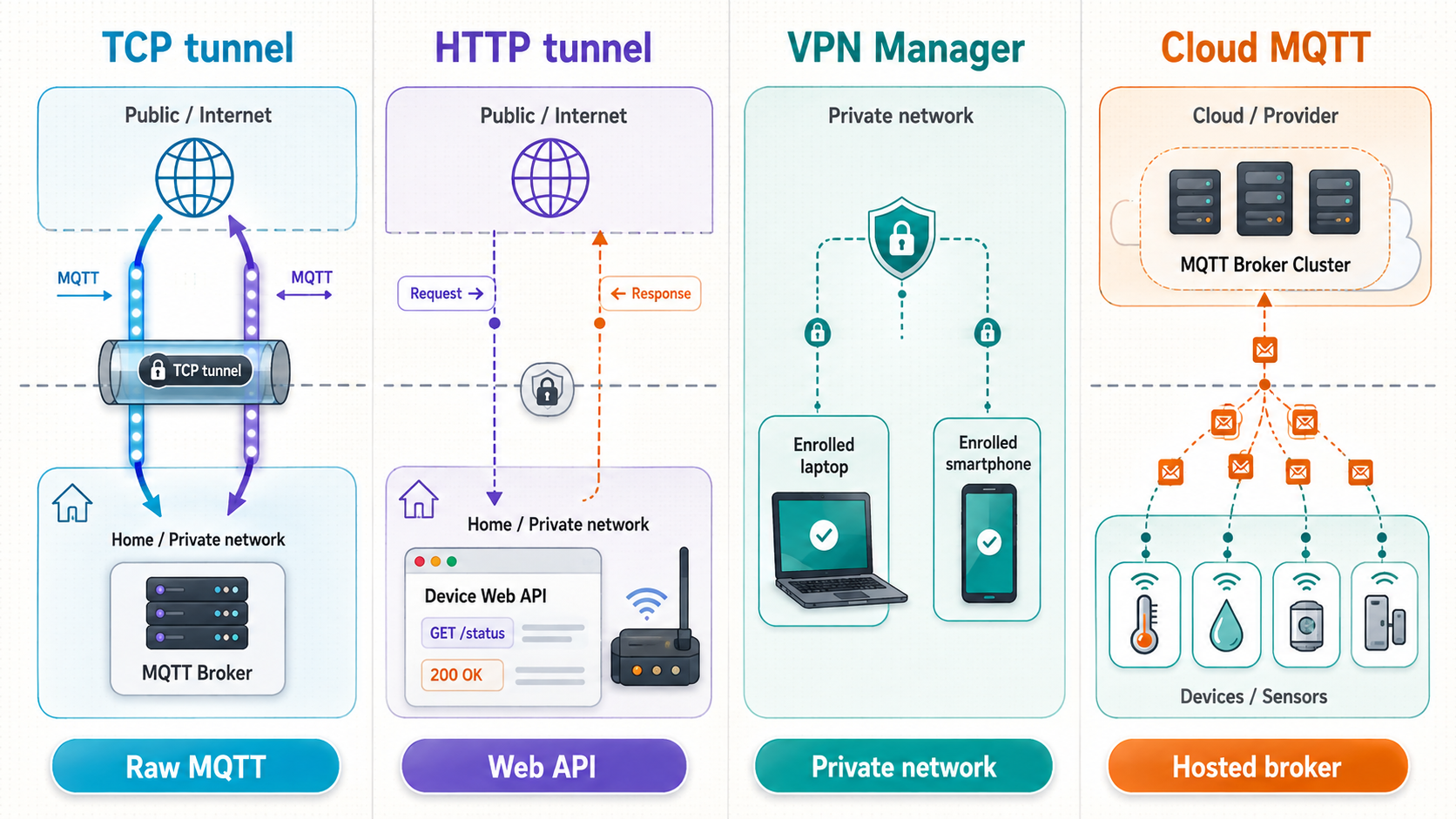
| Approach | Best fit | Access model | Primary security responsibility |
|---|---|---|---|
| Localtonet TCP tunnel | A specific TCP service such as MQTT | Public host and port forwarded to one local IP and port | The service must provide suitable authentication, authorization, and end-to-end encryption such as MQTT TLS |
| Localtonet HTTP tunnel | A maintained authenticated web application or API | Public HTTPS address forwarded to a selected local web target | The application must authenticate users, authorize actions, validate requests, and protect any sensitive local segment |
| Localtonet VPN Manager | Private access to multiple trusted devices or bridged LAN resources | Private mesh VPN with granular firewall rules | VPN membership, firewall policy, endpoint security, and least-privilege network access |
| Cloud MQTT broker | Managed internet-facing MQTT without hosting a home broker | Devices and applications make outbound connections to the provider | Provider configuration, credentials, topic policy, TLS validation, data handling, and current service limits |
Choose a TCP tunnel when remote devices need one home-hosted MQTT service and can be configured for MQTT TLS. Choose an HTTP tunnel for a deliberately internet-facing web API, not as a shortcut for exposing an unmaintained device control panel. Choose VPN Manager when authorized remote devices should join a private mesh and reach several internal resources under firewall rules. Standard HTTP, TCP, UDP, or File Server tunneling is not a VPN.
A cloud MQTT broker can simplify public broker availability, but devices depend on that provider and sensor traffic is handled according to the provider's architecture and policies. A home-hosted broker gives you control over the broker configuration and local integrations, while the public tunnel introduces a relay dependency. Neither design has zero trade-offs.
Troubleshooting remote IoT access
Connection refused
Confirm Mosquitto is active and listening on 127.0.0.1:8883. If the Localtonet client runs on a different computer, that computer cannot reach the Raspberry Pi's loopback address. Either run the Localtonet client on the Raspberry Pi, as this tutorial assumes, or deliberately bind Mosquitto to a reachable LAN address and update the tunnel target with appropriate firewall and TLS controls.
sudo systemctl status mosquitto
sudo ss -lntp | grep ':8883'
sudo journalctl -u mosquitto --since "15 minutes ago" --no-pager
Wrong listener bind address
The directive listener 1883 without an address does not mean loopback-only. Use listener 1883 127.0.0.1 when access must be restricted to the Raspberry Pi. Check the actual sockets with ss rather than relying only on the configuration file.
Not authorized or bad username/password
Verify the username exists in the password file, the client is using the correct identity, and the password file is readable by the Mosquitto service. Then inspect the ACL. Authentication can succeed while authorization rejects a publish or subscription. Topic names are case-sensitive, and a rule granting read does not grant write.
TLS issuer, expiry, or hostname error
Confirm the client trusts the correct ca.crt, the broker certificate is within its validity period, and its DNS subject alternative name exactly matches the public hostname passed to the MQTT client. Check the Raspberry Pi and remote device clocks. Do not use an IP address when the certificate contains only a DNS name, and do not disable validation.
Public hostname resolves but MQTT does not connect
Verify the public port as well as the host, confirm the TCP tunnel is started, and confirm the selected Localtonet device is connected. A created but stopped tunnel is unavailable. Also verify the tunnel points to 127.0.0.1:8883, not the plaintext listener on 1883.
Repeated ESP32 disconnects
Search the Mosquitto log for another client using the same client identifier. Confirm the sketch calls mqttClient.loop() frequently and does not contain long blocking delays. Check Wi-Fi signal quality, DNS, NTP synchronization, TLS errors, and heap availability. Pace reconnection attempts so a failed broker does not cause a tight retry loop.
The ESP32 connects but publications do not appear
Check the return value from publish(), verify the publishing username's ACL contains the exact topic, and confirm the subscriber listens to the expected topic. A non-retained message published while no matching subscriber is online will not automatically appear later. Use an appropriate QoS and retained policy for the application.
A LAN device target is unreachable
From the computer running the Localtonet client, test the target's local IP and port directly. Check VLAN boundaries, guest Wi-Fi isolation, host firewalls, DHCP address changes, and whether the target listens only on its own loopback interface. Localtonet can forward only to a service reachable from the connected client device.
The setup worked before a reboot
Check Mosquitto first, then the Localtonet client, then the tunnel state. These are separate lifecycle components. A saved tunnel does not imply that the selected client is connected or that the tunnel has been started. Review the supported startup configuration for the installed client version and perform another external TLS test after recovery.
The public endpoint changed
Update the remote host or port as necessary. If the hostname changed, issue a new broker certificate with that hostname in the subject alternative name and deploy it before reconnecting clients. Check the current dashboard for any relevant endpoint options available to your account, but do not assume a fixed host or port unless the current product interface explicitly confirms it.
Frequently asked questions
Can Home Assistant connect to Mosquitto through localhost?
Only if Home Assistant and Mosquitto run on the same host or share a networking arrangement in which localhost refers to the broker host. If Home Assistant runs on another computer, localhost refers to that Home Assistant computer. Use the Raspberry Pi's reachable LAN address with a deliberately secured LAN listener, or connect the systems through an appropriate private network such as Localtonet VPN Manager.
Why not expose ordinary MQTT on port 1883 through the TCP tunnel?
Plaintext MQTT can expose usernames, passwords, topic names, payloads, and control messages along the network path. A raw TCP tunnel supplies connectivity, but the evidence available for this tutorial does not establish end-to-end encryption for the MQTT protocol. Use MQTT over TLS with certificate validation for an internet-facing endpoint.
Does Mosquitto store every sensor message?
No. Ordinary non-retained publications are routed to eligible subscribers and are not automatically stored as a historical record. Retained messages preserve the latest retained value for a topic. Persistent sessions can preserve subscriptions and eligible queued messages under specific conditions, but that is different from maintaining sensor history. Use a database or time-series system for historical analysis.
Can a remote ESP32 publish to the home broker?
Yes. Configure it with the assigned public host and port, the trusted CA certificate, a unique MQTT client identifier, and credentials restricted to its own topics. It also needs a valid clock for certificate-date checks, regular MQTT loop processing, failure reporting, and paced reconnect attempts.
Should I use a TCP tunnel or Localtonet VPN Manager?
Use a TCP tunnel when you intentionally want to expose one TCP service and that service has strong end-to-end security. Use Localtonet VPN Manager when trusted remote members need private access to multiple devices or LAN resources under granular firewall rules. Standard TCP tunneling is not VPN functionality.
Does the MQTT endpoint remain online if the Raspberry Pi disconnects?
No. The tunnel is available only while the selected Localtonet client is connected and the tunnel is running. A Raspberry Pi shutdown, client failure, network outage, stopped tunnel, or broker failure can make the service unavailable. Monitor each layer and test recovery after reboot.
Is it safe to expose an ESP32 or smart-device web interface directly?
Not by default. Many device interfaces combine status, control, firmware, network settings, and administrative functions. Prefer a maintained authenticated application that exposes only the required read-only data. If strong application authentication and authorization are unavailable, keep the interface private and use VPN Manager for authorized network access.
Create a controlled path to your home MQTT broker
Run the Localtonet client on the device that can reach Mosquitto, create a TCP tunnel to the broker's TLS listener, and verify the complete path from an external network. Keep MQTT authentication, topic ACLs, certificate validation, log review, and tunnel shutdown in the operating plan.
Get Started with Localtonet →

