

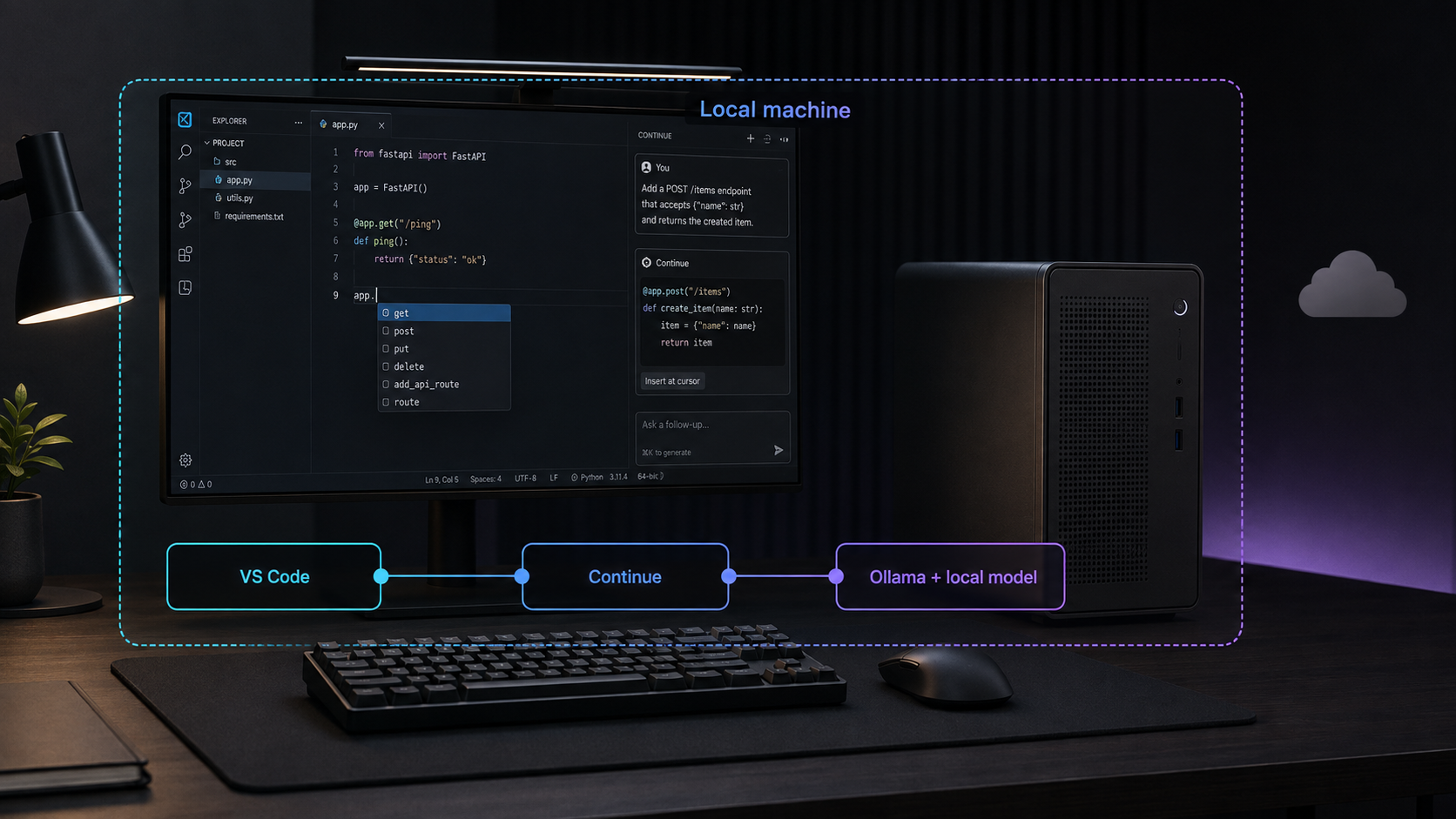
Keep inference and editor context on your own computer, with a threat model you can verify
A coding assistant can operate without sending prompts or source code to a hosted model, but only when every model provider and context feature is configured to use a local endpoint. This guide explains how to build that arrangement with Ollama and Continue, validate the actual network boundary, choose models without relying on outdated size claims, and operate the stack safely. It also explains why remote access changes the privacy claim and how Localtonet VPN Manager can provide a more appropriate private-network design than publishing Ollama as an unauthenticated internet endpoint.
📋 What's in this guide
What “never sends your code to the cloud” can accurately mean
The privacy claim in this article applies to a specific configuration, not merely to the fact that a model runs through Ollama. Your editor, Continue extension, model runtime, chat model, autocomplete model, and any embedding or reranking model must all operate on the same computer. Continue must not have a hosted provider selected as a fallback, and you must not add remote tools or context providers that transmit repository content elsewhere.
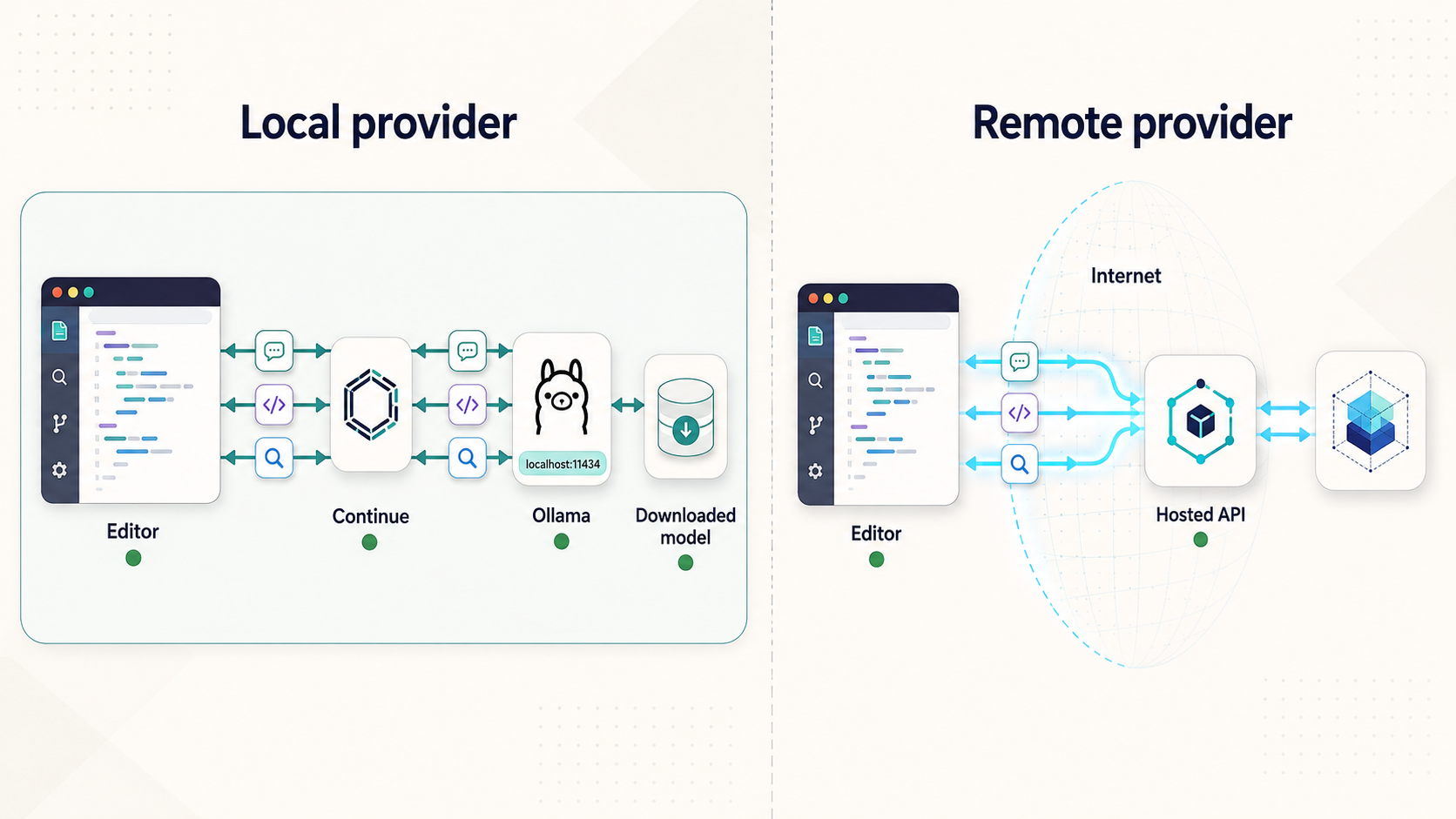
In that arrangement, communication between Continue and Ollama can stay on the loopback interface, normally represented by localhost or 127.0.0.1. Loopback traffic remains inside the host operating system rather than being routed onto your LAN or the public internet. Inference also occurs on that host.
That does not prove that the entire computer makes no cloud requests. Installing extensions, downloading model artifacts, checking for software updates, source-control synchronization, crash reporting, other editor extensions, and operating-system services may still create outbound connections. A local model configuration controls the model request path. It does not audit every program installed on the machine.
A model can run on your desktop while prompts and retrieved code travel to that desktop from another device. Once you connect remotely, the request leaves the coding device and crosses a network. If a relay participates in that route, the data also traverses third-party infrastructure. The accurate claim is then “inference runs on my hardware,” not “the code never leaves my device.”
A practical threat model
This tutorial is designed to reduce disclosure to hosted model providers and accidental exposure of a local inference API. It assumes you control the workstation and its operating-system account. It does not protect source code from malware, a compromised editor extension, a malicious model artifact, an attacker with administrator access, an exposed backup, or another user who can read your files.
Before using local AI with regulated, confidential, client-owned, or contract-restricted code, review the applicable policy and agreement. A local architecture can improve technical control, but it does not automatically make a workflow compliant with an NDA, software license, data-processing agreement, export rule, or organizational security policy.
Prerequisites and compatibility checks
Complete these checks before installing models. They prevent two common mistakes: downloading an artifact that does not fit the machine and treating a partially local configuration as a local-only configuration.
| Requirement | What to confirm | Why it matters |
|---|---|---|
| Supported operating system | Check the current Ollama download page for your platform. The supplied current macOS requirement is macOS 14 Sonoma or later. | Installation and acceleration support vary by operating system and version. |
| Supported editor | Use a current VS Code release that can install the current Continue extension. | Continue configuration formats and user interfaces change over time. |
| Memory | Compare available RAM and VRAM with the exact model artifact you intend to download. | Parameter count alone does not determine memory use. Quantization, context length, and runtime overhead also matter. |
| Disk capacity | Check the displayed download size for every selected model and leave room for updates and additional variants. | Model tags can point to large artifacts, and published sizes may change. |
| Network access during setup | Allow access to download Ollama, Continue, and model artifacts. | A local runtime still needs installation files and model weights before offline use is possible. |
| License approval | Read the license and acceptable-use terms attached to each exact model artifact. | Running a model locally does not remove its license conditions. |
| Security authority | Confirm that you are allowed to install an editor extension and execute downloaded model artifacts. | Managed workstations may require administrator or security-team approval. |
There is no universal hardware recommendation that is accurate for every coding model. Start with a smaller quantized artifact, observe memory use and response latency, and move to a larger model only if the machine has sufficient headroom. Keep enough memory available for VS Code, language servers, builds, test processes, browsers, and the operating system.
For a reproducible team setup, record the operating system, Ollama version, Continue version, model name including its tag, model digest if the runtime displays one, and the date tested. A model family name by itself does not identify an immutable artifact.
Understand the local and remote architectures
Fully local path
Source files
    |
    v
VS Code + Continue
    |
    | loopback request to a local endpoint
    v
Ollama on the same computer
    |
    v
Local model inference
In the fully local path, selected snippets, prompts, completion context, and responses remain on one host when Continue uses only the local Ollama provider. Repository indexing can also remain local when the embedding process and index storage are local, but that must be checked against the installed Continue version and its active configuration.
Remote inference path
Source files on laptop
    |
    v
VS Code + Continue
    |
    | prompts and selected code cross a network
    v
Private network or relay boundary
    |
    | authentication, access control, and transport protection required
    v
Ollama host
    |
    v
Inference on your remote hardware
Remote inference preserves control over where the model computation happens, but it does not preserve the same data boundary as loopback. Prompts, selected code, retrieved context, and generated responses are data in transit. The security design must account for endpoint authentication, authorization, transport protection, device compromise, firewall rules, logging, and relay trust.
| Design | Where inference occurs | Where request data travels | Recommended use |
|---|---|---|---|
| Continue and Ollama on one host | Local host | Loopback only, if correctly configured | Strongest option in this guide for minimizing network disclosure |
| Ollama on another LAN computer | LAN host | Across the local network | Only after applying host firewall, access-control, and transport safeguards |
| Ollama reached through a private mesh | Remote host you control | Across the network and any infrastructure used by the mesh | Preferred remote pattern over publishing the native API publicly |
| Raw public port forwarding | Remote host you control | Across the public internet and relay path | Not recommended for Ollama's native API without a separately verified security gateway |
Install Ollama and Continue
Install Ollama on macOS
The current Ollama download page states that macOS 14 Sonoma or later is required. Use the installer offered by the official download page, place the application where instructed, and launch it. If the Mac cannot run macOS 14 or later, do not assume that an older package remains supported.
Visit the official Ollama download page to obtain the current package and platform requirements.
Install Ollama on Linux
Ollama currently publishes the following installation command on its download page:
curl -fsSL https://ollama.com/install.sh | shPiping a remote script directly into a shell executes the downloaded content immediately. If your security policy requires inspection or package pinning, download and review the installer through your approved process before execution. Service registration and startup behavior can vary by distribution, init system, and installer version.
Install Ollama on Windows
Select the current Windows package from the official Ollama download page and follow the installer presented there. After installation, launch Ollama and confirm that its application or process is running. Do not rely on an old article to determine whether a particular release runs as a background application, startup item, or service.
Verify the runtime before adding an editor
Open a terminal and ask the installed executable for its help or version information. The exact output varies by release:
ollama --version
ollama --help
If the command is unavailable, restart the terminal and check whether the installer added Ollama to the executable search path. If the application is installed but the command remains unavailable, follow the platform instructions shown by the current installer rather than creating an unverified service manually.
Install Continue in VS Code
Open the Extensions view
Open VS Code, select Extensions, and search for Continue. Verify the publisher shown by the marketplace before installing it.
Review extension permissions and settings
Read the current extension description and privacy controls. Note whether the installed version offers account features, remote providers, telemetry controls, indexing, tools, or configuration synchronization.
Open Continue inside VS Code
Use the Continue activity-bar entry or the command shown by the installed extension. If onboarding offers hosted and local providers, select the local Ollama path and do not add a hosted fallback.
Continue has changed configuration schemas, model-role keys, onboarding flows, indexing behavior, and settings across releases. A stale YAML example can silently select the wrong role or fail validation. Use the configuration editor and schema supplied by the installed release. The required outcome is described below so you can validate it without depending on an obsolete file.
Choose models by role, artifact, and available resources
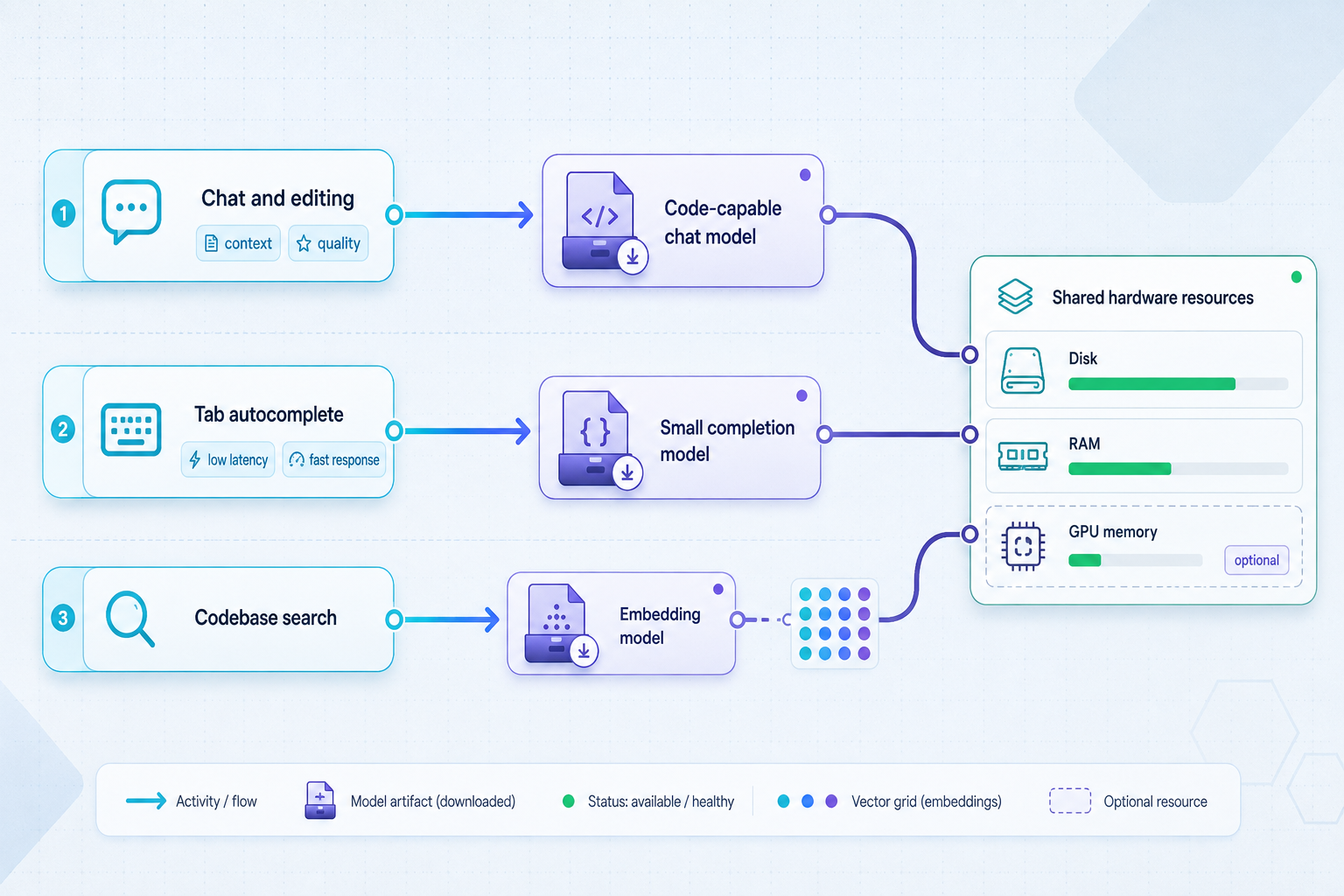
Coding assistants can use separate models for chat, inline completion, and embeddings. Not every installation needs all three. Begin with chat, verify the privacy boundary, and add autocomplete or indexing only when you understand the additional context each feature reads.
| Role | Purpose | Selection criteria | Privacy consideration |
|---|---|---|---|
| Chat or edit | Answers questions, explains code, and proposes changes | Coding capability, supported context length, memory use, license, and acceptable latency | May receive prompts, selected files, diagnostics, and other explicitly attached context |
| Autocomplete | Predicts code near the cursor | Low latency, fill-in-the-middle support where required, memory use, and language performance | Frequently receives code surrounding the cursor, so verify that its provider is local |
| Embeddings | Transforms repository content into vectors for retrieval | Compatibility with the installed Continue release, index quality, storage use, and license | Can process many repository files and create a persistent local index |
| Reranker or auxiliary model | Reorders retrieved context or supports another feature | Whether the feature is enabled and whether a local provider is supported | A hidden hosted auxiliary provider can break an otherwise local request path |
In Ollama, select an exact coding model and tag from the current model library. Inspect the size and metadata displayed for that artifact before pulling it. The normal command pattern is:
ollama pull <exact-model-name-and-tag>After the download, list the locally available artifacts:
ollama listTest the selected chat model directly before involving Continue:
ollama run <exact-model-name-and-tag>Give it a short, non-confidential prompt first. Confirm that it responds, then exit the interactive session using the help or exit control shown by the installed Ollama release.
Tags, quantizations, context settings, and manifests can change. Use the exact size reported for the artifact you are installing. Disk size is not the same as peak RAM or VRAM consumption, and loading multiple models can require substantially more capacity than storing them.
Configure Continue for a local Ollama provider
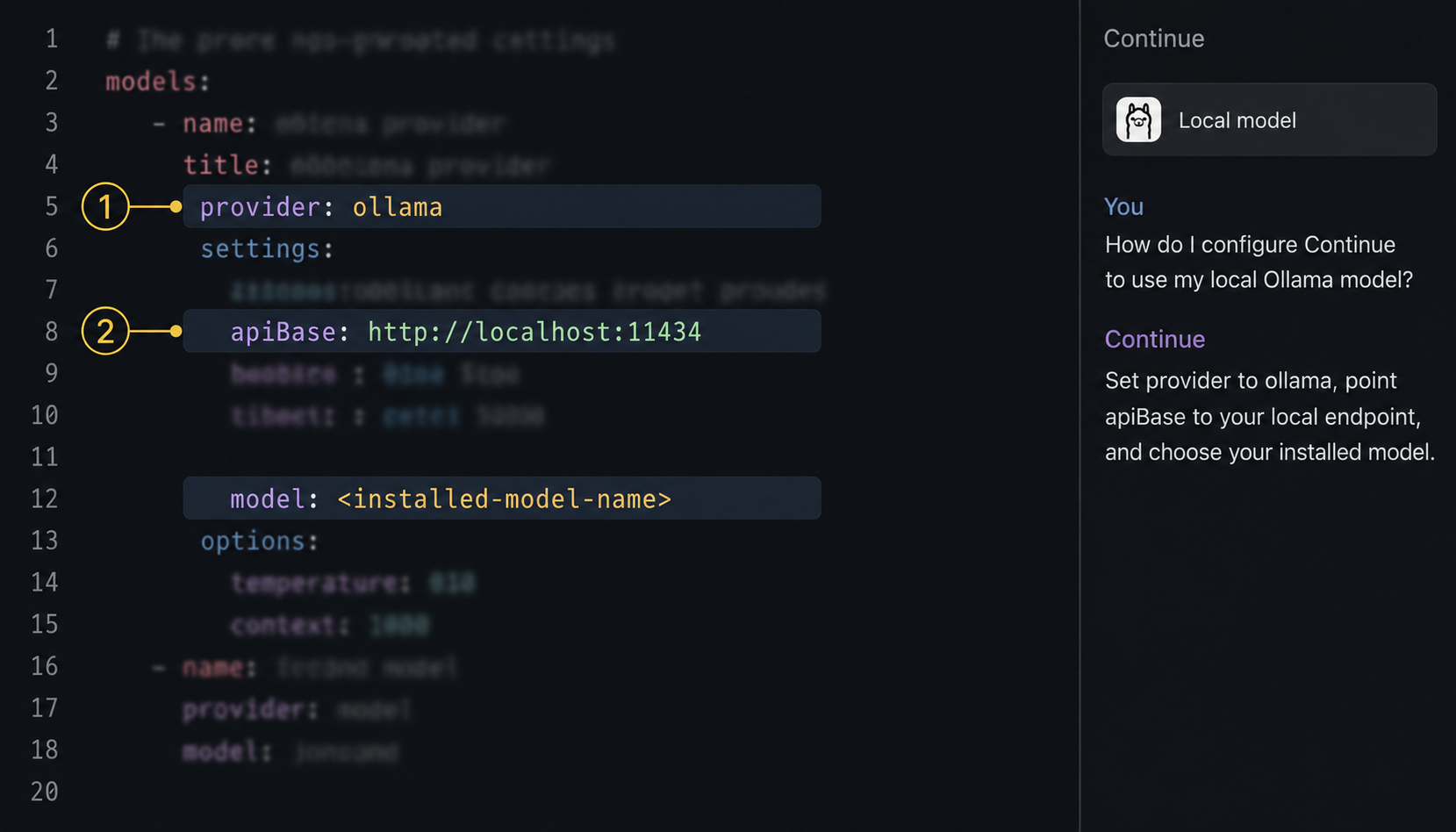
Open Continue's current configuration interface from inside VS Code. Depending on the installed release, this may be an onboarding screen, settings interface, or a schema-validated configuration file. Use the labels and schema provided by that version.
The finished configuration should satisfy all of these conditions:
- The chat or edit role uses the Ollama provider.
- The model value exactly matches a model shown by
ollama list. - The endpoint points to the Ollama service on the same machine, normally through loopback.
- Autocomplete, if enabled, uses a separately verified local Ollama model.
- Embeddings or codebase indexing, if enabled, use a local model supported by the installed Continue release.
- No hosted provider is configured as a fallback.
- No remote MCP server, tool, context provider, reranker, or embeddings service receives repository data unless separately approved.
Validate each role separately
Start with chat only. Ask a harmless question and confirm a response. Next, temporarily disconnect the computer from external networks while leaving Ollama and VS Code running. Ask another harmless question. A successful response is useful evidence that the selected chat path works locally, although it is not a complete network audit.
Enable autocomplete next, type in a disposable test file, and verify that suggestions continue while external networking is disconnected. Add repository indexing last. Use a small test repository without secrets, observe where the index is stored according to the installed version, and confirm that its embedding provider is local.
Review privacy and telemetry settings
Do not paste a telemetry key from an older Continue release into a current configuration without schema validation. Open the installed extension's settings and current privacy controls, disable optional analytics if that is required by your policy, and restart or reload the extension if instructed. The exact setting name and behavior must be taken from the installed version.
Also review VS Code telemetry, Settings Sync, workspace trust, remote-development features, source-control extensions, and every extension allowed to run in the workspace. Continue cannot prevent another component from reading or transmitting files.
Verify the local-only result
A successful chat response proves that something answered. It does not prove which provider answered or which network path was used. Verification should combine configuration review, process checks, endpoint checks, offline testing, and operating-system network observation.
Confirm the expected processes
Verify that Ollama and VS Code are running under the expected user account. Investigate duplicate Ollama processes or unexpected containers before continuing.
Confirm the selected provider and model
In Continue, check every enabled role. Match each model name to the local artifacts listed by Ollama and remove hosted fallback providers.
Check the listening address
Use your operating system's network inspection tools to determine which address owns Ollama's listening port. For a same-host setup, prefer loopback. Investigate a wildcard or LAN-facing binding before using confidential code.
Test without external connectivity
After all artifacts are downloaded, disconnect external networking and test chat and autocomplete with non-sensitive content. Record which features continue working and which attempt to reach remote services.
Observe outbound connections
Use an approved host firewall, endpoint monitor, or packet-capture tool to observe VS Code, Continue, and Ollama during a controlled test. Account for update and extension-marketplace traffic separately from inference requests.
Test from another device
From a second LAN device, confirm that the Ollama endpoint is not reachable when your design requires loopback-only access. If it is reachable, correct the binding and firewall policy before processing sensitive code.
Validate with a synthetic repository and dummy credentials. Do not paste production keys, customer data, signing material, or proprietary source into a new configuration before its provider and network path have been verified.
Use a private remote-access design instead of exposing Ollama publicly
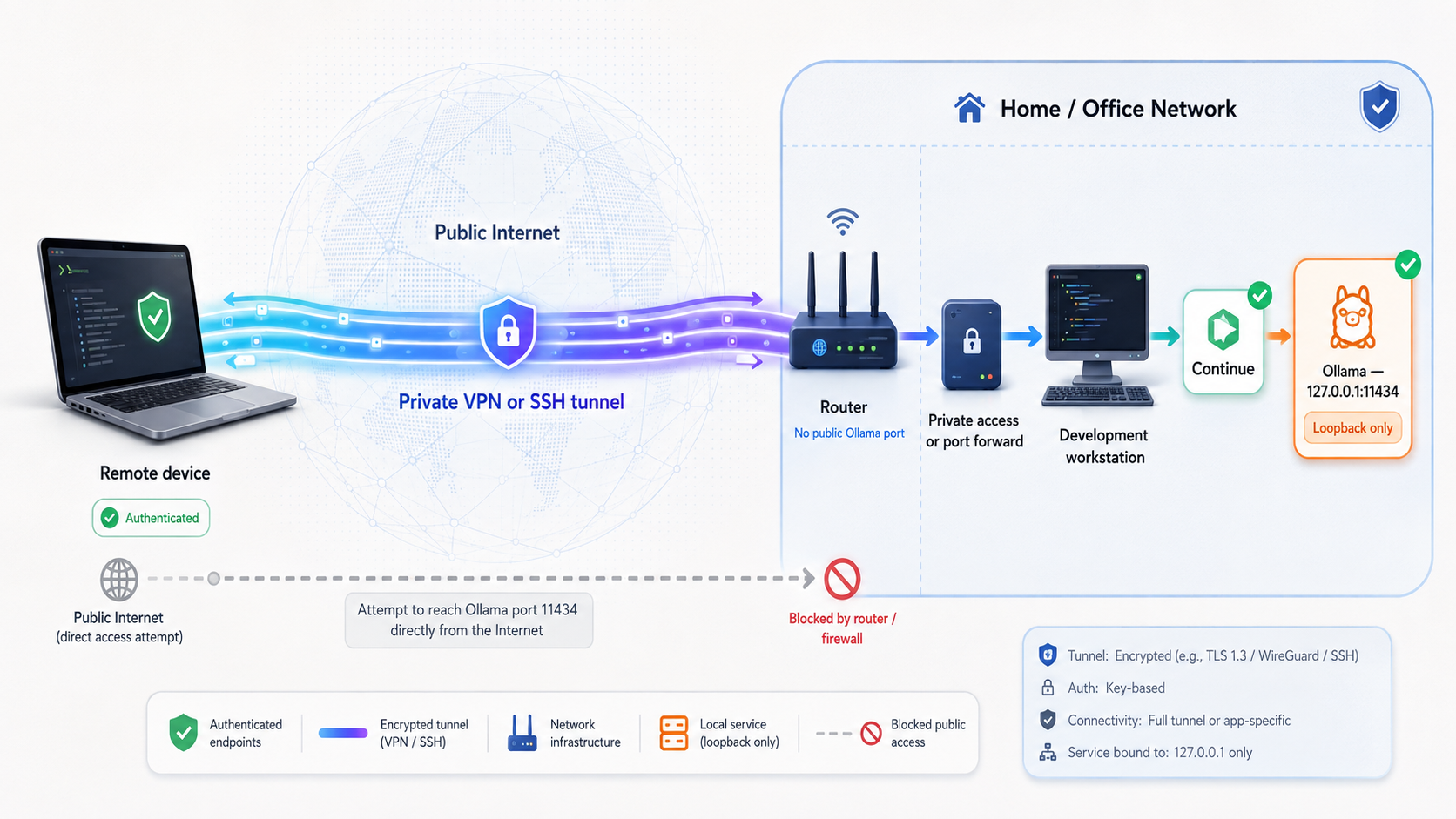
Do not publish Ollama's native HTTP API directly through an unrestricted public TCP tunnel. A raw public endpoint can expose model execution and any supplied prompt context to unauthorized users if the application does not enforce suitable authentication and authorization. Plain HTTP also does not provide transport encryption by itself.
If a laptop must use an Ollama host elsewhere, place both devices in a private, access-controlled network. Localtonet VPN Manager is our feature for creating a private mesh network with granular firewall rules and for bridging local LANs where appropriate. This is distinct from a normal HTTP, TCP, UDP, TLS, or File Server tunnel.
The model can still run on hardware you control, but prompts and code context leave the laptop and travel to the Ollama host. Evaluate the current VPN Manager transport, relay path, client authentication, device authorization, logging, and firewall behavior against your threat model before approving sensitive use.
The current Localtonet workflow is managed through our dashboard or REST API. Exact relay values, regions, addresses, and available options must be selected from the current product rather than copied from an article.
Install and run the Localtonet client
Install the current Localtonet client on each device required by the private design, including the computer that can reach Ollama. Keep installation packages and startup instructions aligned with the current client version and operating system.
Authenticate and select the correct device
Use the device-specific authentication token through the supported client or dashboard flow. Treat the token as a secret. Do not place it in source code, screenshots, shell history, documentation, or shared configuration files.
Select currently available network options
Choose the available server, region, or network options presented by the current dashboard. Do not hardcode a server code from an old tutorial because availability can vary.
Create the VPN Manager configuration
Add only the required devices and apply granular firewall rules so the coding laptop can reach only the Ollama host and required service. Do not bridge an entire LAN unless the use case requires it and the broader access has been reviewed.
Start and verify access
Creating a configuration does not mean it is running. Use Start, confirm that the selected clients are connected, and test from the authorized laptop with non-sensitive content. The connection remains available only while the required clients are connected and the configuration is running.
Stop or delete access when finished
Use Stop to end the active connection. Delete the configuration when it is no longer required. Confirm from the laptop that the Ollama host is no longer reachable through the private network.
Keep Ollama restricted to the intended interface and reinforce access with the host firewall. A private mesh should complement endpoint controls, not replace them. If an organization requires application-level authentication, mutual authentication, certificate pinning, or a particular encryption standard, place an approved gateway in front of the inference service and validate that design separately. This article does not claim that Ollama's native API provides those controls.
Start, stop, update, and recover the local stack
Normal startup
- Start or launch Ollama using the supported method for the installed operating system.
- Confirm that the expected local models are present.
- Open VS Code and the intended repository.
- Verify that Continue still shows the local Ollama provider and exact approved model.
- Test with a harmless prompt before opening sensitive context.
- If remote access is required, start the approved VPN Manager configuration and verify its firewall scope.
Normal shutdown
Close the editor when finished, stop any interactive model sessions, and stop the Ollama application or service using the platform's supported control if you do not want it listening. For remote operation, stop the Localtonet VPN configuration separately. Closing VS Code does not necessarily stop Ollama, and stopping Ollama does not automatically stop a Localtonet configuration.
Updates
Treat runtime, extension, and model updates as independent changes. Before updating, record the working versions and configuration. After updating one component, repeat the provider, model, listening-address, offline, and network tests. Review release-specific configuration migrations before accepting a rewritten Continue configuration.
A newer model under the same family can have different license terms, size, context behavior, or resource requirements. Pull it as a separate evaluated artifact where possible rather than assuming it is a transparent replacement.
Recovery
Preserve a sanitized copy of the approved configuration, version record, and firewall rules. Do not back up authentication tokens in plain text. If an update breaks the workflow, restore the last approved configuration or version through your organization's supported software-management process, then test with a disposable repository.
Troubleshooting common failures
Continue cannot connect to Ollama
- Confirm that Ollama is running and that its command works in a new terminal.
- Check that Continue uses the local Ollama provider rather than an OpenAI provider pointed at an incompatible endpoint.
- Verify the endpoint, hostname, port, and URL scheme shown by the current Ollama installation.
- Check whether a proxy, container, remote VS Code workspace, or subsystem changes what
localhostrefers to. - Inspect host firewall logs for a blocked loopback or local connection.
Ollama has a native API and also documents a separate OpenAI-compatible interface with defined compatibility limits. Do not assume that every OpenAI client can use the native Ollama endpoint unchanged. For Continue, choose its explicit Ollama provider when the installed release offers one.
The configured model is unavailable
Run ollama list and compare the configured name character for character, including the tag. If it is absent, pull the exact approved artifact. If the tag was removed or changed upstream, select a current artifact only after reviewing its size, license, and compatibility.
Responses stop, truncate, or lose relevant context
A model and runtime have finite context capacity. Continue may also limit or select context before sending a request. Reduce attached files, split the task, start a new conversation, or choose an artifact with an appropriate supported context length. Do not increase context settings beyond available memory without measuring the impact.
Autocomplete is slow
First determine whether the delay is generation time, model loading, insufficient memory, CPU execution, storage pressure, or remote network latency. Do not assume that a GPU is active automatically. Use the operating system's hardware monitoring tools and current Ollama diagnostics to observe actual utilization. A smaller autocomplete model may reduce latency, but quality and language support must be tested on your workload.
The system falls back to CPU or runs out of memory
Confirm that the installed Ollama release supports the host hardware and current drivers. Close unnecessary models and memory-heavy applications, then try a smaller or more heavily quantized artifact. Avoid presenting a fixed amount of RAM as sufficient because runtime overhead, context length, editor workload, and simultaneous models all affect peak use.
Codebase indexing does not work
Check whether the installed Continue release requires an embeddings provider, whether that provider supports Ollama, and whether the selected embedding model is installed. Verify workspace trust, ignore rules, file permissions, index storage capacity, and extension logs. Rebuild only after recording the error because repeated indexing can hide the original cause.
CORS or browser errors appear
Continue normally communicates from an editor extension rather than a regular public web page, but browser-based tools or webviews can introduce origin restrictions. Do not respond by allowing every origin or exposing Ollama on all interfaces. Identify the requesting origin and use the narrowest configuration supported by the current application. For remote use, place access behind the approved private design instead of weakening cross-origin controls globally.
Local chat works while remote chat fails
Confirm that both Localtonet clients required by the design are connected, the VPN Manager configuration has been started, and its firewall rules permit the precise host and service. Check the host firewall and verify that Ollama is reachable through the intended private address. Remember that a created Localtonet configuration is not active until it is started, and it stops working if the selected client disconnects.
Unexpected outbound traffic appears
Identify the process, destination, and timing before concluding that model prompts were transmitted. Extension updates, model downloads, account synchronization, source control, package managers, and telemetry can all produce outbound traffic. If the destination cannot be explained, stop using sensitive repositories, disable the responsible component, and repeat testing in a clean profile.
Frequently asked questions
Does running Ollama guarantee that my code remains local?
No. Ollama makes local inference possible, but the complete request path also depends on Continue's selected providers, indexing and tool configuration, editor extensions, endpoint binding, and remote-access design. Verify every enabled role and observe network behavior before using confidential code.
Can the assistant work without an internet connection?
Core chat or completion can work offline after Ollama, Continue, and all required model artifacts are installed and configured locally. Features that depend on accounts, updates, hosted providers, remote tools, or network repositories will not work offline. Test the exact feature set while disconnected.
Is a local coding assistant free to operate?
Do not assume zero cost. Software and model licenses vary, and local operation consumes hardware capacity, electricity, storage, maintenance time, and potentially network or remote-access services. Review the terms and costs of every component used in your deployment.
Is local inference automatically suitable for NDA-covered code?
No. Local inference can reduce disclosure to hosted model providers, but contractual suitability depends on the NDA, model license, organizational policy, endpoint security, backups, access controls, and the complete data path. Obtain the required legal and security approval.
Should I expose Ollama through a public TCP tunnel?
Not as an unrestricted native API. Publishing the port can create an internet-reachable inference service without the application authentication, authorization, and transport controls required by your threat model. Prefer a private, least-privilege network such as an appropriately reviewed VPN Manager configuration, and retain host firewall controls.
Does remote access still count as local AI?
It can accurately be called inference on hardware you control. It is not a fully local data path from the laptop's perspective because prompts and code context cross a network to reach the inference host. Document both the inference location and the transit path.
How much RAM or VRAM do I need?
There is no reliable universal figure. Check the exact model artifact, quantization, context requirements, and runtime documentation, then leave headroom for the operating system, editor, language servers, builds, and simultaneous models. Measure peak use on your actual workload.
Can I use another editor or an OpenAI-compatible client?
Possibly, if the current editor integration supports Ollama or the specific OpenAI-compatible interface Ollama documents. Compatibility is not universal. Validate the client's required endpoints and features instead of pointing any OpenAI client at Ollama's native API and assuming identical behavior.
Connect your own devices without publishing Ollama to the internet
Keep Continue and Ollama on one computer for the narrowest data boundary. When remote inference is genuinely required, evaluate Localtonet VPN Manager, apply granular firewall rules, verify the complete transit path, and stop the connection when the session ends.
Get Started with Localtonet →

