

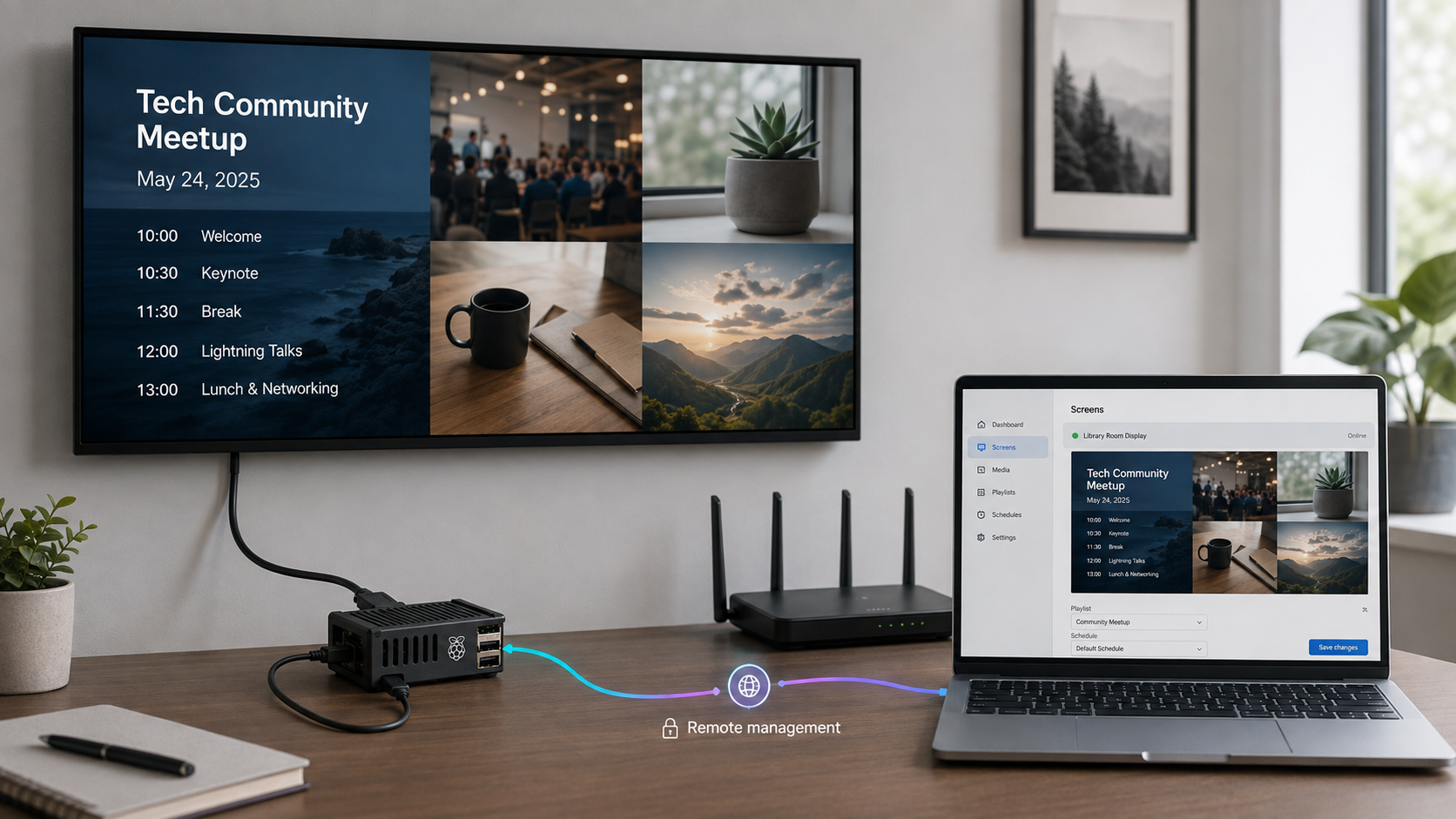
Build a resilient kiosk that serves approved content locally and can be administered through authenticated remote access
A Raspberry Pi can run a practical digital signage player when the content service, graphical kiosk, security controls, and recovery process are treated as separate parts of the system. This guide builds a small Node.js application that serves local slides or an allowlisted HTTPS page, validates every configuration change, writes updates atomically, and tells Chromium about changes through polling. The application listens only on localhost, while a Localtonet HTTP tunnel provides authenticated remote access without inbound router port forwarding, firewall changes, VPN setup, or a public IP address. The tutorial also covers desktop autologin, reproducible startup, local verification, update and rollback planning, offline behavior, and troubleshooting.
📋 What's in this guide
Architecture, security boundaries, and tutorial scope
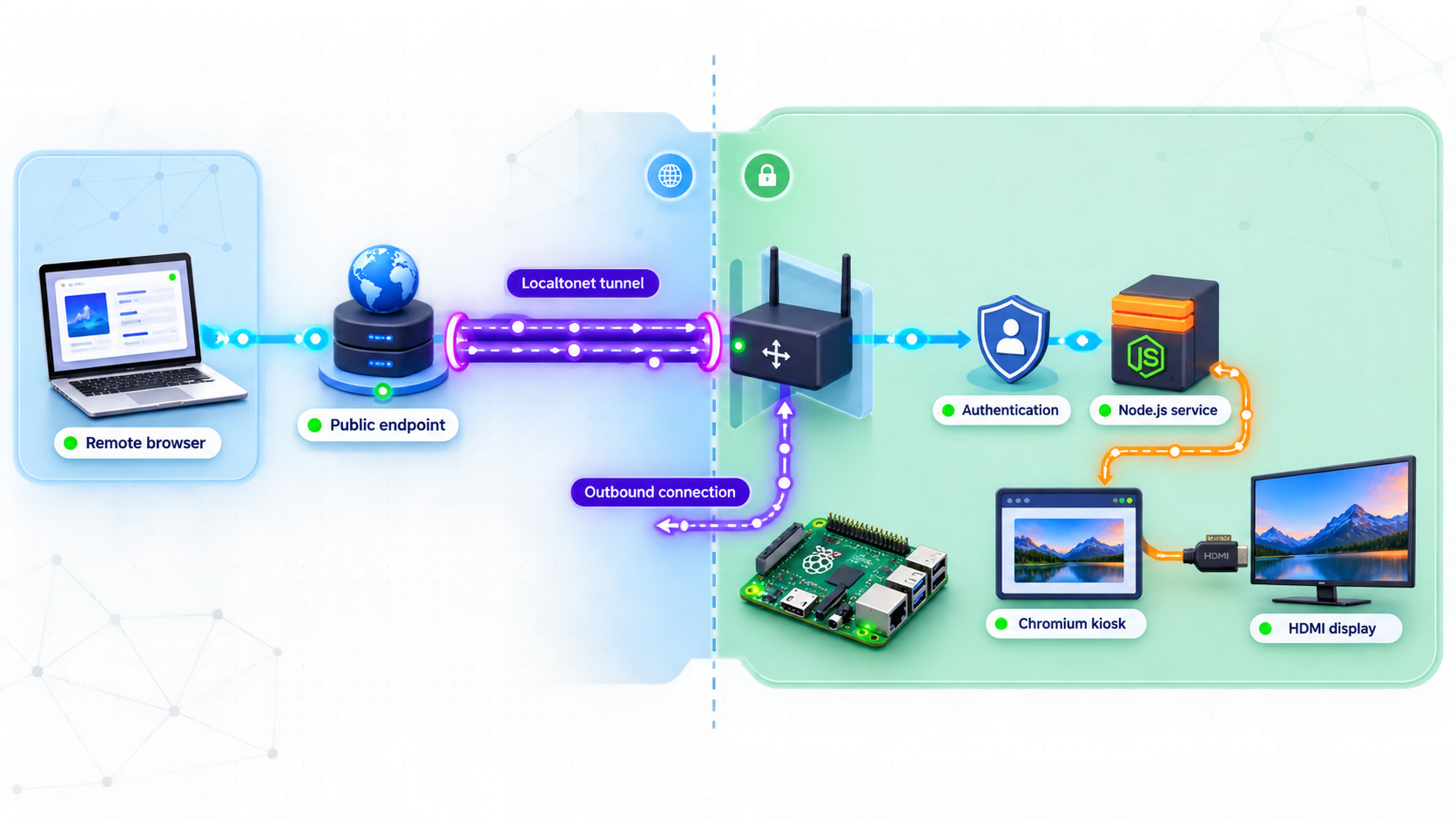
This design has four distinct components. Chromium displays a page from an Express service on 127.0.0.1. A system service starts Express independently of the graphical desktop. A per-user desktop autostart entry launches Chromium only after the local health endpoint responds. The Localtonet client creates an outbound connection to a relay and publishes the local HTTP target through an assigned HTTPS address.
http://127.0.0.1:3000/display.html. The screen can continue showing local slide files when internet access is unavailable.
The supplied application deliberately has a narrow management scope. An administrator can choose from local slide files that were deployed to the Pi, set a rotation interval, or select an HTTPS URL whose origin was approved in advance. It does not upload files, install software, execute commands, accept arbitrary filesystem paths, or turn the browser into a general-purpose remote control system.
That limitation is intentional. File upload requires additional controls such as content-type inspection, storage quotas, filename normalization, authorization boundaries, malware handling, and a publishing workflow. If operators need to publish files remotely, use a separately designed content pipeline rather than adding an unrestricted upload route to this service.
Localtonet can make the management interface reachable while the Pi, its client, and its tunnel are running. Power loss, storage corruption, a failed display or cable, damaged hardware, and some network failures can still require local intervention. Plan for accessible power, documented recovery media, and an on-site contact where the display is operationally important.
How configuration reaches the screen
The display page requests /api/display every five seconds. When the normalized configuration changes, the page updates its iframe immediately. Slide rotation uses the validated interval from the latest response. This replaces the previous ineffective reload endpoint and avoids waiting for a five-minute HTML refresh.
Configuration values are never inserted into generated HTML or JavaScript source. The browser receives JSON, and the display script assigns an approved URL to the iframe through the DOM. The server rejects unknown properties, unsupported modes, invalid intervals, unapproved origins, malformed local slide paths, missing files, URL credentials, and non-HTTPS remote destinations.
Understand iframe compatibility before deployment
Remote URL mode uses an iframe. The destination must permit framing. Many sites send an X-Frame-Options response header or a Content Security Policy containing frame-ancestors that prevents another page from embedding them. Localtonet and the signage application cannot override a destination's browser security policy.
Test the exact destination in the kiosk before deployment. If framing is refused, use a destination-provided embed URL, publish a dedicated signage view that explicitly permits the kiosk origin, or deploy the content as a local slide. Do not attempt to strip or bypass security headers from a site you do not control.
Hardware, OS, account, network, and access prerequisites
Complete the following preparation before installing the application. Raspberry Pi OS desktop details can change between releases, so this tutorial avoids mixing X11 utilities such as xset and unclutter with a Wayland session. It targets a current Raspberry Pi OS 64-bit desktop installation using the labwc desktop session. If your installed release uses a different desktop, use that release's documented autostart and display-blanking controls.
| Requirement | What you need | Why it matters |
|---|---|---|
| Raspberry Pi | A model supported by the current Raspberry Pi OS desktop release | Browser and media performance depends on model, cooling, display resolution, codec, and page complexity. Test the real workload. |
| Storage | A reliable microSD card or supported USB storage with adequate free space | The OS, browser cache, Node.js dependencies, logs, and local slides all write to storage. |
| Power | An appropriate power supply and a safe shutdown procedure | Repeated unclean power loss can corrupt filesystems and configuration data. |
| Display | An HDMI display, suitable cable, and confirmed resolution | Verify the display locally before diagnosing the application or tunnel. |
| Operating system | Current Raspberry Pi OS 64-bit with desktop | A graphical session is required for Chromium kiosk mode. |
| User account | A named, non-root account chosen during imaging | Modern imaging workflows do not guarantee a user named pi. All paths and services must use your actual account. |
| Desktop login | Desktop autologin enabled for the dedicated signage account | A per-user graphical autostart file runs only after that account's desktop session begins. |
| Network | Working Ethernet or Wi-Fi, DNS, and internet access for remote management | Local slides can work offline, but the Localtonet client and external URL mode need connectivity. |
| Administration | Keyboard and mouse for commissioning, or SSH enabled according to your security policy | You need a recovery method if the kiosk browser does not launch. |
| Localtonet | An account, a supported client installation, and a device-specific AuthToken | The selected client device must remain connected and the HTTP tunnel must be running. |
Prepare Raspberry Pi OS
Use Raspberry Pi Imager to install the current Raspberry Pi OS 64-bit desktop image. In the customization screen, choose a unique username and strong password, configure the hostname and network, and enable SSH only if your operating policy permits remote shell administration. Do not assume the username is pi.
After the first boot, sign in and confirm the desktop, display, audio if required, network, DNS, and system clock all work. Open a terminal and record the actual account and home directory:
id -un
printf '%s\n' "$HOME"
getent passwd "$(id -un)"
The examples below use YOUR_USER and /home/YOUR_USER as placeholders. Replace both with the values returned on your Pi. Do not copy the placeholders into a service file.
Apply operating system updates during commissioning, then reboot before adding the kiosk:
sudo apt update
sudo apt full-upgrade
sudo reboot
Install Node.js, npm, and curl from the repositories configured for your Raspberry Pi OS release:
sudo apt install nodejs npm curl
node --version
npm --version
curl --version
Confirm which Chromium executable exists instead of assuming a historical binary name:
command -v chromium || command -v chromium-browserKeep the returned path for troubleshooting. The kiosk launcher supplied later performs the same check at runtime.
Enable desktop autologin
Run the interactive Raspberry Pi configuration tool:
sudo raspi-configSelect the boot or auto-login option provided by your installed release and choose desktop autologin for the dedicated signage account. Menu wording can vary between Raspberry Pi OS releases. Reboot and verify that the graphical desktop opens without manual credentials. Autologin should be used only for a dedicated physical display account with minimal privileges.
Desktop autologin means someone with physical access may be able to exit the kiosk and use the signed-in account. Do not make the signage account an unrestricted administrator. Restrict physical access, avoid storing unrelated credentials in its browser profile, and review which commands the account can run with sudo.
Build the validated local signage application
Create the project as the dedicated signage user, not as root:
mkdir -p "$HOME/signage/public/slides"
cd "$HOME/signage"
npm init -y
npm install express
The completed project has this exact structure:
signage/
├── content.json
├── package.json
├── package-lock.json
├── server.js
├── start-kiosk.sh
└── public/
    ├── admin.html
    ├── admin.js
    ├── display.html
    ├── display.js
    ├── signage.css
    └── slides/
        ├── slide1.html
        └── slide2.html
Create server.js
'use strict';

const crypto = require('crypto');
const express = require('express');
const fs = require('fs');
const path = require('path');

const app = express();
const HOST = '127.0.0.1';
const PORT = 3000;
const ROOT = __dirname;
const PUBLIC_DIR = path.join(ROOT, 'public');
const SLIDES_DIR = path.join(PUBLIC_DIR, 'slides');
const CONTENT_FILE = path.join(ROOT, 'content.json');

const ADMIN_USER = process.env.SIGNAGE_ADMIN_USER || '';
const ADMIN_PASSWORD = process.env.SIGNAGE_ADMIN_PASSWORD || '';
const ALLOWED_ORIGINS = new Set(
  (process.env.SIGNAGE_ALLOWED_ORIGINS || '')
    .split(',')
    .map(value => value.trim())
    .filter(Boolean)
);

if (!ADMIN_USER || ADMIN_PASSWORD.length < 16) {
  console.error('Set SIGNAGE_ADMIN_USER and a SIGNAGE_ADMIN_PASSWORD of at least 16 characters.');
  process.exit(1);
}

const sessions = new Map();
const loginAttempts = new Map();
const SESSION_LIFETIME_MS = 8 * 60 * 60 * 1000;
const LOGIN_WINDOW_MS = 60 * 1000;
const MAX_LOGIN_ATTEMPTS = 5;

app.disable('x-powered-by');

app.use((req, res, next) => {
  res.setHeader(
    'Content-Security-Policy',
    "default-src 'self'; script-src 'self'; style-src 'self'; img-src 'self' data:; frame-src 'self' https:; object-src 'none'; base-uri 'none'; form-action 'self'; frame-ancestors 'none'"
  );
  res.setHeader('Referrer-Policy', 'no-referrer');
  res.setHeader('X-Content-Type-Options', 'nosniff');
  res.setHeader('Permissions-Policy', 'camera=(), microphone=(), geolocation=()');
  next();
});

app.use(express.json({ limit: '8kb', strict: true }));
app.use(express.static(PUBLIC_DIR, { index: false, dotfiles: 'deny' }));

function safeEqual(left, right) {
  const a = Buffer.from(String(left));
  const b = Buffer.from(String(right));
  return a.length === b.length && crypto.timingSafeEqual(a, b);
}

function defaultConfig() {
  return {
    mode: 'slides',
    url: '',
    slides: ['/slides/slide1.html', '/slides/slide2.html'],
    interval: 10
  };
}

function validateSlide(slide) {
  if (typeof slide !== 'string' ||
      !/^\/slides\/[A-Za-z0-9._-]+\.html$/.test(slide)) {
    throw new Error('Every slide must be an approved /slides/name.html path.');
  }

  const relativeName = slide.substring('/slides/'.length);
  const resolved = path.resolve(SLIDES_DIR, relativeName);

  if (!resolved.startsWith(path.resolve(SLIDES_DIR) + path.sep) ||
      !fs.existsSync(resolved) ||
      !fs.statSync(resolved).isFile()) {
    throw new Error(`Slide does not exist: ${slide}`);
  }

  return slide;
}

function validateUrl(value) {
  if (value === '') {
    return '';
  }

  let parsed;
  try {
    parsed = new URL(value);
  } catch {
    throw new Error('The remote URL is invalid.');
  }

  if (parsed.protocol !== 'https:') {
    throw new Error('Remote URLs must use HTTPS.');
  }

  if (parsed.username || parsed.password) {
    throw new Error('Credentials are not allowed in remote URLs.');
  }

  if (!ALLOWED_ORIGINS.has(parsed.origin)) {
    throw new Error(`Remote origin is not allowlisted: ${parsed.origin}`);
  }

  return parsed.toString();
}

function validateConfig(input) {
  if (!input || typeof input !== 'object' || Array.isArray(input)) {
    throw new Error('Configuration must be a JSON object.');
  }

  const allowedKeys = new Set(['mode', 'url', 'slides', 'interval']);
  const keys = Object.keys(input);

  if (keys.some(key => !allowedKeys.has(key)) ||
      keys.some(key => !Object.prototype.hasOwnProperty.call(input, key))) {
    throw new Error('Configuration contains an unknown property.');
  }

  if (!['slides', 'url'].includes(input.mode)) {
    throw new Error('Mode must be slides or url.');
  }

  if (!Number.isInteger(input.interval) ||
      input.interval < 5 ||
      input.interval > 3600) {
    throw new Error('Interval must be an integer from 5 to 3600 seconds.');
  }

  if (!Array.isArray(input.slides) ||
      input.slides.length < 1 ||
      input.slides.length > 20) {
    throw new Error('Provide between 1 and 20 local slides.');
  }

  const slides = input.slides.map(validateSlide);
  const url = validateUrl(input.url);

  if (input.mode === 'url' && !url) {
    throw new Error('URL mode requires an allowlisted HTTPS URL.');
  }

  return {
    mode: input.mode,
    url,
    slides,
    interval: input.interval
  };
}

function writeConfig(config) {
  const temporary = `${CONTENT_FILE}.${process.pid}.tmp`;
  fs.writeFileSync(temporary, JSON.stringify(config, null, 2) + '\n', {
    encoding: 'utf8',
    mode: 0o600
  });
  fs.renameSync(temporary, CONTENT_FILE);
}

function loadConfig() {
  if (!fs.existsSync(CONTENT_FILE)) {
    const initial = validateConfig(defaultConfig());
    writeConfig(initial);
    return initial;
  }

  const parsed = JSON.parse(fs.readFileSync(CONTENT_FILE, 'utf8'));
  return validateConfig(parsed);
}

function requireAdmin(req, res, next) {
  const match = /^Bearer ([A-Fa-f0-9]{64})$/.exec(req.get('authorization') || '');
  const session = match ? sessions.get(match[1]) : null;

  if (!session || session.expiresAt <= Date.now()) {
    if (match) {
      sessions.delete(match[1]);
    }
    return res.status(401).json({ error: 'Administrator login required.' });
  }

  session.expiresAt = Date.now() + SESSION_LIFETIME_MS;
  next();
}

function loginAllowed(key) {
  const now = Date.now();
  const state = loginAttempts.get(key);

  if (!state || state.resetAt <= now) {
    loginAttempts.set(key, { count: 1, resetAt: now + LOGIN_WINDOW_MS });
    return true;
  }

  state.count += 1;
  return state.count <= MAX_LOGIN_ATTEMPTS;
}

app.get('/', (req, res) => {
  res.redirect('/display.html');
});

app.get('/health', (req, res) => {
  try {
    loadConfig();
    res.json({ status: 'ok' });
  } catch (error) {
    res.status(500).json({ status: 'error', error: error.message });
  }
});

app.get('/api/display', (req, res, next) => {
  try {
    res.setHeader('Cache-Control', 'no-store');
    res.json(loadConfig());
  } catch (error) {
    next(error);
  }
});

app.post('/api/login', (req, res) => {
  if (!loginAllowed(req.ip)) {
    return res.status(429).json({ error: 'Too many login attempts. Try again later.' });
  }

  const username = typeof req.body?.username === 'string' ? req.body.username : '';
  const password = typeof req.body?.password === 'string' ? req.body.password : '';

  if (!safeEqual(username, ADMIN_USER) || !safeEqual(password, ADMIN_PASSWORD)) {
    return res.status(401).json({ error: 'Invalid credentials.' });
  }

  loginAttempts.delete(req.ip);

  const token = crypto.randomBytes(32).toString('hex');
  sessions.set(token, { expiresAt: Date.now() + SESSION_LIFETIME_MS });
  res.setHeader('Cache-Control', 'no-store');
  res.json({ token, expiresInSeconds: SESSION_LIFETIME_MS / 1000 });
});

app.get('/api/admin/content', requireAdmin, (req, res, next) => {
  try {
    res.setHeader('Cache-Control', 'no-store');
    res.json(loadConfig());
  } catch (error) {
    next(error);
  }
});

app.put('/api/admin/content', requireAdmin, (req, res, next) => {
  try {
    const config = validateConfig(req.body);
    writeConfig(config);
    res.json({ status: 'updated', content: config });
  } catch (error) {
    res.status(400).json({ error: error.message });
  }
});

app.use((error, req, res, next) => {
  console.error(error);
  if (res.headersSent) {
    return next(error);
  }
  res.status(500).json({ error: 'Internal server error.' });
});

setInterval(() => {
  const now = Date.now();
  for (const [token, session] of sessions.entries()) {
    if (session.expiresAt <= now) {
      sessions.delete(token);
    }
  }
}, 10 * 60 * 1000).unref();

app.listen(PORT, HOST, () => {
  console.log(`Signage server listening on http://${HOST}:${PORT}`);
});
Create the initial content.json
{
  "mode": "slides",
  "url": "",
  "slides": [
    "/slides/slide1.html",
    "/slides/slide2.html"
  ],
  "interval": 10
}
Create public/display.html
<!doctype html>
<html lang="en">
<head>
  <meta charset="utf-8">
  <meta name="viewport" content="width=device-width,initial-scale=1">
  <title>Signage Display</title>
  <link rel="stylesheet" href="/signage.css">
  <script src="/display.js" defer></script>
</head>
<body class="display-body">
  <iframe
    id="display-frame"
    title="Digital signage content"
    referrerpolicy="no-referrer"
  ></iframe>
  <p id="display-message" role="status">Loading signage content...</p>
</body>
</html>
Create public/display.js
'use strict';

const frame = document.getElementById('display-frame');
const message = document.getElementById('display-message');

let signature = '';
let slideIndex = 0;
let rotationTimer = null;

function showSource(source) {
  frame.src = source;
  frame.hidden = false;
  message.hidden = true;
}

function applyConfig(config) {
  if (rotationTimer) {
    clearInterval(rotationTimer);
    rotationTimer = null;
  }

  slideIndex = 0;

  if (config.mode === 'url') {
    showSource(config.url);
    return;
  }

  showSource(config.slides[0]);

  if (config.slides.length > 1) {
    rotationTimer = setInterval(() => {
      slideIndex = (slideIndex + 1) % config.slides.length;
      showSource(config.slides[slideIndex]);
    }, config.interval * 1000);
  }
}

async function poll() {
  try {
    const response = await fetch('/api/display', { cache: 'no-store' });
    if (!response.ok) {
      throw new Error(`HTTP ${response.status}`);
    }

    const config = await response.json();
    const nextSignature = JSON.stringify(config);

    if (nextSignature !== signature) {
      signature = nextSignature;
      applyConfig(config);
    }
  } catch (error) {
    console.error('Unable to retrieve display configuration:', error);
    if (!frame.src) {
      message.textContent = 'The local signage service is unavailable.';
      message.hidden = false;
    }
  }
}

poll();
setInterval(poll, 5000);
Create public/admin.html
<!doctype html>
<html lang="en">
<head>
  <meta charset="utf-8">
  <meta name="viewport" content="width=device-width,initial-scale=1">
  <title>Signage Administration</title>
  <link rel="stylesheet" href="/signage.css">
  <script src="/admin.js" defer></script>
</head>
<body class="admin-body">
  <main>
    <h1>Signage Administration</h1>

    <form id="login-form">
      <h2>Administrator login</h2>
      <label>
        Username
        <input id="username" name="username" autocomplete="username" required>
      </label>
      <label>
        Password
        <input
          id="password"
          name="password"
          type="password"
          autocomplete="current-password"
          required
        >
      </label>
      <button type="submit">Sign in</button>
    </form>

    <form id="content-form" hidden>
      <h2>Display configuration</h2>
      <label>
        Mode
        <select id="mode" name="mode">
          <option value="slides">Local slides</option>
          <option value="url">Approved HTTPS URL</option>
        </select>
      </label>
      <label>
        Approved HTTPS URL
        <input id="url" name="url" type="url" placeholder="https://dashboard.example.com/view">
      </label>
      <label>
        Local slide paths, one per line
        <textarea id="slides" name="slides" rows="6" required></textarea>
      </label>
      <label>
        Rotation interval in seconds
        <input id="interval" name="interval" type="number" min="5" max="3600" required>
      </label>
      <button type="submit">Save configuration</button>
    </form>

    <p id="status" role="status"></p>
  </main>
</body>
</html>
Create public/admin.js
'use strict';

const loginForm = document.getElementById('login-form');
const contentForm = document.getElementById('content-form');
const statusText = document.getElementById('status');

let adminToken = '';

function setStatus(message) {
  statusText.textContent = message;
}

async function request(path, options = {}) {
  const headers = {
    'Content-Type': 'application/json',
    ...(options.headers || {})
  };

  if (adminToken) {
    headers.Authorization = `Bearer ${adminToken}`;
  }

  const response = await fetch(path, {
    ...options,
    headers,
    cache: 'no-store'
  });

  const payload = await response.json();

  if (!response.ok) {
    throw new Error(payload.error || `HTTP ${response.status}`);
  }

  return payload;
}

async function loadConfiguration() {
  const config = await request('/api/admin/content');
  document.getElementById('mode').value = config.mode;
  document.getElementById('url').value = config.url;
  document.getElementById('slides').value = config.slides.join('\n');
  document.getElementById('interval').value = config.interval;
}

loginForm.addEventListener('submit', async event => {
  event.preventDefault();
  setStatus('Signing in...');

  try {
    const result = await request('/api/login', {
      method: 'POST',
      body: JSON.stringify({
        username: document.getElementById('username').value,
        password: document.getElementById('password').value
      })
    });

    adminToken = result.token;
    document.getElementById('password').value = '';
    await loadConfiguration();
    loginForm.hidden = true;
    contentForm.hidden = false;
    setStatus('Signed in. Configuration loaded.');
  } catch (error) {
    setStatus(error.message);
  }
});

contentForm.addEventListener('submit', async event => {
  event.preventDefault();
  setStatus('Saving...');

  const slides = document.getElementById('slides').value
    .split('\n')
    .map(value => value.trim())
    .filter(Boolean);

  try {
    await request('/api/admin/content', {
      method: 'PUT',
      body: JSON.stringify({
        mode: document.getElementById('mode').value,
        url: document.getElementById('url').value.trim(),
        slides,
        interval: Number(document.getElementById('interval').value)
      })
    });

    setStatus('Saved. The display will detect the update within five seconds.');
  } catch (error) {
    setStatus(error.message);
  }
});
Create public/signage.css
html,
body {
  margin: 0;
  min-height: 100%;
  font-family: system-ui, sans-serif;
}

.display-body {
  width: 100vw;
  height: 100vh;
  overflow: hidden;
  background: #000;
  color: #fff;
  cursor: none;
}

#display-frame {
  width: 100%;
  height: 100%;
  border: 0;
  background: #000;
}

#display-message {
  padding: 2rem;
  font-size: 1.5rem;
}

.admin-body {
  background: #f4f6f8;
  color: #17202a;
}

.admin-body main {
  max-width: 44rem;
  margin: 2rem auto;
  padding: 1.5rem;
  background: #fff;
}

.admin-body form {
  display: grid;
  gap: 1rem;
}

.admin-body label {
  display: grid;
  gap: 0.35rem;
  font-weight: 600;
}

.admin-body input,
.admin-body select,
.admin-body textarea,
.admin-body button {
  box-sizing: border-box;
  width: 100%;
  padding: 0.75rem;
  font: inherit;
}

.admin-body button {
  cursor: pointer;
}
Hiding the pointer through the display page avoids depending on an X11 cursor utility inside a Wayland desktop. It only hides the pointer while it is over the kiosk page.
Create the two local slides
<!-- public/slides/slide1.html -->
<!doctype html>
<html lang="en">
<head>
  <meta charset="utf-8">
  <meta name="viewport" content="width=device-width,initial-scale=1">
  <title>Welcome</title>
</head>
<body>
  <main>
    <h1>Welcome</h1>
    <p>Replace this file with your approved signage content.</p>
  </main>
</body>
</html>
<!-- public/slides/slide2.html -->
<!doctype html>
<html lang="en">
<head>
<meta charset="utf-8">
<meta name="viewport" content="width=device-width,initial-scale=1">
<title>Information</title>
</head>
<body>
<main>
<h1>Information Screen</h1>
<p>Deploy tested HTML, images, and other required assets under the public directory.</p>
</main>
</body>
</html>
These examples are intentionally simple. Add styling and assets appropriate to your display, but keep every referenced local file below public. Do not put passwords, AuthTokens, private API keys, or administrator data in slides because static files under public are served to the display route.
Configure approved remote origins
Remote URL mode is disabled unless the destination's exact origin is listed in SIGNAGE_ALLOWED_ORIGINS. An origin contains the scheme, hostname, and optional port, but not a path. For example, approving https://dashboard.example.com permits HTTPS paths on that origin. It does not permit HTTP, sibling subdomains, embedded credentials, or unrelated domains.
Approval by origin is only one control. The destination must also be trusted, safe for unattended display, and configured to allow iframe embedding. Avoid pages that can navigate the top-level window, display sensitive user data, or depend on an administrator's personal browser session.
Run the content service with systemd
Before creating the service, find the Node.js path:
command -v node
The following unit uses /usr/bin/node. Replace it if the command on your Pi returns a different path. Replace every YOUR_USER placeholder with the dedicated account name.
Create the protected environment file
Use sudoedit so the application password is not placed in shell history:
sudoedit /etc/signage.envAdd the application administrator username, a unique password of at least 16 characters, and any approved origins:
SIGNAGE_ADMIN_USER=signage-admin
SIGNAGE_ADMIN_PASSWORD=REPLACE_WITH_A_LONG_UNIQUE_PASSWORD
SIGNAGE_ALLOWED_ORIGINS=https://dashboard.example.com,https://status.example.com
Use a separate password from the Localtonet authentication provider. Do not copy the password into source code, screenshots, shell commands, browser bookmarks, or the slide directory.
sudo chown root:root /etc/signage.env
sudo chmod 600 /etc/signage.env
Create the system unit
[Unit]
Description=Local Digital Signage Content Service
After=local-fs.target
Wants=network-online.target
After=network-online.target

[Service]
Type=simple
User=YOUR_USER
Group=YOUR_USER
WorkingDirectory=/home/YOUR_USER/signage
Environment=NODE_ENV=production
EnvironmentFile=/etc/signage.env
ExecStart=/usr/bin/node /home/YOUR_USER/signage/server.js
Restart=on-failure
RestartSec=5
NoNewPrivileges=true
PrivateTmp=true
ProtectSystem=strict
ProtectHome=read-only
ReadWritePaths=/home/YOUR_USER/signage

[Install]
WantedBy=multi-user.target
Save it as /etc/systemd/system/signage.service, then reload systemd and start the service:
sudo systemctl daemon-reload
sudo systemctl enable signage.service
sudo systemctl start signage.service
Verify status, binding, and logs
sudo systemctl status signage.service --no-pager
curl --fail http://127.0.0.1:3000/health
ss -ltn | grep ':3000'
journalctl -u signage.service -n 50 --no-pager
The health request should return {"status":"ok"}. The listening socket should show 127.0.0.1:3000, not 0.0.0.0:3000 and not [::]:3000. A localhost-only binding prevents direct access from another machine on the LAN. The Localtonet client must run on the same Pi for this target, because another device cannot connect to the Pi's loopback address.
Binding Express to 0.0.0.0 can expose the application to the local network. Keep 127.0.0.1 unless you have a documented requirement, host firewall policy, and separate network authorization design.
Configure Chromium kiosk startup and display behavior
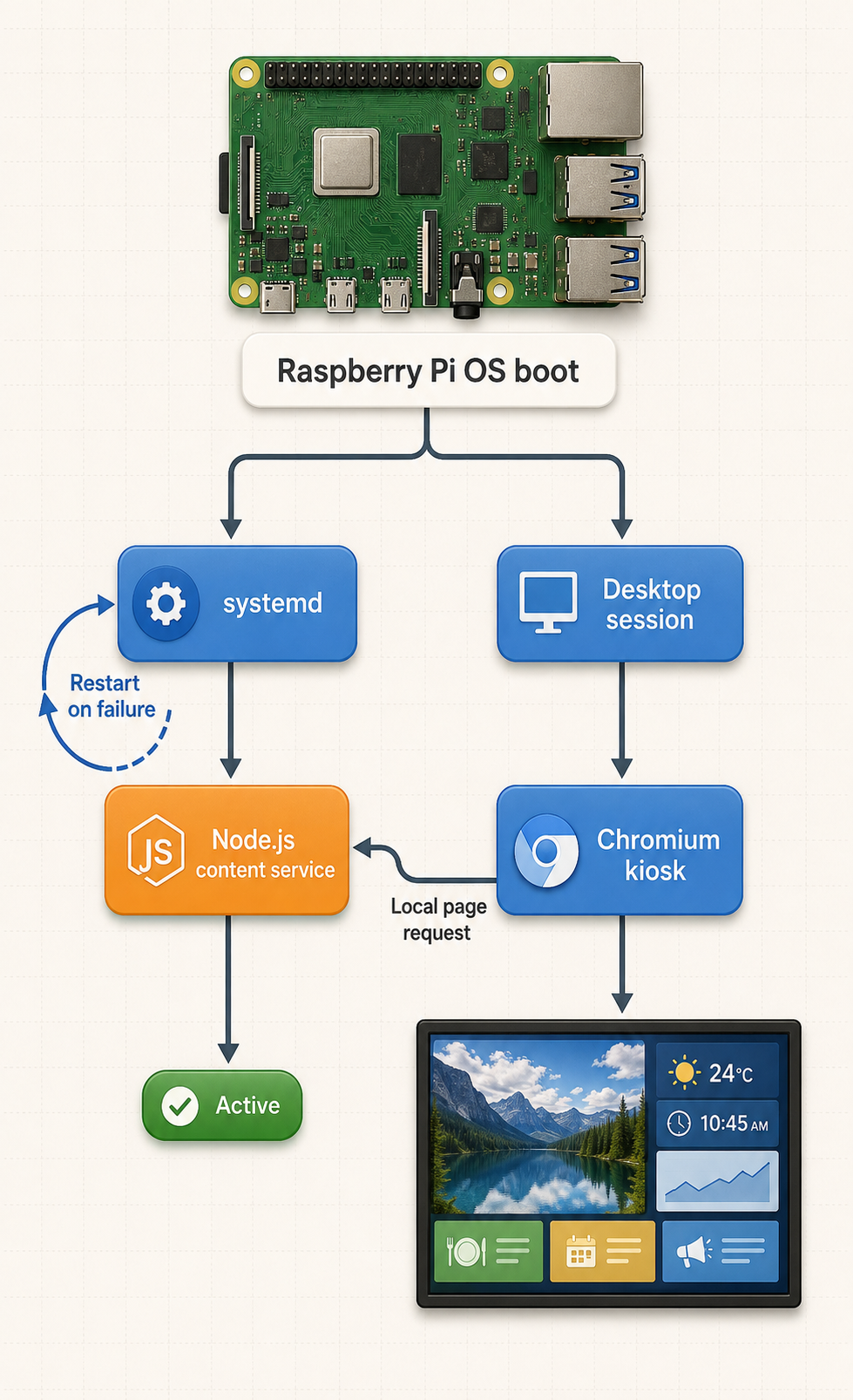
The content server is a system service, but Chromium belongs to the graphical user session. Starting a GUI browser from the system unit introduces display-session, compositor, and user-environment problems. Keep the two startup paths separate.
Create the kiosk launcher
Create ~/signage/start-kiosk.sh as the signage user:
#!/bin/sh

URL="http://127.0.0.1:3000/display.html"

until curl --fail --silent --output /dev/null \
  http://127.0.0.1:3000/health
do
  sleep 2
done

BROWSER="$(command -v chromium || command -v chromium-browser || true)"

if [ -z "$BROWSER" ]; then
  echo "Chromium executable was not found." >&2
  exit 1
fi

exec "$BROWSER" \
  --kiosk \
  --no-first-run \
  --noerrdialogs \
  "$URL"
chmod 700 "$HOME/signage/start-kiosk.sh"
"$HOME/signage/start-kiosk.sh"Run it manually from the desktop terminal first. Confirm that Chromium fills the screen and rotates between the two local slides. Exit the browser using a locally approved maintenance method before continuing.
Add it to labwc autostart
For the current Raspberry Pi OS desktop workflow using labwc, create the per-user configuration directory:
mkdir -p "$HOME/.config/labwc"
nano "$HOME/.config/labwc/autostart"
Add this line:
"$HOME/signage/start-kiosk.sh" &
Do not add DISPLAY, XAUTHORITY, xset, or unclutter instructions to this Wayland workflow. If the installed Raspberry Pi OS release does not use labwc, remove this entry and use the documented graphical autostart mechanism for that release rather than combining desktop stacks.
Configure screen blanking through the desktop
Use the screen-blanking control supplied by the installed Raspberry Pi OS desktop or its interactive configuration utility. Disable blanking only if the display should remain on continuously. Menu names can vary by release, so confirm the result on the physical display by leaving it idle longer than the previous timeout.
Avoid assuming that an X11 xset command controls a Wayland compositor. Also avoid hardcoding HDMI power commands into scheduled jobs without validating them against the Pi model, display stack, monitor behavior, and current Raspberry Pi documentation. If an operating-hours schedule is required, first test the supported method on the exact hardware and confirm the screen recovers reliably.
Reboot verification checkpoint
sudo rebootAfter reboot, verify all of the following:
- The dedicated account enters the desktop automatically.
- The signage service is active.
- Chromium opens only after
/healthresponds. - The local slides rotate at the configured interval.
- The pointer is hidden over the display page.
- The screen remains active for the required operating period.
- Unplugging internet access does not stop already deployed local slides.
If the content service restarts while Chromium remains open, the polling loop retries every five seconds. Once the service returns, a changed configuration is applied without restarting Chromium.
Add authenticated remote management with Localtonet
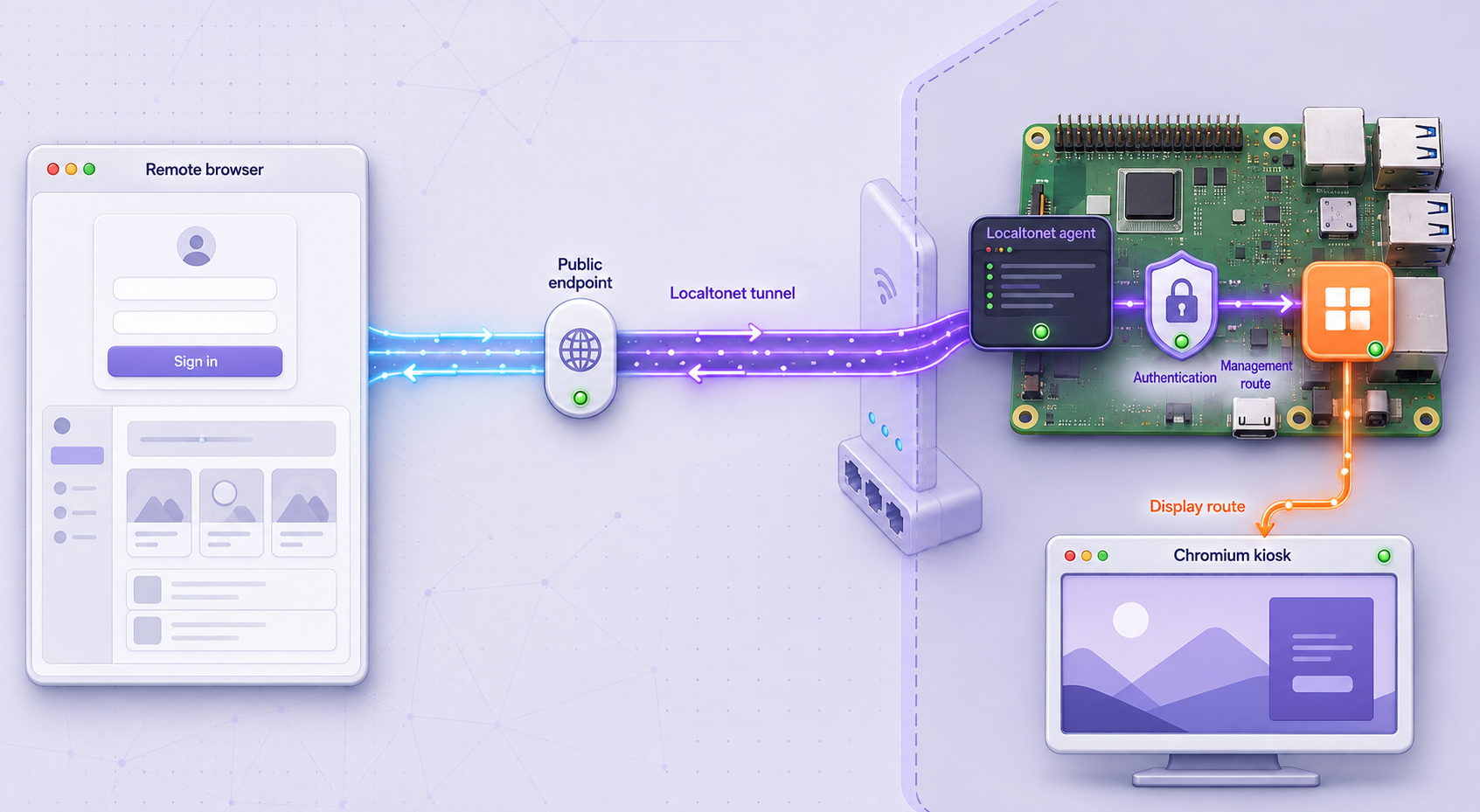
Localtonet exposes the local HTTP service through an outbound client connection. The public tunnel is available only while the selected client device is connected and the tunnel is running. Creating a tunnel does not start it automatically.
Client installation details can change by operating system and release. Use the currently supported Localtonet installation option shown in our official dashboard or documentation. This tutorial intentionally does not provide an unverified shell installer, command-line flag, or service command.
A token identifies the client device that runs the tunnel. Never put it in source files, shell history, service examples, slide content, support posts, screenshots, or management scripts. Select or enter it only through the supported Localtonet client and dashboard workflow.
Configure authentication before starting public access
The application already requires an administrator login for write operations, but tunnel-layer authentication should also be configured before the tunnel is started. Localtonet Basic Auth is suitable for a small, controlled group. For sensitive or production environments, consider an external SSO provider where appropriate.
Add a Basic Auth provider
Open SSO Providers in your Localtonet account and select Add Provider. Enter a descriptive provider name, choose Username / Password as the provider type, set whether it is active, and save it.
Add authorized users
Expand the provider details, select Add User, and enter a unique username and strong password for each operator. Save the users and remove accounts promptly when access is no longer required.
Enable the provider on the HTTP tunnel
In the HTTP tunnel settings, open SSO Providers and Manage. Enable SSO for the tunnel, enable the Basic Auth provider, review any path and user restrictions, and save the changes before starting the tunnel.
See our Username/Password authentication documentation for the current provider controls. Basic Auth users are managed manually and this provider does not supply MFA. Use unique credentials, rotate them periodically, and prefer stronger identity controls where the risk requires them.
Create and start the HTTP tunnel
Install and run the supported Localtonet client
Install the current client for Raspberry Pi OS using the supported method presented by Localtonet. Run it on this Pi so it can reach the loopback-only Express service.
Select the device-specific AuthToken
Authenticate or select the Pi using its device-specific token. Do not reuse a token copied from an example or expose it in operational documentation.
Select an available relay server
Choose a currently available relay server or region from the dashboard. Available values can vary, so do not hardcode a server code from an old tutorial.
Create the HTTP tunnel configuration
Choose an HTTP tunnel and set the local target to IP address 127.0.0.1 and port 3000. Select the appropriate process type for the public HTTPS address. Generated, selected, and custom domain choices serve the same local content, but availability and domain requirements can vary.
Confirm authentication settings
Verify that the intended SSO provider is enabled for the tunnel. Do not start the tunnel until unauthorized requests are rejected by the tunnel layer.
Start the tunnel
Use the Start button. Creating the configuration alone does not make it available. The dashboard will show the assigned public URL after the tunnel starts successfully.
Verify authenticated administration
Open the assigned HTTPS address with /admin.html. Complete the Localtonet authentication prompt, then sign in with the separate application administrator credentials. Save a harmless interval change and confirm the kiosk applies it within five seconds.
Remote command examples are intentionally omitted. A tunnel-layer authentication flow can involve an intercepted login and authenticated browser session, so an unauthenticated curl example is not equivalent to the secured configuration. It can also encourage operators to put passwords into command history or scripts. Use the browser administration page or a separately engineered automation client that follows your selected SSO flow and secret-management policy.
Stop, reconnect, and delete safely
Use Stop when remote management is not needed. Stopping the tunnel removes public reachability without deleting its configuration. Use Delete when the tunnel should no longer exist. If the Pi, Localtonet client, or network disconnects, the public address will not reach the application until the selected client reconnects and the tunnel is running again.
Confirm current client startup behavior on the installed Localtonet version instead of adding an unverified service command. After every reboot test, check the Localtonet dashboard for device connectivity, confirm the tunnel status, and open the authenticated administration page.
Routine operations, multiple displays, updates, and recovery
Change existing slides safely
The remote interface changes configuration but does not upload content. To deploy a new slide, place the reviewed HTML and its assets below ~/signage/public/slides through your controlled maintenance process. Then add its exact path, such as /slides/safety.html, in the administration page.
The server verifies that each requested HTML file exists. Paths containing directory traversal, spaces, query strings, arbitrary extensions, or nested directories are rejected by this example. If you extend the accepted file structure, update validation first and test it before changing production content.
Offline behavior
| Condition | Expected display behavior | Remote management behavior |
|---|---|---|
| Internet unavailable, local service running | Local slides continue to load and rotate | The Localtonet tunnel and public management path are unavailable |
| Internet unavailable in URL mode | The external page may fail or show cached content according to Chromium and the destination | Remote changes are unavailable until connectivity returns |
| Express service stopped | The currently loaded iframe may remain visible, but polling fails and new local loads fail | The tunnel may be connected but its local target is unavailable |
| Localtonet client disconnected | The local kiosk continues independently | The assigned public address cannot reach the Pi |
| Chromium closed | No signage page is displayed | The service may still be remotely manageable, allowing diagnosis before a local browser restart |
Manage several displays with least privilege
Each Pi can run its own loopback service, Localtonet client, device token, and tunnel. Maintain an inventory containing the device name, physical location, content owner, installed application version, last local verification date, and tunnel status. Do not store passwords or AuthTokens in that inventory unless it is an approved secret-management system.
Avoid a shell loop that sends unauthenticated writes to a list of public endpoints. For fleet automation, design a controller that uses the selected Localtonet authentication model, obtains authorization without embedding secrets in source code, verifies each target identity, sends the complete validated configuration, records per-device results, and stops if a display returns an unexpected response. A partial deployment should be visible to operators rather than reported as a universal success.
| Control | Single display | Multiple displays |
|---|---|---|
| Device identity | One device-specific AuthToken | Track each device and token separately |
| Public access | One authenticated HTTP tunnel | Verify authentication on every tunnel |
| Application credentials | Unique credentials recommended | Do not reuse one password across the fleet |
| Content rollout | Verify directly on the screen | Use staged groups and preserve per-device results |
| Rollback | Restore the previous project and configuration | Keep a known-good version for each hardware and OS group |
Update and rollback procedure
Treat operating system, Node.js dependency, application, and slide changes as separate deployments. Before changing the application, stop configuration edits, copy the project to protected backup storage, and preserve package-lock.json. Do not back up /etc/signage.env into an unencrypted source repository.
cd "$HOME"
cp -a signage "signage.backup.$(date +%Y%m%d%H%M%S)"
sudo systemctl restart signage.service
curl --fail http://127.0.0.1:3000/health
journalctl -u signage.service -n 50 --no-pager
For dependency maintenance, review the proposed changes before deployment. Test them on a spare Pi or staging display that matches the production OS and hardware. After updating, reboot once to verify the full service, desktop, browser, network, Localtonet client, and tunnel lifecycle.
To roll back, stop the service, restore the known-good project directory with its matching lockfile and configuration, confirm ownership, start the service, and check both local and remote behavior. Keep the display physically accessible during a major OS or desktop-stack upgrade because autostart behavior or the browser executable can change.
Storage and power practices
- Use reputable storage and leave free space for package updates, browser data, and logs.
- Check filesystem and kernel errors during maintenance rather than treating every failure as a browser problem.
- Use a suitable power supply and cooling for the chosen Pi and workload.
- Shut the Pi down cleanly before removing power whenever possible.
- Keep a tested replacement image and a record of the device-specific configuration.
- Test videos and animated dashboards on the real hardware. Performance varies with codecs, acceleration, stream profiles, cooling, resolution, and OS release.
Troubleshooting the local service, kiosk, display, and tunnel
Chromium shows connection refused after login
Check the content service first:
sudo systemctl status signage.service --no-pager
curl --fail http://127.0.0.1:3000/health
journalctl -u signage.service -b --no-pager
The launcher waits for the health endpoint, so a persistent error usually means the service failed, the application password environment is invalid, the path in the unit is wrong, or Node.js is at a different location. Correct the unit, run sudo systemctl daemon-reload, and restart it.
The service fails after copying the unit
Search the unit for unmodified placeholders:
sudo systemctl cat signage.service
id -un
printf '%s\n' "$HOME"
command -v node
Confirm that User, Group, WorkingDirectory, ExecStart, and ReadWritePaths match the actual account and installation. Also verify that /etc/signage.env exists, is readable by systemd, and contains a password of at least 16 characters.
Chromium does not open after reboot
Confirm desktop autologin works and that the session is actually using labwc. Then inspect the autostart file and run the launcher manually from a terminal inside the desktop:
cat "$HOME/.config/labwc/autostart"
"$HOME/signage/start-kiosk.sh"
command -v chromium || command -v chromium-browser
If manual startup works but boot startup does not, verify the autostart mechanism for the Raspberry Pi OS release currently installed. Do not compensate by setting guessed DISPLAY or XAUTHORITY values.
The screen still blanks
Recheck the current desktop's screen-blanking setting and verify it in the active signage account, not another user. Some displays also have their own sleep, energy-saving, or no-signal settings. Test both the Pi setting and the monitor configuration. Do not assume an X11 power-management command controls a Wayland session.
A remote URL is blank or says it refused to connect
Open Chromium developer tools during commissioning and inspect the console. Messages mentioning X-Frame-Options or frame-ancestors mean the destination refuses iframe embedding. Use an official embed view or a local slide. If the server rejects the URL when saving, confirm that it uses HTTPS and that its exact origin appears in SIGNAGE_ALLOWED_ORIGINS.
Configuration saves but the display does not change
Open the local display API and compare it with the administration form:
curl --fail http://127.0.0.1:3000/api/display
The display polls every five seconds. If the API contains the new configuration, inspect Chromium's console and network requests. If the API contains old data, inspect the service logs and permissions for content.json. The application writes a temporary file and renames it, so the project directory must remain writable by the service account.
Localtonet shows the device or tunnel as disconnected
Verify general network connectivity, DNS resolution, system time, and the status of the supported Localtonet client. Then confirm that the dashboard shows the intended device token as connected and that the tunnel itself is running. A connected device does not automatically mean every configured tunnel is started.
The public address reaches an error page
Test http://127.0.0.1:3000/health on the Pi. Confirm the HTTP tunnel targets 127.0.0.1 on port 3000 and that the Localtonet client is running on the same device. If the local health endpoint works, review the tunnel status and currently selected relay in the dashboard.
Authentication succeeds at one layer but not the other
There are two separate credentials. The Localtonet provider controls entry through the public address. The application login controls configuration writes after the request reaches Express. Reset or rotate the credential at the layer reporting the failure. Do not make both passwords identical merely to reduce confusion.
The Pi becomes slow or unresponsive
Do not assume a Chromium memory leak without evidence. Check CPU load, memory, storage space, temperature, kernel messages, service logs, browser page behavior, and external media workload. Complex dashboards, high-resolution video, software decoding, insufficient cooling, failing storage, and an unstable power supply can produce similar symptoms.
free -h
df -h
uptime
journalctl -p warning -b --no-pager
sudo systemctl status signage.service --no-pager
Reproduce the workload on matching hardware and simplify one component at a time. Schedule restarts only after identifying a reason and confirming that restart behavior is safe for the displayed content.
Frequently asked questions
Can this signage system upload new files remotely?
No. This tutorial intentionally limits remote management to selecting deployed local slides, setting their interval, or choosing an allowlisted HTTPS URL. Add new files through a controlled deployment process. A secure upload feature requires additional validation, storage, authorization, quota, and publishing controls that are outside this application's scope.
Why does Express listen only on 127.0.0.1?
A loopback binding prevents direct connections from other devices on the local network. Chromium and the Localtonet client run on the same Pi, so both can reach the local target without opening port 3000 on a LAN interface.
Why use both Localtonet authentication and an application login?
Tunnel authentication restricts who can enter through the public address. Application authorization independently prevents configuration writes without an administrator session. Layered controls also reduce the impact of an accidental tunnel configuration change. Use different credentials for the two layers.
Will local slides continue during an internet outage?
Yes, provided the Pi, display, Chromium, and local Express service remain operational and all slide assets are stored locally. Remote administration and the Localtonet tunnel require connectivity. External URL mode also depends on internet and destination availability.
Can any HTTPS website be displayed in URL mode?
No. The origin must first be listed in SIGNAGE_ALLOWED_ORIGINS, and the destination must permit iframe embedding. Sites can block framing with X-Frame-Options or Content Security Policy frame-ancestors. Use an approved embed page or local content when framing is prohibited.
Why is the username not hardcoded as pi?
Raspberry Pi Imager allows the account name to be selected during installation. A unit that assumes pi and /home/pi will fail on systems created with another username. Use id -un and $HOME to identify the actual values, then substitute them explicitly in the unit.
Does creating a Localtonet tunnel make it immediately available?
No. After creating and securing the HTTP tunnel, use Start to run it. It remains reachable only while the selected Localtonet client is connected and the tunnel is running. You can stop it without deleting the configuration or delete it when it is no longer required.
Can the Pi reliably display live video?
It depends on the Pi model, codec, resolution, frame rate, browser support, hardware acceleration, stream profile, cooling, network, and OS release. Test the exact stream on the intended hardware for an extended period. Do not assume that a particular model can transcode or play a stated resolution comfortably without workload-specific evidence.
Securely connect your Raspberry Pi signage service
Build and verify the localhost application first, protect the tunnel with an appropriate authentication provider, then use Localtonet to reach the management page through an outbound HTTP tunnel.
Get Started Free →

