

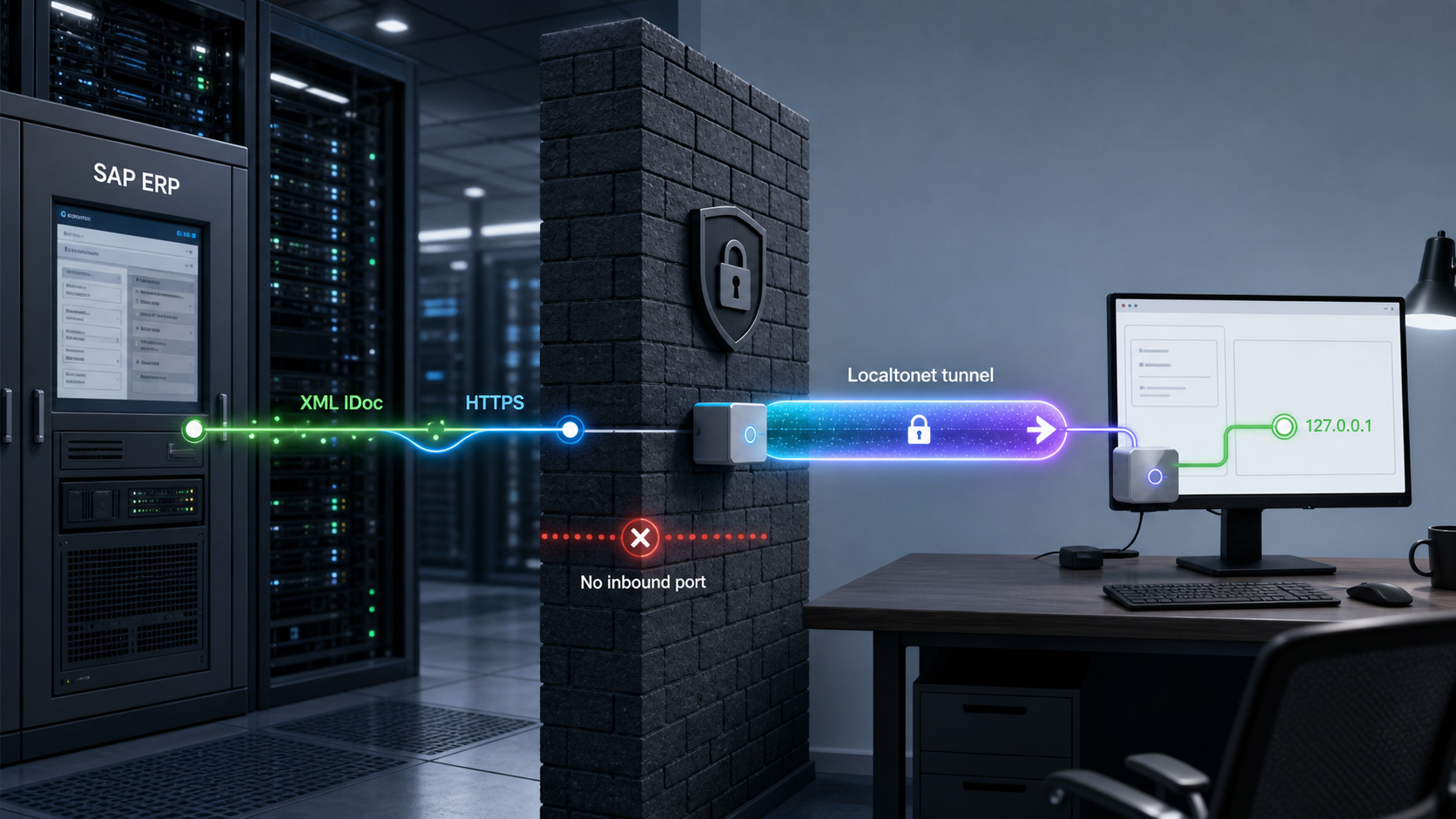
Connect an approved SAP test system to local IDoc middleware while keeping inbound router ports closed
An XML HTTP IDoc receiver does not have to be permanently hosted on public infrastructure, but it must be reachable from the SAP system that sends the request. A Localtonet HTTP tunnel can provide a public HTTPS address for an authorized local receiver without inbound router port forwarding. The Localtonet client establishes an outbound connection to a relay and forwards requests to the local service. This still requires organizational approval, permitted outbound connectivity, SAP TLS trust, endpoint authentication, and careful handling of ERP data.
📋 What's in this guide
Scope: XML HTTP IDoc delivery to a local receiver
This tutorial covers one deliberately narrow workflow: an authorized, non-production SAP ECC or SAP S/4HANA on-premise system sends an outbound IDoc as XML over HTTPS to middleware listening locally on port 3000. A Localtonet HTTP tunnel makes that local HTTP service reachable through an assigned public HTTPS address.
The design does not remove enterprise network controls. The SAP application server must resolve the public hostname and establish an outbound HTTPS connection under the organization’s proxy, firewall, allowlisting, and routing policy. The device running the Localtonet client must also be allowed to establish its outbound connection to the selected Localtonet relay. If either outbound path is blocked, the flow will not work.
Middleware also does not inherently need a public URL. If SAP can reach an integration service through a private routed network, an approved reverse proxy, a private cloud connection, or existing enterprise middleware, use that architecture. A temporary public tunnel is most useful when a controlled non-production test requires a callback to a developer workstation, lab device, or local integration server that is not otherwise reachable.
XML HTTP is not tRFC
SAP supports multiple outbound integration mechanisms. An XML HTTP port serializes an IDoc into XML and sends it through an HTTP destination. A transactional RFC port uses SAP’s RFC mechanisms and requires an RFC-capable receiver. A custom ABAP program using a supported HTTP client API is another distinct workflow because the application controls the HTTP method, body, headers, and response handling.
| Mechanism | Receiver | Configuration focus | This guide |
|---|---|---|---|
| XML HTTP IDoc | HTTP endpoint receiving IDoc XML | HTTP destination, XML HTTP port, partner profile | Covered |
| tRFC IDoc | RFC-capable integration system | RFC destination, transactional RFC port, RFC processing | Not covered |
| Custom ABAP HTTP client | Application-specific HTTP API | Destination-based HTTP client and custom ABAP logic | Only discussed for comparison |
| SAP S/4HANA Cloud outbound integration | Endpoint permitted by a released communication scenario | Communication scenario, system, arrangement, authentication, and tenant policy | Not configured in this tutorial |
A public endpoint connected to an ERP test system is still an external integration path. Obtain approval from SAP Basis, ALE or integration owners, information security, data owners, and the network team where required. Do not use production credentials or production business data on a developer workstation.
Prerequisites and ownership
Complete the ownership and technical checks before creating the endpoint. SAP transaction access alone is not sufficient authorization to alter an integration landscape.
| Area | Requirement | Typical owner |
|---|---|---|
| SAP scope | An authorized non-production ECC or S/4HANA on-premise system whose applicable release supports the selected XML HTTP IDoc workflow | SAP Basis and ALE team |
| SAP access | Approved access to the applicable portions of SM59, WE21, WE20, WE19, WE02 or WE05, STRUST, and BD87 | SAP security and Basis |
| Landscape governance | An existing approved logical system and partner definition, or a governed decision to create them | Basis and landscape management |
| Outbound network | SAP application-server access to public DNS and HTTPS, including any required proxy or destination-host allowlisting | Network and security teams |
| TLS | The correct certificate chain trusted through an appropriate SAP SSL client PSE | SAP Basis and PKI team |
| Localtonet | A Localtonet account, an installed and running client, and a device-specific authentication token kept secret | Developer or integration team |
| Local receiver | Python 3, permission to install packages, and a device on which the Localtonet client can reach TCP port 3000 | Developer or middleware team |
| Test data | A sanitized IDoc fixture and an approved WE19 test case containing no unnecessary personal, financial, credential, or regulated data | Data owner and integration team |
Confirm the SAP release-specific procedure
SAP GUI labels, XML record options, available authentication settings, destination behavior, and IDoc test-tool flow can vary by release and installed components. Before changing SM59, WE21, WE20, or STRUST, the Basis team should validate the procedure against the documentation and configuration standards applicable to that exact system.
This article explains the relationship among the required objects and provides a safe verification sequence. It intentionally does not prescribe an unverified XML record-type selection or assume that every ECC and S/4HANA release presents identical fields.
Do not create a logical system casually
A logical system identifies an SAP system or logical participant in ALE processing. Creating one in BD54 can affect governed landscape definitions and may require client assignment or transport coordination. Reuse the approved logical system designated by the Basis or ALE team. If a new logical system is required, its creation and assignment should be treated as a separate landscape change, not as an incidental troubleshooting step.
Build a hardened local XML receiver
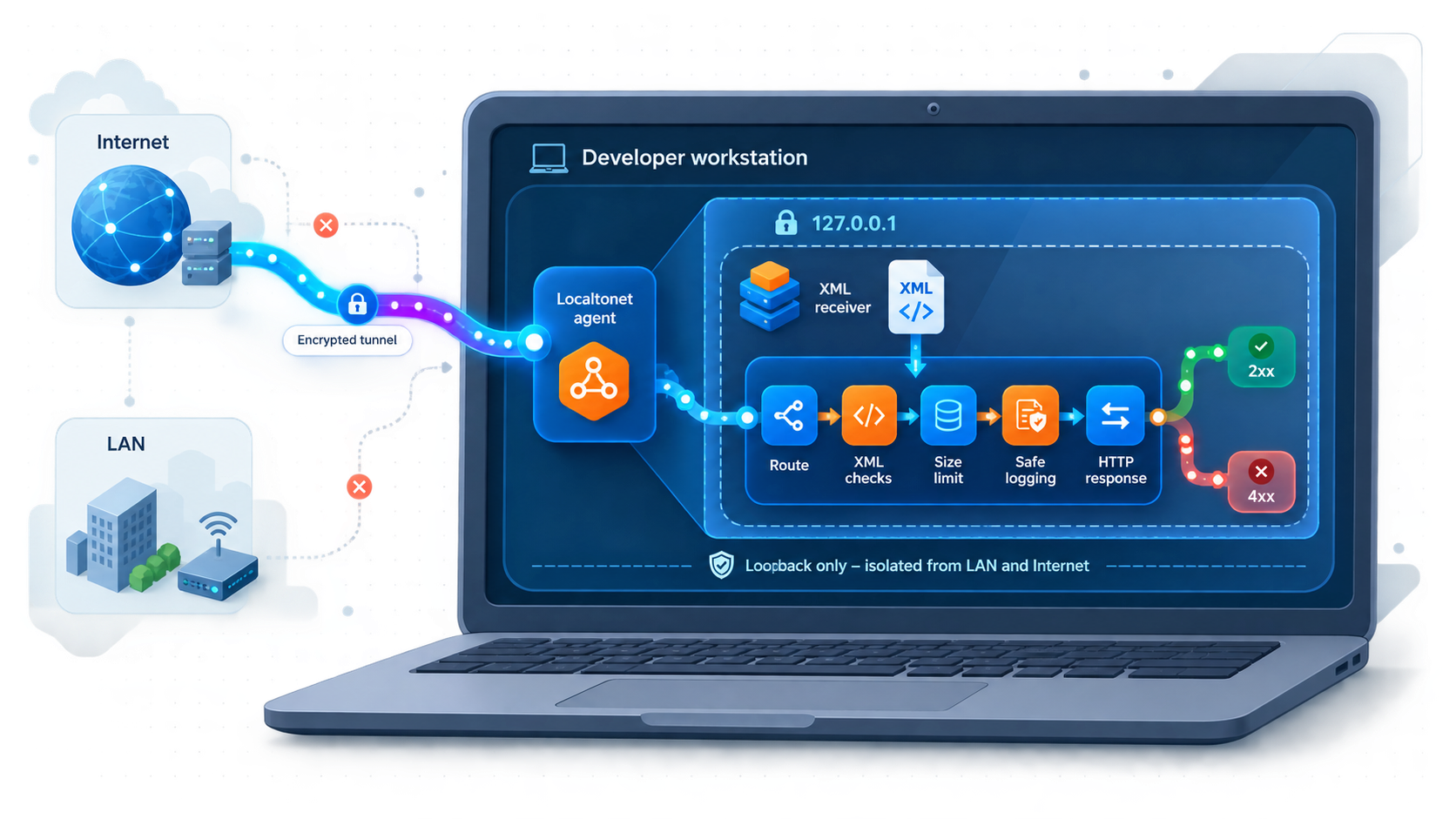
The following Python receiver is a compact non-production reference implementation. It provides authenticated health and IDoc endpoints, limits requests to one MiB, accepts only XML media types, parses XML with defusedxml, avoids logging the payload or authorization header, and writes accepted input to a local inbox before returning success.
One MiB is an example test limit, not a statement about SAP or Localtonet limits. Select an approved limit based on your expected IDoc size and resource controls. A real integration platform should use a durable database, queue, or object store with access control, retention, encryption, monitoring, and backup appropriate to the data classification.
Install the local environment
python -m venv .venv
source .venv/bin/activate
python -m pip install Flask defusedxml
On Windows PowerShell, activate the environment with the script created under .venv\Scripts. Keep dependency versions under your organization’s normal review and pinning process before sharing or automating the project.
Create the receiver
# app.py
import hashlib
import hmac
import os
import re
from pathlib import Path

from defusedxml import ElementTree as SafeET
from flask import Flask, Response, jsonify, request

app = Flask(__name__)
app.config["MAX_CONTENT_LENGTH"] = 1024 * 1024

IDOC_USER = os.environ.get("IDOC_USER", "")
IDOC_PASSWORD = os.environ.get("IDOC_PASSWORD", "")
INBOX = Path(os.environ.get("IDOC_INBOX", "./idoc-inbox"))
ALLOWED_TYPES = {"application/xml", "text/xml"}

if not IDOC_USER or not IDOC_PASSWORD:
    raise RuntimeError("Set IDOC_USER and IDOC_PASSWORD before starting")

INBOX.mkdir(mode=0o700, parents=True, exist_ok=True)

def unauthorized():
    return Response(
        "Authentication required\n",
        401,
        {"WWW-Authenticate": 'Basic realm="SAP IDoc test receiver"'},
    )

def authenticated():
    credentials = request.authorization
    if credentials is None or credentials.type.lower() != "basic":
        return False

    valid_user = hmac.compare_digest(credentials.username or "", IDOC_USER)
    valid_password = hmac.compare_digest(credentials.password or "", IDOC_PASSWORD)
    return valid_user and valid_password

def local_name(tag):
    return tag.rsplit("}", 1)[-1]

def first_element(root, names):
    wanted = set(names)
    for element in root.iter():
        if local_name(element.tag) in wanted:
            return element
    return None

def child_text(element, name):
    if element is None:
        return None

    for child in element.iter():
        if local_name(child.tag) == name and child.text:
            return child.text.strip()
    return None

def inspect_idoc(raw_body):
    root = SafeET.fromstring(raw_body)

    if local_name(root.tag) == "IDOC":
        idoc = root
    else:
        idoc = first_element(root, {"IDOC"})

    if idoc is None:
        raise ValueError("No IDOC element found")

    control = first_element(idoc, {"EDI_DC40", "EDIDC40"})
    if control is None:
        raise ValueError("No supported IDoc control record found")

    document_number = child_text(control, "DOCNUM")
    message_type = child_text(control, "MESTYP")
    basic_type = child_text(control, "IDOCTYP")

    if not message_type or not basic_type:
        raise ValueError("Required control-record identifiers are missing")

    return {
        "document_number": document_number,
        "message_type": message_type,
        "basic_type": basic_type,
    }

def safe_identifier(value):
    cleaned = re.sub(r"[^A-Za-z0-9_.-]", "_", value or "no-docnum")
    return cleaned[:64] or "no-docnum"

def store_once(raw_body, document_number):
    digest = hashlib.sha256(raw_body).hexdigest()
    filename = f"{safe_identifier(document_number)}-{digest}.xml"
    destination = INBOX / filename

    try:
        descriptor = os.open(
            destination,
            os.O_WRONLY | os.O_CREAT | os.O_EXCL,
            0o600,
        )
        with os.fdopen(descriptor, "wb") as output:
            output.write(raw_body)
            output.flush()
            os.fsync(output.fileno())
        return destination, False
    except FileExistsError:
        return destination, True

@app.errorhandler(413)
def request_too_large(_error):
    return jsonify(error="payload_too_large"), 413

@app.route("/health", methods=["GET", "HEAD"])
def health():
    if not authenticated():
        return unauthorized()
    return jsonify(status="ready")

@app.route("/idoc", methods=["GET", "HEAD"])
def idoc_health():
    if not authenticated():
        return unauthorized()
    return jsonify(status="ready", endpoint="idoc")

@app.post("/idoc")
def receive_idoc():
    if not authenticated():
        return unauthorized()

    if request.mimetype not in ALLOWED_TYPES:
        return jsonify(error="unsupported_media_type"), 415

    raw_body = request.get_data(cache=False)
    if not raw_body:
        return jsonify(error="empty_body"), 400

    try:
        metadata = inspect_idoc(raw_body)
        _path, duplicate = store_once(
            raw_body,
            metadata["document_number"],
        )
    except ValueError as error:
        app.logger.warning("Rejected XML: %s", str(error))
        return jsonify(error="invalid_idoc_xml"), 400
    except Exception:
        app.logger.exception("Could not durably accept IDoc")
        return jsonify(error="temporary_receiver_failure"), 503

    app.logger.info(
        "Accepted IDoc docnum=%s message_type=%s basic_type=%s duplicate=%s",
        metadata["document_number"] or "missing",
        metadata["message_type"],
        metadata["basic_type"],
        duplicate,
    )

    return jsonify(
        status="accepted",
        document_number=metadata["document_number"],
        duplicate=duplicate,
    ), 200

if __name__ == "__main__":
    app.run(host="127.0.0.1", port=3000)
Common XML IDoc documents use an outer basic-type element, an IDOC child, and an EDI_DC40 control record. Some existing integrations use a different serialized control-record name such as EDIDC40. The example locates the IDOC element under an outer envelope and recognizes both names, but it does not replace release-specific schema validation.
Set credentials without putting them in source code
export IDOC_USER="sap_idoc_test"
export IDOC_PASSWORD="replace-with-a-secret-from-your-approved-secret-store"
export IDOC_INBOX="./idoc-inbox"
python app.py
Do not paste a real password into documentation, source control, shell history, tickets, or screenshots. The environment-variable method keeps the sample readable, but managed deployments should retrieve credentials from an approved secret store and rotate them according to policy.
The Flask development server is suitable only for a controlled local exercise. It is not a production application server. Keep it bound to 127.0.0.1 when the Localtonet client runs on the same machine. If the client runs on another approved device, bind and protect the service according to your local network policy, then use a local IP address reachable from that device.
Verify the service locally first
curl -i \
  -u "$IDOC_USER:$IDOC_PASSWORD" \
  http://127.0.0.1:3000/health
Expect a successful HTTP response containing {"status":"ready"}. Resolve local application errors before introducing the tunnel or SAP configuration. This separation makes it much easier to identify which layer is failing.
Create and run the Localtonet HTTP tunnel
Localtonet exposes the local HTTP receiver by having the selected client establish an outbound connection to a Localtonet relay. The tunnel remains available only while that client is connected and the tunnel is running.
Use the current application and dashboard values rather than copying a server code, region, device token, or public hostname from an article. Available relay servers, process types, and plan-dependent options can change. The Localtonet HTTP tunnel documentation is the canonical companion page for the current interface.
Install and run the appropriate Localtonet client
Install the current client for the operating system on the device that can reach the receiver. Start the application and confirm that it remains running for the duration of the test.
Authenticate or select the device
Authenticate the client with its device-specific token or select the already registered device in the dashboard. Treat this token as a secret. Do not place it in scripts, screenshots, logs, or SAP configuration.
Create an HTTP tunnel configuration
Create an HTTP tunnel and choose a process type currently available to the account. HTTP process types can include Random Sub Domain, Custom Sub Domain, or Custom Domain. All provide a public HTTPS address, but availability can vary.
Select the device and relay server
Select the authenticated device that will run the tunnel and choose a currently available relay server or region from the product interface. Do not hardcode a server code from an old environment or tutorial.
Set the local target
If the receiver and Localtonet client run on the same device, set the local IP address to 127.0.0.1 and the local port to 3000. Otherwise, enter the approved IP address that the selected client can use to reach the receiver.
Create the tunnel
Save or create the tunnel configuration. Creation defines the tunnel but does not mean it is running.
Start the tunnel
Use the Start control after confirming that the local receiver is listening. The selected Localtonet client must remain connected.
Record the assigned public HTTPS address
Copy the exact HTTPS address displayed for the running tunnel. Store it in the approved change record and give it only to the teams configuring and testing the integration.
Endpoint stability depends on the selected process type and what is currently available for the account. Confirm the behavior in the current dashboard before placing an address in a longer-lived SAP destination. If the address changes, the SAP destination and any outbound allowlist may also need an approved update.
Verify forwarding through the public endpoint
Put the assigned address into a shell variable without adding a trailing slash:
export TUNNEL_BASE_URL="https://your-assigned-address"

curl -i \
  -u "$IDOC_USER:$IDOC_PASSWORD" \
  "$TUNNEL_BASE_URL/health"
This checks public HTTPS routing, tunnel state, local forwarding, and authentication. It does not test SAP or IDoc parsing. Confirm that an unauthenticated request returns 401:
curl -i "$TUNNEL_BASE_URL/health"Configure the SAP XML HTTP path under Basis control
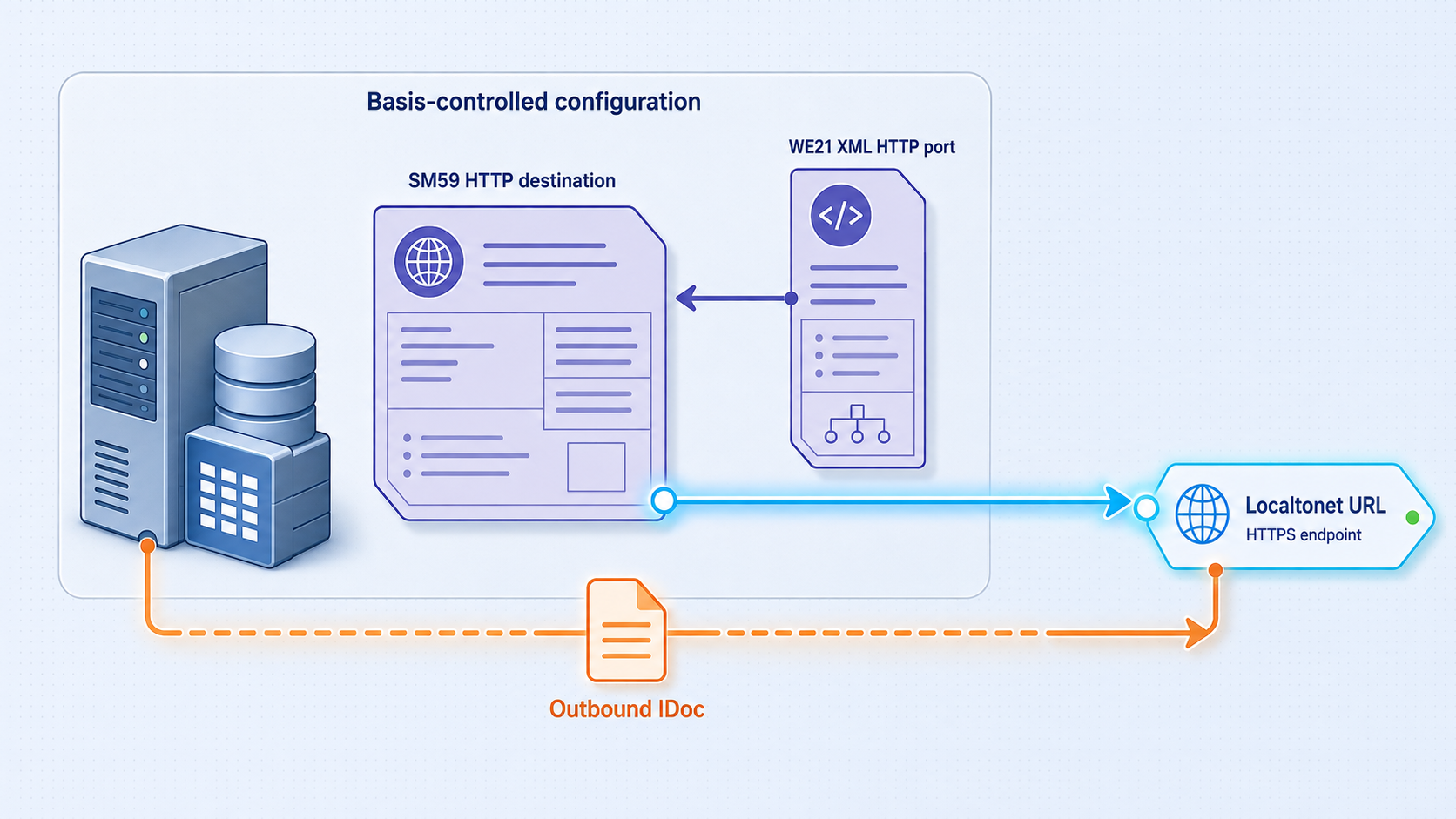
The SAP configuration connects several separate concepts. The HTTP destination identifies the remote HTTPS service. The XML HTTP port references the technical delivery path. The partner profile determines which outbound message is sent to which receiver and port. Message type and basic IDoc type are related but are not interchangeable.
| Object | Purpose | Important distinction |
|---|---|---|
| Logical system or partner | Identifies the governed ALE participant | Creation and client assignment belong to landscape governance |
| HTTP destination | Defines the external HTTPS host, port, path, security, and applicable authentication | It does not select the business message type |
| XML HTTP port | Defines the IDoc delivery port and references the HTTP destination | It is different from a tRFC port |
| Message type | Represents the business meaning of the IDoc message | For example, it is not the same field as the basic type |
| Basic IDoc type | Defines the technical segment structure | It may be selected separately from the message type |
| Partner profile | Connects partner, outbound message parameters, receiver port, and processing mode | Dispatch timing and reprocessing depend on its settings and jobs |
1. Prepare the HTTPS destination in SM59
Under the approved change procedure, create or update an HTTP connection to an external server in SM59. Use the host from the assigned Localtonet HTTPS address, HTTPS port 443, and the receiver path /idoc. Enter the hostname only where the destination expects a host. Do not include the URL scheme in a host-only field.
Configure the authentication method approved for the SAP release and organization. The reference receiver uses HTTP Basic authentication, so the destination must send the matching dedicated username and password. Store those credentials using the facilities approved for the SAP system, restrict who can display or modify the destination, and never reuse an interactive user’s credentials.
2. Establish TLS trust through the correct SSL client PSE
Ask Basis to inspect the certificate chain presented by the actual assigned endpoint and establish trust in the appropriate SAP SSL client PSE through STRUST and the organization’s certificate-management process. The required trust chain depends on the certificate actually presented at that time.
Do not solve a certificate error by making disabled peer verification the normal configuration. Correct the trust chain, hostname, system time, proxy interception configuration, or PSE selection. Disabling verification removes an essential server-identity check and should not be presented as a routine sandbox shortcut.
3. Test destination connectivity carefully
Save the destination and use the release-appropriate connection test. A connection test is not an IDoc dispatch. Depending on SAP release and destination behavior, it may use a request method or path that differs from the eventual XML POST. The sample receiver supports authenticated GET and HEAD requests on /idoc to make a simple reachability check possible, but do not assume every SM59 test will produce HTTP 200 or a particular log entry.
Treat DNS resolution, TCP connection, TLS negotiation, authentication, and HTTP application response as separate layers. Record the exact SAP error rather than reducing every failure to an endpoint outage.
4. Create or update the XML HTTP port in WE21
In WE21, work with the XML HTTP port category applicable to the installed SAP release. Assign the approved HTTP destination created in SM59. Have Basis or the ALE owner select any XML record or serialization option based on the sender release and receiver contract. Do not copy a record-type choice from another system without checking compatibility.
Save the port under the organization’s naming and transport rules. Confirm that it is an XML HTTP port rather than a transactional RFC port.
5. Configure the outbound partner parameters in WE20
Select the approved partner profile, commonly a logical-system partner in ALE scenarios. Add or update the outbound parameter for the required business message. Enter the message type in the message-type field and the applicable basic type or extension in its separate field when required by the profile and release. Point the receiver port to the XML HTTP port from WE21.
Select immediate dispatch or background collection only according to the test plan. This choice affects when SAP attempts delivery and how failed or waiting IDocs are handled. Do not assume an HTTP error automatically creates a universal retry schedule. Retry and reprocessing depend on IDoc status, partner-profile processing mode, jobs, and system configuration.
6. Review authorization and change records
Apply least-privilege SAP authorizations to destination maintenance, partner-profile maintenance, test generation, status inspection, reprocessing, and certificate administration. Keep the Localtonet endpoint, destination name, port name, partner, message type, basic type, test window, owner, and cleanup plan in the approved change or test record.
Verify each layer before sending a real test IDoc
A reliable test proceeds from the local service outward. Do not start with WE19 and then troubleshoot every layer at once.
1. Local health verification
Call http://127.0.0.1:3000/health with the dedicated credentials. Confirm that the receiver returns success and that its inbox directory is writable. This proves only that the application is running locally.
2. Public tunnel verification
Call the same health endpoint through the assigned HTTPS address. Confirm that valid credentials succeed and missing or incorrect credentials return 401. This proves forwarding and authentication, but it is not an IDoc test.
3. Send a sanitized representative XML fixture
Save the following synthetic fixture as test-idoc.xml. It models the common envelope in which a basic-type element contains an IDOC child and an EDI_DC40 control record. It contains no real customer, employee, supplier, financial, or credential data.
<ORDERS05>
  <IDOC BEGIN="1">
    <EDI_DC40 SEGMENT="1">
      <TABNAM>EDI_DC40</TABNAM>
      <DOCNUM>0000000000000001</DOCNUM>
      <IDOCTYP>ORDERS05</IDOCTYP>
      <MESTYP>ORDERS</MESTYP>
      <SNDPOR>SANITIZED_SENDER</SNDPOR>
      <SNDPRT>LS</SNDPRT>
      <SNDPRN>SANITIZED_SENDER</SNDPRN>
      <RCVPOR>SANITIZED_RECEIVER</RCVPOR>
      <RCVPRT>LS</RCVPRT>
      <RCVPRN>SANITIZED_RECEIVER</RCVPRN>
    </EDI_DC40>
    <E1EDK01 SEGMENT="1">
      <CURCY>USD</CURCY>
    </E1EDK01>
  </IDOC>
</ORDERS05>
curl -i \
-u "$IDOC_USER:$IDOC_PASSWORD" \
-H "Content-Type: application/xml" \
--data-binary @test-idoc.xml \
"$TUNNEL_BASE_URL/idoc"
A successful response should identify the message as accepted. Confirm that exactly one protected file appears in the inbox and that the application log contains only the document number, message type, basic type, and duplicate flag. Sending the identical fixture again should return success with duplicate set to true.
The fixture is representative, not a complete SAP schema-validation artifact. It does not prove that the receiver supports every segment, namespace, extension, serialization option, or release-specific envelope produced by the target SAP system.
4. Run the SAP destination test
Ask the Basis owner to run the appropriate SM59 connectivity test and inspect its detailed result. A successful connectivity test confirms only the aspects exercised by that test. It does not prove that the partner profile resolves correctly, that an XML IDoc can be serialized, or that downstream middleware processing succeeds.
5. Create an approved WE19 test
WE19 is an IDoc test tool. Under the approved test plan, use a sanitized existing non-production IDoc as a template or use the release-supported method for creating a test document. Review the generated control record, receiver partner, message type, basic type, and port before initiating standard outbound processing.
WE19 behavior and available actions vary across releases. Follow the test procedure approved for the target system rather than assuming that one button sequence applies universally. The test tool may create a new test IDoc and should not be treated as editing the original business document.
6. Inspect status records in WE02 or WE05
Locate the generated IDoc and read its complete status history. Status 03 means that data was passed to the port. It does not prove that middleware completed mapping, database commits, downstream API calls, or business processing.
Do not collapse different statuses into a generic endpoint error. Common outbound meanings include status 02 for an error passing data to the port, status 04 for an error within control information of the EDI subsystem, and status 29 for an error in ALE service. The status message and application log for the applicable release provide the actionable detail.
BD87 is a status-based IDoc reprocessing tool, not simply an outbound queue monitor. Use it only after identifying and correcting the cause, and select the reprocessing action appropriate to that status and system configuration. Reprocessing can create another delivery attempt, so the receiver must tolerate duplicates.
Separate HTTP acceptance from business completion
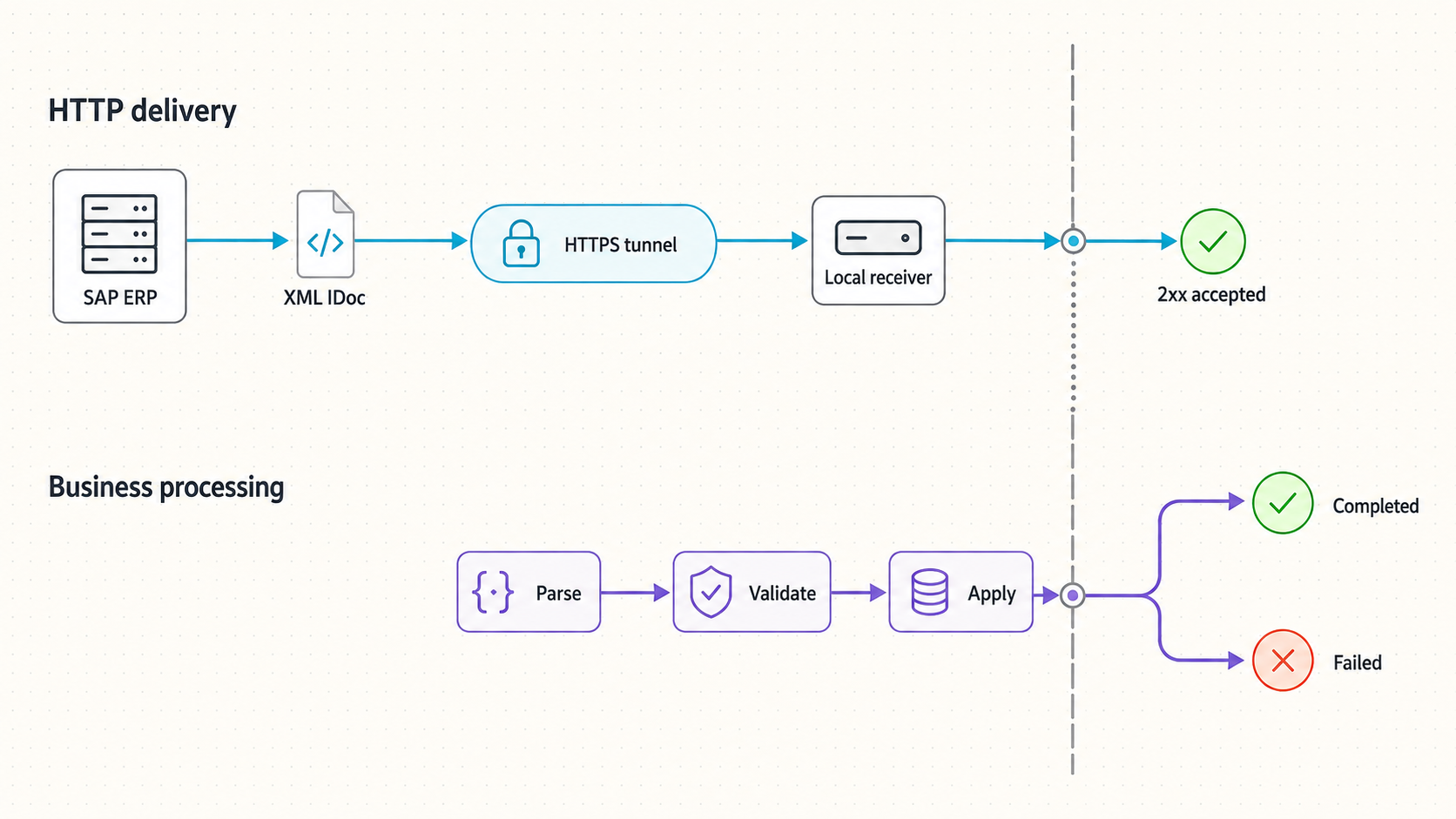
An HTTP success response has a precise but limited meaning. It should mean that the receiver accepted responsibility for the message according to its documented contract. It should not be interpreted as proof that every downstream system completed processing.
Choose an acknowledgment strategy
| Strategy | When success is returned | Tradeoff |
|---|---|---|
| Durable acceptance | After authenticated input is validated and committed to a durable inbox or queue | Short HTTP transaction, with downstream completion tracked separately |
| Synchronous completion | After all required processing and downstream calls finish | Simple semantics but greater timeout and partial-failure risk |
| Premature acknowledgment | Before durable storage or required processing | Risks losing a message after SAP has been told it was accepted |
The sample uses durable acceptance within the limits of a local filesystem exercise. It writes and synchronizes the file before returning HTTP 200. A production design should define whether success means committed to a queue, inserted into a database transaction, stored in object storage, or fully processed.
Design for duplicate delivery
Networks fail at ambiguous moments. SAP or an operator may retry after the receiver stored an IDoc but before the response was observed. BD87 reprocessing can also produce another delivery attempt. The middleware should therefore be idempotent.
Use the SAP IDoc document number as correlation data, but do not assume it alone is globally unique across every system and client. A robust key may include the sender system, SAP client, document number, message type, and a payload digest. Decide how to handle the same identifier with different content, and alert rather than silently overwriting it.
Track downstream outcomes independently
Maintain a processing state such as accepted, validating, transformed, delivered, retrying, quarantined, or completed. Record timestamps and sanitized error categories without copying the full business payload into ordinary logs. Operators need to distinguish an SAP transport failure from a middleware transformation failure or a downstream application rejection.
A non-success HTTP response does not by itself guarantee automatic SAP retry. SAP behavior depends on how the XML HTTP port records the result, the resulting IDoc status, partner-profile settings, background jobs, and reprocessing procedures. Confirm those behaviors in the target system and document who is responsible for recovery.
Security, lifecycle, and operational controls
Outbound allowlisting and proxies
Some SAP landscapes permit HTTPS only through an outbound proxy or to approved destinations. Provide the assigned hostname, purpose, data classification, owner, and test period to the network team. If an endpoint change produces a different hostname, repeat the required approval and trust checks rather than attempting to work around policy.
Shutdown and cleanup
Stop SAP test dispatch
Confirm that no scheduled job, queued test, or tester will continue sending to the temporary destination.
Stop the Localtonet tunnel
Use the Stop control after the test window. Remember that creating a tunnel and running it are separate lifecycle states.
Delete the tunnel if it is no longer needed
Delete temporary tunnel configuration after confirming that the project does not require it. Stopping preserves configuration; deleting removes it.
Retire SAP configuration and credentials
Disable or remove temporary destinations, ports, partner parameters, allowlist entries, and credentials according to change-control and retention requirements.
Handle stored test data
Reconcile accepted IDocs, preserve only required evidence, securely delete local payloads when retention expires, and close the test record.
Troubleshooting by symptom and layer
| Symptom | Likely layer | What to check |
|---|---|---|
| Local health request cannot connect | Receiver | Process state, bind address, port 3000, local host firewall, and application startup errors |
| Local health works but public health fails | Localtonet | Selected client connectivity, tunnel running state, local target IP and port, and assigned address |
| Public health works from a workstation but not SAP | SAP outbound network | DNS resolution, proxy configuration, routing, outbound allowlisting, and organizational policy |
| SAP reports a TLS handshake or trust error | TLS and STRUST | Presented chain, hostname, PSE selection, certificate validity, system time, and TLS inspection policy |
| Receiver returns HTTP 401 | Authentication | Dedicated username, password storage, destination authentication settings, rotation state, and unexpected proxy changes |
| SM59 test fails but authenticated curl succeeds | Test semantics or destination | HTTP method, path prefix, authentication behavior, proxy use, and release-specific connection-test details |
| Receiver returns HTTP 405 | HTTP method mismatch | Actual request method and whether the tested route supports it; remember that an IDoc dispatch should use the configured XML HTTP workflow |
| Receiver returns HTTP 413 | Payload policy | Actual IDoc size and whether the approved receiver limit should be changed |
| Receiver returns HTTP 415 | Content type | Content-Type header and the serialization produced by the selected SAP configuration |
| Receiver returns HTTP 400 | XML validation | Well-formed XML, outer envelope, IDOC element, control-record name, and required MESTYP and IDOCTYP fields |
| SAP IDoc has an error status | SAP ALE or port processing | Complete status history, status message, partner profile, message type, basic type, receiver port, destination, and application logs |
| Status 03 appears but downstream data is missing | Middleware processing | Durable inbox, correlation identifier, processing state, duplicate handling, transformation errors, and downstream response |
| Duplicate XML files or repeated business action | Idempotency | Reprocessing history, ambiguous timeouts, deduplication key, payload digest, and downstream idempotency controls |
Preserve correlation rather than payloads when gathering evidence. Useful fields include SAP system and client, IDoc document number, message type, basic type, timestamp, HTTP status, tunnel state, and middleware processing identifier. Redact destination credentials, authorization headers, device tokens, personal data, and full XML content.
Frequently asked questions
Does this eliminate all firewall requirements?
No. Localtonet avoids inbound router port forwarding because the client establishes an outbound connection to a relay. The client still needs permitted outbound connectivity, and SAP must be allowed to resolve and reach the public HTTPS endpoint. Enterprise proxy, firewall, DNS, TLS, allowlisting, and approval requirements continue to apply.
Does IDoc status 03 prove that middleware completed processing?
No. Status 03 means that data was passed to the port. Downstream completion must be verified through middleware correlation, durable-inbox state, transformation records, and the target system’s processing result. Define and monitor these states separately.
Will SAP automatically retry every HTTP 500 response?
Not as a universal rule. The resulting status and recovery behavior depend on the XML HTTP port, partner-profile processing mode, SAP release, background jobs, and reprocessing configuration. Inspect the status record and use the release-appropriate recovery procedure. BD87 can reprocess eligible IDocs after the cause is corrected, but it is not simply an automatic outbound queue.
Can the same instructions be used for SAP S/4HANA Cloud?
Not automatically. SAP S/4HANA Cloud outbound communication is constrained by released communication scenarios, communication systems, communication arrangements, supported authentication, and tenant policy. Use an external endpoint only when a documented scenario supports it and the tenant administrators approve the destination. The on-premise SM59, WE21, and WE20 procedure in this article should not be applied to S/4HANA Cloud.
Can a custom ABAP program call a local API through the same tunnel?
A custom ABAP application can call an approved public endpoint through a destination-based, release-supported HTTP client API. That is a separate integration design from XML HTTP IDoc delivery. The ABAP team must define request methods, payloads, authentication, timeout behavior, response handling, and application-level retries. Do not assume that every older function-module workflow is interchangeable with an HTTP destination.
How should an SAP TLS certificate error be fixed?
Have Basis inspect the certificate chain presented by the assigned endpoint and establish the required trust in the correct SAP SSL client PSE through STRUST and the organization’s PKI procedure. Also verify the hostname, certificate validity, system time, proxy interception behavior, and selected PSE. Keep peer verification enabled rather than using a no-verification setting as the routine remedy.
What happens when the Localtonet client or tunnel stops?
The public tunnel is available only while the selected client is connected and the tunnel is running. Creating a tunnel does not start it. If the receiver, client, or tunnel stops during dispatch, inspect the resulting SAP status and recover according to the configured processing and reprocessing procedure.
Can the assigned public address be treated as permanent?
Confirm endpoint behavior in the current Localtonet dashboard before relying on it. HTTP process types can include Random Sub Domain, Custom Sub Domain, and Custom Domain, but availability can vary by account or plan. If an address changes, update the SAP destination, TLS review, allowlist, and test record through the appropriate approval process.
Create an approved SAP integration test endpoint
Run and verify your authenticated local receiver first, then create a Localtonet HTTP tunnel for the authorized test window. Coordinate SAP destination, XML HTTP port, partner profile, TLS trust, monitoring, and cleanup with the responsible Basis, ALE, network, and security teams.
Get Started with Localtonet →

