

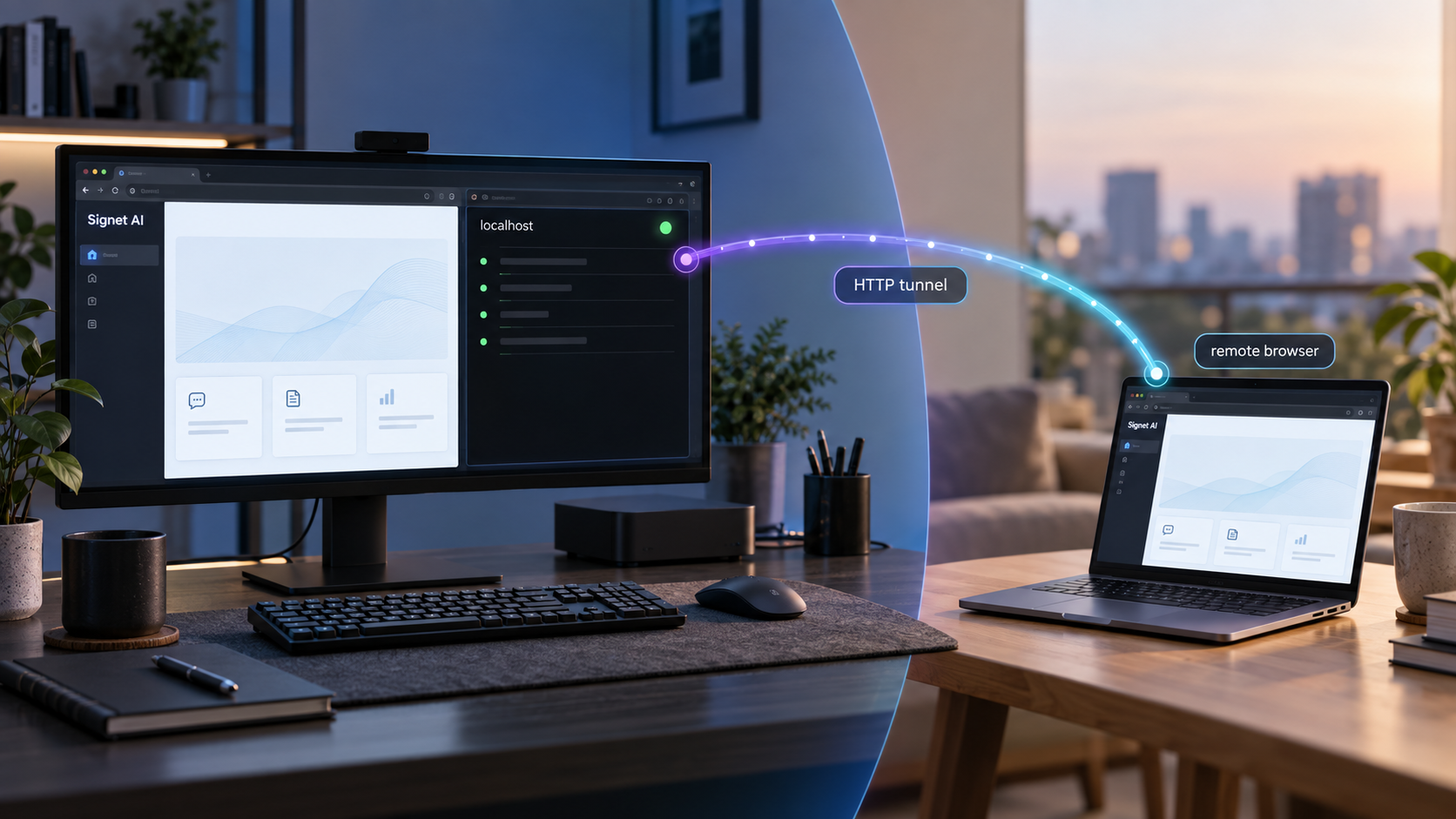
Install a local-first AI memory service, prove that it works locally, and expose only a reviewed web endpoint
Signet AI is a local-first memory and context layer for supported AI-agent harnesses. This tutorial follows a clearly scoped native deployment on Debian or Ubuntu x64, verifies the daemon and memory workflow, explains workspace persistence and update checks, and installs our Localtonet client as a system service. It then maps the exact Signet dashboard address discovered on your machine into a Localtonet HTTP tunnel. Because a Signet workspace can contain memories, transcripts, identity files, imported knowledge, and secrets, the public tunnel remains a no-go until authentication, authorization, endpoint scope, and network binding have all been positively verified.
📋 What's in this guide
Scope and architecture of this deployment
Signet runs underneath supported AI tools and gives them access to a shared memory and context layer. Its current project documentation describes one binary, a local daemon, a SQLite workspace, portable files, and a dashboard for inspecting memory, retrieval, claims, and source provenance. Search and ranking stay on the device. Background processing called dreaming distills useful information from transcripts and imported sources, supersedes stale claims, and retains useful context for later sessions.
This guide uses the native Signet shell installer on a Debian or Ubuntu x64 host. That gives us one reproducible end-to-end path and matches the current supported Linux x64 target. The Signet project also publishes a Windows x64 installer, supports Linux and macOS on x64 and arm64, and offers npm and Bun wrappers that install the matching native binary. Those alternatives are valid, but their operating-system service management differs and they are not the instructional path used below.
Docker is intentionally outside this tutorial's scope. Signet identifies Docker as supported, but the supplied primary evidence does not establish the current canonical image, image tag, internal port, volume mount, published-port rule, health check, startup policy, or upgrade procedure. Container storage and port publication directly affect data persistence and exposure. Rather than provide an incomplete or guessed command, this tutorial stays with the verified native installation path.
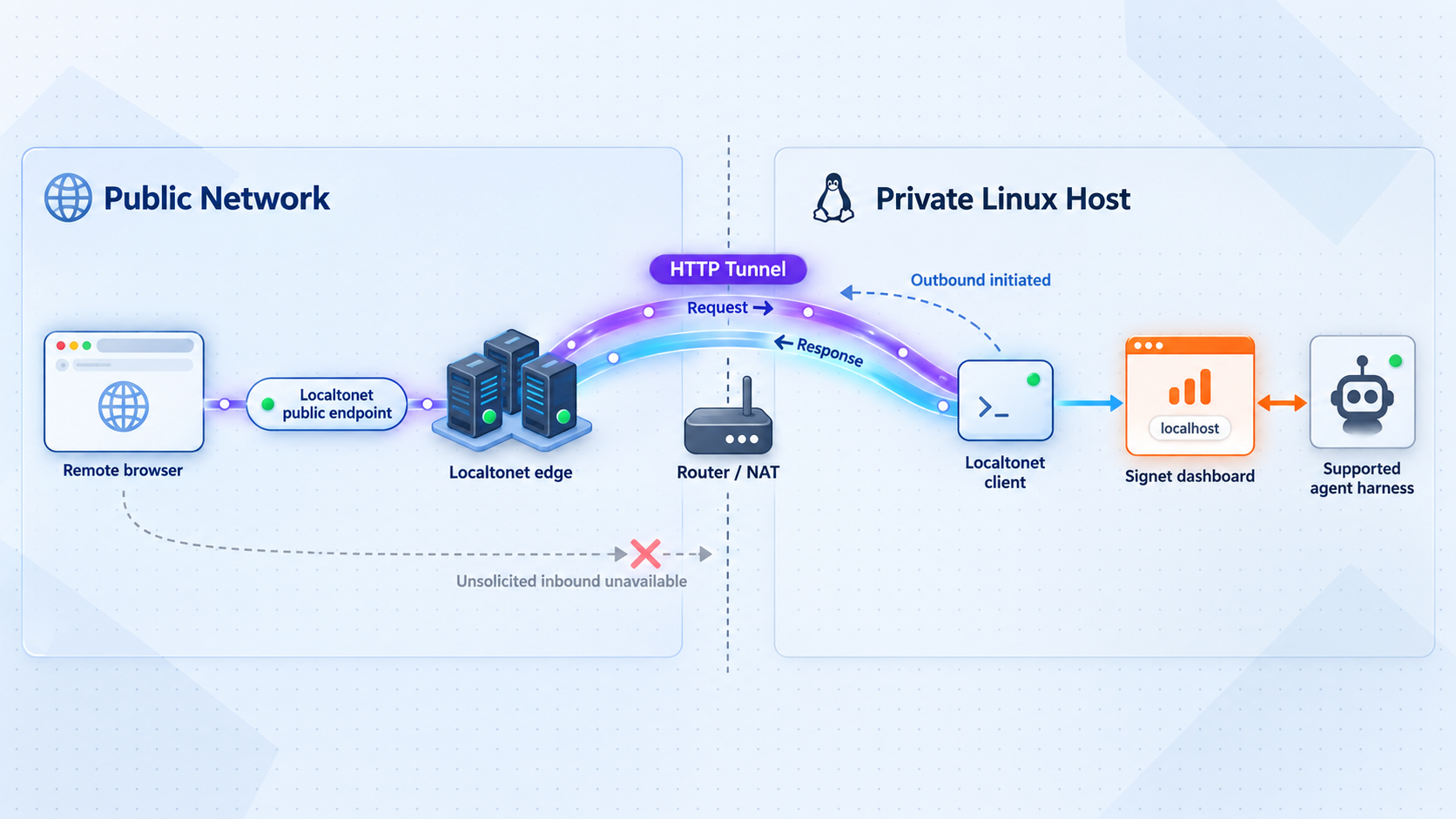
After Signet works locally, a Localtonet client makes an outbound connection to one of our relay servers. An HTTP tunnel maps a public HTTPS address to the local IP address and port that you configure. This does not require inbound router port forwarding, firewall changes, VPN setup, or a public IP address. It also does not start Signet, discover its port, add Signet authentication, or determine which Signet routes are safe to publish.
~/.agents/signet, with a SQLite workspace and portable local files.
A workspace may contain transcripts, memories, source documents, identity files such as AGENTS.md and CLAUDE.md, institutional knowledge, and secrets used by agent workflows. The available evidence does not establish a universal Signet dashboard authentication default, authorization model, listening address, port, or dashboard-to-API boundary. Keep the service local unless your installed version positively demonstrates suitable controls.
Prerequisites for the native Linux path
The complete reference path in this tutorial uses Debian or Ubuntu on x64. Signet supports Linux x64, and our installable Debian package supports x64 on systems with systemd 247 or newer and OpenSSL 3, such as Debian 12 and Ubuntu 22.04 or newer. If your host uses another supported platform, the Signet concepts remain relevant, but the Localtonet package commands below must be replaced with the installation path for that operating system.
Prepare the following before installation:
- A supported Debian or Ubuntu x64 host with a normal user account and administrative access through
sudo. - Internet access for downloading the official Signet installer and Localtonet package.
- A supported AI harness that you intend to connect to Signet.
- An appropriate provider account or local provider configuration for the Signet memory workflow you select.
- A browser for opening the Signet dashboard on the host.
- A Localtonet account and a device-specific authentication token for this host.
- A maintenance window in which you can test installation, reboot behavior, backup handling, and updates with non-sensitive data.
Keep provider credentials and Localtonet device tokens out of shell transcripts, public repositories, screenshots, tickets, and tunnel names. The Signet setup flow supports provider connection through OAuth or API keys, but the correct choice depends on the selected provider and your data-handling requirements. Local-first storage does not imply that all configured inference stays on the host.
| Component | Verified requirement | Decision before continuing |
|---|---|---|
| Signet host | Linux x64 is supported by the native installer | Use a host that can remain available while agents need memory services |
| Localtonet package | Debian or Ubuntu x64, systemd 247 or newer, and OpenSSL 3 | Confirm the host meets these package requirements |
| Signet workspace | The documented default is ~/.agents/signet |
Confirm the active path after setup before designing backup automation |
| Dashboard target | No universal address or port is established by the supplied evidence | Discover the endpoint from signet dashboard |
| Public access | Localtonet can provide a public HTTPS address | Do not start it until Signet authentication and authorization are verified |
The Signet project warns that its nightly channel is unstable and does not recommend it for production deployments. This tutorial uses the normal stable installer and update path.
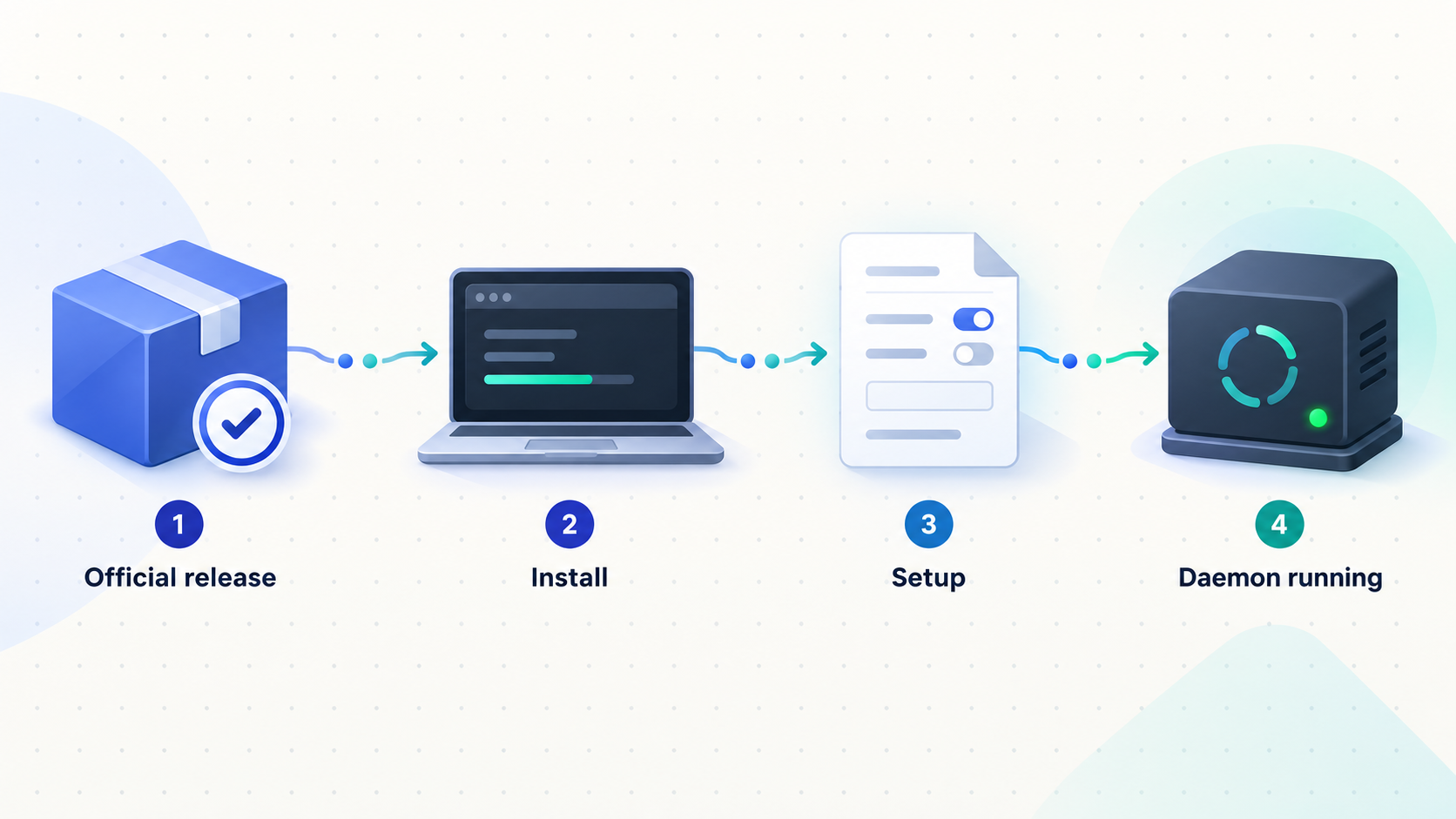
Install Signet with the native shell installer
Signet identifies its hosted shell installer as the recommended native method for Linux and macOS. This tutorial uses that method on Linux. A hosted installer executes code retrieved from the network, so review your organization's software approval requirements and confirm that the URL uses the official Signet domain before running it.
Run the official stable installer
Execute the documented shell installation command as the user who will operate the Signet workspace.
Open a fresh shell
If the installer updated your command path, open a new terminal before checking the executable. This prevents an old shell environment from producing a false command-not-found result.
Continue with Signet's setup command
The Signet site states that the local daemon starts with the native installation. Use signet setup to create and review the actual provider, model, workspace, and integration configuration.
curl -fsSL https://signetai.sh/install.sh | bashDo not add the npm or Bun global wrapper after completing the native installation. The wrappers install the same compiled native Signet binary through a matching package, so mixing installation methods can leave multiple executables in different command-path locations and make later updates ambiguous.
For reference, Signet currently documents a PowerShell installer for Windows x64:
iwr -useb https://signetai.sh/install.ps1 | iexWindows is not the end-to-end path used by this tutorial because the Localtonet service commands below are for Debian and Ubuntu. Do not apply Linux file paths or systemd commands to Windows.
Configure Signet and connect one supported harness
Run Signet's interactive setup wizard after installation. The stable setup flow presents a reviewable plan before changing the machine. Current documented capabilities include OAuth or API-key provider connections, model selection from a shared provider catalog, separate memory-extraction and aggregate-recall configuration, Obsidian connectivity, multiple agents, background-memory behavior, and remote Signet configuration through daemon.url.
Start the interactive setup
Run signet setup. Select only the providers, models, agents, sources, and background behavior required for this deployment.
Review the proposed plan
Check which provider and model will receive memory-extraction or aggregate-recall work. Confirm that the planned workspace and integrations match the intended user account.
Apply the reviewed configuration
Allow setup to configure the selected components only after the displayed plan is correct. Do not infer non-interactive flags or configuration schemas from another release.
Check daemon and pipeline health
Run signet status and resolve provider, configuration, embedding, or memory-route errors before connecting additional tools.
Open the dashboard locally
Run signet dashboard. Record the exact scheme, address, port, and path reported or opened by your installed version.
signet setup
signet status
signet dashboard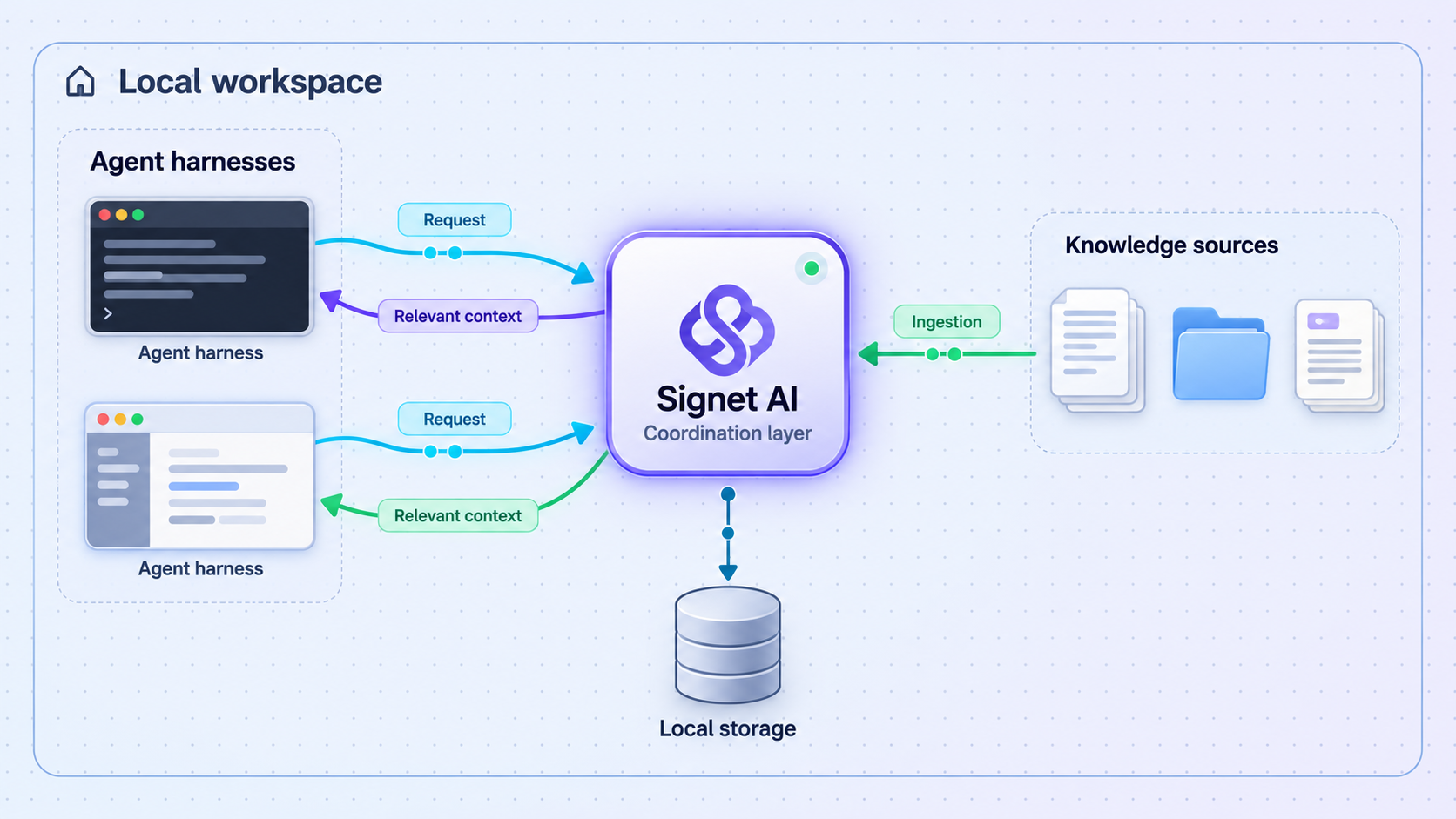
Current Signet documentation lists Claude Code through hooks and MCP, OpenCode and OpenClaw through plugins, Codex through a native plugin with hooks or MCP fallback, Kimi Code through hooks with MCP or ACPX, Hermes Agent through a memory-provider plugin, Pi and Oh My Pi through extensions, Gemini CLI through MCP and GEMINI.md synchronization, and ForgeCode through hooks and MCP.
Start with one harness. Create a harmless test fact, end the session normally, and check whether a later session can retrieve it with a visible route to its source. Only add another harness after this basic workflow succeeds. This is an operational recommendation for isolating faults, not a claim that Signet requires integrations to be added one at a time.
Signet also documents real-time source connections for Obsidian, Discord, and GitHub. Obsidian can watch multiple vaults in a read-only knowledge workflow and supports the LLM-Wiki format. Discord content can be crawled into memory. GitHub issues, pull requests, and discussions can contribute to the knowledge graph. Slack, email, Telegram, WhatsApp, webpage imports, and Notion are marked as coming soon in the available project material, so do not plan production ingestion around them unless your installed release now documents them as available.
A connected vault, repository, chat source, or document collection can introduce confidential material into the workspace and configured provider workflows. Use least-privilege source access and begin with non-sensitive test content. Verify retention and deletion behavior before importing institutional data.
Verify the complete Signet workflow locally
Local verification separates Signet faults from networking faults. A Localtonet tunnel cannot repair a stopped daemon, invalid provider route, incomplete embedding index, failed connector, or wrong dashboard address.
Check daemon and pipeline status
signet statusRead the complete result rather than checking only whether the command exits. Current stable release work improves reporting for configuration errors, missing providers, blocked memory routes, embedding coverage, and stalled processing. Resolve reported unhealthy or incomplete components before proceeding.
Discover the real dashboard endpoint
signet dashboardRecord the exact address opened in the browser or printed by the command. Do not copy a port from a development example. The supplied primary evidence does not establish a universal Signet dashboard port, listening address, authentication default, or whether the dashboard and API use the same endpoint.
Break the endpoint into the values Localtonet will need later. For example, if Signet reports an address in the form http://host:port/path, the tunnel's local IP field comes from host and the local port field comes from port. Preserve any required path when testing the public URL, but do not assume that a path limits what other routes the underlying web service exposes.
Test ingestion, processing, retrieval, and provenance
- Create a non-sensitive fact or preference through the configured harness.
- End the session using the harness's normal workflow.
- Run
signet statusand check for blocked or incomplete processing. - Ask for the test information in a later session.
- Use the dashboard to inspect the resulting memory and its source trail.
A dashboard page load establishes only that the web interface responds. It does not prove that transcript capture, dreaming, embedding work, retrieval, or provenance is healthy.
Verify restart behavior rather than assuming it
The Signet site states that the local daemon starts with the native installation, but the supplied evidence does not document the Linux service name, a daemon start or stop command, or a universal automatic-start policy after reboot. Do not invent a systemd unit name.
Reboot the host during the test window, sign back in as the same user, and run:
signet status
signet dashboard
Confirm that the daemon and pipeline are healthy and that the dashboard endpoint remains correct. If the daemon does not return after reboot, use the current Signet CLI documentation for the installed release to restore its supported startup configuration. Do not create an unofficial root service around a user-owned workspace without understanding ownership, environment variables, credential access, and update behavior.
| Check | Success proves | Success does not prove |
|---|---|---|
signet status |
The installed release reports daemon and pipeline health | Every connector captures sessions correctly |
signet dashboard |
The supported dashboard launcher reaches its local interface | The interface is authenticated or suitable for public access |
| Test memory and recall | A sample can pass through ingestion, processing, and retrieval | All source and provider permissions are least privilege |
| Post-reboot test | The actual installation returns to an operational state | Future upgrades cannot change lifecycle behavior |
| Client-device reachability | The Localtonet origin device can reach the target | A public tunnel is running or safe to start |
Install the Localtonet client on Debian or Ubuntu x64
Download the current Debian or Ubuntu x64 package from the Localtonet getting-started documentation. The documented package filename is localtonet-linux-x64.deb. Run the following commands from the directory containing that downloaded package.
Install the downloaded package
Use the operating system package manager so dependencies and the Localtonet system service are installed through the documented package path.
Set and protect the device AuthToken
Edit /etc/localtonet/auth-token as root, replace DUMMY_AUTH_TOKEN with this device's token on one line, set mode 600, and validate the configuration.
Enable and start the service
After the configuration check succeeds, enable and start localtonet.service, then inspect its journal output.
sudo apt install ./localtonet-linux-x64.debEdit the token file as root without placing the real token into documentation or a shared command transcript. Then protect and validate it:
sudo chmod 600 /etc/localtonet/auth-token
sudo localtonet --headless --authtoken-file /etc/localtonet/auth-token --check-config
Once the check succeeds, start the documented service:
sudo systemctl enable --now localtonet.service
sudo journalctl -u localtonet.service
The AuthToken identifies this client device. Do not expose it in screenshots, support posts, shell recordings, or tunnel configuration examples. The selected client must remain connected while a tunnel is in use.
This tutorial installs it on the same host, which avoids broadening a loopback-only Signet listener just to make it reachable across the LAN. If you place our client on another device, that device must be able to reach the exact Signet address and port, and the figure below should be understood as a reachable local target rather than necessarily localhost.
Complete the remote-access go/no-go checklist
Stop here unless every required security condition can be answered positively. A public HTTPS address provides a transport path to the configured service. It does not, by itself, establish Signet user identity, application permissions, route-level restrictions, or safe separation between dashboard and API functions.
| Required check | Go condition | No-go condition |
|---|---|---|
| Authentication | The installed Signet version has a verified mechanism that identifies every remote user | Authentication is absent, assumed, undocumented, bypassable, or not tested |
| Authorization | Verified controls limit each authenticated user to intended operations and data | Any authenticated or anonymous visitor can administer the workspace or inspect unrestricted data |
| Endpoint scope | You know which dashboard and API routes are reachable through the selected listener | The dashboard-to-API boundary is unknown or unrelated administrative routes share the listener |
| Local binding | The listener address is understood and exposes no more of the LAN than intended | You changed a loopback binding to a broad interface only to make tunneling convenient |
| Target identity | The IP address and port have been matched to the verified Signet dashboard | The port was guessed or could belong to another local service |
| Data scope | The test workspace contains only data appropriate for the reviewed access model | Unreviewed transcripts, secrets, repositories, or organizational sources are already present |
If authentication, authorization, endpoint scope, or binding behavior remains unknown, keep Signet local. Do not substitute a guessed environment variable, undocumented header, obscured URL, or hard-to-discover subdomain for application-level access control.
Even after a go decision, use a non-sensitive test workspace first. Apply least privilege to provider accounts, source connectors, repository access, and imported files. Keep the tunnel running only while it is required, and stop it before changing Signet's listener, updating the application, restoring data, or investigating unexpected behavior.
Create and verify the Localtonet HTTP tunnel
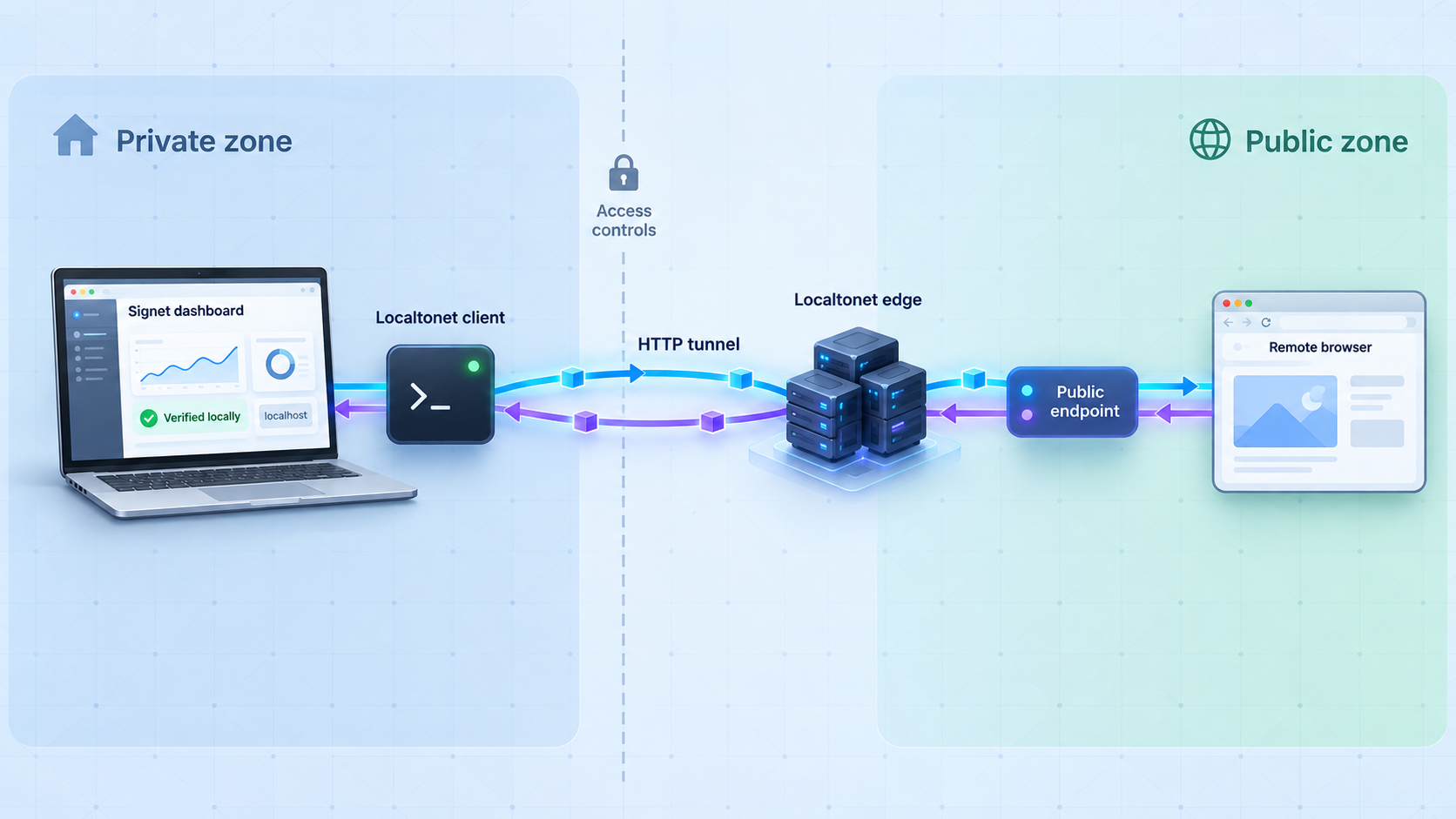
Follow the current Localtonet HTTP tunnel documentation while using the endpoint values you recorded from signet dashboard. HTTP process types include Random Sub Domain, Custom Sub Domain, and Custom Domain. They serve the configured content at a public HTTPS address. Option availability can vary, and custom-domain DNS requirements should be confirmed in the current dashboard and documentation.
Open the HTTP tunnel configuration
Create an HTTP tunnel in the Localtonet dashboard. Do not select a raw TCP tunnel for this browser-based dashboard workflow.
Select the Process Type
Choose an available Random Sub Domain, Custom Sub Domain, or Custom Domain process type. For an initial test, use an available option displayed by the current dashboard rather than assuming custom-domain DNS settings.
Select the AuthToken device
Choose the token belonging to the Localtonet client installed on this host. This identifies which connected client will originate the tunnel.
Select an available server
Choose a current relay server or region from the dashboard. Do not copy a server code from an old tutorial because available values can change.
Enter the local IP address and port
Map the host and port discovered through signet dashboard into the HTTP tunnel's local target fields. When the client and Signet are on the same machine, use the exact locally reachable host value validated there. Never guess the port.
Create and explicitly start the tunnel
Creating the configuration does not make it run. Press Start and wait for the selected client and tunnel to show their active state.
Verify the public address
Open the assigned public HTTPS URL from an authorized remote device. Confirm that it reaches the intended Signet interface, requires the verified authentication path, and does not expose unexpected routes or another local application.
Stop or delete access when finished
Stop the tunnel after temporary use. Delete it when the configuration is no longer required. The endpoint is available only while the selected client is connected and the tunnel is running.
Test more than the landing page. Sign in using the verified Signet authentication mechanism, navigate only through functions authorized for that user, and confirm that sign-out or session expiration behaves as expected. Repeat the test in a private browser session to identify accidental reliance on a pre-existing local session.
A Localtonet HTTP process type provides a public HTTPS address. This article does not assert a specific TLS-termination architecture for Signet HTTP tunnels because that detail is not established by the supplied HTTP tunnel evidence. Regardless of transport architecture, HTTPS is not a replacement for Signet authentication and authorization.
If the public URL fails, first open the exact Signet endpoint on the Localtonet client host. Then check the Localtonet service, selected AuthToken, server selection, target IP, target port, and tunnel running state. This order prevents a stopped Signet daemon from being mistaken for a relay problem.
Operate, update, and back up the deployment
Monitor two independent services
Signet must be healthy, and the Localtonet client must be connected. The HTTP tunnel must also be started. Check these layers separately after host reboots, network changes, provider changes, and application updates:
signet status
sudo systemctl status localtonet.service
sudo journalctl -u localtonet.service
Stop the tunnel before maintenance that could change Signet's listener, workspace, authentication behavior, or dashboard routes. You can keep the tunnel configuration while it is stopped and restart it only after repeating the local and security checks.
Update Signet on the stable channel
Existing native installations can use the documented update command:
signet updateAfter updating, verify the installation before restarting remote access:
signet status
signet dashboard
Confirm the dashboard address again because an update can change runtime behavior. Test one harmless memory capture and recall cycle through the configured harness. Current stable release work has improved provider routing, embedding reliability, stalled-job repair, native installation, and integrations that retained an old SIGNET_PATH after an update or workspace move.
Update the Localtonet package
Download the current package, install it through the same package manager path, and restart the service. The documented upgrade procedure preserves the Localtonet configuration:
sudo apt install ./localtonet-linux-x64.deb
sudo systemctl restart localtonet.service
sudo systemctl status localtonet.service
Recheck the tunnel target and public response after the client reconnects. Do not include the contents of /etc/localtonet/auth-token in diagnostic output.
Back up the active Signet workspace conservatively
Signet documents ~/.agents/signet as its normal local workspace and describes the workspace as portable files backed by SQLite. Confirm that this is the active path for the user running your installation before backing it up. Do not assume a root account, a container, a remote daemon.url deployment, or a customized environment uses the same location.
The supplied primary evidence does not provide an official online-backup command, a verified daemon stop command, or a promise that copying a live SQLite workspace produces an application-consistent backup. For that reason, do not present an ordinary recursive copy of the active directory as a guaranteed backup procedure.
Use the current Signet backup or lifecycle instructions for your installed release. If no supported live-backup procedure is documented, schedule a maintenance window, stop remote access, place Signet into a confirmed inactive state using its documented controls, and then back up the complete active workspace with ownership and permissions preserved. Do not copy only the visible database while omitting related files.
Restore testing is mandatory for important deployments. Restore into an isolated test environment with non-production provider credentials, then verify daemon health, dashboard access, source provenance, and a harmless recall workflow. A copied directory is not a proven recovery point until the installed release can read it successfully.
The available evidence does not establish a universal systemd unit or daemon stop command for Signet. Killing an unknown process or copying a live SQLite workspace can create an inconsistent result. Follow the lifecycle and backup controls documented by the installed Signet version.
Troubleshooting installation, memory, and remote access
The signet command is not found
Open a new terminal so command-path changes can load. Review the installer output for a failed download, permission problem, unsupported architecture, or path warning. Avoid installing a second copy through npm or Bun until you have identified where the native installer placed the executable.
signet status reports an unhealthy component
Keep the tunnel stopped. Review the setup plan, provider authentication, selected model routes, configuration errors, embedding coverage, and blocked memory paths reported by the installed release. A dashboard that happens to open does not override an unhealthy pipeline result.
The dashboard command does not open a page
Inspect the terminal output from signet dashboard and open the exact reported address manually on the same host. Do not substitute a common development port. If no address is reported, use the CLI and dashboard documentation matching the installed Signet version.
Signet does not return after reboot
Run signet status as the same operating-system user that installed and configured Signet. The supplied evidence does not establish a universal service name or manual daemon-start command, so use the installed release's lifecycle documentation rather than creating a guessed systemd unit. Check whether user credentials, provider environment variables, and the workspace are available in the post-reboot session.
Memories are missing even though the dashboard loads
Separate web availability from processing. Check daemon status, the selected harness integration, transcript capture, provider routing, background processing, embeddings, and source provenance. Use a new harmless test fact to determine whether the problem affects new ingestion, older data, or recall only.
An integration stops working after an update or workspace move
Rerun or review the supported setup process for that integration. Current stable releases include work to repair managed integrations that retained an obsolete SIGNET_PATH. Prefer the setup-managed integration path over manually inventing executable locations.
The Localtonet configuration check fails
Confirm that /etc/localtonet/auth-token contains the correct device token on one line and has mode 600. Run the documented configuration check again. Never paste the token into a public diagnostic report.
The tunnel exists, but its public URL does not work
Confirm that localtonet.service is running, the selected AuthToken belongs to this connected device, and the tunnel was explicitly started. Then compare the configured local IP and port with the endpoint currently opened by signet dashboard. Creating a tunnel record alone does not start it.
The public URL opens the wrong application
Stop the tunnel immediately. A wrong port can expose another local web service. Identify the exact Signet listener again, inspect the local response from the Localtonet client host, correct the target, and repeat the go/no-go review before restarting.
The dashboard works on the Signet host but not from another Localtonet client device
The Signet service may be bound only to loopback. A client on another machine normally cannot reach such a listener. Do not broaden the binding through guessed flags or environment variables. Use documented Signet configuration and account for the resulting LAN exposure, or run the Localtonet client on the Signet host.
Remote access works, but authentication is unclear
Stop the tunnel. A successful page load proves reachability, not access control. Determine the dashboard and API authentication and authorization behavior from current Signet documentation and the running version. Keep the endpoint local if those protections cannot be positively verified.
Frequently asked questions
What does Signet AI do?
Signet is a local-first memory and context layer for supported AI-agent harnesses. It can build memories from transcripts and imported sources, preserve source provenance, and make shared context available across supported tools through a local daemon and workspace.
Why does this tutorial not include Docker commands?
Docker is listed as supported, but the supplied primary evidence does not establish the current image, tag, volume layout, internal port, publication rule, startup policy, or upgrade procedure. Those details are critical to persistence and exposure, so this guide uses the verified native Linux path instead of inventing a partial container deployment.
What port does the Signet dashboard use?
No universal dashboard port is established by the supplied evidence. Run signet dashboard and use the exact scheme, host, port, and path reported or opened by your installed version. Never configure a tunnel with a guessed port.
Does Localtonet require router port forwarding?
No. Our client establishes an outbound connection to a Localtonet relay server. A reachable local Signet endpoint can therefore be exposed without inbound router port forwarding, firewall changes, VPN setup, or a public IP address.
Does a Localtonet public HTTPS address make Signet safe to expose?
No. HTTPS does not establish application authentication, authorization, safe route boundaries, or least-privilege access. Verify those controls in the installed Signet version before starting a public tunnel. Keep the endpoint local if any required control is unknown.
Can the Localtonet client run on another machine?
Yes, provided that the client device can reach Signet's actual local IP address and port. A loopback-only listener is normally reachable only from the same host. Any broader Signet binding should use documented configuration and receive a separate LAN-exposure review.
Does creating a Localtonet tunnel start it automatically?
No. Creating the configuration does not mean it is running. You must press Start. The public endpoint is available only while the selected Localtonet client is connected and the tunnel is running.
How do I update Signet?
Use signet update for an existing native installation. Afterward, run signet status, reopen the dashboard, confirm its endpoint, and test one harmless memory capture and recall cycle before restarting remote access.
Can I copy ~/.agents/signet while Signet is running?
The available evidence does not establish that a normal copy of a live SQLite workspace is application-consistent. Confirm the active workspace and follow the backup and lifecycle instructions for your installed Signet version. If no supported live-backup method is documented, use a maintenance window and a confirmed inactive state before copying the complete workspace.
Connect a reviewed Signet endpoint with Localtonet
Finish the native installation, post-reboot checks, harmless memory test, and security go/no review first. When you know the exact dashboard address and have positively verified authentication, authorization, endpoint scope, and local binding, create an HTTP tunnel from the trusted Localtonet client and keep it active only while remote access is required.
Get Started Free →

