

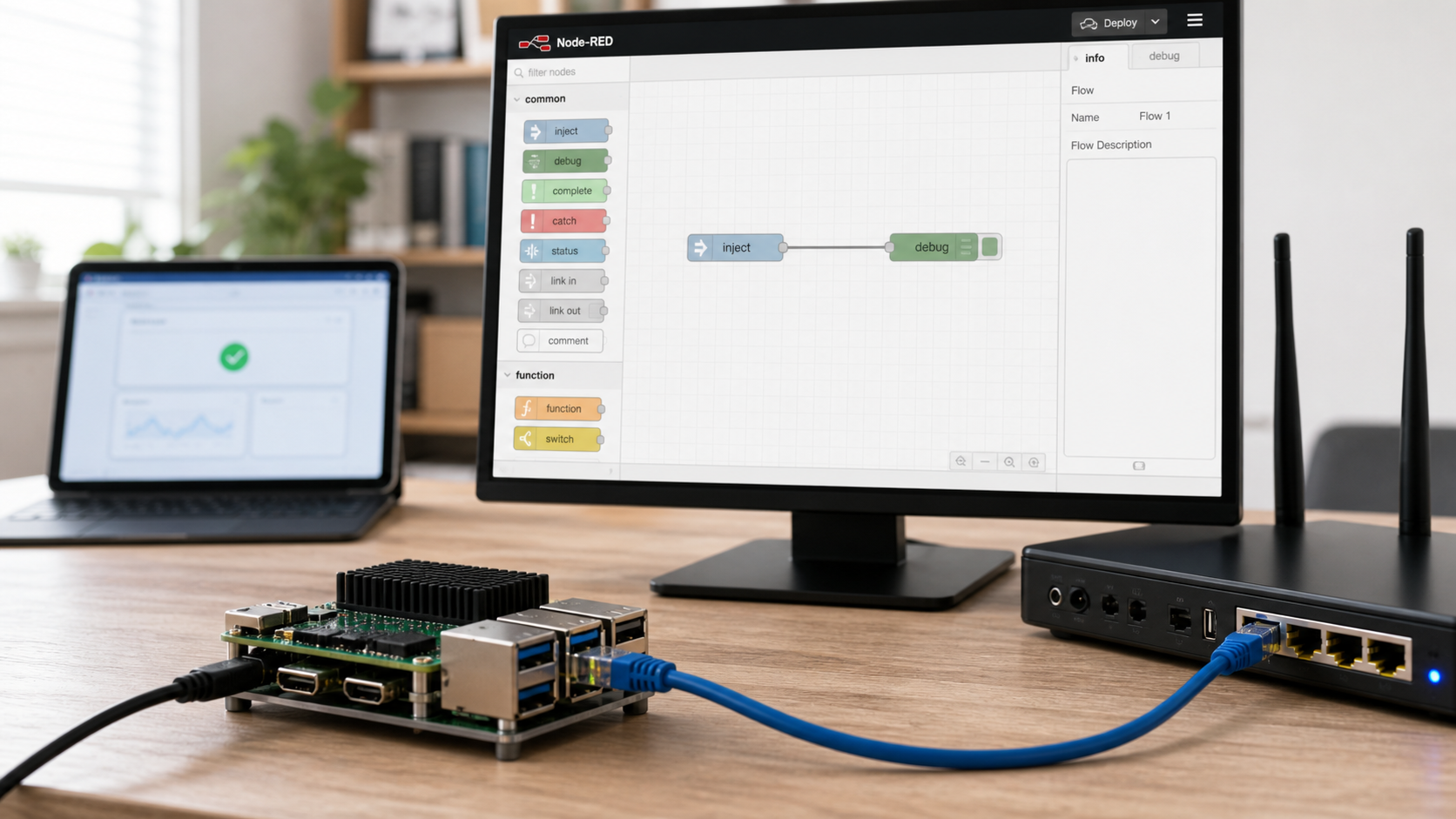
Build a durable Node-RED host, protect its routes, and publish only the access you need
A reliable Node-RED deployment involves more than starting a process on port 1880. You need a compatible Node.js runtime, persistent storage, an appropriate startup method, editor authentication, protected application routes, tested backups, and a controlled remote-access path. This guide covers npm, Raspberry Pi, Windows, and Docker installation paths, then shows how to test a webhook locally and expose it through a Localtonet HTTP tunnel without inbound router port forwarding. It also explains the important security difference between remote editor access and public webhook ingress.
📋 What's in this guide
What Node-RED is and what self-hosting changes
Node-RED is an open-source, flow-based programming tool maintained under the OpenJS Foundation. Its browser editor lets you connect nodes on a canvas and deploy the resulting flow to a Node.js runtime. Common built-in nodes can receive HTTP requests, call remote APIs, publish or subscribe through MQTT, transform messages, and return HTTP responses. Function nodes are available when a flow needs custom JavaScript.
A Node-RED host can communicate with local devices and services that are reachable from that host, which makes it useful for home labs, industrial prototypes, webhook handlers, internal tools, and IoT processing. Specific integrations may require separately installed community nodes, an external broker, an API account, or additional hardware. Self-hosting does not remove limits imposed by an external API, messaging provider, database, or destination service.
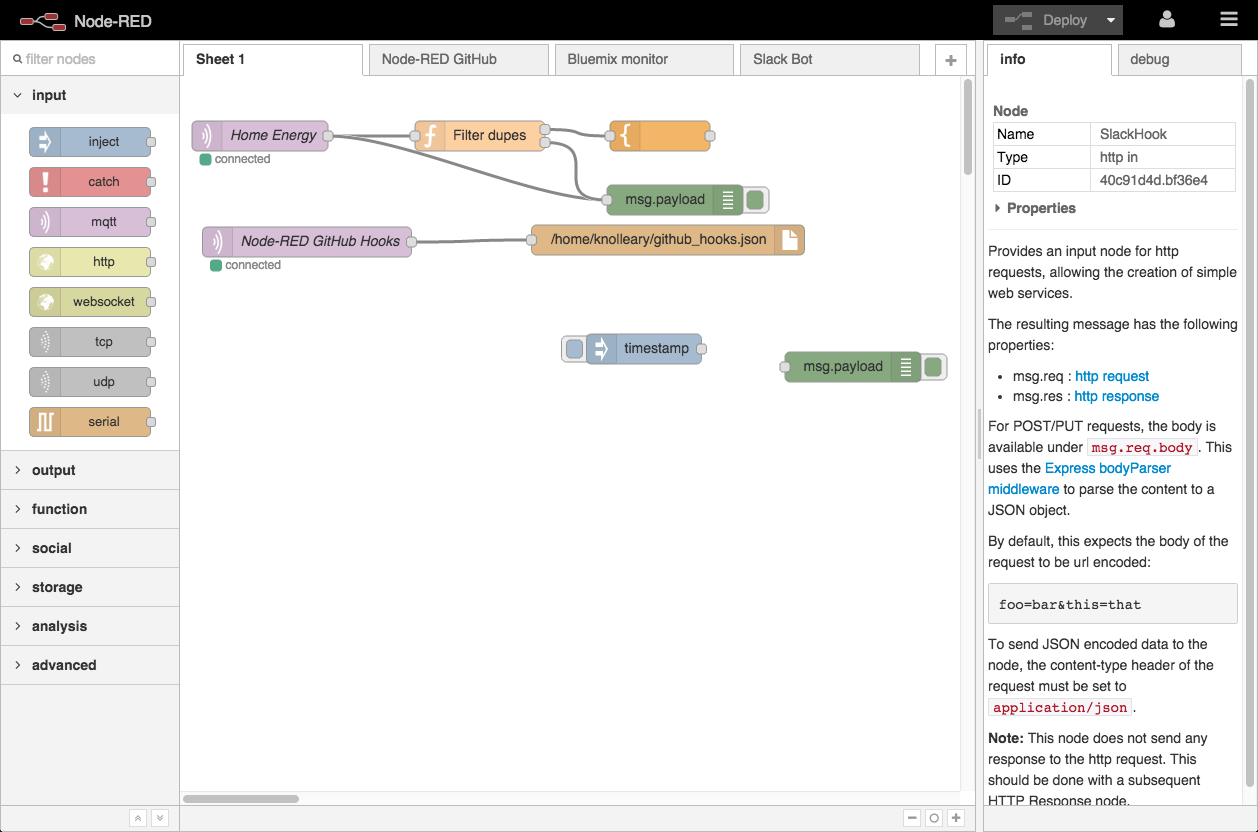
Self-hosting gives you direct operational control, but it does not mean all data always remains on the machine. A flow can intentionally send data to cloud APIs, notification services, databases, or other destinations. When you use a managed tunnel, public HTTP traffic also traverses the tunnel provider's relay infrastructure before reaching the local target. Document those data paths before processing credentials, personal data, payment events, or other sensitive payloads.
The original node-red-dashboard package is deprecated and should not be presented as the default dashboard choice for a new deployment. A legacy installation may still use it, including a configured dashboard route, but new projects should evaluate currently maintained dashboard options against their selected Node-RED release. Do not assume that every installation has a /ui route.
Plan the host, runtime, storage, and access model
Choose the installation path according to how you operate the machine. A direct npm installation is useful when you already administer Node.js on the host. The Node-RED Debian and Raspberry Pi installer provides platform-specific service tooling. Docker separates the runtime from host packages and makes image-based rollback practical, but it adds container storage and image-maintenance responsibilities. Windows can run Node-RED directly from a supported Node.js installation, although unattended service operation requires a separately designed and tested startup mechanism.
| Installation path | Suitable when | Important responsibility |
|---|---|---|
| npm | You manage Node.js and want Node-RED installed directly on the operating system | Keep Node.js compatible with the installed Node-RED release and provide a supervised startup method if needed |
| Debian or Raspberry Pi installer | You use a supported Debian-based environment and want the Node-RED installer tooling | Review the remotely hosted installer before execution and use its service commands only for installations created by that tooling |
| Docker Compose | You prefer a container image, explicit persistence, and image-based upgrades | Pin the image, persist /data, manage ownership, and test backup and rollback procedures |
| Windows npm installation | You want an interactive or workstation-hosted Node-RED runtime | Run it under the intended Windows account and design unattended startup separately if required |
Check Node-RED and Node.js compatibility by release
Do not choose a Node.js major version from a generic tutorial. Supported Node.js versions depend on the Node-RED release you intend to install. Before installation or an upgrade, consult the current Node-RED support information, select a maintained Node.js release supported by that Node-RED version, and then verify the versions actually available on your machine.
node --version
npm --version
If Node.js is not installed, use the documented installation path for your operating system or obtain it from the official Node.js website. Package repositories, operating-system releases, and Node.js support status change over time, so this guide deliberately does not hardcode a Node.js major version or use an unreviewed third-party curl-to-shell installer.
Estimate workload instead of relying on a model number
Node-RED can run on small computers, including Raspberry Pi devices, but hardware suitability depends on the number and complexity of flows, message rates, retained data, installed nodes, connected services, storage performance, and any other applications on the host. A simple sensor flow and a large image-processing or database workflow have very different requirements. Monitor memory, CPU, disk space, and event-loop responsiveness under a representative workload before declaring a host production-ready.
Decide what will be remotely reachable
Remote administration and webhook ingress are separate use cases. An administrator needs access to the Node-RED editor and administrative API. A webhook provider usually needs access to one narrow HTTP route and must be able to authenticate in a provider-compatible way. Exposing the entire Node-RED root merely to publish one webhook increases the reachable surface and should happen only after the resulting route and access model have been reviewed.
Start with Node-RED reachable only from the local host or a trusted management network. Do not create a public tunnel until editor authentication, route behavior, secrets, and backups have been tested. HTTPS protects transport to the public tunnel edge, but HTTPS alone does not decide who is authorized to use the editor or webhook.
Install Node-RED using the appropriate platform path
Option 1: Install through npm
Use this path only after installing a Node.js version supported by your intended Node-RED release. A global npm installation makes the node-red executable available through the environment configured by npm.
Confirm the runtime
Check Node.js and npm, then compare the Node.js major version with the support requirements for the Node-RED release you are installing.
node --version
npm --versionInstall Node-RED
Run the installation from an account and npm environment you intend to maintain. Follow your operating system's privilege model rather than adding undocumented npm flags.
npm install -g node-redStart the runtime
Start Node-RED in the foreground for initial configuration and verification.
node-redOpen the local editor
On a default local installation, browse to http://127.0.0.1:1880. Read the startup log if your configuration uses a different address, port, or user directory.
The helper commands node-red-start, node-red-stop, and node-red-log are associated with the Debian and Raspberry Pi installer tooling. Do not assume they exist after a generic npm installation. Stop an interactive npm-launched process with the terminal's normal interrupt action, or operate it through the process supervisor you have explicitly configured.
Option 2: Use the Node-RED Debian and Raspberry Pi installer
Node-RED publishes installer tooling for supported Debian-based environments, including Raspberry Pi OS. This path can install or update Node.js and Node-RED and configure service integration. Because the commonly documented command downloads executable shell content, review the current installer, its supported operating systems, and its release notes before running it. Execute it only from the official Node-RED repository and only if your change-control policy permits remote installer scripts.
bash <(curl -sL https://raw.githubusercontent.com/node-red/linux-installers/master/deb/update-nodejs-and-nodered)Follow the prompts presented by the current installer. After an installation created by this tooling, its documented management commands can be used:
node-red-start
node-red-stop
node-red-log
If you enable the generated system service, verify its exact unit name on the installed system rather than copying a name from an unrelated distribution. Use systemctl status and the installer output to confirm that the runtime is active and which account and user directory it uses.
Files under locations such as /lib/systemd/system can be replaced during package or installer updates. If a documented runtime override is required, use a systemd drop-in created with systemctl edit, then reload systemd and test the service. Do not copy memory settings from another Raspberry Pi model without measuring your workload.
Option 3: Run Node-RED with Docker Compose
Docker is one valid deployment model, not a universal production recommendation. It is useful when your team already operates containers and can manage image provenance, persistent volumes, logs, backups, and upgrades. The official container stores Node-RED user data under /data, so that path must be persistent.
Set NODE_RED_IMAGE to an explicit Node-RED image tag or immutable digest that you have selected and tested. Do not set it to the mutable latest tag for a controlled deployment.
services:
  node-red:
    image: ${NODE_RED_IMAGE}
    container_name: node-red
    restart: unless-stopped
    ports:
      - "127.0.0.1:1880:1880"
    volumes:
      - node_red_data:/data

volumes:
  node_red_data:
The host-side 127.0.0.1 binding limits direct access to the Docker host. This is appropriate when the Localtonet client also runs on that host and targets 127.0.0.1:1880. If the Localtonet client runs on another device, Node-RED must instead be bound to an address reachable from that client, and the surrounding firewall should limit who can connect.
export NODE_RED_IMAGE='set-an-explicit-tested-image-reference'
docker compose config
docker compose up -d
docker compose ps
docker compose logs --tail=100 node-red
The placeholder is intentional. Image tags, architectures, and Node-RED releases change, so select the reference from the current official image information. Do not assert optional environment variables such as project-enablement settings without verifying that they apply to the chosen image and Node-RED version.
A named volume avoids many host bind-mount ownership problems. If you choose a host directory instead, determine the container user's effective UID and GID from the selected image and make only that directory writable by the intended account. Do not recursively change ownership based on a copied numeric UID without checking the image.
Option 4: Install on Windows
Install a Node.js release supported by your intended Node-RED version from the official Node.js distribution, then open PowerShell or Command Prompt under the Windows account that will own the Node-RED configuration.
node --version
npm --version
npm install -g node-red
node-red
By default, the user directory is commonly stored under the running user's profile in .node-red, but startup options can change it. Confirm the actual user directory in the Node-RED startup log before editing settings or creating backups.
This guide does not recommend an undocumented third-party Windows service wrapper. For unattended Windows operation, choose a service or scheduled-task approach approved by your organization, configure it to run under a dedicated least-privilege account, use the full path to the verified Node-RED executable, set a controlled working directory, capture logs, configure restart behavior, and test startup after a real reboot. An interactive npm installation remains valid for development even if no service is configured.
Verify the local runtime and deploy a minimal test flow
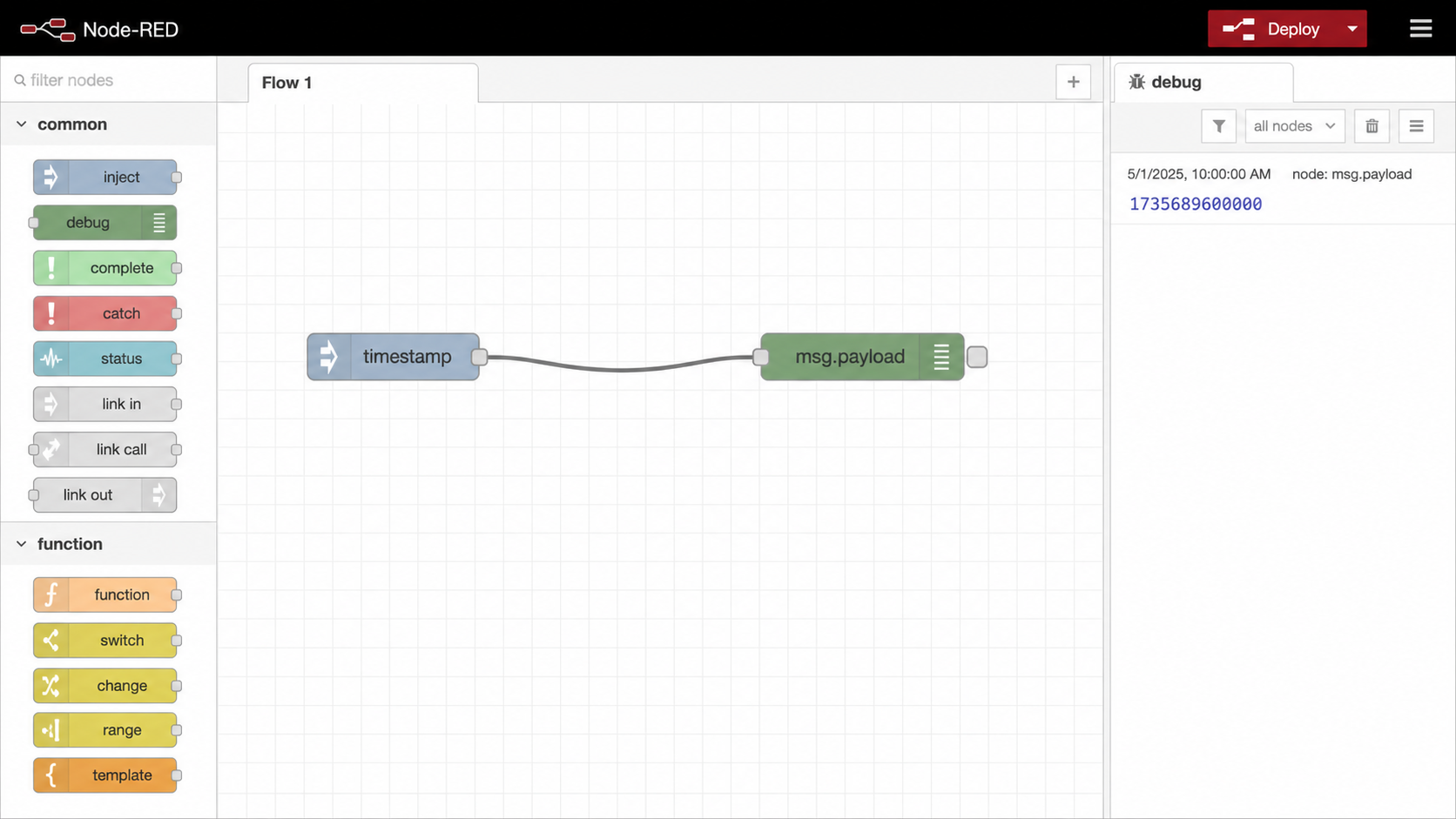
Complete local verification before adding remote access. This separates Node-RED problems from tunnel, DNS, or public authentication failures.
Read the startup log
Confirm that Node-RED started without fatal errors. Record the reported Node-RED version, Node.js version, user directory, flow file, and listening address. Do not paste logs containing credentials or sensitive payloads into tickets.
Open the editor locally
Browse to http://127.0.0.1:1880 on a default same-host installation. If the page does not load, inspect the process and listening socket before changing firewall or tunnel settings.
Create a minimal message flow
Add an Inject node and a Debug node, connect them, and select Deploy. Trigger the Inject node and confirm that the expected sample message appears in the debug sidebar.
Restart and check persistence
Restart Node-RED using the method appropriate to your installation. Reopen the editor and confirm that the deployed flow and installed nodes remain available. For Docker, this verifies that /data is actually persistent.
For Docker, use these checks before involving a browser:
docker compose ps
docker compose logs --tail=100 node-red
curl -i http://127.0.0.1:1880/
An HTTP response confirms that something is listening, while the logs confirm whether it is the intended Node-RED container. A login redirect or authentication response is expected after editor security is enabled.
Secure the editor, HTTP routes, credentials, and host
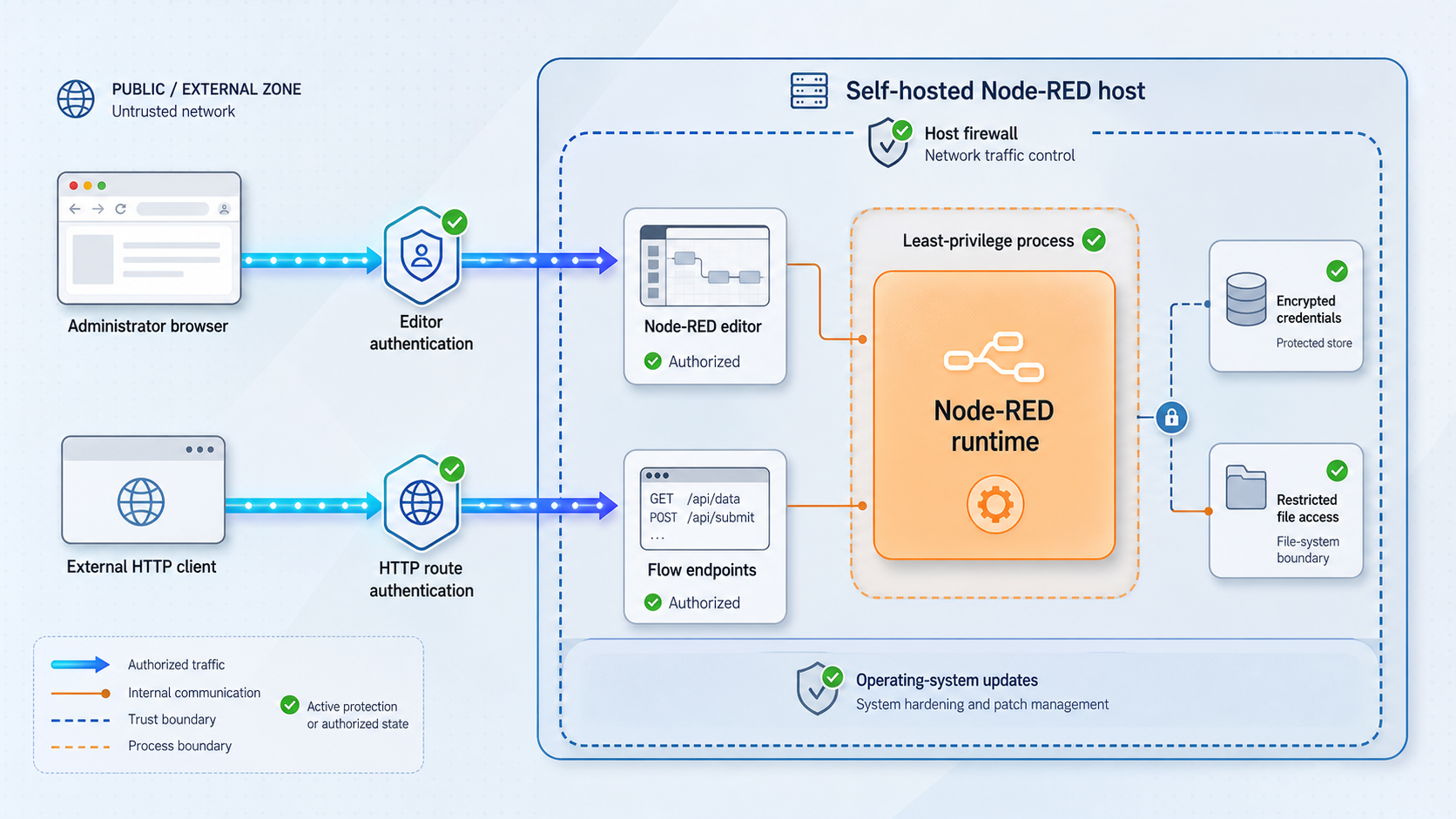
Do not assume a default Node-RED installation is safe for public access. Anyone who can use an unprotected editor may be able to change flows, deploy code, inspect configuration, and interact with services reachable from the host. Configure and test authentication before starting a public tunnel.
Understand the separate authentication boundaries
| Boundary | What it protects | What it does not automatically protect |
|---|---|---|
adminAuth |
The Node-RED editor and administrative API | HTTP In routes created by your flows |
httpNodeAuth |
HTTP node routes through global basic authentication | Provider-specific signatures, event replay handling, or business authorization |
| Route-specific validation | A selected webhook or API route using the sender's supported mechanism | The editor or unrelated HTTP routes unless separately configured |
| Localtonet access controls | Access at the public tunnel according to the controls configured for that tunnel | Application authorization that Node-RED must enforce for users and payloads |
Global httpNodeAuth can be useful for browser-facing HTTP routes, but it also affects webhook senders reaching those routes. A provider that cannot send the configured basic-auth credentials will fail. For public webhooks, route-specific signature verification is often more compatible, provided it follows that provider's official signing specification.
Configure editor authentication
Generate a password hash using the Node-RED administration command. Enter the password interactively and do not place the clear-text password in shell history.
node-red admin hash-pwLocate the active settings.js in the user directory reported by the startup log. For a default direct installation this is commonly under ~/.node-red on Linux and macOS or the Windows user's .node-red directory. In Docker it is stored under persistent /data. Paths can change when a custom user directory is configured.
adminAuth: {
    type: "credentials",
    users: [
        {
            username: "admin",
            password: "$2b$08$REPLACE_WITH_YOUR_GENERATED_HASH",
            permissions: "*"
        }
    ]
},
The example contains a placeholder, not a usable credential. Use a unique administrator password stored in your password manager. Restrict access to settings.js and the complete user directory because they contain operational configuration and may contain secrets or references to secrets.
Restart Node-RED using the mechanism that actually launched it. For an npm foreground process, stop and rerun node-red. For the Debian or Raspberry Pi installer, use its installed helper commands. For Docker Compose, use:
docker compose restart node-red
docker compose logs --tail=100 node-red
Open the editor in a private browser session. Confirm that an unauthenticated request cannot enter the editor, valid credentials work, and an invalid password is rejected. Test this locally before starting the tunnel and again through the final public URL.
Protect HTTP In routes according to their clients
If every HTTP route can use the same basic-auth credentials, Node-RED supports global HTTP-node authentication in settings.js:
httpNodeAuth: {
    user: "api-user",
    pass: "$2b$08$REPLACE_WITH_YOUR_GENERATED_HASH"
},
Use this only after confirming that every required client can send those credentials. Do not embed credentials in URLs. Store client secrets in an appropriate secret store and rotate them when access changes.
For webhook providers, use the provider's documented signature scheme. Verification commonly depends on a signing secret, a request timestamp, and the exact bytes received. Some providers require access to the raw request body, so parsing and re-serializing JSON before signature verification can make a valid event fail. The exact implementation varies by provider and Node-RED version. Do not copy a generic Stripe, GitHub, or other provider function and assume it is correct. Test against official signed fixtures or the provider's test-delivery feature.
Apply webhook safety controls
- Use a dedicated, hard-to-confuse route for each provider rather than one universal webhook endpoint.
- Verify the provider signature before performing a privileged action.
- Store signing secrets outside exported flow JSON whenever the selected node and deployment method support secure credential storage.
- Check event timestamps or provider replay protections when the signing scheme supplies them.
- Track provider event IDs or business transaction IDs so a retried event does not repeat a non-idempotent action.
- Set appropriate request and payload limits using the controls supported by your Node-RED and front-end configuration.
- Reject unsupported methods and content types.
- Return an appropriate success status promptly after validation and durable acceptance. Providers differ in which successful status codes they accept and when they retry.
- Do not log authorization headers, signing secrets, full payment payloads, or other sensitive data during testing.
Protect the host and installed nodes
Run Node-RED as a dedicated, least-privilege account where practical. Keep the operating system, Node.js, Node-RED, container runtime, and installed palette nodes updated through a controlled process. Review community packages before installation, including maintainership, permissions, dependencies, and compatibility. Remove unused nodes and flows, limit outbound network access where appropriate, and protect the user directory from other local accounts.
Build and test a minimal Node-RED webhook
A correct webhook flow needs an HTTP In node and an HTTP Response node. Processing and validation sit between them. Every request path must eventually reach a response or intentionally terminate with an error response, otherwise the sender may time out.
Create the HTTP In route
Drag an http in node onto the canvas. Set its method to POST and its path to a test route such as /webhook-test. Avoid using a real provider secret during this first test.
Add validation and processing
Connect nodes that confirm the expected method, content type, required fields, and authentication or signature. For the non-secret local test, a Change or Function node can create a small acknowledgement payload.
Add an HTTP Response node
Connect the final accepted path to an http response node. Also design explicit error paths for malformed or unauthorized requests with suitable status codes.
Deploy the flow
Select Deploy and check the Node-RED log for errors. Verify that the configured path is exactly the path you intend to publish.
Send a local test request
Use non-secret sample data and inspect both the HTTP response and the flow's controlled debug output.
curl -i \
  -X POST \
  -H 'Content-Type: application/json' \
  --data '{"event":"local-test","id":"example-001"}' \
  http://127.0.0.1:1880/webhook-test
If you enabled global httpNodeAuth, the test must provide the configured credentials through a safe local mechanism. Avoid placing real passwords directly in reusable scripts or shared shell history. A route using provider signatures instead should reject this unsigned test unless you have intentionally created a separate local-only test path.
A webhook sender does not universally require exactly 200 OK. Many accept a range of successful HTTP status codes, while timeout and retry rules vary. Read the provider's current webhook documentation, acknowledge only after the event has been validated and safely accepted, and design idempotent processing for retries.
Expose Node-RED through a Localtonet HTTP tunnel
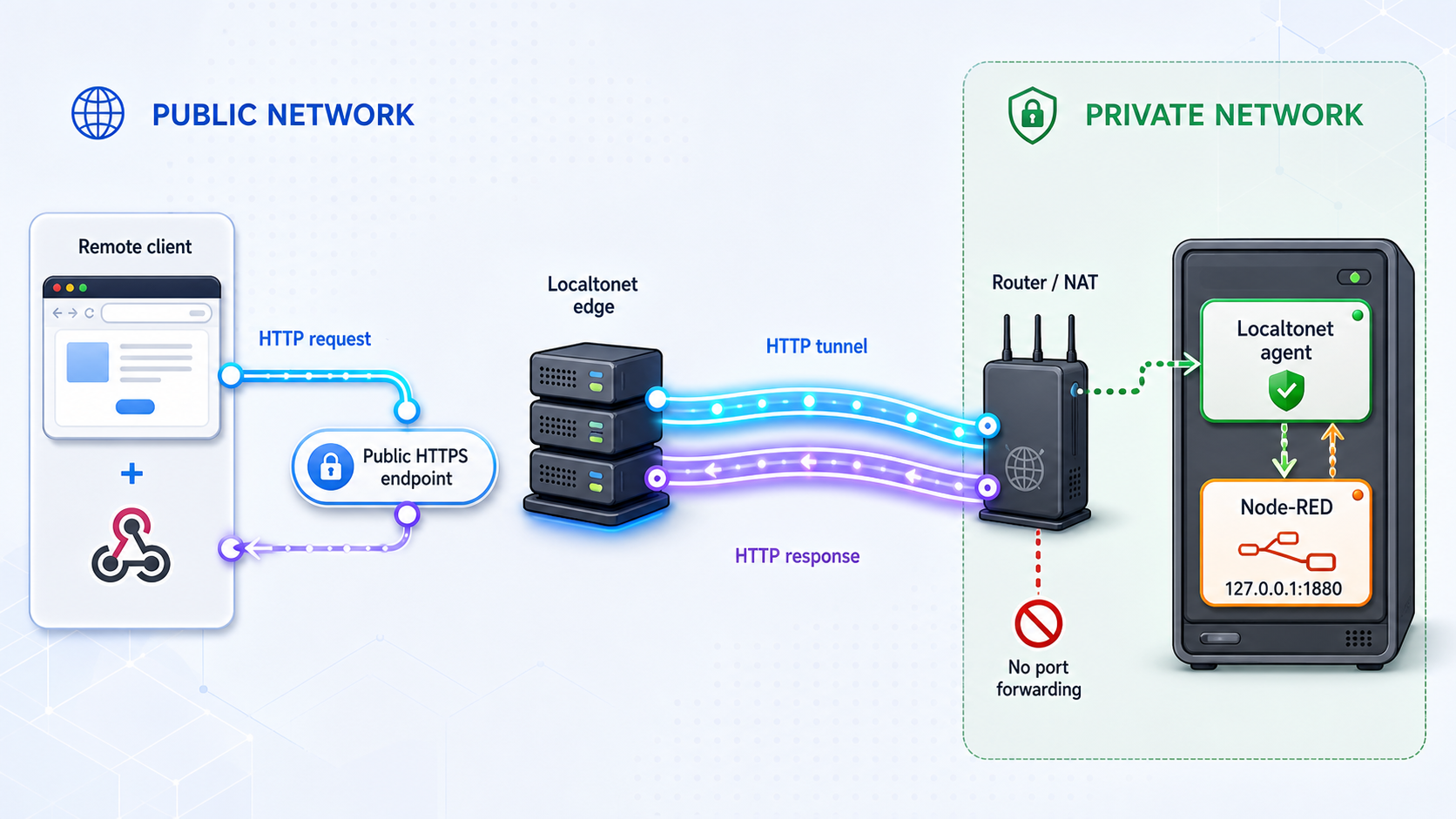
With Localtonet, the client application on the device establishes an outbound connection to a Localtonet relay server. You do not need inbound router port forwarding, a public IP address, firewall changes for an inbound public port, or a separate VPN setup. Public HTTP traffic reaches the Localtonet relay, HTTPS is terminated at the tunnel edge, and the request is forwarded through the established tunnel to the configured local Node-RED target.
The tunnel does not replace Node-RED authentication or webhook verification. Editor users still need strong Node-RED authentication plus any applicable Localtonet access controls. Webhook senders need an access method they support, normally route-specific signature verification or another documented provider-compatible mechanism.
127.0.0.1:1880 when both applications share a host.
Use the current Localtonet application and dashboard rather than copying unverified CLI commands, service flags, download paths, relay codes, or hostname patterns from an old tutorial. Available servers, process options, and plan-dependent controls can change.
Install and run the Localtonet client
Install the Localtonet client for the operating system on the device that can reach Node-RED. Start the client and confirm that the device is connected. Use the current installation option shown by Localtonet for your platform rather than an unverified command copied from another page.
Select the device-specific authentication token
In the dashboard, select the token that identifies the connected client device. Tokens are device-specific secrets. Never print one in an article, paste one into a public issue, or include one in a command line unless an official, security-reviewed workflow explicitly requires it.
Select an available relay server
Choose a relay server or region from the values currently offered in your dashboard. Do not hardcode a server code from a tutorial because availability can vary by plan, region, and product configuration.
Create an HTTP tunnel and choose its process type
Choose the HTTP tunnel family. Select the appropriate process type: Random Sub Domain, Custom Sub Domain, or Custom Domain. All provide a public HTTPS address for the same configured content, but availability and custom-domain requirements must be checked in the current dashboard and documentation.
Set the local Node-RED target
Enter an IP address reachable from the selected Localtonet client and Node-RED's listening port, normally 1880. Use 127.0.0.1 only when Node-RED is reachable on the same host as the client. If the client is on another LAN device, use a reachable private address and restrict network access appropriately.
Create and explicitly start the tunnel
Save or create the configured tunnel, then select Start. Creating a tunnel does not mean it is running. Confirm that both the selected client device and the tunnel show a connected or running state.
Verify the assigned public HTTPS URL
Use the exact public URL displayed by the dashboard. First test the authenticated editor if remote administration is intended. Then append the precise webhook path, such as /webhook-test, and send non-secret sample data. Do not assume a hostname format or invent a subdomain.
The tunnel is available only while the selected client remains connected and the tunnel remains running. A healthy Node-RED process is also required. If any of those components stops, the public endpoint cannot deliver requests to the application.
If the goal is webhook ingress, avoid exposing the administrative editor unless remote editor access is genuinely required and its access controls have been reviewed. Apply supported Localtonet access controls where they are compatible with the intended clients, keep Node-RED authentication enabled, and validate every webhook at the application route.
When the public endpoint is no longer required, stop the tunnel. Delete it if you do not intend to reuse it. Stopping Node-RED alone is not a substitute for cleaning up an unnecessary public configuration.
Back up, restore, monitor, and upgrade safely
Back up the complete user directory
Do not back up only a presumed flows.json file. Exact flow filenames can vary with configuration, and a working deployment may also depend on encrypted credential data, settings.js, installed-node metadata, project files, package manifests, local certificates, and other files in the user directory.
Back up the complete active user directory identified in the startup log. For Docker, back up the persistent data stored at /data. A consistent backup is best taken while writes are quiesced according to your operating procedure. Protect the backup as sensitive because it may contain credentials, hashes, connection details, and application data.
Encrypted Node-RED credentials may depend on the configured credentialSecret and related user-directory files. A flow file without the corresponding credentials file and encryption material may restore the diagram but not usable secrets. Keep encryption material protected, include all required files in the backup, and test restoration to an isolated instance.
Test restoration instead of assuming the archive works
Record the known-good versions
Record the Node-RED version, Node.js version or container image reference, installed nodes, active user-directory path, startup method, and tunnel target.
Create a protected backup
Capture the complete user directory or Docker volume using your approved backup tooling. Store it outside the host and apply access controls appropriate to its secrets.
Restore into isolation
Restore to a separate test host or volume that cannot accidentally operate production devices, send real notifications, or accept live public traffic.
Verify flows and credentials
Start the matching runtime, confirm flows load, verify required nodes, test authentication, and validate selected credentials without exposing secret values.
Document recovery time and gaps
Record how long restoration took, which external services required reauthorization, and which data created after the backup was unavailable.
Use controlled upgrades and a defined rollback
Before upgrading, read the Node-RED release notes, confirm Node.js compatibility, review compatibility for installed community nodes, create a tested backup, and capture the current package or image versions. Schedule the change when you can test local flows and public routes.
For Docker, pull the new explicit image reference without deleting the existing data volume or old image. Start the new version against a backup or test copy first when practical. Verify logs, editor authentication, a minimal flow, webhook responses, and persistence after restart. Keep the previous image reference available so rollback means restoring the prior image and, if the upgrade changed stored data incompatibly, restoring the corresponding pre-upgrade data backup.
For npm or installer-based deployments, record the currently installed Node-RED and Node.js versions before changing either one. Do not upgrade Node.js independently without checking Node-RED support, and do not assume an npm downgrade alone reverses user-directory migrations. Restore the matching pre-upgrade backup when rollback requires it.
Monitor the whole request path
- Check that the Node-RED process or container remains running.
- Review startup and runtime logs for repeated crashes, missing nodes, credential failures, and rejected requests.
- Monitor host CPU, memory, free disk space, storage health, and time synchronization.
- Confirm the selected Localtonet client remains connected and the required tunnel remains running.
- Track webhook acceptance, rejection, processing latency, duplicate event handling, and downstream failures without logging secrets.
- Periodically test an authenticated editor login and a synthetic non-secret webhook event.
- Review public tunnels and remove configurations that are no longer required.
Troubleshoot Node-RED, tunnel, authentication, and webhook failures
Diagnose from the inside out. First establish whether Node-RED works locally. Then verify authentication and the exact local route. Only after those pass should you investigate the Localtonet client, tunnel state, public URL, DNS, or webhook provider.
| Symptom | Likely layer | Checks and corrective action |
|---|---|---|
| Node-RED exits during startup | Runtime or configuration | Read the first fatal log entry. Confirm Node.js compatibility, syntax in settings.js, user-directory permissions, installed-node compatibility, and free disk space. |
EADDRINUSE on port 1880 |
Host socket | Another process already owns the port. Identify it with operating-system tools, stop the unintended process, or deliberately configure a different Node-RED port and update the tunnel target. |
| Editor opens locally without a login | Node-RED authentication | Confirm that you edited the active settings.js, that adminAuth syntax is valid, and that Node-RED fully restarted. Check the user directory reported at startup. |
Webhook returns 401 after enabling httpNodeAuth |
HTTP-node authentication | The sender may not support the configured basic-auth credentials. Decide whether global HTTP authentication is compatible or whether the route should use the provider's documented signature method. |
| Webhook works with curl but the provider reports signature failure | Provider validation | Confirm the correct signing secret, exact public URL, timestamp tolerance, signature header, and raw-body requirements. Do not log the secret or full sensitive payload. |
| Provider sends the same event more than once | Webhook delivery behavior | Retries are normal for many providers. Store and check a stable event or transaction identifier, make processing idempotent, and return success promptly after durable acceptance. |
| Docker container restarts with missing flows | Persistence | Inspect the Compose configuration and mounted volume. Confirm /data is persistent and that the running container uses the expected volume. Restore from the tested backup if data was lost. |
| Node-RED works locally but the public URL does not | Localtonet lifecycle or target | Confirm the selected client is connected, the tunnel was explicitly started, and the local IP and port are reachable from that client. Creating the tunnel alone is not enough. |
| Public root works but the webhook is 404 | Route path | Check the exact deployed HTTP In path, capitalization, prefix settings, and webhook-provider URL. Test the same path locally before testing the public URL. |
| Public URL shows an authentication prompt that the provider cannot answer | Tunnel or application access control | Review whether browser-oriented access control was applied to a machine-to-machine webhook. Use sender-compatible controls without weakening editor authentication. |
| Container is running but localhost does not respond | Container binding or application startup | Check docker compose ps, container logs, the published host address, and whether Node-RED completed startup. A running container is not proof that the application is healthy. |
| Service does not return after reboot | Startup supervision | Confirm that the intended service or container runtime starts on boot, uses the correct account and user directory, and can access persistent data. Review boot-time logs rather than starting a second manual process. |
Test the Node-RED process, local editor, local webhook route, authentication, Localtonet client, tunnel state, public URL, and provider delivery in that order. Changing several layers at once makes the original failure harder to identify.
Frequently asked questions
Which Node.js version does Node-RED require?
The answer depends on the Node-RED release. Check the current Node-RED support matrix before installing or upgrading, then choose a maintained Node.js release supported by that Node-RED version. Do not rely on a tutorial that broadly says a particular major version is always required.
What port does Node-RED use by default?
A default Node-RED runtime commonly listens on port 1880. The listening address and port can be changed in configuration, so confirm the actual URL in the startup log. A Localtonet tunnel must target the address and port reachable from its selected client.
Does adminAuth also protect Node-RED webhooks?
No. adminAuth protects the editor and administrative API. HTTP In routes require their own access model. You can use global httpNodeAuth when all clients support it, or implement route-specific provider authentication and signature validation for webhook endpoints.
Why can global httpNodeAuth break a webhook?
httpNodeAuth places basic authentication in front of HTTP node routes. A webhook provider that cannot send those credentials receives an authentication failure before the flow processes its event. Confirm sender compatibility and use the provider's documented signing method when that is the appropriate route-level control.
Can I run Node-RED on a Raspberry Pi?
Yes, provided the selected operating system, Node.js version, and Node-RED release are compatible. Actual suitability depends on flow complexity, message rate, installed nodes, storage, connected services, and other workloads. Measure CPU, memory, disk use, and responsiveness under realistic conditions instead of relying only on the Raspberry Pi model number.
Is Docker always the best production installation method?
No installation method is universally best. Docker is useful when you can pin and maintain images, persist /data, manage volume permissions, collect logs, and test rollback. A supervised host installation can also be appropriate. Choose the method your operators can securely maintain and recover.
How should I back up Node-RED?
Back up the complete active Node-RED user directory, not only a flow file. Include the files required for flows, encrypted credentials, settings, installed nodes, and projects. Protect the backup as sensitive, retain the applicable credentialSecret or encryption material, and prove recovery by restoring to an isolated test instance.
How does Localtonet make Node-RED remotely reachable?
The Localtonet client establishes an outbound connection from the selected device to a Localtonet relay server. An HTTP tunnel provides a public HTTPS URL and forwards requests through that connection to the configured Node-RED address and port. The endpoint works only while the client is connected, the tunnel is running, and Node-RED is available.
Does the Localtonet HTTPS URL replace Node-RED authentication?
No. HTTPS protects transport to the tunnel edge, but it does not decide who may use the Node-RED editor or whether a webhook event is legitimate. Keep adminAuth enabled for editor access, apply appropriate Localtonet access controls where compatible, and validate webhook senders at the route.
Should I expose the entire Node-RED editor for one webhook?
Prefer the smallest practical public surface. If only a webhook route is required, review whether the editor needs to be reachable through the same public tunnel at all. If remote editor access is required, protect it with strong Node-RED authentication and applicable tunnel access controls, then test unauthorized and authorized access separately.
Publish your tested Node-RED endpoint with Localtonet
After Node-RED works locally, editor authentication is enabled, and your webhook validation has been tested, create an HTTP tunnel that targets the Node-RED address reachable from your Localtonet client. Select a current relay server, start the tunnel explicitly, verify the assigned public HTTPS URL, and stop or delete the tunnel when it is no longer needed.
Get Started Free →

