

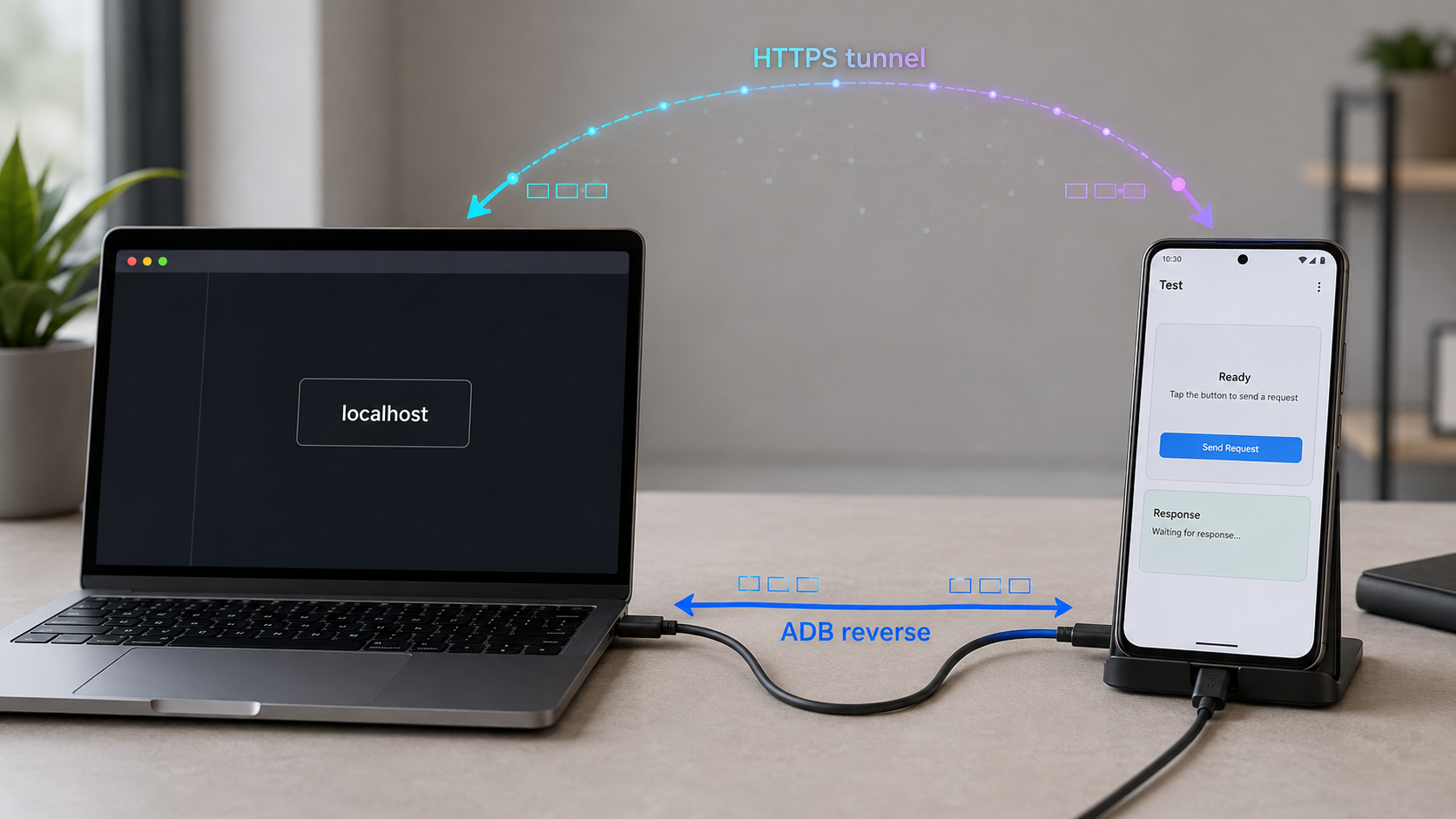
Connect Android and iOS test builds to a backend running on your development machine
A physical phone cannot use your computer's localhost address because localhost always refers to the device making the request. This guide compares three practical connection methods: a local network address, ADB reverse for Android, and a Localtonet HTTP tunnel. You will prepare and verify the backend, account for Android and iOS network policies, configure Expo or Flutter safely, test from a real device, diagnose failures, and close public access when the session ends.
📋 What's in this guide
Why localhost fails on a physical phone
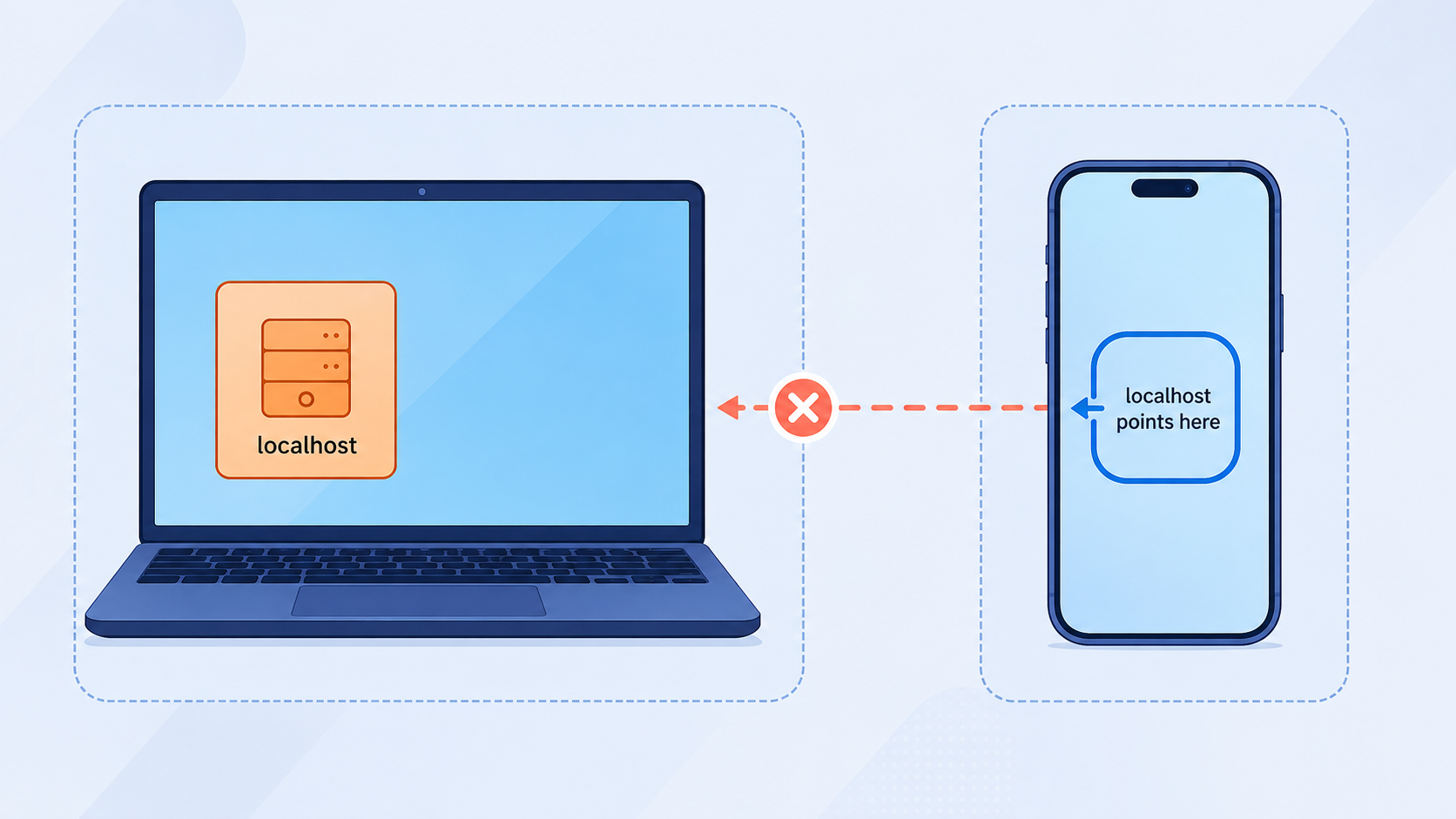
The loopback names localhost and 127.0.0.1 always refer to the machine on which the requesting program is running. If your backend listens at http://localhost:3000 on your laptop, that address works from a browser, command-line client, or application running on the laptop.
The meaning changes when a mobile app sends the request. On a physical Android phone or iPhone, localhost:3000 points to port 3000 on the phone itself. It does not point across Wi-Fi or USB to your development computer. Unless the backend also runs on the phone, the connection will be refused or time out.
App using localhost
Physical phone → 127.0.0.1 on the phone → no backend

Local network address
Physical phone → Wi-Fi or Ethernet LAN → development computer → backend

ADB reverse
Android app → active ADB transport → development computer → backend

Localtonet HTTP tunnel
Mobile app → assigned public HTTPS URL → Localtonet relay
           → connected Localtonet client → local backend
Emulator shortcuts should not be generalized to physical devices or to every emulator product. The standard Android Emulator commonly exposes the development host through 10.0.2.2. Other Android emulators can use different networking behavior. The iOS Simulator runs on macOS and can often reach services on the Mac through localhost, but a physical iPhone has its own network stack.
The phone also needs an installable app or a suitable development delivery workflow. Depending on the project, that may be an Android debug build, an iOS development build, an Expo development workflow, Flutter tooling, or an approved QA distribution method. A public backend URL does not install or deliver the mobile app.
Prerequisites and backend preparation
Start with a backend that is known to work locally. Tunneling or forwarding cannot repair an application that has not started, is listening on the wrong port, is waiting for a database, or fails during authentication. Record the API port and identify one lightweight endpoint that can be used as a health check.
Verify the backend before changing the mobile app
Use the actual port and an endpoint that exists in your project. For example, if the backend has a /health route on port 3000, test it on the development machine:
curl -i http://127.0.0.1:3000/healthA successful status code and expected response establish a baseline. If this request fails, inspect the backend process, configured port, dependency services, and logs before working on mobile connectivity.
Also decide whether the selected route requires authentication. A public health route should reveal as little as possible. Business endpoints should continue to require the same application authentication and authorization that they require in any other environment.
Know which interface the backend uses
Interface binding matters for LAN testing. A backend bound only to 127.0.0.1 accepts requests originating on the development computer but normally rejects requests addressed to the computer's LAN interface. To test directly over the local network, configure the development server to listen on a reachable interface according to that framework's documentation, commonly 0.0.0.0, and keep the host firewall restricted to the required port and trusted network.
A Localtonet client running on the same computer can normally target a backend at 127.0.0.1. You do not need to broaden the backend's LAN binding solely for that same-machine tunnel path.
The mobile app should call defined API endpoints rather than connect directly to a database. Do not point a tunnel at database ports, development debuggers, unrestricted administration panels, or services that assume they are private. Review the exposed API surface before continuing.
Compare the three connection methods
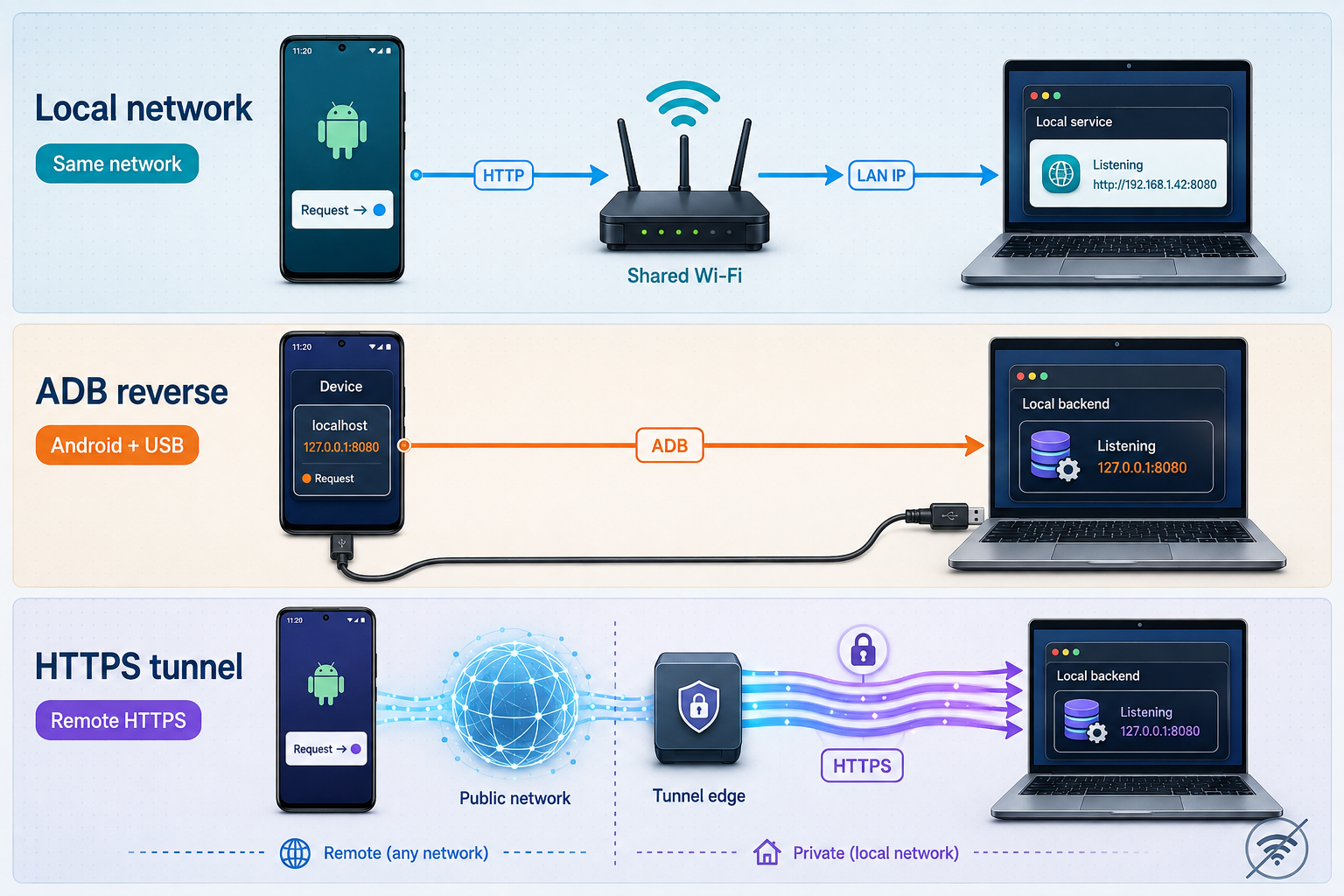
No single approach is correct for every test. A local network address is simple when the phone and computer can communicate directly. ADB reverse is convenient for an Android device attached through a supported ADB transport. A Localtonet HTTP tunnel is useful when the device is on another network, when direct LAN traffic is isolated, or when a remote tester needs to reach the development API.
| Method | Best suited to | Requirements | Important failure conditions |
|---|---|---|---|
| Local network address | Fast testing on a trusted shared LAN | Reachable backend binding, phone-to-computer network path, and host firewall permission | Client isolation, guest Wi-Fi rules, changed IP address, blocked port, or different networks |
| ADB reverse | Local Android development with an authorized ADB connection | Android platform tools, developer options, debugging authorization, and an active USB or supported wireless ADB transport | Disconnected transport, revoked authorization, wrong port mapping, or unavailable ADB tooling |
| Localtonet HTTP tunnel | Android or iOS testing through a public HTTPS address, including remote QA | Running backend, connected Localtonet client, configured and started tunnel, internet access, and relay connectivity | Stopped backend, disconnected client, stopped tunnel, connectivity loss, incorrect target, or application security rejection |
A Localtonet tunnel removes the same-LAN dependency, but it is not a guarantee that every network will permit every connection. Device internet access, DNS resolution, application trust policies, the Localtonet relay connection, the client, the tunnel, and the backend must all remain available. Managed networks can also impose their own filtering policies.
Approach 1: Connect through the local network
With this method, the app calls the development computer's private LAN address instead of localhost. Both devices must have a route to each other. Being connected to Wi-Fi with the same visible network name does not always guarantee that route because guest and enterprise networks may isolate clients.
Find the development computer's address
Use the command appropriate for the operating system. Select the IPv4 address belonging to the active interface that shares a reachable network with the phone. Private IPv4 ranges include 10.0.0.0/8, 172.16.0.0/12, and 192.168.0.0/16.
# macOS, when Wi-Fi is en0
ipconfig getifaddr en0

# Linux
ip -4 address

# Windows PowerShell
Get-NetIPConfiguration
Interface names differ by machine. On macOS, Wi-Fi is not guaranteed to be en0. On Linux, inspect the active Ethernet or wireless interface rather than copying the first address. On Windows, identify the active adapter and its IPv4 address instead of filtering for only 192.168.*, which would miss other valid private ranges.
Bind the backend to a reachable interface
Follow your framework's documented development-server setting to listen on the LAN interface. Do not copy a startup flag from an unrelated framework. After changing the binding, repeat the local check with both loopback and the selected LAN address:
curl -i http://127.0.0.1:3000/health
curl -i http://YOUR_LAN_IP:3000/health
Replace YOUR_LAN_IP and the route with real values. If loopback succeeds but the LAN request fails on the same computer, the likely causes are interface binding or the host firewall. Permit only the required development port on an appropriate trusted-network profile.
Test from the phone before changing application code
Open the LAN health URL in the phone's browser. This separates basic reachability from mobile application behavior. If the browser cannot connect, changing React Native, Expo, or Flutter code will not fix the underlying route.
Once the browser check succeeds, set the development API base URL to the LAN address. Do not commit a developer-specific IP as the production default. Private addresses can change when a router renews a lease, the computer switches interfaces, or the developer moves to another network.
Android cleartext considerations
Android cleartext behavior depends on the app's target API level and its network security configuration. Applications targeting Android 9, API level 28, or later default to disallowing cleartext traffic unless the application explicitly opts in. Libraries can also enforce additional transport rules.
A raw IP address cannot simply be inserted as a domain in a domain-specific Network Security Configuration and assumed to work. If plain HTTP is unavoidable for LAN development, use a deliberately debug-only configuration supported by your Android project, such as a debug manifest or debug network security base configuration. Keep that exception out of release builds. Prefer an HTTPS endpoint when testing behavior that should resemble production.
A global cleartext exception broadens what the application can contact without transport protection. If a development-only exception is necessary, isolate it to the debug variant and verify the release manifest does not inherit it.
iOS local-network and transport considerations
An iOS app that directly accesses devices on the local network can encounter the system's local-network privacy controls. Provide the required local-network usage description when the app's behavior requires it, and test both the allowed and denied states. If the user denies access, a LAN URL can fail even while Safari or other internet access works.
App Transport Security also affects insecure HTTP connections. Do not assume a numeric LAN address will be accepted. Prefer HTTPS where practical. If the project needs a development exception, keep it narrowly scoped and separate from the release configuration. Features that depend on secure origins, trusted certificates, or origin identity are not fully represented by a plain HTTP LAN test.
Approach 2: Use ADB reverse on Android
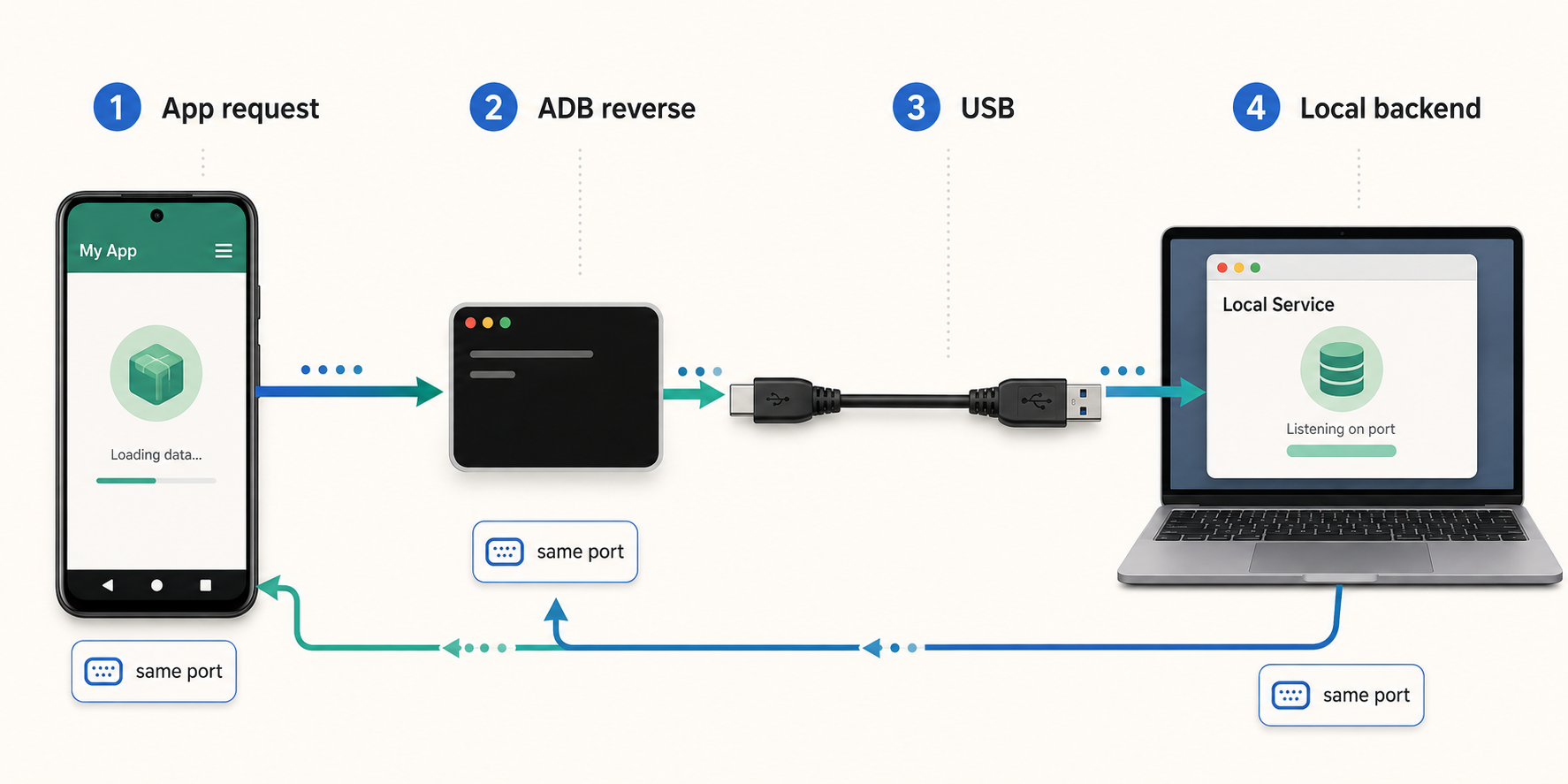
ADB reverse maps a TCP port on an Android device back to a TCP port on the development computer. The app can then request localhost on the mapped device port, and ADB carries that connection to the host.
This method requires Android SDK Platform Tools, developer options, debugging authorization for the computer, and a device visible to ADB. USB is a common transport, but ADB is not inherently USB-only. Supported Android versions and tools also provide wireless debugging workflows. Pair and connect the device using the platform's documented wireless-debugging process before creating the reverse mapping. Availability can vary by device, Android version, and development environment.
Start and locally verify the backend
Confirm the service responds on the development computer at the intended loopback port.
Connect and authorize the Android device
Enable the required developer and debugging settings. Connect through USB or complete a supported wireless-debugging pairing and connection.
Confirm that ADB sees the device
Run adb devices. The device should appear as authorized rather than offline or unauthorized.
Create the reverse port mapping
Map the device port to the same backend port on the host, or choose explicit different ports if the project requires them.
Verify and use the mapping
List active mappings, set the Android development build's base URL to the mapped localhost address, and watch the backend logs while making a request.
adb devices
adb reverse tcp:3000 tcp:3000
adb reverse --list
After the mapping is active, the Android app can use http://localhost:3000 for that port. ADB reverse does not provide a public endpoint, does not help an iOS device, and does not make the backend available to a remote tester.
Android application transport policy still matters. Do not assume that forwarding automatically overrides cleartext restrictions imposed by the application or one of its networking libraries.
Remove the mapping when finished:
adb reverse --remove tcp:3000
Use adb reverse --remove-all only when you intend to remove every reverse mapping associated with that device.
Approach 3: Create a Localtonet HTTP tunnel
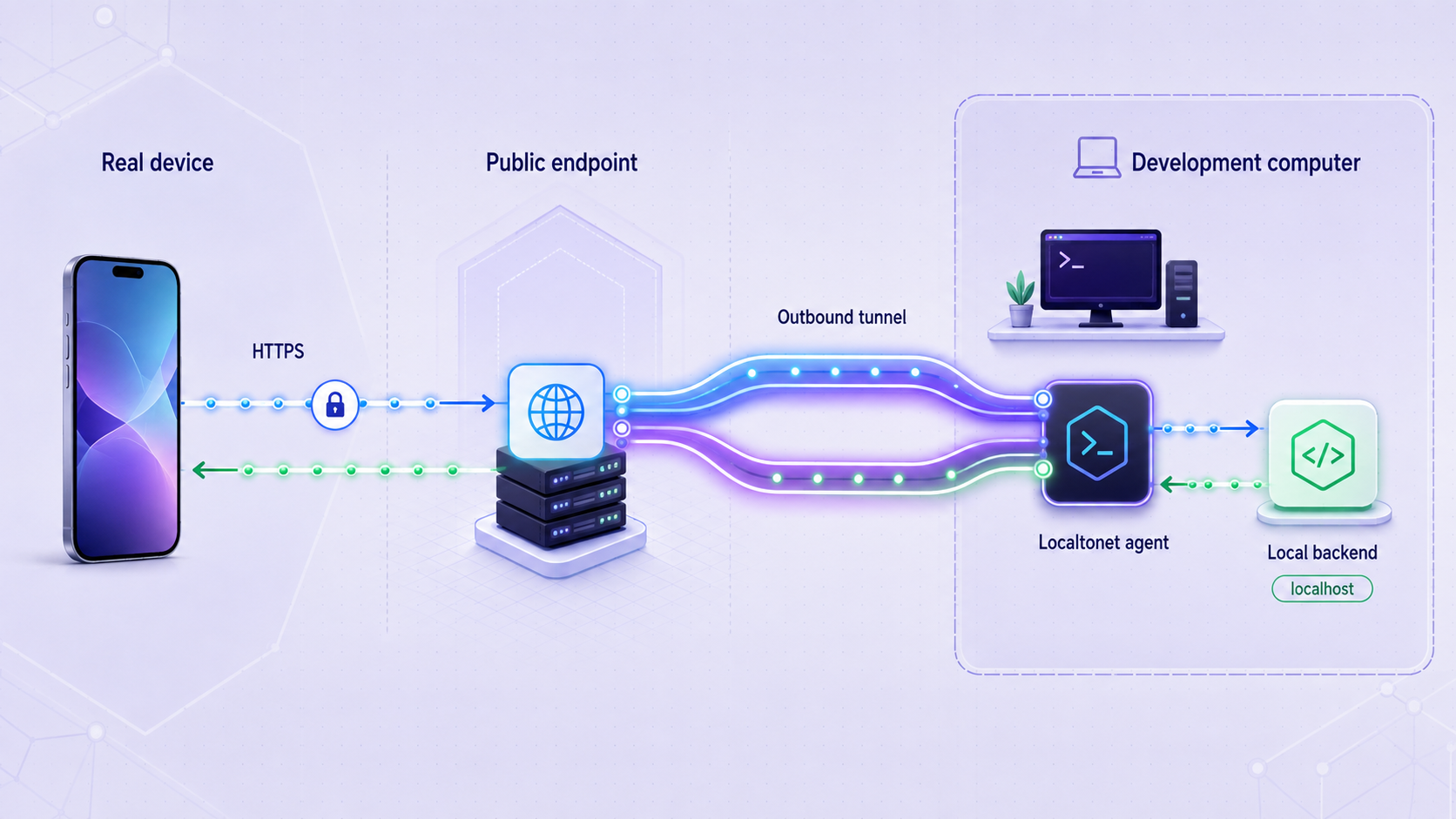
A Localtonet HTTP tunnel gives the local service a public HTTPS address. The Localtonet client on the development computer establishes an outbound connection to our relay. Requests to the assigned public URL travel through that connection to the configured local IP address and port, so inbound router port forwarding, a public IP address, and direct phone-to-laptop LAN connectivity are not required.
Creating a tunnel does not mean it is running. You must start it explicitly. It remains available only while the backend, selected Localtonet client, its internet connection, relay connectivity, and the tunnel itself remain active.
The exact relay choices and options available to an account can vary. Select current values from the dashboard rather than copying a server code or region from an article. For the current public workflow, consult the Localtonet HTTP tunnel documentation.
Start and verify the local backend
Run the API on the development computer. Record its local IP and port, then confirm the selected health or test endpoint responds through loopback.
Install and run the Localtonet client
Install the Localtonet application for the operating system that can reach the backend, then keep the client running for the entire test session.
Authenticate the client device
Authenticate using the device-specific token supplied through your Localtonet account workflow. Treat the token as a secret. Never place it in source code, screenshots, logs, tickets, chat messages, or the mobile application.
Create an HTTP tunnel configuration
Open the HTTP tunnel configuration and select the appropriate HTTP process type offered by the current dashboard. The process type controls the public address choice, not the local API content.
Select the connected device token and relay
Choose the AuthToken for the computer running the client. Select an available relay server or region from the current dashboard. Do not hardcode or guess a server code.
Enter the local target
If the client and backend run on the same computer, use 127.0.0.1 and the backend's actual port. If the client runs elsewhere, the target must be an address and port that the client device can reach.
Create the tunnel
Save or create the HTTP tunnel configuration. At this point the configuration exists, but do not assume that it is accepting traffic.
Start the tunnel
Use the Start control and confirm that the tunnel and selected client show a connected state. Copy the public HTTPS URL assigned to this tunnel. Do not substitute a sample hostname from a tutorial.
Verify the URL before configuring the app
Request the assigned URL from the development computer and then from the phone. Add the same existing health-path suffix when the API uses one. Confirm both requests appear in the backend logs.
Do not assume that an assigned URL is permanent or that a particular subdomain, custom-domain option, relay, or other capability is included in every plan. Use the exact address shown for the current tunnel and avoid hardcoding it into a release build.
A public HTTPS address is not an authentication system. Keep API authentication and authorization enabled, use non-production data, limit test-account permissions, review exposed routes, monitor logs, and stop or delete the tunnel when testing ends.
Configure React Native, Expo, and Flutter safely
Keep the API base URL in development configuration rather than scattering it through screens and service classes. The base URL is not normally a secret because a mobile client must know where to send requests. Authentication tokens, signing keys, database passwords, Localtonet device tokens, and private service credentials are secrets and must never be embedded in the app bundle.
React Native configuration
A plain React Native project can import the base URL from one configuration module. The mechanism used to supply the value depends on the project's build tooling, so the following example expects an existing environment integration rather than claiming that React Native loads operating-system variables automatically:
// apiConfig.js
const configuredUrl = process.env.API_BASE_URL;

if (!configuredUrl) {
  throw new Error('API_BASE_URL is required for this build');
}

export const API_BASE_URL = configuredUrl.replace(/\/$/, '');
Confirm that the environment package or bundler configuration used by your project actually replaces this value. Many mobile builds compile configuration into the bundle. Changing a shell variable after the build does not necessarily update an already installed app.
Expo public environment variables
Current Expo workflows support variables prefixed with EXPO_PUBLIC_. Expo loads supported environment files and inlines references written with dot notation, such as process.env.EXPO_PUBLIC_API_URL, into client-side JavaScript.
# .env.local
EXPO_PUBLIC_API_URL=PASTE_ASSIGNED_HTTPS_URL_HERE
const apiBaseUrl = process.env.EXPO_PUBLIC_API_URL;
if (!apiBaseUrl) {
throw new Error('EXPO_PUBLIC_API_URL is required');
}
export const API_BASE_URL = apiBaseUrl.replace(/\/$/, '');
Restart or reload the development workflow after changing the value, and verify the installed or running app received it. Do not place secrets in any EXPO_PUBLIC_ variable. The name indicates that the value is intended to be readable in client code.
Expo's JavaScript development server and your backend API are separate services. Exposing the API does not automatically deliver the app bundle to a remote tester. The tester still needs a compatible Expo development workflow or an installable development build.
Flutter compile-time definitions
In Flutter, String.fromEnvironment reads a compile-time declaration. It does not read a runtime operating-system environment variable from the phone. Supply the value when building or running the application with --dart-define.
class ApiConfig {
  static const String baseUrl = String.fromEnvironment(
    'API_BASE_URL',
  );
}
flutter run --dart-define=API_BASE_URL=PASTE_ASSIGNED_HTTPS_URL_HERE
The command has the same general form on supported development platforms, although shell quoting rules can differ. If the URL changes, rebuild or rerun the app with the new definition. Do not use --dart-define to hide a secret because compiled client values can be recovered from the application.
CORS, browser origins, and authentication redirects
Native HTTP clients are generally not governed by browser CORS enforcement, but browser-based applications, Expo web builds, embedded web content, and some hybrid frameworks can be. If a browser reports a CORS error, allow the exact development origin that sends the request. Do not reflexively allow every origin, especially when credentials or cookies are enabled.
The API destination and browser origin are different concepts. Inspect the request's Origin header before editing the backend allowlist. If authentication uses redirect URIs, cookie domains, WebAuthn relying-party identifiers, or an external identity provider, update only the required development callback and origin settings. A changed public URL can otherwise reach the API successfully but still fail login.
Cookie-based authentication also needs deliberate testing. Secure, SameSite, domain, and path attributes can behave differently when the app or browser uses a new HTTPS origin. Do not disable these protections globally to make a single development test pass.
Protect a development API before publishing it
A tunnel changes the reachability of the selected service. Routes that were previously reachable only from the development computer can receive internet traffic while the tunnel is running. Treat the URL as public even if you share it with only one tester.
A device token identifies the client that runs the tunnel. It belongs in the Localtonet client authentication workflow, not in application configuration. The mobile app needs only the assigned API base URL and its own test authentication credentials.
Avoid returning stack traces, source paths, environment dumps, secret values, or database connection details in API responses. Logs can contain sensitive headers and request bodies too, so redact authorization tokens and personal information before sharing logs with a tester or attaching them to an issue.
If a remote QA tester is involved, provide an installable build or supported development delivery workflow, the assigned URL through an appropriate channel, a least-privilege test account, expected test times, and a contact for reporting unexpected behavior. Stop access as soon as the agreed testing window ends.
Verify the complete path on a real device
Test each layer in order. This approach prevents a mobile UI symptom from hiding the actual failure point.
Verify loopback on the development computer
Request the health or test endpoint through 127.0.0.1. Confirm the expected status and response body.
Verify the selected transport
For LAN, request the private address. For ADB, confirm the device and reverse mapping. For Localtonet, confirm the client and tunnel are connected and request the assigned HTTPS URL from the computer.
Open the endpoint from the phone
Use the phone browser for a simple route where appropriate. Test on the intended Wi-Fi or mobile-data connection and verify the request appears in backend logs.
Confirm the app's effective base URL
Use a safe development diagnostic or build information screen that does not reveal secrets. Ensure the running build received the current URL rather than a cached localhost or production value.
Exercise authenticated application flows
Sign in with a test account and verify representative read, create, update, upload, and logout operations that are relevant to the app.
Test failure behavior
Stop the backend briefly or disable connectivity in a controlled test. Confirm the app displays a useful error, respects timeouts, avoids unsafe duplicate writes, and can recover after connectivity returns.
Review logs and stored data
Confirm requests used the expected identity and authorization, errors did not expose secrets, and writes affected only the intended development records.
Real-device test matrix
| Test area | What to perform | What to record |
|---|---|---|
| Device and build | Install and launch the intended development or QA build | Device model, OS version, app version, build type |
| Connectivity | Test the intended Wi-Fi and, when relevant, mobile data | Network type, time, URL method, connection changes |
| Authentication | Sign in, refresh a session, sign out, and test an unauthorized request | Status codes, user-visible errors, unexpected redirects |
| Core API operations | Exercise representative reads and permitted writes | Expected result, actual result, affected test records |
| Interruption | Background and resume the app, then switch offline and online | Timeout behavior, retries, duplicate requests, recovery |
| Permissions | Test accepted and denied local-network or other relevant permissions | Prompt behavior and clarity of fallback messages |
| Security | Attempt protected actions with a lower-privilege test account | Authorization response and absence of restricted data |
| Observability | Match device actions to backend requests and errors | Timestamp, request identifier, endpoint, sanitized diagnostics |
Troubleshoot common connection failures
Error messages such as “Network request failed” often combine many possible causes. Work from the backend outward and use both device-side diagnostics and server logs.
| Symptom | Likely cause | What to check |
|---|---|---|
| Loopback health check fails | Backend stopped, wrong port, startup error, or missing dependency | Process output, configured port, database availability, and application logs |
| LAN request fails but loopback works | Backend bound only to loopback or host firewall blocks the port | Listening interface, active LAN address, firewall profile, and phone-to-host routing |
| Phone browser cannot reach the LAN URL | Client isolation, different networks, stale IP, or iOS local-network permission | Current addresses, guest-network rules, permission status, and direct route |
| Android reports cleartext traffic is not permitted | HTTP blocked by the app's transport policy | Target API level, debug manifest, Network Security Configuration, and whether HTTPS can be used |
| ADB device is unauthorized or offline | Debugging approval missing or transport disconnected | Device authorization prompt, cable, wireless pairing, ADB server, and adb devices |
| ADB mapping exists but the request fails | Wrong port, backend stopped, or app transport policy rejection | adb reverse --list, backend loopback test, app logs, and exact base URL |
| Localtonet URL returns a connection or gateway error | Client disconnected, tunnel stopped, wrong local target, or backend unavailable | Client state, tunnel state, selected token, target IP and port, local health check, and relay connectivity |
| Browser works but the app fails | Old build configuration, TLS policy, app authentication, or client-library behavior | Effective app base URL, rebuild status, device logs, request headers, and backend logs |
| API responds but login fails | Redirect URI, cookie, origin, CORS, or identity-provider mismatch | Configured development callbacks, exact browser origin, cookie attributes, and authentication logs |
| Request times out intermittently | Network changes, sleeping computer, overloaded backend, connectivity loss, or timeout too short | Phone network, computer power state, client connection, request duration, dependency latency, and retry behavior |
| Remote QA cannot test | No installable app, expired build, missing test account, stopped tunnel, or blocked network | App delivery method, signing, account permissions, tunnel state, URL, and tester's internet access |
Use status codes to narrow the problem
A timeout or DNS error usually indicates that the request did not reach the application. A 401 response usually means the backend was reached but authentication is absent or invalid. A 403 indicates that the authenticated identity is not allowed to perform the action. A 404 can indicate an incorrect path or routing prefix. A 500 indicates that the request reached the application and triggered a server-side failure.
Confirm this interpretation against your own backend because applications can customize status behavior. Always correlate the phone's timestamp with server logs and a sanitized request identifier when available.
Watch for stale mobile configuration
Mobile development tools can retain values in a JavaScript bundle, native build setting, compiled Dart definition, application cache, or installed binary. If the logs show no request after changing the base URL, print or display a sanitized version of the effective URL in development, restart the relevant bundler, rebuild when necessary, and reinstall the app if the old configuration persists.
Stop access and clean up after testing
Development access should have an explicit end. Do not leave a public tunnel running because a test might resume later.
Finish and save diagnostics
Record device details, build version, timestamps, expected and actual results, and sanitized request identifiers. Remove secrets and personal data from shared reports.
Stop or delete the Localtonet tunnel
Use Stop when the configuration will be reused later, or delete it when it is no longer needed. Verify that the public endpoint no longer reaches the local backend.
Remove temporary forwarding and firewall access
Remove ADB reverse mappings and close temporary host firewall rules that were created for LAN testing.
Remove temporary application access
Disable unneeded test accounts, revoke temporary sessions, and remove development callback URLs or origin allowlist entries that should not remain active.
Restore safe build configuration
Confirm release builds use the intended production API configuration and do not contain temporary cleartext exceptions, developer IP addresses, tunnel URLs, credentials, or Localtonet tokens.
Frequently asked questions
Why can my phone not connect to the backend through localhost?
Localhost refers to the device making the request. In a physical mobile app, it points to the phone rather than your development computer. Use a reachable LAN address, an ADB reverse mapping on Android, or a public tunnel URL.
Does a Localtonet tunnel keep working after I close my laptop?
No. The local backend, the selected Localtonet client, its network connection, relay connectivity, and the tunnel must remain available. Sleeping or shutting down the computer interrupts the path to the local service.
Can I share the assigned URL with a remote QA tester?
You can use the assigned public URL for authorized remote testing while the tunnel is running. The tester also needs an installable app or compatible development delivery workflow and a least-privilege test account. Use non-production data, monitor the session, and stop or delete the tunnel afterward.
Is Android cleartext HTTP always blocked on Android 9 and later?
The default depends on the application's target API level and configuration. Apps targeting API level 28 or later default to disallowing cleartext traffic, but manifests, Network Security Configuration, and networking libraries can affect the result. Keep any necessary exception debug-only, and do not treat a numeric IP address as a domain-specific configuration entry.
Can ADB reverse work without a USB cable?
ADB can operate through supported wireless-debugging workflows as well as USB. After the device is paired, connected, authorized, and visible to ADB, reverse forwarding may be used through the active ADB transport. Support and setup vary by Android version, device, and platform tools.
Are Expo public variables or Flutter dart-defines safe for secrets?
No. Expo variables prefixed with EXPO_PUBLIC_ are exposed to client code, and Flutter compile-time definitions are compiled into the application. Use them for non-secret configuration such as an API base URL, not private keys, database passwords, service credentials, or Localtonet device tokens.
Can I use a tunnel when testing push notifications?
A tunnel can expose an authenticated HTTP endpoint when your own integration or another authorized service must call the local backend. APNs and FCM do not generally send arbitrary delivery-status webhooks to a developer's backend. Push testing still requires the platform-specific app entitlement, device registration, provider credentials, token handling, and notification implementation.
Will the Localtonet URL remain the same after restarting the tunnel?
Do not assume permanence. Use the URL assigned to the current tunnel and check the current dashboard for available process types and account options. Avoid embedding a temporary development URL in a production release.
Test your local API from a real device
Start with a locally verified backend, protect it with test authentication, and create a Localtonet HTTP tunnel when LAN access or ADB does not fit the test. Verify the assigned HTTPS URL from the phone, monitor the session, and stop or delete the tunnel when testing is complete.
Get Started Free →

