

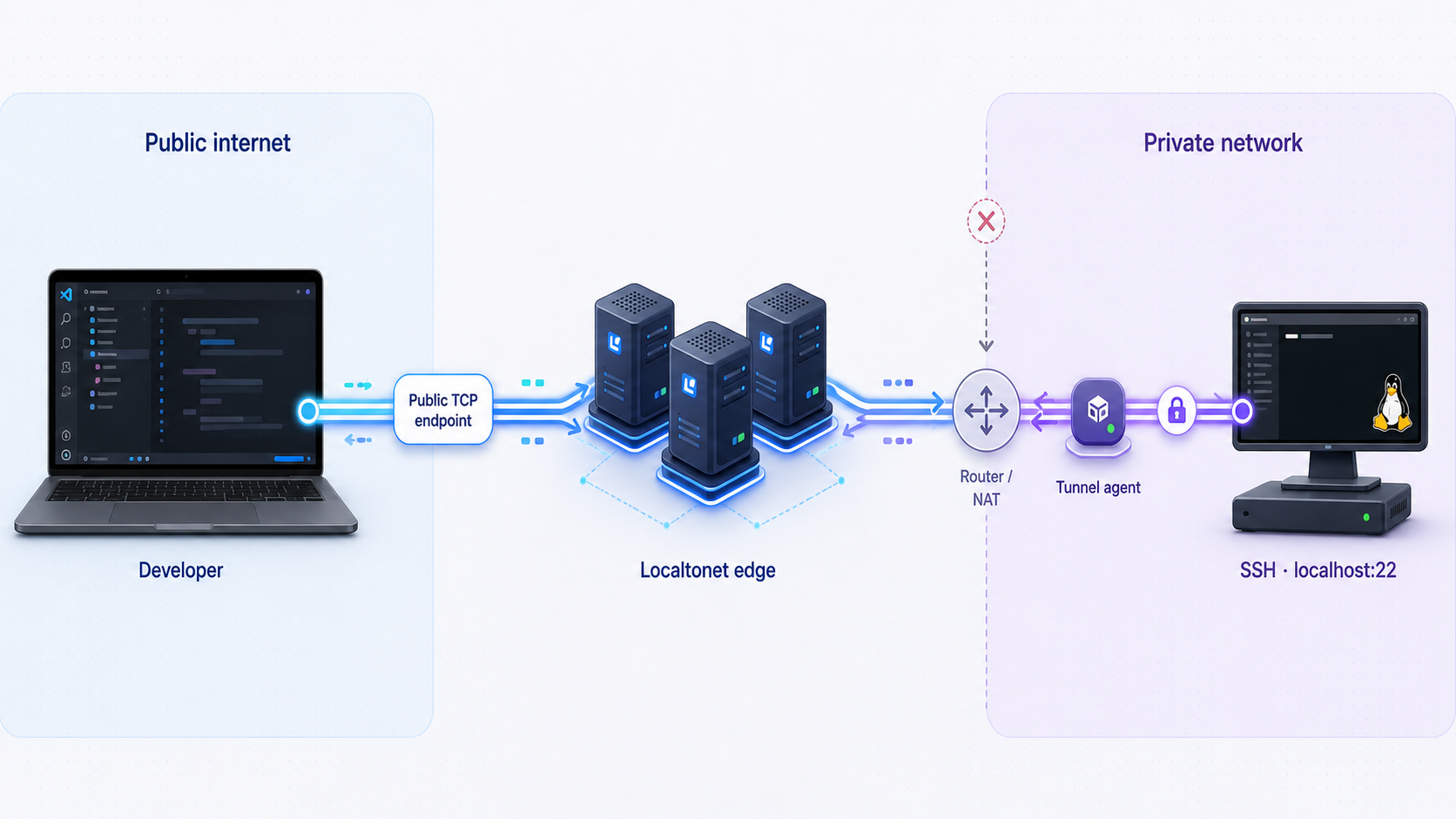
Build on a Linux workstation from your desktop VS Code client without opening an inbound router port
VS Code Remote SSH lets you edit files, run terminals, and use development tools on another machine through SSH. When that machine is behind NAT or does not have a reachable public IP address, a Localtonet TCP tunnel can provide the required public host and port without inbound router port forwarding. This tutorial configures an Ubuntu or Debian SSH host, verifies access locally before exposure, creates and starts the Localtonet tunnel, connects from desktop VS Code, and covers security, routine operation, and troubleshooting.
📋 What's in this guide
How VS Code Remote SSH and Localtonet fit together
A remote development environment separates the computer displaying the editor from the computer storing and building the project. In this guide, the local computer runs the desktop edition of VS Code and an SSH client. The remote Ubuntu or Debian computer runs the SSH daemon, the Localtonet client, your source tree, and the development toolchain.
VS Code Remote SSH uses the local SSH client to authenticate to the remote host. After connecting, VS Code installs or starts its compatible VS Code Server components on the remote machine. Files opened in the remote window are read from the remote filesystem, and terminals opened in that window normally execute on the remote host.
The extension model is divided between local and remote extension hosts. User-interface extensions, such as themes, generally remain local. Extensions that need the project filesystem, language runtime, debugger, or build tools may run on the remote host. VS Code indicates where an extension is installed and may prompt you to install it in the remote environment. It is therefore inaccurate to treat the desktop window as a stream of screenshots or to assume every extension runs remotely.
Connection path
Desktop VS Code and local SSH client → public Localtonet relay host and port → running Localtonet client → local TCP target → SSH daemon → VS Code Server and project tools
The Localtonet client establishes an outbound connection from the remote device to a selected Localtonet relay server. A started TCP tunnel provides a public host and port and forwards incoming TCP connections to the configured local IP address and port. This avoids inbound router port forwarding, firewall changes at the internet edge, VPN setup, and the need for a public IP address.
Creating a tunnel does not start it. The selected Localtonet device must be connected, its client application must be running, and the TCP tunnel must have been started. If the device disconnects or the tunnel is stopped, the public SSH endpoint is unavailable.
Where the security boundaries are
SSH authenticates the server and user, then encrypts the SSH session between the local SSH client and the remote SSH daemon. Localtonet supplies the network path to that SSH service. This guide does not make additional claims about whether an intermediary can inspect traffic beyond the protections provided by SSH itself.
The public relay host and port expose an SSH login surface. A nonstandard public port may reduce irrelevant connection noise, but changing a port is not authentication or authorization. Security still depends on SSH keys, host-key verification, least-privilege accounts, current software, and an appropriately hardened SSH daemon.
Prerequisites and preflight checklist
This command-line walkthrough is scoped to an Ubuntu or Debian host that uses the apt package manager and the ssh systemd service name. Package names, service names, firewall tools, and SSH configuration behavior can differ on Fedora, Arch Linux, Alpine Linux, NAS appliances, containers, and other platforms. Do not apply the package or service commands unchanged to those systems.
VS Code and its Remote SSH host requirements can change with the desktop client version. Before committing a production workstation to this design, confirm that the host architecture, operating system libraries, SSH server, available disk space, and outbound network access satisfy the current Microsoft requirements for your installed VS Code version. This tutorial does not claim that every Linux architecture or appliance can run VS Code Server.
Required components
- An Ubuntu or Debian computer that you are authorized to administer.
- A non-root Linux user account for development.
- Administrative access through
sudofor installing and configuring OpenSSH. - A second computer with desktop VS Code, a working SSH client, and Microsoft's Remote SSH extension.
- A Localtonet account and a device-specific AuthToken for the remote computer.
- The current Localtonet client for the remote computer's supported operating system and architecture.
- Outbound internet access from the remote host to reach the selected Localtonet relay.
- Enough disk space and permissions for the project, development dependencies, and VS Code Server components.
Know which machine runs each action
| Machine | Runs | Actions in this guide |
|---|---|---|
| Remote development host | OpenSSH, Localtonet client, VS Code Server, project tools | Install and test SSH, display the host-key fingerprint, install Localtonet, and verify the local listening port |
| Local development computer | Desktop VS Code, Remote SSH extension, local SSH client | Create the key pair, test SSH, configure ~/.ssh/config, and open the remote VS Code window |
| Localtonet dashboard | Device and tunnel configuration | Select the device AuthToken and relay server, configure the TCP target, start the tunnel, and later stop or delete it |
Install Remote SSH on the local computer
Install the desktop edition of VS Code, open Extensions, search for Remote - SSH, verify that Microsoft is the publisher, and install it. The broader Remote Development extension pack is optional.
Do not plan to install and use the desktop Remote SSH extension directly in vscode.dev. VS Code for the Web has browser sandbox and extension-runtime limitations. Browser-based remote access uses a different supported workflow, such as VS Code Remote Tunnels, and should be evaluated separately.
Prepare a safe recovery path
Keep a local console, hypervisor console, or existing administrative session available while changing SSH authentication. A mistake in sshd_config can lock you out. Do not close the known-working session until a new key-authenticated session has succeeded and the configuration has passed validation.
Install SSH, create a key, and verify local access
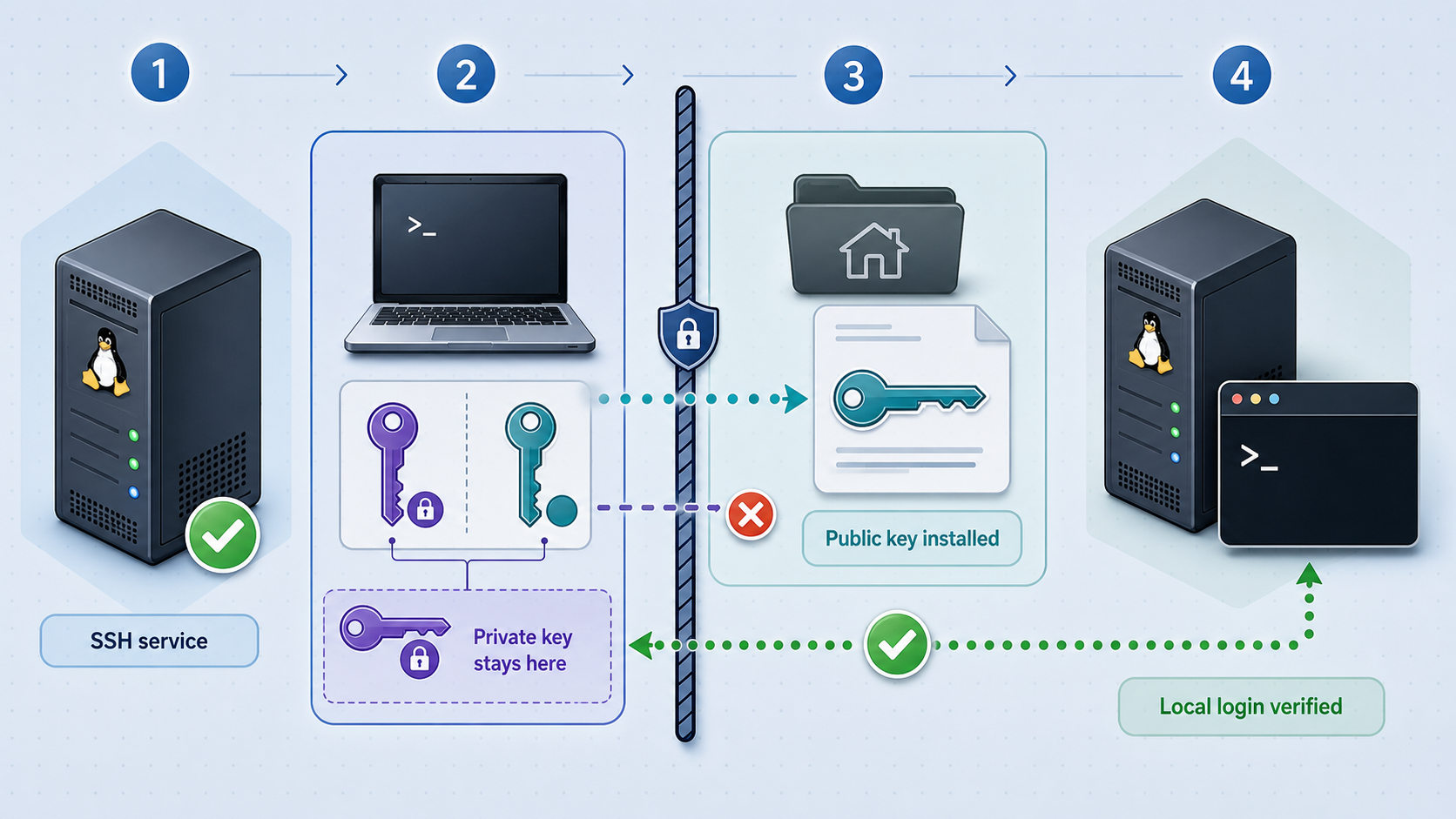
Complete this section before exposing SSH through Localtonet. Local verification separates SSH configuration problems from tunnel problems and gives you a known-good baseline.
1. Install and start OpenSSH on the remote host
Run the following commands on the remote Ubuntu or Debian host:
sudo apt update
sudo apt install openssh-server
sudo systemctl enable --now ssh
sudo systemctl status ssh
The status output should show the service as active. Press q to leave the status view. If the host uses a different service manager or service name, follow that operating system's OpenSSH documentation instead of guessing.
2. Confirm the listening address and port
Still on the remote host, inspect listening TCP sockets:
sudo ss -ltnp | grep ssh
Confirm the actual SSH port before configuring Localtonet. Port 22 is the usual default, but an existing system may use another port. Also confirm that the address is compatible with the Localtonet target you plan to use. If Localtonet runs on the same machine and SSH accepts loopback connections, 127.0.0.1 is an appropriate local target. If the Localtonet client runs on another device, the target must instead be an IP address reachable from that device.
Test loopback access on the remote host:
ssh localhost
Confirm the host-key prompt carefully, authenticate, and then run exit. A loopback test does not prove LAN or tunnel access, but it proves the SSH daemon is accepting a local connection.
3. Generate a passphrase-protected key on the local computer
On the local development computer, first check whether you already have an SSH key that your security policy permits you to use. If you need a dedicated key, create one:
ssh-keygen -t ed25519 -f ~/.ssh/id_ed25519_remote_dev -C "remote-development"
Enter a strong passphrase when prompted. A private key is a credential. Do not upload it to the remote host, commit it to a repository, send it through chat, or place it in a shared folder. Only the matching public key, whose filename ends in .pub, belongs in the remote account's authorized_keys file.
4. Install the public key while you have trusted access
If the machines are currently on the same trusted LAN and the remote address is reachable, run this on the local computer. Replace the example username and LAN address:
ssh-copy-id -i ~/.ssh/id_ed25519_remote_dev.pub developer@192.0.2.10
The address above is documentation-only. Use the remote host's real private LAN address. If ssh-copy-id is unavailable, use your operating system's documented method to append the public key to the correct user's ~/.ssh/authorized_keys. Preserve restrictive SSH directory and file permissions.
5. Record and verify the server host-key fingerprint
On the remote host, display the fingerprint of its Ed25519 host key:
sudo ssh-keygen -lf /etc/ssh/ssh_host_ed25519_key.pubRecord the fingerprint through a trusted channel. During the first connection from the local computer, compare the fingerprint in the SSH prompt with the value displayed directly on the server. Do not accept an unexpected fingerprint merely to make a warning disappear.
6. Test key authentication over the LAN
Run this on the local computer while the private LAN address is reachable:
ssh -i ~/.ssh/id_ed25519_remote_dev developer@192.0.2.10Confirm that the key and its passphrase work. Keep this session open while applying the hardening steps in the next section.
Harden SSH before publishing the endpoint
A Localtonet TCP endpoint makes the SSH login service reachable through a public relay host and port. Treat it as an internet-accessible SSH service even if the underlying machine remains behind NAT. The tunnel does not replace SSH authentication or the host's account permissions.
Disable root login and password authentication in stages
Only continue after key authentication has succeeded in a separate session. On the remote host, inspect the existing configuration and any included configuration files before editing them. Settings later in the effective configuration can override earlier values.
Configure these directives according to your system's established SSH configuration process:
PermitRootLogin no
PubkeyAuthentication yes
PasswordAuthentication no
Validate the configuration before reloading:
sudo sshd -tNo output normally indicates that the syntax check passed. If the command reports an error, correct it before reloading. Then reload OpenSSH:
sudo systemctl reload sshOpen a new session from the local computer and verify key authentication again. Do not close the recovery session until the new connection works.
Disabling password authentication without a verified public key can lock every remote user out. Organizations may also require centralized identity, multifactor controls, bastion hosts, endpoint management, logging, or specific SSH algorithms. Follow those policies rather than treating a tunnel as a way around them.
Protect the Localtonet device AuthToken
A Localtonet AuthToken identifies the client device that runs the tunnel. It is device-specific and sensitive. Select it through the supported client and dashboard workflow, but do not publish it, paste it into an article or screenshot, commit it to source control, leave it in a script, or expose it through process listings, logs, terminal recordings, or shell history.
If a token may have been disclosed, stop using the affected credential and use the current dashboard-supported replacement or revocation process. The exact token-management controls can change, so this article does not invent a rotation command. Reconnect the intended device with a replacement credential and verify that the old credential no longer provides access.
Install Localtonet and create the TCP tunnel
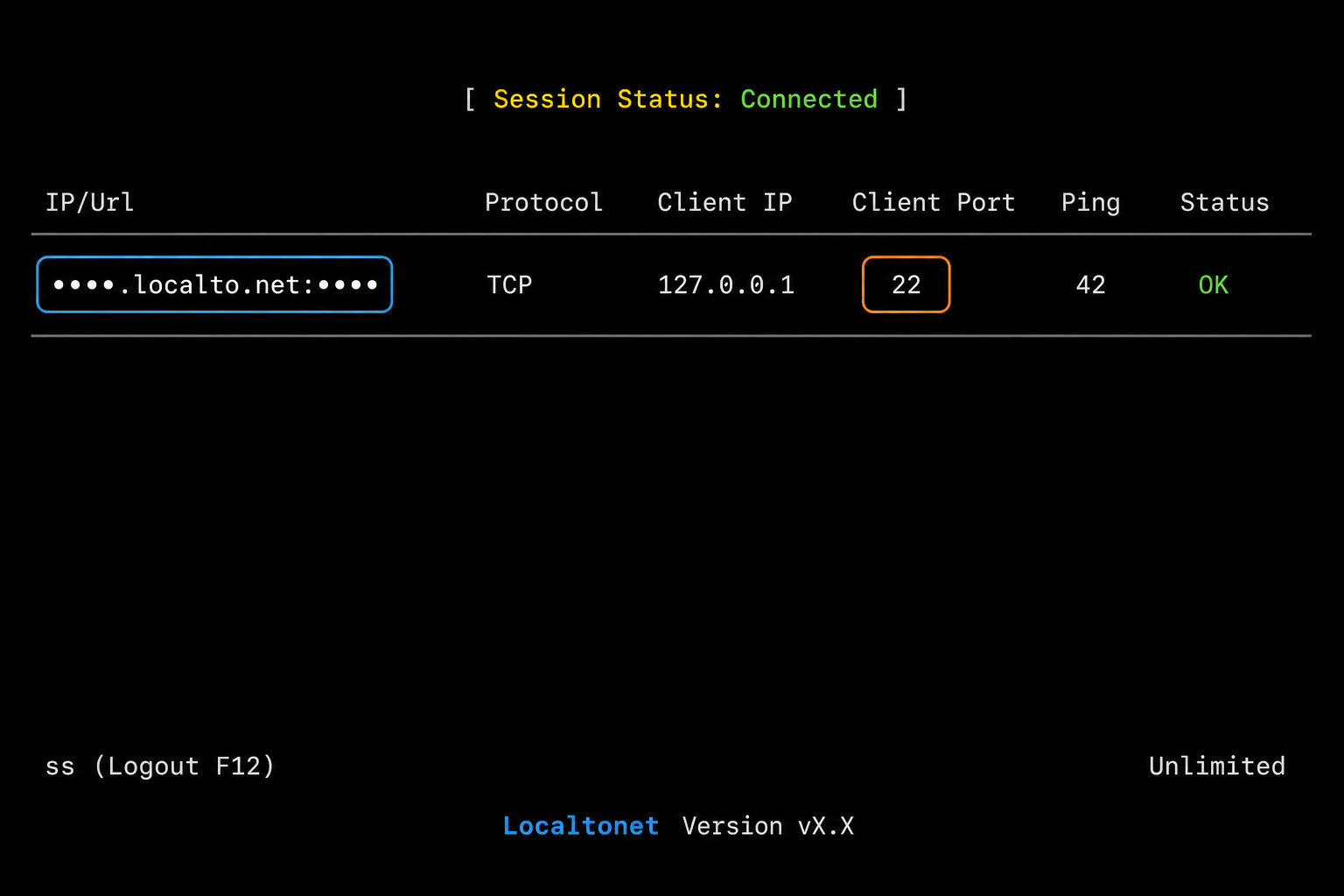
The Localtonet client must run on the SSH host or on another device that can reach it. Installing it directly on the SSH host allows a loopback target such as 127.0.0.1. Use the current Localtonet download and installation instructions for the exact operating system and architecture. We do not include an installer command here because installer URLs, package behavior, supported architectures, and startup options must be verified against the current client documentation.
After installing the client, associate the remote device with its own AuthToken. Do not reuse an arbitrary token or guess one. Confirm in the dashboard that the intended device is connected before creating the tunnel.
Install and run the Localtonet client
On the remote device that can reach the SSH service, install the current supported Localtonet application for that operating system and start it using the documented client workflow.
Authenticate the correct device
Select or supply the device-specific AuthToken through the supported Localtonet workflow. Keep the token secret, then confirm that this exact device appears connected in the dashboard.
Choose TCP and select the device
Create a TCP tunnel and select the AuthToken associated with the connected remote device. TCP is appropriate because SSH is a TCP service.
Select an available relay server
Choose a server or region from the values currently offered in your dashboard. Available server codes and locations can vary, so do not copy a hardcoded relay value from another account or an old tutorial.
Configure the local SSH target
Enter the local IP address and the SSH port verified earlier. If Localtonet and SSH run on the same host and loopback access succeeded, use 127.0.0.1 with port 22, or use the actual nondefault SSH port. If the client runs elsewhere, use an address reachable from that client device.
Create and then start the tunnel
Save the TCP tunnel configuration, then press Start. Creation alone does not make the endpoint available. Wait until both the device and tunnel show a connected or running state, then copy the assigned public host and port from the dashboard.
Do not assume a relay hostname format, fixed public port, reserved-port feature, custom domain, or plan entitlement. This article intentionally does not document TCP custom domains or reserved ports because those behaviors are not established by the supplied product evidence. Use the public host and port shown for the running tunnel in your current dashboard.
Test from a genuinely external network
Move the local computer to a second network, such as an authorized mobile hotspot, rather than relying only on the same LAN as the remote host. On the local computer, connect directly with the assigned values:
ssh -i ~/.ssh/id_ed25519_remote_dev -p PUBLIC_PORT developer@PUBLIC_RELAY_HOST
Replace PUBLIC_PORT and PUBLIC_RELAY_HOST with the endpoint displayed in the dashboard. Compare the presented host-key fingerprint with the value recorded directly from the remote server. After the fingerprint and key authentication succeed, run a simple identity check:
whoami
hostname
pwd
The output should identify the intended non-root user and remote host. If this direct SSH test fails, resolve it before involving VS Code.
Configure desktop VS Code Remote SSH
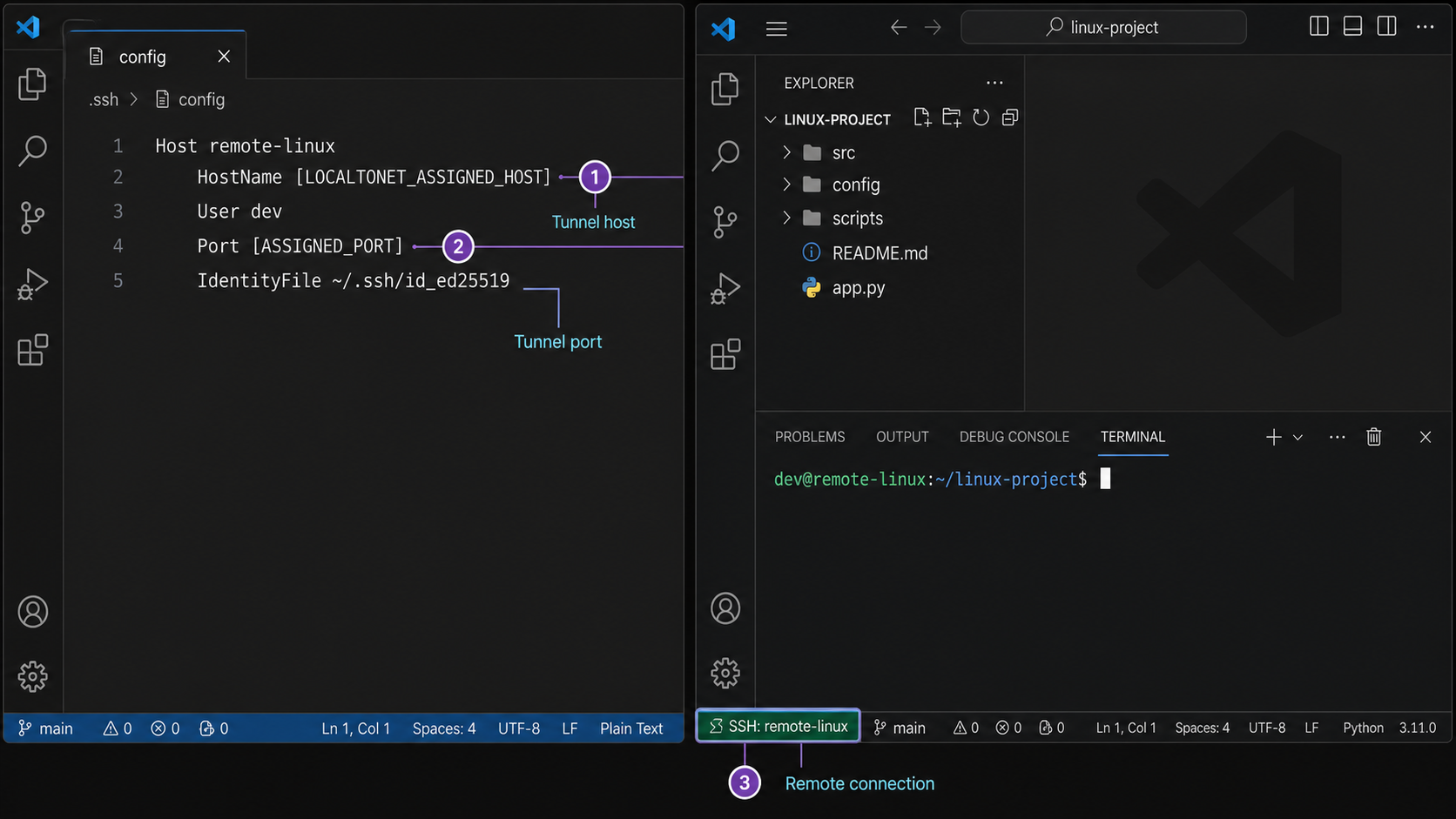
Once command-line SSH works through the public endpoint, create a reusable SSH alias on the local computer. This lets VS Code use the same tested SSH configuration.
1. Add a local SSH configuration entry
Open ~/.ssh/config on the local computer. On Windows, use the SSH configuration path recognized by the SSH client selected by VS Code. Add an entry like this:
Host localtonet-dev
    HostName PUBLIC_RELAY_HOST
    Port PUBLIC_PORT
    User developer
    IdentityFile ~/.ssh/id_ed25519_remote_dev
    IdentitiesOnly yes
    ServerAliveInterval 60
Replace the uppercase placeholders. The Host value is a local nickname and can be changed without affecting the server. Restrict access to the configuration and private key according to your operating system's SSH requirements.
ServerAliveInterval asks the SSH client to send periodic protocol messages. It can help the client detect a broken connection, but it does not guarantee that every intermediary will keep a session open, and it does not repair an offline Localtonet device or stopped tunnel.
2. Retest using the alias
Run this on the local computer:
ssh localtonet-dev
Confirm the identity and hostname again. If the alias fails while the explicit command works, compare HostName, Port, User, and IdentityFile.
3. Connect from VS Code
- Open desktop VS Code on the local computer.
- Open the Command Palette.
- Run Remote-SSH: Connect to Host.
- Select
localtonet-dev. - If prompted to identify the remote operating system, select the value that matches the actual host.
- Complete the private-key passphrase prompt through the local SSH client or key agent.
- Wait while VS Code prepares its compatible server-side components.
- Use File → Open Folder to select a project directory that the remote user is authorized to access.
Check the remote indicator in the VS Code window before running commands. A terminal opened in the connected remote window should report the remote host:
whoami
hostname
pwd
4. Place extensions on the appropriate side
Open the Extensions view while connected. VS Code distinguishes extensions installed locally from those installed for the SSH host. Keep interface-oriented extensions local. Install language support, linters, debuggers, and other workspace-aware extensions remotely when VS Code indicates that they need access to the remote project or runtime.
Not every extension supports remote execution, and an extension's placement depends on its design. Review its compatibility information rather than assuming that all extensions run remotely.
5. Verify the development workflow
Open a known project, confirm that source files can be read and saved, start an integrated terminal, and run a harmless project-specific check such as displaying the language runtime version. Verify that Git identifies the expected repository and user configuration before committing changes.
The normal Remote SSH workspace operates on the remote filesystem, but authorized users and extensions may intentionally download, copy, synchronize, or transmit files. Apply repository permissions, secrets-management rules, data-classification requirements, and extension policies appropriate to the project.
Routine operation, persistence, and safe shutdown
Starting a work session
Before connecting, verify that the remote computer is powered on, the SSH service is active, the Localtonet client is connected under the correct device token, and the TCP tunnel is running. If the assigned endpoint has changed, update the local SSH configuration before connecting.
The reliable order is:
- Start or verify OpenSSH on the remote host.
- Start the Localtonet client using its current documented method.
- Confirm the correct device is connected in the dashboard.
- Start the TCP tunnel if it is stopped.
- Verify the public host and port.
- Test
ssh localtonet-dev. - Connect from desktop VS Code.
Persistence across restarts
The tunnel cannot remain reachable when the host is powered off, the client is not running, or the tunnel is stopped. Configure automatic client startup only through the current Localtonet documentation for your operating system and client version.
This tutorial does not use or endorse --install-service, --start-service, a presumed systemd unit name, or other undocumented persistence commands. Startup behavior varies by client and platform. Verify the supported method before enabling unattended operation, and ensure any credential storage meets your security policy.
Protect work from connection loss
VS Code may attempt to reconnect after an interrupted SSH session, but recovery depends on the cause of the interruption and the state of the remote host. Do not assume that every unsaved editor buffer will be lost or recovered. Save frequently and choose VS Code's save settings according to your workflow.
Processes launched from an ordinary SSH-backed terminal are not guaranteed to survive disconnection. Shell behavior, signals, terminal ownership, and the process itself affect the outcome. For long builds, servers, and jobs, use an organization-approved persistent terminal multiplexer, process supervisor, service manager, or workload system that is designed for disconnection and restart. Do not treat the tunnel as process persistence.
Stop or remove access safely
When remote access is no longer required, disconnect VS Code and close SSH sessions. In the Localtonet dashboard, press Stop for the TCP tunnel. Stopping preserves the configuration but makes the tunnel unavailable. Delete the tunnel if the configuration should no longer exist.
If the remote device is retired, also remove or replace its device credential using the current dashboard-supported token-management workflow. Remove obsolete public keys from the appropriate authorized_keys file and retain only the access required by active users.
Troubleshooting SSH, Localtonet, and VS Code
Connection refused
A refusal generally means the connection reached a host but nothing accepted it on the selected port, or the local target rejected the forwarded connection. Check these items in order:
- On the remote host, run
sudo systemctl status ssh. - Run
sudo ss -ltnp | grep sshand verify the listening port. - Test
ssh localhoston the remote host. - Confirm that the Localtonet target port matches the actual SSH port.
- Confirm that
127.0.0.1is valid only when the Localtonet client runs on the SSH host. - Confirm the tunnel has been started rather than merely created.
Connection times out
Verify that the remote device has outbound internet access, the Localtonet client is connected, the tunnel is running, and the local SSH configuration contains the current public host and port. Test from another authorized network to distinguish a client-network restriction from a remote-host problem.
The Localtonet device is offline
An offline device cannot carry tunnel traffic. Check whether the remote computer is powered on, whether the Localtonet client process is running, and whether outbound connectivity is available. Confirm that the client is using the intended device-specific AuthToken. Do not solve an offline state by exposing or sharing the token.
The device is connected but SSH still fails
Check the tunnel status separately from the device status. A connected device does not mean every configured tunnel is running. Start the TCP tunnel, confirm its current endpoint, and verify the local target IP and port.
Permission denied or no supported authentication methods
Confirm the SSH username, private-key path, and public key installed for that user. On the remote host, inspect ownership and permissions for the user's home directory, ~/.ssh, and authorized_keys. Confirm that public-key authentication is enabled and that the account is not locked or restricted by an applicable SSH rule.
Use verbose SSH output on the local computer when needed:
ssh -vvv localtonet-devVerbose logs can contain usernames, hostnames, file paths, and other operational details. Redact them before sharing and never include private keys or Localtonet AuthTokens.
The SSH host key changed
Stop and investigate. A changed key may be expected after an operating-system reinstall or host-key rotation, but it can also indicate that the endpoint now reaches a different machine or that the connection is being intercepted. Compare the fingerprint directly on the intended remote host through a trusted console. Remove an old known_hosts entry only after verifying the new fingerprint.
VS Code connects with SSH but server setup fails
First confirm that ordinary SSH remains stable. Then check the remote user's available disk space, home-directory permissions, shell startup output, required system libraries, and outbound access needed by the installed VS Code version. A shell profile that prints prompts, launches interactive programs, or exits early can disrupt automated setup.
Review the Remote SSH output channel in VS Code for the actual failure. Do not repeatedly delete remote files or run copied cleanup commands without understanding which VS Code Server installation belongs to the current client.
The project opens but files cannot be saved
On the remote terminal, run whoami, pwd, and inspect the project directory's ownership and permissions. Avoid solving the problem by running VS Code as root or recursively granting broad write permissions. Assign the project to the intended user or development group and use the least privilege needed.
The remote disk is full
Check filesystem capacity and user quotas. Builds, package caches, logs, containers, dependencies, and old project artifacts can consume space independently of VS Code Server. Remove only understood data, then retry the connection after confirming adequate space in the remote user's home and project filesystems.
A proxy-restricted network blocks the workflow
Either the remote host or local computer may be subject to an outbound proxy, TLS inspection system, application allowlist, or port restriction. Localtonet avoids inbound router forwarding, but it does not bypass organizational network controls. Ask the network administrator whether the Localtonet client and outbound SSH connection to the assigned public endpoint are permitted. Do not attempt to evade a block.
The connection drops repeatedly
Determine whether the remote host loses power, the Localtonet device disconnects, the tunnel stops, the client network changes, or SSH itself terminates the session. Keepalive settings can detect stale links but cannot repair a stopped client or unavailable relay path. Examine approved system and application logs while avoiding disclosure of credentials.
Neutral alternatives for remote development access
Localtonet TCP tunneling is one way to make a standard SSH service reachable. The appropriate architecture depends on identity requirements, browser access, network policy, team administration, and whether access should reach one service or an entire private network.
| Approach | Connection model | Important consideration |
|---|---|---|
| Localtonet TCP tunnel | Public relay host and port forward to the SSH service through an outbound client connection | Uses standard SSH authentication; the selected device and started tunnel must remain online |
| VS Code Remote Tunnels | VS Code's own remote tunnel workflow, including supported browser-oriented scenarios | Uses a different setup and identity model; consult current Microsoft documentation for requirements and behavior |
| Localtonet VPN Manager | Private mesh VPN with granular firewall rules and LAN bridging | Useful when authorized users need private network connectivity rather than a single public SSH endpoint |
| Router port forwarding | Router sends an inbound public port directly to the SSH host | Requires router administration, a reachable public address, and careful firewall and SSH exposure management |
| Organization bastion host | Users authenticate through a centrally managed jump host | Can align with centralized access, logging, and review requirements when operated by the organization |
| Managed cloud development environment | Workspace and compute run in a provider-managed environment | Changes where projects and credentials are hosted and may fit teams that do not want to operate an SSH workstation |
These options are not interchangeable. In particular, a standard Localtonet TCP tunnel is not a VPN. VPN functionality belongs to Localtonet VPN Manager. Review current product documentation, organizational policy, and the security model required for the project before choosing an access method.
Frequently asked questions
Can Localtonet expose SSH when the host is behind NAT or CGNAT?
Localtonet does not require inbound router port forwarding or a public IP address because its client establishes an outbound connection to a relay server. The host still needs permitted outbound connectivity, and a restrictive organization network may block or require approval for that connection.
Does creating a Localtonet TCP tunnel make it immediately available?
No. After creating the TCP configuration, press Start. The selected device must also be connected through its device-specific AuthToken. A created but stopped tunnel does not provide a working public endpoint.
Can I use VS Code Remote SSH directly from vscode.dev?
Not as a substitute for the desktop Remote SSH workflow described here. VS Code for the Web has extension and runtime limitations. Browser-based remote development uses other supported workflows, such as VS Code Remote Tunnels, and should be configured according to current Microsoft documentation.
Is changing the public SSH port enough to secure the endpoint?
No. A different public port is not an authentication control. Use a passphrase-protected SSH key, verify the server host-key fingerprint, connect through a least-privilege account, disable root login, and disable password authentication only after key access has been tested.
Do all VS Code extensions run on the remote host?
No. VS Code divides extensions between local and remote extension hosts. Interface extensions may remain local, while language tools, debuggers, and workspace-aware extensions may run remotely. Placement depends on how each extension is designed.
Will terminal processes continue if the SSH connection drops?
They are not guaranteed to continue when launched from an ordinary SSH-backed terminal. Use an appropriate persistent terminal session, process supervisor, service manager, or workload system for jobs that must survive disconnection.
Can several developers use the same remote host?
SSH can support concurrent sessions, but each developer should have an individually managed account and key rather than sharing credentials. File permissions, compute capacity, extension behavior, project isolation, auditing, and organizational policy must be designed for multi-user access.
What should I do if a Localtonet AuthToken is exposed?
Stop using the affected device credential and follow the current dashboard-supported replacement or revocation workflow. Reconnect the intended device with a replacement credential, confirm that its tunnels behave as expected, and remove the token from scripts, logs, history, screenshots, and repositories where it appeared.
Connect your authorized development host with Localtonet
Prepare and harden SSH first, install our client on the device that can reach it, select that device's AuthToken and an available relay server, create the TCP target, and press Start. Verify the assigned endpoint with command-line SSH before opening the host in desktop VS Code.
Get Started Free →

