

Understand what your browser is really contacting when you open a local address
Localhost is the foundation of local web development, API testing, databases, containers, and many administrative tools. This guide explains the special-use name, IPv4 and IPv6 loopback addresses, ports, listener scope, browser security boundaries, Docker behavior, troubleshooting, and safe ways to publish a local service with Localtonet.
📋 What's in this guide
What localhost means
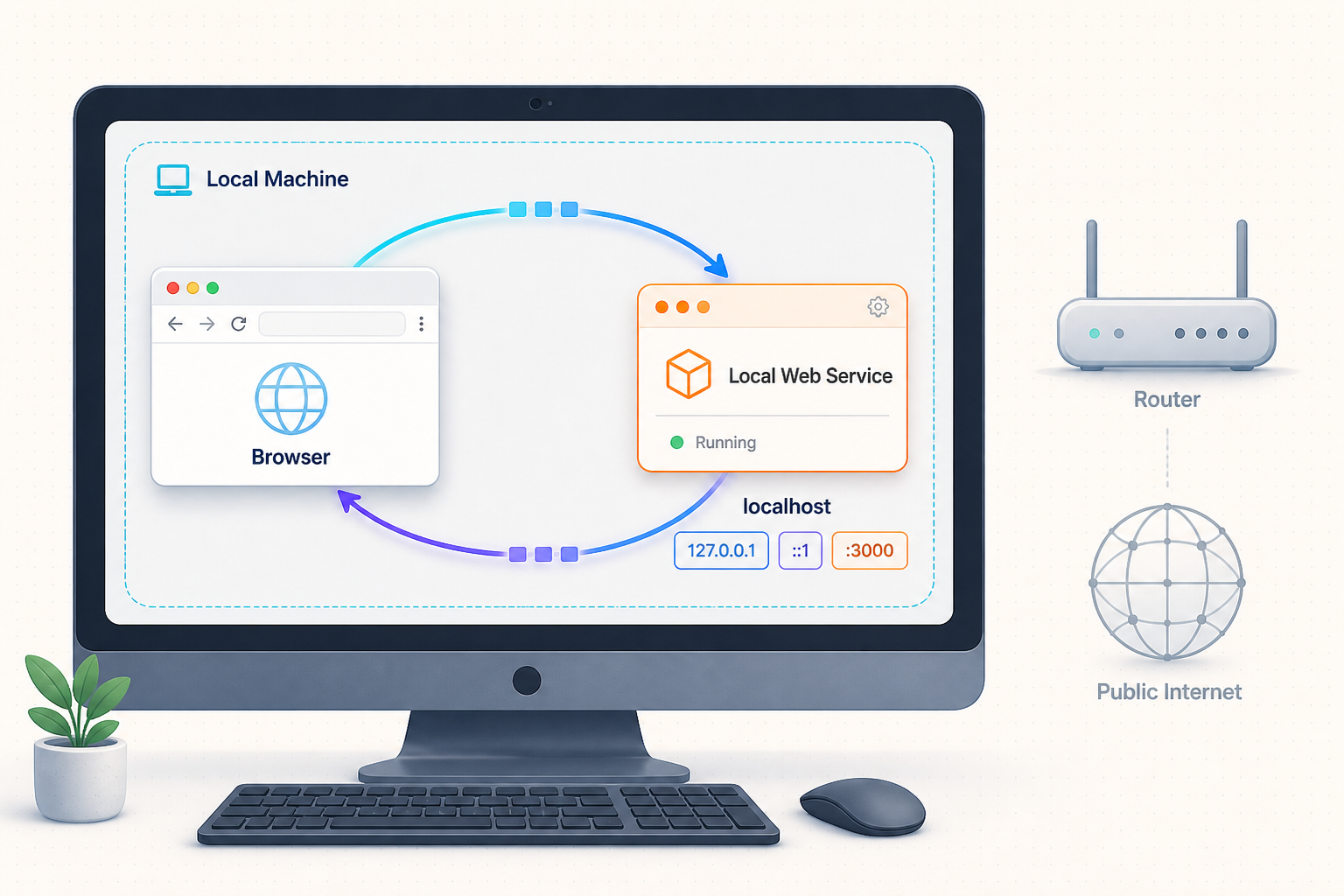
Localhost is a special-use name for the host on which a program is running. When a client connects to a loopback address associated with localhost, the operating system sends the traffic back through its own networking stack instead of transmitting it onto Ethernet, Wi-Fi, or the public internet.
The two addresses developers encounter most often are 127.0.0.1 for IPv4 and ::1 for IPv6. The name localhost can resolve to one or both, depending on the operating system, resolver, application, address-family preferences, and local configuration. It is therefore more precise to say that localhost refers to the local host through loopback than to say it is merely an alias for one particular address.
Quick definition
http://localhost:3000 asks an HTTP server on the current host to accept a connection on TCP port 3000. The request succeeds only if a process is running, listening on a compatible loopback address, accepting the selected protocol, and serving the requested path.
How a loopback request is delivered
The application interprets the URL
For http://localhost:3000/health, the scheme is HTTP, the host is localhost, the explicit TCP port is 3000, and the path is /health.
The host name is resolved
The system and application resolver determine a loopback address, commonly 127.0.0.1, ::1, or both. The process is not defined solely by an entry in the hosts file.
The operating system selects a listener
The networking stack looks for a compatible socket listening on the requested address, port, and transport protocol. A listener on IPv4 loopback does not necessarily accept an IPv6 loopback connection.
The local process handles the request
If a matching listener exists, the connection and response remain within the host's networking stack. If no listener matches, the client commonly receives a connection-refused error.
A loopback service can continue working with Wi-Fi disabled or an Ethernet cable disconnected. The application itself may still need external connectivity if it calls remote APIs, loads remote assets, performs online authentication, or depends on another network service.
Localhost, loopback, wildcard binding, and reachability
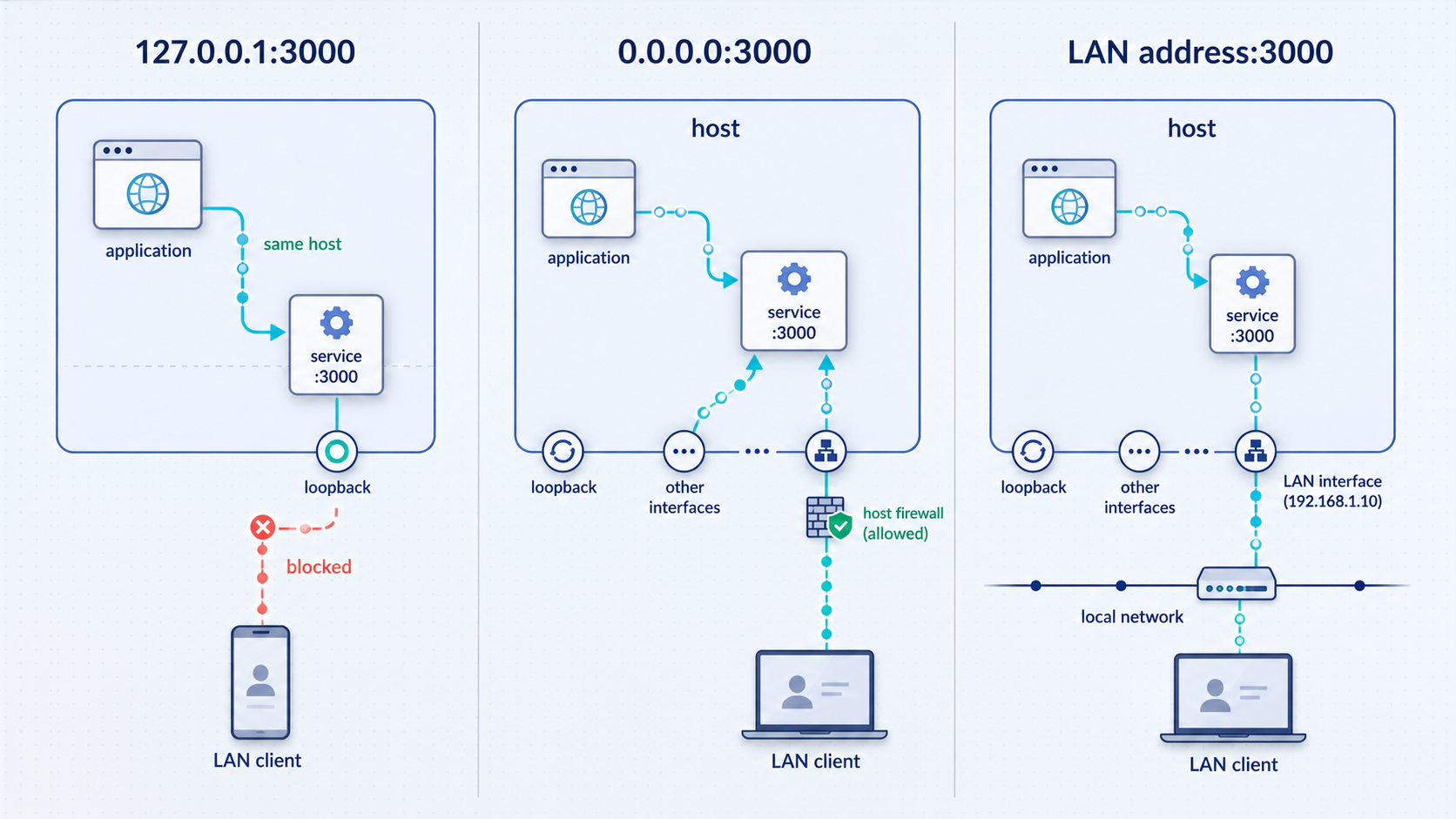
Several addresses that appear in server settings have different jobs. A destination address identifies where a client wants to connect. A bind address tells a server which local interfaces should accept traffic. Confusing those roles can produce an unreachable application or expose a development service more broadly than intended.
| Name or address | Meaning | Typical use | Potential reachability |
|---|---|---|---|
localhost |
Special-use host name associated with local loopback | Readable local URLs and development configuration | Local host, subject to resolution and listener compatibility |
127.0.0.1 |
Specific IPv4 loopback address | Explicit IPv4-only local connection or bind | Local host only |
::1 |
IPv6 loopback address | Explicit IPv6 local connection or bind | Local host only |
0.0.0.0 |
IPv4 unspecified address, commonly used as a wildcard in server bind configuration | Accept IPv4 connections on available local interfaces, subject to socket behavior | Depends on interfaces, routing, firewall policy, NAT, and host configuration |
| LAN interface address | An address assigned to Wi-Fi, Ethernet, or another interface | Make a service potentially reachable through that interface | Clients with a permitted route and firewall path |
The IPv4 loopback block
The IPv4 block 127.0.0.0/8 is reserved for loopback. CIDR notation means that its first eight bits are fixed, leaving 24 bits for addresses. The block therefore contains exactly 16,777,216 addresses, from 127.0.0.0 through 127.255.255.255. It should not be described using obsolete classful-network assumptions or as containing only conventional host-address ranges.
127.0.0.1 is the conventional address used by most applications, but software can bind separate services to other addresses in 127.0.0.0/8 when the operating system and application support that arrangement. Distinct loopback addresses can help test virtual hosts or isolate local listeners while retaining the same port number.
127.0.0.1:8080  local service A
127.0.0.2:8080  local service B
127.0.0.3:8080  local service C
IPv6 loopback
IPv6 defines the single loopback address ::1. A server bound only to 127.0.0.1 may reject a client that tries ::1, and the reverse is also true. Some socket implementations can use an IPv6 wildcard listener to accept both IPv6 and IPv4-mapped connections, but that behavior depends on the operating system and socket configuration. Verify the actual listeners rather than assuming dual-stack coverage.
What binding to 0.0.0.0 does and does not do
In server configuration, binding an IPv4 socket to 0.0.0.0 usually means accepting connections addressed to any suitable local IPv4 interface. It is normally a bind value, not an address users should enter in a browser. A client uses a concrete destination such as 127.0.0.1 or the host's LAN address.
Wildcard binding does not by itself make a service internet-accessible. External reachability still depends on whether the host has a reachable interface, whether the server is listening, host and network firewalls, routing, router NAT or port forwarding, cloud security policy, and any upstream filtering. It can nevertheless widen the listener from loopback-only to LAN-facing, so it deserves deliberate review.
A loopback bind limits network reachability, but local users and local processes may still connect. A LAN or wildcard bind can expose the service to additional devices. Sensitive services should also enforce authentication, authorization, and least privilege.
How ports work with localhost
An IP address identifies an interface or host endpoint, while a transport port helps the operating system deliver TCP or UDP traffic to the appropriate socket. Port numbers are 16-bit values from 0 through 65535. Port 0 has special uses in APIs and is not ordinarily selected as a public service destination.
The URL http://localhost:3000 selects HTTP over TCP and explicitly requests port 3000. If the port is omitted, the scheme supplies a conventional default, such as TCP port 80 for HTTP or 443 for HTTPS. A server listening on port 3000 will not automatically receive a request sent to port 3001.
| Port | Common default or convention | Example | Important qualification |
|---|---|---|---|
| 3000 | Common convention for Next.js, Node examples, and other development tools | http://localhost:3000 |
Many frameworks allow another port, and not every Node server defaults to 3000 |
| 4200 | Common Angular development-server default | http://localhost:4200 |
Configurable |
| 5173 | Common Vite development-server default | http://localhost:5173 |
May change when configured or when the port is occupied |
| 8000 | Common development convention for several Python tools | http://localhost:8000 |
Not a universal Django or Python assignment |
| 8080 | Common alternative HTTP and Java application port | http://localhost:8080 |
Used by many unrelated products and frequently subject to conflicts |
| 3306 | Common MySQL TCP port | 127.0.0.1:3306 |
Client and server configuration may select another port or a local socket |
| 5432 | Common PostgreSQL TCP port | 127.0.0.1:5432 |
PostgreSQL can also use Unix-domain sockets on supported systems |
| 6379 | Common Redis port | 127.0.0.1:6379 |
Do not expose an administrative data service without appropriate controls |
Privileged and reserved ports
Ports 0 through 1023 are traditionally called well-known ports. On many Unix-like systems, binding to a port below 1024 requires elevated privilege or an assigned capability, although system policy and kernel configuration can change the details. Windows does not follow a simple rule that every port below 1024 always requires administrator access. Port reservations, URL access-control lists, service configuration, endpoint security software, and the specific networking API can all affect permission.
Using an unprivileged development port such as 3000 or 8080 often avoids operating-system restrictions, but those values are conventions rather than guarantees. Check the application's current documentation and startup log for its configured address and port.
Localhost resolution, hosts files, and local names
localhost is a special-use name. Operating systems, resolvers, browsers, and libraries are expected to handle it as local, and many systems also include explicit hosts-file entries. The hosts file is therefore one possible part of resolution, not the complete definition of localhost.
Name-service precedence varies. A system may combine a hosts file, a local caching service, Multicast DNS, DNS, directory services, container-specific resolution, VPN-provided resolvers, or application-level behavior. On Linux, configuration such as /etc/nsswitch.conf can influence lookup order. Browsers and runtimes may also cache results or use their own resolution paths.
| Operating system | Common hosts-file location | Editing requirement |
|---|---|---|
| Linux | /etc/hosts |
Usually requires root privileges |
| macOS | /etc/hosts |
Usually requires administrator privileges |
| Windows | C:\Windows\System32\drivers\etc\hosts |
Usually requires an elevated editor |
A typical file may contain entries similar to these, although exact defaults vary:
127.0.0.1 localhost
::1 localhost
Prefer names under .localhost for local development
When a development tool supports it, names under the reserved .localhost namespace are preferable to inventing names under .local. The .local suffix is used by Multicast DNS and can cause ambiguous or environment-dependent results.
http://app.localhost:3000
http://api.localhost:8000
http://admin.localhost:8080
Support for subdomains of localhost can still depend on the browser, runtime, resolver, proxy, and development server. Test the exact toolchain before relying on wildcard behavior. If an explicit hosts-file mapping is required, document it for the project and avoid mapping a real public domain to loopback unless that behavior is intentional.
DNS and resolver caches
Do not flush caches automatically after every hosts-file edit. First test the current result with the same application that is failing. If stale resolution is confirmed, use the mechanism appropriate to the active resolver:
# Linux with systemd-resolved, when that service is active
sudo resolvectl flush-caches

# Windows DNS client cache
ipconfig /flushdns

# Common macOS cache refresh commands
sudo dscacheutil -flushcache
sudo killall -HUP mDNSResponder
Linux distributions that do not use systemd-resolved require different steps. A local DNS proxy, browser, container, virtual machine, VPN client, or development runtime can maintain a separate cache. Restarting or clearing the correct component is more useful than applying unrelated commands.
What localhost means in Docker and Kubernetes
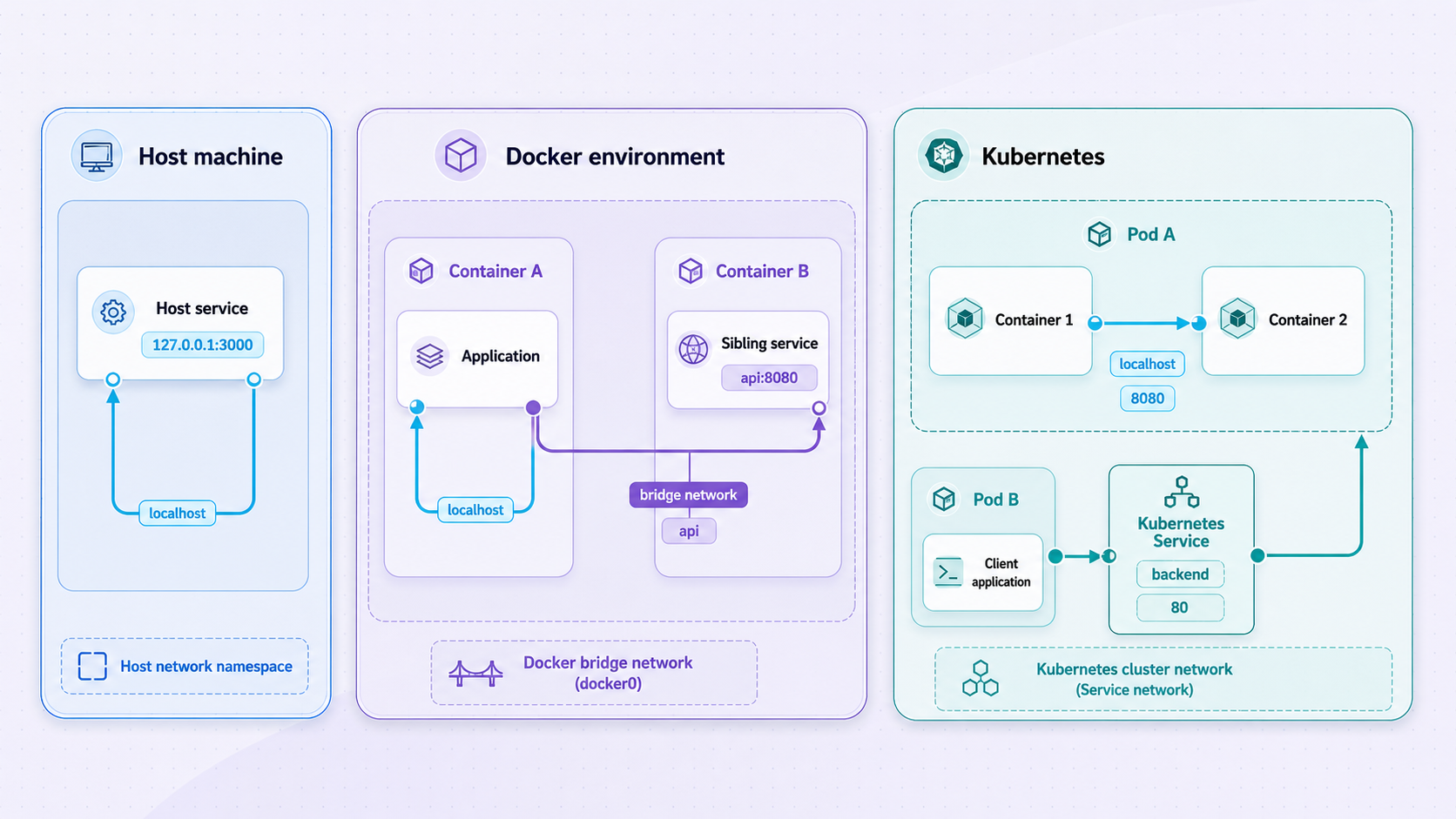
Localhost is relative to the network namespace of the process using it. That distinction becomes visible in containers because a container normally has its own networking namespace and loopback interface.
Docker containers
Inside a Docker container, 127.0.0.1 and ::1 refer to that container, not automatically to the Docker host. If an application and database are in different containers, configuring the application to contact localhost usually points it at the wrong place.
| Destination from a container | Typical method | Condition |
|---|---|---|
| Another process in the same container | localhost and the process port |
The process must listen on a compatible loopback address |
| Another Compose service | Use the Compose service name and container port | Services must share an appropriate user-defined network |
| Docker Desktop host | host.docker.internal |
Subject to Docker Desktop support and host-service reachability |
| Docker Engine host | Configure a supported host-gateway mapping where needed | Do not hardcode a bridge gateway because network addressing is configurable |
| Container service from the host | Publish the container port to a host address and port | Publication and firewall policy determine host or network reachability |
Docker Desktop commonly provides host.docker.internal for reaching the host. With Docker Engine, a deployment can add a host mapping using Docker's supported host-gateway facility where available. The exact bridge or gateway address should not be assumed because users can create different networks and change address pools.
A service on the host must listen on an address reachable from the container. A host service bound only to host loopback may not accept traffic arriving through a bridge or virtualized Docker interface. Expanding its bind scope can create additional exposure, so pair any change with firewall rules and application authentication.
Port publication solves a different direction of communication. Publishing a container port makes that container service available through a host port. It does not make the host's own localhost become the container's localhost. In a user-defined Compose network, service-name discovery usually provides a clearer container-to-container path than publishing every internal dependency.
Kubernetes Pods
Containers in the same Kubernetes Pod normally share the Pod network namespace, so they can communicate through localhost using distinct ports. A different Pod has a different network identity. Use an appropriate Kubernetes Service or Pod address and cluster DNS name rather than assuming that loopback reaches another Pod.
Database clients and local sockets
Database clients may treat host parameters differently. For PostgreSQL, psql -h localhost requests a host connection and normally uses TCP. Omitting -h on a Unix-like system commonly allows the client to use a Unix-domain socket, depending on its build and configuration.
# PostgreSQL: request TCP through the resolved localhost address
psql -h localhost

# PostgreSQL on a Unix-like system: no host can select a configured local socket
psql
Some MySQL client configurations conventionally use a Unix socket when the host is localhost and TCP when given 127.0.0.1, but behavior depends on the client library, platform, protocol option, and configuration. Do not generalize one client's behavior to every MySQL connector.
How to troubleshoot localhost safely
Troubleshoot from the inside out. First prove that the application started, then confirm its listener, address family, port, protocol, and path. Only after local operation is established should you diagnose container, LAN, proxy, or tunnel reachability.
Read the startup output and logs
Confirm that the process stayed running. Look for the actual bind address, selected port, HTTP or HTTPS mode, configuration errors, missing dependencies, and port-conflict messages.
Test the exact local endpoint
Open the documented URL in a browser or use curl. Test the precise scheme, address, port, and path instead of assuming defaults.
curl -v http://127.0.0.1:3000/
curl -v http://localhost:3000/
curl -vk https://localhost:3000/Inspect listening sockets
Identify whether anything is listening and whether the listener is IPv4, IPv6, loopback-only, or wildcard.
# Linux
ss -ltnp

# macOS
lsof -nP -iTCP -sTCP:LISTEN

# Windows PowerShell
Get-NetTCPConnection -State ListenCompare IPv4 and IPv6 behavior
If localhost fails but 127.0.0.1 works, inspect whether the client tried ::1. Configure the application for the required address families rather than changing global resolution without understanding the effect.
Check port and protocol mismatches
An HTTP client cannot successfully speak to an arbitrary raw TCP service. An HTTPS URL requires a TLS-capable listener and a certificate the client can evaluate. Confirm redirects, reverse-proxy settings, and the requested path.
Review firewall and network boundaries
A host firewall is less likely to explain a simple loopback refusal than a missing listener, but policies differ. For containers or other devices, verify routes, interface binding, published ports, network firewalls, and virtual-machine boundaries.
Resolve port conflicts safely
Identify the process and confirm that it belongs to you before stopping it. Use the application's normal shutdown method or a graceful operating-system signal first. Reserve forced termination for a confirmed, unresponsive process because it can lose data or interrupt unrelated work.
Diagnosing CORS errors
An origin consists of scheme, host, and port. Therefore, http://localhost:3000 and http://localhost:8000 are different origins, as are HTTP and HTTPS on the same host. A CORS failure means the browser's cross-origin policy rejected access to a response. It does not necessarily mean the network request never reached the server.
Inspect the browser console and network panel, identify the requesting origin, check any preflight OPTIONS request, and configure an explicit server-side allowlist for the required development origin. Avoid reflecting arbitrary origins or using credentials with an indiscriminate policy.
Diagnosing local HTTPS and mixed content
A local TLS failure can result from using HTTPS against an HTTP-only server, a hostname mismatch, an expired certificate, an untrusted certificate authority, or a certificate chain problem. mkcert is a certificate-generation tool that can create locally trusted development certificates after installing its local certificate authority. It is not itself an HTTPS proxy.
Mixed-content behavior depends on the requesting context, resource type, browser policy, and whether an address receives special local treatment. Do not assume every request from an HTTPS page to an HTTP localhost endpoint will behave identically across browsers. Use the browser's security console to identify the exact block, then use a suitable local HTTPS configuration or a public HTTPS endpoint when the integration requires it.
Localhost security, browsers, cookies, and SSRF
Localhost describes network location, not trust. A process bound to loopback is isolated from direct remote network connections, but it can remain reachable by other processes and users on the same machine. Browsers can also mediate requests from remote pages toward local services, which is why local applications should not assume that every loopback request is benign.
Host, origin, and site are different concepts
The host in http://localhost:3000 is localhost. Its origin is the tuple formed by HTTP, localhost, and port 3000. Another port produces another origin. The browser's site calculation and cookie rules are related but not identical to origin checks. Cookies are not separated solely by port, while web storage and CORS are origin-sensitive.
localhost and 127.0.0.1 may reach the same machine, but they are different host strings and therefore different origins. Authentication callbacks, cookie domains, certificate names, CORS allowlists, and application host checks should use the exact development URL.
Protect administrative and automation endpoints
Databases, remote debugging interfaces, Android Debug Bridge, home automation dashboards, AI model APIs, MCP endpoints, device-control services, and internal administration panels can provide powerful access. Keep them loopback-only unless remote access is necessary. If published, require strong application-level authentication, narrow permissions, input validation, and any available IP restrictions or access controls.
For inbound webhooks, verify the provider's signature using the exact payload and current provider guidance. Store webhook secrets outside source code, check replay protections when supported, and reject invalid signatures before performing side effects. Localtonet's File Server file-event webhooks support optional path filtering and HMAC signing, while platform-wide Token/Tunnel webhooks are a separate event system and should not be assumed to have the same signing behavior.
How to publish a local service with Localtonet
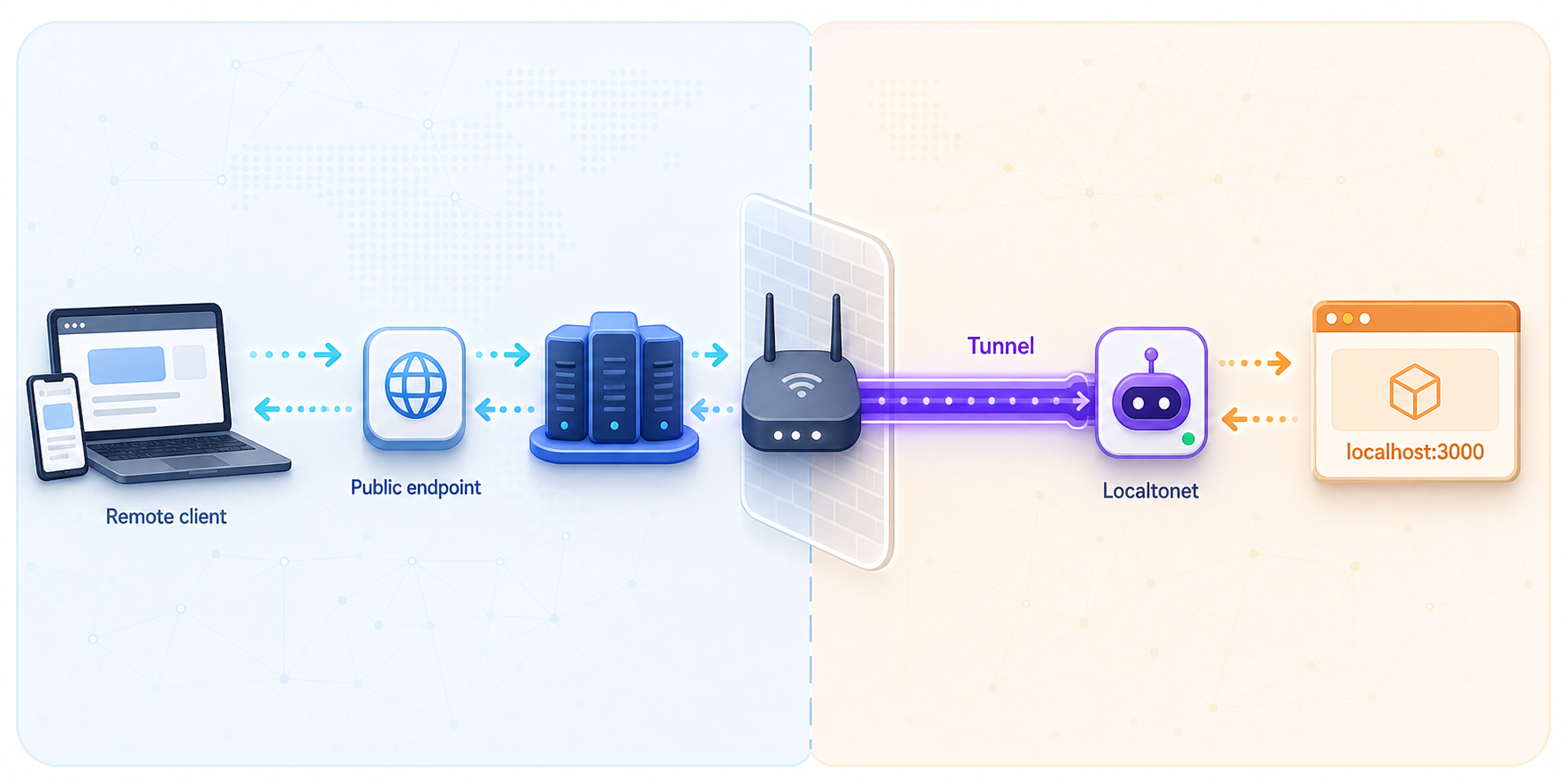
A service bound to loopback is not directly reachable from another computer. With Localtonet, the client application running on a device establishes an outbound connection to a Localtonet relay server. The resulting tunnel provides a public URL or a public host and port without requiring inbound router port forwarding, firewall changes, a VPN setup, or a public IP address.
Choose the tunnel family that matches the application protocol. HTTP tunnels are intended for local web applications and HTTP APIs. Raw TCP tunnels forward TCP services, while UDP and combined UDP/TCP configurations serve protocols that require those transports. File Server publishes a folder path and is not the same as forwarding an application port. Proxy tunnel types make the connected device an exit node rather than forwarding to a conventional local target.
Do not treat a development server as safe merely because it previously listened on localhost. Before publishing it, remove debug endpoints and default credentials, protect secrets, require authentication and application-level authorization, restrict access where suitable controls are available, and expose only the necessary service and port.
Prerequisites
- A Localtonet account and access to the current dashboard.
- The Localtonet client installed through the documented path for the device's operating system.
- A device-specific authentication token available for selection without copying it into logs, screenshots, source code, or this tutorial.
- A local HTTP, TCP, or UDP service that is already running on the client device or reachable from it.
- The exact local IP address, port, protocol, and any application credentials needed to test the service.
- An available relay server or region selected from current dashboard values. Availability can vary, so do not hardcode a server code from an example.
Current installation and tunnel-specific documentation is available through the Localtonet documentation. Use the current documented installation option for your operating system rather than copying an unverified shell command from an old article.
Configuration workflow
Install and run the Localtonet client
Follow the current operating-system instructions in our documentation. Run the client on the device that can reach the local target. Keep the client available while you configure and operate the tunnel.
Start the local application
Launch the web server, API, or other service using its normal procedure. Record the actual bind address and port shown by the application rather than relying on a framework convention.
Verify the service locally
From the device running the Localtonet client, test the exact target with a browser, the application's native client, or a suitable diagnostic tool. Do not create a public tunnel to compensate for a local service that is not working.
Select the correct tunnel family
Use HTTP for a web application or HTTP API. Use TCP, UDP, or combined UDP/TCP only when the local service requires that raw transport. Confirm current naming and availability in the dashboard because options can vary by plan or deployment.
Select the device token and relay
Select the authentication token belonging to the connected client device, then choose an available relay server or region from current dashboard values. Never publish or guess a token or server code.
Enter the local IP address and port
Configure the target address that the client device can reach, such as 127.0.0.1 when the application runs on the same host, plus the verified local port. If the target is another container or LAN device, use an address reachable from the Localtonet client rather than assuming its localhost is the target.
Create and explicitly start the tunnel
Save or create the configuration using the current dashboard flow, then press Start. Creating a tunnel does not mean it is running. Confirm that both the selected device and tunnel report a connected or running state.
Verify the assigned public endpoint
Use the public URL or public host and port displayed for the running tunnel. Test from an appropriate external client and exercise a harmless endpoint first. Verify application authentication, host handling, redirects, callback URLs, and webhook signatures before real data is processed.
Stop or delete the tunnel when finished
Use Stop to end public forwarding while retaining the configuration. Delete the tunnel if it is no longer needed. The endpoint is available only while the selected client or device is connected and the tunnel is running.
| Local target | Suitable family | Public endpoint form | Security priority |
|---|---|---|---|
| Web application or HTTP API | HTTP | Public HTTPS address | Authentication, authorization, host validation, and safe debug settings |
| Raw TCP application | TCP | Public host and port | Protocol authentication, narrow privileges, and client restrictions where available |
| UDP application | UDP | Public host and port | Protocol-specific validation and rate controls |
| Protocol requiring both transports | Combined UDP/TCP | Public host and port | Secure both transport paths and expose only the required service |
| Local folder | File Server | Depends on selected File Server subtype and process type | Permissions, credentials, share-link controls, and sensitive-file review |
Focused Localtonet troubleshooting
- The public endpoint refuses connections: confirm the selected client is connected, the tunnel was explicitly started, and the local target still has a matching listener.
- The dashboard shows a tunnel but it does not work: creation and operation are separate lifecycle states. Confirm the tunnel is running and linked to the intended device token.
- The client cannot reach the target: test the configured IP and port from the client device. Container loopback, Pod loopback, and another machine's loopback are not the client device's loopback.
- An HTTP application returns an unexpected host or redirect: review the application's allowed-host, proxy, canonical URL, callback, and redirect configuration. Do not disable validation globally merely to make the tunnel work.
- A webhook arrives but validation fails: preserve the exact request body required by the provider and verify the signature before parsing or processing it according to that provider's current instructions.
- The endpoint stopped working later: verify that the selected device remains online, the Localtonet client is connected, the local service is still running, and the tunnel has not been stopped.
Frequently asked questions
Is localhost the same as 127.0.0.1?
No. localhost is a special-use host name, while 127.0.0.1 is a specific IPv4 loopback address. Localhost may resolve to 127.0.0.1, ::1, or both depending on the resolver and application. They often reach the same host, but their address family and browser origin can differ.
Why does localhost work without internet access?
Loopback traffic is handled within the operating system instead of being sent through a physical network interface. The local application can therefore remain reachable without internet access, although features that depend on remote APIs or assets can still fail offline.
What does localhost refused to connect mean?
It commonly means that no compatible process accepted the connection on the selected address and port. Check whether the application started, whether it is listening on IPv4 or IPv6, whether the port is correct, and whether the client used HTTP or HTTPS as expected.
Does binding to 0.0.0.0 put a service on the internet?
Not by itself. It commonly makes an IPv4 server accept traffic addressed to multiple local interfaces, but external reachability also depends on routing, firewalls, NAT, router configuration, cloud policy, and upstream filtering. It can still expose a service to a local network, so review the resulting listener carefully.
Why is localhost inside Docker not my host machine?
A Docker container normally has its own network namespace and loopback interface. Use service-name discovery for containers on a shared user-defined network. Docker Desktop commonly provides host.docker.internal for host access, while Docker Engine deployments can configure a supported host-gateway mapping where needed.
Are localhost ports visible to other users on the same computer?
Potentially, yes. Loopback prevents direct access from remote hosts, but other local users and processes may connect subject to operating-system controls. Sensitive local services should still use authentication, authorization, and limited privileges.
How can I access a local service from another device?
For a trusted LAN, the application can listen on a suitable LAN-reachable interface while the firewall permits only the intended clients. For access across the internet without inbound router port forwarding, a Localtonet client can establish an outbound relay connection and publish an HTTP, TCP, or UDP endpoint. Protect the application before sharing it publicly.
Does creating a Localtonet tunnel start it automatically?
No. Creating the configuration does not mean the tunnel is running. Select the intended client or device, configure the correct local target and relay, then use the Start action. The endpoint remains available only while that client is connected and the tunnel is running.
Publish a verified local service with Localtonet
Start by confirming the application on loopback, choose the matching tunnel family, select your connected device and a currently available relay, then explicitly start and test the tunnel. Apply authentication and least-privilege controls before sharing the assigned endpoint.
Get Started Free →

