

Restore Fast Refresh when the preview page works but its development connection does not
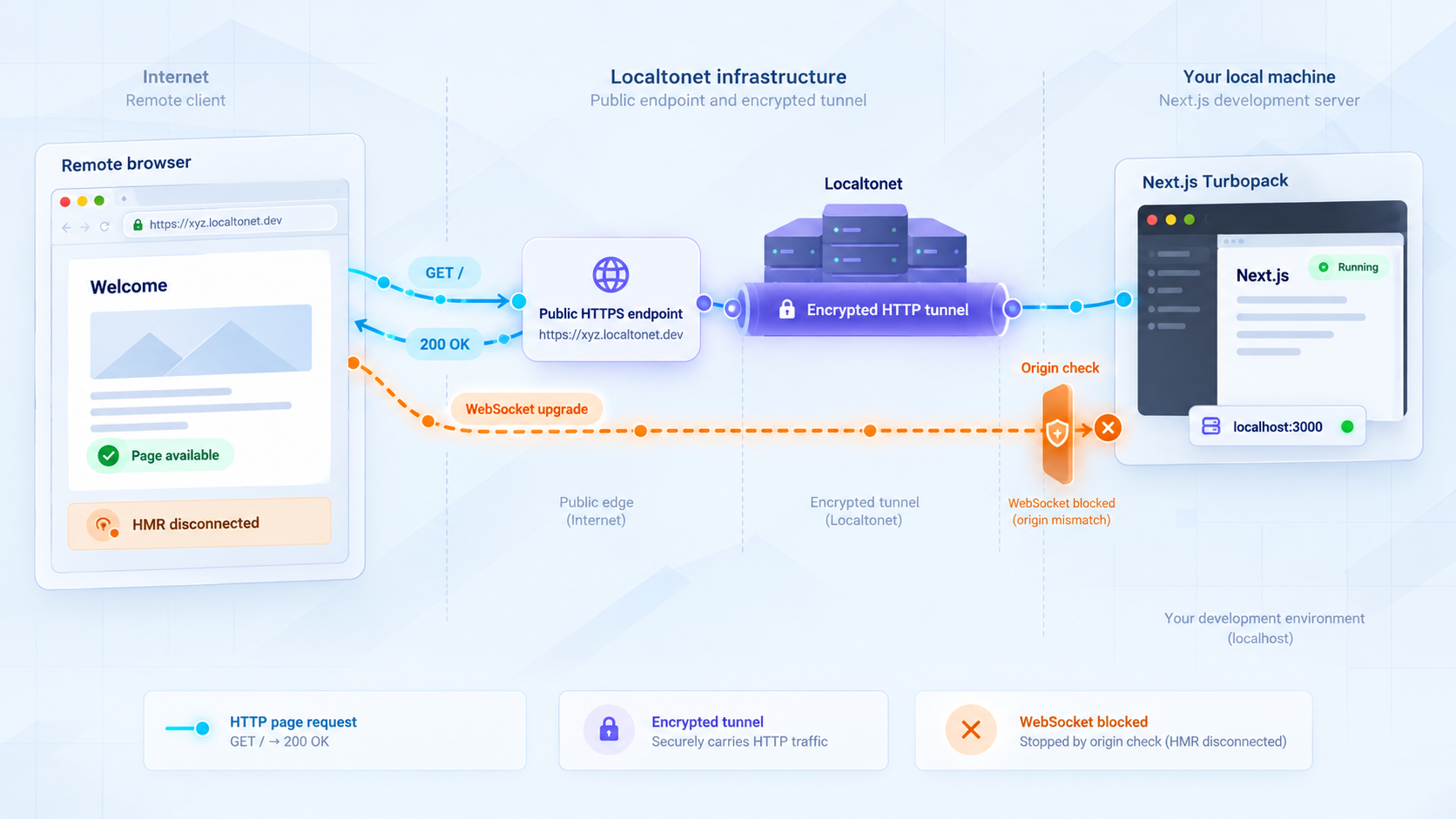
A Next.js development page can load successfully through a public HTTPS tunnel while Turbopack hot module replacement repeatedly disconnects. That apparent contradiction usually means ordinary HTTP requests are reaching the local server, but the browser's long-lived development connection is being rejected, misrouted, or interrupted. This guide shows how to isolate the failing layer, allowlist only the exact public preview origin using configuration supported by your installed Next.js version, inspect WebSocket behavior, and verify the result through a Localtonet HTTP tunnel without broadly disabling development protections.
📋 What's in this guide
Why a Next.js page can load while HMR disconnects
Loading a page and maintaining a development update channel are separate networking operations. The initial document, JavaScript bundles, stylesheets, images, and route data can all arrive through ordinary HTTP requests. Hot module replacement, Fast Refresh, development status reporting, and related tooling may depend on a persistent browser connection that follows a different lifecycle.
In a typical failure, the browser receives the application and renders it correctly. A few moments later, the console reports that the development connection closed, could not connect, or is retrying. Editing a component no longer updates the page automatically. A full browser refresh may still show the new code because ordinary requests continue to work.
This symptom narrows the problem, but it does not identify one universal cause. The failure can occur at the Next.js development server, at an origin-validation boundary, in the browser, in the tunnel path, or because the local process has restarted. Troubleshooting is faster when those layers are tested separately instead of changing several security and networking settings at once.
HTTP success is not WebSocket success
A WebSocket connection normally begins as an HTTP request and asks the server to upgrade the connection. A successful upgrade is commonly represented by HTTP status 101 Switching Protocols. After the upgrade, the connection carries frames in both directions rather than following the usual request-and-response pattern.
When the page returns 200 but the development connection never reaches a successful upgrade, the useful question is not “Does the tunnel work?” The better questions are: which request is failing, what status did it receive, what origin and host did the browser send, and did the request reach the local Next.js server?
Origin and hostname are related but not interchangeable
An origin consists of the scheme, hostname, and effective port. For example, an HTTPS preview URL and a local HTTP URL are different origins even if both eventually reach the same process. A hostname is only one component of that origin. The HTTP Host header, browser Origin header, forwarded headers, and the WebSocket destination URL can therefore expose different clues.
Next.js development behavior can change across releases and bundlers. Identify the actual failing request in your browser's Network panel rather than hardcoding a path copied from a different Next.js version or from a Webpack-based project.
Prerequisites and information to collect
Before changing the project, collect enough information to reproduce the failure consistently. This prevents an origin error from being confused with a port mismatch, a compile failure, or a browser extension problem.
- A Next.js project that starts successfully in development mode.
- Turbopack enabled through the workflow supported by the installed Next.js release.
- The exact local IP address and port on which the development server is listening.
- A Localtonet client installed and running on the device that can reach that local address and port.
- A device-specific Localtonet authentication token selected securely through our platform.
- An available Localtonet relay server or region selected from the current dashboard.
- A browser with Console and Network developer tools.
- The exact public HTTPS URL assigned to the HTTP tunnel.
- The installed Next.js version and the configuration format used by the project.
Record the public URL exactly as the browser displays it. Preserve the https:// scheme, hostname, and any explicit port. Do not reduce it to a broad parent domain or copy only the hostname when the applicable Next.js setting expects an origin.
| Evidence | What it establishes | What it does not establish |
|---|---|---|
| Local page loads | The Next.js server is reachable directly from the test browser | That the public origin is accepted |
| Public page loads | The tunnel can deliver at least ordinary web requests | That the HMR connection upgraded successfully |
| Network request shows status 101 | The observed connection completed an HTTP protocol upgrade | That it will remain connected through restarts or network changes |
| Source edit updates the page | The complete HMR path worked for that test | That every route and failure scenario is configured correctly |
| Console reports an origin rejection | Origin validation is a likely blocking layer | That disabling all validation is safe or necessary |
A device authentication token identifies the client that runs a tunnel. Do not place it in a Next.js configuration file, commit it to source control, paste it into a browser console, include it in screenshots, or expose it in a public issue. The application only needs its own development configuration and does not need the Localtonet token.
Establish a clean local Turbopack baseline
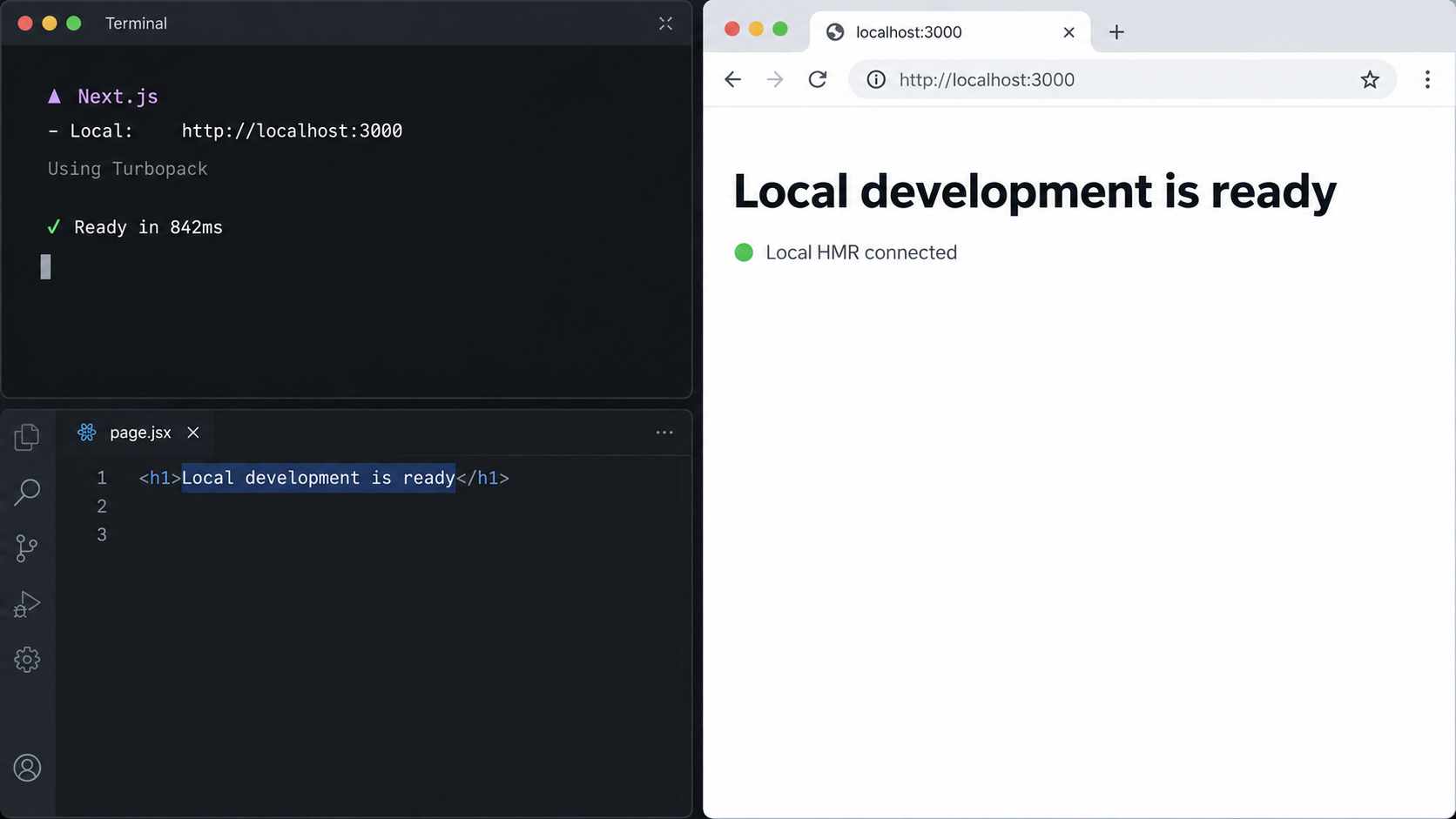
Validate HMR locally before involving the public tunnel. If local Fast Refresh is already broken, changing tunnel or origin settings will add noise without solving the underlying project problem.
Confirm the installed Next.js version
Inspect the project's package manifest and lockfile to determine the version that is actually installed. Do not rely only on a tutorial, a globally installed command, or the latest online documentation. Configuration keys and accepted value formats can vary by Next.js release.
Start the normal development workflow
Use the project's established development script and confirm from its terminal output that the server started successfully with the intended bundler. Record the listening address and port shown by the process. This article does not prescribe a universal command because project scripts and supported Turbopack invocation differ across versions and repositories.
Open the application directly
Visit the local address from a browser that can reach the development server. Check that the document and assets load without server-side compilation errors.
Make a harmless visible edit
Change text or another easily reversible element in a rendered component. Save the file and verify that the browser updates without a manual refresh. Avoid using a test that intentionally forces a full reload, since that would not prove that HMR is working.
Inspect local browser and server output
Confirm that the browser console remains free of repeated development-connection errors and that the terminal reports a successful rebuild. Resolve local compilation, runtime, or filesystem-watcher problems before proceeding.
If the local edit requires a refresh, pause here. Check whether Turbopack is actually active, whether the edited file is part of the rendered route, and whether compilation failed. Also consider project-specific factors such as a custom server, container file watching, a service worker, or code that intentionally triggers a navigation. Those issues exist independently of Localtonet.
Test from the same machine first
A local browser on the development machine removes several variables. Once that baseline works, repeat the direct local test from the device that runs the Localtonet client if it is a different machine. The local target must be reachable from the client device, not merely from some other computer on the network.
Allowlist the exact public preview origin
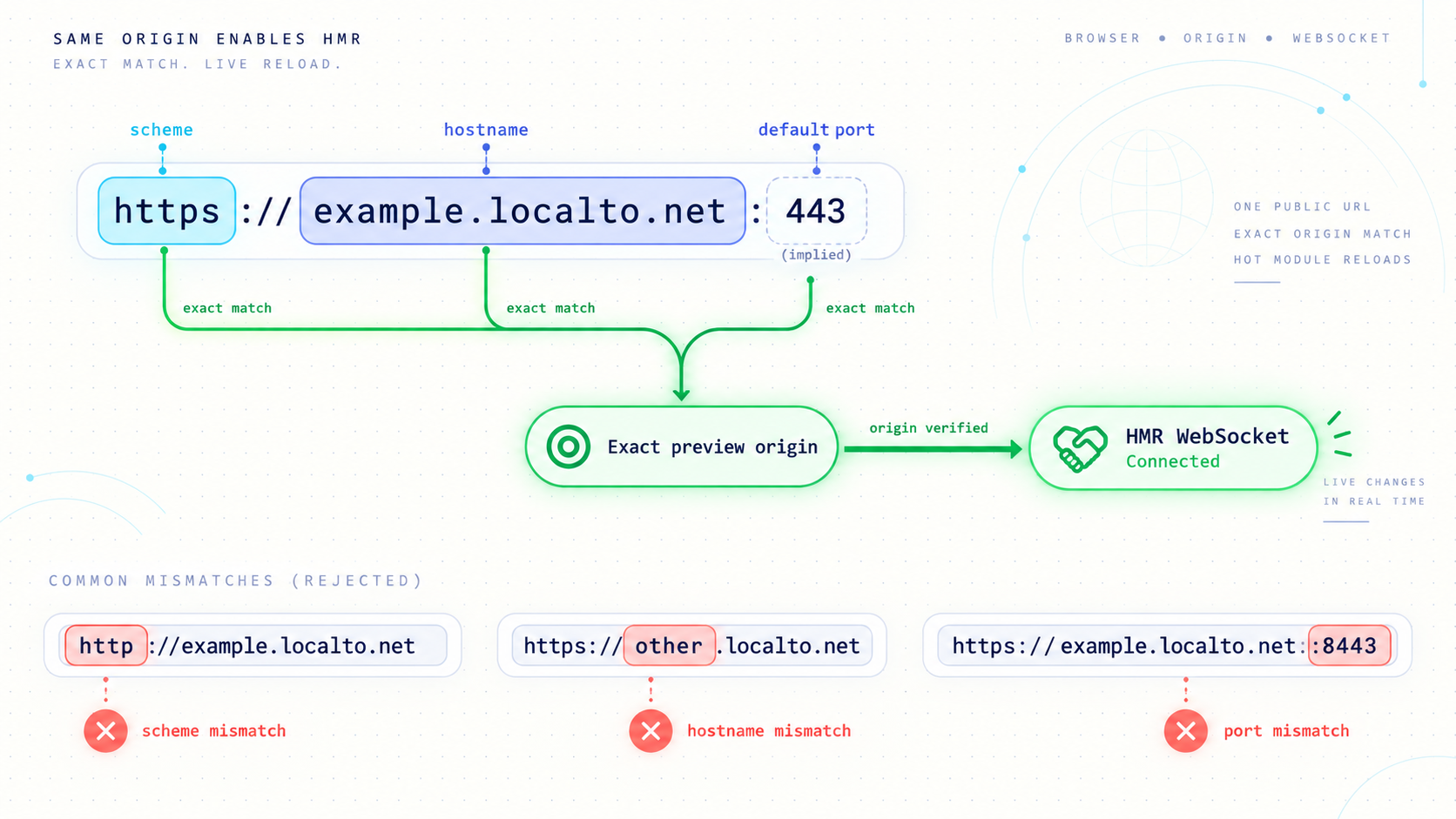
When a development server receives browser traffic from a public hostname, its origin checks may treat that traffic differently from requests made directly to localhost. This is a useful protection. Development servers can expose source maps, internal routes, error details, and unfinished application behavior, so accepting arbitrary origins is not a safe default.
The correct fix is to add the narrowest origin entry supported by the installed Next.js version. The approved origin should correspond to the exact Localtonet preview address being used. Do not disable host or origin protection globally merely to make the warning disappear.
The exact option name, location, syntax, and whether values are expressed as origins or host patterns must be confirmed against the official documentation for the Next.js version installed in the project. Those details are intentionally not guessed here. Copying configuration from a different release can silently do nothing, fail validation, or broaden access more than intended.
A safe version-aware configuration workflow
- Read the installed version from the project rather than assuming it is current.
- Open the official Next.js documentation matching that version.
- Find the documented development-origin allowlist or equivalent supported setting.
- Confirm whether that release expects a complete origin, a hostname pattern, or another documented format.
- Add only the assigned Localtonet preview origin needed for this session.
- Preserve existing project configuration and export syntax.
- Restart the Next.js development process after changing its configuration.
- Retest locally before returning to the public URL.
Suppose the browser-facing address changes because a generated subdomain changes or a different tunnel is selected. The old allowlist entry may no longer match. Update the project configuration deliberately instead of adding a wildcard that covers every possible hostname.
Do not confuse CORS with the development-origin check
Adding a permissive application response header is not necessarily the right solution. Cross-origin resource sharing controls whether browser scripts can read certain cross-origin responses. A Next.js development-origin check can occur at another layer and may protect development-specific resources or connections. If the browser or server explicitly reports a Next.js development-origin rejection, use the supported Next.js configuration for that protection.
Similarly, changing application API middleware may have no effect on the development connection. Use the browser Network panel and terminal output to identify which layer generated the rejection before modifying headers.
Prefer one stable preview URL during a session
Exact allowlisting is easiest when the public URL remains stable for the duration of the development session. HTTP and File Server tunnels in our platform may use a generated subdomain, a selected subdomain where supported, or a custom domain. Availability can vary, and exact custom-domain DNS instructions must be checked against current Localtonet documentation. Regardless of the process type, use the public HTTPS address actually assigned to the running tunnel as the browser-facing reference.
Create and start the Localtonet HTTP tunnel
With Localtonet, the client on the device establishes an outbound connection to our relay. This lets you expose a local service without inbound router port forwarding, a public IP address, firewall changes, or a separate VPN setup. For a Next.js browser preview, use an HTTP tunnel that points to the local address and port reported by the development server.
Creating a tunnel does not mean it is running. The selected client must be connected, the tunnel must be started, and the Next.js process must remain available. The public preview works only while those conditions continue to be true.
Install and run the Localtonet client
Run the client on the machine hosting Next.js or on a device that can reach the development server over the local network. Keep the client connected while the preview is needed. Use the current installation instructions for your operating system rather than copying an unverified command.
Authenticate the intended device
Select the device-specific authentication token associated with the client that can reach Next.js. Do not guess a token, reuse one in application code, or expose it to preview users.
Select an available relay server
Choose a server or region from the current Localtonet dashboard. Available values can vary, so they should be obtained from the product rather than hardcoded from an article.
Create an HTTP tunnel to the local service
Set the local target to the IP address and port on which the Next.js development server is listening. If the client and Next.js run on the same machine, use an address that is valid from that machine. If they run on different devices, confirm network reachability before using the remote device's private address.
Start the tunnel
Use the Start action after creating the configuration. Wait until the tunnel and selected client show that they are connected before testing the public address.
Open the assigned public HTTPS URL
Use the exact URL produced by the running tunnel. Record it for the Next.js development-origin allowlist and for browser diagnostics. Stop or delete the tunnel when remote access is no longer required.
For the current dashboard workflow and fields, consult our Localtonet HTTP tunnel documentation. The documentation should be treated as authoritative for UI details that can change over time.
The supplied Localtonet product context establishes HTTP tunneling but does not define version-specific WebSocket diagnostics, limits, or dashboard indicators. Do not infer successful HMR solely from a rendered page. Verify the actual development connection in browser tools and confirm current Localtonet behavior in our documentation if the upgrade does not complete.
Verify HMR through the public URL
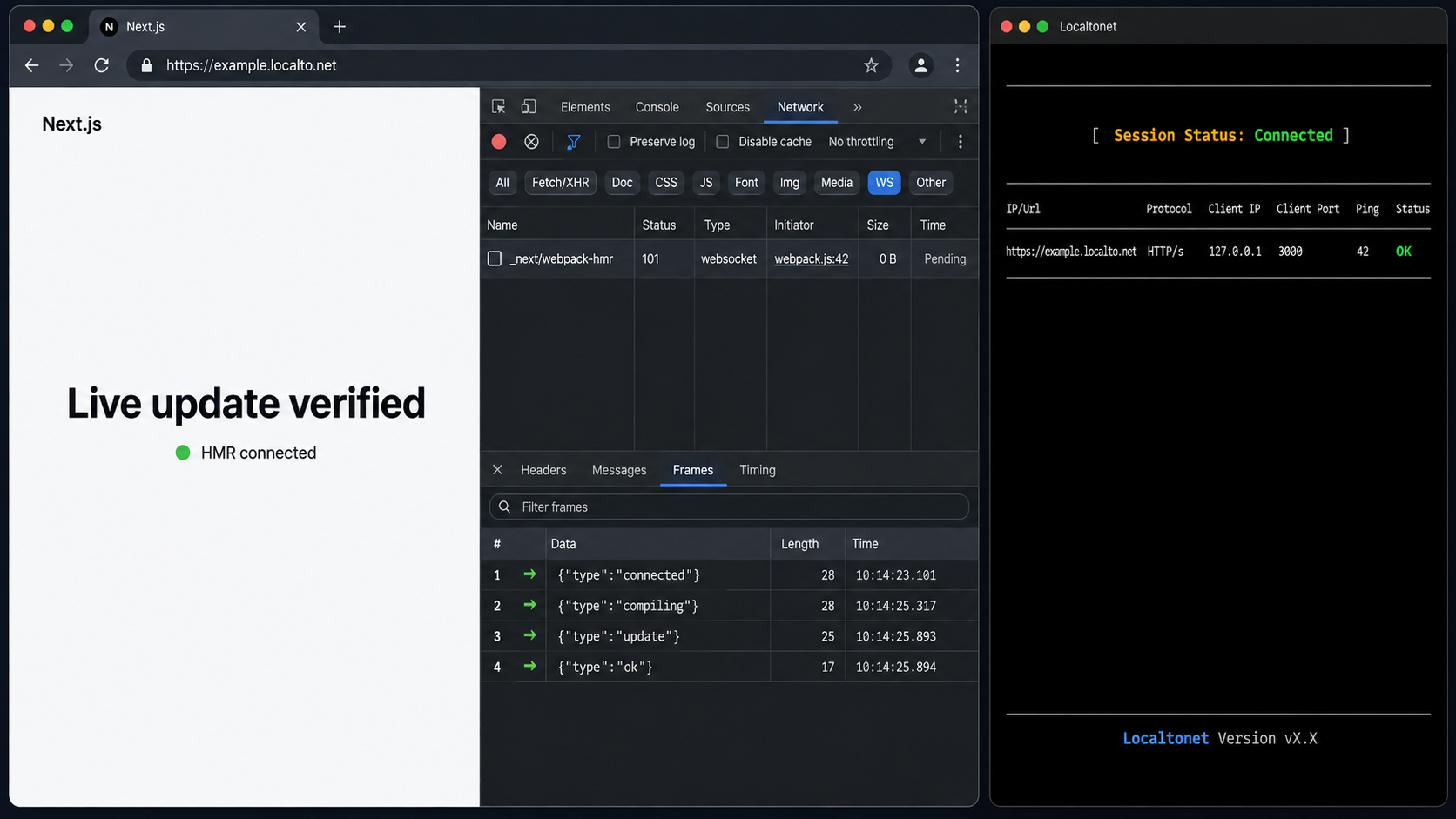
Verification should prove more than page reachability. A useful test demonstrates that the initial page loads, the development connection opens, a source change compiles, the browser receives the update, and the page changes without manual intervention.
Restart after configuration changes
Stop and restart the Next.js development process after changing its configuration. Then confirm that it is listening on the same local address and port configured in Localtonet.
Load the public preview in a clean browser context
Open the exact HTTPS URL. If cached scripts or a service worker might affect the result, use a clean browser profile or an appropriate private session. Keep developer tools open from the beginning so the connection attempt is captured.
Inspect the Console
Look for explicit origin warnings, mixed-content errors, connection retries, compilation failures, or runtime exceptions. Preserve the complete message before changing configuration because its wording often identifies the rejecting layer.
Inspect the Network panel
Filter for WebSocket or persistent development requests and select the connection initiated by the Next.js client. Record its request URL, status, headers, timing, and close behavior. A successful protocol upgrade commonly shows status 101.
Make a visible source edit
Repeat the same harmless edit used in the local baseline. Watch the Next.js terminal for compilation and the browser for an update. Do not manually refresh while performing this test.
Repeat after reverting the edit
Revert the change and save again. Two successful updates help distinguish working HMR from a coincidental reload, cached response, or one-time reconnect.
What a successful result looks like
- The public page loads from the assigned Localtonet HTTPS URL.
- The browser does not repeatedly report a disconnected development client.
- The relevant persistent connection remains open.
- The Next.js terminal reports compilation after a source edit.
- The visible component updates without a manual page refresh.
- Reverting the edit produces another automatic update.
Inspect the browser-facing scheme
An HTTPS page normally needs a secure browser connection for WebSocket traffic. If developer tools show the page attempting an insecure connection that the browser blocks as mixed content, investigate how the application or custom server constructs the WebSocket URL. Avoid hardcoding a local scheme or hostname into client-side development code.
Header behavior can also matter when a custom server or another reverse proxy sits between Localtonet and Next.js. Inspect what that component receives and how it interprets the original scheme and host. Do not add or trust forwarded headers indiscriminately. Configure only components you control, and follow their documented proxy-trust model.
Troubleshooting by symptom
| Symptom | Likely layer | Next check |
|---|---|---|
| Local and public pages both fail | Next.js process or target configuration | Confirm the process is running and the target address and port are correct |
| Local page works but public page returns an error | Tunnel lifecycle or local reachability | Confirm the Localtonet client and tunnel are running and the client device can reach the target |
| Public page loads but console shows an origin rejection | Next.js development-origin validation | Add the exact preview origin using the setting documented for the installed Next.js version |
| Connection request receives 403 | Application or development-server policy | Read the response and server logs, then verify origin and host rules |
| Connection request receives 404 | Wrong path, stale client assets, or custom routing | Reload with current assets and check whether a custom server or proxy rewrites the request path |
| Connection request receives 502 | Upstream target unavailable | Confirm the local process is listening on the configured port and remains reachable from the client device |
| Upgrade succeeds, then drops repeatedly | Process restart, tunnel disconnect, or network interruption | Compare timestamps in the browser, Next.js terminal, and Localtonet connection state |
| Edit compiles but browser does not update | Development connection or client runtime | Inspect connection frames, console exceptions, and whether the browser fell back to retrying |
The target address or port is wrong
The tunnel must point to the same service that passed the local baseline. Development servers often change ports when the preferred port is already occupied, and terminal output may announce the replacement. If Localtonet still points to the previous port, the preview can fail or reach an unrelated process.
Address selection also matters. If Next.js runs inside a container or virtual machine, an address that works from inside that environment may not be reachable from the host running the Localtonet client. Test the target from the client's network context and follow the container platform's documented port-publishing method.
The origin entry is too broad or does not match
Check the scheme, hostname, and port according to the syntax required by the installed Next.js release. An entry for a local HTTP origin does not necessarily authorize a public HTTPS origin. A copied hostname with a typo, an obsolete generated subdomain, or an unsupported wildcard can leave the error unchanged.
If the setting appears to have no effect, verify that it was added to the active Next.js configuration file, that the file's export syntax remains valid, and that the development process was restarted. Monorepositories can contain more than one configuration file, so make sure the process is running from the expected project directory.
A custom reverse proxy changes the request
If another proxy sits between the Localtonet local target and Next.js, temporarily compare a direct tunnel-to-Next.js path with the proxied path when your environment permits it. If the direct path works, inspect the intermediate proxy's upgrade handling, connection headers, host preservation, scheme forwarding, timeout behavior, and path rewriting.
Do not blindly add a collection of proxy headers from an unrelated example. Header trust is security-sensitive, and syntax differs across proxy servers. Change one documented behavior at a time and repeat the same visible-edit test.
The connection opens but closes later
Compare the disconnect time with local events. Saving configuration files can restart the development server. Laptop sleep, network switching, client termination, relay connectivity changes, or stopping the tunnel can also end a persistent connection. A browser retry after a deliberate development-server restart can be normal; continuous retries while the process is stable are not.
Keep the Next.js terminal visible during testing. If the process crashes or reports a compilation error at the same moment, resolve that local error first. If the process remains healthy but the browser connection closes, collect the close timing, status, headers, and any browser error before adjusting tunnel or proxy settings.
Cached development assets point to stale behavior
A stale tab, service worker, or aggressively cached asset can continue using a previous public hostname or connection path. Close old tabs, unregister project-specific service workers when appropriate, clear relevant site data, and load the current tunnel URL again. Avoid deleting unrelated browser data when a site-specific reset is sufficient.
An extension or managed network interferes
Privacy extensions, antivirus web inspection, corporate proxies, and managed networks can treat persistent browser connections differently from ordinary HTTPS. Compare a clean browser profile and, where policy permits, another network. Do not bypass organizational controls. If a managed environment blocks the connection, work with the responsible administrator.
Keep the same local port, tunnel URL, browser, and source edit while testing a single hypothesis. If you simultaneously change the tunnel, upgrade Next.js, replace the proxy, and disable origin checks, a successful result will not reveal which action fixed the problem.
Secure a public development preview
A development server is not a production deployment. It may expose detailed error pages, source maps, internal route names, unfinished authentication behavior, and data intended only for local use. A public URL should therefore be treated as temporary access to a sensitive development environment.
Do not connect a development preview to production credentials or unrestricted production data simply because the page is temporary. Use development accounts and sanitized data where possible. Review browser bundles for accidentally exposed environment values, and remember that any value intentionally delivered to client-side JavaScript can be inspected by a preview visitor.
If the preview is intended for a teammate or customer, define what they need to access and for how long. Stop the tunnel after the session, remove obsolete development-origin entries, and rotate any credential that may have been exposed accidentally. If a public hostname changes, remove the old origin from the project configuration rather than accumulating unused entries.
Turning off origin or host validation can conceal the immediate error while exposing the development server to requests from unintended sites. Use the supported exact-origin configuration for the installed Next.js version, and retain normal application authentication and authorization.
Frequently asked questions
Why does my Next.js page load through Localtonet while Turbopack HMR disconnects?
The initial page and assets use ordinary web requests, while HMR depends on a persistent development connection. HTTP delivery can succeed even when an origin check rejects the development request, a protocol upgrade fails, an intermediate proxy mishandles the connection, or the local process restarts.
What Next.js configuration option should I add?
Use the development-origin allowlist or equivalent setting documented for the exact Next.js version installed in your project. The option name, configuration location, and accepted value format can vary by release, so they must be checked against version-matched official Next.js documentation. Add only the exact Localtonet preview origin required by the session and restart the development server.
Should I allowlist every Localtonet subdomain?
No. Prefer the narrowest entry supported by your Next.js version, normally based on the exact public preview address you are using. Broad wildcard rules increase exposure and make obsolete preview hosts harder to track.
Does a successful public page load prove WebSockets are working?
No. It proves that at least some ordinary requests reached the local application. Inspect the browser Network panel for the actual persistent development connection, check whether its upgrade succeeds, and perform a visible source edit without manually refreshing.
Should I add permissive CORS headers to fix HMR?
Not unless diagnostics show that a CORS policy is the actual failure. Next.js development-origin validation and WebSocket upgrade failures are not automatically fixed by permissive application CORS headers. Read the browser error and server output, then configure the rejecting layer directly.
Why did HMR stop after my public preview URL changed?
The new URL represents a different browser-facing origin. An allowlist entry for the previous hostname may no longer match. Confirm the current public HTTPS URL, update the supported Next.js development-origin setting narrowly, restart the server, and remove the obsolete entry.
Can the Localtonet client run on a different device from Next.js?
Yes, provided the client device can reach the local IP address and port where Next.js is listening. Test that private network path first. Do not assume that a loopback address on one device refers to a service running on another device.
When should I stop the tunnel?
Stop or delete it when the remote preview or debugging session is finished. Also remove temporary origin entries that are no longer needed. The tunnel is available only while the selected Localtonet client is connected and the tunnel is running.
Test your Next.js preview with Localtonet
Establish a working local Turbopack baseline, create an HTTP tunnel to the verified local address and port, allow only the assigned preview origin, and confirm HMR with a real source edit. Keep the client connected during testing, protect your device token, and stop the tunnel when the review is complete.
Get Started Free →

