

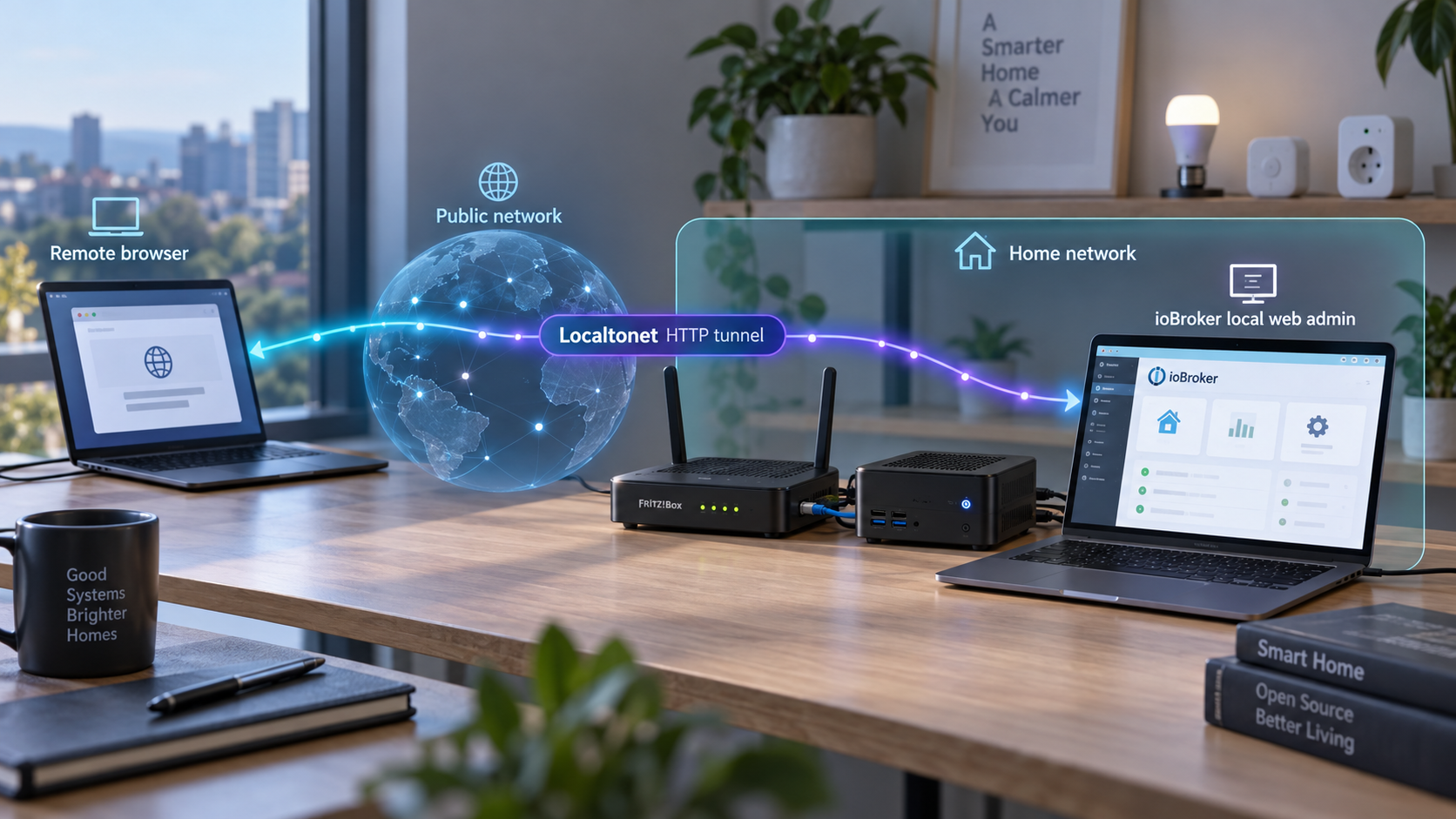
Build your home-automation hub locally, verify it on the trusted network, and add remote access only when it is ready
ioBroker is an open-source integration platform for home automation, building automation, smart metering, visualization, and data logging. This guide walks through the documented Linux and Windows installation paths, explains how to identify and verify the installed web administration interface without assuming its address or port, and covers practical operating and security considerations. Once the local deployment works correctly, we show how to connect that specific web interface to a Localtonet HTTP tunnel. The ioBroker databases, adapters, and connected smart-home devices should remain private rather than being exposed as separate internet services.
📋 What's in this guide
How ioBroker and Localtonet fit together
ioBroker provides an integration layer for systems that need to exchange configuration, state, and event data. Typical applications include smart-home control, building automation, ambient assisted living, process automation, smart metering, visualization, and data logging. Instead of requiring every connected system to understand every other system directly, ioBroker uses a common data model and adapters that connect individual technologies to the platform.
The architecture distinguishes between objects and states. Objects contain metadata and configuration information. States contain changing values from connected systems. ioBroker can maintain these through its in-memory data handling or use Redis. Adapters are separate processes that communicate with the databases and connect external systems. An adapter can run on a host that has the required IP network connectivity to those databases.
This architecture is flexible, but it creates an important security boundary. The ioBroker project explains that the platform is designed for trusted adapters on trusted networks. Its databases, adapter endpoints, and connected smart-home device services generally should not be made directly reachable from the public internet. A database port or device protocol is not a substitute for a controlled remote administration interface.
The safer workflow is to install ioBroker on a machine inside the trusted network, confirm that the platform and its web administration interface work locally, and then expose only that intended web endpoint. With Localtonet, the client running on the ioBroker host, or on another trusted device that can reach it, establishes an outbound connection to our relay. This avoids inbound router port forwarding, firewall changes, VPN setup, and the need for a public IP address.
What this guide does not expose
This workflow does not publish ioBroker's underlying databases, arbitrary adapter ports, Redis, or individual device services. It also does not assume that every service discovered on the host is suitable for internet access. The Localtonet tunnel target should be limited to the verified web administration endpoint that the operator intentionally chooses.
A public URL makes the selected endpoint reachable. It does not make an unsafe application configuration safe, and it does not replace ioBroker authentication, application authorization, least-privilege settings, or careful adapter configuration. Review the current ioBroker security options before allowing untrusted networks to reach an administrative interface.
Prepare the ioBroker host
ioBroker's controller is intended to run on hardware and operating systems that support Node.js. The project lists ARM and x86 systems and identifies Windows, Linux, and macOS as possible operating-system families. That broad compatibility does not mean every hardware configuration has the same capacity. Host sizing should account for the number and type of adapters, data retention, visualization workloads, and any other services sharing the machine.
Each ioBroker adapter instance runs as a separate Node.js process. The project estimates roughly 10 MB to 60 MB of memory for a single adapter, but that is an approximate per-adapter footprint rather than a complete host requirement. The controller, operating system, databases, visualizations, logging, and other processes also consume memory. Real usage depends on the adapters and workload.
| Requirement | What to confirm | Why it matters |
|---|---|---|
| Supported runtime environment | The host can run a currently supported Node.js environment for the ioBroker release being installed. | The documented installation is delivered through the Node.js package tooling. |
| Suitable operating system | Use a maintained Linux or Windows installation for the commands covered here. ioBroker also identifies macOS as a possible platform, but the supplied installation evidence does not establish a macOS-specific procedure. | Installation and service-management details vary by operating system. |
| Memory capacity | Plan for the controller, operating system, and every enabled adapter. A single adapter is estimated at approximately 10 MB to 60 MB. | RAM can become the limiting resource as adapter instances are added. |
| Persistent storage | Use reliable storage with enough capacity for configuration, states written to disk, logs, backups, and application data. | An automation controller should retain its configuration and recover predictably after a restart. |
| Trusted local network | Place the controller and its adapter connections on a network appropriate for trusted automation services. | ioBroker does not recommend directly exposing databases, adapters, or smart-home devices to untrusted networks. |
| Administrative access | Ensure that you can run the documented installer and inspect its output on the host. | The installer output and installed configuration are needed to determine startup status and the real administration endpoint. |
Check Node.js requirements instead of guessing a version
The installation command uses npx, which is part of the Node.js package toolchain. However, the supplied project evidence does not establish one universal Node.js version for every ioBroker release and operating system. Before installation, use the current ioBroker documentation or the compatibility information associated with the release you intend to deploy. Do not select a Node.js version merely because it is available from an operating-system repository.
This distinction matters over the lifetime of the server. Node.js compatibility can change as ioBroker is upgraded. Treat the supported runtime version as part of the ioBroker deployment, and review it before major controller updates rather than upgrading the runtime independently without checking compatibility.
Choose the machine deliberately
An always-on host is normally preferable for home automation because automations and integrations may need to run when no user is logged in. The machine should also have stable connectivity to the devices and services used by its adapters. If the Localtonet client will run on a different machine, that client device must remain online and be able to reach the ioBroker web interface over the local network.
Record enough deployment information to maintain the system later: the host name, operating system, installation location, runtime version, backup location, enabled adapters, and the confirmed administration URL. Do not put Localtonet device tokens or application credentials into general notes, screenshots, or shared configuration repositories.
Install ioBroker on Linux or Windows
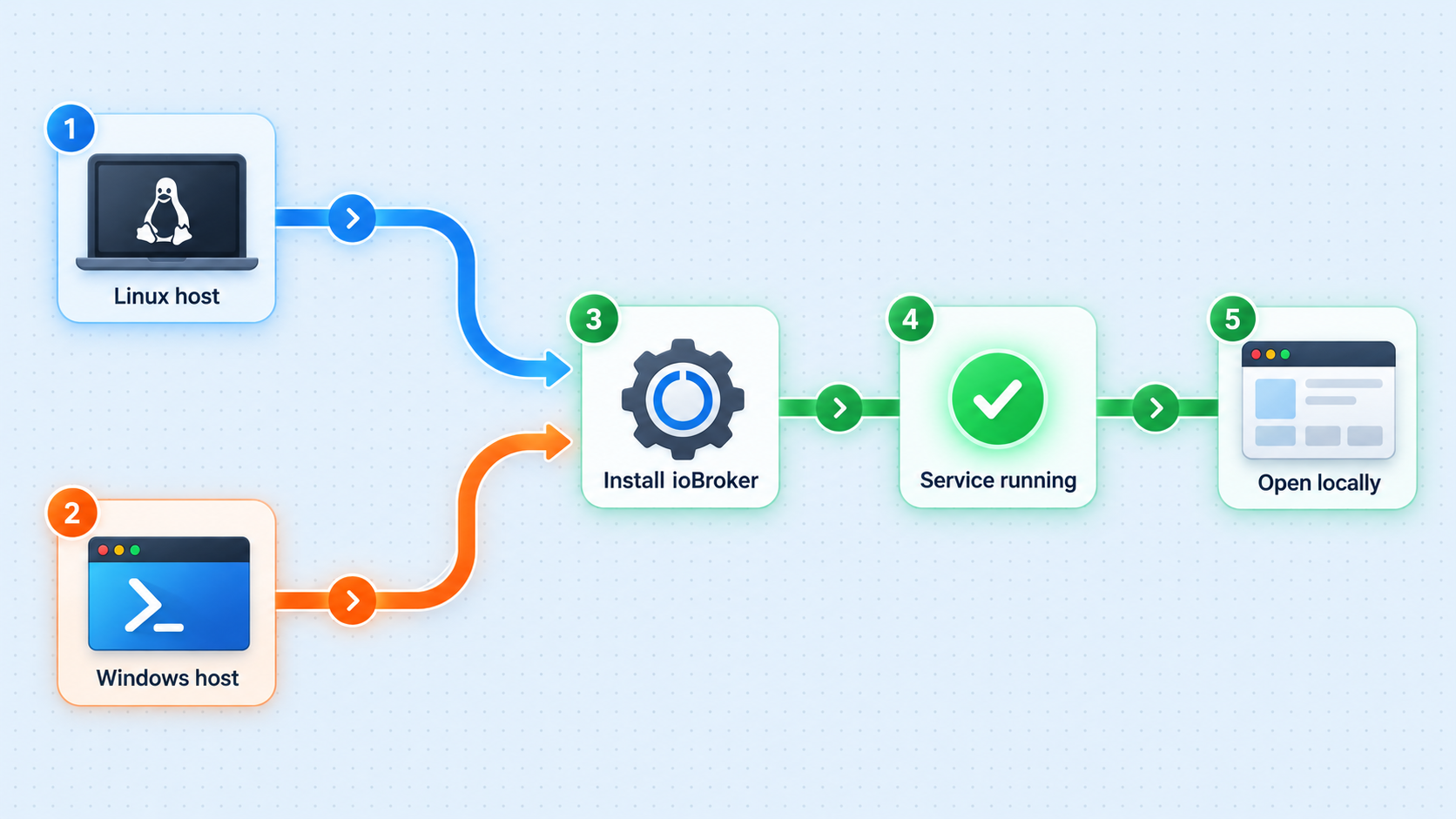
The ioBroker repository documents a direct npx installation command for Linux. For Windows, it documents either creating and entering C:\iobroker before running the same package installer or using the project's linked Windows installer. Use one installation path for the selected host rather than combining procedures.
The commands below are the documented entry points supplied by the ioBroker project. Prompts, operating-system package changes, service creation, completion messages, and post-installation actions can change. Read the installer output and preserve any endpoint or service information it reports. This guide does not invent prompts or unattended flags that are not established by the available project evidence.
Linux installation
Open a terminal on the intended Linux host using an account with the permissions required to install and operate ioBroker. Confirm that the compatible Node.js toolchain is available, then run the documented installation command:
npx @iobroker/installAllow the installer to complete, read any prompts carefully, and review its final output. Do not close the terminal before recording reported errors, warnings, or next steps. If the installation fails, retain the complete error output because the first meaningful error is often more useful than a later cascade of failures.
The evidence available for this guide does not define a universal Linux distribution list, a single package-manager preparation command, a fixed installation directory, or an exact service startup command. Those details should be taken from the current installer output and the ioBroker documentation for the operating system in use. Guessing a service name or directory can lead to inspecting or controlling the wrong process.
Windows installation with npx
On Windows, the documented command-line path creates C:\iobroker, changes into that directory, and runs the installer. In a Command Prompt environment, use:
mkdir C:\iobroker && cd C:\iobroker && npx @iobroker/install
This command intentionally places the installation workflow in C:\iobroker. Confirm that the drive has sufficient persistent storage and that the account has permission to create and use the directory. Read the installation output to learn how the installed instance is started, how it is managed, and where it reports the administration interface.
Windows graphical installer
The ioBroker project also provides a linked Windows installer as an alternative to the command-line method. Use that route if it better matches the host's administration model. The exact installer dialogs and defaults are not included in the supplied evidence, so they are not reproduced here. Follow the current installer prompts, preserve the selected installation information, and note the final service and administration details.
Complete the first installation before adding integrations
After the installer finishes, avoid adding many adapters immediately. First determine whether the controller is running and whether the administration interface can be reached locally. A small, verified baseline makes later troubleshooting easier. If a problem appears after adding an adapter, you can then distinguish an adapter-specific issue from a controller installation problem.
Startup behavior is installation-specific. The provided project evidence does not establish a single cross-platform command that starts every ioBroker installation. Use the startup or service instructions displayed by the installer or documented for the exact operating system and installation path. This limitation is important: substituting an unverified command could fail or affect a different service.
Identify and prepare the web administration interface
A Localtonet HTTP tunnel needs a concrete local IP address and port. The ioBroker material confirms that a web administration interface exists, but the supplied evidence does not define a universal host name, address, port, URL scheme, or installation default. We therefore should not assume a familiar port or copy an endpoint from another deployment.
Obtain the endpoint from the completed installation itself. Start with the installer's final output and the current ioBroker configuration or administration documentation for the installed release. The goal is to identify four facts:
- Whether the administration interface is running over local HTTP or local HTTPS.
- The exact local IP address or host interface on which it listens.
- The actual listening port.
- Whether the interface requires authentication and which access controls are enabled.
Understand the listening address
A service listening only on the loopback interface can generally be reached by software on the same host. If the Localtonet client runs on that same host, loopback may be suitable as the local target. If our client runs on another machine, the ioBroker interface must be reachable from that machine over the trusted local network. Do not broaden the listening scope merely for convenience without understanding the security effect.
Conversely, a service bound to a LAN interface may be reachable by other machines on that network. Test from the same network position that the Localtonet client will use. A browser test from the ioBroker host proves local availability, but it does not prove that a separate tunnel client can connect across the LAN.
Distinguish the application protocol from the public protocol
Record whether the local endpoint expects HTTP or HTTPS. Entering the wrong scheme can produce connection resets, malformed-response errors, redirect loops, or certificate warnings. The public address assigned to a Localtonet HTTP tunnel is HTTPS, but that does not justify guessing the protocol expected by the local ioBroker endpoint.
The ioBroker project advises enabling HTTPS and using valid certificates when opening web administration to the internet, together with additional security measures such as a VPN, VLAN, or reverse proxy. For this guide, the critical point is to preserve the intended security boundary, protect administrative authentication, and avoid exposing unrelated internal services.
If the administration endpoint is unclear, stop and resolve it from the installed configuration or current ioBroker documentation. Do not select a port merely because it is listening. ioBroker explicitly warns against directly exposing its databases, adapters, and smart-home devices to untrusted environments.
Verify ioBroker locally before creating a tunnel
Remote access should be the final connectivity layer, not the first diagnostic tool. If ioBroker does not work locally, a public tunnel will not repair the controller, its adapter configuration, or the web administration service. Establish a reliable local baseline first.
Confirm installation completion
Review the installer output for errors and required post-installation actions. Resolve installation failures before attempting browser access.
Confirm the controller and administration service are running
Use the service-management method documented by the installer or the current ioBroker instructions for the selected operating system. No universal startup command is assumed here.
Open the exact local administration URL
In a browser that can reach the host, use the confirmed scheme, local address, and port. Do not rely on a port copied from another ioBroker installation.
Verify meaningful application behavior
Confirm that the administration page loads, navigation works, and the expected controller state is visible. A successful TCP connection without a usable page is not enough.
Test from the Localtonet client's network position
If our client will run on another trusted device, open the same endpoint from that device or otherwise verify that it can reach the target. This catches host firewall, binding, routing, and segmentation issues before tunnel setup.
Build a simple verification record
Record the tested local URL privately, along with the date, host, protocol, and whether the test was performed on the ioBroker machine or from another LAN device. Also note any browser certificate warning on a local HTTPS endpoint. This information gives you a known-good baseline when diagnosing later changes.
Do not include passwords, session cookies, Localtonet tokens, or private endpoint details in screenshots or tickets. If troubleshooting information must be shared, redact credentials and review URLs for embedded secrets.
Connect the verified ioBroker interface through Localtonet
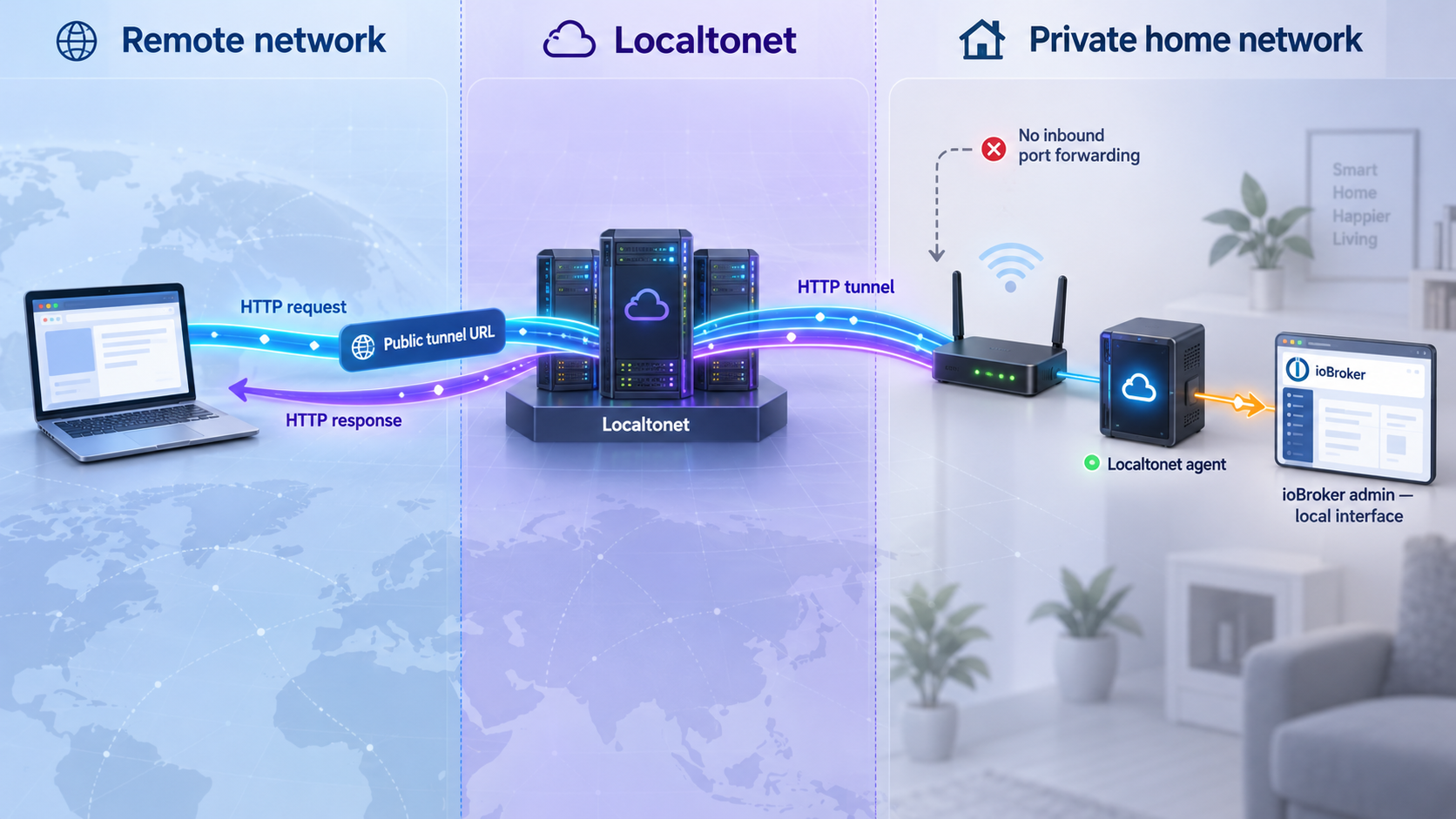
Once the local interface works, create an HTTP tunnel for that endpoint. HTTP is the appropriate Localtonet category for a browser-based administration application. Raw TCP or UDP exposure is not needed for this workflow, and those tunnel types should not be used to publish ioBroker databases, device services, or arbitrary adapter ports.
Install and run the Localtonet client on the ioBroker host or on a trusted device that can reach the confirmed web interface. The client creates an outbound connection to our relay server. Creating the tunnel configuration alone does not make it active: the selected client must remain connected, and the tunnel must be started.
Install and run the Localtonet client
Use the device that hosts ioBroker or another trusted device with network access to the verified administration endpoint. Keep the client running whenever remote access is required.
Authenticate or select the client device
Use the device-specific token associated with that client. Treat the token as a secret: do not publish it, place it in this article's example commands, or reuse a guessed value.
Select an available relay server
Choose from the server or region values currently shown in the Localtonet dashboard. Availability can vary, so this guide does not hardcode a server code or region.
Create the HTTP tunnel configuration
Select an HTTP tunnel and enter the exact local IP address and port verified earlier. For HTTP tunnels, choose the currently available Process Type that fits the deployment: Random Sub Domain, Custom Sub Domain, or Custom Domain. These process types serve the configured content at a public HTTPS address.
Start the tunnel
Use the Start button after reviewing the target. Creating a tunnel does not automatically start it. The public endpoint is available only while the selected client is connected and the tunnel is running.
Test the assigned public address
Open the assigned public HTTPS URL from a network outside the home LAN. Confirm that it reaches the intended ioBroker administration page, that authentication behaves as expected, and that no unrelated service is exposed. Stop or delete the tunnel if the target is incorrect.
Random Sub Domain, Custom Sub Domain, and Custom Domain all provide an HTTPS address for an HTTP or File Server tunnel, but availability and related options can vary. Exact custom-domain DNS instructions must be checked against the current Localtonet documentation rather than inferred. If a generated address is sufficient, it avoids introducing unverified DNS steps into the initial setup.
Our dashboard and REST API can manage tunnels, but this guide uses the dashboard workflow because no API credentials or endpoint-specific automation is required. Never paste a device token or API credential into a public command, repository, issue, or browser screenshot.
The public URL works only while the selected Localtonet client is connected, the tunnel is running, and the ioBroker administration service remains reachable at the configured local target. A tunnel can exist in the dashboard without currently being active.
Secure the remote administration path
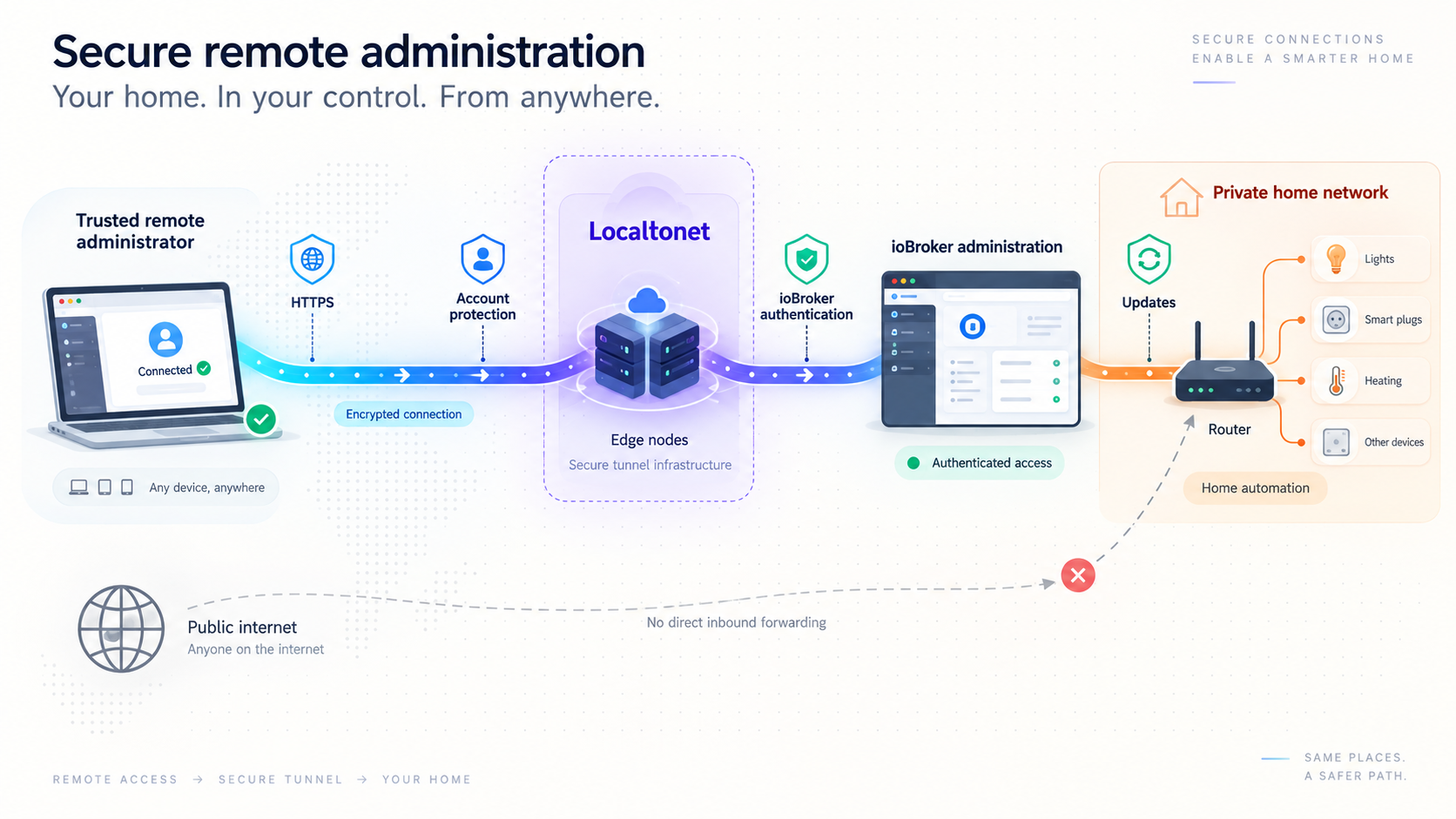
Remote administration deserves stricter controls than ordinary local browsing because it can affect automations, integrations, and devices in a physical environment. Localtonet removes the need to open an inbound router port, but safe exposure still requires application-level protection and careful scope.
Expose one intended interface
Point the HTTP tunnel only to the verified ioBroker administration address and port. Do not create additional tunnels for databases, Redis, adapters, or smart devices merely because remote connectivity would be convenient. If a particular adapter is designed to receive internet traffic, review that adapter's current security documentation separately before exposing it.
Use the application's access controls
Enable and verify the authentication and authorization features available in the installed ioBroker administration configuration. The supplied evidence does not establish exact menu labels, credential defaults, or access-control fields for every release, so this article does not invent them. Test protection from a fresh browser session before treating the public address as ready.
Use unique credentials and restrict administrator access to people who need it. Avoid sharing a live administrative session or embedding credentials in a URL. If the current ioBroker release provides role or privilege controls, apply least privilege according to its official documentation rather than giving every user unrestricted administration rights.
Protect the device token
A Localtonet auth token identifies the client device that runs the tunnel. It must not appear in tutorials, shell history shared with others, screenshots, source repositories, or support posts. Use the real token only in the intended client authentication flow. If a token may have been exposed, handle it through the current account controls rather than continuing to use it.
Keep the trusted network boundary intact
Network segmentation can limit the effect of a compromised service. The ioBroker project specifically identifies measures such as VPNs, VLANs, and reverse proxies as options to consider when protecting administration access. Localtonet standard HTTP tunneling is not a VPN. If a private mesh network is required instead of a public application URL, that is a separate use case for Localtonet VPN Manager.
Stop access when it is not needed
A tunnel can be stopped and later started again. For occasional maintenance, keeping it stopped outside the maintenance window reduces the time that the endpoint is publicly reachable. Delete obsolete tunnels so old configurations do not remain available for accidental reuse.
| Layer | Recommended responsibility | Common mistake to avoid |
|---|---|---|
| ioBroker application | Configure the administration interface and use its supported authentication and authorization controls. | Assuming a hard-to-guess public URL replaces a login. |
| Local target | Select only the confirmed web administration IP address and port. | Forwarding an unknown listening port or a database service. |
| Localtonet device | Protect the device-specific token and keep the client host maintained. | Publishing the token in commands, screenshots, or repositories. |
| Tunnel lifecycle | Start the tunnel only after reviewing it, then stop or delete it when appropriate. | Assuming a created tunnel is automatically running or forgetting an unused active tunnel. |
| Network design | Keep databases, adapters, and smart-home devices inside trusted or appropriately segmented networks. | Exposing every related port because the administration page needs remote access. |
Operate and maintain the deployment
Back up before meaningful changes
Back up the ioBroker configuration and data using the current project-supported procedure before controller upgrades, Node.js changes, major adapter updates, or host migration. The supplied evidence does not define a universal backup command or storage path, so this guide does not provide one. Confirm both the backup operation and the restore procedure for the installed release.
Store backups separately from the ioBroker host. A backup kept only on the same disk does not protect against disk failure. Protect backup files because automation configurations can reveal device names, schedules, network details, and credentials.
Update in controlled stages
Review ioBroker release information and runtime compatibility before changing Node.js or the controller. Apply one major category of change at a time, then repeat the local verification process. After local behavior is confirmed, test the public URL again. This sequence makes it easier to identify whether a failure came from ioBroker, the runtime, a host firewall change, or the tunnel.
Monitor resources as adapters are added
Because every adapter instance creates another Node.js process, memory consumption can grow with the installation. The approximate 10 MB to 60 MB per-adapter figure is useful for early planning, but actual consumption should be observed on the deployed host. Watch memory pressure, storage growth, and repeated process restarts. Resource exhaustion can appear as intermittent web-interface failures even when the tunnel itself remains connected.
Document the dependency chain
Successful remote access depends on the ioBroker administration service, local networking, the Localtonet client, and the running tunnel. Record which device runs each component. If the client runs on another machine, maintenance or shutdown of that machine will interrupt remote access even when ioBroker continues operating.
Use lifecycle controls intentionally
Stop the tunnel when remote administration is temporarily unnecessary. Start it when access is required, and delete it when the deployment is retired or replaced. Remember that deleting a tunnel is different from stopping one. Stopping preserves the configuration for later use, while deletion removes it.
Troubleshoot installation and remote-access problems
The installation command cannot run
If npx is not recognized, verify that a compatible Node.js toolchain is installed and available to the current shell. Do not solve the problem by selecting an arbitrary Node.js version. Check the requirements for the ioBroker release being installed. If npx starts but package installation fails, retain the complete output and identify whether the first error concerns permissions, package retrieval, runtime compatibility, or another host dependency.
The installer finishes, but no administration page appears
First confirm that the relevant controller and administration processes are running according to the installation-specific instructions. Then retrieve the actual endpoint from the installer output or configuration. A browser failure at a guessed port does not prove that ioBroker failed. It may simply mean that the wrong scheme, address, or port was used.
Test from the ioBroker host first. If that works, test from the device that will run the Localtonet client. A local-only success followed by a LAN failure usually points to an interface binding, host firewall, routing, or network segmentation issue rather than a Localtonet tunnel issue.
The local page works, but the public URL does not
Check the dependency chain in order:
- Confirm that the ioBroker administration page still opens from the Localtonet client device.
- Confirm that the selected Localtonet device is connected.
- Confirm that the HTTP tunnel was started after creation.
- Review the configured local IP address and port for typing errors.
- Confirm that the configured local protocol matches the actual ioBroker endpoint.
- Verify that no host or LAN policy changed after the original test.
Do not respond by creating several tunnels to adjacent ports. Return to the known-good local endpoint and correct the existing target.
The public URL reaches the wrong application
Stop the tunnel immediately. Recheck the target IP address and port, especially on a machine that hosts multiple web services. Verify the intended ioBroker page locally from the same client device, update the tunnel target, and test again. Do not leave the wrong application publicly reachable while investigating.
The browser shows redirects or protocol errors
Confirm whether the local ioBroker interface expects HTTP or HTTPS. Protocol mismatches can result in failed handshakes, redirects, or unreadable responses. Also check whether the application has host-name, origin, or proxy-related behavior configured. Exact ioBroker settings vary and are not established by the evidence supplied here, so consult the current configuration documentation for the installed administration component instead of guessing field names.
Remote access stops after a reboot
Determine which component did not return: ioBroker, its administration service, the Localtonet client, or the tunnel. The public endpoint requires the application to be reachable, the selected client to be connected, and the tunnel to be running. Review the startup behavior established by each installer. This article does not claim an automatic-start default because it can vary by platform, client version, and deployment.
The system becomes unreliable after adding adapters
Review memory and processor consumption, adapter logs, and storage capacity. Each adapter instance creates another Node.js process and can consume roughly 10 MB to 60 MB, with real requirements depending on the adapter. Disable or correct the recently added component according to ioBroker's current administration guidance, then return to the verified baseline before changing tunnel settings.
If the administration interface cannot be opened from the Localtonet client device, fix ioBroker or the local network first. Recreating the public tunnel will not resolve a stopped application, incorrect local endpoint, incompatible runtime, or local firewall restriction.
Frequently asked questions
What is the default ioBroker administration port?
This guide does not assume one. The supplied official evidence confirms a web administration interface but does not establish a universal local host name, address, port, or scheme. Obtain the endpoint from the completed installation, installed configuration, or current ioBroker documentation, then verify it locally before entering it in Localtonet.
Which command installs ioBroker on Linux?
The project documents npx @iobroker/install as the Linux installation command. Confirm the currently supported Node.js requirements for the ioBroker release first, then review all installer output and follow its platform-specific completion instructions.
How do I install ioBroker on Windows?
The documented command-line path is mkdir C:\iobroker && cd C:\iobroker && npx @iobroker/install. The project also offers a linked Windows installer. Choose one method, complete its prompts, and retain the reported service and administration details.
Should I expose ioBroker databases or adapter ports through separate tunnels?
No, not as part of this workflow. ioBroker is designed around trusted adapters and trusted networks, and its project guidance warns against directly exposing databases, adapters, or smart-home devices to untrusted environments. Target only the intentionally selected web administration endpoint.
Does a Localtonet HTTP tunnel require router port forwarding?
No. Our client establishes an outbound connection to a Localtonet relay, so this workflow does not require an inbound router port-forwarding rule, a public IP address, firewall changes, or VPN setup. The client must remain connected and the tunnel must be running.
Is Localtonet HTTP tunneling the same as a VPN?
No. An HTTP tunnel publishes the configured web endpoint at a public HTTPS address. Localtonet VPN Manager is the separate private mesh VPN feature. Do not describe a standard HTTP tunnel as a VPN.
Can the Localtonet client run on a different device from ioBroker?
Yes, provided that the selected client device can reach the ioBroker administration IP address and port over the trusted network. Test the local endpoint from that device before creating the tunnel. The public URL will stop working if that client disconnects even if the ioBroker host remains online.
Does creating a tunnel make it active immediately?
No. Creating the configuration and running it are separate lifecycle actions. Use the Start button after reviewing the local target. You can later stop the tunnel without deleting its configuration, or delete it when it is no longer needed.
How much memory does ioBroker need?
There is no single total that fits every deployment. ioBroker starts a separate Node.js process for each adapter instance, and the project estimates approximately 10 MB to 60 MB per adapter. Add capacity for the controller, operating system, databases, logs, visualizations, and other workloads, then monitor the real host after installation.
Reach your verified ioBroker interface with Localtonet
Install and test ioBroker on the trusted network first. When its exact web administration address and port are confirmed, connect that endpoint through a Localtonet HTTP tunnel without opening an inbound router port.
Get Started Free →

