

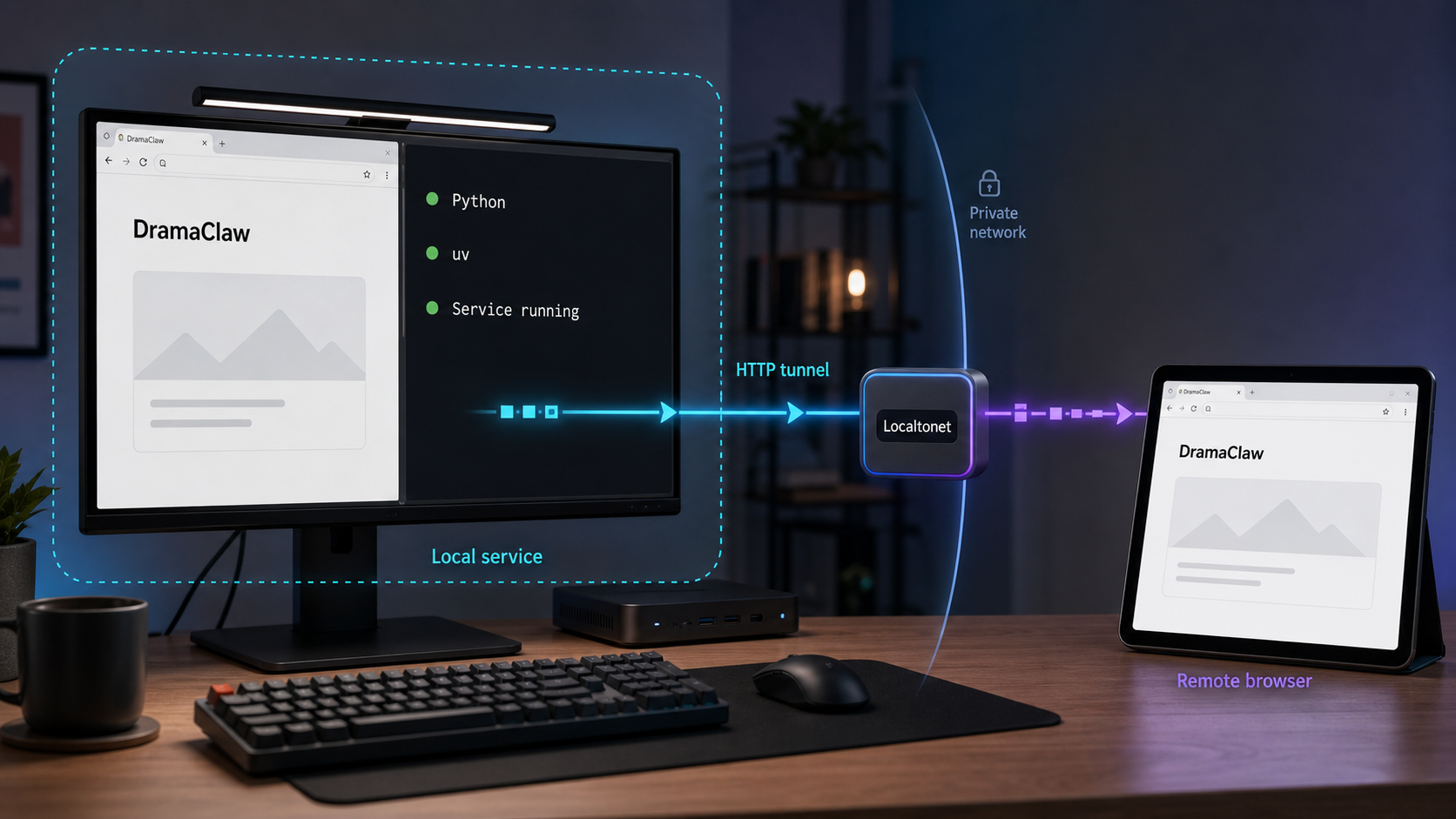
Build a locally verified DramaClaw environment before enabling remote access
DramaClaw is a self-hosted AIGC video production application with a browser interface and REST API. This guide explains its verified prerequisites, the recommended Docker Compose installation, and what is currently established about the non-Docker development workflow using uv and Python. We will verify the application locally before connecting either endpoint to a Localtonet HTTP tunnel. The separation matters because remote access should be added only after the application starts correctly and its security settings have been reviewed.
What DramaClaw runs on your infrastructure
DramaClaw is a source-available video production engine designed to take a project from manuscript processing through assets, scripts, storyboards, voice-over, composition, and export. Its pipeline is intended for work such as short dramas, advertisements, product videos, and interactive visual content. The application includes a browser interface for project work as well as a REST API that can support integrations and custom workflows.
Self-hosting DramaClaw does not mean that all AI inference happens on the local machine. The standard pipeline sends inference requests to an OpenAI-compatible model gateway. As a result, the host needs outbound network access to the configured gateway even when the web interface and application state run locally. A Localtonet tunnel can make the local interface reachable remotely, but it does not replace or relay that outbound model dependency.
The standard deployment does not require a local GPU. The documented recommendation is at least 2 vCPU and 4 GB of RAM, excluding model inference because that work occurs at the remote gateway. Generated images, media, and application state require local disk capacity, but the project does not specify one fixed minimum because storage needs vary by workload. State is stored on the local filesystem using SQLite and files, so Postgres, Redis, Celery, and Ray are not required for the documented standard setup.
http://localhost:8080 after a successful startup.
http://localhost:8780, which can be exposed separately when an integration needs it.
Choose the appropriate installation path
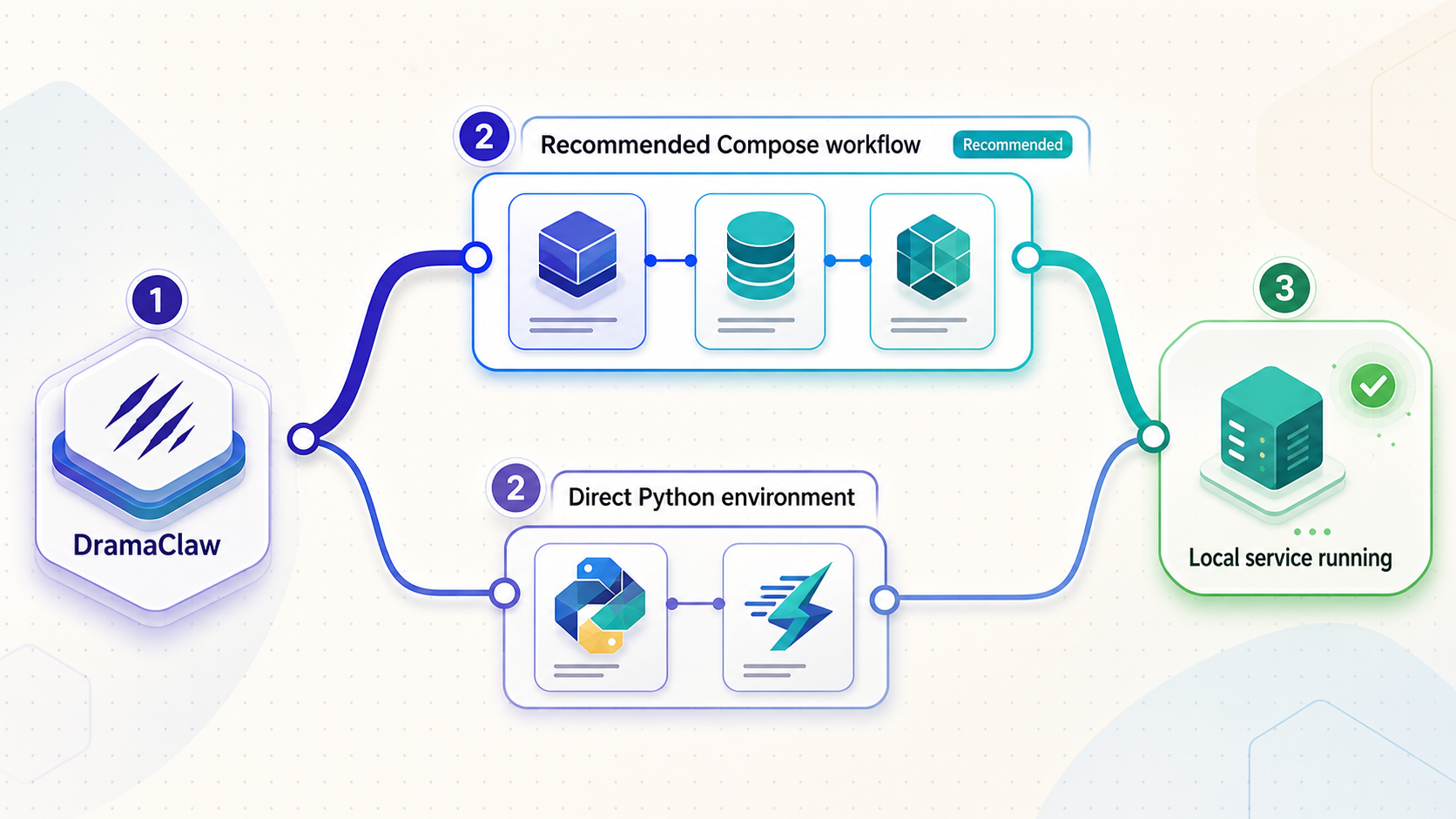
DramaClaw documents Docker Compose as its recommended installation method. It also supports a non-Docker local development environment using Python 3.11 to 3.12, uv, and ffmpeg. These paths serve different purposes. Compose is the clearest route for operating the application from documented service definitions, while the uv path is intended for local development and code-level work.
| Installation path | Prerequisites | Best fit | Verified startup detail |
|---|---|---|---|
| Docker Compose source build | Git, Docker, and Docker Compose | Recommended self-hosted setup built from the repository | docker compose up -d --build |
| Release-image Compose | Docker and Docker Compose | Using the project-provided release Compose definition | The exact file selection should follow the current project documentation |
| Local development with uv | Python 3.11 to 3.12, uv, and ffmpeg | Development, testing, and source-level changes | The supplied evidence does not establish the exact synchronization or startup command |
DramaClaw’s verified requirements identify Python 3.11 to 3.12, uv, and ffmpeg for non-Docker development, but the evidence available for this draft does not contain the exact dependency groups, uv invocation, or application entry point. Those details can change with the project configuration. Check the current DramaClaw self-hosting documentation and repository instructions before running the development environment rather than copying an assumed command.
Check the uv and Python prerequisites
If your goal is to modify DramaClaw or run its development environment directly, begin by confirming that the required tools are available. These checks do not install project dependencies or start DramaClaw. They only establish that the host has compatible versions before you follow the project’s current development instructions.
python --version
uv --version
ffmpeg -version
The Python result should identify a 3.11 or 3.12 interpreter. The uv and ffmpeg checks should return version information instead of a command-not-found error. If your system has multiple Python installations, ensure that the interpreter selected by the project matches the supported range. Do not assume that the operating system’s default Python is compatible.
After the tools are confirmed, use the exact uv synchronization and application startup instructions from the current DramaClaw documentation. Avoid improvising dependency extras or module entry points. A repository containing pyproject.toml and uv.lock establishes that uv is used for dependency management, but those files alone do not justify guessing which optional groups or runtime command the maintainers expect.
DramaClaw needs configuration for an OpenAI-compatible model gateway. Store any gateway credential only in the configuration location documented by the project. Do not paste credentials into shell history, screenshots, tunnel URLs, support messages, or public repositories. A Localtonet device token is also sensitive and must never be embedded in an article, command example, or shared configuration file.
Install DramaClaw with the recommended Compose workflow
For readers who want a complete, evidence-backed installation path rather than a development environment, the recommended source-build workflow is Docker Compose. It consists of cloning the repository, creating a local environment file from the supplied example, reviewing its settings, and building the services.
Clone the DramaClaw repository
Download the maintained repository and enter its directory. Review the checked-out branch or release before using it in a persistent environment.
git clone https://github.com/dramaclaw/dramaclaw.git
cd dramaclawCreate the local environment file
Copy the project’s example environment file to .env. Use the equivalent file-copy operation for your operating system if the command below is not available.
cp .env.example .envConfigure the environment
Open .env locally and follow the comments and current DramaClaw documentation. Configure the required OpenAI-compatible gateway connection without committing secrets. This draft does not reproduce variable names or sample credentials because they must be taken from the current project file.
Build and start the services
Start the source-build Compose deployment in detached mode. Building may take time on the first run because Docker needs to prepare the application image and its dependencies.
docker compose up -d --buildVerify the web UI and REST API locally
Do not create a public tunnel immediately after starting the containers. First verify that the application is running on the host itself. This separates application startup problems from tunnel configuration problems and prevents an incomplete service from being exposed.
Open http://localhost:8080 in a browser on the DramaClaw host. A successfully loaded application page confirms that the browser interface is reachable through the documented local port. Complete any first-run setup presented by the current release, then test a normal application operation that requires the configured model gateway. Loading the interface alone does not prove that outbound model requests are correctly configured.
The REST API is documented at http://localhost:8780. You can check basic HTTP reachability with the following command:
curl -i http://localhost:8780The exact response at the API root depends on the application version and routing configuration. A non-success response can still show that an HTTP service answered, but it does not prove that a particular API operation is valid. Use a documented DramaClaw API route and the authentication behavior specified by the installed release when performing a functional API test.
A Localtonet HTTP tunnel provides a public HTTPS address for the selected local HTTP service. Treat that address as public unless you have deliberately applied appropriate application authentication and access restrictions. Do not expose projects, media, gateway credentials, administrative functions, or write-capable API routes until you understand the installed DramaClaw release’s authorization behavior.
Connect the verified service through Localtonet
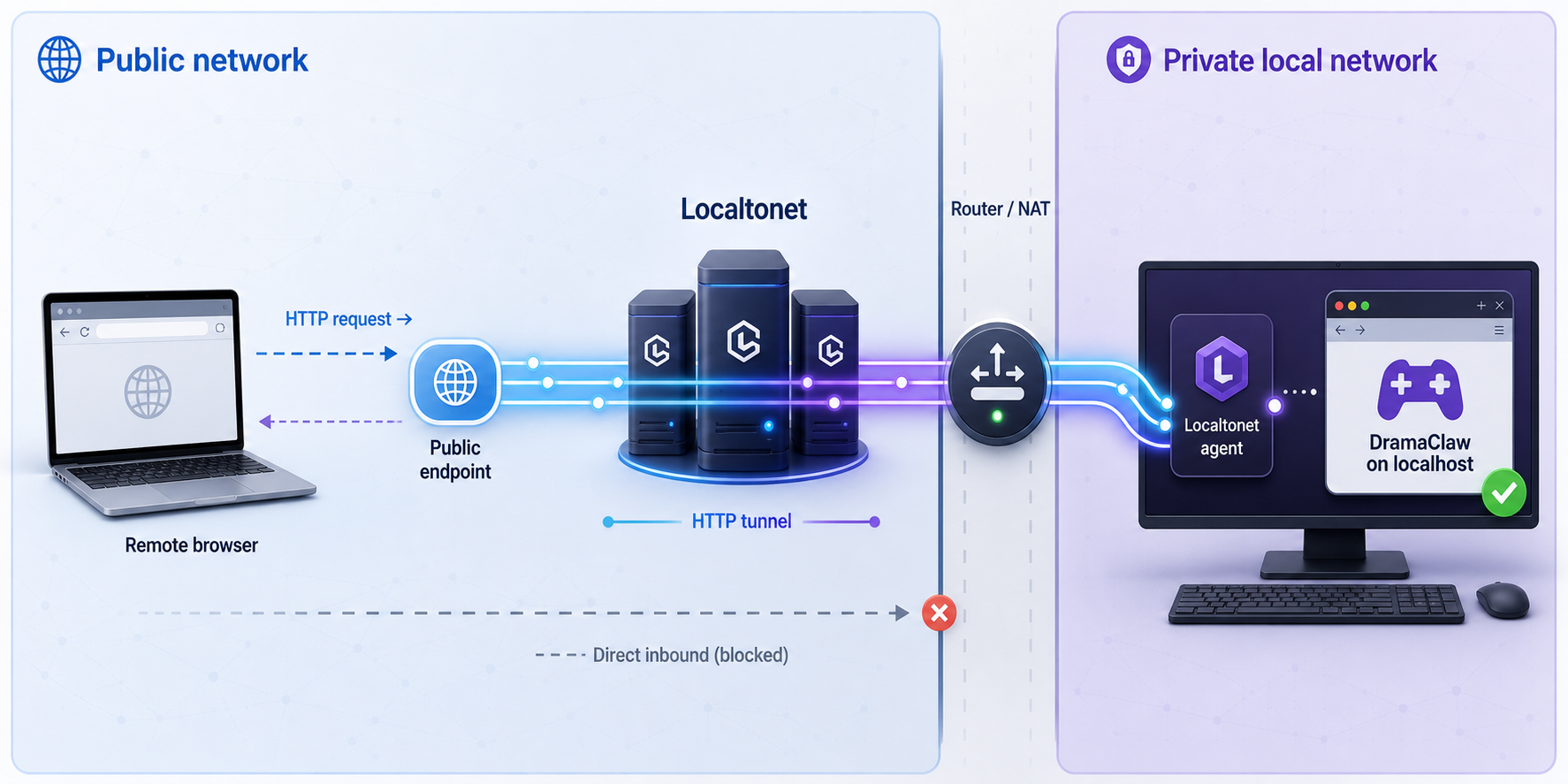
Once DramaClaw works locally, our HTTP tunnel can provide remote access without inbound router port forwarding, firewall changes, VPN setup, or a public IP address. The Localtonet client on the DramaClaw host establishes an outbound connection to our relay. The resulting public address remains available only while the selected client is connected and the tunnel is running.
The web UI on port 8080 is the natural general-purpose target for browser access. The REST API on port 8780 should normally be treated as a separate exposure decision because programmatic endpoints can have different authentication and authorization risks. Create a separate HTTP tunnel if the API genuinely needs remote access instead of assuming that exposing the UI also exposes every service on the machine.
Install and run the Localtonet client
Install our client on the DramaClaw host, or on another device that can reach the DramaClaw local service. Keep the client running for as long as remote access is required.
Authenticate and select the device
Use the device-specific Localtonet token through the supported client workflow, then select that device when configuring the tunnel. Never publish or share the token.
Select an available relay server
Choose a currently available server or region from the dashboard. Do not hardcode a server code from an old guide because available values can change.
Create the HTTP tunnel
Choose an HTTP tunnel and point its local target to the DramaClaw host and port. Use port 8080 for the browser interface. If remote API access is required and approved, configure a separate HTTP tunnel targeting port 8780.
Start and test the tunnel
Creating a tunnel does not start it. Press Start, then test the assigned public HTTPS address from a different network. Confirm that only the intended DramaClaw service is reachable.
Stop or delete access when finished
Stop the tunnel when remote access is no longer required. Delete it if the configuration will not be reused, and review DramaClaw logs and access records according to your operating policy.
For current dashboard behavior and configuration details, consult the Localtonet HTTP tunnel documentation. HTTP tunnels can use a generated subdomain, a selected subdomain where supported, or a custom domain. Exact custom-domain DNS instructions should always be checked against our current documentation before making DNS changes.
Web UI exposure versus REST API exposure
| Target | Local address | Typical purpose | Exposure consideration |
|---|---|---|---|
| DramaClaw web UI | http://localhost:8080 |
Interactive browser access to projects and production workflows | Review login, project visibility, uploads, and administrative controls first |
| DramaClaw REST API | http://localhost:8780 |
Automation and application integrations | Verify API authentication, route permissions, and credential handling |
| Model gateway | Configured outbound destination | Remote AI inference used by the standard pipeline | This is an outbound dependency and is not the target of the DramaClaw UI tunnel |
Troubleshooting the installation and tunnel separately
Nothing loads on localhost
Confirm that the Compose services are running and inspect their local output using the project’s documented Docker workflow. Recheck the .env configuration and verify that ports 8080 and 8780 are not already occupied. Do not troubleshoot Localtonet until the intended endpoint responds locally.
The interface loads but generation fails
Verify outbound connectivity to the configured OpenAI-compatible gateway and review the DramaClaw task output. A working tunnel confirms inbound reachability to the local interface, not successful model inference. Gateway credentials, provider restrictions, content checks, and model availability remain separate concerns.
Local access works but the public URL does not
Confirm that the Localtonet client is connected, the correct device token was selected, and the tunnel was explicitly started. Check that the local target points to the service address reachable from the client device. If Localtonet runs on another machine, localhost refers to that other machine, not automatically to the DramaClaw host.
The wrong service appears
Stop the tunnel and recheck the selected target port. Port 8080 is the documented DramaClaw web UI, while port 8780 is the REST API. Keeping these targets in separate tunnels makes the intended exposure easier to review and revoke.
Frequently asked questions
Does DramaClaw require a local GPU?
No GPU is required for the documented standard pipeline because inference runs through a remote OpenAI-compatible gateway. The optional world extra for voxel or panorama-to-3D functionality requires a GPU and a CUDA image.
Which Python versions are supported for the uv development setup?
The verified non-Docker requirements specify Python 3.11 to 3.12, uv, and ffmpeg. Use the current DramaClaw development documentation for the exact dependency synchronization and startup commands.
Should I tunnel port 8080 or port 8780?
Use port 8080 for browser access to the DramaClaw web UI. Port 8780 is the REST API and should be exposed separately only when a remote integration requires it and the API’s authentication and permissions have been verified.
Does Localtonet eliminate DramaClaw’s model gateway requirement?
No. Our HTTP tunnel provides remote inbound access to the local web interface or API. DramaClaw still needs outbound access to its configured OpenAI-compatible gateway for standard model inference.
Is the public address available when the Localtonet client stops?
The tunnel is available only while the selected client device is connected and the tunnel is running. Creating the tunnel configuration alone does not start it.
Do I need router port forwarding for DramaClaw remote access?
No. The Localtonet client establishes an outbound connection to our relay, so the workflow does not require inbound router port forwarding, a public IP address, firewall changes, or VPN setup.
Connect your verified DramaClaw service with Localtonet
Confirm that DramaClaw works locally, review its authentication and gateway configuration, then create an HTTP tunnel for the specific interface that needs remote access.
Get Started Free →

