

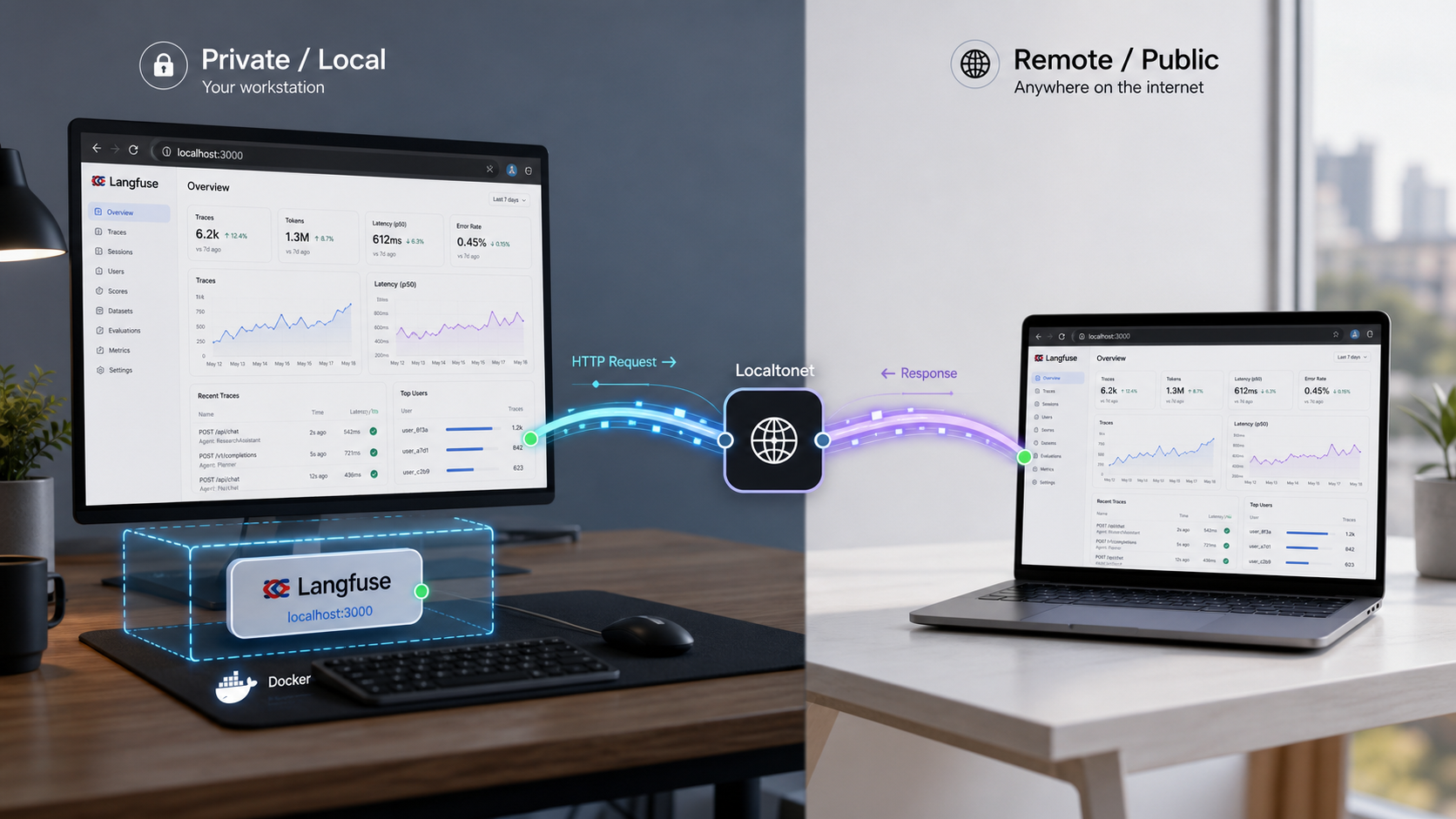
Build a local LLM observability environment first, verify it, and then make it available to authorized remote users
Langfuse is an open-source AI engineering platform for tracing, evaluating, monitoring, and improving LLM applications. This guide starts with the official Docker Compose installation workflow, explains how to identify and verify the deployed HTTP endpoint without assuming a port, and then treats remote access as a separate step. Once Langfuse is working locally, an HTTP tunnel with Localtonet can provide a public HTTPS address without inbound router port forwarding, firewall changes, VPN setup, or a public IP address. The result is a practical workflow for development, evaluation, demonstrations, and authorized team access.
What Langfuse provides
Langfuse is an open-source LLM engineering platform designed to help teams collaboratively develop, monitor, evaluate, and debug AI applications. Its observability capabilities can ingest traces representing LLM calls and surrounding application activity, including retrieval, embeddings, tool use, and agent actions. Engineers can use those traces to investigate application behavior, inspect sessions, identify problematic outputs, and understand how an AI workflow reached a result.
The platform also includes prompt management, evaluations, datasets, a playground, and APIs for custom LLMOps workflows. Prompt management helps teams manage and version prompts outside application code. Evaluation workflows can include LLM-as-a-judge techniques, code-based evaluators, user feedback, manual labeling, and custom pipelines. Datasets support repeatable experiments and benchmarks, while the playground provides an environment for testing prompts and model configurations.
Self-hosting places the deployment and its operational responsibilities on infrastructure controlled by the operator. This can be useful when a team needs a local development instance, wants to evaluate the platform before selecting a production architecture, or has specific infrastructure requirements. It also means the operator must manage configuration, credentials, updates, backups, access policy, and the dependencies included in the deployment.
Choose an appropriate deployment path
Langfuse documents several self-hosting paths. Docker Compose is the most direct option for running the platform on a local machine and is the workflow used in this tutorial. A single virtual machine can also run Langfuse with Docker Compose. For production deployment on Kubernetes, the project identifies Helm as the preferred path. Terraform templates are also available for deployments on AWS, Azure, and Google Cloud Platform.
These options should not be treated as interchangeable operationally. A local Docker Compose deployment is useful for evaluation, development, and learning the platform, but a production environment may require additional planning for persistence, scaling, backup, recovery, monitoring, upgrades, and security. Consult the current Langfuse self-hosting documentation before selecting an architecture or changing configuration because deployment requirements can evolve between releases.
| Deployment option | Typical purpose | Important consideration |
|---|---|---|
| Local Docker Compose | Evaluation, development, and local testing | Run the repository-provided Compose configuration and verify its configured endpoint locally. |
| Virtual machine with Docker Compose | Single-machine hosted deployment | Plan for persistent storage, access controls, updates, monitoring, and recovery. |
| Kubernetes with Helm | Production-oriented orchestration | Langfuse identifies Kubernetes with Helm as its preferred production deployment path. |
| Terraform templates | Cloud infrastructure on AWS, Azure, or GCP | Review the current provider-specific templates and configuration before deployment. |
Prerequisites for the Docker Compose installation
The documented local workflow uses Git to obtain the repository and Docker Compose to start the services. Before continuing, install Git, Docker, and a Docker Compose implementation that supports the docker compose command. Confirm that Docker is running and that your user account is permitted to start containers. Resource and operating-system requirements should come from the current Langfuse self-hosting documentation rather than from guessed values.
You should also decide where persistent application data will live and how it will be protected. Review the Compose file and the current configuration documentation before treating the deployment as durable. If you plan to use the instance for real traces, prompts, evaluations, or datasets, establish backup and recovery procedures appropriate to the components in your selected deployment.
Examine the current Langfuse configuration requirements and repository-provided example files before entering credentials or secrets. Generate values according to the official instructions, keep them out of source control, and never place authentication tokens, API keys, or private endpoints in a tunnel description, screenshot, or shared command transcript.
Install Langfuse locally with Docker Compose
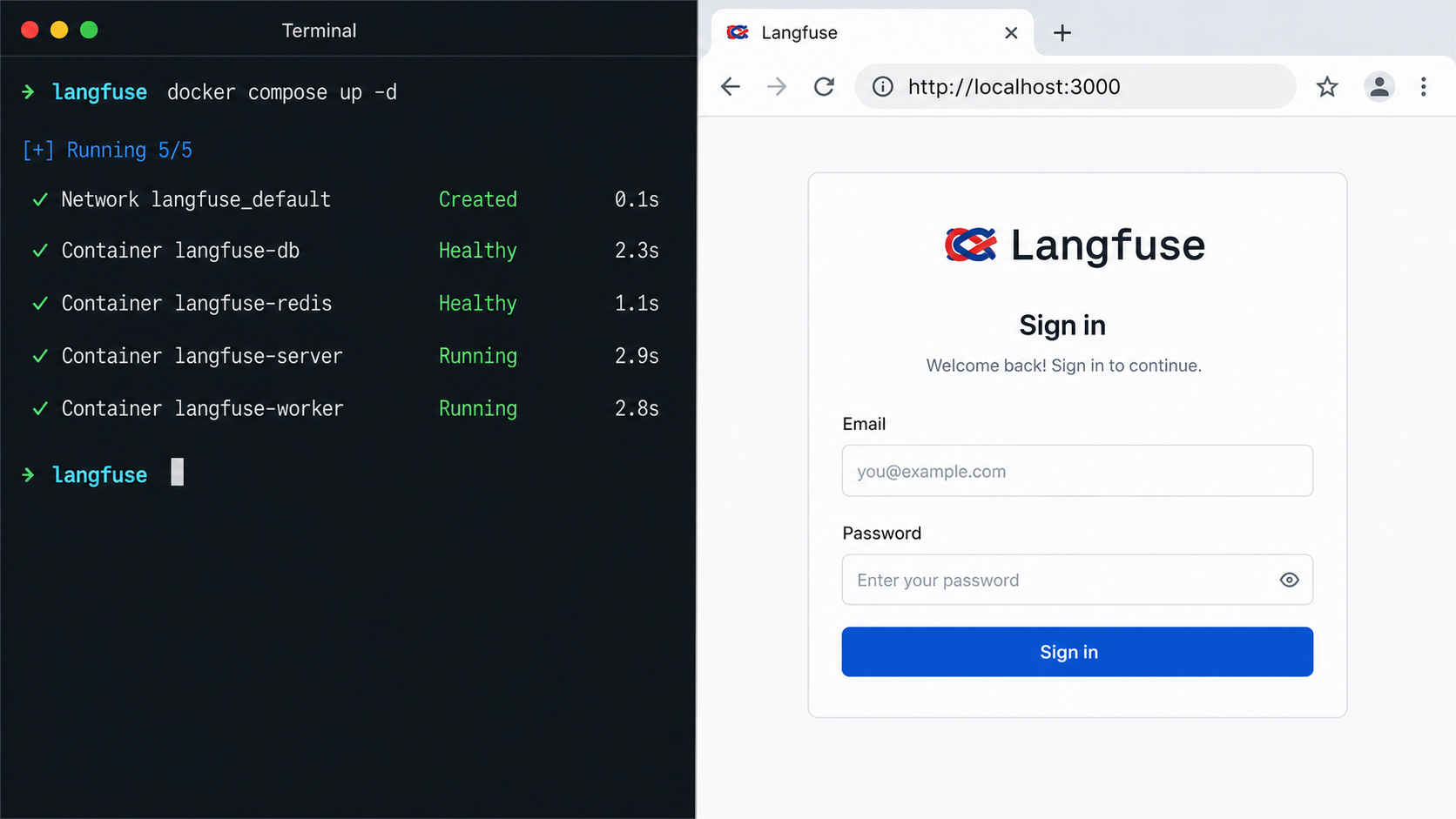
The following sequence preserves the three-step local installation workflow published in the Langfuse repository. It obtains a shallow copy of the latest repository state, enters the repository directory, and starts the Compose deployment. Review the repository and current self-hosting documentation first if you require a pinned release or production change-management process.
Clone the Langfuse repository
Open a terminal in the parent directory where you want the project to reside, then obtain the latest repository contents with the documented shallow clone command.
git clone --depth=1 https://github.com/langfuse/langfuse.gitEnter the repository directory
Change into the cloned directory so Docker Compose can read the Compose configuration included with the project.
cd langfuseStart the Docker Compose deployment
Run the official startup command. Keep the terminal open while you inspect startup output, or use an operating mode documented by Langfuse if you need the deployment to run differently.
docker compose upVerify Langfuse before adding remote access
A successful command does not by itself prove that the application is ready. Watch the Compose output for failed services, restart loops, missing configuration, database initialization problems, or dependency errors. If a service exits unexpectedly, troubleshoot that local deployment before creating a tunnel. Remote access cannot repair an unhealthy container or an incorrectly configured application.
Next, determine the actual Langfuse web endpoint from the current Compose configuration, startup output, or official self-hosting documentation. The supplied installation instructions do not establish a hostname or listening port, so this guide intentionally does not guess one. Identify the host port mapped to the web application, note the local IP address through which it is reachable, and open that exact URL from the machine running the deployment.
Confirm that the web interface loads and that the expected application flow works. If the deployment exposes an API you intend to use remotely, verify that API locally as well using the current Langfuse documentation. Record the confirmed local IP address and port because those values become the Localtonet HTTP tunnel target.
Do not assume a port from an old tutorial, another Compose file, or an unrelated installation. Container ports and host mappings can change with configuration or release updates. Use the endpoint shown by your deployed configuration and confirm it with a local browser or an appropriate HTTP request before continuing.
Prepare Langfuse for authorized remote use
Publishing an observability platform requires more care than exposing a disposable demonstration page. Langfuse may contain prompts, model inputs and outputs, trace metadata, user identifiers, evaluation results, or other operational information from AI applications. Before creating public reachability, configure the application’s current authentication and authorization controls according to official Langfuse guidance.
Apply least privilege to users and integrations. Use separate credentials where appropriate, protect administrative access, and avoid ingesting unnecessary secrets or sensitive data into traces. Review retention and backup practices, and decide whether a development installation is suitable for the information it will receive. A public HTTPS address provides network reachability, but it does not replace application-level identity, authorization, or data-governance controls.
Add Localtonet remote HTTP access
After Langfuse is healthy and reachable locally, an HTTP tunnel can make that confirmed web service available remotely. The Localtonet client runs on a device that can reach the Langfuse endpoint and establishes an outbound connection to our relay server. This avoids inbound router port forwarding, firewall changes, VPN setup, and the requirement for a public IP address.
HTTP tunnels point to a local IP address and port. For this deployment, use the exact values verified in the previous section. HTTP tunnels can use Random Sub Domain, Custom Sub Domain, or Custom Domain as their Process Type, and each serves the target content at a public HTTPS address. Availability of specific options can vary, so use the choices currently shown in your dashboard. Exact custom-domain DNS instructions should always be taken from current documentation.
Install and run the Localtonet client
Install our client on the Langfuse host or another device that can reach the verified local Langfuse HTTP service. Keep the client running while remote access is required.
Authenticate or select the client device
Use the device-specific token assigned through Localtonet. Treat this token as a secret, never guess it, and never include it in documentation, screenshots, logs, or source control.
Select an available relay server
Choose an available relay server or region from the current product interface. Do not hardcode a server code from an old guide because available values can change.
Create the HTTP tunnel configuration
Select an HTTP tunnel and enter the confirmed local IP address and host port for the working Langfuse web application. Choose the Process Type that fits your current dashboard options.
Start the tunnel and test the assigned address
Creating a tunnel does not start it. Use the Start button, then open the assigned public HTTPS URL from a separate network and confirm that the expected Langfuse authentication flow appears.
Stop or delete access when it is no longer required
Stop the tunnel to remove active remote reachability, or delete it if the configuration is no longer needed. The tunnel is available only while the selected client device is connected and the tunnel is running.
For the current product workflow, consult the Localtonet HTTP tunnel documentation. Dashboard options, server availability, and deployment details can vary over time, so the current interface and documentation should take precedence over screenshots or older tutorials.
Use a separate browser session or device to verify that unauthenticated visitors cannot access protected traces, prompts, evaluations, project settings, or administrative functions. If the intended authorization behavior is not working, stop the tunnel and correct the Langfuse configuration before restoring remote access.
Understand the resulting network path
A remote browser connects to the public HTTPS address assigned to the HTTP tunnel. Traffic reaches the Localtonet relay and is carried through the outbound client connection to the configured local IP address and port. Langfuse continues to run in the Docker Compose environment, while our client provides the remote path to its confirmed HTTP endpoint.
This separation is useful for troubleshooting. If Langfuse does not work locally, investigate the containers, configuration, and dependencies. If it works locally but not through the public URL, verify that the selected Localtonet device is connected, the tunnel is started, and the target IP address and port match the working local endpoint. If the public page loads but access permissions are incorrect, stop the tunnel and review application-level authorization.
| Symptom | Check first | Recommended action |
|---|---|---|
| Langfuse does not load locally | Docker Compose output and service state | Resolve the local deployment problem before configuring remote access. |
| Local access works but the public URL does not | Client connection, tunnel state, local IP, and port | Confirm the selected device is online, start the tunnel, and compare its target with the verified endpoint. |
| The wrong application appears | Configured target port | Stop the tunnel and point it only to the confirmed Langfuse host mapping. |
| Protected content is visible without expected authorization | Langfuse authentication and access policy | Stop public access immediately and correct application-level controls before retesting. |
Frequently asked questions
What is the official local Docker Compose command for Langfuse?
After cloning the repository and entering its directory, the documented command is docker compose up. Review the current self-hosting documentation and repository configuration before using the deployment for production data.
Which local port should I enter in the Localtonet HTTP tunnel?
Use the host port established by your current Langfuse Compose configuration and verified locally. The supplied installation instructions do not establish a port, so do not assume one from another tutorial or deployment.
Does creating a Localtonet tunnel make it active immediately?
No. Creating the configuration does not mean the tunnel is running. Start it with the Start button. The public endpoint remains available only while the selected client device is connected and the tunnel is running.
Does an HTTP tunnel replace Langfuse authentication?
No. The tunnel provides network reachability to the configured HTTP target. Configure and test Langfuse authentication, authorization, and least-privilege access before allowing remote users to reach the instance.
Do I need router port forwarding or a public IP address?
No. Our client establishes an outbound connection to a Localtonet relay server, so the workflow does not require inbound router port forwarding, firewall changes, VPN setup, or a public IP address.
Can I use this local Docker Compose setup as a production deployment?
Docker Compose is documented for local and virtual-machine deployment, but production use requires deliberate planning for configuration, persistence, backup, recovery, monitoring, security, and upgrades. Langfuse identifies Kubernetes with Helm as its preferred production deployment path, so review its current self-hosting guidance before making an architecture decision.
Connect your verified Langfuse deployment with Localtonet
Start Langfuse locally, confirm its real HTTP endpoint, protect it with appropriate application access controls, and then create a Localtonet HTTP tunnel for authorized remote use.
Get Started Free →

