

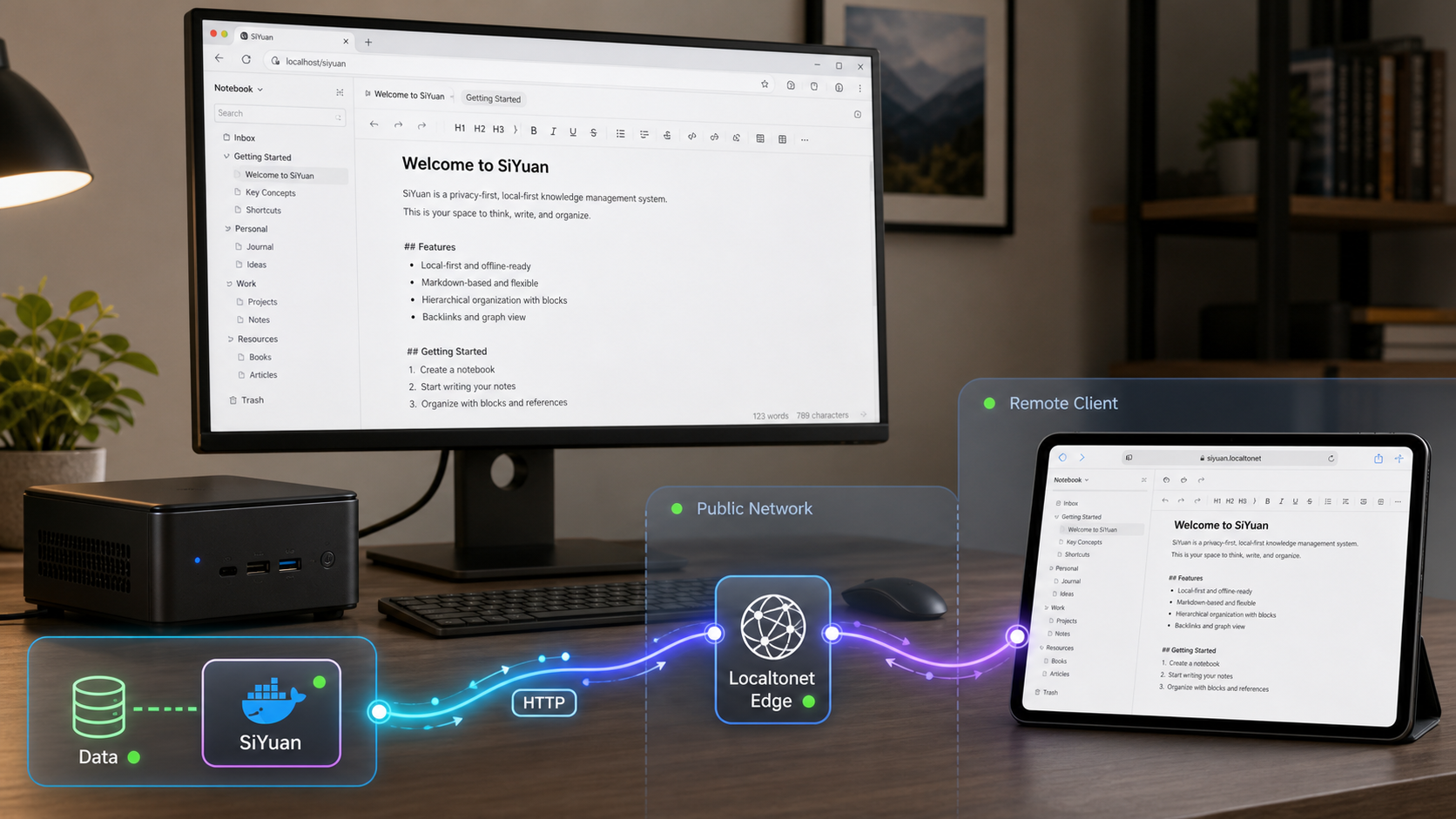
Build a persistent SiYuan knowledge workspace first, then make it available remotely
SiYuan can run as a self-hosted knowledge workspace on a home server through its official Docker image. This guide begins with the Docker prerequisites, persistent workspace configuration, access authentication, startup, and local verification required for a dependable installation. Only after the application works locally do we connect it to an HTTP tunnel with Localtonet. This keeps application troubleshooting separate from remote-access troubleshooting and avoids exposing an incomplete or unauthenticated deployment.
What this deployment includes
SiYuan is a privacy-first personal knowledge management system built around content blocks, block-level references, bidirectional links, and a Markdown WYSIWYG editor. Its official project documentation describes Docker as the easiest way to serve SiYuan on a server. The documented image is b3log/siyuan, and current versions require the serve subcommand to be passed explicitly.
A complete server deployment has three separate layers. Docker runs the SiYuan process, a host-mounted workspace keeps data outside the container, and SiYuan's access authentication protects the application interface. Localtonet can then add remote HTTP access by connecting the already working local service to a relay through an outbound client connection.
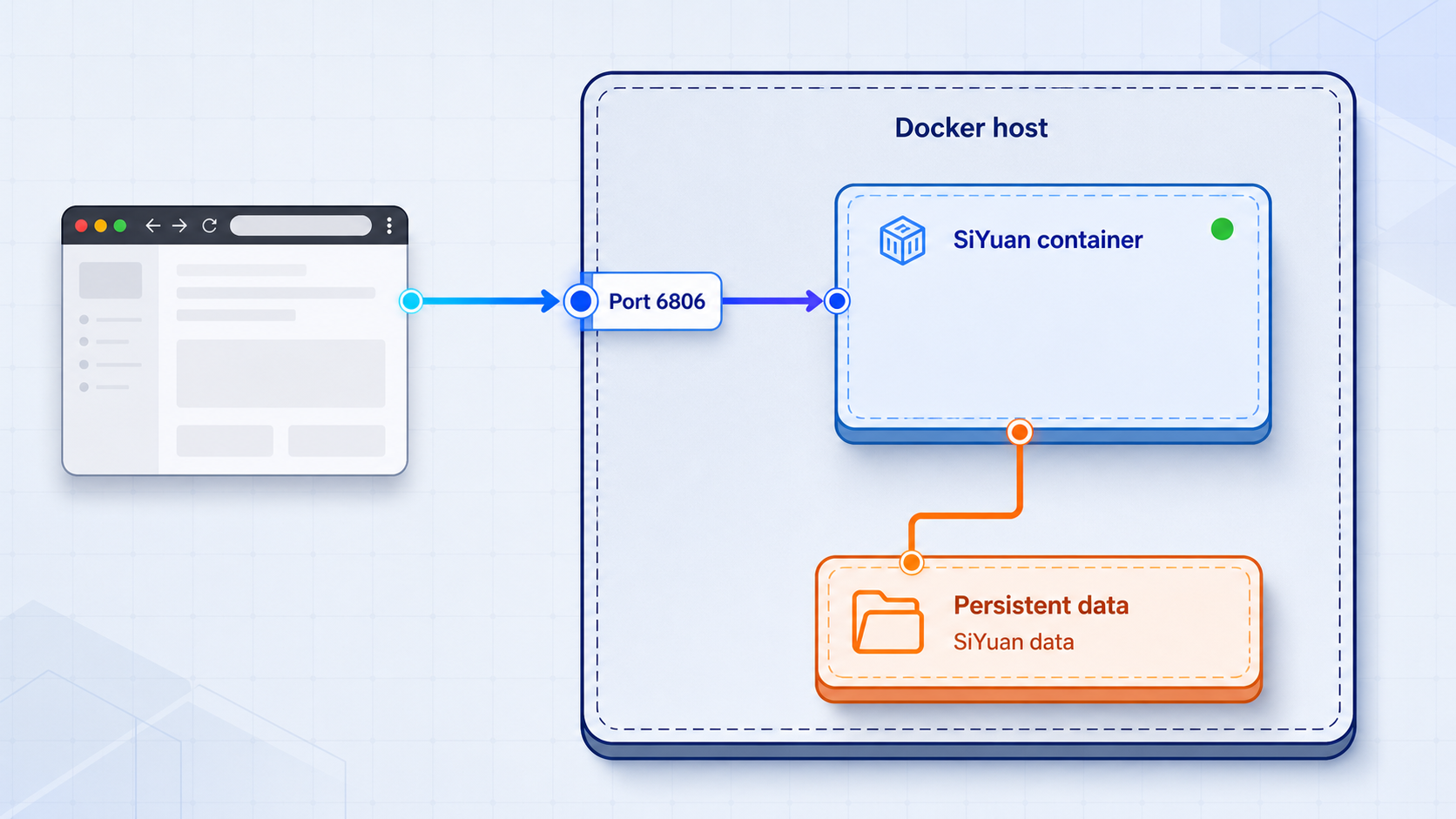
b3log/siyuan image and explicitly starts its server mode with the required serve subcommand.
--workspace, keeping the workspace outside the container's writable layer.
--accessAuthCode option sets SiYuan's lock-screen password. It should be changed to a strong, private value before remote access is enabled.
6806 to container port 6806. The working local endpoint should be verified before configuring a tunnel.
Prerequisites and planning
Begin with a machine that can run Docker and remain powered on whenever the SiYuan service is needed. This can be a home server or another Docker-capable system. Confirm Docker is installed and that your account has permission to start containers before proceeding. The supplied SiYuan evidence does not establish a universal Docker installation command because that process varies by operating system and distribution, so use the installation method documented for your host.
Choose a host directory for the persistent SiYuan workspace. The exact path is your administrative decision and should match the storage layout, backup policy, and permissions of your server. Do not copy a path from an unrelated system without reviewing it. The account used inside the container must be able to access the mounted directory.
SiYuan's Docker entrypoint accepts optional PUID and PGID environment variables to address host-directory permission issues. The documented defaults are 1000 for both values when they are not supplied. If you set them explicitly, use the numeric user and group identifiers that should own or access the workspace on your host. Do not guess those identifiers.
Set a strong and unique SiYuan access authentication code. The official Docker instructions specifically warn that the example access code must be changed because anyone who can reach an unprotected service may be able to access its data. Do not place real passwords, Localtonet device tokens, or other credentials in shell history, screenshots, public configuration repositories, or tutorial examples.
Install SiYuan with Docker
Confirm Docker is available
Verify that Docker is installed, its service is running, and your current account is permitted to start containers. Resolve Docker installation or daemon errors before creating the SiYuan container.
Prepare the persistent host workspace
Select or create a host directory that will hold the SiYuan workspace. Record its exact path and make sure the intended container user can read and write it. This directory is represented by workspace_dir_host in the command below.
Choose the container workspace path
Choose the directory path that will represent the mounted workspace inside the container. Use the same value for the destination side of the volume mount and for the --workspace argument. It is represented by workspace_dir_container below.
Determine whether PUID and PGID are needed
If the mounted directory requires a particular host user and group, determine their numeric identifiers and substitute them for the example values. These settings are optional, and both default to 1000 when omitted. Validate ownership rather than assuming the defaults fit your server.
Start the SiYuan container
Replace every placeholder before running the documented command pattern. In particular, substitute real workspace paths, validated user and group identifiers if needed, and a strong private value for the access authentication code.
docker run -d \
  -v workspace_dir_host:workspace_dir_container \
  -p 6806:6806 \
  -e PUID=1001 \
  -e PGID=1002 \
  b3log/siyuan \
  serve \
  --workspace=workspace_dir_container \
  --accessAuthCode=replace_with_a_strong_private_value
The -d option starts the container in detached mode. The -v option mounts persistent storage, and -p 6806:6806 publishes the documented container port on host port 6806. The final arguments explicitly invoke serve, select the workspace, and configure the lock-screen password.
SiYuan also documents environment-variable alternatives for the workspace path and access authentication code, with command-line values taking priority when both forms are supplied. This guide uses command-line arguments because they make the relationship between the volume mount, workspace selection, and authentication setting visible in one example.
SiYuan documents docker run --rm b3log/siyuan serve --help as the way to display available serving options. Use the current image's help output when you need behavior beyond the verified example. Avoid copying undocumented flags from an old or unrelated deployment.
Verify SiYuan locally before adding remote access
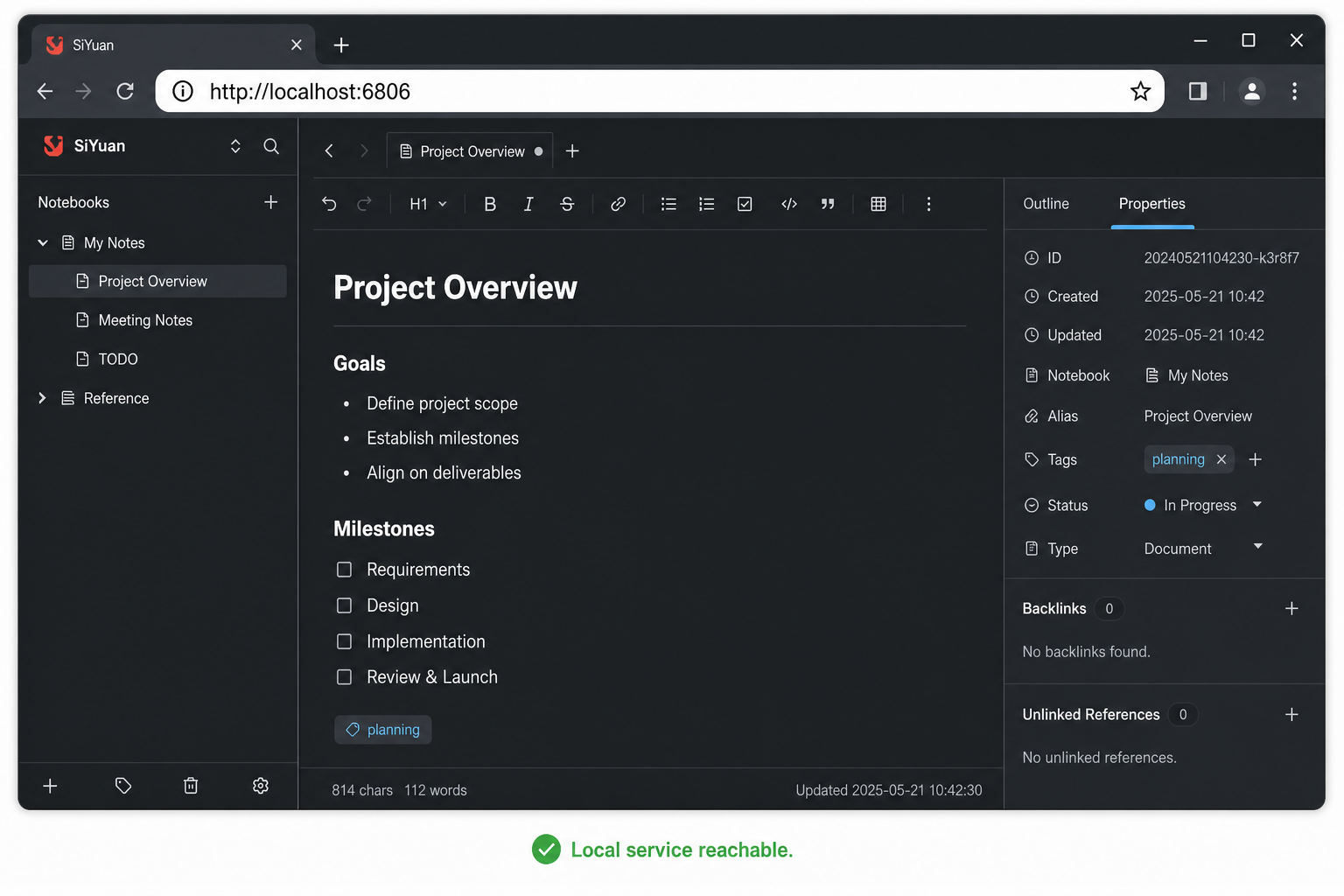
A successful container start does not by itself prove that the application is usable. Confirm that the container remains running, review its Docker logs for startup or workspace-permission errors, and verify that the host is listening on the published port. If the process exits, correct the Docker, path, ownership, or SiYuan configuration before continuing.
Next, open the web service from a browser or HTTP client that can reach the Docker host. Use the host address appropriate to your network together with the published host port 6806. The supplied SiYuan excerpt documents the port mapping but does not explicitly provide a canonical localhost URL or state the scheme for that local address. Verify the address and scheme that actually work in your deployment rather than assuming an undocumented URL.
A valid test should reach the SiYuan interface and require the access authentication code you configured. Create a small test item if appropriate, restart or recreate the container without deleting the host workspace, and confirm that the data remains available. This tests the persistence mount instead of merely testing the current container process.
Local verification checklist
- The SiYuan container remains in a running state.
- Docker logs do not show unresolved workspace permission or startup errors.
- The service can be reached from the intended local client on host port
6806. - The configured SiYuan authentication screen protects access.
- Data written to the workspace survives a controlled container restart or recreation.
- The Localtonet client device will be able to reach the same local service address and port.
Choose the correct Localtonet target
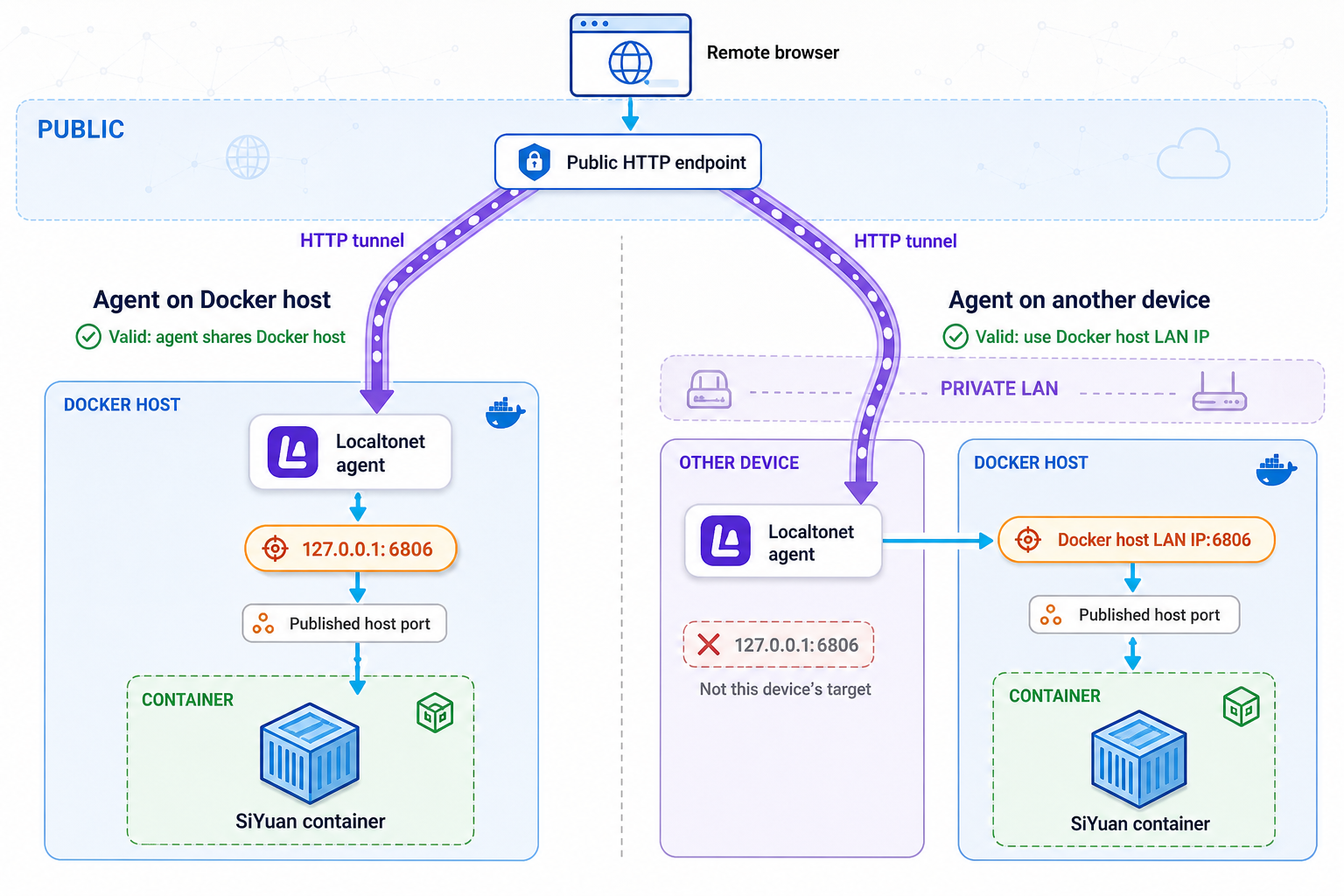
SiYuan presents a browser-based service, so an HTTP tunnel is the relevant Localtonet tunnel family for this workflow. An HTTP tunnel points to a local IP address and port on, or reachable from, the device running our client. In this deployment, the target is the verified SiYuan service and its published host port, not the Docker container's private address unless your Localtonet client is deliberately running in a network environment that can reach that address.
| Component | Role | What to verify |
|---|---|---|
| SiYuan container | Runs the knowledge workspace service | The serve process starts and remains healthy |
| Persistent volume | Stores the workspace outside the container layer | The selected PUID and PGID can read and write the host directory |
| Published host port | Makes the container service reachable from the Docker host | Host port 6806 reaches container port 6806 in the documented example |
| SiYuan authentication | Protects the application interface | A strong private access code is required when the interface is opened |
| Localtonet HTTP tunnel | Provides a public HTTPS address for the local web service | The client can reach the selected local IP and port, and the tunnel is running |
Provide remote HTTP access with Localtonet
Install and run our client on the Docker host or another device that can reach the verified SiYuan endpoint. The client establishes an outbound connection to a Localtonet relay server. This means the workflow does not require inbound router port forwarding, firewall changes, VPN setup, or a public IP address.
Available relay servers and regions can change, so select a current value shown in the dashboard rather than hardcoding a server code from a tutorial. Device authentication tokens are device-specific and must remain private.
Install and run the Localtonet client
Install our client on the device that can reach the working SiYuan service. Keep the client running whenever remote access is required.
Authenticate and select the device
Use the device-specific token through the supported client and dashboard workflow. Never place the token in article text, source control, screenshots, or shared command output.
Select an available relay server
Choose a currently available server or region from the product interface. Do not rely on a server code copied from an older guide.
Create an HTTP tunnel
Configure the tunnel to use the local IP address and port that the selected client device has already verified. For the documented Docker mapping, the published host port is 6806. Confirm the local address from the client device instead of assuming that a particular loopback or LAN address applies.
Start the tunnel
Use the Start button after creating the tunnel. Creation alone does not make a tunnel run. The selected client must also remain connected.
Test the assigned public address
Open the assigned public URL from a separate network and confirm that it reaches SiYuan's authentication screen. When access is no longer required, stop or delete the tunnel from the dashboard.
HTTP tunnels can use a generated subdomain, a selected subdomain where supported, or a custom domain. Exact custom-domain DNS requirements should be checked against the current Localtonet documentation before changing DNS records. For the complete current interface and configuration details, review our HTTP tunnel documentation.
Anyone who obtains the public address may be able to reach the SiYuan login screen. Keep SiYuan authentication enabled, use a strong access code or another SiYuan-supported authentication configuration that you have validated, and expose only the service that needs remote access. Stop the tunnel when it is not needed. A tunnel provides connectivity and does not replace application authorization or sound server administration.
Troubleshooting the two layers separately
SiYuan does not start
Check that the command includes the explicit serve subcommand. Confirm that the workspace destination in the volume mount matches the value passed to --workspace. If logs report permission problems, validate the host directory's ownership and compare it with the PUID and PGID used by the container. Do not change permissions broadly merely to make the error disappear.
SiYuan works on the server but not from another local device
Confirm that Docker published the expected host port and that the other device is using an address that reaches the Docker host. Host firewall and network policy behavior varies, so diagnose those controls according to your operating system rather than disabling them indiscriminately.
The Localtonet tunnel starts but SiYuan is unavailable
Test the target from the same device that runs our client. An address that works inside a container or from a different computer may not be reachable from the client device. Recheck the target IP, port 6806, SiYuan process status, and Docker port publication.
The public address stops responding later
A Localtonet tunnel is available only while the selected client is connected and the tunnel is running. Also verify that the SiYuan container and Docker host are still operating. This distinction helps determine whether the interruption is in the application layer, the local network path, the client connection, or the tunnel lifecycle.
Frequently asked questions
Which Docker image should I use for SiYuan?
The official SiYuan Docker documentation identifies b3log/siyuan as the image name. Current documented deployments must explicitly pass the serve subcommand.
Why does the SiYuan workspace need a volume mount?
The host-mounted workspace keeps application data outside the container's writable layer. The mounted container path must match the path selected with --workspace. The host directory should also be included in an appropriate backup plan.
Are PUID and PGID required?
They are optional. SiYuan documents defaults of 1000 for both when they are not provided. Set them when the container needs to run with specific numeric identifiers to access the host-mounted workspace, and verify the correct values on your server.
Should I disable the SiYuan access code when using Localtonet?
No. Keep application-level authentication enabled for a remotely accessible deployment. The tunnel provides connectivity to SiYuan, but it should not be treated as a replacement for SiYuan's own access controls.
Does Localtonet require router port forwarding or a public IP address?
No. Our client establishes an outbound connection to a Localtonet relay server, so this workflow does not require inbound router port forwarding, firewall changes, VPN setup, or a public IP address.
Does creating an HTTP tunnel make it immediately available?
No. After creating the tunnel, start it with the Start button. The selected client device must remain connected, and the SiYuan service must continue running and remain reachable from that device.
Can the Localtonet client run on a different device from Docker?
Yes, provided that the client device can reach the SiYuan service at the configured local IP address and port. Test that path directly from the client device before starting the tunnel.
Connect your verified SiYuan server with Localtonet
Once SiYuan is running with persistent storage, a validated access code, and a working local endpoint, create an HTTP tunnel to reach it remotely without configuring inbound router port forwarding.
Get Started Free →

