

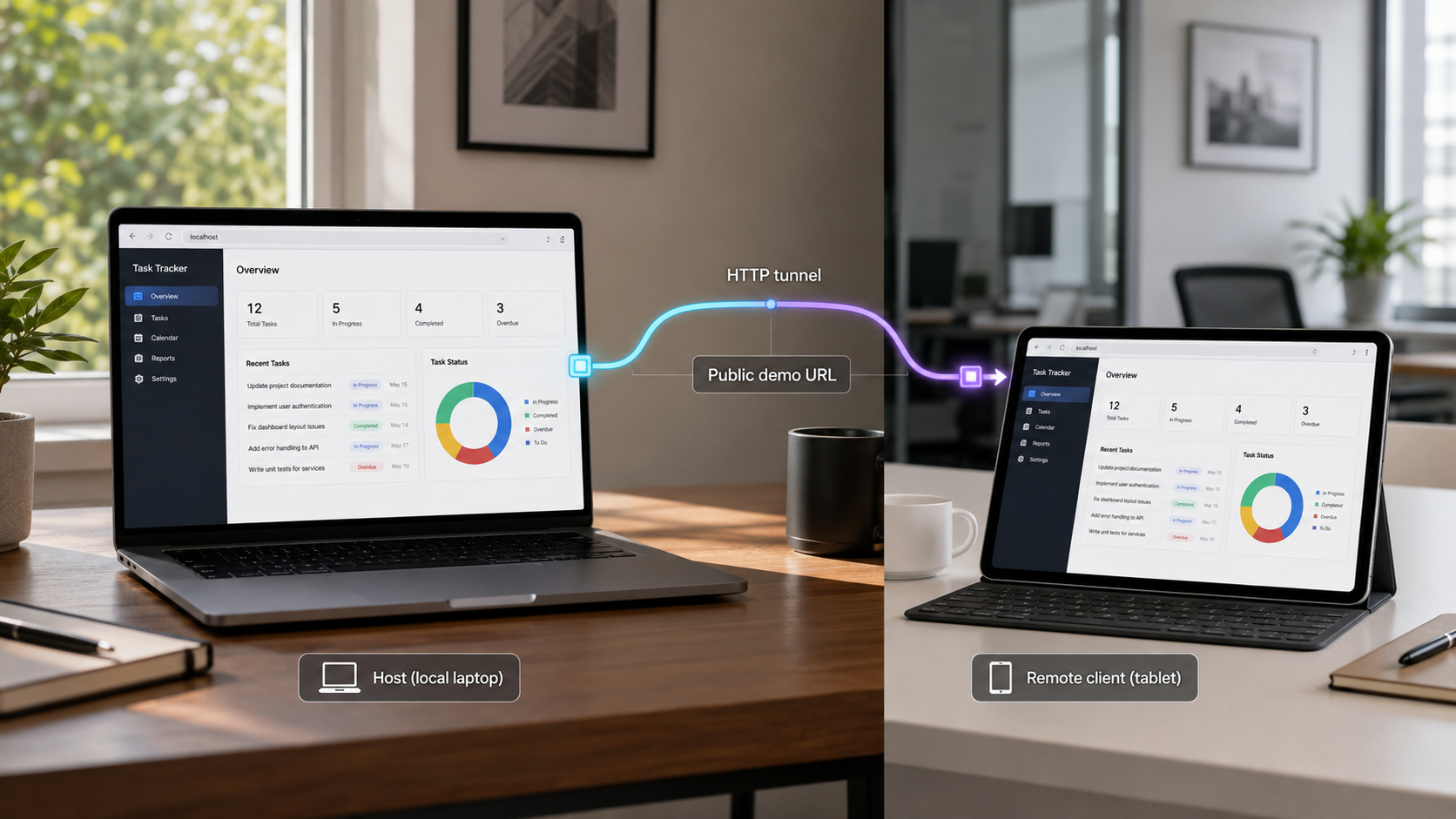
Let a client interact with your current local build through a temporary HTTPS address
A staging deployment is not always necessary for an early design review, milestone check, or short feedback session. With a Localtonet HTTP tunnel, the application continues running on your development machine while your client connects through a public HTTPS URL. This guide explains the request path, prerequisites, secure preparation, current tunnel workflow, verification checks, common integration problems, and when staging or screen sharing remains the better option.
📋 What's in this guide
When a live local demo is the right choice
A live local demo is useful when a client needs to interact with work that is already running correctly on your machine, but the project is not ready for a durable shared environment. Typical examples include an interface review, a short acceptance walkthrough, an API contract check, or a mobile layout test on the client's own device.
The important distinction is that a tunnel is an access path, not a deployment. Your application, development server, supporting processes, and data remain on or reachable from the machine running the Localtonet client. If that machine sleeps, loses connectivity, stops the application, or stops the tunnel, the remote demo can no longer operate normally.
This makes tunneling effective for supervised and temporary reviews. It does not make a development laptop equivalent to staging. Staging is still better when reviewers need independent access over several days, the application must remain available without the developer present, a production-like environment is required, or a team needs repeatable release and test processes.
| Demo method | Best suited to | Main advantage | Main limitation |
|---|---|---|---|
| Temporary HTTP tunnel | Short interactive reviews of a local web application | The reviewer interacts with the build currently running on the developer's machine | Availability depends on the local service, Localtonet client, tunnel, device, and network connection |
| Staging deployment | Extended testing, team reviews, QA, and production-like validation | Provides a shared environment that does not depend on one developer's active workstation | Requires deployment, environment management, and an appropriate access-control model |
| Screen sharing | Guided presentations where the client should watch rather than operate the application | The developer controls navigation and can explain unfinished areas in real time | The client cannot independently test interactions on their own browser or device |
| Recording or screenshots | Asynchronous visual progress reports | Easy to review without keeping an environment online | Does not validate forms, navigation, responsive behavior, or integrations interactively |
Localtonet provides a route to the local service. Host validation, authentication, cookies, CORS, CSRF controls, callback allowlists, frontend configuration, and application capacity remain responsibilities of the application and its supporting services.
How the client reaches your local application
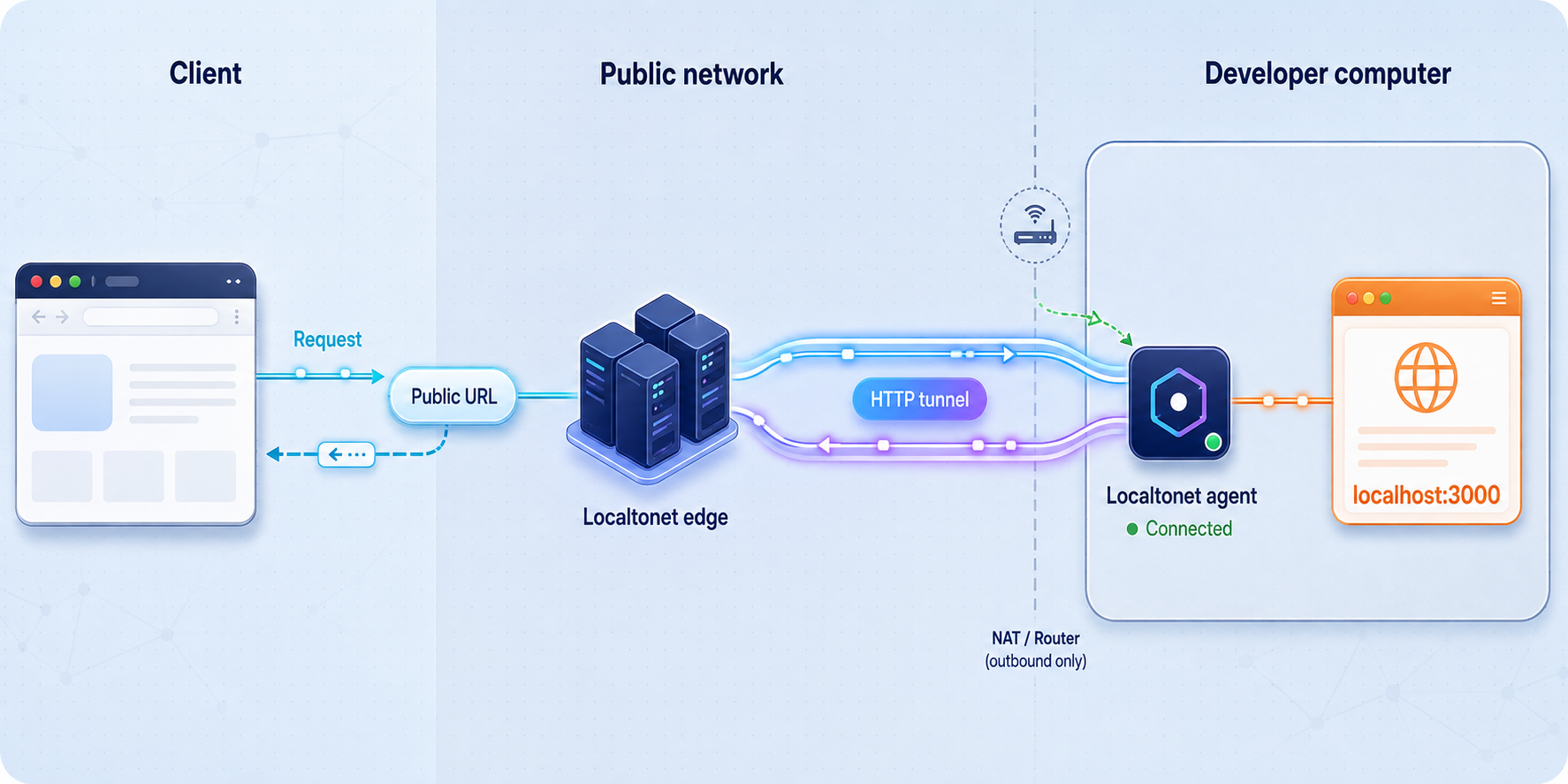
The Localtonet client runs on a device that can reach your local web service. It establishes an outbound connection to a Localtonet relay server, so you do not need to configure inbound router port forwarding, request a public IP address, change the firewall to accept unsolicited internet traffic, or set up a VPN for this workflow.
After you create and start an HTTP tunnel, Localtonet provides a public HTTPS address. The client's browser sends a request to that address. The relay passes the request through the established tunnel to the local IP address and port you configured. Your application generates a response, which returns through the tunnel and relay to the browser.
The public address does not give the client general access to your computer. It routes requests to the target configured for that tunnel. Even so, exposing a development service creates a public attack surface for as long as it is reachable. The safest approach is to expose only the required service, protect it with authentication and application authorization, use sanitized data, and stop or delete the tunnel after the review.
Creating a tunnel and running it are separate lifecycle actions. A saved tunnel configuration is not necessarily active. The selected Localtonet client device must be connected, the local application must be reachable from that device, and the tunnel must be started before the public URL can serve the application.
Prerequisites for a reliable client demo
Prepare the application before creating public access. This prevents tunnel troubleshooting from being confused with ordinary development-server failures and gives you time to correct URLs, data, permissions, and browser security behavior.
A working local web service
Start the exact build you intend to demonstrate. Confirm the local IP address and port used by the service, such as a service listening on 127.0.0.1 at its configured development port. Do not assume a familiar framework default is correct. Read the server startup output or configuration and test the address locally.
Open the local URL in a browser on the machine that will run the Localtonet client. Exercise more than the home page. Test login, navigation, forms, API requests, assets, and any flow the client will review. If the application cannot complete the flow locally, a tunnel will not fix it.
A Localtonet account and current client
You need a Localtonet account and the Localtonet client application running on the device that can reach the service. Installation choices and commands can vary by operating system and client version. Use the current installer or package option presented by Localtonet for your operating system rather than copying an old command from a blog post.
This guide intentionally does not reproduce an installation shell command because no single command should be assumed current for every supported operating system. Complete the installation using the current Localtonet download and account interface, start the client, and confirm that its device token is connected before configuring the tunnel.
The correct device token and relay selection
An AuthToken identifies the client device that will run the tunnel. Select the token for the machine hosting the demo or for a machine that can reach the application over your trusted local network. Tokens are device-specific credentials. Never paste one into source code, screenshots, chat messages, issue reports, or client documentation.
You must also select a Localtonet relay server or server code offered by the current dashboard. Available values can vary, so this article does not hardcode a region or server identifier. Choose from the currently available options shown for your account and configuration.
A planned access window and rollback plan
Decide who will access the demo, what they need to test, which accounts they will use, and when access will end. Record any temporary changes you make to callback URLs, environment variables, DNS, cookies, test-provider settings, or CMS configuration so you can restore them after the session.
- Use dedicated demo accounts with only the permissions required for the review.
- Prepare synthetic or sanitized data rather than copying production records.
- Back up any local state that the client may modify.
- Confirm that file uploads are restricted by type, size, storage location, and authorization as appropriate for your application.
- Keep the device powered, awake, and connected for the entire session.
- Have a screen-share fallback if the local environment or network becomes unavailable.
Secure the application before exposing it
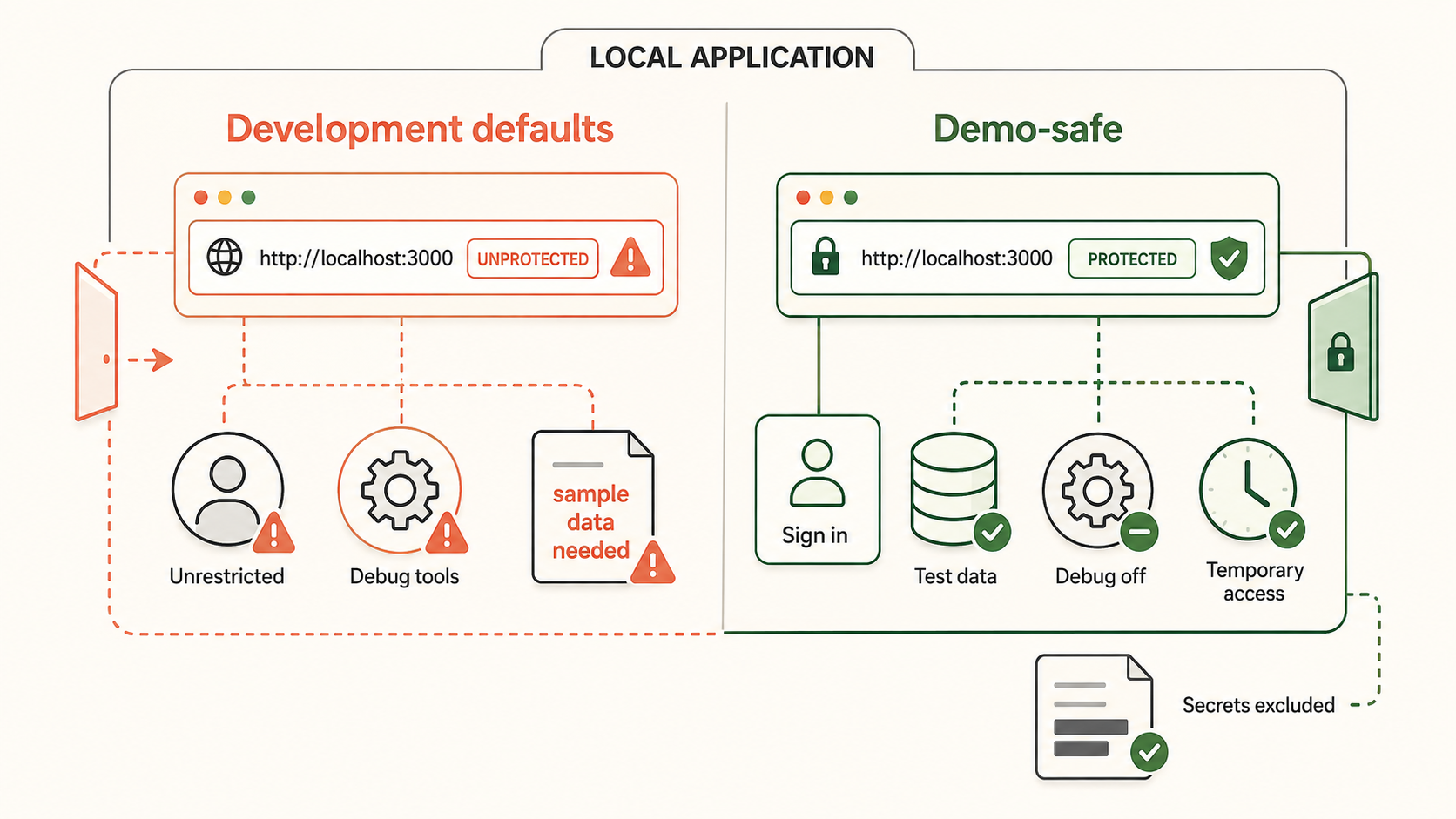
Treat the public tunnel URL as an internet-facing endpoint. A difficult-to-guess address is not authentication, and limiting the duration of exposure is not a substitute for access control. Anyone who obtains an unprotected URL may attempt to access it while the tunnel is running.
Development applications may display stack traces, environment details, debug consoles, source maps, unrestricted administrative routes, test mailboxes, local file paths, or credentials in responses and logs. Disable unnecessary debug output, remove secrets from pages and client bundles, restrict privileged routes, and verify application-level authorization before starting the tunnel.
Protecting an HTTP tunnel with Basic Auth
Localtonet documents Basic Auth as a username-and-password SSO provider for simple setups and small, controlled groups. It is configured in three stages: create the provider, add its users, and enable it for the HTTP tunnel.
Add a Basic Auth provider
Open the SSO Providers section in your Localtonet account and choose Add Provider. Enter a descriptive provider name, select Username / Password as the provider type, choose whether it should be active immediately, and save it.
Add the permitted users
Expand the provider's Details section. Under Users, select Add User, enter a username and strong unique password, and save the user. Repeat only for people who should receive access. If an existing username is changed, provide a new password.
Enable the provider for the HTTP tunnel
Open the HTTP tunnel settings, go to SSO Providers and Manage, enable SSO for the tunnel, and enable the Basic Auth provider. Review any applicable SSO paths, logout path, and allowed domain, email, or username settings before saving the changes.
Once enabled, Localtonet intercepts access to the protected tunnel and asks the user for the configured credentials. The authentication layer grants or denies tunnel access before the request reaches the local service. Your application should still enforce its own authorization wherever the demo includes user roles, records, administrative operations, or sensitive actions.
Basic Auth requires manual user management and does not support multi-factor authentication. Use strong unique passwords, remove unused users promptly, and prefer an appropriate external identity provider for sensitive or broadly accessible services. See the Localtonet Username/Password documentation for the current provider settings.
Configure and start the Localtonet HTTP tunnel
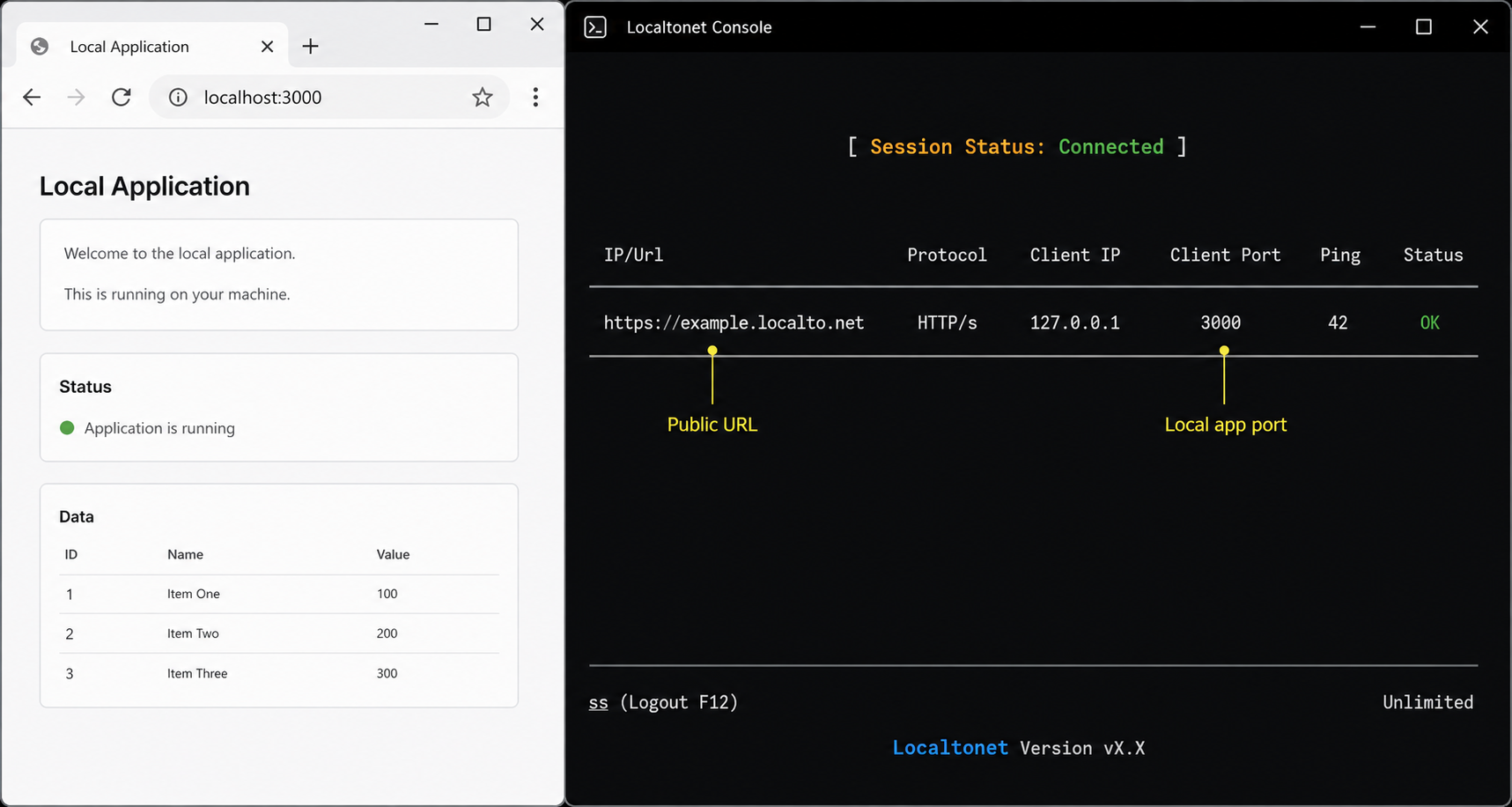
Complete these actions in order. The details shown by the dashboard may evolve, and available Process Types, relay servers, and account capabilities can vary. Use the labels and options currently offered in your account rather than assuming every option is available on every plan.
Start and verify the local application
Run the application on the demo device and open its local URL. Confirm the actual listening IP address and port, then test the pages and actions included in the client review.
Run the authenticated Localtonet client
Install the current client using the supported option presented for your operating system, start it, and confirm that the intended device is connected to your Localtonet account. Keep its AuthToken private.
Open the HTTP tunnel page and create a configuration
Sign in and open the Localtonet HTTP tunnel page. Begin creating a new HTTP tunnel. Do not confuse creating the configuration with starting it.
Choose the HTTP Process Type
Select Random Sub Domain, Custom Sub Domain, or Custom Domain as appropriate and available in the current dashboard. All three publish the HTTP content at a public HTTPS address, but naming and DNS requirements differ.
Select the device and relay server
Choose the AuthToken belonging to the connected device that can reach the application. Select a relay server or server code from the currently available dashboard values. Do not use a token from an unrelated or offline device.
Enter the local IP address and port
Set the target to the address where the web service is reachable from the Localtonet client device. For an application listening locally, this may be 127.0.0.1 with the application's actual port. If the service is on another trusted device, use an address that the client machine can reach and confirm that the service intentionally listens there.
Create the tunnel
Review the Process Type, device, relay selection, local IP, and local port, then create the tunnel configuration. Creation saves the configuration but does not by itself establish that the tunnel is running.
Start the tunnel
Use the Start control for the newly created tunnel. Wait until the dashboard reports the tunnel as connected or running, then copy the assigned public HTTPS URL.
Test externally, share, and close access afterward
Verify the public URL from outside the original local browser session before sending it to the client. After the review, stop the tunnel and delete it if the configuration is no longer required. Restore temporary application and provider settings.
Choosing a Process Type
| Process Type | When it fits | Planning consideration |
|---|---|---|
| Random Sub Domain | A temporary review where a generated address is acceptable | Confirm the current assigned URL each time you prepare the demo rather than assuming an old address remains valid |
| Custom Sub Domain | Recurring reviews where a selected subdomain is supported for the account and tunnel | Availability can depend on current dashboard and plan support, so verify it before promising a stable address |
| Custom Domain | A branded address using a domain you own and have configured | Requires advance DNS preparation and should not be treated as a last-minute demo step |
If you plan to use a custom domain, configure it well before the client session. The current Localtonet custom-domain workflow requires adding the root domain to DNS Manager, updating the domain's authoritative nameservers at the registrar, waiting for propagation, and selecting Custom Domain when creating the tunnel.
Nameserver changes may become visible within minutes, but global propagation can take as long as 48 hours. Do not promise that a new branded demo address will be ready immediately. Prepare it in advance or use an available generated address for a last-minute session. Follow the Localtonet custom-domain guide when a branded URL is required.
Verify the public demo before inviting the client
Testing only in the browser where you developed the application can hide cached sessions, locally trusted certificates, service-worker content, or browser storage that the client will not have. Verify the assigned HTTPS URL as a new visitor and, when practical, from a separate network.
External verification checklist
- Confirm the local application is still reachable at its local address.
- Confirm the intended Localtonet device is connected and the tunnel is explicitly started.
- Open the public HTTPS URL in a private or incognito window.
- Test from a separate device or a mobile connection to avoid relying only on the development machine's local state.
- Confirm authentication appears before protected content and that unauthorized users are denied.
- Sign in using the exact demo account the client will receive.
- Load the initial page and inspect images, fonts, scripts, stylesheets, and downloadable assets.
- Navigate directly to nested routes and refresh them to identify development-server fallback problems.
- Submit representative forms and confirm CSRF protections continue to work.
- Test frontend API calls and inspect browser developer tools for CORS, mixed-content, cookie, or network errors.
- Exercise an upload only with a harmless test file and confirm validation and access controls.
- Test logout and verify that protected content is not available afterward.
- Confirm error pages do not reveal stack traces, local paths, environment values, or credentials.
- Verify callback and redirect flows only in the relevant provider's test or development environment.
Check host, origin, and URL assumptions
Many development servers accept only expected hostnames. A request arriving through a public tunnel uses the public hostname, not localhost. If the server rejects the Host header, configure its documented allowed-host mechanism narrowly for the assigned demo hostname. Do not disable host validation globally unless the framework documentation explicitly explains the consequence and you have evaluated the risk.
A frontend loaded from the public HTTPS address must not call http://localhost and expect to reach your laptop. In the client's browser, localhost refers to the client's own device. Replace absolute local URLs with same-origin paths where the architecture supports them, or expose and configure the required backend separately with appropriate authentication and CORS controls.
Also inspect generated canonical URLs, asset URLs, API base URLs, WebSocket endpoints, redirects, and email links. Any absolute reference to a private address, local hostname, or local HTTP origin can fail remotely.
Check browser security behavior
Because the public page uses HTTPS, browsers may block active content loaded over plain HTTP as mixed content. Serve required browser-facing resources through HTTPS and update temporary configuration carefully. Do not tell the client to disable browser security warnings as a workaround.
Cross-origin API calls must satisfy the API's CORS policy. Allow only the exact required demo origin when possible, include the intended methods and headers, and decide explicitly whether credentials are permitted. A permissive wildcard is not compatible with every credentialed flow and can expose more than the demo requires.
Review cookie settings as well. Authentication can fail when cookies use an incompatible domain, path, Secure, or SameSite policy. CSRF protection may also compare the request origin or require a token tied to a cookie. Correct the application configuration rather than disabling CSRF protection for convenience.
Share access with the client clearly
Once external verification passes, send the client the public HTTPS URL, the scheduled access window, supported test scope, and login instructions through an appropriate communication channel. Send passwords separately from the URL when practical, and never send your Localtonet AuthToken.
Set expectations about what the client is seeing. Explain that it is a temporary review environment running from a development machine, not a production release. Tell them which flows are ready, which actions may alter shared demo data, and which areas are intentionally unavailable.
Operate the demo without creating avoidable failures
Keep the application, its dependencies, the Localtonet client, and the tunnel running throughout the review. Connect the device to power, disable automatic sleep for the planned session using your operating system's normal controls, and avoid switching networks while the client is testing.
Watch application logs for errors, but do not display sensitive logs during a shared call or transmit them to the client without redaction. If a change requires restarting the development server, tell the reviewer that access may be interrupted. Do not assume every framework, process manager, or client version will recover in the same way. After restarting, verify the local service and public URL again before asking the client to refresh.
For multiple reviewers, test the expected workload in advance. The number of simultaneous sessions a setup can handle depends on the application, local server, database, device resources, network connection, tunnel behavior, and any account or service limits. Do not promise unrestricted concurrent access.
End-of-session checklist
- Ask the client to finish active form submissions and uploads.
- Stop the Localtonet tunnel and confirm that its dashboard state changes accordingly.
- Delete the tunnel if you will not reuse the configuration.
- Remove temporary Basic Auth users, demo accounts, and unnecessary access grants.
- Restore OAuth redirect URIs, webhook endpoints, payment-provider URLs, and environment variables.
- Revert temporary DNS or CMS configuration only according to the change plan you recorded.
- Delete uploaded test files and reset synthetic demo data when appropriate.
- Review logs for unexpected access and retain only what your project policies permit.
- Confirm that secrets, callback signing keys, and AuthTokens were not included in client-visible output.
Stop a tunnel to end its running session. Delete it when the saved configuration is no longer needed. Verify the resulting state in the dashboard rather than relying on an assumed shutdown time.
Common client-demo scenarios and integration cautions
Frontend and API on separate local ports
A frontend may run on one port while calling an API on another. If its API base URL is http://localhost:4000, a remote browser will try to contact port 4000 on the client's device. That request will not reach your development machine.
Prefer a same-origin development arrangement when your architecture supports it, such as a documented development proxy that sends browser requests from /api to the local backend. If the backend must have its own public origin, create and secure the required HTTP tunnel, update the frontend configuration to that HTTPS origin, and configure exact CORS and cookie rules. Verify both origins externally.
Payment and checkout review
Never use a client's live payment environment merely to make a demo appear realistic. Use the payment provider's test mode, test credentials, and documented test payment methods. Register the exact temporary success, cancellation, return, and webhook URLs required by the provider rather than assuming arbitrary redirects will be accepted.
Webhook endpoints must verify provider signatures using the provider's documented mechanism. A public URL does not prove that a request came from the payment provider. Keep signing secrets server-side, reject invalid signatures, make event handling safe to retry where required by the integration, and prevent test events from modifying production records.
Record every URL and credential change before the demo. Afterward, remove the temporary webhook endpoint, restore previous callback settings, rotate any exposed test secret, and confirm that no production configuration points to a developer's machine.
OAuth and external login
OAuth providers normally require exact redirect URIs to be registered. Add the assigned HTTPS callback URI to the provider's development or test application before the review. A mismatch in scheme, hostname, port, path, or trailing slash can cause the provider to reject the callback.
Keep the OAuth state and PKCE protections required by your framework and provider. Do not disable callback validation to make a temporary URL work. If the public address may change, verify the current address and update the provider's allowlist before each session. Remove temporary redirect URIs afterward.
Incoming webhooks and API callbacks
A tunnel can make a local HTTP endpoint reachable by an authorized external service, but the endpoint must still authenticate the request. Use the provider's signature verification, shared-secret, or certificate mechanism as documented. Validate timestamps and replay protections when the provider supports them, and do not log secret headers or entire sensitive payloads.
Confirm whether the provider permits temporary domains and HTTPS callback addresses. Some platforms require pre-registration, domain verification, or a stable callback. Provider-specific rules take precedence over the convenience of the tunnel.
API review by a technical client
Give the reviewer a narrowly scoped test credential instead of a developer or production key. Define the allowed endpoints and expected data mutations. Apply normal authorization, input validation, rate controls, and audit behavior. A tunnel should not be used to bypass an API gateway, organizational policy, or required security review.
Mobile and responsive design testing
A public HTTPS URL lets a reviewer load the application on a separate phone or tablet, subject to the capabilities of that browser and application. Test the exact target devices where possible rather than claiming universal browser compatibility. Touch behavior, viewport units, installed fonts, camera permissions, file pickers, and browser-specific APIs can still differ.
WordPress and other content-management systems
WordPress frequently generates absolute URLs from its configured home and site URL. Changing those values directly for a temporary demo can affect redirects, administration, cookies, assets, serialized configuration, and local access. It can also leave the installation misconfigured if the values are not restored correctly.
Use a reversible, environment-appropriate method documented for the specific WordPress setup or local-development tool. Back up the database first, record the original values, and avoid broad search-and-replace operations without understanding serialized data. Check mixed content, canonical redirects, login cookies, REST API URLs, media links, and plugin behavior through the public address. Restore the original configuration after the demo and verify local access again.
Troubleshoot a demo that does not work remotely
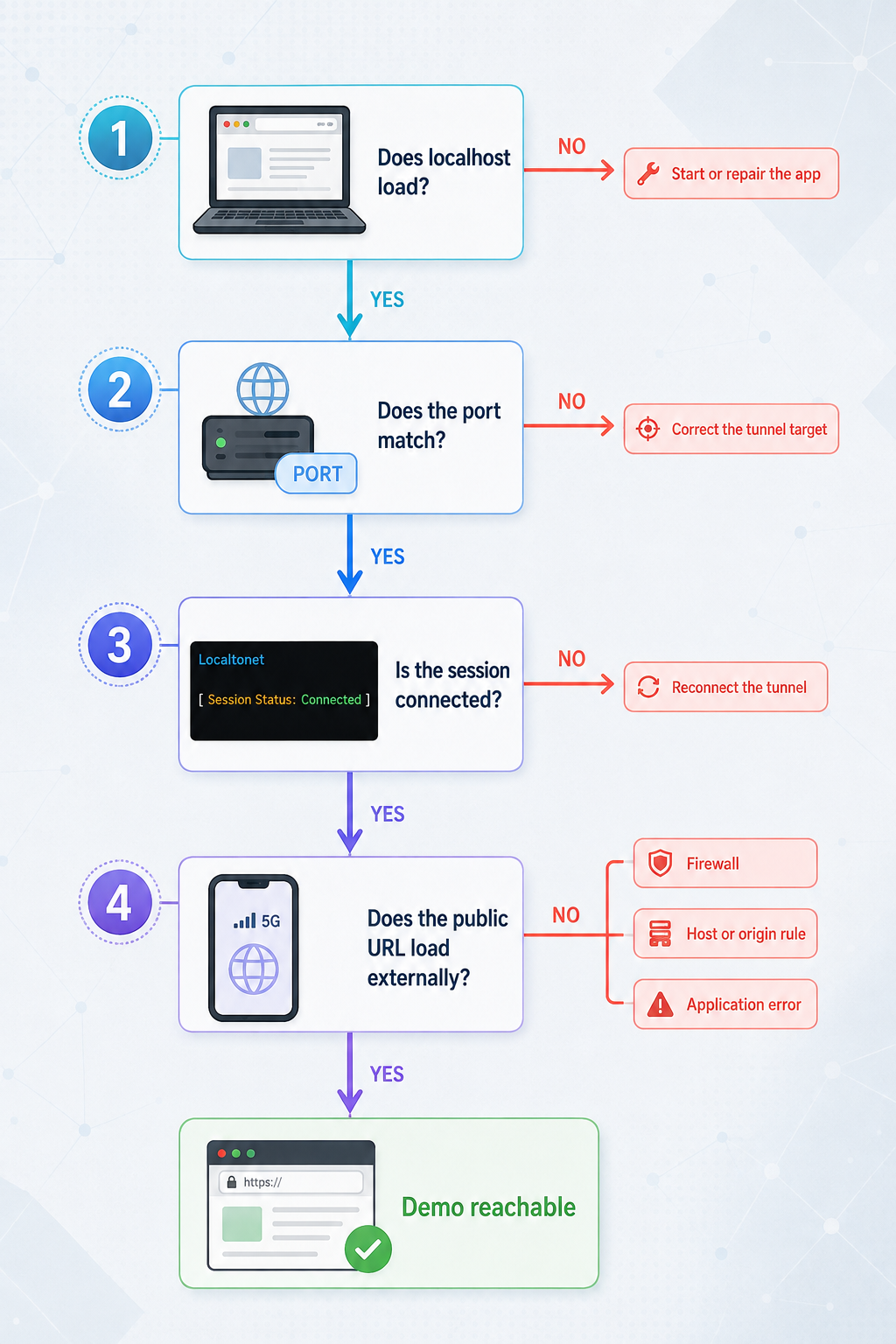
The tunnel exists but the public URL does not load
First confirm the tunnel was started. Creating a configuration is not the same as running it. Then verify that the selected AuthToken belongs to an online client device and that the chosen relay selection is valid in the current dashboard. If the client is disconnected, restore its network connection and verify its status before retrying.
The local service is unreachable
Open the configured local IP address and port from the Localtonet client device. If it fails there, correct the application before investigating the public URL. Common causes include a stopped process, wrong port, startup failure, dependency error, or a service listening on a different interface.
If the application runs in a container, virtual machine, subsystem, or another computer, 127.0.0.1 may refer to the wrong network namespace or device. Use the address that is actually reachable from the Localtonet client, and expose only the interface required by your trusted local architecture.
The development server rejects the hostname
An error mentioning an invalid host, disallowed host, or untrusted domain usually comes from framework-level Host-header protection. Add the exact public demo hostname through the framework's documented development configuration. Avoid wildcarding all hosts, especially when the machine is connected to an untrusted network.
The page loads but scripts, styles, images, or APIs fail
Inspect the browser console and network panel. Look for absolute localhost URLs, private IP addresses, HTTP resources requested from an HTTPS page, incorrect asset prefixes, failed CORS preflight requests, and cookie warnings. Correct the relevant application configuration and rebuild the frontend if those values are compiled into the bundle.
CORS requests are blocked
Compare the browser's Origin header with the API's allowed-origin configuration. Add the exact public HTTPS origin where appropriate. Verify required methods and request headers, respond correctly to preflight requests, and configure credentials deliberately. Do not use an unrestricted origin policy as a shortcut for a client demo.
Login succeeds locally but fails through the tunnel
Check the cookie domain, path, Secure setting, and SameSite behavior. Confirm that the application's trusted-origin and CSRF settings include the public HTTPS origin where the framework requires it. Also check whether redirects return the user to a local hostname.
OAuth reports a redirect mismatch
Copy the exact callback URL generated by the application and compare it character by character with the provider's registered redirect URI. Check the HTTPS scheme, hostname, path, port, and trailing slash. Register the temporary address in the provider's test configuration and preserve normal state validation.
The client sees old content
Confirm that the intended application process restarted successfully and that the local URL contains the new build. Then retest the public URL in a private window. Browser cache, a service worker, build output, or a long-running backend process may be serving an older version. Do not assume restarting one process updates every part of the application.
Access stops during the review
Check whether the machine slept, changed networks, lost internet access, stopped the Localtonet client, or terminated the local server. Confirm the device and tunnel states in the dashboard, then verify the application locally before testing the public URL again. If the review requires unattended reliability, move the work to a suitable staging environment instead of depending on a laptop.
Only some reviewers can connect
Check authentication assignments, provider restrictions, application roles, client browser errors, and whether the reviewer is using the current URL. If many people are testing simultaneously, examine local CPU, memory, database connections, and network behavior. Also review any limits shown for the account or tunnel rather than assuming concurrency is unlimited.
Limitations to consider before choosing a tunnel
A tunnel shortens the path between a working local build and a remote reviewer, but it does not reproduce production infrastructure. The application may still behave differently when deployed behind a production proxy, content-delivery network, load balancer, managed database, object store, email service, or production identity provider.
- The tunnel is available only while the selected client device is connected and the tunnel is running.
- The local application and all required dependencies must remain available.
- Device sleep, process crashes, and connectivity changes can interrupt the review.
- Performance depends on the complete request path, including the application, device, local network, internet connection, relay, and client network.
- A public HTTPS origin can reveal assumptions that were hidden on
localhost, including CORS, cookie, CSRF, mixed-content, and callback configuration. - A tunnel does not provide production scaling, release management, backups, monitoring, or high availability.
- Features, Process Types, relay choices, and limits may vary by plan, client version, region, or current dashboard availability.
Choose staging when availability, repeatability, representative infrastructure, team ownership, or extended testing matters more than immediate access to a local build. Choose screen sharing when the work is too incomplete or sensitive for independent interaction. Use a temporary HTTP tunnel when the application is ready for a controlled external review and you can supervise its complete lifecycle.
Frequently asked questions
Does creating an HTTP tunnel start it automatically?
No. Creating a tunnel saves its configuration. You must explicitly start it, and the selected Localtonet client device must be connected. Confirm the running status in the dashboard before testing or sharing the public URL.
Can a client submit forms and modify demo data?
If the application and the reviewer's permissions allow those actions, requests can reach the local service and change its data. Use synthetic data, least-privilege accounts, application authorization, CSRF protection, input validation, and a reset or backup plan. Do not expose production data for convenience.
Is possession of the public URL enough protection for a private demo?
No. A URL is not an authentication factor. Protect the tunnel with an appropriate identity provider or Basic Auth, and retain application-level authorization. Time-boxing reduces the exposure window but does not replace those controls.
Can I use a permanent custom subdomain for every demo?
Use a custom subdomain only when it is available for your account and tunnel in the current dashboard. Do not promise a stable address without checking current plan and product support. A custom domain also requires advance DNS configuration.
How long does a new custom domain take to become available?
Nameserver and DNS changes may propagate within minutes, but global propagation can take up to 48 hours. Configure and verify a custom domain well before the demo. It should not be treated as a guaranteed last-minute setup option.
What happens if the demo computer sleeps or disconnects?
The local application or tunnel connection can become unavailable, so the client may receive an error. Keep the machine awake, powered, connected, and monitored during the session. Use staging when reviewers require unattended or extended access.
Can several reviewers use the demo at once?
A multi-reviewer session may be possible, but its practical capacity depends on the application, database, development server, device, network, tunnel behavior, and any current account limits. Test the expected workload and check the dashboard rather than assuming unrestricted concurrency.
Can I use the tunnel for OAuth, payment callbacks, or webhooks?
You can use the public HTTPS address when the external provider permits it and its required callback or webhook URL is registered correctly. Use test environments, preserve OAuth protections, verify webhook signatures, keep secrets server-side, and restore temporary provider settings after the demo.
Should I change WordPress home and site URLs for a temporary demo?
Do not change them casually. WordPress and its plugins can depend on those values for redirects, cookies, media, REST endpoints, and administration. Use a reversible method appropriate to your local setup, back up the database, test the public address thoroughly, and restore the original configuration afterward.
Prepare a controlled client demo with Localtonet
Start with a verified local application, protect it with appropriate access controls, create and explicitly start an HTTP tunnel, test the assigned HTTPS URL externally, and stop or delete the tunnel when the review is complete.
Create a Localtonet account →

