

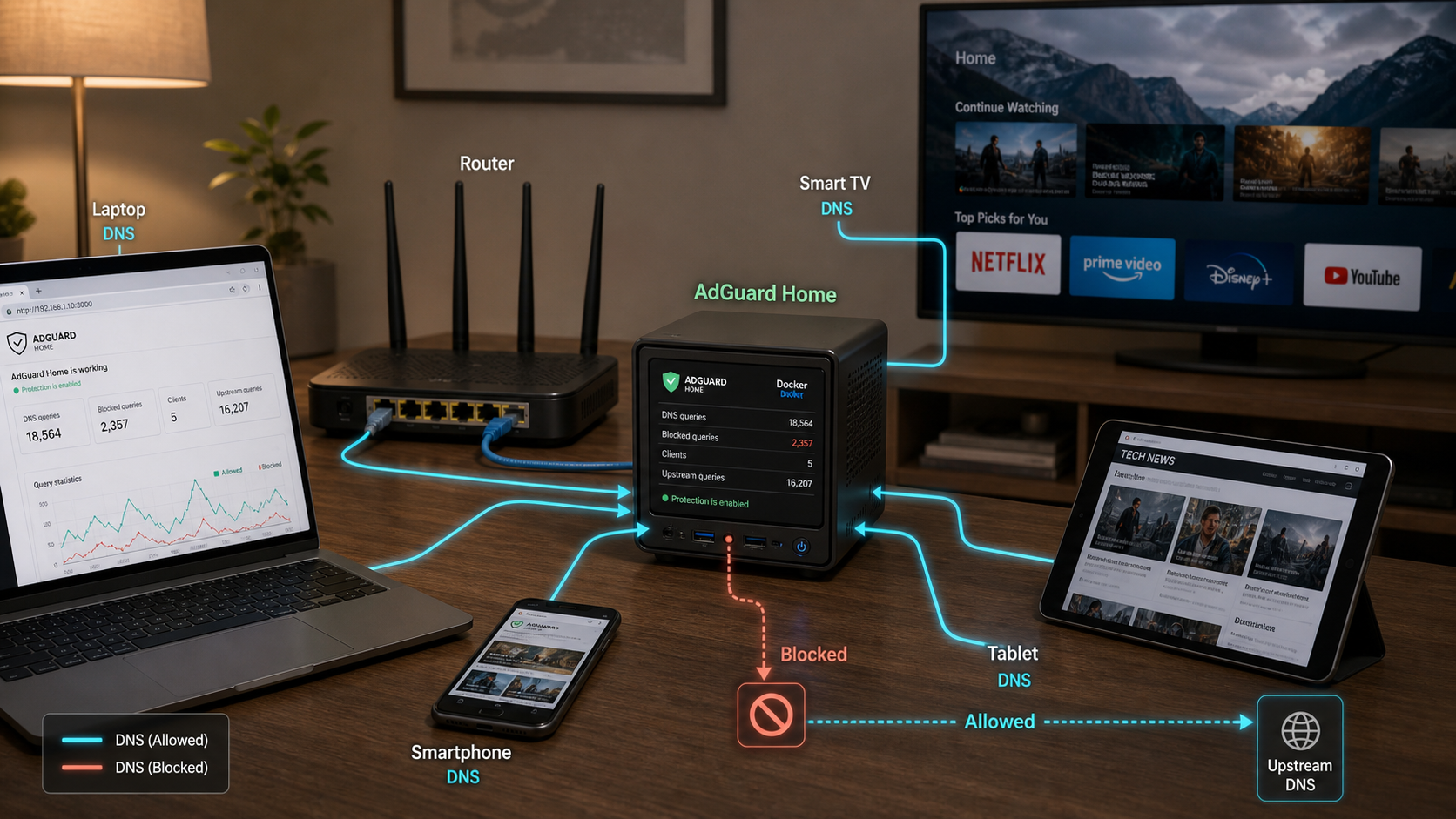
Run a private DNS filtering service for your home or small-office LAN
AdGuard Home can filter DNS requests for phones, computers, smart TVs, consoles, and other devices that use it as their resolver. This tutorial covers network planning, a Docker Compose deployment, safe handling of port 53, router and IPv6 configuration, end-to-end verification, ongoing maintenance, and troubleshooting. It also shows how to expose only the loopback-bound administration dashboard through Localtonet without publishing your DNS service to the internet.
📋 What's in this guide
How AdGuard Home DNS filtering works
DNS translates names such as example.com into IP addresses. In this design, your router advertises the AdGuard Home server as the DNS resolver for LAN clients. A client sends a DNS query to TCP or UDP port 53 on the server. AdGuard Home checks its filtering rules and either blocks the request or forwards it to a configured upstream resolver. Allowed answers can be cached, which avoids repeating an upstream lookup until the applicable cache entry expires.
A blocked query does not always produce an empty response. AdGuard Home supports multiple blocking response modes, and the result can vary with its configuration and the requested record type. A blocked query might receive an address such as a null address, an error response such as NXDOMAIN or REFUSED, or another configured blocking answer. The reliable way to determine whether filtering caused a result is to inspect AdGuard Home's query log and confirm that the request is marked as blocked by a specific rule or list.
What DNS filtering cannot do
DNS filtering blocks access by domain name. It cannot reliably remove individual advertisements that come from the same domain as desired content because blocking that domain would also block the content. It also cannot apply cosmetic page rules, remove empty page elements, or inspect a URL path when the DNS request contains only the hostname. A browser content blocker can complement network DNS filtering when page-level control is required.
Network-wide filtering also depends on clients actually using AdGuard Home. An application or device can bypass the server by using a hardcoded resolver, enabling its own DNS-over-HTTPS connection, using Android Private DNS with an external DNS-over-TLS provider, or learning another resolver through IPv6 router advertisements or DHCPv6. You should verify both IPv4 and IPv6 behavior rather than assuming a router's IPv4 DNS setting controls every query.
DNS-over-HTTPS or DNS-over-TLS encrypts the DNS hop between AdGuard Home and the selected upstream resolver. It does not make all subsequent traffic invisible. Destination IP addresses, connection timing, traffic volume, and other metadata may remain observable, while the upstream resolver receives the DNS requests. HTTPS and other application protocols provide separate protections for content in transit.
Prerequisites
Prepare the host and network before changing DHCP. DNS is an infrastructure service: if the address moves, the container stops, or a firewall blocks port 53, clients may appear connected while name resolution fails.
| Requirement | What to prepare | Why it matters |
|---|---|---|
| Supported host | An always-available Linux host capable of running the official AdGuard Home container image | The DNS server must remain reachable whenever clients need name resolution. |
| Docker | Docker Engine and the Docker Compose plugin, verified with docker compose version |
This tutorial uses a Compose project and bind-mounted configuration directories. |
| Administrative access | A user permitted to manage Docker, inspect listeners, adjust firewall policy, and edit resolver settings if necessary | Port 53 and host networking changes usually require elevated privileges. |
| Stable LAN address | A DHCP reservation or a correctly planned static address for the host | Clients must always find DNS at the address distributed by the router. |
| Router administration | Access to LAN DHCP, DNS, and, where applicable, IPv6 router advertisement or DHCPv6 settings | The router distributes resolver information to clients. |
| Firewall plan | LAN-only access to TCP and UDP port 53, with no internet-facing port forwarding | An openly reachable recursive resolver can be abused and is not part of this design. |
| Backup location | Storage for the Compose file and copies of the conf and work directories |
Configuration backups support recovery and update rollback. |
| Optional remote access | A Localtonet account and a connected Localtonet client on the host or another device that can reach the dashboard | This is needed only if you want remote browser access to the administration interface. |
Confirm Docker before continuing:
docker --version
docker compose version
Save the current network configuration before making changes. Record the host's IPv4 address, any global or unique-local IPv6 address you intend to use, the default gateway, the current DNS resolvers, and the router's DHCP lease range. Keep one administrative device available with a manually configured working resolver so you can recover if the new DNS service is temporarily unavailable.
Plan the DNS address, firewall, and redundancy
Assign a stable address first
Use your router's DHCP reservation feature when available. A reservation keeps address management centralized while assigning the same LAN address to the server's network interface. If you configure a static address on the host instead, select an address outside the dynamic lease pool and preserve the correct subnet prefix, gateway, and routing settings.
On Linux, the following commands can help identify the active IPv4 route and addresses. Review the output instead of copying an address blindly:
ip -4 route
ip -4 address
ip -6 address
This guide uses SERVER_LAN_IP as a placeholder. Replace it with the real stable LAN address when testing or editing your router. Do not enter the literal placeholder into a configuration.
Restrict DNS to trusted networks
The Compose configuration publishes TCP and UDP port 53 on the host because LAN clients need to reach it. Your host firewall and upstream router should permit those ports only from trusted LAN or approved private subnets. Do not create router port-forwarding rules for port 53, and do not expose the DNS listener through an HTTP tunnel.
Docker integrates with the host packet-filtering stack, and published container ports may not behave exactly like ordinary host-process rules under every firewall manager. UFW, firewalld, nftables, iptables, and vendor firewall tools can interact differently with Docker networking. After applying your LAN-only policy, test port 53 from an allowed LAN client and from an untrusted network path you control. Do not rely only on the firewall's displayed rule list.
Do not use a public resolver as an accidental bypass
Many routers let you advertise primary and secondary DNS addresses. Clients do not necessarily treat the secondary value as a standby used only during failure. They may query either resolver. If you advertise AdGuard Home as primary and a public resolver as secondary, some requests can bypass your filters during normal operation.
Transparent DNS redundancy requires a second filtering resolver with equivalent rules, upstream settings, and availability. If you deploy only one server, decide whether the simpler design and possible DNS outage are acceptable. Keep a documented emergency procedure for restoring the router's previous resolver values if the server fails.
Plan IPv6 separately
IPv6-capable routers can advertise DNS resolvers through router advertisements or DHCPv6 independently of IPv4 DHCP. A client may prefer an advertised IPv6 resolver and bypass the IPv4 AdGuard Home address. Either configure AdGuard Home with a stable, reachable IPv6 address and advertise it correctly, or ensure the router does not advertise an unintended external IPv6 resolver. Do not disable IPv6 casually if your network depends on it.
Inspect port 53 before changing the host resolver
Do not assume that systemd-resolved is active merely because the host runs Ubuntu, Debian, or Raspberry Pi OS. Images, releases, network managers, and local configuration differ. First identify which process, if any, is listening on port 53 and how /etc/resolv.conf is managed.
sudo ss -lntup | grep -E '(:53[[:space:]]|:53$)' || true
systemctl is-active systemd-resolved || true
readlink -f /etc/resolv.conf
cat /etc/resolv.conf
resolvectl status 2>/dev/null || true
A listener owned by another DNS server, such as dnsmasq, Unbound, BIND, or an existing container, requires a service-specific decision. Stop, reconfigure, or deliberately integrate that service before publishing AdGuard Home on the same address and port. Do not disable an unfamiliar resolver without understanding what depends on it.
Conditional systemd-resolved procedure
Use the following procedure only if your inspection confirms that the systemd-resolved stub listener is causing the port conflict and that the host has valid upstream resolver information available through /run/systemd/resolve/resolv.conf. The procedure disables the local stub listener without making the host depend on AdGuard Home at 127.0.0.1 before the container is ready.
Back up the resolver configuration
Preserve the existing /etc/resolv.conf object, including whether it is a file or symbolic link.
Confirm the non-stub resolver file is usable
Inspect /run/systemd/resolve/resolv.conf. Continue only if it exists and contains appropriate upstream resolver entries for this host.
Disable only the stub listener
Add a small override with DNSStubListener=no. Do not set the host resolver to 127.0.0.1 at this stage.
Point resolv.conf at the non-stub file
Replace the current link only after its backup has been created, then restart systemd-resolved.
Verify resolution and listeners
Confirm the host still resolves a known domain and inspect port 53 again. The goal is to remove the conflicting binding, not necessarily to produce completely empty listener output on every address.
sudo cp -a /etc/resolv.conf /etc/resolv.conf.pre-adguard
cat /run/systemd/resolve/resolv.conf

sudo mkdir -p /etc/systemd/resolved.conf.d
sudo tee /etc/systemd/resolved.conf.d/adguardhome.conf <<'EOF'
[Resolve]
DNSStubListener=no
EOF

sudo rm -f /etc/resolv.conf
sudo ln -s /run/systemd/resolve/resolv.conf /etc/resolv.conf
sudo systemctl restart systemd-resolved

getent hosts example.com
sudo ss -lntup | grep -E '(:53[[:space:]]|:53$)' || true
Remove the override, restore the backed-up resolv.conf, and restart systemd-resolved. If the backup path or your resolver manager differs, adapt the restoration to the state you recorded before the change.
sudo rm -f /etc/systemd/resolved.conf.d/adguardhome.conf
sudo rm -f /etc/resolv.conf
sudo cp -a /etc/resolv.conf.pre-adguard /etc/resolv.conf
sudo systemctl restart systemd-resolved
getent hosts example.com
Install AdGuard Home with Docker Compose
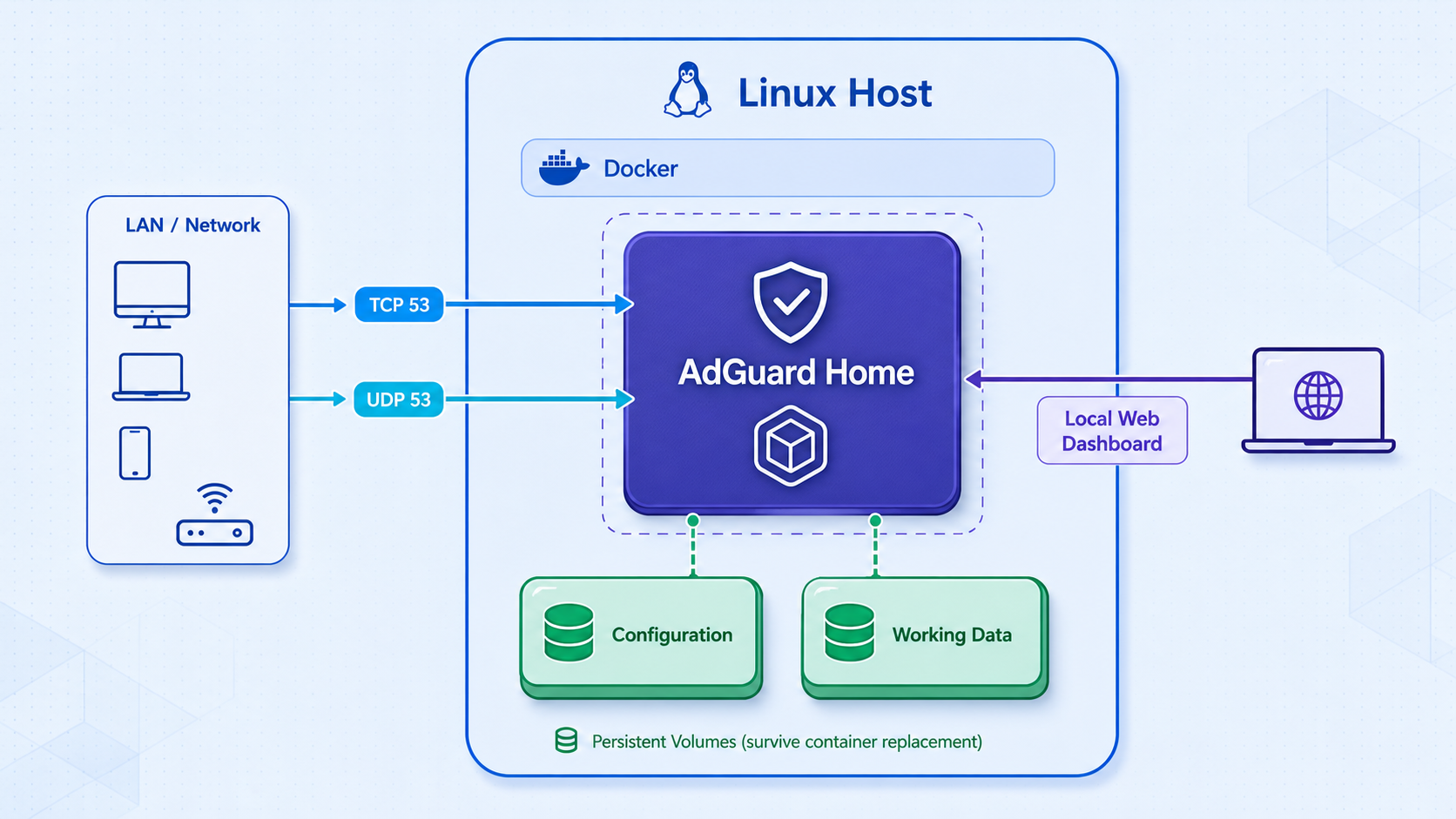
The configuration below publishes DNS on host port 53. It binds the one-time setup service and ongoing administration dashboard to IPv4 loopback, so neither web interface is directly reachable from the LAN or internet. Inside the container, the wizard can still configure the web service on its normal container interface because the host mapping supplies the external boundary.
Create the project directories
Create separate bind-mounted directories for persistent working data and configuration.
Create the Compose file
Publish TCP and UDP DNS to the host, but bind setup port 3000 and dashboard port 8080 to loopback.
Start the container
Start the project, inspect its state, and review logs before opening the wizard.
Complete onboarding securely
Open the loopback setup URL locally, or use an SSH port forward when the server is headless.
Remove the setup-port mapping
After onboarding, remove the host mapping for port 3000 and recreate the container. Keep only the ports required for DNS and the loopback dashboard.
mkdir -p adguard/work adguard/conf
cd adguard
services:
adguardhome:
image: adguard/adguardhome:latest
container_name: adguardhome
restart: unless-stopped
volumes:
- ./work:/opt/adguardhome/work
- ./conf:/opt/adguardhome/conf
- /etc/localtime:/etc/localtime:ro
ports:
- "53:53/tcp"
- "53:53/udp"
- "127.0.0.1:3000:3000/tcp"
- "127.0.0.1:8080:80/tcp"docker compose up -d
docker compose ps
docker compose logs --tail=100 adguardhome
If you have a browser on the server, open http://127.0.0.1:3000. For a headless server reachable by SSH, create a temporary port forward from your workstation:
ssh -L 3000:127.0.0.1:3000 your-user@SERVER_LAN_IP
Keep that SSH session open and browse to http://127.0.0.1:3000 on your workstation. This carries the setup connection through SSH without exposing port 3000 to the LAN.
Complete the setup wizard
In the wizard, configure the DNS service to listen on port 53 inside the container. Configure the administration web service on port 80 inside the container, which the Compose mapping makes available only as 127.0.0.1:8080 on the host. Create a unique administrator username and a strong password. Record the credential in an appropriate password manager.
Interface labels can differ between AdGuard Home releases. Confirm that DNS is reachable through the container's published port and that the web interface resolves to the expected container port before distributing the service to clients.
After the dashboard works at http://127.0.0.1:8080, remove this line from the Compose file:
- "127.0.0.1:3000:3000/tcp"Apply the revised configuration and confirm that the setup port is no longer published:
docker compose up -d
docker compose ps
sudo ss -lntup | grep -E '(:53[[:space:]]|:8080[[:space:]]|:3000[[:space:]])' || trueConfigure upstream DNS carefully
In AdGuard Home, open the DNS settings and select upstream resolvers that meet your operational and privacy requirements. You can use conventional DNS or a supported encrypted upstream format. Resolver availability, filtering policy, logging policy, jurisdiction, and validation behavior are choices separate from AdGuard Home itself.
After saving an upstream change, use the dashboard's available test function if present, then issue a direct query and inspect the logs. Avoid configuring AdGuard Home to forward to itself, to the router when the router forwards back to AdGuard Home, or to another resolver that ultimately returns the query to this server. Such configurations create resolver loops.
Configure router DHCP and client DNS
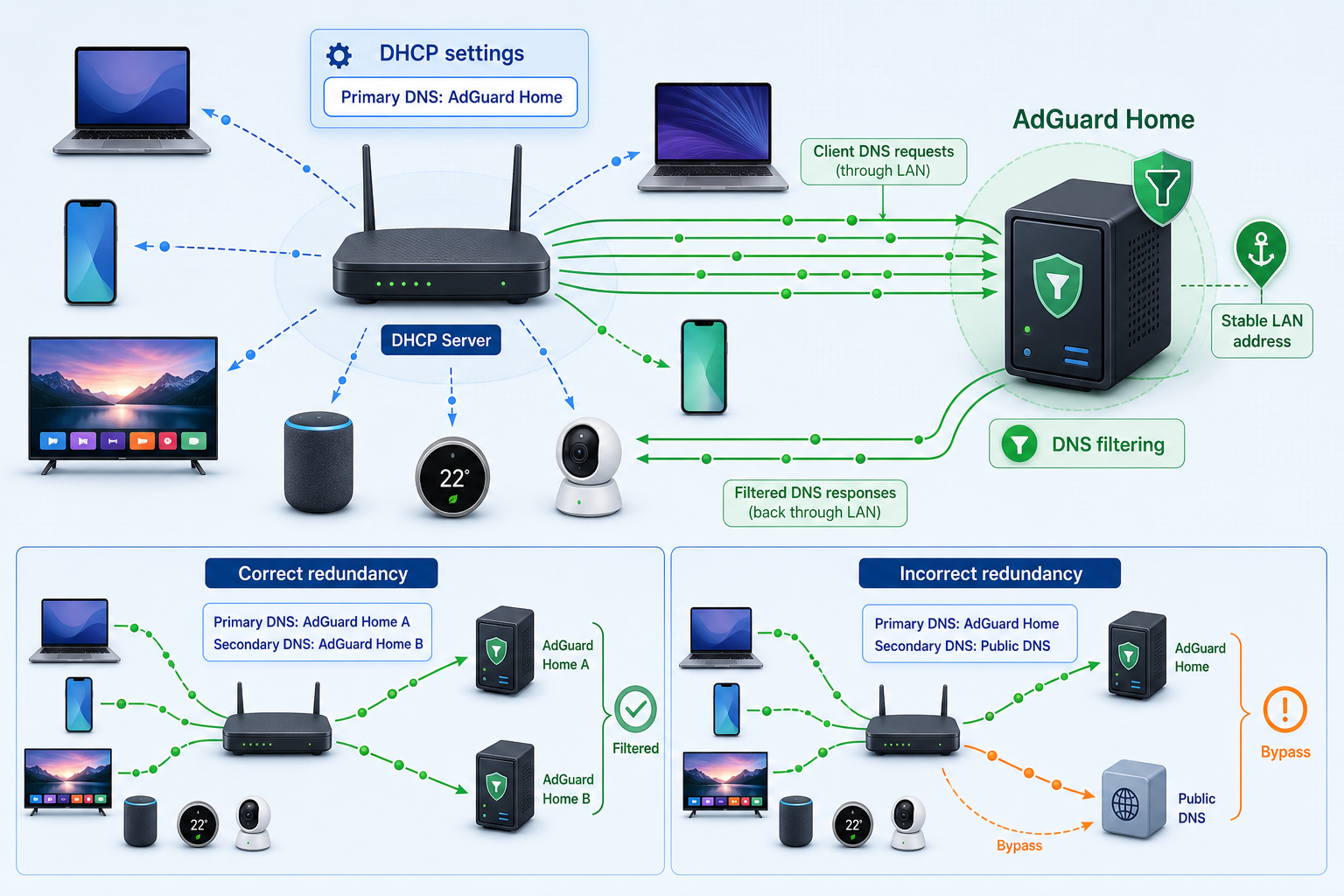
Change DHCP only after direct tests against the server succeed. Router interfaces vary, so look for LAN, DHCP server, DNS server, IPv6 DNS, DHCPv6, or router advertisement settings. Do not confuse WAN DNS, which controls the router's own upstream behavior, with LAN DNS values distributed to clients.
Confirm the reserved server address
Verify that the AdGuard Home host received the stable address you planned and that another device cannot receive the same address.
Test DNS directly before changing DHCP
Query SERVER_LAN_IP from another LAN device. Continue only if allowed queries return and appear in the query log.
Advertise AdGuard Home through LAN DHCP
Set the LAN DNS value to the stable AdGuard Home address. Do not add a public secondary resolver if you expect all normal queries to be filtered.
Review IPv6 advertisements
Configure the intended AdGuard Home IPv6 resolver or remove unintended external resolver advertisements according to your router's supported IPv6 design.
Renew client leases
Reconnect the client, renew its DHCP lease using the operating system's supported method, or wait for the current lease to renew.
Inspect the resolver actually received
Check the client's network status rather than assuming the DHCP change propagated.
Useful client inspection commands include:
# Linux with systemd-resolved
resolvectl status
# Linux with NetworkManager
nmcli device show | grep -E 'IP4.DNS|IP6.DNS'
# macOS
scutil --dns
# Windows Command Prompt
ipconfig /allAndroid's Private DNS provider-hostname mode expects a DNS-over-TLS provider hostname with a valid TLS configuration. The LAN IP used for ordinary DNS in this tutorial cannot simply be entered there. For this design, let Android obtain the LAN resolver from Wi-Fi DHCP and make sure an external Private DNS provider is not overriding it. Deploying AdGuard Home as a DNS-over-TLS service requires a separate certificate, hostname, reachability, and security design that is outside this tutorial.
Choose current DNS filter lists and manage exceptions
Start with AdGuard Home's default DNS filter and the curated list catalog available in your installed dashboard. Catalog contents can change, so review each list's current description, maintainer, update status, syntax, and scope before enabling it. A longer list is not automatically more accurate.
AdGuard Home accepts DNS-oriented filtering rules, including supported Adblock-style domain rules and hosts-style entries. Browser filter lists can also contain cosmetic selectors, scriptlet rules, URL-path logic, and other browser-specific syntax that a DNS resolver cannot meaningfully apply. For that reason, do not assume every browser list is suitable as a DNS blocklist.
| List or source | How to use it | Important qualification |
|---|---|---|
| AdGuard filters | Use the DNS filter offered in AdGuard Home's current list catalog as a general starting point. | Choose the DNS-oriented list rather than assuming every AdGuard browser filter applies at DNS level. |
| EasyList and EasyPrivacy | Consult the canonical EasyList project when evaluating these lists and their ownership. | EasyList is maintained by the EasyList project, not the uBlock Origin team. Browser-oriented rules may not be useful to a DNS blocker. |
| OISD | If it appears in your current AdGuard Home catalog, review its documented variants and policies before enabling one. | Suitability and false-positive tolerance depend on your devices and services. It is not universally correct for every network. |
| AdGuard Home curated catalog | Prefer current entries shown by the product over an old copied URL from a tutorial. | Check that the maintainer is active and the list is designed for DNS filtering. |
| Custom rules | Add narrow allow or block rules when the query log identifies a specific need. | Document each exception so it can be reviewed and removed later. |
Enable a small baseline first, then observe it. When a site or application breaks, reproduce the problem while watching the query log. Identify the exact blocked hostname and matching rule. Allow only what is required rather than disabling all filtering or broadly allowing a parent domain without investigation.
Overlapping lists increase rule count and can make troubleshooting harder without adding useful coverage. Some services depend on tracking, telemetry, authentication, content-delivery, or consent domains that aggressive lists may block. Add one source at a time, review query-log matches, and keep a record of intentional exceptions.
Verify the deployment end to end
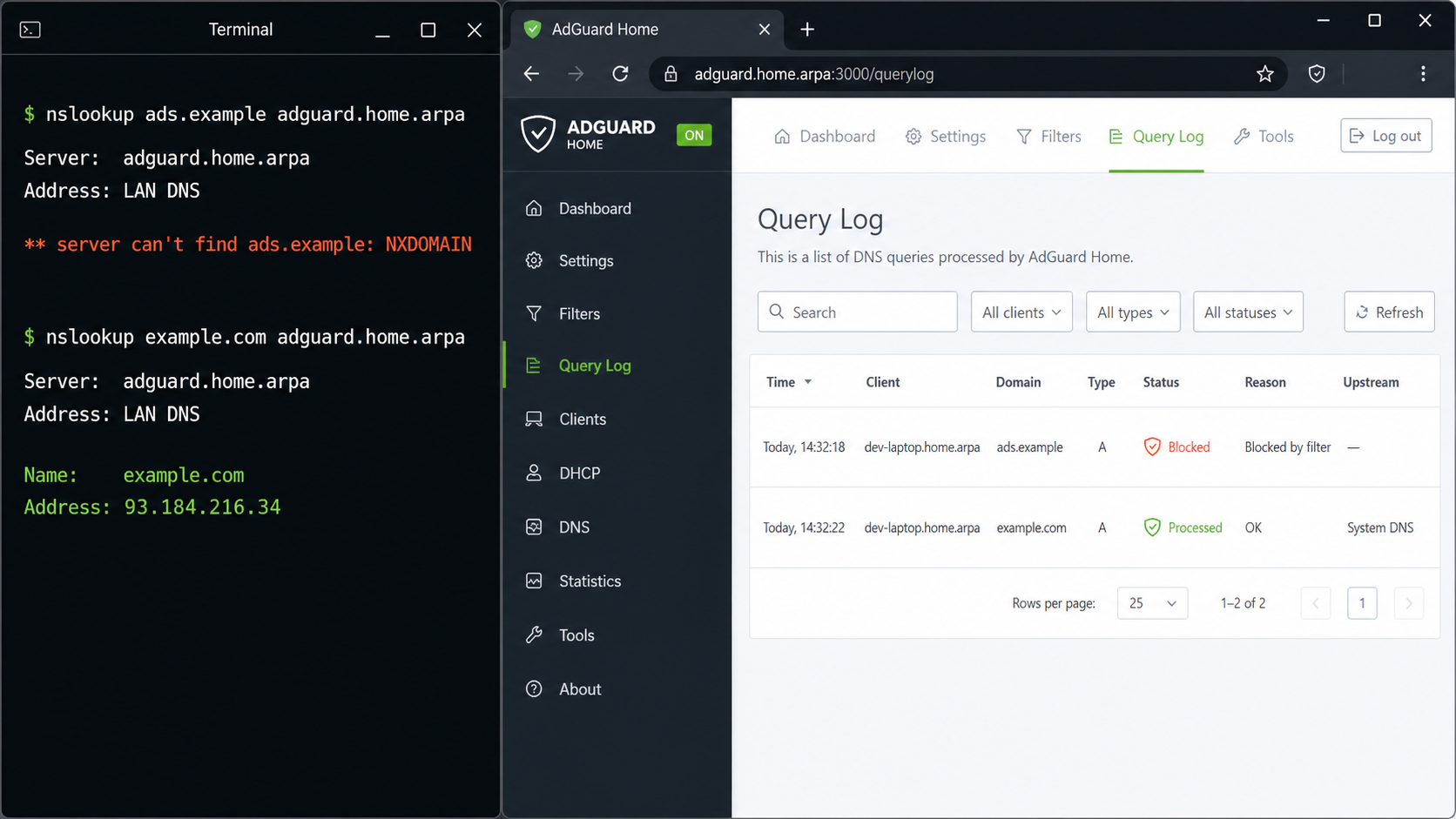
Verification should prove each layer independently: container health, direct DNS reachability, filtering behavior, DHCP propagation, query logging, IPv4 and IPv6 resolver selection, and dashboard isolation.
1. Check the container and listeners
cd adguard
docker compose ps
docker compose logs --tail=100 adguardhome
sudo ss -lntup | grep -E '(:53[[:space:]]|:8080[[:space:]])' || true
Confirm that Docker reports the container running, no repeated startup errors appear, TCP and UDP port 53 are published as intended, and port 8080 is bound only to 127.0.0.1. If IPv6 exposure matters on your host, inspect the IPv6 listener output and Docker daemon behavior separately.
2. Send direct allowed queries
From a LAN client with dig installed, query the server explicitly. This bypasses DHCP selection and tests the DNS service itself:
dig @SERVER_LAN_IP example.com A
dig +tcp @SERVER_LAN_IP example.com A
The first command normally tests UDP, while +tcp tests TCP. Both protocols matter because DNS can use TCP for responses and operations that do not fit or complete over UDP. Confirm both requests appear in AdGuard Home's query log.
3. Perform a controlled blocking test
Instead of relying on an undocumented domain that may later disappear from a list, add a temporary custom block rule for a harmless test target such as example.org. Query that domain directly, then confirm the query log marks it as blocked and identifies your temporary rule. The DNS answer depends on the configured blocking response mode.
dig @SERVER_LAN_IP example.org ARemove the temporary rule immediately after the test and query the domain again. Confirm that the subsequent request is allowed. This tests rule application, logging, and removal without relying on a third-party advertising domain.
4. Inspect the DHCP lease and active client resolver
Renew a test client's lease and use the platform-specific commands from the router section. Confirm that the active resolver is the AdGuard Home address, not merely that the router settings page contains it. Review the router's lease table where available to confirm the client obtained a new lease after the change.
5. Test normal client traffic
Open several ordinary sites or applications on the test client, then identify those queries in the AdGuard Home log. If no entries appear, the client may be using cached answers, an external encrypted resolver, a manually configured DNS address, a VPN-provided resolver, or an IPv6 resolver.
6. Check IPv4 and IPv6 separately
Compare the client's IPv4 DNS and IPv6 DNS values. If an unintended IPv6 resolver is present, inspect the router's IPv6 DNS, router advertisement, and DHCPv6 settings. Do not declare the deployment complete until the observed behavior matches the design for both protocol families enabled on your LAN.
7. Verify dashboard isolation
On the host, http://127.0.0.1:8080 should reach the dashboard. From another LAN device, http://SERVER_LAN_IP:8080 should not work with the loopback-only Compose mapping. If it does, inspect the actual container mappings, other reverse proxies, and firewall rules.
Expose only the dashboard with Localtonet
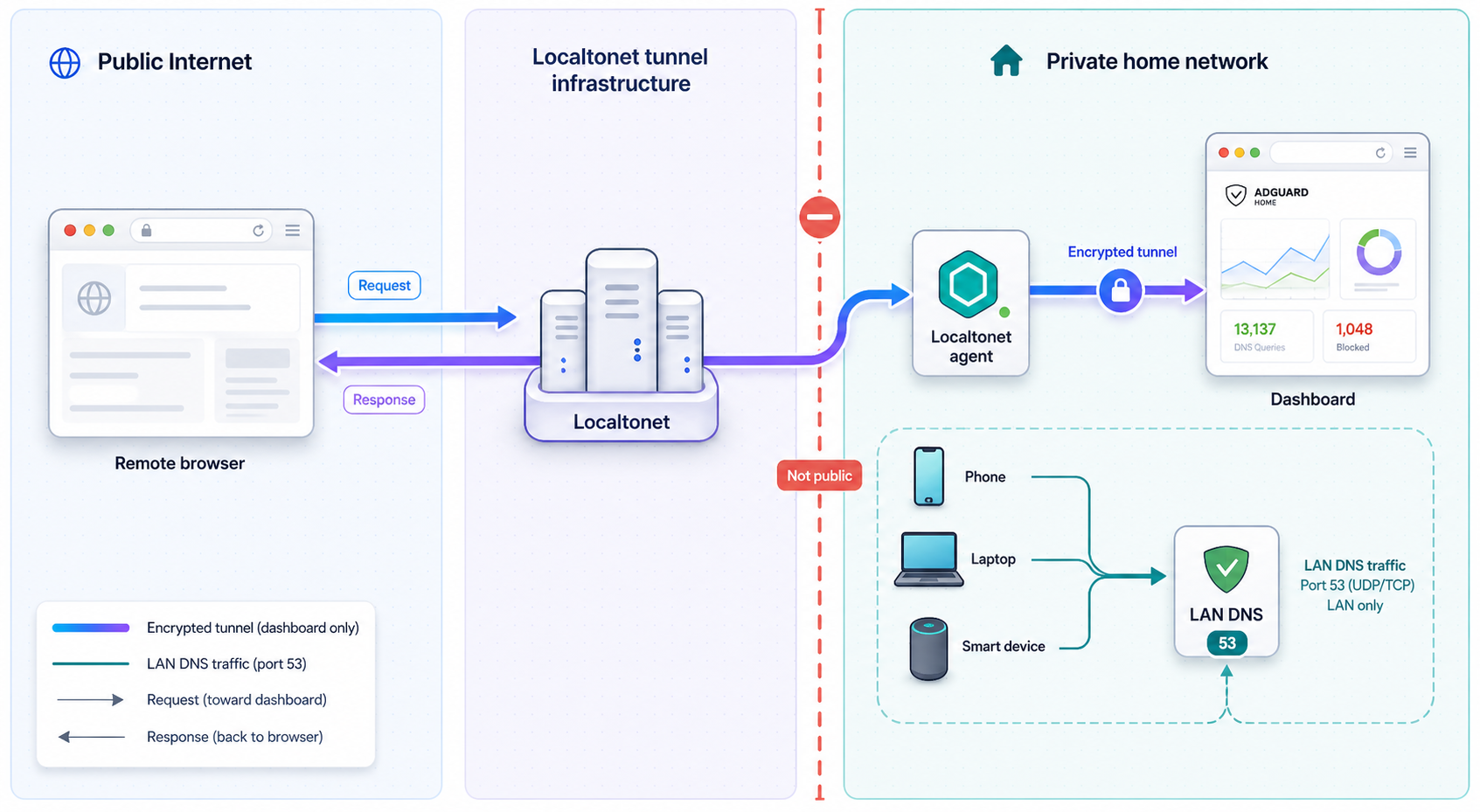
Localtonet can provide a public HTTPS address for the loopback-bound administration service without inbound router port forwarding, firewall changes, VPN setup, or a public IP address. Our client on the selected device establishes an outbound connection to a Localtonet relay server. In this design, the tunnel targets 127.0.0.1:8080. DNS on port 53 remains a LAN service and must not be exposed through the HTTP tunnel.
Use a strong, unique AdGuard Home administrator password and keep the software updated. Treat query logs and client names as sensitive network information. Protect the Localtonet device token, never place it in an article, command history, screenshot, or shared configuration, and stop the tunnel when remote administration is not needed.
Install and run the Localtonet client
Install the current Localtonet application for the operating system on the AdGuard Home host, or on another trusted device that can reach its dashboard. Use the installation method currently provided by Localtonet rather than an unverified command copied from an older tutorial.
Authenticate the correct device
Select the device-specific authentication token associated with the client that will run this tunnel. The token identifies that device and must remain secret.
Select an available relay server
Choose a current server or region from the values shown in the dashboard. Availability can vary, so do not hardcode a server code from another deployment.
Create an HTTP tunnel
Set the local target to IP address 127.0.0.1 and port 8080. Select the appropriate HTTP process type offered for your configuration. Random Sub Domain, Custom Sub Domain, and Custom Domain process types serve the target through a public HTTPS address, but availability can vary by configuration or plan.
Start the tunnel explicitly
Creating a tunnel does not make it run. Use the Start button and confirm that the selected Localtonet client remains connected.
Verify remote access
From a device outside the home LAN, open the assigned HTTPS address, confirm that the AdGuard Home login page appears, authenticate, and verify that the dashboard functions. Do not perform this test only from the same Wi-Fi network.
Stop or delete access when finished
Stop the tunnel after the administrative session if continuous remote access is unnecessary. Delete it when it is no longer part of your design.
For the current dashboard sequence and available options, consult the Localtonet HTTP tunnel documentation. Tunnel availability depends on both conditions remaining true: the selected client device must be connected, and the tunnel must be running. A reboot does not by itself prove that either condition has been restored, and the public address after a restart can depend on the selected process type and configuration.
Back up, update, reboot, and monitor the service
Create recoverable backups
The Compose project stores persistent data in ./conf and ./work. Back up both directories together with compose.yaml. Protect backups because configuration and query data can reveal internal hostnames, client activity, credentials, and network structure.
For a consistent maintenance backup, stop the container briefly, create the archive, and restart it:
cd adguard
docker compose stop
tar -czf "../adguard-backup-$(date +%Y%m%d-%H%M%S).tar.gz" compose.yaml conf work
docker compose start
docker compose psTest restoration in a safe environment or during a planned maintenance window. A backup is not proven until its files can be read and the service can start from them.
Update with a rollback plan
Before updating, read the AdGuard Home release notes, create a fresh backup, record the currently running image identifier, and preserve the exact image reference or digest needed for rollback. The example Compose file follows the latest tag, which is convenient but does not itself preserve a prior version. Administrators who require deterministic updates should replace it with a deliberately selected image version or digest after checking current project releases.
cd adguard
docker compose images
docker image inspect adguard/adguardhome:latest --format '{{.Id}}'
docker compose pull
docker compose up -d
docker compose ps
docker compose logs --tail=100 adguardhomeAfter every update, repeat a direct UDP query, a direct TCP query, a controlled blocked-domain test, a client query-log check, and dashboard access verification. If the update fails, restore the previous explicit image reference and the pre-update data backup according to the rollback plan you recorded before pulling the new image.
Verify behavior after reboot
restart: unless-stopped asks Docker to restart the container when the Docker daemon starts, unless the container was intentionally stopped. It does not help if Docker itself fails to start, storage is unavailable, port 53 is occupied, the configuration is invalid, or the host has no network connectivity.
After a planned reboot, verify each dependency:
docker compose ps
docker compose logs --tail=100 adguardhome
getent hosts example.com
sudo ss -lntup | grep -E '(:53[[:space:]]|:8080[[:space:]])' || true
Then query AdGuard Home directly from a separate client and inspect the query log. If you use Localtonet, also verify that its client is connected and that the HTTP tunnel is running. Do not assume a previously assigned public URL is available until the live tunnel status and an external browser test confirm it.
Routine monitoring
- Review container state and recent logs after host or network changes.
- Watch query-log trends for unexpected clients, repeated failures, and excessive blocks.
- Review custom allow rules and remove obsolete exceptions.
- Confirm filter lists still update and remain maintained by their stated owners.
- Check available disk space for persistent data and backups.
- Test DNS from a representative IPv4 and IPv6 client after router firmware changes.
- Review whether continuous public dashboard access is still necessary.
Troubleshooting common failures
Docker reports that port 53 is already in use
Run sudo ss -lntup and identify the owning process. Check existing containers with docker ps. If systemd-resolved owns only a local stub binding and causes the collision, use the conditional procedure above. If another DNS service owns the port, decide whether to remove it, move it, or integrate it. Do not repeatedly restart Docker without resolving the ownership conflict.
The host loses DNS before AdGuard Home starts
This commonly indicates that the host was pointed at 127.0.0.1 before a working resolver was available or that /etc/resolv.conf was replaced incorrectly. Restore the saved resolver configuration, restart its managing service, and verify getent hosts example.com. Keep the host on a known working resolver until AdGuard Home has started and passed direct tests.
Queries time out from LAN clients
Confirm the server still owns its stable address, then test locally and remotely in sequence. Check the container, logs, TCP and UDP listeners, host firewall, Docker firewall integration, VLAN policy, wireless client isolation, and router access-control rules. A successful query from the server itself does not prove that another LAN segment can reach it.
Clients still show the old DNS server
The DHCP lease may not have renewed, or you may have edited the router's WAN DNS rather than LAN DHCP settings. Renew the client lease, reconnect the interface, and inspect the active resolver. Some clients cache network settings until a reboot. If the router advertises itself as DNS and forwards queries internally, the query log may identify the router rather than individual devices.
Queries work directly but normal applications bypass filtering
Inspect the client's active IPv4 and IPv6 resolvers. Check browser secure-DNS settings, Android Private DNS, VPN profiles, endpoint security software, and applications with hardcoded DNS. Some managed devices enforce an organizational resolver. Change only settings you are authorized to manage, and do not attempt to bypass administrative policy.
A website or application breaks
Reproduce the failure while watching the query log. Look for blocked requests at the same timestamp and identify the matching rule. Temporarily allow the narrowest necessary hostname, retest, and document the reason. If no relevant DNS query is blocked, the problem may be unrelated to AdGuard Home or may involve cached application data. Avoid allowing an entire parent domain unless the service genuinely requires it.
IPv6 clients bypass AdGuard Home
Inspect the client's IPv6 DNS entries and the router's router advertisement or DHCPv6 configuration. An ISP or router-provided IPv6 resolver may be preferred over the advertised IPv4 address. Configure a stable AdGuard Home IPv6 service and suitable firewall policy, or correct the router's resolver advertisements. Reconnect the client and verify the new information rather than relying on the router UI alone.
DNS fails intermittently
Check whether a public secondary resolver is being advertised, whether the AdGuard host is changing address, and whether Wi-Fi power saving or host suspension takes the server offline. Review logs for upstream timeouts. If two filtering resolvers are advertised, confirm both contain equivalent rules and both are healthy. Intermittent behavior can result from clients choosing between inconsistent resolvers.
Allowed domains fail because of a resolver loop
Review every upstream entry. AdGuard Home must not forward to an address that returns the same request to AdGuard Home. A common loop occurs when AdGuard forwards to the router while the router forwards to AdGuard. Replace the circular upstream path with a deliberately selected resolver, restart only if required by the configuration, and repeat direct tests.
The local dashboard works but the Localtonet URL does not
First verify http://127.0.0.1:8080 on the Localtonet client device. Then confirm that the correct device token was selected, that the client is connected, that an available relay server was chosen, that the local target is 127.0.0.1:8080, and that the tunnel was explicitly started. Creating the tunnel is not enough. Test the assigned URL from a network outside the LAN.
The server is unavailable and the network cannot resolve names
Use the recovery device or documented router procedure to restore the previous LAN DNS values. Renew affected client leases. Repair the host, restore a known-good backup if needed, and test AdGuard Home directly before advertising it again. If DNS availability is critical, deploy a second equivalent filtering resolver rather than using an unfiltered public secondary.
Frequently asked questions
Can AdGuard Home block every advertisement?
No. It can block DNS lookups for listed domains, but it cannot selectively remove advertisements served from the same domains as desired content. It also cannot apply browser cosmetic rules or inspect URL paths through DNS alone. Applications using another resolver can bypass it unless that behavior is separately controlled.
Can I run this on a Raspberry Pi?
A Raspberry Pi can be a suitable Docker host when its architecture is supported by the current AdGuard Home image and it has reliable storage, networking, power, and enough capacity for your query volume and other workloads. Performance depends on the model and environment. Inspect port 53 on the installed Raspberry Pi OS image rather than assuming that every release uses the same systemd-resolved configuration.
Should I configure a public secondary DNS server?
Not if you require consistent filtering. Clients may use either advertised resolver during normal operation, so a public secondary can bypass AdGuard Home. For filtered redundancy, use a second filtering resolver with equivalent configuration and verify both independently.
Does DNS-over-HTTPS hide all browsing activity from an ISP?
No. It encrypts DNS traffic between AdGuard Home and the chosen upstream resolver. Subsequent destination connections and metadata such as IP addresses, timing, and traffic volume may still be observable. The upstream resolver also receives the DNS requests.
Can I enter the AdGuard Home IP in Android Private DNS?
Not for the plaintext LAN DNS configuration in this guide. Android Private DNS provider-hostname mode expects a DNS-over-TLS hostname and valid TLS service. Let the phone obtain the ordinary LAN resolver through Wi-Fi DHCP, and check that an external Private DNS provider is not overriding it.
Will a WireGuard client automatically use AdGuard Home?
No. The VPN client must be configured to use the AdGuard Home address as DNS, and its routes must carry DNS traffic to that address. The VPN server and firewall must also permit the path. A WireGuard connection alone does not automatically replace the client's resolver or route all DNS through the home network. Our self-hosted WireGuard guide explains route selection and remote connectivity in more detail.
Does the Localtonet tunnel expose DNS port 53?
No. The workflow in this tutorial creates an HTTP tunnel only to the loopback-bound dashboard at 127.0.0.1:8080. DNS remains restricted to the LAN. Do not create public exposure for port 53 as part of this setup.
How do I update without losing my settings?
The Compose project stores persistent data in the host-mounted conf and work directories. Back up those directories and the Compose file, review release notes, record the current image reference, pull the intended update, recreate the container from the project directory, inspect logs, and repeat DNS verification. Keep the prior image reference and backup available for rollback.
Manage your private dashboard with Localtonet
Keep AdGuard Home DNS restricted to your trusted LAN, then use a Localtonet HTTP tunnel when you need controlled remote access to the loopback-bound administration interface. Stop or delete the tunnel when remote administration is no longer required.
Get Started Free →

