

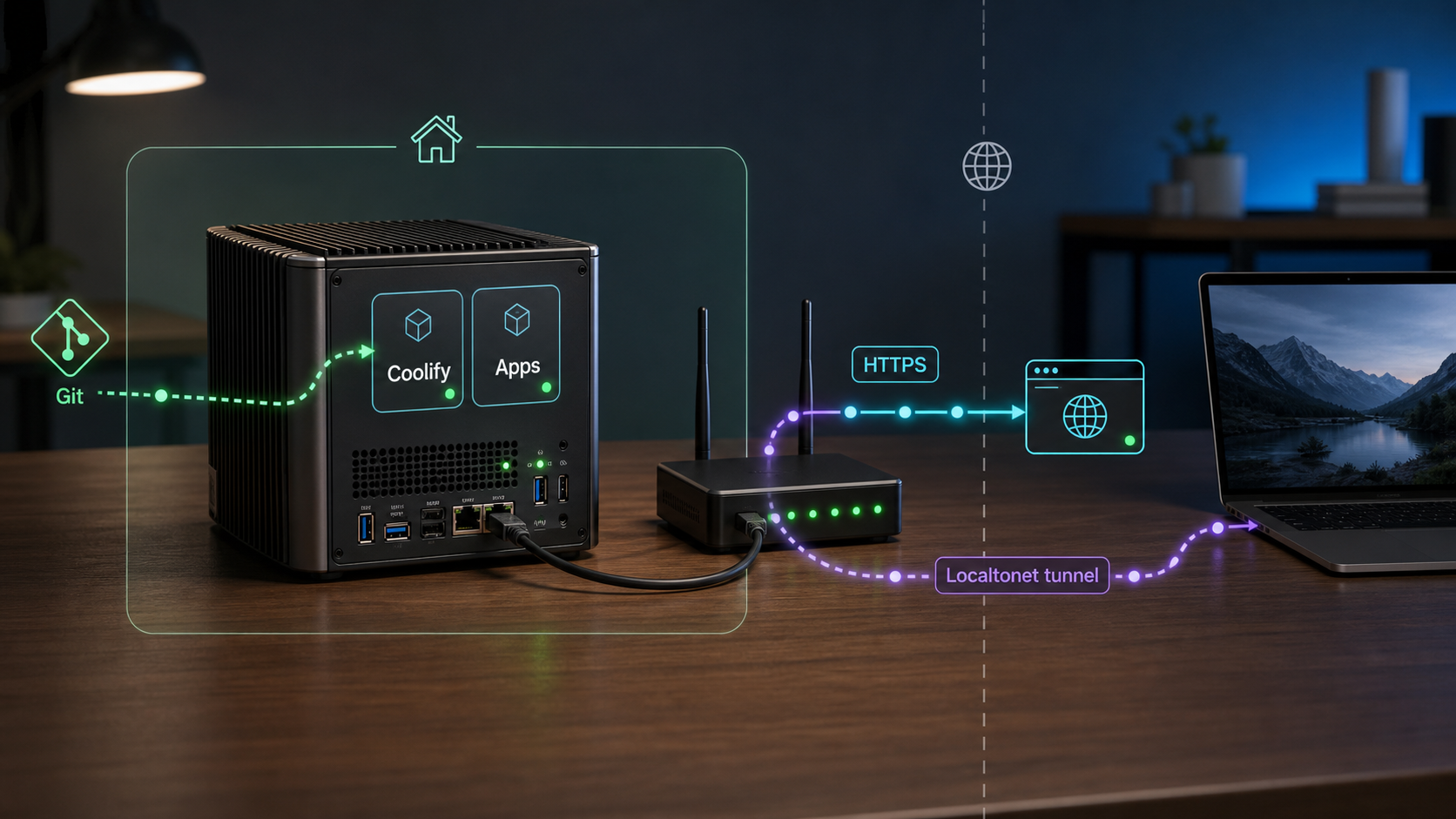
Build a deployment platform on hardware you control, then choose exactly how its dashboard and applications reach the internet
Coolify provides a web interface for building and operating containerized applications on your own server. This guide walks through pre-install checks, a safer installation workflow, administrator setup, and a reproducible Node.js deployment with a health endpoint. It also separates three networking scenarios that are often confused: publishing applications from a publicly reachable server, opening temporary remote access to the Coolify dashboard, and publishing individual applications from behind NAT or CGNAT. The Localtonet instructions use the documented dashboard workflow and do not require inbound router port forwarding.
📋 What's in this guide
Understand the architecture before installing anything
Coolify is a self-hosted application deployment platform. It runs on a Linux server and coordinates container builds, application processes, environment variables, domains, deployment logs, and related resources through a web dashboard. It can provide a platform-style workflow without transferring day-to-day infrastructure responsibility to a hosted application provider.
Self-hosting does not remove the underlying operational work. You remain responsible for the server, storage, network reachability, security updates, credentials, backups, restore testing, monitoring, and capacity planning. The number and size of applications you can run are constrained by the CPU, memory, storage, and network capacity of your hardware.
This tutorial targets the Coolify v4 installation and project model and was editorially reviewed in August 2026. Coolify is actively developed, so labels and navigation can change between releases. Where a label is version-sensitive, this guide describes the required outcome rather than assuming one permanent button name. Confirm the current supported operating systems, minimum resources, installation URL, and upgrade procedure in the Coolify documentation shown for the release you are about to install.
Dashboard traffic and application traffic are separate
The Coolify dashboard is an administrative interface, commonly reached locally on port 8000 after installation. It can create deployments, reveal logs, modify environment variables, and control services. It is therefore more sensitive than an ordinary public application.
Applications deployed through Coolify have their own listening ports and publication paths. On a publicly reachable server, a reverse proxy can route an application's domain through inbound ports 80 and 443. On a server behind NAT or CGNAT, those inbound connections may never reach the server. Making only the Coolify dashboard available through a tunnel does not make the deployed applications public.
Choose one of three networking cases
| Scenario | Traffic path | What must be published |
|---|---|---|
| Publicly reachable server | Visitor → public server IP → reverse proxy → application | DNS for each application and the required inbound web ports |
| Private dashboard access | Administrator → Localtonet relay → Localtonet client → Coolify on port 8000 | Only the dashboard tunnel, while remote administration is needed |
| Application behind NAT or CGNAT | Visitor → Localtonet relay → Localtonet client → application port | A separate tunnel or equivalent verified route for each application endpoint |
An HTTPS address encrypts traffic between the browser and the tunnel edge. It does not automatically require visitors to authenticate before reaching the Coolify login page. Use a strong, unique Coolify administrator password, enable any appropriate account protections available in your installed Coolify release, apply the narrowest available network or access restrictions, avoid disclosing the dashboard URL, and stop the dashboard tunnel when remote administration is unnecessary.
Prepare the server and perform pre-install checks
Use a dedicated server or virtual machine where possible. Installing a platform manager on a machine already running a reverse proxy, database, or unrelated containers can create port conflicts and complicate recovery. Before installation, record what currently runs on the machine and make sure you have a tested way to recover access if networking changes.
Coolify's supported operating-system and architecture matrix can change. Use a currently supported 64-bit Linux release from the Coolify v4 documentation. Do not assume that every distribution, ARM board, Raspberry Pi model, or container host is supported merely because Docker can run on it. The applications you deploy must also provide images or build dependencies compatible with the server architecture.
Capacity and access checklist
- A currently supported 64-bit Linux installation.
- Administrative shell access, because the standard installer performs system-level changes.
- Enough CPU, memory, and disk for Coolify, image builds, application containers, logs, and retained data.
- Working outbound DNS resolution and HTTPS access so the server can download installation files, images, and source code.
- Correct system time, which is important for TLS, package repositories, and authenticated Git operations.
- A backup or snapshot created before modifying a server that already contains important data.
- A decision about whether the server will use public inbound ports or outbound Localtonet tunnels.
Run these read-only checks before installing:
uname -m
cat /etc/os-release
nproc
free -h
df -h
ip address
ip route
getent hosts cdn.coollabs.io
curl -I https://cdn.coollabs.io/coolify/install.sh
sudo ss -lntup
Review the output rather than looking only for command success. Confirm that the architecture and operating system appear in the current Coolify support matrix, that free memory and storage are appropriate for the intended workload, and that no unexpected process already occupies ports you plan to use.
The final command lists listening TCP and UDP sockets. Existing listeners on 80, 443, or 8000 deserve investigation before installation. Do not stop an unfamiliar service until you understand its purpose and have a rollback plan.
Do not disable the firewall to make installation easier. Preserve SSH or console access, then add only the inbound rules required by your chosen architecture. A Localtonet tunnel uses an outbound connection and does not require inbound router port forwarding or a public IP. A conventional public-domain deployment normally requires the application proxy to be reachable on its documented web ports.
Install Coolify with an inspectable workflow
Coolify v4 provides an automated installation script at the URL below. A common one-line installation pipes that remote script directly into a shell:
curl -fsSL https://cdn.coollabs.io/coolify/install.sh | bashThis is convenient, but it gives code downloaded at that moment permission to make privileged changes without giving you a natural review point. DNS compromise, a changed script, a typographical error, or an unexpected redirect could have serious consequences. Fetching the script first does not make it inherently trustworthy, but it lets you verify the URL, retain a copy, inspect the contents, and decide when to execute it.
Confirm the current official installation method
Check the Coolify v4 installation documentation for the operating system you selected. Confirm that the script URL and prerequisites still match this tutorial. Do not substitute a script copied from a forum, old article, or shell history.
Download the installer without executing it
Save the file locally and fail on HTTP errors. Inspect the downloaded file type and beginning of the script before proceeding.
Review the script and server state
Read the script, look for system changes relevant to your environment, and compare it with the current documented installer. Recheck backups, disk space, and listening ports before granting administrative privileges.
Run the reviewed installer
Execute the saved script using the privilege level required by the current Coolify instructions. Keep the terminal open and retain any error output.
Verify the dashboard locally
Confirm that the expected containers are running and that the server itself can reach the dashboard on 127.0.0.1:8000. Do this before modifying DNS or creating any public tunnel.
curl -fsSL https://cdn.coollabs.io/coolify/install.sh -o /tmp/coolify-install.sh
file /tmp/coolify-install.sh
head -n 40 /tmp/coolify-install.sh
less /tmp/coolify-install.sh
sudo bash /tmp/coolify-install.sh
When the installation process finishes, inspect containers and listening sockets:
sudo docker ps
sudo ss -lntp
curl -I http://127.0.0.1:8000
An HTTP response from port 8000, including a redirect, establishes that an HTTP service is answering. It does not prove that every Coolify component is healthy. Review the container status and installation output as well. If the connection is refused, do not create a tunnel yet. Resolve the local Coolify problem first.
Create the first administrator carefully
Open the dashboard from a trusted local network or through a temporary, carefully controlled path. The first account created during the initial setup may receive broad administrative authority, depending on the installed Coolify release and setup state. Complete registration immediately rather than leaving an unclaimed setup page reachable.
- Use a unique password generated and stored by a password manager.
- Do not reuse a Git provider, server, email, or personal password.
- Review account-security options supported by your installed Coolify release.
- Create lower-privilege operator access where your version supports it instead of sharing an administrator account.
- Do not place secrets directly in project names, public repository files, build output, or screenshots.
Coolify v4 normally presents its local server as a deployment destination during initial configuration. Validate the server using the current interface and resolve any reported health or connectivity errors. Connecting a private Git provider is optional for this tutorial because the example can be stored in any repository Coolify can read. Provider-specific OAuth setup, token scopes, webhook behavior, and automatic deployment controls vary by Coolify release and Git provider.
Build and deploy a reproducible test application
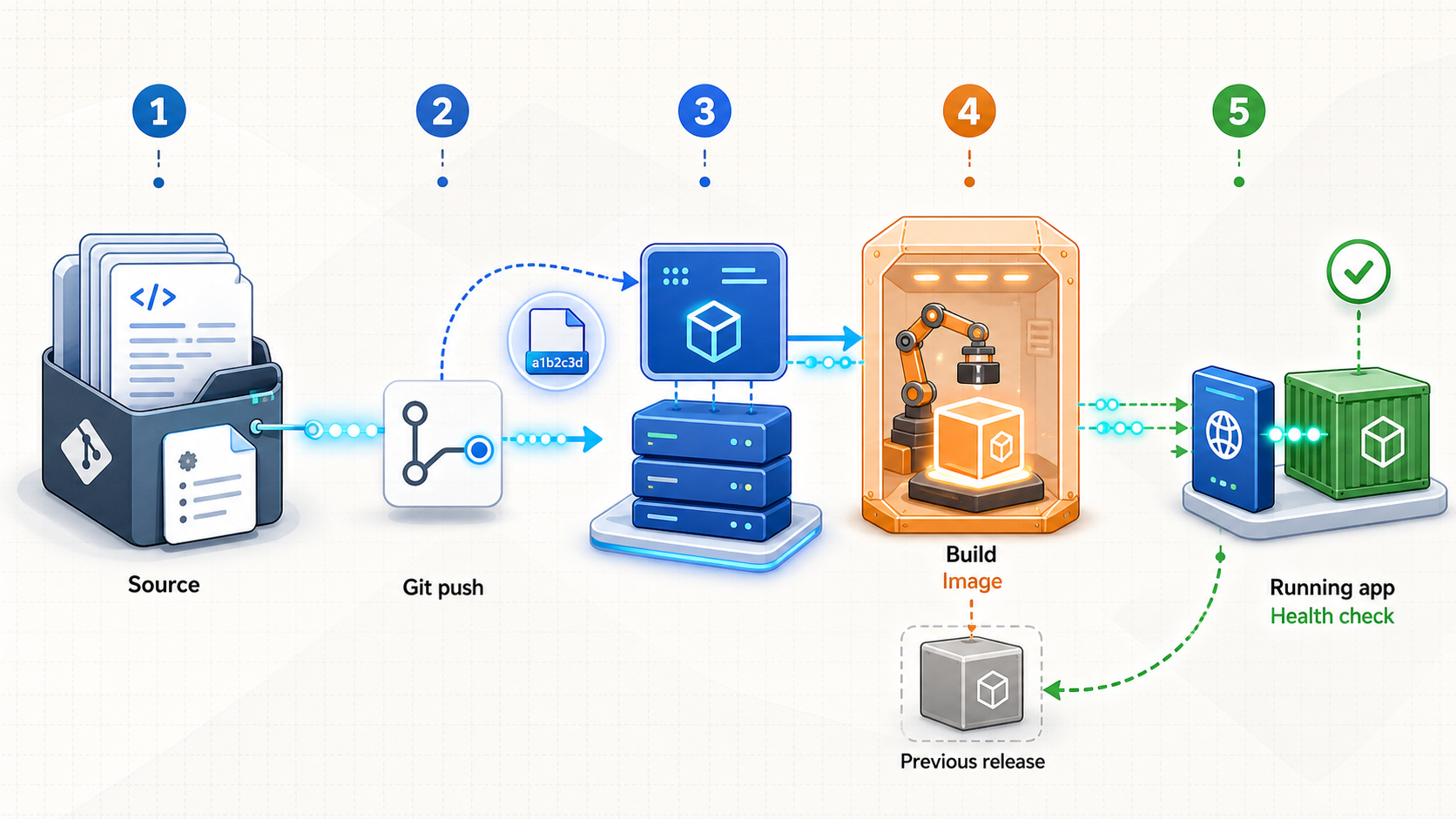
A useful installation test should verify more than a static welcome page. The application below reads an environment variable, listens on the port supplied through PORT, binds to every container interface, and exposes a machine-readable health endpoint.
Create an empty directory on your workstation:
mkdir coolify-health-demo
cd coolify-health-demo
Create package.json:
{
  "name": "coolify-health-demo",
  "version": "1.0.0",
  "private": true,
  "scripts": {
    "start": "node server.js"
  }
}
Create server.js:
const http = require("http");

const port = Number(process.env.PORT || 3000);
const message = process.env.APP_MESSAGE || "Coolify deployment is healthy";

const server = http.createServer((request, response) => {
  if (request.url === "/health") {
    response.writeHead(200, { "content-type": "application/json" });
    response.end(JSON.stringify({ status: "ok" }));
    return;
  }

  response.writeHead(200, { "content-type": "text/plain; charset=utf-8" });
  response.end(`${message}\n`);
});

server.listen(port, "0.0.0.0", () => {
  console.log(`Listening on 0.0.0.0:${port}`);
});
Create a Dockerfile:
FROM node:22-alpine

WORKDIR /app
COPY package.json server.js ./

ENV PORT=3000
EXPOSE 3000

CMD ["npm", "start"]
Create compose.yaml. The loopback-only host mapping is intentional. It provides a predictable local endpoint for testing and for an outbound Localtonet tunnel without making port 3000 listen on every server interface.
services:
  app:
    build: .
    restart: unless-stopped
    environment:
      PORT: "3000"
      APP_MESSAGE: "${APP_MESSAGE:-Coolify deployment is healthy}"
    ports:
      - "127.0.0.1:3000:3000"
A process bound to 127.0.0.1 inside its container cannot generally accept traffic arriving through the container network. The Node.js process therefore listens on 0.0.0.0:3000 inside the container. Docker publishes that service only on the host's loopback address through the Compose mapping. These are different network boundaries.
Test the application locally if Docker is available on your workstation:
APP_MESSAGE="Local test succeeded" docker compose up --build -d
curl http://127.0.0.1:3000/
curl http://127.0.0.1:3000/health
docker compose logs --tail 100
docker compose down
The success criteria are a plain-text response containing Local test succeeded, an HTTP 200 health response containing {"status":"ok"}, and a log entry showing that the process listens on port 3000.
Commit and publish the repository
Place these files in a Git repository that the Coolify server can read. Do not commit passwords, API keys, private keys, or production environment files.
git init
git add package.json server.js Dockerfile compose.yaml
git commit -m "Add Coolify health demo"
git branch -M main
git remote add origin <YOUR-REPOSITORY-URL>
git push -u origin main
The repository URL is intentionally a placeholder. Use a repository you control. If it is private, configure the minimum Git-provider permissions required by the Coolify release and provider you use.
Deploy the Compose application in Coolify
The exact menu labels are version-sensitive, but the required workflow is consistent: create or select a project and environment, add a resource from a Git repository, choose the repository and branch, deploy its Docker Compose definition, and provide the application environment variable.
Create a project and environment
In the Coolify dashboard, create a project for the tutorial and select its deployment environment. Names such as coolify-demo and production are sufficient and contain no secrets.
Add the repository as a Docker Compose resource
Add a resource using your public or authenticated Git source. Select the repository, the main branch, and the Compose file at compose.yaml. If the current interface detects the file automatically, confirm the detected path before continuing.
Set the application variable
Set APP_MESSAGE to Deployed through Coolify. Mark variables as build-time or runtime values only when your application requires that distinction. This example reads the value when the container starts.
Start the deployment and watch the build output
Start the deployment from the current Coolify interface. Keep the deployment log open while the repository is cloned, the image is built, and the container is started. A green interface indicator alone is not the final test.
Verify the application on the server
From the Coolify host, request both the root path and health endpoint on 127.0.0.1:3000. Confirm that the response contains the configured message and that the health endpoint returns HTTP 200.
curl -i http://127.0.0.1:3000/
curl -i http://127.0.0.1:3000/health
sudo ss -lntp | grep ':3000'
The deployment is successful only when the root response contains Deployed through Coolify, /health returns HTTP 200 with {"status":"ok"}, the container remains running, and the application log does not show a restart loop.
Coolify can also work with other application build approaches, including Nixpacks and Dockerfiles, subject to the installed release. Build-pack support, language detection, Git integrations, automatic deployments, health-check controls, rolling behavior, and rollback options can change. Do not promise zero-downtime updates without testing the deployment strategy, replica count, health checks, startup time, database migrations, and reverse-proxy behavior for your application.
Publish applications using the path that matches your network
Case 1: Public server with DNS and inbound web ports
If the server has a public address and your network permits inbound traffic, applications can normally be published through the reverse proxy configured for the Coolify server. Do not assume that every Coolify installation always uses one particular proxy implementation. Check the proxy selected and supported by your installed release.
For a conventional domain-based deployment:
- Create the application's DNS record so it resolves to the server's public IPv4 or IPv6 address.
- If you publish an AAAA record, verify that IPv6 routing and firewall policy work. A broken AAAA record can cause failures for IPv6-capable visitors.
- Allow only the required inbound ports through the host firewall, provider firewall, router, and upstream network.
- Configure the application's domain in Coolify using the current release's domain settings.
- Verify plain HTTP behavior, HTTPS certificate issuance, the application response, and the health endpoint from a network outside the server.
getent ahosts app.example.com
curl -I http://app.example.com
curl -I https://app.example.com
curl https://app.example.com/health
Replace app.example.com with your real domain. Certificate issuance requires the domain and network path to satisfy the certificate authority and proxy configuration in use. DNS resolution alone is not enough. Incorrect records, blocked inbound ports, an unreachable IPv6 address, rate limits, or a proxy configuration error can all prevent issuance.
Case 2: Private Coolify dashboard through Localtonet
Use this when an administrator needs to reach Coolify from another network but you do not want to forward port 8000 through the router. It is also applicable behind CGNAT because the Localtonet client establishes an outbound connection to our relay.
This tunnel publishes only the dashboard target. It does not automatically publish the demonstration application on port 3000, a database, or any other Coolify resource.
Case 3: Individual application behind NAT or CGNAT
Each public application needs a verified route to its own local endpoint. For the demonstration application, the endpoint is 127.0.0.1:3000. A separate Localtonet HTTP tunnel can publish that endpoint. For additional applications, use distinct reachable local ports or another routing arrangement you have tested from the machine running the Localtonet client.
Keep application databases on private container or host networks unless remote database access is an explicit, secured requirement. Use strong credentials, least privilege, encrypted backup storage, and protocol-appropriate access controls. An HTTP tunnel is for an HTTP target, not a generic database connection.
Access the Coolify dashboard through Localtonet
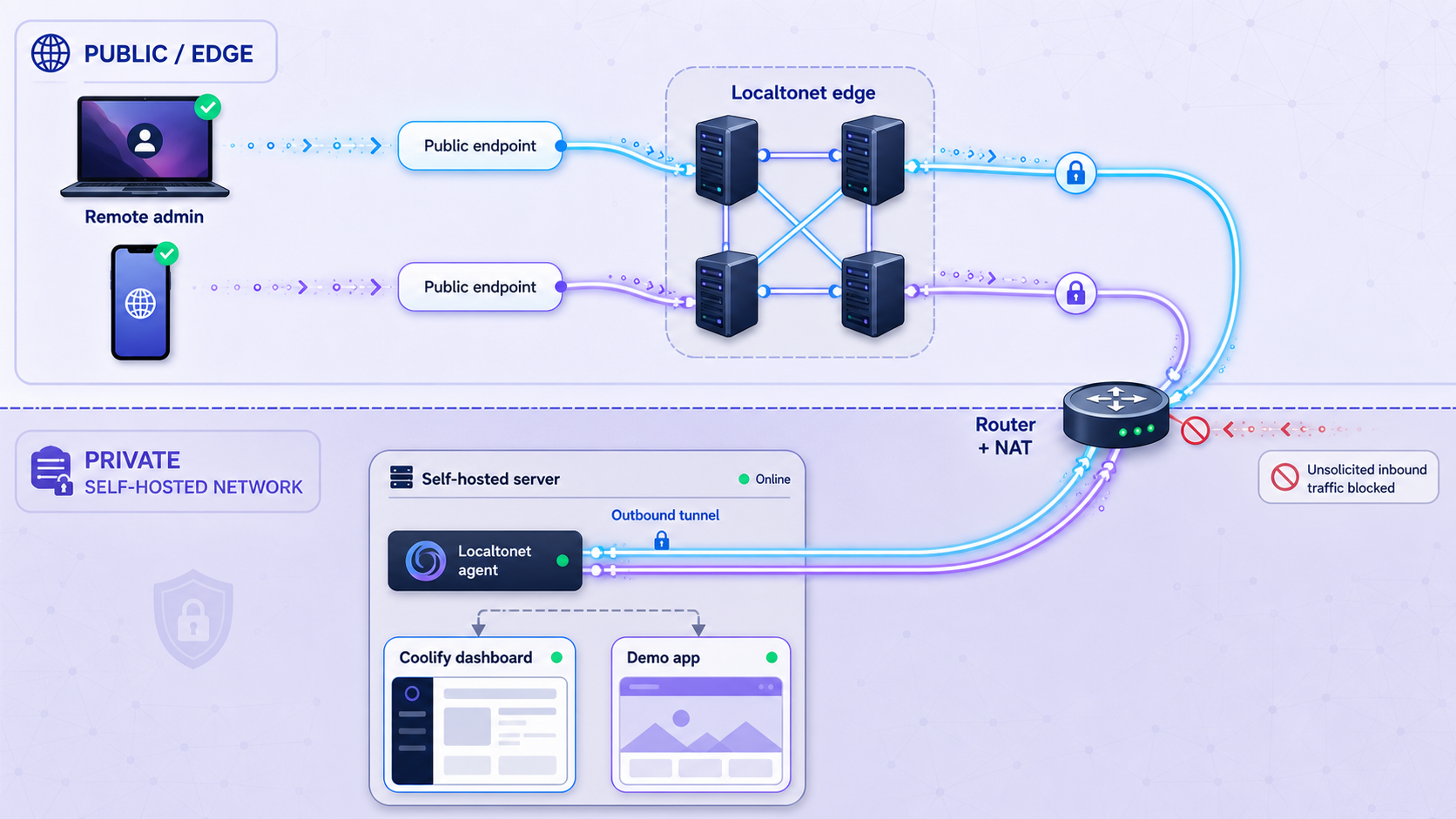
Before creating the tunnel, verify from the machine that will run our client that http://127.0.0.1:8000 reaches Coolify. If Localtonet runs on another device, replace 127.0.0.1 with a private address that device can reach and protect the intervening network appropriately.
Localtonet setup uses the client application and dashboard. Do not copy unverified shell installers, service flags, relay codes, or authentication tokens from old tutorials. Obtain the current client for your operating system through the Localtonet application flow and keep the device-specific token private.
Install and run the Localtonet client
Install the current Localtonet application for the Coolify server's operating system and run it on the device that can reach the dashboard. Confirm that the device appears connected in the Localtonet dashboard.
Open the HTTP Tunnel page
In the Localtonet dashboard, open the HTTP Tunnel page and begin creating a new HTTP tunnel.
Select the HTTP process type
Choose Random Sub Domain, Custom Sub Domain, or Custom Domain as appropriate. These process types serve the same target through a public HTTPS address. Availability can vary by current product configuration or plan.
Select the device-specific AuthToken and relay server
Select the AuthToken belonging to the client running on the Coolify server. Then choose an available relay server from the current dashboard. Never hardcode a server code or publish the device token.
Enter the local dashboard target
Set the local IP address to 127.0.0.1 and the local port to 8000 when the client and Coolify run on the same server. Confirm locally that this exact address responds before continuing.
Create the tunnel
Create the HTTP tunnel. Creation saves the configuration but does not mean the tunnel is running.
Press Start and verify the HTTPS address
Press Start for the new tunnel, then open the assigned HTTPS URL in a private browser window. Confirm that the Coolify login page loads and that you can authenticate with your administrator account.
Anyone who learns the URL may be able to reach the Coolify login page unless you separately configure an available access restriction. Use strong administrator credentials, avoid sharing the address in tickets or screenshots, apply the narrowest access controls available to your account and Coolify installation, review login activity where supported, and stop the tunnel after the maintenance session. HTTPS protects transport but is not an authorization policy.
The tunnel remains available only while the selected Localtonet client is connected and the tunnel is running. Press Stop to make the configured tunnel unavailable while retaining it for later use. Delete it when the configuration is no longer required. Creating a tunnel and starting it are separate lifecycle actions.
Using a custom domain for the tunnel
A custom domain is optional and should not be treated as an authentication mechanism. Current Localtonet custom-domain setup delegates the domain's DNS to Localtonet nameservers. This is an authoritative DNS change, so inventory existing records before proceeding. Do not delegate a production domain until you understand how its website, email, verification, and other records will be reproduced.
- Add the root domain, without
wwwor another subdomain, in the Localtonet DNS Manager. - At the domain registrar, replace the existing authoritative nameservers with
ns1.localtonet.comandns2.localtonet.com. - Wait for nameserver propagation and verify that the expected DNS records resolve correctly.
- Create an HTTP tunnel and choose Custom Domain as its Process Type.
- Select the registered domain, choose the required subdomain, and enter the local target.
- Create the tunnel, then press Start.
Nameserver propagation can take from minutes to as long as 48 hours. Existing and new DNS records should be verified from more than one network before relying on the domain. For the complete current workflow, see our Localtonet custom-domain guide.
Publish the demonstration application through Localtonet
This is a separate HTTP tunnel from the dashboard tunnel. It targets the application on port 3000, not Coolify on port 8000. First verify the application from the server:
curl -i http://127.0.0.1:3000/
curl -i http://127.0.0.1:3000/health
Then repeat the documented HTTP tunnel workflow:
Keep the Localtonet client connected
Use the client device that can reach 127.0.0.1:3000. Confirm its connected status in the dashboard.
Open the HTTP Tunnel page
Begin creating another HTTP tunnel specifically for the application.
Choose the application address type
Select Random Sub Domain, Custom Sub Domain, or Custom Domain based on the options currently available to you.
Select the AuthToken and relay server
Select the device-specific AuthToken for the connected client and choose an available relay server from the dashboard.
Set the application target
Enter 127.0.0.1 as the local IP and 3000 as the local port for this demonstration.
Create the application tunnel
Save the tunnel configuration. It is not public until you start it.
Start and test the public endpoint
Press Start, open the assigned HTTPS URL, and append /health. Confirm the root message and JSON health response from a device outside the server's local network.
The public success criteria are the same as the local criteria: the root page must contain Deployed through Coolify, and /health must return HTTP 200 with {"status":"ok"}. Test both paths after every change to the application port, Compose mapping, or tunnel target.
For additional applications, repeat this pattern with a unique local endpoint and a separate HTTP tunnel. Do not point multiple unrelated applications at the same local port. Also remember that public application access has its own security requirements. Implement authentication and authorization inside the application where appropriate, validate inputs, protect secrets, and do not expose administrative or development endpoints merely because a tunnel makes them convenient to reach.
Routine operations, backups, updates, and troubleshooting
Check service and container status
Start troubleshooting from the inside and move outward. Verify local process health before investigating DNS or Localtonet.
sudo docker ps
sudo docker ps -a
sudo docker stats --no-stream
sudo ss -lntp
df -h
free -h
A container in a restart loop usually indicates an application, configuration, dependency, permission, or resource problem. Discover the actual container name with docker ps -a, then inspect its logs:
sudo docker logs --tail 200 <container-name>Coolify also provides deployment and resource logs in its dashboard. The exact tab labels vary by release. Examine both build logs and runtime logs because they answer different questions. A build can succeed while the resulting process crashes at startup.
Diagnose failed builds
- Confirm that Coolify can read the repository and selected branch.
- Check the Compose file path, Dockerfile path, build context, and filename capitalization.
- Look for package download failures, architecture-incompatible dependencies, missing files, and exhausted disk space.
- Verify that required build-time variables are actually build-time values. Do not print secrets to diagnose them.
- Reproduce the image build locally with the same source revision when possible.
- Read the first meaningful error in the build log rather than only the final nonzero exit message.
Diagnose an incorrect application port
Four values must agree: the application's listening port, the container declaration, the host mapping, and the Localtonet target. In this tutorial, the Node.js process listens on 0.0.0.0:3000, Compose maps host 127.0.0.1:3000 to container port 3000, and the application tunnel targets 127.0.0.1:3000.
If the application works inside the container but not through the host port, inspect the Compose mapping. If it works through 127.0.0.1:3000 but not through Localtonet, inspect the selected AuthToken, client status, tunnel target, and tunnel running state.
Distinguish Coolify failures from Localtonet failures
| Test result | Likely fault area | Next action |
|---|---|---|
| Local URL fails | Coolify, container, application, or host mapping | Inspect container status, logs, ports, resources, and deployment configuration |
| Local URL works, client is disconnected | Localtonet client connectivity | Run the current client, confirm the correct device, and check outbound connectivity |
| Local URL works, client is connected, tunnel is stopped | Tunnel lifecycle | Press Start and verify that the tunnel reports a running state |
| Dashboard tunnel works, application tunnel fails | Application tunnel target or application port | Compare the two tunnel configurations and test the application port locally |
| Random address works, custom domain fails | Nameserver delegation or DNS records | Verify authoritative nameservers, propagation, selected domain, and tunnel state |
Handle DNS, firewall, and certificate failures
For a public-server deployment, confirm DNS from multiple resolvers, verify both A and AAAA records, and test from an external network. Check the host firewall, provider firewall, router, and upstream network independently. An open host firewall cannot compensate for a blocked provider rule, and a correct DNS record cannot compensate for CGNAT.
If certificate issuance fails, first confirm that the domain resolves to the intended publication path and that the required challenge traffic can reach the configured proxy or tunnel edge. Review proxy and certificate logs without repeatedly retrying at high frequency. Certificate authorities may apply issuance limits.
Plan for reboots and recovery
Do not assume that every component will recover automatically after a reboot. Test it. Schedule a maintenance window, reboot the server, and then verify:
- The server is reachable through its intended administrative path.
- The container runtime is active.
- Coolify containers are running.
- The dashboard answers locally on port
8000. - The demonstration application answers locally on port
3000. - The Localtonet client reconnects using the supported startup method for the installed client version.
- Required tunnels are running.
- Public health checks return the expected response.
The demonstration Compose file uses restart: unless-stopped for its application container. That setting alone does not guarantee that Coolify, networking, storage mounts, secrets, or the Localtonet client are ready after every failure.
Update deliberately
Follow the update mechanism documented for the installed Coolify release. Before updating, record the current version, read release notes, confirm free disk space, create relevant backups, and understand the rollback or recovery procedure. Interface buttons and previously successful deployment behavior are not substitutes for a recovery plan.
Update the host operating system and container images on a controlled schedule. Test major changes in a separate environment where possible. Application updates can include irreversible database migrations, so rolling containers back may not restore compatible data.
Back up data and test restoration
A backup feature is useful only when its destination, retention, encryption, and restoration process are understood. Coolify versions may provide database or storage integrations, but their supported engines, destinations, schedules, and restore workflows can change. Verify these details in the installed release instead of assuming one-click backup coverage.
- Back up application databases using a method supported by the database engine.
- Back up persistent volumes and uploaded files with application-consistent procedures.
- Protect Coolify configuration and the credentials required to rebuild the environment.
- Store at least one backup outside the server being protected.
- Encrypt backup data and restrict access to backup credentials.
- Record retention and deletion requirements.
- Perform scheduled restore tests to a separate environment.
A restore test should verify more than archive extraction. Start the restored application, test its health endpoint, authenticate where required, confirm expected records and files, and document the recovery time. Never wait for a production incident to discover that a backup is incomplete.
Decide whether self-hosting fits the workload
Coolify can simplify deployment coordination, but it does not turn privately owned hardware into an unlimited or maintenance-free platform. A hosted application platform may be more suitable when a team does not want to manage operating-system patches, capacity, incident response, backups, network availability, or server replacement.
| Operational area | Self-hosted Coolify | Hosted platform |
|---|---|---|
| Hardware capacity | You select, monitor, and expand the server | The provider supplies capacity under its current service model |
| System maintenance | You manage host updates and recovery | The provider manages some or all underlying infrastructure |
| Application operations | You remain responsible for application health and data | You still own application correctness, with infrastructure responsibilities divided by the service |
| Backups | You define, store, monitor, and restore them | Coverage depends on the provider and selected service |
| Network publication | You configure public routing or tunnels | The platform normally supplies its documented ingress model |
Evaluate the operational responsibilities, available expertise, recovery requirements, data sensitivity, hardware limits, and expected traffic. Current pricing and service limits should be checked directly with each provider rather than inferred from broad comparisons.
Frequently asked questions
Does tunneling the Coolify dashboard publish my deployed applications?
No. A tunnel targeting 127.0.0.1:8000 publishes only the Coolify dashboard. Each application needs its own verified publication path, such as public DNS and inbound web ports on a publicly reachable server, or a separate Localtonet HTTP tunnel targeting that application's locally reachable port.
Is a Localtonet HTTPS tunnel automatically an authenticated gateway?
No. HTTPS protects traffic in transit, but it does not by itself stop an unauthorized visitor from reaching the Coolify login page. Protect the Coolify administrator account, use the narrowest available access controls, keep the URL private, and stop the tunnel when remote administration is not required.
Does creating a Localtonet tunnel start it?
No. Creating the tunnel saves its configuration. You must then press Start. The tunnel is available only while it is running and the selected client device is connected. You can stop it without deleting the configuration, or delete it when it is no longer needed.
Can I run Coolify behind CGNAT?
A server behind CGNAT can run Coolify, subject to Coolify's current operating-system, architecture, and resource requirements. Localtonet can expose a reachable local HTTP service through an outbound client connection without inbound router port forwarding or a public IP. Create separate routes for the dashboard and for each application you want to publish.
Can Coolify run on ARM hardware or a Raspberry Pi?
Do not assume support based only on Docker availability. Confirm that the exact CPU architecture and operating system appear in the current Coolify support matrix. Every application image and native dependency must also support that architecture, and smaller devices may be constrained by memory, storage performance, and image-build load.
Does Coolify guarantee zero-downtime deployment and rollback?
No universal guarantee should be assumed. Deployment continuity depends on the installed Coolify release, resource type, replica strategy, health checks, proxy behavior, application startup, available capacity, and database migrations. Test deployment and recovery behavior for each production application. Reverting a container image also does not reverse an incompatible data migration.
Why does the application work locally but fail through its tunnel?
Confirm that the Localtonet client is connected, the tunnel uses that device's AuthToken, the selected relay server is available, the local IP and port match the working local URL, and the tunnel has been started. If the local URL itself fails, troubleshoot Coolify, Docker, the application, or its port mapping before troubleshooting Localtonet.
Should I expose the Coolify dashboard permanently?
Permanent exposure increases the time available for scanning and login attempts. If continuous remote administration is not required, start the dashboard tunnel for a maintenance session and stop it afterward. If it must remain reachable, apply strong account security, least privilege, monitoring, URL handling discipline, and the narrowest access restrictions available in your environment.
Publish only the Coolify endpoints you intend to expose
Install the Localtonet client on the server that can reach Coolify, create a separate HTTP tunnel for the dashboard or each application, and retain control over when every tunnel starts and stops.
Get Started Free →

