

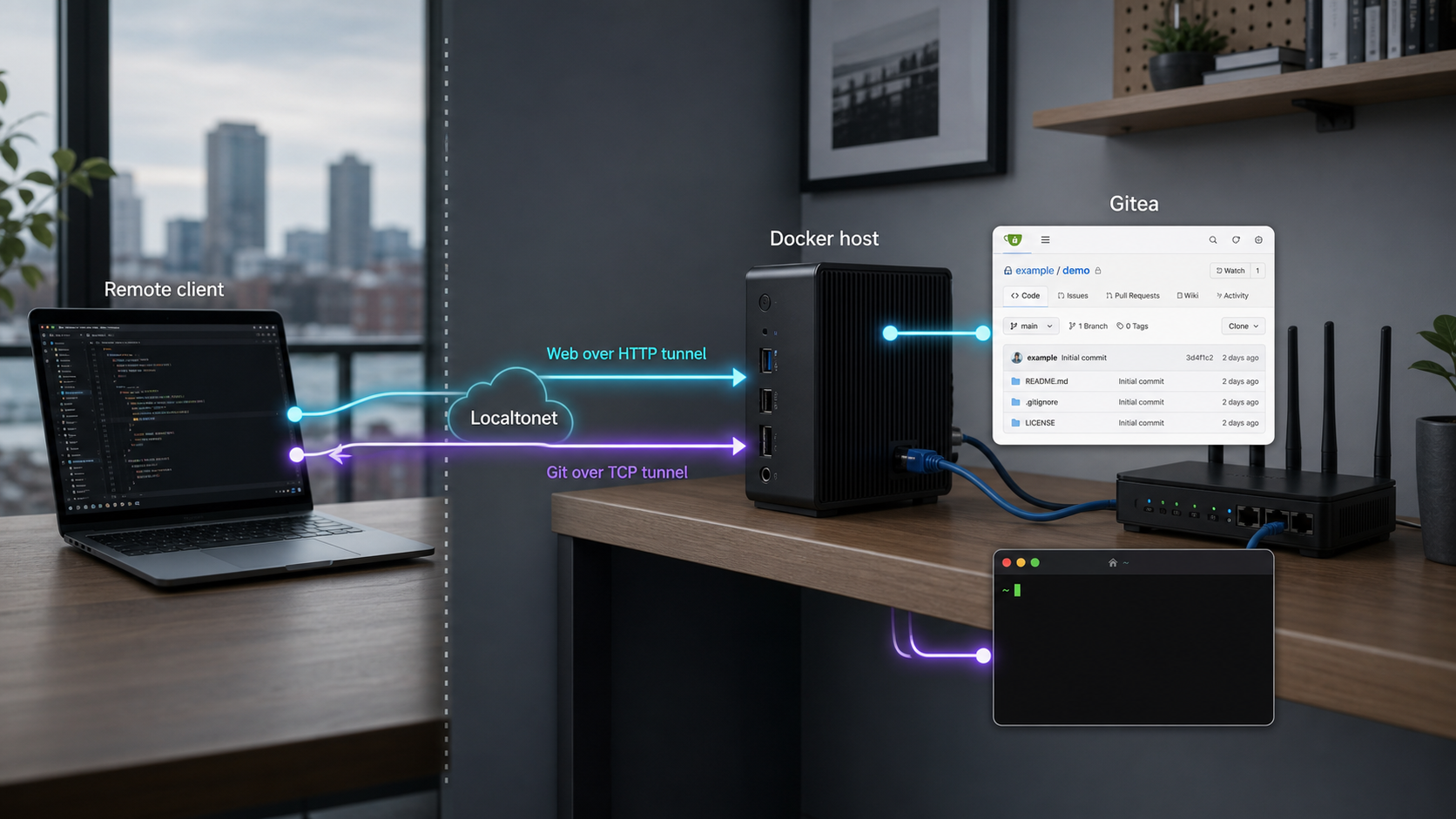
Run your own Git service locally, then publish its web and SSH endpoints safely
Gitea provides repository hosting, code review, issues, releases, webhooks, and related collaboration features on infrastructure you control. This tutorial deploys Gitea with Docker Compose, keeps its host ports bound to loopback, verifies the installation locally, and exposes two distinct services through Localtonet: an HTTP tunnel for the web interface and a TCP tunnel for Git over SSH. It also covers clone URL configuration, SSH host-key validation, repository testing, troubleshooting, backups, restoration, and controlled upgrades.
📋 What's in this guide
Understand the deployment architecture
This deployment has three layers. Gitea runs in a Docker container, Docker publishes its web and SSH ports only on the host's loopback interface, and the Localtonet client connects those local listeners to separate public relay endpoints. The Localtonet client initiates an outbound connection, so this workflow does not require inbound router port forwarding, firewall changes, a VPN, or a public IP address.
Browser traffic and Git SSH traffic must use different tunnel types. The HTTP tunnel forwards a public HTTPS URL to 127.0.0.1:3000. The TCP tunnel forwards a public host and port to 127.0.0.1:2222, which Docker maps to port 22 inside the Gitea container.
| Traffic | Public endpoint | Localtonet target | Container destination |
|---|---|---|---|
| Gitea web interface and Git over HTTPS | HTTPS URL assigned to the HTTP tunnel | 127.0.0.1:3000 |
server:3000 |
| Git over SSH | Host and port assigned to the TCP tunnel | 127.0.0.1:2222 |
server:22 |
| Local administration | No public endpoint required | http://127.0.0.1:3000 |
server:3000 |
After creating each Localtonet tunnel, press Start. Public access works only while the selected client device is connected and the corresponding tunnel is running. Stopping the client, stopping a tunnel, or losing connectivity makes that public path unavailable.
Prerequisites and planning
This tutorial assumes a Linux host on which you can run Docker containers and issue commands with an account permitted to use Docker. Docker Desktop can provide an equivalent Compose workflow on supported desktop systems, but filesystem ownership and host commands differ. Consult the installation instructions for your operating system rather than copying an unverified package command.
docker compose form.
3000 and 2222 must be free. They remain bound to 127.0.0.1 rather than every network interface.
Verify Docker and Compose
docker version
docker compose version
docker info
All three commands should complete successfully. If access to the Docker daemon is denied, correct your Docker installation or account permissions before continuing. Do not work around a permissions problem by making the Docker socket broadly writable.
Check for port conflicts
ss -lnt | grep -E ':(3000|2222)[[:space:]]' || trueNo output normally means both ports are available. If another process is listening, identify it before changing anything:
sudo ss -lntp | grep -E ':(3000|2222)[[:space:]]'Stop the conflicting service if appropriate, or choose different unused host ports. If you change a host port, make the same change in the Docker port mapping and the relevant Localtonet local target.
Choose a controlled Gitea version
Avoid an unpinned latest image for a persistent server. Select an exact Gitea image tag that you have reviewed and tested, record it in version control, and retain the previous image tag for rollback. The Compose example uses 1.24.6 as a fixed example baseline rather than claiming it is the newest release. Before deployment, confirm that the selected tag is supported for your host architecture and review the upgrade notes between your current and target versions.
Keep Gitea local until you have installed it, created the administrator account, reviewed registration settings, and verified authentication. Publishing an unfinished setup wizard could allow another person to initialize the instance.
Install Gitea with Docker Compose
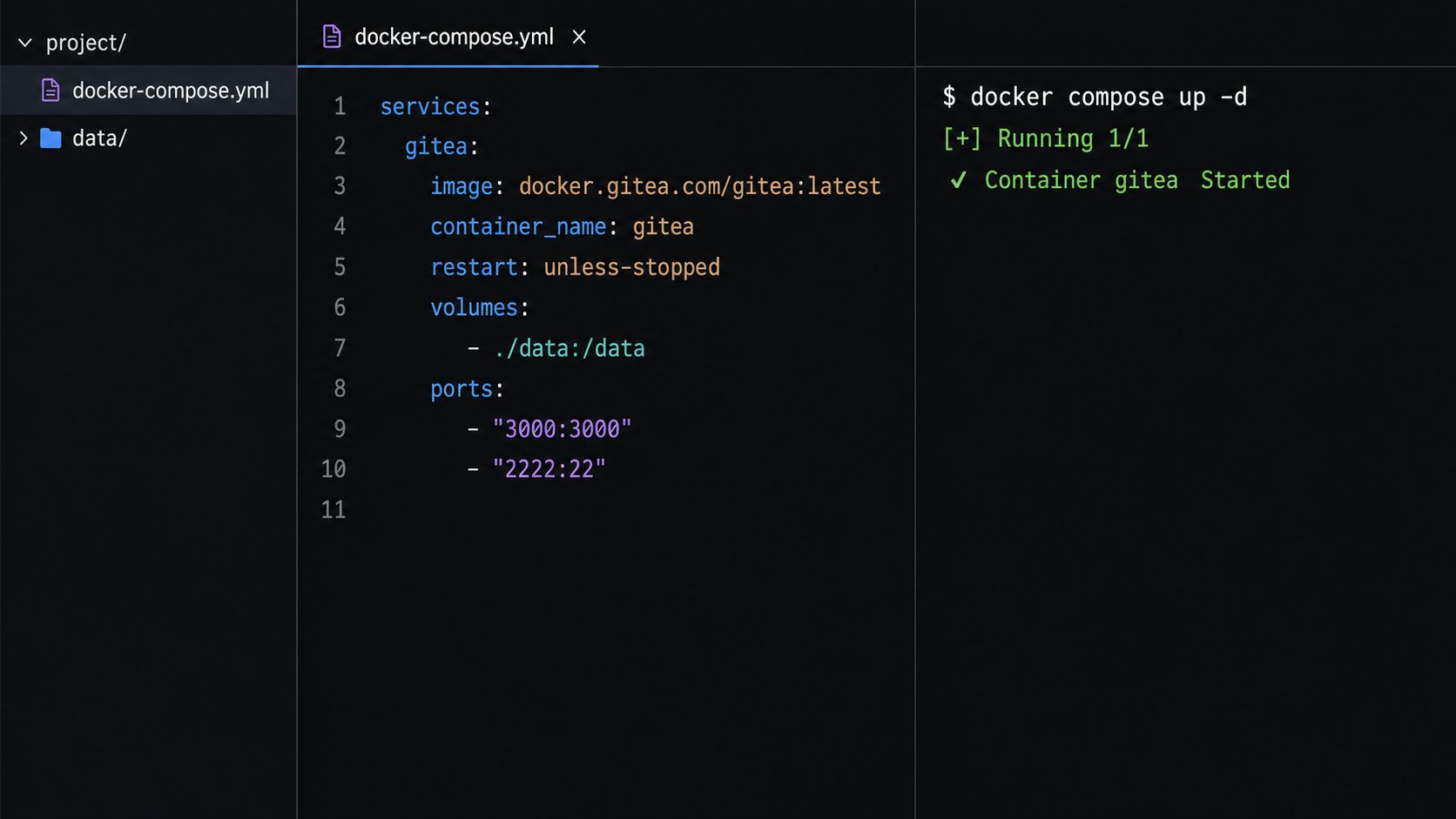
The base deployment uses SQLite to keep the tutorial focused and avoid embedding database credentials in Compose. SQLite can suit a personal installation or a modest workload, but capacity depends on repository activity, concurrent users, enabled features, host storage, and backup requirements. Evaluate PostgreSQL or MySQL separately if your workload requires an external database.
Create the project and data directories
Choose a durable location rather than a temporary directory. The following example uses the current user's home directory.
Prepare ownership for the container
Assign the bind-mounted data directory to UID and GID 1000, which match the values used in this example. Substitute the intended IDs if your deployment uses another service identity.
Create the Compose file
Publish both ports on loopback from the outset. The web listener uses host port 3000, while SSH uses host port 2222 to avoid conflicting with a host SSH daemon on port 22.
Start the container
Launch Gitea in the background, inspect its state, and follow the startup logs before opening the installer.
Verify the local HTTP service
Confirm that Gitea responds through the loopback listener. Do not proceed to public tunneling until this local check works.
Complete steps 1 and 2 with:
mkdir -p "$HOME/gitea/data"
cd "$HOME/gitea"
sudo chown -R 1000:1000 data
Create compose.yaml:
services:
  server:
    image: docker.gitea.com/gitea:1.24.6
    container_name: gitea
    environment:
      USER_UID: "1000"
      USER_GID: "1000"
    restart: unless-stopped
    volumes:
      - ./data:/data
      - /etc/timezone:/etc/timezone:ro
      - /etc/localtime:/etc/localtime:ro
    ports:
      - "127.0.0.1:3000:3000"
      - "127.0.0.1:2222:22"
Validate and start the deployment:
docker compose config
docker compose up -d
docker compose ps
docker compose logs --tail=100 server
The container should be running without a repeating restart cycle. A service can be running before it is ready, so test the HTTP listener separately:
curl -I http://127.0.0.1:3000/
An HTTP response confirms that the local listener is reachable. If the request is refused, inspect docker compose ps and docker compose logs server before continuing.
Complete the Gitea setup and configure public URLs
Open http://127.0.0.1:3000 in a browser on the Docker host. If the host has no local browser, use a temporary, authenticated administrative access method that does not publish the unfinished installer broadly.
Complete the initial installer
Select SQLite3
Use SQLite3 for this Compose deployment and keep its database within the persistent /data mount.
Use temporary local server values
Until the tunnels are running, use localhost for the HTTP and SSH domains, http://localhost:3000/ as the root URL, and 2222 as the displayed SSH port.
Create the administrator account
Choose a unique administrator username and a strong password. Store recovery information through your normal credential-management process.
Install and sign in
Finish installation, sign in, and review whether public self-registration should remain enabled for your use case.
What the Gitea server settings mean
| Setting | Purpose in this deployment | Final value |
|---|---|---|
DOMAIN |
The public hostname used for the Gitea web service | Hostname copied from the active HTTP tunnel URL |
ROOT_URL |
The canonical external URL used for generated web links and redirects | The complete public HTTPS URL, including a trailing slash |
SSH_DOMAIN |
The hostname Gitea places in SSH clone URLs | Host copied from the active TCP tunnel endpoint |
SSH_PORT |
The public TCP port displayed in SSH clone URLs | Port copied from the active TCP tunnel endpoint |
These values describe the external addresses clients use. They do not change Docker's internal ports. Gitea still listens on port 3000 for HTTP and port 22 for SSH inside the container.
Do not rely on an assumed administration page to edit ROOT_URL. In this deployment, edit the persistent configuration file at ./data/gitea/conf/app.ini, then restart the container. Wait until both Localtonet endpoints have been assigned before applying the final values.
Publish the Gitea web interface with an HTTP tunnel
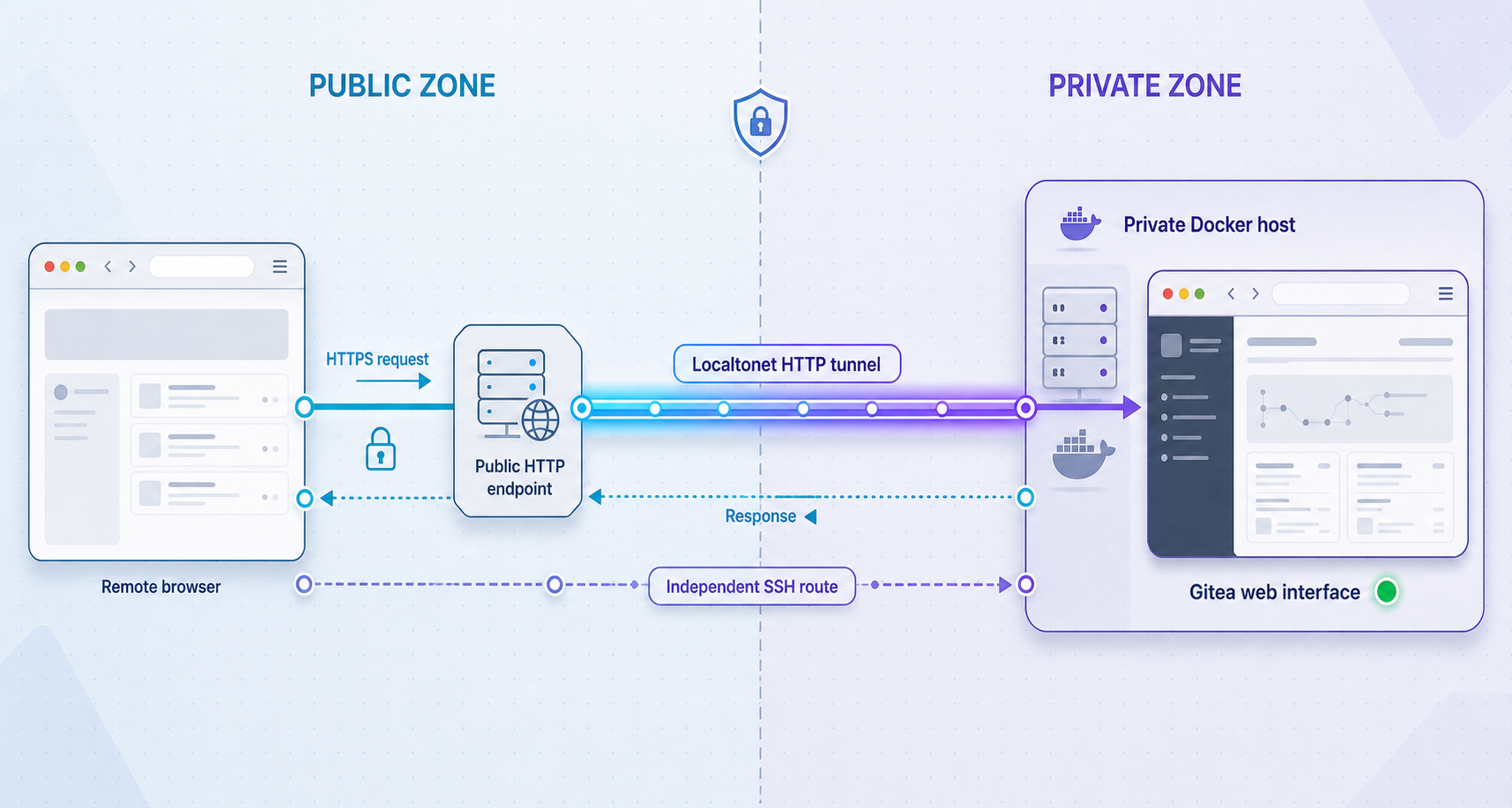
Install the Localtonet client through the current download or installation path for your operating system, run it on the Gitea host, and authenticate it through the supported application flow. Do not paste a device token into shell history, source files, screenshots, or this Compose project.
Confirm the Localtonet device is connected
Open our dashboard and verify that the device AuthToken corresponding to the Gitea host shows as connected.
Open the HTTP tunnel configuration
Create an HTTP tunnel and choose the required Process Type: Random Sub Domain, Custom Sub Domain, or Custom Domain. These options publish the same local web content at a public HTTPS address.
Select the device and relay server
Select the connected device AuthToken and an available relay server from the current dashboard. Do not copy a server code from an old tutorial because available values can change.
Set the local HTTP target
Enter 127.0.0.1 as the local IP address and 3000 as the local port.
Create and start the tunnel
Create the tunnel, then press Start. Copy the exact HTTPS URL displayed for the running tunnel.
Keep the assigned URL as YOUR_HTTP_URL in the examples below. If the dashboard displays https://gitea.example.invalid, then the hostname portion is gitea.example.invalid. The example domain is intentionally nonfunctional and must not be copied literally.
Test the running tunnel from a device that is not relying on the Gitea host's loopback interface:
curl -I YOUR_HTTP_URL
The result should be an HTTP response from Gitea. A gateway error usually means the tunnel is running but the Localtonet client cannot reach 127.0.0.1:3000. Recheck the Docker container, local curl test, target address, and target port.
Publish Git over SSH with a TCP tunnel
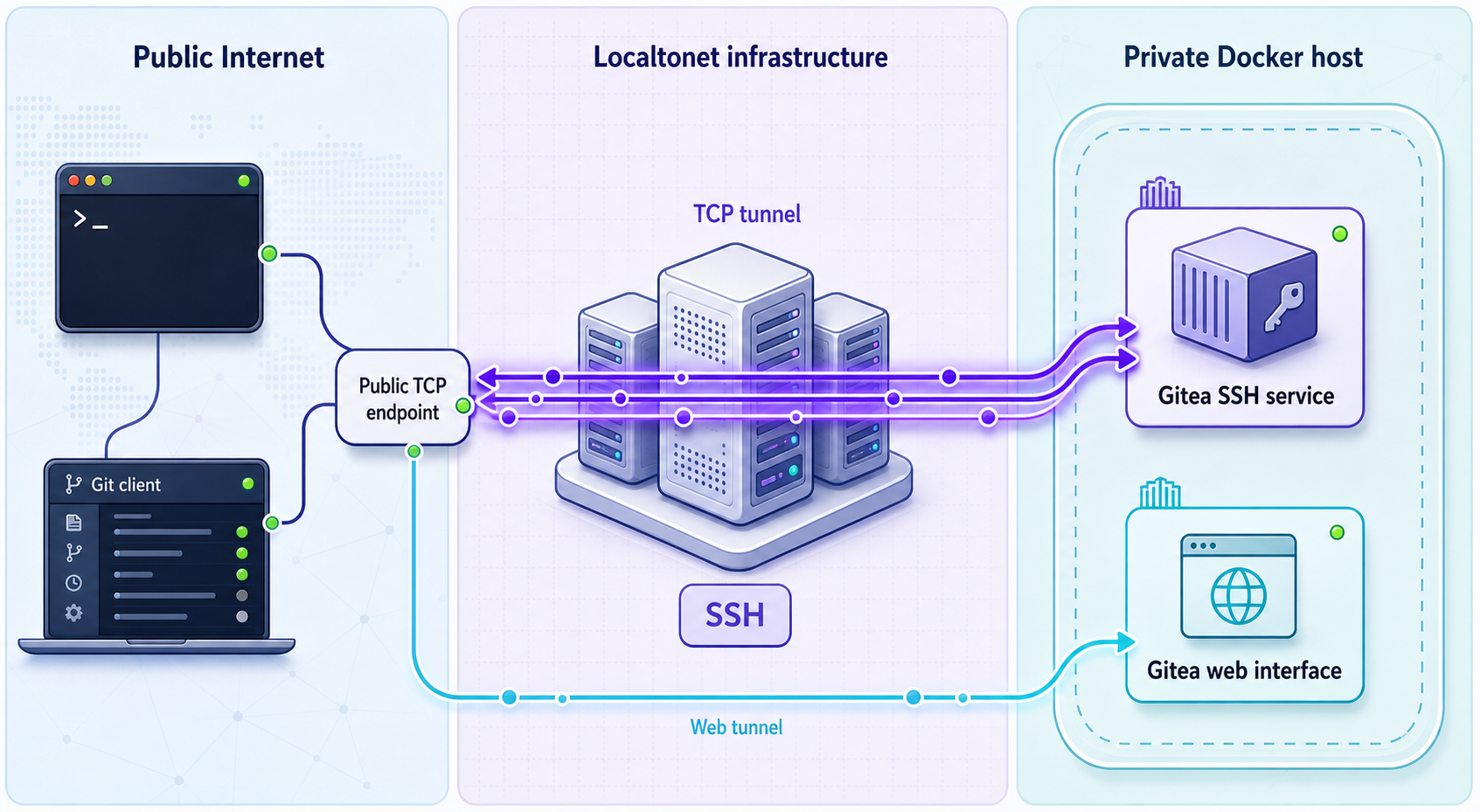
SSH is not HTTP traffic, so it requires a separate raw TCP tunnel. Localtonet forwards the TCP connection without replacing Gitea's SSH authentication. Developers still authenticate with public keys registered in Gitea.
Open the TCP tunnel configuration
Create a TCP tunnel for the Gitea SSH listener.
Select the connected device AuthToken
Choose the same connected Gitea host used by the HTTP tunnel, unless another connected device can legitimately reach the service.
Select an available relay server
Choose a currently available server from the dashboard rather than hardcoding a region or server code.
Set the local TCP target
Enter 127.0.0.1 as the local IP address and 2222 as the local port.
Create and start the tunnel
Create the configuration, press Start, and copy the exact public host and port shown for the active tunnel.
Record these values as YOUR_TCP_HOST and YOUR_TCP_PORT. Do not assume the port is in a particular range or that an endpoint remains unchanged under every plan or configuration. If the assigned endpoint changes later, update Gitea and developer remotes accordingly.
Apply the final public addresses to Gitea
Back up the configuration file before editing it:
cd "$HOME/gitea"
cp data/gitea/conf/app.ini data/gitea/conf/app.ini.before-public-urls
Open data/gitea/conf/app.ini, locate its existing [server] section, and set the following values using the endpoints copied from your running tunnels:
[server]
DOMAIN = YOUR_HTTP_HOST
ROOT_URL = https://YOUR_HTTP_HOST/
SSH_DOMAIN = YOUR_TCP_HOST
SSH_PORT = YOUR_TCP_PORT
Preserve other generated [server]SSH_PORT; the container's internal SSH listener remains on port 22.
Restart Gitea and inspect the logs:
docker compose restart server
docker compose ps
docker compose logs --tail=100 server
Open the public HTTPS URL and inspect a repository's clone options after creating one. The HTTP URL and SSH clone URL should now contain the two active Localtonet endpoints rather than localhost.
Verify the complete Git workflow
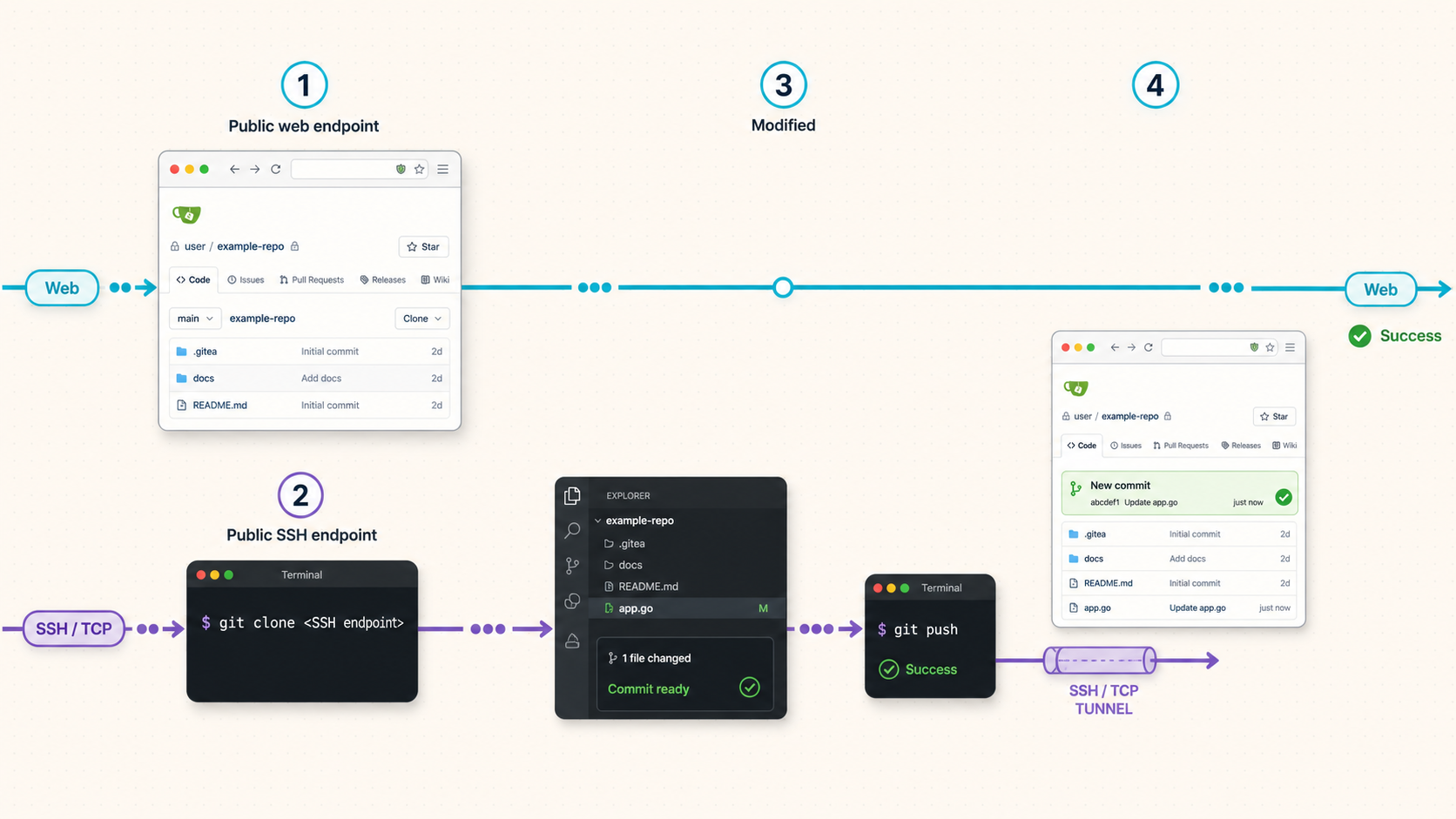
A successful home page request proves only that the web path works. A useful acceptance test also verifies account access, repository creation, SSH host identity, public-key authentication, clone, commit, push, and pull.
Create a private test repository
Sign in through the public HTTPS URL and create an empty private repository named tunnel-test. Do not initialize it with files for this command sequence.
Register a developer public key
In the user's Gitea settings, open the SSH and GPG key area, add an SSH key, and paste only the public key. Never upload or paste the private key.
Validate the SSH host key
Obtain the server's host-key fingerprint through a trusted administrative path and compare it with the fingerprint shown on the first remote SSH connection. Do not accept an unexpected key blindly.
Test SSH authentication
Connect as the Gitea SSH user through the public TCP host and port. Successful Git SSH authentication may report that shell access is unavailable, which is normal for a Git-only account.
Create and push the first commit
Initialize a local repository, add the SSH remote displayed by Gitea, commit a small file, and push it.
Clone and pull through the public endpoint
Clone into a second directory, confirm the committed file is present, then perform a pull to verify routine read access.
If the container uses the standard persistent SSH host-key location, an administrator can inspect the Ed25519 public-key fingerprint locally with:
docker compose exec server ssh-keygen -lf /data/ssh/ssh_host_ed25519_key.pubIf that file does not exist in your selected Gitea image, inspect the container configuration and logs to locate the active host public key. Do not substitute an unverified fingerprint.
From the developer workstation, test the public SSH endpoint:
ssh -p YOUR_TCP_PORT git@YOUR_TCP_HOST
Compare the first-connection fingerprint with the trusted value obtained from the server. If they match, accept it. If the endpoint later presents a different key without a planned server restore or key rotation, stop and investigate before removing the old known_hosts entry.
Create and push the test repository, substituting your username and active endpoint:
mkdir tunnel-test
cd tunnel-test
git init
printf '# Tunnel test\n' > README.md
git add README.md
git commit -m "Verify remote Gitea access"
git branch -M main
git remote add origin ssh://git@YOUR_TCP_HOST:YOUR_TCP_PORT/YOUR_USERNAME/tunnel-test.git
git push -u origin main
Verify a fresh clone and pull:
cd ..
git clone ssh://git@YOUR_TCP_HOST:YOUR_TCP_PORT/YOUR_USERNAME/tunnel-test.git tunnel-test-clone
cd tunnel-test-clone
cat README.md
git pull
Finally, refresh the repository through the public HTTPS interface. The commit, branch, and file should be visible. This confirms that the web and SSH paths refer to the same Gitea instance.
Security and access practices
Self-hosting gives you operational control, but it also makes you responsible for account policy, patching, backups, monitoring, storage capacity, and incident response. A tunnel changes network reachability; it does not replace Gitea authorization or eliminate the need to secure the host.
127.0.0.1:3000:3000 and 127.0.0.1:2222:22 when the Localtonet client runs on the same host.
SSH and HTTPS can both provide appropriate Git authentication when configured correctly. SSH commonly uses public keys, while Git over HTTPS can use credentials or tokens supported by the server and client workflow. Do not treat one transport as categorically secure and the other as categorically insecure.
Backups, restoration, upgrades, and routine operations
Create a database-consistent Gitea dump
Copying or archiving ./data while Gitea is accepting writes can produce a backup whose repository data, configuration, and database represent different moments. For this SQLite deployment, schedule a maintenance window, stop the normal container, and run Gitea's dump command in a one-off container against the same persistent data.
cd "$HOME/gitea"
docker compose stop server
docker compose run --rm --no-deps --user git server \
  gitea dump -c /data/gitea/conf/app.ini --file /data/gitea-dump.zip
docker compose up -d
docker compose ps
docker compose logs --tail=50 server
Copy data/gitea-dump.zip to protected backup storage, record the Gitea image tag that produced it, and protect the archive as sensitive data. It can contain source code, account information, configuration, and secrets. Keep multiple generations according to your recovery requirements.
If you replace SQLite with PostgreSQL or MySQL, use the database engine's supported backup procedure and coordinate it with Gitea's repository and configuration backup. A generic archive of live database files is not a valid database backup.
Restore and test a backup
Gitea restoration is a deliberate process rather than simply placing a ZIP file beside the container. Use a clean, isolated host or project directory, deploy the same Gitea version that created the dump, extract the archive, restore the configuration, repositories, application data, and database into their expected persistent locations, and correct ownership for the container identity. If the restored system uses an external database, import its logical dump with that database engine's supported tools.
After restoring the files, start Gitea, inspect its logs, and regenerate repository hooks using the administration function supported by the restored Gitea version when required. Then verify administrator sign-in, repository browsing, clone, commit, push, and pull. Keep the test deployment isolated from production webhooks, email delivery, runners, and public tunnels so it cannot perform unintended external actions.
Exact archive contents and restoration commands can vary by Gitea version and database type. Before a real recovery, inspect the dump and follow the restore procedure for the exact version recorded with the backup. Do not discover these details for the first time during an outage.
Perform a controlled upgrade
Review the upgrade path
Read the release and upgrade notes between the installed version and the target version. Avoid skipping unsupported migration steps.
Create and test a backup
Produce a consistent dump and confirm that your restore procedure works before changing the image.
Record the current state
Record the old image tag, configuration, tunnel endpoints, container status, and recent logs.
Change to an exact target tag
Edit only the image tag in compose.yaml, pull it, and recreate the container during a maintenance window.
Run acceptance tests
Check logs, local HTTP, public HTTPS, SSH authentication, clone, push, and pull before declaring the upgrade complete.
docker compose pull server
docker compose up -d
docker compose ps
docker compose logs --tail=200 server
curl -I http://127.0.0.1:3000/
If an upgrade performs a database migration, changing the image tag back may not be sufficient for rollback. Restore the pre-upgrade data and database into an isolated or stopped deployment using the tested recovery procedure, then start the previous image. Never run old application code against a database that it may no longer understand.
Routine commands
# Check status
docker compose ps

# Follow Gitea logs
docker compose logs -f server

# Restart Gitea
docker compose restart server

# Stop Gitea
docker compose stop server

# Start or recreate Gitea
docker compose up -d
The Compose restart policy can restart the Gitea container when Docker starts, unless the container was intentionally stopped. Localtonet startup behavior depends on the supported client installation and configuration for your operating system. Do not assume an unverified service command. After a reboot, verify the client connection and confirm that both tunnels show as running.
If either public endpoint changes, update the corresponding Gitea setting in app.ini, restart Gitea, and update existing Git remotes where necessary:
git remote -v
git remote set-url origin ssh://git@NEW_TCP_HOST:NEW_TCP_PORT/YOUR_USERNAME/YOUR_REPOSITORY.git
Troubleshooting common failures
| Symptom | Likely area | Checks and corrective action |
|---|---|---|
| Docker reports that a port is already allocated | Host port conflict | Use ss -lntp to identify the listener. Stop it or select a new host port, then update both Compose and the Localtonet target. |
| Gitea repeatedly restarts or reports permission denied | Data-directory ownership | Inspect container logs and confirm that ./data is writable by the configured UID and GID. Avoid broad world-writable permissions. |
| Database initialization fails | Database configuration or storage | For SQLite, check the writable data path and free disk space. For an external database, verify service readiness, hostname, port, credentials, database existence, and network membership. |
| Local HTTP request is refused | Container or port mapping | Run docker compose ps, inspect logs, and verify the mapping is 127.0.0.1:3000:3000. |
| Public URL shows a gateway error | HTTP tunnel target | Confirm local curl succeeds, the selected AuthToken is connected, the tunnel is started, and its target is 127.0.0.1:3000. |
| Public URL redirects to localhost or displays bad links | ROOT_URL or DOMAIN |
Set the exact public HTTPS host and URL in the existing [server] section, include the trailing slash in ROOT_URL, and restart Gitea. |
| Gitea displays the wrong SSH clone address | SSH_DOMAIN or SSH_PORT |
Copy the host and port from the active TCP tunnel, update app.ini, restart Gitea, and refresh the repository page. |
| SSH connection times out | TCP tunnel or local SSH listener | Confirm the TCP tunnel is started, the client is connected, and Docker publishes 127.0.0.1:2222:22. Check Gitea logs for SSH startup errors. |
| SSH says permission denied or rejects the key | User key authentication | Confirm the public key is registered to the correct Gitea user, the client is offering the matching private key, and the remote user is git. |
| SSH warns that the host key changed | Endpoint reassignment, restore, or key change | Do not remove the warning automatically. Obtain the current server fingerprint through a trusted administrative path and investigate why it changed. |
| Public access stopped after reboot | Client or tunnel lifecycle | Verify Gitea locally, confirm the Localtonet device is connected, and confirm that both the HTTP and TCP tunnels are running. |
Frequently asked questions
Why does this deployment need two Localtonet tunnels?
The Gitea web interface uses HTTP, while Git over SSH uses raw TCP. The HTTP tunnel sends browser traffic to 127.0.0.1:3000. The TCP tunnel sends SSH traffic to 127.0.0.1:2222. One does not replace the other.
Why are the Docker ports bound to 127.0.0.1?
Loopback binding prevents Docker from publishing Gitea directly on every host network interface. Because the Localtonet client runs on the same host, it can reach the loopback listeners without making those ports available directly to the LAN or internet.
Is the Gitea server available whenever the container is running?
It remains available locally when the container and host are running. Public availability also requires the Localtonet client device to be connected and each required tunnel to be started. The HTTP and TCP paths have independent tunnel states.
Can I use PostgreSQL instead of SQLite?
Yes, Gitea supports external database deployments, but they add credential management, readiness, networking, backup, and restore requirements. Use secrets rather than literal weak passwords, wait for database readiness, and use the database engine's supported logical backup procedure.
Can I migrate an existing repository to Gitea?
A plain Git repository can be transferred by adding a Gitea remote and pushing its branches and tags. Gitea also provides migration workflows, but the metadata that can be imported depends on the source platform, its API, credentials, permissions, and the Gitea version. Test a representative repository before planning a large migration.
Does Gitea Actions support every GitHub Actions workflow?
Do not assume complete compatibility. Gitea Actions supports workflows using its own runner architecture and familiar workflow concepts, but action behavior, marketplace dependencies, event support, tokens, services, and platform-specific features can differ. Validate each workflow and operate runners as separate trusted execution infrastructure.
What should I do if a public tunnel address changes?
Copy the new active endpoint from the dashboard. Update DOMAIN and ROOT_URL if the HTTP endpoint changed, or SSH_DOMAIN and SSH_PORT if the TCP endpoint changed. Restart Gitea and update existing Git remotes. Custom-domain availability and exact plan behavior should be checked against the current dashboard and documentation.
Connect your self-hosted Gitea server with Localtonet
Deploy Gitea behind loopback-only ports, connect the host to our platform, and run separate HTTP and TCP tunnels for the web interface and Git SSH traffic. Keep the client connected and both tunnels running whenever your team needs public access.
Get Started Free →

