

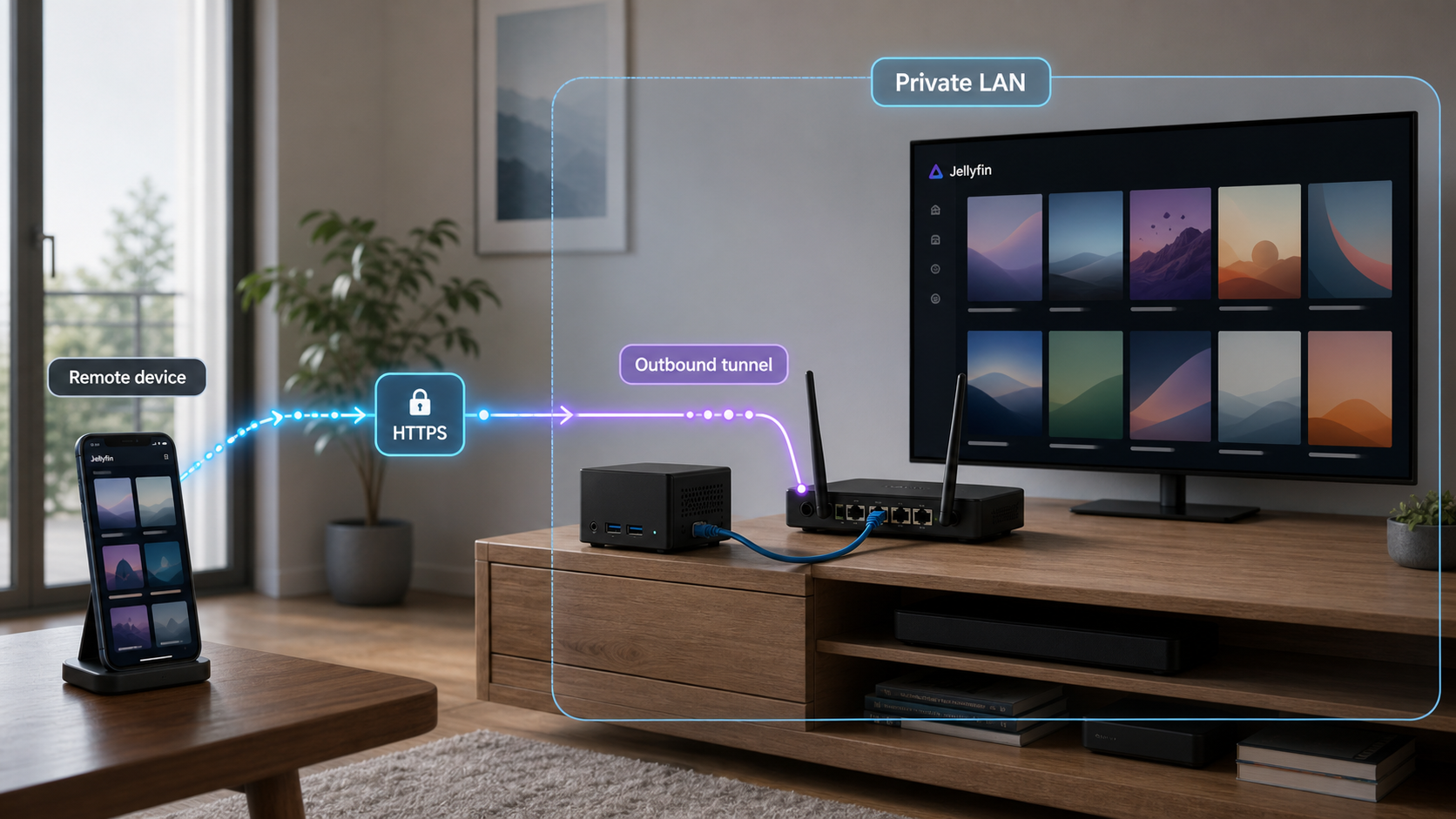
Build a private media server with an intentional network boundary
Jellyfin can organize and stream media from hardware you control, while Docker Compose provides a reproducible way to run the server and preserve its configuration. This guide deploys Jellyfin with a loopback-only host port by default, verifies the container and media permissions locally, and then publishes the service through a Localtonet HTTP tunnel. It also explains the alternative LAN-accessible design, public-login risks, client testing, bandwidth and transcoding checks, backups, controlled upgrades, rollback planning, and practical troubleshooting.
📋 What's in this guide
Understand the architecture and choose a network boundary
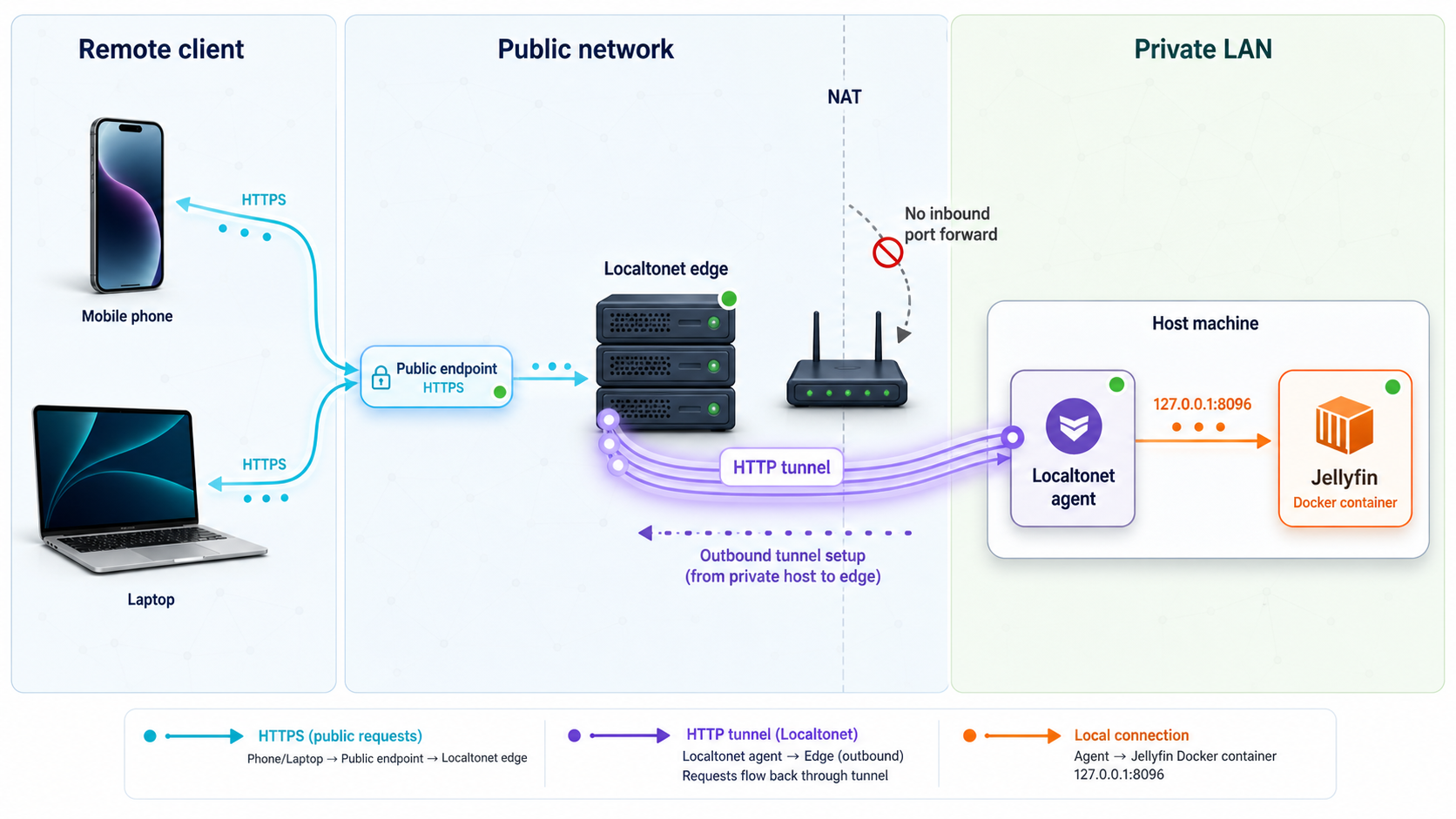
Jellyfin is a self-hosted media server. It indexes files stored on disks or network storage available to the server, presents those files as libraries, and streams them to authenticated clients. Depending on the source file and client capabilities, playback may use the original media or require server-side processing such as remuxing or transcoding.
Jellyfin is open source and does not require a hosted Jellyfin account to operate your own server. That does not mean the server is incapable of contacting third parties. Metadata providers, subtitle services, plugin repositories, and plugins can make outbound requests when enabled or configured. Review those features according to your privacy requirements instead of treating self-hosting as a guarantee that no external service is contacted.
This tutorial uses Docker Compose because it makes the container configuration, mounted paths, port binding, restart policy, and image version visible in one file. Docker is one supported deployment approach, not a universal requirement. Native packages and other installation methods may be appropriate for platforms where Docker is unavailable or where direct hardware integration is preferred.
8096 and stores durable application data in a host-mounted configuration directory.
Option A: loopback-only, recommended for tunnel-only access
The Compose file in this guide publishes Jellyfin as 127.0.0.1:8096:8096. The first address is the host-side bind address, the first port is the host port, and the final port is the container port. Binding to 127.0.0.1 means only programs running on the Jellyfin host can connect directly to that published port.
This is a good default when all remote access will pass through Localtonet and you do not need direct Jellyfin access from televisions, phones, or computers on the LAN. The Localtonet client must run on the same host in this design because it targets 127.0.0.1:8096.
Option B: bind to a LAN address
If local devices must connect directly, bind the host port to the server's specific LAN address, for example 192.168.1.50:8096:8096. Replace that example with the server's actual static or reserved LAN address. A specific LAN bind is easier to reason about than 8096:8096, which normally publishes the port on every suitable host interface.
A LAN binding increases the reachable surface. Every device on a permitted local network may be able to reach the Jellyfin login page, subject to the host firewall and network segmentation. Use Jellyfin authentication, keep the server patched, restrict the host firewall to trusted subnets where appropriate, and do not assume that every device on a home or office LAN is trusted.
| Binding | Who can connect directly | Localtonet target | Security consequence |
|---|---|---|---|
127.0.0.1:8096:8096 |
Programs on the host | 127.0.0.1:8096 from the same host |
Minimizes direct network exposure but prevents direct LAN clients. |
192.168.1.50:8096:8096 |
Devices that can route to that LAN address and pass firewall rules | 192.168.1.50:8096, or loopback from the same host if separately available |
Adds convenient LAN access but exposes the login surface to the permitted LAN. |
8096:8096 |
Potentially devices reaching any suitable host interface | An address reachable from the Localtonet client | Broadest bind and easiest to expose unintentionally. This guide does not use it by default. |
Avoiding router port forwarding does not make the Jellyfin login page private. Anyone who discovers or receives the public tunnel address can attempt to reach it. Use strong, unique credentials, separate administrator and viewer accounts, prompt security updates, and only give the address to intended users.
Prerequisites and capacity planning
Complete the following checks before creating the container. They prevent the most common installation failures: unsupported host architecture, missing Docker components, inaccessible media, full disks, port conflicts, and insufficient upload capacity.
Hardware and operating system
- A continuously available computer or server capable of running a currently supported Docker Engine and Docker Compose plugin.
- A 64-bit operating system and processor architecture supported by the Jellyfin container image you select.
- Enough CPU and memory for Jellyfin, library scans, image processing, and any required transcoding. The necessary capacity depends on codecs, resolution, bitrate, client support, and simultaneous streams.
- Storage for Jellyfin configuration, cache, metadata, and temporary processing in addition to the media itself.
- A stable network connection. Wired Ethernet is preferable for a server handling high-bitrate media, although the required network design depends on your environment.
Do not assume that a small single-board computer, older NAS, or low-power CPU can transcode a particular video format in real time. Direct playback is much less demanding than video transcoding. Test your actual files and clients before relying on remote playback.
Docker and account access
Install Docker Engine and the Docker Compose plugin using the supported procedure for your operating system. Verify that both are available:
docker --version
docker compose version
docker info
The final command may require elevated privileges if your account is not allowed to access the Docker daemon. Membership in a Docker management group can effectively grant extensive control over the host, so assign that access deliberately.
Storage and permissions
Decide where the project, Jellyfin configuration, cache, and media will live. This tutorial uses /srv/jellyfin for the project and illustrative media paths under /srv/media. Replace them with real absolute paths. Mounted network shares must be available before the container starts, and their credentials and mount behavior are outside the Compose file shown here.
Identify the numeric user and group that will own Jellyfin's writable data:
id -u
id -g
Save both numbers. The examples refer to them as JELLYFIN_UID and JELLYFIN_GID. Confirm that this identity can traverse every parent directory and read the media files. Directory traversal requires execute permission on each parent directory, not only read permission on the files.
namei -l /srv/media/movies
find /srv/media/movies -maxdepth 1 -type f -readable | head
Run the readability check as the intended host user where possible. If the media resides on NFS, SMB, removable storage, or a NAS mount, numeric ownership and permission behavior may differ from a local Linux filesystem. Resolve those host-level permissions before debugging Jellyfin.
Port and bandwidth checks
Confirm that host port 8096 is not already occupied:
ss -ltn | grep ':8096'
No output usually means no TCP listener was found on that port. If another service already uses it, select a different host port, such as 18096, while leaving the container port at 8096. The resulting mapping would be 127.0.0.1:18096:8096, and the Localtonet target would need to use port 18096.
Remote streaming consumes the server connection's upload capacity. Compare the media bitrate and expected simultaneous streams with sustained upload throughput, not the advertised download speed. Leave headroom for protocol overhead, other household traffic, and bitrate spikes. If the available upload capacity is lower than the stream requires, reduce the client's remote quality or prepare the server to transcode to a lower bitrate.
Accounts and legal use
- A Localtonet account and a Localtonet client installed on the host that can reach Jellyfin.
- A strong Jellyfin administrator password that is not reused elsewhere.
- Media that you are authorized to store, stream, and share.
- Permission from the network or system owner to run a public-facing service.
Self-hosting does not change copyright, licensing, privacy, workplace, or network-use obligations. Stream only media you are legally authorized to host and provide only authorized users with access.
Install Jellyfin with a pinned Docker Compose configuration
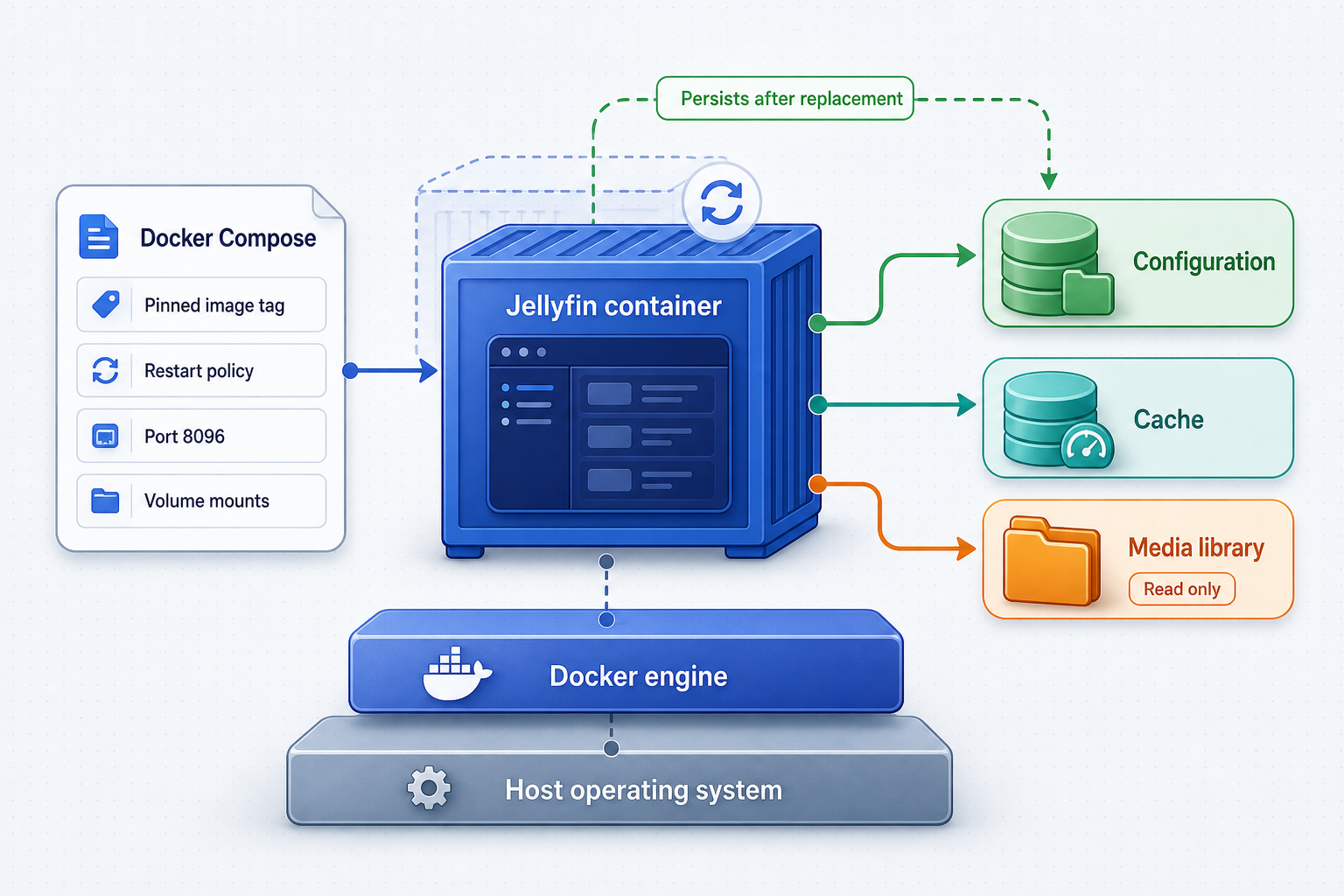
A mutable tag such as latest can change the software pulled during a future deployment. This tutorial instead uses a release tag stored in .env. Before deployment, obtain a current supported release tag from the official Jellyfin container installation documentation. Record the exact tag you tested and retain the previous tag when upgrading.
Create the project and writable directories
Create a dedicated project directory with persistent configuration and cache subdirectories. The configuration directory contains the durable Jellyfin state that must be backed up.
sudo mkdir -p /srv/jellyfin/config /srv/jellyfin/cache
sudo chown -R "$(id -u):$(id -g)" /srv/jellyfin
cd /srv/jellyfinCreate the environment file
Create /srv/jellyfin/.env. Replace every placeholder with a real value. Use the numeric UID and GID collected earlier and an exact Jellyfin release tag verified against the official container documentation.
JELLYFIN_UID=1000
JELLYFIN_GID=1000
JELLYFIN_VERSION=REPLACE_WITH_VERIFIED_RELEASE_TAG
Do not start the stack while the release placeholder remains. Keeping the version in this file makes a planned upgrade an explicit change rather than an accidental image replacement.
Create the Compose file
Create /srv/jellyfin/compose.yaml. Replace the three host media paths with directories that exist. The paths after the colons are the locations Jellyfin sees inside the container.
services:
  jellyfin:
    image: jellyfin/jellyfin:${JELLYFIN_VERSION}
    container_name: jellyfin
    user: "${JELLYFIN_UID}:${JELLYFIN_GID}"
    restart: unless-stopped
    ports:
      - "127.0.0.1:8096:8096"
    volumes:
      - ./config:/config
      - ./cache:/cache
      - /srv/media/movies:/media/movies:ro
      - /srv/media/tv:/media/tv:ro
      - /srv/media/music:/media/music:ro
This is the loopback-only design. For intentional LAN access, replace the host side of the port mapping with the server's actual LAN address, such as 192.168.1.50:8096:8096. Do not copy that example address unless it belongs to your server.
Validate paths and permissions
Confirm that all host media paths exist and that the selected UID and GID can write to config and cache. Jellyfin only receives read-only access to the media mounts in this example.
test -d /srv/media/movies
test -d /srv/media/tv
test -d /srv/media/music
test -w /srv/jellyfin/config
test -w /srv/jellyfin/cache
docker compose config
The final command renders and validates the Compose configuration. Inspect the resulting image tag, numeric user, volume sources, and loopback port binding before proceeding.
Pull the pinned image and start Jellyfin
Pull only after replacing the release placeholder. Start the container in the background, then inspect its state and recent logs.
docker compose pull
docker compose up -d
docker compose ps
docker compose logs --tail=100 jellyfinConfirm the host listener
Verify that the chosen host address and port are listening. For the default design, the output should show a listener associated with 127.0.0.1:8096, not a wildcard address such as 0.0.0.0:8096.
ss -ltn | grep ':8096'
curl -I http://127.0.0.1:8096
The :ro suffix allows Jellyfin to read media without modifying or deleting the source files through those mounts. Features that must write alongside media files require a separate, deliberate permission decision. Do not remove read-only protection merely to hide an unrelated ownership problem.
Hardware acceleration requires a complete platform-specific setup
Hardware acceleration is optional, but configuring it is more involved than adding a single device path. The host needs compatible hardware, working vendor drivers, device permissions for the container identity, appropriate container runtime integration, and a matching Jellyfin playback configuration. Intel, AMD, NVIDIA, and other platforms have different requirements.
Follow the current Jellyfin hardware acceleration documentation for your operating system, GPU vendor, container runtime, and Jellyfin release. Verify host-level acceleration before passing devices into the container. An incomplete example can produce failed playback, permission errors, or decoding that still runs on the CPU, so this guide intentionally does not provide a generic device fragment.
Do not assume that every failed direct-play attempt will fall back successfully. Whether Jellyfin can remux or transcode a file depends on server configuration, available codecs, client capabilities, permissions, and processing capacity. Test each important client and media profile.
Complete initial Jellyfin configuration
Open http://127.0.0.1:8096 in a browser running on the Jellyfin host. If the host has no graphical browser, use an SSH port-forwarding workflow you already trust or temporarily choose the controlled LAN binding described earlier. A browser on another computer cannot use localhost to reach the server because localhost always means the computer running that browser.
Jellyfin's initial setup screens and exact labels can change between releases. Complete the following configuration by meaning rather than relying on a potentially outdated menu path:
- Select the interface language and regional preferences needed for your library.
- Create the initial administrator account with a long, unique password.
- Add separate libraries for each media type and select the container paths, such as
/media/movies,/media/tv, and/media/music. - Choose metadata languages and providers according to your requirements. Providers may contact external services.
- Permit remote client connections if the current Jellyfin release requires that option for non-local clients.
- Leave automatic router port mapping or UPnP disabled because this workflow does not require inbound router port forwarding.
Do not enter the host paths such as /srv/media/movies in Jellyfin. Those paths exist outside the container. Jellyfin must use the container-side paths defined on the right side of each Compose volume mapping.
Jellyfin releases may expose advanced settings related to published server addresses or client discovery. The exact accepted format and necessity depend on the current release and network design. Do not populate that field merely because the server is behind a tunnel. First test the Localtonet HTTPS address directly in the client. If a specific client or discovery workflow requires an advertised address, consult the documentation for your installed Jellyfin release and enter only the format it documents.
Validate the first library scan
Add a small, known test set before indexing a very large collection. Confirm that the expected items appear, open several details pages, and test one file from each library. If a library remains empty, inspect the container-visible directories:
docker compose exec jellyfin sh -c 'ls -la /media/movies | head'
docker compose exec jellyfin sh -c 'ls -la /media/tv | head'
docker compose logs --tail=200 jellyfin
If the directories are empty, recheck the host path and mount availability. If filenames appear but Jellyfin cannot read them, correct the host ownership, group membership, access control lists, or network-share permissions. Avoid solving a read problem by running the entire container as root.
Media identification depends in part on folder organization, filenames, enabled metadata providers, and provider availability. Use consistent movie and episode naming and correct mismatches through the identification tools offered by your installed Jellyfin release.
Verify Jellyfin before publishing it
Do not create a public tunnel until the local service works reliably. Separating local verification from tunnel testing makes failures easier to diagnose.
Verify from the host
cd /srv/jellyfin
docker compose ps
docker compose logs --tail=100 jellyfin
curl -I http://127.0.0.1:8096
Confirm that the container remains running rather than repeatedly restarting. An HTTP response proves that something is listening and responding, but it does not prove that authentication, media scanning, or playback works. Sign in through a host browser and play a representative file.
Verify direct LAN access only if you selected a LAN binding
From another device on the same network, open:
http://YOUR_SERVER_LAN_IP:8096Replace the placeholder with the server's actual LAN address. This test is expected to fail with the default loopback-only Compose file. If you selected a LAN binding and it still fails, check the server address, Docker port mapping, host firewall, Wi-Fi client isolation, VLAN rules, and whether the client can route to the server.
Test playback, not only the login page
Test at least one low-bitrate file and one demanding file from the clients you intend to use. During playback, review Jellyfin's active-session information and host utilization. Determine whether the session is using direct playback, remuxing, or transcoding. Watch CPU, GPU, memory, disk, and network utilization with operating-system tools appropriate to your host.
If local playback already buffers, a tunnel will not fix the underlying storage, codec, client, or processing problem. Establish a stable local baseline first.
Publish Jellyfin through a Localtonet HTTP tunnel
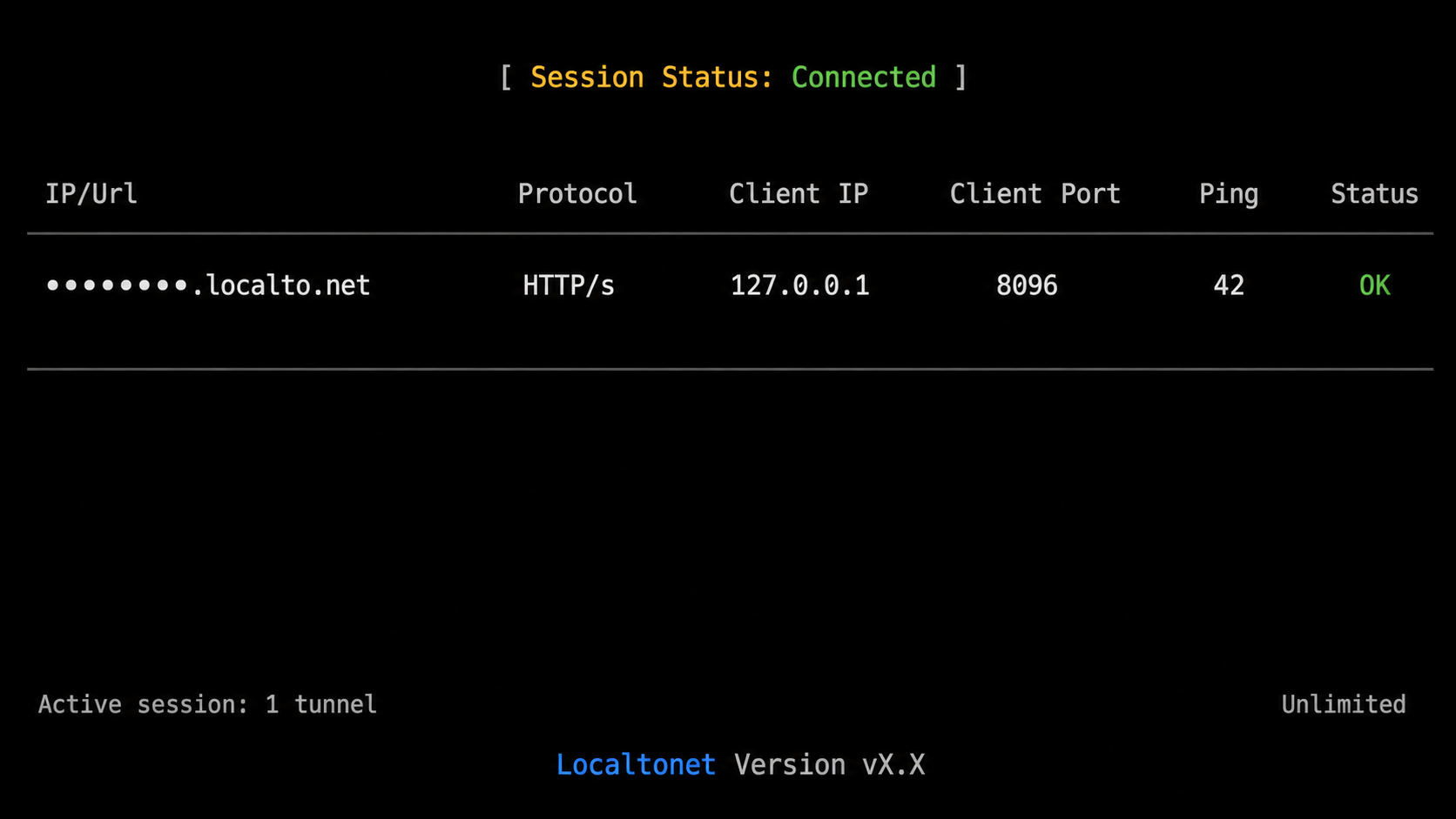
Localtonet exposes a service running on your machine through an outbound client connection to one of our relay servers. You do not need inbound router port forwarding, firewall changes, VPN setup, or a public IP address for this workflow. An HTTP tunnel provides a public HTTPS address that forwards to the local Jellyfin HTTP target.
The public connection uses HTTPS at the tunnel edge. The configured local target in this tutorial is HTTP on 127.0.0.1:8096. Do not describe this arrangement as unverified end-to-end encryption between the remote client and Jellyfin itself. Jellyfin authentication and the transport path are separate security concerns.
Current options and available relay locations can vary. Obtain the AuthToken, Process Type choices, and relay server values from the current dashboard rather than copying guessed values. The documented HTTP workflow is also available in our HTTP tunnel documentation.
Install and run the Localtonet client
Install the current Localtonet application for the host operating system and run it on the device that can reach Jellyfin. This tutorial does not provide an installation command because the supported installation method varies by operating system and client version.
Open the HTTP tunnel page
Sign in to the Localtonet dashboard and open the HTTP Tunnel page. Begin creating a new HTTP tunnel using the fields currently presented there.
Select the HTTP Process Type
Choose Random Sub Domain, Custom Sub Domain, or Custom Domain according to the options available to your account and current product configuration. All three process types serve the local content through a public HTTPS address. A generated address is sufficient for initial testing.
Select the device AuthToken
Select the AuthToken for the specific device running the Localtonet client. Tokens identify devices and must be kept private. Do not paste a token into screenshots, articles, client configuration shared with viewers, or troubleshooting messages.
Select an available relay server
Choose one of the relay servers currently offered in the dashboard. Available server codes and regions must be read from the current product and should not be hardcoded from an old tutorial.
Enter the local Jellyfin target
For the loopback-only deployment, enter local IP address 127.0.0.1 and local port 8096. This works because the Localtonet client and Jellyfin run on the same host. If you changed the host port or run the client on another device, use the address and port that are actually reachable from that client.
Create the tunnel
Create the HTTP tunnel after reviewing the Process Type, selected device, relay server, local IP address, and local port. Creation saves the configuration but does not by itself make the tunnel available.
Press Start and record the HTTPS address
Press Start for the new tunnel. Wait until the dashboard indicates that it is running, then copy the assigned public HTTPS address. The tunnel is available only while the selected client device is connected and this tunnel is running.
A saved tunnel is not automatically reachable. The selected Localtonet client must be connected and the tunnel must be started. Stopping the tunnel removes public availability without deleting its configuration. Deleting it removes the tunnel configuration itself.
If you later need a custom domain, check the current requirements before changing a working deployment. Our custom-domain setup guide explains the current DNS Manager and HTTP Process Type workflow. DNS changes, domain ownership, feature availability, and plan behavior should be verified in the current dashboard.
Verify the public HTTPS address from outside the LAN
Test from a genuinely external connection, such as a phone with Wi-Fi disabled. Testing only from the home LAN can hide DNS, routing, or network-policy differences.
- Confirm that the Jellyfin container is running and responds at
http://127.0.0.1:8096on the host. - Confirm that the Localtonet client associated with the selected AuthToken is connected.
- Confirm that the HTTP tunnel has been started.
- Open the exact assigned
https://address in a private browser window on the external device. - Verify that the Jellyfin login page appears over HTTPS without manually changing the scheme to HTTP.
- Sign in with a non-administrator Jellyfin user account.
- Play a short test item, seek within it, pause, resume, and play long enough to reveal buffering.
- Repeat the test in each important Jellyfin client by entering the complete HTTPS server address.
Jellyfin maintains official and community client listings that change over time. Consult the current Jellyfin client directory for supported platforms and installation links. Client availability, maintenance status, codec support, and feature coverage are not identical across every platform.
| Verification | What it proves | What it does not prove |
|---|---|---|
Host curl succeeds |
The local host port responds | That authentication, library access, or remote routing works |
| Remote login page loads | The client, relay, tunnel, and local HTTP target can exchange a basic request | That sustained video playback fits the available bandwidth |
| Remote playback remains stable | The tested file, client, server processing path, and connection work together | That every codec, bitrate, subtitle format, or simultaneous-user load will work |
| Several clients connect | Those specific client versions accept the server address and credentials | Universal compatibility with all Jellyfin clients |
Secure Jellyfin as a public-facing application
The Localtonet HTTPS address protects the public browser connection at the tunnel edge, while Jellyfin remains responsible for authenticating users and authorizing library access. Neither control replaces the other.
Review Jellyfin logs for unexpected login attempts and application errors, but handle logs as potentially sensitive operational data. They can contain usernames, client details, filenames, addresses, and request information. Do not publish raw logs without reviewing and redacting them.
Avoid sharing an administrator account with family or friends. Use separate users so access can be changed without rotating a common password. Apply library restrictions and other permissions available in your installed Jellyfin release according to each user's needs.
Back up, restart, update, and plan for rollback
The restart: unless-stopped policy asks Docker to restart the Jellyfin container after daemon or host restarts unless it was deliberately stopped. Docker itself must start successfully, required storage must be mounted, and the container must remain valid. This policy does not configure the Localtonet client as an operating-system service, and this article does not invent service-installation commands.
After a reboot, verify each layer separately:
cd /srv/jellyfin
docker compose ps
docker compose logs --tail=100 jellyfin
curl -I http://127.0.0.1:8096
Then confirm that the Localtonet client is connected and press Start for the tunnel if it is not already running. Automatic client startup behavior depends on the supported installation method and current client version.
Back up durable state
The critical application state is in /srv/jellyfin/config. The Compose file and .env are also required to reproduce the deployment. Media files need their own storage backup policy. Cache data can generally be regenerated, so it is not the primary backup target.
For a simple consistent backup, schedule downtime, stop the container, archive the configuration and deployment files to storage outside the project directory, and restart the container:
cd /srv/jellyfin
docker compose stop jellyfin
sudo tar -C /srv -czf /path/to/backup/jellyfin-config-YYYY-MM-DD.tar.gz \
  jellyfin/config jellyfin/compose.yaml jellyfin/.env
docker compose start jellyfin
Replace the backup path and date placeholder before running the command. Protect backups because they may contain credentials, user data, server configuration, and library information. Test restoration on an isolated system rather than assuming that an archive is usable.
Perform a controlled update
- Read the Jellyfin release notes and container documentation for the target version.
- Record the currently deployed image tag and retain the current Compose and environment files.
- Create and verify a configuration backup.
- Replace
JELLYFIN_VERSIONin.envwith the exact target release tag. - Render the configuration with
docker compose configand inspect the image. - Pull and recreate the container.
- Review startup logs, sign in, inspect libraries, and test representative local and remote playback.
cd /srv/jellyfin
docker compose config
docker compose pull jellyfin
docker compose up -d jellyfin
docker compose ps
docker compose logs --tail=200 jellyfin
Do not use an unattended pull-and-recreate command without understanding the target version and its migration behavior. Persistent volumes protect data from ordinary container replacement, but they do not make every application upgrade or downgrade reversible.
Plan rollback before upgrading
If the new container fails before changing durable data, restoring the previous image tag may be sufficient. If the application migrated its database or configuration, running an older image against newer state may be unsupported or unsafe. Stop the container, preserve the failed state for diagnosis, restore the pre-upgrade configuration backup, restore the previous release tag, and then recreate the container.
The exact recovery procedure depends on the release and failure. Consult the release notes before attempting a downgrade. A tested backup is more dependable than assuming that changing one tag always reverses an upgrade.
Troubleshooting Jellyfin and remote access
The container exits or keeps restarting
cd /srv/jellyfin
docker compose ps
docker compose logs --tail=250 jellyfin
docker inspect jellyfin --format '{{.State.Status}} {{.State.ExitCode}} {{.State.Error}}'
Look for invalid image tags, permission failures, unavailable mounts, malformed Compose values, or a host resource problem. Run docker compose config again and confirm that the release placeholder was replaced.
Docker reports that port 8096 is already allocated
Identify the existing listener:
ss -ltnp | grep ':8096'
docker ps --format 'table {{.Names}}\t{{.Ports}}'
Stop the conflicting service only if it is safe to do so, or change the host port to an unused value such as 127.0.0.1:18096:8096. After changing it, update the Localtonet target to the same host port.
Jellyfin starts but cannot see media
Confirm that the host path exists, the storage is mounted, and the Compose source path is correct. Then inspect the path from inside the container:
docker compose exec jellyfin sh -c 'id; ls -ld /media /media/movies; ls -la /media/movies | head'
An empty directory often indicates an incorrect host path or an unavailable network mount. A permission-denied error indicates that the configured UID or GID lacks access. Check every parent directory with namei -l. Do not broadly grant world-writable permissions as a shortcut.
The host can open Jellyfin but another LAN device cannot
This is expected when the port is bound to 127.0.0.1. If direct LAN access is required, deliberately change the binding to the server's LAN address, recreate the container, and permit only the required trusted subnet through the host firewall. Confirm that the client is not isolated on a guest wireless network.
The Localtonet HTTPS address is unreachable
- Verify Jellyfin locally with
curl -I http://127.0.0.1:8096. - Confirm that the Localtonet client is running on the device selected by the tunnel's AuthToken.
- Confirm that the selected client is connected.
- Confirm that the tunnel was created and then separately started.
- Check that the local target is
127.0.0.1and the actual published host port. - If the Localtonet client runs on another device, do not use
127.0.0.1; that would refer to the other device itself. Use a LAN-reachable Jellyfin target and secure that LAN exposure. - Stop and start the tunnel after correcting its configuration.
The browser works but a Jellyfin client rejects the URL
Enter the full assigned address beginning with https://, without substituting http:// or adding the local port. Remove accidental spaces and verify the address in a browser on the same remote device. Update the client and compare its status with Jellyfin's current client listings. Avoid changing advanced published-address settings until the documentation for your installed Jellyfin version confirms they are required.
The HTTPS page shows an address or certificate problem
Use the exact HTTPS hostname assigned by Localtonet. Do not replace it with the relay IP address, the local IP address, or a different hostname. For a custom domain, verify that its DNS setup has completed and that the domain is selected through the current Custom Domain Process Type workflow. If a generated address has changed, update saved client connections with the current address.
Remote video buffers
Test the same file locally first. If local playback is stable, compare the file bitrate with sustained server upload capacity. Reduce the remote quality setting to test whether a lower bitrate stabilizes playback. Check whether Jellyfin is transcoding and observe CPU or GPU utilization. A saturated processor suggests that the server cannot produce the requested stream fast enough, while low processing load and a saturated upload connection point toward bandwidth.
Subtitle formats, audio codecs, video codecs, container formats, resolution, and client capability can all change the playback path. A file that directly plays in one client may require processing in another. Follow Jellyfin's current vendor-specific hardware acceleration guide before enabling GPU processing.
Library scans fail or identify the wrong media
Check the Jellyfin logs for permission, path, or metadata-provider errors. Confirm consistent folder and file naming, validate that the configured container path contains the expected files, and test metadata-provider connectivity if one is enabled. External providers can be unavailable or rate-limited independently of your Jellyfin server.
Frequently asked questions
Does Localtonet require router port forwarding for Jellyfin?
No. The Localtonet client establishes an outbound connection to a Localtonet relay, so this workflow does not require inbound router port forwarding, firewall changes, a VPN, or a public IP address. The selected client must remain connected and the HTTP tunnel must be running.
Can LAN devices connect when Jellyfin is bound to 127.0.0.1?
No. A loopback binding accepts direct connections only from the Jellyfin host. Use the Localtonet HTTPS address for remote access, or intentionally bind the Docker port to the server's LAN address if direct LAN clients are required. A LAN binding exposes the login surface to devices permitted by local routing and firewall rules.
Why should I avoid the latest container tag?
A mutable tag can point to a different image during a later pull. Pinning an exact verified release tag makes the deployed version explicit, lets you review release notes before changing it, and supports a controlled backup and rollback plan.
Does the public HTTPS address replace Jellyfin authentication?
No. HTTPS transport and application authentication solve different problems. The public URL exposes the Jellyfin login surface, and Jellyfin must still authenticate every user. Use unique passwords, least-privilege viewer accounts, and a separate administrator account.
Do I need to set Jellyfin's Published Server URI for Localtonet?
Not for the basic direct-address workflow in this guide. Enter the assigned Localtonet HTTPS address directly in the client first. Only configure an advanced published-address field if documentation for your installed Jellyfin release and a specific client workflow requires it, using the exact format that documentation specifies.
Why does remote playback buffer even though the login page loads?
Loading the login page requires little bandwidth and processing. Video playback may be limited by server upload capacity, source bitrate, Wi-Fi quality, storage speed, client codec support, subtitle processing, or CPU and GPU transcoding capacity. Test the same file locally, inspect the active playback method, and lower remote quality to isolate bandwidth from processing limits.
What happens when I stop or delete the Localtonet tunnel?
Stopping the tunnel makes the public route unavailable while retaining the tunnel configuration. Deleting removes that tunnel configuration. Jellyfin can continue running locally in either case. A tunnel is available only while its selected client is connected and the tunnel itself is running.
Does self-hosting mean Jellyfin never contacts an external service?
No absolute claim should be made. Jellyfin runs on your hardware, but metadata providers, subtitle integrations, plugin repositories, and installed plugins can make outbound requests when enabled or configured. Review those features and their privacy behavior according to your requirements.
Publish your tested Jellyfin server with Localtonet
Once Jellyfin works locally, run our client on the host, create an HTTP tunnel to the loopback port, select the correct device and relay server, and press Start to receive a public HTTPS address without inbound router port forwarding.
Get Started Free →

