

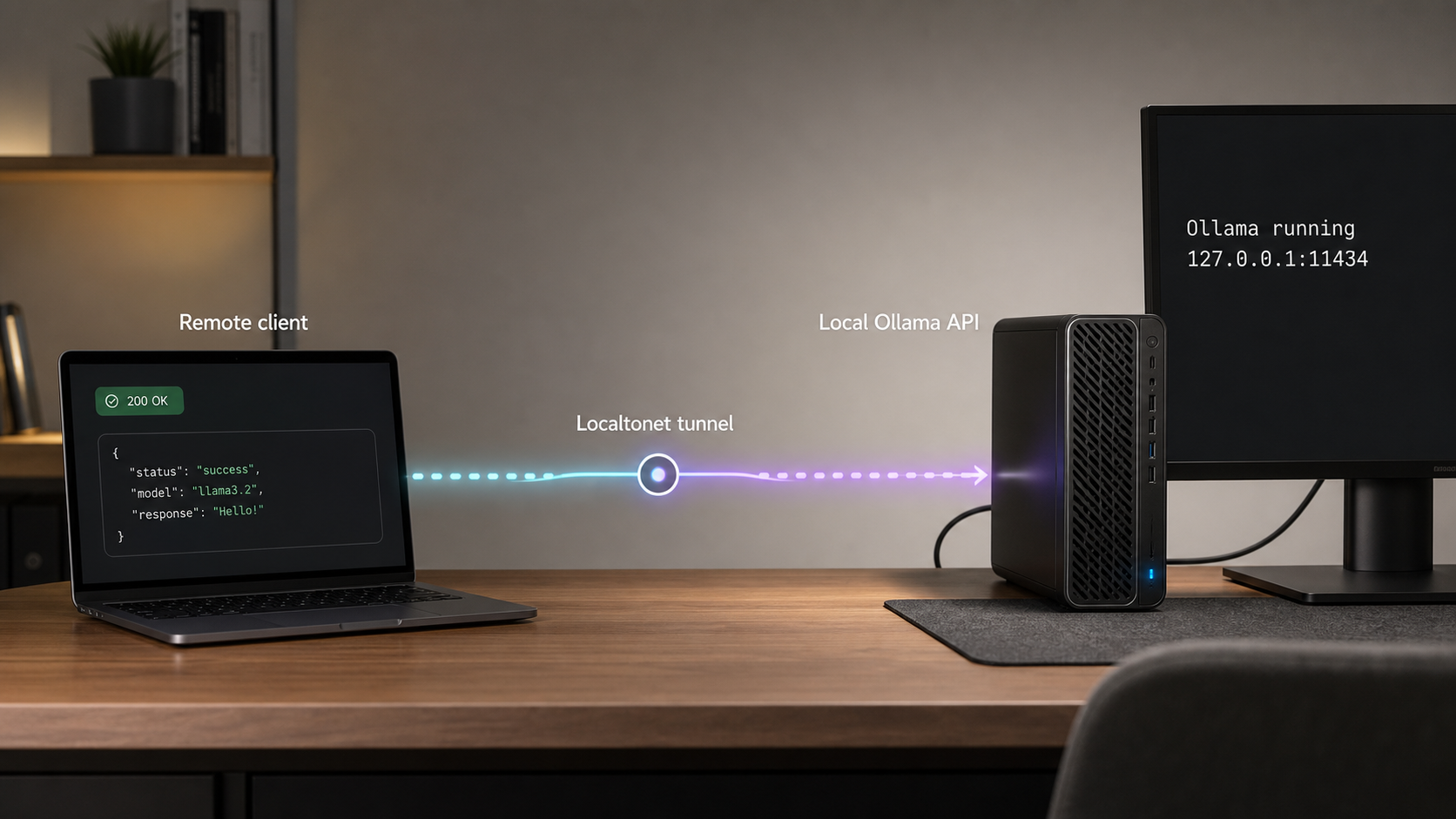
Run a local model service, verify it end to end, and expose it without opening an inbound router port
Ollama provides a practical way to download and run supported model tags on your own Windows, macOS, Linux, or Docker host. This tutorial covers planning the host, installing Ollama, selecting a model tag, testing the native API, and operating the service. It then shows the complete Localtonet tunnel lifecycle, including device selection, relay selection, the separate Start action, remote verification, and safe shutdown. Because Ollama's local API does not itself provide a general authentication boundary, the guide also explains why transport and authorization must be treated as separate security controls.
📋 What's in this guide
Understand the architecture and trust boundaries
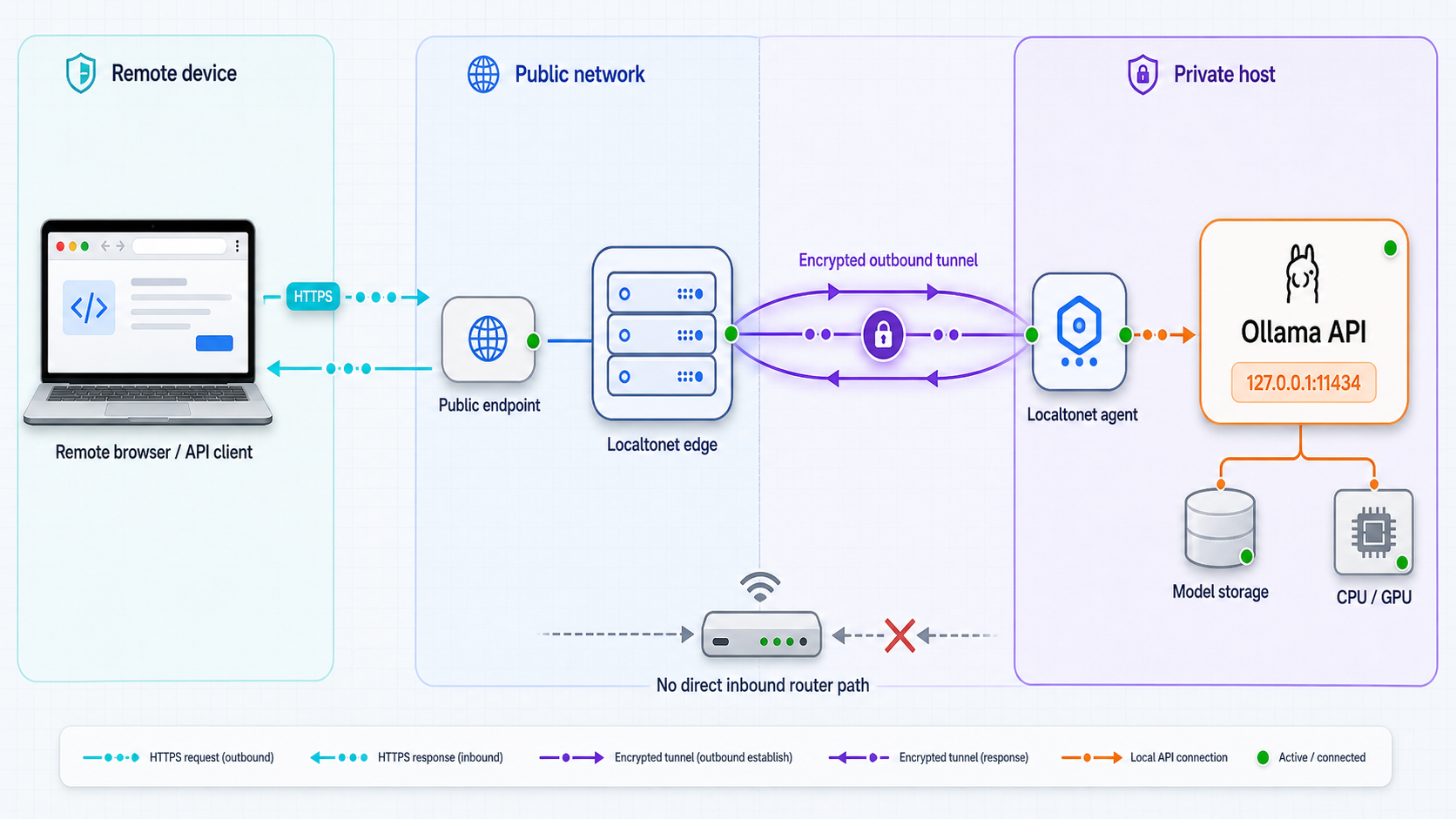
Ollama runs models on a host you control and exposes a local HTTP API, normally on port 11434. The native API includes Ollama-specific endpoints such as /api/tags and /api/chat. Ollama also implements parts of the OpenAI API under paths such as /v1/chat/completions, but that compatibility should not be treated as a universal drop-in replacement. Applications can depend on unsupported endpoints, provider-specific options, authentication behavior, tool-calling details, streaming formats, model names, or context settings.
Test every integration against the exact Ollama release, model tag, and application version you intend to use. Some tools provide a dedicated Ollama provider. Others accept an OpenAI-compatible base address. A third-party application may also require a placeholder API key even though that value does not authenticate requests to the normal local Ollama API. Follow the application's own configuration requirements rather than assuming that changing one URL is sufficient.
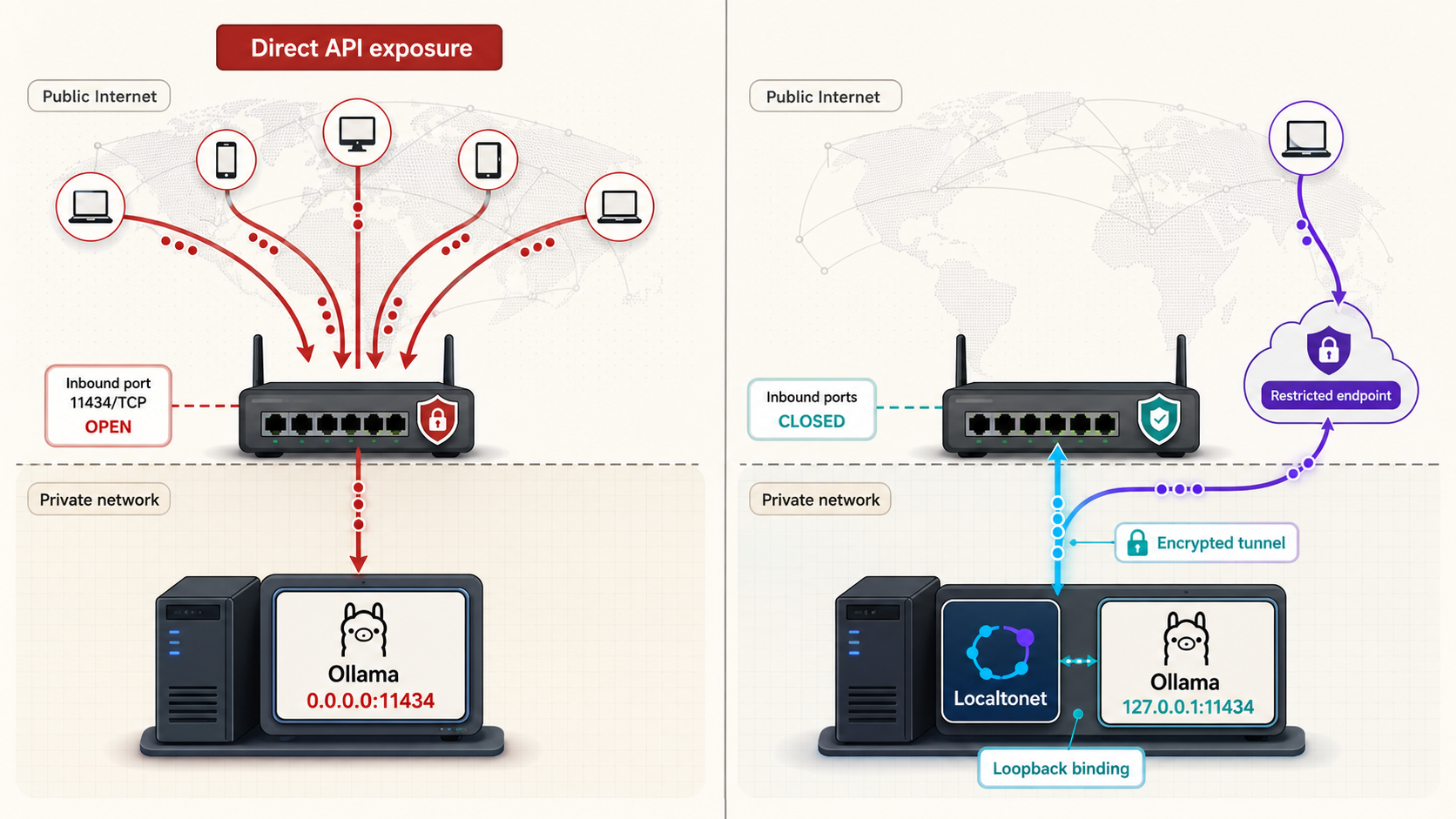
127.0.0.1:11434. Keeping the listener on loopback limits direct access to processes on the same host.
The traffic path is:
Remote client
    |
    | Public connection, authorization must be enforced separately
    v
Assigned Localtonet relay host and port
    |
    | Existing outbound connection from the Localtonet client
    v
Localtonet client on the Ollama host
    |
    | Local target
    v
127.0.0.1:11434
    |
    v
Ollama and the selected model
Publishing 127.0.0.1:11434 through a TCP tunnel changes who can reach the API. It does not add user authentication to Ollama. Public host and port values can be copied, logged, shared accidentally, or discovered. Do not use possession of the endpoint as the only access control.
What self-hosting does and does not mean
Local inference can give you more control over model selection, storage, prompts, and service operation. It does not automatically make every workflow private or offline. Initial installation and model downloads require network access. A remote Localtonet workflow sends request and response traffic through a relay. Third-party chat interfaces, plugins, telemetry, web search, cloud model tags, or external tools can also transmit data outside the Ollama host.
Local execution also has real operating costs. There may be no per-token vendor charge for a locally executed model, but the host still consumes electricity, storage, memory, accelerator capacity, administrator time, and network bandwidth. Throughput and concurrency remain constrained by the selected model, context size, hardware, and workload. Treat privacy, cost, and performance as properties of the complete deployment rather than automatic properties of installing Ollama.
Prerequisites and capacity planning
Check the host before downloading a model. Model families often provide many tags with different parameter counts, quantizations, context capabilities, and sometimes local or cloud-oriented variants. A model family name alone is not enough to determine download size or runtime requirements.
| Requirement | What to verify | Why it matters |
|---|---|---|
| Operating system | Use a current Ollama-supported Windows, macOS, or Linux release. The current macOS download requires macOS 14 Sonoma or later. | Installation, service management, and accelerator support differ by platform. |
| Processor architecture | Confirm that the current Ollama download or container image supports the host architecture. | Do not assume that a package or image built for one architecture will run on another. |
| Memory | Plan for model weights, runtime overhead, context, concurrent requests, the operating system, and other applications. | A tag that can be stored on disk may still be too large to load or may cause heavy swapping. |
| Storage | Inspect the current size of the exact model tag and leave room for additional tags, updates, and temporary download activity. | Tags from the same family can differ substantially in size. |
| Accelerator | Check current Ollama compatibility for the exact GPU, driver, operating system, and container runtime combination. | GPU availability is not guaranteed merely because a machine has a discrete graphics device. |
| Permissions | Have the rights needed to install an application, register a service, manage Docker, or use elevated commands where required. | Service installation and container device access can require administrator privileges. |
| Network access | Allow outbound access for downloading Ollama, pulling model data, and connecting the Localtonet client to a currently available relay. | Local inference can continue without a model download, but installation, updates, cloud-capable features, and remote tunneling require networking. |
| Security design | Choose and test an authentication or access-control layer before making the API persistently public. | Ollama's normal local HTTP API should not be treated as an authenticated public service. |
Memory and accelerator planning
Parameter count is useful for comparing broad model classes, but it is not a reliable storage or memory figure by itself. Quantization changes the size of the weights, and runtime memory also depends on context length, parallel requests, implementation details, and accelerator offloading. A smaller quantized tag may run on a machine where a larger tag cannot, but it can have different quality and performance characteristics.
Start with a small tag, verify that it loads, and observe the host while generating a response. Increase model size only after checking memory pressure, response latency, temperature, and available disk space. On a shared workstation, reserve capacity for normal user applications. On a server, account for simultaneous users and the possibility that a long context or several requests will consume more resources than a short interactive prompt.
Privacy and data classification
Decide what data the service is allowed to process. Prompts can contain source code, customer information, internal documents, credentials, or regulated data. Model output can reproduce prompt content and may be recorded by clients, gateways, shell history, application logs, or monitoring systems. Review every component in the path, including the remote client and any authentication proxy, before sending sensitive information.
For repeatable deployments, record the complete model tag rather than only a family name. Recheck the current Ollama model library for tag availability, capabilities, download size, and requirements before deployment.
Install Ollama on Windows, macOS, Linux, or Docker
Use the current Ollama download page for the platform package. Installation interfaces and supported hardware can change, so confirm the requirements shown for the package you are about to install.
Linux installation
Ollama publishes the following installation command for Linux:
curl -fsSL https://ollama.com/install.sh | shPiping a downloaded script into a shell executes it immediately. If your environment requires script review, download and inspect the installer before running it. After installation, verify the executable and inspect the service:
ollama --version
systemctl status ollama
If the service is not active, start it with the operating system's service manager:
sudo systemctl start ollamaWhether Ollama starts automatically after a reboot depends on the installed service state. Confirm that behavior on your distribution instead of assuming persistence from a successful interactive test.
macOS installation
The current macOS download requires macOS 14 Sonoma or later. Download the macOS package from the Ollama download page, install the application as directed, and launch Ollama. The application must be running before local API tests will succeed.
Open Terminal and verify the command is available:
ollama --version
ollama list
Login-startup behavior can vary by application and release. Check the current Ollama application settings and test an actual reboot if unattended operation is required.
Windows installation
Select Windows on the Ollama download page and run the current installer. Launch Ollama after installation, then open a new PowerShell or Command Prompt window so any PATH changes are available.
ollama --version
ollama list
If the command is not found, close and reopen the terminal, confirm that installation completed, and verify the current Windows installation instructions. Also confirm that the Ollama application or service is running before testing port 11434.
Docker installation
Docker is useful when you want container lifecycle controls and a named volume for model data. The following baseline keeps the published port on host loopback instead of exposing it on every interface:
docker volume create ollama

docker run -d \
  --name ollama \
  --restart unless-stopped \
  -v ollama:/root/.ollama \
  -p 127.0.0.1:11434:11434 \
  ollama/ollama
Confirm that the container is running and inspect its initial logs:
docker ps --filter name=ollama
docker logs ollama
Hardware acceleration in Docker requires a compatible host, driver, container runtime, and Ollama image configuration. Do not add GPU device flags copied from another platform without checking the current instructions for your exact hardware. The baseline above is intended to establish a portable local service path, not to promise accelerator use.
Avoid publishing Docker port 11434 on 0.0.0.0 unless you have deliberately secured the surrounding network. Binding the host side to 127.0.0.1 prevents ordinary direct access from other network devices, while still allowing a Localtonet client on the host to reach it.
Choose, pull, and run a model tag
Browse the current Ollama library and select a tag suited to the task and host. The library includes families with many different sizes. For example, the listed options include Llama 3.2 tags in 1B and 3B sizes, DeepSeek R1 tags across several sizes, Gemma 3 tags from compact variants through larger models, and Qwen families with multiple text, coding, vision, and embedding choices.
Those parameter labels are not fixed download-size recommendations. Open the model page, inspect the available tags, read the model's license and capability notes, and select one exact tag. Features such as tools, vision, embeddings, audio, or cloud execution vary by family and tag.
| Tag-selection question | What to inspect | Deployment consequence |
|---|---|---|
| Will it fit? | Exact tag size, available RAM or VRAM, runtime overhead, and context requirements | Determines whether the model loads reliably without excessive swapping or resource exhaustion. |
| Does it support the task? | Text, vision, embedding, tools, coding, reasoning, and language capabilities | A model that loads successfully may still be incompatible with the application's requested operation. |
| Can it be used in this environment? | Model license and organizational usage policy | Open availability does not mean every tag has identical licensing or acceptable-use terms. |
| Is it local? | Whether the selected listing and tag represent local weights or a cloud-capable option | Do not assume every current library entry executes entirely on the host. |
| Can clients address it? | The complete tag name expected by Ollama and the integrating application | Requests fail if the client names a tag that has not been pulled or uses a different identifier. |
This tutorial uses llama3.2:1b as a concrete small-tag example. Confirm that it remains available and suitable before using it:
ollama pull llama3.2:1b
ollama list
ollama run llama3.2:1b
Enter a simple prompt and wait for a complete response. Type /bye to leave the interactive session. Pulling and running are separate operations: pull downloads the selected tag, while run loads it and begins an interactive request.
In Docker, run the same Ollama command inside the container:
docker exec -it ollama ollama pull llama3.2:1b
docker exec -it ollama ollama list
docker exec -it ollama ollama run llama3.2:1b
If the pull fails, check free storage, DNS, outbound network access, and the exact tag spelling. If the process is terminated while loading, inspect memory pressure before trying a larger tag.
Verify the local Ollama API
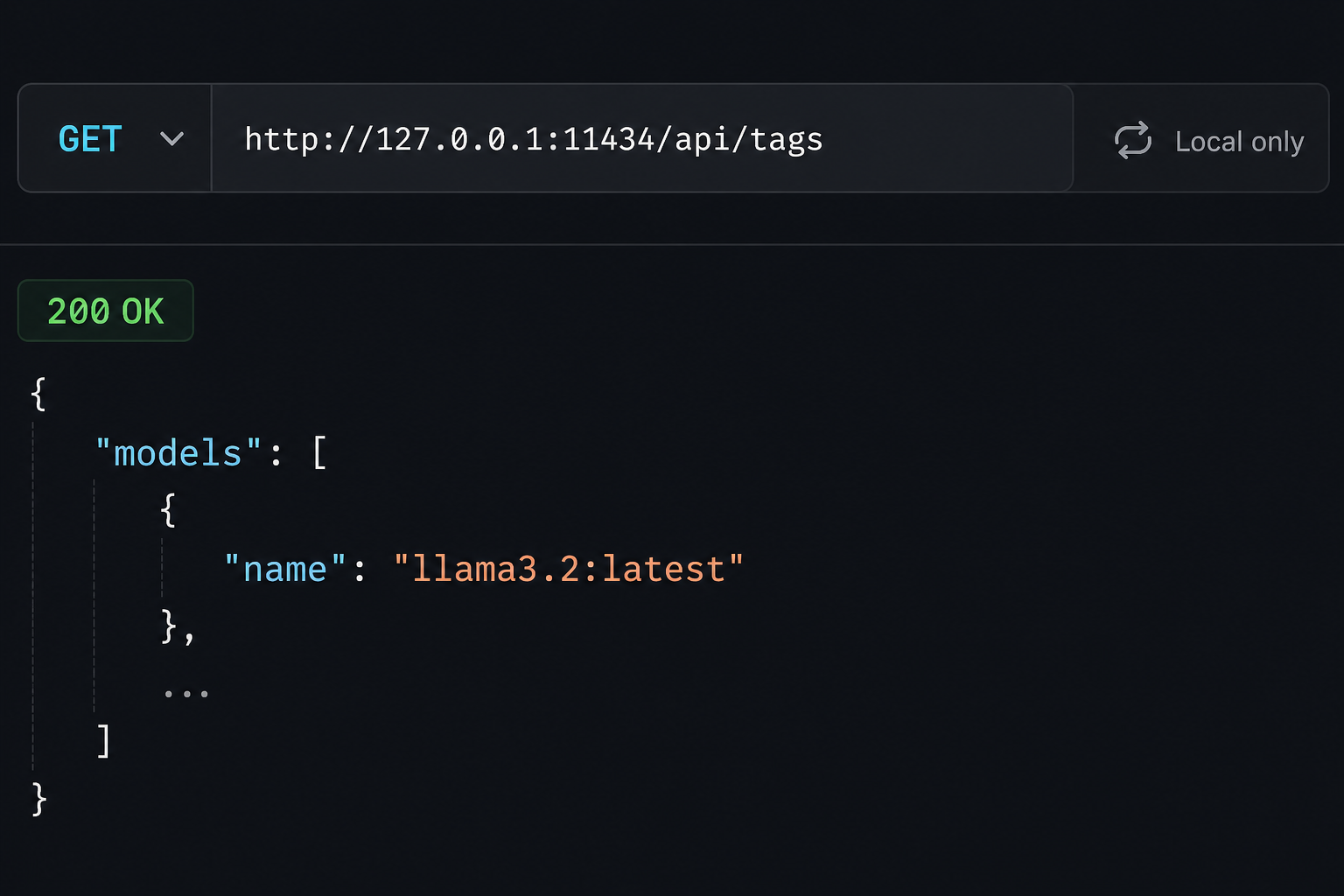
Do not create a tunnel until Ollama works locally. Local testing separates an Ollama problem from a Localtonet configuration problem and gives you a known-good request to repeat remotely.
Confirm the API port responds
Query the tag endpoint from the Ollama host. A successful response should be JSON containing locally available model information.
Send a native Ollama request
Use the exact tag pulled earlier and disable streaming for a response that is easier to inspect with curl.
Optionally test the OpenAI-compatible path
Test the specific endpoint your application needs. Success here confirms that request shape, not universal compatibility with every OpenAI feature.
List installed models through the native API
curl http://127.0.0.1:11434/api/tags
A successful response is JSON. Confirm that llama3.2:1b, or your chosen replacement tag, appears in the returned model list.
Generate a native chat response
curl http://127.0.0.1:11434/api/chat \
  -H "Content-Type: application/json" \
  -d '{
    "model": "llama3.2:1b",
    "messages": [
      {
        "role": "user",
        "content": "Reply with the words local API verified."
      }
    ],
    "stream": false
  }'
The first request can take longer because the model may need to load into memory. A successful response should be JSON containing an assistant message. The wording can vary, so validate the response structure rather than requiring an exact natural-language sentence.
Test the OpenAI-compatible endpoint when needed
curl http://127.0.0.1:11434/v1/chat/completions \
  -H "Content-Type: application/json" \
  -d '{
    "model": "llama3.2:1b",
    "messages": [
      {
        "role": "user",
        "content": "Reply with the words compatibility path verified."
      }
    ]
  }'
A successful /v1/chat/completions request proves that this endpoint and request shape work. It does not prove support for every OpenAI API endpoint, parameter, SDK behavior, tool format, or third-party application. Test the complete application workflow before relying on it.
Configure remote access with Localtonet
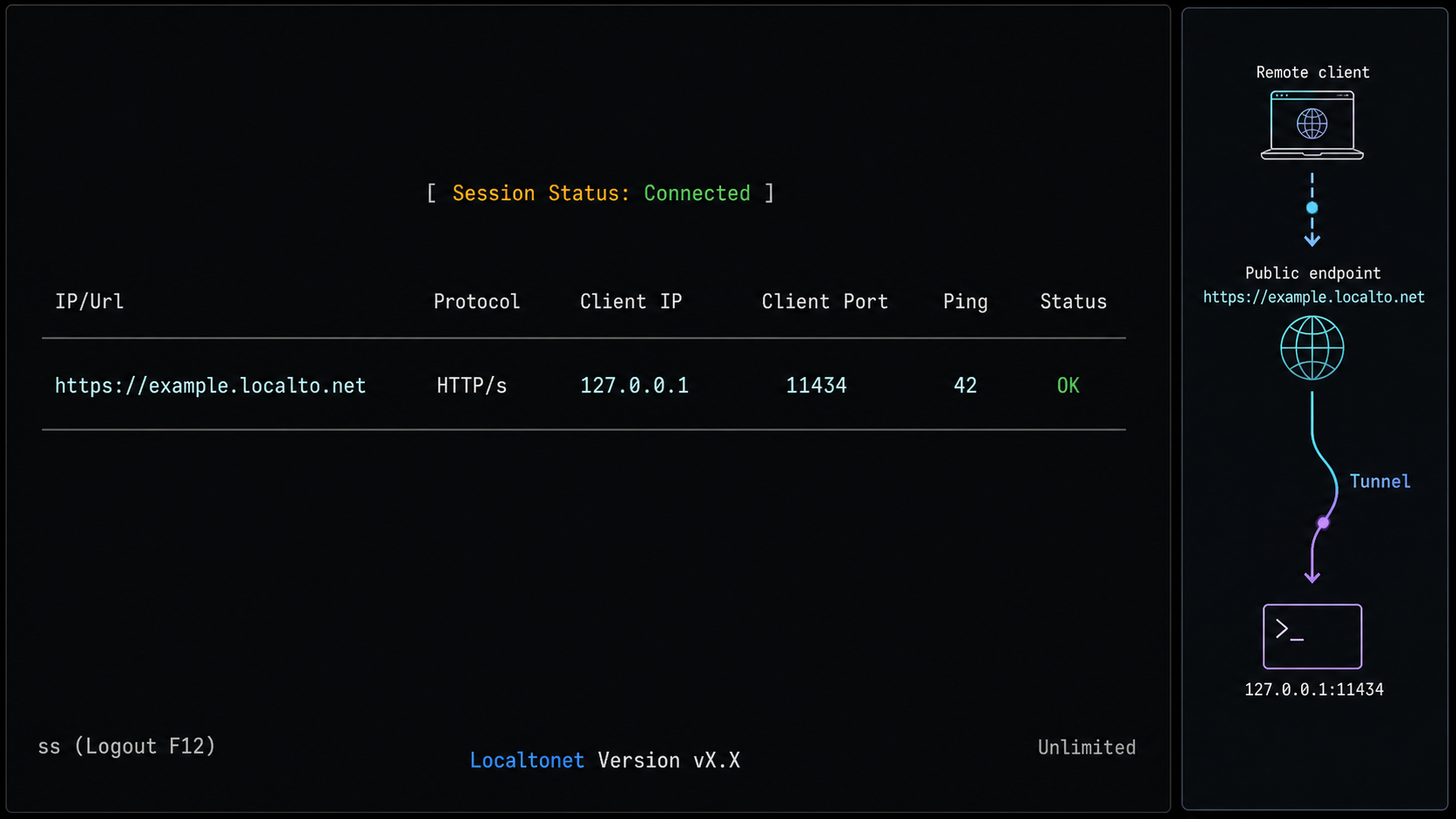
With Localtonet, the client application on the Ollama host establishes an outbound connection to one of our relay servers. A TCP tunnel can then forward an assigned public host and port to 127.0.0.1:11434. This avoids inbound router port forwarding and does not require Ollama to listen on every network interface.
The following procedure describes the documented Localtonet lifecycle. Creating a tunnel is not the same as starting it, and running a Localtonet client does not prove that the specific tunnel is connected.
A direct TCP target of 127.0.0.1:11434 exposes Ollama's HTTP API at the assigned public host and port without adding application authentication. Use this direct target only when its exposure is permitted by your tested security design. For ongoing or sensitive use, place a verified authenticated gateway in front of Ollama and tunnel the gateway's local port instead. The exact gateway configuration depends on the software and policy you select.
Install and run the Localtonet client
Install Localtonet on the same machine as Ollama, or on a device that can legitimately reach the selected local target. Start the client so it can establish its outbound connection.
Protect and select the device AuthToken
Use the device-specific AuthToken for the client that will run this tunnel. Select that device when configuring the tunnel. Never place the token in screenshots, source code, shared commands, application settings, or public documentation.
Select a currently available relay server
Choose an available relay server or region from the current dashboard. Available server codes and options can vary, so obtain the value from the product instead of copying a hardcoded example.
Configure the TCP local target
Select a TCP tunnel and set the local IP address to 127.0.0.1 and the local port to 11434. If you deployed an authenticated local gateway, use that gateway's verified loopback port instead.
Create the tunnel
Save or create the tunnel configuration after checking the selected device, relay, tunnel type, local IP, and local port. Creation records the configuration but does not mean the tunnel is running.
Start the tunnel explicitly
Use the tunnel's Start action. This is separate from starting the Localtonet client. The selected device must remain connected and the tunnel must remain running.
Obtain the assigned host and port
Copy the actual public TCP host and port shown for your running tunnel. Do not publish that endpoint or treat it as a secret credential. TCP clients use a host and port, not an assumed custom HTTPS URL.
Verify the device and tunnel status
Confirm that the selected device is connected and that this specific tunnel reports a connected or running state. Then perform an authorized remote request. A connected client alone does not prove that Ollama is listening or that the tunnel was started.
Test from an authorized remote machine
Store the assigned endpoint in temporary shell variables rather than committing it to a repository. Replace the placeholders locally:
export OLLAMA_REMOTE_HOST="YOUR_ASSIGNED_HOST"
export OLLAMA_REMOTE_PORT="YOUR_ASSIGNED_PORT"

curl "http://${OLLAMA_REMOTE_HOST}:${OLLAMA_REMOTE_PORT}/api/tags"
The expected result is JSON similar in structure to the local /api/tags response. Confirm that the requested model tag is present. Next, repeat the native chat request:
curl "http://${OLLAMA_REMOTE_HOST}:${OLLAMA_REMOTE_PORT}/api/chat" \
  -H "Content-Type: application/json" \
  -d '{
    "model": "llama3.2:1b",
    "messages": [
      {
        "role": "user",
        "content": "Reply with the words remote path verified."
      }
    ],
    "stream": false
  }'
If you use an authenticated gateway, the remote request must include the credential format required by that gateway. Do not place long-lived credentials directly in source code or command history. Prefer the application's protected secret store or another approved credential mechanism.
Configure a third-party client carefully
First determine whether the client supports Ollama natively. If it does, use its Ollama provider and enter the authorized endpoint according to that application's documentation. If it supports only an OpenAI-compatible provider, confirm that it allows a custom base address and test each required feature.
A client configured for the compatibility path will generally need a base address ending in /v1, but exact behavior varies. Some SDKs require a non-empty API-key field even when the backend does not validate it. Such a placeholder is not protection for the public endpoint. Real authorization must be enforced by the gateway or access-control layer in front of Ollama.
Secure a remotely reachable Ollama service
Threat model
Assume an unauthorized party may learn or scan the public host and port. If that party can reach an unprotected Ollama API, they may consume CPU, GPU, memory, bandwidth, and power. They may enumerate locally available model names, submit arbitrary prompts, trigger large model loads, or degrade service for legitimate users. Depending on the surrounding application, they may also reach tools or data sources that the application has connected to the model.
Also account for authorized-user mistakes. A legitimate user can submit oversized contexts, start many simultaneous requests, paste sensitive data, or configure an agent with excessive tool permissions. Authentication identifies or admits a client, but it does not replace authorization, quotas, request limits, data classification, and least privilege.
Validate the security boundary
Test the service as both an authorized and unauthorized client. An unauthenticated request should be rejected by the access-control layer and should not reach Ollama. An authorized request should reach the intended endpoint without granting access to unrelated local services. Verify logout, credential revocation, expiration, and service restart behavior.
Do not claim end-to-end encryption unless the exact client, tunnel type, gateway, TLS termination point, and backend connection have been verified in current documentation and in your deployment. Likewise, do not assume that an HTTP-oriented sign-on feature applies to a raw TCP tunnel. This tutorial makes no such claim.
Use a narrow local listener
Keep Ollama on 127.0.0.1:11434 when the Localtonet client runs on the same host. There is normally no reason to set Ollama to listen on 0.0.0.0 for this topology. A wildcard listener expands access to other interfaces and can expose the API to the local network or to container networks, depending on the host configuration.
After remote verification, stop the tunnel unless the authenticated production design is ready. When the workflow is retired, delete the tunnel. If the Localtonet client runs as an operating system service, stopping a terminal window will not necessarily stop that service.
Operate, update, and shut down the deployment
Routine health checks
A useful operational check covers every layer rather than only the public endpoint:
- Confirm the host has sufficient free memory and storage.
- Confirm the Ollama process, application, service, or container is running.
- Call
http://127.0.0.1:11434/api/tagslocally. - Send a small local inference request with the intended model tag.
- Confirm the Localtonet device is connected.
- Confirm the intended tunnel is started and connected.
- Test authorization from a remote client.
- Send a small remote inference request and compare its behavior with the local test.
This sequence identifies the failing layer. For example, a successful local request with a failed remote request points toward the client, tunnel, relay selection, endpoint, authorization layer, or remote network. A failed local request should be fixed before changing the tunnel.
Ollama logs and service control
On a systemd-based Linux installation, inspect service status and follow logs with:
systemctl status ollama
journalctl -u ollama -f
For Docker, use:
docker ps --filter name=ollama
docker logs -f ollama
docker stats ollama
On Windows and macOS, confirm that the Ollama application is running and use the current application's diagnostic or log guidance. Log locations can change, so this article does not hardcode unverified paths.
Persistent Localtonet service mode
Interactive Localtonet operation is appropriate for short tests. For unattended operation, our service mode can register the client with Windows Service, systemd, or launchd. Service mode keeps the client process available, but it does not create or start a tunnel. The selected device must connect and the tunnel must still be configured and started.
Replace <YOUR_TOKEN> only in your private administrative shell. Avoid shared terminals, recorded sessions, screenshots, and shell history where possible. Never publish the completed command.
On Windows, use an Administrator Command Prompt or PowerShell:
localtonet --install-service --authtoken <YOUR_TOKEN>
localtonet --start-service --authtoken <YOUR_TOKEN>
localtonet --status-service --authtoken <YOUR_TOKEN>
On systemd-based Linux or macOS, use an elevated shell:
sudo localtonet --install-service --authtoken <YOUR_TOKEN>
sudo localtonet --start-service --authtoken <YOUR_TOKEN>
sudo localtonet --status-service --authtoken <YOUR_TOKEN>
For the full lifecycle, including stop, removal, platform verification, and update precautions, follow our guide to starting Localtonet automatically. After configuring service mode, reboot the host and verify the operating system service, Localtonet device, tunnel state, local Ollama API, and authorized remote request.
Updates
Plan updates as a controlled maintenance operation. Record the Ollama version, Localtonet client version, model tags, client configuration, and authentication-gateway configuration before changing them. Re-run the local and remote verification tests afterward.
For a native Ollama installation, use the current update method provided on the Ollama download page for your platform. For Docker, pull the current image and recreate the container while preserving the named model volume:
docker pull ollama/ollama
docker stop ollama
docker rm ollama

docker run -d \
  --name ollama \
  --restart unless-stopped \
  -v ollama:/root/.ollama \
  -p 127.0.0.1:11434:11434 \
  ollama/ollama
Pulling a model tag again can retrieve the currently published content for that tag. If exact reproducibility is important, record all available model metadata and test updates before promoting them. Model behavior can change even when an application request remains syntactically valid.
Safe shutdown and cleanup
Stop access in the reverse order of exposure:
- Stop accepting new work in the remote client or gateway.
- Use the Localtonet Stop action for the tunnel.
- Confirm the public endpoint is no longer reachable.
- Delete the tunnel if it will not be used again.
- Stop or remove Localtonet service mode if the device should no longer connect.
- Stop Ollama or its container when local inference is not required.
- Revoke or rotate exposed credentials and device tokens according to your security process.
For a Docker deployment, stop the Ollama container with:
docker stop ollama
Removing the container does not remove the named ollama volume automatically. Delete model data only after confirming that it is no longer needed and that your retention policy permits removal.
Troubleshoot common failures
| Symptom | Likely layer | Checks and corrective action |
|---|---|---|
ollama command not found |
Installation or PATH | Confirm installation completed, open a new terminal, and verify the current platform installation instructions. |
Connection refused on 127.0.0.1:11434 |
Ollama process | Start the application, service, or container. Check service status and logs before touching Localtonet. |
/api/tags works, but chat reports a missing model |
Model selection | Run ollama list, verify the complete tag, and pull the exact tag named in the request. |
| Model load fails or the process exits | Memory or accelerator | Inspect RAM, VRAM, swapping, container limits, and logs. Test a smaller tag and shorter context. |
| First response is very slow | Model loading | Allow for initial load time, observe resource usage, and compare a second small request. Do not assume the tunnel is responsible. |
| Local API works, but remote connection is refused | Localtonet lifecycle | Confirm the selected device is connected, the correct AuthToken and relay were selected, the tunnel target is correct, and the tunnel was explicitly started. |
| Remote connection times out | Network, relay, gateway, or workload | Test the public host and port, inspect gateway logs, send a lightweight request, and compare local latency. Verify the remote network permits the connection. |
| Remote request receives an authorization error | Access-control layer | Confirm credential format, expiry, user permission, gateway policy, and clock synchronization. Do not remove authentication merely to make the test pass. |
| Third-party application fails while curl succeeds | Application compatibility | Check whether the application expects native Ollama or an OpenAI-compatible path, plus its model naming, API-key field, streaming, tools, and endpoint requirements. |
| Service worked until reboot | Persistence or startup order | Verify Ollama startup, Localtonet service status, network readiness, device connection, and tunnel state separately after reboot. |
Diagnose timeouts methodically
A model request can time out even when connectivity is correct. The first request may load model weights, a large context may increase processing time, or the host may be swapping. Send /api/tags first because it does not require generating a model response. Then send a short chat prompt locally. Only after that succeeds should you repeat the same prompt remotely.
If local and remote requests both take a long time, investigate Ollama and the host. If only the remote request fails, inspect the access gateway, Localtonet device and tunnel state, relay endpoint, and remote network. Avoid increasing every timeout before identifying which operation is slow.
Diagnose resource exhaustion
Watch available memory while loading the model. In Docker, check whether the container has explicit memory or device restrictions. Reduce the model size, context, or concurrent requests and retry. A host that can answer one short request is not necessarily sized for several users or agent workflows.
Disk exhaustion can also appear during a pull or update. Use ollama list to review installed tags, remove only models you no longer need through the supported Ollama workflow, and preserve any model required by an active application.
Appropriate remote Ollama use cases
Team sharing and agent use require more than distributing a base address. Verify user authentication, per-user authorization, resource controls, data handling, failure behavior, and application compatibility. If an application can invoke tools, access files, or call other systems, those permissions must be reviewed independently from model access.
Frequently asked questions
Does Ollama require a GPU?
Not every deployment requires a GPU, but practical performance depends on the model tag, quantization, context, CPU, memory bandwidth, and workload. Accelerator support also depends on the exact hardware, operating system, driver, and container configuration. Start with a small tag and measure it on the intended host rather than relying on a universal hardware recommendation.
How much RAM and storage does an Ollama model need?
Requirements depend on the exact tag and quantization. Check the current tag's download size, then leave additional capacity for runtime overhead, context, concurrent requests, the operating system, and updates. Parameter count alone is not a reliable RAM or disk figure.
Is Ollama fully compatible with every OpenAI application?
No. Ollama supports parts of the OpenAI API, including a chat-completions path, but applications may depend on other endpoints, parameters, authentication behavior, tools, streaming details, or provider-specific model features. Test the exact application workflow and use a native Ollama provider when the application offers one.
Is a Localtonet TCP host and port enough to protect Ollama?
No. The assigned endpoint provides connectivity, not application authorization. Ollama's normal local API should not be published as though an unknown host and port were a password. Use a verified authentication and access-control design, test unauthorized requests, and stop or delete the tunnel when it is not needed.
Does starting the Localtonet client automatically start the Ollama tunnel?
No. The client device and tunnel have separate states. Select the device-specific AuthToken and an available relay, create the TCP configuration, and explicitly use the tunnel's Start action. Verify both the device and the specific tunnel before testing the endpoint.
Can Ollama and Localtonet start automatically after a reboot?
They can be operated through platform startup or service mechanisms where supported, but persistence must be tested. Localtonet service mode starts the client, not the tunnel configuration itself. After reboot, verify Ollama, the Localtonet service, device connection, tunnel state, authentication layer, and remote API separately.
Does self-hosting mean no data ever leaves the machine?
Not automatically. Local model execution can keep inference on the host, but installation, model downloads, remote relay traffic, cloud-capable model options, third-party interfaces, tools, telemetry, and external integrations can involve other systems. Evaluate the complete data path for the selected deployment.
Can multiple remote users share one Ollama host?
A host can receive more than one request, but usable concurrency depends on model size, context, memory, accelerator capacity, and client behavior. Shared access also requires verified user authorization and resource controls. Load-test the intended workload instead of assuming unlimited concurrency.
Connect your verified Ollama service with Localtonet
After Ollama works locally and your authentication boundary is tested, use our outbound tunnel workflow to connect the selected device, create and start the TCP tunnel, and verify the assigned endpoint. Stop or delete the tunnel whenever remote access is no longer required.
Get Started Free →

