

Install the current apra-fleet layout, verify its dashboard locally, and publish only that confirmed web listener
apra-fleet coordinates AI agents, workflow execution, providers, credentials, fleet members, and operational visibility across local and remote machines. This guide covers the current standalone and npm installation paths, explains what the installer writes, distinguishes the two sprint entry points, verifies the local dashboard, and adds focused remote access through a Localtonet HTTP tunnel. It also separates current installation guidance from historical v0.4.3 migration requirements, which should not be treated as universal behavior for every newer release. The apra-fleet documentation does not establish one universal dashboard hostname, port, URL path, bind address, or authentication model, so you must obtain those values from the version you install rather than guessing them.
📋 What's in this guide
Understand the architecture and narrow exposure path
Running one coding agent and operating a fleet of agents are different problems. A fleet needs scheduling, member registration, provider selection, credential handling, durable workflow state, supervision, health checks, and enough visibility to understand what happened during a long-running job. The official apra-fleet repository describes a control plane that can coordinate Windows, macOS, and Linux machines, including local members and remote machines reached over SSH.
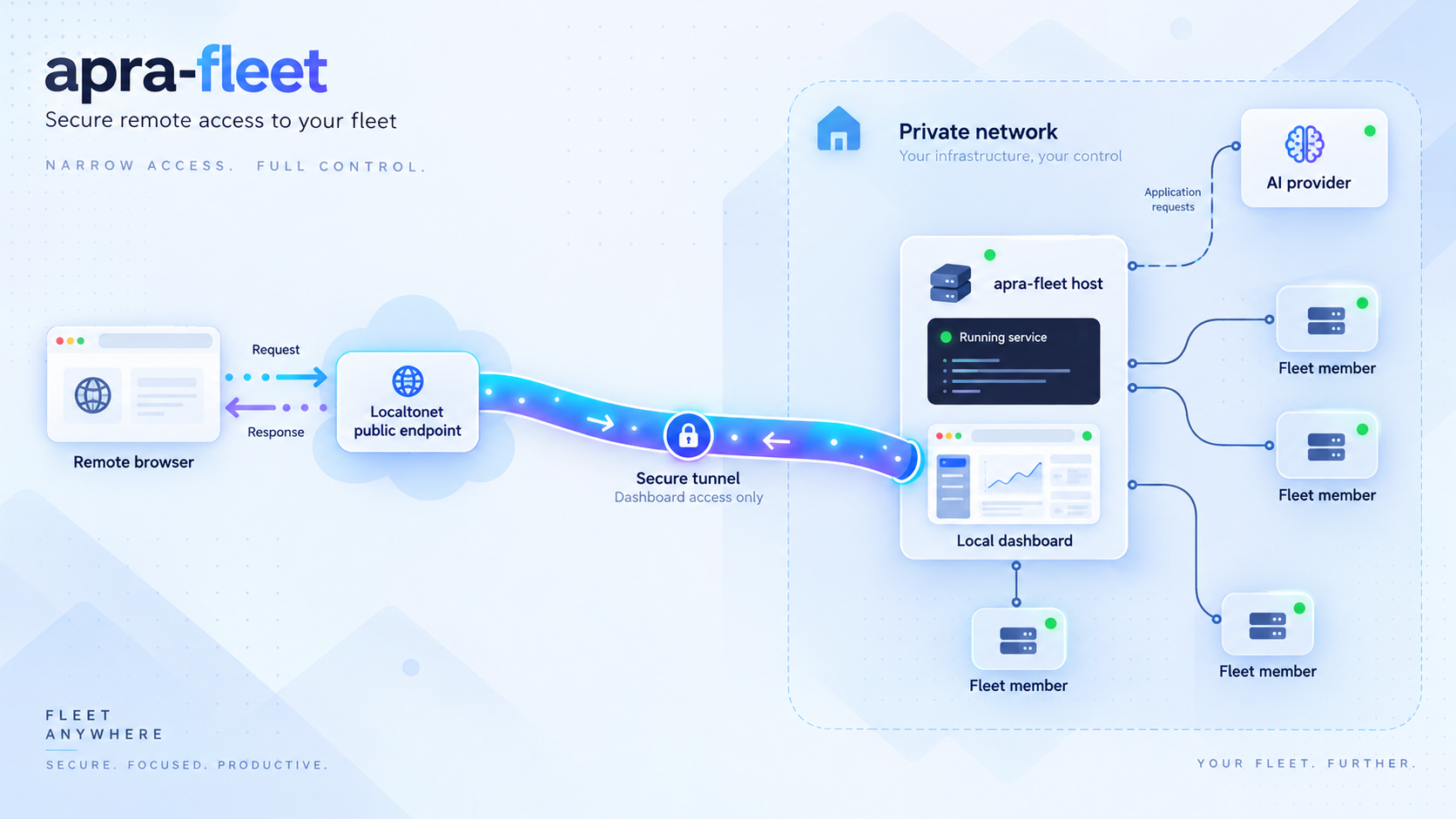
The dashboard is useful because it can show fleet activity, workflow progress, dispatches, verdicts, costs, and captured child-process output. That visibility can also reveal sensitive operational information. Remote access should therefore terminate at the browser-facing dashboard listener only. The provider's MCP connection, supervisor internals, SSH service, fleet member interfaces, repositories, and other control-plane components should remain private unless you have a separate reviewed requirement for exposing them.
REMOTE ACCESS PATH

Operator browser
      |
      | Public HTTPS address
      v
Localtonet relay
      |
      | Outbound tunnel connection
      v
Localtonet client on supervisor
      |
      | Only the verified local HTTP host and port
      v
apra-fleet dashboard listener

PRIVATE CONTROL-PLANE PATHS

MCP-capable provider CLI
      |
      +---- apra-fleet server / supervisor
                    |
                    +---- local fleet members
                    |
                    +---- SSH-connected remote members
                    |
                    +---- installed workflow runtime
                    |
                    +---- provider credentials and secrets

Do not include MCP, SSH, member, database, or other private
control interfaces in the dashboard tunnel target.| Component | Role | Remote-access treatment |
|---|---|---|
| MCP-capable provider CLI | Lets Claude Code, Antigravity, Codex, Copilot, or OpenCode interact with the fleet integration. | Keep private. It is not the browser dashboard target. |
| apra-fleet server and supervisor | Coordinates members, health, secrets, workflow execution, and operational state. | Expose only its verified browser-facing HTTP listener, not unrelated control interfaces. |
| Local and SSH-connected members | Run dispatched work on registered Windows, macOS, or Linux machines. | Keep member and SSH interfaces private. |
| Installed workflow runtime | Provides installed workflows, schemas, shared packages, and workflow resolution under the apra-fleet home directory. | Not a network target. Protect its files with normal host permissions. |
| Dashboard HTTP listener | Provides browser-based operational visibility. | Eligible for a focused Localtonet HTTP tunnel after local and security verification. |
| Localtonet client | Creates an outbound connection to a Localtonet relay and forwards the public URL to the selected local target. | Run it on the supervisor or another trusted device that can reach the dashboard listener. |
Current apra-fleet material confirms a live dashboard, but the evidence available for this guide does not define one universal dashboard hostname, port, URL path, bind address, or authentication model. Read those values from the startup output, generated configuration, or documentation matching your installed release. Do not copy a port from an unofficial tutorial.
Reconcile the current requirements before installing
The current apra-fleet pages describe more than one distribution generation, so apparently conflicting dependency statements need context. The current installation guide documents platform-specific standalone installers, an installed workflow runtime, generated provider configuration, and automatic MCP registration. Its requirements section says that the local machine needs a supported AI coding agent CLI and that remote members need SSH access through an SSH server.
The repository README also retains an npm quick-start path. That path begins with Node.js 22 or later because npm itself is used to install the package. The README additionally states that its default installation of fleet-se requires system Node.js 22.16 or later and npm on PATH, while --workflows none installs the core without that workflow bundle.
Finally, the v0.4.3 release notes contain historical upgrade requirements for that release. They required Node.js 22.16 or later, npm, and Beads bd 1.3.0 on the orchestrator and every member running sprints. Those notes remain important when operating or migrating v0.4.3, but they should not be presented as universal current requirements for a newer standalone installer layout.
For a current standalone installation, follow the requirements and generated layout in the current install guide. For the npm path, satisfy the Node.js and npm requirements stated by the current README. If you are upgrading an existing v0.4.3 fleet, follow the v0.4.3 migration notes before moving to a newer version. When official pages differ, the installation guide and release notes matching the exact artifact you run take precedence over assumptions copied from another release.
Current standalone installation prerequisites
- A supported AI coding agent CLI on the machine where you run Fleet: Claude Code, Antigravity through
agy, Codex, Copilot, or OpenCode. - SSH access to any remote machines you plan to register.
- An SSH server available on each remote member.
- A supported standalone installer architecture, or a source build where no prebuilt binary exists.
- A trusted local account with permission to write the generated files under its home directory.
npm installation prerequisites
The npm path requires Node.js because it starts with a global npm package installation. Check the environment from the same shell you will use for setup:
node --version
npm --version
Follow the versions stated by the current README for the package version you install. If you intentionally choose the core-only mode, the README documents --workflows none, but that choice omits the workflow installation you would otherwise receive. Do not select core-only mode when your goal requires the installed sprint workflows.
Historical v0.4.3 prerequisites
For fleets still running or migrating through v0.4.3, the release required Beads bd 1.3.0 on every sprint-running member, including the orchestrator, doers, and reviewers. It also required Node.js 22.16 or later and npm for the supervisor, orchestrator, and sprint members. Check the task tracker with:
bd versionKeep this check in a v0.4.3 migration plan, not as an unsupported assertion about every future release. Newer packaging installs a shared workflow runtime and may have different dependency handling, so verify the current install guide and the release notes for the exact version being deployed.
Install apra-fleet using a supported path
The current standalone path is the most directly documented cross-platform installation route. The npm path remains in the repository quick start and is useful where the required Node.js environment is already managed. Use one primary path for the initial install rather than mixing files from both approaches.
Option A: Current standalone installer
| Platform | Supported prebuilt architecture | Installer artifact |
|---|---|---|
| macOS | Apple Silicon, ARM64 | apra-fleet-installer-darwin-arm64 |
| Linux | x86_64 | apra-fleet-installer-linux-x64 |
| Windows | x64 | apra-fleet-installer-win-x64.exe |
The current install guide explicitly states that there is no prebuilt darwin-x64 installer. Intel Mac users must build from source using the repository's current development instructions. Do not run the Apple Silicon artifact as though it were an Intel build. The supplied evidence does not include the complete current source-build command sequence, so this guide does not invent one.
macOS on Apple Silicon
Download the current ARM64 installer from the official release location, make it executable, and run it. Installation is the default action, so no install subcommand is required:
curl -fsSL https://github.com/Apra-Labs/apra-fleet/releases/latest/download/apra-fleet-installer-darwin-arm64 -o apra-fleet-installer
chmod +x apra-fleet-installer
./apra-fleet-installer
Linux on x86_64
Download and run the Linux x64 installer:
curl -fsSL https://github.com/Apra-Labs/apra-fleet/releases/latest/download/apra-fleet-installer-linux-x64 -o apra-fleet-installer
chmod +x apra-fleet-installer
./apra-fleet-installer
Windows on x64
Download apra-fleet-installer-win-x64.exe from the project's official releases page and open it, or download and run it from PowerShell:
Invoke-WebRequest -Uri "https://github.com/Apra-Labs/apra-fleet/releases/latest/download/apra-fleet-installer-win-x64.exe" -OutFile "apra-fleet-installer.exe"
.\apra-fleet-installer.exe
The current install guide also states that an explicit install subcommand is accepted and performs the same installation action. Use the no-argument form above unless you need to make the action explicit in a controlled procedure.
Option B: Install through npm
Confirm the npm environment
Verify Node.js and npm from the shell that will perform the global installation. Apply the current README requirements for the selected package version.
node --version
npm --versionInstall the published package globally
Use the package name documented by the official repository.
npm install -g @apralabs/apra-fleetRun the installer for the intended provider
The default is Claude Code. The README also documents provider selections for Antigravity, OpenCode, Codex, and Copilot.
apra-fleet install

apra-fleet install --llm agy
apra-fleet install --llm opencode
apra-fleet install --llm codex
apra-fleet install --llm copilotStart the installed service
The repository quick start uses the installed bin directory shown below. Keep the output available because it may identify version-specific startup or dashboard information.
cd ~/.apra-fleet/bin && apra-fleet startTo install the core without workflows, the README documents:
apra-fleet install --workflows none
Core-only installation is a deliberate scope choice. It is not equivalent to the normal workflow installation, and it should not be used merely to hide a dependency or packaging error when you actually need fleet-sprint.
Know what the current installer writes
The current installation guide describes a broader layout than older summaries that treated apra-fleet as only a single binary. Understanding this layout helps with troubleshooting, backups, provider discovery, workflow execution, updates, and uninstall verification.
| Installed path | Purpose |
|---|---|
~/.apra-fleet/bin/apra-fleet[.exe] |
The main fleet executable. |
~/.apra-fleet/hooks/ |
Shell hooks, including status-line integration. |
~/.apra-fleet/scripts/ |
Helper scripts used by the installation. |
~/.apra-fleet/node_modules/ |
The shared on-disk workflow runtime and its installed dependencies. |
~/.apra-fleet/schemas/ |
Installed role verdict and input JSON schemas used by the workflow launcher. |
~/.apra-fleet/workflows/ |
Installed built-in or user-authored workflows plus installation metadata. |
| Provider skill and configuration directories | Fleet skills, provider configuration, hooks, MCP registration, workflow descriptions, or role-agent files appropriate to the selected provider. |
Claude Code integration
For Claude Code, the guide documents generated fleet and PM skills under ~/.claude/skills/, a Claude-only auto-sprint workflow, its argument contract, the fleet-sprint CLI guidance, and PM role-agent files where supported. The install also registers the MCP server through Claude's MCP configuration and configures a status-bar indicator for fleet member activity.
Automatic registration means you should normally verify the generated integration before attempting to add a second manual MCP entry. Duplicating a registration can make troubleshooting harder because the provider may display multiple entries pointing to different configurations.
Other provider integrations
Other providers receive files in their own skill or configuration directories. For Antigravity, the current guide specifically describes settings under ~/.gemini/antigravity-cli/settings.json and merged hook and MCP configuration in ~/.gemini/config/hooks.json and ~/.gemini/config/mcp_config.json. These files configure the provider CLI used for orchestration.
Generated configuration should be reviewed carefully if the provider already has local customizations. Do not replace provider configuration wholesale with examples from another machine. Let the supported installer perform its documented merge, then inspect the resulting provider connection.
Remote-member provisioning
The local installation covers the machine on which it runs. Remote members receive their PM agent files independently. The current guide states that register_member and update_member push the files on first contact. On the first dispatch to a member during each server run, execute_prompt checks for missing or stale files and provisions them again when necessary.
This behavior means an existing remote member can receive newer agent files after a Fleet upgrade without being registered again. Local members share the operator's home-directory installation and do not use that remote push process.
Written files and generated provider configuration show that installation ran. They do not prove that the server is running, the provider has loaded the MCP integration, remote members are reachable, workflows can launch, or the dashboard is accessible. Verify each layer separately.
Do not confuse auto-sprint with fleet-sprint
The current install guide describes two separate, independently maintained sprint implementations. Their names are similar, but they have different providers, model-selection behavior, source locations, and launch methods.
| Characteristic | auto-sprint |
fleet-sprint |
|---|---|---|
| Implementation type | Claude Code workflow | apra-fleet CLI workflow |
| Provider scope | Claude Code only | Works with providers assigned to registered fleet members, including Claude, Codex, Copilot, Antigravity, and OpenCode. |
| Model selection | Uses literal Claude model names. | Uses Fleet's cheap, standard, and premium tier keywords on a per-member basis. |
| Launch form | /auto-sprint <bead-ids> inside Claude Code |
apra-fleet workflow fleet-sprint ... |
| Installed location | Claude workflow and supporting skills under ~/.claude/ |
Installed workflow content and runtime under ~/.apra-fleet/ |
There is no separate fleet-sprint executable. The current documentation states that the root package exposes apra-fleet, and the workflow engine is reached through:
apra-fleet workflow fleet-sprint
The complete fleet-sprint invocation requires release-matched workflow arguments such as issue, member, branch, and base selections. Consult the CLI reference shipped by the project before launching production work. This article does not invent placeholders that could target the wrong repository, branch, or members.
Connect the provider and register fleet members
Verify automatic MCP registration
Restart the selected provider CLI after installation if it was already open. For Claude Code, the repository quick start uses:
/mcpConfirm that the apra-fleet server appears in the provider's MCP view and that expected tools are available. If it is absent, verify that you selected the correct provider during installation and inspect the generated provider configuration. Do not expose the MCP connection through Localtonet to solve a local registration problem.
Register local members conversationally
apra-fleet is designed to accept member-registration requests through an MCP-capable agent. The repository illustrates requests such as:
Register a local member called doer.
Register another called reviewer.
Pair them.
Choose names that communicate operational roles. Member names improve readability, but they are not access-control boundaries. Verify the resulting members and their health rather than assuming that a conversational request completed every provisioning action.
Register remote members with known host information
A remote registration requires the real host address, username, and project working directory from your environment. Confirm ordinary SSH administration first. Remote machines need an SSH server, and your operator account must have the intended access.
Do not place SSH passwords in model chat. The project documents out-of-band password collection in a separate terminal so that the secret is not entered into the conversation. Continue to apply your own credential policy, repository permissions, host-key verification, and least-privilege requirements.
Allow remote provisioning to complete
On first contact, member registration or update pushes the appropriate PM agent files to the remote member. The first dispatch in a server run checks those files again and refreshes missing or stale content. If a recently upgraded member fails during its first task, inspect provisioning and connectivity before assuming the workflow itself is defective.
Verify apra-fleet and the dashboard locally
Local verification determines the exact service that Localtonet will publish. Complete it before creating a public tunnel.
Confirm the process remains running
Start apra-fleet using the method appropriate to your installation and watch its output for immediate configuration, provider, workflow, or binding errors. A process that prints a startup line and then exits is not a healthy service.
Record any output that identifies a dashboard address, listening host, TCP port, or URL path. If startup output does not provide these values, inspect the generated configuration and documentation matching the installed release. The supplied evidence does not establish a universal command for printing the dashboard endpoint.
Identify the complete local endpoint
Obtain all of the following:
- The hostname or local IP address on which the dashboard listens.
- The TCP port used by the HTTP listener.
- Any required path after the host and port.
- Whether the listener is bound to loopback or another interface.
- The authentication and session behavior presented to a new browser.
If the dashboard listens only on loopback, running the Localtonet client on the same host usually preserves the narrowest network path. Do not broaden the dashboard bind address merely to make tunneling easier when the client can run beside the application.
Open the dashboard locally
Construct the URL from the values reported by the installed version and open it from a browser that can reach the listener. Confirm that the expected apra-fleet interface appears rather than another service using the same port. Verify that member and workflow information loads, not just an empty application shell.
If the root URL does not serve the dashboard but the application reports a specific path, use the reported path. Do not guess routes such as /dashboard, /admin, or /ui.
Test authentication in a clean session
Open the local dashboard in a private browser window or a fresh browser profile. Determine whether it requires authentication and what an unauthenticated visitor can read or change. The current evidence does not establish a universal apra-fleet dashboard authentication model.
A local page load proves reachability, not safe public exposure. If the installed dashboard does not provide authentication suitable for your use case, keep it local or place it behind a separately verified protective layer that provides authentication and authorization. An unpredictable public URL is not an authentication control.
Expose the verified dashboard with Localtonet
After the dashboard works locally, a Localtonet HTTP tunnel can publish that specific listener through a public HTTPS address. Our client establishes an outbound connection to a Localtonet relay, so the workflow does not require inbound router port forwarding, firewall changes for public ingress, VPN setup, or a public IP address.
Use the Localtonet HTTP tunnel documentation alongside the configuration below. Current server or region values, device tokens, and available process-type choices must come from your Localtonet dashboard rather than from hardcoded examples.
Install and run the Localtonet client
Run the client on the apra-fleet supervisor or another trusted device that can reach the exact dashboard IP address and port. A same-host client is appropriate when the dashboard listens only on loopback.
Open the HTTP tunnel configuration
In the Localtonet dashboard, create an HTTP tunnel for the browser-facing service. Do not select a raw port tunnel for an unrelated control interface when the intended target is the HTTP dashboard.
Select the process type
Choose Random Sub Domain, Custom Sub Domain, or Custom Domain as available in your current configuration. These process types serve the same target content at a public HTTPS address. Check current Localtonet instructions before changing DNS for a custom domain.
Select the device token and relay server
Select the device-specific authentication token for the client that will run the tunnel, then choose an available server or region from the live dashboard. Treat the token as a credential and never place it in source control, screenshots, public logs, or article examples.
Enter the verified local target
Set the local IP address and port to the dashboard listener established during local verification. Do not enter an SSH port, MCP endpoint, member service, or guessed dashboard port. Preserve any verified dashboard path for use in the browser URL.
Start the tunnel
Review the target and use the Start button. Creating a tunnel saves its configuration but does not make it active. The selected client must remain connected and the tunnel must remain running.
Test the public address
Open the assigned public HTTPS URL in a fresh browser profile or from an external network. Append only the dashboard path verified locally. Confirm that the expected application loads, live information updates, and authentication behaves the same way it did during the clean local test.
Also check for redirects to localhost, a private hostname, or another origin that the remote browser cannot reach. Such redirects come from upstream application behavior and should be corrected using documented apra-fleet configuration. Do not publish additional ports as a workaround.
Localtonet provides the public HTTPS route to the configured local HTTP target. The upstream application remains responsible for its own users, sessions, authorization, and sensitive actions. If apra-fleet does not provide adequate authentication in your installed version, use application-level authentication or a separately verified authentication layer before making the URL available to operators.
Protect the dashboard and private control plane
Expose one verified HTTP target
The Localtonet configuration should contain one known local address and port for the dashboard. Do not expose SSH, provider MCP configuration, databases, member listeners, or other administrative services merely because they are located on the same machine.
If an upgrade changes the listener or the public URL begins serving an unexpected application, stop the tunnel and investigate. Do not redirect the tunnel experimentally across several local ports.
Use real authentication
Do not assume that the public URL itself restricts access. Do not describe an unverified Localtonet setting as an access-control feature. Authentication should be enforced by the application or by a separately verified protective service placed in front of it. That layer should be configured according to its own current documentation and your organization's identity policy.
Review whether users can view prompts, logs, repository paths, branch names, machine names, costs, dispatch output, or operational controls. Grant access only to intended operators and apply least privilege.
Protect secrets and generated files
Keep Localtonet device tokens, provider credentials, SSH secrets, repository credentials, private endpoints, and workflow secrets out of prompts and public logs. Use the project's out-of-band collection flow for remote passwords. Protect the generated ~/.apra-fleet/ and provider configuration directories with appropriate local account permissions.
For v0.4.3 specifically, {{secret.NAME}} replaced the older {{secure.NAME}} spelling. The old spelling remained a deprecated alias in that release. Scripted consumers also had to update renamed structured reason codes. Treat these as v0.4.3 migration details, not as proof of current behavior in every later release.
Stop access when it is no longer needed
A Localtonet tunnel remains available only while the selected client is connected and the tunnel is running. Stop the tunnel when remote dashboard access is not required. Delete obsolete configurations and retire unused device tokens according to your credential lifecycle.
Update, verify, and uninstall apra-fleet
Update through the installed CLI
The project documents self-updating through:
apra-fleet updateBefore updating a production fleet, read the release notes between the installed and target versions. Inventory the supervisor, local members, remote members, provider integrations, and active workflows. Pause new work and preserve any operational records required by your process.
After the update, restart the relevant process and provider CLI, then verify:
- The apra-fleet process starts without immediate errors.
- The provider still discovers the registered MCP server.
- Installed workflows and schemas are present.
- Remote members reconnect and receive refreshed agent files when required.
- The local dashboard still uses the expected host, port, and path.
- Authentication behavior remains acceptable in a clean browser session.
- The Localtonet tunnel still targets the correct listener.
Special handling for an upgrade from v0.4.2 to v0.4.3
The v0.4.3 notes describe a historical case where running apra-fleet update from v0.4.2 on a machine without Node.js could leave v0.4.2 running because the new installer stopped before changing files while the older updater hid its output. The documented v0.4.3 remedies were to install Node.js 22.16 or later first, or install the v0.4.3 core explicitly:
apra-fleet install --force --workflows noneUse that command only for the documented historical migration scenario. For a current release, follow its current update notes rather than applying an old recovery procedure automatically.
Uninstall using the documented CLI action
The current installation guide includes uninstall coverage for the installed layout. Stop active workflows, stop the Localtonet tunnel, and stop apra-fleet before removal. Then run the uninstall action from the installed CLI:
apra-fleet uninstallReview the command output and inspect the paths listed in the current installation guide. Because installation can merge MCP settings, hooks, and provider configuration into provider-owned files, do not blindly delete an entire provider configuration directory. Verify that apra-fleet-specific registrations and generated files were removed without erasing unrelated provider settings.
After uninstalling, confirm that the apra-fleet process is no longer running, the provider no longer advertises the removed MCP integration, and obsolete Localtonet tunnels are stopped or deleted. If you intend to preserve workflow data or operational records, back them up according to the project guidance and your own retention policy before uninstalling.
Use a repeatable operational check
After a host restart or maintenance event, verify the layers in order: apra-fleet process, local dashboard, provider MCP connection, member health, workflow availability, Localtonet client, and tunnel state. This sequence distinguishes an application failure from a tunnel lifecycle issue.
Troubleshoot installation and remote access
The standalone installer does not match the machine
Verify both the operating system and architecture. The current prebuilt artifacts cover Apple Silicon macOS, x86_64 Linux, and x64 Windows. Intel macOS has no prebuilt binary and requires a source build. Do not rename an incompatible artifact or bypass operating-system warnings to force it to run.
apra-fleet is not found after npm installation
Confirm that the global npm install completed and that npm's global executable directory is included in the current shell's PATH. Open a new terminal if the environment refreshes its path only at shell startup. Avoid moving generated files manually before checking npm's configuration.
The provider does not show apra-fleet
Restart the provider CLI, verify that the intended provider was selected during installation, and inspect the generated MCP configuration. For Claude Code, use /mcp to inspect available servers. Avoid adding a second manual registration until you understand why the automatic registration is absent.
A remote member is registered but cannot run work
Confirm direct SSH access, the configured username, the member's working directory, and the permissions required for the assigned task. Allow first-contact provisioning to complete. On the first dispatch during a server run, apra-fleet checks for missing or stale agent files and may provision them again.
A v0.4.3 sprint fails during synchronization
The v0.4.3 release warns that a mixed-version fleet can fail during synchronization rather than at launch. Check versions across the orchestrator, doers, reviewers, and every other sprint-running member. Confirm the v0.4.3 requirement for bd 1.3.0 where that release is still in use.
A v0.4.3 member fails the beads identity check
That release requires the member's .beads data to belong to the project being launched. Verify that the working folder is the intended Git clone, has an origin remote, and has the required synchronization remote. The v0.4.3 notes document no bypass flag, so correct the project configuration.
The dashboard address is unknown
Review startup output, generated configuration, and the documentation matching the installed version. Identify the actual host, port, path, and bind address. Trying common development ports is not a reliable substitute.
The dashboard works locally but not through Localtonet
- Confirm that the verified local dashboard URL still works.
- Confirm that the selected Localtonet client is connected.
- Confirm that the HTTP tunnel is running, not merely created.
- Compare the tunnel target with the verified dashboard IP address and port.
- If the client is on another device, confirm that device can reach the target directly.
- Check for redirects to loopback or a private hostname.
- Append only the dashboard path established during local verification.
The public URL serves an unexpected application
Stop the tunnel immediately. Another process may be using the configured port, or the tunnel may still point to a stale listener. Identify the application locally, correct the target, and repeat the clean-browser security check before restarting public access.
The tunnel exists but its public URL is unavailable
Verify both Localtonet lifecycle conditions. The selected client must be connected, and the tunnel must be running. A saved tunnel configuration alone does not create an active endpoint.
Frequently asked questions
Does the current apra-fleet standalone installer require Node.js?
The current install guide describes standalone installers, an installed workflow runtime, a supported coding-agent CLI, and SSH for remote members. The README's npm path still has Node.js requirements, and v0.4.3 had explicit Node.js 22.16 requirements for sprint-running machines. Apply the requirements for your installation path and exact release rather than treating the historical v0.4.3 requirement as universal.
Can I install apra-fleet on an Intel Mac?
Yes, but the current installation guide states that there is no prebuilt darwin-x64 installer. Intel Mac users must build from source using the repository's current development instructions.
Are auto-sprint and fleet-sprint the same workflow?
No. auto-sprint is a Claude Code workflow launched inside a Claude session. fleet-sprint is an apra-fleet CLI workflow launched through apra-fleet workflow fleet-sprint and can use providers assigned to registered fleet members.
Does the installer register MCP automatically?
The current install guide says the installation registers the MCP server and writes provider-specific skills or configuration. Restart the provider CLI when necessary and verify the generated registration before adding any manual duplicate.
What is the default apra-fleet dashboard port?
The evidence available for this guide does not establish a universal dashboard port, hostname, path, or bind address. Obtain the endpoint from the startup output, generated configuration, or documentation matching the installed version. Do not configure Localtonet with a guessed port.
Does Localtonet automatically add user authentication to the dashboard?
Do not assume that it does. The HTTP tunnel provides a public route to the configured local service. The upstream application remains responsible for its users, sessions, authorization, and sensitive operations. Use application-level authentication or a separately verified protective layer when required.
Must the Localtonet client run on the apra-fleet supervisor?
Not necessarily. It can run on the supervisor or another trusted device that can reach the verified dashboard IP address and port. Running it on the same host is useful when the dashboard intentionally listens only on loopback.
Is a Localtonet tunnel active immediately after creation?
No. Creating the tunnel saves its configuration. You must start it with the Start button, and it remains available only while the selected client is connected and the tunnel is running.
Should I expose SSH or MCP through the same tunnel?
No. This workflow is specifically for the verified browser-facing dashboard. Keep SSH, MCP, member, database, and other control-plane interfaces private unless each has a separate documented requirement and security review.
Access your verified apra-fleet dashboard with Localtonet
Install apra-fleet using the path that matches your platform, confirm the generated provider and workflow layout, identify the real dashboard listener, verify authentication, and then publish only that HTTP target through Localtonet.
Get Started Free →

