

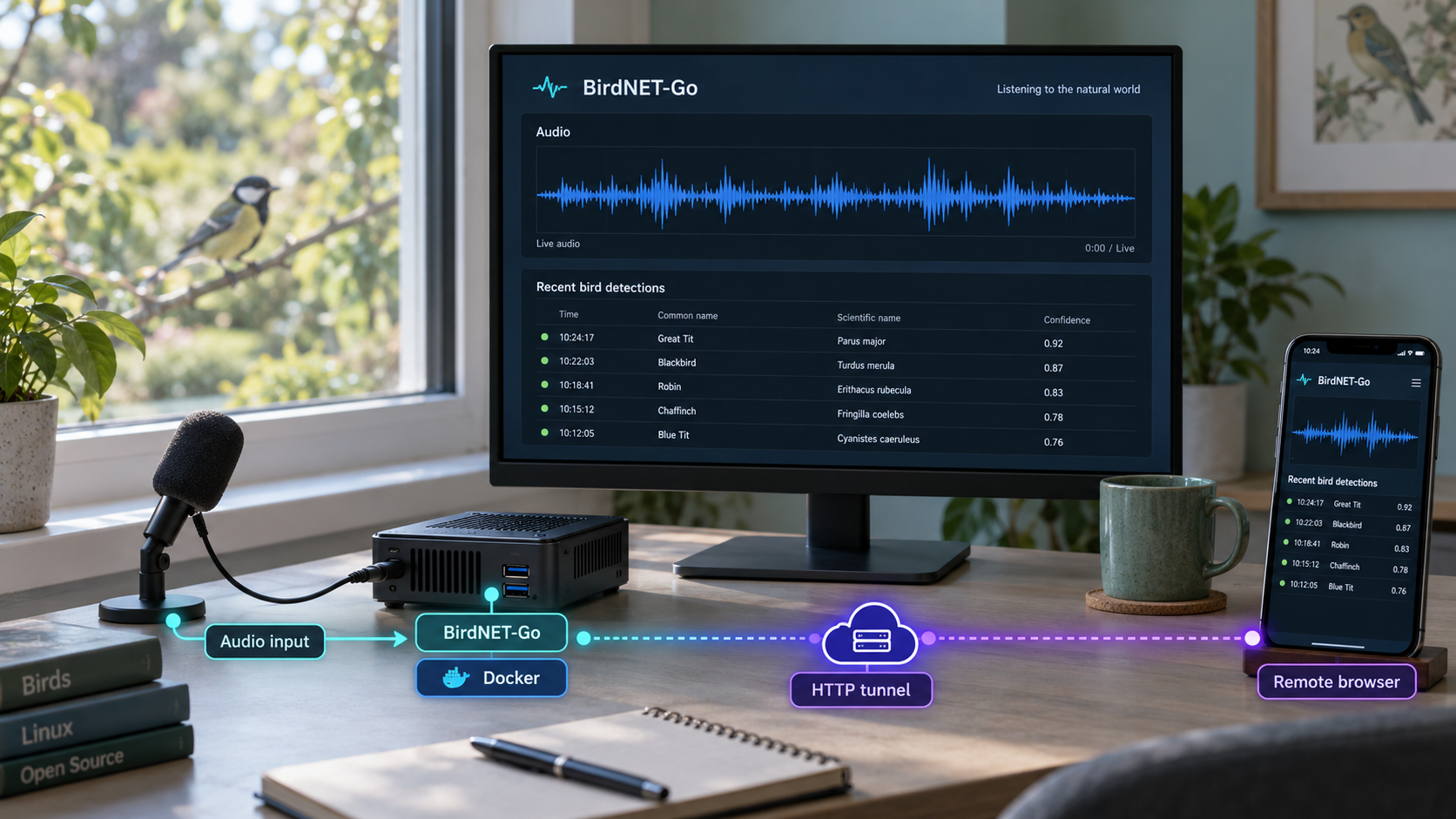
Build a continuously running wildlife-monitoring station, confirm it locally, and publish only the dashboard you intend to share
BirdNET-Go is a self-hosted soundscape analysis application that can process soundcard input or network audio streams, run wildlife-detection models locally, and present detections through a browser dashboard. This guide installs the application with its recommended host-network Docker Compose configuration, walks through first-run setup and local verification, and then treats remote access as a separate deployment step. Once the local service works correctly, we will connect it to a Localtonet HTTP tunnel without requiring inbound router port forwarding, a public IP address, VPN setup, or firewall changes. Because the available BirdNET-Go evidence does not establish a universal dashboard port or local URL, the workflow deliberately discovers those values from the installed configuration instead of guessing them.
📋 What's in this guide
Why install BirdNET-Go locally before configuring remote access?
BirdNET-Go is designed for continuous, self-hosted wildlife monitoring. It can ingest audio from a soundcard or RTSP and RTSPS network streams, analyze that audio locally, and display detections in a web interface. The application supports multiple audio sources, model assignment, live spectrograms, detection heatmaps, alerting integrations, local storage, system-health diagnostics, and browser-based administration.
The most reliable deployment sequence is to separate application installation from internet connectivity. First, install BirdNET-Go, complete its onboarding process, confirm that the audio source works, and verify the dashboard from the local network. Only then should you expose the dashboard through an HTTP tunnel. This separation makes failures easier to diagnose. If the local page does not load, the problem is inside the BirdNET-Go, Docker, host networking, or local firewall configuration. If the local page works but the public address does not, the investigation can focus on the Localtonet client and tunnel target.
This order also reduces accidental exposure. BirdNET-Go describes itself as local-only by default, but publishing its dashboard changes the access boundary. Its interface may contain station location details, detection history, audio recordings, administrative settings, integrations, a browser terminal, and system diagnostics. A working local deployment should therefore be paired with appropriate BirdNET-Go authentication and least-privilege settings before its public URL is distributed.
Prerequisites and deployment decisions
BirdNET-Go publishes Linux container images for AMD64 and ARM64. That covers common x86-64 Linux computers and 64-bit ARM devices such as suitable Raspberry Pi systems. Its documented quick-install platforms include Debian, Ubuntu, and Raspberry Pi OS. This article focuses on Docker Compose and the repository's host-network Compose configuration rather than the separate shell installer.
Before beginning, prepare a Linux host with a working Docker installation and Docker Compose support. Confirm that your account can run Docker commands using the security model you have chosen for that machine. Docker daemon access is effectively privileged access to the host, so do not add users to Docker-related administrative groups without understanding that consequence.
You also need an audio source. This may be a locally attached capture device or a network stream supported by BirdNET-Go. Exact device names, stream addresses, credentials, sample rates, and permissions depend on your hardware. Keep network-stream credentials private, and do not place real passwords or private stream URLs into notes, screenshots, or public issue reports.
| Requirement | What to confirm | Why it matters |
|---|---|---|
| Supported Linux architecture | The host is Linux AMD64 or Linux ARM64 | BirdNET-Go publishes container images for these architectures. |
| Docker and Compose | Docker is running and the docker compose command is available |
The application stack will be validated, started, inspected, and updated through Compose. |
| Audio input | A soundcard or supported network stream is available to the host | The dashboard can run without proving that actual audio reaches the analysis pipeline. |
| Persistent storage | The Compose configuration points to storage locations appropriate for the host | Configuration, detections, databases, clips, and backups should survive container recreation. |
| Local browser access | A browser can reach the Linux host on the dashboard's configured endpoint | Local verification should be complete before a public tunnel is created. |
| Localtonet client | The client can run on the BirdNET-Go host or another device that can reach it | The client must establish an outbound connection and reach the selected local target. |
The available BirdNET-Go project evidence confirms a browser dashboard but does not establish one universal local URL, bind address, HTTP or HTTPS scheme, or port for every Docker Compose deployment. This guide therefore does not invent a value. Read the resolved Compose configuration, startup output, and installed application settings to identify the endpoint generated by your version.
Host networking versus bridge networking
BirdNET-Go directs Docker Compose users to its host-network configuration and identifies that configuration as the recommended starting point. Host networking means the container shares the host's network namespace instead of relying on an ordinary Docker port-publishing rule. This can simplify access to local audio and network resources, but it also means a familiar ports: mapping may not appear in the Compose file.
Bridge configurations remain supported by the project, but switching network modes changes how the browser endpoint and Localtonet target should be addressed. This article stays with the documented host-network starting point. If you deliberately choose a bridge configuration, use the actual published host port from that configuration and do not copy target values from a host-network deployment.
Choose a predictable source revision
Cloning the default branch is convenient, but it can change over time. For a reproducible deployment, inspect the available project releases and check out the version your team has reviewed. The release tag included in the supplied editorial evidence is 20261014. If you deploy a different release, review that release's configuration and upgrade notes because model behavior, settings, security requirements, and Compose content can change.
Install BirdNET-Go with Docker Compose
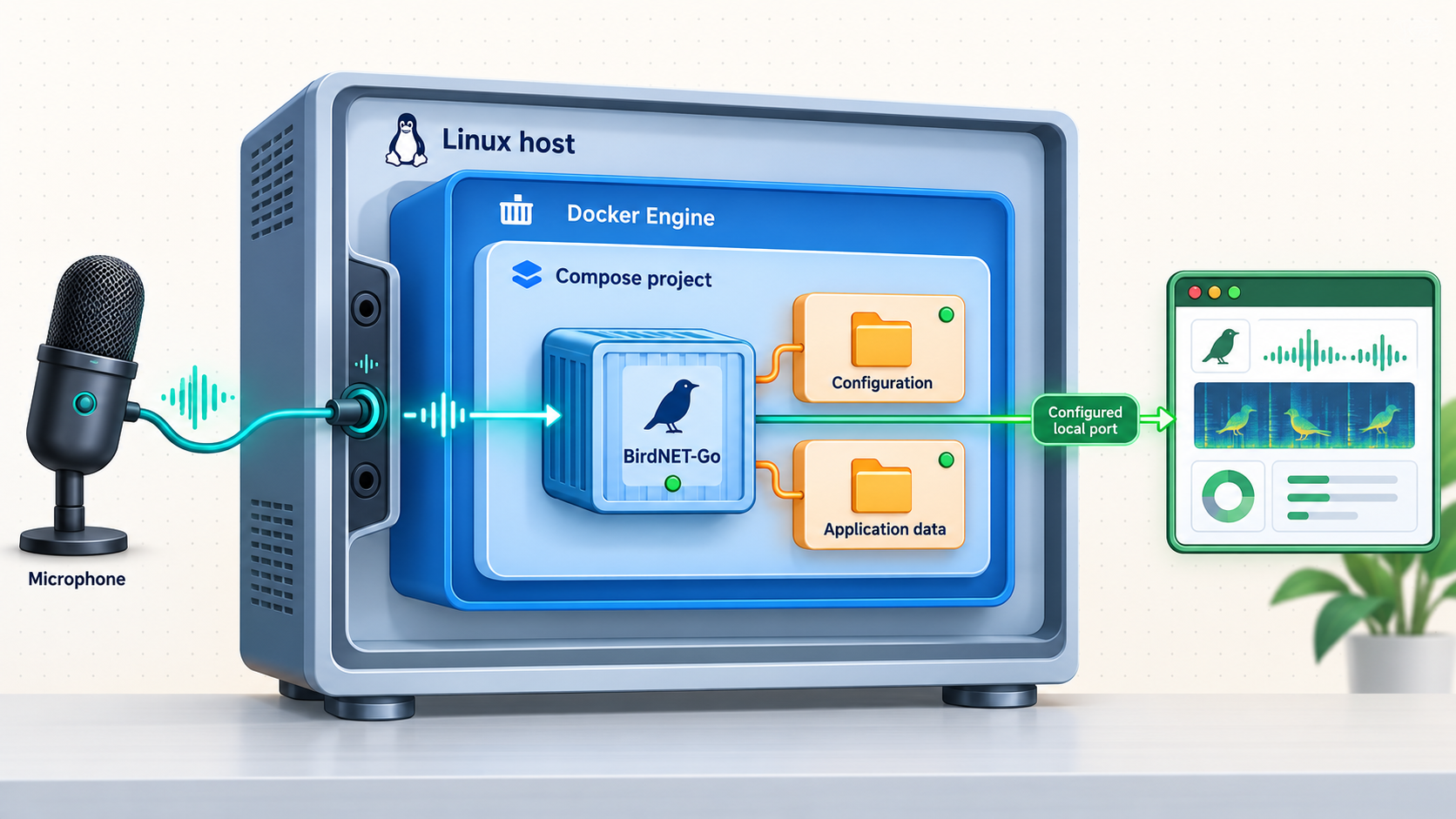
The following process uses the official project repository and its documented host-network Compose file at Docker/docker-compose.host.yml. The commands do not insert a dashboard port, service name, volume path, device path, or credential that has not been established by the project material.
Confirm Docker and Docker Compose are available
Run the version checks below. If either command fails, install Docker and the Compose plugin using the supported procedure for your Linux distribution before continuing. This guide does not prescribe a distribution-specific Docker installation command because package names and repository setup differ between Debian, Ubuntu, Raspberry Pi OS, and other systems.
Download the BirdNET-Go repository
Clone the official repository and enter the project directory. If Git is not available, install it through your operating system's normal package-management process or obtain the reviewed project files through an equivalent trusted method.
Select the release you intend to deploy
Review available tags and check out the approved release. The example uses the release identified in the supplied evidence. Do not downgrade an existing station without reading the relevant release notes and taking a backup, because newer versions may update configuration or stored data.
Inspect and validate the host-network Compose configuration
Read Docker/docker-compose.host.yml before running it. Review its image, network mode, mounts, environment values, device access, restart behavior, and persistent-storage locations. Then ask Docker Compose to render and validate the effective configuration.
Start BirdNET-Go in the background
Start the reviewed host-network stack with Docker Compose. Docker will obtain the required image if it is not already present and create the resources declared by the Compose file.
Inspect container state and startup output
Check the Compose process state and read the logs. Use the actual startup output and effective configuration to identify errors and determine where the dashboard is listening. Do not continue to remote exposure while the stack is repeatedly restarting or reporting initialization failures.
Start by checking the installed tools:
docker --version
docker compose version
Clone the repository and enter its directory:
git clone https://github.com/tphakala/birdnet-go.git
cd birdnet-go
If you have reviewed and selected release 20261014, check out that tag:
git checkout 20261014Before starting anything, inspect the supplied Compose file with a text viewer or editor. Then validate and render its effective configuration:
docker compose -f Docker/docker-compose.host.yml configThe rendered output is useful for confirming that Docker Compose can parse the file and for seeing the effective settings after variable substitution. Validation does not prove that an audio device exists, a mounted path is writable, a network stream is reachable, or the selected port is free. Those checks occur when the application starts and processes audio.
Start the stack:
docker compose -f Docker/docker-compose.host.yml up -dInspect its state and startup output:
docker compose -f Docker/docker-compose.host.yml ps
docker compose -f Docker/docker-compose.host.yml logsA container can access only the devices, files, directories, and network resources made available by its configuration and host permissions. Do not add broad privileged access as a first response to an audio problem. Grant only the specific access required for the selected capture device and storage locations.
Complete BirdNET-Go onboarding and configure the station
Once the container remains running and the logs identify the listening endpoint, open that endpoint from a browser on the local network. BirdNET-Go includes an onboarding wizard for first-run setup. Complete the wizard using values appropriate for the station rather than copying location, audio, model, or security settings from an unrelated installation.
The exact wizard screens may differ by release. The important outcome is a station with a known administrative access method, a valid audio input, at least one usable model, appropriate location and species settings, and writable storage. If the release reports that no model is installed or that a model could not load, resolve that condition through the dashboard before evaluating detection quality.
Configure the audio input
Select the soundcard or network stream intended for the station. For a physical microphone or audio interface, verify at the operating-system level that the device is present and available to the container. For RTSP or RTSPS, verify that the host can reach the source and that any required credentials are correct. Multiple sources can be configured independently, but begin with one known-good source when commissioning a new installation.
BirdNET-Go supports higher sample rates for ultrasonic bat detection, including sample rates up to 256 kHz, but that capability does not mean every soundcard, microphone, model, or host can use those rates. Bat monitoring requires suitable ultrasonic hardware and compatible classifiers. Ordinary microphones should not be assumed to capture ultrasonic calls accurately.
Select and validate detection models
BirdNET-Go supports multiple model families, including BirdNET, Google Perch, BattyBirdNET regional classifiers, the BirdNET Geomodel, and custom classifiers. Availability and packaging can change between releases. In the documented 20261014 release, BirdNET v2.4 remains included, while the project notes that its packaging is expected to change in a future release.
Start with a model appropriate for the wildlife, region, audio source, and hardware. Adding models and sources increases analysis work. BirdNET-Go can measure model-analysis time and reduce overlap when necessary to keep a busy system from falling behind, but administrators should still monitor CPU use, audio continuity, and detection latency.
Use false-positive filtering deliberately
BirdNET-Go's false-positive filter evaluates overlapping analysis windows and requires repeated agreement according to the selected strength. Stronger settings can substantially increase model runs. The documented release notes warn that the Maximum setting can reduce the analysis step from 1.5 seconds to 0.2 seconds, which can mean up to about 15 times more model runs per audio source and model.
If CPU load becomes excessive, lower the False Positive Filter Strength under Settings > Analysis. The application reports effective window and confirmation behavior there. Do not treat the strongest setting as universally best. The correct choice is one the hardware can sustain while maintaining audio continuity and producing useful detections.
Configure privacy and authentication
Wildlife microphones can capture conversations as well as animal sounds. BirdNET-Go includes privacy filtering capabilities, but technical filtering should complement appropriate microphone placement, notice, consent, retention decisions, and local legal requirements. Avoid pointing microphones toward private indoor or neighboring spaces where recording is not appropriate.
Configure application authentication before remote access. BirdNET-Go includes OIDC and SSO capabilities as well as security-related settings, but the exact configuration depends on your identity provider and release. Do not enable a login bypass merely because the service was previously limited to a trusted local subnet. Once a reverse proxy or tunnel is introduced, assumptions based only on source subnet can become unsafe.
Verify the complete local workflow
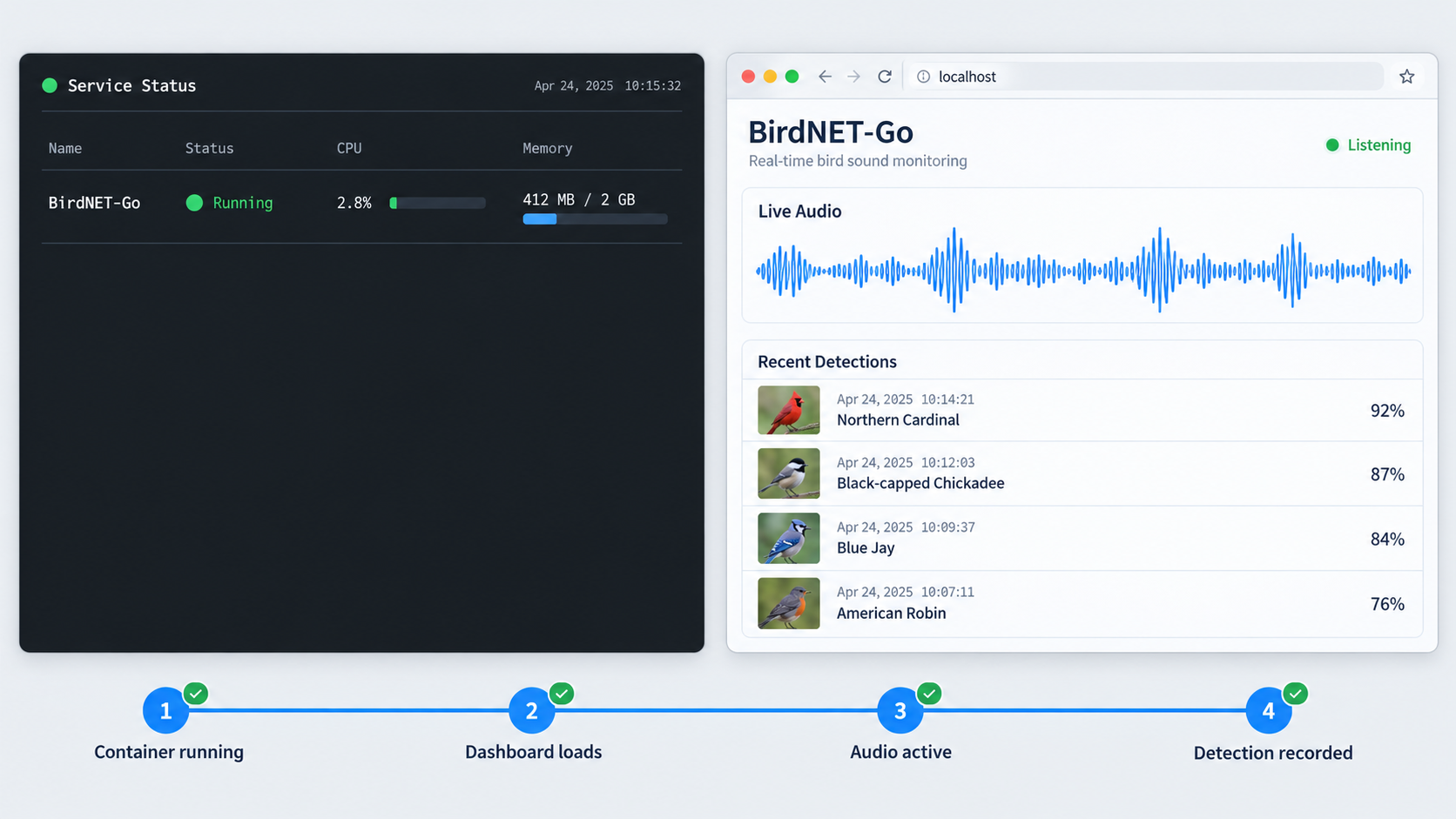
A running container is only the first checkpoint. A useful BirdNET-Go station must also serve its web interface, receive audio, load its selected models, write data, and remain healthy over time. Complete these checks locally before creating a Localtonet tunnel.
Confirm the Compose service remains running
Use the Compose status and logs commands to make sure the process is not stopping, restarting repeatedly, or failing while loading its configuration.
Open the discovered local dashboard endpoint
Use the scheme, host address, and port reported by the installed configuration or startup output. Confirm that the page loads from a browser on the host or local network.
Verify authentication and onboarding state
Confirm that the expected login or identity flow is active and that an unauthenticated browser cannot reach administrative functions that should be protected.
Verify live audio and model health
Use the dashboard's live views and health diagnostics to confirm that the selected source is active and that the intended model loaded successfully.
Confirm detections and persistent storage
Allow the station to operate long enough to produce expected data. Confirm that detections and any enabled clips appear and that the configured storage location remains writable.
Test after a controlled restart
Restart the Compose stack and confirm that settings and historical data remain available. This tests persistence before the station is relied upon remotely.
To perform the controlled restart and review the result:
docker compose -f Docker/docker-compose.host.yml restart
docker compose -f Docker/docker-compose.host.yml ps
docker compose -f Docker/docker-compose.host.yml logs
BirdNET-Go provides a System Health diagnostics page covering areas such as the audio pipeline, models and inference, networking, and the datastore. Use it alongside the container logs. A dashboard that loads successfully can still hide a disconnected audio source, failed model, database issue, or resource bottleneck.
Before moving on, write down the local scheme, reachable IP address, and port that you actually tested. For example, record whether the working target uses HTTP or HTTPS and whether it is reachable through a loopback address or the host's LAN address. These observed values, not an assumed default, will become the Localtonet tunnel target.
Reach BirdNET-Go remotely with a Localtonet HTTP tunnel
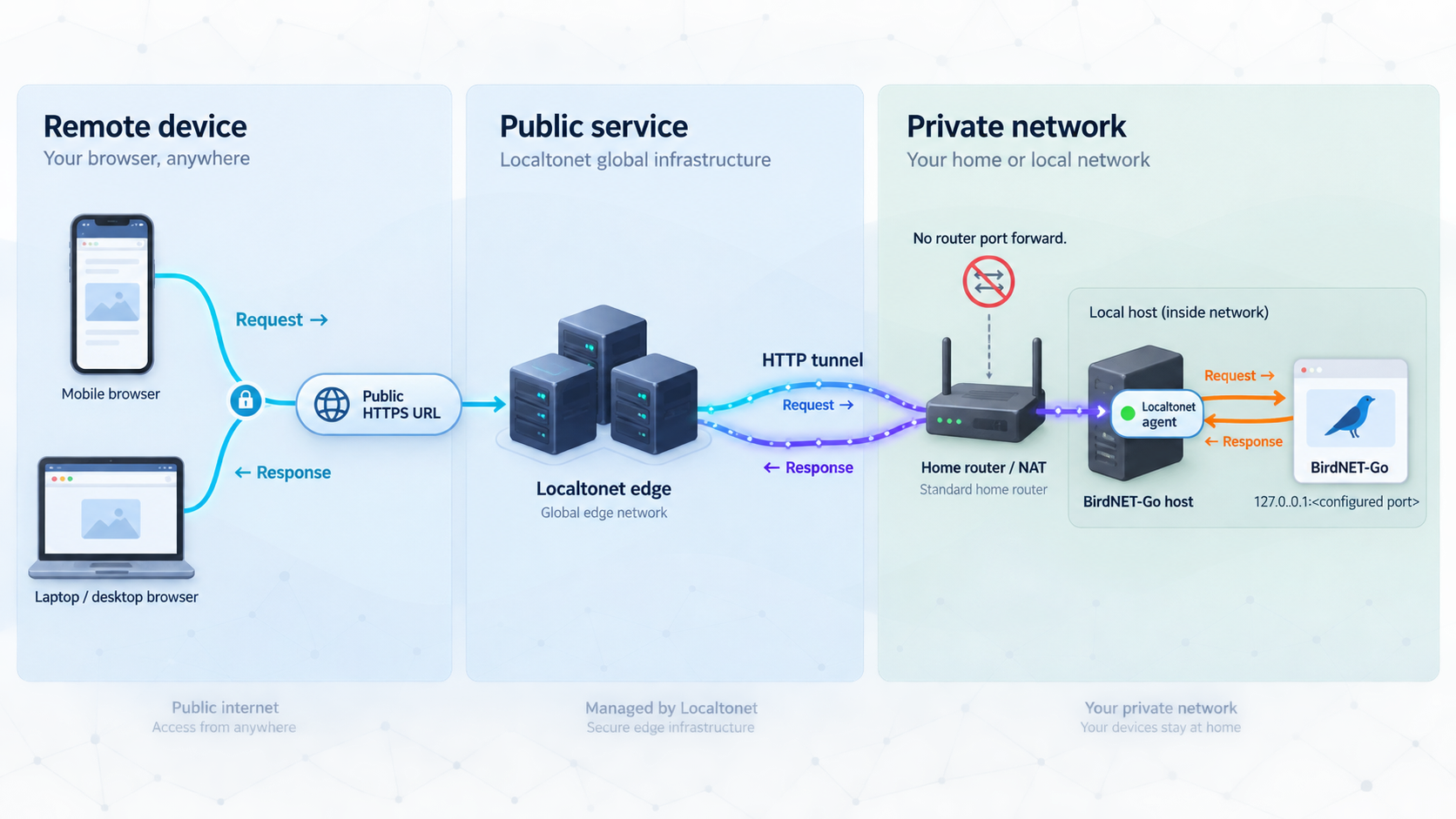
After local verification, install and run the Localtonet client on a device that can reach the BirdNET-Go endpoint. The simplest placement is often the BirdNET-Go host itself, but another machine on the same network can also be used if it can reach the dashboard through the tested address and port.
Our client establishes an outbound connection to a Localtonet relay server. The resulting HTTP tunnel provides a public HTTPS address without requiring an inbound router port-forwarding rule, a public IP address, firewall changes, or a VPN. The tunnel is available only while the selected Localtonet client is connected and the tunnel is running.
HTTP and File Server tunnels support Random Sub Domain, Custom Sub Domain, and Custom Domain process types. They serve the configured content at a public HTTPS address. Availability can vary by plan or current dashboard options, so select only an option presented for your account. Exact custom-domain DNS instructions should be taken from the current Localtonet documentation rather than inferred.
Install and run the Localtonet client
Install our client on the BirdNET-Go host or another device that can reach the verified dashboard endpoint. Keep the client running for as long as remote access is required.
Authenticate or select the client device
Use the device-specific authentication token associated with the client that will run the tunnel. Never paste the token into this article, a public command transcript, a screenshot, or a shared support message.
Select an available relay server
Choose a server or region currently offered in the Localtonet dashboard. Available server codes and regions can change and may vary by plan, so this guide does not hardcode a value.
Create an HTTP tunnel for the verified local target
Enter the local IP address and port that successfully opened BirdNET-Go during local testing. Select the appropriate process type from the options available to your account. Do not substitute a guessed default port.
Start the tunnel
Creating a tunnel does not start it. Use the Start button and wait until the selected client and tunnel indicate that they are connected.
Test the assigned public address
Open the assigned public HTTPS URL from a network outside the BirdNET-Go LAN. Test login, ordinary page navigation, and the live functions you intend to use. Stop the tunnel if the application is not yet secured as intended.
For the current product workflow, consult the Localtonet HTTP tunnel documentation . Dashboard labels and available options can evolve, so the current interface remains authoritative for account-specific choices.
Choosing the correct local target
If Localtonet runs on the same host as BirdNET-Go, use the exact local address that the application accepts on that host. A loopback address is appropriate only when the service is actually reachable through loopback. If the Localtonet client runs on another machine, loopback would point to that other machine rather than the BirdNET-Go server. In that arrangement, use BirdNET-Go's tested LAN-reachable address and port.
Host networking does not automatically prove that an application listens on every network interface. The bind behavior must be observed from the running installation. Likewise, seeing a port in a configuration file does not prove that the application started successfully. Test the target directly from the machine running the Localtonet client before assigning it to a tunnel.
Test interactive and live functionality separately
BirdNET-Go uses browser-based live functionality, including WebSocket-powered features. A successful initial HTML page load does not prove that every interactive stream works. After the public URL loads, test authentication, dashboard navigation, live spectrogram behavior, real-time updates, and any other feature required by your workflow.
The supplied Localtonet product context establishes HTTP tunneling and public HTTPS addressing, but it does not separately document behavior for every BirdNET-Go WebSocket feature. We therefore recommend testing the exact application version and workflow rather than claiming universal compatibility without evidence. If the basic page works but a live feature does not, compare browser developer-console messages, BirdNET-Go logs, and the same feature through the local URL.
Secure a remotely reachable wildlife-monitoring dashboard
A tunnel solves connectivity, not application authorization. Anyone who receives or discovers a public address may attempt to access it. Keep BirdNET-Go's authentication enabled, use strong credentials or a properly configured identity provider, and give administrative access only to people who need it.
Rules that treated a local subnet as trusted may no longer behave as expected when traffic arrives through a tunnel or reverse-proxy path. Review BirdNET-Go's current security settings and release notes before exposure. If you cannot confirm that authentication protects the public workflow, stop the tunnel until the configuration is corrected.
BirdNET-Go can store detection records and audio clips, and its interface includes powerful operational functions. Consider what should be visible remotely. If several people need observation-only access, do not automatically provide the same administrative capabilities used to configure models, integrations, storage, or browser-based terminal access.
Protect secrets associated with RTSP streams, alert destinations, OIDC providers, MQTT brokers, webhooks, databases, and Localtonet devices. Do not commit credentials to a public repository. Do not place them directly into screenshots. Restrict configuration-file permissions and use the secret-handling mechanisms supported by the deployed BirdNET-Go and Compose versions.
Privacy also applies to audio. Configure retention according to the station's purpose, avoid unnecessary recording of human speech, and review exported clips before sharing them. BirdNET-Go includes a Privacy Guard, but no automated filter should replace careful deployment and review.
When remote access is temporary, stop the tunnel after use. If a tunnel is no longer required, delete it. Remember that a configured tunnel is not necessarily active, and an active configuration depends on both the tunnel running and its selected client remaining connected.
Routine operation, backups, and updates
Use the same Compose file for routine lifecycle actions. This avoids accidentally operating on an unrelated Compose project or a different network configuration.
| Task | Command or action | Operational note |
|---|---|---|
| Check state | docker compose -f Docker/docker-compose.host.yml ps |
Confirm that the expected service remains running. |
| Read logs | docker compose -f Docker/docker-compose.host.yml logs |
Review application startup, audio, model, and datastore messages. |
| Restart | docker compose -f Docker/docker-compose.host.yml restart |
Use after a controlled operational change when a restart is required. |
| Stop and remove containers | docker compose -f Docker/docker-compose.host.yml down |
Persistent data survives only if it is stored in the configured persistent locations. |
| Start again | docker compose -f Docker/docker-compose.host.yml up -d |
Recreates the declared services while reusing correctly configured persistent data. |
| Disable remote access | Stop the Localtonet tunnel | The public URL stops serving the target while the tunnel is stopped. |
Back up before changing versions
BirdNET-Go uses SQLite by default and also supports MySQL. The correct backup procedure depends on the datastore and storage configuration chosen during installation. Use BirdNET-Go's available backup and diagnostic facilities, and verify that a backup contains the information needed to restore the station.
The documented 20261014 release warns that updated data and configuration may not start correctly on older releases. It specifically recommends taking a backup before upgrading if rollback might be needed. A copied Compose file alone is not a complete backup of the database, recordings, model assets, secrets, or application settings.
Review release notes before pulling a new image
Do not automate unreviewed upgrades for a station you depend on. Releases can change model packaging, CPU requirements, authentication behavior, integration behavior, configuration formats, and security requirements. The cited release, for example, changed false-positive filtering behavior, introduced new configuration data, and included security changes inherited from an earlier security release.
Before updating, record the current version, create and validate a backup, read all intervening release notes, and note the current health state. After the update, repeat local dashboard, audio, model, datastore, authentication, and remote-access tests.
Monitor resource use
Multiple models, multiple audio sources, strong overlap-based filtering, high sample rates, and live visualization all consume resources. Watch CPU, memory, disk capacity, and storage write behavior. If analysis cannot keep up, reduce workload methodically rather than assuming a networking problem.
On constrained hardware, begin with one source and one suitable model. Establish a healthy baseline, then add workload one change at a time. This makes it easier to identify whether a specific model, filter strength, stream, or storage setting creates instability.
Troubleshooting BirdNET-Go and Localtonet
The Compose file does not validate
Run docker compose -f Docker/docker-compose.host.yml config and read the exact error. Common categories include invalid YAML, unresolved variables, an unsupported Compose installation, or a file changed for a different BirdNET-Go revision. Return to a clean copy of the selected release if local edits are uncertain. Do not repair syntax by adding fields copied from an unrelated container example.
The container exits or continually restarts
Read the full Compose logs. Look for configuration parsing failures, permission errors, unavailable devices, model-loading failures, database problems, or occupied network resources. Confirm that host paths exist and are writable by the process used inside the container. Avoid making the container broadly privileged unless the official configuration explicitly requires that level of access and you understand the risk.
The dashboard port is unclear
Inspect the effective Compose output, BirdNET-Go startup logs, and application configuration for the installed release. Because host networking is used, the Compose file may not contain a Docker ports: mapping. Do not test random ports or copy an endpoint from an old tutorial. The correct value is the one reported by, configured for, and successfully reached on your deployment.
The dashboard works on the server but not from another LAN device
First confirm whether BirdNET-Go is listening only on loopback or on a LAN-reachable interface. Then check the host's local firewall policy and network isolation rules. Host networking does not override operating-system firewall policy. Do not open broad inbound access merely to make testing easier. Permit only what your local design requires.
The dashboard loads, but there are no detections
Separate audio input from model inference. Confirm that the source is live, the expected sample rate is available, and the application can process the stream. Then confirm that a model is installed, enabled, and assigned appropriately. Review confidence thresholds, location filters, quiet hours, daylight filters, privacy filters, and false-positive settings. A healthy web page alone does not prove a healthy analysis pipeline.
CPU use is unexpectedly high after an update
Review the configured False Positive Filter Strength and the analysis information shown under Settings > Analysis. In the documented release, the corrected filter can perform much more analysis than affected older behavior. Lower the filter strength if the device cannot sustain the workload. Also consider the combined number of models and audio sources.
The Localtonet tunnel is configured but unavailable
Confirm that the Localtonet client associated with the selected device token is connected. Then confirm that the tunnel itself has been started. Creation alone is not enough. Verify that the selected relay server is currently valid for the account and that the client machine can still open BirdNET-Go through the exact configured local target.
The public URL returns an error while local access works
Compare the tunnel target with the endpoint tested from the Localtonet client device. If the client runs on another machine, a loopback target refers to that machine, not the BirdNET-Go host. Use a reachable LAN address where appropriate. Also confirm the local scheme and port rather than assuming HTTP, HTTPS, or a default value.
The public page loads, but live updates do not work
Test the same live feature locally first. Then use the browser's developer tools to look for failed network or WebSocket requests, and compare those results with BirdNET-Go logs. This distinction matters because an ordinary page request and a long-running interactive connection can fail for different reasons. The evidence supplied for this article does not establish a universal fix for every version, so preserve logs and exact version information when seeking support.
Authentication behaves differently through the public URL
Review BirdNET-Go's base URL, proxy, trusted-proxy, OIDC redirect, cookie, and TLS-related settings for the deployed release. Do not add broad trusted networks or disable authentication to make a login flow succeed. The 20261014 release notes specifically call attention to trusted-proxy configuration for installations using subnet login bypass behind a reverse proxy.
Frequently asked questions
What port does BirdNET-Go use?
The supplied project evidence does not establish one universal dashboard port for every supported installation. Inspect Docker/docker-compose.host.yml, render it with docker compose config, and read the startup logs and installed application settings. Use only the endpoint that you successfully verify on your own host.
Can BirdNET-Go run on a Raspberry Pi?
Yes. BirdNET-Go documents Raspberry Pi support and publishes a Linux ARM64 container image. Actual capacity depends on the Pi model, audio sources, selected models, sample rates, filtering strength, and other workloads. Begin with one source and one suitable model, then monitor system health before adding more.
Why does this guide use host networking?
BirdNET-Go directs Docker Compose users to its host-network configuration as the recommended starting point. Bridge configurations remain supported, but they use different networking behavior and may require an explicitly published host port. The Localtonet target must always match the configuration actually deployed.
Does Localtonet require router port forwarding?
No. Our client establishes an outbound connection to a Localtonet relay server. This allows the tunnel to provide a public URL without inbound router port forwarding, a public IP address, VPN setup, or firewall changes.
Does creating a Localtonet tunnel make it active immediately?
No. Creating a tunnel and running it are separate lifecycle states. After configuration, use the Start button. The public address remains available only while the selected client is connected and the tunnel is running.
Should the Localtonet client run on the same machine as BirdNET-Go?
It can, and that is often the simplest arrangement. It may also run on another device that can reach BirdNET-Go. If it runs elsewhere, do not use a loopback target for BirdNET-Go because loopback would refer to the Localtonet client device itself. Use the verified LAN-reachable address and port instead.
Is the public Localtonet address a substitute for BirdNET-Go authentication?
No. A tunnel provides connectivity to the configured service. BirdNET-Go should still enforce appropriate authentication and authorization. Review application security, proxy, identity-provider, privacy, and trusted-network settings before sharing the public address.
Can I use a custom domain for the BirdNET-Go tunnel?
HTTP tunnels support Random Sub Domain, Custom Sub Domain, and Custom Domain process types. Available options can vary by account or plan. Because exact DNS requirements are not established in the supplied context, follow the current Localtonet dashboard and documentation rather than creating records from an assumed example.
Connect your verified BirdNET-Go dashboard with Localtonet
Finish BirdNET-Go installation, confirm audio analysis and authentication locally, and then create an HTTP tunnel using the exact local endpoint you tested. Keep the client connected only for as long as remote access is needed.
Get Started Free →

