

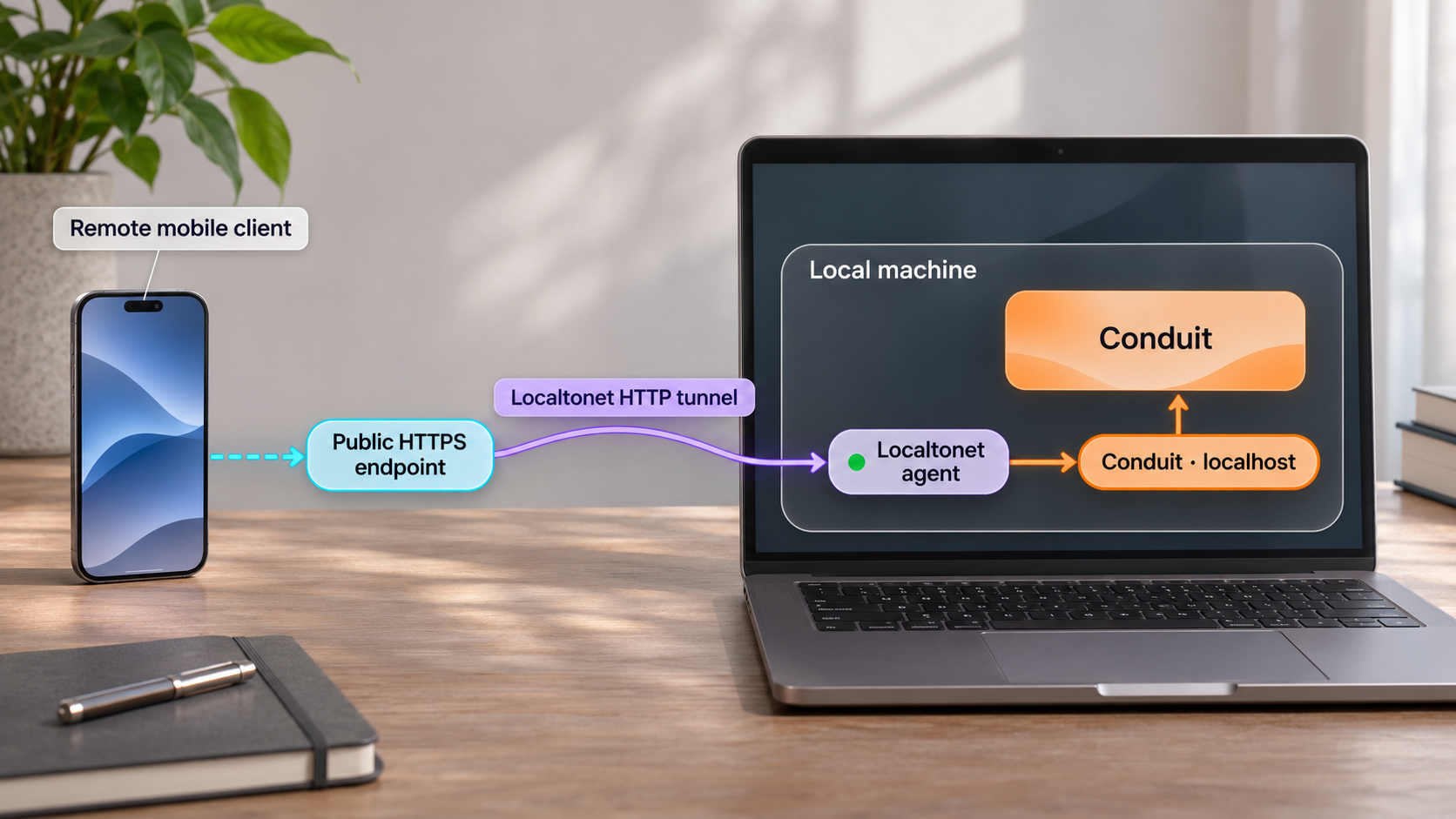
Build a local Conduit backend, verify it safely, then connect mobile clients and webhook providers through a public HTTPS address
Conduit is a self-hosted, modular Backend-as-a-Service that provides capabilities such as authentication, data storage, files, communications, chat, and API routing. This guide starts with the local installation because a tunnel cannot fix an application that is not already running correctly. We will install Conduit with its documented bootstrap workflow, identify the actual dashboard and API address reported by the deployment, verify local access, and then expose that working HTTP service with Localtonet. We will also cover mobile API testing, webhook delivery, credential safety, routine operations, and common failure modes without guessing Conduit ports or endpoint paths.
📋 What's in this guide
How Conduit and Localtonet fit together
Conduit is a modular backend platform that runs on infrastructure you control. Its Router module acts as the front door to the backend and can expose REST, GraphQL, and realtime connections through a common integration surface. Other modules provide functions such as authentication, database access, storage, chat, communications, and authorization. The modules enabled in a particular deployment determine which application capabilities are available.
Local installation is useful while building a web or mobile application, but a service bound to a developer machine is normally reachable only from that machine or its local network. A physical phone using cellular data, a remote teammate, a cloud-based webhook provider, or a hosted test runner cannot send requests to a private address such as 127.0.0.1. Even a phone on the same Wi-Fi network may be unable to use a loopback address because localhost on the phone means the phone itself, not the development computer.
With Localtonet, our client on the Conduit host establishes an outbound connection to a Localtonet relay server. An HTTP tunnel maps a public HTTPS address to the local IP address and port where Conduit is listening. Requests sent to the public address travel through the tunnel to the local service. This avoids inbound router port forwarding, firewall changes, VPN setup, and the need for a public IP address.
Several unrelated software projects and hosted services use the name Conduit. This guide covers the open-source ConduitPlatform modular Backend-as-a-Service whose repository is ConduitPlatform/Conduit. Commands, API paths, SDK documentation, and credentials from a different Conduit project are not interchangeable. In particular, do not copy a path such as /api/v1 from an unrelated service and assume that it exists in this deployment.
Prerequisites and installation decisions
Prepare the host before running the bootstrap command. Conduit's documented bootstrap workflow requires Docker and Docker Compose. Docker supplies the container runtime, while Docker Compose describes and starts the related services that make up the local deployment. Both must be installed and usable by the account running the setup.
Windows users are expected to run this workflow through Windows Subsystem for Linux, commonly abbreviated as WSL. Run the command from the Linux shell inside WSL rather than treating it as a native PowerShell command. Docker must also be available from that WSL environment. The bootstrap syntax uses shell process substitution, so it should be executed in the documented compatible shell environment.
Before installation, confirm that you have:
- A development machine or server on which you are authorized to install and run containers.
- Docker installed and running.
- Docker Compose available to the same user and shell that will run the bootstrap process.
- A supported Linux shell environment, or WSL when following this method on Windows.
- Enough local storage and memory for the Conduit modules you choose to run.
- Permission to download the Conduit installation assets and container images.
- A browser for opening the administration dashboard after setup.
- The Localtonet client for the operating system that can reach the deployed service, if remote access is required.
Conduit also documents Docker, Kubernetes, and source-based deployment paths. Those paths are useful when a team needs direct control over orchestration, manifests, source builds, or production infrastructure. This tutorial uses the bootstrap installation because it is the documented local setup path supported by the evidence available for this guide. We do not reproduce unverified Kubernetes values, source-build commands, Compose file locations, or service names.
| Installation path | Best suited to | What this guide can verify |
|---|---|---|
| CLI bootstrap | Local evaluation and development | Requires Docker and Docker Compose; Windows users should use WSL. This is the path demonstrated below. |
| Docker deployment | Teams that want direct container configuration control | The project provides Docker deployment material, but exact files and commands are not reproduced here without the corresponding deployment documentation. |
| Kubernetes deployment | Cluster-based environments | The project provides Kubernetes deployment material. Cluster prerequisites, manifests, values, and exposed services must be taken from the documentation matching the selected release. |
| Run from source | Contributors and developers modifying Conduit itself | The contributing guide is the authoritative workflow. This article does not guess build tools, service order, or source configuration. |
The bootstrap command downloads a script and sends it directly to a shell. This is convenient, but it also means the retrieved content executes with your current user's permissions. Use the official project address, inspect the script first when required by your security policy, and avoid running it with elevated privileges unless the official instructions explicitly require that access.
Install and start Conduit locally
Run the setup from the machine that will host Conduit. Do not create a public tunnel yet. The immediate goal is to obtain a functioning local deployment and preserve the exact address printed by the installer.
Confirm Docker is running
Start Docker and make sure the current shell can use it. Docker Compose must also be available. On Windows, open the WSL distribution intended for the deployment and verify that Docker integration is enabled for that environment. Resolve container-runtime errors before continuing because the Conduit bootstrap depends on this foundation.
Run the documented bootstrap command
From the compatible shell, run the official bootstrap command shown below. Allow it to download the required deployment components and create the local Conduit environment.
Follow the installer prompts and output
Complete any choices presented by the installed Conduit version. Record the generated deployment location, displayed service status, and local address. These details are version-specific and are more reliable than a port copied from an older tutorial.
Wait for the administration dashboard
The documented setup opens or redirects the browser to the administration dashboard after deployment. If the browser does not open automatically, use the exact local URL printed by the setup process. Keep the terminal available so that startup failures remain visible.
sh <(curl -s https://getconduit.dev/bootstrap)The Conduit project has evolved its onboarding over time, and its current website may present a CLI-based setup command in addition to repository deployment options. Use the installation path that matches the release and official instructions selected by your team. Do not run multiple deployment methods on top of the same environment merely because both appear in different generations of documentation.
The available evidence establishes that setup reaches an administration dashboard and that the Router provides HTTP APIs, but it does not establish one universal local port for every release and deployment mode. Use the local URL shown by your actual installer or deployment output. Separate the URL into its scheme, host, and port because the Localtonet HTTP tunnel will need the reachable local target.
Verify Conduit before opening remote access
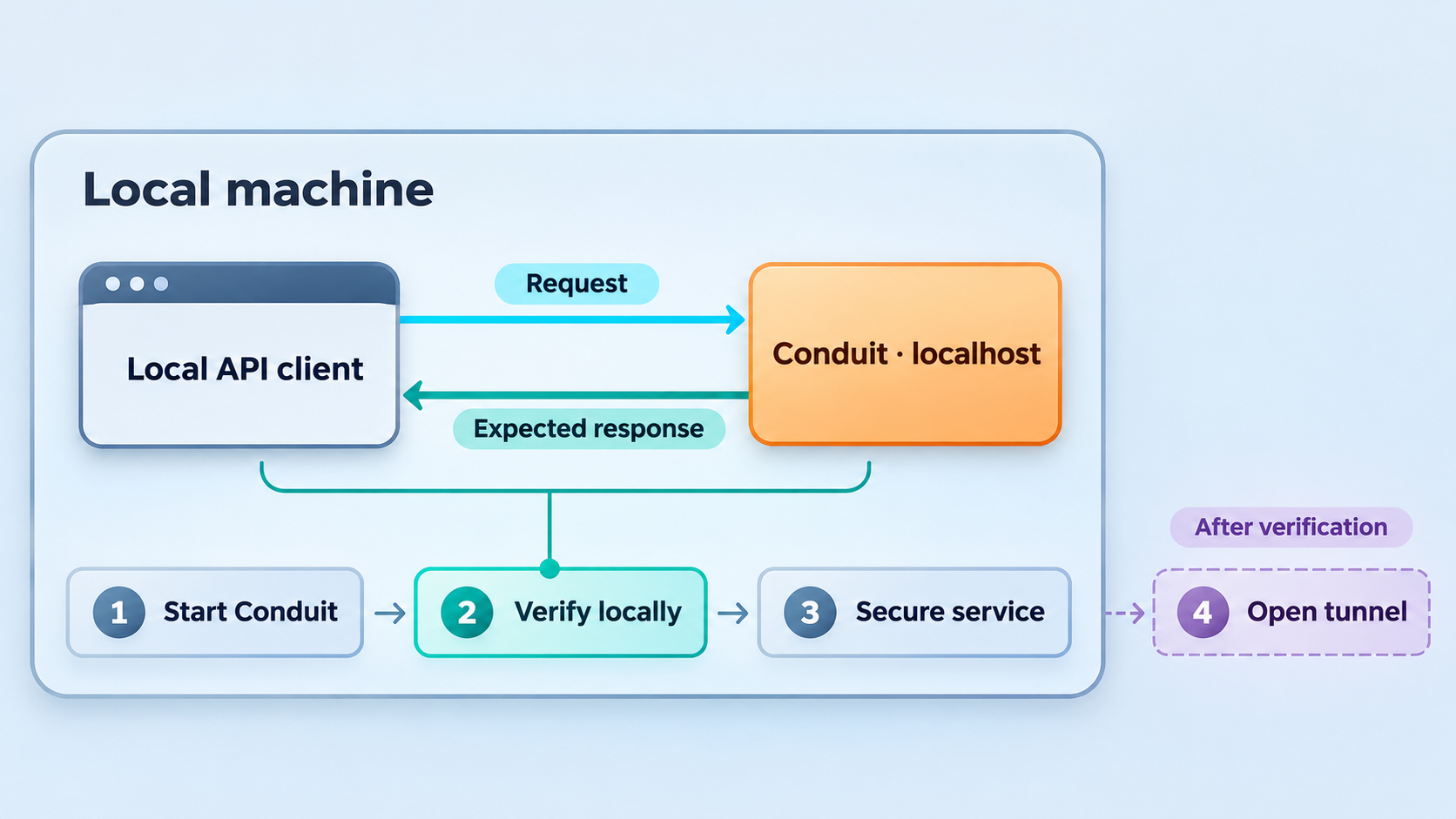
Local verification is a strict checkpoint. If the dashboard or API does not work directly on the host, routing traffic through a tunnel adds another layer without correcting the underlying failure. Verify the deployment from the same computer first, then from the exact local target that the Localtonet client will use.
Open the administration dashboard
Use the address supplied by the setup process. A successful page load confirms that an HTTP listener is reachable, but it does not prove that every backend module is healthy. Sign in and check the administration interface for failed or unavailable modules. Record any error before restarting or changing the deployment because the original message usually contains the most useful diagnostic information.
The documented initial administrator credentials are admin and admin. Treat these only as bootstrap credentials. Change them before allowing any remote client to reach the dashboard. If the release you install forces a credential change during onboarding, complete that process and do not attempt to restore the known default.
Identify the Router address and enabled API surface
Conduit's Router can expose REST, GraphQL, and WebSocket or other realtime connections. The exact path for each interface must come from the running dashboard, generated API documentation, or documentation matching the installed release. Swagger and GraphQL documentation may be available through the Router, but their URLs are not safely inferable from the project name alone.
Copy one harmless read-only route from the generated documentation and test it locally. If that route requires authentication, use a development credential created through Conduit's documented interface. Do not place an administrator password, bearer token, API key, or session token in a URL. URLs are frequently retained in browser history, application logs, reverse-proxy logs, screenshots, and analytics.
Test the same target Localtonet will use
A service may be reachable through localhost while failing through another local address. The Localtonet client should run on the Conduit host or on another device that can reach the selected local IP and port. Test from that same network perspective. If the client runs on the same host, the installer-provided loopback target may be appropriate. If the client runs elsewhere, Conduit must be listening on an address reachable from that client, and the intervening local network must permit the connection.
| Verification check | Expected result | If it fails |
|---|---|---|
| Administration dashboard | The browser loads the expected Conduit interface from the installer-provided URL. | Review bootstrap output and container status before considering a tunnel. |
| Administrator sign-in | The initial account works and its password can be changed. | Confirm that the deployment completed and that credentials belong to this Conduit installation. |
| Router documentation | The installed deployment identifies valid REST, GraphQL, or realtime routes. | Check whether the Router and required modules are enabled and healthy. |
| Harmless API request | The route returns the documented response and status. | Inspect authentication requirements, route spelling, request method, and module status. |
| Local target from the client host | The Localtonet client device can reach the chosen IP address and port. | Correct the bind address or local network path. A public tunnel cannot repair an unreachable local target. |
Secure Conduit before exposing it
A public tunnel changes who can reach the listener. It does not automatically add application-level authorization to an endpoint that lacks it. Before starting the tunnel, review the Conduit routes that will become reachable and reduce the exposed surface to what the test actually needs.
Replace the default administrator password
Change the documented admin/admin bootstrap credentials immediately. Use a unique password that is not shared with any other development or production system.
Create least-privilege test identities
Mobile applications and automated tests should not authenticate as the platform administrator. Use accounts, roles, and permissions appropriate to the exact workflow under test.
Review enabled modules and routes
Disable unnecessary development functionality when the installed version supports doing so. Confirm which REST, GraphQL, realtime, administration, storage, and custom-function routes are available through the same listener.
Protect secrets outside source control
Keep administrator passwords, API credentials, session tokens, webhook secrets, and signing keys out of mobile source code, repositories, screenshots, and tunnel configuration descriptions. A compiled mobile application cannot safely hold a permanent administrator secret.
Use disposable development data
Prefer a dedicated non-production deployment with test records. Do not expose a local copy containing sensitive customer information merely to simplify mobile or webhook testing.
A hard-to-guess subdomain is not a substitute for authentication. Protect every sensitive Conduit route with the platform's authorization controls, validate webhook authenticity where the sender supports signing, and stop the tunnel when testing is complete. Do not share the administration dashboard unless remote administrative access is genuinely required.
Expose the verified Conduit service with a Localtonet HTTP tunnel
Once the local service is healthy and secured, create an HTTP tunnel. HTTP is the appropriate tunnel family because the Conduit dashboard and Router are HTTP-facing services. Do not select a raw TCP tunnel merely because HTTP ultimately uses TCP. The HTTP tunnel workflow provides a public HTTPS address and is designed for web applications and APIs.
The current Localtonet dashboard is authoritative for available relay servers, regions, process types, and plan-dependent options. We do not hardcode a server code or claim that every option is available on every subscription.
Install and run the Localtonet client
Install our client on the Conduit host or on a device that can reach Conduit's verified local listener. Start the client and keep it connected. The public tunnel is available only while the selected device is connected and the tunnel is running.
Select the device with its authentication token
In the Localtonet dashboard, choose the device that will carry the tunnel. Its authentication token identifies that client and is device-specific. Never paste the token into an article, issue report, application configuration, or shared screenshot.
Select an available relay server
Choose from the servers or regions currently shown in the dashboard. Availability can vary, so use the current product values rather than copying a server code from an older guide.
Create an HTTP tunnel configuration
Select the HTTP tunnel family. Choose the process type appropriate to the workflow, such as a generated subdomain, a supported selected subdomain, or a custom domain. All HTTP process types serve the configured content through a public HTTPS address. Custom-domain DNS instructions should be taken from the current Localtonet documentation rather than inferred.
Enter the verified local IP address and port
Use the Conduit target established during local verification. Enter only the actual address and port reported by your deployment. Do not use a sample port from another Conduit release, a different installation method, or an unrelated project with the same name.
Start the tunnel and copy its public address
Creating the configuration does not make it active. Press Start, wait for the tunnel to report that it is running, and copy the assigned public HTTPS URL. Keep the Localtonet client and the Conduit deployment running for the duration of the test.
The local target and public address serve different purposes. Conduit continues listening locally at the installer-provided address. Remote clients use the Localtonet HTTPS address. Preserve the path and query string required by the Conduit route. For example, if the generated Conduit documentation identifies an endpoint path, append that exact path to the tunnel origin instead of inventing or shortening it.
For the current dashboard workflow and available fields, consult our Localtonet HTTP tunnel documentation.
Test mobile APIs, GraphQL, realtime clients, and webhooks
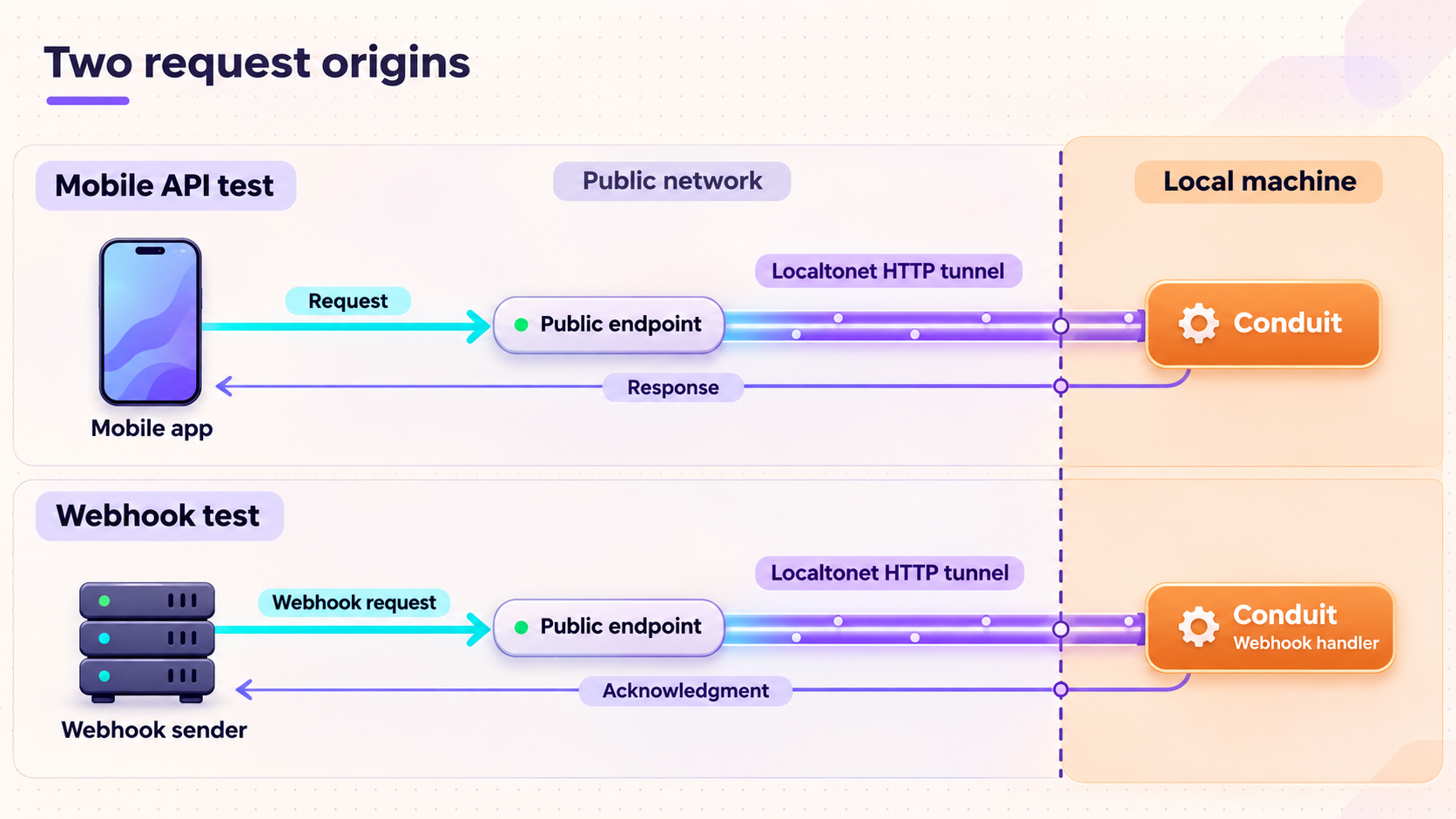
Use the tunnel as the mobile application's development base URL
Configure the development build of the mobile application to use the Localtonet public HTTPS origin. Keep route paths exactly as Conduit documents them. This removes the common mistake of placing localhost in a phone application and expecting it to resolve to the developer's computer.
Keep environment selection explicit. A development build can use the temporary tunnel origin, while staging and production builds should use their separately managed backend addresses. Avoid committing a temporary public URL into a production configuration. If the assigned address changes after recreating a tunnel, update the development environment and restart or rebuild the client as required by the mobile framework.
Begin with a harmless request. Confirm the HTTP status, response content type, and response body. Then test authentication, authorized reads, writes using disposable records, file operations if enabled, and realtime connections if the application uses them. A successful dashboard page does not prove that a mobile request has the right method, route, headers, JSON shape, or authorization.
Check browser and mobile security behavior
Native mobile clients and browser-based clients have different constraints. Cross-origin resource sharing, commonly called CORS, is primarily a browser enforcement mechanism. If a browser frontend can load the tunnel URL but its JavaScript request is blocked, inspect Conduit's allowed-origin configuration for the installed version. Do not disable origin checks globally without understanding the effect.
A native mobile application may not enforce browser CORS rules, but it still depends on correct HTTPS handling, DNS resolution, request headers, and application authentication. Never disable certificate verification to make development appear successful. Localtonet HTTP tunnels provide a public HTTPS address, so use that address as issued.
Receive webhook requests locally
A webhook sender requires a publicly reachable URL. Build that URL from the Localtonet HTTPS origin plus a real route implemented by your Conduit deployment or by a custom function connected through it. The tunnel does not create a webhook handler. The local application must already accept the expected HTTP method, content type, payload, and authentication or signature headers.
Configure the webhook provider with the complete public URL. Trigger a test delivery through the provider's supported interface, then inspect both sides. The provider should report an HTTP response, while the Conduit-side handler should record or process the request. Return an appropriate success response only after the handler has accepted the event according to its design.
If the sender signs webhook requests, verify the signature using the sender's documented algorithm and secret. Signature verification commonly depends on the exact raw request body, so parsing and reserializing JSON before verification can invalidate a legitimate signature. The precise verification process belongs to the provider's protocol and should not be guessed.
| Test type | What to configure | What to verify |
|---|---|---|
| REST request | Public HTTPS origin plus a documented REST route | Method, headers, authentication, status code, and response schema |
| GraphQL request | Public origin plus the GraphQL path reported by Conduit | Operation, variables, authorization, GraphQL errors, and returned data |
| Realtime client | Documented realtime URL and connection protocol | Handshake, authentication, subscription behavior, reconnects, and disconnects |
| Webhook delivery | Public origin plus a real receiving route | HTTP method, raw payload, signature, response status, retries, and idempotency |
| Administration access | Only when remote administration is required | Changed credentials, least privilege, and no unnecessary sharing |
Application webhook requests sent through the HTTP tunnel are ordinary traffic delivered to your local service. Localtonet also has platform-wide Token/Tunnel webhooks that report Connected or Disconnected state for selected token groups. Those lifecycle notifications do not carry Conduit application events and should not be configured as a replacement for a Conduit webhook endpoint.
Routine operation and troubleshooting
Starting and stopping the development environment
A working remote test depends on two independent processes: Conduit must be running, and the Localtonet client and tunnel must be running. Start Conduit using the lifecycle instructions generated by or associated with the selected deployment method. Then start the Localtonet client and press Start for the saved tunnel. When testing ends, stop the tunnel. Stop Conduit separately if the local backend is no longer needed.
This guide does not invent Docker Compose file names, working directories, container names, or maintenance commands because those details are not established for every Conduit release and installation path. Preserve the bootstrap output and generated deployment directory. Use the lifecycle instructions matching that deployment rather than running generic commands from an unrelated Compose project.
The public URL returns a gateway or connection error
First test the local Conduit URL directly on the Localtonet client device. If it fails locally, inspect Conduit and its containers. If it works locally, confirm that the tunnel target has the same IP address and port, the selected device is connected, and the tunnel is started. A configuration can exist in the dashboard while remaining offline.
The dashboard works, but an API route returns 404
A successful dashboard request confirms only that the HTTP service is reachable. A 404 commonly means the requested path is not present at that origin. Obtain the route from the generated Swagger, GraphQL, or module documentation associated with the running version. Check that the required module is enabled. Do not add a path copied from the unrelated Conduit email service or another project.
The API returns 401 or 403
A 401 response usually indicates missing or invalid authentication, while a 403 response generally means the authenticated identity lacks permission. Follow the authentication model reported by the installed Conduit version. Check header formatting, token expiry, roles, resource permissions, and whether the mobile client is accidentally using an administrator-only route. Do not solve the problem by removing authorization from a public endpoint.
A mobile emulator works, but a physical phone fails
Confirm that the physical phone uses the Localtonet HTTPS URL, not localhost, an emulator-specific host alias, or a private LAN address. Check that no old URL remains in a cached build or environment file. Compare the request method, headers, and body with the successful emulator request. Also verify that the tunnel is still active and that the development machine has not slept or disconnected.
A browser reports a CORS error
Confirm that the request reaches Conduit and inspect the browser's network panel. The application's allowed-origin policy must recognize the browser application's origin, not simply the API's own tunnel URL. Configure CORS through the mechanism supported by the installed Conduit version. Avoid broad wildcard policies when credentials or sensitive data are involved.
The webhook provider reports a timeout
Check whether the request reached the local handler. If it did not, verify the configured public URL, route, HTTP method, client connection, and tunnel state. If it arrived but timed out, keep the synchronous webhook path small. Validate the request, record or queue the accepted event according to the application's design, and return promptly. Heavy processing in the request path can trigger provider retries.
The webhook arrives more than once
Many webhook systems retry after timeouts or non-success responses. Design the handler to be idempotent when the provider supplies an event identifier or another stable deduplication key. Do not assume that every delivery is unique. Store only the minimum state needed for the development test and avoid triggering irreversible side effects without duplicate protection.
WebSocket or realtime setup fails
Verify that the client uses the exact realtime route and protocol expected by Conduit's Router. Check the initial handshake status, authorization mechanism, and any client logs. If ordinary HTTPS requests work but the realtime connection does not, the problem is likely specific to the route, protocol, or application configuration rather than basic tunnel reachability.
The tunnel stopped unexpectedly
Confirm that the Localtonet client is still running and connected, the selected device token is the intended one, and the tunnel remains started. The tunnel is available only while the client/device connection and tunnel process are active. Also check whether the host slept, restarted, lost internet access, or stopped the Conduit containers.
Test Conduit locally first, then test the exact local IP and port from the Localtonet client device, then test the public tunnel origin, and finally test the complete API or webhook route. This order isolates application, local-network, tunnel, and route-level problems without changing several layers at once.
Frequently asked questions
Which local Conduit port should I enter in Localtonet?
Use the port reported by your actual Conduit installer or deployment output. This guide does not hardcode a port because the available evidence does not establish one universal value across releases and installation methods. Verify the address locally before entering its IP address and port in the HTTP tunnel configuration.
Do I need router port forwarding to test Conduit from a phone?
No. The Localtonet client establishes an outbound connection to our relay server, so the workflow does not require inbound router port forwarding, a public IP address, VPN setup, or firewall changes. The client device must still be able to reach the local Conduit listener.
Can I use localhost as the API URL in a physical mobile app?
Not when Conduit runs on a separate computer. On the phone, localhost refers to the phone itself. Use the Localtonet public HTTPS address for remote development testing, followed by the exact Conduit API path.
Does creating an HTTP tunnel automatically start it?
No. Creating the configuration and running it are separate lifecycle actions. Select the correct client device, create the tunnel, and press Start. The public address works only while the selected client remains connected and the tunnel is running.
Can Localtonet create a webhook endpoint for Conduit?
Localtonet makes an existing local HTTP endpoint publicly reachable. It does not create the application handler, choose its route, validate payloads, or implement signature verification. Build and verify the receiving route locally first, then place its exact path after the public tunnel origin.
Is the default admin/admin login safe to expose temporarily?
No. Change the default administrator password before starting public access. A short testing window does not make known credentials safe. Use least-privilege test identities for mobile applications and automation instead of embedding administrator credentials.
Should I use an HTTP tunnel or a TCP tunnel for Conduit?
Use an HTTP tunnel for the dashboard and Router's HTTP-facing APIs. It provides a public HTTPS address suitable for browser, mobile API, and webhook testing. A raw TCP tunnel is intended for services that need direct port forwarding rather than an HTTP application URL.
Can I use this workflow for production?
This article focuses on local development, mobile testing, remote collaboration, and webhook validation. A production deployment requires its own capacity planning, persistent storage strategy, backups, monitoring, upgrade process, access controls, secret management, and deployment documentation. Do not treat a development bootstrap environment as production-ready without completing that engineering work.
Test your local Conduit backend from real remote clients
Verify Conduit locally, secure its administrator account, and then use a Localtonet HTTP tunnel to give your mobile build, teammate, or webhook provider a public HTTPS route to the development service.
Get Started Free →