

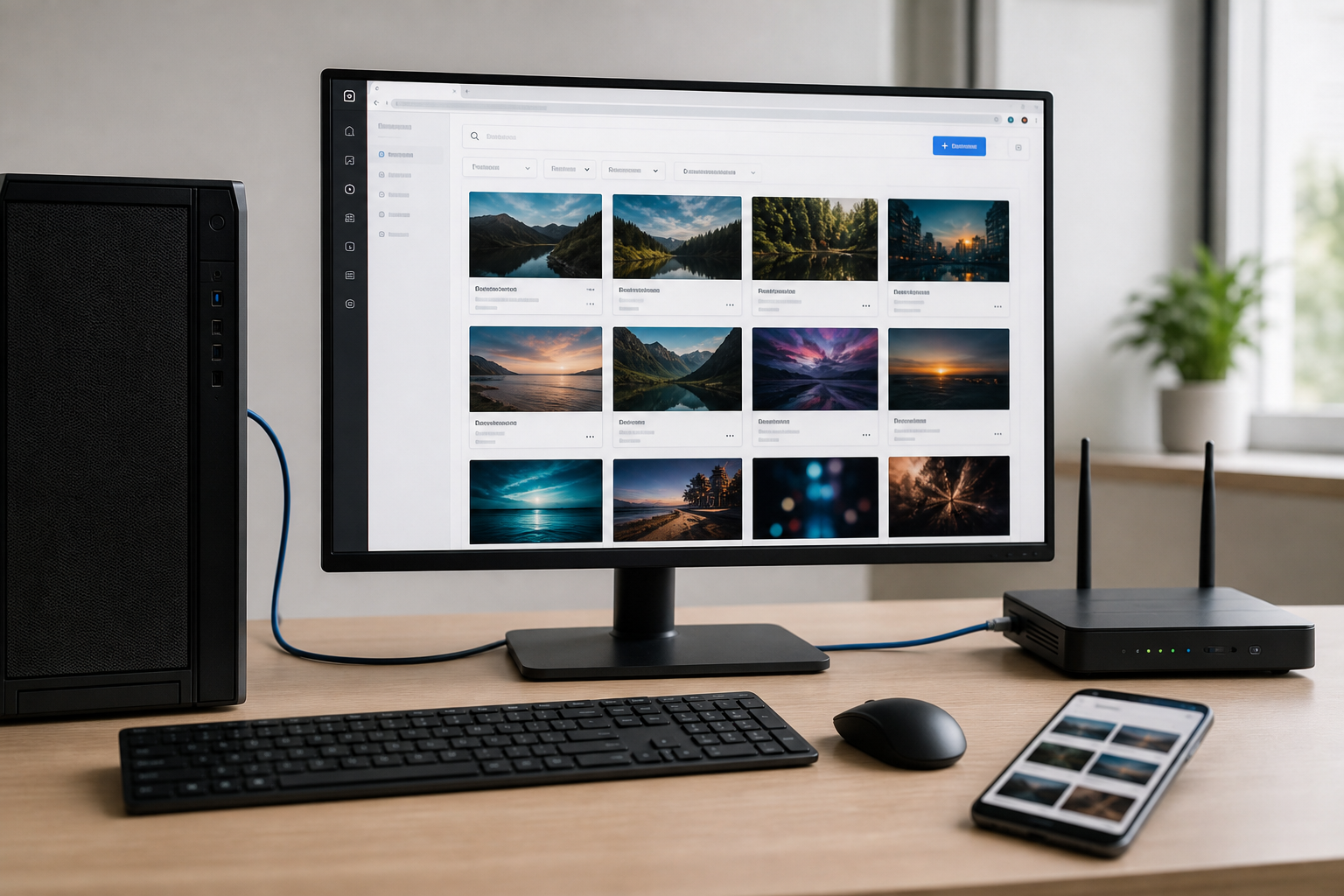
Install the studio on Windows, confirm it works locally, then reach its browser interface from anywhere
LoRA Dataset Studio (LDS) is a self-hosted web application for building image datasets, writing captions, training LoRAs and comparing checkpoints. It runs on your own machine and you use it in a browser. That is convenient at your desk and awkward the moment you want to curate images or check a training run from another room, another network or a phone. This guide covers the documented Windows installation first, then local verification, and only then shows how we connect the working service to a public HTTPS address with a Localtonet HTTP tunnel. We also state plainly which details the project documentation we reviewed does not establish, such as the default port, so you can check them on your own installation instead of trusting a guess.
📋 What's in this guide
Why make a local dataset studio reachable remotely?
Dataset work is slow, repetitive and spread over many sessions. You import a large folder, remove near-duplicates, pick a balanced set, read and correct captions, start a training run and later compare checkpoints. Most of that is browser work, but the machine that holds the images and the GPU-backed tooling is often a single workstation. If you leave that workstation at home, the interface is stuck there.
The usual answers are a VPN, router port forwarding or renting a server. Each has costs: port forwarding needs a router you control and a public address, and moving gigabytes of private images to a rented server is a different project. With Localtonet, the client on the workstation makes an outbound connection to a relay server, and the tunnel gives you a public HTTPS address that forwards to the local web interface. No inbound firewall change or public IP address is needed. The tunnel only exists while the Localtonet client is connected and the tunnel is started, so remote access is something you switch on when you need it.
Remote access should come second. A self-hosted tool you cannot start, finish setting up and use locally is not worth exposing. The order in this guide is deliberate: install, verify, then tunnel.
What LoRA Dataset Studio does
The project describes itself as a free local LoRA training studio. You can build character, style and concept datasets from one photo or from a large image folder, caption them (the project mentions JoyCaption with prose or booru-tag styles), train LoRAs with ai-toolkit for the model families it lists (Krea 2, FLUX.1, FLUX.2 Klein, Qwen-Image 2.1, Z-Image, SDXL and Anima), and compare checkpoints side by side. The project also says it is ComfyUI-powered and self-hosted.
One principle from the project's dataset guide is worth carrying into any remote session: a LoRA learns whatever is constant across your images and not described in the captions. Keep the subject constant, vary everything else, and do not describe the subject in the captions, because that is the trigger word's job. The caption editor is where this discipline is applied, which is a good reason to want comfortable remote access to it.
Prerequisites, licence and what we could not confirm
What you need for the Windows route
The documented quick path needs a Windows machine, a browser, and the release file named LoRA-Dataset-Studio-windows.zip from the project's latest GitHub release. The launcher prepares a compatible Python environment for you, so the release notes do not ask you to install Python by hand for this route.
Hardware, disk space and model downloads
The project keeps a separate Requirements guide covering hardware, disk space and dependencies by feature. The material we reviewed does not reproduce those numbers, so we will not quote any. Check that guide for the features you plan to use. Plugins can have their own preparation steps, including required ComfyUI custom nodes, so model and disk needs depend on which plugins you add. The release notes also say that paid API engines and rented GPUs charge separately if you choose them.
Licence and cost
The core and the free public plugins are available at no charge, with their source published under the PolyForm Noncommercial license. That is source-available, not unqualified open source, and noncommercial terms limit how you can use it. Read the licence before using it for client work. The release notes also say new LDS versions reach Patreon members first, and some plugins are members-only. The version you already have stays free and keeps working. Usage statistics are optional and off by default; the app asks before sharing, and you can change the choice in Settings → Maintenance.
The documentation we reviewed does not state the default listening port, the bind address, or the exact behavior of built-in authentication for a plain Windows ZIP install. We do not guess them here. In the tunnel section we show how to read the address from your own running installation, and in the security section we point to the project's own network-access and security documents.
Install LoRA Dataset Studio on Windows
There are several ways to install LDS. The table compares what the documentation we reviewed supports for each, so you know where this article gives full steps and where you need the project's own guide.
| Install path | What is documented | Covered in this guide |
|---|---|---|
| Windows ZIP | Download the ZIP from the latest release, extract it into a new folder, double-click start.bat, then complete core Setup | Yes, in full |
| Git checkout | Clone the repository, change into the folder and run start.bat; the v2 branch is the maintained default | Yes, the commands from the release notes |
| Docker | The repository ships Dockerfiles, compose files and .bat helpers, and the project has a dedicated Docker guide | Mentioned only; follow the project's Docker guide |
| Manual Python or Pinokio | Listed in the project's Installation guide; the repository also contains Pinokio scripts | Mentioned only; steps were not in the material we reviewed |
Windows ZIP installation
Download the release ZIP
Open the latest release on the project's GitHub page and download LoRA-Dataset-Studio-windows.zip from the release assets. At the time we reviewed it, the latest release was v2026.11.06, described as LoRA Dataset Studio V2, the maintained LDS release.
Extract it into a new folder
Use a fresh, empty folder. The ZIP contains the core application, and your datasets, media and history will live with the installation, so choose a drive with room for images and outputs.
Double-click start.bat
The launcher prepares a compatible Python environment and opens the application in your browser. The first launch can take longer than later ones because of that preparation. Leave the launcher window open while you use the app.
Complete the core Setup
The browser opens the Setup experience. Finish it before moving on to plugins. The next section describes what Setup shows.
Git installation
If you prefer a checkout, the release notes give these commands. The v2 branch is the default and maintained branch. The former main branch is now the frozen v1 branch and receives no further updates, so if your checkout still tracks main, follow the project's migration instructions first.
git clone https://github.com/perfectgf/lora-dataset-studio.git
cd lora-dataset-studio
start.bat
Whichever route you take, keep note of which one it was. Updates behave differently for ZIP and Git installations, as described in the operations section.
First-run Setup and choosing plugins
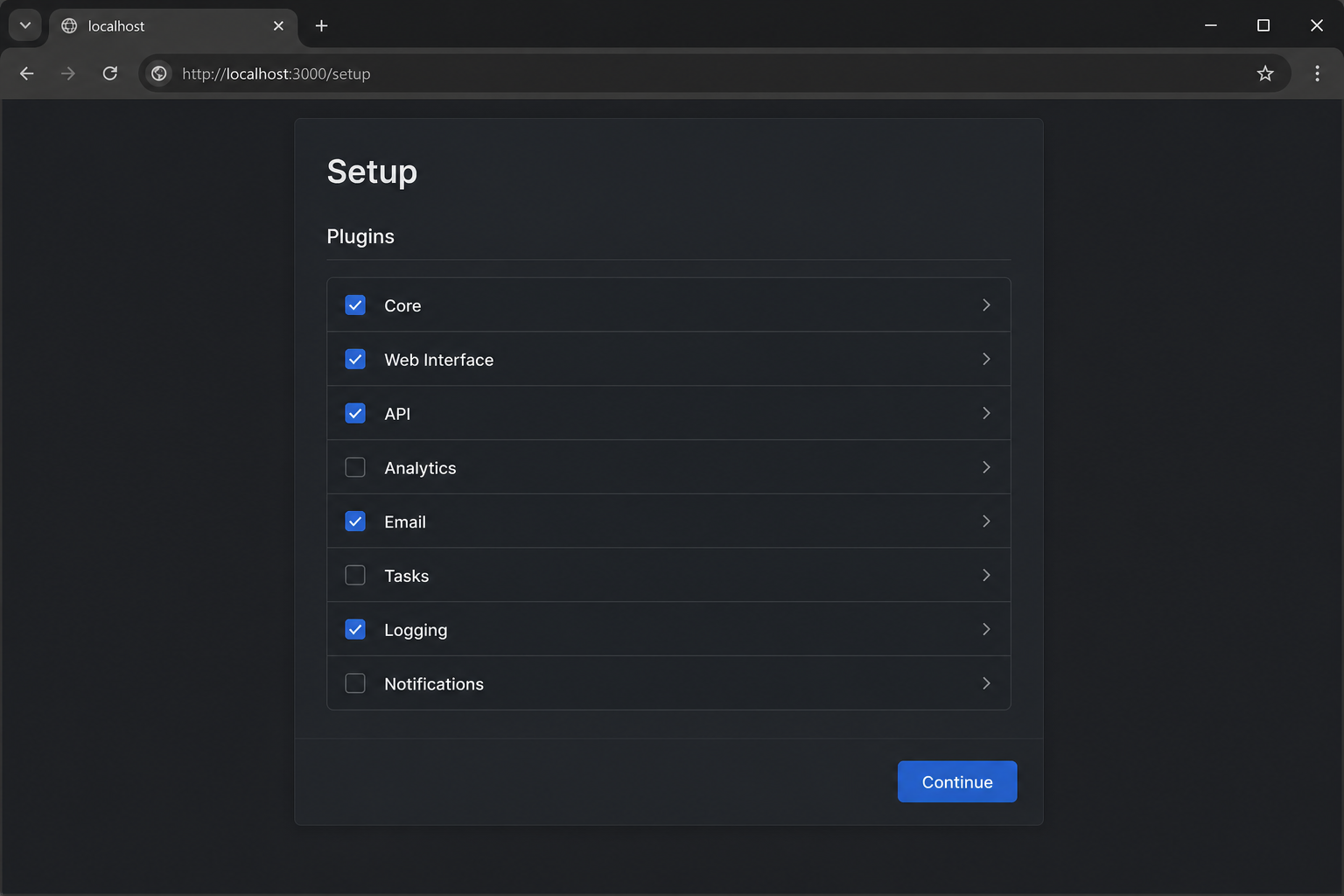
In v2026.11.06, Setup opens on an overview of your tools. It shows what is ready, what is missing, and offers Downloads & repair. A guided setup organised by goal is one click away. This overview is the place to look first if something later fails, because a missing tool is far more likely than a networking problem.
After the core is set up, open Plugins → Store and install only the features you intend to use. Each plugin describes its features and preparation requirements and has its own settings. Some require ComfyUI custom nodes. Review each plugin's settings before its first run. Importing and organising datasets, which is the heart of an image-organization and manual-captioning workflow, does not require a plugin.
Free public plugins are available through the Store, and some plugins are members-only. If you choose paid API engines or rented GPUs inside a plugin, those are charged separately by their providers. This is worth remembering before you share remote access with anyone else, because actions taken in the interface may trigger them.
Verify the installation locally
Before involving any tunnel, prove the application works on the machine itself. A tunnel can only forward what already works.
- Confirm the launcher window from start.bat is still open and shows no error.
- Confirm the browser tab that start.bat opened loads the interface and that the Setup overview or the main workspace renders.
- Create a small test dataset, or import a handful of images through the Image Bank, and confirm thumbnails appear.
- Open a caption editor for one image, type a caption and save it. Reload the page and confirm the caption is still there. This proves the app is writing to disk.
- Open the Setup overview again and check that nothing you need is flagged as missing.
Do not start with a full training run to test the installation. Training needs the right plugins, models and GPU resources, and a failure there says little about whether the web interface itself is healthy.
Reach LDS remotely with a Localtonet HTTP tunnel
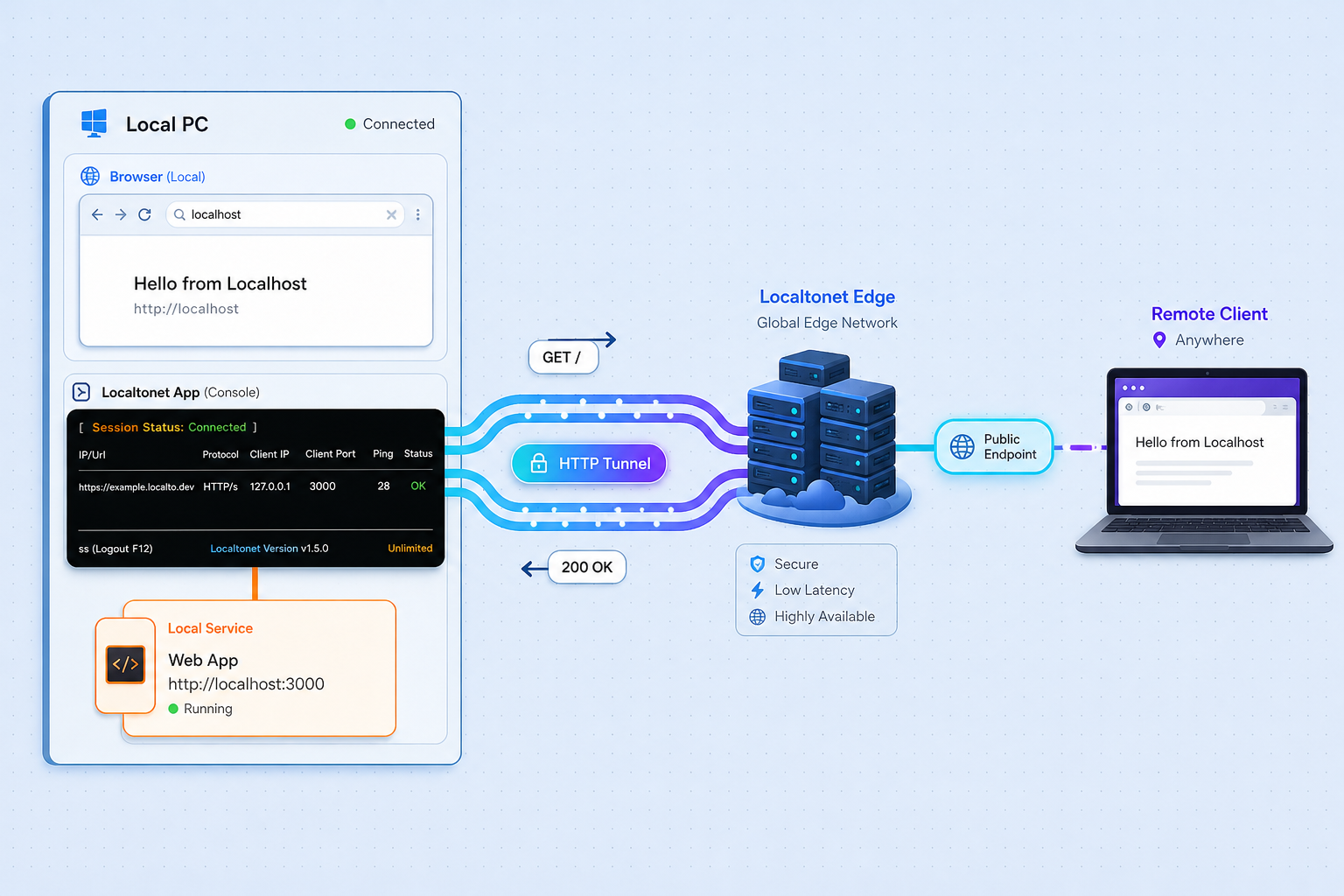
Everything above stands on its own. The steps below add remote access on top of a verified local installation. For the complete tunnel configuration reference, see the Localtonet HTTP tunnel documentation.
Find the local address LDS actually uses
An HTTP tunnel needs a local IP address and port to forward to. The documentation we reviewed does not state LDS's default port or bind address, so do not copy a port number from another article. Read it from your own installation: look at the address bar of the browser tab that start.bat opened, and note the host and port. The launcher window may also print the address. Use exactly those values as the tunnel target. If you open the app via a name such as localhost, the corresponding IP address is the one the Localtonet client should use if it runs on the same machine.
Keep the Localtonet client on the same machine as LDS. That avoids the bind-address question, because the client then reaches the app the same way your own browser does. If you run the client on a different machine, LDS would need to listen on a network-reachable address, and we cannot say from the evidence whether or how that is configured.
Create and start the tunnel
The sequence below follows the general Localtonet workflow for an HTTP tunnel. Page layouts and labels can change, so treat the current HTTP tunnel documentation as authoritative for exact field names.
Install the Localtonet client on the LDS machine
Install the Localtonet app for Windows on the same computer that runs LoRA Dataset Studio. The client makes the outbound connection to our relay server.
Authenticate the device with its token
Create or sign in to your account and use the device's auth token in the client so this machine is connected. The token identifies the device, so keep it private and never paste it into screenshots, tickets or chat messages.
Create an HTTP tunnel and pick the server
In the dashboard, create a new HTTP tunnel. Select the AuthToken for your LDS machine and a relay server from the options the dashboard currently offers. Choose a Process Type: Random Sub Domain, Custom Sub Domain or Custom Domain. A random subdomain is the simplest for a first test. For a custom domain, check the current documentation for the exact DNS requirements first.
Enter the local IP address and port
Fill in the local target with the host and port you read from your browser's address bar in the previous step. If the values do not match what LDS actually listens on, the public URL will fail even though the tunnel looks healthy.
Start the tunnel
Creating a tunnel does not run it. Press Start. The tunnel works only while the client is connected and the tunnel is running.
Open the public HTTPS address
Use the address the dashboard shows. Test it from a different network, such as a phone on mobile data, so you know it is not just working through your home LAN.
What to test through the tunnel
Repeat the small checks from the verification section, but through the public URL: load the interface, open the Image Bank, open a caption and edit it. Then try importing a few images. We do not publish upload-size or throughput figures for this combination, and we have no verified limit from the LDS side either, so test with a small batch before relying on remote imports of a large folder. Large moves are often better done on the machine itself, with remote sessions reserved for review and caption editing.
Security before you expose a dataset studio
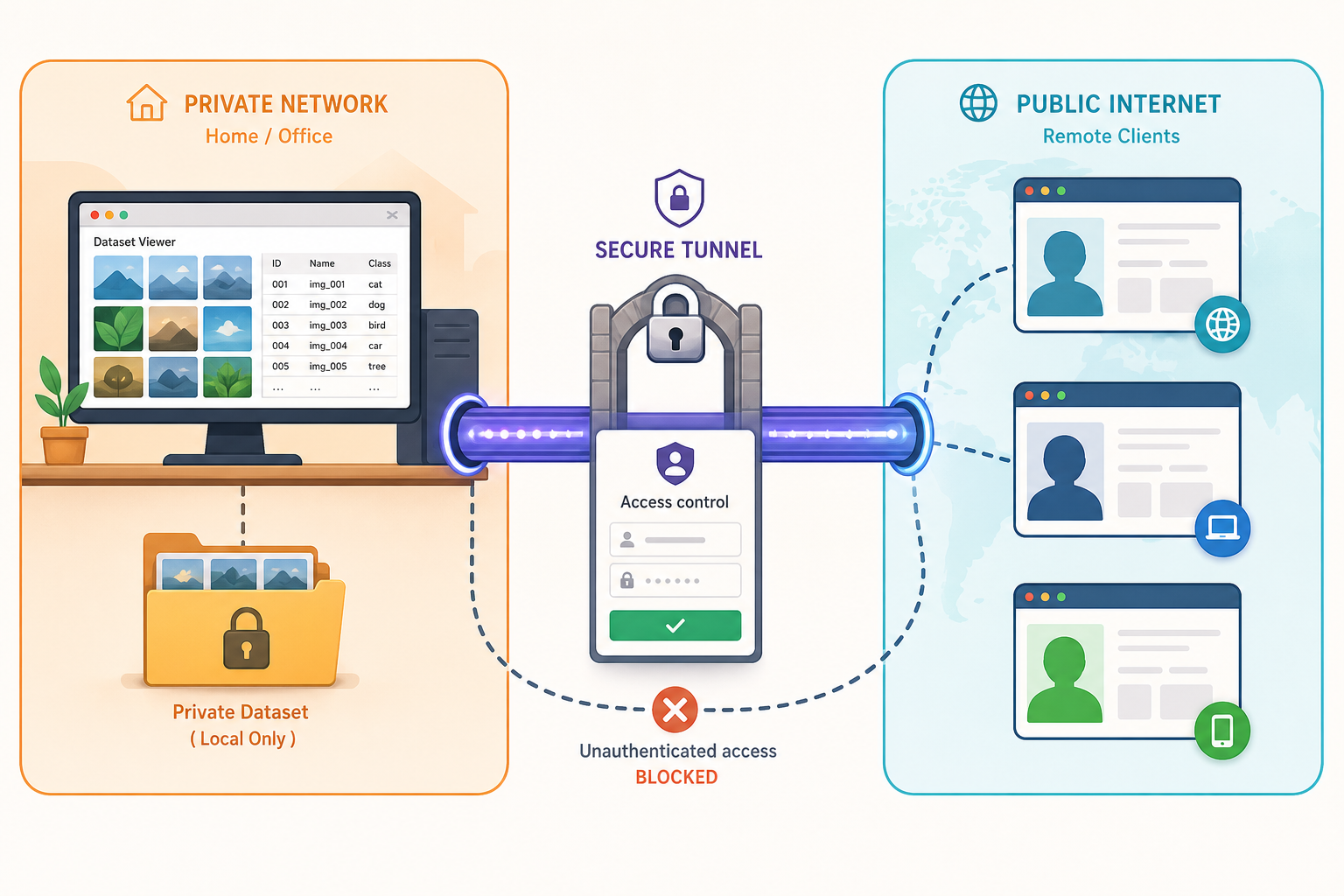
A public URL means anyone who finds or is given it can reach the login-less or login-protected page behind it. Dataset folders often contain photos of real people, and the studio can launch work that consumes your GPU, disk and paid API credits. Slow down here.
The material we reviewed does not establish whether a plain Windows ZIP install requires a login. Do not assume it does. The project lists dedicated documents on network access and privacy (including public-access configuration) and a security policy covering safe network exposure, and its RunPod guide mentions a forced access token for pods. Read the network-access and security documents in the project's docs folder before you start the tunnel, follow what they say about public access, and test the public URL in a private browser window to see exactly what a stranger would see.
Practical habits that apply regardless of the details:
- Start the tunnel only when you need it. Stop it when you finish. Stopping the tunnel closes the public path while LDS keeps running locally.
- Do not post the URL publicly. A random subdomain is not a secret you can rely on forever, so treat it like a password-adjacent value.
- Use whatever access controls are available. That includes any app-level protection the project documents, and any restrictions available on the Localtonet side that you have confirmed in the current dashboard or documentation.
- Respect consent and source rights. The project ships a responsible-use document covering consent, privacy, source rights and prohibited uses. Remote access does not change those obligations, and a shared link can widen who sees sensitive images.
- Keep the auth token private. If it ever leaks, treat that device as compromised and rotate it.
Our tunnels are not a substitute for application security. They carry traffic to your service; they do not decide who is allowed to use it.
Updates and day-to-day operation
Updating LDS
ZIP installations can upgrade from Settings → Maintenance → Update & restart, which installs the next published release and keeps datasets, media and history. The ZIP contains only the core. Plugins are installed and updated separately through the Store. After an update, open Plugins → Store, review the ones you use and check their settings before the first run.
Git installations follow the commits of your checkout's configured branch when you use Update & restart, which is why being on v2 matters. Docker installations come with their own update helpers in the repository (update-docker.bat and update-docker-gpu.bat are present), and the project's Docker guide describes them. A restart during an update will drop your remote browser session, so reload the public URL afterward. The tunnel itself should keep pointing at the same local port unless the app's port changed, which is worth checking after major updates.
Know when the tunnel is up
Because remote access only works while both the client and tunnel are active, you may want to know when your machine drops off. Localtonet supports platform-wide webhooks that fire when a token or tunnel in a selected Token Group changes to Connected or Disconnected. The request body is JSON containing Id, ActionDate, Type (Token or Tunnel) and Status (Connected or Disconnected). This is separate from the File Server webhook system, which handles file-level events. See the Localtonet webhook documentation if you want an alert when the LDS machine goes offline.
Backups
The project documents a back-up-everything workflow in its app guide. Datasets represent hours of curation and caption editing, so use it, and keep the backup somewhere other than the install folder. Remote access makes it easier to work on datasets, which also makes it easier to delete or overwrite them by mistake.
Troubleshooting
Diagnose from the inside out: first the app, then the local address, then the tunnel.
| Symptom | Likely cause | What to check |
|---|---|---|
| start.bat finishes but no page loads | The launcher failed to prepare the environment or the app did not start | Read the launcher window for errors, then the Setup overview and Downloads & repair; consult the project's Troubleshooting guide |
| Local page works, public URL shows a gateway-style error | Tunnel not started, client disconnected, or wrong local port | Confirm the tunnel is running in the dashboard, the client is connected, and the target matches the browser address bar |
| Public URL worked yesterday but not today | LDS or the Localtonet client is not running, or the tunnel was stopped | Start LDS, then the client, then the tunnel; confirm the local page opens first |
| Features missing after an update | Plugins need review or reinstall after updating | Open Plugins → Store and check each plugin's settings and preparation requirements |
| Training or caption generation fails but browsing works | A required tool, model or ComfyUI node is missing | Setup overview and Downloads & repair; this is a local issue, not a tunnel issue |
If you need to report a bug upstream, the project provides a Getting help document describing paste-safe diagnostic reports. Use it rather than pasting raw logs, since logs can contain paths and other details you would not want on a public issue.
If something fails at localhost on the LDS machine, the tunnel is not the problem and changing tunnel settings will not help. If the local page works and only the public URL fails, look at the target address, the client connection and whether the tunnel is started.
Frequently asked questions
How do I install LoRA Dataset Studio on Windows?
Download LoRA-Dataset-Studio-windows.zip from the latest release on the project's GitHub page, extract it into a new folder and double-click start.bat. The launcher prepares a compatible Python environment and opens the app in your browser. Complete the core Setup, then install any plugins you want from Plugins → Store.
What port does LoRA Dataset Studio use?
The documentation we reviewed does not state a default port, so we do not give one. Read the host and port from the address bar of the browser tab that start.bat opens, or from the launcher window, and use those values as the tunnel's local target.
Is LoRA Dataset Studio open source, and can I use it commercially?
Its source is published under the PolyForm Noncommercial license, so it is best described as source-available rather than open source. The licence restricts commercial use, so read its terms before using it for paid work. The core and free public plugins have no charge, though paid API engines and rented GPUs charge separately, and some plugins and early releases are for Patreon members.
Do I need a plugin to organise images and edit captions?
The release notes say importing and organising datasets does not require a plugin. Other features are optional plugins installed from the Store, each with its own settings and preparation steps. Check a plugin's description for what it needs before installing it.
Which Localtonet tunnel type should I use for the LDS web interface?
Use an HTTP tunnel. The interface is a browser application, and an HTTP tunnel gives it a public HTTPS address. It forwards to a local IP address and port, and it works only while the client is connected and the tunnel is started.
Is it safe to expose LDS to the internet?
Only if you have confirmed how the app controls access. We could not establish the authentication behavior of a plain Windows install from the material we reviewed. Read the project's network-access and security documents, test the public URL in a private window, avoid sharing it widely and stop the tunnel when you are done. A tunnel forwards traffic; it does not add authorization by itself.
Will my datasets survive an update?
For ZIP installations, the release notes say Update & restart in Settings → Maintenance keeps datasets, media and history. Plugins are updated separately through the Store. Keep your own backup anyway, since the project documents a back-up-everything workflow for that purpose.
Start with Localtonet
Once LoRA Dataset Studio is running and verified on your machine, create a free Localtonet account, connect that device and start an HTTP tunnel to reach your dataset workspace from anywhere. Stop the tunnel whenever you are done.
Get Started Free →