

Deploy a private JMAP web client, verify every local layer, and publish only the finished interface
Bulwark Webmail provides a self-hosted browser interface for mail, calendars, contacts, and files stored by Stalwart Mail Server. This guide uses Bulwark's official Docker Compose definition, applies a safer loopback-only port binding for a same-host Localtonet client, completes the setup wizard, and verifies the application before public access is enabled. It also covers persistence expectations, backups, release pinning, provenance verification, updates, rollback, and troubleshooting. Once Bulwark works locally, we publish it through a Localtonet HTTP tunnel without inbound router port forwarding, firewall changes, VPN setup, or a public IP address.
📋 What's in this guide
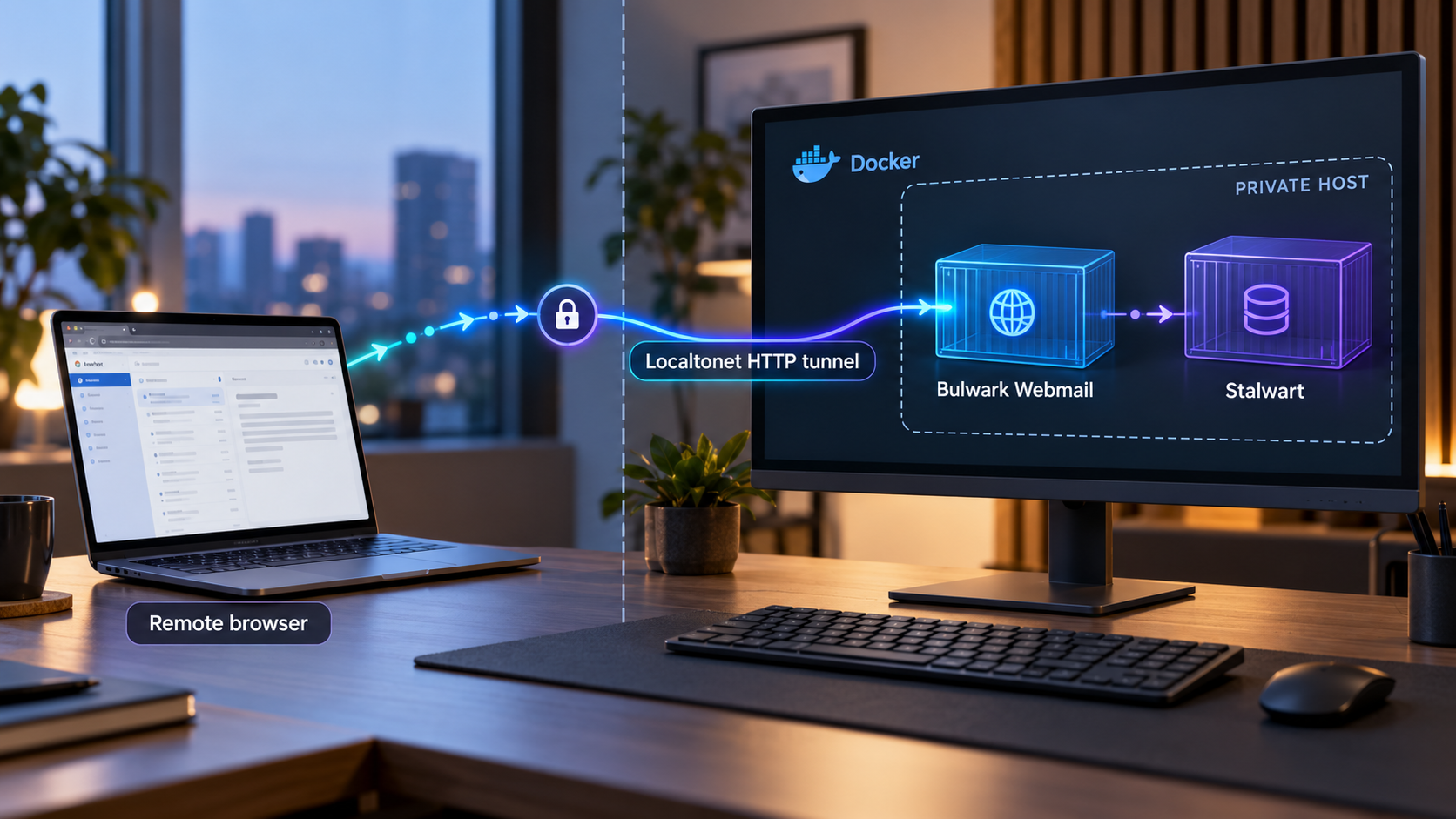
Understand the Bulwark, Stalwart, and Localtonet architecture
Bulwark Webmail is a self-hosted JMAP client designed for Stalwart Mail Server. It places mail, calendars, contacts, and files in one browser application. The full edition runs as a Node.js service and adds a setup wizard, administration dashboard, OAuth support, plugins, settings synchronization, web push, and update notices.
Bulwark is not a mail server. Stalwart remains responsible for accounts, messages, SMTP mail handling, spam processing, calendars, address books, and file storage. Bulwark connects to Stalwart over JMAP and presents that data to users. Installing the Bulwark container alone does not create mail accounts, configure mail-domain DNS, or produce a complete mail delivery system.
Localtonet has a separate responsibility. Our HTTP tunnel carries browser requests from a public HTTPS address to Bulwark's local HTTP listener. It does not replace Bulwark authentication, configure Stalwart, or turn an unhealthy local application into a healthy one.
Bulwark's current compatibility guidance requires an existing Stalwart server running version 0.16.6 or newer. Verify the current compatibility requirement in the Bulwark documentation before changing either component in a production environment.
How the components fit together
| Component | Primary responsibility | What it does not replace |
|---|---|---|
| Stalwart Mail Server | Stores accounts and user data, performs mail-server functions, and provides the JMAP service | It does not provide Bulwark's full-edition interface by itself |
| Bulwark Webmail | Provides the browser interface for mail, calendars, contacts, and files | It is not a standalone SMTP server and does not replace Stalwart |
| Docker Compose | Defines and operates the Bulwark container on the host | It does not configure Stalwart accounts, mail DNS, or delivery policy |
| Localtonet HTTP tunnel | Connects a public HTTPS address to Bulwark's reachable local HTTP endpoint | It does not create the application or replace its authentication |
Full Bulwark compared with Bulwark Lite
This tutorial uses the full edition because it provides the setup wizard, administration dashboard, OAuth support, plugins, and settings synchronization. Bulwark Lite is built from the same client code but is exported as static files. With Lite, the browser communicates directly with Stalwart, and Stalwart must permit the required cross-origin requests.
| Deployment | Best fit | Important characteristics |
|---|---|---|
| Full Bulwark container | Docker or Node.js installations needing the complete server edition | Includes the wizard, admin console, OAuth, plugins, settings sync, web push, and update notices |
| Bulwark Lite | Static hosting where password sign-in is sufficient | Has no setup wizard or admin console and requires appropriate Stalwart CORS configuration |
| Manual full-edition installation | Administrators intentionally operating the Node.js application without Docker | Use Bulwark's current manual-install instructions rather than translating the container workflow |
Prerequisites and network-layout decisions
A Docker host with Compose
Use a system with Docker Engine or Docker Desktop installed and running. The current Compose plugin uses docker compose. Confirm that the daemon is available and that your account can operate it:
docker --version
docker compose version
docker info
If the first two commands work but docker info fails, start Docker or correct the current account's Docker permissions before continuing.
A working Stalwart deployment
Record the Stalwart address that Bulwark should use. Confirm that Stalwart is compatible, that the intended accounts exist, and that its JMAP endpoint is reachable from the Bulwark deployment. If Stalwart is on another host, account for routing, DNS, certificates, and firewall rules between the systems.
A release-selection policy
Bulwark's quick start uses ghcr.io/bulwarkmail/webmail:latest. That is convenient for an initial evaluation, but latest is mutable. For a reproducible deployment, select an explicit tag from the Bulwark releases page, read its notes, and keep the tag in your deployment record.
Release history matters. For example, Bulwark 1.11.2 replaced 1.11.1 because the earlier Docker image and standalone tarballs did not start. This is why operators should read the Bulwark changelog rather than selecting a version solely by its number.
A same-host or LAN-client Localtonet layout
Decide where our client will run before selecting the Docker port binding:
| Layout | Recommended host binding | Localtonet target |
|---|---|---|
| Localtonet and Docker on the same host | 127.0.0.1:3000:3000 |
127.0.0.1, port 3000 |
| Localtonet on another LAN device | A deliberately selected LAN-reachable host binding | The Docker host's reachable LAN address and published port |
| Default broad Docker publication | 3000:3000 |
Depends on the client location |
A mapping written as 3000:3000 can publish port 3000 on every host interface, depending on the Docker environment. That may make Bulwark reachable from the LAN or other attached networks. For the recommended same-host layout, bind explicitly to 127.0.0.1. Use a LAN-reachable binding only when our client genuinely runs on another device, then restrict access with the host's normal security controls.
Docker and the Localtonet client run on the same machine. Bulwark listens on 127.0.0.1:3000, so the host does not need to publish the service to the LAN merely to make it available through Localtonet.
Install Bulwark with its official Docker Compose definition
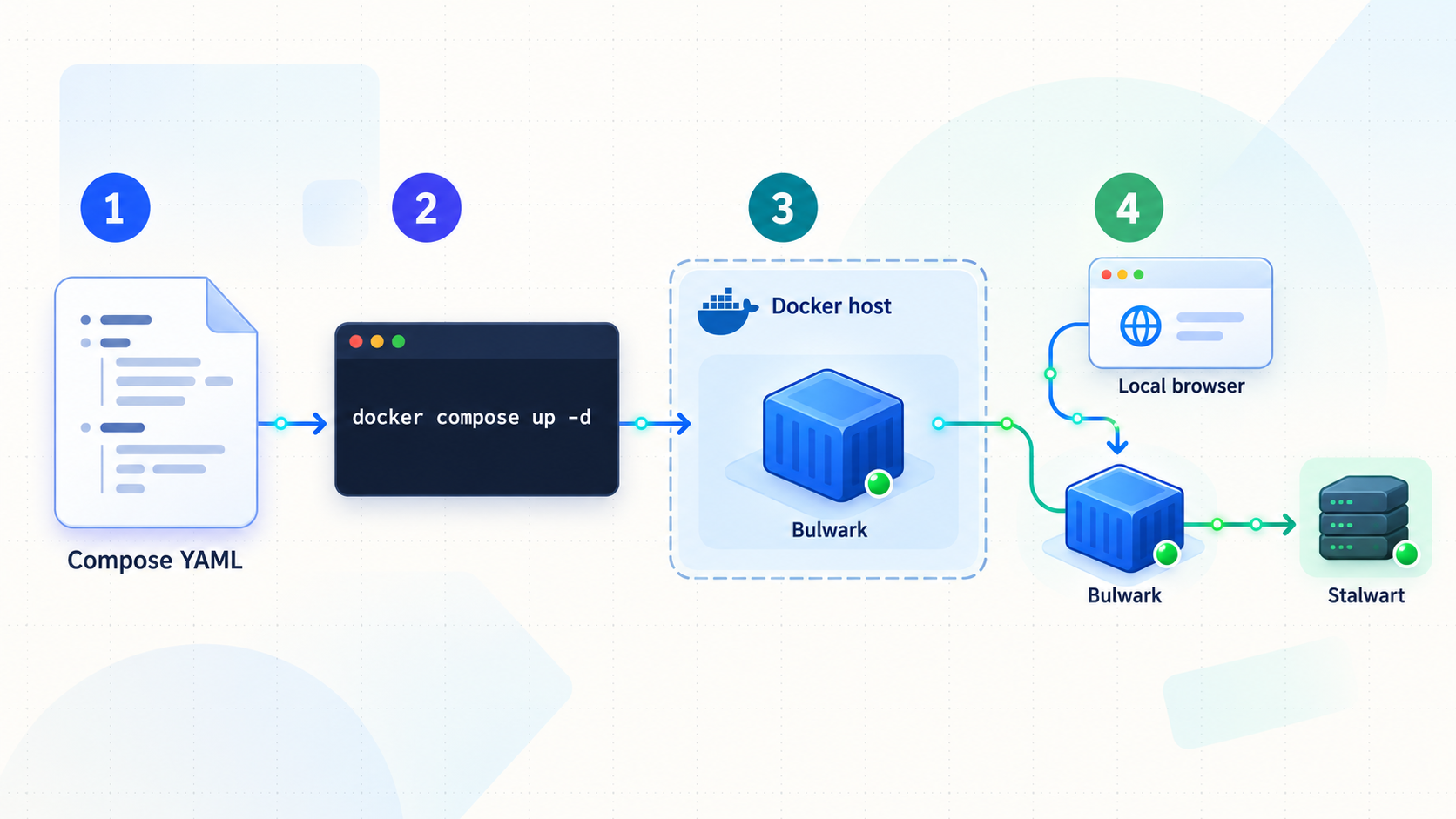
Bulwark maintains an official Docker Compose definition in its repository and links to dedicated Docker, configuration, and updating documentation from the project README. Use that maintained definition as the baseline. Do not copy an unofficial reconstruction that can drift away from the project's supported service name, image settings, or future deployment changes.
Select a Bulwark release
Review current releases and choose either the current quick-start tag or an explicit tested release for a reproducible installation.
Obtain the official Compose definition
Download or clone the file maintained in the Bulwark repository. For a pinned deployment, obtain it from the same release tag you selected.
Apply the intended image tag and port binding
Pin the image when reproducibility is required and change the published port to 127.0.0.1:3000:3000 for the same-host Localtonet layout.
Validate the effective configuration
Run Compose validation and inspect the rendered image, service, port binding, and any settings supplied by the official file.
Start and inspect Bulwark
Launch the project in detached mode, confirm that its service remains running, and inspect recent logs before opening the wizard.
1. Create a project directory
mkdir bulwark-webmail
cd bulwark-webmail
Either download the official file from the repository or clone the repository and check out your selected release tag. Cloning is useful when you want the Compose definition, release history, and associated files together:
git clone https://github.com/bulwarkmail/webmail.git
cd webmail
git tag --list
git checkout <selected-release-tag>
Replace <selected-release-tag> with the exact tag chosen from the releases page. Do not type the angle brackets as part of the tag.
2. Review the official file before starting it
Open docker-compose.yml and inspect its image and ports entry. If the image uses latest and you require a reproducible installation, replace only the tag with the explicit release you selected. Do not guess unsupported environment variables, volume destinations, container commands, or health checks.
For a same-host Localtonet client, change the port publication from a broad mapping such as:
ports:
  - "3000:3000"
to the loopback-only form:
ports:
  - "127.0.0.1:3000:3000"
Preserve the rest of the official Compose definition. If the current file has changed its service structure or port, follow the current Bulwark Docker documentation and apply the same principle to the documented HTTP port.
A Localtonet client on another computer cannot reach the Docker host's 127.0.0.1. In that layout, publish Bulwark on a deliberately selected interface reachable from the client, test the route from that device, and understand that the service may also become reachable to other systems on that network.
3. Validate and start the project
docker compose config
docker compose config --services
Check the rendered configuration carefully. Confirm the selected image tag and verify that the published host address is 127.0.0.1 for the same-host layout. Then start the project:
docker compose up -d
docker compose ps
docker compose logs --tail=100
The container should remain running. If it exits or repeatedly restarts, diagnose that condition before configuring Localtonet.
Persistence and backup expectations
Bulwark describes itself as a client that stores no mail, calendar, contact, or file data of its own. Stalwart remains the source of truth for that data. The project also states that the full edition provides administration and synchronized settings, but its current general installation guidance does not prescribe a separate Bulwark application-data backup archive that can replace a Stalwart backup.
Back up Stalwart according to Stalwart's own supported procedure. Separately retain the exact Bulwark Compose definition, selected release tag or image digest, external configuration, custom branding, and any deployment-specific proxy or hostname settings. Do not invent a volume mount or back up an arbitrary container directory unless the current Bulwark Docker documentation explicitly identifies it as persistent state.
Recreating the Bulwark client does not constitute a backup or restore of Stalwart. Protect the mail server independently, and test restoration procedures before relying on them.
Complete the Bulwark setup wizard
Open the loopback endpoint from a browser on the Docker host:
http://localhost:3000The first-launch wizard asks for the Stalwart server and an administration password. Enter the actual JMAP-capable Stalwart address for this environment. Use a unique administration password and store it in an appropriate password manager.
Open the local interface
Visit http://localhost:3000 on the Docker host and confirm that the response comes from the container you started.
Enter the Stalwart server
Supply the real server requested by the wizard and confirm that it runs a compatible Stalwart version.
Set the administration password
Use a password that is not shared with the Docker host, a mailbox account, or the Localtonet device token.
Most installations can be configured through the wizard and changed later in the administration dashboard. Bulwark also supports environment-based configuration for immutable deployments. Documented examples include JMAP_SERVER_URL and APP_NAME.
Saved administration configuration has priority when both it and an environment variable define the same key. An environment variable fills a value only when the admin configuration leaves that value unset. If an environment change appears to have no effect, inspect the corresponding setting in the dashboard before assuming that Compose failed to pass it.
Do not expose an incomplete first-run wizard. Configure the administration password, verify the Stalwart connection, and test a non-privileged account before starting the Localtonet tunnel.
Verify the complete local service
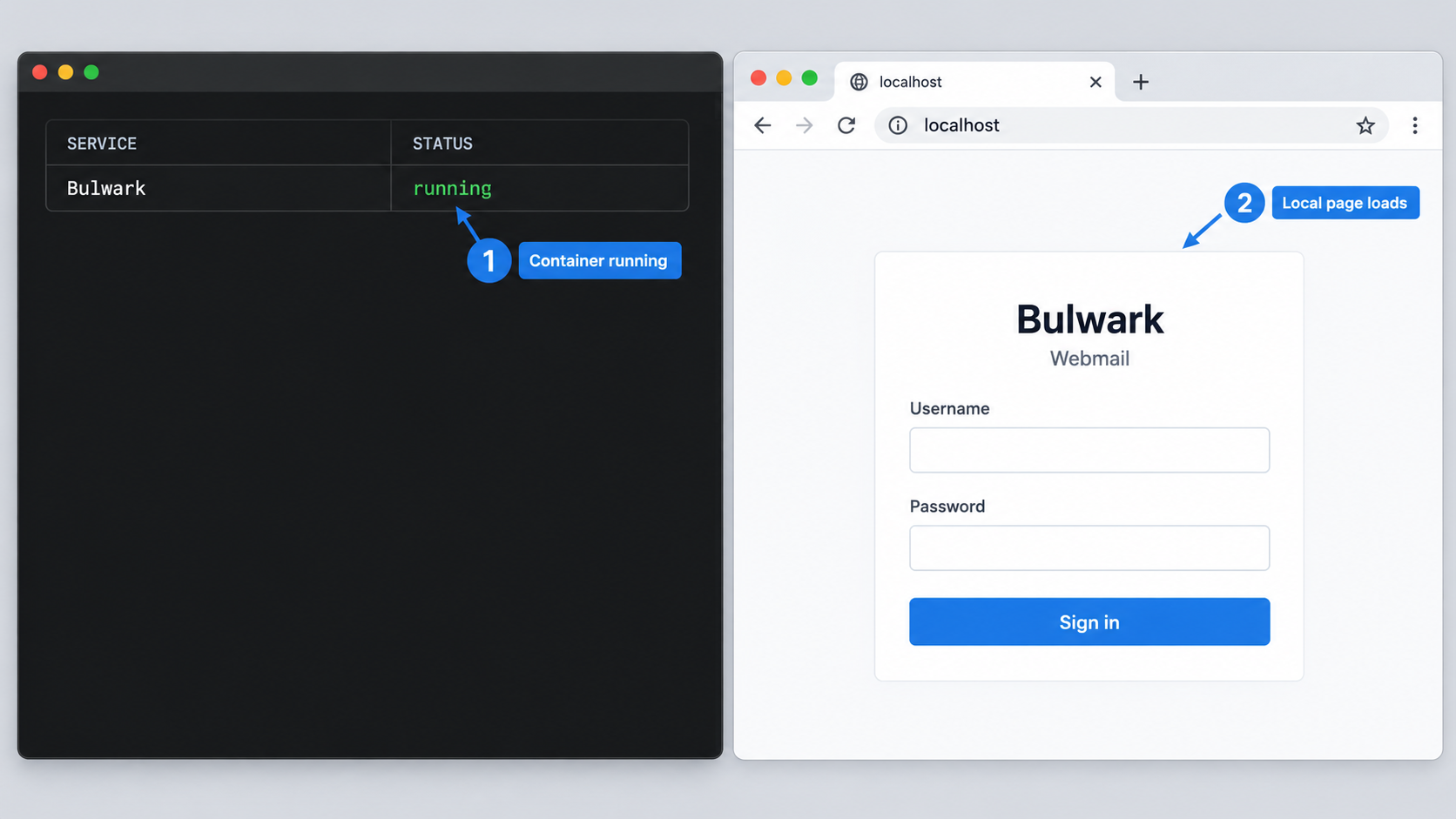
1. Check the container state
docker compose ps
docker compose logs --tail=200
If the service is unstable, follow new output while reproducing the problem:
docker compose logs -f
Press Ctrl+C to leave the log viewer. This does not stop a detached container.
2. Check the local HTTP endpoint
Open http://localhost:3000 from the Docker host. A command-line request can provide an additional reachability check:
curl -I http://127.0.0.1:3000An HTTP response shows that a service is listening. The exact status can depend on application state and redirects, so complete functional verification in a browser.
3. Verify setup and administration
Confirm that the wizard accepted the intended Stalwart server and that the administration interface can be reopened with the password you set. Merely seeing a logo or sign-in page does not prove that the JMAP connection works.
4. Test a normal Stalwart account
Sign in with a non-privileged account intended for testing. Check the functions your deployment needs, such as opening the inbox, reading a message, displaying a calendar, viewing contacts, and browsing available files. Reserve server-wide administrator credentials for operations that actually require them.
5. Confirm the loopback-only bind
Test http://127.0.0.1:3000 on the host where our client will run. If you intentionally selected the LAN-client architecture, test the Docker host's LAN address from the separate client device instead. A failure here is a local binding, routing, or firewall problem.
Bulwark can answer HTTP while its connection to Stalwart is misconfigured. Verify the local web listener and the complete account workflow separately.
Operate, back up, update, and roll back Bulwark
Routine commands
Run Compose commands from the directory containing the official definition:
docker compose ps
docker compose logs --tail=200
docker compose restart
docker compose stop
docker compose start
A restart reuses the selected image and configuration. It can recover from a transient problem, but it should not conceal a recurring configuration or compatibility failure.
Behavior after a host reboot
Automatic recovery depends on Docker starting and on the restart policy in the current official Compose definition. Inspect the file instead of assuming that a policy exists. If Bulwark does not return automatically, enter the project directory and run:
docker compose up -dAlso confirm that the Localtonet client is connected and that the tunnel is running. These are independent services.
Record a recoverable deployment state
Before an update, record the currently selected release and resolved image information:
docker compose config
docker compose images
docker image inspect ghcr.io/bulwarkmail/webmail:<current-version>
Keep a protected copy of the effective Compose definition and deployment notes. Back up Stalwart using its supported backup process. Bulwark does not prescribe a universal application-data backup command in its general container guidance, so do not claim that copying an arbitrary container directory protects mailbox data or administrative state.
Verify release provenance
Container images and release files from Bulwark 1.12.0 onward include signed build provenance attestations. With the GitHub CLI installed, verify a selected container image with the project's documented command:
gh attestation verify oci://ghcr.io/bulwarkmail/webmail:<version> --owner bulwarkmailFor a downloaded release file, use:
gh attestation verify <file> --repo bulwarkmail/webmail
Release files also have an adjacent .sha256 file. Download the artifact and its matching checksum, then use the SHA-256 verification tool appropriate for your operating system. A checksum confirms that the downloaded bytes match the published checksum. Provenance verification additionally checks that the artifact was built by the expected repository workflow.
Bulwark documents signed build provenance for container images and release files from version 1.12.0 onward. Checksum and attestation availability must be evaluated for the exact release you selected.
Update a pinned Compose deployment
Read the release notes and the current updating guide before changing the image. Then update the image tag in the Compose definition to the selected release and validate it:
docker compose config
docker compose pull
docker compose up -d
docker compose ps
docker compose logs --tail=200
Test http://127.0.0.1:3000, reopen the administration interface, and verify a normal Stalwart account. Keep the Localtonet tunnel stopped during the change if you do not want users to reach an unverified build.
Roll back to the previous release
Rollback should be planned before the update. Retain the previous explicit image tag and Compose definition. If the new release fails, stop public access, restore the previous tag, and recreate the service:
docker compose config
docker compose pull
docker compose up -d
docker compose ps
docker compose logs --tail=200
Those commands are intentionally the same as the update commands. The difference is that the Compose definition now identifies the previous tested release. Verify the local interface and Stalwart-backed account behavior before restarting the tunnel.
Bulwark does not publish a universal guarantee that every configuration change made by a newer release is backward-compatible with every older release. Review release-specific migration and rollback notes. If a release says rollback requires additional action, follow that release's instructions instead of assuming that changing the image tag is sufficient.
Publish Bulwark with a Localtonet HTTP tunnel
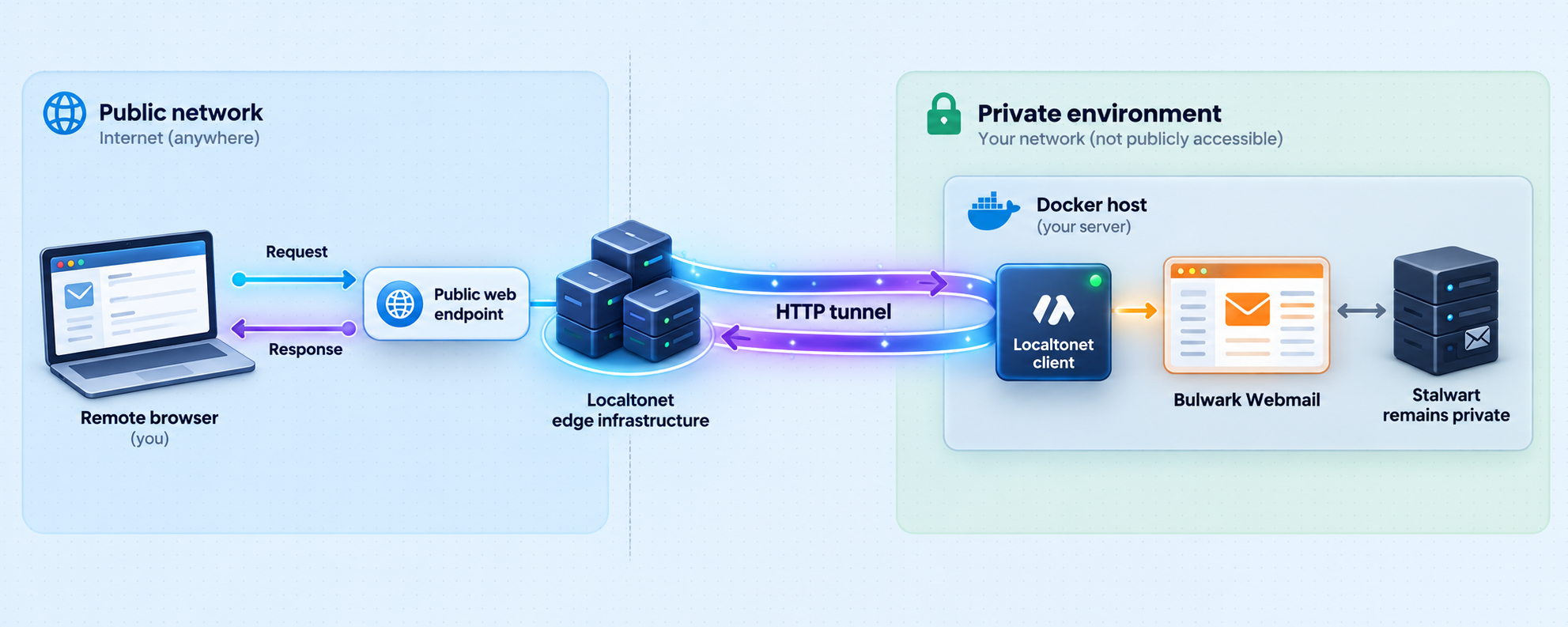
Once Bulwark and its Stalwart connection work locally, configure an HTTP tunnel. The exact order matters: select the HTTP Process Type, choose the client device token, choose an available relay, enter the local target, start the tunnel, and verify the assigned public address.
Review the current interface in our HTTP tunnel documentation. Relay availability, regions, options, and plan applicability can change, so select current values from the dashboard instead of copying a server code from an article.
Install and run the Localtonet client
Run our client on the Bulwark Docker host for the loopback-only layout. The client must remain connected while the public endpoint is needed.
Select the HTTP Process Type
Choose Random Sub Domain, Custom Sub Domain, or Custom Domain according to the hostname workflow available in the current dashboard.
Select the device authentication token
Select the device-specific token belonging to the client running on the Docker host. Keep the token private and never place it in Bulwark's Compose or application configuration.
Select an available relay server
Choose a server or region currently offered in your dashboard. Do not hardcode an old relay code.
Enter the local Bulwark target
For the same-host layout, enter local IP 127.0.0.1 and port 3000. For a separate client device, enter the Docker host address and port that are reachable from that device.
Start the tunnel
Creating the configuration does not start it. Use the Start control and confirm that the selected device and tunnel report a connected state.
Verify the assigned public address
Open the public HTTPS URL in a separate browser session. Test sign-in and the Stalwart-backed functions required by your deployment.
Choose the appropriate Process Type
| Process Type | Typical use | Important consideration |
|---|---|---|
| Random Sub Domain | Initial testing or temporary remote access | Uses a generated public HTTPS address |
| Custom Sub Domain | A selected Localtonet subdomain where supported | Check current availability and plan applicability in the dashboard |
| Custom Domain | An organization-controlled hostname | Follow current Localtonet DNS instructions rather than guessing DNS records |
All three Process Types serve the same local Bulwark content through a public HTTPS address. If Bulwark authentication, OAuth, or another integration depends on an externally visible hostname, align that integration with the selected public origin according to Bulwark's current configuration documentation.
Understand the tunnel lifecycle
The endpoint works only while the selected Localtonet client is connected, the tunnel is running, and Bulwark is answering on the configured target. Stop the tunnel when remote access is no longer needed. Delete it if the public configuration will not be used again.
Secure the published webmail interface
Webmail contains sensitive account and message data. A tunnel provides connectivity, not authorization. Treat the assigned public address as internet-facing even if you share it with only a small group.
Anyone who obtains the URL can attempt to reach Bulwark. Keep application authentication enabled, protect administrative accounts, and apply access restrictions required by your organization.
Protect tokens and configuration
Do not place Localtonet tokens, mailbox passwords, or Bulwark administration credentials in screenshots, public repositories, shell examples, issue reports, or the Compose file unless a project's documented secret-management procedure specifically requires and protects them.
Report Bulwark security issues privately
Bulwark asks users to report vulnerabilities privately to dev@bulwarkmail.org or through a private GitHub security advisory. Do not post vulnerability details or active credentials in a public issue.
Troubleshoot Bulwark and Localtonet
Bulwark maintains a troubleshooting guide in its documentation portal. Use the checks below to identify which layer is failing before escalating the problem.
The container exits or repeatedly restarts
docker compose config
docker compose ps
docker compose logs --tail=200
Check for invalid Compose syntax, an image-download failure, an unsupported architecture, missing Docker access, or an application startup error. Confirm that the selected release does not have a known startup problem in its release notes.
Docker reports that port 3000 is already allocated
Another process or container is using the host port. Run docker ps and inspect the host's active listeners. Stop or reconfigure only a service you recognize. If you select another host port, keep the container destination at its documented port and use the new host port consistently in local tests and the Localtonet target.
Localhost does not open Bulwark
Confirm that the browser is running on the Docker host. localhost always identifies the current device. Then check the Compose state, rendered port binding, and logs. If the mapping is loopback-only, another LAN computer is not expected to reach it.
The page loads, but login or mailbox data fails
The HTTP layer is healthy, but the Bulwark-to-Stalwart path may not be. Check the Stalwart version, JMAP server address, account credentials, account status, DNS resolution, routing, and certificate validity. If an environment variable appears to be ignored, remember that saved administration configuration takes priority for the same key.
Bulwark works locally but the public URL fails
- Confirm that
http://127.0.0.1:3000still works on the Localtonet client host. - Confirm that the selected Localtonet device is connected.
- Confirm that the tunnel has been started, not merely created.
- Confirm that the target is
127.0.0.1and port3000for the same-host layout. - Confirm that you are opening the public address assigned to the active tunnel.
A separate Localtonet client cannot reach Bulwark
A loopback-only Docker bind is intentionally unreachable from another device. Either move our client to the Docker host or change the deployment to a controlled LAN-reachable binding. After changing it, test the Docker host's LAN address directly from the client device before troubleshooting the tunnel.
The public page opens, but OAuth or another hostname-sensitive function fails
Reproduce the action through the local URL. If it works locally but fails through the public hostname, review Bulwark's authentication and configuration documentation for origin, callback, proxy, and hostname requirements. Do not guess callback paths or environment-variable names.
An update caused a failure
Stop the tunnel, inspect the logs, identify the exact image tag or digest, and review that release's notes. If rollback is supported without additional migration steps, restore the previous pinned tag and recreate the service. Restore Stalwart data only through Stalwart's documented recovery process.
The service did not return after a reboot
Confirm that Docker started, then run docker compose ps. Start the project with docker compose up -d if needed. Separately confirm that the Localtonet client is connected and that the tunnel is running.
Frequently asked questions
Is Bulwark a complete mail server?
No. Bulwark is the browser client. Stalwart owns the accounts, messages, SMTP functions, spam processing, calendars, contacts, and files. Configure Bulwark to use an existing compatible Stalwart JMAP service.
Why use Bulwark's repository Compose file?
It is maintained with the application and can evolve with supported deployment requirements. A hand-written translation of the quick-start docker command can omit changes made to the official Compose workflow.
Why bind port 3000 to 127.0.0.1?
When Docker and Localtonet run on the same host, a loopback bind lets our client reach Bulwark without publishing the port to the LAN or every host interface. A separate client device requires a deliberately configured LAN-reachable bind instead.
Should I use the latest image tag?
The quick start uses latest, but it can change when a new image is published. Use an explicit tested release tag when reproducibility and predictable rollback matter.
What should I back up?
Back up Stalwart through its supported procedure because it remains the source of truth for user data. Also retain the Bulwark Compose definition, release selection, external configuration, and deployment notes. Do not assume that copying an arbitrary container directory is a supported Bulwark backup.
How do I verify a Bulwark release?
Review the release notes, use the adjacent SHA-256 checksum for release files, and verify signed provenance where available. Bulwark documents provenance attestations for container images and release files from version 1.12.0 onward.
Does Localtonet replace Bulwark authentication?
No. Our HTTP tunnel provides connectivity to the local application. Keep Bulwark and Stalwart authentication enabled, use strong unique credentials, and enable suitable account-security controls.
Do I need router port forwarding or a public IP address?
No. The Localtonet client establishes an outbound connection to our relay server. The running tunnel provides a public address without inbound router port forwarding, firewall changes, VPN setup, or a public IP address.
Why is the public address unavailable after I created the tunnel?
Creation does not start a Localtonet tunnel. The selected client device must be connected, the tunnel must be started, and Bulwark must be running on the configured local IP address and port.
Publish your verified Bulwark interface with Localtonet
Run Bulwark from its official Compose definition, verify the Stalwart-backed workflow locally, and then create an HTTP tunnel to 127.0.0.1:3000 from the same host. Keep authentication enabled and stop the tunnel whenever public access is no longer required.


