

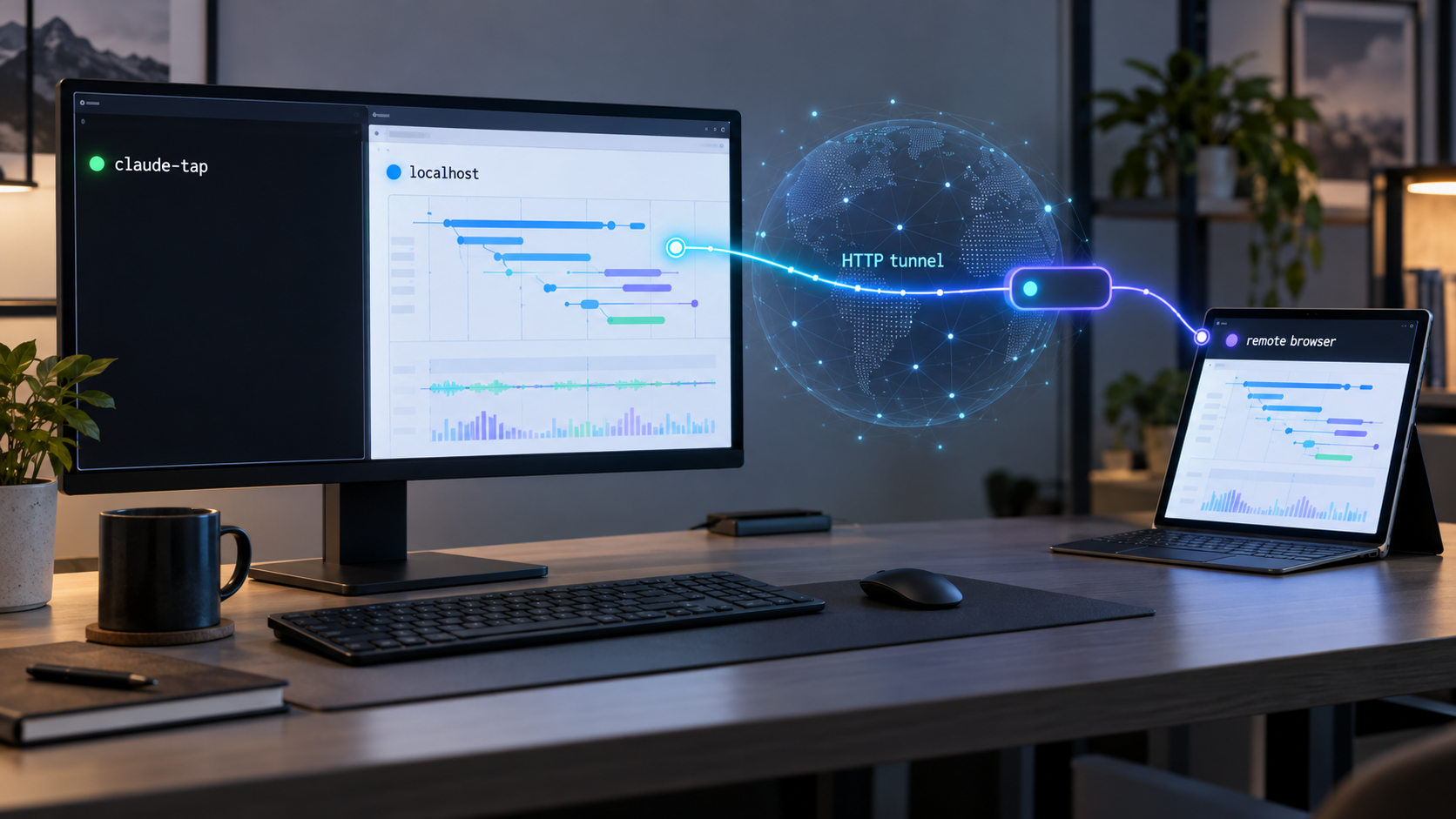
Inspect local AI agent traffic first, then expose the trace viewer only when remote access is truly needed
claude-tap is a local proxy and trace viewer for inspecting API traffic generated by Claude Code and other supported coding agents. This guide explains how to install it with Python 3.11 or newer, launch an agent through it, identify the live viewer endpoint from the application's own output, and verify that traces are being captured locally. We then show how to connect that verified HTTP endpoint to Localtonet without guessing its port or bind address. Because traces may contain prompts, conversation history, tool calls, tool results, and development data, the remote-access section emphasizes controlled exposure rather than treating the viewer as an ordinary public website.
📋 What's in this guide
What claude-tap does and where Localtonet fits
claude-tap is designed for local AI agent observability and API debugging. It can run a supported coding agent through a local proxy or listen to supported local application transcripts, depending on the selected client. The resulting trace viewer lets a developer inspect the context that an agent actually sent or received, rather than relying only on what appeared in a terminal or chat interface.
The captured information can include system prompts, conversation history, messages, tool definitions, tool calls, tool results, streaming responses, token usage, and differences between adjacent requests. This is especially useful when an agent behaves differently across turns, unexpectedly invokes a tool, loses context, or sends parameters that do not match the developer's assumptions.
claude-tap supports Claude Code as its default workflow and documents integrations for other clients, including Codex CLI, Codex App, Gemini CLI, Grok Build CLI, DeepSeek Harness, Kimi CLI, Kimi Code CLI, MiMo Code, OpenCode, OpenClaw, Pi, Hermes Agent, Cursor CLI, Qoder CLI, Antigravity CLI, and CodeBuddy CLI. Individual integrations do not all operate identically. Some launch a command-line client through a proxy, while others use forward proxy mode or watch local transcripts.
The live browser viewer is enabled by default when claude-tap runs. That viewer is the local HTTP service relevant to this guide. Localtonet is not required for local tracing. We recommend installing, running, and verifying claude-tap entirely on the local machine before considering remote access.
Once the viewer works locally, a Localtonet HTTP tunnel can provide a public HTTPS address for its local HTTP endpoint. Our client establishes an outbound connection to a Localtonet relay, so this workflow does not require inbound router port forwarding, a public IP address, firewall changes, or VPN setup. The tunnel remains available only while the selected Localtonet client is connected and the tunnel is running.
Captured sessions may reveal proprietary prompts, source fragments, file paths, user messages, tool arguments, tool output, API payloads, and internal development details. Redaction of common authentication headers does not guarantee that every secret or sensitive value has been removed from request bodies, prompts, tool results, or application output. Do not expose the viewer publicly until you have evaluated its contents and established an appropriate access-control layer.
Prerequisites and decisions to make before installation
The documented claude-tap requirement is Python 3.11 or newer. You also need the coding agent that you intend to trace. For the default path in this guide, that agent is Claude Code. Install and authenticate the agent through its normal supported process before starting claude-tap, because claude-tap does not replace the agent itself or provide its upstream credentials.
You need either uv or pip to install claude-tap. The project recommends installation as a uv tool. A pip installation is also officially documented. Choose one method and use the corresponding upgrade process later rather than repeatedly switching installers for the same executable.
Confirm that the Python interpreter associated with your selected package manager meets the requirement. Depending on the operating system and Python installation, the interpreter command may be named python or python3. The following checks do not install anything:
python --versionpython3 --versionUse the command that exists in your environment. Its output must report Python 3.11 or a newer version. If neither command exists, or the reported version is older, install or select a suitable Python release before continuing. Exact Python installation commands differ across operating systems and package managers, so this guide does not prescribe an unverified platform-specific command.
For the later remote-access stage, install the Localtonet client on the same machine as claude-tap or on another device that can reach the viewer's local address. You will also need a Localtonet device authentication token and a currently available relay server selection. Tokens are device-specific and sensitive. Obtain both the token and available relay values from the current Localtonet dashboard rather than copying placeholder values into a command or configuration file.
| Requirement | Why it is needed | How to validate it |
|---|---|---|
| Python 3.11 or newer | claude-tap requires this Python version range. | Check the version associated with the Python environment used by uv or pip. |
| uv or pip | One of these supported installation paths installs the claude-tap command. | Choose one method and complete its documented install command successfully. |
| A supported coding agent | claude-tap captures traffic or transcripts generated by the selected client. | Start and authenticate the client normally before tracing it. |
| A browser | The default live viewer is browser-based. | Open the exact local URL reported by the running application. |
| Localtonet client and device token | These are required only when adding remote access. | Confirm that the intended device appears connected in the current dashboard. |
| An access-control plan | Trace content may contain confidential development information. | Decide who may connect and how authorization will be enforced before starting a public tunnel. |
The available project evidence does not establish a fixed viewer port, bind address, authentication mechanism, or universal local URL. Do not copy a port from an unrelated tutorial. Start the installed application and use the address it reports in your own environment. This address is also the source of truth for the later Localtonet target.
Install claude-tap with uv or pip
Install claude-tap using one of the two officially documented methods. The uv tool method is recommended by the project because it installs the command as an isolated tool. The pip method is available for environments where pip is already the preferred Python package workflow.
Recommended method: install as a uv tool
If uv is already installed and available in your shell, run:
uv tool install claude-tap
Wait for the command to finish successfully. If the shell cannot find claude-tap immediately afterward, review the path guidance printed by uv, then open a new terminal if your environment requires it. The exact executable path and shell configuration depend on the operating system and the existing uv installation, so they should be taken from the local installer output rather than guessed.
Alternative method: install with pip
To use the project's documented pip installation path, run:
pip install claude-tap
Make sure this pip belongs to a Python 3.11 or newer environment. Systems with several Python installations can associate pip with a different interpreter than the one returned by python. If the installation succeeds but the executable is unavailable, inspect the package installation location and executable-path guidance provided by your Python environment.
Installing with both uv and pip can leave multiple claude-tap executables on the same machine. The shell may then launch a different copy from the one you upgraded. Choose one installation path where possible, and use its matching upgrade command during routine maintenance.
Installation is only the first check. The meaningful verification is to start claude-tap, confirm that the intended agent launches, identify the viewer endpoint emitted by the running process, and generate a trace that appears in the browser interface.
Start claude-tap and generate a trace
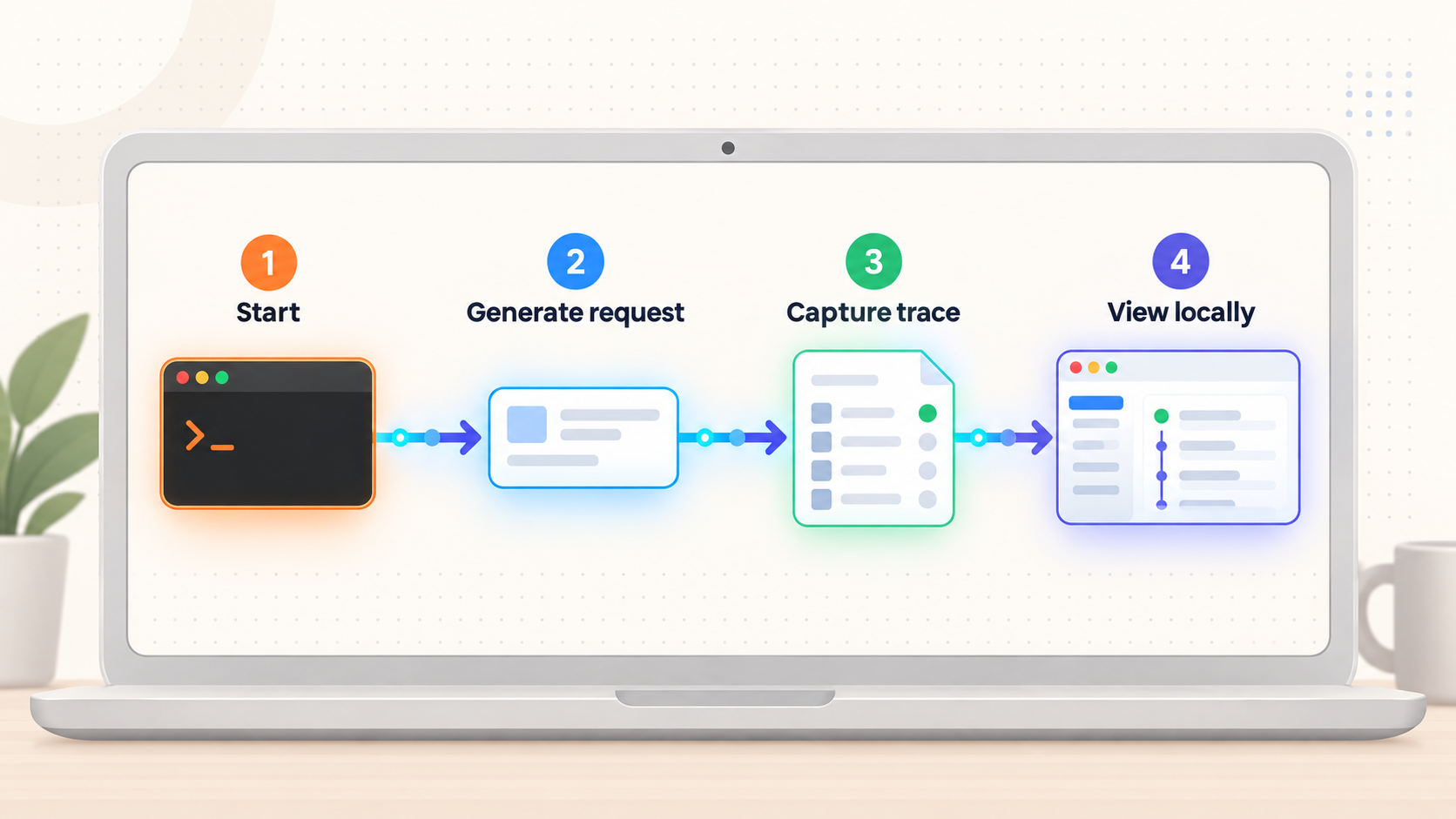
For Claude Code, run claude-tap in place of the normal claude command. No separate client selection is required for this default workflow:
claude-tapThe live viewer is enabled by default. Keep this terminal open because it runs the proxy, launches or coordinates the selected client, and provides runtime information needed to locate the viewer. Read the startup output carefully and record the exact local HTTP URL, IP address, and port shown by your installed version.
Use the launched Claude Code session normally and submit a small, non-sensitive test request. Once the client sends API traffic, return to the browser viewer and confirm that the session or request is visible. For initial verification, avoid opening a confidential repository or including credentials in the test prompt. A minimal disposable test makes it easier to distinguish installation problems from application-specific behavior.
Pass Claude Code arguments through claude-tap
Arguments placed after -- are passed to the selected client. For example, the project documents this pattern for selecting a Claude model:
claude-tap -- --model claude-opus-4-6Model availability and authorization depend on the underlying Claude Code account and configuration. claude-tap passes the argument through but does not grant access to a model.
The project also documents continuing the previous Claude Code conversation with:
claude-tap -c
Permission-related flags can also be passed to Claude Code after --. However, flags that disable permission prompts can allow tools to run without interactive confirmation. They are unrelated to tracing and should not be enabled merely to test the viewer.
Tracing does not require automatically approving tool calls. Keep the coding agent's normal permission controls unless you have a separate, reviewed reason to change them. A remotely reachable trace viewer and an agent configured to skip permission prompts are distinct risks, and combining them can increase the impact of an unsafe development environment.
Run another supported client
Use --tap-client when selecting a client other than the default Claude Code workflow. The following commands are documented examples:
claude-tap --tap-client codex
claude-tap --tap-client codexapp
claude-tap --tap-client gemini -- -p "hello"
claude-tap --tap-client grok -- -p "hello"
claude-tap --tap-client dsh -- --profile headless "Reply OK"
claude-tap --tap-client kimi
claude-tap --tap-client kimi-code
claude-tap --tap-client mimo
claude-tap --tap-client pi
claude-tap --tap-client cursor
claude-tap --tap-client qoder -- -p "hello" --permission-mode dont_ask
claude-tap --tap-client agy
claude-tap --tap-client codebuddy
Install and configure the selected client independently before using its claude-tap integration. Do not assume that every client uses the same network capture mechanism. For example, the documented Cursor workflow can launch cursor-agent, watch live transcripts, and provide the dashboard. To watch Cursor IDE Agent transcripts without launching the CLI, the project documents:
claude-tap --tap-client cursor --tap-no-launchRun without the live viewer
If you want the earlier behavior with no live viewer server, use:
claude-tap --tap-no-liveThis mode is not suitable for the Localtonet HTTP workflow in this guide because there is no live viewer service to expose. It can still be useful when capture is needed without a running browser interface.
Custom Claude Code upstreams
claude-tap can automatically detect custom Claude Code upstreams from ANTHROPIC_BASE_URL, ANTHROPIC_BEDROCK_BASE_URL, or ANTHROPIC_VERTEX_BASE_URL in the environment or Claude settings. Local proxy upstreams are supported as well. The documented guidance is to use --tap-target only when intentionally overriding the detected target.
Avoid changing the target during a basic installation test. First verify the default detected path. If the agent works normally without claude-tap but fails only while being traced, compare the existing upstream configuration with what the process reports and check for an unintended environment override.
Verify the live viewer before creating a tunnel
A successful package installation does not prove that the viewer is reachable or that agent traffic is being recorded. Complete local verification before adding another network layer.
Start claude-tap in a terminal
Run claude-tap for the default Claude Code workflow or use the documented --tap-client value for another supported client. Keep the process running and inspect its startup output.
Record the reported viewer endpoint
Find the exact HTTP URL printed by your installed version. Record its host or IP address and port separately. Do not assume a default port or substitute a URL from another installation.
Open the endpoint locally
On the machine running claude-tap, open the reported URL in a browser. Confirm that the viewer loads without relying on Localtonet or any public address.
Generate a controlled test request
Send a small, non-sensitive request through the selected coding agent. Use a disposable workspace or harmless prompt during the first test so that the resulting trace is safe to inspect.
Confirm that trace details appear
Check that the viewer shows the new session or request and that expected details such as messages, tool information, streaming output, or token usage are present where applicable.
Review sensitivity before remote access
Inspect the captured content for prompts, file paths, source fragments, credentials, personal data, internal hostnames, tool output, and other information that should not leave the local machine.
If the browser viewer loads but remains empty, the HTTP service itself is working. Focus on the selected client, whether the agent generated a real request, and whether that integration uses proxy capture or transcript watching. If the viewer does not load locally, do not create a tunnel yet. A tunnel cannot repair a local service that is not listening or a viewer URL that was copied incorrectly.
Also determine whether the reported host is reachable from the machine running the Localtonet client. The simplest topology is to run both applications on the same device and use the exact local target reported by claude-tap. If the Localtonet client runs on another device, the viewer must listen on an address reachable from that device, and the network between them must permit the connection. The supplied project evidence does not establish a bind-address option, so this guide does not invent one.
Expose the verified viewer with a Localtonet HTTP tunnel
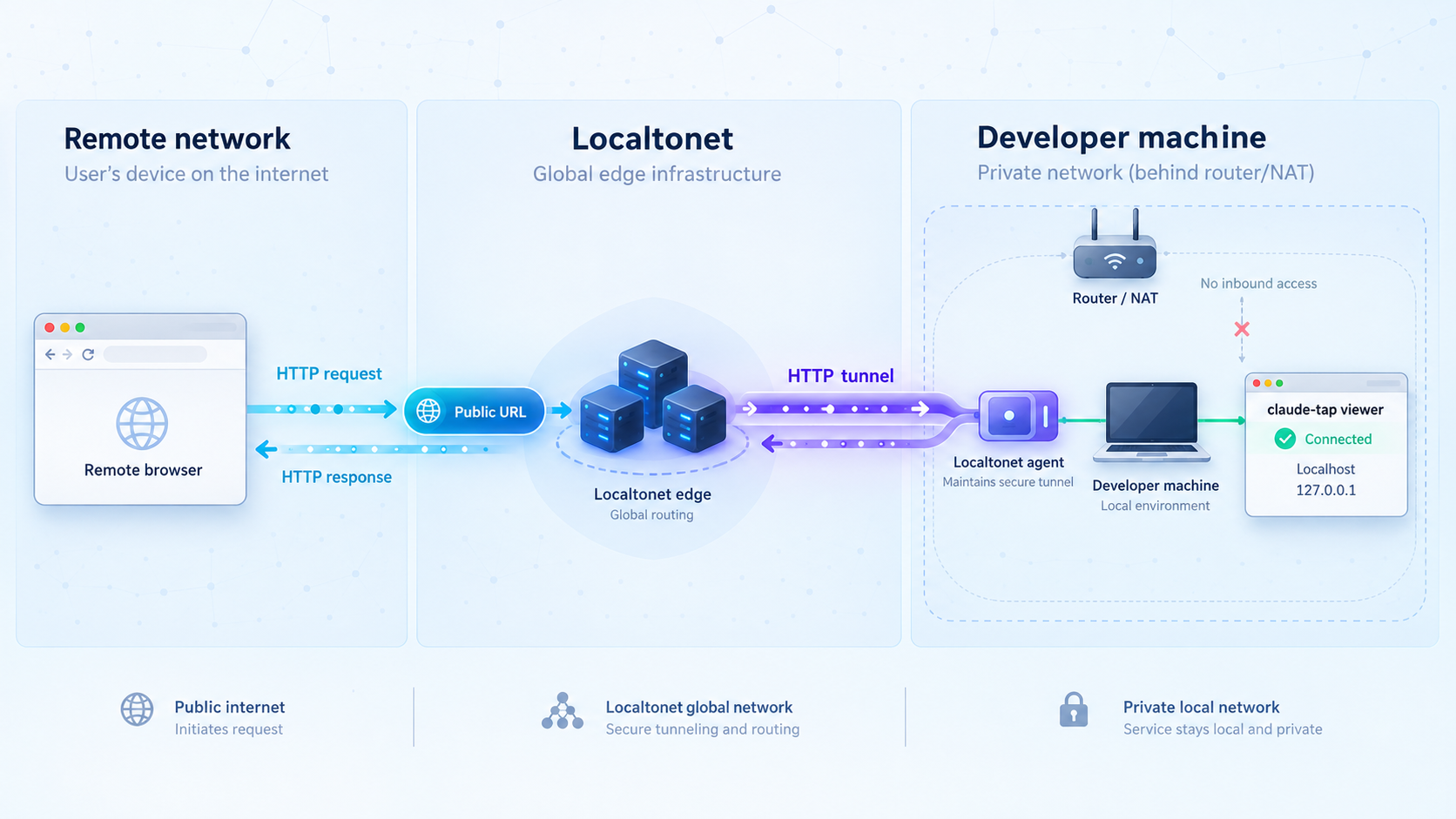
Proceed only after the local viewer works and its exact endpoint is known. An HTTP tunnel is the appropriate Localtonet family for a browser-based HTTP service. HTTP and File Server tunnels can use a random subdomain, a custom subdomain where supported, or a custom domain, with the same content served at a public HTTPS address. Availability can vary by plan and current dashboard configuration, so select only options shown for your account.
The process below follows the documented Localtonet lifecycle: run our client, identify the device with its token, choose an available relay server, create the HTTP target, start it, and stop or delete it when no longer required.
Install and run the Localtonet client
Run our client on the claude-tap machine or on a device that can reach the verified viewer endpoint. Confirm that the client remains connected before configuring the tunnel.
Authenticate or select the intended device
Use the device-specific authentication token supplied through the Localtonet dashboard and select the device that will originate the tunnel. Never place the token in screenshots, shared traces, article examples, or source control.
Select a currently available relay server
Choose a server or region value offered by the current dashboard. Available server codes must be obtained from the product rather than hardcoded from an old guide.
Create an HTTP tunnel for the discovered target
Select the HTTP tunnel family and enter the viewer's local IP address and port exactly as verified. Choose an available HTTP process type appropriate to your account. Do not enter a guessed port, a public URL, or the coding agent's upstream API endpoint.
Start the tunnel and test the assigned address
Creating the tunnel does not make it active. Use the Start control, then open the assigned public HTTPS address from an authorized remote browser. Confirm that the expected viewer loads and that a new local test trace becomes visible.
Stop or delete the tunnel after use
When the review session ends, stop the tunnel so the public endpoint is no longer active. Delete the configuration as well if it will not be reused. The endpoint is available only while the selected client is connected and the tunnel is running.
For the current interface and fields, consult our Localtonet HTTP tunnel documentation. Exact domain and DNS instructions should be taken from the current dashboard and documentation, particularly if you choose a custom domain.
The Localtonet local target is the HTTP address of the live claude-tap viewer. It is not an Anthropic, OpenAI, Google, or other upstream API endpoint. The tunnel makes the browser interface reachable. It does not replace claude-tap's interception path or change how the coding agent authenticates with its provider.
Security controls for remotely accessible traces
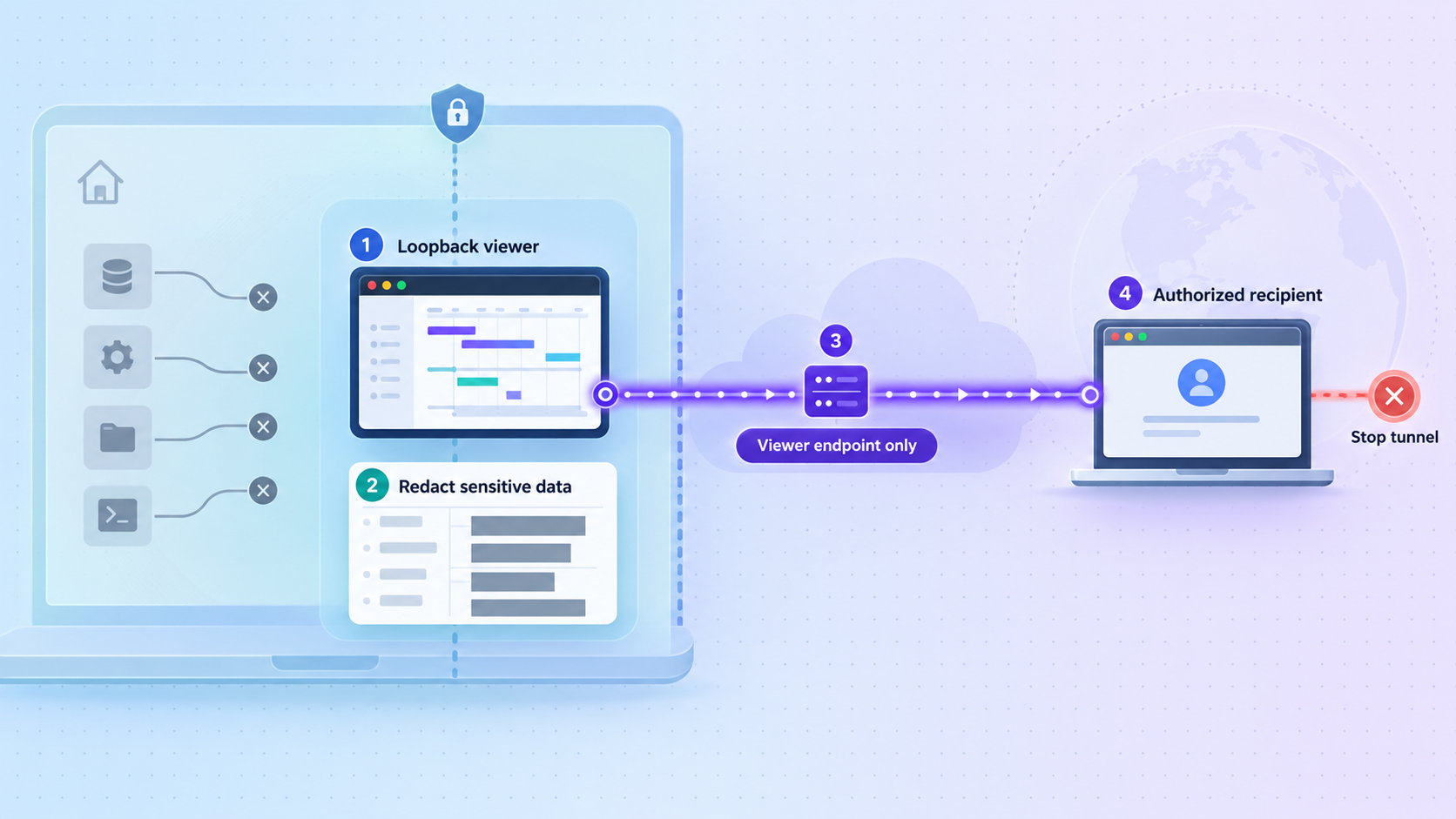
The safest default is to keep the viewer local. Remote exposure should have a defined purpose, a limited audience, and a short lifetime. Examples include reviewing an agent failure from another trusted device or allowing an authorized teammate to inspect a specific debugging session.
The supplied claude-tap evidence does not establish that its live viewer has built-in authentication, nor does it specify its bind address or access-control options. Do not assume that a login page, password, or user-management system protects the viewer. Verify the behavior of the installed version directly.
If the application does not provide suitable authentication, place an authenticated access layer in front of it before exposing it beyond a trusted audience. That layer might be a separately configured reverse proxy or another access-control mechanism approved for your environment. Its exact setup is outside this guide because no universal proxy, identity provider, or operating system was specified. Whatever mechanism you choose should deny unauthenticated requests, use least-privilege access, and be tested from an unauthorized client as well as an authorized one.
Limit what enters the trace in the first place. Use sanitized test prompts when reproducing issues, avoid pasting credentials into the agent, and review tool results that might contain environment variables, configuration files, source code, customer data, or command output. Common authorization-header redaction is valuable, but it cannot sanitize every arbitrary string inside a prompt or response.
HTTPS protects the transport to the public endpoint, but it does not by itself decide who may view the content. If the viewer accepts every request, anyone who obtains the address may be able to inspect traces. Establish and test access controls before sharing the URL.
Routine operation, upgrades, and trace sharing
Starting a work session
Start claude-tap before the agent activity you need to inspect. Confirm the local viewer first, then start the Localtonet tunnel only if remote viewing is required. Keeping these actions separate helps isolate failures and avoids exposing an empty or misconfigured service while troubleshooting.
During a session, monitor both terminal processes. If claude-tap stops, the local viewer and capture workflow stop with it. If the Localtonet client disconnects or the tunnel is stopped, the public endpoint becomes unavailable even if the local viewer continues to work.
Ending a work session
Stop remote exposure first. Then close the coding-agent session and terminate claude-tap according to the normal terminal behavior of your environment. Review the trace artifacts retained locally and handle them under the same data-classification rules used for source code, logs, prompts, and debugging captures.
If another person needs a fixed review artifact rather than a live endpoint, consider claude-tap's self-contained HTML export capability. A portable export may be more appropriate than leaving a live server reachable. The artifact can still contain the same sensitive trace content, so store and share it through an approved mechanism.
Upgrade claude-tap
The project documents a built-in update command:
claude-tap updateIt also documents installer-specific upgrades. For a uv tool installation, use:
uv tool upgrade claude-tapFor a pip installation, use:
pip install --upgrade claude-tapUse the command corresponding to the way the active executable was installed. After an upgrade, repeat local verification before reopening a Localtonet tunnel. Viewer behavior, integration behavior, or output can change between releases, and the live endpoint should always be taken from the current application's output.
Claude Code editor integration
For the Claude Code Visual Studio Code extension, the project documents setting Claude Code: Claude Process Wrapper to claude-tap. On Windows, use the full claude-tap.exe path if Visual Studio Code cannot find the executable.
Verify the editor integration locally before remote access. Start a controlled agent interaction from the extension, confirm that it creates a trace, and only then use the viewer endpoint as a Localtonet HTTP target.
Troubleshooting installation, capture, and tunnel problems
The claude-tap command is not found
First confirm that the selected installation command completed successfully. If uv installed the package, inspect the path information printed by uv and verify that its tool executable directory is available to the current shell. If pip installed it, confirm that you are using the intended Python environment and that its scripts directory is on the executable search path.
Multiple Python environments can make the package appear installed while the shell searches another environment. Avoid solving this by repeatedly installing through different package managers. Identify which executable path the shell is expected to use, correct the environment, and then keep one installation authoritative.
Python is too old
claude-tap requires Python 3.11 or newer. If the version check reports an older interpreter, install or select a newer environment and rerun the installation through the package manager associated with that environment. Exact platform commands are intentionally omitted because package names, launchers, and supported methods differ across operating systems.
The agent starts, but no viewer URL is visible
Confirm that you did not use --tap-no-live, which intentionally disables the live viewer server. Review all startup output from the active process. If the installed release behaves differently from the documented default, use its current output and project guidance rather than assuming a port.
The viewer loads but no requests appear
Generate a fresh request after claude-tap starts. Confirm that the correct client was selected and that the client itself successfully contacted its provider. A local viewer can be healthy while the agent is unauthenticated, idle, using an unsupported launch path, or configured through an unexpected upstream.
For Claude Code with a custom upstream, check the relevant base URL environment and settings values. claude-tap can detect ANTHROPIC_BASE_URL, ANTHROPIC_BEDROCK_BASE_URL, and ANTHROPIC_VERTEX_BASE_URL. Avoid adding --tap-target unless you intentionally need to override detection.
The local viewer works, but the public URL does not
Check the layers in order. Confirm that claude-tap is still running. Reopen the exact local viewer URL from the Localtonet client device. Confirm that our client is connected and associated with the intended device token. Verify that the HTTP tunnel target exactly matches the discovered local IP address and port. Finally, confirm that the tunnel was explicitly started, because creating it alone does not activate it.
If the Localtonet client is on another machine, an address bound only to the claude-tap machine's loopback interface may not be reachable from that other device. The available evidence does not provide a verified claude-tap bind option, so do not guess a flag. Running both processes on the same machine avoids that cross-device reachability issue in the normal case.
The public page loads, but assets or live updates fail
First test the same behavior through the local viewer URL. If it also fails locally, the issue is not caused by the tunnel. If it works locally but fails only remotely, record the browser error, the failed request path, and any relevant application output. Do not change ports or protocols randomly. Confirm that the tunnel is configured as HTTP and points to the same endpoint that passed local verification.
An unauthorized user can open the viewer
Stop the tunnel immediately. Do not rely on changing or hiding the URL as the sole remedy. Review whether the installed viewer provides appropriate controls. If it does not, place a tested authentication layer in front of it or keep it local. Inspect the exposed traces for secrets or confidential data and follow the incident-handling process required by your organization.
The tunnel stops unexpectedly
A Localtonet tunnel is available only while the selected client device is connected and the tunnel is running. Check whether the Localtonet client process stopped, the device lost connectivity, or the tunnel was stopped. Also confirm that claude-tap itself is still running. Restoring only the tunnel will not help if its local HTTP target has exited.
Frequently asked questions
What Python version does claude-tap require?
claude-tap requires Python 3.11 or newer. Confirm that the Python environment associated with uv or pip satisfies this requirement before installing.
Should I install claude-tap with uv or pip?
The project recommends uv tool install claude-tap. It also officially supports pip install claude-tap. Choose one method and use its corresponding upgrade command to avoid maintaining multiple executable copies.
What is the default claude-tap viewer port?
The supplied project evidence does not establish a fixed default port or universal local URL. Run claude-tap and use the endpoint reported by the installed application. Use that same verified host and port as the Localtonet HTTP target.
Does claude-tap upload traces to a hosted dashboard?
A hosted dashboard is not required for its documented local trace workflow. Traces remain on the machine, and sessions can be exported to a self-contained HTML viewer. Adding a Localtonet tunnel makes the live local HTTP viewer remotely reachable while the tunnel is running, so that exposure should be controlled carefully.
Does claude-tap remove every secret from a trace?
No such guarantee is established. The project states that common authentication headers are redacted before recording, but sensitive values can still appear in prompts, messages, request bodies, source fragments, tool arguments, tool results, and responses. Review traces before sharing or exposing them.
Does the claude-tap viewer include authentication?
The supplied evidence does not establish a viewer authentication feature. Verify the installed release directly. If it lacks adequate authorization, keep the viewer local or place a tested authenticated access layer in front of it before starting a public tunnel.
Do I need router port forwarding to reach the viewer with Localtonet?
No. Our client creates an outbound connection to a Localtonet relay, so the workflow does not require inbound router port forwarding, a public IP address, firewall changes, or VPN setup.
Does creating a Localtonet tunnel immediately expose the viewer?
No. Creating a tunnel does not mean it is running. You must start it explicitly. It can later be stopped or deleted, and it is available only while the selected Localtonet client is connected and the tunnel is running.
Can I use Localtonet if claude-tap runs on another device?
The Localtonet client can target a local IP address and port reachable from its device. However, the viewer must listen on an address reachable across that network path. Because the supplied claude-tap evidence does not document a bind-address option, running both applications on the same machine is the clearest setup unless you have independently verified cross-device reachability.
Can I use claude-tap without running the live viewer?
Yes. Run claude-tap --tap-no-live to disable the live viewer server. There is then no live HTTP viewer for Localtonet to expose.
Access your verified claude-tap viewer with Localtonet
Install and test claude-tap locally first, identify the exact viewer endpoint from its runtime output, and establish suitable authorization. When controlled remote access is needed, connect that HTTP endpoint through our outbound tunnel workflow and stop the tunnel as soon as the review is complete.
Get Started Free →

