

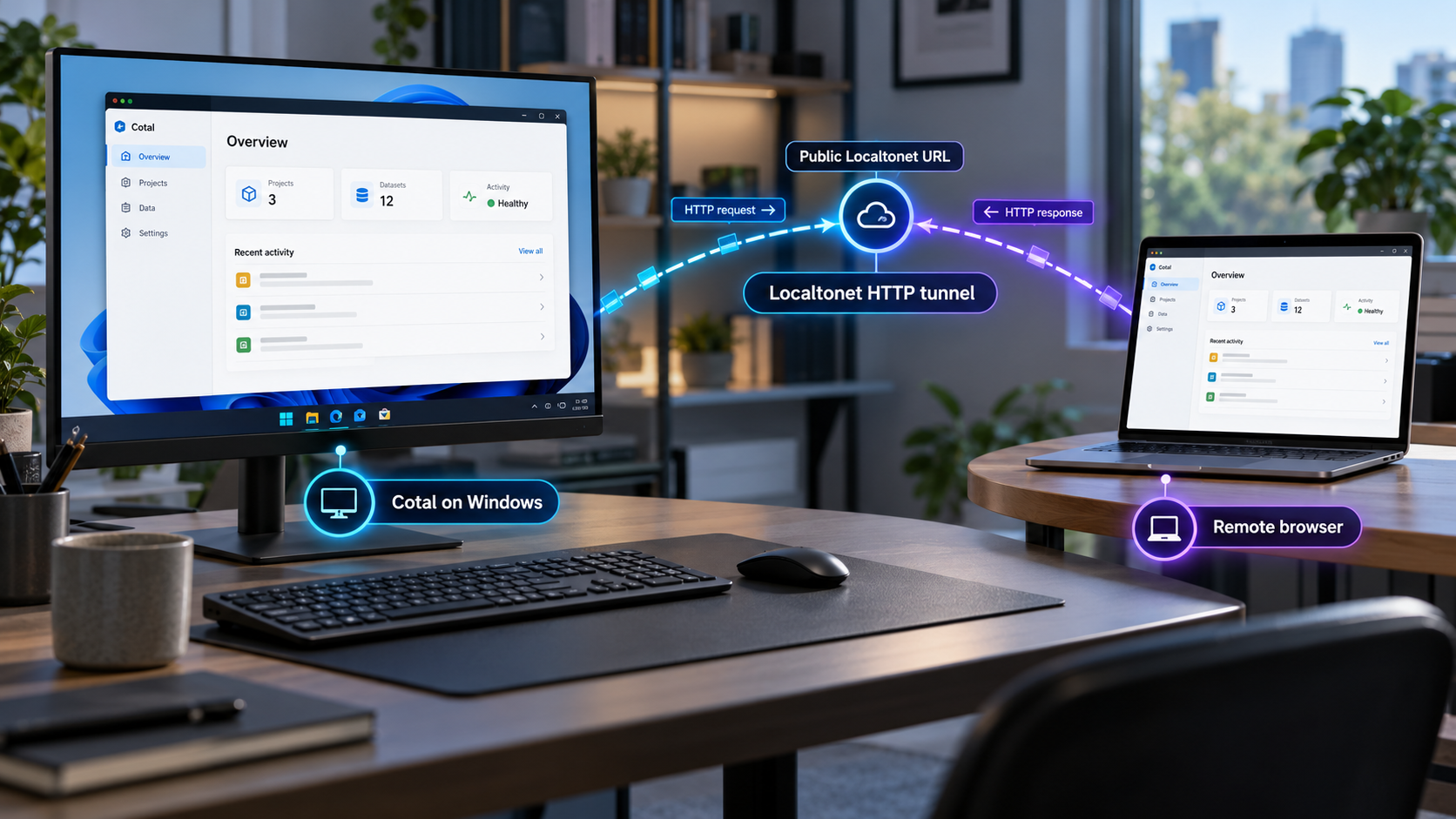
Build a local Cotal mesh first, verify its browser dashboard, then publish that dashboard through an HTTP tunnel
Cotal is a self-hosted coordination system that lets AI agents participate in a shared space using configurable topologies, presence, channels, and direct messaging. This guide walks through the supported npm installation path for Windows, runs the initial setup, starts a local mesh, and verifies the browser dashboard before any remote access is enabled. Once the local service works, we show how to connect its observed listening address and port to a Localtonet HTTP tunnel. Because Cotal does not document a fixed dashboard port in the available installation instructions, the workflow deliberately discovers the real endpoint instead of assuming one.
📋 What's in this guide
What this Cotal and Localtonet workflow does
Cotal provides an open pub/sub standard for coordinating AI agents. Instead of requiring every agent interaction to pass through one fixed controller, a Cotal space can represent a flat group of peers, a manager and its workers, a pipeline, a supervisor tree, a graph, or another topology defined by the operator. Agents can discover presence, communicate through named channels, address a specific peer, or send work to an available instance of a role.
The reference implementation uses NATS and JetStream underneath the coordination model. Cotal supports multiple independent meshes on one machine, and a mesh is not inherently tied to one repository or one computer. That distributed design is useful for agent teams, but it is separate from the browser dashboard addressed in this tutorial. We will first install the command-line package, prepare the local machine, start a mesh, and launch the documented web view.
Localtonet becomes relevant only after that web view works locally. Our client establishes an outbound connection from the Windows computer to a Localtonet relay server. An HTTP tunnel then forwards an assigned public HTTPS address to the local IP address and port on which the Cotal dashboard is listening. This does not require an inbound router port-forwarding rule, a public IP address, a VPN, or an inbound firewall change.
Keeping installation and remote access as separate phases matters. If the dashboard fails before the tunnel exists, the problem belongs to the Cotal or Node.js setup. If it works locally but not through its public URL, the investigation can focus on the selected Localtonet device, local target, tunnel state, or reachability. This division avoids trying to diagnose two systems at the same time.
cotal web command opens the browser view used to watch a running mesh.
cotal up starts a JWT-authenticated mesh with sender authenticity and per-agent access controls.
Cotal can use an internet-reachable broker for cross-machine participation, but the available installation material does not establish a broker address, transport port, or complete Localtonet-ready TCP configuration. We therefore do not guess those values. The documented browser dashboard is the HTTP-facing component used in this workflow.
Prerequisites for installing Cotal on Windows
The supported Windows route is npm. Before installing Cotal, make sure the machine has Node.js 22 or newer and a working npm command. Use a normal PowerShell or Windows Terminal session under the Windows account that will run Cotal. Administrative privileges are not inherently part of the documented Cotal command, although the way Node.js was installed may affect whether npm can write to its global package directory.
Run the following checks in a new terminal:
node --version
npm --version
The Node.js result must identify version 22 or newer for this installation path. The npm check must return a version rather than an unrecognized-command error. If Windows cannot find either command, install or repair a supported Node.js distribution, close the current terminal, open a fresh one, and run both checks again. A newly opened terminal is important because installers commonly update the user or system PATH after the original shell was launched.
You should also have a browser available on the same machine. Cotal documents cotal web as the command for watching the mesh in a browser. The exact listening address and port are intentionally not listed here because the available Cotal instructions do not define a stable default that we can safely reproduce. You will obtain the endpoint from the running command, the browser address bar, or current Cotal documentation.
For remote access, prepare a Localtonet account and install our client on the same Windows computer as Cotal, or on another device that can reach the dashboard's local address. Running both on the same computer is the simplest arrangement when the web process listens only on a loopback address such as localhost. Keep the device authentication token private. Tokens identify Localtonet client devices and must never be pasted into screenshots, articles, public issue reports, or shared terminal transcripts.
| Requirement | Why it is needed | How to validate it |
|---|---|---|
| Windows terminal | Runs npm and the Cotal command-line interface | Open PowerShell or Windows Terminal under the intended user account |
| Node.js 22 or newer | Required by the documented Windows npm installation path | Run node --version and inspect the major version |
| npm | Installs the global cotal-ai package |
Run npm --version |
| Web browser | Displays the local Cotal web dashboard | Open the URL produced or opened by cotal web |
| Localtonet client | Creates the outbound connection used by the HTTP tunnel | Confirm that the selected device appears connected in our dashboard |
| Observed dashboard endpoint | Provides the local IP address and port for the tunnel target | Read the running command output or browser address bar without assuming a default |
A copied port can point to a different application, a previous Cotal release, or nothing at all. Start cotal web on your own machine and record the endpoint actually used by that process. This is both more reliable and safer than forwarding an arbitrary local port.
Install and initialize Cotal with npm
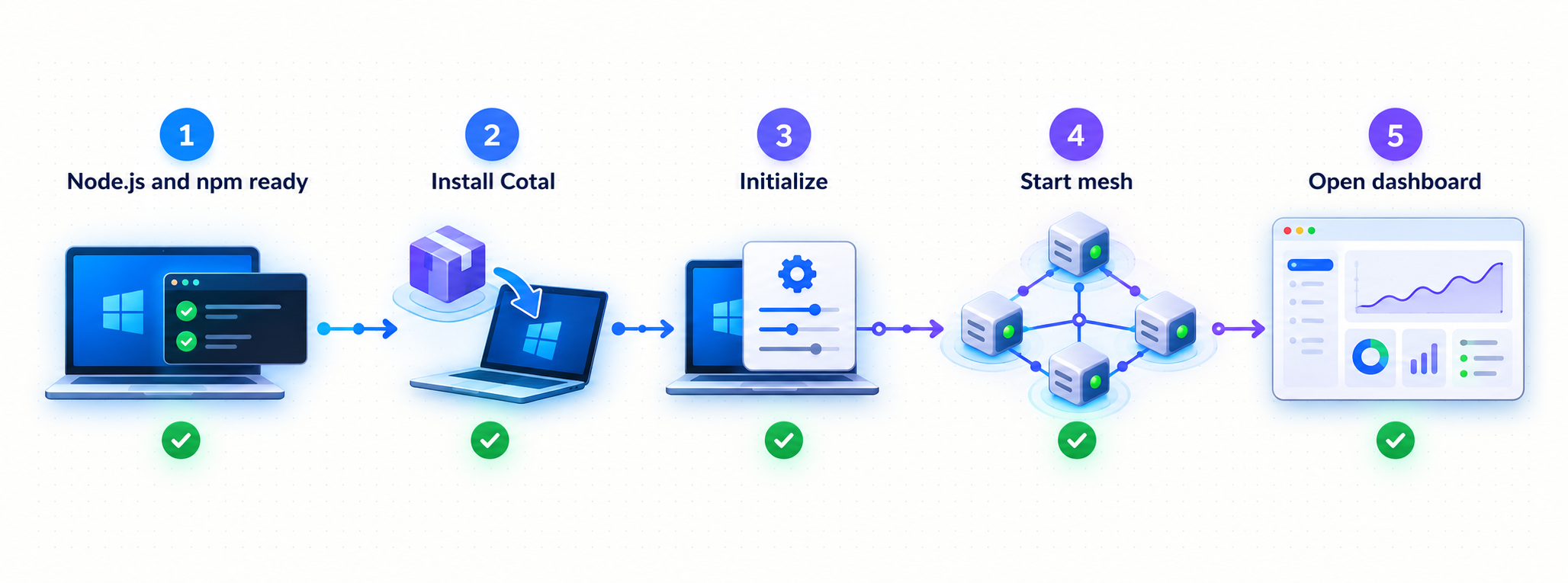
Cotal also publishes a POSIX shell installer, but that script is not the native Windows route. On Windows, use the documented npm package. Run installation and setup as separate commands so an error from either phase is immediately visible.
Install the Cotal npm package globally
Open PowerShell or Windows Terminal and install the published cotal-ai package. A global installation makes the cotal command available independently of one project directory.
npm install -g cotal-aiRun the machine setup
After npm completes successfully, initialize Cotal for the current user. Setup prepares the machine, seeds a default persona, and installs Cotal Agent Skills for supported tools it detects. It does not start a mesh.
cotal setup
The setup process can install a cotal-skills plugin when Claude Code is present. It can also place skills under the user's ~/.agents/skills location for Codex, Cursor, OpenCode, Gemini CLI, and Windsurf. These integrations do not mean every tool is automatically launched or joined to a mesh. They prepare the relevant skills so supported agents can interact with Cotal.
If you later need to refresh only the installed skills, Cotal documents this command:
cotal setup --skills
That refresh operation is not required for a normal first installation after cotal setup has completed. It is useful when you intentionally want to update or restore the skills without repeating the full setup.
A successful cotal setup means the local preparation phase completed. It does not prove that a mesh or browser dashboard is running. Continue with cotal up --detach, then launch cotal web.
What to do if Windows cannot find the cotal command
First confirm that npm reported a successful global installation rather than warnings followed by a failure. Then close and reopen the terminal so Windows reloads its PATH. Run cotal setup again from the new session. If it is still unavailable, inspect the global npm configuration for your Node.js installation and make sure its executable directory is represented in the current user's PATH.
Avoid repeatedly running global installation commands with elevated privileges until you understand the permission problem. Different Node.js installation methods use different global package locations. Mixing administrative and non-administrative installations can leave one Windows account able to update the package while another account executes a different copy.
Optional demo setup
Cotal documents an optional demo configuration that adds example participants named David, Sven, and the session controlled by the user. It is not required for dashboard access, but it can make the browser view easier to understand during an initial evaluation:
cotal setup --demo
Use the standard setup for a clean installation unless you specifically want the guided demo. If you do enable it, the documented example for starting the David agent is cotal spawn david. The mesh must be running before that interaction is useful.
Start the Cotal mesh and browser dashboard
Cotal separates machine setup from runtime startup. The first command below starts the mesh in detached mode, allowing the terminal to return while the mesh continues running. The second starts or opens the browser-facing web view.
Start the mesh in detached mode
Run the standard authenticated configuration. Cotal documents this mode as JWT-authenticated by default, including sender authenticity, per-agent access controls, and a server-side delivery daemon for durable delivery.
cotal up --detachLaunch the browser dashboard
Start the documented web view. Watch the terminal output and browser closely because one of them should reveal the actual local URL used by this installation.
cotal web
Keep the cotal web process running unless its output explicitly indicates that it launched a separate persistent service. Closing a foreground process may stop the dashboard even while the underlying mesh remains active. The mesh and dashboard are related, but they are not the same lifecycle state.
Cotal also documents cotal up --open, but that mode creates a loopback-only, live-only mesh without authentication. It is not the recommended basis for a remotely reachable dashboard. Loopback-only network binding may limit who can reach the mesh transport, but it should not be treated as dashboard authorization or as protection after an HTTP endpoint is published.
Use the normal cotal up --detach workflow unless you have a specific, reviewed reason to run an unauthenticated live-only mesh. Making a browser endpoint public changes its reachability. It does not make an unauthenticated application safe.
Verify Cotal locally before creating a tunnel
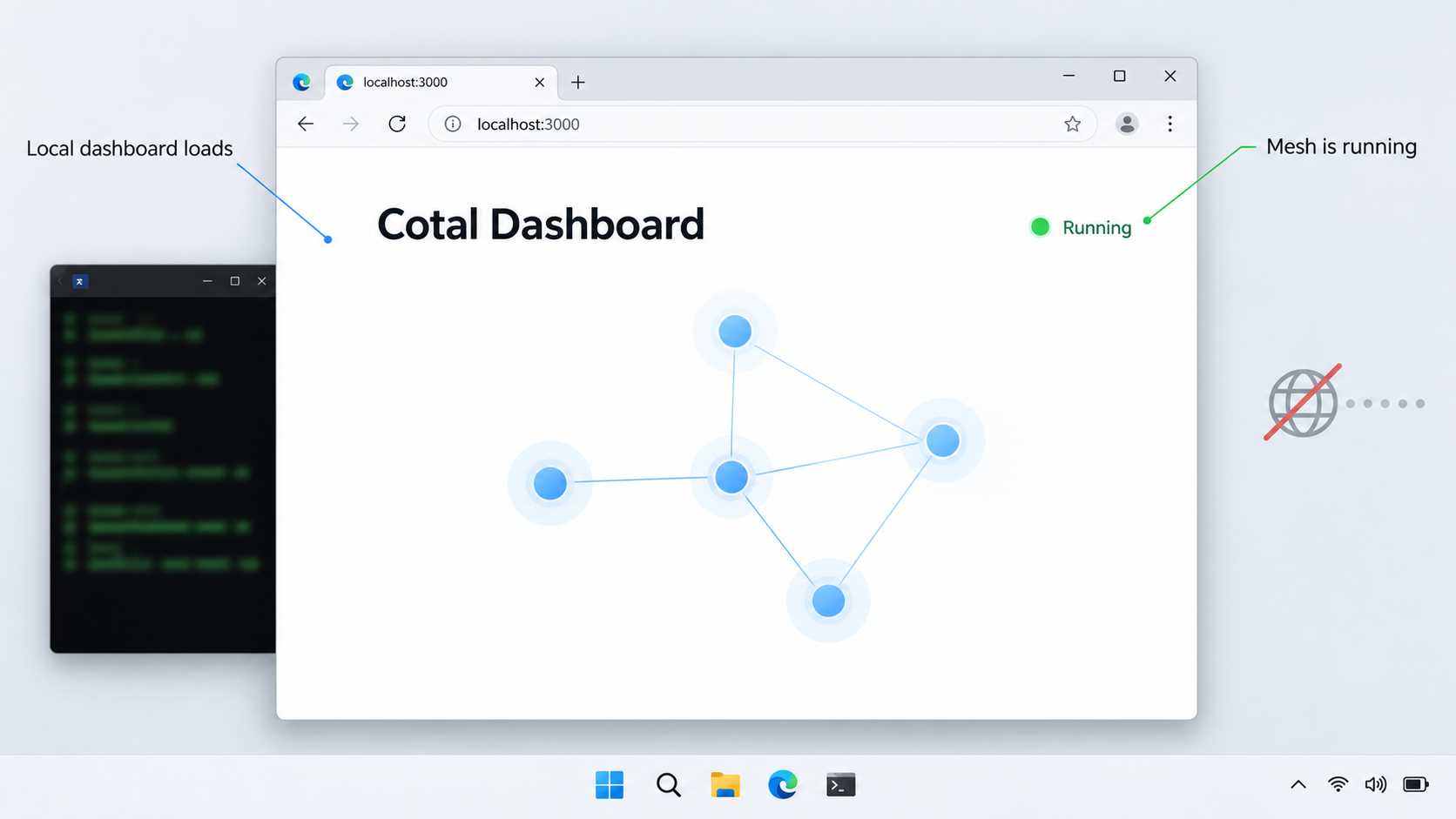
Local verification should prove three things: the mesh started, the browser dashboard responds, and you know the exact local endpoint. Do not create the public tunnel until all three are true.
Confirm that the dashboard opens
After running cotal web, use the browser window opened by Cotal or copy the displayed local URL into a browser on the Windows computer. A working page response is stronger evidence than merely seeing a process in Task Manager. Confirm that the interface loads rather than displaying a browser connection error, an indefinite blank page, or an unrelated service.
If the command launches the browser automatically, copy the complete origin from the address bar. For tunnel configuration you need the hostname or IP address and the numeric port. Do not assume that a hidden or omitted port means a separate undocumented default. When the browser omits a standard port from display, use the endpoint shown by Cotal's output or consult current Cotal documentation before configuring the target.
Test from the Localtonet client device
When our client runs on the same Windows computer, open the dashboard there using the observed local URL. If the client runs on another machine, that second device must be able to reach the dashboard address directly. A loopback address such as 127.0.0.1 refers to the device making the connection, so it cannot target a service on another computer.
If Cotal listens only on loopback, place the Localtonet client on the same computer rather than changing the service binding without documentation. If you intentionally configure a broader listening address through a supported Cotal option, review the local network exposure that change creates. This guide does not invent a Cotal binding flag because no such flag is established by the supplied installation evidence.
Optionally create visible activity
The command cotal spawn places an agent on the mesh and lets you talk to it. Cotal documents Ctrl+C as the way to leave that interactive session:
cotal spawnIf you installed the optional demo, you can instead start the named example:
cotal spawn davidObserve the dashboard while the agent is present. This is a useful functional check because it tests more than delivery of static browser assets. It gives you a chance to confirm that the view reflects activity from the intended mesh.
| Checkpoint | Expected evidence | If it fails |
|---|---|---|
| Mesh startup | cotal up --detach completes without reporting a startup failure |
Resolve the Cotal runtime error before continuing |
| Web startup | cotal web produces or opens a local browser destination |
Keep the command visible and inspect its complete output |
| Local page response | The Cotal dashboard loads on the client device | Check whether the web process is still running and whether the copied endpoint is exact |
| Endpoint discovery | You have the actual local host and port | Use the process output or browser address rather than guessing |
| Mesh activity | An optional spawned agent becomes visible or usable | Confirm that the mesh and dashboard refer to the same Cotal space |
Expose the verified Cotal dashboard with Localtonet
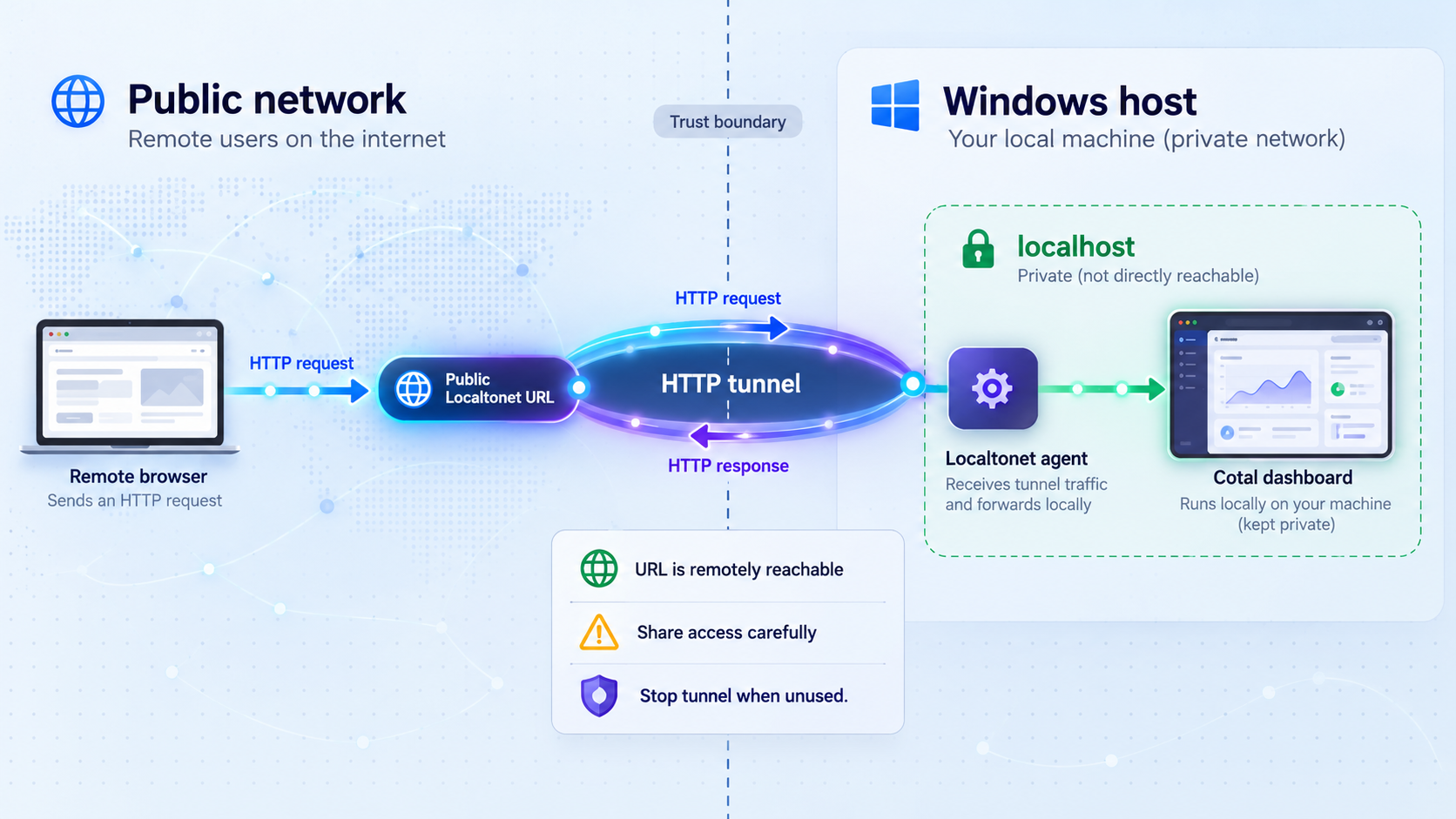
Once the Cotal dashboard works from the machine running our client, create an HTTP tunnel. An HTTP tunnel is the appropriate choice for a browser dashboard because it targets a local HTTP service and provides a public HTTPS address. The tunnel forwards requests to the local IP address and port you just verified.
Our dashboard may offer a generated subdomain, a selected subdomain where supported, or a custom domain through the HTTP tunnel's Process Type. All three serve the same local content at a public HTTPS address. Availability can vary, and custom-domain DNS requirements should be checked against current Localtonet documentation rather than inferred from this tutorial.
Install and run the Localtonet client
Run our client on the Windows computer hosting the Cotal dashboard, or on a device that can reach its verified local address. The client creates the outbound connection, so no inbound router port forwarding is needed.
Select the connected device
In the Localtonet dashboard, select the device identified by its authentication token. Confirm that it is the machine from which the Cotal URL already works. Keep the token private.
Select an available relay server
Choose a server or region currently offered in the dashboard. Available server codes can change and may vary by plan, so this guide does not hardcode one.
Create an HTTP tunnel
Choose the HTTP tunnel family and the appropriate Process Type. Use a random subdomain for a straightforward test, or another available domain option when your deployment requires it.
Enter the observed local target
Set the local IP address and port to the values actually used by cotal web. When our client and Cotal run on the same computer, a loopback target can be appropriate if that is where the verified service listens.
Start and test the tunnel
Creating a tunnel does not start it. Press Start, wait for it to run, and open the assigned public HTTPS address from a different browser session or network. Stop or delete the tunnel when remote access is no longer required.
For the current dashboard sequence and available HTTP options, consult our HTTP tunnel documentation. Use that page to confirm any interface details that may have changed since this draft was reviewed.
A successful tunnel depends on both sides of the path. The Cotal web process must remain available at the configured local target, and the selected Localtonet client must remain connected. The tunnel itself must also be running. If any one of those conditions stops, the public address will no longer deliver the dashboard.
Saving the HTTP configuration does not make the endpoint live. Use the Start action after creation. Later, use Stop when access should be suspended, or delete the tunnel when the configuration is no longer needed.
Security considerations for a remotely reachable dashboard
Publishing a local dashboard changes its audience from users who can reach the local machine to anyone who can reach the assigned public address. Treat that as a deliberate security boundary change. Before sharing the URL, determine what the Cotal dashboard reveals, what actions it permits, and which application-level controls protect it.
Cotal's default mesh authentication is important, but mesh authentication and browser-dashboard authorization are not automatically the same control. The documented cotal up behavior establishes JWT authentication for the mesh, sender authenticity, and per-agent access controls. The available evidence does not establish that every browser route exposed by cotal web requires a separate user login. Do not infer dashboard authentication from the mesh's JWT mode.
Use least privilege in the Cotal space. Avoid exposing demonstrations, messages, agent identities, or operational data that should remain private. Share the public URL only with intended users and stop the tunnel when the remote session ends. If your current Localtonet plan and tunnel configuration offer relevant access restrictions, verify and apply them through the current dashboard rather than assuming they are enabled by default.
Never include a Localtonet device token, Cotal credentials, private endpoint, or other secret in the public URL, screenshots, issue reports, or chat messages. The local target should remain an address and port. Credentials belong in their supported authentication mechanisms, not in tutorial examples or casually shared browser links.
HTTPS protects the public web connection at the tunnel edge, but it does not decide which users should be allowed to inspect or control the Cotal dashboard. Confirm the dashboard's own current access behavior, use supported access controls, expose only what is necessary, and stop the tunnel when it is not needed.
Why not open a router port instead?
A manually forwarded router port requires an inbound network rule and directs unsolicited internet traffic toward a device on the local network. It may also depend on having a usable public IP address and maintaining firewall rules. With Localtonet, our client initiates the connection outward to a relay. The resulting public endpoint exists only while the selected client is connected and the tunnel is running.
This difference simplifies reachability, but it does not remove the operator's responsibility to review the exposed application. Tunneling should be used to provide approved access, not to evade organizational policy, authorization requirements, or security controls.
Routine Cotal and tunnel operations
Once installation and remote access work, keep the lifecycle commands clear. Cotal can run several meshes side by side, each with its own agents, channels, and broker. The command cotal meshes lists them, while cotal use <space> selects the default space. Commands can also accept --space <name> when you need to address a specific space without changing the default.
| Command or action | Purpose | Operational note |
|---|---|---|
cotal setup |
Prepares the current machine and installs relevant skills | Does not start the mesh |
cotal up --detach |
Starts the default authenticated mesh in detached mode | Run this before expecting the dashboard to show a live mesh |
cotal web |
Launches the browser view | Keep its web process available while the tunnel is in use |
cotal spawn |
Puts an agent on the mesh for interaction | Use Ctrl+C to leave the interactive session |
cotal meshes |
Lists available meshes | Useful when several independent spaces exist |
cotal use <space> |
Selects the default space | Replace the placeholder with a real space name |
cotal down |
Stops the Cotal runtime | The dashboard and public tunnel should not be expected to remain useful afterward |
| Localtonet Stop | Suspends public delivery through the configured tunnel | The configuration can remain available for a later restart |
| Localtonet Delete | Removes the tunnel configuration | Use it when the endpoint is no longer required |
Recommended startup order
Start the Cotal mesh first, launch the web dashboard second, verify the local URL third, run or confirm the Localtonet client fourth, and start the HTTP tunnel last. This ensures that each layer has a healthy downstream target when it comes online.
Recommended shutdown order
Stop the Localtonet tunnel first so new remote requests can no longer arrive. Then end the web process if it is running in the foreground, and stop Cotal with:
cotal downThis order narrows the public exposure before taking down the underlying service. If you only need to interrupt remote access while continuing local work, stop the tunnel and leave the Cotal mesh running.
Updating Cotal
Cotal releases are distributed through the cotal-ai npm package. Before updating a working environment, review the target release, preserve any configuration according to current Cotal guidance, and schedule the operation so active agents are not unexpectedly interrupted. Install the intended published version through npm only after confirming it is the version you want. This guide does not pin a release because the current version changes over time.
Troubleshooting Cotal installation and remote access
Node or npm is not recognized
Confirm that Node.js 22 or newer is installed for the Windows account running the commands. Open a new terminal after installation and repeat node --version and npm --version. If one command works and the other does not, repair the Node.js installation rather than continuing with a partially configured environment.
npm reports a global installation permission error
The failure concerns the configured npm global package location, not the Cotal mesh. Determine how Node.js was installed and which Windows account owns that location. Prefer correcting the installation or npm configuration over repeatedly switching between elevated and non-elevated shells. After the package installs successfully, reopen the terminal before testing cotal setup.
cotal is not recognized after installation
Close and reopen PowerShell or Windows Terminal. If the problem remains, verify that npm actually completed the global installation and that the directory containing global npm executables is present in the PATH visible to the current terminal. Avoid adding guessed directories because Node.js installers and version managers can place global executables in different locations.
The dashboard does not open
Confirm that cotal up --detach completed first. Run cotal web in a visible terminal and retain its complete output. If it reports an error, resolve that Cotal error before configuring Localtonet. If a browser opens but cannot connect, check whether the web command is still running and whether the browser is using the exact address it produced.
The local dashboard works, but the public URL does not
Verify the path layer by layer:
- Open the observed Cotal URL from the machine running the Localtonet client.
- Confirm that the selected Localtonet device is connected.
- Confirm that the HTTP tunnel's local IP and port exactly match the verified dashboard endpoint.
- Confirm that the selected relay server is valid in the current dashboard.
- Confirm that the tunnel was started after it was created.
- Retest the public HTTPS address while the Cotal web process remains available.
If the client is on another computer and the tunnel target is 127.0.0.1, the client is attempting to reach itself, not the Cotal host. Move the Localtonet client onto the Cotal machine or use a Cotal-supported network binding that the client device can reach. Do not invent or apply an undocumented binding flag.
The public page loads, but it is the wrong application
The configured port probably belongs to another local service, or the address was copied incorrectly. Stop the tunnel, return to the browser instance opened by cotal web, and record its actual host and port. Test that local destination directly before updating and restarting the tunnel.
The URL worked earlier and now appears offline
Check each lifecycle dependency. The Cotal mesh may have stopped, the web process may have ended, the Windows computer may have slept, the Localtonet client may have disconnected, or the tunnel may have been stopped. A configured tunnel remains reachable only while the selected client is connected and the tunnel is running, and it cannot deliver a dashboard whose local process is unavailable.
The dashboard shows a different or empty space
List the known meshes with cotal meshes. If several spaces exist, select the intended default with cotal use <space> or use the documented --space <name> option on the relevant command. Make sure the agent activity and web view are associated with the same space.
Frequently asked questions
What version of Node.js does Cotal require on Windows?
The documented npm installation path requires Node.js 22 or newer. Check the installed major version with node --version before running npm install -g cotal-ai.
Does cotal setup start the mesh?
No. cotal setup prepares the machine, seeds a default persona, and installs relevant Agent Skills, but it starts nothing. Use cotal up --detach to start the mesh.
Which port does the Cotal web dashboard use?
The available installation evidence does not establish a fixed dashboard port. Run cotal web and obtain the real local address and port from its output, the browser it opens, or current Cotal documentation. Do not copy an assumed port from an unrelated guide.
Should I use an HTTP or TCP tunnel for the dashboard?
Use an HTTP tunnel for the browser dashboard described here. It maps the verified local HTTP endpoint to a public HTTPS address. A separate TCP guide would require confirmed Cotal broker transport details, which are not established by the installation evidence used for this article.
Does Localtonet require router port forwarding or a public IP?
No. Our client establishes an outbound connection to a Localtonet relay server. The HTTP tunnel provides the public address without requiring inbound router port forwarding, a public IP address, firewall changes, or VPN setup.
Is the tunnel online as soon as I create it?
No. Creating the configuration does not start the tunnel. Select Start after creation. The endpoint remains available only while the selected client is connected, the tunnel is running, and the Cotal dashboard remains reachable at its local target.
Does Cotal mesh authentication automatically protect the web dashboard?
Do not assume that it does. Cotal documents JWT authentication, sender authenticity, and per-agent access controls for the default mesh. The available evidence does not establish that every dashboard route has equivalent user authentication. Review the dashboard's current access behavior before publishing it.
Can the Localtonet client run on a different computer?
Yes, if that computer can directly reach the Cotal dashboard's listening address and port. If Cotal listens only on loopback, the simplest supported arrangement is to run our client on the same Windows machine. A loopback address on another computer points back to that other computer, not to the Cotal host.
Make your verified Cotal dashboard available remotely
Install Cotal with npm, start the authenticated mesh, confirm the actual browser endpoint, and then connect that local HTTP service through a Localtonet tunnel. Keep the device token private, review dashboard access controls, and stop the tunnel whenever remote access is no longer needed.
Get Started Free →

