

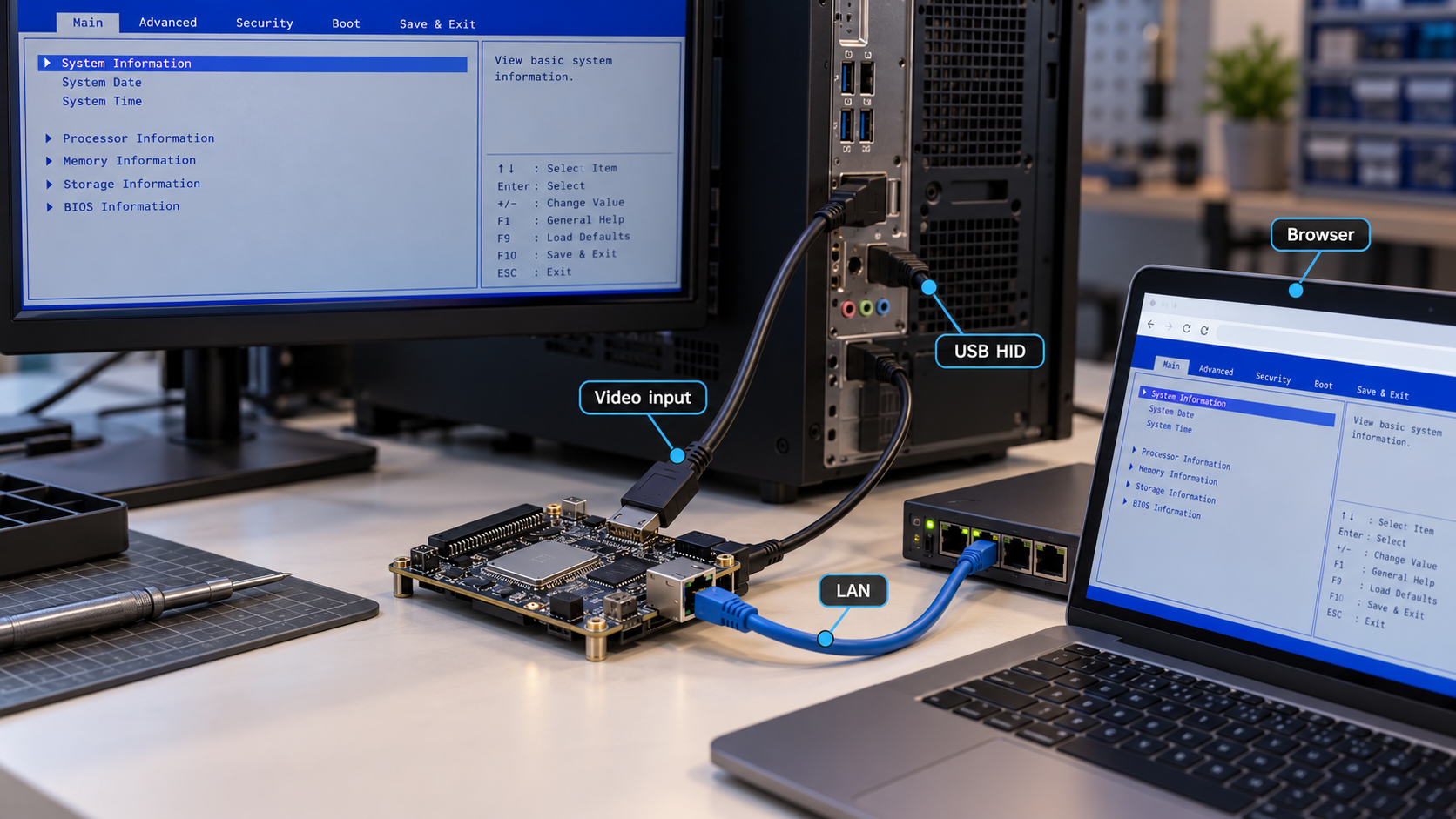
Build a browser-controlled hardware console for BIOS, boot, recovery, and operating-system troubleshooting
ESP-KVM turns supported ESP32-P4 hardware into an IP-KVM that captures a target computer's HDMI output and presents keyboard and mouse input over USB. This guide covers hardware selection, browser-based flashing, command-line flashing with a board-specific firmware image, first-boot configuration, certificate handling, and local verification. After the local console is working, we explain how to evaluate controlled remote access with a Localtonet HTTP tunnel running on another device on the trusted LAN. ESP-KVM explicitly advises against publishing the device directly to the public internet, so the remote-access section treats tunneling as a carefully controlled compatibility test rather than a default deployment recommendation.
📋 What's in this guide
What ESP-KVM does and why it differs from remote desktop
A normal remote desktop application runs inside the operating system being controlled. It depends on that operating system booting successfully, starting its network stack, and keeping the remote-access software available. It cannot normally help when a machine is waiting at a BIOS prompt, displaying a bootloader error, installing a new operating system, or failing before the remote desktop service starts.
ESP-KVM works outside the target operating system. A supported ESP32-P4 board receives the target computer's video through an HDMI-to-CSI capture board. The ESP-KVM hardware also connects to a USB port on the target and presents keyboard and mouse input. Its browser console is served by the ESP-KVM device itself, so nothing needs to be installed on the computer being managed.
The firmware also supports capabilities such as screenshots, recording to microSD, text-mode screen reading, macros, scheduled runbooks, serial-console access, Wake-on-LAN, and optional power or reset control. Some of these features depend on the selected board, attached storage, extra wiring, or optional hardware. The interface disables unsupported functions rather than implying that every board can provide every feature.
The ESP-KVM device joins the management network and serves the browser console. The target computer supplies HDMI video and receives USB input. The target does not need an IP address, a working network connection, or a running operating system for basic KVM operation.
Hardware and prerequisites
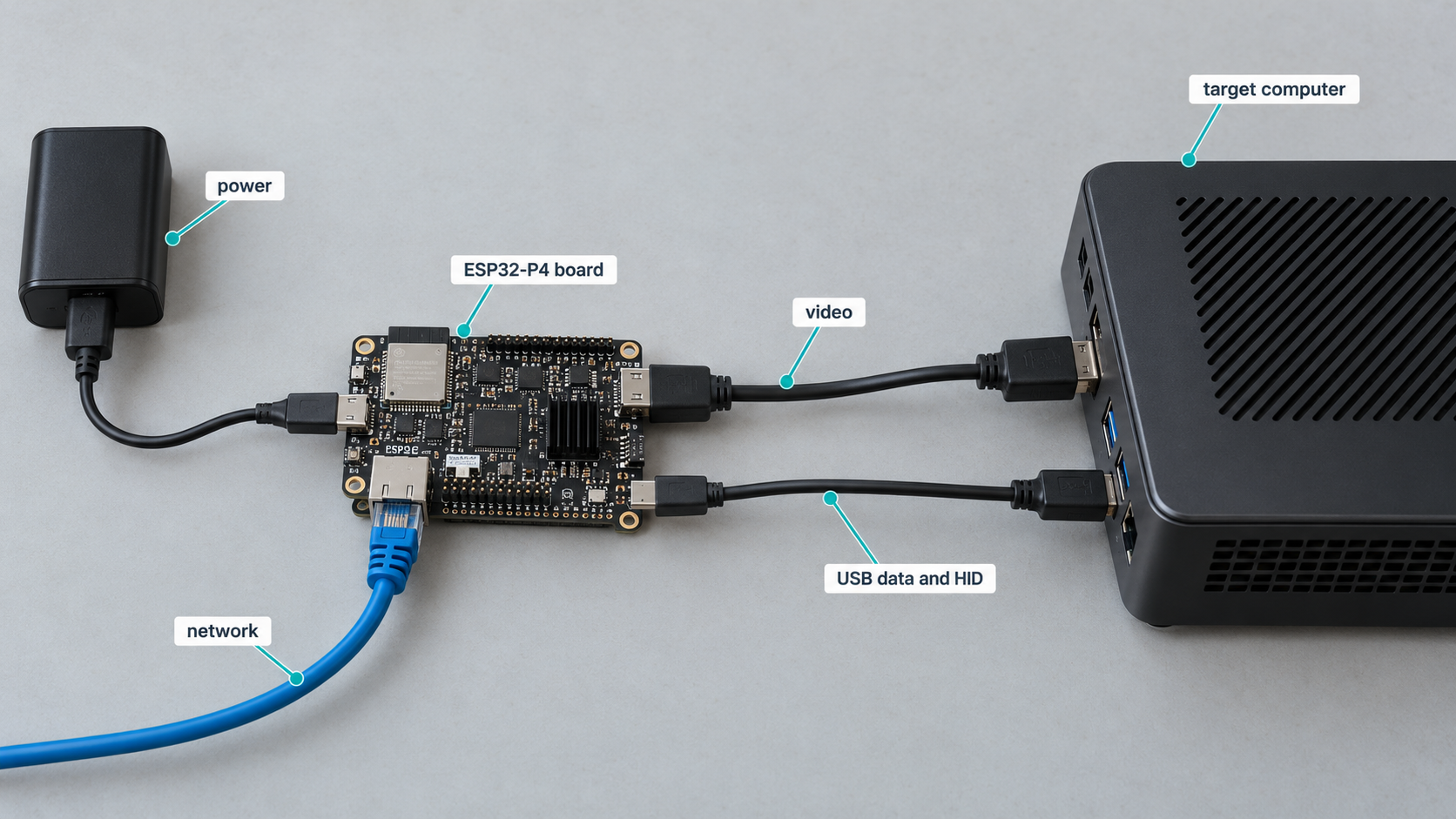
Start by choosing an ESP32-P4 board for which ESP-KVM publishes a matching firmware image. A generic image should not be substituted for a board-specific image because pin assignments, network hardware, storage wiring, and USB connections vary between boards. ESP32-P4 chip revision also matters. Revision 3.x silicon uses its own image, and the project reports significantly faster H.264 processing at 1080p on that revision.
The project identifies revision 3.x parts by the ESP32-P4 chip marking and also reports the revision in the boot log. If there is any uncertainty, confirm the exact board model and chip revision before downloading or flashing firmware.
| Component | Purpose | Selection requirement |
|---|---|---|
| Supported ESP32-P4 board | Runs the ESP-KVM firmware and web console | Select the exact board-specific firmware image and the correct chip revision |
| HDMI-to-CSI capture board | Converts the target's HDMI output for the ESP32-P4 CSI input | Use a supported TC358743-based adapter, such as the documented Geekworm C790 or Waveshare HDMI to CSI Adapter |
| Camera ribbon cable | Connects the capture adapter to the ESP32-P4 board | Use the cable and orientation appropriate for the two boards |
| HDMI cable | Carries video from the managed computer | Connect the target's HDMI output to the capture adapter input |
| USB data connection | Presents keyboard, mouse, and supported virtual media to the target | Use the board's documented USB OTG port, which may not be its visible USB-C connector |
| Network connection | Provides access to the browser console | Use Ethernet, PoE where supported, or Wi-Fi on a board equipped with the required Wi-Fi chip |
| USB connection to the flashing computer | Transfers firmware to the board | Use a data-capable cable and expose the board's correct programming or serial interface |
| Optional microSD card | Stores virtual media, recordings, screenshots, and related data | Required only for operations that use removable storage |
Supported board examples
Documented board choices include the Waveshare ESP32-P4-ETH, Espressif ESP32-P4 Function EV, Waveshare ESP32-P4-NANO, Guition ESP32-P4-M3-Dev, Waveshare ESP32-P4-WIFI6-POE-ETH, Waveshare ESP32-P4-WIFI6, Waveshare ESP32-P4-WIFI6-DEV-KIT, DFRobot FireBeetle 2 ESP32-P4, M5Stack Unit PoE-P4, and Waveshare ESP32-P4-NANO-WIFI6-DB. Additional images exist for other boards, but some combinations are marked untested by the project.
An image being available does not necessarily mean its hardware combination has been physically verified. If the project's current board list labels a model untested, treat it as an experimental choice. For a first installation, a tested board and revision are the safer route.
Capture-board differences
Most documented builds use a separate TC358743 HDMI-to-CSI adapter connected by a ribbon cable. The M5Stack Unit PoE-P4 instead uses its corresponding Add-on Display In hardware. Do not assume that capture adapters or ribbon pinouts are interchangeable.
Know the correct USB OTG port
The USB port used to control the target depends on the ESP32-P4 board. On the Waveshare ESP32-P4-ETH, for example, the project's quick-start guidance identifies the MX1.25 header as the target-facing OTG connection, not the USB-C connector. Connecting the wrong port can leave the web console reachable while keyboard and mouse control remain unavailable.
Connector placement, USB roles, ribbon orientation, power input, and optional front-panel wiring differ between board models. A successful firmware flash does not prove that the HDMI capture board or target-facing USB connection is wired correctly.
Flash ESP-KVM firmware
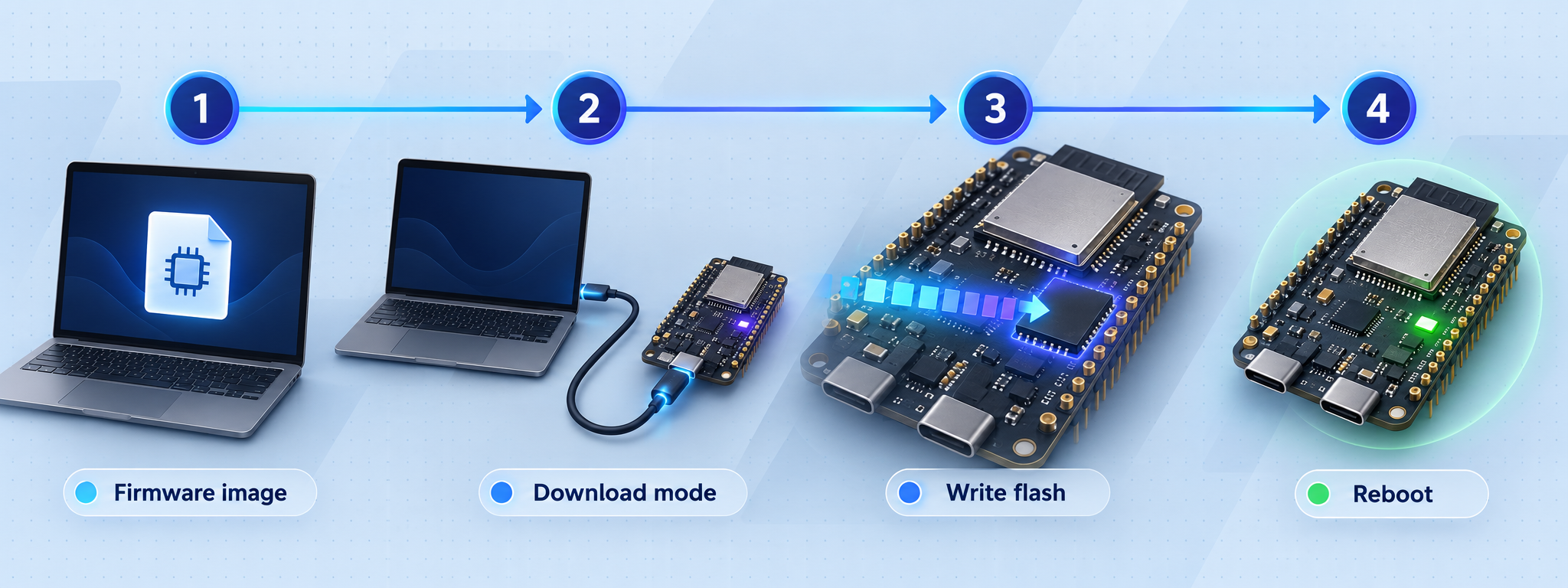
ESP-KVM provides two practical binary installation paths. The easiest path uses the browser flasher in Chrome or Edge. The alternative downloads the merged firmware image for the exact board and writes it with esptool. Choose one path rather than running both.
Option 1: flash from Chrome or Edge
Identify the exact board and chip revision
Record the complete board model and determine whether the ESP32-P4 is revision 1.x or 3.x. The selected firmware must match both where separate images are provided.
Connect the board to the flashing computer
Use a data-capable USB cable and the board's documented programming connection. Disconnecting unnecessary peripherals during the initial flash can make connection problems easier to isolate.
Open the ESP-KVM browser flasher
In Chrome or Edge, open the ESP-KVM browser flashing page. The documented browser workflow specifically calls for Chrome or Edge, so do not assume another browser supports the required serial connection.
Select the board-specific image and serial device
Choose the firmware entry that matches the board and revision, then authorize access to the correct serial device. If multiple serial devices are shown, disconnect unrelated development boards to avoid selecting the wrong hardware.
Complete the flash and allow the board to restart
Keep power and USB connected until the flasher reports completion. After the image has been written, let the ESP32-P4 restart into ESP-KVM.
Option 2: flash a merged image with esptool
Use this method when browser serial flashing is unavailable or when a repeatable local firmware file is preferred. Download the merged binary whose filename identifies the ESP-KVM version and exact board. Do not rename a generic or different-board image and assume it will become compatible.
The documented write address is 0x0, the chip argument is esp32p4, and the documented baud rate is 921600:
esptool --chip esp32p4 -b 921600 write-flash 0x0 espkvm-<version>-<board>-merged.binReplace the filename placeholder with the actual merged image downloaded for the board. Depending on the installed esptool environment and operating system, serial-port selection may also be necessary. The supplied evidence does not establish one universal serial-port argument or device path, so this guide does not invent one. Use the port shown by the operating system for the connected board.
Board variants can differ in pins, network controllers, storage, USB routing, and silicon revision. Verify the complete filename before writing the merged image at 0x0.
Building from source
ESP-KVM also documents a source-build workflow based on ESP-IDF 6.1. A source build is appropriate when developing firmware, testing an unreleased change, or modifying a board definition. It is not necessary for a normal installation when a matching merged image exists.
The evidence available for this draft establishes the required ESP-IDF version but does not provide the complete current command sequence, board-selection mechanism, submodule requirements, or generated image paths. Those values can change with the repository. Rather than guessing commands that could build the wrong target, this guide recommends the browser flasher or board-specific merged image for the documented installation workflow.
Connect ESP-KVM to the network and target computer
Once flashing is complete, assemble the functional KVM path. There are three independent links to verify: network access to ESP-KVM, HDMI video from the target, and USB control from ESP-KVM to the target.
Connect ESP-KVM to the management network
Attach Ethernet on an Ethernet-capable board, or prepare to use the setup hotspot on a Wi-Fi-capable board without a network cable. PoE may be used only on a board that explicitly supports it.
Connect the target's HDMI output
Run HDMI from the computer being managed to the HDMI input of the supported capture adapter. Connect that adapter to the ESP32-P4 CSI interface using the correct ribbon cable and orientation.
Connect the correct USB OTG interface to the target
Use the board-specific target-facing OTG connector. This connection carries keyboard and mouse behavior and may also support virtual media. It is not necessarily the same connector used to flash or power the board.
Power the ESP-KVM hardware
Apply power using a supported input for the selected board. Allow the firmware to boot before testing discovery or the Wi-Fi setup hotspot.
Optional front-panel power and reset control requires additional hardware such as optocouplers or relays. Do not connect a motherboard's front-panel header directly based on an assumed pinout. Basic video, keyboard, and mouse testing should be completed before optional control wiring is introduced.
Complete first-boot configuration
Ethernet or already-connected network
From a client on the same trusted network, open:
https://espkvm.local/
The documented initial credentials are username admin and password admin. On the first sign-in, ESP-KVM asks for a new password. Complete that password change immediately and store the new credential securely.
Wi-Fi setup without a network cable
A supported board equipped for Wi-Fi can expose a setup hotspot named in the following pattern:
ESP-KVM-xxxxConnect a setup device to that hotspot and open:
http://192.168.4.1/Use the setup interface to complete the device's local network configuration. The hotspot path is a provisioning and recovery mechanism, not a reason to leave the device on an untrusted wireless network.
The published initial credentials are known to anyone familiar with ESP-KVM. Do not postpone the required first-login password change, and do not expose any access path while default credentials remain active.
Trust the device certificate authority where appropriate
ESP-KVM creates a certificate on the device at first boot. Its certificate authority can be downloaded through Settings → Security → Download CA certificate or from the local certificate endpoint:
http://espkvm.local/cert.pemInstall a private device CA only on systems where that trust is intended and administratively acceptable. Trusting a CA changes browser and operating-system trust decisions, so do not install it broadly or on unrelated machines. If the KVM is rebuilt or its certificate state changes, previously trusted certificate material may no longer match.
Enable two-factor sign-in if it fits the deployment
ESP-KVM supports optional codes from an authenticator application. A strong unique password remains necessary, but two-factor sign-in provides an additional barrier when an interactive login path is reachable by more than one administrator or network segment.
Verify the local IP-KVM before considering remote access
Remote tunneling should never be the first diagnostic step. Confirm that the KVM works reliably from the local network, because a tunnel cannot repair incorrect flashing, failed HDMI capture, wrong USB wiring, certificate errors, or an unstable power supply.
Load the local HTTPS console
Open https://espkvm.local/ from a device on the trusted LAN. Confirm that the sign-in page loads and that certificate handling behaves as expected.
Sign in with the changed administrator password
Confirm that the default password no longer works and that the new administrator credential succeeds. If enabled, verify the complete two-factor sign-in flow.
Confirm live video
Start the target and verify that its current screen appears. Test more than one state, such as firmware setup and the operating-system desktop, so resolution changes are exercised.
Test keyboard and pointer input
Use a harmless target screen to check normal keys, modifier keys, pointer positioning, clicks, and any touch controls that will be used. Input failure with working video usually points to the USB OTG path rather than HDMI.
Test required video modes
Verify the codec and resolution required by the intended workflow. H.264 requires HTTPS. Also test text mode if low-bandwidth screen access is part of the recovery plan.
Test reboot and recovery behavior
Reboot the target and confirm that the console remains useful through firmware screens, boot menus, and operating-system startup. This validates the main advantage of an IP-KVM over software remote desktop.
Build a local verification matrix
| Test | Expected result | Likely area if it fails |
|---|---|---|
| Open local console | The HTTPS sign-in page loads | Network, name resolution, firmware boot, or certificate handling |
| View target screen | The current HDMI output appears | HDMI source, capture adapter, ribbon orientation, or capture configuration |
| Send keyboard input | The target receives keys | Target-facing USB OTG connector, cable, or target USB behavior |
| Move and click pointer | Pointer input lands at the intended location | USB input path or screen mapping |
| Use H.264 | Video starts over the HTTPS console | Secure-origin or certificate handling, codec selection, or device capacity |
| Reboot target | BIOS, bootloader, and startup remain visible | Resolution transition, capture synchronization, or target video output |
Evaluate controlled remote access with Localtonet
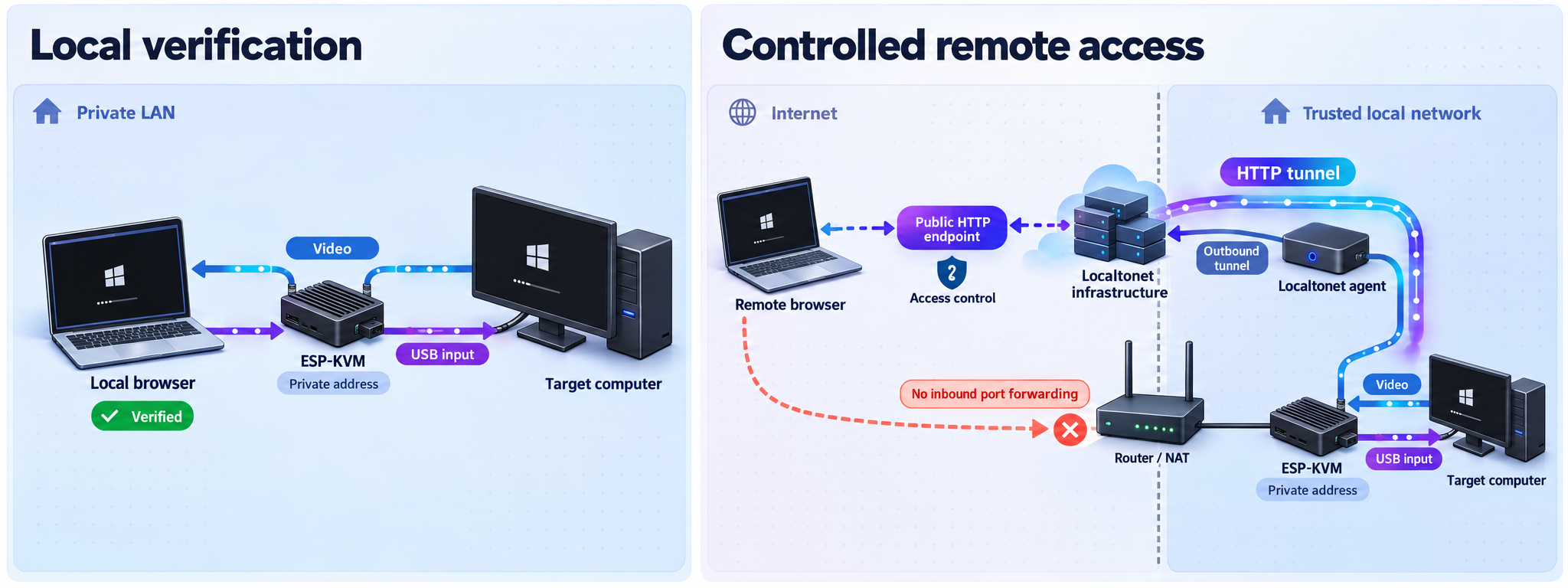
ESP-KVM's own guidance says not to put the device on the public internet. It has login, optional two-factor sign-in, and TLS, but the project states that it has not received an external security review, secure boot and flash encryption are disabled, and update images are not signed. The project recommends keeping the KVM on a trusted network or using its built-in Tailscale or WireGuard support.
That warning must remain the starting point for any Localtonet evaluation. A Localtonet HTTP tunnel can provide a public browser address without inbound router port forwarding, firewall changes, a VPN setup, or a public IP address. However, turning a private KVM interface into a publicly reachable service increases its exposure. It should be considered only after a risk review and only with strong ESP-KVM authentication, limited duration, active monitoring, and compatibility testing.
Avoiding router port forwarding does not make a public URL private. Anyone who obtains or discovers a reachable address can attempt to connect. ESP-KVM's upstream recommendation favors its built-in Tailscale or WireGuard paths. Use Localtonet only when the deployment owner has deliberately accepted the different access model and established suitable controls.
Required network architecture
The Localtonet client does not run on ESP-KVM itself. It must run on another supported device that can reach the KVM over the trusted LAN. That device establishes an outbound connection to our relay and forwards traffic toward the local ESP-KVM service.
Why the exact target port is not provided here
The verified ESP-KVM quick-start endpoint is https://espkvm.local/, but the project material supplied for this guide does not state a numeric web port. Localtonet HTTP configurations point to a local IP address and port, so that numeric target must be confirmed from the current ESP-KVM network behavior or project documentation before the tunnel is created.
We do not infer a port solely from the https:// scheme. We also do not assume how ESP-KVM certificate validation, hostnames, redirects, WebSockets, H.264 transport, or interactive control sockets will behave through a relayed public origin. Test each required function rather than treating a loaded login page as proof of full compatibility.
Localtonet setup sequence
Install and run the Localtonet client on a LAN device
Choose a supported computer or device that remains on the trusted network and can reach the ESP-KVM console. Confirm local connectivity from that machine before creating a tunnel.
Authenticate or select the client device
Use the device-specific Localtonet authentication token through the current client workflow. Tokens must be kept secret and must never be pasted into documentation, screenshots, scripts, or support messages.
Select an available relay server
Choose a currently available server or region from the Localtonet dashboard. Availability can vary, so this guide does not hardcode a server code or geographic choice.
Create the HTTP tunnel configuration
Use the HTTP/s tunnel family and enter the ESP-KVM device's reachable LAN address together with the verified numeric service port. Do not use espkvm.local unless name resolution has been confirmed from the Localtonet client device, and do not guess the port.
Start the tunnel
Creating a tunnel does not start it. Use the Start control and wait until both the selected client device and tunnel are connected. The tunnel works only while that client remains connected and the tunnel remains running.
Test the assigned public address and stop after evaluation
Open the assigned address from a separate network and test sign-in, video, keyboard, mouse, resolution changes, H.264 if required, and session recovery. Stop or delete the tunnel when the approved access window ends.
For the current dashboard workflow and available HTTP options, consult the Localtonet documentation. Exact region choices, client installation details, and available configuration options may change by client version, deployment, or plan.
Compatibility tests that matter for an IP-KVM
A successful sign-in is only the first test. ESP-KVM is an interactive application that may maintain long-lived browser connections for video and controls. Verify all operations needed during an actual outage:
- Load and reload the login page from a network outside the management LAN.
- Confirm password and optional two-factor authentication.
- Start MJPEG video and verify that it remains current rather than accumulating delayed frames.
- Test H.264 separately because ESP-KVM requires HTTPS for that mode.
- Send keyboard, modifier-key, pointer, and paste input.
- Switch target resolutions by entering firmware setup and then booting the operating system.
- Leave the session idle, return to it, and confirm that video and controls recover.
- Test from the actual remote browser types that administrators will use.
- Stop the Localtonet tunnel and verify that the public address no longer provides the intended access path.
Start with a noncritical target and an administrator present on the trusted network. If certificate handling, redirects, video sockets, or controls do not behave correctly, stop the tunnel and continue using the verified local console while the incompatibility is investigated.
Safe operation and maintenance
Keep the management network trusted
Place ESP-KVM on a management network appropriate for hardware administration. Anyone who controls the KVM can potentially interact with firmware settings, boot alternate media, enter recovery environments, and operate the target independently of its normal operating-system permissions.
Use a unique administrator password and enable optional two-factor sign-in where practical. Do not share a single credential through chat history, tickets, or public automation. If access is no longer needed, remove it rather than relying on obscurity.
Treat virtual media as privileged access
Virtual media can be valuable for installing or repairing a system, but it can also change the target's boot process. Store only approved images, verify their provenance, and detach media after use. MicroSD may use FAT32 or exFAT, with exFAT allowing images larger than 4 GB.
Video and storage activity may compete for device resources on some boards. If a large image upload performs poorly, the project's guidance recommends pausing video during the upload.
Approach firmware updates cautiously
ESP-KVM supports browser-delivered updates, two firmware slots, and rollback when a new image fails to start. Rollback improves recovery from a failed boot, but it does not replace change control. Record the working version, schedule updates when local recovery is possible, and verify video, input, login, and networking after each change.
The project warns that update images are not signed and that secure boot and flash encryption are disabled. Account for those limitations when deciding where the device can be deployed and who can physically or logically administer it.
Stop temporary tunnels
With Localtonet, a configured tunnel is not active merely because it exists. It must be started, and it can later be stopped or deleted. For temporary maintenance, stop the tunnel immediately after the session and delete configurations that are not expected to be reused.
Keep the Localtonet device token private. A token identifies the client device that runs the tunnel and must not be included in screenshots, code examples, logs shared publicly, or documentation.
Troubleshooting ESP-KVM installation and access
The browser flasher cannot see the board
Confirm that Chrome or Edge is being used, the USB cable supports data, and the board is connected through its documented programming interface. Close applications that may already hold the serial port. If several serial devices are attached, disconnect unrelated hardware and retry.
esptool cannot start or maintain the flash
Verify that the selected image is a merged image for the exact board, the chip is specified as esp32p4, and the write offset is 0x0. A failing high-speed serial link may involve the cable, USB adapter, power, host port, or driver. The documented command uses 921600, but this guide does not prescribe undocumented recovery flags or alternate rates.
The board starts, but espkvm.local does not resolve
The .local name depends on local name discovery. Confirm that the client and KVM are on the same appropriate network segment and that multicast discovery is not blocked. Check the network's device or DHCP list for the board's assigned address. On a Wi-Fi-capable board with no cable, look for the ESP-KVM-xxxx hotspot and use http://192.168.4.1/ for setup.
The browser reports a certificate warning
ESP-KVM creates a device certificate at first boot. Confirm that the address is genuinely the intended KVM before accepting or changing any trust decision. For managed trust, download the CA through the Security settings or the local /cert.pem endpoint and install it only where authorized.
The console loads, but there is no video
Check that the target is producing HDMI output, that the cable reaches the capture adapter's input, and that the CSI ribbon is fully seated in the correct orientation. Confirm the capture board is supported. Test a common target resolution and inspect behavior during startup, when firmware output should normally appear.
Video works, but keyboard and mouse do not
This usually separates the capture path from the USB control path. Verify that the target is connected to the ESP-KVM board's correct USB OTG interface. Do not assume the flashing or power connector is also the target-facing OTG port. Try another known data-capable cable and confirm that the target supplies or detects USB as expected.
H.264 does not work
ESP-KVM requires HTTPS for H.264. First verify the local HTTPS endpoint and certificate behavior. If local H.264 works but remote H.264 fails, treat that as tunnel compatibility evidence. Do not assume the tunnel is fully compatible just because MJPEG or the login page works.
The Localtonet client cannot reach ESP-KVM
Test the local ESP-KVM endpoint directly from the machine running the Localtonet client. Confirm the LAN address, numeric service port, routing, and local firewall policy. The Localtonet client must be on a device that can reach the target service. A working console on a different laptop does not prove that the tunnel client has the same network path.
The public page loads, but controls or video disconnect
Test MJPEG and H.264 independently, inspect whether the problem follows one browser, and check whether local access remains stable at the same time. Interactive video and control paths may behave differently from ordinary page requests. If required sockets, certificate behavior, or browser-origin rules are incompatible, stop the tunnel instead of weakening security controls.
The tunnel appears configured but is unreachable
Confirm that the selected Localtonet client device is connected and that the tunnel has actually been started. Creating it does not start it. Also verify that the local service remains reachable from the client device and that the configured IP address and numeric port are correct.
Frequently asked questions
Can ESP-KVM control a computer before its operating system starts?
Yes. ESP-KVM captures the target's HDMI output and presents keyboard and mouse input over USB independently of the target operating system. It can therefore be used at BIOS screens, boot menus, installers, recovery environments, and many startup failures.
What is the default ESP-KVM login?
The documented initial username and password are both admin. ESP-KVM asks for a new password on first sign-in. Change it immediately before performing any remote-access evaluation.
What local address opens the ESP-KVM console?
The documented normal endpoint is https://espkvm.local/. A Wi-Fi-capable board without a network cable can expose an ESP-KVM-xxxx setup hotspot with the console at http://192.168.4.1/.
Can I flash ESP-KVM without installing a complete development environment?
Yes. The browser flasher works through Chrome or Edge, and the project also publishes board-specific merged images that can be written with esptool. Building from source with ESP-IDF 6.1 is intended for development or customization rather than being required for a normal binary installation.
Why must the firmware image match the exact board?
ESP32-P4 boards differ in pin assignments, networking, USB routing, storage connections, and optional peripherals. Revision 3.x silicon also uses its own image. A firmware file for a similar-looking board is not a safe substitute.
Does ESP-KVM require HTTPS?
The normal console endpoint is served over HTTPS, and ESP-KVM specifically requires HTTPS for H.264 video. The device creates a certificate at first boot and provides its CA certificate through the Security settings or the local certificate endpoint.
Can Localtonet run directly on the ESP32-P4?
This workflow does not run the Localtonet client on ESP-KVM. The client must run on another supported device that can reach the ESP-KVM service over the trusted LAN.
Which numeric port should a Localtonet HTTP tunnel use?
The verified project material supplied for this guide does not state a numeric web port. Confirm the active port from the current ESP-KVM deployment or documentation before creating the tunnel. Do not guess it from the URL scheme.
Is a Localtonet tunnel the recommended default for ESP-KVM?
No. ESP-KVM's project guidance says not to put the device on the public internet and recommends keeping it on a trusted network or using its built-in Tailscale or WireGuard support. A Localtonet tunnel should be evaluated only as a deliberate, controlled alternative with strong authentication, a limited access window, and full compatibility testing.
Does creating a Localtonet tunnel make it active immediately?
No. A tunnel must be started after it is created. It remains available only while the selected Localtonet client device is connected and the tunnel is running. Stop or delete it when remote maintenance is complete.
Evaluate controlled ESP-KVM access with Localtonet
After ESP-KVM is fully verified on the trusted LAN, create a short-lived HTTP tunnel from another reachable device and test the complete browser console under supervision. Keep the device token private, use strong ESP-KVM authentication, and stop the tunnel as soon as the approved maintenance window ends.
Get Started Free →

