

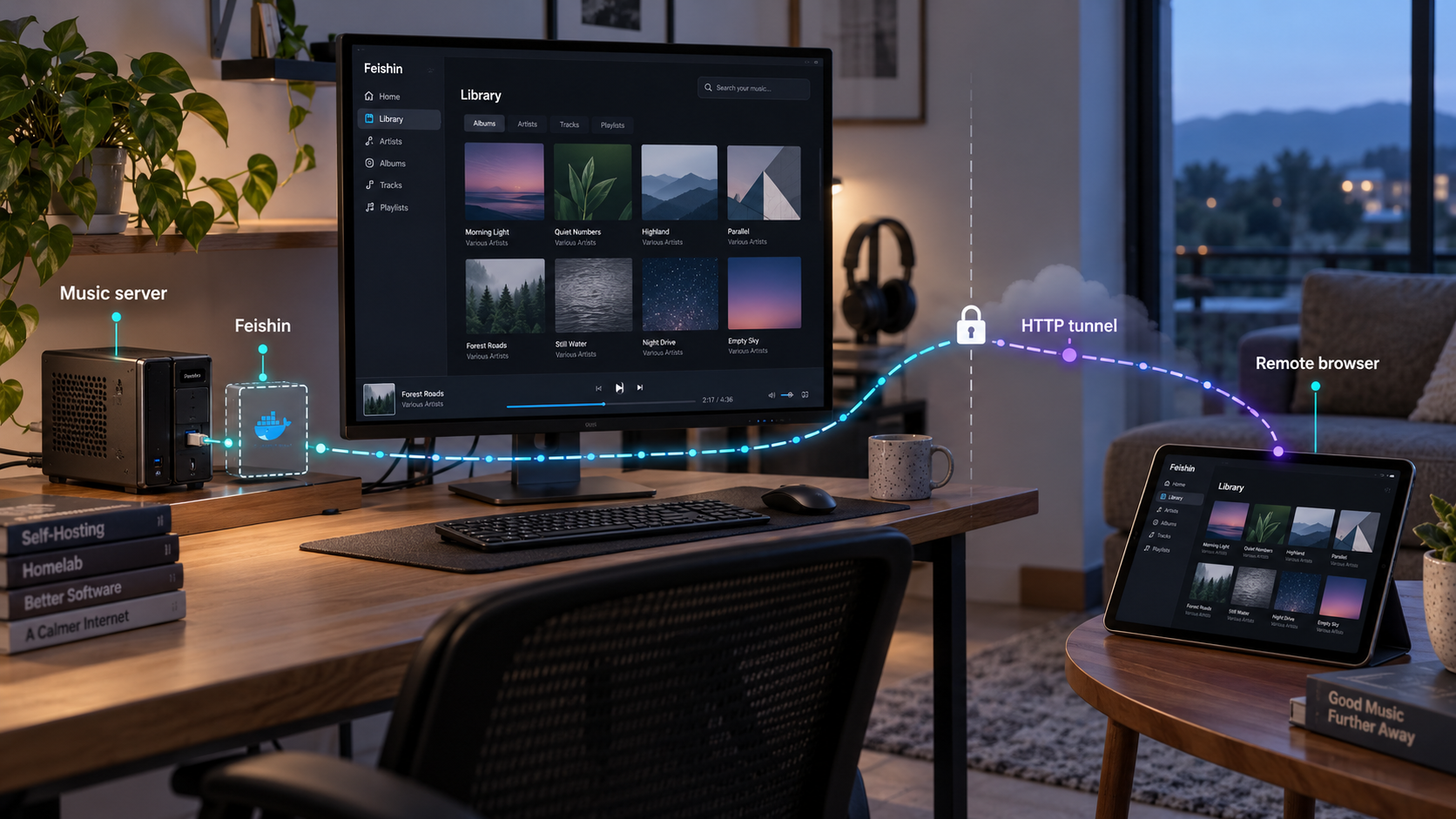
Build a browser-accessible music client first, then make the verified local service available remotely
Feishin is a modern music client for Jellyfin, Navidrome, and compatible Subsonic or OpenSubsonic servers. This guide installs the Feishin web client with Docker, connects it to an existing music server, verifies playback locally, and explains routine container operations. Once the local installation works, we configure a Localtonet HTTP tunnel for remote browser access without inbound router port forwarding, firewall changes, VPN setup, or a public IP address.
📋 What's in this guide
Understand what Feishin does
Feishin is a music client, not a standalone music server. It provides the interface used to browse a library, search for music, manage playback, work with playlists, display lyrics, and interact with a compatible server. Your albums, tracks, user accounts, permissions, and media files remain on the connected Jellyfin, Navidrome, Subsonic, or OpenSubsonic-compatible service.
This distinction matters during installation. Starting the Feishin container gives you a web application, but it does not scan a music directory or create a media library. Before signing in, you must already have a compatible music server running and know its complete URL. The URL must include its protocol and, when required, its port. Examples of the expected format include https://music.example.net or a private address such as http://192.168.0.20:4533.
Feishin offers desktop and web versions. The project recommends the desktop client for its broadest feature set, including support for both MPV and web playback backends. The self-hosted Docker deployment covered here runs the web client, which supports the web player backend. A browser-based deployment is a practical choice when you want a centrally hosted interface that can be opened from several devices.
ghcr.io/jeffvli/feishin:latest and serves the application through container port 9180.
The Feishin interface and the connected music server are separate services. The server address configured in Feishin must work in the environment where it is used. Test the complete workflow from the intended remote device. If that device cannot reach a private music-server address, exposing only Feishin may not be sufficient. The correct remedy depends on the music server's supported remote-access and cross-origin configuration, so do not replace its URL blindly or expose another service without reviewing its authentication and security requirements.
Prepare the host and music server
For this workflow, use a machine that can remain online while you want Feishin available. The host needs Docker Engine and permission to run Docker commands. If you choose the Compose method, it also needs the Docker Compose command supported by your installation. The exact Docker installation process varies by operating system and distribution, so confirm it with the Docker documentation appropriate to that host.
You also need a functioning Jellyfin, Navidrome, or compatible Subsonic or OpenSubsonic server. Verify that server independently before installing Feishin. You should know its complete URL, have a valid user account, and be able to browse or play the library through a supported client. Starting with a verified server prevents a server-side authentication or library problem from being mistaken for a Feishin problem.
Check whether Docker is available:
docker --versionIf you plan to use Compose, check that command as well:
docker compose version
The examples below map host port 9180 to container port 9180. Before starting the deployment, make sure another process is not already using host port 9180. If your security objective is to prevent direct LAN-wide access, review the host binding carefully. A normal 9180:9180 mapping can listen beyond the loopback interface depending on the host's Docker and network configuration.
| Requirement | Why it is needed | What to verify |
|---|---|---|
| Docker Engine | Runs the published Feishin web image | docker --version returns successfully |
| Docker Compose | Provides a declarative, restartable deployment option | docker compose version works if using Compose |
| Compatible music server | Supplies the library, accounts, metadata, and media | The server works through another supported client |
| Full server URL | Allows Feishin to connect to the server | The value includes http:// or https:// and a port when applicable |
| Available host port 9180 | Receives local HTTP traffic for the Feishin container | No conflicting service is bound to that port |
| Localtonet client | Creates the outbound connection used for remote access | Install it later on a device that can reach Feishin |
The basic deployment does not require a music-server username or password in its YAML configuration. Enter user credentials through Feishin's server login workflow instead. Do not paste Localtonet device tokens, music-server passwords, or other secrets into examples, screenshots, shell history, or a file that will be committed to source control.
Install the Feishin web client with Docker
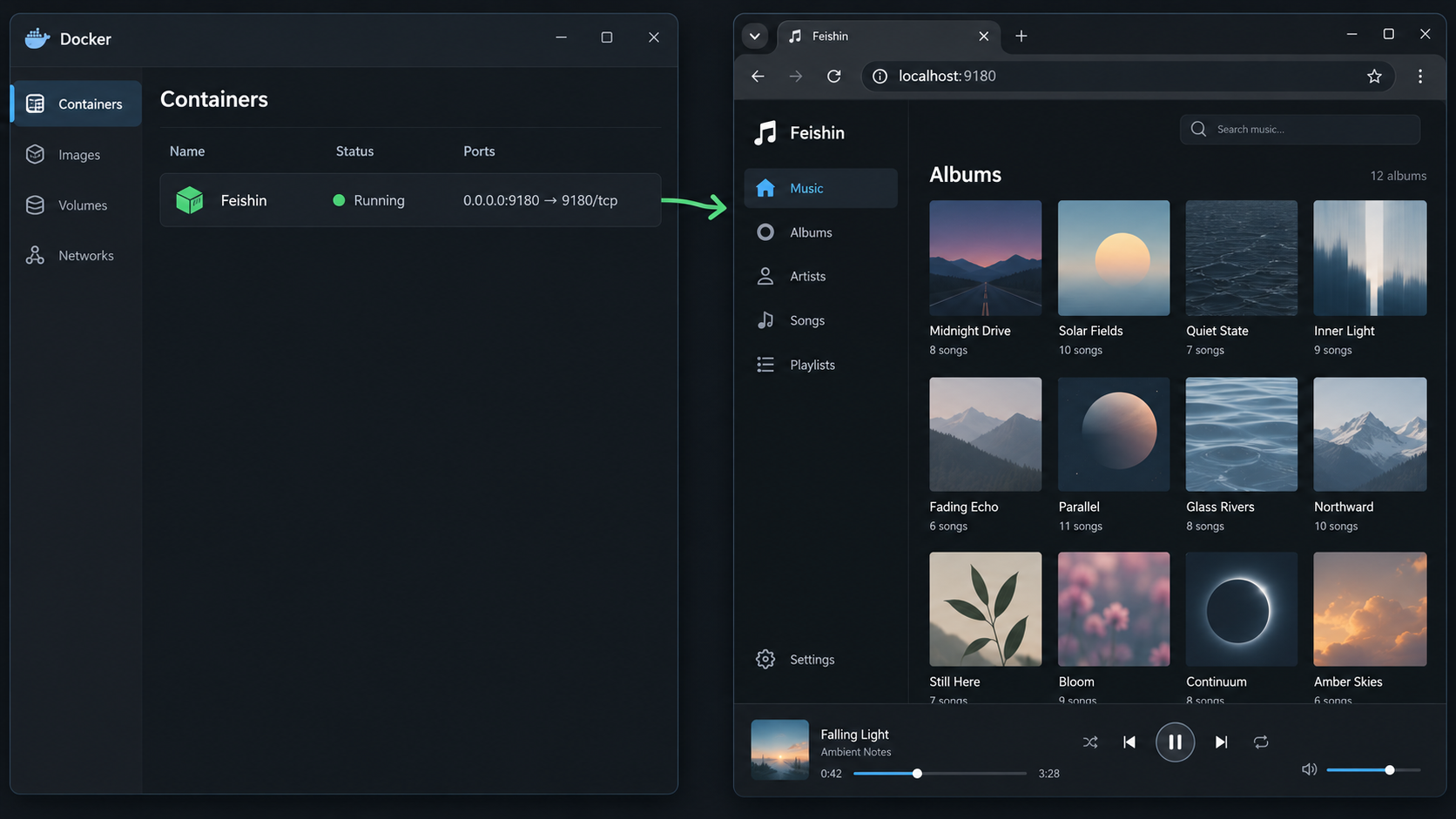
There are three relevant image workflows: run the published image directly, describe the published image with Docker Compose, or build an image from the source tree. Most readers should use the published image. Compose is usually the more maintainable choice for a long-running self-hosted deployment because the desired image, port mapping, container name, and restart policy are kept in one file.
Option 1: Run the published image directly
Run the latest published image and map host port 9180 to container port 9180:
docker run --name feishin -p 9180:9180 ghcr.io/jeffvli/feishin:latest
This starts the container in the foreground. Keep the terminal open while performing the first test. Docker downloads the image if it is not already present, creates a container named feishin, and publishes the container's HTTP service on host port 9180.
Once startup completes, open the application from the Docker host at:
http://localhost:9180
From another device on the same network, replace localhost with an appropriate address for the Docker host, provided the host firewall and network policy permit that connection. Do not change router settings or add internet-facing forwarding for this test. Local verification should happen before any remote-access configuration.
Option 2: Use Docker Compose
Create a new directory for the deployment, enter it, and create a file named compose.yaml with the following minimal configuration:
services:
  feishin:
    container_name: feishin
    image: ghcr.io/jeffvli/feishin:latest
    restart: unless-stopped
    ports:
      - "9180:9180"
Start the service in detached mode:
docker compose up -dConfirm that Compose created the service:
docker compose ps
Then visit http://localhost:9180 on the host. If the browser cannot open it, inspect the service logs before changing Feishin's server settings:
docker compose logs feishinOption 3: Build the image locally
A local build is useful when reviewing source changes or developing Feishin. It is not necessary for a normal deployment. Run the build from the root of a Feishin source checkout, where its Dockerfile is present:
docker build -t feishin .
docker run --name feishin -p 9180:9180 feishin
The first command creates a local image named feishin. The second runs that image using the same documented port mapping. Building from source introduces additional variables, including the selected source revision and local build environment. If the published image works but a local build does not, investigate the build output and source revision separately from the runtime configuration.
latest image tag can change
Pulling ghcr.io/jeffvli/feishin:latest can retrieve a newer release over time. Before updating an important deployment, review the project's current release information and test the update. If you want to pin a release, first confirm the exact image tags currently published by the project rather than assuming a tag format.
Connect Feishin to a compatible music server
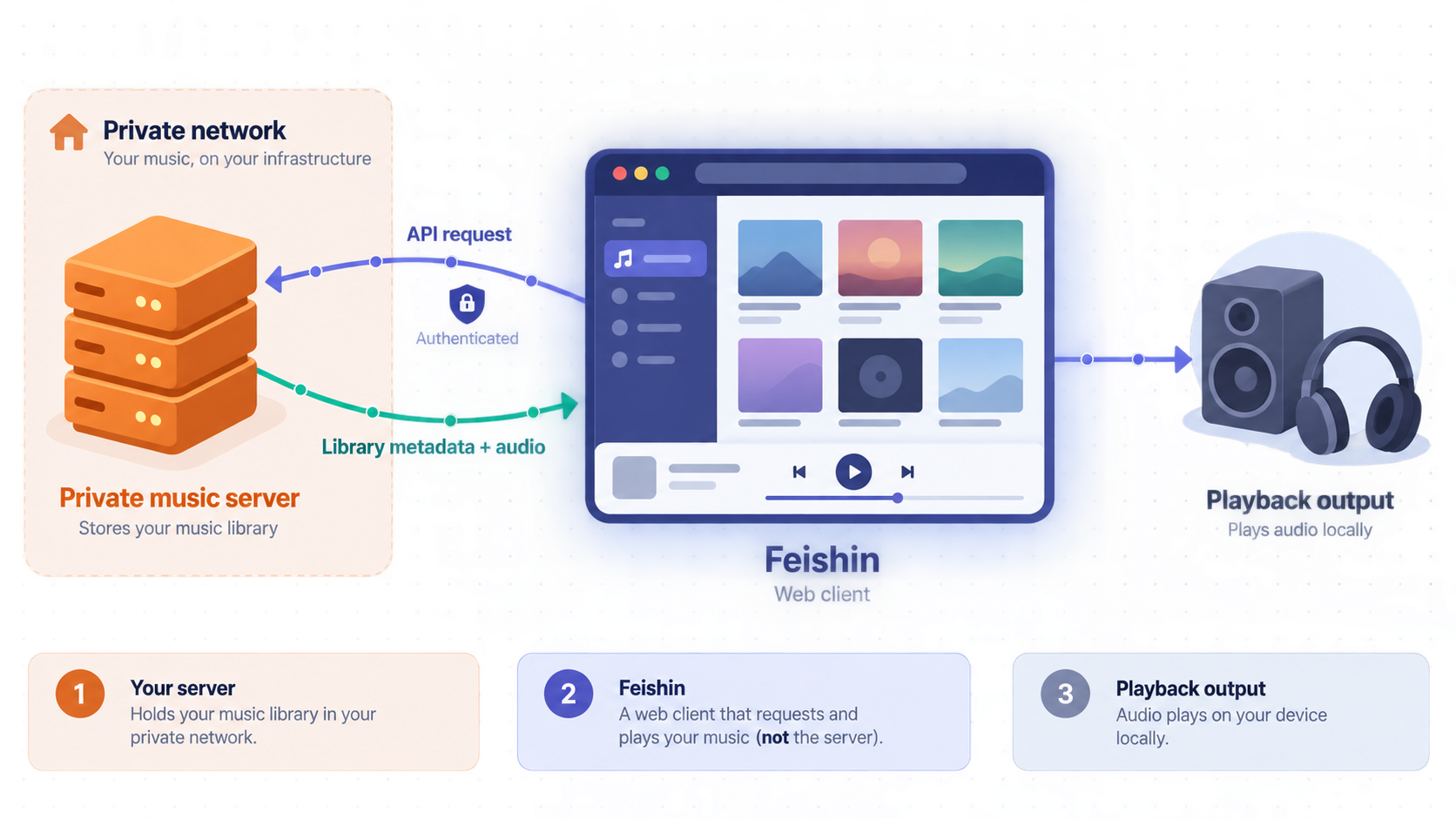
After the web interface opens, add the server that holds your music. The server type and full URL must match the service you actually operate. Feishin's documented server types include jellyfin, navidrome, and subsonic, with values treated case-insensitively when supplied through environment configuration.
Open the Feishin menu
Load the local Feishin web interface at http://localhost:9180, open its menu, and select Manage servers.
Add a server
Select Add server in the server-management window. Choose the server type corresponding to your Jellyfin, Navidrome, or compatible Subsonic deployment.
Enter the complete server URL
Supply the protocol, hostname or IP address, and port when the service does not use its protocol's normal port. For example, the documented format may look like https://navidrome.example.net or http://192.168.0.20:4533. Use your real server address, not these illustrative values.
Enter the server account details
Authenticate with a valid account from the music server. Prefer a normal user with only the permissions needed for listening rather than an administrative account.
Save and open the library
Complete the server entry and confirm that Feishin can display the expected artists, albums, playlists, and tracks. Resolve server URL or credential errors before proceeding to remote access.
Navidrome users can select Save password when creating the server for the intended persistent experience. The Feishin project also recommends configuring Navidrome's SessionTimeout to a larger value, with 72h given as an example. That setting belongs to Navidrome, not Feishin or Localtonet. Evaluate the security impact before lengthening sessions, especially on shared devices.
Optional predefined server settings
Feishin's container supports server-related environment variables, including SERVER_NAME, SERVER_TYPE, SERVER_URL, REMOTE_URL, SERVER_LOCK, LEGACY_AUTHENTICATION, and ANALYTICS_DISABLED. The project documents SERVER_LOCK as applying when the name, type, and URL are set. When active, only the username and password can be toggled through the interface.
Do not add these values merely because they exist. Manual server setup is easier to inspect during an initial installation. Use predefined settings only after confirming the exact values required by your deployment. In particular, the correct distinction between a server URL and a remote URL depends on the server and network design. This guide does not invent that value where the available project evidence does not establish it.
Feishin also supports PUBLIC_PATH when the web client is hosted below a path instead of at the site root. For example, the documented value for a /feishin deployment is PUBLIC_PATH=/feishin. A root deployment is simpler for this guide and avoids adding reverse-proxy path handling. Do not set PUBLIC_PATH for the Localtonet workflow below unless you have deliberately configured and tested the complete subpath arrangement.
The LEGACY_AUTHENTICATION setting controls legacy plaintext authentication behavior for Subsonic or OpenSubsonic servers when the server configuration is locked. Do not enable it casually. Confirm that your server requires it, understand how credentials are handled, and prefer the server's safer supported authentication mode whenever possible.
Verify the complete local workflow
A page loading at port 9180 proves only that the Feishin web assets are available. It does not prove that authentication, library access, media requests, and browser playback all work. Complete the following checks before introducing a tunnel.
Confirm the container is running
Use docker ps for a direct Docker deployment or docker compose ps for Compose. Confirm that the Feishin container is present and not repeatedly restarting.
Load the local HTTP endpoint
Open http://localhost:9180 on the Docker host. If testing from another LAN device, use the Docker host's reachable LAN address and retain port 9180.
Authenticate to the music server
Sign in with the intended non-administrative user. Confirm that failed credentials produce an authentication error rather than an unexplained empty interface.
Browse and search the library
Open multiple albums or artists and run a search. This checks that Feishin can retrieve more than the initial server response.
Play and seek within a track
Start playback, pause, resume, and seek to another position. Browser playback is a separate test from loading metadata and cover art.
Test the intended device and browser
If possible, test from the browser and device type you expect to use remotely. Browser media behavior and private-address reachability can differ from the Docker host's own browser.
If metadata appears but audio does not play, inspect the browser's developer console and network panel as well as the music-server logs. A successful Feishin page request does not guarantee that subsequent media requests are permitted. Check for failed authentication, unreachable server addresses, certificate errors, mixed-content restrictions, or server-side access policies. The exact diagnosis depends on which server you use and how it delivers media.
Operate and update the Feishin container
Routine container commands make it easier to distinguish application errors from Docker lifecycle issues. Use commands matching the installation method you selected rather than mixing direct Docker and Compose management unnecessarily.
Direct Docker commands
docker ps
docker logs feishin
docker restart feishin
docker stop feishin
docker start feishin
To remove the direct container after stopping it:
docker stop feishin
docker rm feishin
Removing the container does not automatically remove its downloaded image. Because the basic example does not define a persistent volume, review any browser-side settings and application behavior before replacing a working deployment. Do not assume that every preference is stored in the container or that every preference is retained outside it.
Docker Compose commands
docker compose ps
docker compose logs feishin
docker compose restart feishin
docker compose stop
docker compose start
docker compose down
To retrieve the currently referenced image and recreate the service:
docker compose pull
docker compose up -d
Review current release information before an update, especially when the Compose file uses latest. After recreating the service, repeat local login, browsing, and playback tests before depending on it remotely.
Repeatedly deleting and recreating a container can hide the original failure. Capture docker logs feishin or docker compose logs feishin first. Also record whether the failure affects the web page, server login, library browsing, or playback, since those symptoms point to different parts of the workflow.
Publish the verified Feishin service with Localtonet
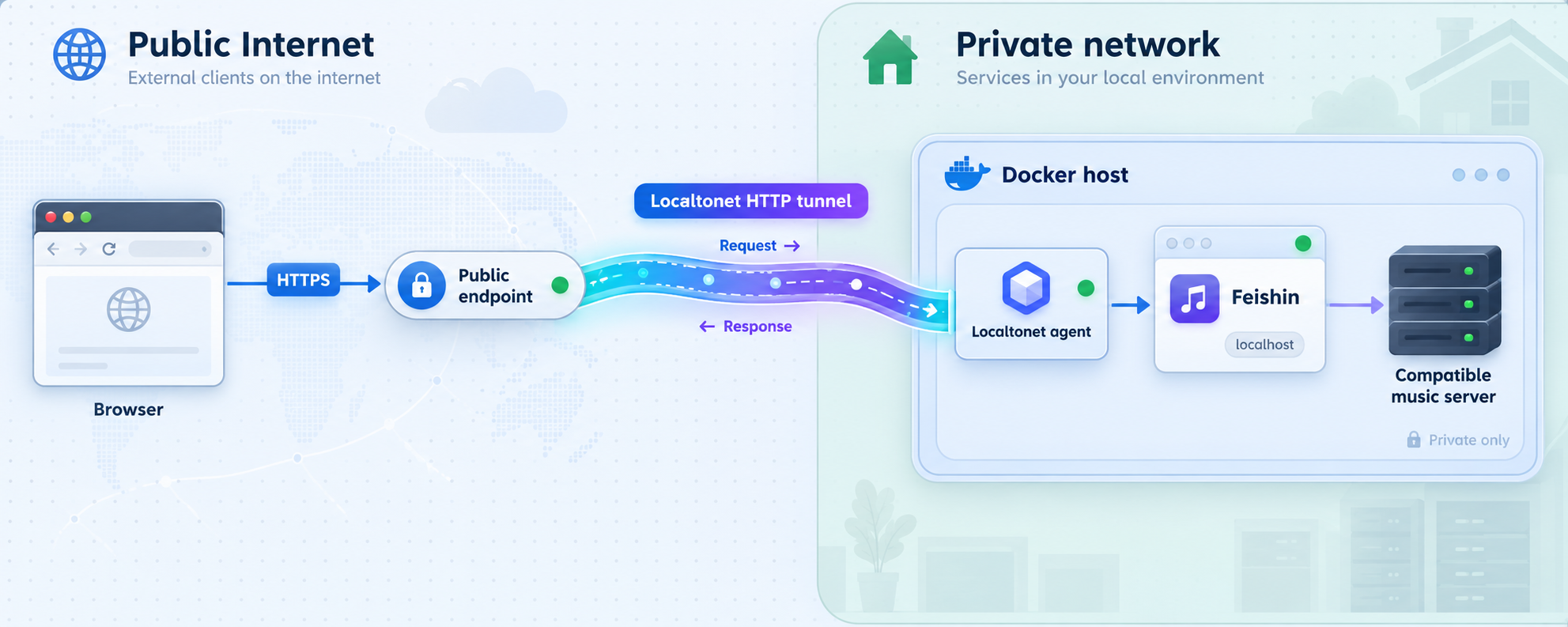
Once http://localhost:9180 works completely, Localtonet can expose the HTTP service without inbound router port forwarding, firewall changes, VPN setup, or a public IP address. Our client establishes an outbound connection from the selected device to a Localtonet relay server. The HTTP tunnel then provides a public HTTPS address for the configured local target.
Install the Localtonet client on the Docker host or another device that can reach the Feishin host and port. If the client runs directly on the Docker host, the target can normally use the loopback address associated with that host. If it runs on a different device, 127.0.0.1 would refer to that different device, so use an appropriate reachable address for the Feishin host instead.
Available relay servers, regions, process types, and plan-dependent options must be taken from the current Localtonet dashboard. Do not copy a server code from an unrelated example or assume that every option is included in every subscription.
Install and run the Localtonet client
Install our client on the device that can reach the working Feishin HTTP endpoint. Keep the client running whenever remote access is required.
Authenticate and select the device
Use the device-specific authentication token through the supported Localtonet workflow and select that connected device. Never publish or reuse a token in documentation, screenshots, shell commands, or public configuration files.
Select an available relay server
Choose from the server or region values currently offered in your dashboard. Availability can vary, so this guide does not hardcode a relay code.
Create an HTTP tunnel for Feishin
Create the appropriate HTTP configuration and set its local target to the IP address and port that reach Feishin. For a Localtonet client on the same host, the tested target is the host's local HTTP endpoint on port 9180. For a client on another machine, use the Feishin host address that worked during LAN verification.
Start the tunnel and test its public address
Creating a tunnel does not start it. Use the Start control, wait for the tunnel to run, and open the assigned public HTTPS URL from a network outside the host's LAN. Test sign-in, library browsing, and playback rather than checking only the landing page.
Stop or delete access when it is no longer needed
Stop the tunnel to make the public endpoint unavailable while retaining the configuration, or delete it if the configuration is no longer required. The tunnel is available only while the selected client device is connected and the tunnel is running.
HTTP tunnels can use a generated subdomain, a selected subdomain where supported, or a custom domain. Check the current dashboard and documentation for the available process types and any custom-domain DNS requirements. This guide does not provide fixed DNS records because those requirements can change and depend on the selected configuration.
Anyone who learns a public address can attempt to connect to it. Use a strong, unique password on the music-server account, avoid administrative credentials for routine playback, review server permissions, and stop the tunnel when remote access is unnecessary. Do not treat an unlisted URL as an access-control mechanism.
Secure the end-to-end deployment
A secure deployment includes more than the tunnel. Feishin, the music server, Docker, the host operating system, and the Localtonet client each have a distinct role. Apply least privilege at every layer and expose only the endpoint required for the workflow.
latest tag is convenient but mutable. Review release information, update deliberately, and retest local playback before reopening remote access.
Keep the host operating system, Docker installation, Feishin image, and music server maintained. Review logs for unexpected login failures and avoid sharing public URLs in public chat channels. If the connected music server offers session controls, user restrictions, or access logs, use them according to the server's documentation.
If you need private network connectivity between several devices or LANs instead of publishing a single HTTP application, that is a different architecture. Localtonet VPN Manager provides private mesh VPN functionality with granular firewall rules. A normal Feishin HTTP tunnel is application publishing, not a VPN, and should not be described or managed as one.
Troubleshoot Feishin and tunnel problems
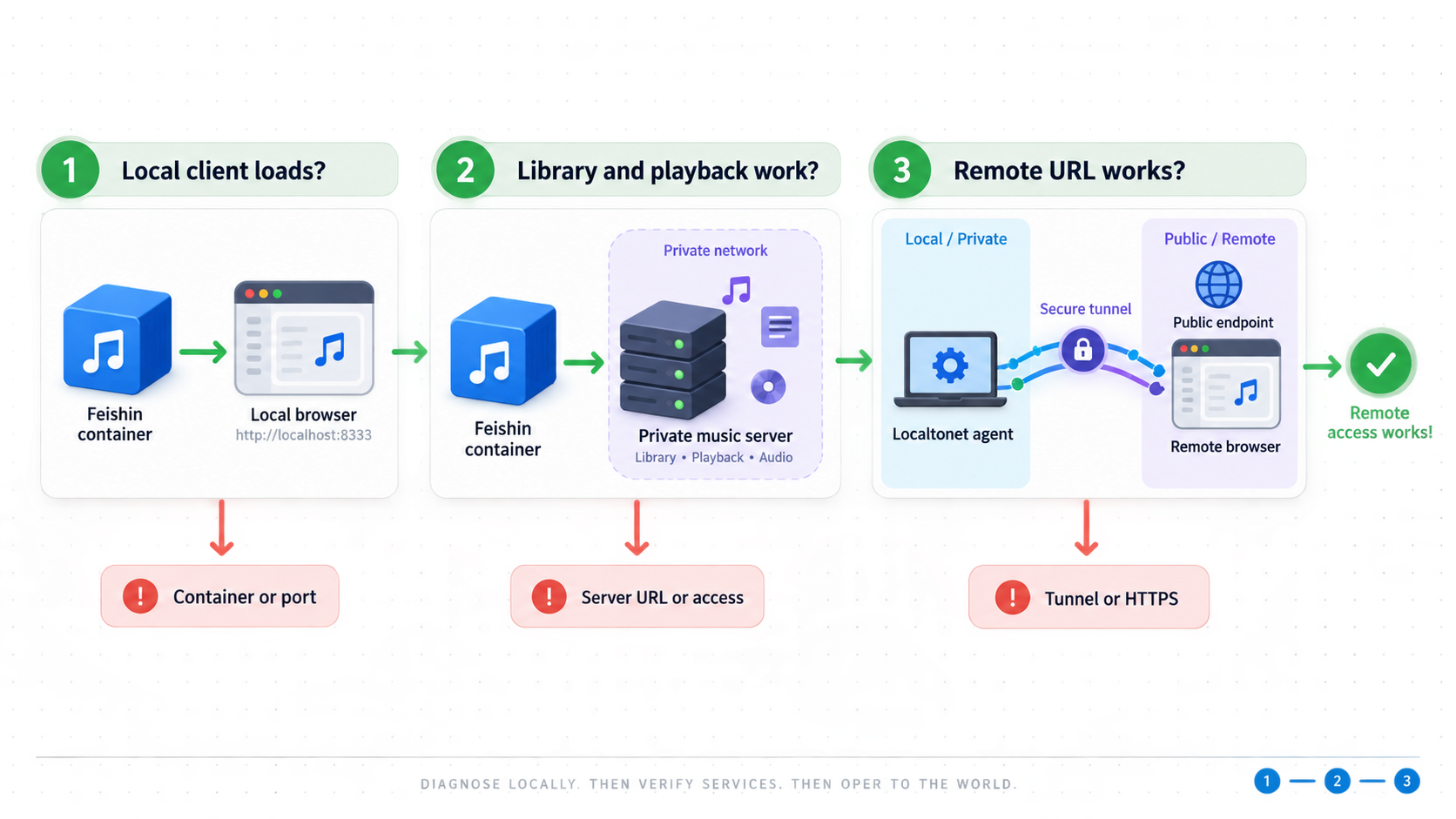
The browser cannot open port 9180
Begin with docker ps or docker compose ps. If the container is absent, start it. If it repeatedly restarts, inspect its logs. If it is running, confirm that the port mapping shows host port 9180 directed to container port 9180. Also check for a conflicting process, local firewall policy, or an incorrect hostname.
Test http://localhost:9180 from the Docker host before testing a LAN address. A localhost success with a LAN failure usually points to host binding, firewall, or network segmentation rather than a Feishin interface problem.
Feishin opens but cannot connect to the music server
Recheck the selected server type and full URL. The protocol is mandatory, and a nonstandard port must be included. Confirm that the server itself is running and that the same account works through another supported client. A hostname that resolves on one machine may not resolve in another environment.
If the music server uses HTTPS, verify its certificate from the intended client environment. Do not disable certificate validation as a routine workaround. Correct the certificate, hostname, or trust configuration instead.
The library appears, but audio does not play
This symptom means the metadata path works but a media request or browser playback step is failing. Try another track, inspect browser network errors, and check the music-server logs. Review whether the media URL is reachable from the browser, whether authentication remains valid, and whether the browser blocks the request because of its security policy.
Remember that the Docker version is the web client and uses the web player backend. Instructions requiring an MPV binary apply to the desktop application, not this browser deployment.
The Localtonet URL shows an unavailable or connection error
Verify each layer in order. First, open the Feishin endpoint locally. Second, confirm that the device running our client can reach the configured target IP and port. Third, confirm that the correct Localtonet device is connected. Fourth, verify that the HTTP tunnel has been started rather than merely created.
If the Localtonet client runs on another machine, do not configure the target as 127.0.0.1:9180 unless Feishin also runs on that machine. Loopback always refers to the device making the connection. Use a reachable address for the actual Docker host.
The public Feishin page works, but the server connection fails remotely
This usually means the interface and server do not share the same reachability path. A private URL such as a LAN IP may work at home but not from a remote browser. Inspect the failing request before changing settings. Depending on the server and Feishin behavior, you may need a server address suitable for remote clients or another supported architecture.
Do not assume that exposing the music server independently is always necessary or safe. Review that server's remote-access, authentication, certificate, and browser requirements first. If the evidence for a particular server does not establish the correct remote URL behavior, test in a controlled environment rather than guessing.
The container name is already in use
Docker container names must be unique. Check existing containers, including stopped ones:
docker ps -a
If an existing feishin container is the deployment you want, start or inspect it instead of creating another one. If it is obsolete, capture any needed information, stop it, and remove it before reusing the name.
An update causes unexpected behavior
Record the image and release involved, inspect startup logs, and repeat the local verification sequence. If you use latest, remember that recreating the service may have introduced a newer image. Avoid changing the tunnel and application configuration simultaneously, since that makes it harder to identify which change caused the regression.
Frequently asked questions
Is Feishin a complete self-hosted music server?
No. Feishin is a music client. It needs an existing Jellyfin, Navidrome, or compatible Subsonic or OpenSubsonic server that manages the library, accounts, metadata, and media files.
Which port does the Feishin Docker deployment use?
The documented Docker example maps host port 9180 to container port 9180. With that mapping, the local endpoint is normally http://localhost:9180 on the Docker host.
Does the Feishin web client require MPV?
The Docker deployment covered here is the web client and supports the web player backend. MPV configuration applies to the desktop application, which supports both MPV and web player backends.
Do I need router port forwarding for remote Feishin access?
No. With Localtonet, our client establishes an outbound connection to a relay server. The resulting HTTP tunnel provides a public address without inbound router port forwarding, firewall changes, VPN setup, or a public IP address.
Does a Localtonet tunnel remain online if the client stops?
No. The tunnel is available only while the selected client device is connected and the tunnel is running. Creating a tunnel does not start it, so you must also use the Start control.
Can I use a custom domain for Feishin?
Localtonet HTTP tunnels can use a generated subdomain, a selected subdomain where supported, or a custom domain. Check the current dashboard and documentation for availability and exact DNS requirements because options can vary by current product configuration or plan.
Why does Feishin work locally but fail from the public URL?
First confirm that our client can reach the configured Feishin target and that the tunnel is running. If the interface loads but the music server does not, the configured server address may be private or otherwise unavailable in the remote browser environment. Inspect the actual failed requests and review the music server's supported remote-access configuration.
Should I expose Feishin before testing playback locally?
No. Verify the container, local page, server authentication, library browsing, and browser playback first. Adding remote access before local verification creates extra variables and makes troubleshooting less reliable.
Make your verified Feishin client available remotely
After Feishin works locally on port 9180, create a Localtonet account, connect the device that can reach it, and start an HTTP tunnel for controlled remote browser access.
Get Started Free →

