

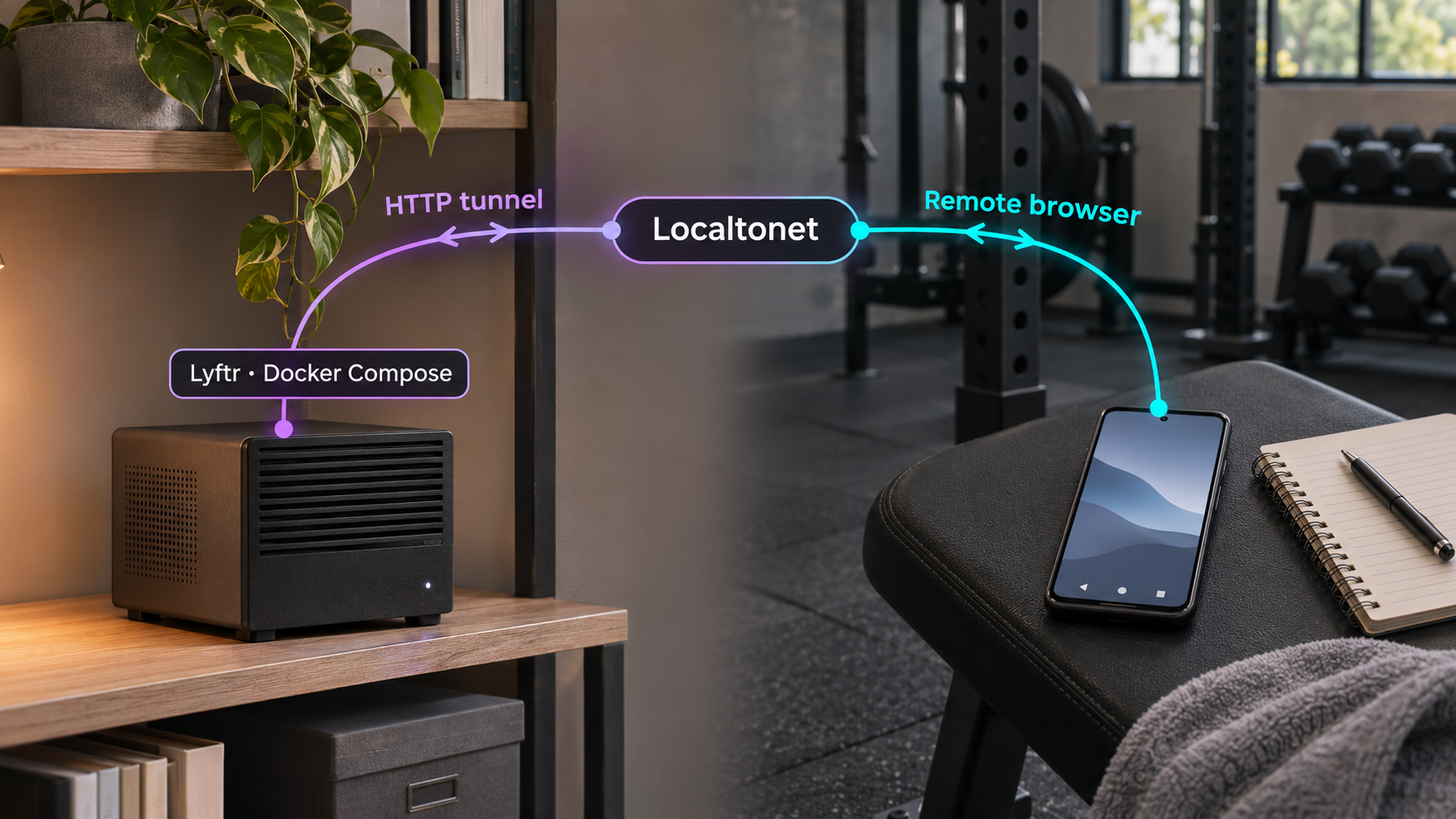
Run your own mobile-friendly fitness tracker and reach it safely when you are away from home
Lyftr is an open-source, self-hosted workout and nutrition tracker with a responsive web interface and an Android app. In this guide, we install Lyftr with Docker Compose, configure its required JWT secret, start the containers, and verify the service locally before introducing any remote access. We then connect the working local web endpoint to an HTTP tunnel with Localtonet so it can be reached from a phone outside the local network. The final sections cover routine Docker operations, data protection, exposure risks, and troubleshooting.
📋 What's in this guide
How the Lyftr and Localtonet setup works
Lyftr is a self-hosted fitness application for logging workouts, tracking nutrition, monitoring bodyweight, building programs, and reviewing training progress. Its interface is designed for mobile use, which makes it practical to open on a phone while training. The project uses Docker for its documented self-hosting workflow, and its deployment stores application data in SQLite rather than requiring a separate database service.
The installation and remote-access stages should be treated as two separate jobs. First, Lyftr must work correctly on the host through its documented local endpoint at http://localhost. Only after that local test succeeds should the service be connected to Localtonet. Keeping those stages separate makes failures easier to diagnose because it reveals whether a problem belongs to Lyftr, Docker, the local network, or the tunnel.
With Localtonet, the client running on the device establishes an outbound connection to one of our relay servers. The HTTP tunnel then maps a public HTTPS address to the local Lyftr HTTP endpoint. This design does not require inbound router port forwarding, a public IP address, firewall changes, or VPN setup. The tunnel remains available only while the selected Localtonet client is connected and the tunnel is running.
The project marks its releases as prereleases. A missing conventional latest-release value should not automatically be interpreted as inactivity, but beta status still matters when the application holds personal fitness and nutrition data. Test updates, keep backups, and review release information before changing a deployment that you depend on.
What this guide does and does not assume
This workflow assumes that Lyftr and the Localtonet client will run on the same machine. In that arrangement, the tunnel can target the loopback interface because the client can reach the same localhost endpoint that you test on the host. A split deployment is also possible when the client runs on another device that can reach Lyftr over the LAN, but the target must then use an appropriate reachable local address rather than 127.0.0.1.
We do not assume a particular Linux distribution, NAS interface, Docker Desktop edition, or Android app release. The documented project materials identify Mac, Linux, Windows, Raspberry Pi 4, NAS, VPS, and similar container-capable environments, but exact Docker installation procedures differ by operating system and device vendor. This guide therefore starts after a working Docker Engine and Compose installation is available.
Prerequisites and deployment decisions
Prepare the host before downloading Lyftr. A small server, desktop, supported NAS, Raspberry Pi, or virtual machine can be suitable as long as it can run the supplied container images and remain online whenever tracking access is needed. The host also needs persistent storage for the application data and outbound internet access to download files and container images.
| Requirement | Why it is needed | How to verify it |
|---|---|---|
| Docker Engine or Docker Desktop | Runs the Lyftr containers distributed by the project. | Run docker version and confirm the Docker client can communicate with the engine. |
| Docker Compose | Reads the supplied docker-compose.yml and manages the deployment. |
Run docker compose version. The commands in this guide use the modern space-separated syntax. |
| Command-line download tool | Downloads the official Compose and environment files without cloning the repository. | The documented commands use curl. |
| Text editor | Changes JWT_SECRET in the downloaded .env file. |
Use any local editor that preserves plain-text environment-file syntax. |
| Persistent local storage | Protects the SQLite-backed application state from accidental loss. | Review the downloaded Compose file and make sure its persistent storage maps to storage you intend to retain and back up. |
| Localtonet client | Creates the outbound connection used by the later HTTP tunnel. | Install and run it only after deciding which device can reach the Lyftr endpoint. |
Confirm Docker before continuing
Check both the engine and Compose integration from the account that will operate Lyftr:
docker version
docker compose version
The first command should show that the client can communicate with the Docker engine. The second should return a Compose version rather than an unknown-command error. If Docker requires elevated privileges on the host, follow the security and account model for that operating system rather than casually broadening Docker access. Control of Docker commonly provides extensive control over the host.
Choose a durable working directory
Create or select a dedicated directory for Lyftr, enter it, and run all installation commands from there. The two downloaded files need to remain together because Compose automatically reads the .env file in the project directory. Keeping them in a dedicated location also reduces the risk of running Compose against an unrelated project.
The official installation evidence does not prescribe a universal directory path. That is intentional because suitable locations differ among Linux hosts, Docker Desktop systems, NAS products, and managed container environments. Use a path that your administrator account can manage and that will not be removed as temporary data.
Lyftr requires a strong JWT_SECRET containing at least 32 characters. Generate a unique, unpredictable value with a trusted password manager or cryptographically secure generator. Do not reuse a login password, include the secret in screenshots, commit the completed .env file to a public repository, or paste it into support messages.
Install and configure Lyftr with Docker Compose
The documented deployment does not require cloning the source repository, installing Go, or building an image locally. It downloads the current Compose definition and an environment template from the project repository, after which Docker pulls the referenced images.
Download the Compose definition
From the dedicated Lyftr directory, download the project-maintained docker-compose.yml file:
curl -o docker-compose.yml https://raw.githubusercontent.com/Cawlumm/lyftr/main/docker-compose.ymlDownload the environment template
Save the project environment example as .env in the same directory:
curl -o .env https://raw.githubusercontent.com/Cawlumm/lyftr/main/.env.exampleSet a strong JWT secret
Open .env with a text editor, locate JWT_SECRET, and replace its example value with a unique value of at least 32 characters. Preserve the variable name and normal environment-file format. Save the file without exposing its contents.
Pull the container images
Download the images referenced by the current Compose definition before starting the service:
docker compose pullStart Lyftr in the background
Create and start the deployment in detached mode:
docker compose up -dReview downloaded files before execution
The commands above retrieve configuration from the project’s main branch. Administrators who apply change-control practices should inspect the downloaded files before running docker compose pull or docker compose up. The Compose file establishes which images, storage mappings, network settings, and runtime values Docker will use. Reviewing it is particularly important when updating later because the upstream definition may have changed.
Do not add unverified environment variables simply because another application uses them. Lyftr’s accepted settings are determined by the version being deployed. This guide only relies on the documented requirement to set JWT_SECRET. If the current template contains additional settings, read their included comments and the current project documentation before changing them.
Check the initial container state
After starting the deployment, inspect the Compose project:
docker compose psThe output should show the project containers rather than an empty project. A container can briefly be in a starting state during initialization. If it repeatedly exits or never becomes usable, inspect the logs before attempting remote access:
docker compose logs
Logs can contain operational information, so review them before sharing. Never publish the .env file, JWT secret, session values, or personal fitness data while asking for help.
Verify Lyftr locally before creating a tunnel
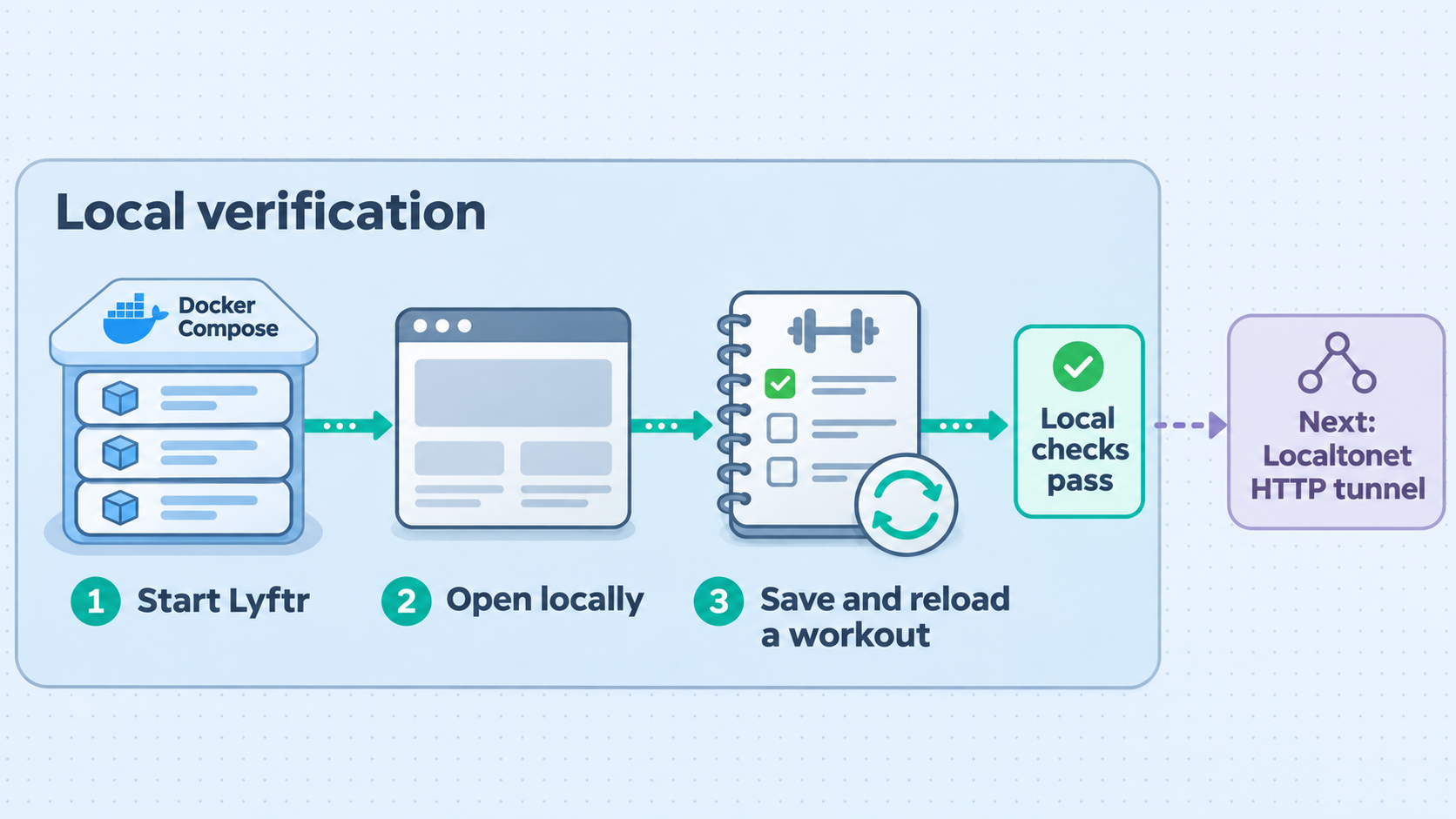
Local verification is the most important diagnostic checkpoint in this workflow. The project documents http://localhost as the web endpoint. Open that address in a browser on the Docker host:
http://localhostA successful response confirms several things at once: Docker is running, the containers started, the service is listening through the published local endpoint, and the browser can reach it. Create the initial Lyftr account through the interface and confirm that you can sign in. Use a strong, unique account password because this account will later protect information reachable through a public URL.
Perform a functional local test
Do more than confirm that a page shell loads. Sign in, move between the primary areas you intend to use, and create a small test entry. For example, verify that the interface can save a workout-related record and that the saved information still appears after refreshing the page. If nutrition tracking is part of your intended use, open that workflow locally as well.
Restarting the whole host is not required merely to prove a first launch, but persistence should be tested before trusting the deployment with important records. At minimum, stop and start the Compose project through normal Docker operations, then confirm that the test data remains available. Do not remove volumes or use destructive cleanup flags during this test.
docker compose down
docker compose up -d
A normal docker compose down command removes project containers and networks while leaving persistent volumes unless volume-removal options are added. Nevertheless, administrators should inspect the supplied Compose definition to understand exactly where Lyftr’s SQLite data is stored. The evidence available for this guide establishes SQLite usage but does not establish a universal host path for every deployment.
If http://localhost does not load reliably, the issue is local and should be fixed before creating a tunnel. A tunnel cannot repair a stopped container, an invalid environment file, a storage failure, or an application startup error. Likewise, complete the initial account setup and confirm authentication before publishing the endpoint.
Test from another local device when appropriate
Testing from the Docker host is sufficient when the Localtonet client will run on that same host. If the client will instead run on another machine, verify that the client device can reach Lyftr through an appropriate LAN address. The exact address depends on the network and Docker host. Do not assume that localhost works across devices because it always refers to the device making the request.
Whether Lyftr is intentionally accessible to other LAN devices depends on the port binding in the current Compose file and the host firewall. We do not prescribe a binding change here because the official evidence only establishes the local http://localhost endpoint. Running the Localtonet client on the same host avoids the need to broaden LAN exposure solely for tunneling.
Add Localtonet remote access as a separate next step
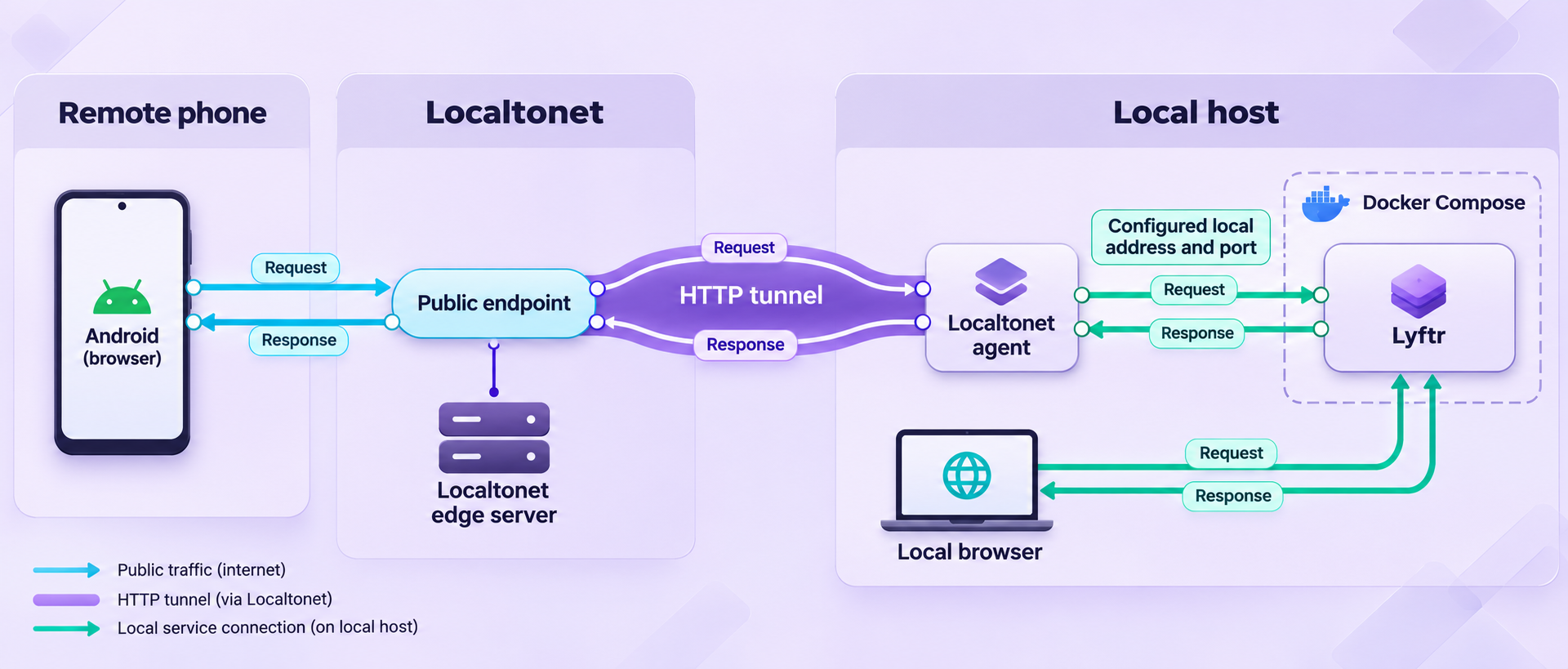
Once Lyftr works locally, an HTTP tunnel is the appropriate Localtonet tunnel family for its browser-based interface. The local side uses HTTP, while the selected HTTP process type provides a public HTTPS address. HTTP and File Server tunnels can use a random subdomain, a custom subdomain, or a custom domain, subject to what is currently available for the account and configuration.
A random subdomain is normally the simplest starting point because it avoids custom-domain DNS work. If you intend to use a custom domain, consult the current dashboard and documentation for its exact DNS requirements. Those requirements can change and should not be guessed from a generic DNS example.
| Process type | Public address behavior | When to consider it |
|---|---|---|
| Random Sub Domain | Uses a generated public HTTPS address. | Useful for a straightforward first deployment and testing. |
| Custom Sub Domain | Uses a selected subdomain where the option is supported. | Useful when a stable, recognizable subdomain is needed. |
| Custom Domain | Serves the same local content through a domain configured for the tunnel. | Useful when operating under a domain you control. Follow current DNS instructions. |
All three process types serve the same Lyftr content. They change how the public HTTPS address is assigned, not what application runs behind it. Availability can vary by current plan or product configuration, so use the options shown in the dashboard rather than assuming every choice is available.
Install and run the Localtonet client
Install our client on the Lyftr host, or on another device that can reach the verified local service. Running it on the same host allows the tunnel to target the loopback endpoint directly.
Authenticate and select the device
Use the device-specific authentication token associated with the client that will run the tunnel. Keep this token private. Never paste it into an article, public issue, command screenshot, or shared configuration file.
Select a relay server
Choose an available server or region from the current Localtonet dashboard. Available server codes and regions must be read from the product rather than copied from a static tutorial.
Create the HTTP tunnel configuration
Choose the HTTP tunnel family and the required Process Type. For an initial setup, a generated random subdomain avoids the separate custom-domain DNS process.
Point the tunnel to Lyftr
When our client runs on the same host and Lyftr responds at http://localhost, use the loopback target 127.0.0.1 with HTTP’s default port, 80. If the client runs elsewhere, use the verified LAN-reachable IP address and port instead. Do not use the client device’s loopback address to refer to a different server.
Start the tunnel and open its assigned address
Creating a tunnel does not start it. Press Start, wait for the selected client to connect, and then open the assigned public HTTPS URL. The endpoint remains available only while the client is connected and the tunnel is running.
For the current dashboard workflow, consult our HTTP tunnel documentation alongside the explanation above. Use the current options displayed for your account rather than relying on an old server code or region name.
The documented Lyftr URL is http://localhost. Because no port is written in that HTTP URL, the browser uses HTTP’s standard port 80. 127.0.0.1 is the numeric IPv4 loopback address for the same host. This target is correct only if the Localtonet client can reach the same loopback service. If Lyftr has been deliberately reconfigured, use the endpoint you actually verified rather than this default.
Test the public endpoint independently
Open the assigned HTTPS address from a device that is not relying on the Lyftr host’s browser state. A phone on mobile data is a practical test because it confirms that the request is arriving from outside the home or office LAN. The Lyftr sign-in page should appear, and a valid account should be required before personal records are shown.
Test a normal authenticated workflow, refresh the page, and sign out. Then stop the tunnel in Localtonet and confirm that the public address no longer provides the running service. Start it again only when remote access is required. This test proves that the tunnel lifecycle is independent from the Docker application lifecycle.
Use Lyftr from an Android phone
The least ambiguous mobile workflow is to open the Localtonet HTTPS URL in an Android browser. Lyftr’s web interface is designed for mobile use, so this route does not depend on a native app’s server-configuration behavior. Sign in with the account created during local setup, verify that existing records load, and perform a small test update before relying on it during a workout.
You can bookmark the public address or add the web interface to the home screen if supported by the browser. Treat the URL as an address to a publicly reachable login page, not as a secret security control. The Lyftr account credentials remain important even if the address is difficult to guess.
What about the native Android app?
Lyftr advertises a native Android app, but the evidence available for this guide does not establish the exact menu, field name, or release-specific process for connecting that app to a custom self-hosted server URL. We therefore do not invent app screens or claim that every Android build accepts a Localtonet endpoint in the same way.
Before depending on the native application, check the documentation for the exact app version being installed and confirm that it supports your self-hosted server configuration. If it accepts a custom server address, use the assigned Localtonet HTTPS URL exactly as required by that version. If this capability is absent or unclear, use the mobile web interface, which directly matches the verified HTTP deployment in this guide.
Local-only access limits who can initiate a connection. Once the tunnel starts, internet clients can reach the public endpoint and attempt to interact with its login page. Use unique credentials, keep Lyftr updated, avoid sharing the URL unnecessarily, and stop the tunnel when remote access is not needed. A tunnel is connectivity, not a replacement for application authentication and safe administration.
Operate, update, and back up the deployment
A self-hosted fitness tracker needs routine maintenance. Docker reduces installation complexity, but it does not eliminate responsibility for updates, backups, storage monitoring, account security, and recovery testing. Keep the Lyftr deployment directory and its configuration under administrative control.
Inspect status and logs
Run operational commands from the directory containing the Lyftr Compose file:
docker compose ps
docker compose logs
Use docker compose ps to check whether the containers are running. Use logs when the page does not load, startup fails, or an operation returns an unexpected error. For an ongoing view during diagnosis, Docker Compose supports following logs:
docker compose logs -fStop the live view with the terminal’s interrupt action. This stops log display, not the containers.
Stop and restart Lyftr
To stop and remove the current project containers and networks without intentionally requesting volume deletion:
docker compose downTo start the deployment again:
docker compose up -dStopping Lyftr makes the tunnel’s local target unavailable, even if the Localtonet tunnel itself still appears to be running. Conversely, stopping the tunnel does not stop Lyftr locally. When taking the application down for maintenance, stop public access first if you do not want remote users to reach an incomplete or restarting service.
Update container images carefully
A basic image refresh uses the same pull and startup commands as installation:
docker compose pull
docker compose up -d
Before updating, inspect current project guidance and release notes, especially because Lyftr is described as beta and marks releases as prereleases. Back up persistent data first. After updating, inspect container status, review startup logs, open http://localhost, and verify a representative record before testing the public URL.
Re-running docker compose pull alone downloads images but does not necessarily recreate already running containers with them. Running docker compose up -d afterward applies the current Compose configuration and images as needed.
Back up the SQLite data
Lyftr’s data is held in SQLite, but the supplied evidence does not identify a single universal host file path for every Compose version and platform. Do not guess where the database lives. Inspect the current docker-compose.yml, identify its persistent volume or bind mount, and verify the actual storage location through Docker on the host.
Back up the persistent application data together with any configuration required to reconstruct the deployment. A backup is not proven until it has been restored in a controlled test. Database consistency matters, so use a backup method appropriate for the application and SQLite storage state rather than copying an actively changing file without understanding the consequences.
Protect backups as personal data. Workout history, bodyweight, nutrition records, and account information can be sensitive even when they are not medical records. Encrypt backup media where appropriate, limit who can read it, and define a retention policy instead of accumulating forgotten copies.
Security checklist for a remotely accessible fitness tracker
Remote access should be designed around layers. The public tunnel transports requests to Lyftr, Lyftr authenticates users, Docker isolates and operates the application, and the host controls the underlying files and processes. Weakness in any layer can affect the deployment.
.env private, and never publish the completed configuration.
Keep the device token private
A Localtonet authentication token identifies the client device that runs the tunnel. It must not be guessed, embedded in a public tutorial, stored in a public repository, or shared as a troubleshooting example. If a token is exposed, treat that as a credential incident and use the current account controls to replace or revoke access as appropriate.
Avoid unnecessary network exposure
If the Localtonet client runs on the Docker host, loopback targeting is preferable to broadening Lyftr’s availability across the LAN solely for tunneling. Do not add router port forwarding in parallel. Localtonet is designed to work through an outbound client connection, so an inbound router rule is not part of this workflow.
This HTTP tunnel should not be described as a VPN. Standard HTTP tunneling publishes the selected application endpoint. Localtonet VPN Manager is the separate feature intended for private mesh VPN networking. Choose the access model that matches the actual requirement rather than treating all forms of remote connectivity as interchangeable.
Consider the sensitivity of tracking data
Exercise, nutrition, bodyweight, and habit information can reveal routines and personal patterns. Apply least privilege to the host and backups, avoid placing real data in public screenshots, and remove identifying information from logs before sharing them. Also consider whether the service should remain available continuously or only during periods when remote logging is useful.
Troubleshooting Lyftr and the HTTP tunnel
Docker Compose is not available
If docker compose version fails, install or enable the Compose integration appropriate for the operating system. The commands in this guide use docker compose, not the older hyphenated docker-compose command. Do not change the tutorial commands blindly without first confirming which Compose implementation is installed.
The environment file is missing
Confirm that the file is named exactly .env, including the leading dot, and that it is in the same directory as docker-compose.yml. Some graphical file managers hide dotfiles. Run Compose from that directory so it reads the intended project files.
Lyftr exits immediately
Run:
docker compose ps
docker compose logs
Look for a configuration, image, storage, or startup error. Recheck that JWT_SECRET has a real value of at least 32 characters and that environment-file syntax was preserved. Do not post the secret itself when requesting assistance.
Port 80 is already in use
The documented Lyftr endpoint is http://localhost, which implies local HTTP port 80. If another service already occupies that port, Docker may report a binding conflict. Identify the existing service before changing anything. The evidence provided for this guide does not establish an officially supported alternate Lyftr port variable, so we do not invent one. Consult the current project configuration and documentation before modifying Compose port mappings.
Lyftr works locally but not through Localtonet
This pattern usually narrows the issue to the tunnel path. Confirm all of the following:
- The selected Localtonet client is connected.
- The tunnel has been started, not merely created.
- The tunnel is an HTTP tunnel rather than a raw port or unrelated tunnel type.
- The local IP and port match the endpoint reachable from the client device.
127.0.0.1:80is used only when the client runs on the same host as Lyftr.- The assigned public URL is copied exactly.
If the client runs on another machine, opening http://localhost on that machine tests the wrong computer. Test Lyftr from that client device through the Docker host’s verified LAN address, then use the same reachable target in the tunnel configuration.
The public URL loads, but authentication fails
First, attempt the same credentials at http://localhost. If local authentication also fails, troubleshoot the Lyftr account rather than the tunnel. If local sign-in succeeds while public sign-in consistently fails, inspect browser behavior and application logs without exposing cookies, tokens, passwords, or private records.
The endpoint stopped working after a reboot
Check the two independent services. Lyftr’s containers must be running, and the Localtonet client must be connected with the tunnel started. A host reboot can affect either lifecycle. Use docker compose ps for Lyftr and the Localtonet dashboard for client and tunnel state. Do not assume that creating a tunnel once guarantees that it is currently active.
Records appear missing after recreation
Stop making destructive changes and identify the persistent storage used by the previous deployment. A new empty database can make an application appear functional while older data remains in a different volume or path. Inspect the Compose file and Docker storage configuration. Avoid deleting volumes until the old data has been located and backed up.
The Android app does not show a custom server option
Do not force the public URL into an unrelated field. Native app capabilities can vary by version, and the available evidence does not define the current custom-server setup sequence. Use the mobile browser interface and consult the app’s current release instructions before changing its configuration.
Frequently asked questions
Do I need to clone or build Lyftr from source?
No. The documented self-hosting workflow downloads docker-compose.yml and .env.example, saves the latter as .env, sets a strong JWT_SECRET, pulls the container images, and starts them with Docker Compose.
What local URL and port does this setup use?
Lyftr documents http://localhost as its local web endpoint. Because this is an HTTP URL without an explicit port, it uses port 80. When our client runs on the same host, the corresponding tunnel target is 127.0.0.1:80, unless the deployment has been deliberately reconfigured.
Do I need router port forwarding or a public IP address?
No. The Localtonet client initiates an outbound connection to our relay infrastructure. The workflow does not require inbound router port forwarding, firewall changes, a public IP address, or VPN setup.
Is the tunnel always online after I create it?
No. Creating a tunnel does not start it. The selected client must be connected and the tunnel must be running. You can stop or delete the tunnel later, and the public endpoint is unavailable when the necessary client or tunnel is offline.
Can I use Lyftr remotely from an Android phone?
Yes, the verified route is to open the Localtonet public HTTPS URL in the phone’s browser and use Lyftr’s mobile-oriented web interface. Lyftr also provides an Android app, but app-specific custom-server configuration can vary by release and should be confirmed from the instructions for the exact installed version.
Does Lyftr need a separate database server?
The documented project information says Lyftr stores its data in SQLite, so this deployment does not require a separate PostgreSQL, MySQL, or Redis service. You still need to identify and back up the persistent SQLite storage used by the current Compose configuration.
Is an HTTP tunnel the same as a VPN?
No. An HTTP tunnel publishes the selected web service through a public URL. Localtonet VPN Manager is our separate private mesh VPN feature. This Lyftr workflow uses an HTTP tunnel because the application is a browser-accessible HTTP service.
Should I leave the Lyftr tunnel running all the time?
That depends on your access needs and risk tolerance. Continuous access is convenient, but it keeps the login surface publicly reachable. If remote access is only needed occasionally, stop the tunnel when it is not in use while leaving Lyftr available locally.
Take your self-hosted Lyftr instance beyond the local network
Verify Lyftr at http://localhost, secure the account and deployment, then use an HTTP tunnel with Localtonet to reach the mobile interface from your phone without configuring inbound router port forwarding.