

Run your coding-agent dashboard locally, verify it carefully, and evaluate remote browser access without opening a router port
Claude Command Center, commonly shortened to CCC, provides a local dashboard for monitoring and interacting with coding-agent sessions. This guide covers the documented Linux prerequisites, source installation, startup, local verification, systemd user-service option, routine updates, and practical troubleshooting. After the local dashboard works at http://localhost:8090, we explain how to connect it to an HTTP tunnel with Localtonet. Because the available CCC documentation does not establish public-facing authentication, the remote-access section treats exposure as a security decision that must be validated rather than assuming the dashboard is safe to publish.
📋 What's in this guide
What Claude Command Center does
Claude Command Center is a local, source-available dashboard intended for developers working with multiple coding-agent sessions. Its project materials describe one board for sessions from Claude Code and several other coding-agent engines, with Claude Code treated as the first-class integration and documented gaps applying to other engines. The dashboard is designed to make active, waiting, dormant, and historical sessions easier to see than they would be across a collection of terminal windows.
CCC can surface sessions that need attention, organize work into different views, and let a user interact with supported sessions from a browser. The project also describes capabilities such as context indicators, session organization, history search, split views, and browser-based steering. Exact behavior can vary by agent engine, CCC version, and how a session was launched, so installation success should not be confused with complete integration for every coding tool.
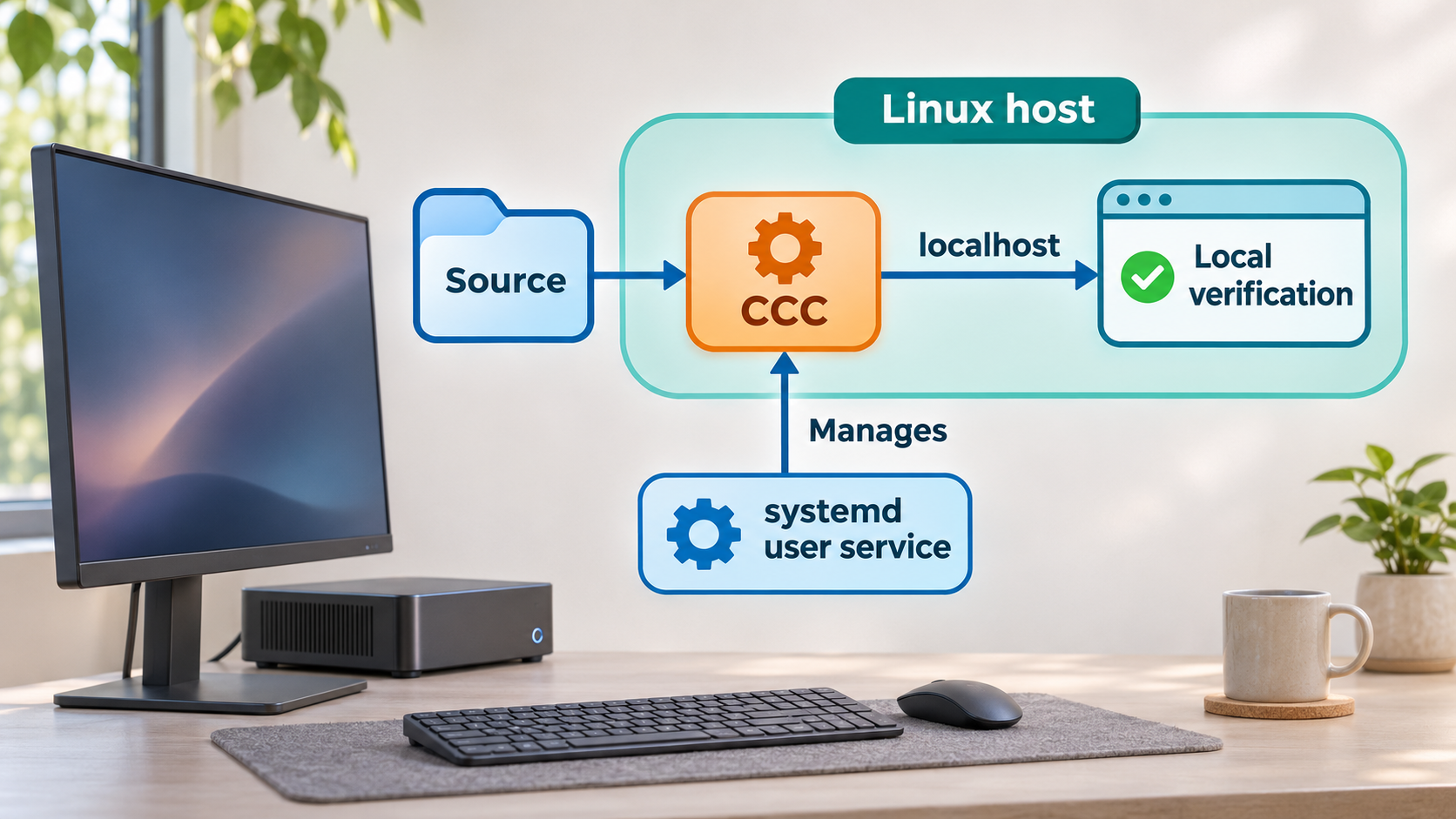
The central architecture for this tutorial is straightforward: CCC runs an HTTP service on the Linux host, and the browser opens that service at http://localhost:8090. The word localhost means the current machine. A browser running on another computer or phone cannot normally use that loopback address to reach the Linux host.
http://localhost:8090. Local verification should always happen before any remote-access configuration.
./run.sh --install-service path to install a systemd user service after confirming the source installation works.
The project identifies its licensing model as FSL-1.1-MIT and describes itself as source-available. We do not label it unconditionally as open source under its current terms. Review the repository license files before redistributing the software, modifying it for commercial use, or incorporating it into another product.
Remote access is a separate layer. With Localtonet, the client on the Linux machine establishes an outbound connection to one of our relay servers. An HTTP tunnel can then provide a public HTTPS address that forwards requests to the local CCC HTTP service. This avoids inbound router port forwarding, a public IP requirement, firewall changes for an inbound listener, and VPN setup.
That connectivity does not automatically answer whether CCC should be made publicly reachable. Transport, application authentication, authorization, and the sensitivity of dashboard data are separate concerns. We will verify them separately later in the guide.
Prerequisites for installing CCC on Linux
The documented macOS and Linux installation requirements are Git and Python 3.9 or newer. You also need a Linux user account that can clone the repository and create files in the chosen installation directory. If you plan to use the service installation path, the host must use systemd with user-service support.
This guide does not assume a particular Linux distribution. Package names and package-manager commands vary between Debian, Ubuntu, Fedora, Arch Linux, and other distributions, so we will not present one distribution's package command as universal. Install Git and a supported Python version using your distribution's maintained package manager, then confirm the resulting executables from the shell.
| Requirement | Why it is needed | How to verify |
|---|---|---|
| Linux host | Runs the CCC server and stores its local data | Confirm you have a supported working Linux environment and shell access |
| Git | Clones and later updates the source repository | git --version |
| Python 3.9 or newer | Meets the documented runtime prerequisite | python3 --version |
| Browser | Opens and tests the local dashboard | Verify that a browser can reach services on the Linux host |
| systemd user services | Required only for the documented service installation option | Check whether your distribution and user session support systemd user units |
| Localtonet client | Required only when adding the later remote-access layer | Install and connect the client before creating the HTTP tunnel |
Run the prerequisite checks as the same Linux user that will run CCC:
git --version
python3 --version
The Python output must report version 3.9 or newer. A version such as Python 3.8 does not satisfy the documented minimum merely because the python3 command exists. If more than one Python installation is present, confirm which executable your shell resolves and avoid removing a distribution-managed Python installation just to change the default.
CCC also documents a shell installer for macOS and Linux, but the exact current installer command is not established in the evidence available for this draft. Installer URLs and flags can change, so we do not reproduce or guess them. The source workflow below is explicit and reviewable: clone the repository, enter it, and run its documented startup script. If you choose the shell installer instead, obtain the current command directly from the project's maintained documentation and inspect downloaded scripts before executing them.
Choose where to keep the repository
The source method creates a normal Git working tree. Choose a durable directory owned by your user rather than a temporary directory. Do not place the repository somewhere that an automated cleanup job will remove. The exact parent directory is your decision, and CCC's evidence does not require one universal installation path.
Keep in mind that later Git commands must be run inside the cloned repository. If you move it, shortcuts or service definitions created against its old location may need adjustment. Start with the interactive workflow before installing a persistent service so errors remain visible in the terminal.
Install Claude Command Center from source
The documented source path uses the project's Git repository and its run.sh
Open a terminal as the intended CCC user
Use the normal Linux account that should own and run the dashboard. Recheck git --version and python3 --version in this shell before continuing.
Clone the official repository
Clone the source repository into the current directory. Git will create a directory named claude-command-center.
Enter the repository
Change into the cloned directory so the startup script and the rest of the project files are available relative to your shell.
Start CCC with the documented script
Run ./run.sh. Keep the terminal open during the first startup and read its output. Do not proceed to remote access unless startup completes and the local dashboard works.
The corresponding commands are:
git clone https://github.com/amirfish1/claude-command-center.git
cd claude-command-center
./run.sh
Initial startup may perform setup work before the dashboard becomes available. The exact duration depends on the host and its environment, and no fixed startup time is established by the supplied evidence. Use the terminal output as the authoritative indication of progress rather than repeatedly launching additional copies.
If ./run.sh exits with an error, preserve the complete terminal output. The first error is generally more useful than later cascading messages. Check prerequisites, ownership, disk availability, and network access needed by the setup process before changing project files.
What about Homebrew?
The project advertises Homebrew as an installation path, including for Linux environments where Homebrew is available. However, the exact current formula command is not included in the verified material provided for this draft. We therefore do not invent a package name or tap. Use the source installation above when you need a complete command sequence from this guide, or confirm the current Homebrew instructions in the project's maintained documentation before using that route.
What about Docker?
The repository contains Docker-related files, but the supplied installation evidence does not establish a complete, supported Docker deployment procedure, required mounts, environment variables, persistence model, or published port mapping. A file named Dockerfile or docker-compose.yml is not enough to justify guessing production commands. This tutorial consequently uses the explicitly documented Linux source workflow.
Verify the dashboard locally
Local verification separates CCC problems from tunnel problems. If the dashboard does not load on the host itself, adding a tunnel will not repair the application. Complete the checks in this section before installing a service or configuring Localtonet.
Leave the CCC process running
Keep the terminal that launched ./run.sh open. Look for immediate errors or repeated restarts before testing the browser.
Open the local endpoint
On the same Linux machine, open http://localhost:8090 in a browser. Use HTTP for this direct local test because that is the documented local endpoint.
Confirm that the interface is functional
Verify that the page renders rather than showing a browser connection error. Navigate through non-destructive views and confirm that refreshes continue to load normally.
Check agent visibility separately
A working web page proves that the dashboard server is reachable. It does not prove that every coding-agent integration is configured or supported. Confirm that expected sessions appear and investigate engine-specific gaps independently.
“The page opens” verifies the HTTP service. “My expected sessions appear and can be managed correctly” verifies application integration. Keep these results separate when troubleshooting. A tunnel only forwards the HTTP service that already exists; it does not add agent-engine support or repair CCC ingestion.
If the browser reports that it cannot connect, return to the terminal where ./run.sh is running. Confirm the process did not exit. Also check whether another process already uses port 8090. The supplied project evidence establishes 8090 as the local endpoint but does not document an alternative-port command for this workflow, so we do not guess a flag or environment variable for changing it.
Test from the same machine first. Using localhost on a phone refers to the phone itself, not the Linux computer. Similarly, using localhost on a laptop refers to that laptop. This loopback behavior is why a separate remote-access layer is needed.
Install CCC as a systemd user service
Once the interactive launch works, Linux users can use CCC's documented service installation option. The project provides ./run.sh --install-service for installing a systemd user service. Installing the service before local verification can hide useful startup errors and make it harder to distinguish dependency problems from service-manager behavior.
Stop the interactive instance cleanly
End the foreground instance started by ./run.sh before installing another managed instance. This reduces the chance of two processes competing for port 8090.
Return to the repository directory
Run the service installer from the cloned claude-command-center working tree as the Linux user who should own the user service.
Run the documented service installation command
Execute ./run.sh --install-service and follow the output. Do not substitute a hand-written unit unless you have separately reviewed the project's service requirements.
Verify the dashboard again
Reopen http://localhost:8090. A successful installer message is not a replacement for an actual browser test.
cd claude-command-center
./run.sh --install-service
This is a user service, not necessarily a system-wide root service. User services can behave differently across Linux distributions, especially around logout, boot, and user-session persistence. The supplied evidence does not establish a universal lingering or login-session configuration, so verify behavior on the actual host by logging out or rebooting during a planned test window.
Confirm the behavior instead of assuming it. If CCC works while the user is logged in but disappears after logout or reboot, inspect the user-service state and your distribution's systemd user-session policy. Avoid copying unrelated system-wide unit files from the internet because their paths, users, and security settings may not match CCC's installer.
Routine operation, updates, and version control
A self-hosted dashboard needs periodic operational checks. At minimum, monitor whether the local endpoint loads, whether expected sessions appear, and whether the process remains healthy after updates or reboots. Apply changes during a time when interrupting dashboard access will not disrupt active work.
Updating a source installation
Because the documented source path starts with a Git clone, inspect the working tree before pulling updates. Local modifications can conflict with upstream changes, while untracked files can make rollback and diagnosis harder. The following commands inspect the current checkout and retrieve the configured branch's updates:
cd claude-command-center
git status
git pull
After updating, restart CCC using the project's current supported mechanism and verify http://localhost:8090 again. Project release notes for v5.41.0 document a ccc restart [all|dashboard|worker] facility and explain that it uses drain-aware restart endpoints. However, command availability can depend on the installed CCC version and installation state. Confirm that your installed version provides the command before relying on it.
The project continues to publish releases, and the public project page can show a newer version than a release used during editorial research. Do not assume that a version mentioned in this article is the newest available at installation time. Review the current release notes for breaking changes and migration instructions before updating a host used for important work.
Backups and local state
CCC describes local session and application behavior, but the supplied evidence does not define a complete backup and restoration procedure, a canonical data-directory path for every installation method, or a compatibility guarantee across versions. We therefore cannot responsibly prescribe a directory to copy. Identify the data location from the installed version's maintained documentation before building a backup job.
Back up any important configuration and local state before major updates. Test restoration rather than treating the existence of a copied directory as proof that recovery will work. Coding-agent repositories and CCC application state may be separate assets, so a backup of one should not be assumed to include the other.
Stopping remote access without stopping CCC
CCC and a Localtonet tunnel have separate lifecycles. You can stop the tunnel while leaving the local dashboard running. This is useful when the dashboard should remain available on the host but should no longer be reachable through its assigned public address. Creating a tunnel does not mean it is running, and stopping one does not uninstall CCC.
Add HTTP remote access with Localtonet
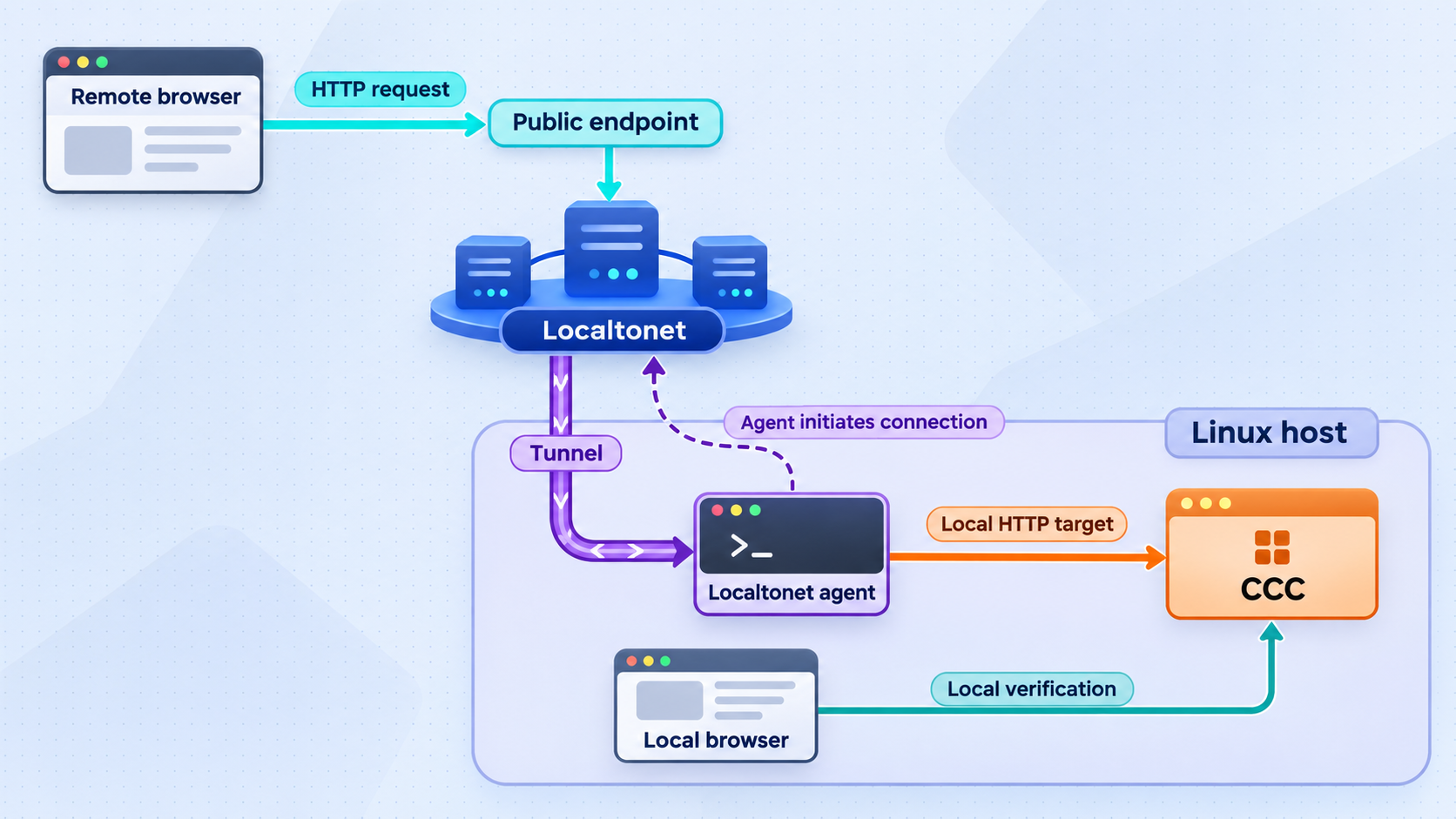
Only continue after http://localhost:8090 works reliably on the Linux host. With Localtonet, our client creates an outbound connection to a Localtonet relay server. The HTTP tunnel points to the CCC service on the client device and provides a public HTTPS address while the selected client is connected and the tunnel is running.
This workflow does not require an inbound router port-forwarding rule, an inbound public IP address, firewall changes for a public listener, or VPN setup. It is standard HTTP tunneling, not Localtonet VPN Manager. The tunnel forwards requests to CCC; it does not change CCC's application features or agent compatibility.
Install and run the Localtonet client
Install our client on the Linux device that can reach http://localhost:8090. Keep the client running because the tunnel is available only while the selected device is connected and the tunnel is started.
Authenticate or select the device
Use the device-specific authentication token associated with the client. Treat that token as a secret, never place it in screenshots or shell history unnecessarily, and never copy a guessed token from an example.
Select an available relay server
Choose a currently available server or region from the Localtonet dashboard. Available values can vary, so this guide does not hardcode a server code.
Create an HTTP tunnel to CCC
Configure the HTTP tunnel's local target for the CCC service reachable from the client device at local port 8090. When the client runs on the same Linux host as CCC, the local address is the host's loopback address. Confirm the target rather than exposing an unrelated service that happens to use another port.
Start the tunnel
Creating the tunnel does not start it. Use the Start control, then wait for the selected client and tunnel to show a connected, running state.
Test the assigned public HTTPS address
Open the assigned address from a separate network or device. Verify basic rendering first, then test required CCC interactions cautiously. Stop the tunnel immediately if the dashboard is accessible without controls appropriate for its sensitivity.
HTTP tunnels can use a generated random subdomain, a custom subdomain where supported, or a custom domain. All three process types serve the content through a public HTTPS address. Custom-domain DNS requirements must be checked against the current Localtonet documentation, so we do not provide unverified DNS records in this tutorial.
| Layer | What it establishes | What it does not establish |
|---|---|---|
| CCC local service | The dashboard responds at localhost:8090 |
That remote users can reach it |
| Localtonet client connection | The Linux device has an outbound connection to our relay | That a configured tunnel has been started |
| Localtonet HTTP tunnel | A public HTTPS route forwards to the local HTTP target | That CCC provides suitable user authentication or authorization |
| Application access control | Who may view or operate the dashboard | Guaranteed coverage merely because HTTPS is present |
Security review before public exposure
CCC is not merely a static status page. Depending on the installed version and configured integrations, a dashboard can reveal session names, repository context, transcripts, prompts, agent output, usage information, and controls capable of sending instructions. That makes access to the dashboard potentially equivalent to access to sensitive development activity.
The available CCC documentation recommends a different private-network approach for phone access and does not establish Localtonet compatibility as an officially supported CCC integration. It also does not establish, for this workflow, a public-facing authentication system suitable for an internet-reachable deployment. We therefore treat the HTTP tunnel as technically plausible connectivity that requires validation, not as a blanket security recommendation.
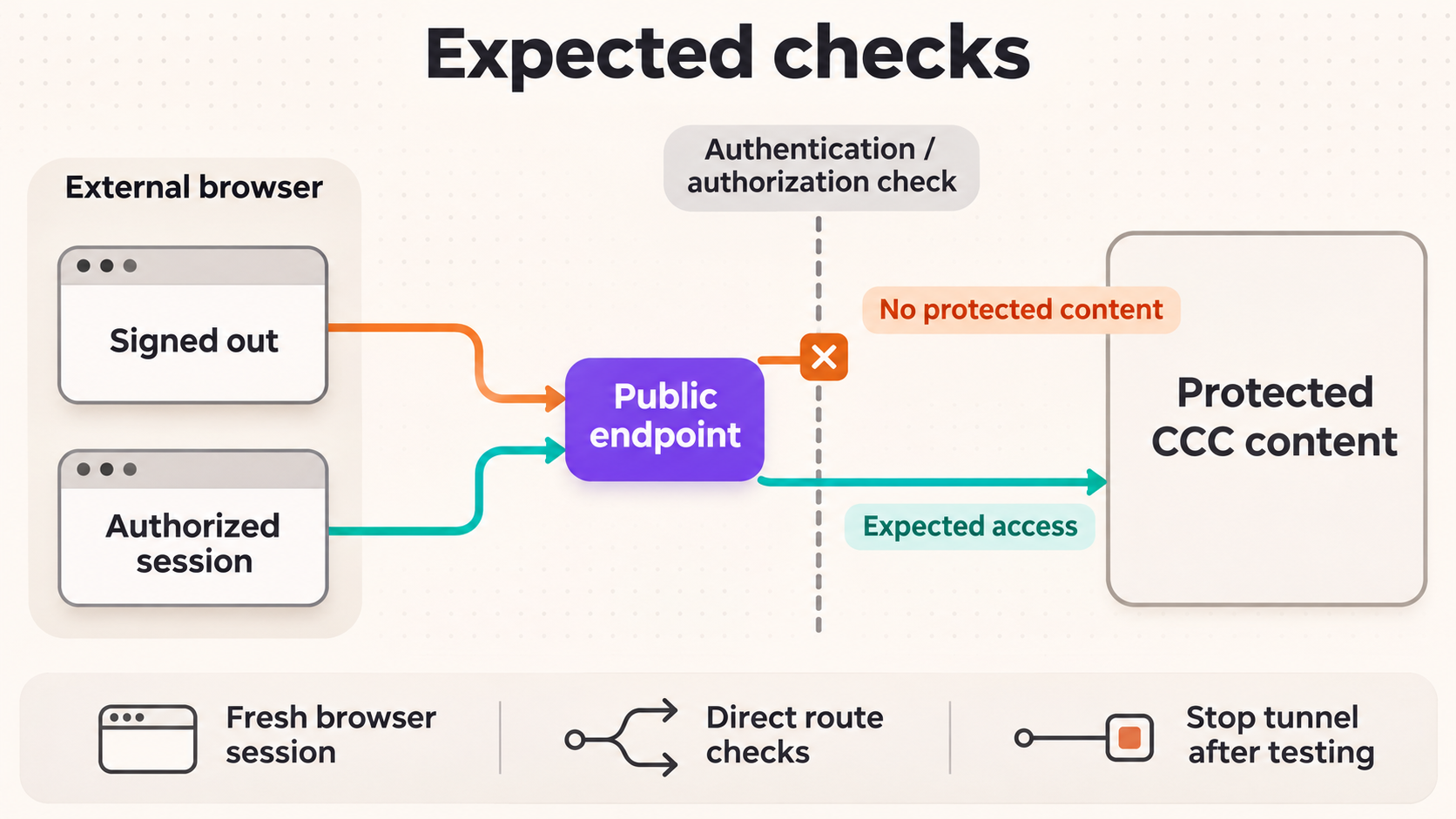
A Localtonet HTTP tunnel can provide a public HTTPS address and protect transport to the tunnel edge, but a public address may still allow anyone who obtains it to request the application unless an appropriate access-control layer is present. Do not expose CCC merely because the URL uses HTTPS. Verify authentication, authorization, session handling, and logout behavior for the exact CCC and Localtonet configuration you intend to use.
Perform an unauthenticated-browser test
Use a private browsing window or a separate browser profile that has no existing CCC cookies. Open the public URL and observe what appears before entering any credentials. If sensitive dashboard content loads immediately and you expected an authentication boundary, stop the tunnel. Do not rely on an obscure or unshared URL as the only control.
Repeat the test from another device and network. Existing local cookies, browser extensions, or a logged-in profile can conceal the absence of a real access boundary. Confirm whether a new user can view sessions, open transcripts, send messages, or trigger actions.
Test privileges, not just the login screen
A login screen alone does not prove sufficient authorization. After authentication, determine whether the account can access only intended projects and operations. Apply least privilege where supported. Review whether read access, message sending, session creation, configuration changes, and administrative operations can be separated.
The supplied evidence does not establish CCC's public authentication controls or Localtonet HTTP access-policy options for this exact setup. We therefore do not invent a password field, identity-provider integration, IP allowlist, or dashboard switch. If your reviewed versions do not provide the controls your threat model requires, keep the tunnel stopped and use a private access design instead.
Protect device tokens and public addresses
A Localtonet device token identifies the client that runs the tunnel. Store it as a secret and rotate or replace it through the current product workflow if exposure is suspected. Do not paste it into documentation, issue reports, screenshots, repositories, or chat messages.
Treat the public URL as sensitive even when authentication exists. Avoid posting it in public issue trackers or source files. Stop or delete tunnels that are no longer needed. Stopping ends current tunnel availability, while deleting removes the tunnel configuration.
Validate the complete browser workflow
A dashboard can render while interactive operations fail. From an authorized remote browser, test page navigation, refreshes, expected live updates, and one low-risk action. Watch the CCC and Localtonet client processes for errors. Do not test destructive controls or send instructions to important agents merely to prove connectivity.
If basic HTTP pages work but real-time features do not, preserve browser-console and server logs for review. The supplied evidence does not establish specific proxy-header or WebSocket settings for CCC, so guessing headers is inappropriate. Confirm requirements against the installed CCC version before changing networking behavior.
Troubleshooting the installation and tunnel
python3 --version reports an older release
Install Python 3.9 or newer using a method supported by your Linux distribution. Confirm that the same shell used to launch CCC resolves the correct python3. Do not overwrite system-managed executables or remove a Python version required by your operating system without understanding the distribution's dependency model.
git is not found
Install Git through the distribution's package manager, then open a new shell and rerun git --version. The source path cannot proceed until Git can clone the repository.
./run.sh cannot execute
Confirm that you are inside the cloned repository and that run.sh exists. Review the file permissions and the exact shell error. The maintained repository normally defines how the script should be delivered, so avoid changing permissions or line endings until you have confirmed the clone completed correctly.
The browser cannot open localhost:8090
Check whether the foreground process is still running and inspect its earliest error. Verify that the URL is being opened on the Linux host where CCC runs. If another application already occupies port 8090, stop and identify it safely. Do not terminate an unknown process solely to free the port.
The dashboard loads but no sessions appear
This points toward CCC integration or session discovery rather than HTTP reachability. Confirm that a supported coding-agent engine is installed and that relevant sessions exist for the same Linux user. Remember that Claude Code is described as first-class while other engines can have documented gaps. Review the installed CCC version's engine-specific notes.
The systemd service works only while logged in
User-service persistence depends on the Linux distribution and user-session policy. Inspect the user service after logout or reboot. The supplied evidence does not define a universal systemd lingering command for this tutorial, so use your distribution's administrator guidance rather than applying an unreviewed command.
The Localtonet URL does not load
Return to the dependency chain. First confirm that http://localhost:8090 still works on the host. Then verify that the Localtonet client is connected, the correct device token is selected, an available relay server is selected, the HTTP tunnel targets the CCC host and port, and the tunnel has actually been started. A saved tunnel configuration is not an active tunnel.
The public page opens without asking for authentication
Stop the tunnel unless unauthenticated public access is explicitly intended and acceptable for the information and controls exposed. Do not assume the URL is private because it has not been shared. Determine whether the current CCC version and your access architecture can provide a reviewed authentication boundary before restarting remote access.
The page opens, but interactive behavior fails
Compare the same action locally and remotely. If it fails locally, troubleshoot CCC first. If it works locally but fails only through the tunnel, collect the browser error, CCC output, and client status. Confirm current project requirements instead of guessing proxy headers, protocols, or application environment variables.
Frequently asked questions
What does Claude Command Center require on Linux?
The documented prerequisites for the macOS and Linux installation are Git and Python 3.9 or newer. The source workflow also requires shell access and permission to create the cloned repository. The optional service workflow requires a Linux environment with systemd user-service support.
Which URL should I use to test CCC locally?
Open http://localhost:8090 in a browser on the Linux host running CCC. Test this endpoint before installing a persistent service or creating any remote-access tunnel.
How do I run CCC as a systemd user service?
After the interactive ./run.sh startup works, stop that instance, return to the repository, and run ./run.sh --install-service. Then verify http://localhost:8090 again and test the service's behavior after logout or reboot on your distribution.
Can Localtonet expose CCC without router port forwarding?
Yes. Our client establishes an outbound connection to a Localtonet relay, and an HTTP tunnel can provide a public HTTPS address for the local CCC service. The client must remain connected and the tunnel must be running. This avoids inbound router port forwarding, but it does not automatically add application authentication.
Does a public HTTPS URL make CCC safe to expose?
No. HTTPS protects transport but does not by itself prove user authentication, authorization, or least-privilege access. The supplied CCC documentation does not establish public-facing authentication for this workflow. Test with a clean browser profile and stop the tunnel if sensitive content or controls are available without an appropriate access boundary.
Is Claude Command Center open source?
The project describes itself as source-available and identifies FSL-1.1-MIT as its licensing model. Review the current license files for the exact rights and restrictions that apply to your intended use instead of assuming that source visibility means unrestricted open-source use.
Can I stop remote access while keeping CCC running locally?
Yes. Stop the Localtonet tunnel while leaving the CCC process or systemd user service running. The local dashboard can remain available on the Linux host even when its public tunnel is stopped.
Should I use a custom domain for CCC?
A custom domain is optional. HTTP tunnels can use a random subdomain, a custom subdomain where supported, or a custom domain. A memorable domain does not improve CCC authentication, and exact DNS requirements should be checked against current Localtonet documentation before configuration.
Connect your verified local CCC dashboard with Localtonet
First confirm that Claude Command Center works at http://localhost:8090 and that your access-control design is appropriate. Then install our client, create an HTTP tunnel to the local service, start it, and validate the public HTTPS route from a clean browser session.