

Visualize Git workflows locally, then make a live graph available to remote collaborators
git-sim can simulate Git commands, visualize repository history, and record Git operations as a live interactive sequence. This guide installs git-sim with pipx or uv, verifies it in a real Git repository, starts live mode, and identifies the local HTTP endpoint reported by the installed version. We then connect that verified endpoint to a Localtonet HTTP tunnel so an authorized collaborator can reach it without inbound router port forwarding, firewall changes, a public IP address, or VPN setup. The tutorial also explains installation paths, security boundaries, runtime dependencies, troubleshooting, and when git-sim's own sharing options are more appropriate than a tunnel.
📋 What's in this guide
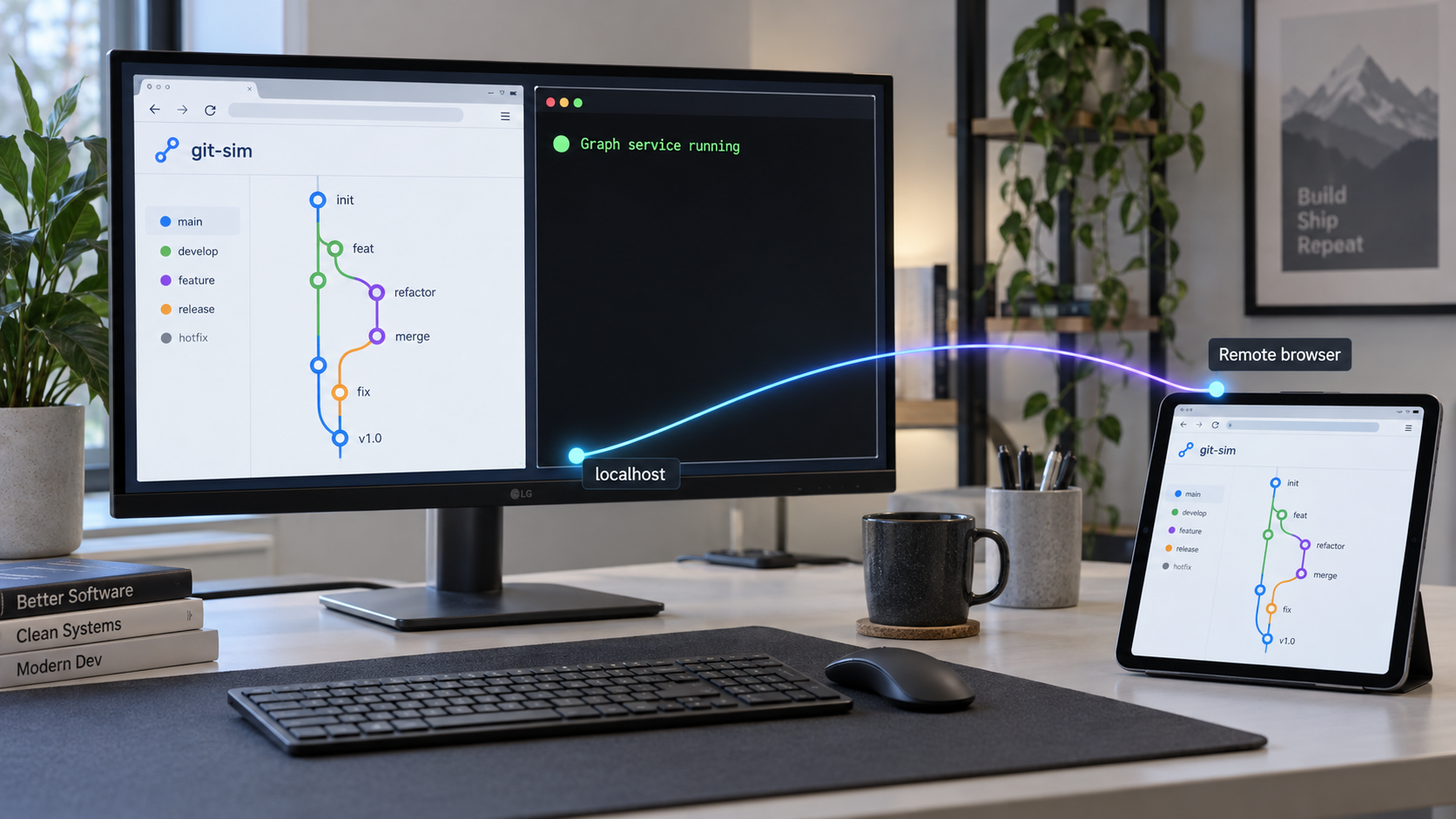
How git-sim and Localtonet fit together
git-sim is a free and open-source Git visualization tool. It can simulate individual Git commands, record repository activity in live mode, and present the result as an interactive graph. A normal simulation shows what a Git operation would do without executing the corresponding real Git command, so the simulation itself does not modify the repository.
The basic simulation pattern is to use git-sim in place of git. For example, git-sim merge dev visualizes the expected effect of merging a branch named dev. The real command git merge dev is not run. This makes simulation useful for learning, reviewing a potentially risky operation, explaining branch topology, and examining the likely result before deciding whether to perform the real operation.
Live mode addresses a different question. Instead of asking what one command would do, git-sim live records Git operations performed by a person or an automated agent and presents them as a visual command sequence. The sequence can be inspected, replayed, saved, and shared. The project's current overview and installation guidance are available on the official git-sim product page.
Localtonet does not create or analyze the graph. Our role begins after git-sim is installed and its live interface works locally. The Localtonet client establishes an outbound connection from the device to one of our relay servers. An HTTP tunnel then routes the assigned public HTTPS address to the local HTTP endpoint that git-sim is already serving.
This arrangement does not require inbound router port forwarding, firewall changes, a public IP address, or VPN setup. It also does not bypass application authorization or organizational network policy. The person operating the repository remains responsible for deciding whether the displayed metadata is suitable to expose and for applying appropriate access controls.
git-sim to visualize its expected effect without executing the real operation.
When a tunnel is useful
A Localtonet HTTP tunnel is useful when a remote collaborator needs to open the currently running live interface. Examples include demonstrating a branching workflow during a call, reviewing Git operations performed by an automated process, or observing repository activity from a device that cannot reach the development computer directly.
A tunnel is not required for every git-sim result. By default, a regular simulation creates an interactive visualization that opens in a browser. The project documents that its graph data is compressed into the URL fragment, which is the part after #. Browsers do not send that fragment to the web server. The generated page is also saved locally, and the documented --open-in local option can open that local file instead of invoking the hosted viewer.
git-sim also offers an explicit public-link workflow. Creating a public link stores the graph data on the project's servers and provides a deletion link. If a recipient only needs a finished visualization, a link, HTML page, PNG, SVG, or other supported output can be simpler than maintaining a live process and tunnel.
Use a saved or built-in git-sim sharing format for a completed artifact. Use a Localtonet HTTP tunnel when the recipient specifically needs the live interface being served from your device. Do not keep a live service exposed when a static artifact would satisfy the collaboration requirement.
Prepare Python, Git, and a repository
Install git-sim on the computer that contains the Git repository you want to visualize. The project currently documents support for Windows, macOS, and Linux, with Python 3.10 through 3.14 and Git installed. Version support can change, so check the current git-sim repository before installing into a long-lived environment.
| Requirement | Required state | Verification |
|---|---|---|
| Operating system | Windows, macOS, or Linux | Use a terminal appropriate for the installed system. |
| Python | Python 3.10 through 3.14 | python --version, python3 --version, or py --version |
| Git | A working Git installation | git --version |
| Package tool | pipx or uv for the isolated installation paths below | pipx --version or uv --version |
| Repository | An existing local Git repository | Run git status from its working directory. |
| Localtonet client | Needed only for public remote access | Confirm that the intended device is connected before creating the tunnel. |
Check Python and Git
Start by checking Python and Git in the same terminal and user account that will run git-sim:
python --version
git --version
Python command names vary. On many Linux and macOS installations the command is python3. The Windows Python launcher commonly uses py. If python is not recognized, try the command appropriate for your installation:
python3 --versionOn Windows:
py --version
Continue only after confirming that the interpreter is in git-sim's supported range. A successful git --version response confirms that Git is available through the shell, but it does not prove that the current directory is a repository.
Confirm the repository
Change into the intended repository and run:
git statusReview the current branch and working-tree state. A git-sim simulation does not execute the corresponding Git operation, but actual Git commands performed while live mode is running retain their normal behavior. Knowing whether there are staged files, uncommitted changes, or an unexpected active branch remains important.
Account for minimal Linux installations
Minimal Linux systems, including some servers, containers, CI runners, and WSL environments, may lack libraries needed by git-sim. The project specifically identifies libEGL, libGL, and fontconfig. Install them only when the applicable environment needs them.
For Debian, Ubuntu, and WSL environments based on them:
sudo apt install libegl1 libgl1 libfontconfig1For Fedora and RHEL environments:
sudo dnf install mesa-libEGL mesa-libGL fontconfig
These commands use sudo and modify system packages. Confirm the distribution family and review the package operation before approving it. They address the libraries identified by git-sim's documentation, but they are not a universal solution for unrelated installation errors.
Install pipx or uv and verify the command path
The git-sim project documents pip, pipx, and uv installation commands. This tutorial focuses on pipx and uv because both provide dedicated workflows for installing Python command-line applications. You need only one of them.
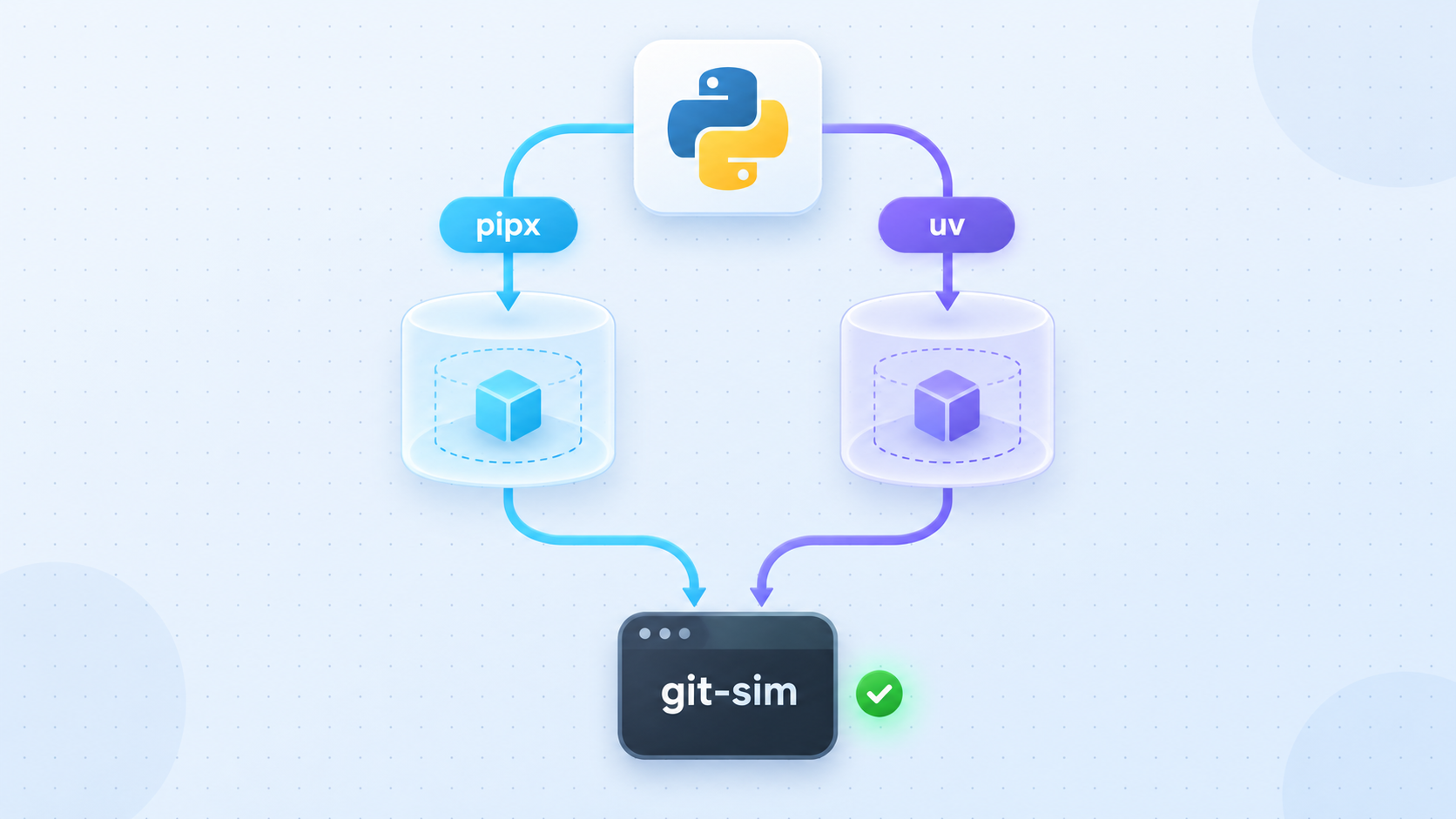
Option A: install pipx
Use the maintained official pipx installation instructions when choosing a platform-specific method. If Python and pip are already available, pipx documents installation through the Python module interface.
On Linux or macOS with a Python installation that permits user-level pip packages:
python3 -m pip install --user pipx
python3 -m pipx ensurepath
On Windows with the Python launcher:
py -m pip install --user pipx
py -m pipx ensurepath
The ensurepath operation adds pipx's executable location to the applicable user path when necessary. Close all terminal windows and open a new one after it completes, then verify:
pipx --versionPackage-management rules differ among operating systems and Python distributions. Some managed Python installations discourage or block direct pip changes. If the commands above are rejected by the platform, do not override that protection blindly. Use the operating-system method listed in the current pipx documentation instead.
Option B: install uv
uv publishes maintained installation methods in its official installation guide. Its standalone installer can be used on macOS and Linux:
curl -LsSf https://astral.sh/uv/install.sh | shThe documented PowerShell installer for Windows is:
powershell -ExecutionPolicy ByPass -c "irm https://astral.sh/uv/install.ps1 | iex"Piping a remote script directly into a shell is convenient, but it may not be appropriate in every organization. Review the official uv installation page, inspect the script, validate the source, or use another documented installation method if your environment requires package approval.
Open a new terminal after installation and verify:
uv --versionResolve PATH issues before installing git-sim
A package can install successfully while its executable directory remains absent from the shell's PATH. If pipx or uv is not recognized, first close and reopen the terminal. Then use the package tool's official installation guidance to add the displayed executable directory to the user path.
On macOS or Linux, you can inspect the current path with:
printf '%s\n' "$PATH"On Windows PowerShell:
$env:Path -split ';'Do not guess a directory or repeatedly reinstall the same package. Confirm where the selected tool placed its executables, update the path through the documented method, start a new terminal, and run its version check again.
Install git-sim with one package tool
Once pipx or uv works, install git-sim with that tool. Avoid installing the same application through several Python environments unless you intentionally need separate versions. Multiple installations can make it difficult to determine which executable the shell is running.
Open a terminal as the intended user
Use the account that will run git-sim. Recheck Python, Git, and the selected package tool before continuing.
Install git-sim with pipx or uv
Run the command for the one package tool you selected. There is no need to complete both installation paths.
Open a new terminal if needed
A new shell session reloads user path changes made while installing pipx, uv, or the application executable.
Verify the git-sim executable
Run git-sim -h. The command should display current help from the installed version.
Install with pipx
pipx install git-sim
git-sim -h
Install with uv
uv tool install git-sim
git-sim -h
Direct pip alternative
The project also documents:
pip install git-simUse direct pip only when you intentionally manage the relevant Python environment. For a standalone command-line program, pipx or uv usually makes the application boundary clearer.
git-sim's --animate functionality requires Manim. That dependency is not required merely to install git-sim, create its normal web-first simulation, or begin the live-mode workflow covered here.
Test git-sim with a non-destructive simulation
Enter the repository you intend to visualize and run git status first. Then choose a branch or reference that actually exists in that repository. For example:
git-sim merge dev
This visualizes the expected effect of merging the repository's dev branch. It does not execute git merge dev. Replace dev with a real branch in your repository if necessary.
Other examples documented by the project include:
git-sim reset --hard HEAD^
git-sim rebase main
These are simulation examples. They are not recommendations to run the corresponding real Git operations. Simulation can improve understanding, but it does not replace backups, branch protection, code review, or knowledge of the real command.
Use local output for a normal simulation when appropriate
For normal simulations, git-sim documents --open-in local as a way to open the generated local file without invoking the hosted viewer. Check git-sim -h and the applicable subcommand help for the current placement of global options in your installed release.
Do not assume that an option documented for ordinary simulation output also changes live mode. The primary material supplied for this revision confirms git-sim live, but it does not establish that --open-in local is a supported live-mode option. The remote-access procedure therefore does not depend on combining those arguments.
Create a disposable repository for demonstrations
git-sim includes a git-dummy utility that can generate a sample repository structure. Its documented sample scenario is:
git-dummy --scenario ordersRun repository-generating tools only in a directory where creating a sample repository is appropriate. A disposable repository is the safest choice for training sessions that will include real Git operations.
Start live mode and identify its actual local endpoint
From inside the intended repository, begin with the command confirmed by the current git-sim project documentation:
git-sim liveKeep the terminal open and read the startup output from your installed version. Record the complete local URL it reports or opens, including the hostname and port. Use that runtime output rather than relying on an old article's assumed bind address, assumed default port, or unsupported option combination.
If you want to control the port, inspect the installed version's live-mode help before selecting one:
git-sim live -hIf that help lists an explicit port option, select an unused port and use the exact syntax shown by your installed version. Choosing a fixed port can make the Localtonet target easier to manage, but this guide does not claim a default port or invent an option not established by the installed CLI.
The authoritative target for this workflow is the local URL reported by the running process. Extract its hostname and port for Localtonet only after the page works locally. If the installed version reports 127.0.0.1, run our client on the same device because that address refers only to the current host.
Verify the interface locally
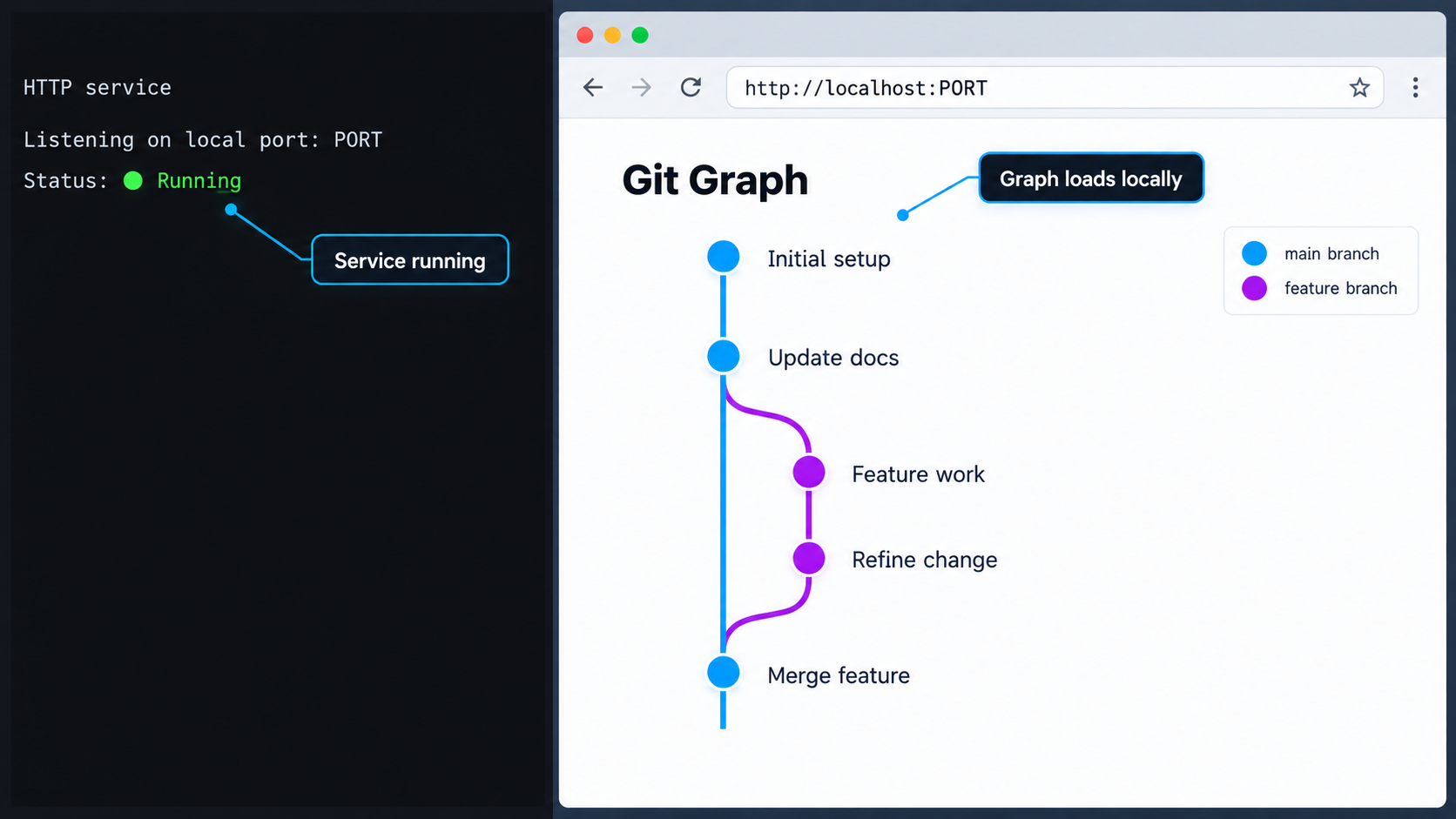
Keep git-sim live running
Leave the terminal open and check it for startup errors, missing dependencies, or an immediate process exit.
Open the reported local URL
Use the complete URL printed or opened by git-sim. Do not substitute a hostname or port from an older installation.
Confirm the correct interface appears
Verify that the browser displays the git-sim live page rather than a connection error, directory listing, or unrelated service.
Observe an intentional repository operation
In a separate terminal, perform an operation appropriate for the same repository and confirm that the local live interface records it. Prefer a disposable repository for experiments.
Do not assume undocumented real-time transport behavior
A live browser interface may use polling, server-sent events, WebSockets, or another mechanism to receive updates. The primary git-sim evidence supplied for this revision confirms real-time recording and an interactive live graph, but it does not specify the transport, origin policy, or browser-specific requirements used by the current implementation.
For that reason, this guide does not tell you to add invented WebSocket headers, rewrite an origin, disable browser security, or change an undocumented git-sim setting. Local verification proves that the application works on its own. Later, remote verification must prove both that the page loads and that updates arrive through the public URL.
Actual Git commands performed while live mode is active retain their normal effects. Use a disposable repository for demonstrations, preserve important work, review risky commands, and follow your normal backup and branch-protection practices.
Configure the Localtonet HTTP tunnel
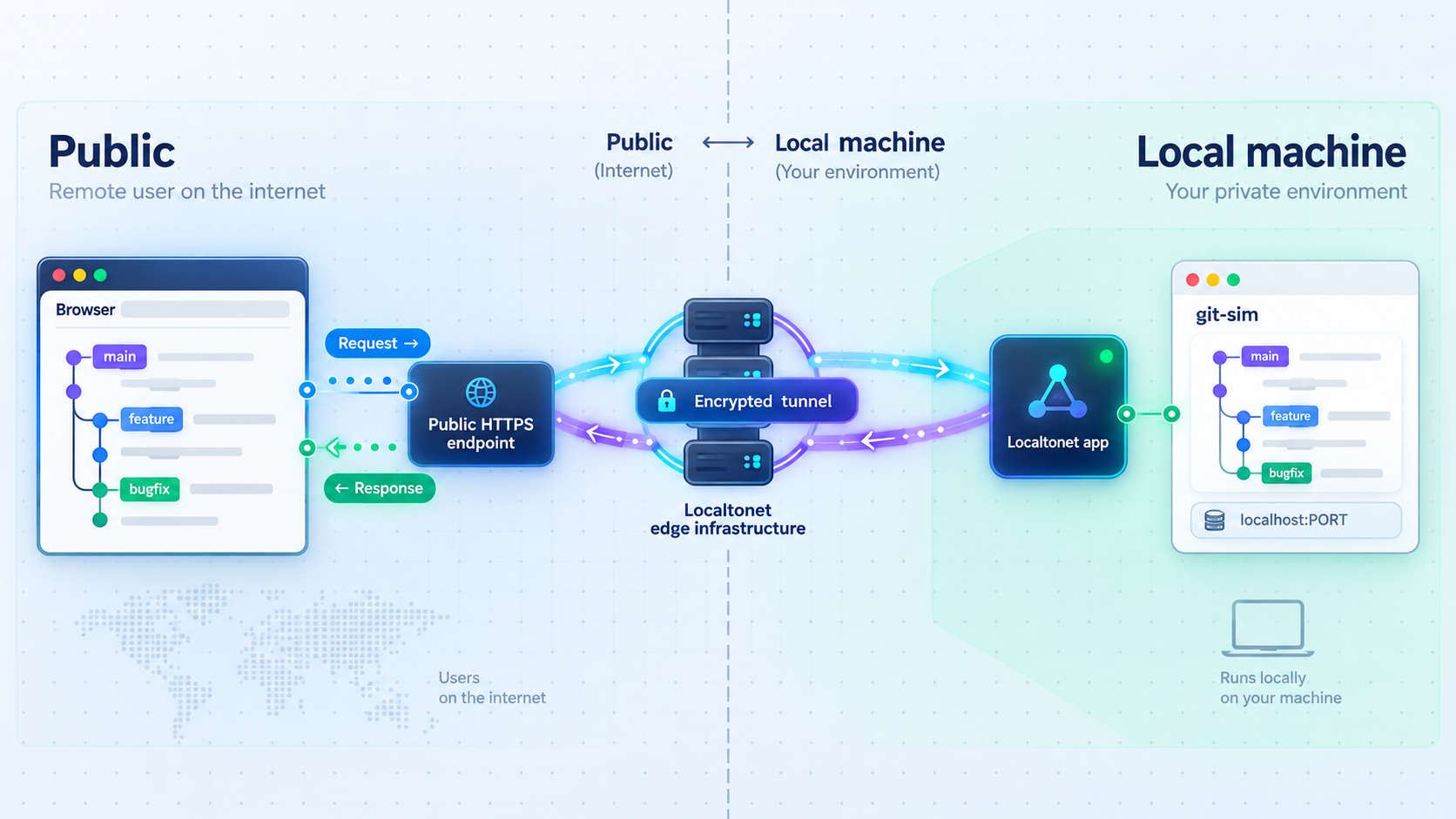
Continue only after the live page works through its local URL. The configuration sequence below follows the Localtonet HTTP tunnel lifecycle: install and run the client, open the HTTP tunnel configuration, select a Process Type, select the device token and relay, enter the local target, start the tunnel, verify the public address, and stop or delete the tunnel when finished.
See the official Localtonet HTTP tunnel documentation alongside this tutorial for the current dashboard workflow. Dashboard labels and available relay choices can change over time.
Install the Localtonet client using the current platform-specific download or installation path presented by the Localtonet dashboard and official documentation. The verified evidence supplied for this article does not establish current Windows, macOS, or Linux installation commands, so we do not invent commands or package URLs. After installation, run the client on the device that can reach the local git-sim endpoint.
Install and run the Localtonet client
Use the supported installation path currently provided for your operating system. Run the client on the git-sim host when the target uses a loopback hostname or IP address.
Open the HTTP tunnel configuration
In the Localtonet dashboard, begin an HTTP tunnel configuration for the browser-based git-sim service.
Select the Process Type
Choose Random Sub Domain, Custom Sub Domain, or Custom Domain as available for your current configuration. Each process type serves the target through a public HTTPS address. Custom-domain DNS requirements must be checked against the current documentation before use.
Select the device authentication token
Select the device-specific token for the client that can reach git-sim. Never guess, publish, record, or paste the token into repository files or article examples.
Select a current relay server
Choose from the server or region values currently offered by the dashboard. Do not copy a hardcoded server code from an old guide because availability can vary.
Enter the local IP address and port
Split the verified git-sim local URL into its host and port. Enter those exact values as the HTTP tunnel target. If git-sim reports 127.0.0.1, the selected Localtonet client must run on that same computer.
Start the tunnel
Creating the configuration does not make it active. Use the Start control and wait for the tunnel to run. Localtonet then provides the public address associated with that tunnel.
Verify the public live interface
Open the assigned public URL from a separate browser session or remote network. Confirm that the page loads, then perform an appropriate test operation in the watched repository and confirm that the remote page receives the update.
Stop the session cleanly
When collaboration is complete, stop or delete the Localtonet tunnel and stop git-sim live. Confirm that the public URL no longer provides access.
Running the client on the same device is mandatory when git-sim reports a loopback target such as 127.0.0.1 or localhost. Loopback always means the device on which the connecting process runs. A client on another computer would try to reach its own loopback interface rather than the git-sim host.
The endpoint remains available only while git-sim live is serving the local page, the selected Localtonet client is connected, and the tunnel is started. A failure or shutdown at any layer interrupts remote access.
Verify the complete traffic path
- Open the exact local URL on the git-sim computer.
- Confirm that the local live page records an appropriate repository operation.
- Confirm that the selected Localtonet device is connected.
- Confirm that the tunnel uses the same local hostname or IP address and port.
- Confirm that the tunnel is started rather than merely saved.
- Open the public URL from a separate session.
- Confirm that a new live update appears remotely, not merely that the initial HTML loads.
The last check is important. A successfully loaded page proves basic HTTP routing, but a live application can have a separate update channel. If the page loads and subsequent updates do not arrive, preserve the working target and diagnose the browser and application behavior before making speculative tunnel changes.
Secure the shared Git visualization
A Git graph can reveal branch names, tags, commit relationships, workflow timing, command history, and other project metadata. Even if the interface does not expose source files, its repository information may still be confidential.
A public URL is reachable from the internet. Do not treat an obscure address as authorization. Review the page as an external viewer would see it, limit the audience and duration, and use a sanitized repository when real project metadata is unnecessary.
Localtonet HTTP process types serve content at a public HTTPS address, but encrypted delivery does not by itself decide who is permitted to view the application. This guide does not claim that git-sim live provides user authentication or that every Localtonet access-control option is available in every plan. Confirm and apply the controls available in your current setup before exposing sensitive content.
Keep credentials outside the repository
The Localtonet device token is not part of git-sim configuration. Never store it in a Git-tracked file, graph title, shell script committed to the repository, or terminal recording. If a secret is exposed, follow the appropriate credential-rotation procedure rather than relying on deletion of the visible copy.
Use a shutdown checklist
- Stop or delete the Localtonet tunnel.
- Stop the git-sim live process.
- Confirm that the public URL no longer loads the application.
- Close unnecessary terminals and browser sessions.
- Review whether any shared link, screenshot, or recording contains sensitive metadata.
Troubleshoot installation, live mode, and remote access
Python is not recognized
Try the interpreter command appropriate for the platform, such as python3 on Linux or macOS or py on Windows. Confirm that the version is within the range currently supported by git-sim. Do not assume that an unsupported older or newer interpreter will work.
pipx or uv is installed, but the command is unavailable
Close all terminal windows and open a new one. Run the package tool's version command again. If it still fails, inspect the current PATH and follow the official pipx or uv path instructions. Do not install repeated copies into different environments before resolving command discovery.
git-sim is installed, but git-sim is not recognized
Confirm that the same user account performed the installation. Open a new terminal and run git-sim -h. Use the selected package manager's environment information to find the application executable, then correct the user path through its documented procedure.
git-sim reports missing graphics or font libraries
On applicable Debian, Ubuntu, or WSL environments:
sudo apt install libegl1 libgl1 libfontconfig1On Fedora or RHEL:
sudo dnf install mesa-libEGL mesa-libGL fontconfigIf the error names a different dependency, investigate that exact error rather than assuming these packages solve every startup failure.
The current directory is not a Git repository
Run git status. If Git reports the same problem, change into the intended repository before running a simulation or starting live mode. Also confirm that the live process and the terminal performing operations refer to the same repository.
The local live page does not open
Inspect the git-sim terminal for an error or process exit. Use the complete local URL reported by the running version. Do not substitute an assumed default port. If the process reports a conflict, consult git-sim live -h for the current supported way to choose another port.
The local page works, but the public URL does not
Confirm that the Localtonet client is connected on a device that can reach the target. If the target is loopback, the client must run on the git-sim host. Recheck the Process Type, selected device token, current relay, local IP address, local port, and tunnel status. A saved tunnel is not active until it is started.
The public URL shows a different application
The configured port may belong to another local process. Open the exact target locally and verify its identity. Then compare the browser URL with the Localtonet IP and port fields. Correct the mismatch and restart the tunnel if required.
The remote page loads but does not update
First confirm that the local browser receives the same update. Verify that the operation occurred in the repository watched by git-sim. Then test the public URL in a fresh browser session and inspect browser developer tools and the git-sim terminal for connection errors.
Do not assume that a WebSocket, origin, or browser configuration change is required without an error that supports that conclusion. The supplied primary evidence does not document a mandatory manual setting for the real-time transport. Record the installed git-sim version, browser, public and local behavior, and any console error before consulting current project guidance.
The public URL worked and then stopped
Check the three runtime dependencies independently. The git-sim process may have stopped, the Localtonet device may have disconnected, or the tunnel may have been stopped. Laptop sleep, terminal closure, process interruption, and network changes can affect a temporary session even when its saved configuration remains intact.
Frequently asked questions
What operating systems and Python versions does git-sim support?
The current project documentation lists Windows, macOS, and Linux, with Python 3.10 through 3.14 and Git. Minimal Linux environments may also require EGL, OpenGL, and font configuration libraries.
Should I install git-sim with pipx or uv?
Either is documented by the git-sim project. Use pipx install git-sim if pipx fits your workflow, or uv tool install git-sim if you use uv. You need only one. Direct installation with pip install git-sim is also documented for intentionally managed Python environments.
Does a git-sim simulation change my repository?
No. A simulation visualizes the expected result without running the corresponding real Git command. Actual Git commands performed while live mode is running still have their normal effects.
Which port should I use for git-sim live?
Use the local URL reported by your installed version. If you want a specific port, run git-sim live -h and use the exact supported option shown there. This guide does not rely on an assumed default port.
Can I use --open-in local with live mode?
The project documents --open-in local for opening a normal generated simulation locally. The primary evidence supplied for this guide does not establish that the option can be combined with live mode, so the tunnel workflow does not depend on that combination. Check the help from your installed release before using an option with git-sim live.
Does the Localtonet client have to run on the same computer?
It must run on the same computer when git-sim reports a loopback target such as 127.0.0.1 or localhost. For any other target, the client must run on a device that can reach the reported local IP address and port.
Do I need Localtonet to share every git-sim graph?
No. git-sim supports shareable links and output formats including HTML, PNG, SVG, and MP4, as well as local output. A Localtonet tunnel is relevant when a remote viewer needs to reach the currently running live HTTP interface.
Does creating a Localtonet tunnel start it automatically?
No. Creating or saving the configuration does not mean the tunnel is running. Use the Start control. You can later stop or delete it when remote access is no longer required.
Why can the page load remotely while live updates still fail?
Loading the initial page proves that basic HTTP routing works, but a live application may use a separate update channel. Confirm local updates first, then inspect the browser and git-sim process for specific errors. Do not add speculative WebSocket or origin settings without evidence from the running version.
Share a verified git-sim live graph with Localtonet
Install git-sim with one supported package tool, validate it in a safe repository, start live mode, and record the exact local endpoint reported by the running process. Once that endpoint works locally, create and start a Localtonet HTTP tunnel to the same IP address and port, verify live updates remotely, and shut the session down when collaboration is complete.
Get Started Free →

