


Build a local floating-point optimization workspace, verify it, and make the browser interface remotely reachable
Herbie analyzes floating-point expressions and searches for more accurate alternatives. In this guide, we install Herbie through its recommended Racket package workflow, explain the source installation path for contributors, start and verify the browser interface, and cover its documented command-line modes. After the local service works, we connect it to a Localtonet HTTP tunnel without assuming an undocumented hostname or port. The result is an installation-first workflow that keeps local troubleshooting separate from remote-access configuration.
📋 What's in this guide
What Herbie does and where the web interface fits
Herbie is a numerical development tool that detects inaccurate floating-point expressions and searches for alternatives with improved accuracy. A representative transformation rewrites an expression such as sqrt(x + 1) - sqrt(x) into the mathematically equivalent form 1 / (sqrt(x + 1) + sqrt(x)). The rewritten form can avoid the loss of precision caused by subtracting nearby floating-point values.
This kind of analysis is useful when developing numerical software, reviewing formulas, exploring floating-point behavior, or preparing expressions for another implementation language. Herbie accepts expressions in FPCore, a format used by the FPBench ecosystem. It can be operated through a browser interface, an interactive shell, and additional modes such as batch, improve, and report.
The browser interface is the relevant endpoint for this guide because it is an HTTP application running on the same computer as Herbie. The installation and remote-access tasks are nevertheless separate. Herbie must first install correctly, start successfully, and work through a local browser. Only then should an HTTP tunnel be pointed at its actual listening address.
web mode starts Herbie's browser interface for interactive use.
Herbie supports Windows, Linux, and macOS on both x86 and AArch64 architectures. This broad support does not mean that every operating system uses the same Racket installation procedure. The Herbie installation command is consistent, but obtaining Racket and satisfying operating-system prerequisites can differ.
Herbie 2.3 includes a redesigned core intended to improve output quality, robustness, and scalability. Its release also introduced a Rust-based Rival 3 engine, support for programs containing hundreds of operators, multiple return values using arrays, and platforms for Python and Julia. These project capabilities help explain the Rust requirement for contributors installing current Herbie from source. They do not change the recommended package installation command for users who simply want to run Herbie.
Prerequisites and installation decisions
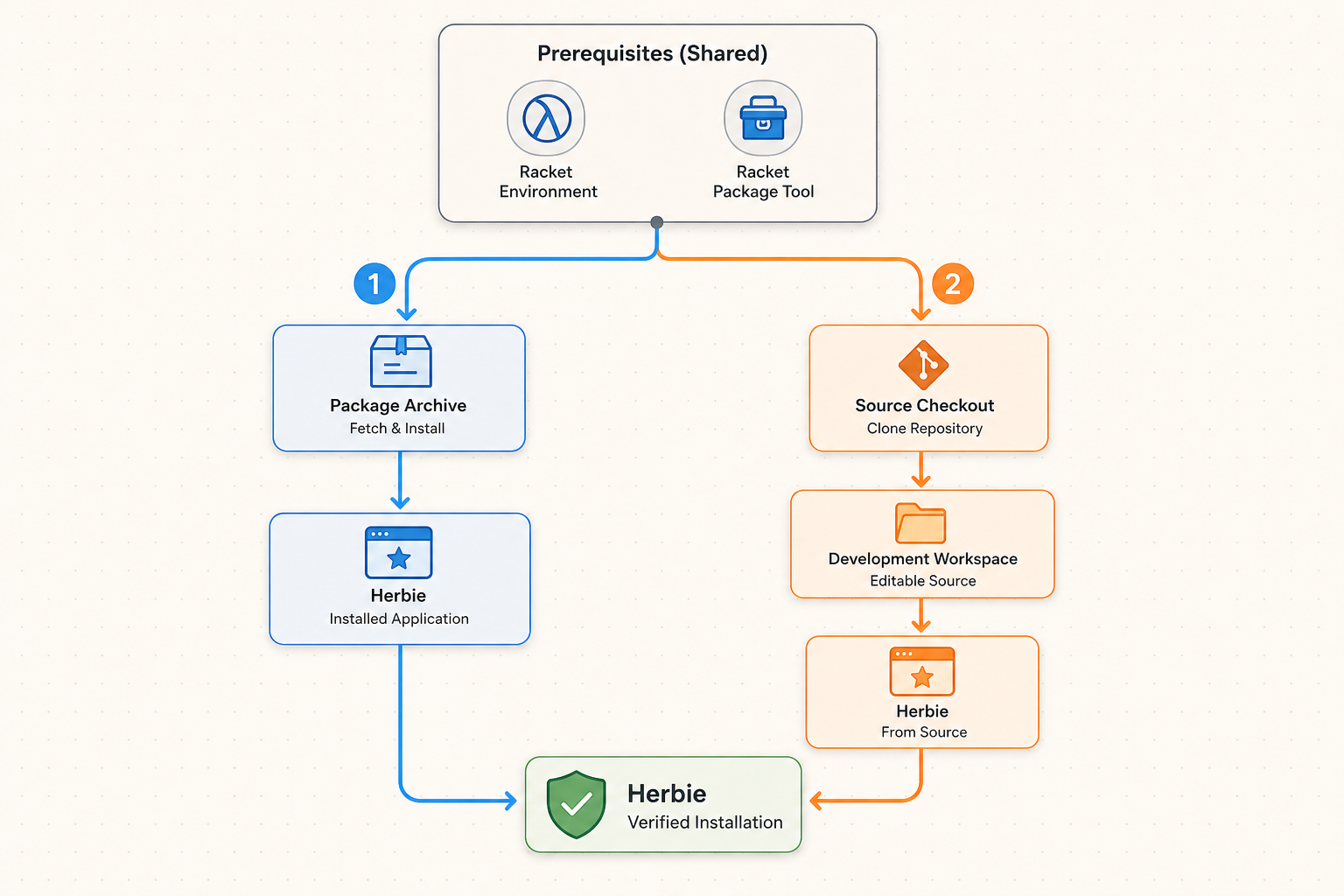
The recommended path begins with a working Racket installation. Herbie's project documentation does not prescribe one universal Racket installation command because the process depends on the operating system and package source. Install Racket using an installer or installation method appropriate for your system, then make sure the Racket executables are available from the terminal in which you plan to install Herbie.
Linux users should note one explicit project warning: avoid the Snap installer for Racket when preparing a source installation. Use another supported Racket distribution method instead. We do not substitute an unverified platform-specific command here because Linux distributions package Racket differently, and package versions can vary.
Decide whether you need the recommended package installation or a source checkout before proceeding:
| Requirement or choice | Recommended package install | Source install |
|---|---|---|
| Primary purpose | Running Herbie for normal analysis and browser use | Participating in Herbie development or working from the repository |
| Racket | Required | Racket 8.0 or later |
| Rust | No separate Rust prerequisite is stated for the recommended package command | Rust 1.87.0 or later |
| Herbie installation action | raco pkg install --auto herbie |
Download the repository and run make install |
| Normal launch command | racket -l herbie |
racket -l herbie or run src/main.rkt directly |
For most readers, the Racket Package Archive path is the right starting point. It has fewer manually managed prerequisites and is the method recommended by the Herbie project. Installing from source is not necessary merely to use the browser interface.
Both installation paths run Herbie on your own computer. The source path is aimed at contributors and people who specifically need a repository checkout. The package installation is still a local, self-hosted installation.
Install Herbie from the Racket Package Archive
The recommended installation has two documented actions: install Racket, then ask Racket's package manager to install Herbie. Run the commands from a terminal under the same user account that will normally run the application.
Install Racket for your operating system
Obtain a supported Racket installation for Windows, Linux, or macOS. Confirm that the terminal can find Racket and its raco package-management tool before continuing. Herbie supports x86 and AArch64 systems on all three operating-system families.
Install the Herbie package and its dependencies
Run the official package command below. The --auto option allows Racket's package manager to install required dependencies automatically.
raco pkg install --auto herbieLet the package manager finish before opening another Herbie process. If the installation reports an error, preserve the complete terminal output. The first relevant failure often identifies whether the problem is Racket itself, package resolution, permissions, network retrieval, or a native dependency.
After installation, invoke Herbie through Racket:
racket -l herbie
This is the project's documented base command. For the browser workflow, add the web mode as shown later. If the terminal says that racket or raco cannot be found, that is a Racket installation or command-path issue rather than a Localtonet problem. Resolve it before attempting to create remote access.
Optional command-line shell check
Herbie also provides an interactive shell. It can help distinguish a general Herbie installation problem from a web-interface-specific startup problem:
racket -l herbie shell
A successful launch displays a Herbie prompt. The shell accepts FPCore input. The documented example submits the expression (1 + x) - x and produces the constant 1 as the optimized result:
(FPCore (x) (- (+ 1 x) x))
Exit the shell with Ctrl-D. Startup text can include the Herbie version and a generated seed, so do not treat an example version number or seed as a fixed value.
Install Herbie from source for development
Use the source workflow when you intend to contribute to Herbie, inspect or modify its implementation, or work directly from its repository. The current documented minimums are Racket 8.0 or later and Rust 1.87.0 or later.
A working Racket installation alone is not sufficient for the documented source workflow. Install Rust 1.87.0 or later as well. On Linux, avoid installing Racket through Snap, as specifically advised by the Herbie project.
Prepare the required development tools
Install Racket 8.0 or later and Rust 1.87.0 or later. Make both toolchains available in the terminal that will run the build.
Download the Herbie repository
Obtain the current Herbie source repository and enter its top-level directory, which contains the project Makefile. The supplied project evidence does not establish one mandatory download command, branch, or local directory name, so use the repository download or version-control workflow appropriate to your environment.
Run the documented installation target
From the repository's top-level directory, run the official Make target. Keep the build output if the installation does not complete.
make installAfter the source installation succeeds, Herbie can be launched through the same Racket library entry point:
racket -l herbie
Developers can also run src/main.rkt directly from the repository. The exact invocation needed for a direct source-file run can depend on the current checkout and working directory, so this guide does not invent additional flags.
When troubleshooting a source build, first verify that the installed Racket and Rust versions meet the documented minimums. Then confirm that make install is being executed from the repository root rather than from a parent directory or one of the source subdirectories. Build failures should be resolved before testing the web interface.
Start Herbie's web interface
Start the documented browser interface with:
racket -l herbie webKeep this terminal open while using the interface. A locally hosted web process is normally available only while its process is running. Closing the terminal, interrupting the process, logging out in a way that terminates user processes, or restarting the computer can stop the service.
Pay close attention to Herbie's startup output. The available project evidence documents the startup command but does not establish the interface's default hostname, listening port, bind address, or exact browser URL. It also does not establish a supported command-line option for changing those values. We therefore do not assume common addresses such as localhost, 127.0.0.1, or port 8000.
Record the actual address and port reported by the version you installed. If the process opens a browser automatically, inspect the browser's address bar. If it prints a URL, use that exact URL. If it prints only a port or a listening-address message, follow the current Herbie documentation associated with your installed version rather than guessing.
Do not create a Localtonet HTTP target from a port copied from an unrelated tutorial. The target must match the Herbie process that is currently running on your machine. A wrong port can connect the tunnel to another application or produce a connection failure.
Understand bind addresses before remote access
A listening address determines which network interfaces accept connections. A loopback-only service is reachable from the same computer but not directly from another device on the LAN. A service bound to a broader interface can accept traffic arriving through that interface, subject to the operating system and firewall.
Localtonet's client should run on the Herbie computer or on another device that can reach the selected local target. If both processes run on the same machine, a loopback target may be sufficient, depending on the address Herbie actually reports. If Localtonet runs elsewhere, that device must be able to reach Herbie through a valid local address and port.
The supplied Herbie evidence does not document a bind-address setting, so we do not provide an unsupported flag for changing it. Consult the current Herbie documentation or the startup help supplied by your installed version if your architecture requires a different binding.
Verify Herbie locally before exposing it
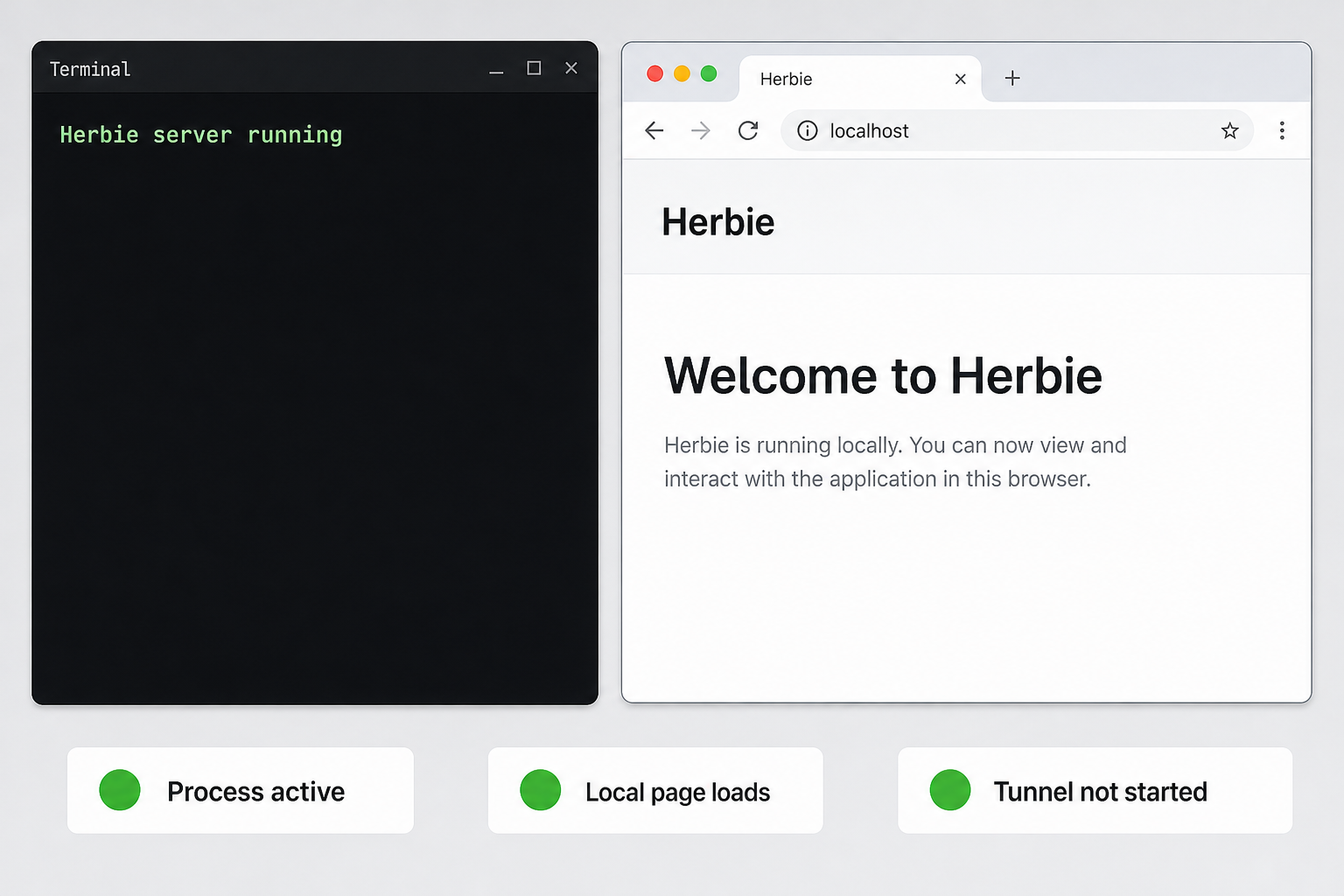
Local verification creates a clean boundary between application problems and tunnel problems. If the browser interface does not work from the Herbie machine, a public tunnel cannot make the underlying service healthy.
Confirm that the Herbie process remains running
After starting racket -l herbie web, check that the command does not immediately exit with an error. Keep its terminal visible so that startup messages and request errors remain available.
Open the exact local address reported by Herbie
Use a browser on the same computer and enter the URL shown by the running application. Do not substitute a guessed host or port.
Load and use the interface
Confirm that the page loads completely and that a normal Herbie interaction can be submitted. A page shell without successful analysis is not a complete verification.
Record the working local target
Save the local IP address or hostname and port that produced the successful result. These are the values needed when configuring the Localtonet HTTP tunnel.
If the web page fails to load locally, return to the Herbie terminal. Look for a package-loading error, an occupied port, an immediate process exit, or another explicit diagnostic. You can also start the documented shell mode to determine whether the core Herbie installation works independently of the web mode.
If the shell starts but the web interface does not, focus on web startup and local connectivity. If neither mode starts, focus on the package installation, Racket environment, or source build. Localtonet should not be introduced until one local browser can use the interface successfully.
Document the runtime state
For a repeatable development setup, record which account starts Herbie, which installation method was used, the installed Herbie version, the working local address, and how the process is restarted after a reboot. Do not record authentication tokens or other secrets in shared notes.
The project evidence does not specify a service manager, background-process configuration, container workflow, or automatic-start procedure. Those operational choices vary by operating system and should be implemented only after confirming how the installed Herbie version behaves when started non-interactively.
Connect the verified Herbie interface to Localtonet
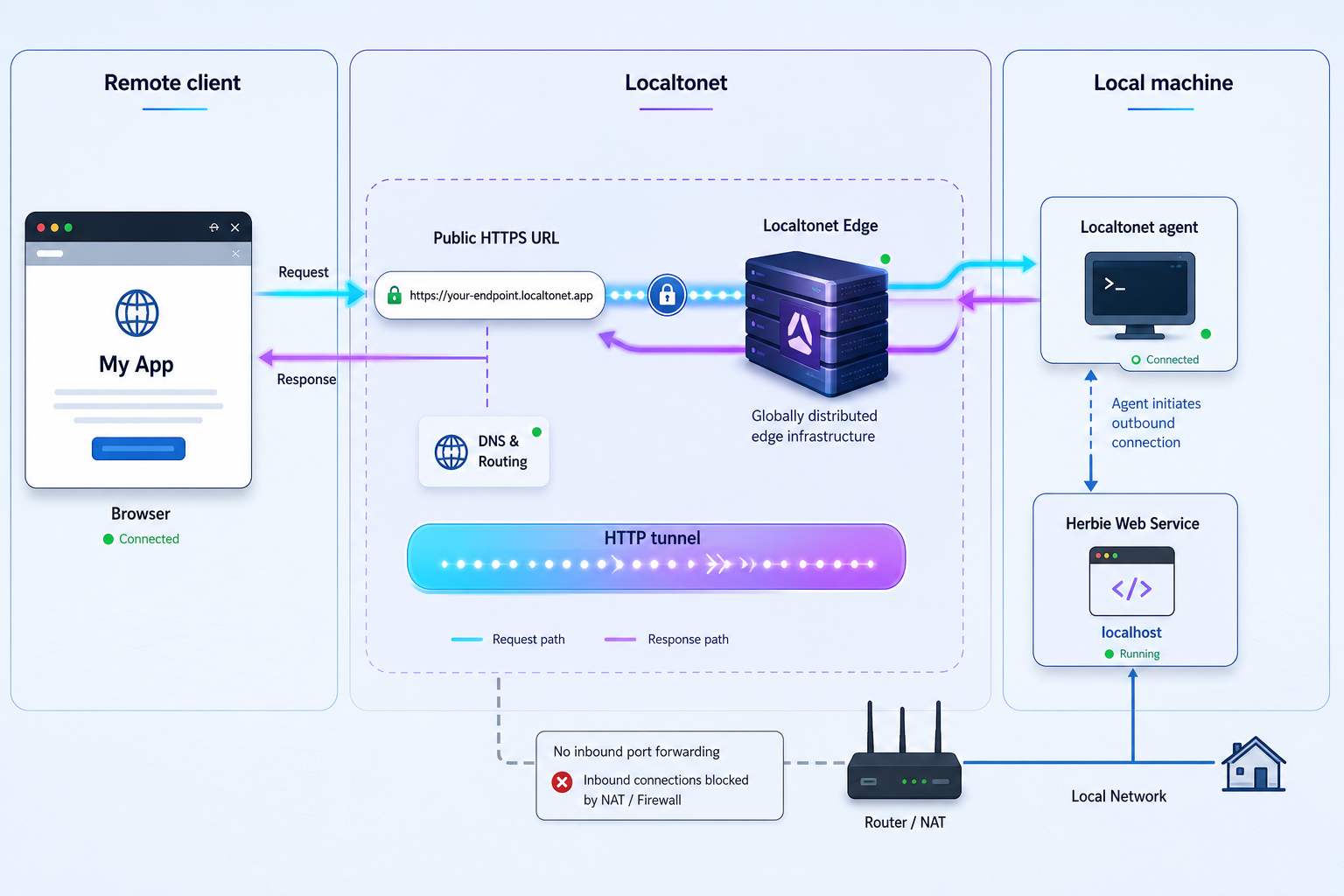
Once Herbie works locally, an HTTP tunnel is the appropriate Localtonet tunnel family because the documented endpoint is a browser-based web interface. Our client establishes an outbound connection to a Localtonet relay server. This provides a public URL without requiring inbound router port forwarding, firewall changes, a public IP address, or VPN setup.
Creating the tunnel does not automatically mean it is running. The selected Localtonet device must be connected, the Herbie process must still be running, and the tunnel must be started. The public address remains usable only while these required components remain active.
For current interface details, consult our Localtonet HTTP tunnel documentation while following the workflow below. Available relay servers and regions must be obtained from the current dashboard rather than copied from a static guide.
Install and run the Localtonet client
Run our client on the Herbie computer or on another device that can reach Herbie's verified local address. Keep Herbie running during configuration and testing.
Authenticate or select the client device
Use the device-specific authentication token through the supported Localtonet workflow, then select that device for the tunnel. Never publish, paste into screenshots, or hardcode the token in a script or article.
Select an available relay server or region
Choose from the options currently presented by the dashboard. Server codes and regional availability can change and can vary by account or plan, so use a live value rather than a hardcoded example.
Create an HTTP tunnel for the Herbie target
Select the HTTP tunnel family and enter the exact local IP address and port verified in the previous section. HTTP tunnels can use Random Sub Domain, Custom Sub Domain, or Custom Domain process types, with availability and configuration determined by the current dashboard and plan.
Start the tunnel and test the assigned URL
Use the Start button, then open the assigned public HTTPS address in a separate browser session. Submit a normal Herbie interaction and watch both the Herbie terminal and Localtonet status while testing.
Stop or delete access when it is no longer needed
Stop the tunnel to remove active public access while preserving the configuration, or delete it when the configuration is no longer required. Stopping Herbie also removes the working backend, but explicitly stopping the tunnel keeps the intended access state clear.
A saved configuration is not sufficient. Herbie must be listening, the selected Localtonet client must be connected, and the tunnel must be started. If any one of those conditions is missing, the public URL will not provide a working Herbie session.
Random Sub Domain, Custom Sub Domain, and Custom Domain HTTP process types serve the same local content through a public HTTPS address. This guide does not provide custom-domain DNS records because exact DNS requirements must be checked against the current Localtonet documentation and the domain configuration shown in the dashboard.
Avoid changing several variables at once. If the public URL fails, leave Herbie running at the already verified local address. Check the selected Localtonet device, target host, target port, server selection, and tunnel state one by one. This method preserves the known-good local baseline.
Security and routine operations
A public tunnel changes the reachability of the application. A service previously available only on a development computer can now receive requests through its public URL. Treat that change as an access-control decision, not merely as a connectivity convenience.
The supplied Herbie documentation does not establish built-in user authentication, authorization roles, session controls, or a supported access restriction mechanism for its browser interface. Do not assume those controls exist. Before exposing the service, inspect the current Herbie version and decide whether the information, workloads, and host environment are appropriate for public reachability.
A public URL can be reached from outside the local network. If your Herbie workflow contains confidential expressions, unpublished research, proprietary formulas, or other sensitive material, do not rely on an undocumented application login. Use an independently verified authentication layer or keep the interface local until suitable controls are in place.
Use least privilege for the operating-system account that runs Herbie. It should not have broader file or administrative access than the workflow requires. Keep Racket, Herbie, Rust when applicable, and the host operating system maintained through their supported update processes. Test updates locally before reopening remote access.
A practical start and stop routine
A simple operational sequence reduces ambiguity:
- Start Herbie with
racket -l herbie web. - Confirm that the same local browser URL still works.
- Start or confirm the Localtonet client on the selected device.
- Start the saved HTTP tunnel.
- Test the assigned public URL.
- When finished, stop the tunnel and then stop Herbie if it is no longer needed.
This sequence is especially useful after a reboot or software update. It verifies each layer in order and avoids mistaking a stopped Herbie process for a tunnel failure.
What to monitor during a session
Keep the Herbie terminal available while diagnosing requests. Application errors belong to the Herbie layer, while a disconnected Localtonet client or stopped tunnel belongs to the remote-access layer. Browser symptoms alone may not identify which layer failed.
| Observation | Likely layer | First check |
|---|---|---|
| Herbie does not start | Installation or runtime | Read the terminal error and verify the selected installation path |
| Local browser cannot connect | Herbie process or local target | Confirm that the process remains running and use the exact reported address |
| Local browser works but public URL does not | Localtonet configuration or lifecycle | Check the selected device, target host and port, client connection, and tunnel state |
| Public page loads but analysis fails | Herbie application | Repeat the same input locally and inspect the Herbie terminal |
| Access stops after closing a terminal | Process lifecycle | Determine whether Herbie or the Localtonet client was terminated |
Troubleshooting the complete workflow
raco or racket is not recognized
The terminal cannot find the Racket installation. Confirm that Racket is installed for the current operating system and that its executable directory is available to the terminal session. Reopen the terminal after changing command-path settings. Do not proceed to Herbie or Localtonet configuration until the documented Racket commands can be launched.
The package installation fails
Run raco pkg install --auto herbie again only after reviewing the original error. Automatic dependency installation does not guarantee that every operating-system or network condition is satisfied. Capture the complete output, including the first error rather than only the final summary.
If this is a source installation, separately confirm Racket 8.0 or later and Rust 1.87.0 or later. Make sure make install is executed from the downloaded repository's top-level directory.
The Herbie shell works, but web mode does not
A working racket -l herbie shell invocation indicates that Racket can load Herbie. Start racket -l herbie web again and inspect its output for a web-specific diagnostic. Do not assume the host or port. If the startup behavior differs from this guide, use the current documentation for the installed Herbie release.
The process runs, but the local browser cannot connect
Verify that the browser is using the exact address reported by Herbie. Check for transcription mistakes in both the hostname and port. Make sure the terminal process has not exited. If Localtonet will run on another machine, first verify that the second machine can reach the target through the local network. A service reachable only through the Herbie computer's loopback interface will not automatically be reachable from another LAN device.
The public URL cannot reach Herbie
Reopen the verified local URL from the Herbie computer. If it no longer works, repair the local service first. If it does work, check that the selected Localtonet client is connected, the HTTP tunnel is started, and the configured local IP and port exactly match the working target.
Also confirm that the client runs on the intended device. Authentication tokens identify specific Localtonet devices, so selecting a device that cannot reach Herbie will result in an unusable target even when another device on the account is online.
The tunnel worked earlier but stopped later
Check the full lifecycle. Herbie may have stopped, the Localtonet client may have disconnected, or the tunnel may have been stopped. A tunnel is available only while the selected device is connected and the tunnel is running. A host reboot can also terminate Herbie unless you have configured a separately verified process-management arrangement.
The public page loads but behaves differently from the local page
Repeat the same input through the local URL while the issue is present. If both paths fail, investigate Herbie and the expression. If only the public path fails, preserve browser details and inspect the Herbie process for incoming requests or errors. The available evidence does not establish Herbie's behavior behind every possible hostname or reverse-proxy arrangement, so avoid inventing header or origin settings. Confirm current project guidance for the installed release if the application reports a host-related restriction.
A copied port from another guide does not work
Remove the copied value and return to Herbie's actual startup output. The official command is established, but the supplied evidence does not establish a fixed port. The only reliable target for this workflow is the address and port verified on the machine running the current Herbie installation.
Frequently asked questions
What is the recommended way to install Herbie?
Install Racket, then run raco pkg install --auto herbie. This is the installation path recommended by the Herbie project for normal use. The source installation is intended primarily for contributors and requires Racket 8.0 or later plus Rust 1.87.0 or later.
How do I start Herbie's browser interface?
Run racket -l herbie web. Keep the terminal open and use the URL or listening information reported by the running process. The available evidence does not establish a fixed hostname, bind address, port, or exact URL.
Which operating systems and processor architectures does Herbie support?
Herbie supports Windows, Linux, and macOS on x86 and AArch64. The way Racket is installed differs by operating system. Linux users following the source workflow should avoid the Snap installer for Racket.
Does Herbie have a command-line interface?
Yes. Run racket -l herbie shell for the interactive shell. Herbie also documents batch, improve, and report modes. Its input format is FPCore.
Which Localtonet tunnel type should I use for Herbie?
Use an HTTP tunnel for Herbie's documented browser interface. Configure its local target with the exact IP address and port that you verified locally. Do not use an assumed port from another installation.
Do I need router port forwarding or a public IP address?
No. Our client establishes an outbound connection to a Localtonet relay server, so this workflow does not require inbound router port forwarding, firewall changes, VPN setup, or a public IP address.
Is creating a Localtonet tunnel enough to make Herbie available?
No. Herbie must be running at the configured local target, the selected Localtonet device must be connected, and the tunnel must be started. Creating a saved tunnel configuration does not start it automatically.
Does Herbie's web interface include authentication?
The supplied project evidence does not establish built-in authentication or authorization for the web interface. Do not assume that a login exists. Assess the current version before making it public, and do not expose confidential work without a separately verified access-control design.
Can the Localtonet client run on a different computer?
Yes, provided that the client device can reach Herbie's local IP address and port. If Herbie listens only on a loopback address, another computer normally cannot use that loopback target. Running both processes on the same machine is the simplest arrangement when Herbie is locally bound.
Make your verified Herbie workspace remotely accessible
Install and test Herbie locally first, then use our HTTP tunnel workflow to connect its confirmed local address to a public HTTPS URL without configuring inbound router port forwarding.
Get Started Free →

