

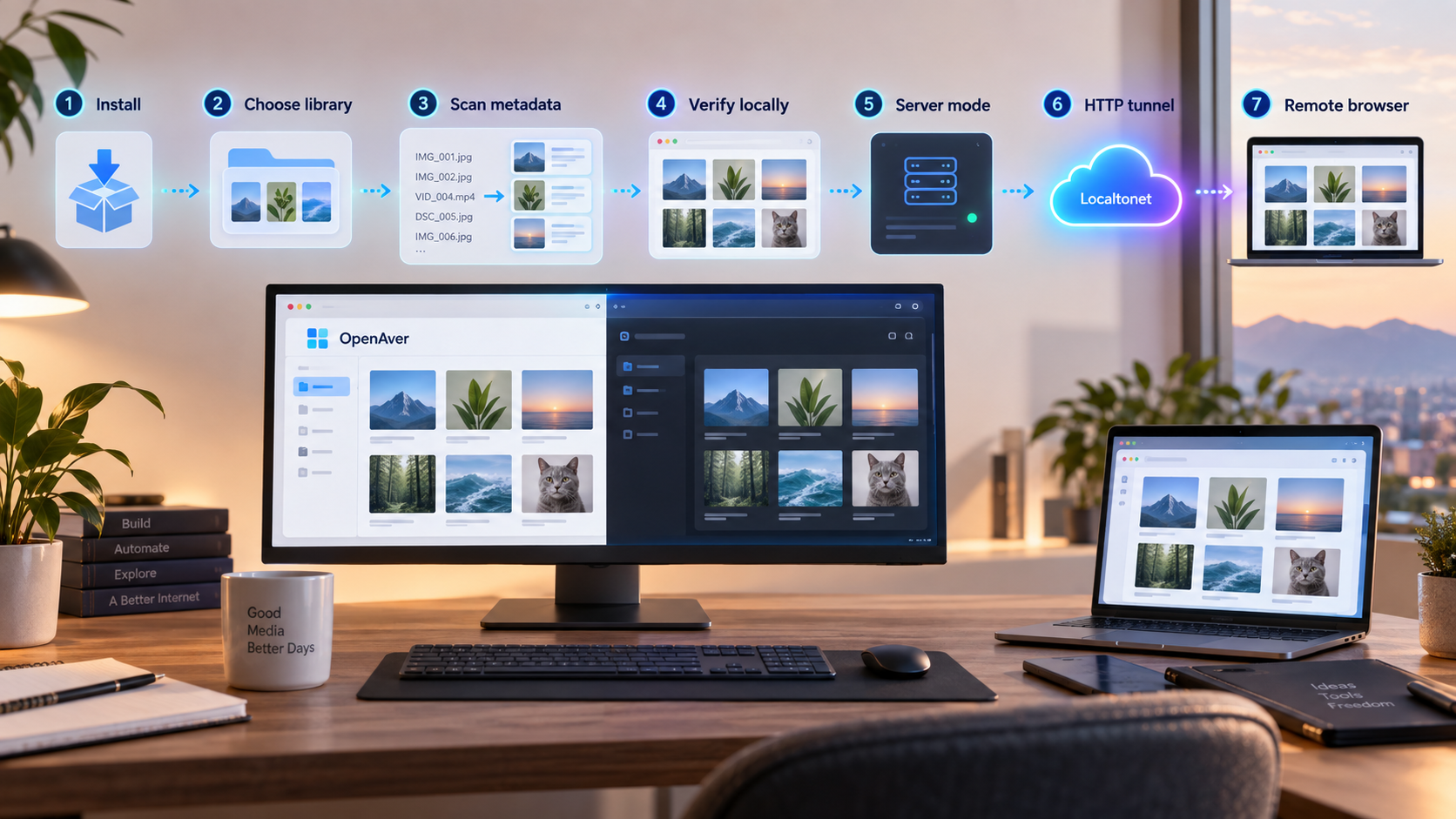
Build and verify a local JAV metadata library before enabling controlled browser access
OpenAver is an open-source desktop application designed to scrape, organize, analyze, and browse Japanese adult video metadata. It can import existing NFO files and artwork, enrich incomplete records from supported public metadata sources, generate media-center files for Jellyfin, Emby, or Kodi, and present the catalog through a visual browser interface. This guide covers the documented packaged installation routes for Windows 10 or 11 and Apple-silicon macOS, then walks through onboarding, local verification, routine operation, server mode, security, troubleshooting, and optional remote access with Localtonet. Because a library can contain explicit artwork, titles, performer details, tags, and personal viewing preferences, complete the local setup and verify authentication before making the interface reachable outside your private network.
📋 What's in this guide
What OpenAver does and how the workflow fits together
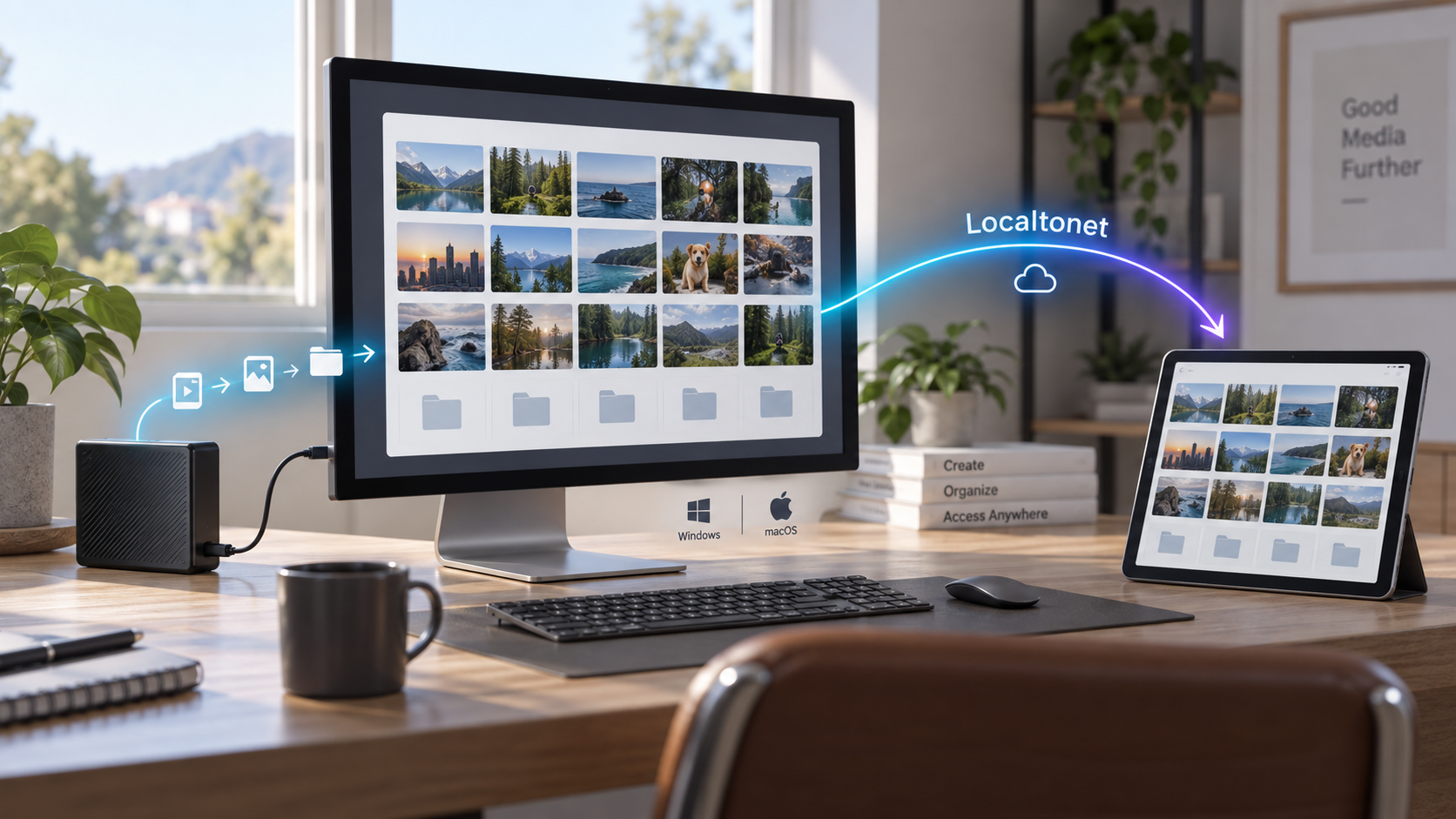
OpenAver is specifically built around JAV metadata rather than general-purpose media management. You point it at folders containing compatible video files, NFO metadata, and artwork, and it turns those records into a searchable visual catalog. It can also query supported public metadata providers to fill missing information and prepare NFO and artwork layouts for media applications such as Jellyfin, Emby, and Kodi.
That focus is important when planning installation and remote access. Even if OpenAver does not directly publish a video file, its interface may reveal explicit covers, titles, performers, tags, studios, dates, ratings, filenames, and collection patterns. A catalog can therefore be sensitive in its own right. Use fictional or otherwise non-explicit sample records for initial testing, screenshots, demonstrations, and troubleshooting whenever possible.
OpenAver describes itself as running locally without requiring an account or cloud-hosted library. Existing files remain on storage available to your computer. Internet requests are used when the application scrapes public metadata or when you configure an optional online integration. This local operating model changes when you deliberately enable server mode or create a tunnel. Browser requests and the resulting catalog pages then travel across the relevant local network or tunnel path, even though the underlying database and media remain on your computer.
The four principal OpenAver pages
The documented user interface is organized into four main pages. Scanner handles existing collections, Showcase is the visual library browser, Search processes new items, and Insights provides collection analysis. These pages have different purposes, so choosing the right one helps prevent unintended organization operations.
Insights is not merely another cover view. It provides an analytical view of the collection and allows the displayed scope to be narrowed by selecting values such as a year, performer, or studio. The surrounding charts then update to reflect that subset. This makes Insights useful for finding metadata inconsistencies as well as exploring collection trends. An unexpected gap in a year, studio, or tag distribution may indicate incomplete imported metadata that deserves review in Scanner.
Scanning, enrichment, and organization are different operations
OpenAver states that scanning an existing source is read-only with respect to that source. It reads compatible media records, NFO files, and artwork without moving or deleting the videos. Enrichment is a separate action that can add missing NFO data, covers, or still images. The project says enrichment fills empty fields rather than overwriting populated fields by default.
Organization is the operation that can rename files, create directories, write metadata, download artwork, and move content according to your configured rules. It is initiated through the Organize action after reviewing a Search result. Treat the preview as a required checkpoint, especially when a partial identifier could match more than one title.
Server mode provides the browser interface used to navigate the collection. OpenAver also provides a local REST API and a capabilities manifest for compatible AI tools. The AI API port is displayed in Settings under AI API. The available project documentation does not establish that this port is user-configurable, so this guide does not describe it as configurable or assume that it matches the browser service.
Prerequisites and documented platform compatibility
The packaged desktop route supports Windows 10 or Windows 11 on x64 hardware. The packaged macOS route supports Apple-silicon Macs, identified by the project as M1 or later, using an arm64 build. The current project documentation does not establish a packaged Intel Mac build.
You do not need Docker for either packaged installation. OpenAver is intended to provide a graphical installation and onboarding experience. Linux has a separate self-hosted browser-server path, but it is outside the scope of this Windows and macOS tutorial.
| Requirement | Windows | macOS | Why it matters |
|---|---|---|---|
| Documented platform | Windows 10 or 11, x64 | Apple silicon, M1 or later | The packaged releases are built for these targets. |
| Recommended installation route | Official PowerShell installer | Official shell installer in Terminal | The scripts download the current release, remove relevant system security restrictions, and preserve settings during upgrades. |
| Alternative installer | Official Windows setup batch file | No equivalent alternative documented | The project offers the batch file for users who do not want to open PowerShell. |
| Library storage | Readable local, attached, or reachable network path | Readable local, attached, or reachable network path | OpenAver must be able to reach every configured source consistently. |
| Internet access | Needed for installation and online metadata scraping | Needed for installation and online metadata scraping | Existing local NFO files and artwork can still be imported without scraping every title again. |
| Local browser test | Another device on the same trusted network | Another device on the same trusted network | Server mode should work on the LAN before remote tunneling is attempted. |
Prepare a small test folder before the first launch. A useful test set contains a few fictional or non-explicit sample records, at least one compatible NFO file, representative artwork, and one deliberately incomplete record. This lets you verify import and enrichment behavior without immediately processing a large or sensitive catalog.
If the production library is on a NAS, external disk, or mounted cloud-storage path, verify that your normal operating-system account can open it before starting OpenAver. Network shares can disconnect, mapped drive letters can change, and removable disks can mount under a different path. Stable paths make later scanning and scheduled operations more predictable.
Scanning is intended to leave source files unchanged, but enrichment can add NFO files and artwork, while Organize can rename or move content. Back up custom NFO files, manually edited metadata, artwork, and application settings before testing those operations. Use copies or replaceable samples until the naming and destination rules produce the expected result.
Install OpenAver on Windows or macOS
This guide uses the official scripted installers because the current evidence documents their behavior and security-unblocking work. OpenAver also publishes manual ZIP archives, but the available evidence refers readers to instructions inside those archives for required operating-system security steps. That is not enough to provide a self-contained and release-independent manual procedure here, so the ZIP route is intentionally omitted. Follow the exact archive documentation if you independently choose that route.
Source-development installation is also outside this guide. It has different Python, frontend, and server-startup requirements and should not be mixed with the supported packaged desktop workflow.
Install on Windows with PowerShell
On a Windows 10 or Windows 11 x64 computer, open PowerShell in your normal user session and run the official command:
irm https://raw.githubusercontent.com/slive777/OpenAver/main/install.ps1 | iexThe documented installer downloads the latest packaged release, removes the relevant system security restriction, creates a desktop shortcut on Windows, and preserves existing settings during an upgrade. The installation interface follows the operating-system language.
This convenience command retrieves the current script from the repository's main branch and executes it immediately. A branch can change over time. In a managed or security-sensitive environment, open and review the official install.ps1 file first, or download it from the official repository for inspection before execution. Do not rely on an unofficial mirror, and do not assume a checksum or code-signing guarantee that the project has not documented.
Confirm the Windows platform
Use a Windows 10 or Windows 11 x64 computer where your intended library paths are available. Connect external storage and mount required network shares first.
Open PowerShell and review the source URL
Start PowerShell in your normal user session. Confirm that the command points to the official slive777/OpenAver repository before running it.
Run the documented installer
Execute the command and allow the installer to download and prepare the latest packaged release. Follow any prompts shown by the installer and wait for completion.
Launch from the desktop shortcut
Open the shortcut created by the installer. If Windows or security software presents a warning, verify that the installer and application came from the official project before allowing execution.
Windows alternative without opening PowerShell
The OpenAver README also directs Windows users to download OpenAver-Windows-Setup.bat from the project's official release area and double-click it. This is a documented alternative installation entry point for users who do not want to launch PowerShell manually.
The available evidence does not establish that the batch file has an implementation identical to install.ps1, so do not treat the two scripts as interchangeable for auditing purposes. Obtain the batch file only from the official OpenAver repository or its release assets, inspect it if required by your security policy, and follow the prompts it displays.
Install on an Apple-silicon Mac
On an M1 or later Mac, open Terminal and run the official shell installer:
curl -fsSL https://raw.githubusercontent.com/slive777/OpenAver/main/install.sh | bashThe documented installer downloads the latest release, handles the relevant macOS security restriction, and retains settings during upgrades. The packaged macOS build is arm64, so this route should not be presented as support for an Intel Mac.
The command retrieves the current install.sh file from the repository's main branch and passes it directly to Bash. Review or download the official script first if required by your security policy. Confirm the repository owner and filename rather than running a copied command from an untrusted post, message, or mirror.
Confirm Apple-silicon hardware
Use this packaged route on a Mac with an M1 or later Apple chip. The current documented archive target is macOS arm64.
Open Terminal and check the repository URL
Confirm that the command retrieves install.sh from the official slive777/OpenAver repository.
Run the installer
Execute the command and wait for the current packaged release to download and install. Read any messages printed in Terminal before closing the window.
Launch OpenAver
Open the installed application. If macOS presents a security decision, verify that the application came through the official installer before continuing.
Update and rollback expectations
The official installer commands are documented to fetch the latest release and preserve settings when upgrading. Before a significant update, back up important application settings and custom library metadata, close any active remote tunnel, and record a small set of known-good library entries for post-update testing.
The supplied project evidence does not define a supported automatic rollback procedure. Do not promise that an installer can downgrade safely or that data written by a newer release will always be compatible with an older one. If an update causes a problem, stop automated organization, preserve the current data and logs, review the relevant release information, and follow project-specific recovery guidance before replacing application files.
Configure and scan the first JAV metadata library
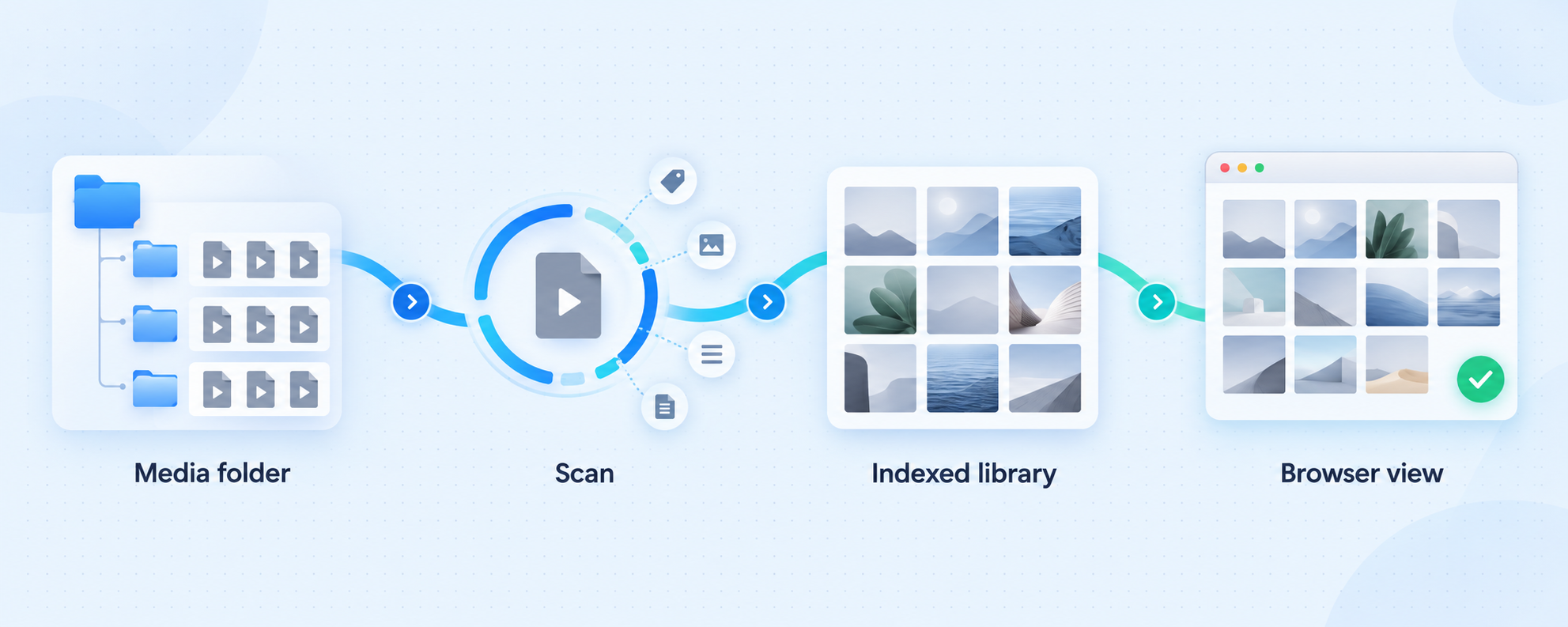
The first launch includes onboarding that asks you to select a folder and use the Generate Webpage action. Begin with the prepared test folder rather than the full collection. If that folder is on removable or network storage, make sure it remains mounted under the same path throughout the test.
Select a controlled source folder
During onboarding, choose a small folder that contains representative test media, NFO files, and artwork. Prefer fictional or non-explicit samples if the screen may be visible to other people.
Choose Generate Webpage
Use the documented Generate Webpage action. OpenAver scans the selected folder and imports compatible media records, NFO data, covers, fanart, and recognized extra artwork.
Review Scanner results
Inspect which entries were imported and which are missing NFO data, covers, or other fields. Correct source-path or naming problems before attempting a large enrichment run.
Enrich one incomplete item
Run enrichment for a single test record. Compare the proposed and resulting information with the correct title before processing additional entries.
Inspect Showcase and Insights
Confirm that covers, titles, performers, tags, studios, and other fields appear under the correct items in Showcase. Open Insights and verify that the sample records contribute to the expected charts.
OpenAver recognizes metadata from compatible standard NFO files. It can identify artwork with the same base name as the media, -poster or -fanart suffixes, conventional names such as poster, fanart, cover, or folder, paths referenced by an NFO file, and images inside an extrafanart directory. This allows collections previously prepared by other compatible tools or media servers to be imported without scraping every record again.
OpenAver can query multiple built-in JAV metadata sources, while some sources require additional verification and an optional self-hosted Metatube integration can expand provider coverage. Provider availability and returned fields can change independently of OpenAver. One source may return identity and artwork without a plot or rating, so a partially populated record does not automatically indicate an installation failure.
Configure media-center output carefully
When preparing content for Jellyfin, Emby, or Kodi, select the relevant output mode before organizing new files. OpenAver can generate NFO and artwork naming layouts for those applications, but their artwork conventions are not identical. Test one organized sample in the intended media server before applying the same rule to an entire library.
Use read-only sources for storage that must not be changed
A source can be marked read-only when videos are stored on a NAS, cloud mount, or other location that should remain untouched. For this mode, OpenAver writes generated NFO files, covers, and stills to a separate local output folder rather than modifying the source. It can also create .strm pointer files for Jellyfin, Emby, or Kodi.
Path-replacement rules address situations where OpenAver and the playback server see the same storage through different paths. Examples include a Windows UNC share, a mapped drive, or storage mounted at different locations on Windows and Linux. Verify one generated .strm file from the playback server before generating the rest.
Verify the installation locally before remote access
A successful first launch proves only that the application can start. It does not confirm persistent settings, storage availability, correct metadata associations, browser access, or authentication. Verify these layers separately so that later networking problems are not confused with application problems.
Restart the application
Close and reopen OpenAver. Confirm that it starts without rerunning the installer and retains the source and settings you configured.
Confirm every source is reachable
Check that test folders, external disks, and network shares remain available. Investigate any disconnected-library message before running another scan.
Compare records with their files
Review several Showcase entries against the corresponding NFO files and artwork. Confirm that titles, performers, tags, dates, studios, and images belong to the correct item.
Review the analytical view
Open Insights and select a year, performer, studio, or tag. Confirm that the charts narrow to the expected records and return to the full scope when the filter is removed.
Test one write operation
Enrich or organize only a disposable sample. Inspect every NFO, image, folder, and filename created or changed by the operation.
Test server mode on the LAN
Enable server mode, record the exact address displayed by OpenAver, and open it from another device on the same trusted network. Complete this test before adding Localtonet.
Do not assume a packaged-app port from an old guide or source-development example. Record the full browser address shown by OpenAver, including its scheme, host or IP address, and port. The AI API port displayed separately in Settings is not evidence of the browser service's port.
Routine scanning, organization, analysis, and updates
Scan after external library changes
Run Scanner after adding files outside OpenAver or reconnecting storage that was previously unavailable. Scanning imports compatible records already present in the source and identifies missing pieces. Enrichment then queries metadata providers for incomplete entries. Keeping these actions separate makes it easier to understand whether a problem comes from local file recognition or an online provider.
Review Search results before organizing
Search accepts a file or folder, identifies likely title codes, queries metadata providers, and presents results for review. When a folder is dragged into Search, the documented behavior reads that folder level rather than recursively scanning a whole library. Use Scanner to add a complete collection.
Before choosing Organize, verify the identifier, title, performers, artwork, metadata source, destination, and proposed naming. The Organize action can rename the item, create a folder, write NFO data, download artwork, and move associated files. Subtitle files can move with the video, and recognized VR projection tags are retained for compatible playback software.
Use scheduled organization only after manual testing
OpenAver can designate a completed-download location and run scheduled organization approximately every 12 hours, with an option to run the process immediately. Recent release behavior uses an exact single-title lookup for scheduled organization and leaves the file in place when no exact result is found. Even with that safeguard, test manual organization first and monitor the scheduled folder until the results are consistently correct.
Use Insights to spot catalog-quality problems
Insights includes collection counts, year distributions, studio charts, performer rankings, tag visualizations, performer age distributions at release, director and series rankings, studio timelines, and performer-pair analysis. Large unexplained gaps or duplicate-looking categories can reveal inconsistent aliases, dates, studios, or tags. Correct those records before relying on the charts for broader analysis.
Update cautiously
The scripted installers are intended to obtain the latest release while retaining existing settings. Before updating, stop scheduled organization, stop any Localtonet tunnel, back up custom metadata and settings, and note the current behavior of a small test set. After updating, verify startup, source connectivity, Scanner, Showcase, Search, Insights, server mode, and one disposable organization test.
Release notes can contain changes that affect network shares, enrichment success criteria, NFO fields, or organization matching. For example, the supplied v0.15.16 evidence documents fixes for libraries at a bare network-share root, cover-only enrichment, plot and rating preservation in NFO output, unexpected data types during organization, and exact matching for scheduled organization. Check the release information relevant to the version you are actually installing rather than assuming all historical behavior applies.
Enable and verify OpenAver server mode
Server mode makes the OpenAver browser interface available to another device on the same Wi-Fi or local network. The project documents password protection for this mode and recommends returning to standalone mode when network access is no longer needed.
This is the first point where the interface leaves the single-computer boundary. OpenAver may still store the library locally, but another device can request catalog pages across the LAN. If you later add Localtonet, those browser requests can travel through the Localtonet relay path to the OpenAver service.
Open Settings and select server mode
Change the documented operating mode from standalone to server mode. Keep the application open during browser testing.
Configure password protection
Set a strong, unique password before allowing broader network access. Do not reuse a password from another account or service.
Record the displayed browser address
Copy the complete address shown by OpenAver. Preserve the scheme, host or IP address, and numeric port exactly as displayed.
Test from another trusted device
Open the address from a phone, tablet, or second computer on the same network. Verify the authentication behavior and browse Scanner, Showcase, Search, and Insights as appropriate.
Return to standalone mode when finished
If persistent network access is unnecessary, switch back to standalone mode after testing. This closes the application-level network exposure rather than merely hiding the browser tab.
Verify the AI API separately
OpenAver provides a capabilities manifest for AI integrations. The project documents the request in this form:
curl http://localhost:<port>/api/capabilities
Replace <port> with the value displayed in Settings under AI API. Run this verification on the OpenAver computer first. The documentation establishes that the port is shown in Settings, but the supplied evidence does not establish that users can configure it.
The AI API is not the same as the human-facing library browser. It can expose operational capabilities intended for compatible AI tools, so do not tunnel it merely because it uses HTTP. Keep it local unless a specific integration requires remote access and you have separately evaluated its authentication, authorization, and available operations.
Expose the verified browser interface with Localtonet
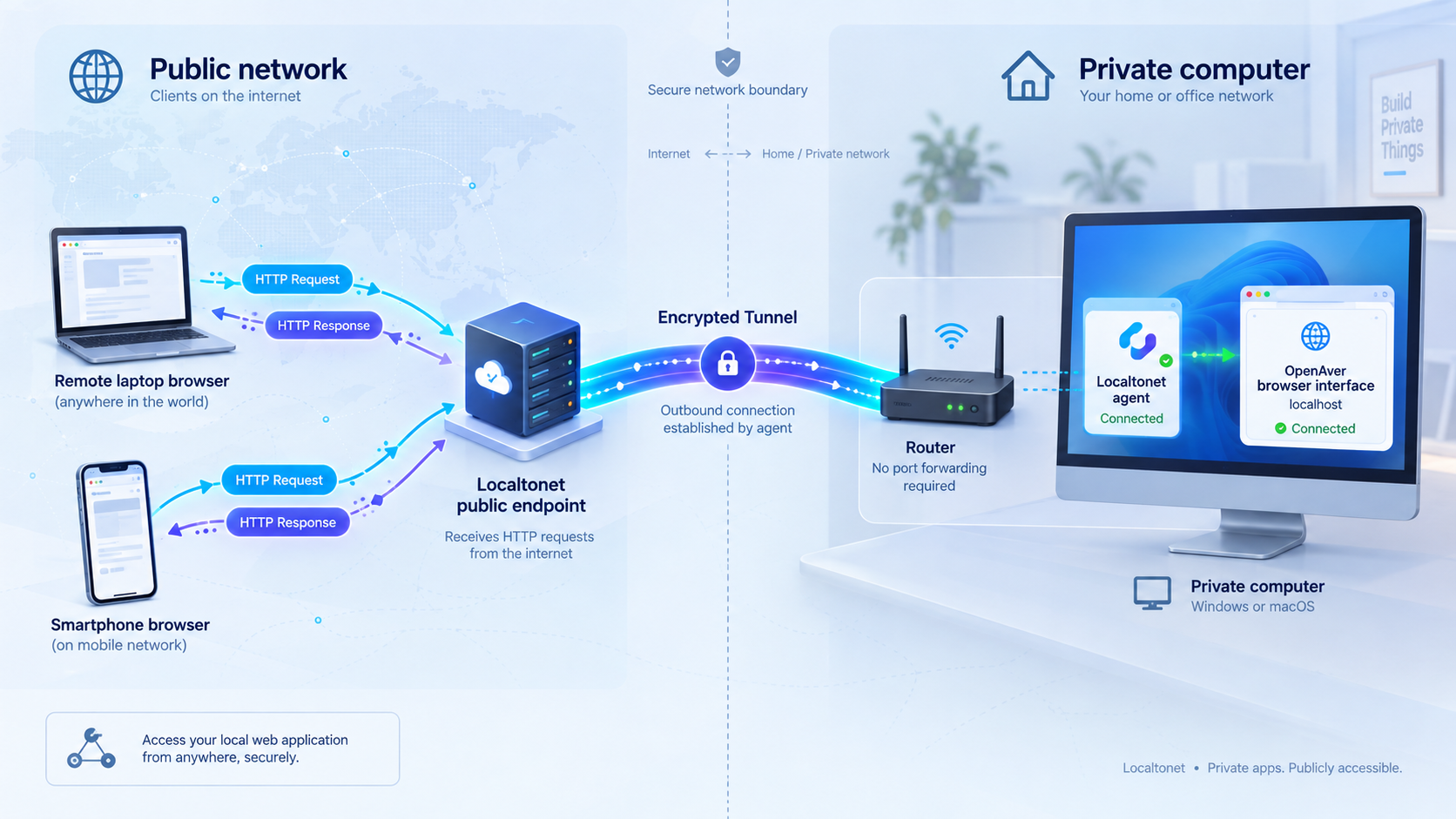
After the server-mode address works from another local device, you can create a Localtonet HTTP tunnel to that browser service. Our client establishes an outbound connection to a Localtonet relay server and provides a public URL. This avoids inbound router port forwarding, firewall changes for internet ingress, VPN setup, and the need for a public IP address.
Run the Localtonet client on the OpenAver computer when practical. If you run it elsewhere, that device must be able to reach the exact OpenAver host and port over the LAN. A tunnel forwards traffic to a target that already works. It cannot repair an unavailable share, disabled server mode, incorrect application port, or local firewall rule that blocks the client device.
Install and run the Localtonet client
Install our current client on the OpenAver host or another device that can reach the displayed OpenAver address. Keep OpenAver running in server mode during setup.
Select the correct client device
Authenticate the device with its device-specific token and select that device in the dashboard. Keep the token secret and do not include it in screenshots, commands, or support posts.
Select an available relay server
Choose a currently available server or region from the Localtonet dashboard. Do not copy a server code from an old tutorial because availability can vary.
Create the HTTP tunnel configuration
Choose an HTTP tunnel and enter the local host or IP address and port taken from OpenAver's displayed browser URL. Select the available Process Type you intend to use: Random Sub Domain, Custom Sub Domain, or Custom Domain.
Start the tunnel
Creating the configuration does not make it active. Use the Start button and confirm that the selected client and tunnel reach their connected state.
Test from an outside network
Open the assigned public HTTPS URL from a device that is not on the OpenAver LAN. Verify that the expected OpenAver authentication appears before any sensitive catalog content is available.
Stop or delete access when it is no longer needed
Stop the tunnel after the remote session. Delete it if the configuration is no longer required, and return OpenAver to standalone mode when LAN access is also unnecessary.
See our HTTP tunnel documentation when completing the current dashboard form. In particular, use the current documentation for custom-domain DNS requirements rather than assuming records from an older configuration.
A connected Localtonet tunnel means the public address can reach the configured local HTTP target. It does not create an OpenAver account, set an OpenAver password, or validate OpenAver's authorization behavior. Configure and test the application password in OpenAver before starting the tunnel.
When a remote user opens the public URL, requests travel from that device to the Localtonet relay and through the outbound client connection to OpenAver. The returned pages can include catalog titles, tags, performer information, analysis charts, and potentially explicit artwork. This traffic path is intentionally created by the tunnel and is different from OpenAver's default local-only operation.
The selected Localtonet client must be connected, the tunnel must be running, OpenAver must remain open in server mode, and the configured local host and port must remain reachable. Closing OpenAver, switching to standalone mode, changing its address, stopping the tunnel, or shutting down the client device interrupts access.
Protect a sensitive JAV metadata catalog
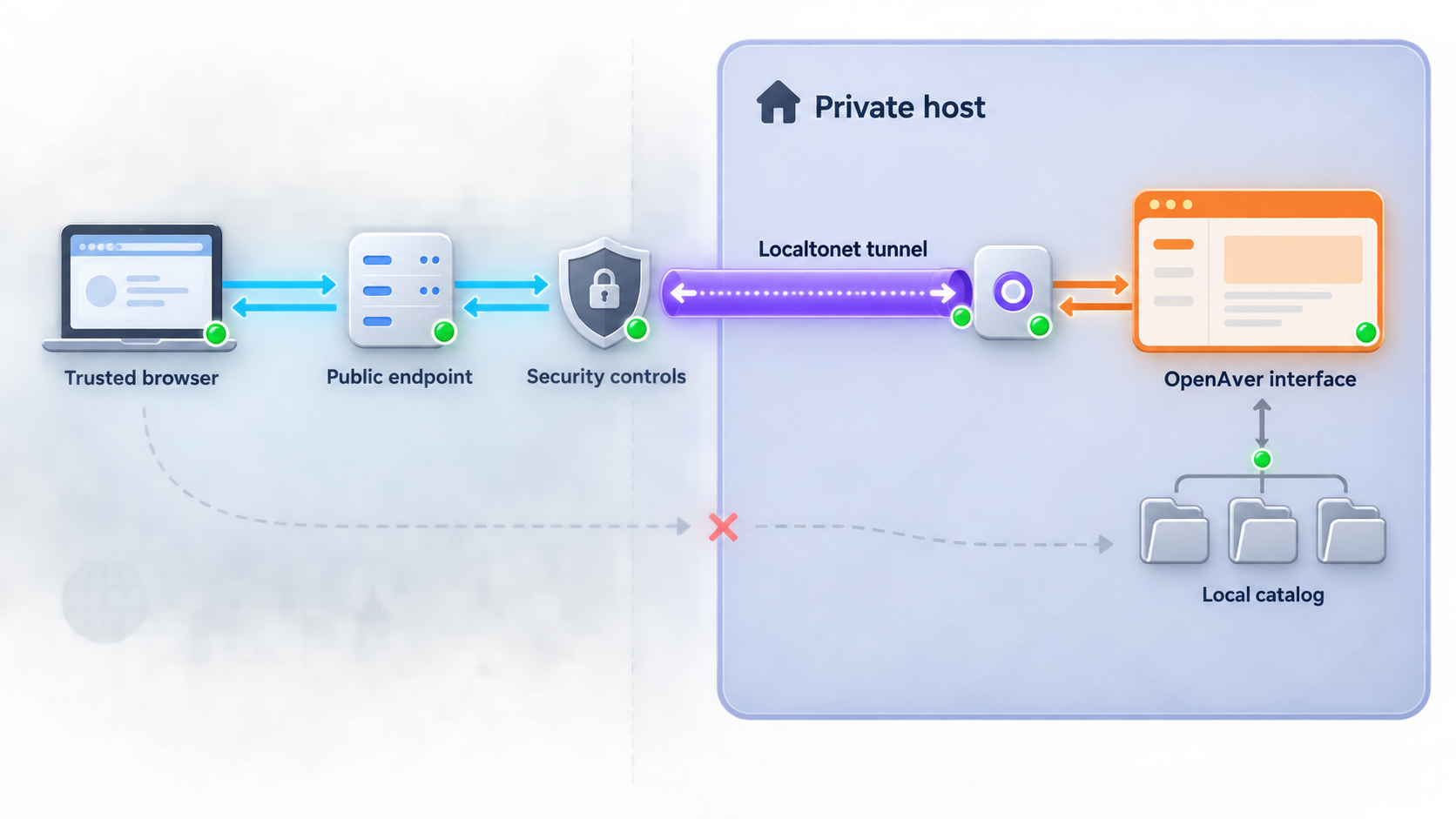
Remote access should be opt-in, limited, and easy to disable. A public URL changes the risk profile even when the application and media storage remain on your own computer. Review what the interface exposes and assume that titles, artwork, performer data, tags, filenames, collection statistics, and personal categorization may be sensitive.
Test the public URL from an unauthenticated private window and from a network outside your LAN. Existing browser cookies can hide the login flow and create the false impression that an interface is publicly open or properly protected. Verify both a rejected unauthenticated request and a successful authenticated session.
Do not share the public address more broadly than necessary. A difficult-to-guess subdomain is not authentication. If your workflow requires continuous access, periodically verify the OpenAver password behavior, review which interface is exposed, and confirm that the tunnel still targets the browser service rather than an API or obsolete port.
If catalog content appears without the expected password challenge, stop the Localtonet tunnel immediately. Correct the OpenAver configuration and retest it on the LAN in a private browser session before restoring public access.
Troubleshooting installation, scanning, server mode, and tunneling
OpenAver does not launch after installation
Confirm that the machine matches the documented packaged target. Windows must be Windows 10 or 11 on x64 hardware. macOS must use Apple silicon for the documented arm64 package. Review the installer's terminal output and check whether endpoint-security software quarantined the application. Do not apply unrelated security-bypass commands from third-party posts.
The installer command is blocked by policy
Many managed environments prohibit directly piping downloaded scripts into an interpreter. Review or download the official script according to organizational policy, or use the official Windows setup batch file where permitted. If neither route is allowed, ask the administrator to review the project rather than weakening device-wide execution controls.
A library folder is unreachable
Open the source directly under the same operating-system account running OpenAver. Reconnect external storage, remount the NAS share, and confirm that the path has not changed. On Windows, a mapped drive may be unavailable in a different login context, while a UNC path may require an authenticated session. OpenAver's status information can identify a disconnected library.
NFO files or artwork are not imported
Test one simplified folder. Place the media, compatible NFO file, and representative image together, then compare the names with the recognized patterns. Check matching base names, -poster and -fanart suffixes, conventional artwork names, NFO-referenced paths, and the extrafanart directory. This separates naming problems from parser or permission problems.
Enrichment leaves some fields empty
Metadata providers expose different fields. Some may return a title, identity data, and artwork without a plot or rating. Confirm that the correct record was matched and preserve accurate existing data. Repeatedly scraping a record from different sources can create inconsistencies even when each individual request succeeds.
Search identifies the wrong title
Do not choose Organize. Refine the identifier or select a different result and inspect the complete preview. Verify cover art, performers, studio, tags, and destination. Scheduled organization uses exact lookup behavior in the supplied current release evidence, but manual review remains important for ambiguous filenames.
Insights contains unexpected categories or gaps
Compare the affected records in Showcase and inspect their NFO metadata. Different spellings, aliases, missing dates, or inconsistent studio and tag values can split what should be a single category. Correct the underlying records, rescan as required, and then recheck the charts.
The interface works on the host but not another local device
Confirm that OpenAver is in server mode and use the exact address it displays. Ensure both devices are on the same trusted network. Guest Wi-Fi often blocks communication between clients even when both devices have internet access. Review the operating-system firewall prompt and allow the application only on the intended trusted network profile.
The Localtonet public URL cannot connect
Work through the chain in order:
- Confirm that OpenAver is running in server mode.
- Open the displayed browser URL from the device running the Localtonet client.
- Compare the tunnel's local target host and port with the current OpenAver address.
- Confirm that the intended Localtonet device is connected.
- Confirm that the tunnel was started rather than only created.
- Test the public URL from an outside network after changing one variable at a time.
If OpenAver displays a different address after an update or settings change, update the tunnel target accordingly. Do not substitute the port shown under AI API for the browser port.
The public page opens without the expected password
Stop the tunnel immediately. Return to OpenAver Settings, confirm server-mode password protection, and test again from a fresh private browser window on the LAN. Restart the tunnel only after an unauthenticated session is challenged as expected.
The AI capabilities request fails
Use the port displayed specifically under Settings, then AI API, and run the request from the OpenAver host first. Do not assume that the browser server and AI API use the same port. A failed capabilities request does not necessarily indicate a Scanner, Showcase, Search, Insights, or browser server problem.
Frequently asked questions
What kind of media is OpenAver designed to organize?
OpenAver is specifically designed to scrape and organize JAV metadata. It imports compatible NFO files and artwork, queries supported JAV metadata sources, generates media-center files, and provides visual browsing and analysis. Its catalog may contain explicit artwork and sensitive personal metadata, so remote exposure requires deliberate access controls.
Does OpenAver require Docker or a command-line workflow?
No. The documented Windows and Apple-silicon macOS installations use packaged desktop builds. A terminal command launches the installer, but normal onboarding and library operation use the graphical application. Docker is not required for these packaged routes.
Does the packaged version support Intel Macs?
The documented packaged macOS target is arm64 for Apple-silicon Macs, identified as M1 or later. The available project evidence does not establish a packaged Intel Mac build.
Why are the manual ZIP and source-development routes not included?
The available ZIP evidence says that an additional security-unblocking step is documented inside each archive, but it does not provide enough release-independent detail for a self-contained procedure. The source route also has separate development requirements. This tutorial therefore uses the packaged scripted installers whose behavior is documented.
Will scanning rename, move, or delete existing videos?
OpenAver states that scanning reads the source without changing it. Enrichment can add metadata and artwork. Renaming and moving happen when the user explicitly chooses Organize according to the configured rules. OpenAver states that it does not delete the video as part of that workflow.
What are the four main OpenAver pages?
Scanner imports existing collections and identifies missing data. Showcase provides visual browsing. Search finds metadata for new items and provides the Organize action. Insights analyzes the collection through interactive charts and filtered views.
What port does OpenAver use?
Use the browser address displayed by the running application for server mode. The AI API has a port displayed separately in Settings under AI API. Do not assume those ports are identical, and do not treat the displayed AI API port as configurable unless current project documentation explicitly confirms that behavior.
Does OpenAver remain local when I use Localtonet?
The application and library remain on your computer, but remote browser requests and returned catalog pages travel through the tunnel path when you enable Localtonet access. That can include titles, tags, performer details, charts, and explicit artwork. Remote access is therefore different from OpenAver's default local-only operation.
Should I expose the OpenAver browser or the AI API?
For remote library browsing, target the browser address displayed in server mode. The AI API is a separate operational interface intended for compatible integrations. Keep it local unless you have a reviewed requirement and have evaluated its authentication and available operations.
Do I need router port forwarding for Localtonet access?
No. Our client creates an outbound connection to a Localtonet relay server and forwards the assigned public URL to the configured local HTTP target. You do not need inbound router port forwarding or a public IP address.
Does creating a Localtonet tunnel start it automatically?
No. Creating the configuration does not start it. The selected client must be connected and you must use the Start button. The public URL works only while the tunnel is running and the local OpenAver target remains reachable.
Connect a verified OpenAver browser with Localtonet
Install OpenAver, validate a controlled test library, review Showcase and Insights, enable password-protected server mode, and confirm the displayed browser address on your LAN. You can then create a Localtonet HTTP tunnel to that exact host and port, test authentication from an outside network, and stop the tunnel whenever remote access is no longer required.
Get Started Free →

