

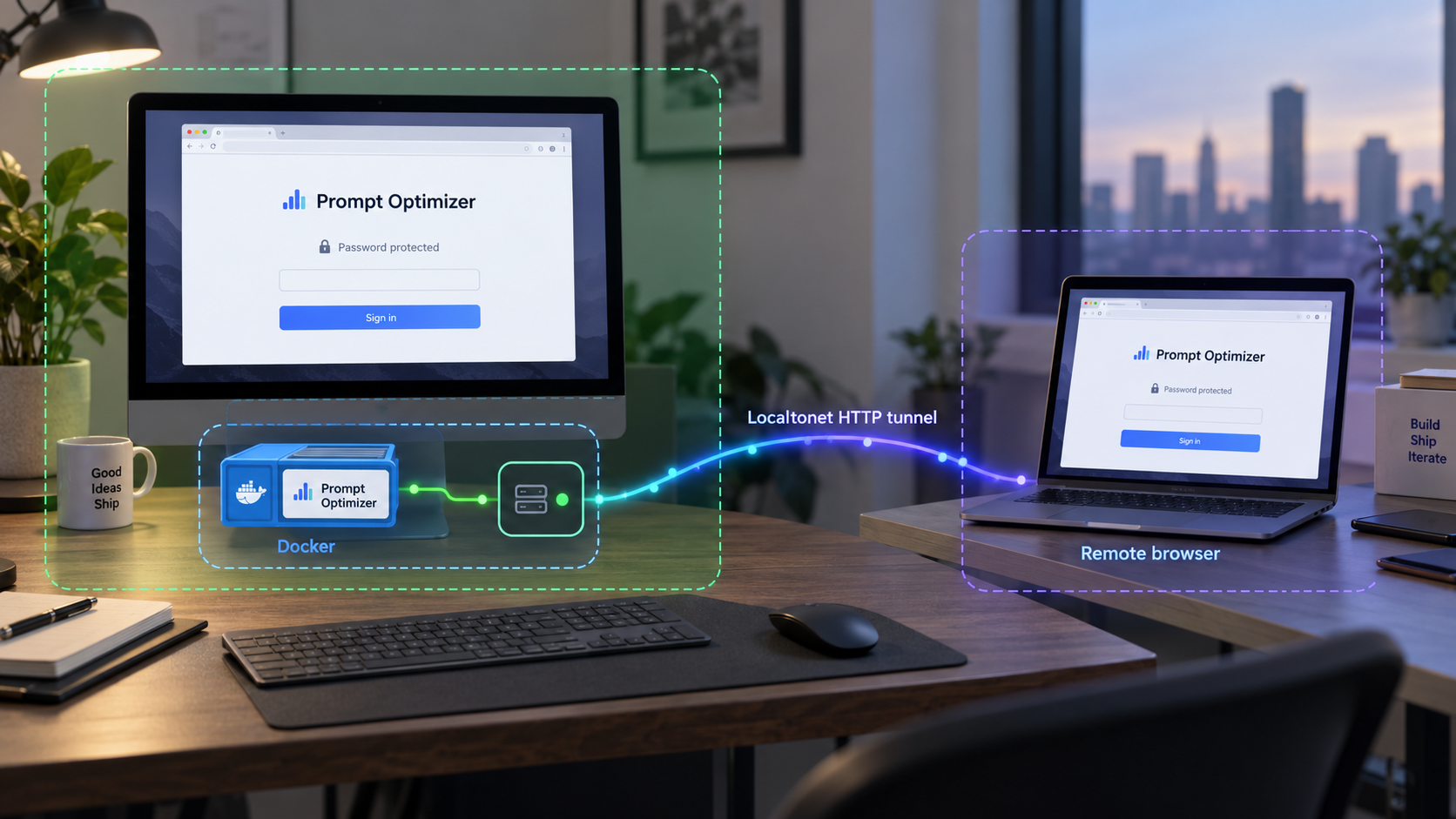
Run a private prompt optimization workspace at home and reach it securely when you are away
Prompt Optimizer is a browser-based application for improving, testing, evaluating, and organizing AI prompts. In this guide, we deploy its published Docker image, protect the web interface with a password, confirm that it works locally, and cover the first application configuration. Once the local service is healthy, we connect it to a Localtonet HTTP tunnel so it can be reached without inbound router port forwarding, firewall changes, a public IP address, or VPN setup. We also explain safe operation, updates, backups, and troubleshooting for this exact workflow.
📋 What's in this guide
How the self-hosted setup works
Prompt Optimizer helps turn an initial prompt into a more structured and reusable prompt. Its documented capabilities include system-prompt and user-prompt optimization, iterative improvement, analysis, evaluation, comparison, multi-turn testing, context variables, prompt favorites, and integrations with multiple AI model providers. It also supports text-to-image, image-to-image, and multi-image workflows when a compatible model is configured.
The project offers web, desktop, Chrome extension, and Docker deployment options. This article focuses specifically on Docker because it is a practical installation path for a home server, lab machine, small office server, or always-on development computer. Docker packages the application and its web server into a container, reducing the number of host-level dependencies that must be installed manually.
The documented Docker mapping publishes the container's web port 80 on host port 8081. After deployment, a browser on the Docker host can therefore open http://localhost:8081. A device elsewhere on the same trusted LAN can generally use the Docker host's LAN address with port 8081, provided the host firewall and network policy permit that connection.
linshen/prompt-optimizer image contains the web application. Docker starts it independently of the host's interactive shell.
8081:80 connects host port 8081 to the container's web port 80, producing the local URL http://localhost:8081.
ACCESS_PASSWORD container environment variable.
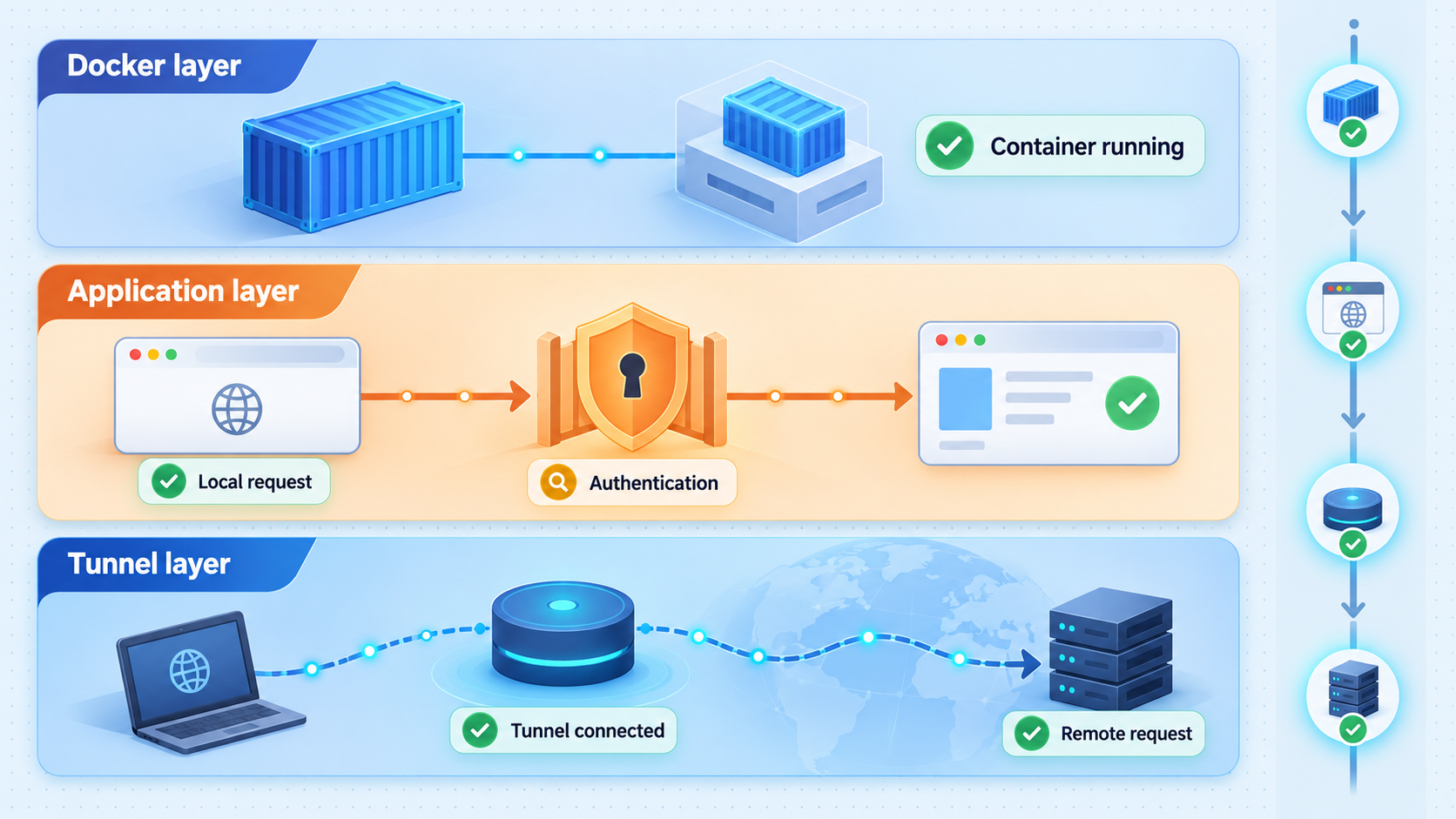
These layers should be tested separately. First confirm that Docker is running. Next confirm that Prompt Optimizer opens locally and requests its access password. Then configure a model and perform a basic application test. Only after those checks should you create the HTTP tunnel. This sequence prevents a local container problem from being mistaken for a tunneling problem.
Localtonet publishes an existing service. It does not install Prompt Optimizer, configure an AI provider, or repair an unhealthy container. Keep the service private while installing it, verify the local URL, and add remote access as a distinct final step.
Prerequisites and deployment decisions
Use a server on which you are authorized to run both Docker containers and the Localtonet client. The machine must remain powered on whenever you expect Prompt Optimizer to be available. It also needs outbound internet connectivity for Docker image retrieval, configured AI-provider requests, and the Localtonet client connection.
Required components
- A host with a working Docker installation and permission to run Docker commands.
- Host port
8081available, unless you intentionally choose another host port. - A modern browser for opening the Prompt Optimizer web interface.
- A strong, unique password for the Prompt Optimizer access-control setting.
- Credentials for an AI model provider supported by the application if you want to run optimization or evaluation tasks.
- The Localtonet client installed on the same host, or on another authorized device that can reach the host's local address and port.
- A device-specific Localtonet authentication token obtained from your account. Never copy a token into public documentation, screenshots, shell transcripts, or support posts.
Confirm that Docker is available
This guide does not assume a particular Linux distribution, Docker Desktop edition, package manager, or operating system. Docker installation commands differ across platforms and change over time. Install Docker using the maintained instructions for your host, then confirm that its client can communicate with the Docker engine:
docker versionA usable installation should report client and server information. If only client information appears, or the command reports that it cannot connect to the daemon, resolve that Docker issue before deploying the application. On systems where Docker access is restricted, use the account and privilege model approved by the server administrator rather than broadly weakening the Docker socket permissions.
Check whether port 8081 is already occupied
Starting the container will fail if another process has already bound the chosen host port. Docker usually reports this as a port allocation or address-in-use error. Existing containers and their published ports can be reviewed with:
docker ps
If port 8081 is occupied, either stop the conflicting service or select another unused host port. For example, changing the mapping from 8081:80 to 8082:80 would make the local URL http://localhost:8082. If you make that change, use the same selected port consistently in local verification and the Localtonet tunnel target.
Users who can inspect or control Docker may be able to inspect container configuration, including environment variables. Keep Docker administration restricted to trusted accounts. The application password protects browser access, but it is not a substitute for host security, operating-system updates, or careful credential management.
Install Prompt Optimizer with Docker and enable password protection
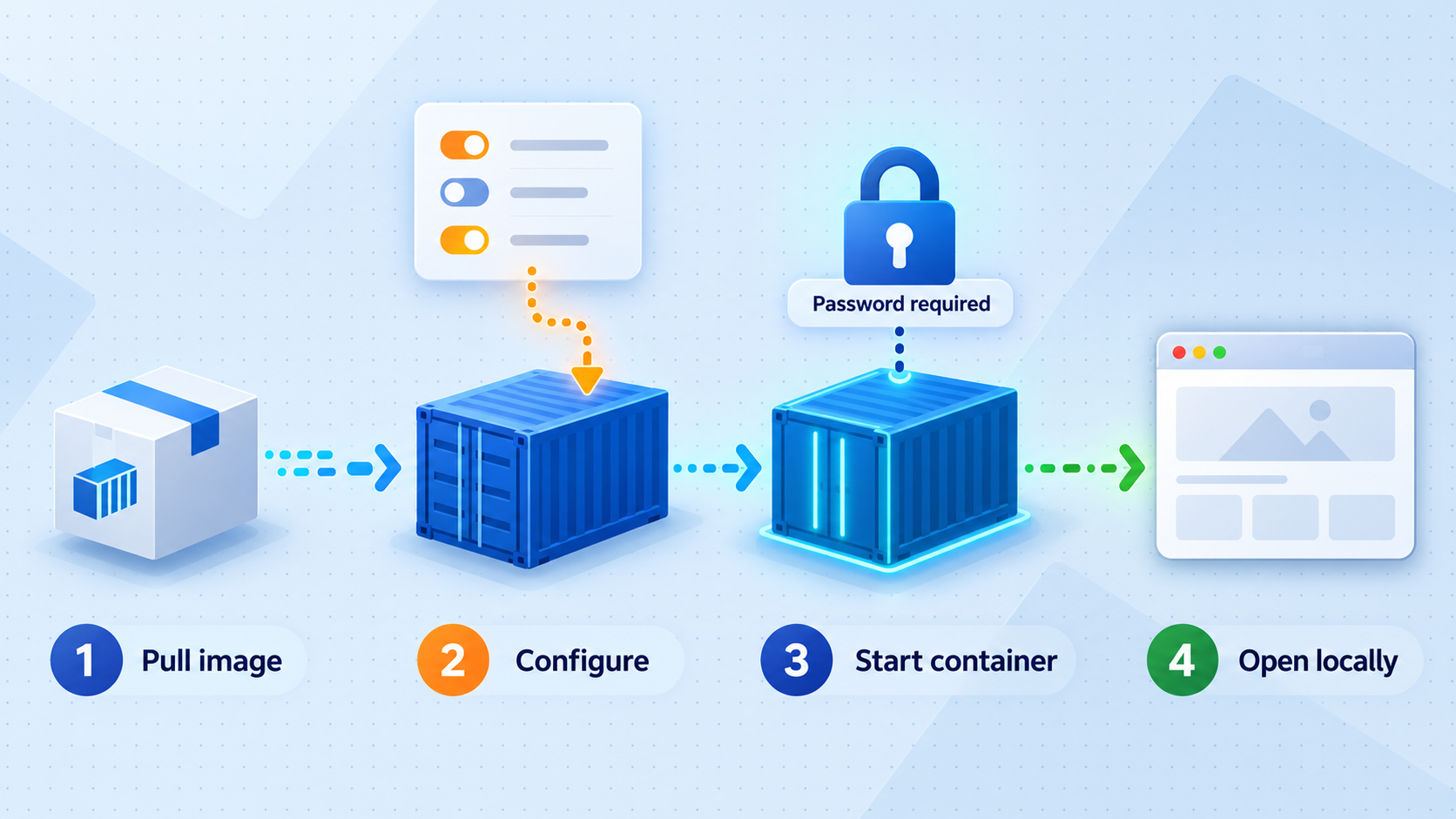
The deployment uses the project's published linshen/prompt-optimizer image. The command below creates a container named prompt-optimizer, publishes host port 8081 to container port 80, sets the documented access password, and applies Docker's unless-stopped restart policy.
Replace the example password before running the command. Use a long, unique value that is not reused for an AI provider, email account, server login, or Localtonet account.
Choose a strong access password
Generate a unique password with sufficient length and randomness. Do not use the literal placeholder shown below, and do not commit the completed command to a repository or paste it into a public issue.
Pull the published image
Download the current image available under the documented image name. Pulling explicitly makes image-download failures easier to distinguish from container-startup failures.
docker pull linshen/prompt-optimizerCreate the password-protected container
Run the web application with the documented port mapping and access-control environment variable. Replace REPLACE_WITH_A_STRONG_UNIQUE_PASSWORD before execution.
docker run -d \
  -p 8081:80 \
  -e ACCESS_PASSWORD=REPLACE_WITH_A_STRONG_UNIQUE_PASSWORD \
  --restart unless-stopped \
  --name prompt-optimizer \
linshen/prompt-optimizerConfirm that the container remains running
List the container and inspect its recent output. A container that immediately exits must be repaired before browser or tunnel testing.
docker ps --filter name=prompt-optimizer
docker logs --tail 100 prompt-optimizerOpen the local web interface
On the Docker host, visit http://localhost:8081. Confirm that the application requests the access password and accepts the value supplied through ACCESS_PASSWORD.
The direct Docker command is easy to understand, but a literal password typed into a command may be retained by shell history or administrative tooling. On a shared or managed server, use an administrator-approved secret-handling process and restrict access to the resulting Docker configuration. Do not assume that hiding the password from browser users also hides it from privileged host administrators.
If Docker reports that the container name already exists, do not keep retrying with the same name. First inspect the existing container:
docker ps -a --filter name=prompt-optimizerIt may be an earlier deployment that only needs to be started, or it may need to be replaced during an intentional update. Inspect its status and logs before deleting anything. Removing a container is destructive to data stored only in that container's writable layer, so never use a removal command casually on an unidentified deployment.
Complete the first Prompt Optimizer configuration
Opening the interface confirms that the web layer works, but Prompt Optimizer still needs a usable model configuration before it can optimize or evaluate prompts. The project's first-run guidance directs users to connect a working text model in Model Manager and then follow the first-time tutorial.
Configure a supported model
Open Model Manager in the application and select the provider and model you are authorized to use. Prompt Optimizer supports multiple providers, including OpenAI, Gemini, DeepSeek, Grok, Zhipu AI, SiliconFlow, and MiniMax. Actual model availability, endpoint requirements, credentials, costs, quotas, and regional restrictions belong to the selected provider and can change independently of Prompt Optimizer.
Enter provider credentials only into the intended application settings. Do not place an AI-provider key in the Localtonet tunnel configuration, Docker image name, public URL, screenshots, or browser bookmarks. The project's web architecture stores application data in the browser, and requests go directly to the configured model provider. As a result, each browser profile or remote device may have its own application state rather than automatically sharing every setting from the browser used during installation.
A successful login from another computer gives that browser access to the application, but it does not guarantee that the new browser already contains the model configuration, favorites, or other browser-stored data created elsewhere. Plan exports and imports according to the application's available backup features, and handle any exported material as potentially sensitive.
Run a simple functional test
Start with a non-sensitive prompt. Select the configured text model, enter a short prompt, and run an optimization. Confirm that the application returns a result rather than only loading the interface. A successful result verifies several different dependencies at once:
- The browser can load and execute the Prompt Optimizer web application.
- The configured model is enabled and selectable.
- The provider credentials and endpoint settings are accepted.
- The browser can reach the provider over the network.
- The provider account has the necessary model access and usable quota.
Keep the first test deliberately simple. If a complex image workflow fails, it can be difficult to tell whether the cause is image preparation, model compatibility, request size, model selection, or general connectivity. Establish text optimization first, then enable more specialized features.
Understand model selection before advanced evaluation
In release v2.11.11, model selection for prompt analysis, result evaluation, and variable generation follows a documented priority. An explicitly selected evaluation model has priority. If none is selected, the application can use the global optimization model, then the caller's fallback model, and then the first enabled model. Clearing the evaluation-model setting restores automatic selection.
Deleted or disabled models should not be used for new evaluations. If an advanced workflow reports that no suitable model is available, check the enabled model list and the function-model configuration before blaming the Docker container or Localtonet tunnel. Image recognition is more specific: it requires an explicitly configured and enabled model.
Verify the deployment before making it remotely reachable
Verification should move outward one layer at a time. This produces clearer evidence when something fails and avoids exposing an installation that has not yet been secured.
| Test layer | What to test | Expected result | If it fails |
|---|---|---|---|
| Docker engine | Run docker version |
Client and server information are available | Start or repair Docker and verify account permissions |
| Container process | Run docker ps --filter name=prompt-optimizer |
The container is listed as running | Inspect docker logs and the container's exit status |
| Local web interface | Open http://localhost:8081 |
The password-protected application loads | Check the port mapping, logs, browser, and local firewall |
| Application function | Optimize a non-sensitive test prompt | The configured provider returns a usable response | Check model selection, credentials, quota, and provider connectivity |
| LAN access, if needed | Open the server's LAN address and port from an authorized device | The same password-protected interface appears | Check the server address, host firewall, and network isolation |
| Remote tunnel | Open the assigned Localtonet HTTPS address | The application loads and still requires its password | Check the client, tunnel state, target address, target port, and local service |
Inspect the published Docker port
The following command shows the host port associated with the container's port 80:
docker port prompt-optimizer 80
Compare the output with the intended deployment. If you used -p 8081:80, the container should expose its web service through host port 8081. If you selected a different host port, that different value becomes the Localtonet target port.
Verify that password protection is actually active
Use a private browsing window or a separate browser profile to open the local URL. This reduces the chance that an existing authenticated session hides a configuration mistake. Confirm that an unauthenticated visitor cannot immediately use the interface and that the selected password grants access.
Do not create the public tunnel if the password prompt is absent when you expected it. Inspect how the container was created and verify that the environment-variable name is exactly ACCESS_PASSWORD. Docker does not retroactively apply a changed docker run command to an existing container. Reconfiguration generally requires intentionally replacing the old container with a new one created from the corrected settings.
Use non-sensitive prompts and redact account identifiers, keys, custom endpoints, and private model responses from screenshots or support logs. Password protection controls entry to the application, but anyone who gains authorized browser access may be able to interact with configuration or consume provider resources available in that browser.
Publish Prompt Optimizer through a Localtonet HTTP tunnel
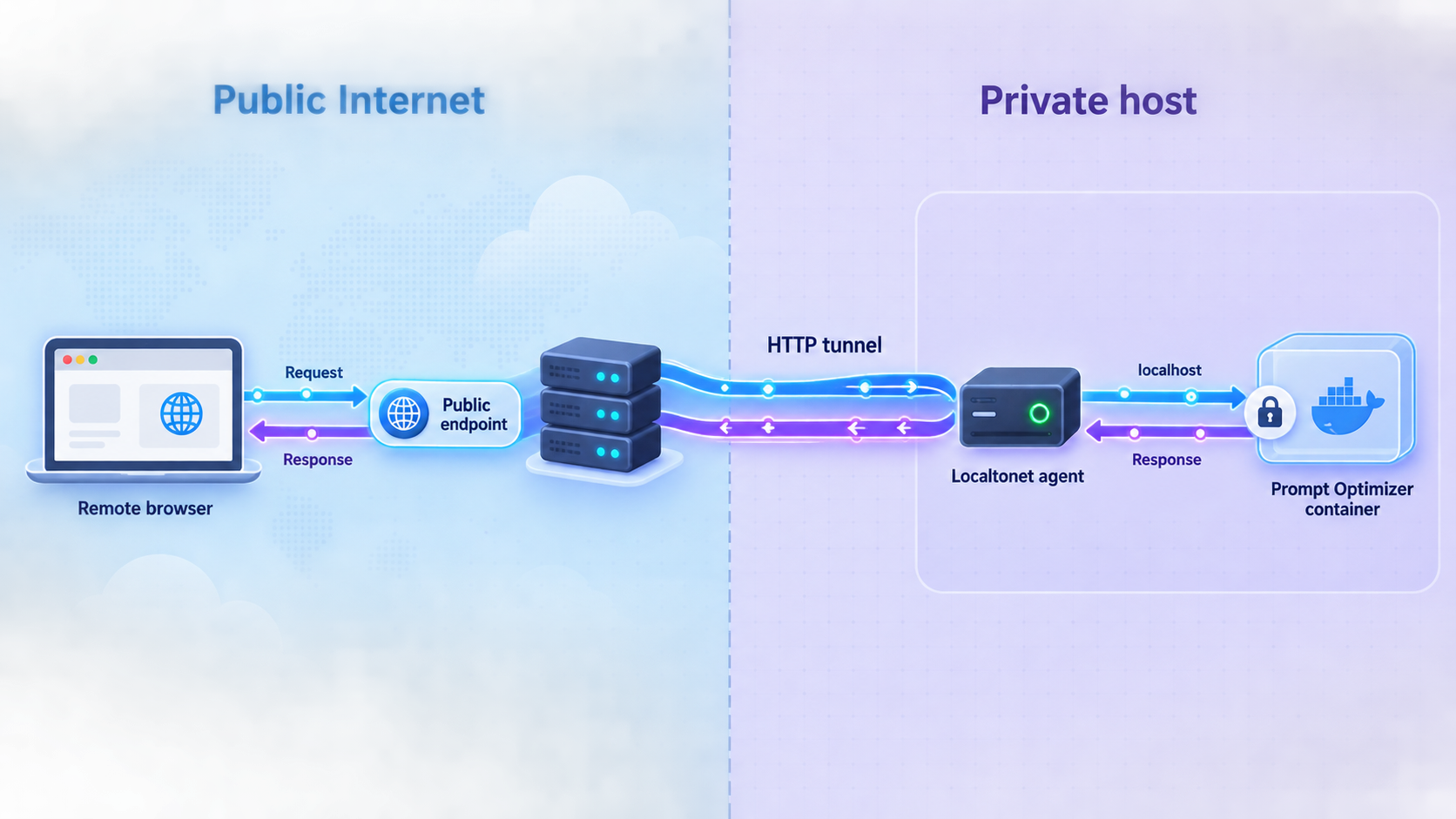
Once http://localhost:8081 is healthy, we can publish it through an HTTP tunnel. The Localtonet client establishes an outbound connection to our relay server, so this workflow does not require inbound router port forwarding, firewall changes, a public IP address, or VPN setup. The result is a public HTTPS address that forwards requests to the selected local IP address and port.
Run the Localtonet client on the Docker host when possible. In that arrangement, the tunnel target can be 127.0.0.1 with port 8081. If the client runs on another authorized device, that device must be able to reach the Docker host through an appropriate LAN address. Do not use 127.0.0.1 from a different machine because loopback always refers to the machine on which the client itself is running.
Install and run the Localtonet client
Install our client on the Docker host or on another authorized device that can reach Prompt Optimizer. Keep the client running for as long as remote access is required.
Authenticate the intended device
Use the device-specific authentication token supplied through your Localtonet account. Treat the token as a secret and never place it in this article's Docker commands, Prompt Optimizer settings, or a public repository.
Select an available relay server
Choose an available server or region from the current dashboard. Available values can vary, so obtain them from the product instead of copying a hardcoded server code from an old tutorial.
Create an HTTP tunnel to the local service
Select an HTTP tunnel and point its local target to 127.0.0.1 and port 8081 when the client runs on the Docker host. If the client is on another machine, use the Docker host's reachable private address and the actual published host port.
Select the HTTP process type
HTTP tunnels can use Random Sub Domain, Custom Sub Domain, or Custom Domain process types. They serve the target at a public HTTPS address. Availability can vary by current plan or product configuration. Check the dashboard before relying on a particular option, and consult current documentation before changing DNS for a custom domain.
Start the tunnel
Creating the tunnel is not the same as running it. Press Start, wait for the tunnel to become active, and copy the assigned public address from the dashboard.
Test from an external network
Open the assigned HTTPS address from a browser that is not relying on the server's LAN path. Confirm that Prompt Optimizer loads, requests its application password, and can complete a non-sensitive test operation.
The tunnel remains available only while the selected client or device is connected and the tunnel is running. If the host sleeps, Docker stops, the Localtonet client exits, or the tunnel is stopped, the public address cannot reach the application. This is expected lifecycle behavior rather than evidence that router forwarding is required.
For current dashboard details, review our Localtonet documentation. Stop or delete the tunnel when remote access is no longer needed. Stopping preserves the configuration for later use, while deletion removes the tunnel configuration.
Keep Prompt Optimizer's password protection enabled, use a unique password, and share the address only with intended users. Do not interpret the absence of router port forwarding as permission to ignore authentication, provider-account security, least privilege, or organizational network policy.
Routine operation, updates, and backup planning
Start, stop, restart, and inspect the container
Docker provides standard lifecycle commands for the named container:
docker stop prompt-optimizer
docker start prompt-optimizer
docker restart prompt-optimizer
docker logs --tail 100 prompt-optimizer
Stopping Prompt Optimizer while leaving the Localtonet tunnel active does not produce a usable application. The tunnel may remain configured, but its local target is unavailable. For planned maintenance, stop the tunnel as well if you do not want remote users reaching an error response.
The unless-stopped restart policy asks Docker to restart the container after Docker or the host restarts unless an administrator deliberately stopped it. It does not guarantee that Docker itself starts at boot, that the application passes every health check, or that the Localtonet client and tunnel are running. Verify the complete path after server maintenance.
Update the container deliberately
Release v2.11.11 includes model-selection, evaluation, backup-and-restore, image preparation, and interface reliability fixes. Its release notes state that no manual user-data migration is required for that release and that existing custom models and parameter settings are preserved. Those statements apply to that documented release transition and should not be assumed for every future upgrade.
A Docker deployment does not update merely because a newer image exists. A cautious update sequence is:
- Review the release notes and any upgrade instructions for the intended version.
- Use the application's available export or backup capability for important browser-held data.
- Record the current container configuration without exposing its password publicly.
- Pull the updated image.
- Stop and replace the old container using the same intended port, password setting, name, and restart policy.
- Verify local access, authentication, model configuration, and a test optimization.
- Verify the Localtonet path only after local checks pass.
docker pull linshen/prompt-optimizer
docker stop prompt-optimizer
Do not remove the old container until you understand your backup and rollback position. The supplied evidence establishes the published image and browser-oriented storage behavior, but it does not establish a universal persistence policy for every future image or deployment customization. Preserve important prompt assets through the application's supported export and import workflows rather than assuming that recreating a container can never affect them.
Back up browser-held assets
Prompt Optimizer supports exporting and importing favorites with referenced resources. Version v2.11.11 also includes persisted evaluation, image-recognition, and other known interface settings in backup and restore. Use those capabilities before browser resets, profile migrations, device replacements, and upgrades.
Protect exported files. They may contain prompts, examples, model-related configuration, media references, or business context. Store them according to the sensitivity of the underlying material, and do not upload them to a public issue when asking for troubleshooting help.
Review access periodically
- Stop the Localtonet tunnel when remote access is not required.
- Change the Prompt Optimizer password if it was shared improperly or appears in shell history.
- Rotate model-provider credentials according to the provider's security process.
- Remove disabled or obsolete model configurations from active use.
- Apply host, Docker, browser, Prompt Optimizer, and Localtonet client updates through controlled maintenance.
- Confirm that the tunnel still points to the intended local address and port after network changes.
Troubleshooting the Docker, application, and tunnel layers
The container exits immediately
Inspect all containers and then read the container log:
docker ps -a --filter name=prompt-optimizer
docker logs --tail 200 prompt-optimizer
Look for an image-download problem, invalid Docker syntax, a port collision, or an application startup error. If the container does not exist, review the output from the original docker run command. Do not troubleshoot the public URL until the container remains running.
Docker says the name is already in use
A stopped container can retain its name. Run docker ps -a and determine whether the existing object is the desired deployment. Start it if appropriate, or replace it only as part of a planned update or reconfiguration. Choosing random new names on each attempt can leave several confusing containers behind.
Port 8081 is already allocated
Another container or host process is using the port. Stop the conflicting service if it is unnecessary, or recreate Prompt Optimizer with a different host-side mapping such as 8082:80. The container-side port remains 80. If you choose 8082, open http://localhost:8082 and configure Localtonet to target port 8082.
The browser cannot open localhost:8081
Confirm that the browser is running on the Docker host. From another machine, localhost refers to that other machine, not the server. Use the server's authorized LAN address for a LAN test. Also verify the container status, published port, local firewall, and recent logs.
The application opens but does not ask for a password
Confirm that the container was created with the exact ACCESS_PASSWORD environment-variable name and a non-empty value. Restarting an old container does not apply options from a new command. Replace the container intentionally using the correct setting, then test with a private browser window before starting the public tunnel.
The interface works but optimization fails
This usually moves the investigation from Docker to application or provider configuration. Check that at least one working text model is configured and enabled. Verify the provider credential, model name, account access, quota, endpoint settings, and browser connectivity. For evaluation features, review the explicit evaluation model and the fallback order. For image recognition, select an enabled image-recognition model explicitly.
The public URL does not load
Reconfirm the local URL first. Then verify that the Localtonet client is connected, the correct device token is in use, the selected relay server remains available, and the tunnel has been started. Check that its target address and port match the working local service.
When the client and Docker run on the same host, use 127.0.0.1:8081 unless you deliberately chose another host port. When they run on different machines, use an address the client machine can actually reach. Test that LAN path from the client machine before expecting the tunnel to work.
The URL works on the LAN but not from outside
A successful LAN test proves only the local network path. Confirm that you are opening the assigned Localtonet address, not a private address such as 192.168.x.x or 10.x.x.x. Verify that the tunnel is running and the Localtonet client has outbound connectivity. Inbound router forwarding is not required for the Localtonet workflow.
The tunnel worked before a reboot but is now unavailable
Check each lifecycle independently: the Docker engine, the Prompt Optimizer container, the Localtonet client, and the tunnel. The Docker restart policy does not by itself start the Localtonet client or press Start on a stopped tunnel. The selected device must be connected and the tunnel must be running.
Frequently asked questions
What local URL does the documented Docker deployment use?
With the documented -p 8081:80 mapping, open http://localhost:8081 on the Docker host. Port 8081 is the host port, while port 80 is the web port inside the container. If you choose another host port, use that port in both the browser URL and Localtonet target.
How do I enable password protection for Prompt Optimizer?
Set the documented ACCESS_PASSWORD environment variable when creating the Docker container. Use a strong and unique value, restrict Docker administration, and confirm the password prompt in a private browser window before creating a public tunnel.
Does Localtonet remove the need for Prompt Optimizer authentication?
No. The HTTP tunnel makes the local service reachable at a public address. Keep Prompt Optimizer's own password protection enabled and follow least-privilege practices. A tunnel is connectivity, not a replacement for application authorization.
Do I need router port forwarding or a public IP address?
No. Our client establishes an outbound connection to a Localtonet relay server. This allows the HTTP service to be published without inbound router port forwarding, firewall changes, VPN setup, or a public IP address.
Should the Localtonet client run on the Docker host?
Running both on the same host is usually the simplest arrangement because the tunnel can target 127.0.0.1:8081. A different client device can also be used if it is authorized and can reach the Docker host's local address and published port.
Where are Prompt Optimizer settings and prompt assets stored?
The web application stores its application data in the browser, and model requests go directly to the configured provider. Different browsers or profiles may therefore have separate state. Use the application's supported backup, export, and import capabilities for important favorites, resources, and settings.
Can I use a custom domain for the tunnel?
HTTP tunnels support Random Sub Domain, Custom Sub Domain, and Custom Domain process types. Current availability can vary by plan or configuration. Check the current dashboard and documentation before choosing an option or making DNS changes, because exact DNS requirements should not be copied from an outdated guide.
Why does the public address stop working when the server sleeps?
The complete path depends on the Prompt Optimizer container, the Localtonet client, and the tunnel. The tunnel is available only while the selected client is connected and the tunnel is running. A sleeping or powered-off server cannot serve the local application.
Access your Prompt Optimizer deployment with Localtonet
Verify the password-protected Docker service at http://localhost:8081, then create an HTTP tunnel to reach it remotely without configuring inbound router port forwarding.


